
How to Turn a Photo Into a Cartoon With AI Easily
Turn your photos into cartoon-style visuals with AI. Transform portraits, selfies, and other images into cartoon avatars, anime-inspired characters, or custom illustrations using simple prompts.

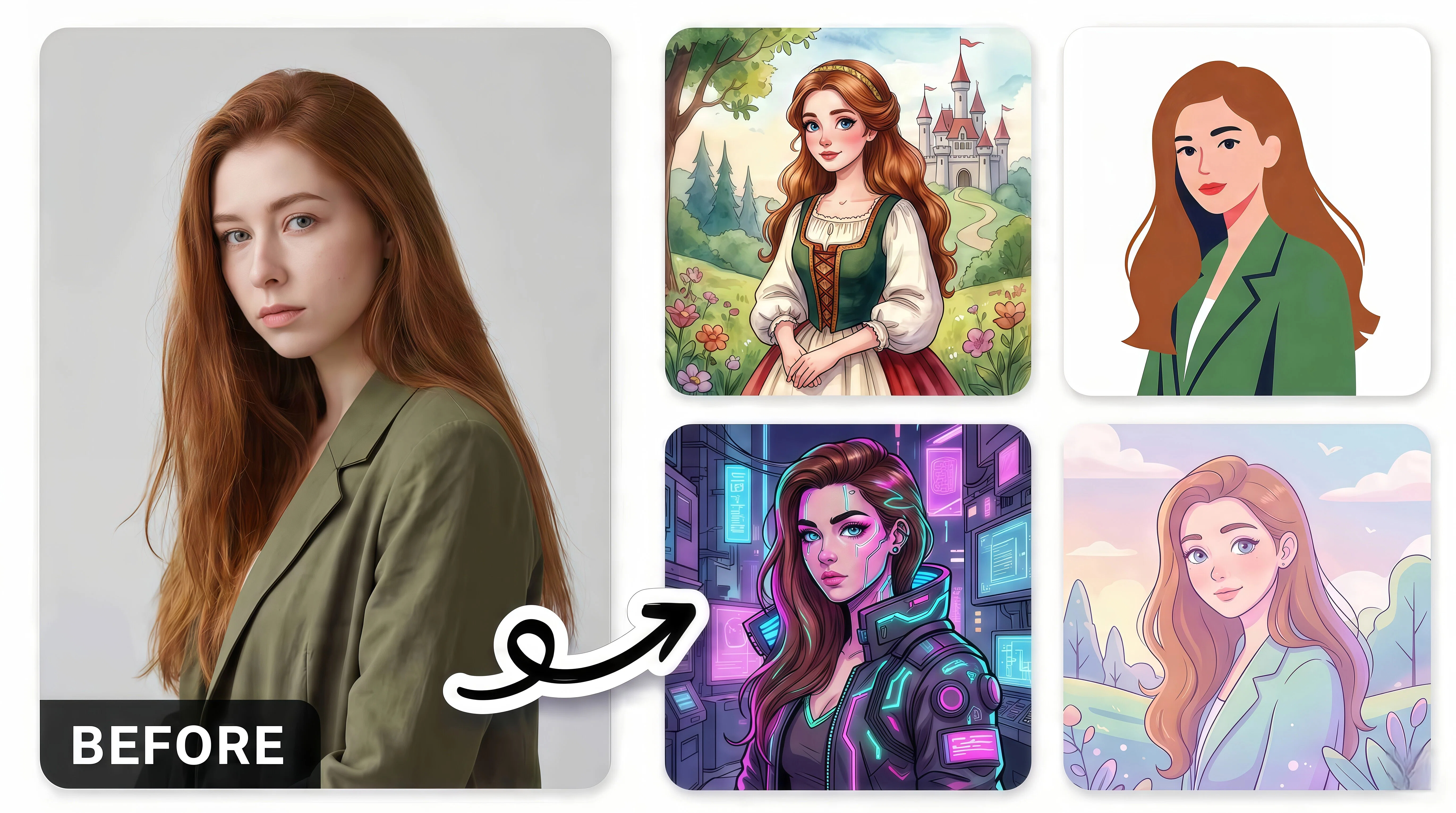
Turning a regular photo into a cartoon can give it a completely different look and make it more engaging for social media, avatars, gifts, or creative projects. With AI photo-to-cartoon tools, you can transform portraits, selfies, pet photos, and other images without drawing skills or complex editing software.
In this guide, you'll learn how to turn a photo into a cartoon, choose the right style, write a stronger prompt, and refine the result until it looks like the person, pet, or object in the original photo. Suggested Key Takeaway 5: Use a specific prompt (style + details to keep + background) and generate more than one version before you download.
Key Takeaways
-
Use a clear, well-lit photo with recognizable details for better cartoon results
-
Choose a cartoon style that matches your goal, such as anime, 3D, comic, or illustration
-
Give specific instructions about style, details, and background when using photo-to-cartoon AI
-
Review and refine generated images instead of relying only on the first result
-
AI helps transform photos into cartoon-style visuals and refine them with additional AI editing tools
What Is a Photo to Cartoon Generator?
A photo to cartoon generator uses AI to transform an existing photo into a stylized cartoon or illustration. Instead of manually redrawing an image, a photo to cartoon AI tool analyzes the subject, facial features, colors, and overall composition, then applies a cartoon-style transformation while keeping the main details recognizable.
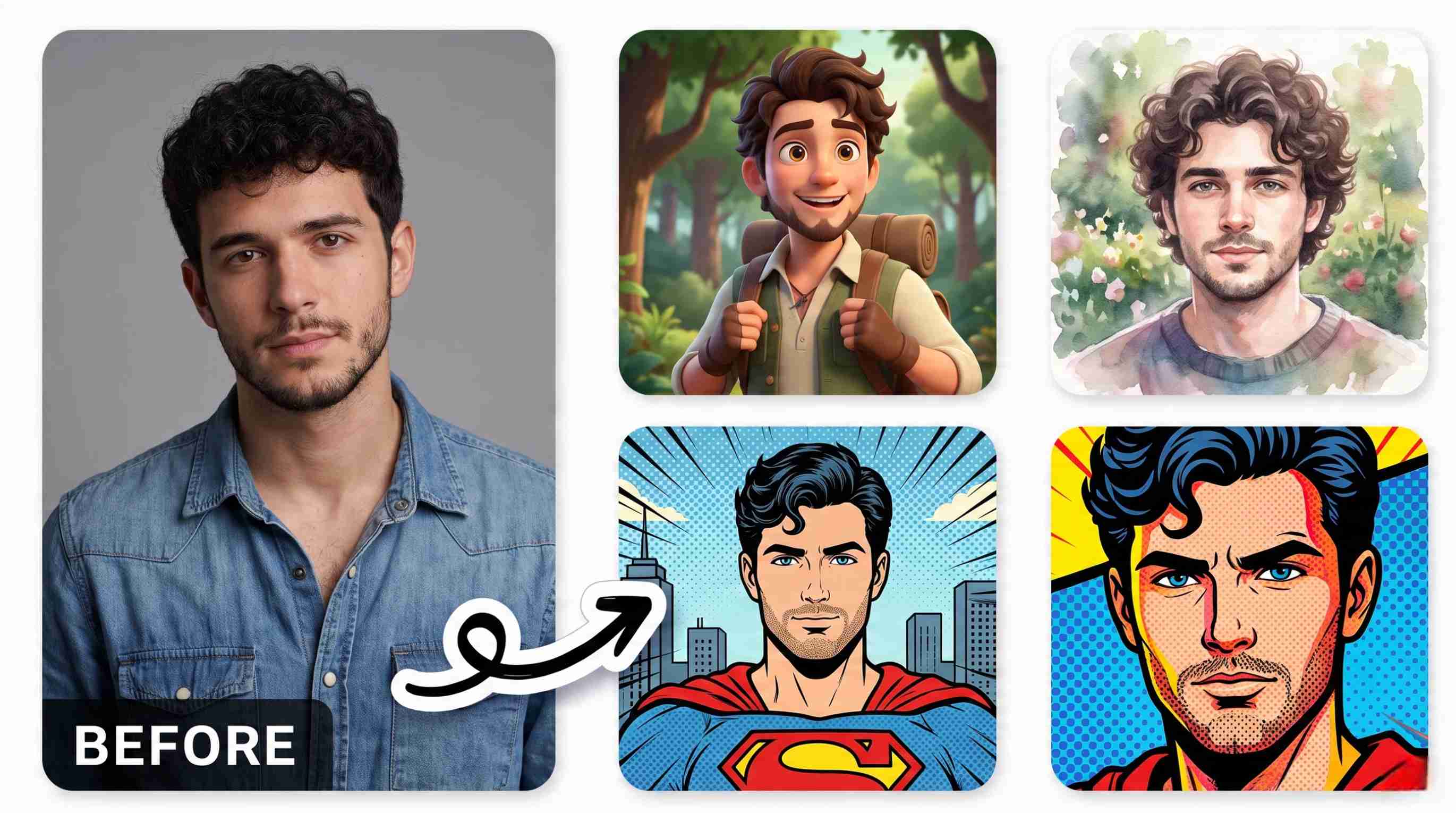
How Does AI Turn a Photo Into a Cartoon?
AI analyzes the original image to identify important elements such as faces, outlines, colors, and shapes. It then applies a selected artistic style to transform the photo into a cartoon. This makes image to cartoon conversion quick and accessible without requiring advanced editing skills.
What Can You Cartoonize?
A photo to cartoon tool can transform many types of images into illustrated versions while keeping the main subject recognizable. Common options include:
-
Portraits and selfies: Turn personal photos into cartoon-style profile images.
-
Pets: Give dog, cat, and other pet photos a playful illustrated look.
-
Family photos: Transform group pictures into memorable cartoon artwork.
-
Characters: Convert existing character images into different cartoon styles.
-
Product or lifestyle images: Apply creative effects to photos for social media or visual content.
For more creative transformations, Designkit's AI image generator can help turn images and ideas into different visual styles.
How to Choose the Right Photo for Cartoon Conversion
The quality and composition of your original photo can significantly affect the cartoon result. A clear subject, good lighting, and a suitable composition make it easier for AI tools to turn a photo into a cartoon while preserving recognizable details.
Use a Clear, High-Quality Photo
Start with a sharp, well-lit image where the subject is easy to see. Blurry, pixelated, or heavily compressed photos can lose important details during conversion, making it harder to make an image a cartoon that looks clean and recognizable.
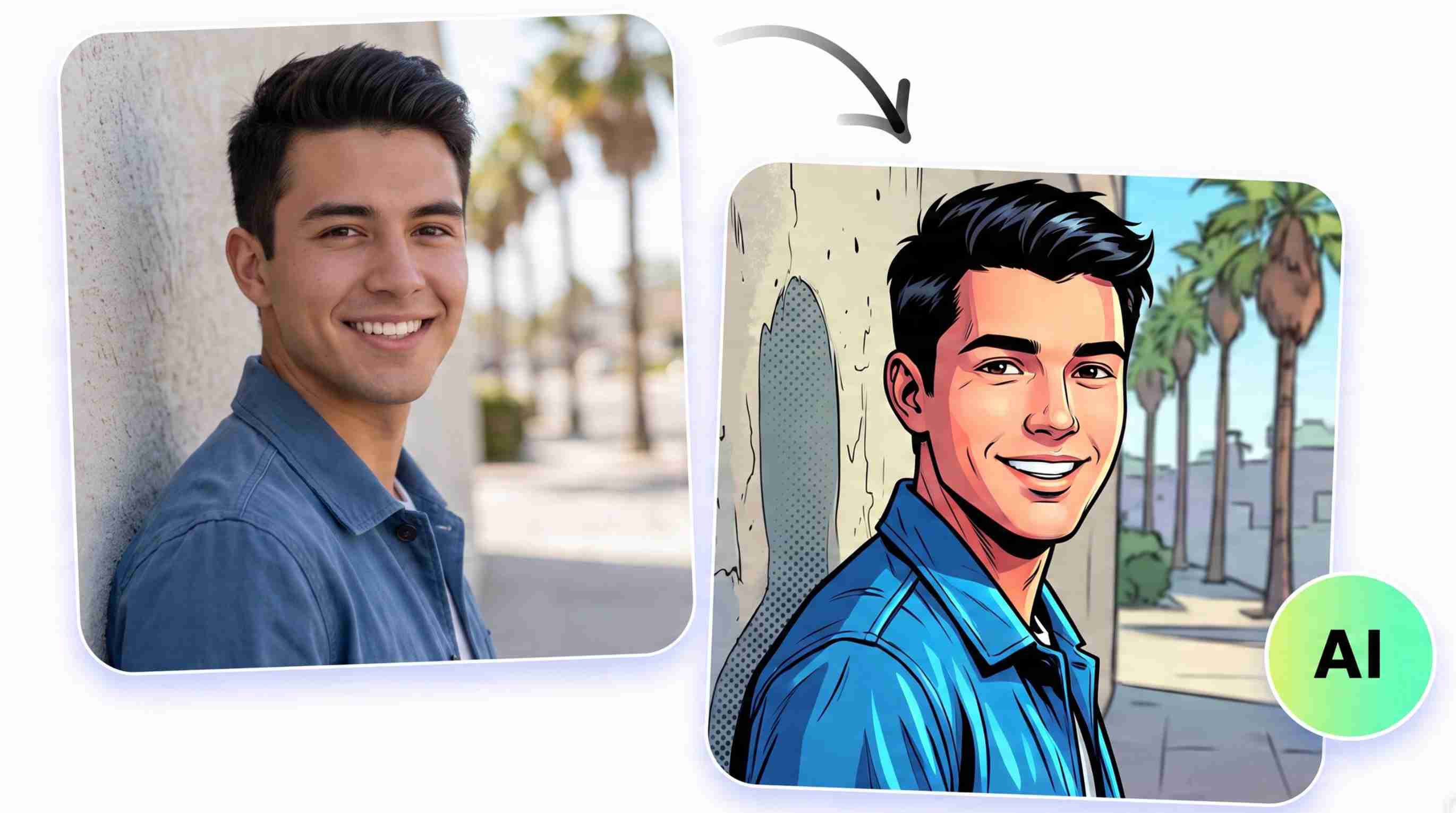
Keep the Subject Clearly Visible
Choose a photo where the main subject isn't hidden behind other objects or cropped awkwardly. Clear facial features, clothing, and body outlines give the AI more information to work with and generally produce a more accurate cartoon result.
Choose a Photo That Matches Your Desired Style
Think about the final look before selecting your image. A close-up portrait works well for expressive cartoon styles, while full-body photos are better for character-focused illustrations. You can also explore AI cartoon generation for different creative approaches and styles.
How to Turn a Photo Into a Cartoon in 5 Steps
Turning a picture into a cartoon is simple with an AI photo-to-cartoon tool. You don't need advanced editing skills, just upload your image, choose a style, and let AI handle transformation.
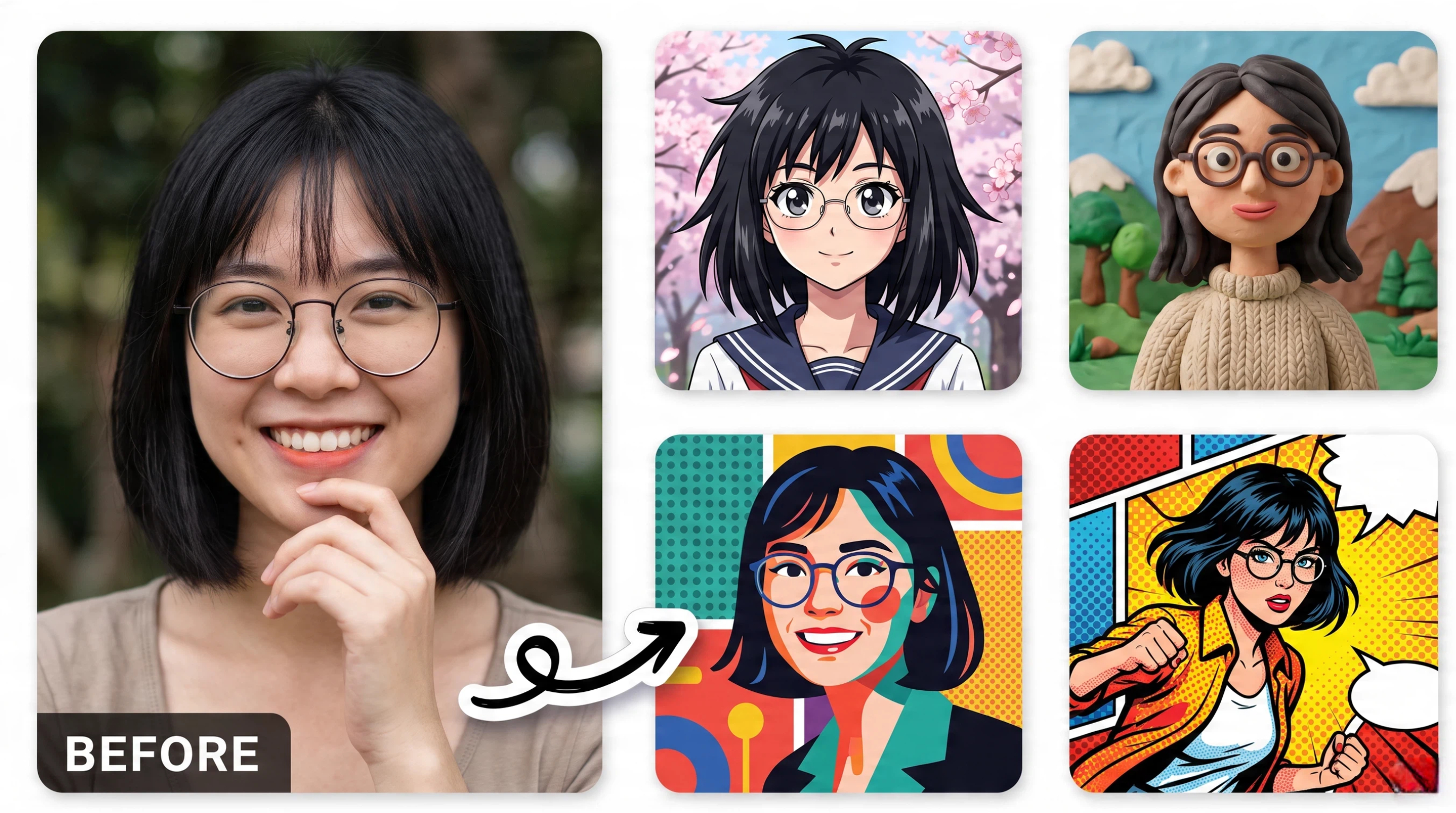
Step 1: Choose and Upload Your Photo
Start with a clear, high-quality image and upload it to your chosen AI tool. A well-lit photo with a clearly visible subject usually produces better results when you turn a picture into a cartoon.
Step 2: Choose a Cartoon Style
Select a style that matches the look you want, such as a classic cartoon, comic, anime-inspired, or colorful illustration. Your choice will determine how the AI interprets the original photo.
Step 3: Describe the Look You Want
If the tool supports text prompts, describe your preferred appearance. You can mention details such as colors, facial expressions, artistic style, or background to guide the result.
Step 4: Generate and Review the Cartoon
Generate the image and check whether the facial features, colors, and overall composition look right. If the result doesn't match your expectations, adjust the style or prompt and try again.
Step 5: Download and Use Your Cartoon
Once you're happy with the result, download the finished image. You can use your photo into cartoon transformation as a profile picture, social media graphic, digital artwork, or creative project.
Popular Cartoon Styles You Can Try
Different cartoon styles can produce very different results, from simple hand-drawn effects to detailed 3D characters. Choose a style based on the mood and purpose of your image, then use a specific prompt to guide the transformation.
Classic Cartoon Style
Classic cartoon styles use bold outlines, expressive features, bright colors, and simplified shapes. They work well for playful portraits, social media images, and character illustrations. An AI image generator can help apply this style quickly.
Prompt example:
Turn this portrait into a colorful classic cartoon with bold outlines, expressive eyes, smooth shading, and a cheerful background.
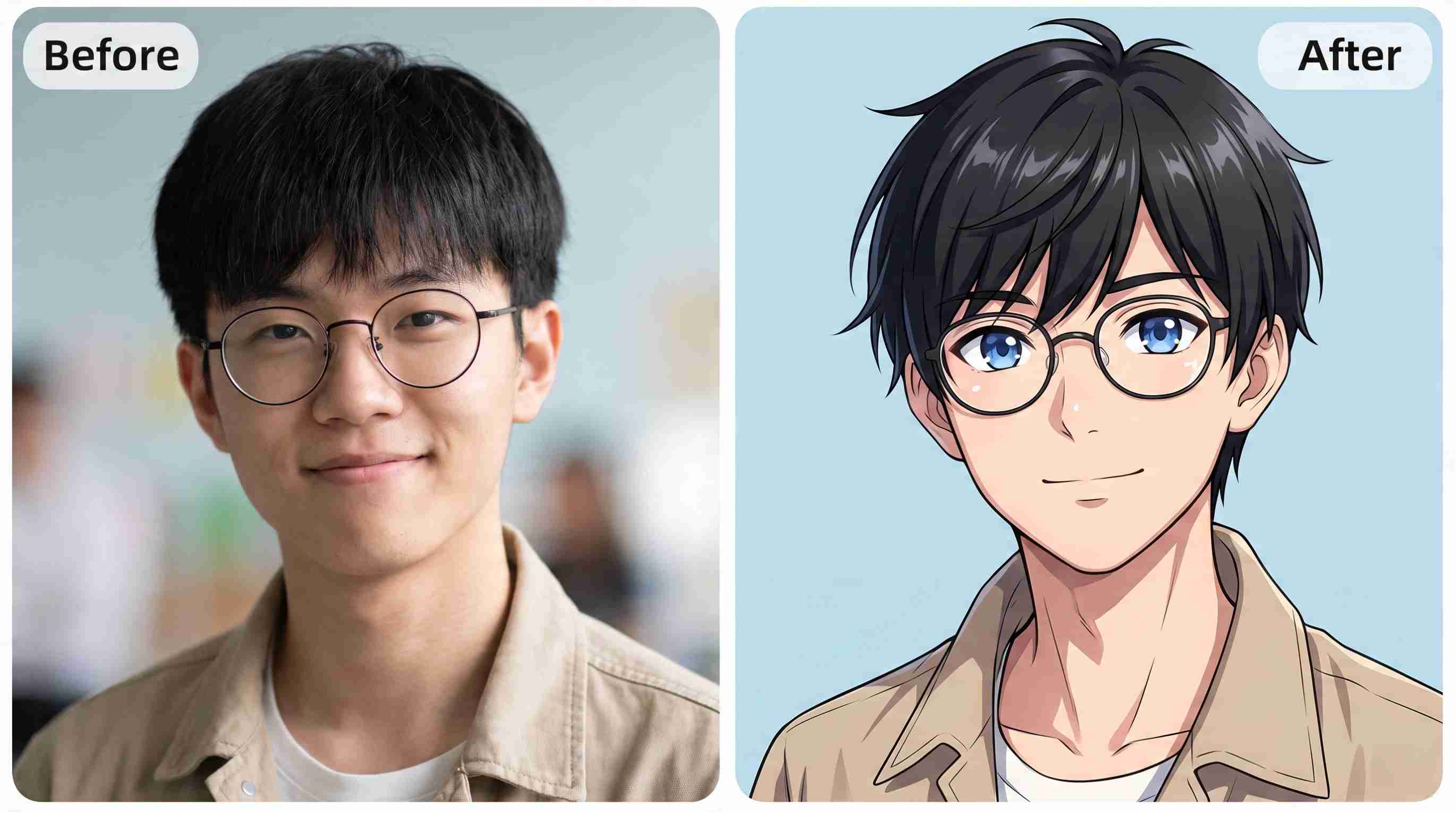
Anime Style
Anime styles often feature expressive eyes, clean linework, stylized hair, and detailed facial features. They are a good choice for transforming portraits into illustrated characters. For more controlled transformations, try AI image to image tools.
Prompt example:
Transform this photo into an anime-style character with expressive eyes, detailed hair, clean linework, soft colors, and a cinematic background.
Comic Book Style
Comic book styles combine bold outlines, dramatic lighting, strong contrast, and dynamic details. They work especially well for action portraits and character artwork. An AI comic generator can help achieve this illustrated look.
Prompt example:
Convert this photo into a modern comic book illustration with bold ink outlines, dramatic shadows, vibrant colors, and dynamic composition.
3D Cartoon Style
3D cartoon styles give subjects a dimensional appearance with smooth textures, soft lighting, and expressive features. This style works well for avatars, portraits, and playful character designs. You can also experiment with an AI 3D image generator for different visual effects.
Prompt example:
Transform this portrait into a polished 3D cartoon character with smooth textures, expressive facial features, soft studio lighting, and a colorful background.
Watercolor or Illustrated Style
Watercolor and illustrated styles create a softer appearance using gentle colors, painterly textures, and visible brushwork. They are suitable for portraits, family photos, and creative artwork. An AI art generator can help produce similar artistic effects.
Prompt example:
Turn this photo into a soft watercolor illustration with delicate brush strokes, pastel colors, subtle details, and a light artistic background.
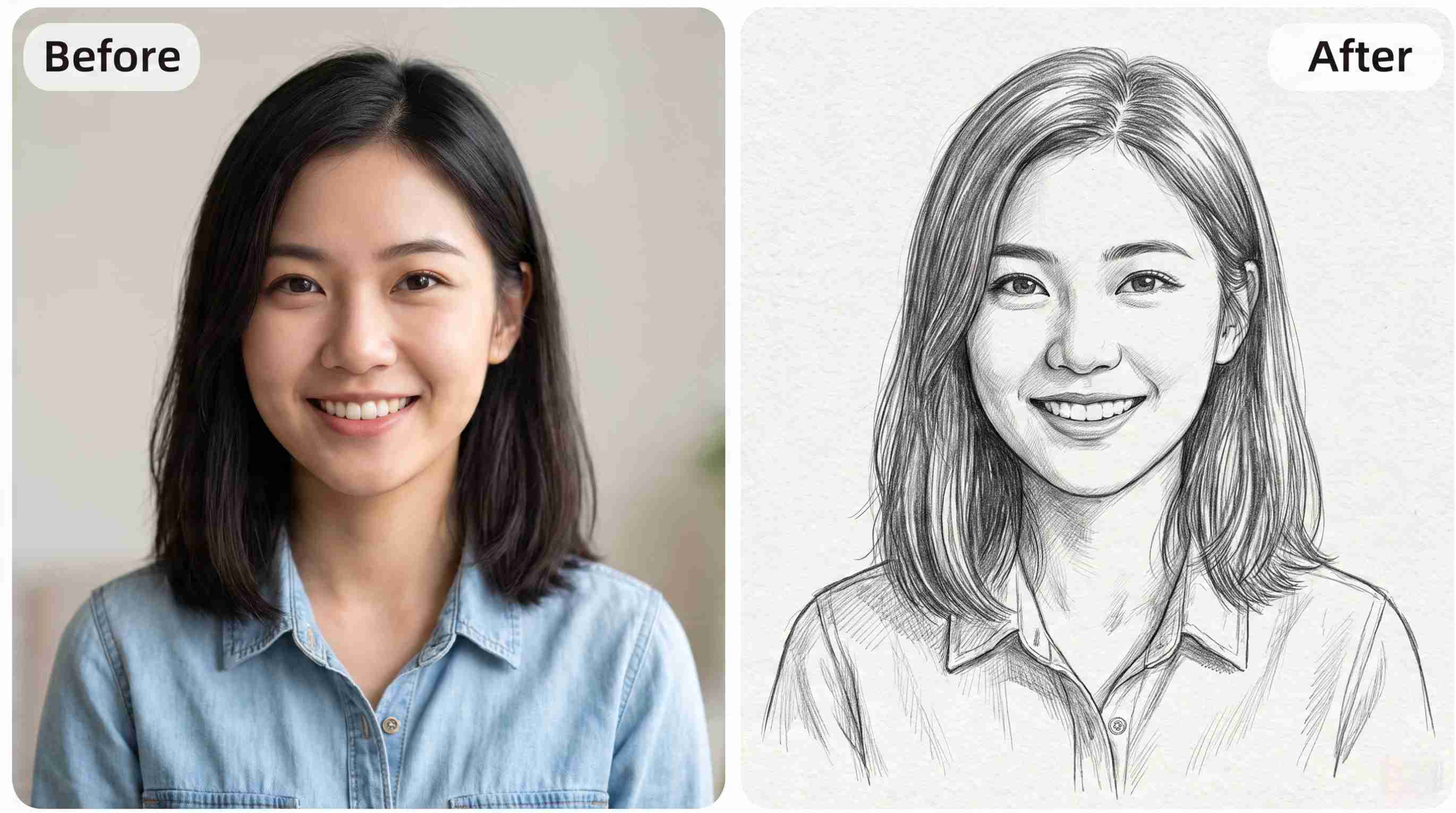
Sketch Style
Sketch styles recreate photos using pencil, charcoal, or ink-like strokes. They are ideal when you want a simple, hand-drawn appearance focused on outlines and facial details. A sketch to image generator can also be useful for exploring this aesthetic.
Prompt example:
Convert this portrait into a detailed pencil sketch with natural shading, fine linework, subtle texture, and a clean white background.
How to Write a Better Photo-to-Cartoon Prompt
A good prompt helps AI understand both the style you want and the details you want to preserve. Use this simple formula:
Subject + Style + Details to Preserve + Background + What to Avoid
Be specific about the person's appearance, pet markings, clothing, expression, or other important elements. You can also mention what the AI should avoid changing.
Portrait Prompt
Turn this portrait into a clean cartoon avatar. Keep the person recognizable. Preserve hairstyle, face shape, glasses, and clothing color. Use a simple light background. Do not exaggerate facial features or add text.
Pet Prompt
Turn this pet photo into a playful cartoon portrait. Keep the fur color, markings, ears, and expression. Use a clean background and a friendly illustrated style.
Anime Prompt
Turn this photo into an anime-style portrait. Keep the likeness, hairstyle, and outfit. Use clean linework, expressive eyes, and a simple background.
Tip: Start with the details that matter most, then add style instructions. If the first result changes important features, refine the prompt by clearly stating what should remain unchanged.
Turn Photos Into Cartoons Faster with Designkit
Creating a cartoon version of a photo usually requires choosing a style, adjusting details, and refining the final result. Designkit simplifies this process by letting you upload a photo, describe the cartoon style you want, and generate creative variations with AI. You can transform portraits, selfies, and other images into cartoon-style visuals without complex editing.
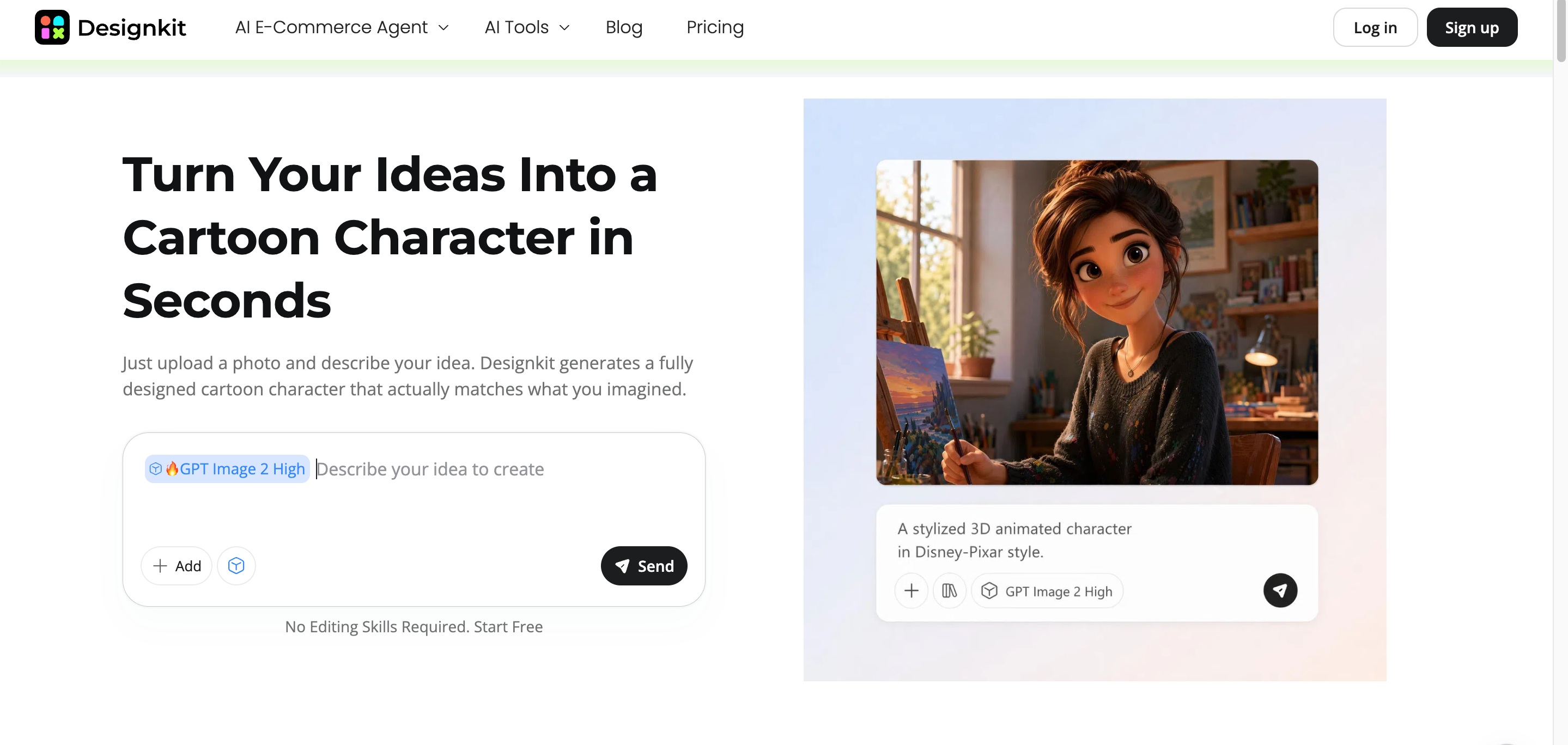
How to Turn a Photo Into a Cartoon with Designkit
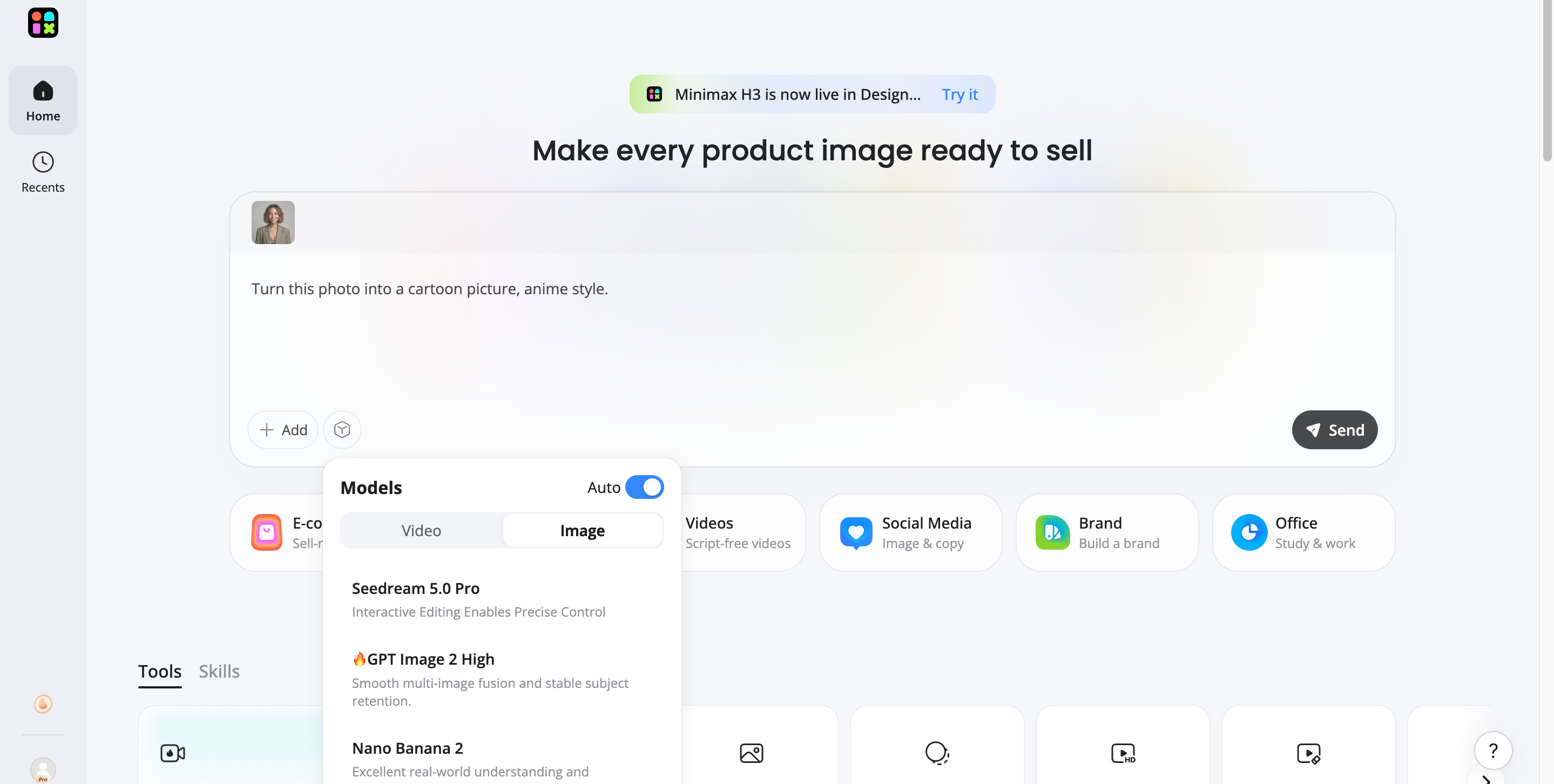
Step 1: Upload Your Photo
Upload a clear portrait, selfie, pet photo, or other image to Designkit's image to image tool as your reference.
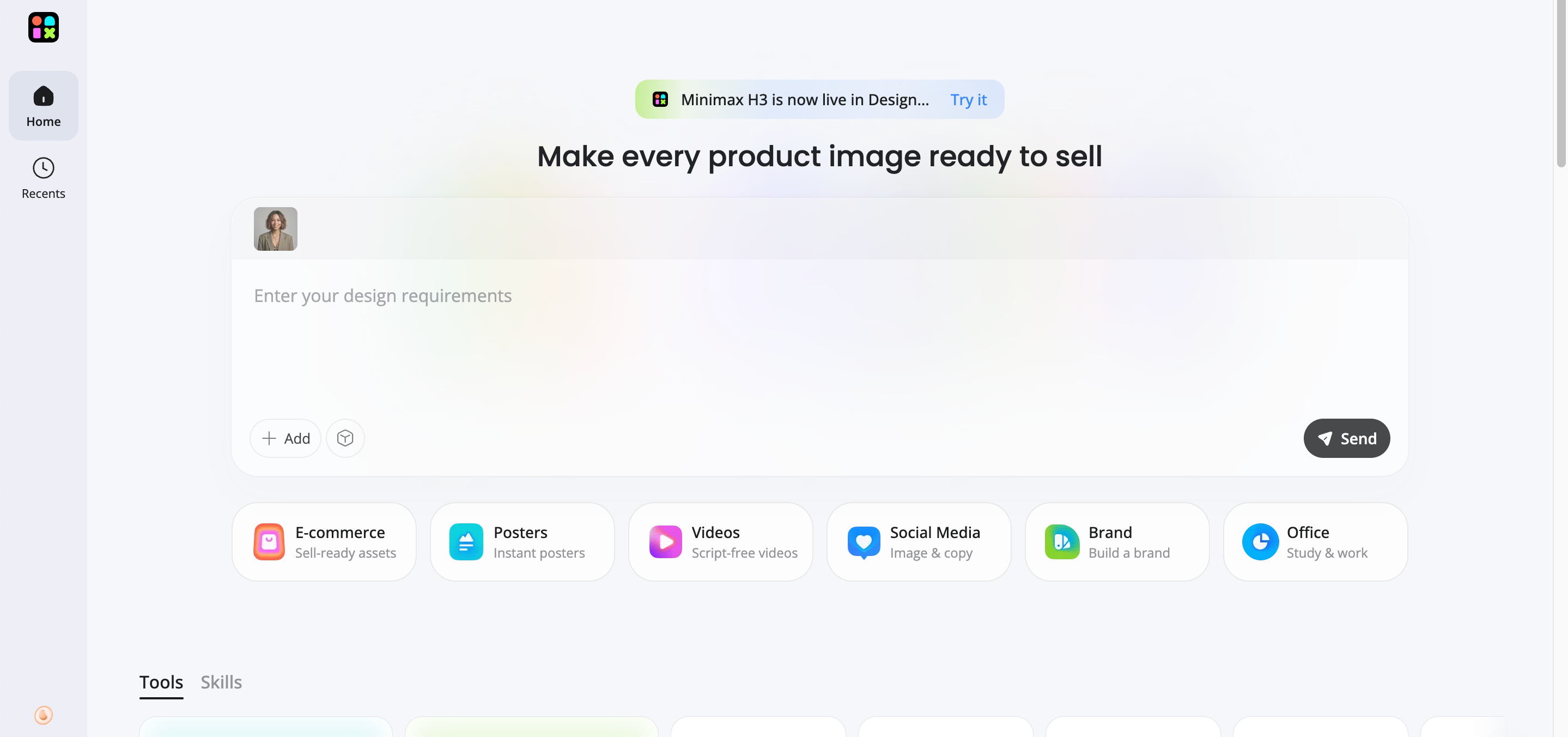
Step 2: Describe Your Cartoon Style
Describe the cartoon style you want, such as 3D, anime, comic, or watercolor, and mention details you want to preserve.
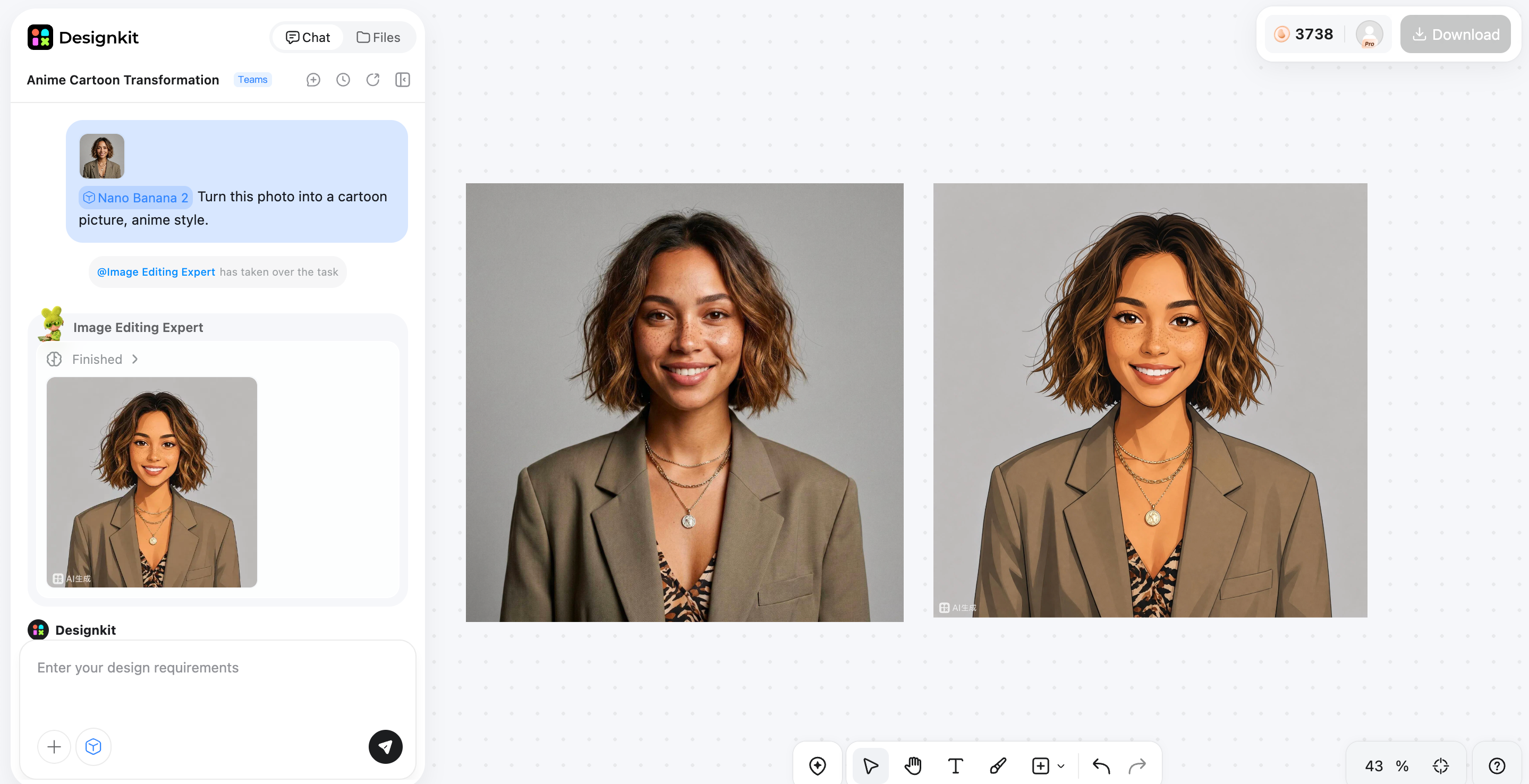
Step 3: Generate, Refine, and Download
Generate your cartoon, review the result, refine the prompt if needed, then download your preferred version.
Features of Designkit to Turn Photos Into Cartoons
Image to Image AI Transformation
Upload an existing photo and describe how you want it transformed. Designkit can restyle the image into cartoon, illustration, anime, painting, or other visual directions while keeping the main subject recognizable.
AI Cartoon Character Maker
Turn a photo or idea into a custom cartoon character. You can create cartoon, anime-inspired, comic, mascot, and 3D character styles while preserving recognizable features from your source image.
Multiple Creative Variations
Generate different interpretations from the same photo to compare styles, moods, and visual directions. This makes it easier to choose a cartoon version that fits your intended use.
AI Photo Editing Tools
After cartoonizing your photo, continue refining it with tools for background changes, object removal, retouching, color adjustments, expansion, and resizing.
How to Get Better Results From Photo-to-Cartoon AI
Getting a convincing cartoon result depends on how you guide AI. Clear prompts, suitable source images, and a few refinements can help you make a photo into a cartoon while keeping the original subject recognizable.
Use Clear Instructions Instead of General Requests
Instead of simply asking the tool to cartoonize an image, describe the style, colors, lighting, and overall mood you want. Specific instructions give the cartoon image generator a clearer direction and can produce more consistent results.
Mention Details You Want to Preserve
Tell the AI which features should remain recognizable, such as facial structure, hairstyle, clothing, skin tone, or important accessories. This is especially useful when you want to make photo a cartoon without changing the person's key characteristics.
Generate Multiple Versions
Don't settle for the first result. Generate a few variations using slightly different styles or prompts, then compare them. This lets you choose the version that best matches your intended look.
Refine Small Details After Generation
Review the finished image for issues such as distorted facial features, missing accessories, unusual colors, or distracting backgrounds. Make small adjustments and regenerate when needed to get a cleaner final result.
Conclusion
Turning a photo into a cartoon is easier than ever with AI tools. A clear image, the right style, and a few specific instructions can help you create more accurate and creative results. Whether you want a cartoon avatar, social media visual, or personalized artwork, AI can simplify the transformation process. Designkit helps you take this process further by combining image-to-image transformation, creative variations, and AI editing tools in one workflow.
Frequently Asked Questions
Can I turn my selfie into a cartoon avatar?
What kind of photos work best for turning into cartoons?
Clear, well-lit photos with the subject fully visible generally produce better results. Avoid blurry images, extreme angles, or heavily obstructed faces. Designkit works best when you start with a clean source photo, helping the AI retain important features during cartoon conversion.
Can I turn a photo into a cartoon without drawing skills?
Yes. You don't need drawing or illustration experience because AI handles transformation for you. Upload your photo, describe the style you want, and let the tool generate the result. Designkit makes this process straightforward, so beginners can turn ordinary photos into cartoon-style images without complex editing.
What prompt should I use to turn my picture into a cartoon?
Try a prompt such as: "Turn this photo into a colorful cartoon with clean outlines, expressive features, smooth shading, and a bright background." You can adjust the style and details to match your preference. With Designkit, you can use your prompt to guide cartoon transformation more precisely.
Can I create different cartoon styles from the same photo?
Yes. You can use the same photo to explore different looks, such as anime, comic book, 3D, watercolor, or pencil sketch styles. Designkit gives you a simple way to experiment with different creative directions, so you can compare variations and choose the cartoon style that best fits your image.
How can I make my cartoon image look more like me?
Start with a clear photo and mention the features you want to preserve, such as your hairstyle, facial structure, clothing, or accessories. Avoid vague prompts if accuracy matters. Designkit can help maintain these recognizable details while applying the cartoon style you want.
You May Also Like
Remove.bg Shutting Down Dec 1, 2026: What Users Are Saying

7 Best Remove.bg Alternatives in 2026: Free & Paid Tools
Instagram Carousel: What It Is, How to Post & Create One
Nano Banana Prompts: 20+ Examples for Better AI Images
Ideogram AI Review 2026: Features, Pricing & Alternatives
Free Mac Photo Editor: 5 Tools Compared for Mac Users
How to Crop a Photo Into a Circle Online (Keep Quality)
How to Make an Image Transparent Online (AI Guide)
Pixlr Background Remover Review 2026: Features, Pricing & Alternatives
How to Fix Overexposed Photos: Recover Highlights Fast
OpenArt AI Review 2026: Features, Pricing & Alternatives
Best AI Headshot Generator: 9 Tools Compared for 2026
Best Stencil Maker Tools 2026: Turn Photos Into Stencils
Pixelbin Watermark Remover Review: Image & Video Results Tested
How to Make a Sticker on iPhone: Easy Step by Step Guide
Best AI Logo Generator in 2026: 10 Tools Compared
How to Turn a Photo Into a Cartoon: A Beginner-Friendly Guide
Landscape vs Portrait: Key Differences & Best Uses in 2026
How to Remove Watermark From Photo: AI, Photoshop & More
How to Fix Pixelated Photos: Photoshop, AI Tools & Tips
Bing Image Creator: How It Works, Features, Uses & Alternatives
How to Remove People from Photos with AI: A Step-by-Step Guide
How to Increase Image Resolution: AI, Photoshop & PPI
How to Add Text to a Photo: 8 Tips for Better Results
How to Fix Grainy Photos: Easy Ways to Clear Images
Creative Profile Picture Ideas for Every Style and Platform
Evoto AI Review 2026: Features, Pricing, Pros & Cons
Pixlr Photo Editor Review: Features, Pricing & Alternatives
Best AI Image Extender Tools in 2026: Expand Photos with AI
How to Make a Collage on iPhone: Easy Guide for 2026
How to Sharpen an Image in Photoshop (Smart Sharpen and Unsharp Mask)
Best Image Background Remover Tools in 2026: AI Tools Compared
How to Make Transparent Background in Paint: Step-by-Step Guide
How to Resize an Image: Best Methods, Tools & Quality Tips
Best AI Image Generator Tools in 2026: Top AI Platforms Compared

Remove.bg Review 2026: Features, Pricing & Is It Worth It?
Luminar Neo Photo Editor Review 2026: AI Features, Price & Pros
How to Post Multiple Photos on Instagram (2026 Guide)
25 Facebook Cover Photo Ideas for Personal & Business Pages
What Is a PFP? Meaning, Examples & How to Create One
Can You Edit an Instagram Post After Posting?
11 Best Canva Alternatives in 2026 for AI Design & Marketing

8 Best Midjourney Alternatives in 2026: Features, Pricing & Comparison
How to Restore Old Photos: AI Tools, Tips & Best Methods
Pixelcut AI Review 2026: Features, Pricing, Pros, Cons & Alternatives
How to Apply Watermark to Photos: Methods, Tips & AI Tools
How to Remove a Background in Illustrator: 4 Easy Methods
How to Change Background Color on Instagram Story (Easy Guide)
8 Best AI Poster Generators in 2026: Create Posters Faster with AI
10 Best AI Image Enhancers in 2026: Tested & Compared
10 Best AI Image Editors in 2026: Features, Pricing & Comparison
7 Best AI Background Changer in 2026: Remove & Replace Photo Backgrounds
Luminar Neo vs Lightroom: Features, Pricing & Comparison 2026
Kittl Review 2026: Is It Worth It? Features & Pricing
How to Make a Blurry Image Clear: 5 AI & Manual Ways
How to Remove Background on iPhone: 5 Easy Methods (2026)
Photoroom Background Remover Review 2026: Features & Alternatives
How to Remove Background in Canva: A Step-by-Step Guide
How to Remove Background in GIMP: Beginner-Friendly Guide
Funny Dog Memes to Try: Doge Meaning and 10 Original Ideas
Back to School Checklist 2026: Supplies, Timeline, and Planning
Recraft AI Review 2026: Features, Pricing, Pros, Cons & Alternatives
How to Make an Image Transparent in Google Slides: Opacity & Background Removal
VanceAI Photo Enhancer Review: Features, Pricing & Alternatives in 2026
What Does Emojify Mean? Text, Photos, & Emoji Art Explained
Top 8 Online Background Removers for Ecommerce Photos (2026)
How to Remove Background in Photoshop: 7 Easy Methods
6 Best AI Image Upscalers 2026: Tools Tested & Compared
Project Indigo Review: Is It Better Than iPhone Camera?
How Big Is an 8x10 Photo? Size, Pixels & Frame Guide
How Big Is a 4x6 Photo? Dimensions, Pixels & Printing Tips
Picsart AI Review: Features, Pricing, Pros, Cons & Alternatives
Lovart AI Review: AI Design Agent Features, Pricing & Alternatives
Fotor AI Image Generator Review: Features, Pricing & Alternatives
How to Add Emoji to Photo Online for Free
Emoji Wallpaper Ideas & How to Make One Online (2026)
Minimalist Poster Design: How to Make a Clean Poster (2026)
How to Make a Custom Poster That Is Ready to Print
Instagram Image Size Guide 2026: Post, Reel, Story & Carousel Specs
LinkedIn Image Size Guide: Profile, Post & Banner Dimensions
YouTube Profile Image Size: Best Dimensions & Safe Area 2026

How to Edit Amazon Product Photos That Boost Sales Fast
Turn Photos Into Cartoon Ready Visuals
Transform your photos into creative cartoon images with AI. Explore different styles, generate unique variations, and refine your visuals with Designkit.
