
LinkedIn Image Size Guide: Perfect Dimensions for Every Format
Using the correct LinkedIn image size prevents blurry profile photos, cropped banners, and distorted posts. This guide shows exact dimensions for posts, profiles, ads, and events so your visuals stay sharp, properly framed, and professional across all devices.


Incorrect LinkedIn image size leads to cropped banners, blurry profile photos, and posts that lose clarity on mobile.
This guide breaks down every LinkedIn image size you actually need, with practical dimensions and usage scenarios.
You will also see how different LinkedIn image dimensions affect display across desktop, mobile, and feed placements.
LinkedIn Image Size Cheat Sheet
Recommended Dimensions for Each Format
The most commonly used LinkedIn image size settings are:
-
Profile photo: 400 × 400 px
-
Banner image: 1584 × 396 px
-
Post image: 1200 × 627 px (landscape) or 1080 × 1080 px (square)
-
Event image: 1776 × 444 px
-
Ad image: 1200 × 628 px
-
Company banner: 1128 × 191 px
These LinkedIn image dimensions cover most personal branding and marketing use cases.
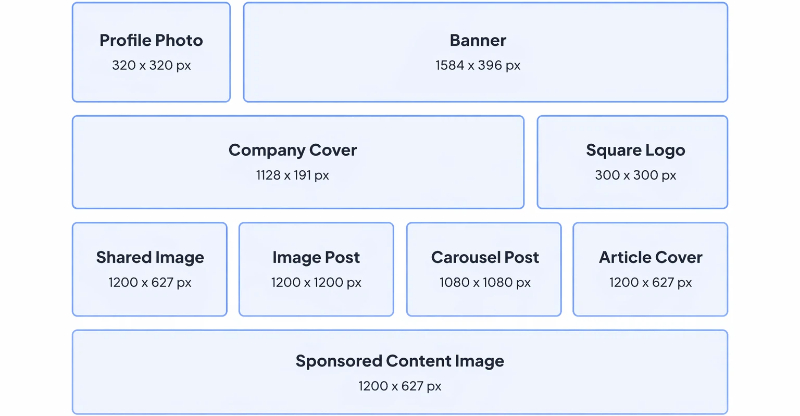
LinkedIn Image Size Table: Full Breakdown
|
LinkedIn image type |
Recommended dimensions |
Aspect ratio |
Use case |
|---|---|---|---|
|
LinkedIn profile image size |
400 × 400 px |
1:1 |
Displays as your professional profile photo across LinkedIn (circular crop) |
|
LinkedIn banner image size |
1584 × 396 px |
4:1 |
Background cover image on your personal profile |
|
LinkedIn post image size |
1200 × 627 px or 1080 × 1080 px |
1.91:1 or 1:1 |
Feed posts — square (1:1) takes more feed space; landscape (1.91:1) suits link-share visuals |
|
LinkedIn event image size |
1776 × 444 px |
4:1 |
Event pages and promotional event headers |
|
LinkedIn ad image size |
1200 × 628 px |
1.91:1 |
Sponsored content and LinkedIn single-image advertisements |
|
Company page banner size |
1128 × 191 px |
~6:1 |
Background cover image on company/business pages |
|
Maximum file size allowed |
Up to 8 MB |
— |
Prevents upload errors and maintains display quality |
|
Supported file formats |
PNG, JPG, GIF |
— |
Ensures smooth uploading and sharp display |
Which LinkedIn Image Sizes Matter Most
Most users only need three LinkedIn image sizes consistently:
-
LinkedIn profile image size: 400 × 400 px
-
LinkedIn banner image size: 1584 × 396 px
-
LinkedIn post image size: 1200 × 627 px or 1080 × 1080 px
These three formats cover profile branding, visibility in feeds, and content marketing performance.
Why Correct LinkedIn Image Size Matters
Using the right LinkedIn image size directly affects how your content performs in real usage.
-
Prevents cropping of logos, faces, and key text on mobile feeds
-
Keeps images sharp after LinkedIn compression
-
Improves readability in small previews and search results
-
Maintains consistent framing across desktop and mobile
Incorrect LinkedIn image dimensions often reduce clarity before users even read the post.
How LinkedIn Displays Images Across Devices
LinkedIn does not display images the same way across all screens. It resizes based on placement.
|
Placement/Device |
Profile image |
Banner image |
Post image |
|---|---|---|---|
|
Desktop view |
400 × 400 px |
1584 × 396 px |
1200 × 627 px (1.91:1) or 1080 × 1080 px (1:1) |
|
Mobile view |
400 × 400 px (displays smaller) |
1584 × 396 px (center visible, edges may crop) |
1080 × 1080 px recommended for more feed space |
|
Tablet view |
400 × 400 px (displays smaller) |
1584 × 396 px |
1200 × 627 px or 1080 × 1080 px |
|
Feed thumbnail preview |
Small circular crop |
Not displayed |
552 × 289 px (auto-rendered) |
|
Search results display |
Small circular crop |
Not displayed |
Not displayed |
|
Company Page display |
300 × 300 px (logo, square) |
1128 × 191 px |
1200 × 627 px |
The uploaded LinkedIn image size stays fixed, but visible areas change depending on the device.
How to Make LinkedIn Images Look More Professional
To keep your profile and posts looking professional, it's important to design with safe zones, correct ratios, and clear readability in mind. The right image choices help your content stay consistent, visible, and brand-strong across all formats.
Keep Logos and Text Away from the Edges
LinkedIn automatically crops images on mobile and in different placements. Keep key elements like logos, text, and faces in the center safe zone to avoid edges being cut off. This helps maintain a clean and professional appearance across all devices.
Use Simple Visuals That Stay Readable on Mobile
LinkedIn banners often crop differently on mobile devices, so keep logos and text near the center.
Profile photos appear very small in comments and search results, which is why simple headshots and logos usually perform best.
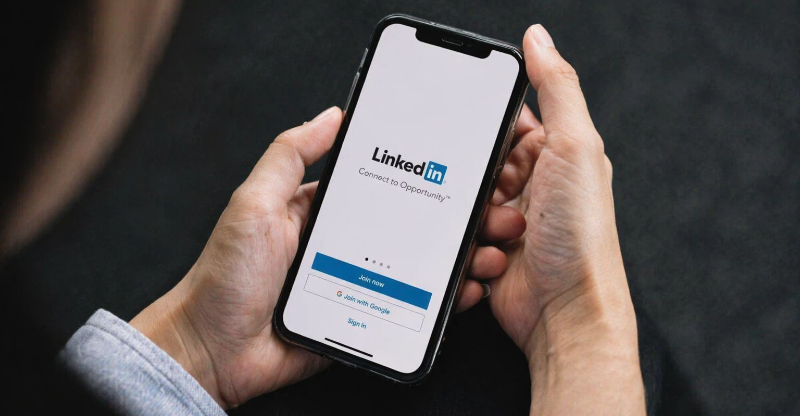
Choose a Headshot Instead of a Group Photo
Images appear smaller in feeds and comments, so make sure text and details remain clear and readable even at reduced sizes. Large fonts, simple layouts, and high contrast improve visibility and engagement.
Match Your Banner with Your Personal Brand
Use professional headshots for profiles to build trust, and banners for branding or slogans. Match the image type with its purpose instead of reusing the same visual everywhere. Relevant visuals create a stronger personal brand and improve overall profile presentation.
Resize LinkedIn Images Without Guessing Dimensions
Most users do not remember the exact LinkedIn image sizes for every format. This is where errors usually happen: cropping, distortion, or compression issues.
A structured resizing workflow removes this friction:
-
Select LinkedIn format (post, banner, profile)
-
Adjust image alignment
-
Export optimized version
This reduces resizing mistakes and keeps output consistent across LinkedIn image dimensions.
Designkit makes LinkedIn image creation simple and stress-free by removing all sizing confusion. Instead of struggling with exact dimensions like 400 x 400 or 1584 x 396 pixels, you just upload your image, and it instantly adjusts everything for perfect results.
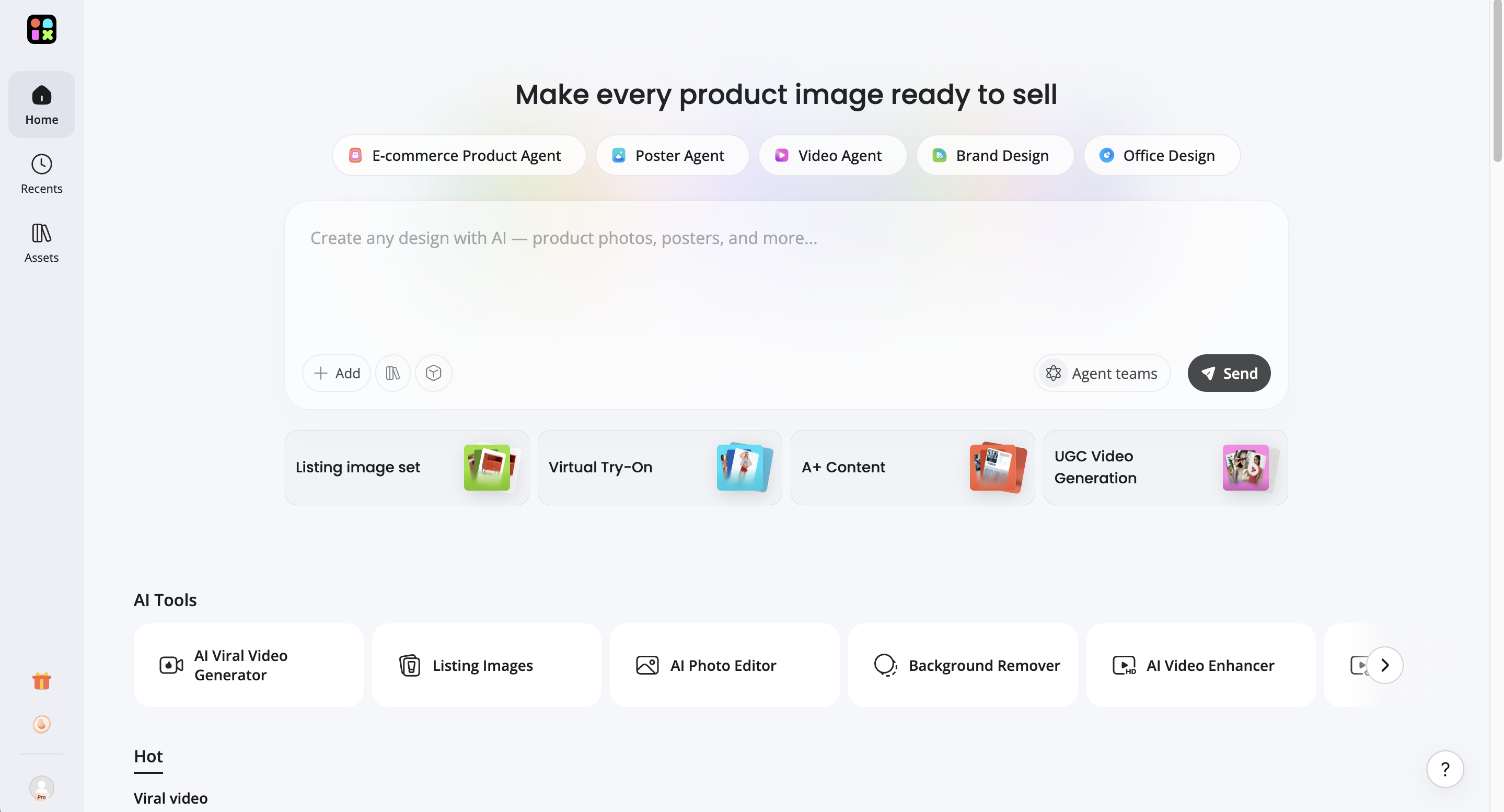
With quick previews and instant downloads, Designkit saves time and effort, helping you create polished, professional LinkedIn visuals without any technical difficulty or worry.
How to Prepare a LinkedIn-Ready Image in 3 Steps
Resizing images for LinkedIn requires the right dimensions and careful alignment to avoid cropping or distortion across different placements. With Designkit, you can quickly adjust your visuals into platform-ready formats while keeping everything sharp, centered, and professional.
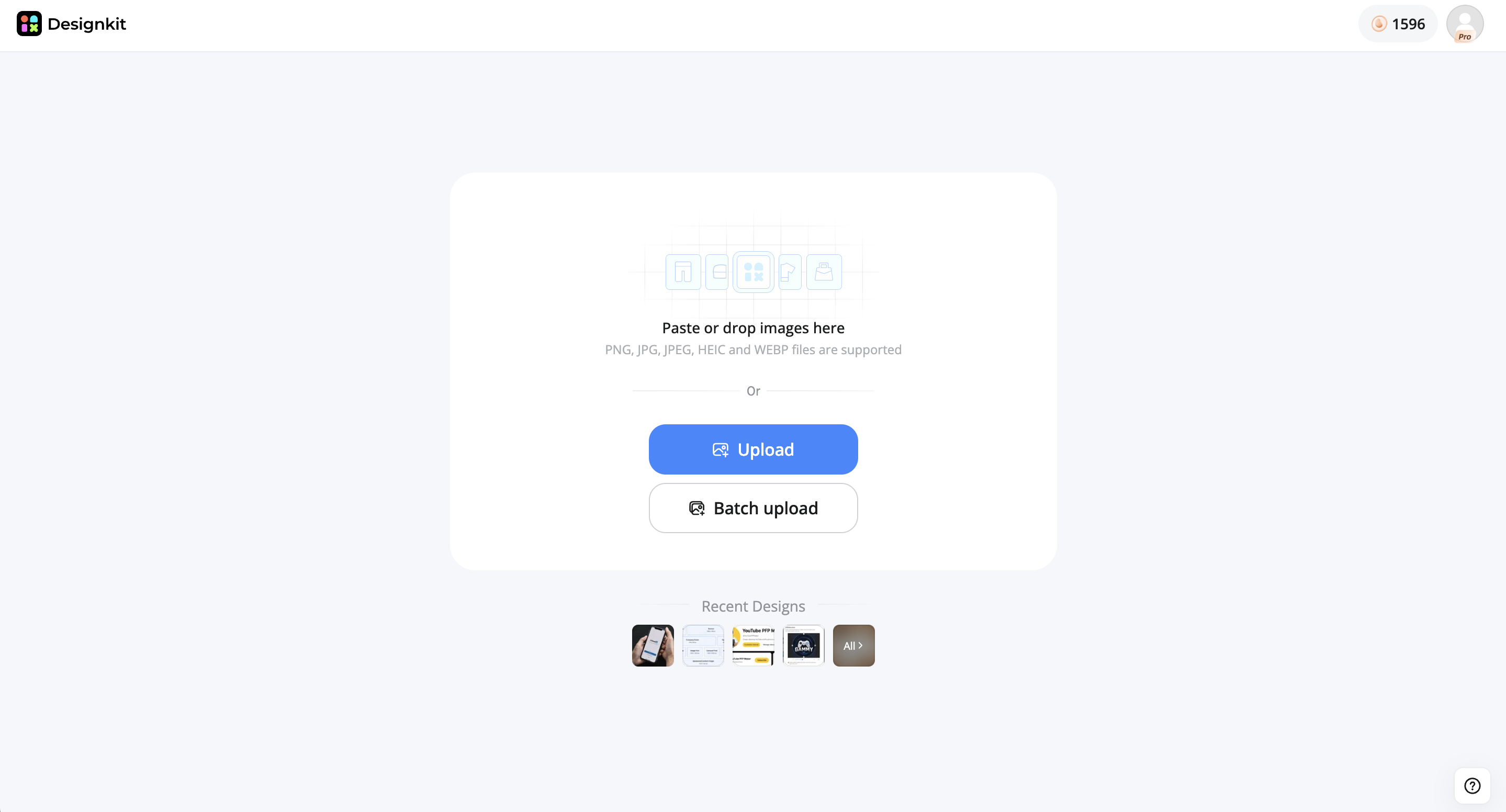
Step 1: Upload Your Source Image
Open the Designkit Image Editor and upload a high-resolution photo, logo, or graphic so the AI has enough detail to keep results sharp after editing.
Step 2: Adjust LinkedIn Size and Edit
Choose the correct LinkedIn format, such as profile, post, or banner size, then adjust the positioning and make quick edits to keep important details centered and visible. You can also crop, align, and enhance the image to match LinkedIn's recommended dimensions without distortion.
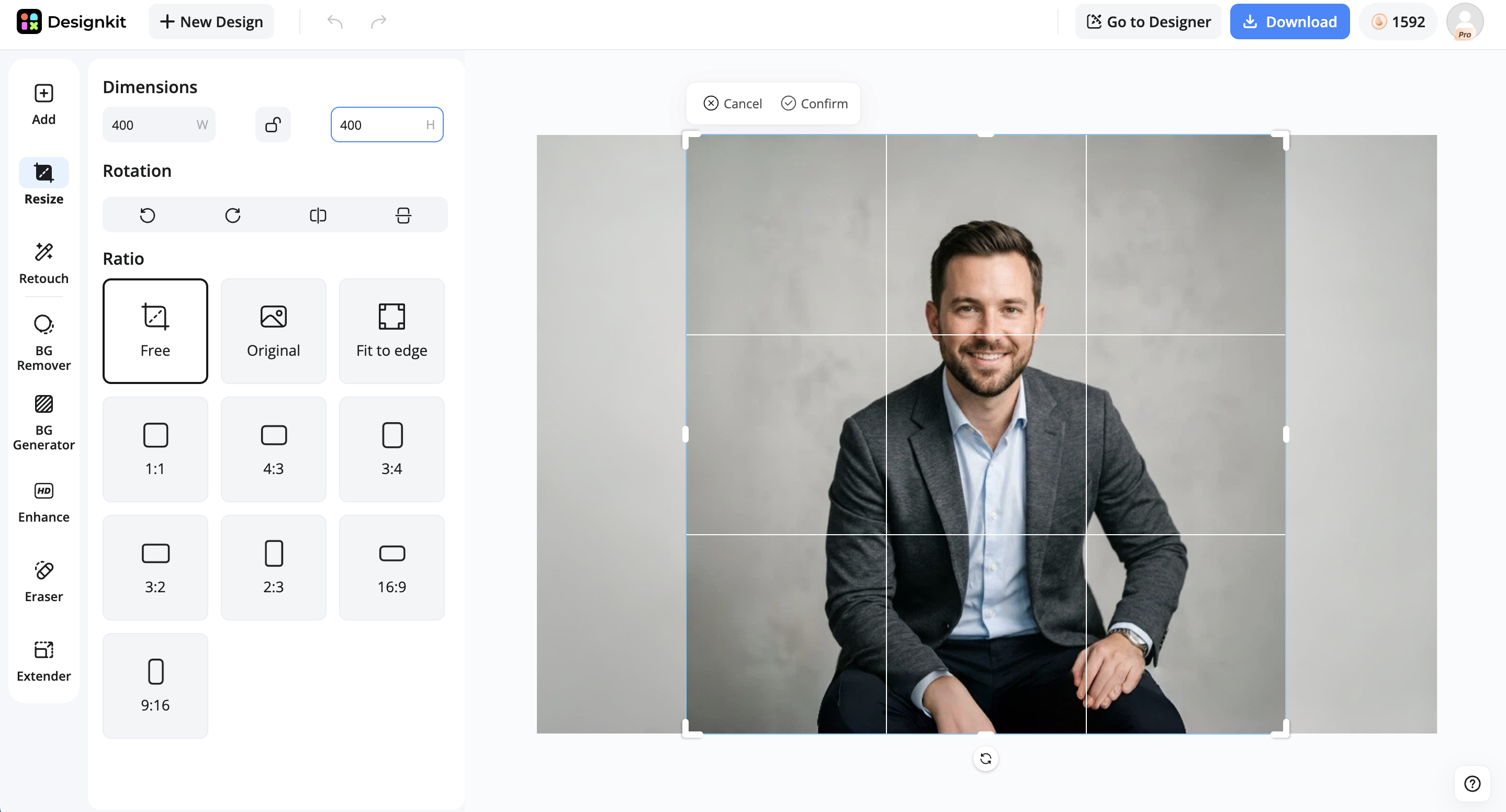
Step 3: Export Your LinkedIn-Ready Image
Preview at a small size to confirm nothing important is cropped, then export in high-quality PNG or JPG and upload directly to LinkedIn.
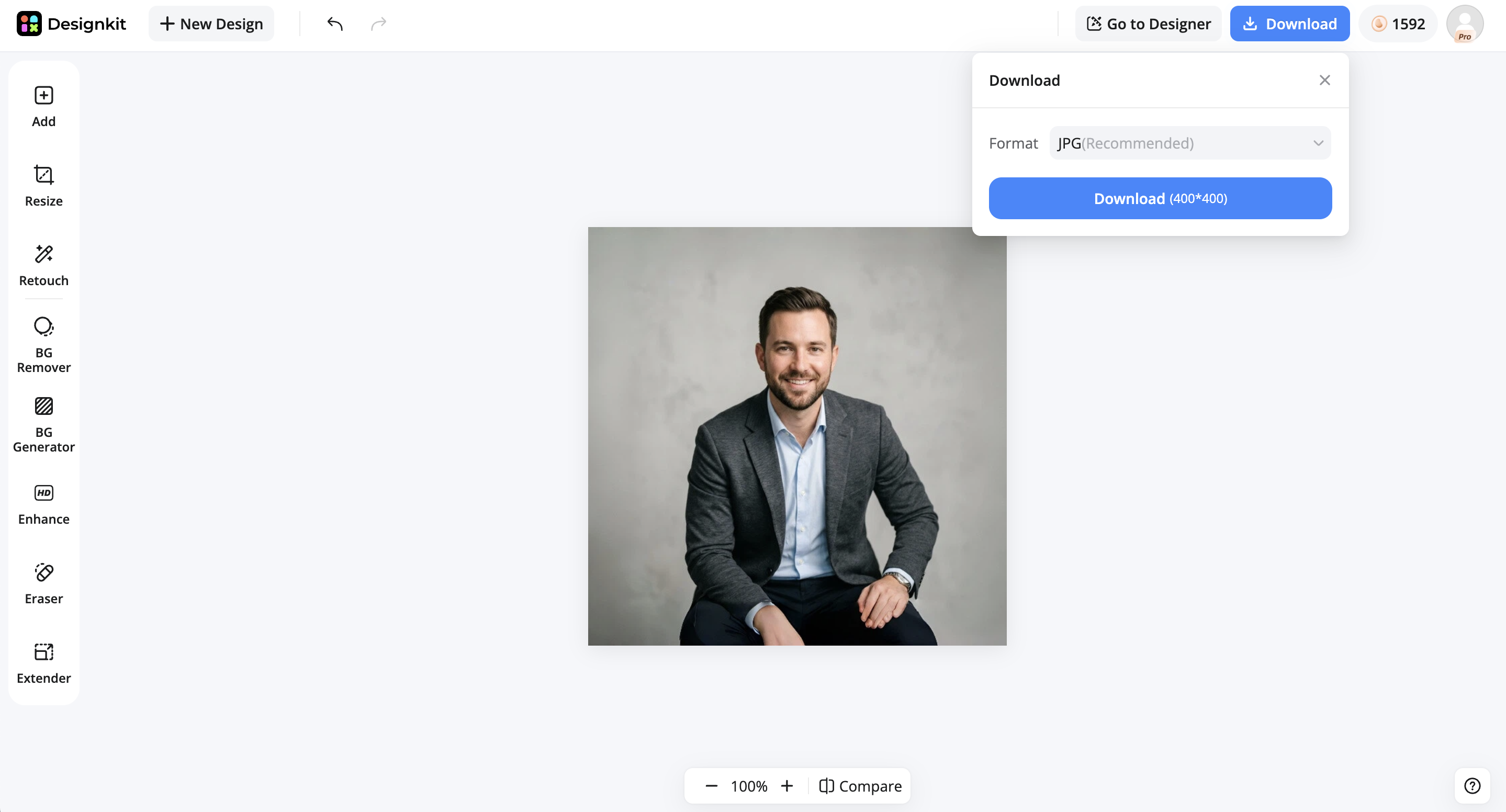
How Designkit Improves LinkedIn Image Quality Instantly
Resize LinkedIn Images Without Guessing Dimensions
Most people don't remember the exact dimensions for profile photos, banners, ads, and posts.
Designkit automatically resizes LinkedIn Images and applies the correct format, reducing the risk of blur, stretching, or unexpected cropping.
Keep Important Content Visible
LinkedIn crops banners differently across devices.
Designkit helps keep logos, text, and profile elements inside safe areas so they remain visible on desktop and mobile.
Improve Low-Quality Images Before Uploading
Older logos and screenshots often lose quality after resizing.
Image enhancement tools help maintain clarity and readability across LinkedIn placements.
Common LinkedIn Image Mistakes That Hurt Professional Impact
For ecommerce brands, SaaS tools, and marketing teams, LinkedIn visuals often act as the first credibility signal before any click or conversation. Poorly designed images can reduce clarity, weaken trust, and lower engagement even if the content is strong.
Below are the most common mistakes that reduce performance on LinkedIn posts—and how to correct them.
Using Incorrect Image Dimensions
One of the most frequent issues is using non-optimized sizes for LinkedIn feeds, banners, or shared previews. When dimensions are off, images may appear compressed, cropped, or scaled unevenly across desktop and mobile.
This directly affects how professional the post feels, especially for ecommerce or B2B brands that rely on visual credibility.
Fix: Use platform-appropriate aspect ratios and test how images appear on both mobile and desktop before publishing.
Ignoring Cropping and Safe Zones
LinkedIn automatically adjusts image display depending on placement (feed, mobile preview, link share). Important elements such as product text, logos, or CTAs can easily be cut off.
This is especially problematic for marketing creatives, where a single cropped headline can break the message.
Fix: Keep all key content within a central "safe area" and avoid placing critical information near edges.
Overloading Images with Text
A common mistake is turning visuals into dense text blocks. While it may feel informative, it reduces readability during fast scrolling and lowers engagement.
For ecommerce and marketing content, clarity matters more than completeness inside a single image.
Fix: Use minimal text per visual. Let the post copy carry the explanation while the image supports a single core idea.
Inconsistent Branding Across Posts
Switching between unrelated colors, typography styles, or layout systems weakens recognition over time. This is common when multiple team members or templates are used without a unified system.
For brands posting frequently, inconsistency reduces the ability to build visual memory.
Fix: Standardize core elements such as color palette, font system, and layout grid. Maintain repetition across posts to build recognition.
Low-Quality or Stretched Visuals
Using low-resolution images or improperly scaled assets leads to blur, distortion, or pixelation. This immediately reduces perceived credibility.
Stretched graphics are especially damaging because they signal careless execution.
Fix: Always export at the correct resolution for LinkedIn formats and avoid resizing images beyond their original aspect ratio.
Irrelevant or Misaligned Visuals
Images that do not directly match the post topic often confuse users and reduce engagement. This is common when stock visuals are used without context.
For ecommerce or product-led content, a mismatch between the message and visual reduces conversion intent.
Fix: Ensuring every image directly reinforces the post's core message—product, benefit, or insight should be visually aligned.
Conclusion
Choosing the correct LinkedIn image size improves clarity, consistency, and engagement across every format. Profile photos, banners, posts, ads, and event visuals all follow different LinkedIn image dimensions, and using the wrong size leads to cropping or blur.
Consistent sizing helps your content look structured and professional across devices. Instead of adjusting each format manually, using a structured resizing workflow ensures every LinkedIn image size is optimized before publishing.
Frequently Asked Questions
What is the correct LinkedIn image size for posts?
Why do my LinkedIn images look blurry after uploading?
Blurry images usually come from low resolution or incorrect scaling. Using proper LinkedIn image dimensions and high-resolution files prevents quality loss after upload.
Which LinkedIn cover image size is best for professional profiles?
The best LinkedIn cover image size for professional profiles is 1584 × 396 px. This wide format ensures your banner fits properly across different screens without being cut off or distorted. It is ideal for branding, showcasing skills, or highlighting services.
What is the ideal size of a LinkedIn profile photo for clear display?
The ideal LinkedIn profile photo size is 400 × 400 px. This square format ensures your picture displays clearly and is not pixelated or stretched. A high-quality headshot improves first impressions and builds trust.
How do I choose the recommended LinkedIn background image size for branding?
The recommended LinkedIn background image size is 1584 × 396 px, designed to give enough space for branding elements like slogans or visuals. It should be simple, clean, and aligned with your professional identity.
What is the standard LinkedIn banner image size for profiles?
The standard LinkedIn banner image size is 1584 × 396 px, which provides a wide layout for showcasing personal branding or business identity. It should be designed with safe spacing to avoid cropping on different devices.
Which LinkedIn ad image size works best for sponsored content?
The best LinkedIn ad image size for sponsored content is 1200 × 627 px, which works well for single-image ads and sponsored posts. This size ensures clear visibility and strong engagement across devices.
How do LinkedIn image dimensions vary for posts, profiles, and events?
LinkedIn uses different image dimensions depending on placement: posts usually use 1200 × 627 px or 1080 × 1080 px, profile photos use 400 × 400 px, and banners or covers use 1584 × 396 px. Events and ads also have specific sizes for proper display.
You May Also Like
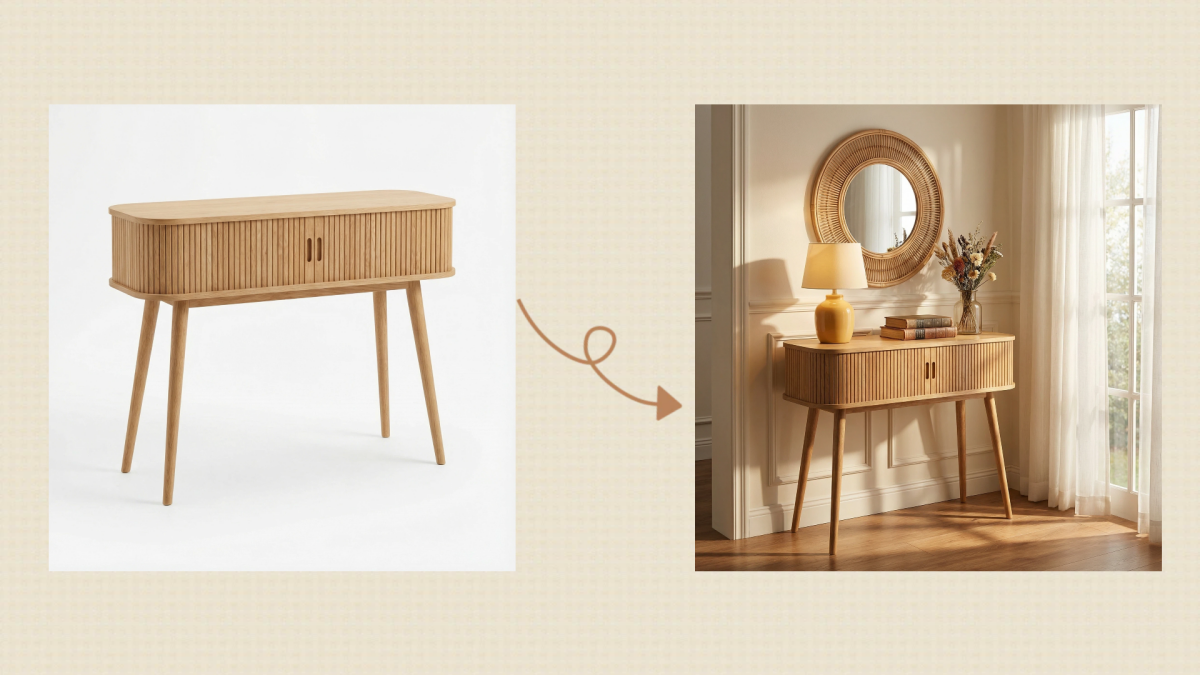
10 High-Converting Lifestyle Product Images for Amazon Listings
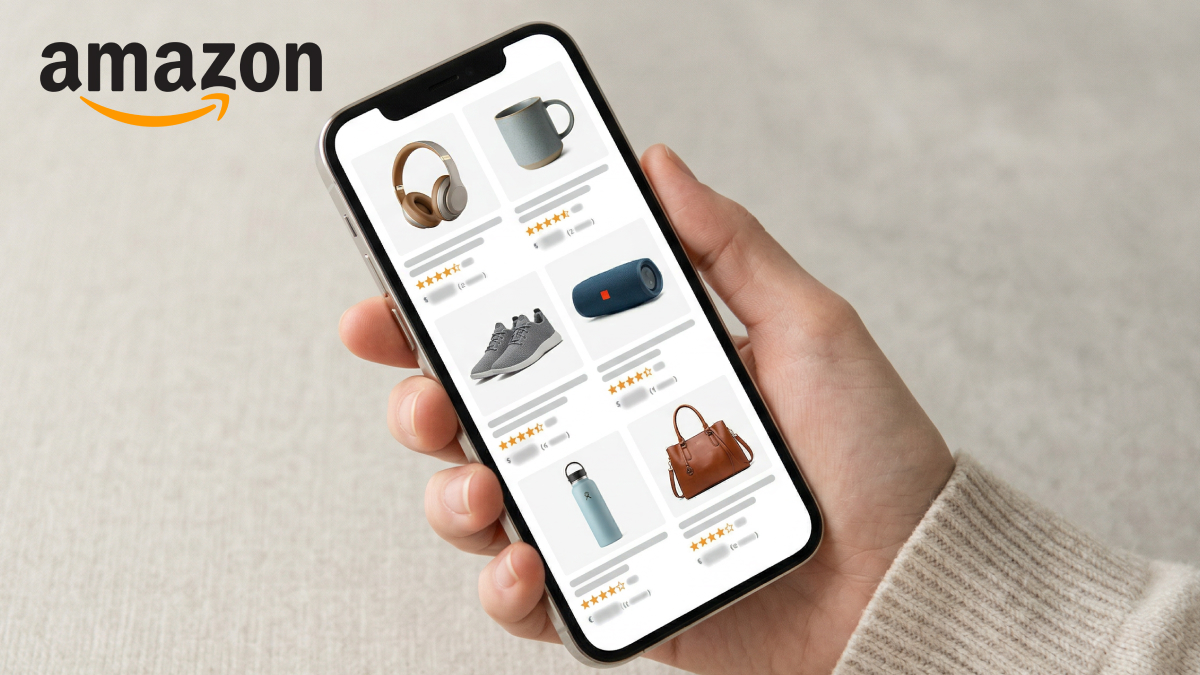
Amazon 7-Image Listing Strategy: Boost Sales by Optimizing Every Image

Best AI Product Image Generator 2026: Top Tools for Amazon Sales
Keep AI Product Images Consistent Across SKUs: Lighting, Color, Background
What Is an AI Clothing Model Generator? Full Guide for Sellers
Get Perfect LinkedIn Image Sizes for Professional Results
Your LinkedIn visuals build your first impression and trust. Correct image sizes prevent blur and cropping issues. With Designkit, you can quickly create sharp, polished visuals that feel confident and truly professional.