
How to Add Emoji to a Photo: Easy Online Editing Guide
Add emojis to photos to express a reaction, decorate an image, or cover a face before sharing. Designkit lets you place and adjust stickers online with simple editing controls.

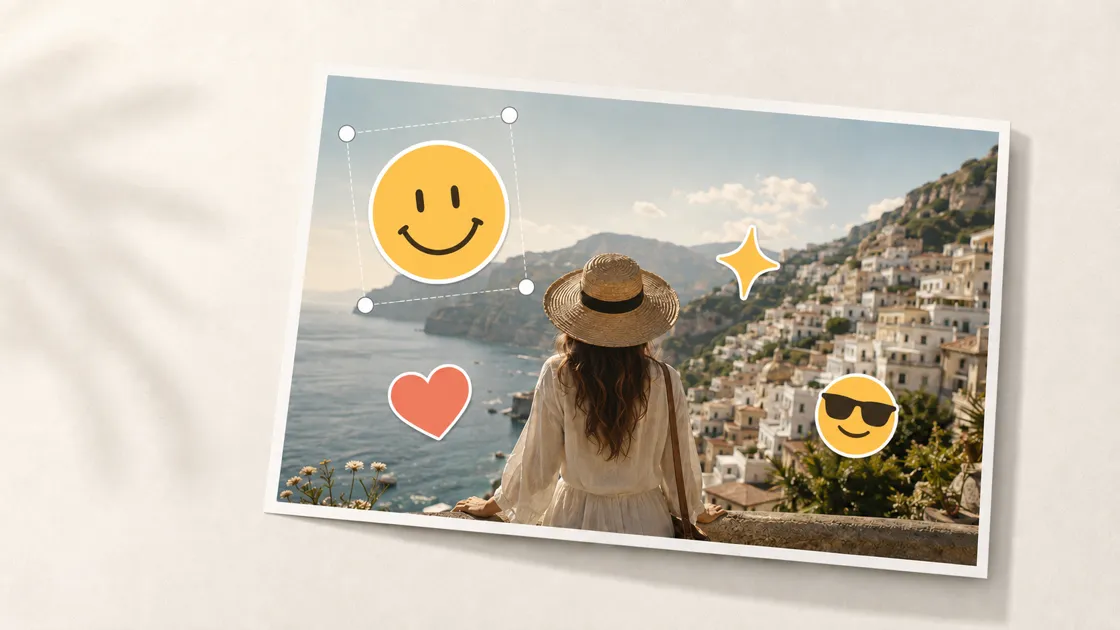
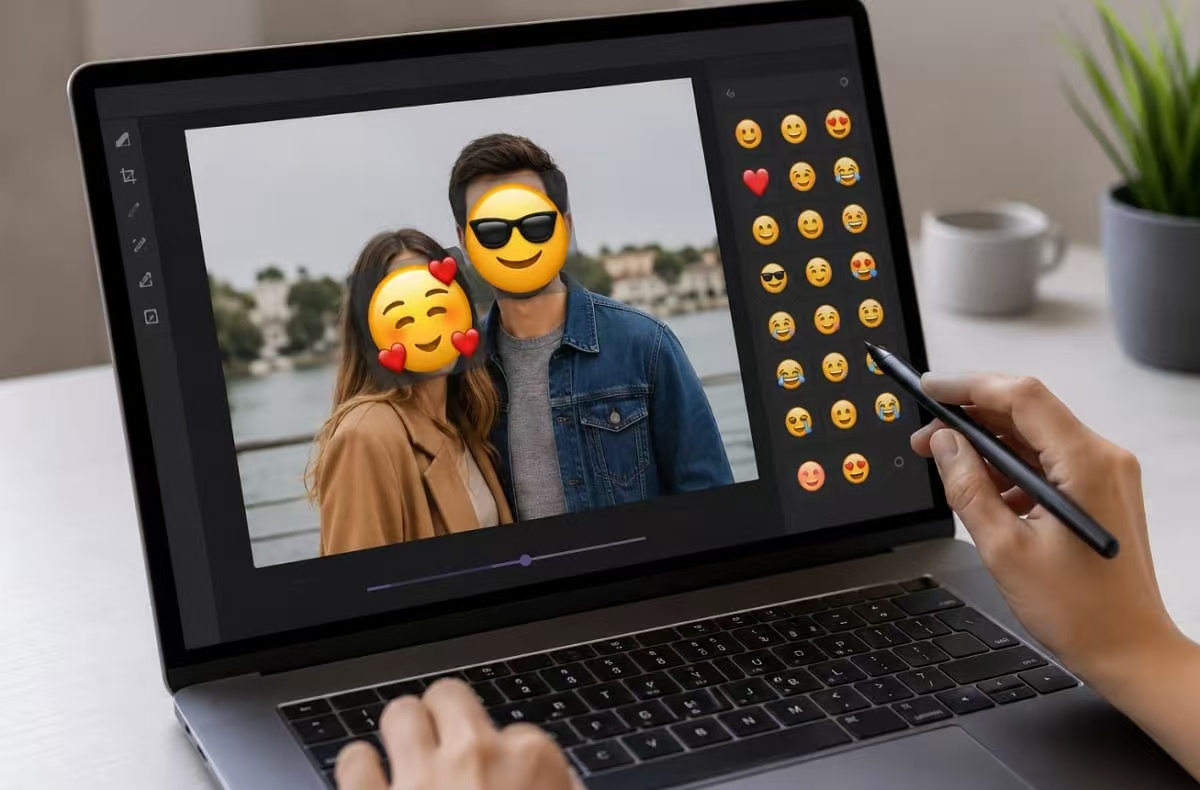
Most people want to add emoji to a photo to decorate or hide details. Adding emoji to photos quickly shows reactions or protects privacy before sharing. You can even add emojis to photos for business promotions or casual conversations easily.
Some users also need simple ways to hide faces before posting images publicly online. An emoji photo editor like Designkit makes placing stickers fast and simple. So, this practical tutorial shows you exactly how to add emojis to photos online.
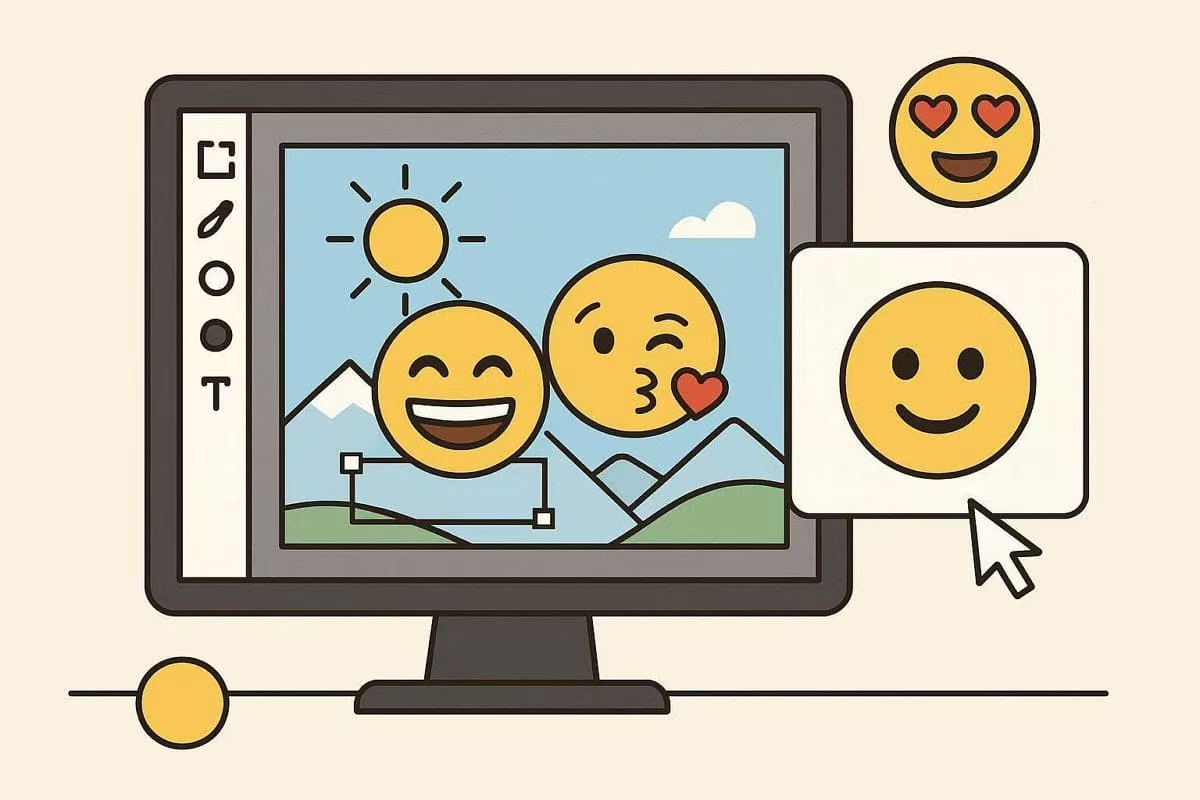
What Does “Emoji in Photo” Mean?
Emoji in a photo means placing an emoji or sticker on a picture. This includes emoji icons, sticker graphics, or custom emoji-style images placed on top. Many people put emojis on photos to express reactions without adding extra text anywhere. Others prefer adding stickers that match celebrations, promotions, or memorable everyday moments naturally.
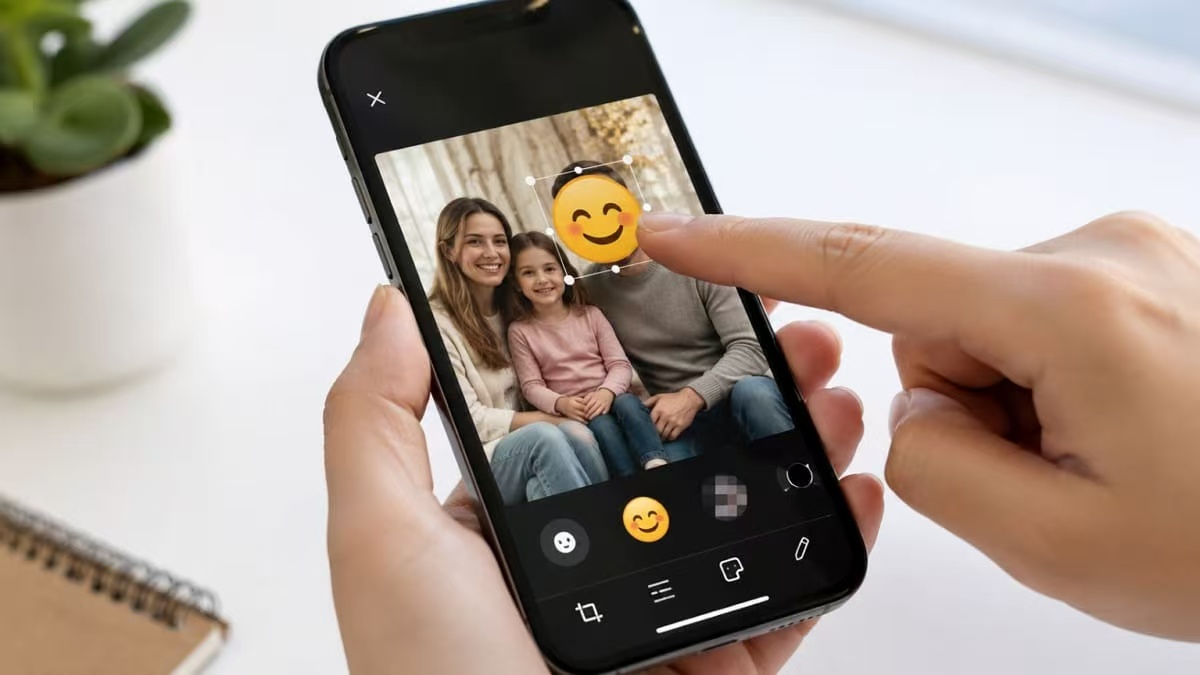
Another common reason involves covering faces before sharing photos across public social media platforms. Doing this can improve privacy while keeping the remaining photo details visible and easy for viewers to understand. You can add emoji to a picture using built-in stickers or uploaded custom graphic files. Unicode also defines emoji characters and standardizes their visual sets.
How to Add Emoji to Photo Online
Adding stickers takes only minutes when you follow a clear editing workflow using Designkit. Follow these simple steps to create polished photos with emojis and custom stickers:
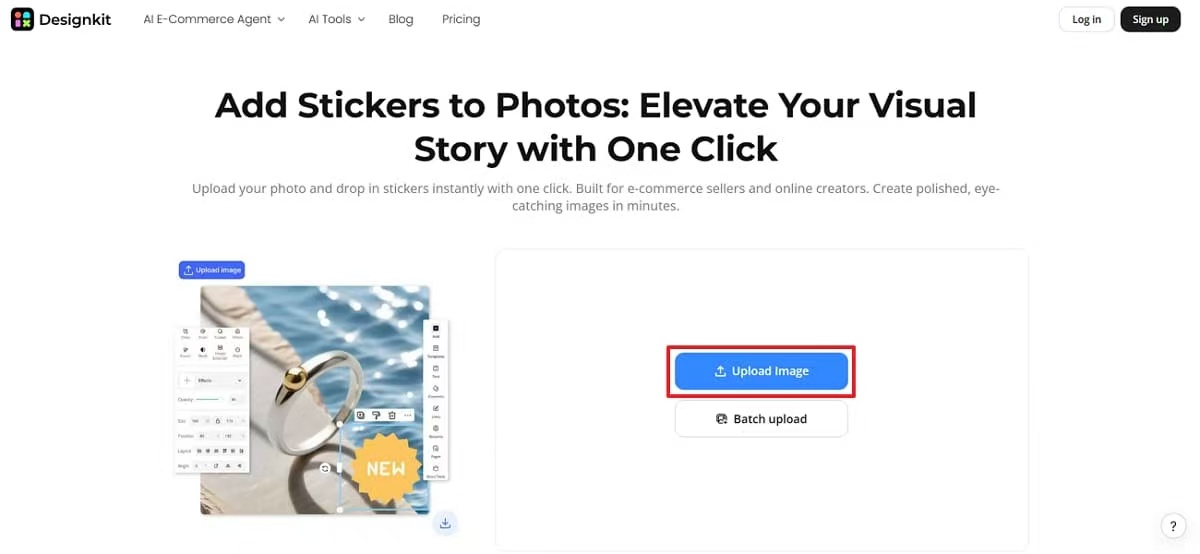
Step 1. Upload Your Photo
Open Designkit’s “Add Stickers to Photos ” in your browser. Press “Upload Image” to import your photo and begin editing without modifying the original file.
Step 2. Add an Emoji or Sticker
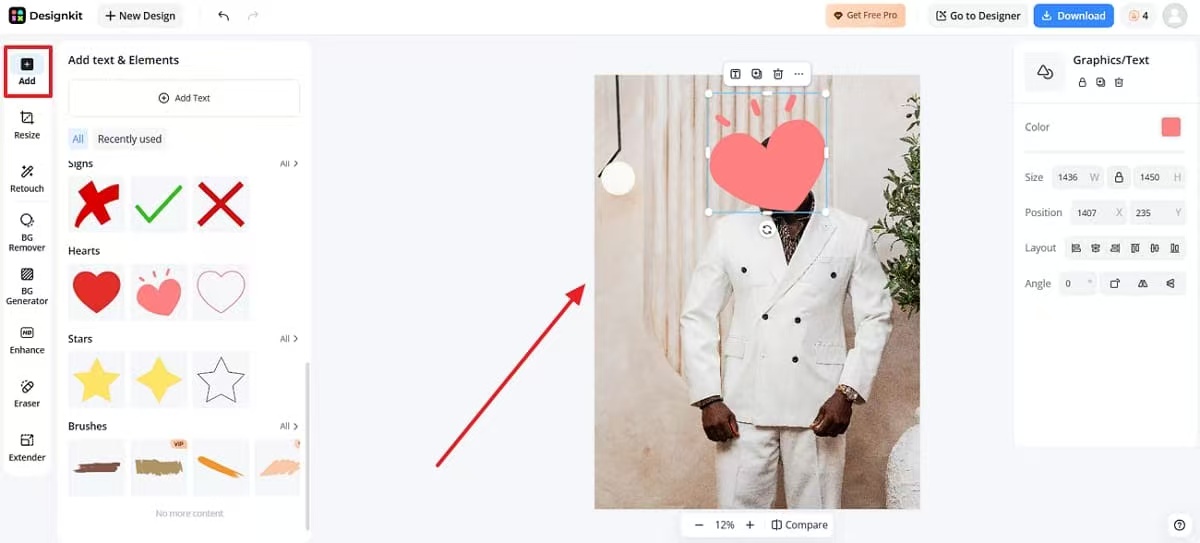
Open the sticker library by pressing the “Add ” section to browse emoji-style graphics or icon collections. Select your preferred design to add emoji to a photo with simple placement controls.
Step 3. Upload Your Own Image as a Sticker
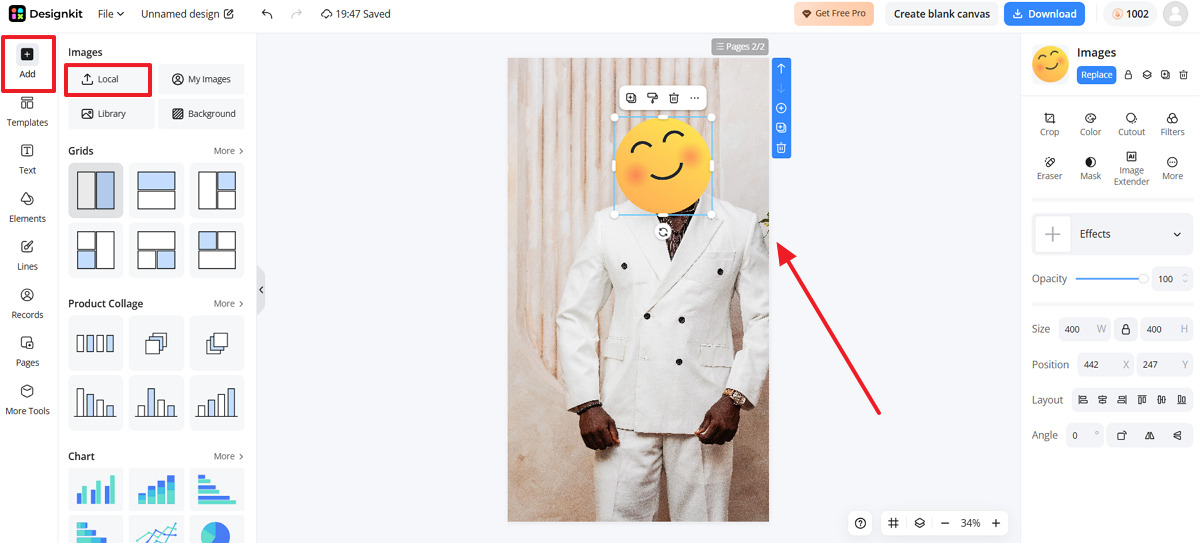
Designkit also supports uploading personalized graphics instead of relying only on default sticker collections. From the “Go to Designer ” section, press “ Add ” to choose “ Local ” and upload your own emoji from your computer easily. It will help you add emoji to a picture while creating unique branded visuals matching every campaign consistently.
Step 4. Resize, Rotate, and Place the Emoji
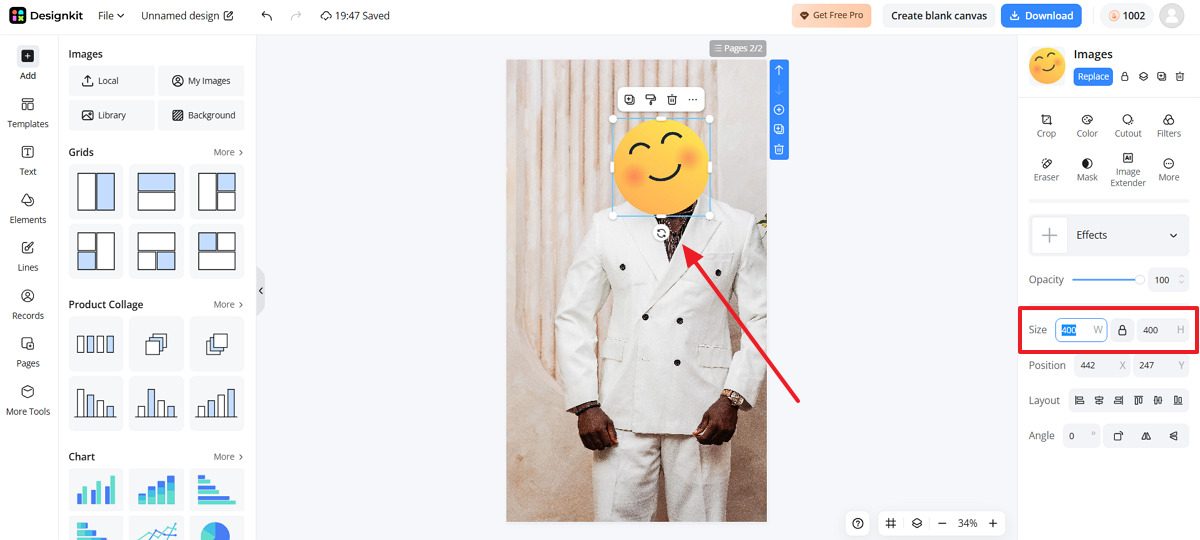
To resize your uploaded emoji photo, select it and adjust the “Height” and “Width” values in the “Size” section. You can also rotate the emoji by selecting the “Rotate” icon displayed on the photo.
Step 5. Generate a Custom Emoji-Style Sticker with AI (Optional)
1. Open “Designkit AI Image Generator" when default stickers cannot match your creative requirements completely. Describe your preferred emoji-style sticker using a short prompt with clear visual details and a reference image (if required).
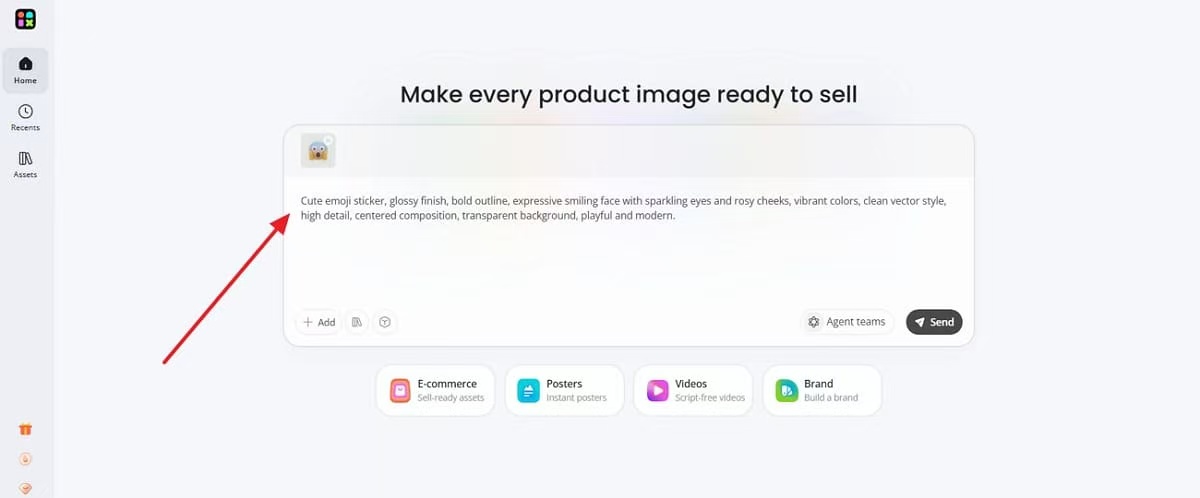
2. Preview the generated custom sticker designs, then press “Download ” and reuse them across future photos for consistent branding.
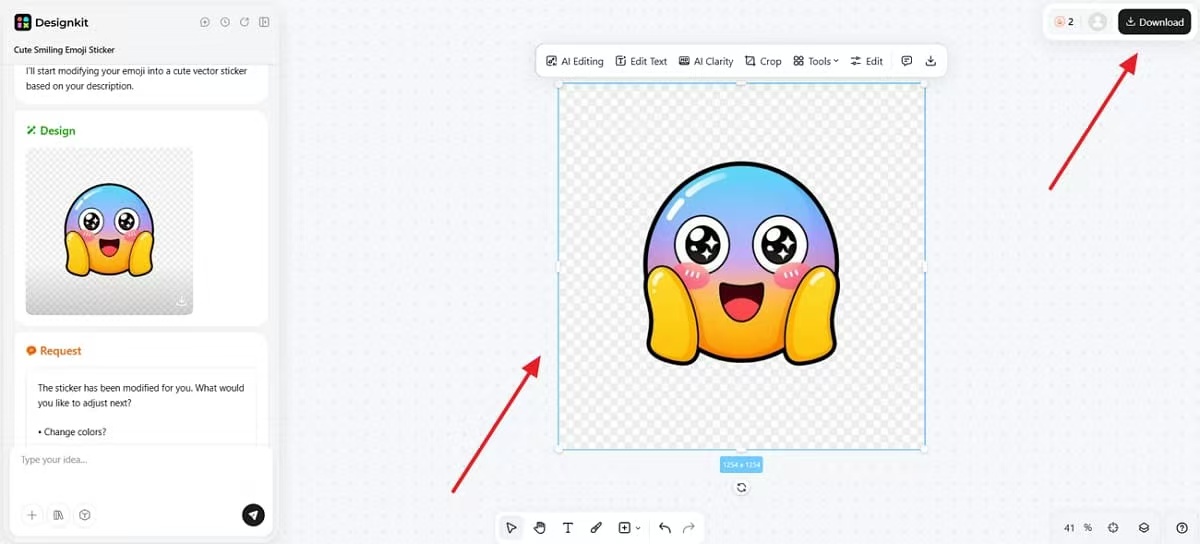
Step 6. Add the Custom Sticker and Export
Return to the Designkit's "Add Stickers to Photos" editor and review every design carefully. Press "Download" to export the finished image after confirming your preferred settings and ensuring everything is ready for sharing.
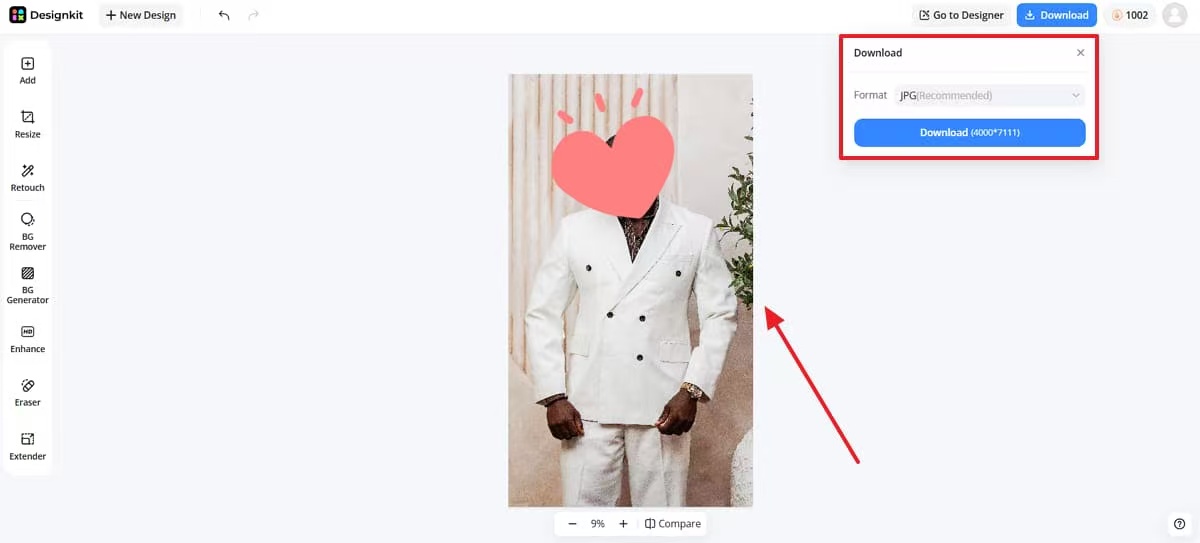
Creative Ways to Use Emojis in Photos
Adding emojis protects privacy and creates more engaging photos for different audiences. Brandwatch has analyzed large volumes of online consumer conversations and emoji usage trends. These practical examples show when each editing approach works best:
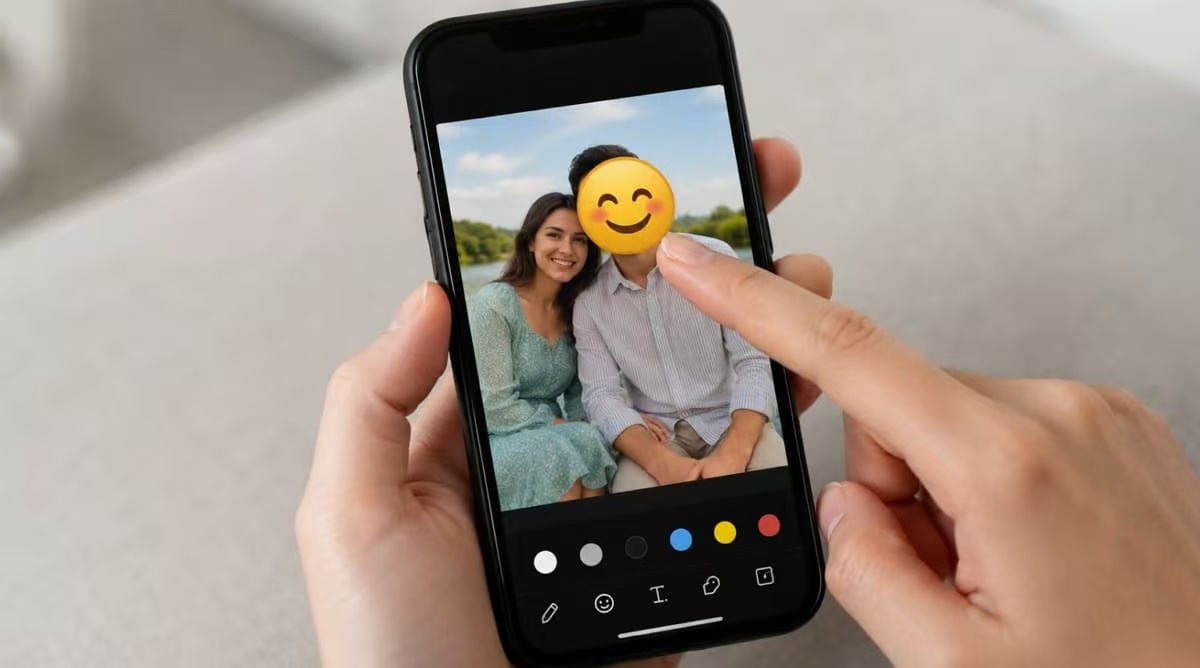
1. Cover a Face with Emoji Before Sharing
Many people cover their faces with emojis before sharing photos across public social media platforms. Large stickers hide identities while keeping attention focused on products, events, or memorable moments. An emoji face editor offers flexible placement for better coverage using personalized sticker layouts.
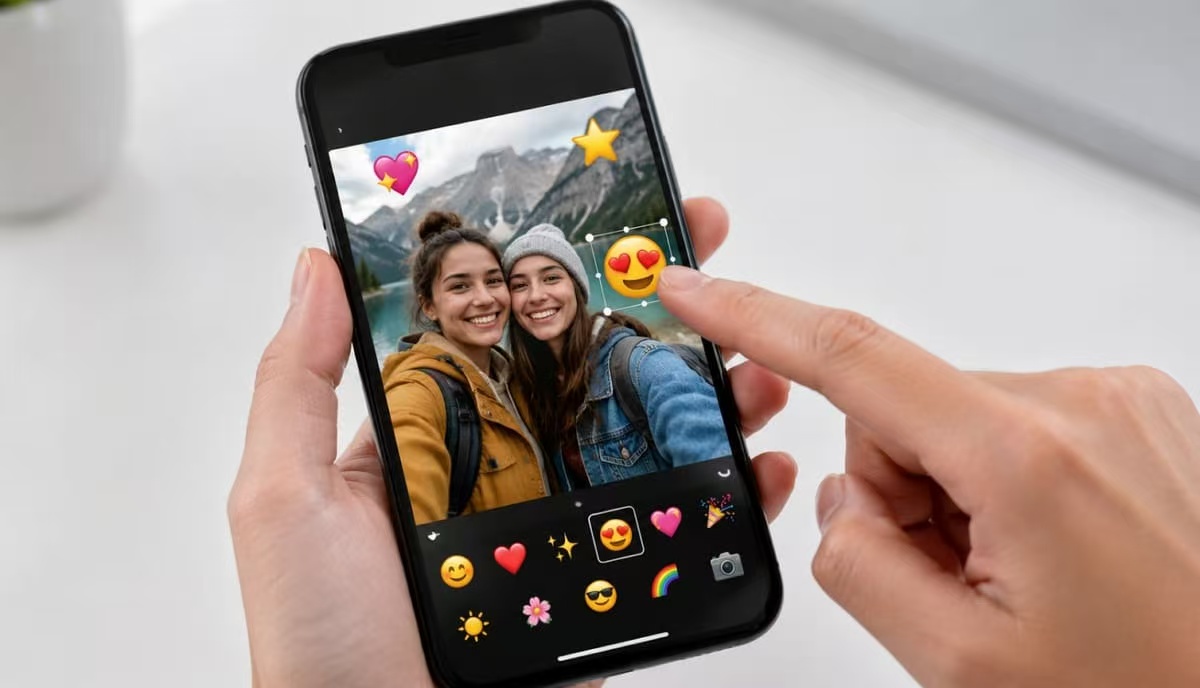
2. Add Reaction Emojis to Photos
Reaction emojis highlight emotions without adding extra captions inside shared images for viewers. Various creators put emoji on photos to emphasize excitement, humor, or appreciation naturally everywhere. Reaction stickers keep messages clear while making casual photos feel naturally more engaging everywhere.
3. Decorate Social Media Photos
Creative stickers make ordinary pictures feel more memorable across different social media platforms. Users often add emoji to pictures before sharing stories or travel memories with friends. You can add stickers to a photo while keeping important subjects clearly visible. Moreover, Buffer highlighted sparkles ( ✨ ) as one of the most popular emojis used in social media content during 2025.
4. Use Your Own Image as a Sticker
You can also upload personal images here instead of using the default sticker options. Many Shopify sellers add their brand logo as a sticker before sharing products on Instagram Reels or TikTok. With this method, creators gain more control over final visuals by uploading personalized stickers and custom graphics.
Tips for Better Emoji Photo Editing
Small editing decisions often create cleaner photos with stronger visuals overall. Use these practical tips before exporting your photo for better results across platforms:
1. Keep It Minimal: Use fewer stickers to maintain clear compositions without distracting viewers. Simple layouts look more professional and help every visual remain easy to understand.
2. Coverage Size: You must select larger stickers whenever you need to hide private faces before sharing images publicly. Complete coverage protects privacy better while preventing important facial details.
3. Leave Margins: Keep stickers slightly inside photo edges to avoid cropping across different platforms. Proper spacing keeps important graphics visible after automatic cropping across different social media platforms.
4. Use Clear Images: Use sharp sticker files whenever you add emoji to an image using custom uploaded graphics. Sharp sticker graphics improve brand recognition while keeping every shared image visually professional and consistent.
5. Match the Style: Choose stickers matching your photo's colors and overall visual style. Consistent styling creates balanced images that feel intentional instead of randomly decorated with graphics everywhere.
Conclusion
You can add emoji to photos using built-in stickers or AI photo editors. Designkit’s Add Stickers to Photos makes adding emoji to a photo quick and simple. Upload personalized stickers or generate custom designs, creating memorable visuals for every shared photo successfully.
Both approaches create flexible designs matching different branding goals, audiences, and creative preferences perfectly. For a more personal touch, try Designkit’s AI Image Generator for custom stickers. Start creating polished photos today for stronger branding and memorable online sharing everywhere.
Frequently Asked Questions
How can I add emoji to a photo online?
Can I add emojis to photos for free?
Yes. Designkit lets you add emojis to photos online using its sticker library or your own uploaded graphics.
Can I put an emoji on a photo to hide someone’s face?
Yes. You can cover a face with an emoji by placing the sticker over it and enlarging it until all identifying details are hidden.
Can I use my own emoji when editing a picture?
Yes. Upload a custom graphic as a sticker, then adjust its size, angle, and position to add it to your picture.
Can I add stickers to a photo as well as emojis?
Yes. The same editor supports decorative stickers and custom graphics, giving you more options than standard emoji icons alone.
How do I keep an emoji clear after adding it to an image?
Use a sharp, high-quality sticker file and avoid enlarging it far beyond its original size. Check the final placement and image quality before exporting.
You May Also Like
Remove.bg Shutting Down Dec 1, 2026: What Users Are Saying

7 Best Remove.bg Alternatives in 2026: Free & Paid Tools

Instagram Carousel: What It Is, How to Post & Create One
Nano Banana Prompts: 20+ Examples for Better AI Images

Ideogram AI Review 2026: Features, Pricing & Alternatives
Free Mac Photo Editor: 5 Tools Compared for Mac Users
How to Crop a Photo Into a Circle Online (Keep Quality)
How to Make an Image Transparent Online (AI Guide)
Pixlr Background Remover Review 2026: Features, Pricing & Alternatives

How to Fix Overexposed Photos: Recover Highlights Fast
OpenArt AI Review 2026: Features, Pricing & Alternatives
Best AI Headshot Generator: 9 Tools Compared for 2026
Best Stencil Maker Tools 2026: Turn Photos Into Stencils
Pixelbin Watermark Remover Review: Image & Video Results Tested
How to Make a Sticker on iPhone: Easy Step by Step Guide
Best AI Logo Generator in 2026: 10 Tools Compared
How to Turn a Photo Into a Cartoon: A Beginner-Friendly Guide
Landscape vs Portrait: Key Differences & Best Uses in 2026
How to Remove Watermark From Photo: AI, Photoshop & More
How to Fix Pixelated Photos: Photoshop, AI Tools & Tips
Bing Image Creator: How It Works, Features, Uses & Alternatives
How to Remove People from Photos with AI: A Step-by-Step Guide
How to Increase Image Resolution: AI, Photoshop & PPI
How to Add Text to a Photo: 8 Tips for Better Results
How to Fix Grainy Photos: Easy Ways to Clear Images

Creative Profile Picture Ideas for Every Style and Platform
Evoto AI Review 2026: Features, Pricing, Pros & Cons
Pixlr Photo Editor Review: Features, Pricing & Alternatives
Best AI Image Extender Tools in 2026: Expand Photos with AI
How to Make a Collage on iPhone: Easy Guide for 2026
How to Sharpen an Image in Photoshop (Smart Sharpen and Unsharp Mask)
Best Image Background Remover Tools in 2026: AI Tools Compared
How to Make Transparent Background in Paint: Step-by-Step Guide
How to Resize an Image: Best Methods, Tools & Quality Tips
Best AI Image Generator Tools in 2026: Top AI Platforms Compared

Remove.bg Review 2026: Features, Pricing & Is It Worth It?
Luminar Neo Photo Editor Review 2026: AI Features, Price & Pros
How to Post Multiple Photos on Instagram (2026 Guide)
25 Facebook Cover Photo Ideas for Personal & Business Pages

What Is a PFP? Meaning, Examples & How to Create One
Can You Edit an Instagram Post After Posting?

11 Best Canva Alternatives in 2026 for AI Design & Marketing

8 Best Midjourney Alternatives in 2026: Features, Pricing & Comparison
How to Restore Old Photos: AI Tools, Tips & Best Methods
Pixelcut AI Review 2026: Features, Pricing, Pros, Cons & Alternatives
How to Apply Watermark to Photos: Methods, Tips & AI Tools
How to Remove a Background in Illustrator: 4 Easy Methods
How to Change Background Color on Instagram Story (Easy Guide)
8 Best AI Poster Generators in 2026: Create Posters Faster with AI
10 Best AI Image Enhancers in 2026: Tested & Compared
10 Best AI Image Editors in 2026: Features, Pricing & Comparison
7 Best AI Background Changer in 2026: Remove & Replace Photo Backgrounds
Luminar Neo vs Lightroom: Features, Pricing & Comparison 2026
Kittl Review 2026: Is It Worth It? Features & Pricing
How to Make a Blurry Image Clear: 5 AI & Manual Ways
How to Remove Background on iPhone: 5 Easy Methods (2026)
Photoroom Background Remover Review 2026: Features & Alternatives
How to Remove Background in Canva: A Step-by-Step Guide
How to Remove Background in GIMP: Beginner-Friendly Guide

Funny Dog Memes to Try: Doge Meaning and 10 Original Ideas
Back to School Checklist 2026: Supplies, Timeline, and Planning
Recraft AI Review 2026: Features, Pricing, Pros, Cons & Alternatives
How to Make an Image Transparent in Google Slides: Opacity & Background Removal

VanceAI Photo Enhancer Review: Features, Pricing & Alternatives in 2026
What Does Emojify Mean? Text, Photos, & Emoji Art Explained
Top 8 Online Background Removers for Ecommerce Photos (2026)
How to Remove Background in Photoshop: 7 Easy Methods
6 Best AI Image Upscalers 2026: Tools Tested & Compared
Project Indigo Review: Is It Better Than iPhone Camera?
How Big Is an 8x10 Photo? Size, Pixels & Frame Guide
How Big Is a 4x6 Photo? Dimensions, Pixels & Printing Tips
Picsart AI Review: Features, Pricing, Pros, Cons & Alternatives
Lovart AI Review: AI Design Agent Features, Pricing & Alternatives
Fotor AI Image Generator Review: Features, Pricing & Alternatives
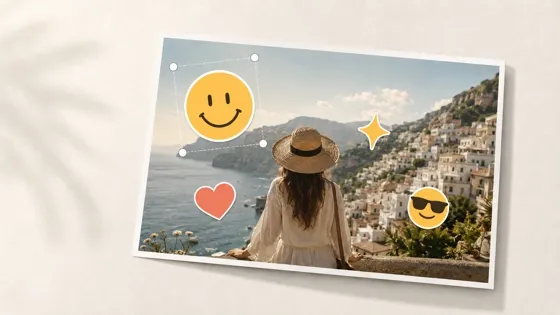
How to Add Emoji to Photo Online for Free
Emoji Wallpaper Ideas & How to Make One Online (2026)
Minimalist Poster Design: How to Make a Clean Poster (2026)
How to Make a Custom Poster That Is Ready to Print
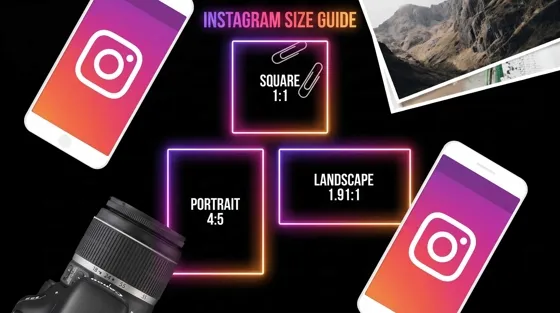
Instagram Image Size Guide 2026: Post, Reel, Story & Carousel Specs
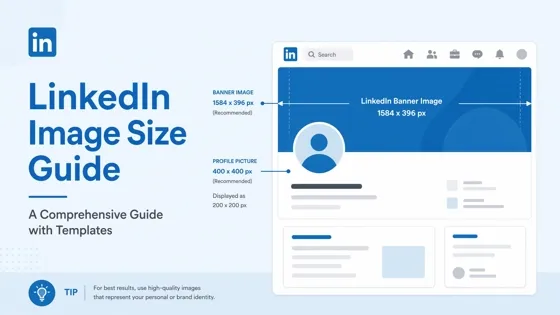
LinkedIn Image Size Guide: Profile, Post & Banner Dimensions
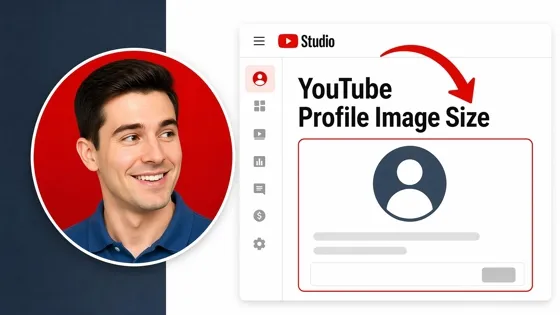
YouTube Profile Image Size: Best Dimensions & Safe Area 2026

How to Edit Amazon Product Photos That Boost Sales Fast
Add an Emoji to Your Photo Online
Use Designkit to add emojis or custom stickers, adjust their placement, and download your finished photo.


