
Is Fotor Background Remover Worth Using in 2026?
Need a clean cutout for a listing or ad? This review shows what Fotor background remover does well, where free limits get in the way, and when another tool fits better.

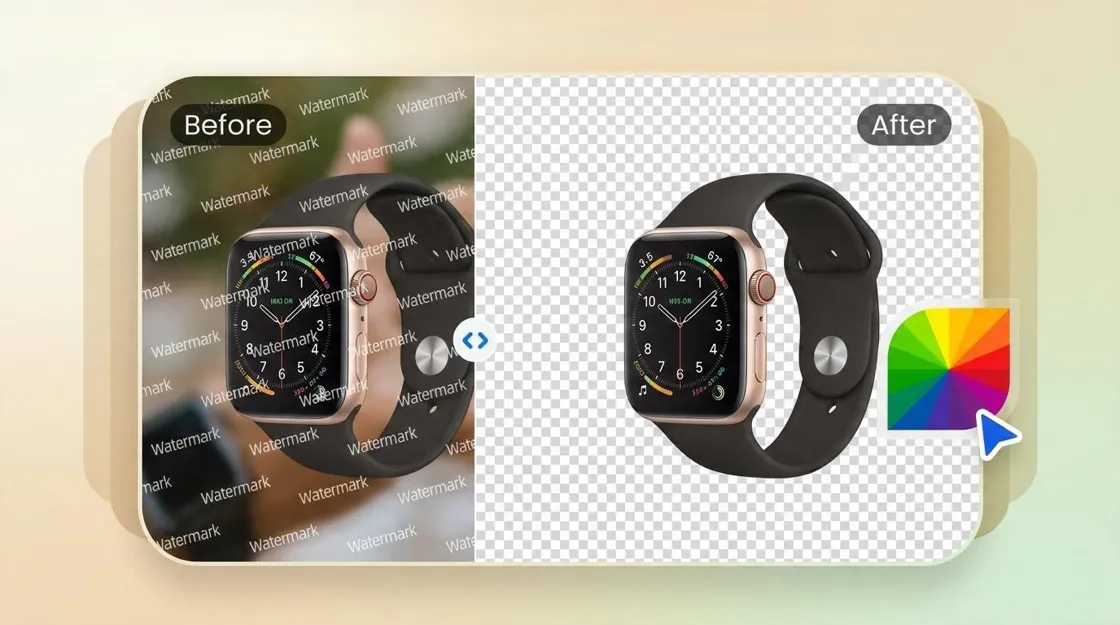
TL;DR:
Fotor background remover is fine for quick cutouts, but free exports and edge quality can fall short for ecommerce. Check pricing, batch needs, and video options before you commit, or try Designkit when you need product-ready backgrounds and scenes.
Fotor is an AI image editor with tools for removing backgrounds, changing scenes, and creating visual content. Its background remover can help you isolate a subject without manually tracing its outline, but the result depends on the image and how much cleanup it needs. This Fotor background remover review examines cutout quality, background editing, video support, pricing, and alternatives. It also looks at when Fotor makes sense for everyday editing and when a product-focused workflow may be a better fit.
How to remove a background with Fotor
Fotor's background removal process starts with an image upload and an AI-generated cutout. You can then inspect the result and use the available editing options before downloading it.
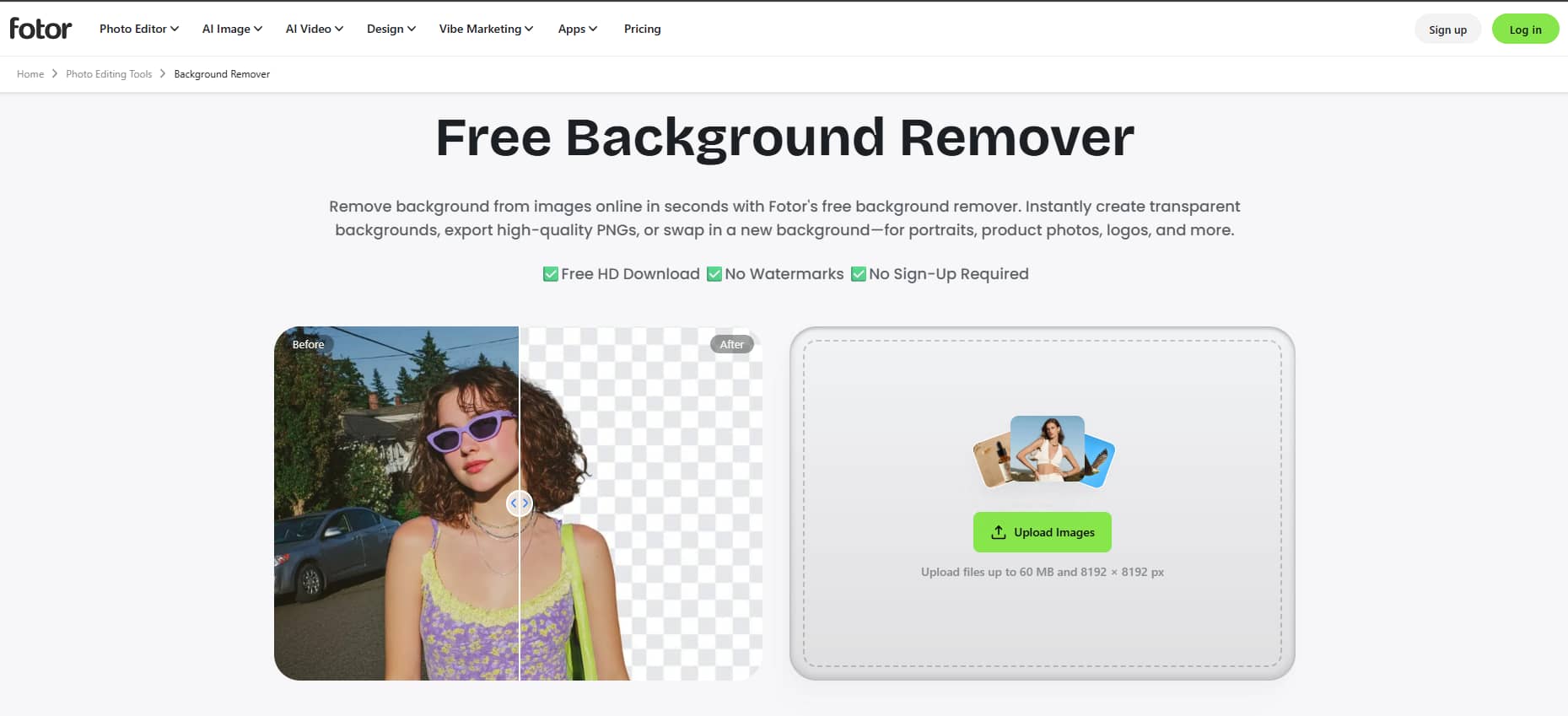
Step 1: Upload your image
Open Fotor's background removal tool and upload the photo you want to edit. A clear subject against a distinct background gives you a useful starting point.
Step 2: Let AI remove the background
Run the removal tool and check if it has isolated the subject from the original scene. Examine hair, clothing, fine edges, and little product details closely.
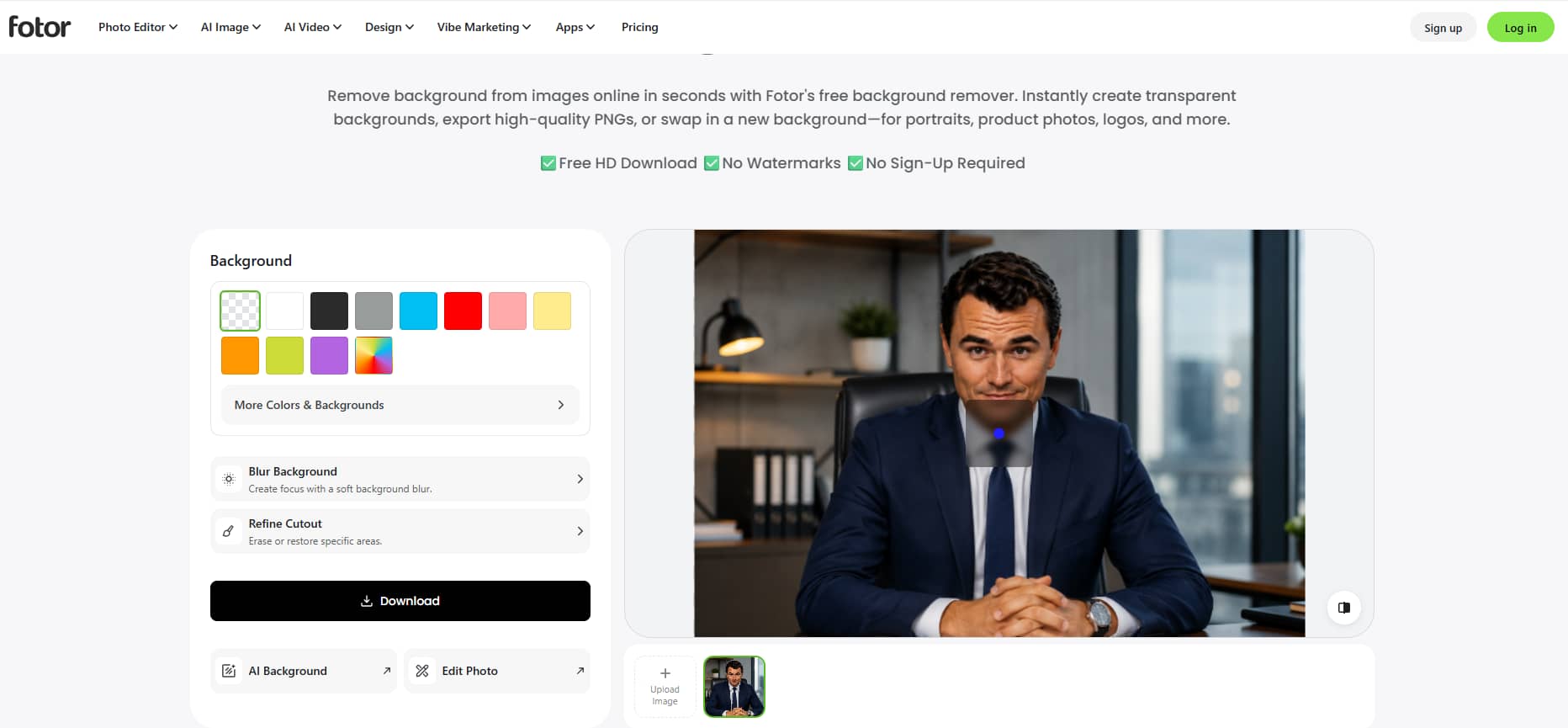
Step 3: Refine or replace the background
Use the available editing options to adjust the cutout or try a different scene. Fotor's AI background changer can help you explore alternative looks, depending on the tools available to your account.
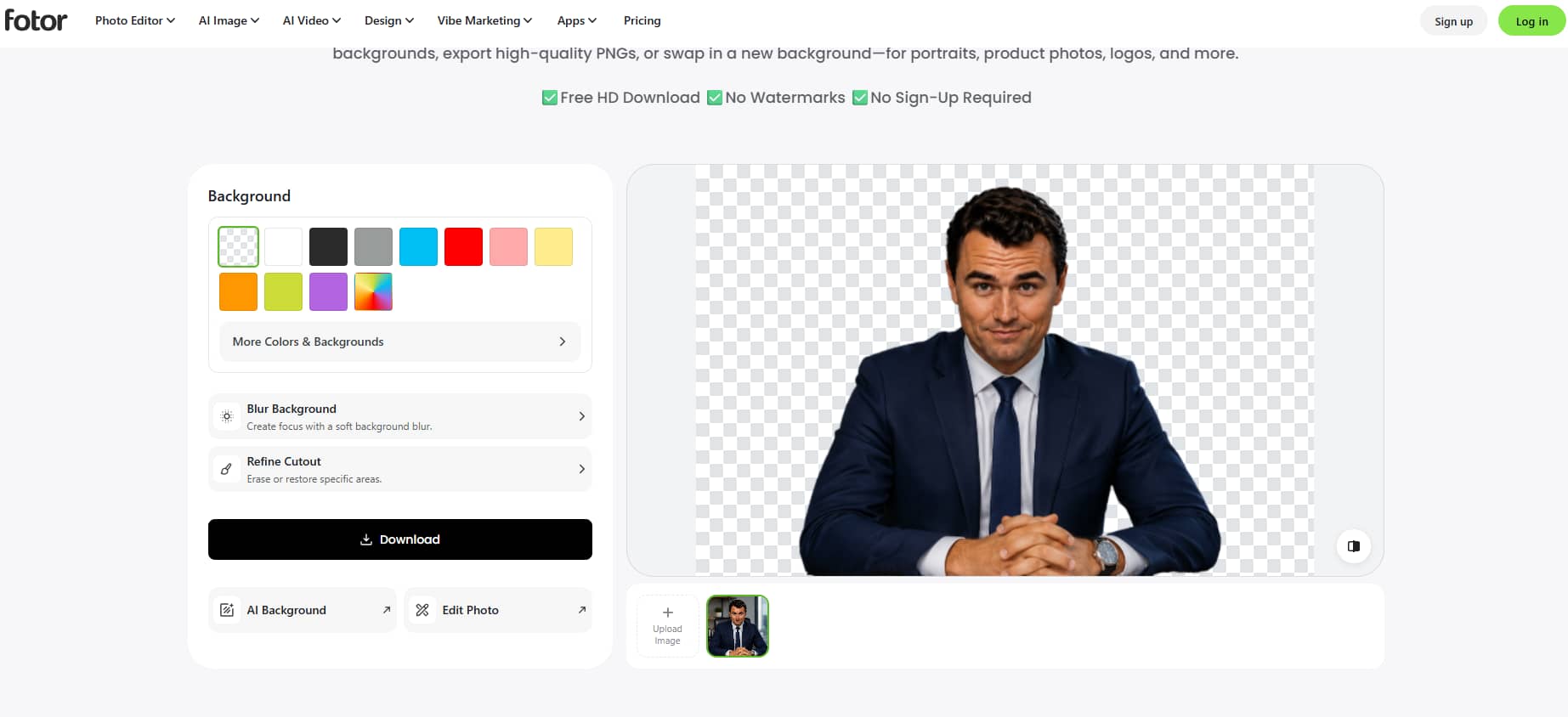
Step 4: Preview and download
Check the edges, transparency, and shadows before exporting the image. If you plan to use it in a product listing or advertisement, make sure the result fits the required dimensions and background.
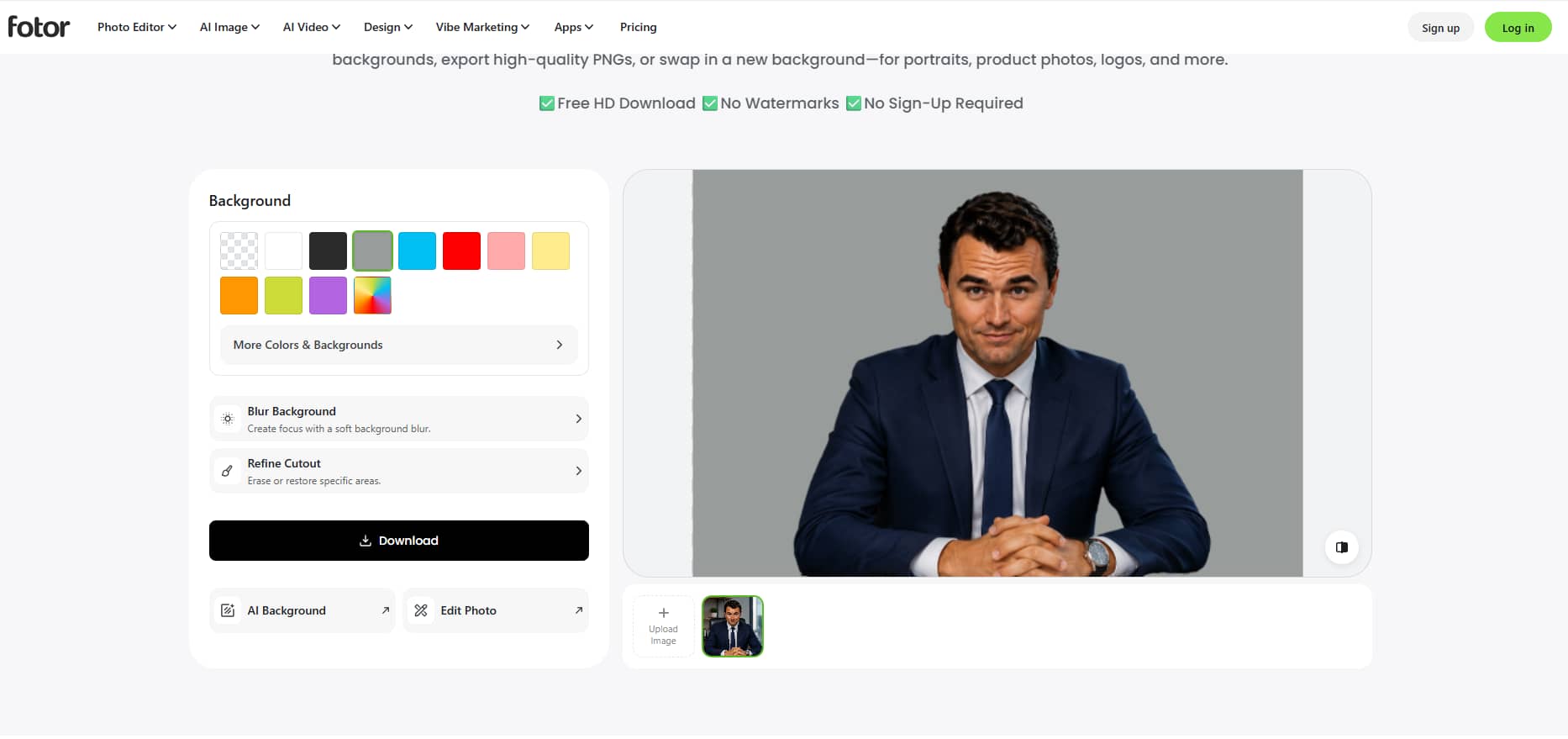
For many everyday photos, this workflow is not complicated. Your first cutout may not be ready to go to print, so check over your finished product. Fine details or complicated edges in your images may need more editing.
Fotor background remover review: What works and what doesn't
The Fotor AI background remover is intended to separate a subject from its surroundings automatically. To judge its usefulness, check the quality of the edges, the details it preserves, the handling of transparency and shadows, and the time you spend fixing mistakes. These checks give you a more practical basis for deciding whether the tool fits your work.
How well does Fotor remove different types of backgrounds?
A photo with a clearly defined subject is easier to process than one with a busy background or similar colours on both sides of the subject's outline. The Fotor image background remover is worth testing on the types of images you use most often, including portraits, clothing, and product photos. Check whether it removes the background cleanly without cutting into the subject or leaving stray patches behind.
Hair, fur, glass, and thin objects can be harder to separate because their edges may blend into the original scene. Zoom in on these areas after removal. If you need to restore missing details or erase leftover background manually, include that work when judging the time saved.
Can you get a clean cutout for product photos?
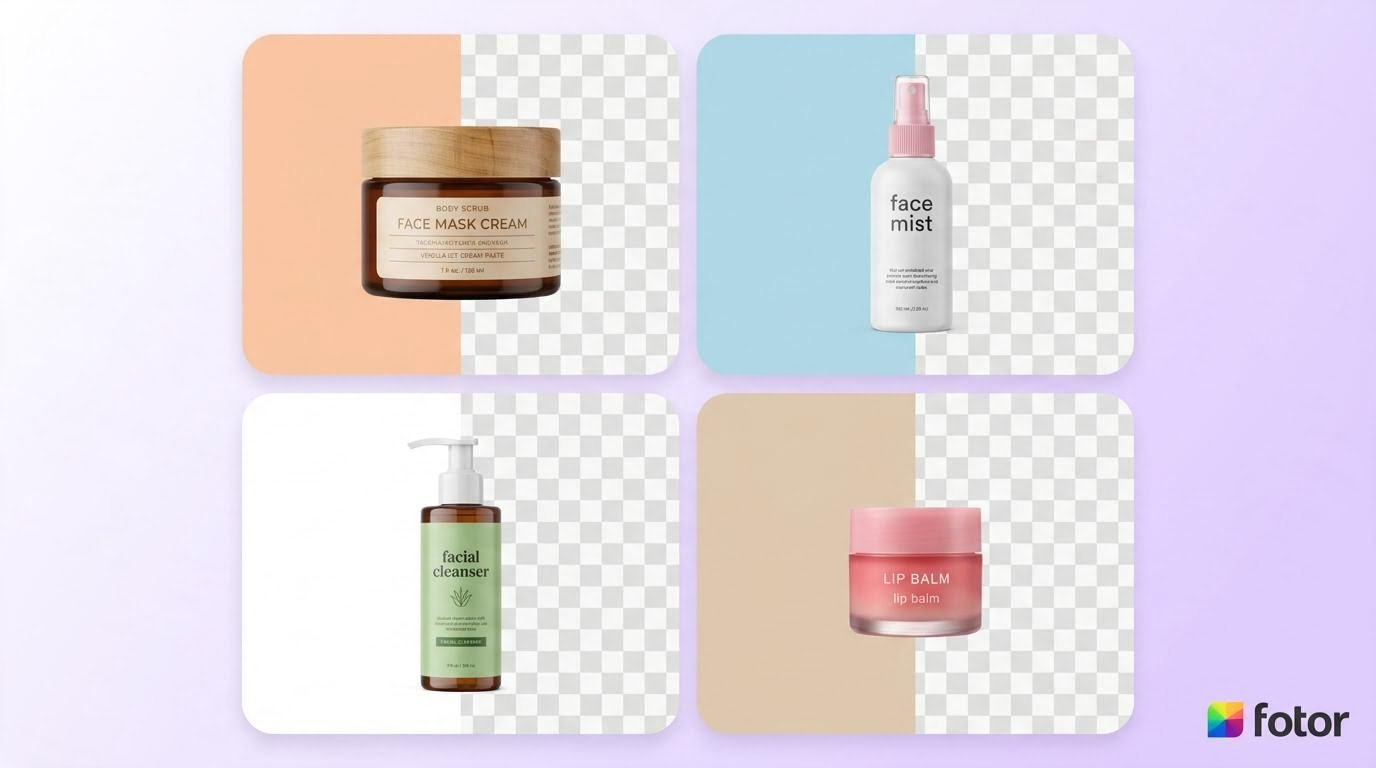
The cutout for a usable product needs to have accurate edges and enough detail to keep the item recognizable. Look for handles, reflective surfaces, textured materials, and edges of packaging, for example. A cutout looks fine at thumbnail size, but when scaled up for a product page or ad, the errors become apparent.
The result is also affected by transparency and shadows. If you're putting an object on top of another background, ensure the downloaded file keeps its transparency when that is an option. See if the original shadow has gone, become uneven, or left a visible halo around the product. The more you use Fotor bg remover to edit products, the less time you will spend correcting those problems.
How much control do you have over the new background?
Fotor lets you replace an image's original background with different colours or scenes using its editing tools. The Fotor AI background changer helps you explore different looks for product photos, portraits, and social media visuals. With a Fotor background change, you can adapt an image to a new visual style without taking another photo.
When replacing a background, make sure that the new scene is the same light source, angle and proportions as the subject. Fotor's AI background changer helps you discover different looks, but you should check the output generated before using it for commercial purposes. Even if the background looks realistic but the subject is artificial or has an inconsistent shadow, the picture may still need to be retouched.
Does Fotor handle video backgrounds well?
A video background remover should be able to keep the subject and the scene separated in every frame. Movement, motion blur, changing light, and objects crossing in front of the subject can create errors that are not obvious in a still image. Hence, a Fotor video background remover should be tested with a real clip, not a single frame.
Before you begin using Fotor AI video background remover in your daily work, check for its supported formats, export options, and plan restrictions and make sure that the feature is available for you at this moment. Test a short clip for flickering edges, missing details, or parts of the original background that were left behind. If the separation is obvious as the subject moves you may need some other tool or more editing.
Is Fotor practical for processing multiple images?
Editing a single image is different from preparing a large product catalogue. A Fotor bulk background remover workflow would need to reduce repetitive work while keeping the results consistent across a batch. Check Fotor's current feature list to confirm whether bulk processing is supported for your account before planning a project around it.
Don't forget the time it takes to upload images, correct cutouts, export files, and organize results. And if every image needs a lot of manual clean-up, the initial speed of removal may not save much time over a large batch.
Fotor background remover pricing: what can you use for free?
Fotor offers Pro, Pro+, and Max subscriptions with different monthly credit allowances, generation limits, and storage capacities. The Pro plan costs $10.99 per month, Pro+ costs $23.99, and Max costs $49.99, based on the monthly pricing shown. Your choice depends on how often you edit images, how many AI generations you need, and whether you require features such as batch background removal and replacement.
|
Plan |
Monthly price |
Key features |
|---|---|---|
|
Pro |
$10.99/month |
100 credits/month, 10 concurrent generations, 2,000 AI Agent chats, 2 AI Agent tasks, 2 GB cloud storage and device sync. AI Batch Edit for background removal and replacement, and multiple brand kits are not included. |
|
Pro+ |
$23.99/month |
300 credits/month, 30 concurrent generations, 4,000 AI Agent chats, 5 AI Agent tasks, 100 GB cloud storage and device sync, AI Batch Edit for background removal and replacement, and multiple brand kits. |
|
Max |
$49.99/month |
1,000 credits/month, 50 concurrent generations, 10,000 AI Agent chats, 10 AI Agent tasks, 500 GB cloud storage and device sync, AI Batch Edit for background removal and replacement, and multiple brand kits. |
Is Fotor background remover free for images?
The pricing table lists paid subscriptions, so it does not confirm the current limits of Fotor's free background removal access. If you want to try the Fotor background remover before subscribing, check the tool's current free allowance, export resolution, watermark restrictions, and credit requirements. These details will help you determine whether the available access is enough for occasional edits or whether you need a paid plan.
Are video background removal and AI backgrounds included?
The plans list monthly credits and other features, but the table does not specify whether video background removal or AI background generation requires a particular subscription. Check the access requirements for each tool before choosing a plan. If you regularly edit videos or create replacement backgrounds, confirm the available features and credit costs so you can estimate your monthly usage.
When do paid features make sense?
The Pro plan may suit users who need 100 monthly credits, up to 10 concurrent generations, and basic cloud storage. However, it does not include AI Batch Edit for background removal and replacement or multiple brand kits. Pro+ offers 300 monthly credits, more concurrent generations, 100 GB of storage, and both features, making it worth considering for more frequent editing. Max provides 1,000 monthly credits, up to 50 concurrent generations, and 500 GB of storage for users with heavier workloads. Compare these limits with your actual image volume and feature requirements before subscribing
Best Fotor background remover alternatives by workflow
Fotor is capable of a range of image editing tasks, but if you have one main task in mind, another tool may be better suited for you. Compare alternatives based on the output you need and how much editing you expect to do later.
Canva for dedicated background removal
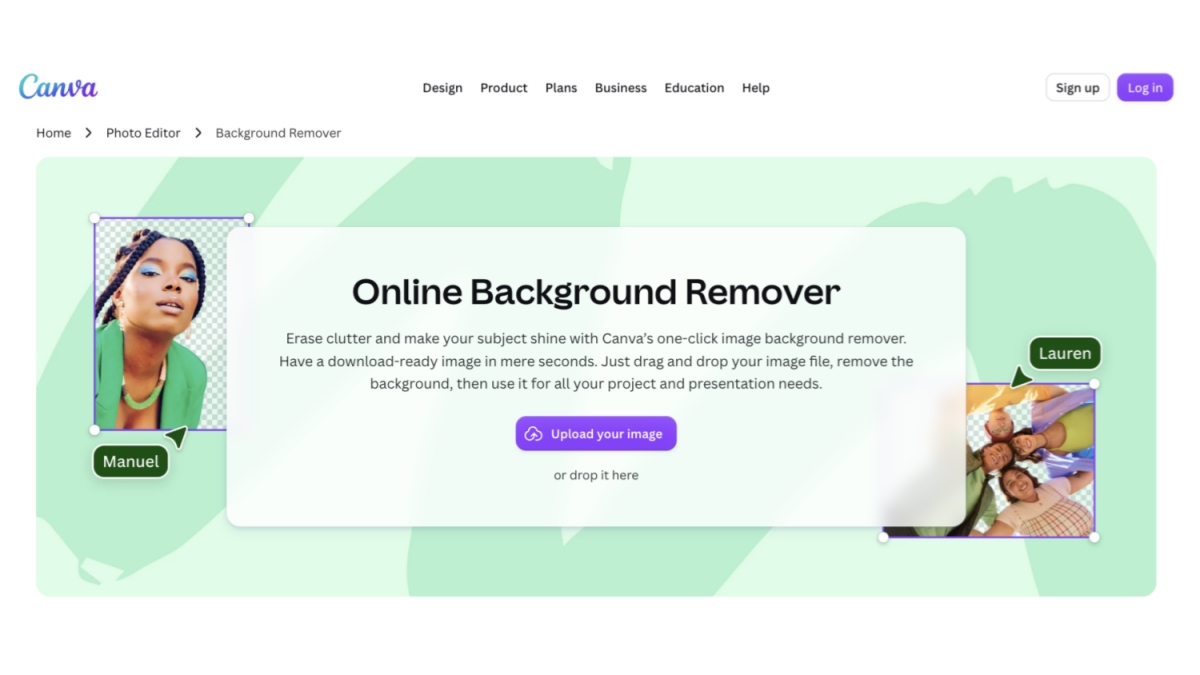
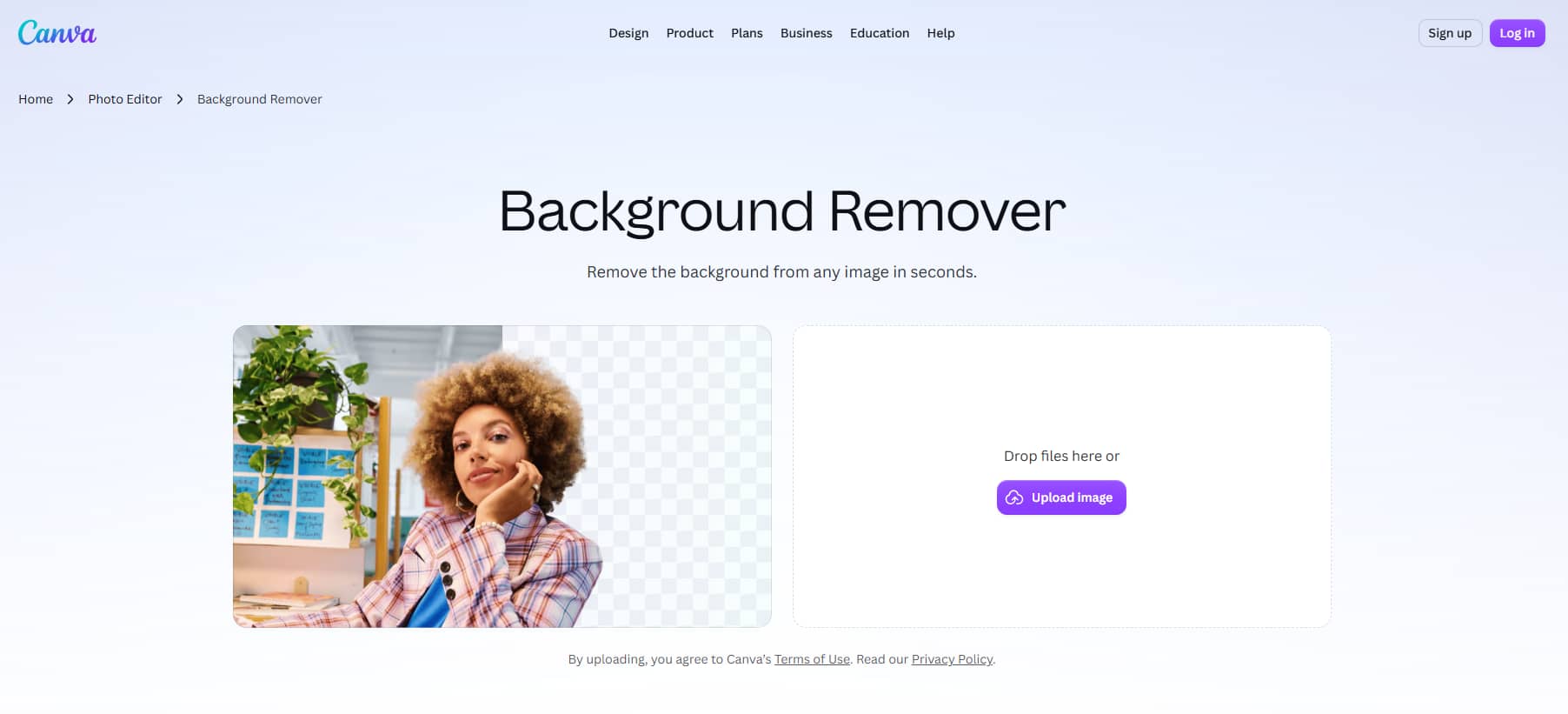
If you mostly work on removing subjects from image backgrounds, then you should consider Canva.
It's a focused workflow, good for users who want a cutout without having to go through a wider editing platform. If you are processing images on a regular basis, check the current export options and usage limits.
Photoroom for e-commerce product images
Photoroom is an app for product photos and commercial images. This can be useful for online sellers who need product cutouts and backgrounds for listings or promotional content. Test it with your own product photos to see how it compares for edge quality, editing time, and exports available.

Canva for background removal within design projects
Canva is a practical option if background removal is one step in making social posts, presentations, or advertisements. It fits workflows where you want to continue designing after isolating the subject. Check the current plan requirements for its background removal feature before choosing it.
Designkit for AI product photography and marketing visuals
Designkit is worth considering if you need to develop product scenes and marketing images after removing the original background. Its AI background remover helps isolate subjects, while its AI background generator lets you explore new scenes for product presentation. You can also use its product photography generator to create visuals for ecommerce listings and promotional content. Review the available tools and export options to see whether they fit your project requirements.
How it works
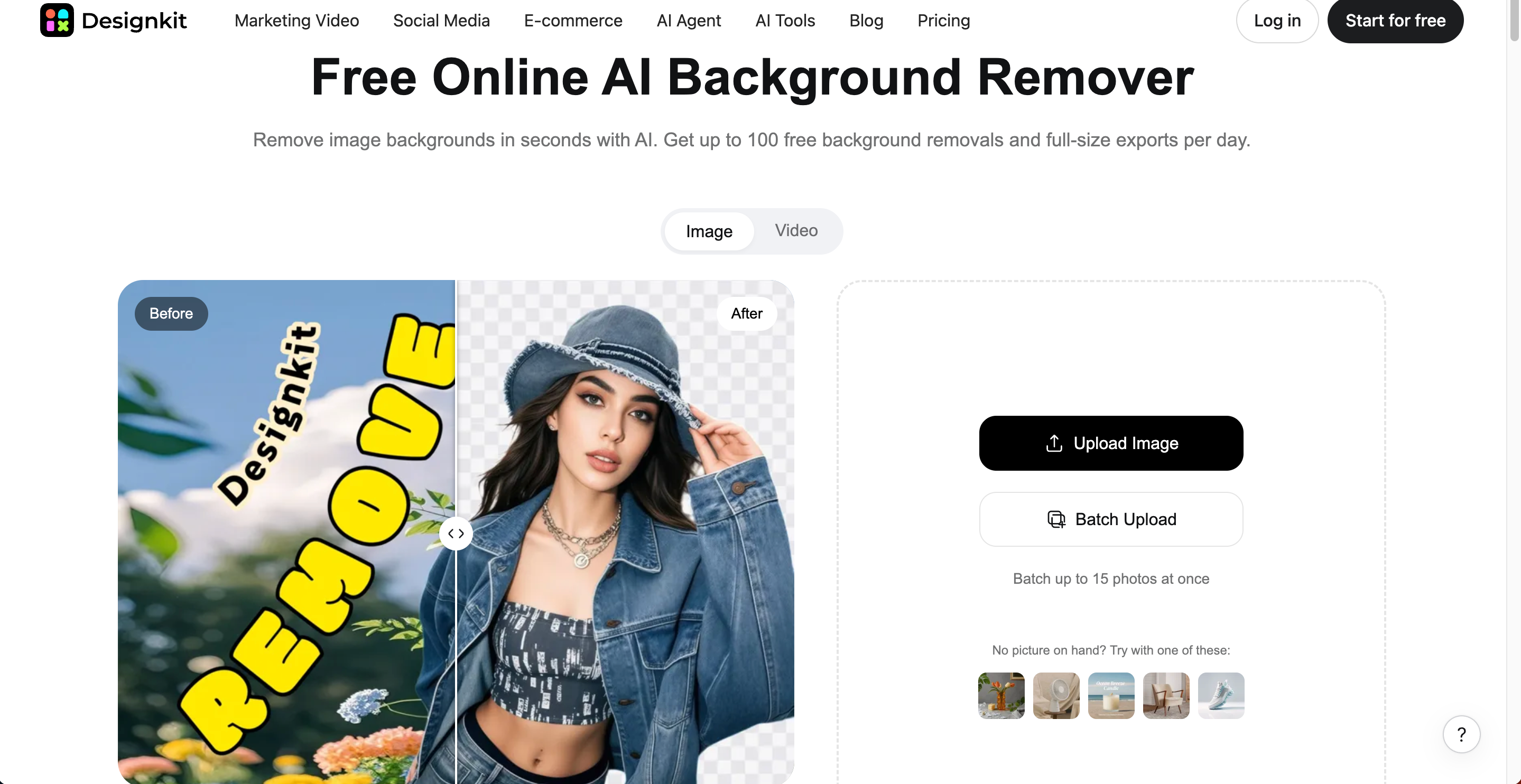
Step 1: Upload your image and remove the background
Upload your product image to Designkit and use its AI background removal tool to isolate the subject. This gives you a clean starting point for creating a new product visual. If you need to process multiple images, explore the bulk background remover to see whether its workflow suits your image volume.
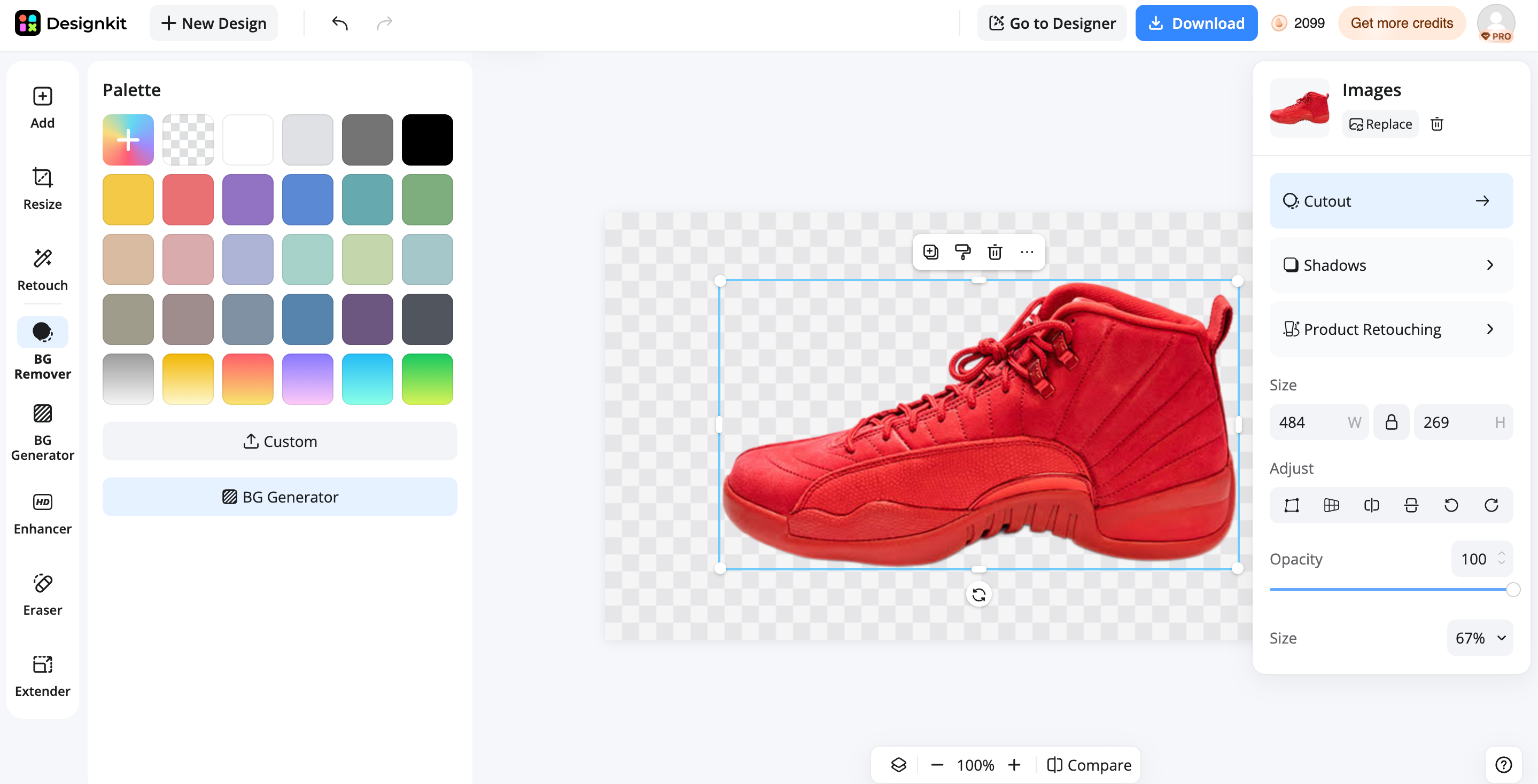
Step 2: Create a new product scene
Generate or select a background that suits your product and intended use. Designkit's AI background generator can help you explore different scenes, while its lifestyle product photography generator is relevant when you want to show a product in a styled setting. Adjust the composition to match your brand style, ecommerce listing, advertisement, or social media campaign.
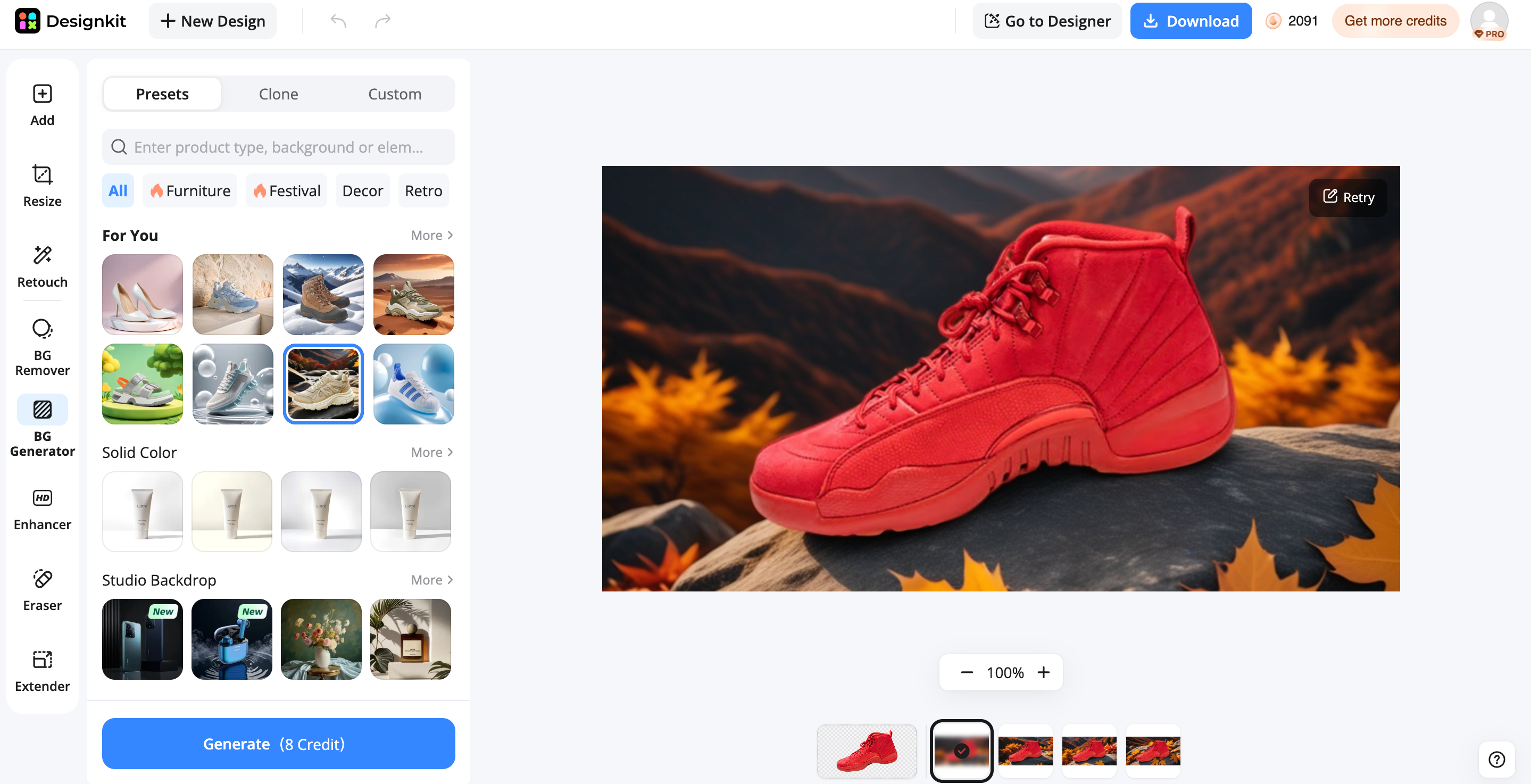
Step 3: Review and export the visual
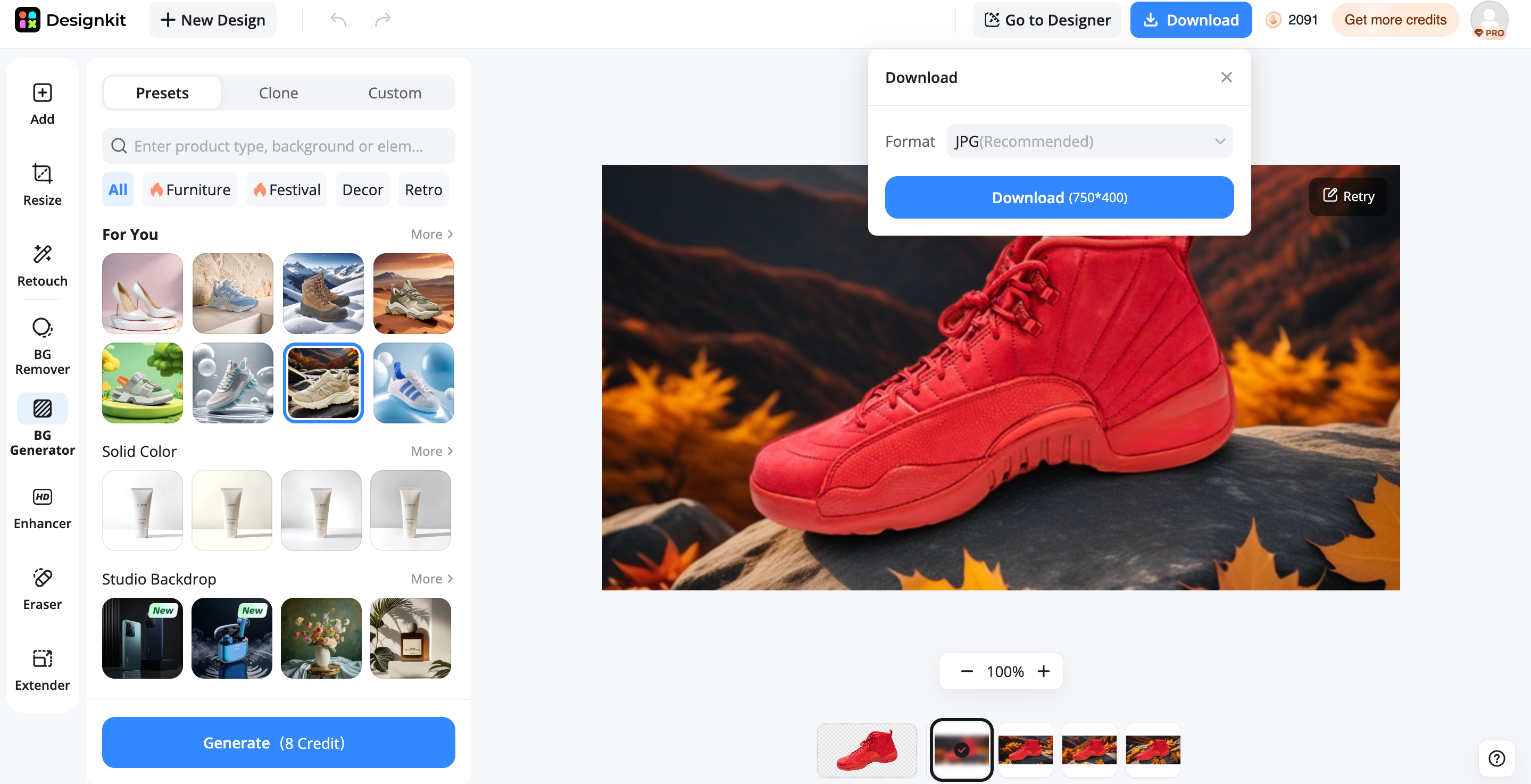
Check the subject's edges, placement, and overall composition against the new background. For product listings that require a plain backdrop, try Designkit's white background product photography tool. You can also use the AI photo editor for product photos to continue refining the image. Once the visual looks right, export it for use in product listings, advertisements, or other marketing materials.
Fotor vs. Designkit: which fits your workflow?
Fotor suits a broad range of image editing tasks, while Designkit is relevant to teams creating product imagery and marketing visuals. The right choice depends on the type of asset you need to deliver. Confirm current support for video and bulk processing before making either platform part of a repeatable workflow.
|
Feature |
Fotor |
Designkit |
|---|---|---|
|
AI background removal |
Yes |
Yes |
|
Image background replacement |
Yes |
Yes |
|
AI background generation |
Yes |
Yes |
|
Video background removal |
Yes |
Yes |
|
Product photography |
Available |
Strong focus |
|
AI image creation |
Yes |
Yes |
|
Marketing visuals |
Yes |
Strong focus |
|
Bulk processing |
Yes (Batch Edit/Fotor Pro+ required) |
Yes (Up to 15–30+ images in batch) |
|
Best suited for |
General image and creative editing |
Ecommerce and marketing visuals |
Choose Fotor if you need general image editing
Choose Fotor if your work includes removing backgrounds, editing photos, trying new scenes, and handling different creative tasks on one platform. It could be good for people and teams that work on portraits, social content and everyday pictures. If video removal or batch processing is a must, make sure the feature is on your plan, and test it with your own files first.
Choose Designkit if you need product and marketing visuals
Choose Designkit if your work involves preparing product images, testing different product scenes, or creating visuals for ecommerce listings and campaigns. Its product photography tools and product listing generator are relevant when you need to develop an image beyond a transparent cutout. If you're working with multiple products, review the bulk image editing tools and test the results for visual consistency, export quality, and editing time.
Conclusion: Is Fotor the right background remover for you?
If you need quick subject cutouts and want to continue editing in a general-purpose image editor, the Fotor background remover is worth testing. It may reduce the manual work for simple images but you need to check fine edges, transparency and shadows before publishing. Video removal and bulk processing are different requirements. See if they are available and at what price.
Canva is the one to compare for dedicated cutouts, Photoroom for product images, and Canva for broader design projects. If you want to create product scenes and marketing visuals after you remove background, then you can also try Designkit.
Frequently Asked Questions
Is Fotor background remover free?
How accurate is Fotor AI background remover?
The Fotor AI background remover works by identifying the subject and separating it from the background, but results depend on the image. Check hair, thin edges, reflective surfaces, and shadows at full size. Images with complicated backgrounds may need manual corrections before they are ready to use.
Can Fotor remove backgrounds from videos?
To check if your account has access to the video background remover, see Fotor's available features page. If it does, test a short clip and look at the edges of the subject throughout the footage, particularly when it's moving.
Can I change the background with Fotor AI?
Fotor offers background editing options that can help you replace an original scene or try a different visual style. After making a background change, check the subject's edges, lighting, and shadows to make sure the new scene looks natural.
Does Fotor support bulk background removal?
However, you'd want to check Fotor's current tools and plan details to confirm if bulk background removal is available. If you have a large number of images to process, consider the upload limits, correction time, export options and initial removal speed.
What is the best alternative to Fotor background remover?
It is contingent upon your workflow what is best. Canva is best for dedicated Background Remover. PhotoRoom is great for product photos. Canva is good if you want more general design work and Designkit is a solid choice for AI-assisted product photography & marketing visuals.
Can I create a white background product image with Fotor?
If you have the options with your account, you can use the background editing tools in Fotor to make a white-background product image. Remove original background and replace with white, check edges and shadows and save. Upload the result and check image requirements on destination marketplace.
From background removal to complete product visuals
A clean cutout can be the start of an image of a product, an advertisement or a visual for a campaign. Designkit allows you to cut backgrounds, create new scenes, and prepare visuals for your ecommerce and marketing projects.
You May Also Like

How to Remove Background in PowerPoint: Easy Guide

Fotor Watermark Remover Review: Quality & Alternatives

Fotor Background Remover Review: Features, Pricing & Alternatives

How to Make a TikTok Slideshow: Photo Posts & Video Slideshows

How to Add a Shadow in Photoshop | Realistic Product Photo Guide

Remix an Image With AI: Steps, Prompts & Tips
Remove.bg Shutting Down Dec 1, 2026: What Users Are Saying

7 Best Remove.bg Alternatives in 2026: Free & Paid Tools

Instagram Carousel: What It Is, How to Post & Create One
Nano Banana Prompts: 20+ Examples for Better AI Images

Ideogram AI Review 2026: Features, Pricing & Alternatives
Free Mac Photo Editor: 5 Tools Compared for Mac Users
How to Crop a Photo Into a Circle Online (Keep Quality)
How to Make an Image Transparent Online (AI Guide)
Pixlr Background Remover Review 2026: Features, Pricing & Alternatives

How to Fix Overexposed Photos: Recover Highlights Fast
OpenArt AI Review 2026: Features, Pricing & Alternatives
Best AI Headshot Generator: 9 Tools Compared for 2026
Best Stencil Maker Tools 2026: Turn Photos Into Stencils

Pixelbin Watermark Remover Review: Image & Video Results Tested

How to Make a Sticker on iPhone: Easy Step by Step Guide

Best AI Logo Generator in 2026: 10 Tools Compared
How to Turn a Photo Into a Cartoon: A Beginner-Friendly Guide
Landscape vs Portrait: Key Differences & Best Uses in 2026
How to Remove Watermark From Photo: AI, Photoshop & More
How to Fix Pixelated Photos: Photoshop, AI Tools & Tips

Bing Image Creator: How It Works, Features, Uses & Alternatives
How to Remove People from Photos with AI: A Step-by-Step Guide
How to Increase Image Resolution: AI, Photoshop & PPI
How to Add Text to a Photo: 8 Tips for Better Results
How to Fix Grainy Photos: Easy Ways to Clear Images

Creative Profile Picture Ideas for Every Style and Platform
Evoto AI Review 2026: Features, Pricing, Pros & Cons
Pixlr Photo Editor Review: Features, Pricing & Alternatives
Best AI Image Extender Tools in 2026: Expand Photos with AI

How to Make a Collage on iPhone: Easy Guide for 2026
How to Sharpen an Image in Photoshop (Smart Sharpen and Unsharp Mask)
Best Image Background Remover Tools in 2026: AI Tools Compared
How to Make Transparent Background in Paint: Step-by-Step Guide
How to Resize an Image: Best Methods, Tools & Quality Tips

Best AI Image Generator Tools in 2026: Top AI Platforms Compared

Remove.bg Review 2026: Features, Pricing & Is It Worth It?
Luminar Neo Photo Editor Review 2026: AI Features, Price & Pros

How to Post Multiple Photos on Instagram (2026 Guide)

25 Facebook Cover Photo Ideas for Personal & Business Pages

What Is a PFP? Meaning, Examples & How to Create One
Can You Edit an Instagram Post After Posting?

11 Best Canva Alternatives in 2026 for AI Design & Marketing

8 Best Midjourney Alternatives in 2026: Features, Pricing & Comparison
How to Restore Old Photos: AI Tools, Tips & Best Methods

Pixelcut AI Review 2026: Features, Pricing, Pros, Cons & Alternatives
How to Apply Watermark to Photos: Methods, Tips & AI Tools
How to Remove a Background in Illustrator: 4 Easy Methods
How to Change Background Color on Instagram Story (Easy Guide)

8 Best AI Poster Generators in 2026: Create Posters Faster with AI
10 Best AI Image Enhancers in 2026: Tested & Compared
10 Best AI Image Editors in 2026: Features, Pricing & Comparison
7 Best AI Background Changer in 2026: Remove & Replace Photo Backgrounds
Luminar Neo vs Lightroom: Features, Pricing & Comparison 2026

Kittl Review 2026: Is It Worth It? Features & Pricing
How to Make a Blurry Image Clear: 5 AI & Manual Ways
How to Remove Background on iPhone: 5 Easy Methods (2026)
Photoroom Background Remover Review 2026: Features & Alternatives
How to Remove Background in Canva: A Step-by-Step Guide
How to Remove Background in GIMP: Beginner-Friendly Guide

Funny Dog Memes to Try: Doge Meaning and 10 Original Ideas
Back to School Checklist 2026: Supplies, Timeline, and Planning
Recraft AI Review 2026: Features, Pricing, Pros, Cons & Alternatives
How to Make an Image Transparent in Google Slides: Opacity & Background Removal

VanceAI Photo Enhancer Review: Features, Pricing & Alternatives in 2026
What Does Emojify Mean? Text, Photos, & Emoji Art Explained
Top 8 Online Background Removers for Ecommerce Photos (2026)
How to Remove Background in Photoshop: 7 Easy Methods
6 Best AI Image Upscalers 2026: Tools Tested & Compared
Project Indigo Review: Is It Better Than iPhone Camera?
How Big Is an 8x10 Photo? Size, Pixels & Frame Guide
How Big Is a 4x6 Photo? Dimensions, Pixels & Printing Tips
Picsart AI Review: Features, Pricing, Pros, Cons & Alternatives

Lovart AI Review: AI Design Agent Features, Pricing & Alternatives
Fotor AI Image Generator Review: Features, Pricing & Alternatives

How to Add Emoji to Photo Online for Free

Emoji Wallpaper Ideas & How to Make One Online (2026)

Minimalist Poster Design: How to Make a Clean Poster (2026)

How to Make a Custom Poster That Is Ready to Print
Instagram Image Size Guide 2026: Post, Reel, Story & Carousel Specs
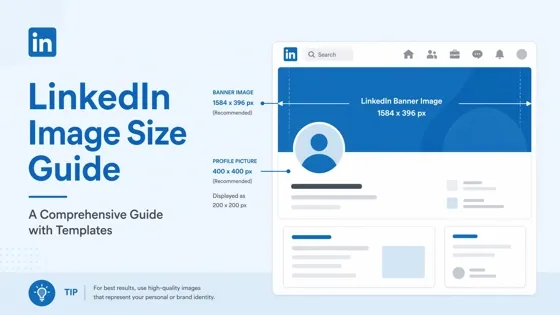
LinkedIn Image Size Guide: Profile, Post & Banner Dimensions
YouTube Profile Image Size: Best Dimensions & Safe Area 2026

How to Edit Amazon Product Photos That Boost Sales Fast
Remove Backgrounds and Finish the Visual in Designkit
Upload your product photo, cut out the background, and build a clean scene for listings or ads. Start free in Designkit.