
Image Enhancer for Clearer Photos
Increase resolution, recover fine details, and make low-quality photos clearer for product pages and digital content.


No image ready? Try one of these samples:




How to Improve Image Quality Online
Upload Your Image
Choose one image from your device or add several files for the same enhancement task.
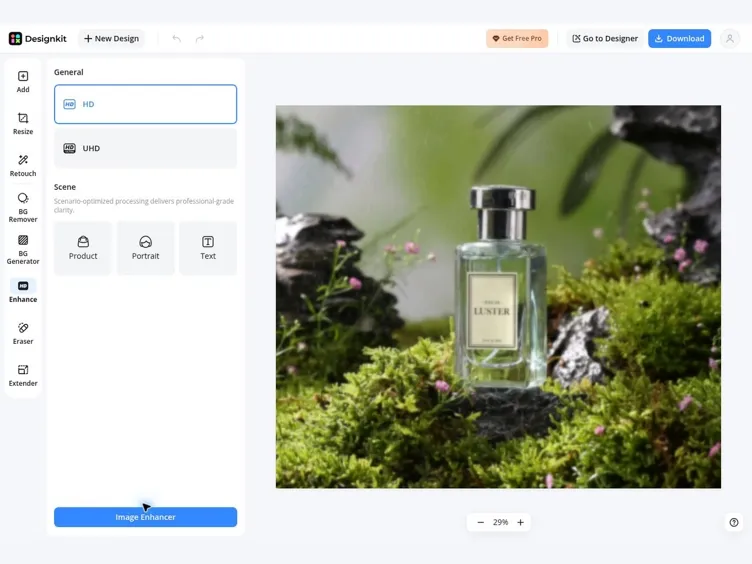
Select the Image Quality
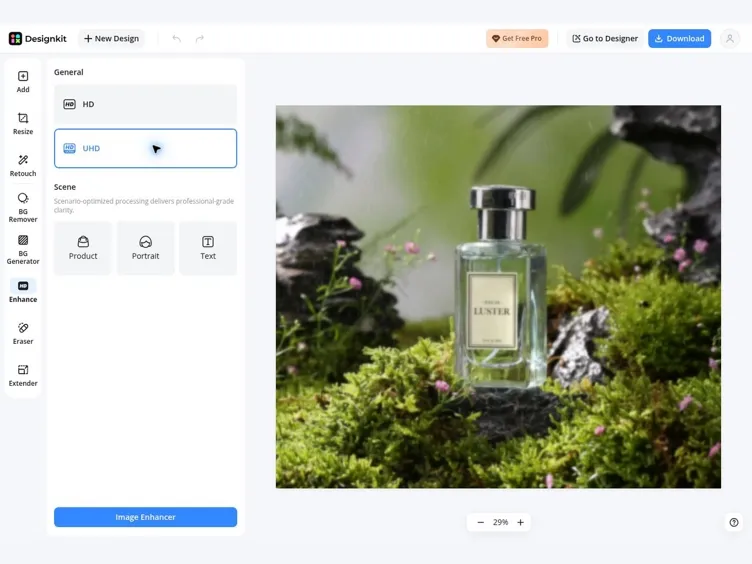
Choose HD or Ultra HD based on the resolution and level of detail required.
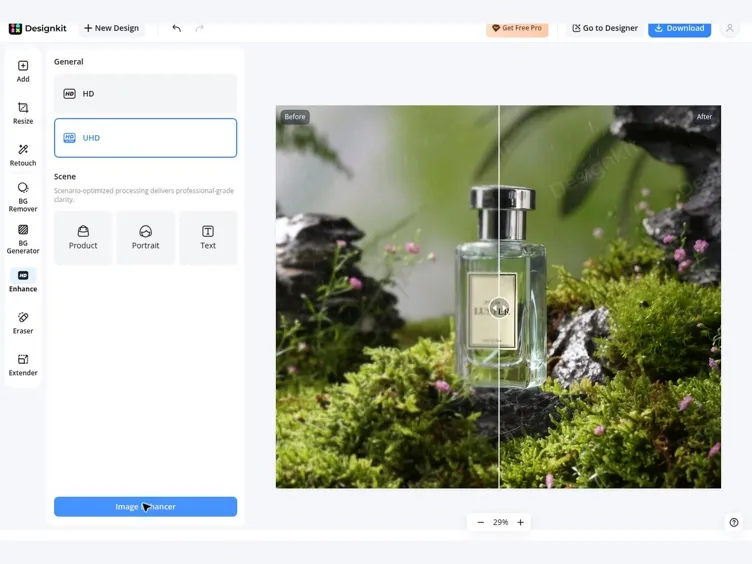
Download the Enhanced Result
Review the clearer image, download the result, or continue editing it in Designkit.
Enhance Image Quality for Clearer, Larger Results
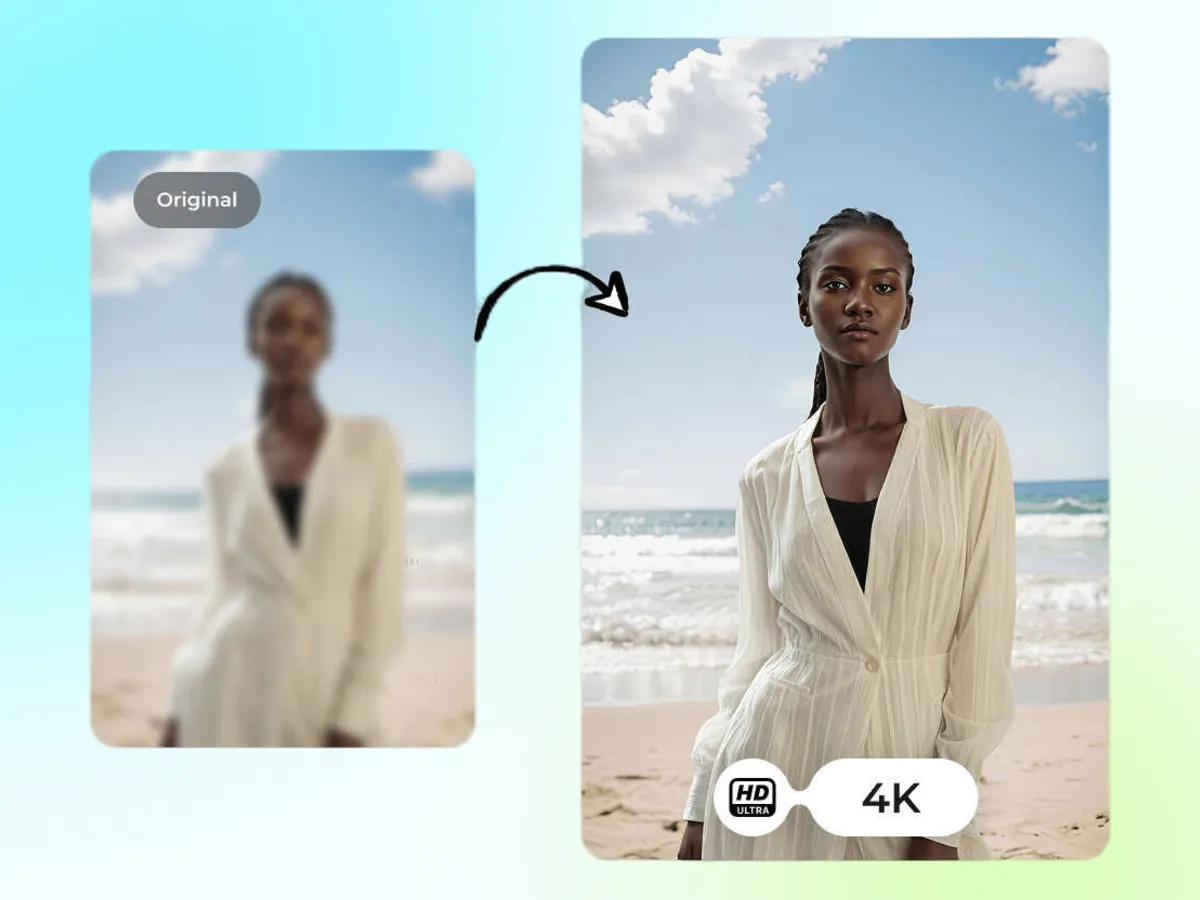
Enhance Images to Clear 4K Quality
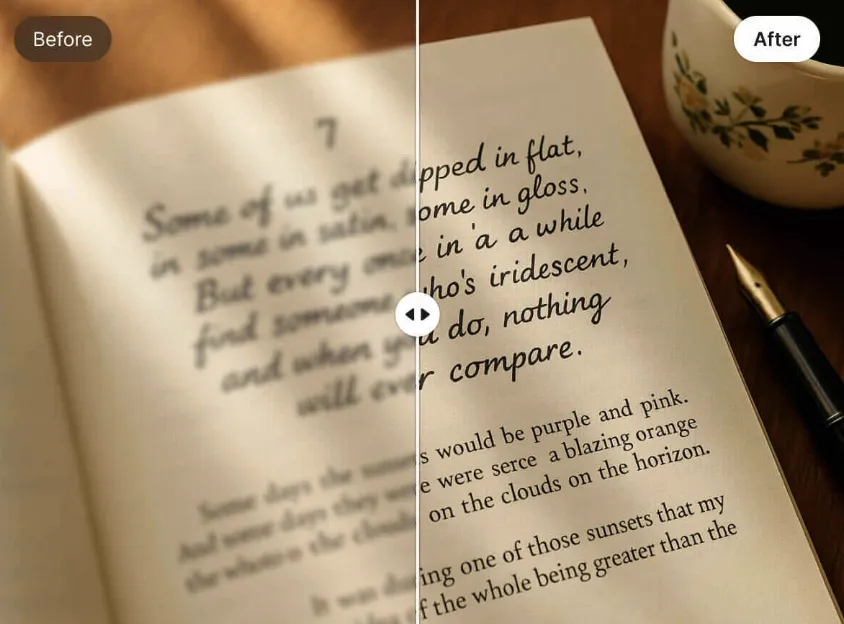
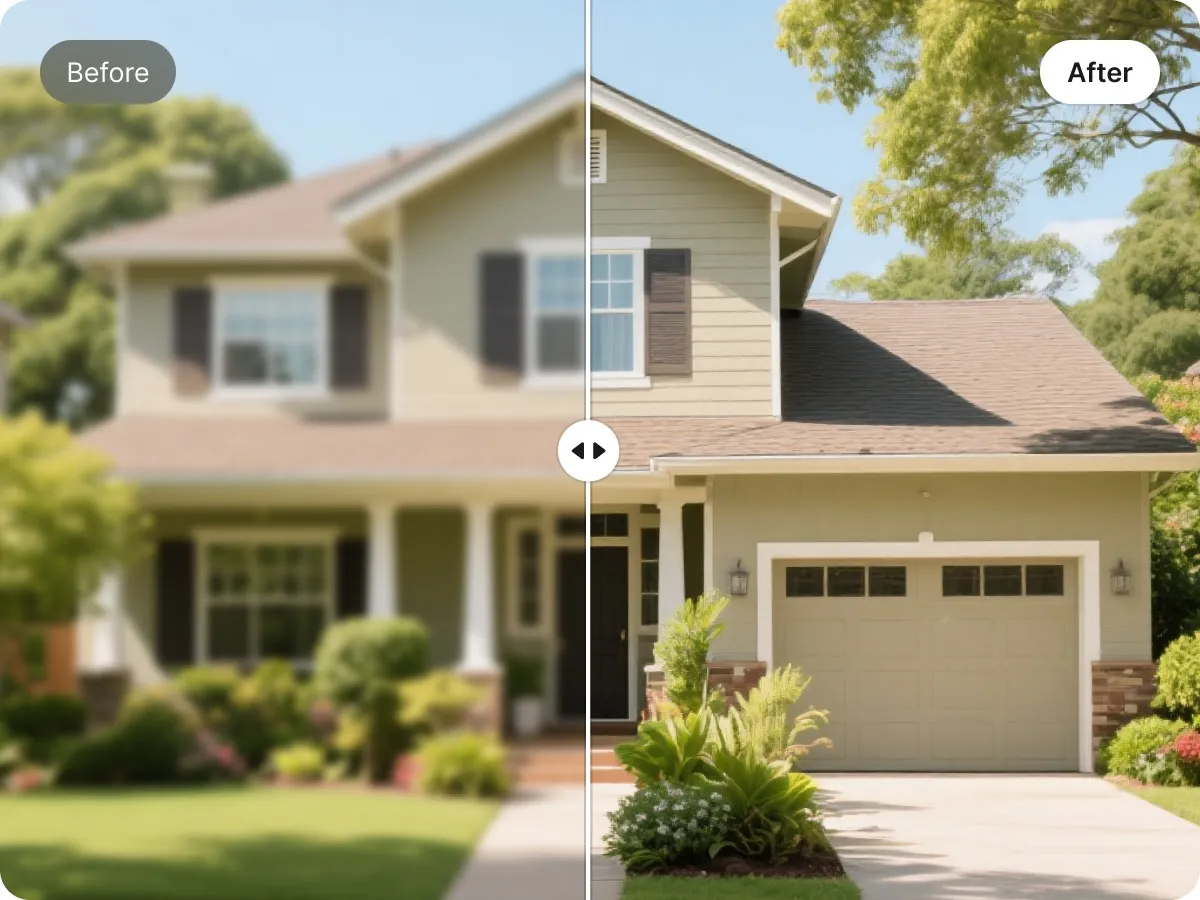
Increase the resolution of a low-quality image while restoring clearer edges and fine details. Designkit can enlarge images by up to 8× and produce 4K results, giving you a larger file that remains natural instead of looking stretched or heavily sharpened.
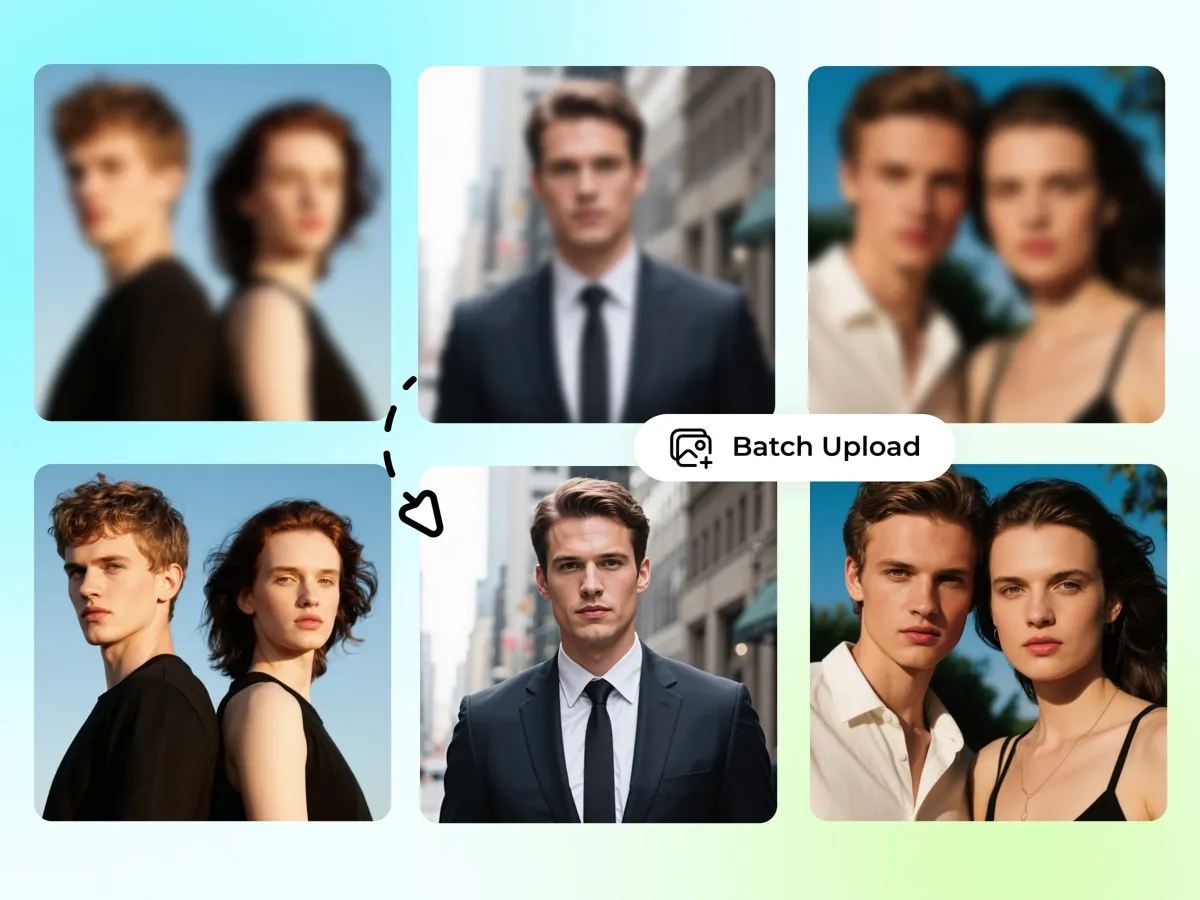
Enhance up to 20 Images at Once
Add up to 20 images and apply the same enhancement quality across the group. Each file is processed together, helping you improve a collection more efficiently while maintaining a consistent level of resolution and clarity.
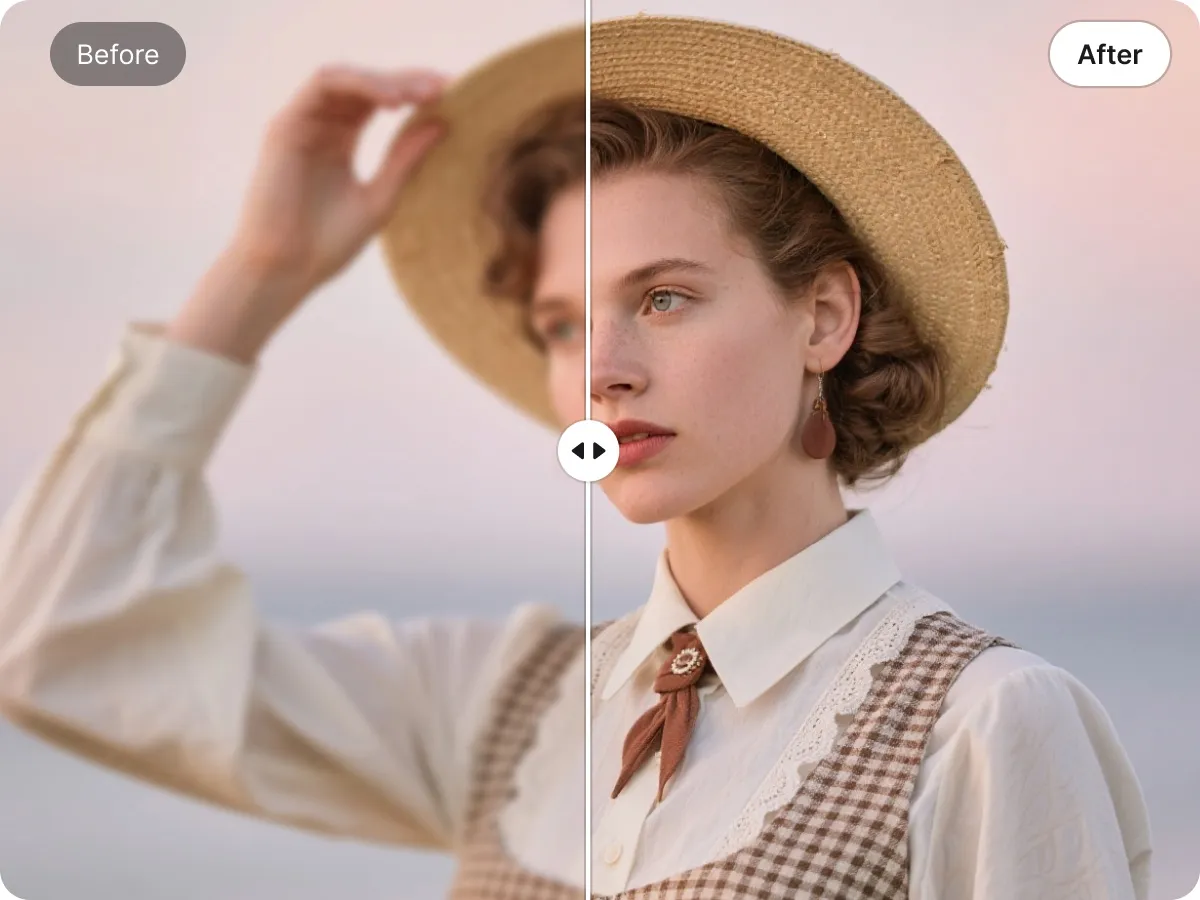
Improve Portraits and Product Photos
Enhance different types of photos while preserving the subject and original composition. Designkit refines visible details and reduces low-quality artifacts, giving portraits a natural finish and making product images clearer for online display.
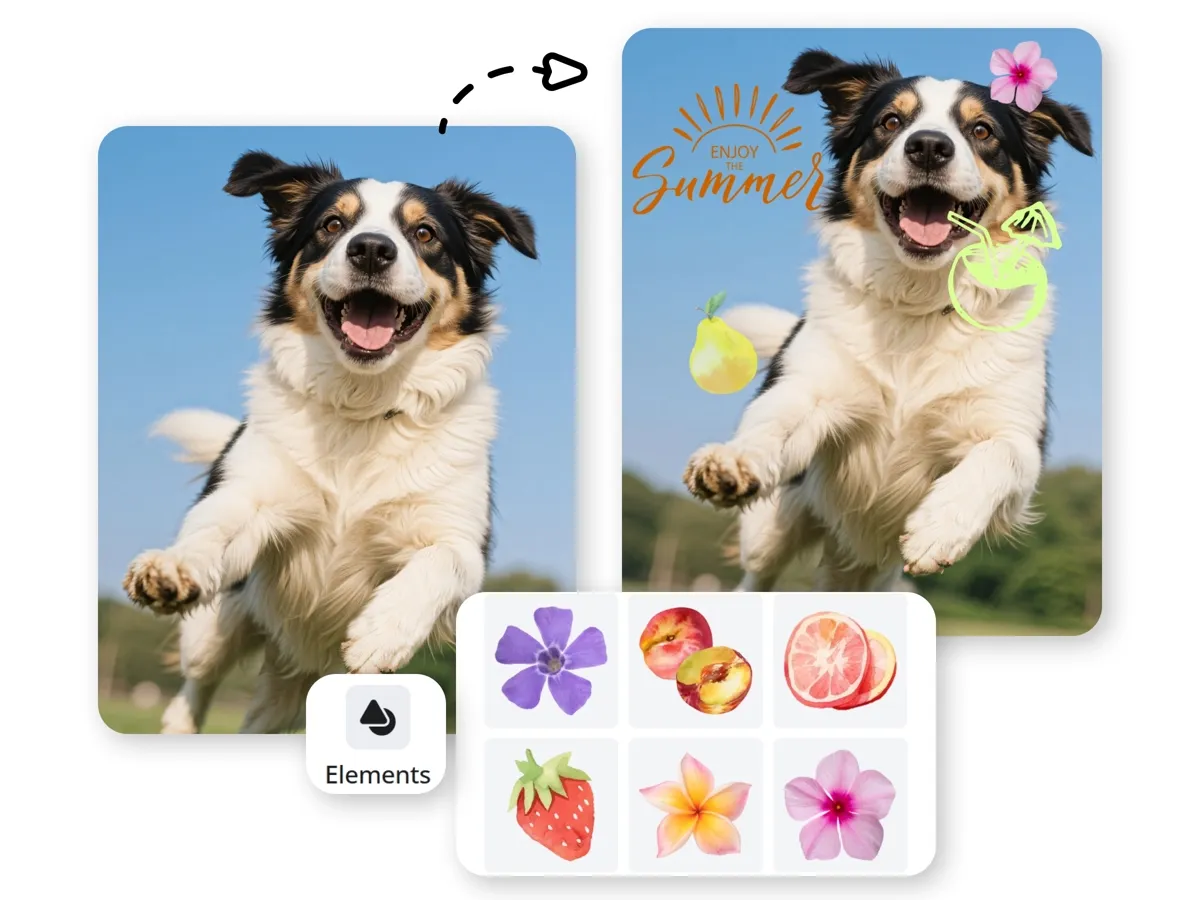
Continue Editing in One Workspace
Move directly from enhancement into other Designkit editing tools when the image needs further adjustments. You can refine the background or add design elements in the same workspace instead of moving the enhanced file between separate platforms.
Enhance Image Quality for Different Uses
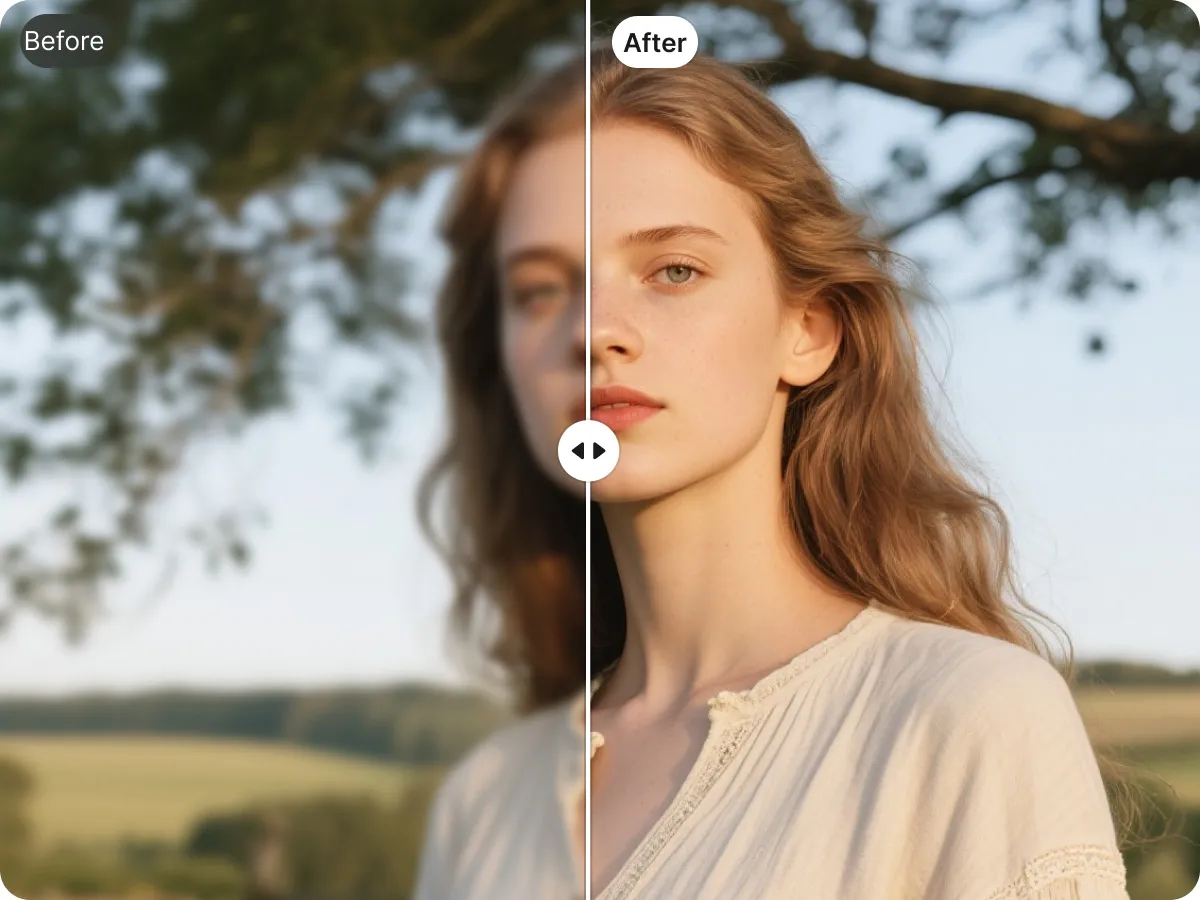
Portrait Photography Enhancement
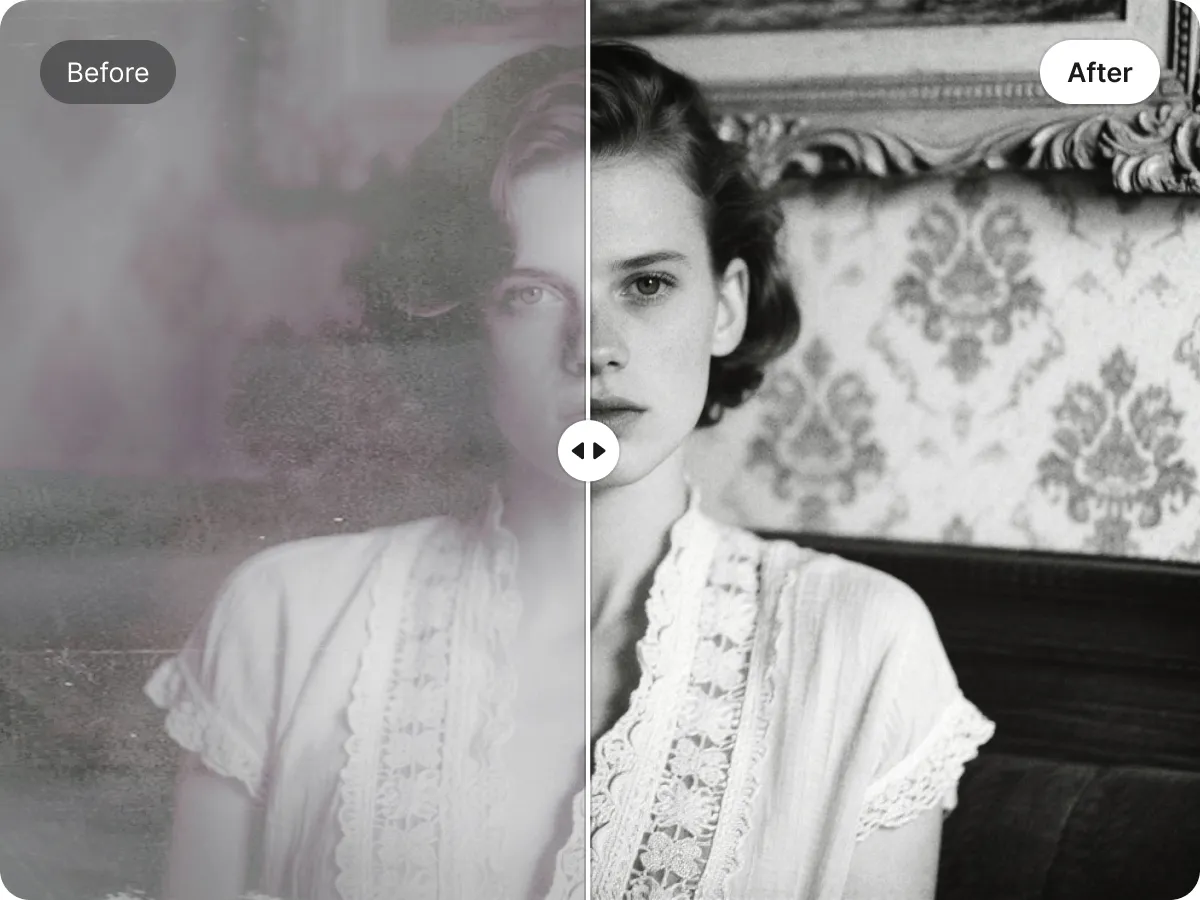
Refine facial details, reduce visible grain, and improve the overall clarity of a portrait. The photo enhancer keeps skin texture and facial features natural, creating a cleaner result that does not appear heavily filtered or overprocessed.
Why Enhance Images with Designkit

Access the Tool Across Devices
Use the image enhancer online from a computer, tablet, or smartphone. The browser-based tool gives you access to the same enhancement workflow across different devices.

Enhance Images with Less Manual Setup
Let Designkit analyze the image and apply the selected quality level automatically. You can improve photo quality without adjusting complex sharpening or resolution controls.

Improve the Image You Already Have
Strengthen an existing image instead of replacing it with a newly generated version. The tool keeps the original subject and composition recognizable while improving its overall quality.
Unlock More Creative Possibilities

Bulk Image Enhancer
AI Image Sharpener
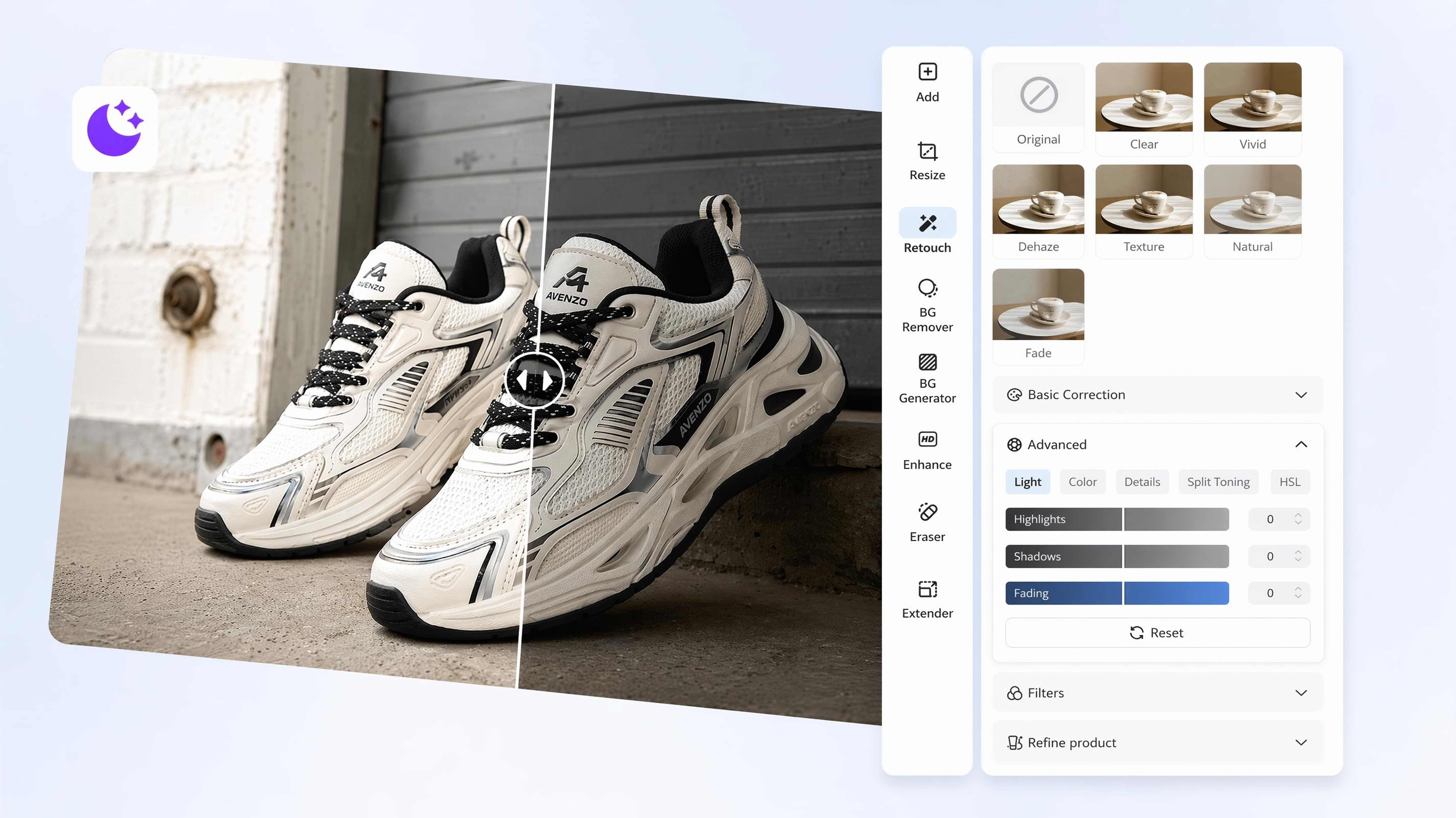
AI Image Brightener
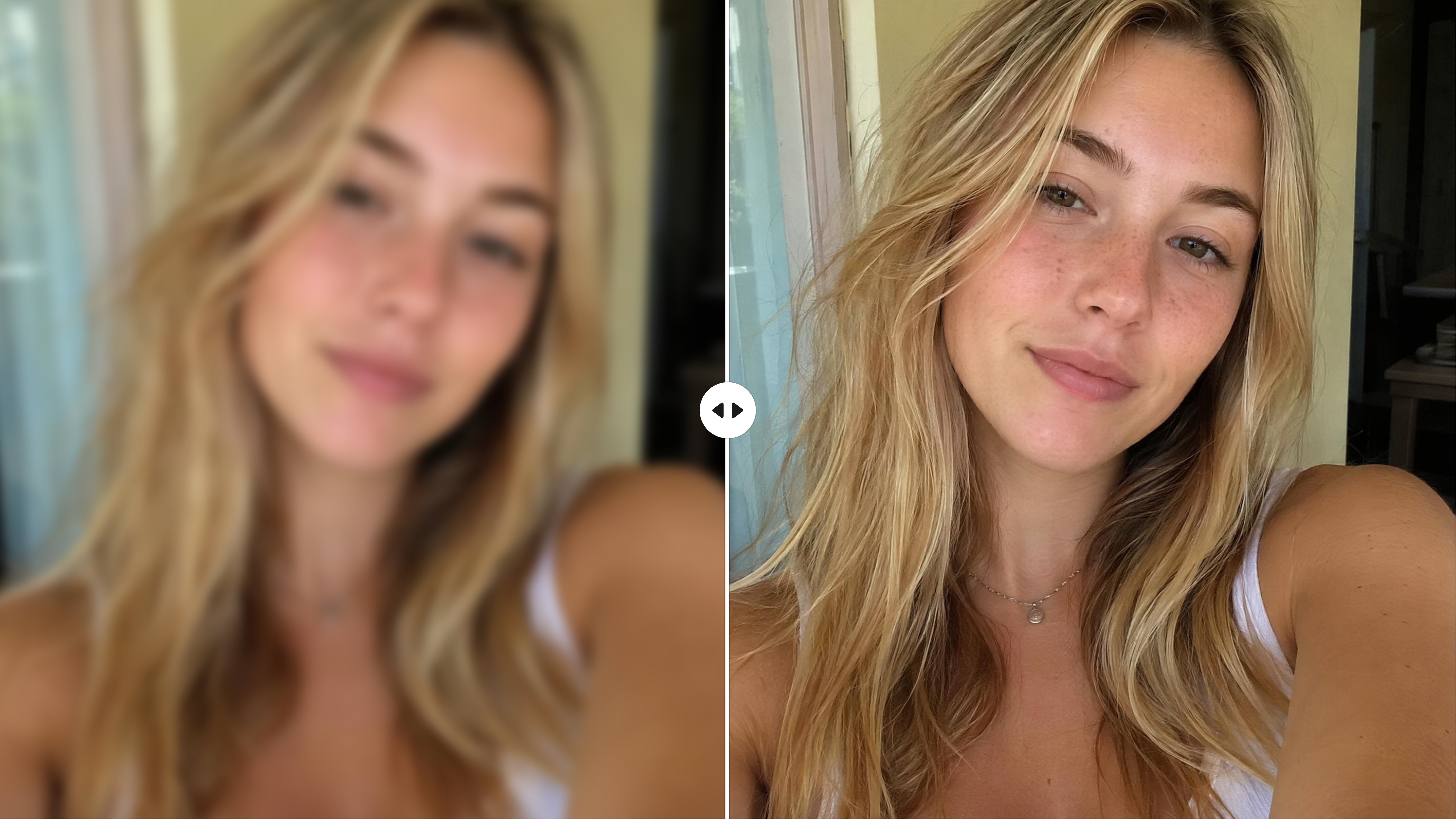
AI Face Enhancer
Frequently Asked Questions
What is the difference between an image enhancer and an image upscaler?
Can a low-resolution image become true 4K quality?
The image resolution enhancer can create an output up to 4K, but the result still depends on the source file. A very small or heavily compressed image contains less information to recover, so enhancement cannot reproduce every detail found in a native 4K photo.
Can I use the image enhancer online for free?
Yes. Designkit provides free access to its online image enhancer, and you can try the core enhancement workflow with no sign-up. Paid plans are available when more processing capacity is required.
How many images can I enhance in one session?
You can add up to 20 images and apply the same HD or Ultra HD setting across the group. For a larger collection, use Designkit’s dedicated Bulk Image Enhancer to manage more files through one workflow.
What kind of source image gives the best result?
Images with a recognizable subject and some existing detail produce the most reliable results. Enhancement works well on files affected by low resolution or moderate compression, while severely damaged images may show more variation.
Is an image enhancer the same as an image sharpener?
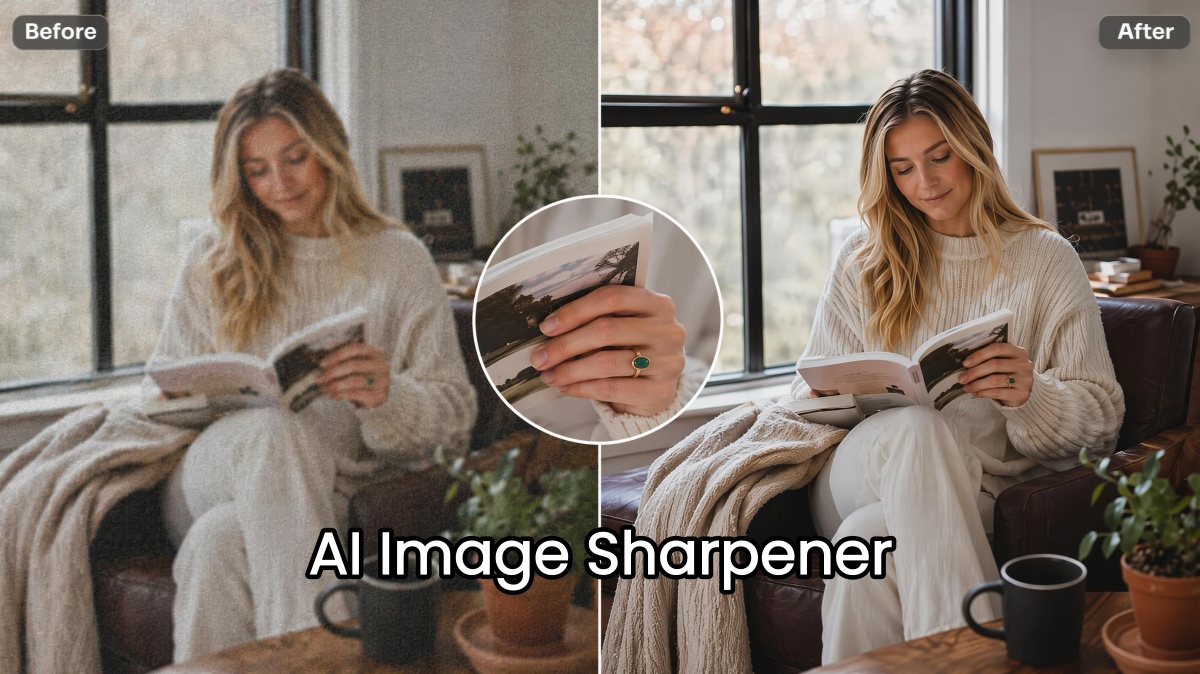
No. An image enhancer improves overall resolution and clarity, while an image sharpener focuses more narrowly on soft edges and visible blur. Use the enhancer when the file needs broader quality improvement and the sharpener when blur is the main issue.
Give Low-Quality Images a Clearer Finish
Increase resolution and recover clearer detail, then continue working with the enhanced image in Designkit.



How Designkit Supports Everyday Image Workflows
Users rely on clearer source files to reduce delays, simplify collaboration, and keep visual work moving.
Fewer Requests for Replacement Files
Vendors sometimes send images that contain the correct product but do not meet the quality we need for production. Enhancing those files gives our team a usable starting point, so we do not have to pause the project and request another version each time. It has made communication with external suppliers much more efficient.
More Focused Client Reviews
Low-quality source images used to distract clients during layout reviews, even when the design itself was nearly finished. Improving the image first helps them evaluate the actual composition instead of commenting on temporary quality problems. Feedback is now more focused, and our team spends less time explaining which issues will be corrected later.
More Consistent Asset Intake
Our team receives files from several external partners, and the quality can vary significantly from one delivery to the next. Running weaker images through the same enhancement process gives us a more consistent starting point before production begins. It also makes the asset library easier to organize because fewer files require separate correction notes.
Smoother Handoffs Between Teams
Content, design, and marketplace teams all work with the same image files at different stages. Starting with an enhanced source reduces confusion about which version should be used and limits the number of corrected copies passed between teams. Everyone can move forward from a clearer master file instead of making separate quality adjustments.
More Flexibility in Later Layouts
We cannot always predict how an image will be placed when it first enters the content library. Improving the source quality gives our designers more room to crop or resize it when a new layout is requested. The original asset becomes useful across more projects, and we are less dependent on finding a higher-resolution replacement later.