
How to Remove Background in Canva: A Complete Guide (2026)
Discover how to remove background in Canva with our complete guide. Learn the steps for desktop and mobile, explore free background remover alternatives, and see how AI tools like Designkit speed up your e-commerce, marketing, and UGC workflows.

Removing cluttered backgrounds is a crucial step for creating professional e-commerce listings, engaging UGC (User-Generated Content), and scrolling-stopping marketing materials. While learning how to remove backgrounds in Canva is incredibly popular due to its simple interface, many creators are surprised to find that the feature requires a paid Canva Pro account.
In this guide, we break down the exact steps for using Canva's tool, compare alternative platforms, and show you how to use AI tools to speed up your design workflow.
Why People Remove Backgrounds in Canva
A clean background helps your images look more professional and keeps the focus on the main subject. Whether you remove backgrounds on Canva or use a dedicated AI design tool, removing unwanted backgrounds can improve the quality of your visuals and make them more effective.
People remove backgrounds to:
-
Create clean product photos for online stores.
-
Design eye-catching social media posts and ads.
-
Make logos and graphics with transparent backgrounds.
-
Add subjects to new backgrounds for presentations or marketing materials.
-
Keep a consistent look across websites, catalogs, and branding.
-
Save time when creating professional content for business or personal projects.
3 groups: Why they use Canva to remove backgrounds
Canva background removal is useful for many people who need clean images fast. It helps turn simple photos into polished visuals without advanced editing skills. From sellers to creators, it makes design work easier and quicker.
E-commerce Sellers
Online sellers use Canva to create clean product images for marketplaces, websites, and ads. Removing the background helps products stand out, gives listings a more professional look, and makes it easy to place products on white or branded backgrounds.
Social Media Creators
Content creators remove backgrounds to make eye-catching posts, thumbnails, Stories, and Reels. A clean cutout lets them add custom backgrounds, text, and graphics that match their personal or brand style.
Marketing Teams
Marketing teams use Canva to create consistent visuals for campaigns, presentations, emails, and advertisements. Background removal helps them reuse the same subject across different designs while maintaining a professional and branded appearance.
How to Remove Background in Canva on Desktop
Canva's built-in tool is user-friendly, but remember that the BG remover in Canva is a premium feature. If you have Canva Pro, follow this workflow:
Step 1: Upload and Select Your Image
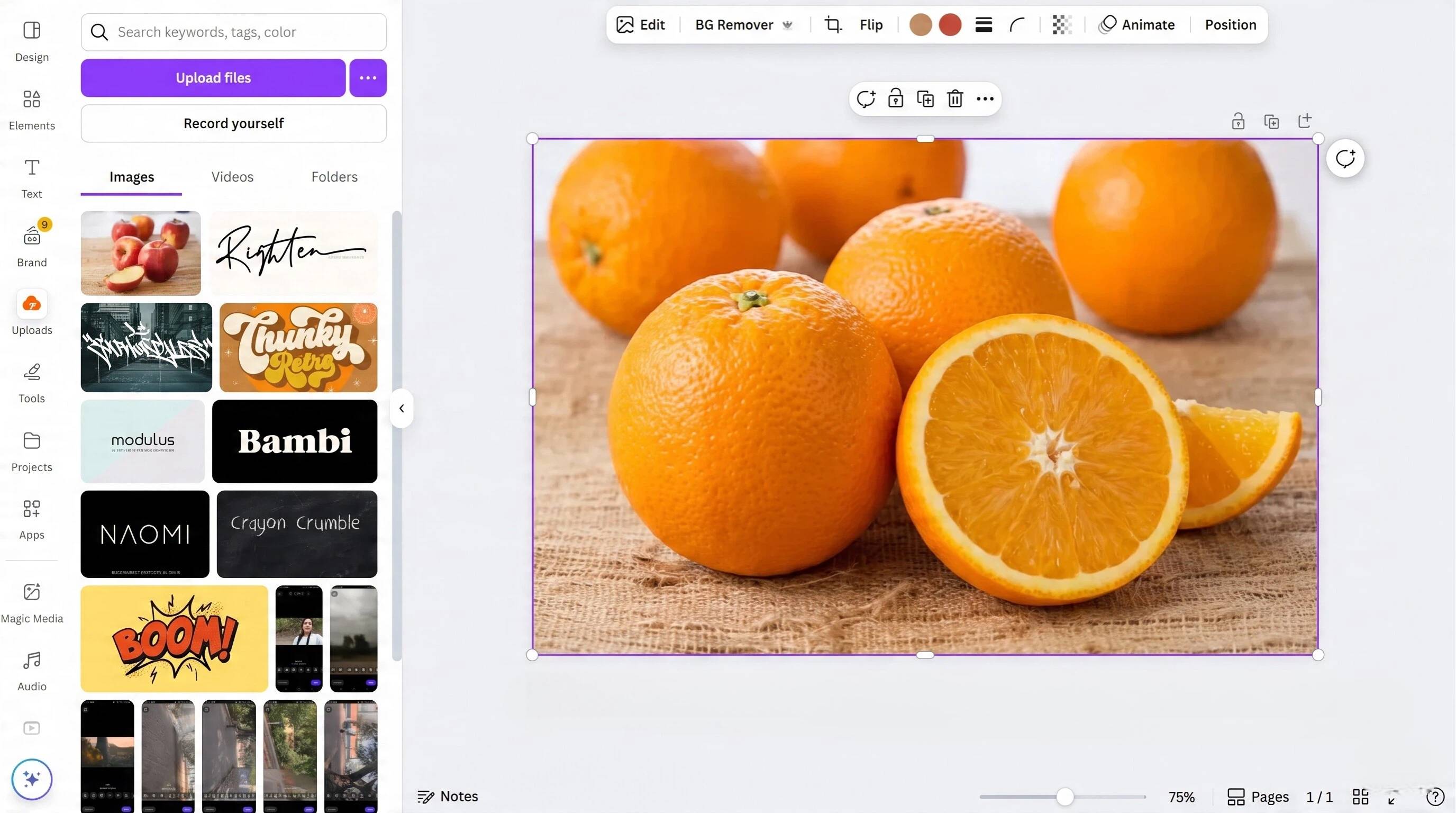
Open a new Canva project, upload your product image to the canvas, and click on the image to activate the editing toolbar at the top of the screen.
Step 2: Apply the Background Remover Tool
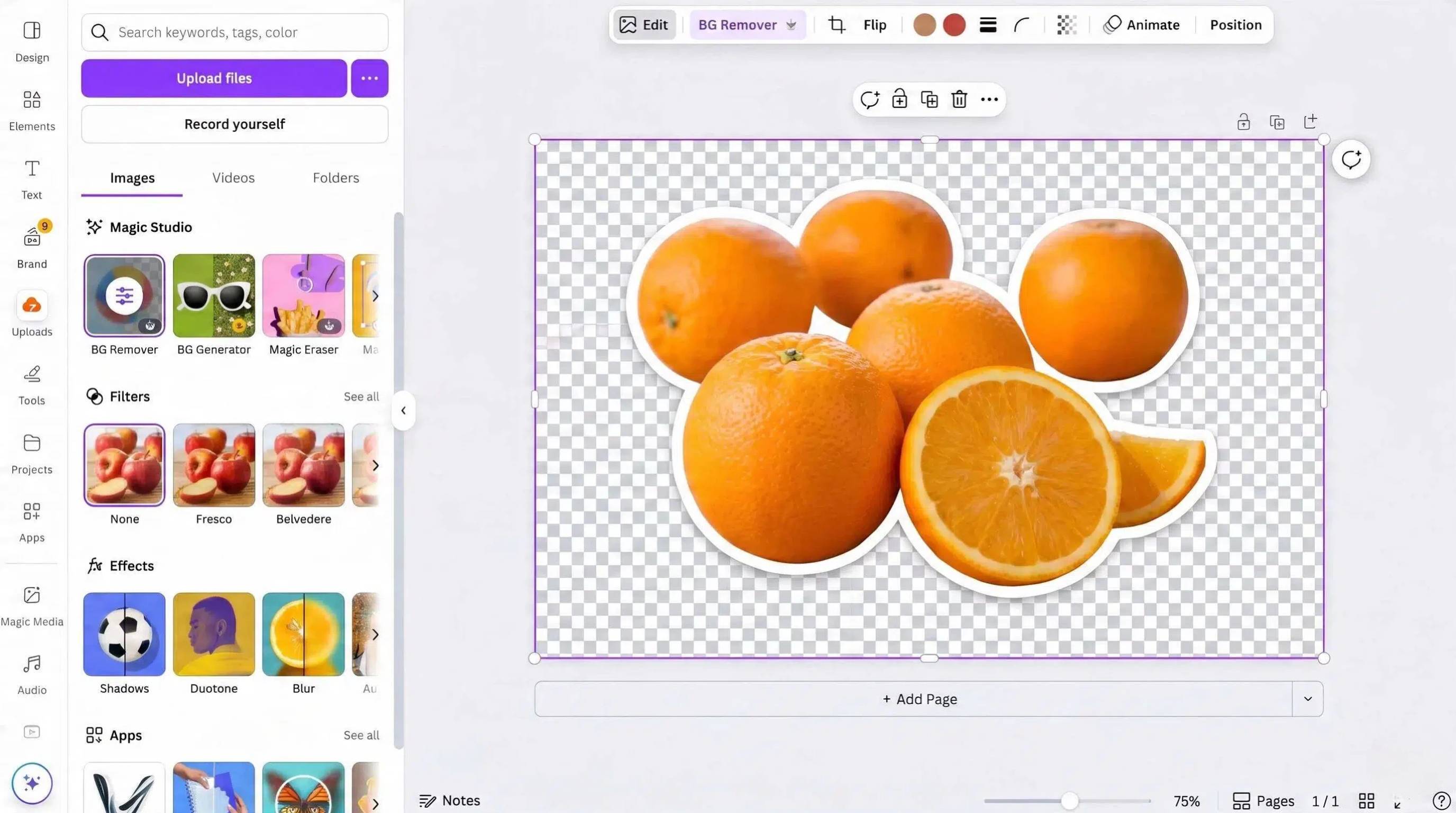
Click on "Edit image" (or "Edit photo") and select the "Background Remover" (the beach ball icon) from the Magic Studio menu to automatically delete the background.
Step 3: Download as a Transparent PNG
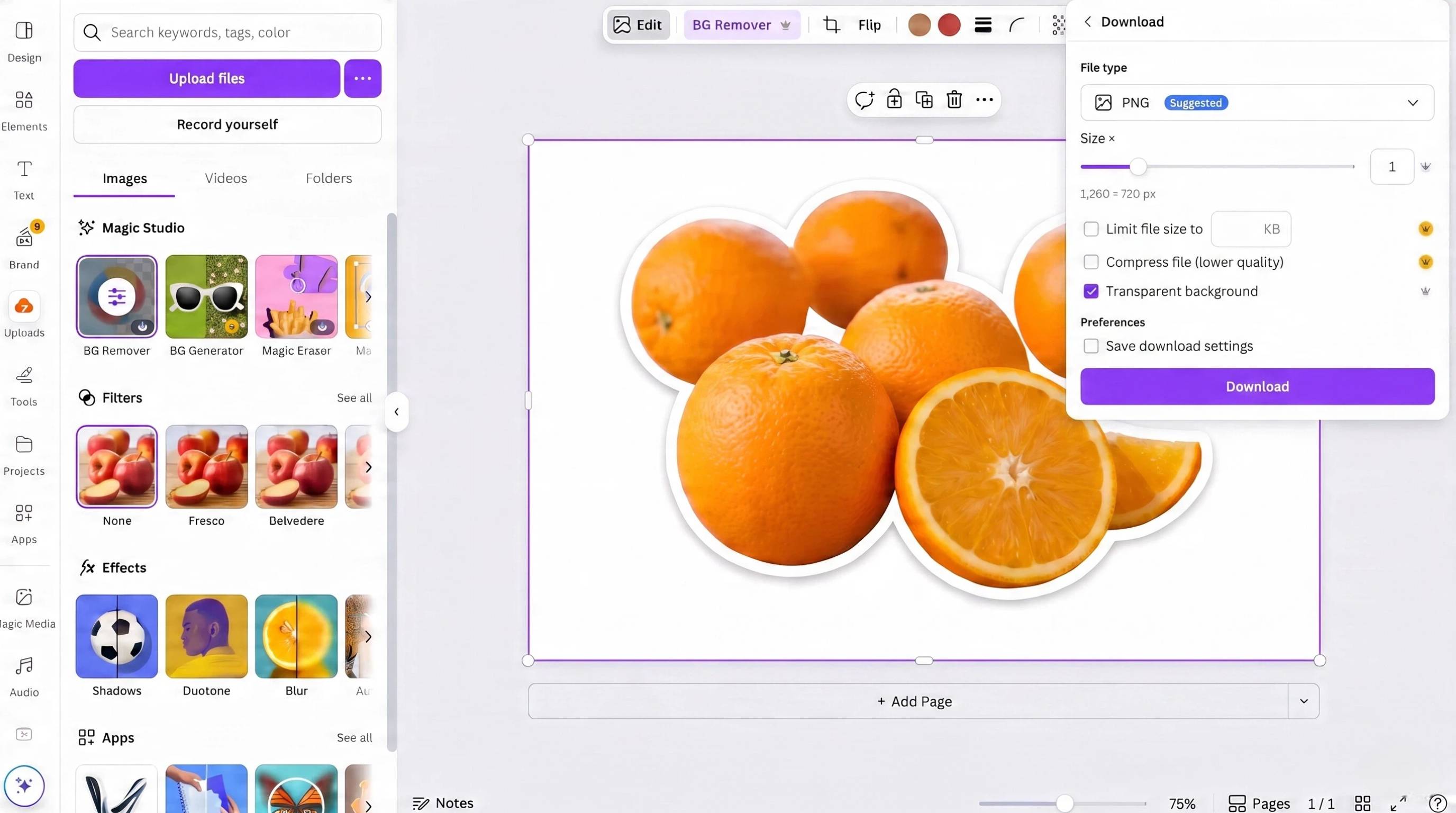
Click "Share," select "Download," choose the PNG format, and ensure the "Transparent background" box is checked before saving the file to your computer.
How to Remove Background on Canva Mobile
If you are editing product photos on the go, the process is very similar on a smartphone or tablet using the Canva app.
Step 1: Open the App and Insert Your Photo
Create a new design in the mobile app, tap the "+" icon to upload your image from your camera roll, and tap the image to open the bottom menu.
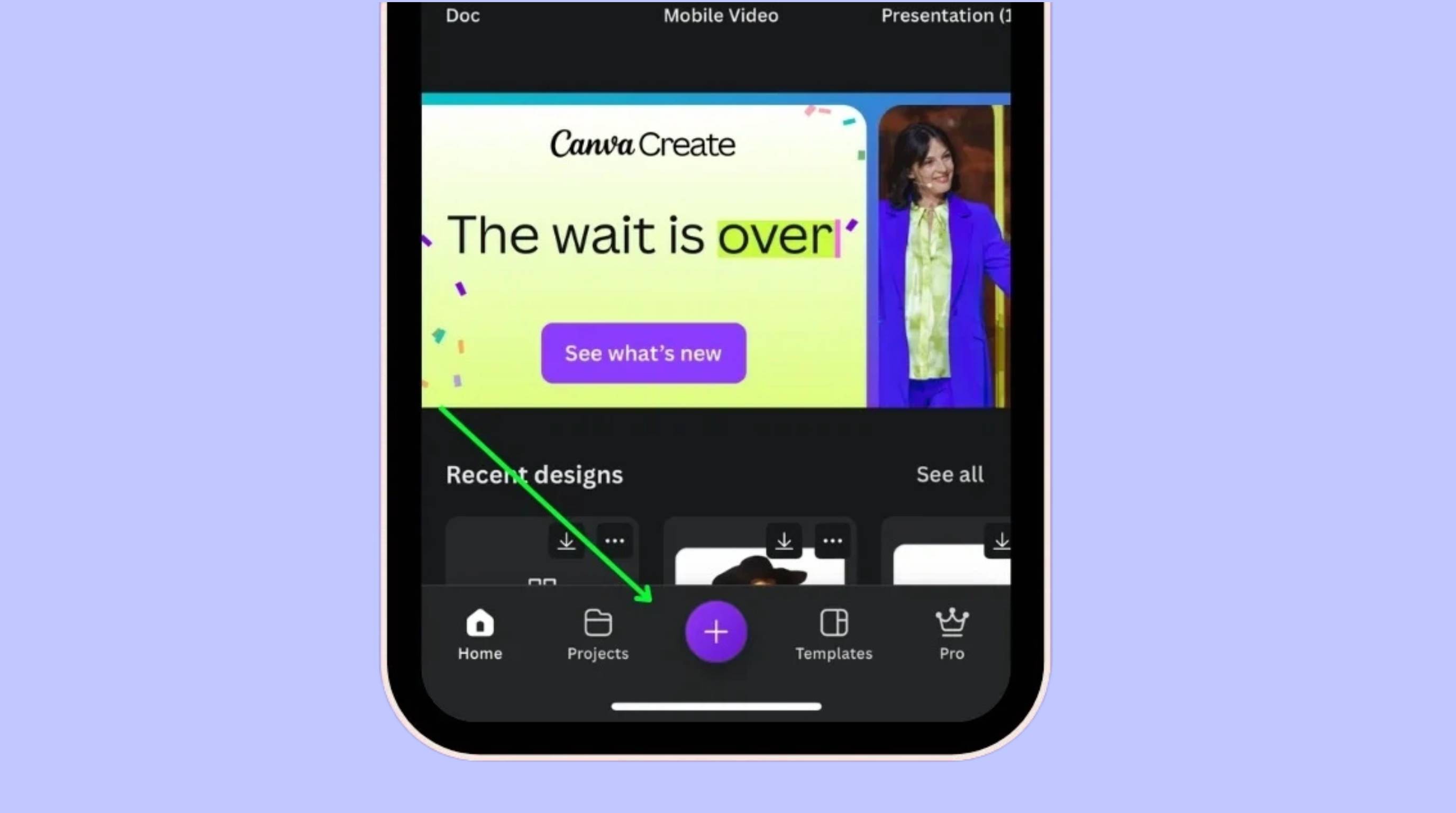
Step 2: Tap the Effects Menu
Scroll through the bottom toolbar, tap "Effects," and select the "BG Remover" tool to instantly erase the background.
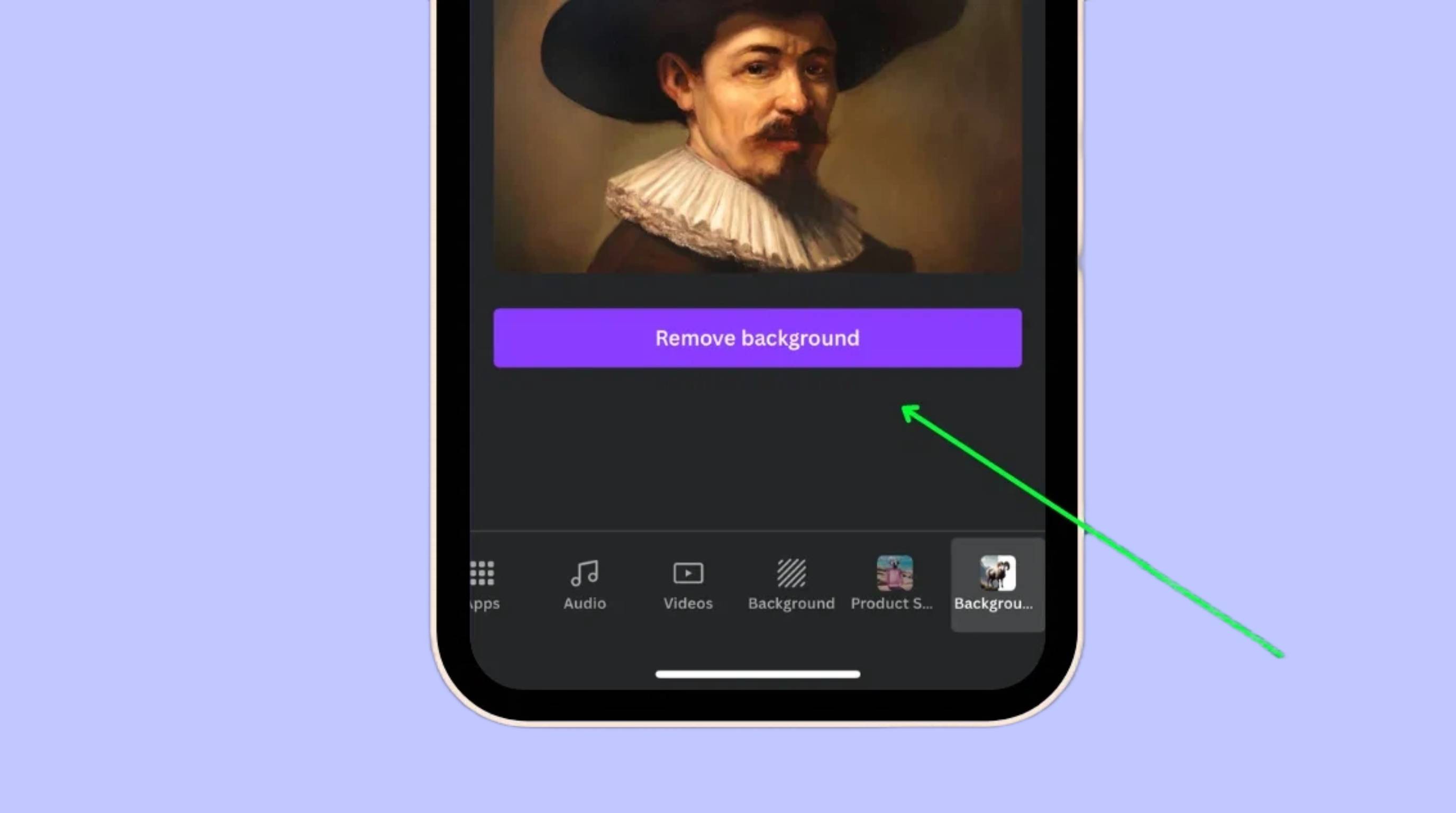
Step 3: Save with Transparency
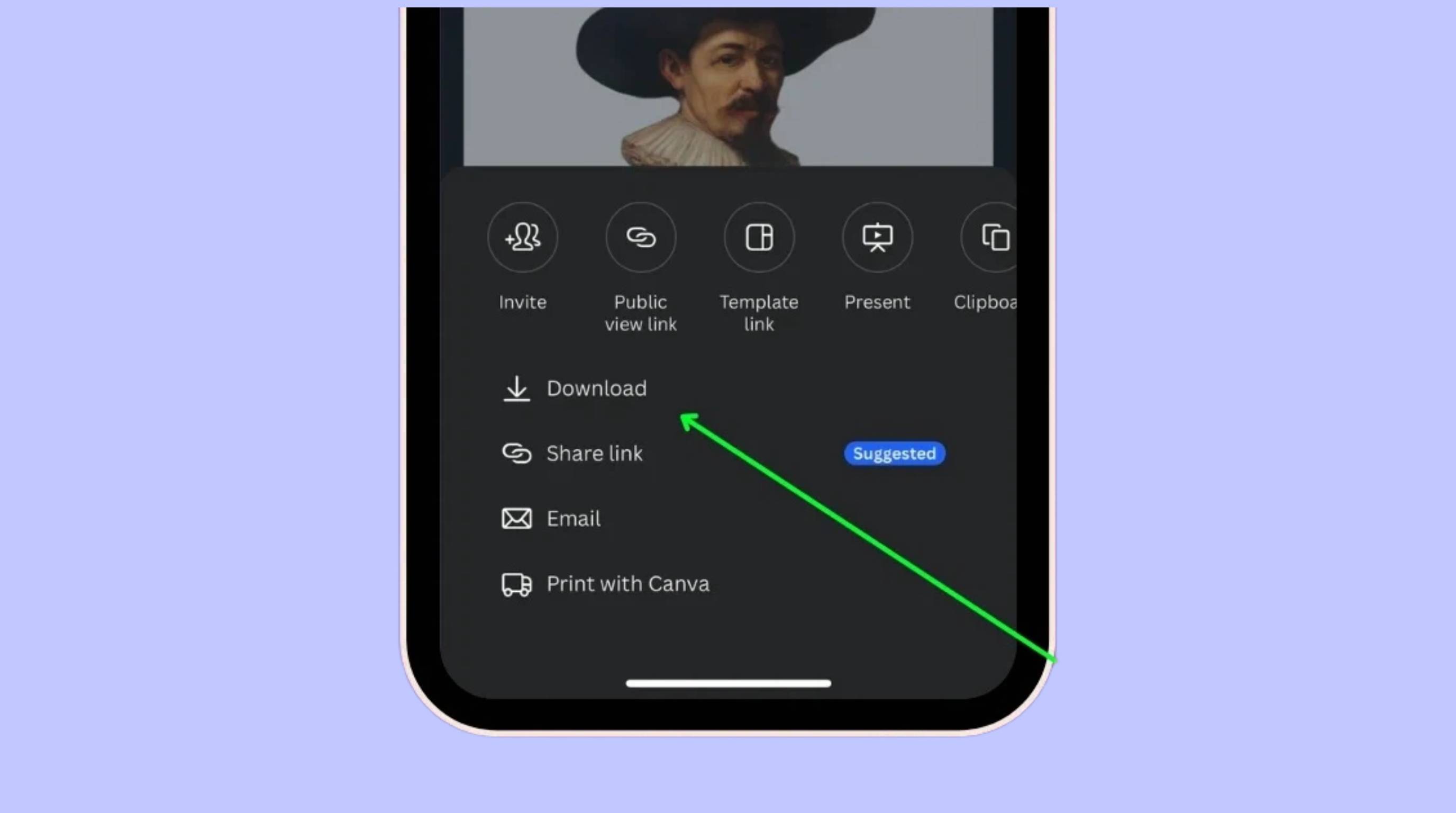
Tap the export icon at the top right, select "Download," check the transparent background option, and save it directly to your device.
Pros and Cons of Canva's BG Remover
Canva's Background Remover is simple to use and works well for many everyday editing tasks. However, it also has a few limitations depending on the type of image you are editing.
|
Pros |
Cons |
|---|---|
|
One-click background removal with an easy interface |
Available only with Canva Pro |
|
Fast for simple images and basic edits |
May struggle with hair, fur, and transparent objects |
|
Works directly inside Canva designs |
Limited control for detailed edge refinement |
|
Easy to replace backgrounds and add design elements |
Less accurate than dedicated AI tools for complex images |
|
Great for social media, presentations, and marketing graphics |
Not ideal for large-scale or bulk background editing |
Designkit: A Faster Alternative to Canva's BG Remover
Designkit is an AI-powered image editing platform built for creators, marketers, and e-commerce sellers who need fast, high-quality results without complex design tools. Instead of manually editing backgrounds or relying on limited free tools, Designkit automates the process with precision AI detection, helping users remove backgrounds, clean up product images, and create ready-to-use visuals in seconds.
Whether you are optimizing product listings, building social media content, or preparing ad creatives, Designkit streamlines your workflow and removes the need for time-consuming manual editing, making it a powerful alternative for scaling visual content production efficiently.
How to Use Designkit to Remove Image Backgrounds Faster
Designkit is built to handle heavy lifting for marketers, sellers, and creators, offering advanced background removal without the hassle of paying for generic graphic design software.
Step 1: Upload Your Product Image
Open the Designkit workspace and upload your raw product photo to the AI editor.
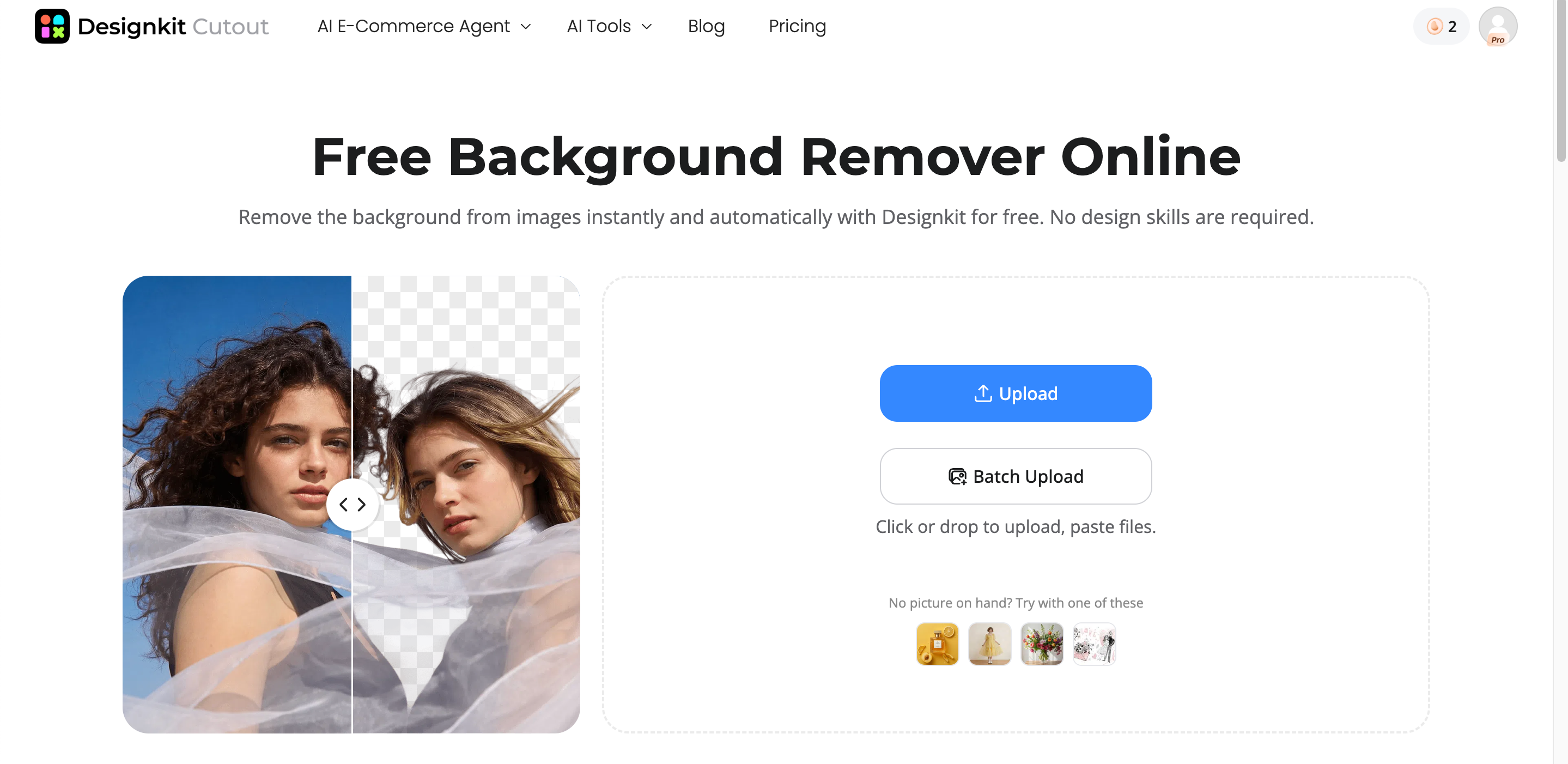
Step 2: Click to Remove Background
Click the background removal tool to let the AI instantly detect the subject, extracting it perfectly even if it has complex edges like glass or fur.
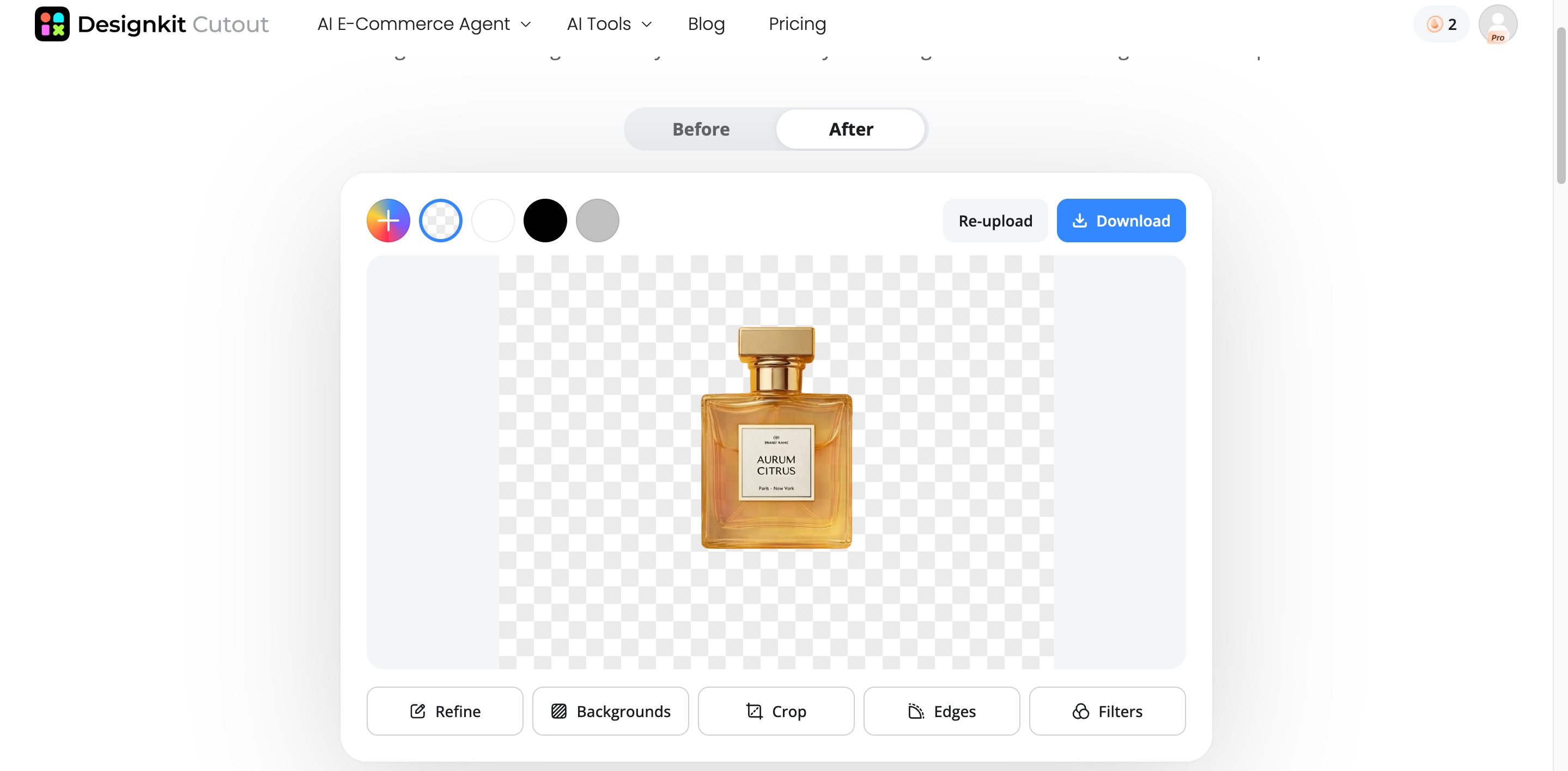
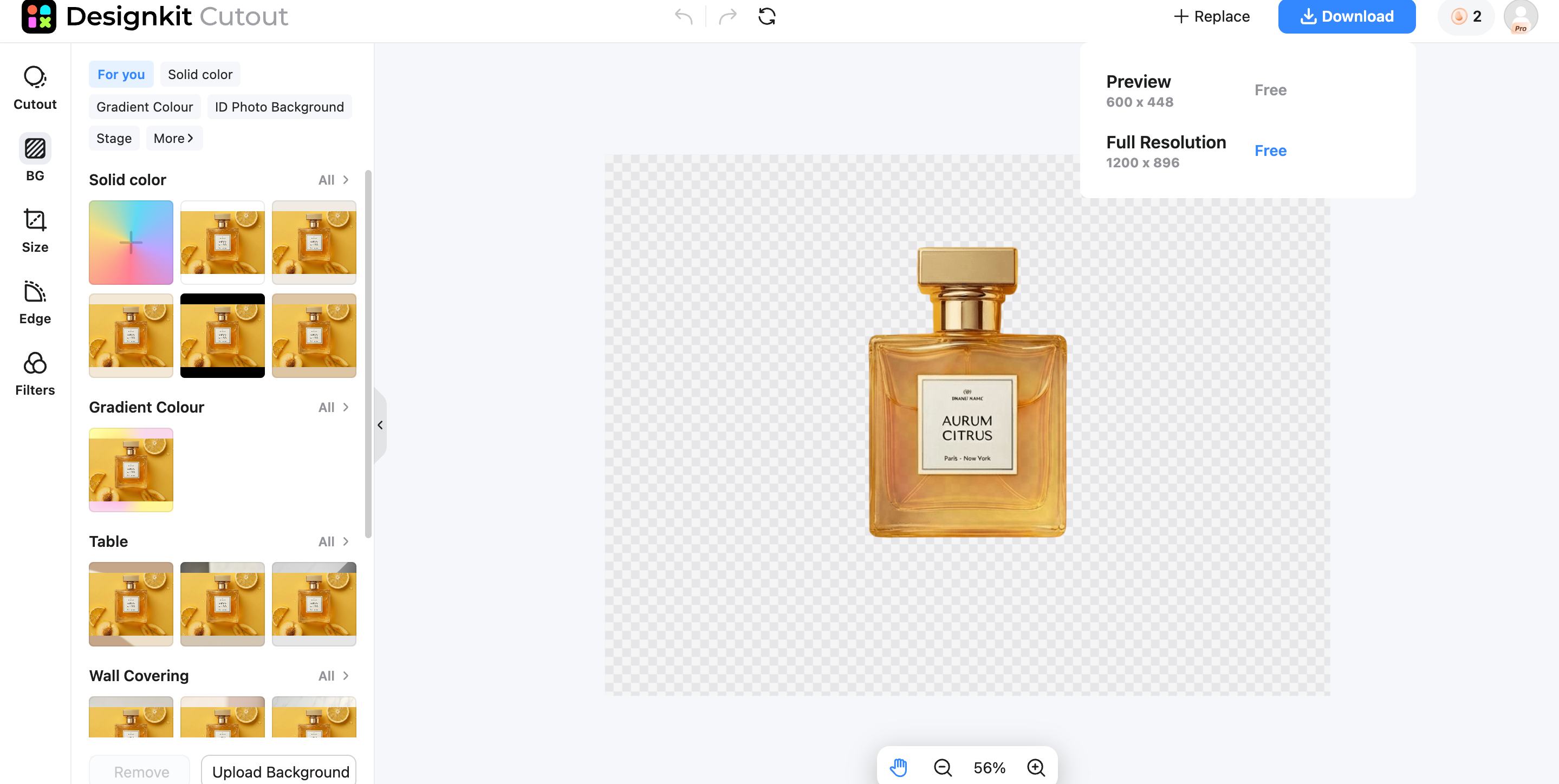
Step 3: Export or Generate a New Scene
Instantly download your transparent image, or use the AI tools to generate a highly converting lifestyle setting around your product.
Remove Backgrounds Online Free
Designkit Background Removal Features
One-Click Removal with High-Accuracy Edge Detection
Remove backgrounds with a single click using AI. Designkit automatically detects the main subject and creates clean, accurate edges, even around hair, fur, and detailed objects. This reduces manual editing and helps you get professional-looking results in seconds.
Bulk Image Processing for Multiple SKUs
Edit backgrounds for multiple product images at the same time. This feature is ideal for online stores, product catalogs, and large image collections. It saves hours of manual work while keeping every image consistent and ready to upload.
AI Scene Generation After Removal
After removing the background, generate a new background with AI in just a few clicks. Create realistic lifestyle scenes, studio setups, or custom environments without extra editing. This helps produce high-quality images for eCommerce, ads, and social media.
Canva vs. Designkit: Which Is More Considerable
Both Canva and Designkit can remove image backgrounds, but they are designed for different workflows. Canva is a good option for creating graphics and presentations, while Designkit focuses on AI-powered image editing and faster background processing.
|
Feature |
Canva |
Designkit |
|---|---|---|
|
Background removal |
One-click tool for individual images |
AI-powered removal with accurate edge detection |
|
Edge quality |
Good for simple images |
Better for detailed edges like hair, fur, and transparent objects |
|
Bulk editing |
Limited support |
Process multiple images at once |
|
AI background generation |
Basic background replacement |
Generate and extend AI backgrounds after removal |
|
Best for |
Social media graphics, presentations, and simple designs |
eCommerce, product images, marketing assets, and high-volume editing |
|
Workflow |
Design-focused |
Image editing and production-focused |
Which Should You Choose?
If you mainly create presentations, social media posts, or simple graphics, Canva is a practical choice because background removal is built into its design editor.
If you regularly edit product photos, work with large image collections, or need AI-powered background generation and bulk editing, Designkit may provide a more efficient workflow. The better option depends on your editing needs, the complexity of your images, and how many images you process.
Best Practices for Clean Background Removal
Clean background removal starts before editing begins. The quality of your original photo has a big impact on the final result, whether you are using manual tools or AI. By following a few simple photography and editing practices, you can make the process faster and achieve a cleaner, more professional image.
Use High-Contrast Lighting
Take photos with lighting that clearly separates the subject from the background. A light subject on a dark background, or a dark subject on a light background, makes edge detection more accurate and reduces the need for manual editing.
Watch Out for Shadows
Keep lighting soft and even to avoid strong shadows behind the subject. Heavy shadows can be detected as part of the object, making background removal less accurate and requiring extra cleanup.
Check the Edges
Before saving your image, zoom in and inspect the edges carefully. Remove any leftover background, rough spots, or light halos to create a clean, professional-looking result. This final check helps improve the overall quality of your image.
Conclusion
Canva makes background removal simple and convenient, especially for users who already create designs on the platform. It works well for everyday editing, social media graphics, and basic marketing materials. However, if you need faster processing, bulk editing, or more accurate results for product images and complex subjects, an AI-powered tool like Designkit can provide a more streamlined workflow. By using the right tool and following best practices such as good lighting, minimal shadows, and careful edge checks, you can create clean, professional images that are ready for websites, online stores, presentations, and marketing campaigns.
Frequently Asked Questions
Is it possible to remove the background in Canva for free?
Why is my downloaded Canva image not transparent?
The transparent background option may not have been selected. When downloading, choose PNG and enable the "Transparent background" option. This feature requires Canva Pro. If you need transparent PNGs quickly, Designkit exports them directly after background removal.
Can I refine the edges when I remove image background in Canva?
Yes, but with limited controls. Canva lets you restore or erase parts of the image after background removal to improve the edges. For images with hair, fur, or transparent objects, a dedicated AI editor like Designkit may provide more accurate edge detection with less manual work.
How do I use a free background remover online instead of Canva?
Upload your image to an online AI background remover. The tool automatically detects the subject, removes the background, and lets you download the edited image. Platforms like Designkit also include options to replace backgrounds, generate AI scenes, and process images more quickly.
Does the BG remover in Canva work on complex images?
Yes, but results can vary. Canva works well for many images, but subjects with hair, fur, glass, or detailed edges may need manual touch-ups. If you edit these types of images often, Designkit is designed to handle fine details more accurately with AI-assisted background removal.
Can I remove backgrounds in the Canva mobile app?
Yes, if you have access to the feature. Open your image in the Canva app, tap Effects, and choose Background Remover. After editing, download the image with transparency if available. If you need faster AI editing across devices, Designkit also supports a streamlined background removal workflow.
You May Also Like

7 Best Remove.bg Alternatives in 2026: Free & Paid Tools

Instagram Carousel: What It Is, How to Post & Create One
Nano Banana Prompts: 20+ Examples for Better AI Images

Ideogram AI Review 2026: Features, Pricing & Alternatives
Free Mac Photo Editor: 5 Tools Compared for Mac Users
How to Crop a Photo Into a Circle Online (Keep Quality)
How to Make an Image Transparent Online (AI Guide)
Pixlr Background Remover Review 2026: Features, Pricing & Alternatives

How to Fix Overexposed Photos: Recover Highlights Fast
OpenArt AI Review 2026: Features, Pricing & Alternatives

Best AI Headshot Generator: 9 Tools Compared for 2026
Best Stencil Maker Tools 2026: Turn Photos Into Stencils
Pixelbin Watermark Remover Review: Image & Video Results Tested

How to Make a Sticker on iPhone: Easy Step by Step Guide

Best AI Logo Generator in 2026: 10 Tools Compared
How to Turn a Photo Into a Cartoon: A Beginner-Friendly Guide
Landscape vs Portrait: Key Differences & Best Uses in 2026
How to Remove Watermark From Photo: AI, Photoshop & More
How to Fix Pixelated Photos: Photoshop, AI Tools & Tips
Bing Image Creator: How It Works, Features, Uses & Alternatives
How to Remove People from Photos with AI: A Step-by-Step Guide
How to Increase Image Resolution: AI, Photoshop & PPI
How to Add Text to a Photo: 8 Tips for Better Results
How to Fix Grainy Photos: Easy Ways to Clear Images

Creative Profile Picture Ideas for Every Style and Platform
Evoto AI Review 2026: Features, Pricing, Pros & Cons
Pixlr Photo Editor Review: Features, Pricing & Alternatives
Best AI Image Extender Tools in 2026: Expand Photos with AI

How to Make a Collage on iPhone: Easy Guide for 2026
How to Sharpen an Image in Photoshop (Smart Sharpen and Unsharp Mask)
Best Image Background Remover Tools in 2026: AI Tools Compared
How to Make Transparent Background in Paint: Step-by-Step Guide
How to Resize an Image: Best Methods, Tools & Quality Tips
Best AI Image Generator Tools in 2026: Top AI Platforms Compared

Remove.bg Review 2026: Features, Pricing & Is It Worth It?

Luminar Neo Photo Editor Review 2026: AI Features, Price & Pros

How to Post Multiple Photos on Instagram (2026 Guide)

25 Facebook Cover Photo Ideas for Personal & Business Pages

What Is a PFP? Meaning, Examples & How to Create One
Can You Edit an Instagram Post After Posting?

11 Best Canva Alternatives in 2026 for AI Design & Marketing

8 Best Midjourney Alternatives in 2026: Features, Pricing & Comparison
How to Restore Old Photos: AI Tools, Tips & Best Methods

Pixelcut AI Review 2026: Features, Pricing, Pros, Cons & Alternatives
How to Apply Watermark to Photos: Methods, Tips & AI Tools
How to Remove a Background in Illustrator: 4 Easy Methods
How to Change Background Color on Instagram Story (Easy Guide)

8 Best AI Poster Generators in 2026: Create Posters Faster with AI
10 Best AI Image Enhancers in 2026: Tested & Compared
10 Best AI Image Editors in 2026: Features, Pricing & Comparison

7 Best AI Background Changer in 2026: Remove & Replace Photo Backgrounds
Luminar Neo vs Lightroom: Features, Pricing & Comparison 2026

Kittl Review 2026: Is It Worth It? Features & Pricing
How to Make a Blurry Image Clear: 5 AI & Manual Ways
How to Remove Background on iPhone: 5 Easy Methods (2026)
Photoroom Background Remover Review 2026: Features & Alternatives
How to Remove Background in Canva: A Step-by-Step Guide
How to Remove Background in GIMP: Beginner-Friendly Guide

Funny Dog Memes to Try: Doge Meaning and 10 Original Ideas
Back to School Checklist 2026: Supplies, Timeline, and Planning
Recraft AI Review 2026: Features, Pricing, Pros, Cons & Alternatives
How to Make an Image Transparent in Google Slides: Opacity & Background Removal

VanceAI Photo Enhancer Review: Features, Pricing & Alternatives in 2026

What Does Emojify Mean? Text, Photos, & Emoji Art Explained
Top 8 Online Background Removers for Ecommerce Photos (2026)
How to Remove Background in Photoshop: 7 Easy Methods
6 Best AI Image Upscalers 2026: Tools Tested & Compared
Project Indigo Review: Is It Better Than iPhone Camera?
How Big Is an 8x10 Photo? Size, Pixels & Frame Guide
How Big Is a 4x6 Photo? Dimensions, Pixels & Printing Tips
Picsart AI Review: Features, Pricing, Pros, Cons & Alternatives

Lovart AI Review: AI Design Agent Features, Pricing & Alternatives
Fotor AI Image Generator Review: Features, Pricing & Alternatives

How to Add Emoji to Photo Online for Free

Emoji Wallpaper Ideas & How to Make One Online (2026)
Minimalist Poster Design: How to Make a Clean Poster (2026)

How to Make a Custom Poster That Is Ready to Print
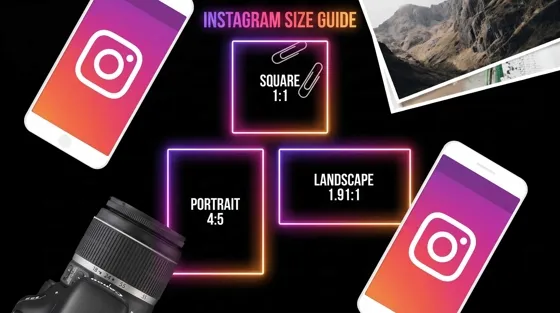
Instagram Image Size Guide 2026: Post, Reel, Story & Carousel Specs
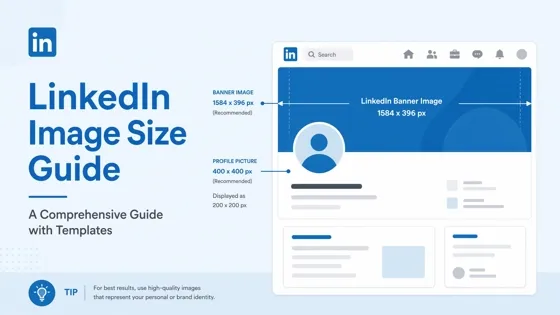
LinkedIn Image Size Guide: Profile, Post & Banner Dimensions
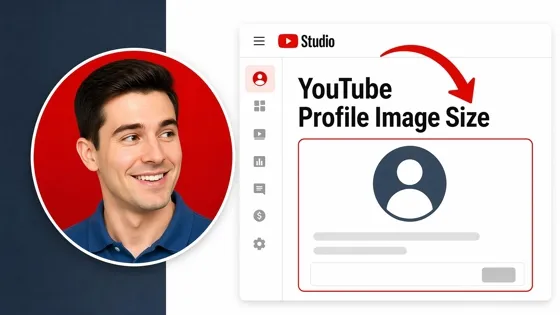
YouTube Profile Image Size: Best Dimensions & Safe Area 2026

How to Edit Amazon Product Photos That Boost Sales Fast
Removes Backgrounds and Creates Pro Visuals Fast
Stop paying for general design subscriptions and start editing smarter. Designkit lets you instantly remove backgrounds, generate photorealistic product lifestyle scenes, and prepare marketing-ready visuals in seconds without heavy monthly fees.
