
What Is a PFP? Meaning, Examples & How to Make One
PFP means profile picture, but a great one does more than fill a small circle. Learn what PFP stands for, where it's used, and how to create a profile image that looks professional across platforms.

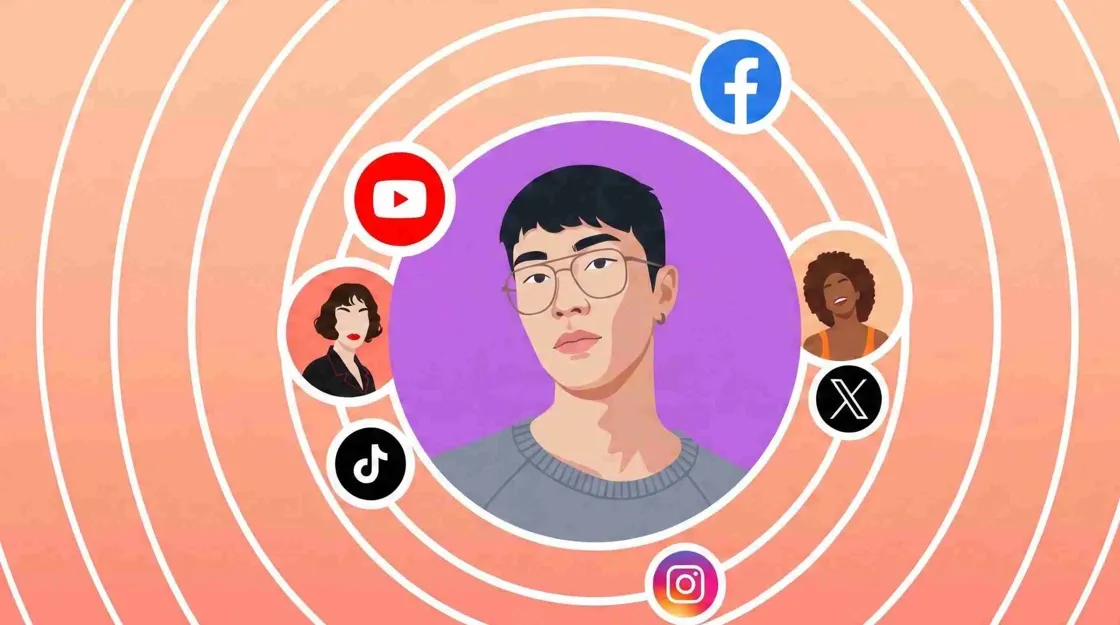
PFP stands for profile picture, the small image displayed next to your name on social media, messaging apps, gaming platforms, and online communities. While the definition is straightforward, the meaning of a PFP goes beyond simply uploading a photo. On LinkedIn, it's expected to be a polished professional headshot. On Discord or X (formerly Twitter), profile pictures are often part of internet culture, representing fandoms, matching friend groups, original artwork, or even NFT collections. In other words, what makes a "good" PFP depends on where you use it and who you're trying to connect with.
This guide explains exactly what PFP means, where the term comes from, how profile picture expectations differ across today's most popular platforms, and the practical tips for creating one that looks sharp, recognizable, and consistent everywhere you post.
What Does PFP Mean?
PFP stands for profile picture, the image that represents your account on social media, messaging apps, gaming platforms, and online communities. If you've wondered what does PFP mean, it simply refers to the photo, logo, illustration, or artwork displayed next to your username. In some chat conversations, PFP can also mean "picture for proof," though this usage is much less common than profile picture.
Where Did the Term PFP Come From?
The abbreviation PFP became popular as internet slang on early social media, forums, and gaming platforms where users shortened "profile picture" for convenience. As platforms like Instagram, Discord, X, TikTok, and Twitch grew, the term became part of everyday online language. Today, you'll see PFP used when discussing Instagram profile pictures, gaming icons, custom artwork, or even PFP photography for professional-looking account images.
PFP vs Avatar: What's the Difference?
While people sometimes use the terms interchangeably, a PFP and an avatar are not exactly the same.
|
|
PFP |
Avatar |
|---|---|---|
|
Meaning |
Profile picture for an account |
Digital representation of a person/character |
|
Common format |
Photo, logo, artwork |
Cartoon, 3D, game character, AI avatar |
|
Usage |
Social and messaging profiles |
Games, virtual worlds, some communities |
Different Types of PFPs
A PFP (profile picture) is one of the first things people notice about your online presence. Whether you're using PFP Instagram images, a PFP for WhatsApp, or a business account, choosing the right style helps express your identity or brand.
Personal Photo PFP
A personal photo is the most common answer to what is PFP in everyday use. It features a real photo of yourself and works well for social platforms like PFP Instagram, LinkedIn, Facebook, and PFP for WhatsApp. A clear, high-quality image helps friends, family, and professional contacts recognize your account instantly.
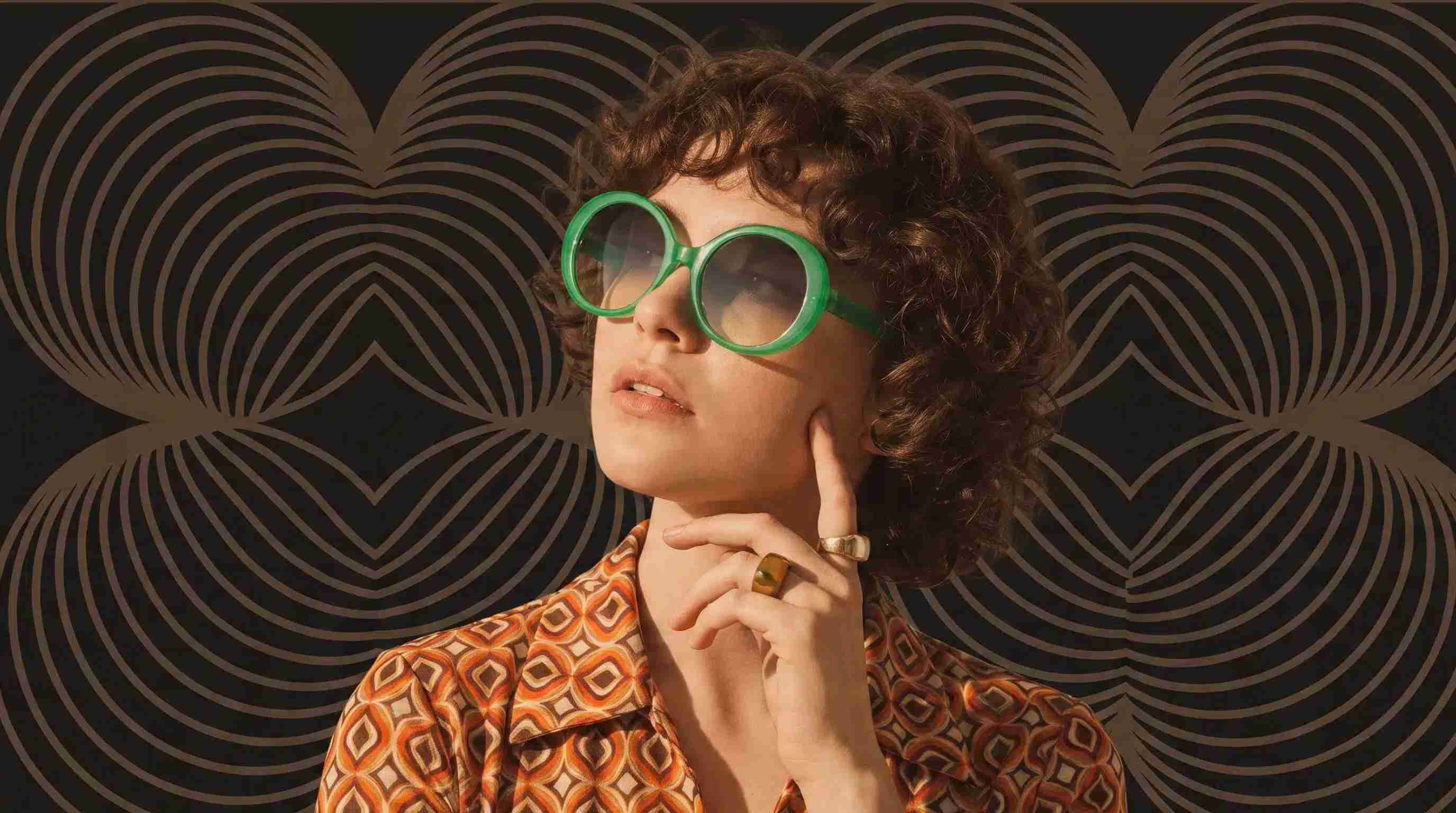
AI Avatar PFP
AI avatar PFPs use artificial intelligence to turn photos or text prompts into unique digital portraits. They are popular among creators, gamers, and users who want a distinctive online identity while protecting privacy. AI-generated profile pictures are widely used on Discord, X, Instagram, and messaging apps.
Logo PFP for Brands
A PFP logo is ideal for businesses, creators, and organizations that want consistent branding across platforms. Instead of a personal photo, the account displays a recognizable logo, making it easier for customers to identify the brand on Instagram, YouTube, X, and other social channels.
Illustration and Creative PFP
Illustrated PFPs include digital art, cartoons, anime, paintings, or custom character designs. They're a popular choice for artists, streamers, writers, and creative professionals who want a unique visual identity. This style makes your profile stand out while showcasing your personality and artistic interests.
Matching and Aesthetic PFPs
Matching and aesthetic PFPs are commonly used by couples, close friends, gaming teams, and fandom communities. These profile pictures share a coordinated theme, color palette, or split artwork that looks complete when viewed together. They're especially popular on Instagram, Discord, WhatsApp, and other social platforms.
Platform Tips for Creating Better PFPs
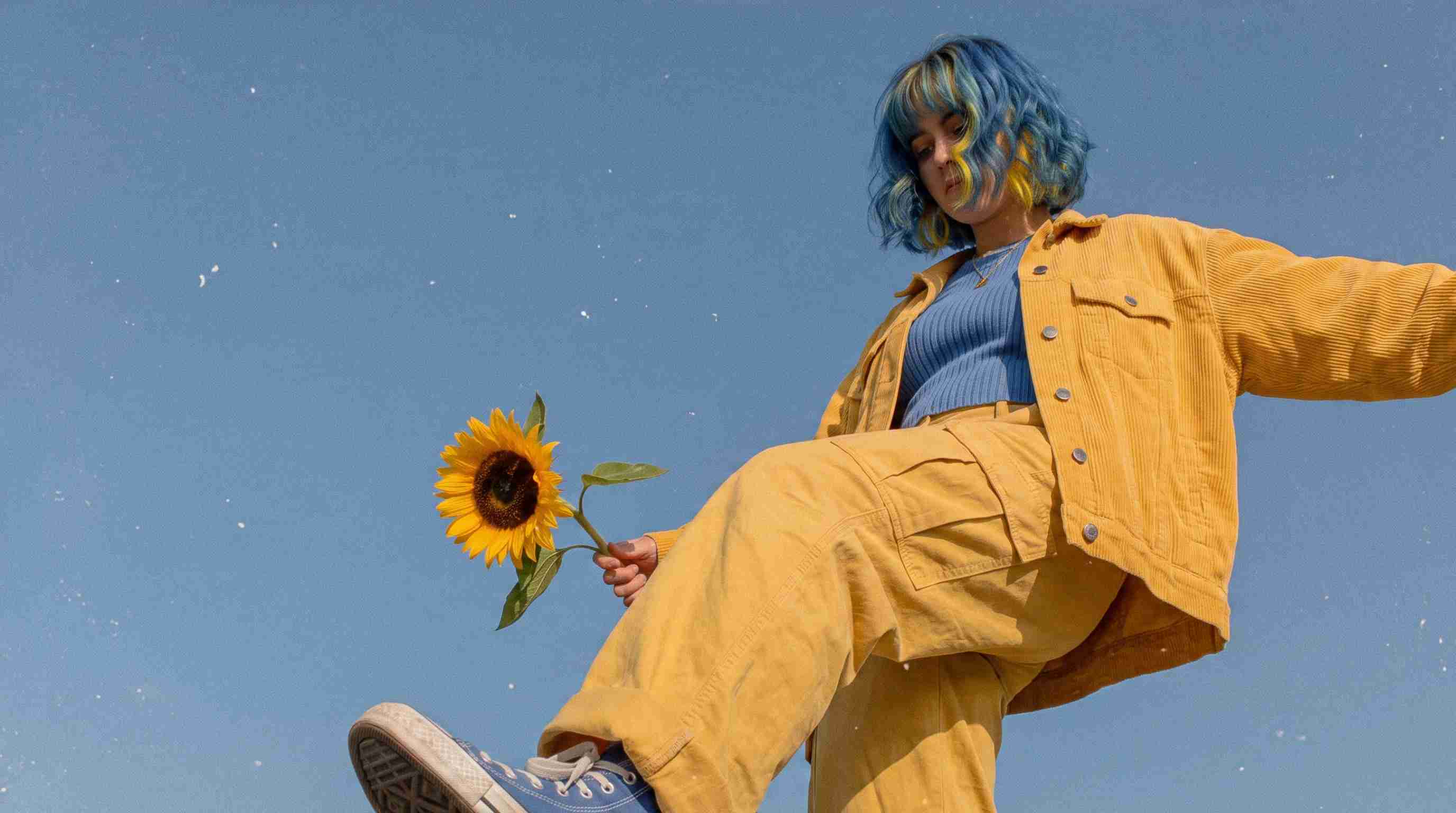
The best PFP (profile picture) depends on where people will see it. A clear, high-quality image that stays recognizable at a small size helps your profile look professional and memorable across different platforms.
Instagram Profile Pictures
For Instagram profile pictures, choose a bright, high-resolution image with your face or brand centered in the frame. Since the image appears as a small circle, avoid busy backgrounds and tiny text. A simple composition makes your PFP Instagram easy to recognize in feeds, stories, and comments.
TikTok Profile Pictures
TikTok profile pictures should be bold and easy to identify at a glance. Use strong lighting, high contrast, and a close-up subject. Where available, TikTok also supports motion or video-style profile options, which can help creators make their profiles more dynamic and engaging.
LinkedIn Profile Pictures
A LinkedIn PFP should present a professional first impression. Wear appropriate clothing, use a clean background, and make sure your face is clearly visible. A well-lit headshot with a natural expression helps build credibility and makes your profile more approachable to recruiters and clients.
Discord and Gaming Profiles
Discord and gaming communities often favor creative PFPs such as custom artwork, AI avatars, anime characters, or game-inspired designs. Even with a creative style, keep the subject clear and recognizable, so your profile stands out in servers, chats, and multiplayer lobbies.
WhatsApp Profile Pictures
A PFP for WhatsApp works best when it is simple and easy to recognize on small mobile screens. Use a clear personal photo for everyday conversations or a clean logo for business accounts. Avoid excessive filters or text that becomes unreadable in the circular profile icon.
Personal PFP vs Business PFP: What's Different?
Although both serve as profile pictures, personal and business PFPs have different goals. One focuses on individual recognition, while the other strengthens brand identity and consistency.
|
Personal PFP |
Business PFP |
|---|---|
|
Use a clear photo of your face to make you recognizable in comments, messages, and social feeds. |
Use a PFP logo or brand mark that remains readable even at a very small circular size. |
|
Highlight personality through natural expressions, lighting, and style. |
Prioritize brand recognition with consistent colors, fonts, and visual identity across platforms. |
|
Common on Instagram, WhatsApp, Facebook, and personal social accounts. |
Best for companies, creators, online stores, and organizations using the same branding on every channel. |
|
Can be updated to reflect personal milestones or style changes. |
Should remain consistent to build trust and make the brand instantly recognizable. |
Recommended PFP Sizes by Platform
For the best results, upload your PFP (profile picture) as a square (1:1) image. Keep your face or PFP logo centered because most platforms display profile pictures inside a circular frame that crops the corners. Platform requirements can change over time, so it's always a good idea to verify the latest official specifications before publishing.
|
Platform |
Recommended upload (approx.) |
Notes |
|---|---|---|
|
|
320×320+ (often upload larger square) |
Shown as circle |
|
TikTok |
200×200+ (larger square safer) |
Shown as circle |
|
|
400×400 to 1024×1024 |
Professional headshot |
|
Discord |
512×512 |
Nitro may allow animated |
|
|
Square, clear face/logo |
Compact display |
|
X (Twitter) |
400×400 |
Shown as circle |
How to Make a Good PFP
A great PFP (profile picture) is easy to recognize, looks sharp on every device, and reflects your personality or brand. Whether you're creating a PFP Instagram image, a PFP for WhatsApp, or a business profile, these simple tips can help.
Choose a Clear Subject
Make sure the main subject—whether it's your face, a product, or a PFP logo, is the focus of the image. Avoid distracting elements that compete for attention. A close-up composition helps people recognize your profile picture quickly, even at a small size.
Use a Simple Background
A clean background keeps the attention on your subject. Solid colors, soft gradients, or lightly blurred backgrounds work better than cluttered scenes. This makes your PFP look cleaner and improves visibility across social media platforms.
Use Clear Lighting and Sharp Image Quality
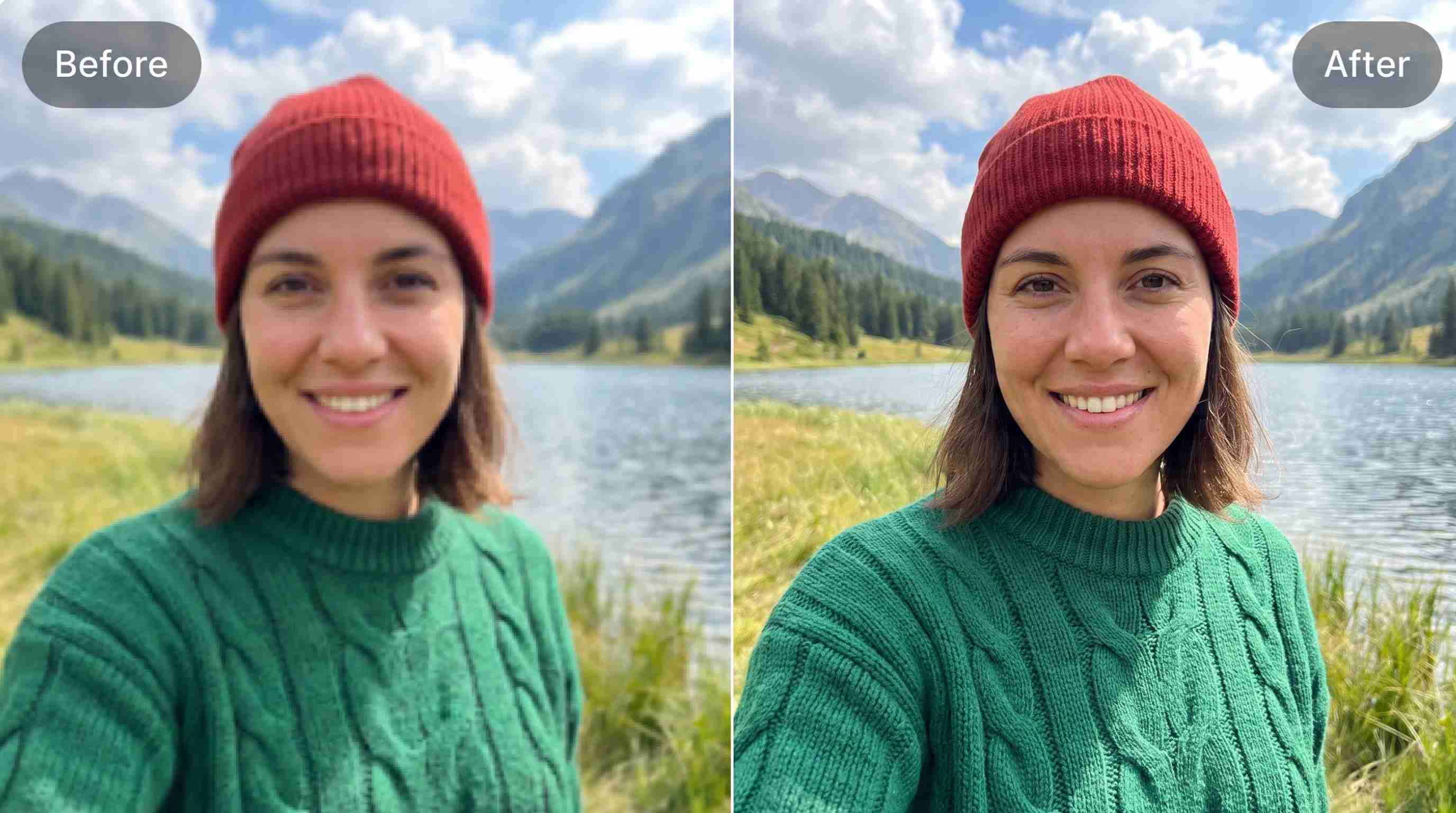
Good lighting and a high-resolution image make your PFP appear more professional. Natural light or balanced indoor lighting helps show accurate colors and facial details, while a sharp image prevents your profile picture from looking blurry after uploading.
Crop for Small Screens
Most platforms display profile pictures inside a small circle. Keep your face or logo centered with enough spacing around the edges, so nothing important gets cropped. Always preview your PFP before saving it.
Keep Your Style Consistent
Using the same profile picture across Instagram, WhatsApp, LinkedIn, X, and other platforms helps people recognize you instantly. For businesses, using a consistent PFP logo strengthens brand identity and creates a more professional online presence.
Common PFP Mistakes to Avoid
Even a high-quality image can perform poorly if it's not optimized for profile use. Avoid these common mistakes to make your PFP look its best on every platform.
Using Group Photos
Group photos make it difficult to identify who owns the account. Choose a solo photo or a single logo so viewers can recognize your profile immediately in comments, messages, and search results.
Choosing Busy or Low-Contrast Backgrounds
Crowded backgrounds reduce visibility and can make your face or logo blend into the image. A simple, high-contrast background helps your PFP on Instagram or other social profiles stand out.
Uploading Low-Resolution Images
Low-quality images often become blurry after compression. Upload a high-resolution square image to keep your PFP sharp across mobile apps, websites, and different screen sizes.
Using Different Profile Pictures on Every Platform
Changing your profile picture on every social network can confuse followers and customers. Using a consistent image across platforms improves recognition and builds trust over time.
Ignoring Platform Crop Shapes
Most platforms display profile pictures as circles, even if you upload a square image. Keep important details away from the corners and center your subject to avoid unwanted cropping.
Using AI-Generated Images without Personalization
AI-generated PFPs can look impressive, but generic avatars may not represent your personality or brand. Customize colors, facial features, clothing, or branding elements so your profile picture feels authentic and easier to recognize.
How Designkit Helps Brands and Creators Polish Profile Visuals
A strong PFP (profile picture) helps people recognize your personal or business account across platforms. Designkit helps ecommerce brands and creators enhance real photos or PFP logos, remove or replace backgrounds, and export polished profile visuals for multiple social channels. It is designed to improve existing images, not to generate anime or NFT-style PFPs from scratch.
How to Create a Cross-Platform PFP with Designkit in 3 Steps
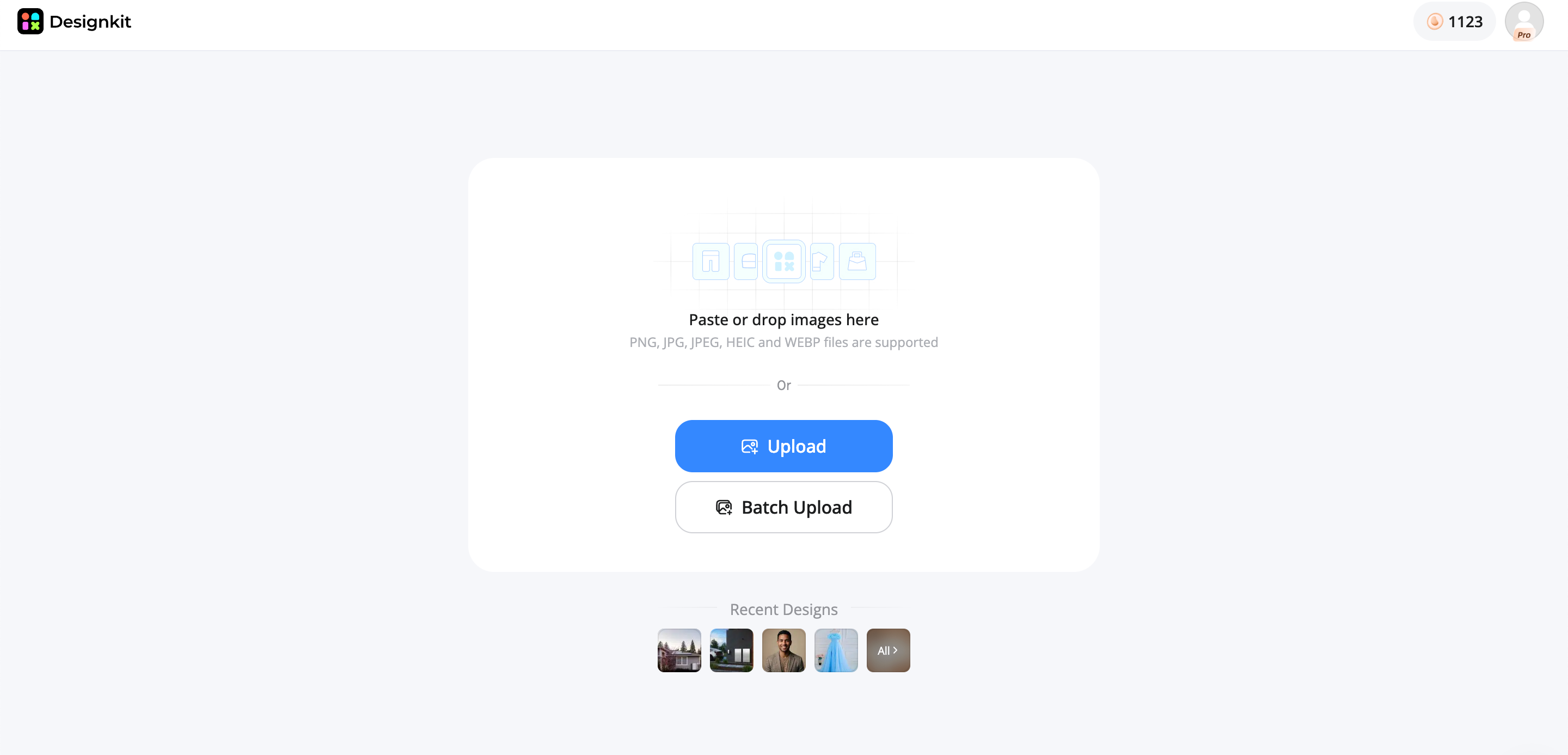
Step 1: Upload Your Photo or Logo
Add the image you want to use as your base, personal or business.
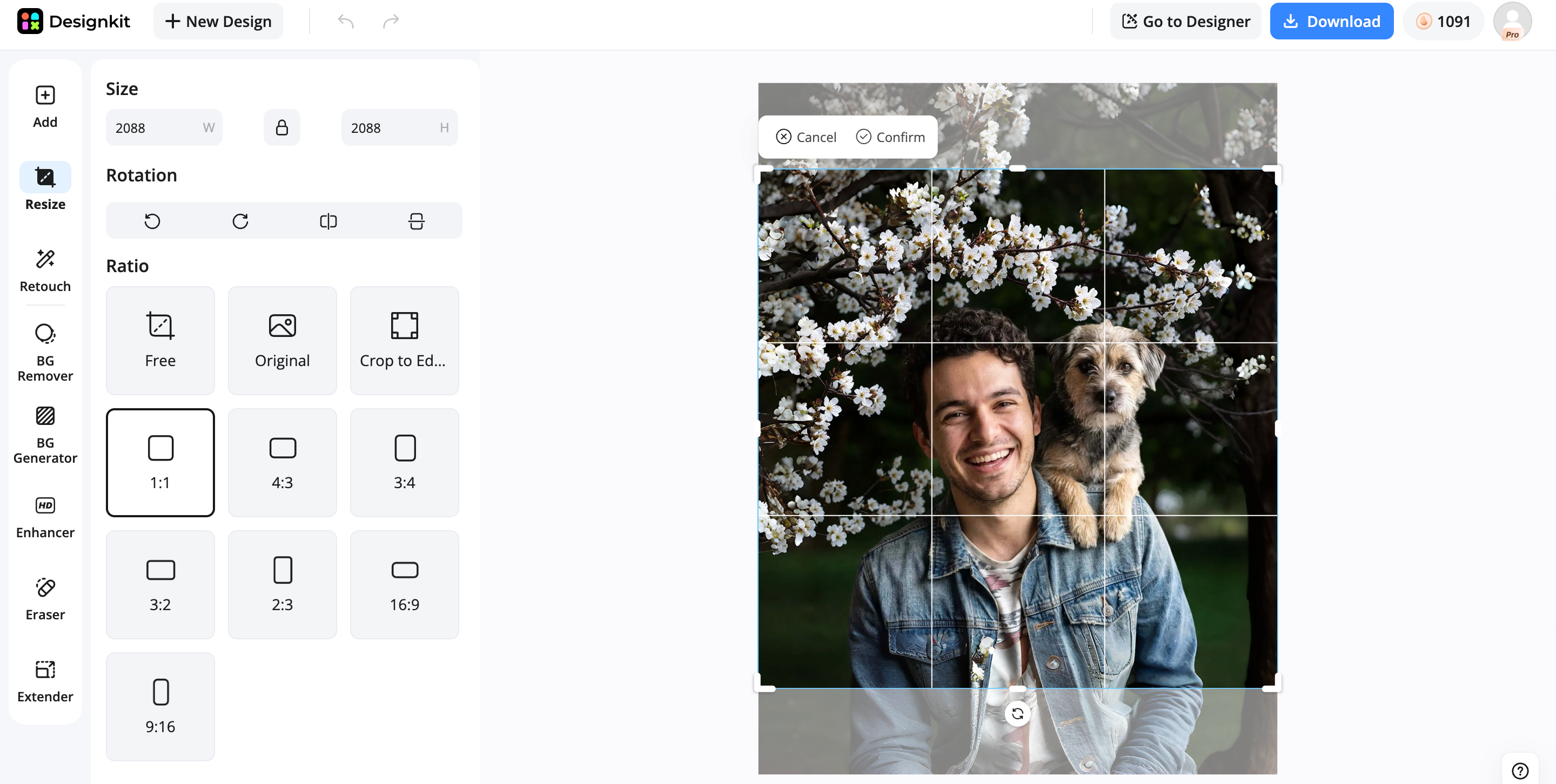
Step 2: Enhance and Customize Your PFP
Designkit crops and resizes it to fit Instagram, TikTok, LinkedIn, WhatsApp, and more.
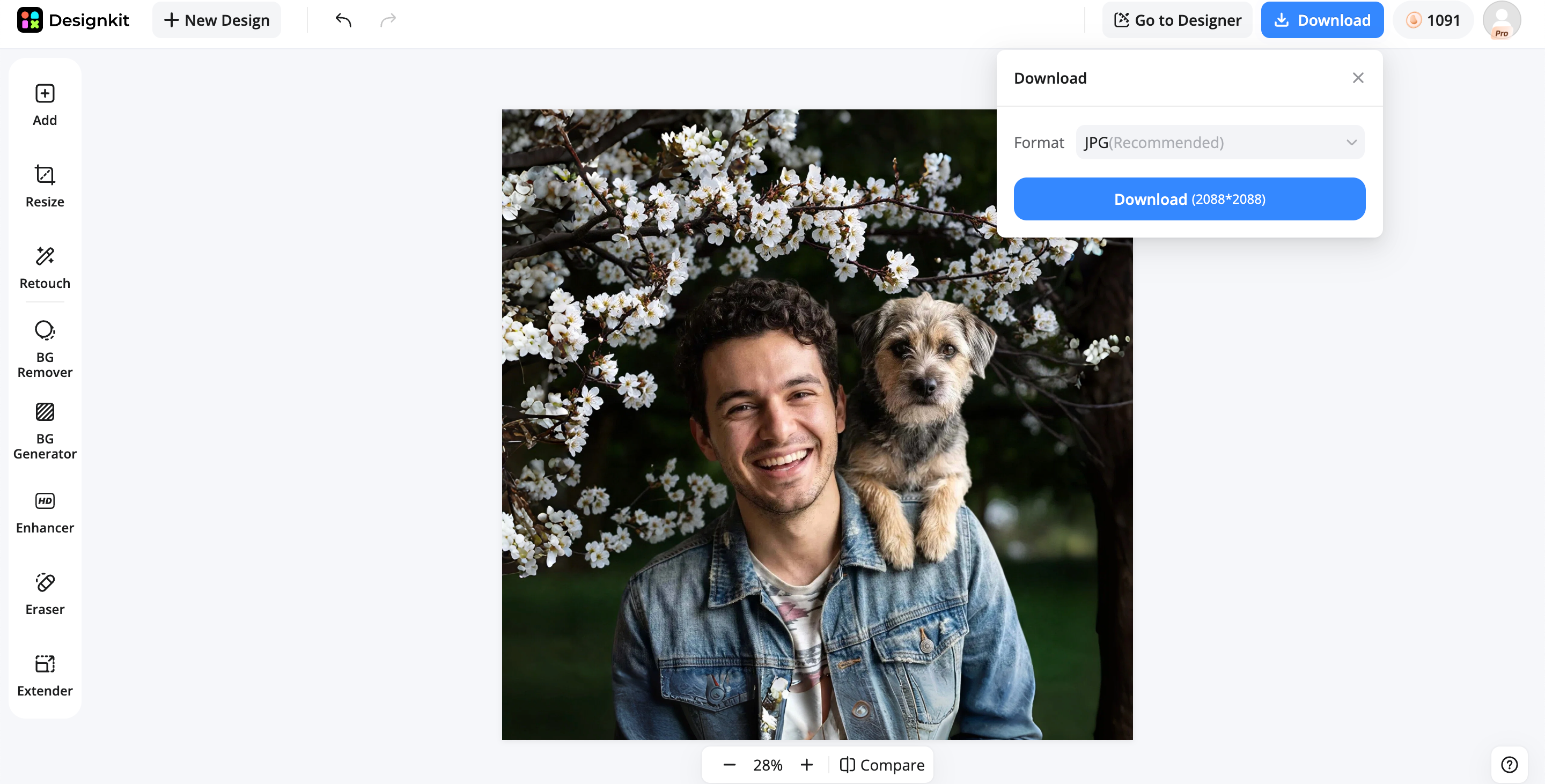
Step 3: Export Platform-Ready Versions
Preview each version, then download and update your profile picture everywhere at once.
Key features of Designkit for PFP Creation
AI Photo Enhancement: Improve brightness, sharpness, and overall image quality to create a cleaner, more professional-looking PFP while preserving natural details.
AI Background Removal: Remove distracting backgrounds with one click and place your face or logo on a clean, distraction-free backdrop that works well in circular profile images.
AI Background Generation: Replace plain or cluttered backgrounds with AI-generated scenes, solid colors, or branded environments that match your personal style or business identity.
Style Variations: Create multiple versions of the same profile picture with different backgrounds, color themes, or visual styles, making it easy to match different social platforms while maintaining a consistent identity.
Multi-Platform Resize: Automatically resize and optimize your profile picture for Instagram, TikTok, LinkedIn, WhatsApp, X, and other platforms, helping you maintain a consistent look without manually editing each version.
Conclusion
A PFP (profile picture) is more than just an account image, it's a key part of your online identity. Choosing the right photo or logo, using the correct size, keeping important details centered on circular crops, and staying consistent across platforms all help improve recognition and professionalism. Whether you're managing a personal account or a business brand, a polished profile picture creates a stronger first impression. Designkit makes the process easier by enhancing real photos and logos, removing or replacing backgrounds, and exporting optimized versions for Instagram, TikTok, LinkedIn, WhatsApp, X, and other social platforms from a single workflow.
Frequently Asked Questions
What does PFP stand for?
What does PFP mean on Instagram?
On Instagram, PFP refers to your profile picture, the circular image displayed on your profile, posts, comments, and messages. A clear, well-cropped photo or logo makes your account easier to recognize. Designkit helps optimize your Instagram profile picture by improving image quality, removing distractions, and resizing it for a polished look that works across social platforms.
Is a PFP the same as an avatar?
Not exactly. A PFP is any image used as your profile picture, while an avatar is a digital representation, such as a cartoon, game character, or AI-generated portrait. Many avatars are used as PFPs, but real photos and logos are common too. If you're using a real image or brand logo, Designkit helps refine it with AI enhancements, clean backgrounds, and platform-ready exports.
What makes a good profile picture?
A good profile picture is clear, well-lit, high-resolution, and easy to recognize at a small size. Keep your face or logo centered, use a simple background, and avoid clutter. Designkit helps you improve photo quality, replace distracting backgrounds, and create consistent profile pictures for Instagram, LinkedIn, WhatsApp, TikTok, and more from one workflow.
What size should a PFP be?
Most platforms recommend uploading a square image, typically between 400 × 400 px and 1024 × 1024 px, even if it's displayed as a circle. A larger, high-resolution file helps maintain image quality after compression. Designkit automatically resizes your profile picture for different platforms, helping you keep a sharp, consistent look everywhere.
Can I use a logo as my PFP?
Yes. A logo is an excellent PFP for businesses, creators, and organizations because it strengthens brand recognition across platforms. Use a simple design that remains readable in a small circular crop. Designkit helps enhance logo clarity, remove backgrounds if needed, and export optimized versions for Instagram, LinkedIn, X, WhatsApp, and other channels.
How do I make an AI profile picture?
You can create an AI profile picture using AI image-generation or photo-editing tools that transform your photo into different artistic styles. If you already have a photo or logo, Designkit focuses on enhancing and polishing it with AI-powered editing, background replacement, style variations, and multi-platform resizing for a professional final result.
Why does my PFP look blurry?
A blurry PFP is usually caused by uploading a low-resolution image, excessive compression, or incorrect cropping. Starting with a high-quality square image helps preserve detail after uploading. Designkit improves sharpness, enhances image quality, and exports platform-ready sizes, helping your profile picture stay crisp across Instagram, WhatsApp, LinkedIn, TikTok, and more.
You May Also Like
How to Edit an Instagram Post After Posting: A Complete Guide
11 Best Canva Alternatives in 2026 for AI Design & Marketing
8 Best Midjourney Alternatives in 2026: Features, Pricing & Comparison
How to Restore Old Photos: AI Tools, Tips & Best Methods
Pixelcut AI Review 2026: Features, Pricing, Pros, Cons & Alternatives
How to Apply Watermark to Photos: Methods, Tips & AI Tools
How to Remove a Background in Illustrator: 4 Easy Methods
How to Change Background Color on Instagram Story (Easy Guide)
8 Best AI Poster Generators in 2026: Create Posters Faster with AI
10 Best AI Image Enhancers in 2026: Tested & Compared
10 Best AI Image Editors in 2026: Features, Pricing & Comparison
7 Best AI Background Changer in 2026: Remove & Replace Photo Backgrounds
Luminar Neo vs Lightroom: Features, Pricing & Comparison 2026
Kittl Review 2026: Is It Worth It? Features & Pricing
How to Make a Blurry Image Clear: 5 AI & Manual Ways
How to Remove Background on iPhone: 5 Easy Methods (2026)
Photoroom Background Remover Review 2026: Features & Alternatives
How to Remove Background in Canva: A Step-by-Step Guide
How to Remove Background in GIMP: Beginner-Friendly Guide

Funny Dog Memes to Try: Doge Meaning and 10 Original Ideas
Back to School Checklist 2026: Supplies, Timeline, and Planning
Recraft AI Review 2026: Features, Pricing, Pros, Cons & Alternatives
How to Make an Image Transparent in Google Slides: Opacity & Background Removal
VanceAI Photo Enhancer Review: Features, Pricing & Alternatives in 2026
What Does Emojify Mean? Text, Photos, & Emoji Art Explained
Top 8 Online Background Removers for Ecommerce Photos (2026)
How to Remove Background in Photoshop: 7 Easy Methods
6 Best AI Image Upscalers 2026: Tools Tested & Compared
Project Indigo Review: Is It Better Than iPhone Camera?
How Big Is an 8x10 Photo? Size, Pixels & Frame Guide
How Big Is a 4x6 Photo? Dimensions, Pixels & Printing Tips
Picsart AI Review: Features, Pricing, Pros, Cons & Alternatives
Lovart AI Review: AI Design Agent Features, Pricing & Alternatives
Fotor AI Image Generator Review: Features, Pricing & Alternatives
How to Add Emoji to Photo Online for Free
Emoji Wallpaper Ideas & How to Make One Online (2026)
Minimalist Poster Design: How to Make a Clean Poster (2026)
How to Make a Custom Poster That Is Ready to Print
Instagram Image Size Guide 2026: Post, Reel, Story & Carousel Specs
LinkedIn Image Size Guide: Profile, Post & Banner Dimensions
YouTube Profile Image Size: Best Dimensions & Safe Area 2026
How to Edit Amazon Product Photos That Boost Sales Fast
Create a PFP That Represents You Everywhere
Turn your photos, logos, or creative ideas into polished profile pictures with AI-powered enhancement, background editing, and style customization.
