
5 Best Free Photo Editors for Mac in 2026
Explore free photo editing tools for Mac users. Compare simple editors, advanced alternatives, and AI-powered workflows based on features, performance, and everyday editing needs.

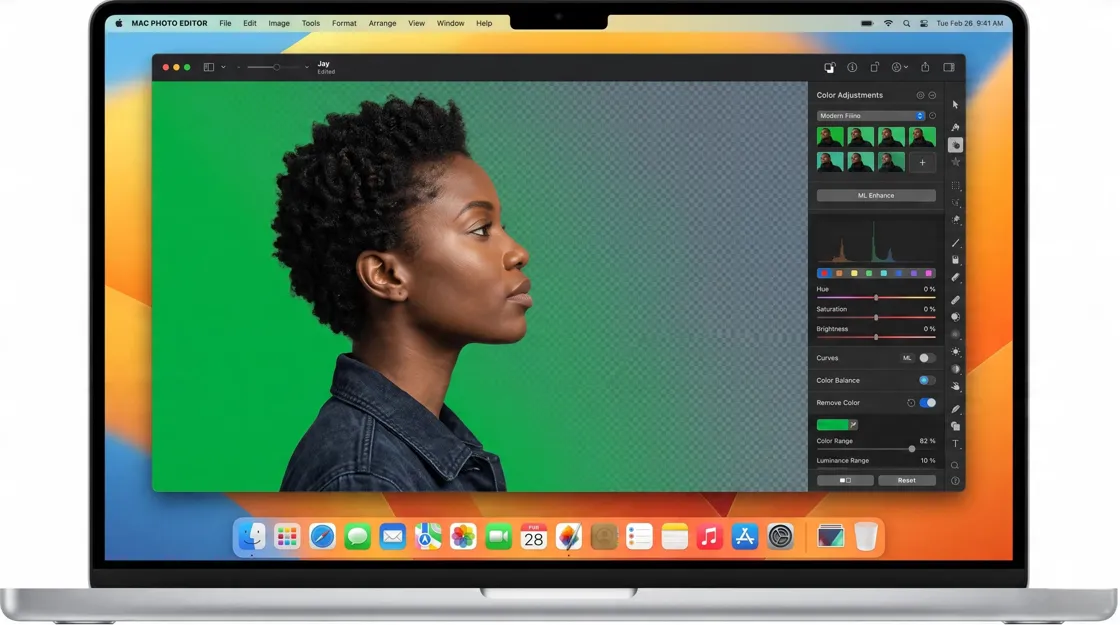
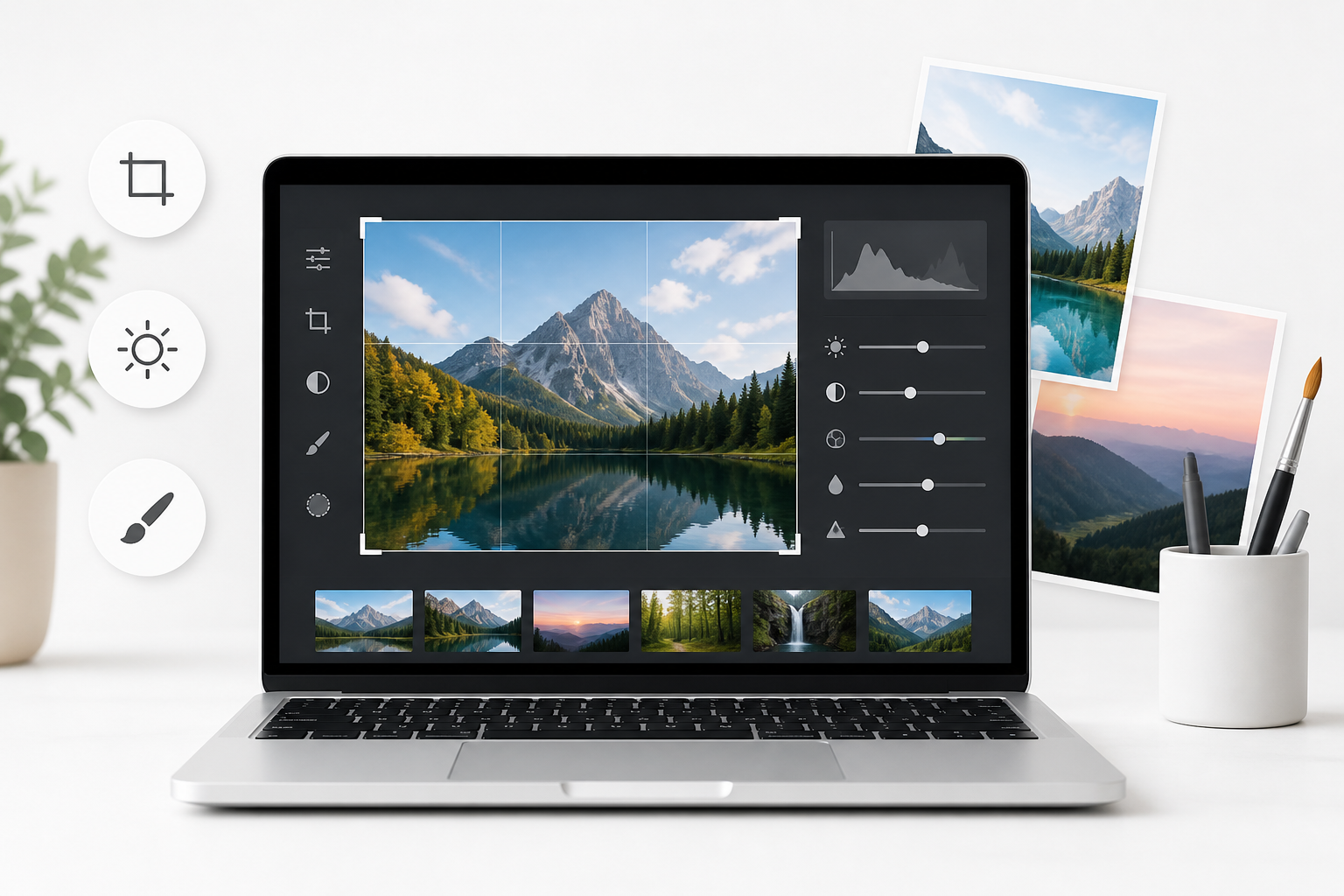
Looking for a free Mac photo editor is not an easy task, as each user requires varying levels of photo editing capabilities. While some individuals may need to make basic changes such as cropping, resizing and color correction, others may require advanced options including layers, RAW editing, and pro-level retouching.
In this guide, I compare the best free Mac photo editors depending on their features, usability, supported file types and other pros and cons. Regardless of whether you are editing personal photos, social media images, or any other kind of creative asset, you will find an appropriate solution.
Key Takeaways
-
There are several free Mac photo editing software options available, from simple applications installed on the computer to powerful open-source software programs that have professional editing capabilities.
-
A beginner may use simpler editing software for basic cropping and filtering needs, while photographers will find features like raw support and layers more useful.
-
A "free" editor doesn't necessarily guarantee complete accessibility; there could be some restrictions on editing or exporting photos, along with ads.
-
Your editing needs, whether for photography or social media posts, designing or product images, will determine the right editor for you.
-
Artificial Intelligence-based online editors can complement your desktop software requirements.
What Is a Free Mac Photo Editor?
It is software or a website that enables people to edit their pictures for free since there is no need to pay for the premium version of it. This program offers simple operations with photos like cropping, resizing, coloring correction, adding filters, and even retouching. Some professional photo editors offer more advanced options like layers, masks, or RAW picture support.
There are different photo editors for Mac depending on the purpose and needs of the user. For example, one person needs to make simple edits to personal pictures and does not need any advanced functions.
What Can You Do With a Free Photo Editor?
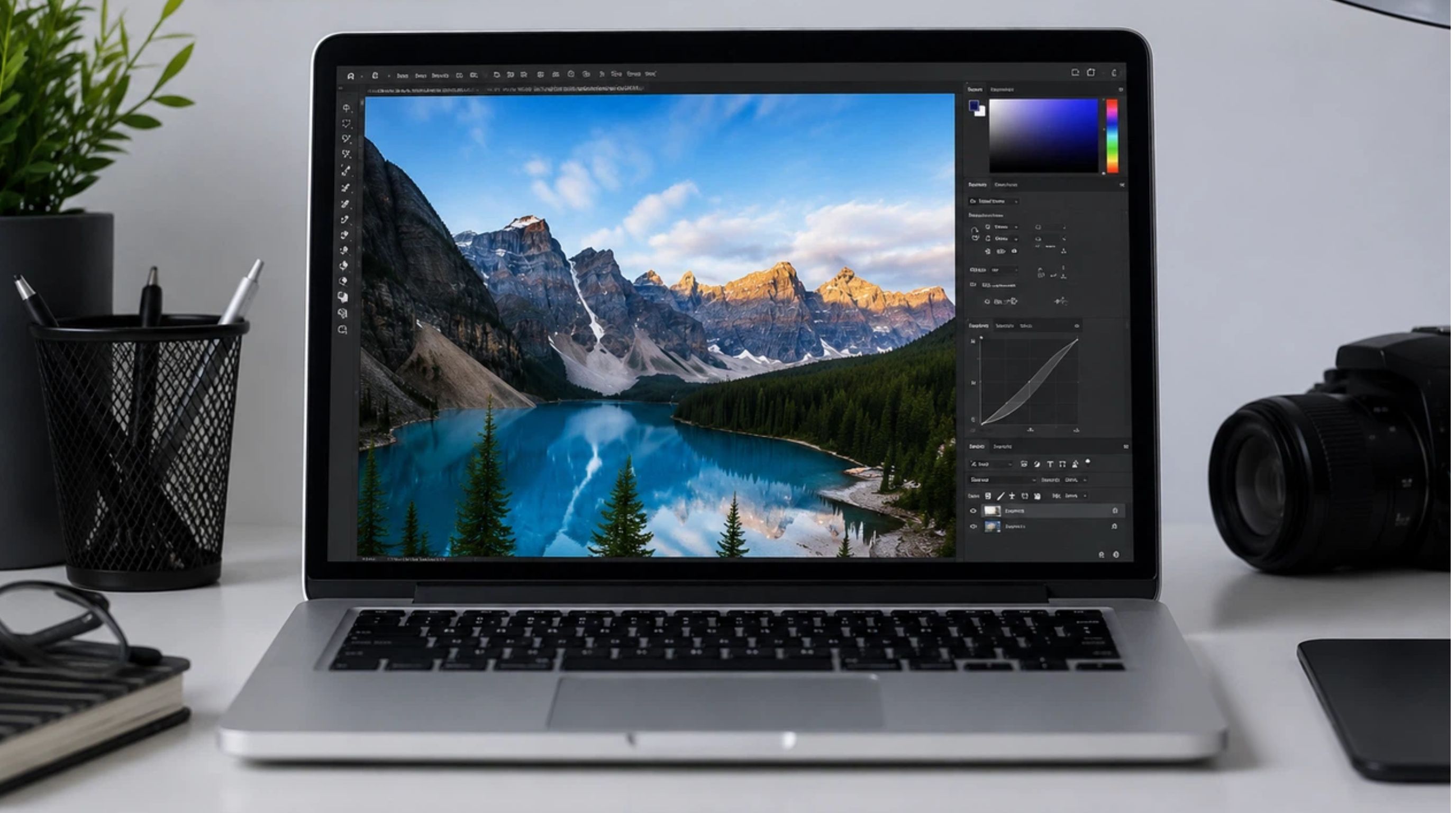
A free photo editor can handle cropping, resizing, rotating, brightness and contrast adjustments, color correction, filters, and basic retouching. Some software also includes tools for removing objects, changing backgrounds, adding text, and improving image quality. Advanced editors may offer layers, masks, selections, blending modes, and RAW editing for more complex workflows. Choose an editor based on your most frequent tasks, whether you need quick corrections or detailed retouching and compositing.
Are Free Mac Photo Editors Really Free?
Not every free Mac photo editor offers full access to all features. Some are completely free and open source, while others use a freemium model that includes basic editing at no cost but charges for extras. Free versions may include ads, limited features, watermarks, restricted exports, credit limits, file-size limits, or subscription prompts. Some online tools also limit how many images you can process in a given period.
Best Free Mac Photo Editors at a Glance
The best free photo editor for Mac varies depending on what people are going to make. Some applications are optimized for regular photo editing, whereas others offer more advanced options for photographers and professional content creators. Here are some of the best free photo editors for Mac ranked by editing options, usability, supported file formats, and limitations.
|
Editor |
Free Status |
Best For |
Mac Compatibility |
Key Editing Features |
RAW Support |
Main Limitation |
|---|---|---|---|---|---|---|
|
Apple Photos |
Free |
Everyday photo editing |
Built into macOS |
Crop, rotate, filters, light/color adjustments, retouching |
Yes |
Fewer advanced editing tools |
|
GIMP |
Free & open source |
Advanced photo editing |
macOS |
Layers, masks, selections, filters, color correction, retouching |
Yes, with supported workflows/plugins |
Interface can be difficult for beginners |
|
Photopea |
Free with ads |
Photoshop-style editing in a browser |
Works on Mac via browser |
Layers, masks, filters, selections, text, PSD editing |
Limited/format-dependent |
Requires a web browser; free version includes ads |
|
Adobe Photoshop Express |
Free with optional paid features |
Quick edits and social media photos |
macOS via supported app/web access |
Crop, resize, filters, adjustments, retouching |
Limited |
Not designed for advanced professional editing |
|
Designkit |
Free plan available |
Creating branded visuals and marketing graphics |
Web-based; works on Mac |
Templates, AI-assisted design, text, layouts, brand assets, creative resizing |
Not a dedicated RAW editor |
Better suited to design/marketing than detailed photo retouching |
Best for Basic Photo Editing
For basic photo editing, choose a simple tool that makes cropping, resizing, rotating, lighting adjustments, color correction, and filters easy to use. Apple Photos is a convenient option for everyday edits because it is built into macOS and provides essential editing controls. Photopea is better suited for users who want a browser-based editor with more advanced features such as layers, selections, masks, text, and filters.
Best for Advanced Photo Editing
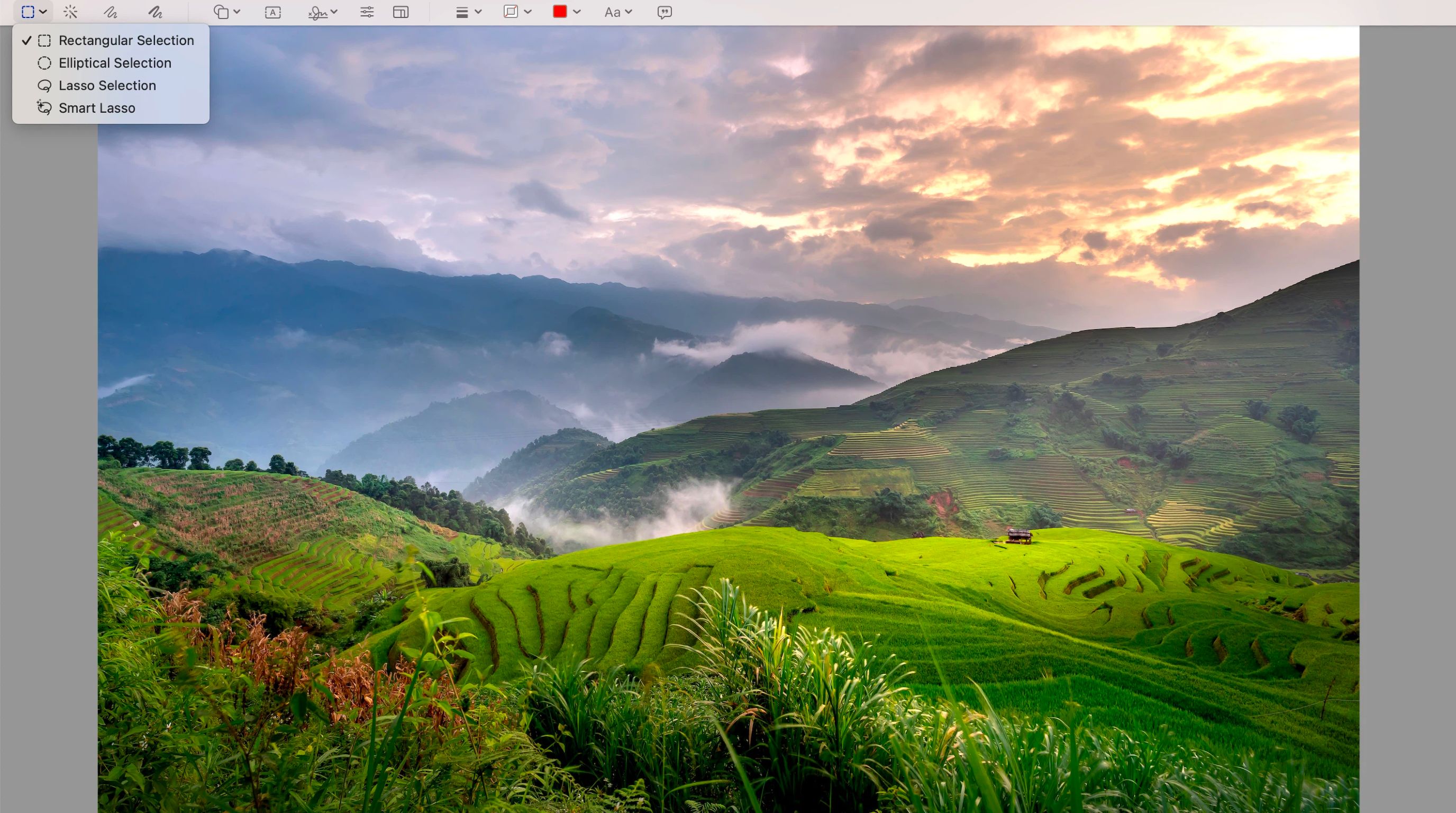
For advanced photo editing, look for features such as layers, masks, blending modes, selections, and precise adjustment tools. GIMP is a strong free option for retouching, compositing, color correction, and detailed image manipulation without a subscription. Photopea is another useful choice, especially for users who prefer browser-based editing with a layer-based interface and support for professional image formats.
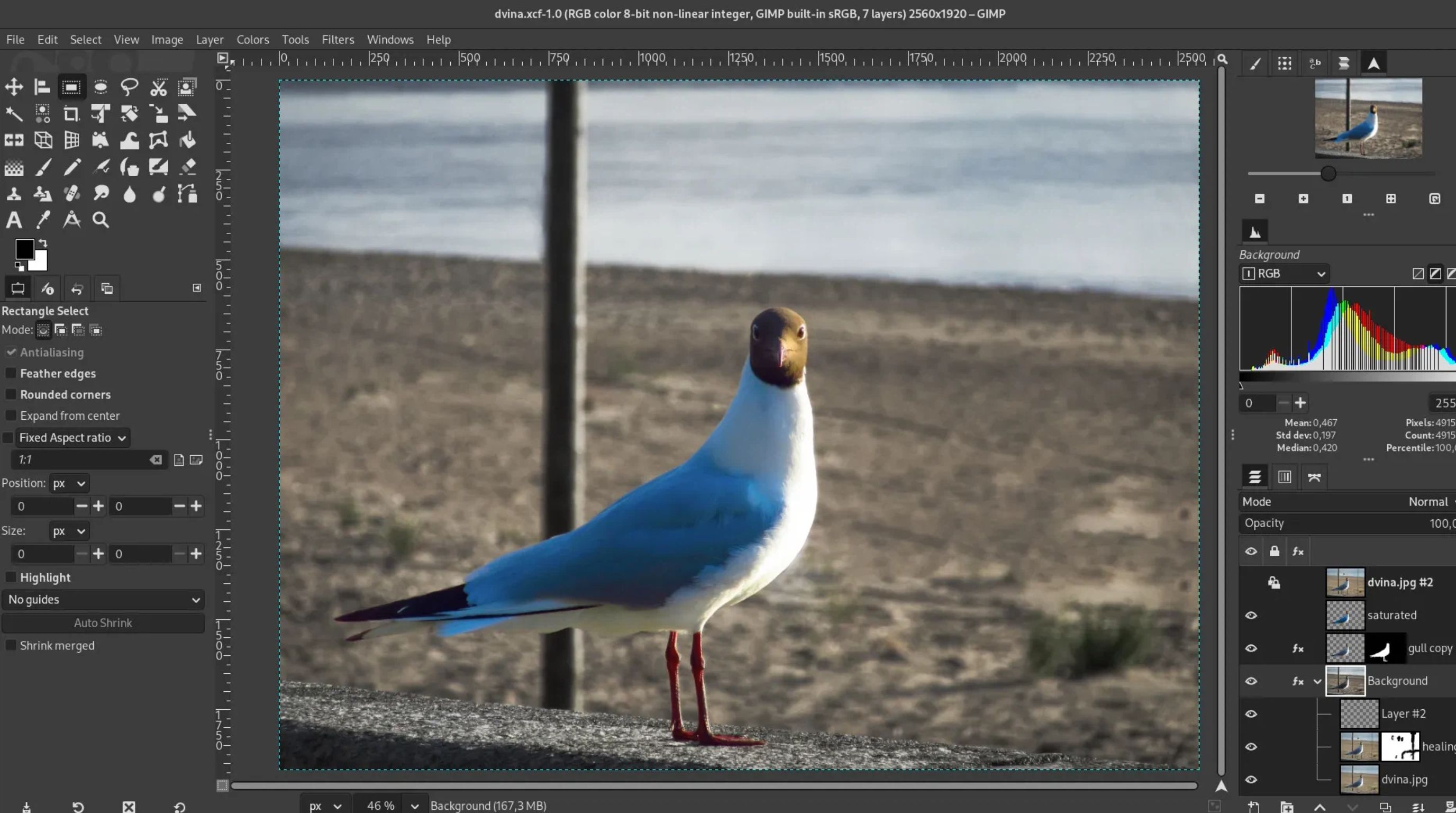
Best for RAW and Professional Photography
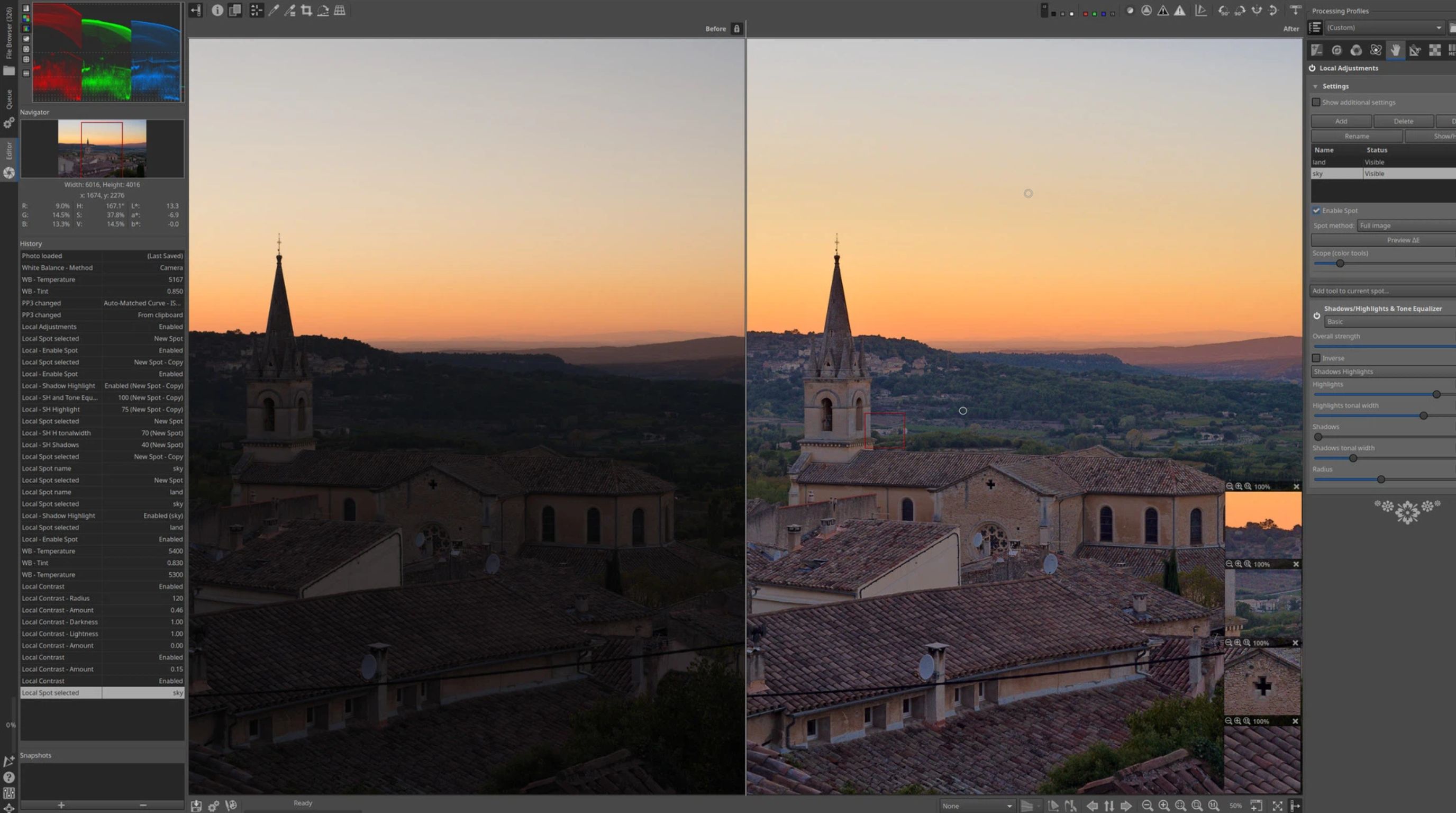
Photographers working with RAW files should prioritize RAW compatibility, exposure and white balance controls, highlight and shadow recovery, lens corrections, non-destructive editing, and export options. RawTherapee is ideal for detailed RAW development, while GIMP is better for retouching, compositing, layers, and masks. The best free Mac photo editor depends on whether you need RAW processing or advanced image manipulation; using both can offer a fuller workflow.
What to Look for in a Free Photo Editor for Mac
Select the photo editor for Mac that is better suited for you by looking at the way you work with images, not its numerous features. If you need fast photo editing, the main focus will be on easy photo crop, exposure, color correction and an intuitive interface. If you have more advanced requirements, look for precision in controls, a wide range of files to work with, good exporting quality and efficiency.
-
Editing Features: Analyze the importance of such features as basic image adjustments, image retouching, layers and masks, object removing, background editing and RAW image processing depending on the needs of the user.
-
File Format and Export Options: Check support for formats such as JPG, PNG, HEIC, TIFF, and RAW where applicable. Export resolution, compression, file size, watermarks, and available quality settings can also affect whether a free editor is suitable for your workflow.
-
Ease of Use and Mac Performance: The interface and learning curve can make a major difference. A powerful editor may not be the best choice if simple tasks take too long. Consider how well the software performs on your Mac and whether it fits your workflow.
Free Mac Photo Editing for Different Needs
Different users have different priorities when choosing a free photo editor for Mac. A beginner may need straightforward adjustments and quick exporting, while a photographer may prioritize RAW processing and precise color control. A marketer or e-commerce seller may care more about resizing, background editing, text, templates, and creating multiple variations. Rather than selecting software based only on its feature count, consider the type of work you perform most frequently. The best tool is the one that provides the right capabilities without adding unnecessary complexity to your workflow.
For Beginners and Everyday Editing
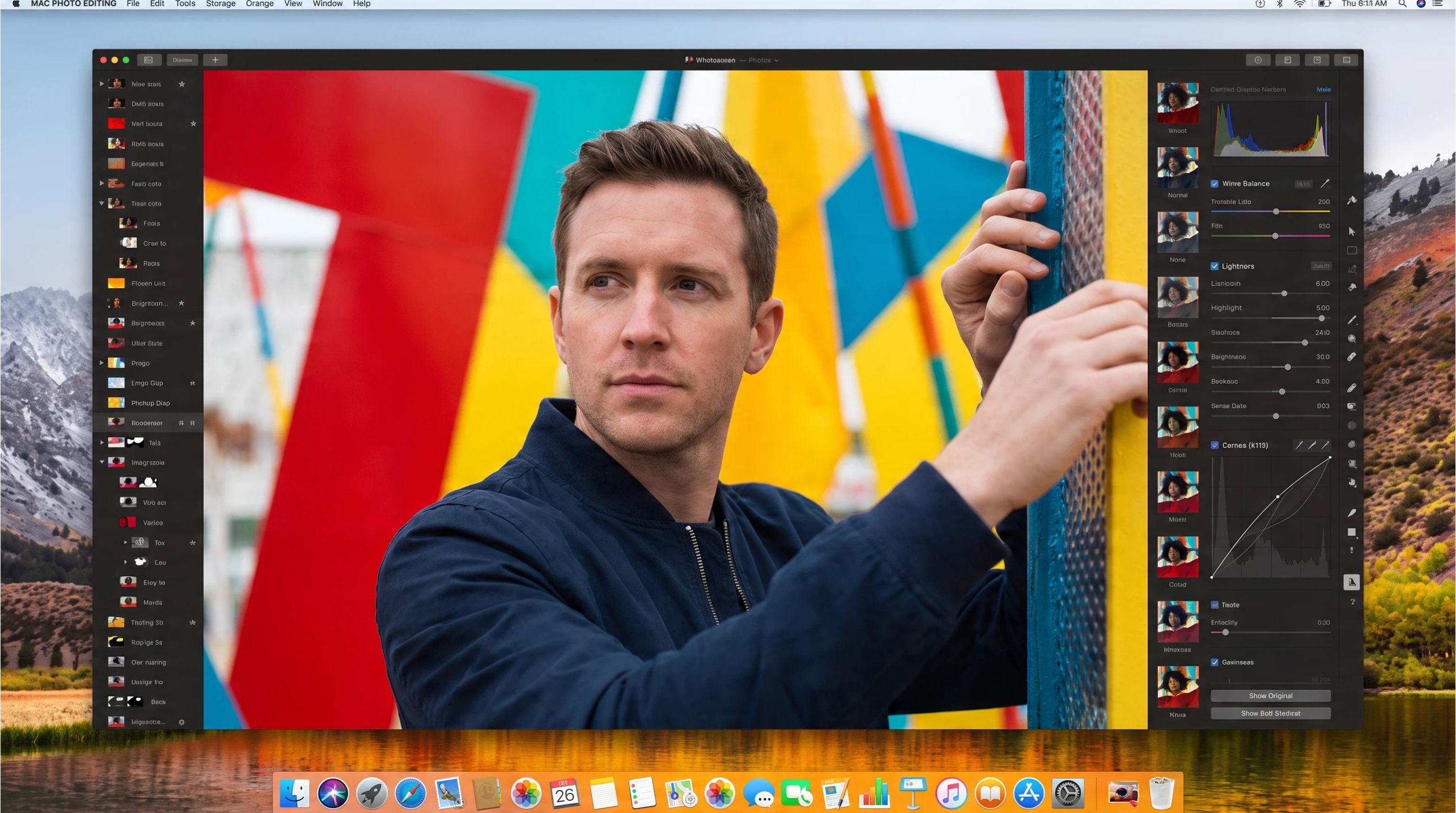
Consider ease of use, standard adjustments, quick exporting, and installation, because ordinary people need something that will be intuitive, user-friendly, and convenient for sharing. Apple Photos should be introduced as a practical option for editing photos on Macs.
For Photographers and Creators
Consider RAW, exposure, color adjustment, retouching, layers, masking, and fine-tuning to help creatives choose between RAW photo development and photo manipulation tools. Compare the features of RawTherapee, which focuses on RAW, and GIMP, which offers a wider range of editing tools.
For Social Media and E-commerce
For social media and e-commerce, prioritize tools that make it easy to resize content, maintain consistent dimensions, edit backgrounds, add text, and create multiple variations quickly. Designkit can further streamline content production with ready-to-use media assets and variations, helping businesses create more assets efficiently.
Edit Photos Online on Mac With Designkit
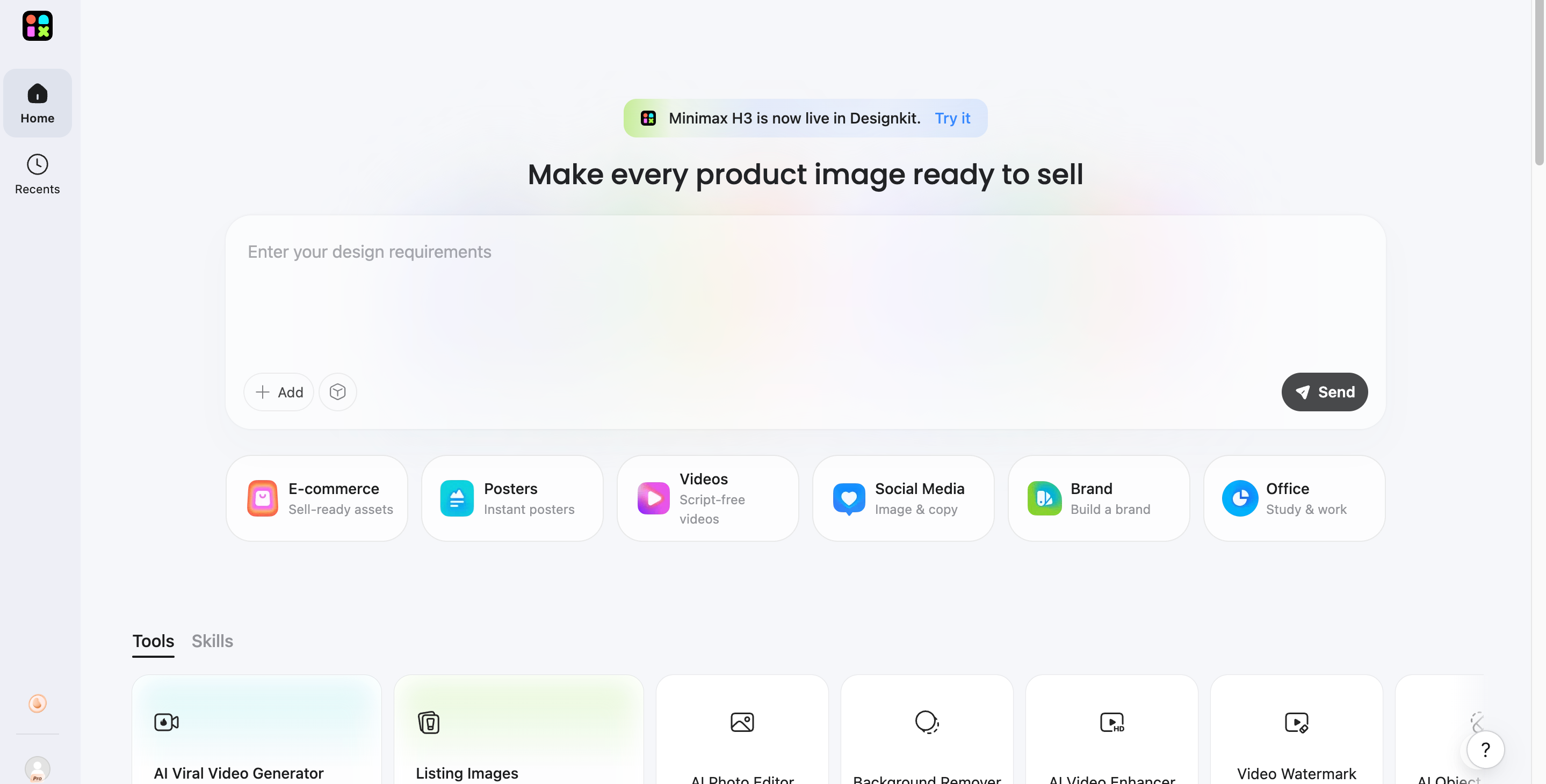
Desktop Mac photo editors are useful for detailed manual editing. Still, browser-based AI tools can complement them when you need to make quick image changes without installing additional software. Designkit provides an online workflow for editing and adapting images directly from a Mac browser.
It can be useful for marketers, creators, and businesses that need to prepare images for websites, social media, e-commerce listings, and other digital content.
How to Edit a Photo With Designkit on Mac
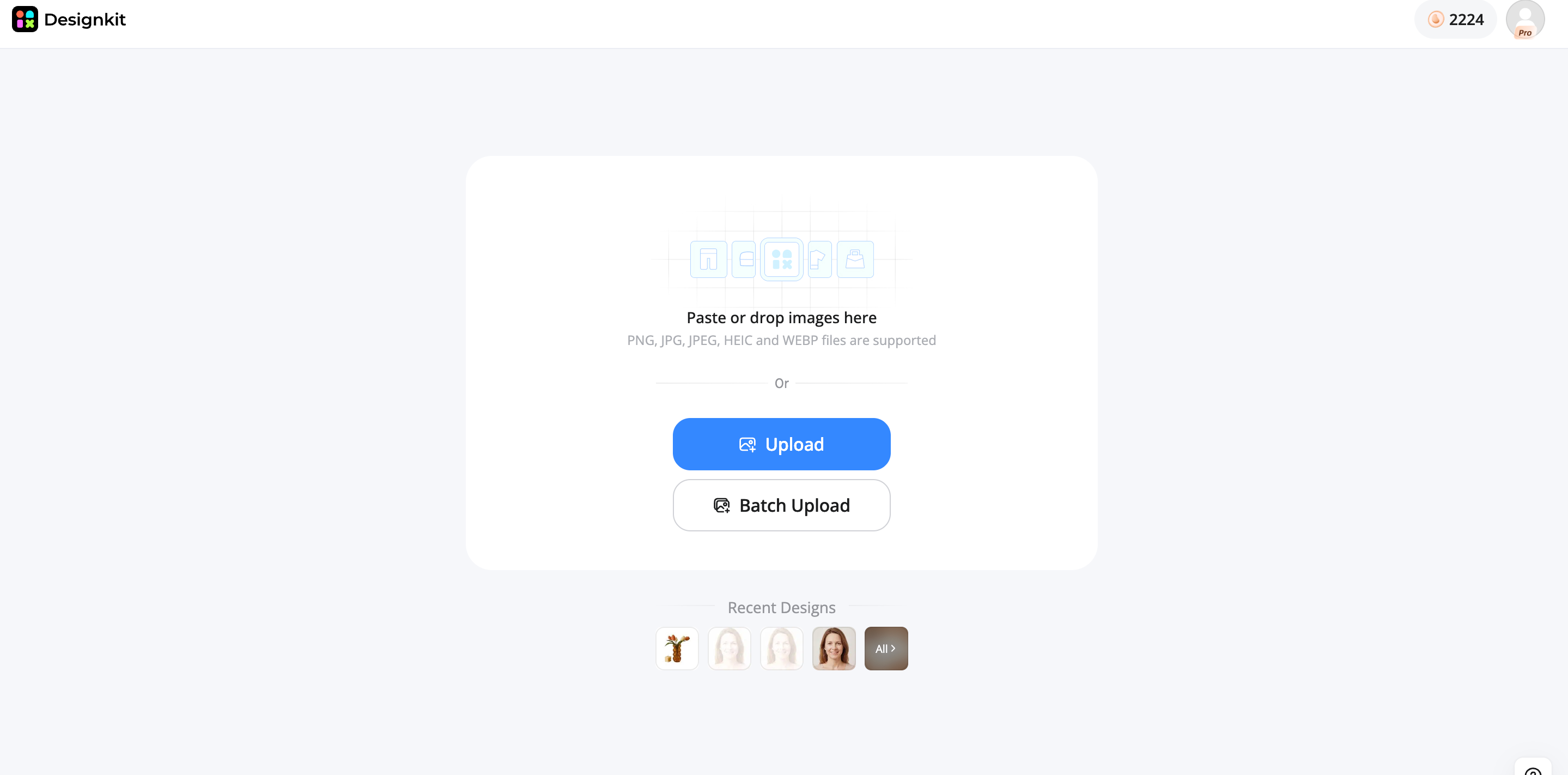
Step 1: Upload Your Image
Upload the photo you want to edit directly through your browser. Use the highest-quality version available to get better results during AI processing.
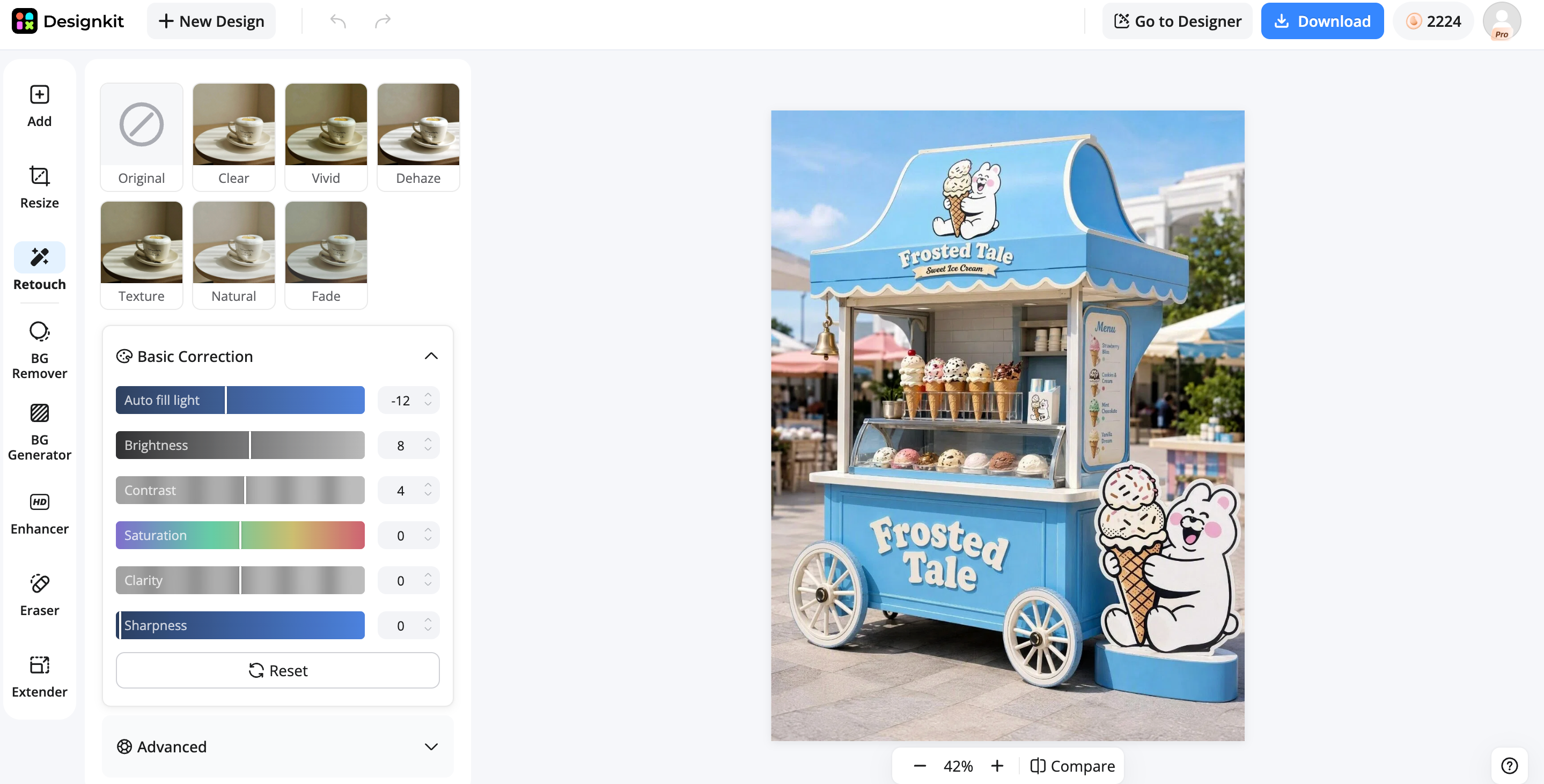
Step 2: Choose the Editing Action
Select the editing feature you need, such as enhancing image quality, removing objects, changing backgrounds, resizing, or refining specific areas.
Step 3: Review and Export the Final Image
Review the result against the intended channel and make any necessary adjustments before exporting the final asset.

Designkit Can Also Help With:
-
AI-assisted image editing: Speed up common image adjustments and creative changes without relying entirely on manual editing.
-
Marketing-ready visuals: Adapt images for social media, e-commerce, websites, and other content formats.
-
Browser-based workflow: Edit images directly on a Mac without installing a dedicated desktop photo editor.
Final Thoughts
The best free Mac photo editor will depend on what you want to achieve. If you are a beginner, you can opt to use easier applications such as Apple Photos, whereas those who take photographs or have advanced skills will require more complicated photo editors. For users who need a faster way to edit their images using AI capabilities, there is Designkit, an application available online.
It allows users to improve their pictures, clean them up, and change them quickly without the need for desktop software.
Frequently Asked Questions
What is the best free photo editor for Mac?
Can I edit photos on a Mac without Photoshop?
Yes. You do not need Photoshop for many photo-editing tasks. Apple Photos can handle basic adjustments, while GIMP and RawTherapee provide more advanced capabilities without requiring a Photoshop subscription.
Is Apple Photos enough for photo editing?
There is no doubt that Apple Photos is more than enough for many everyday operations, such as cropping photos, applying filters, adjusting lighting, coloring and much more. But those who want to create some layers, masks, composite images, or do any RAW editing will find a dedicated editor better.
What is the best free Mac photo editor for beginners?
Apple Photos is one of the easiest options because it is integrated into macOS and focuses on straightforward photo management and editing. Also, alternative software that can be chosen includes Fotor and Adobe Express (online tool).
What is the easiest way to remove a background on Mac?
AI-powered online tool for removing a background is more efficient than the selection of the subject in a desktop application. Designkit AI Photo Editor can be used to remove the background and replace it in a browser.
Are online photo editors safe to use on Mac?
There are plenty of convenient online photo editors. But before using them, you should check the privacy policy, as they may save your information somewhere. Especially, check how they keep your business or customer photos.
Can I use a free Mac photo editor for professional work?
Yes. Free software can be suitable for professional work when it provides the required editing controls and export quality. GIMP and RawTherapee are particularly relevant for advanced users, while online tools can be useful for specific production tasks.
You May Also Like

Remove.bg Shutting Down Dec 1, 2026: What Users Are Saying

7 Best Remove.bg Alternatives in 2026: Free & Paid Tools

Instagram Carousel: What It Is, How to Post & Create One
Nano Banana Prompts: 20+ Examples for Better AI Images

Ideogram AI Review 2026: Features, Pricing & Alternatives
Free Mac Photo Editor: 5 Tools Compared for Mac Users
How to Crop a Photo Into a Circle Online (Keep Quality)
How to Make an Image Transparent Online (AI Guide)
Pixlr Background Remover Review 2026: Features, Pricing & Alternatives

How to Fix Overexposed Photos: Recover Highlights Fast
OpenArt AI Review 2026: Features, Pricing & Alternatives
Best AI Headshot Generator: 9 Tools Compared for 2026
Best Stencil Maker Tools 2026: Turn Photos Into Stencils
Pixelbin Watermark Remover Review: Image & Video Results Tested

How to Make a Sticker on iPhone: Easy Step by Step Guide
Best AI Logo Generator in 2026: 10 Tools Compared
How to Turn a Photo Into a Cartoon: A Beginner-Friendly Guide
Landscape vs Portrait: Key Differences & Best Uses in 2026
How to Remove Watermark From Photo: AI, Photoshop & More
How to Fix Pixelated Photos: Photoshop, AI Tools & Tips

Bing Image Creator: How It Works, Features, Uses & Alternatives
How to Remove People from Photos with AI: A Step-by-Step Guide
How to Increase Image Resolution: AI, Photoshop & PPI
How to Add Text to a Photo: 8 Tips for Better Results
How to Fix Grainy Photos: Easy Ways to Clear Images

Creative Profile Picture Ideas for Every Style and Platform
Evoto AI Review 2026: Features, Pricing, Pros & Cons
Pixlr Photo Editor Review: Features, Pricing & Alternatives
Best AI Image Extender Tools in 2026: Expand Photos with AI

How to Make a Collage on iPhone: Easy Guide for 2026
How to Sharpen an Image in Photoshop (Smart Sharpen and Unsharp Mask)
Best Image Background Remover Tools in 2026: AI Tools Compared
How to Make Transparent Background in Paint: Step-by-Step Guide
How to Resize an Image: Best Methods, Tools & Quality Tips
Best AI Image Generator Tools in 2026: Top AI Platforms Compared

Remove.bg Review 2026: Features, Pricing & Is It Worth It?
Luminar Neo Photo Editor Review 2026: AI Features, Price & Pros

How to Post Multiple Photos on Instagram (2026 Guide)

25 Facebook Cover Photo Ideas for Personal & Business Pages

What Is a PFP? Meaning, Examples & How to Create One
Can You Edit an Instagram Post After Posting?

11 Best Canva Alternatives in 2026 for AI Design & Marketing

8 Best Midjourney Alternatives in 2026: Features, Pricing & Comparison
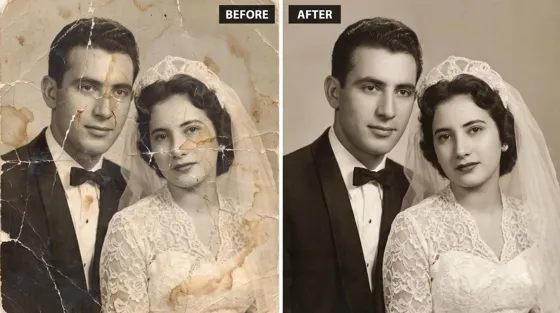
How to Restore Old Photos: AI Tools, Tips & Best Methods

Pixelcut AI Review 2026: Features, Pricing, Pros, Cons & Alternatives
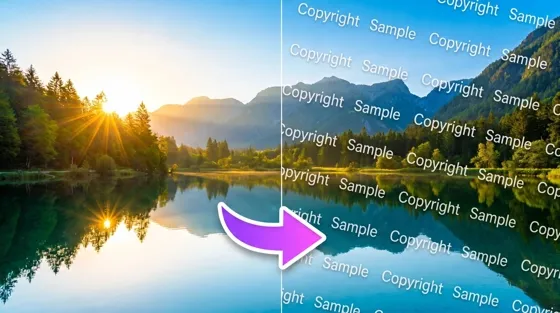
How to Apply Watermark to Photos: Methods, Tips & AI Tools
How to Remove a Background in Illustrator: 4 Easy Methods
How to Change Background Color on Instagram Story (Easy Guide)

8 Best AI Poster Generators in 2026: Create Posters Faster with AI
10 Best AI Image Enhancers in 2026: Tested & Compared
10 Best AI Image Editors in 2026: Features, Pricing & Comparison
7 Best AI Background Changer in 2026: Remove & Replace Photo Backgrounds
Luminar Neo vs Lightroom: Features, Pricing & Comparison 2026

Kittl Review 2026: Is It Worth It? Features & Pricing
How to Make a Blurry Image Clear: 5 AI & Manual Ways
How to Remove Background on iPhone: 5 Easy Methods (2026)
Photoroom Background Remover Review 2026: Features & Alternatives
How to Remove Background in Canva: A Step-by-Step Guide
How to Remove Background in GIMP: Beginner-Friendly Guide

Funny Dog Memes to Try: Doge Meaning and 10 Original Ideas

Back to School Checklist 2026: Supplies, Timeline, and Planning
Recraft AI Review 2026: Features, Pricing, Pros, Cons & Alternatives
How to Make an Image Transparent in Google Slides: Opacity & Background Removal

VanceAI Photo Enhancer Review: Features, Pricing & Alternatives in 2026
What Does Emojify Mean? Text, Photos, & Emoji Art Explained
Top 8 Online Background Removers for Ecommerce Photos (2026)
How to Remove Background in Photoshop: 7 Easy Methods
6 Best AI Image Upscalers 2026: Tools Tested & Compared
Project Indigo Review: Is It Better Than iPhone Camera?
How Big Is an 8x10 Photo? Size, Pixels & Frame Guide
How Big Is a 4x6 Photo? Dimensions, Pixels & Printing Tips
Picsart AI Review: Features, Pricing, Pros, Cons & Alternatives

Lovart AI Review: AI Design Agent Features, Pricing & Alternatives
Fotor AI Image Generator Review: Features, Pricing & Alternatives

How to Add Emoji to Photo Online for Free

Emoji Wallpaper Ideas & How to Make One Online (2026)
Minimalist Poster Design: How to Make a Clean Poster (2026)

How to Make a Custom Poster That Is Ready to Print
Instagram Image Size Guide 2026: Post, Reel, Story & Carousel Specs
LinkedIn Image Size Guide: Profile, Post & Banner Dimensions
YouTube Profile Image Size: Best Dimensions & Safe Area 2026

How to Edit Amazon Product Photos That Boost Sales Fast
Edit Better Photos Without Complex Software
Enhance images, remove backgrounds, create marketing visuals, and prepare professional-looking content directly from your browser with Designkit.
