
How to Make a Sticker on iPhone: Complete Guide
Turn your favorite photos, screenshots, and Live Photos into custom iPhone stickers. Learn how to create, customize, and use stickers with simple steps or AI-powered tools.

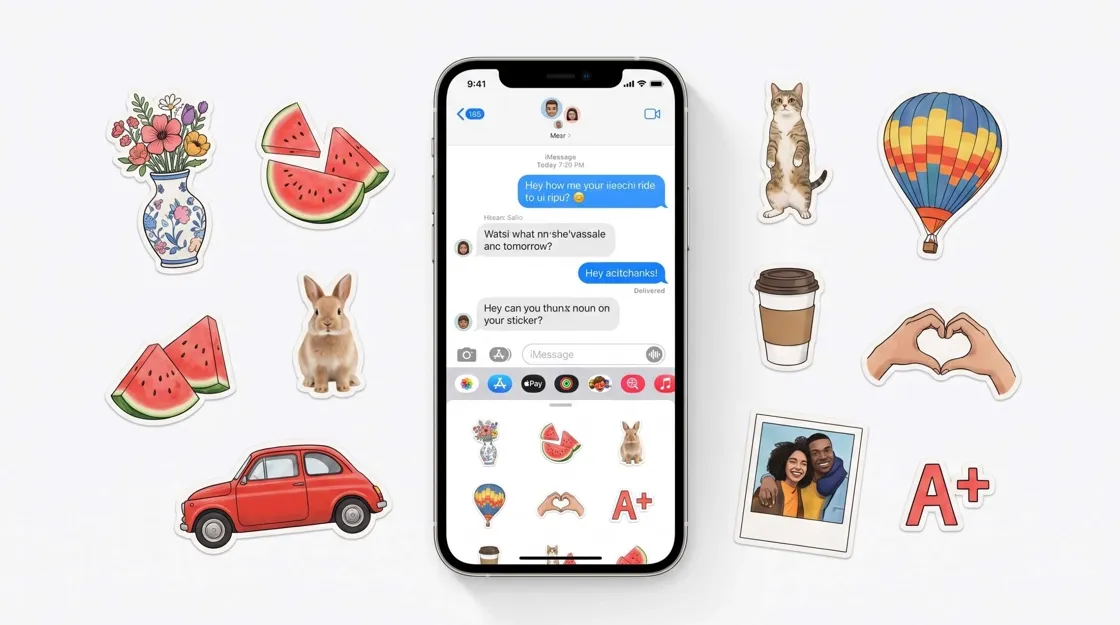
Stickers are a fun way to make conversations more personal, whether you want to share a funny reaction, turn your pet into a character, or create a custom image for messages. iPhone makes sticker creation simple by allowing you to extract subjects from photos and save them as reusable stickers.
In this guide, you'll learn how to make a sticker on iPhone from photos, screenshots, and Live Photos. You'll also discover how to create more customized sticker designs with AI when you want something beyond a simple photo cutout.
Key Takeaways
-
Learn how to create stickers on iPhone from photos, screenshots, and Live Photos
-
Use the built-in iPhone feature to quickly turn image subjects into stickers
-
Add effects like outlines and styles to make your stickers more expressive
-
Fix common issues when iPhone cannot detect a subject or create a clean sticker
-
Explore AI sticker makers for creating cartoon, illustrated, and custom sticker designs
-
Create personalized stickers for messages, social media, branding, and creative projects
What Is an iPhone Sticker and How Does It Work?
An iPhone sticker is a reusable image element that you can send in messages, place photos, or use in supported apps. Instead of downloading a sticker pack, you can create your own stickers directly from photos stored on your device.
Apple introduced the ability to create stickers from photos with iOS 17 and later. The feature is supported on iPhone XS, iPhone XR, iPhone SE (2nd generation), and newer models. The iPhone automatically separates the main subject from its background, making it easy to turn portraits, pets, objects, and other clear subjects into stickers.
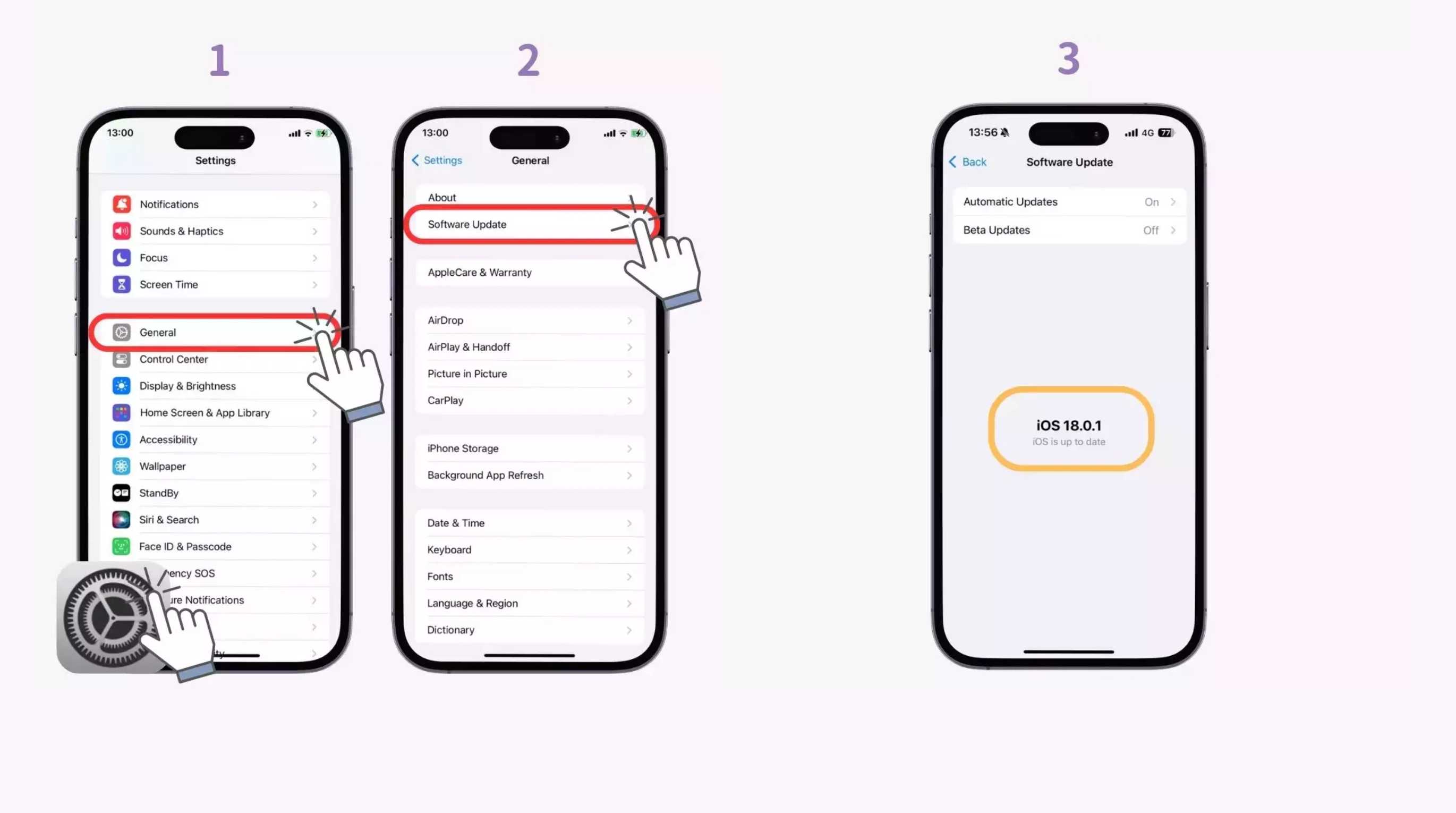
To check whether your iPhone supports the feature, go to Settings > General > Software Update and make sure you're running iOS 17 or later. If your iPhone is older than the supported models, the Add Sticker option will not appear.
How Does iPhone Turn Photos Into Stickers?
On supported iPhones, iOS uses image recognition to identify the main subject in a photo and separate it from the background. You can then add that subject as a sticker and use it in Messages and other supported apps. This makes it easy to make iPhone stickers from photos without manually cutting them out.
What Can You Turn Into an iPhone Sticker?
You can turn many types of images into stickers as long as the main subject is clear and easy to separate from the background.
-
Portraits and Selfies: Turn yourself, friends, or family members into personalized stickers from clear portrait photos.
-
Pets: Photos of dogs, cats, and other pets can work well when the animal is clearly visible.
-
Objects: Turn recognizable objects, collectibles, food, or other items into reusable stickers.
-
Screenshots: A clean screenshot can be used when it contains a clearly defined subject, such as a meme or graphic.
-
Product Images: Product photos with simple backgrounds can also work, making it easy to isolate the item.
What You Need to Make a Sticker on iPhone
You only need a compatible iPhone, the required iOS version, and a suitable photo. You don't need a separate sticker maker app for the built-in method.
A Compatible iPhone and iOS Version
The photo sticker feature requires iOS 17 or later and works on iPhone XS, iPhone XR, iPhone SE (2nd generation), or newer. If your iPhone is older than these models, the Add Sticker option will not appear. You can check for updates under Settings > General > Software Update.
A Photo With a Clear Subject
Choose an image where the main subject is sharp, well-lit, and easy to distinguish from the background. Clear outlines help iPhone identify the subject more accurately and produce a cleaner sticker.
If you want to design the visual before adding it to your phone, an AI image generator can also help you explore custom sticker concepts.
How to Make a Sticker on an iPhone From a Photo
Creating a sticker from a photo on an iPhone is simple and doesn't require advanced editing skills. You can follow these steps to create sticker from iPhone photos and use them in Messages or other supported apps.
Step 1: Open the Photo You Want to Use
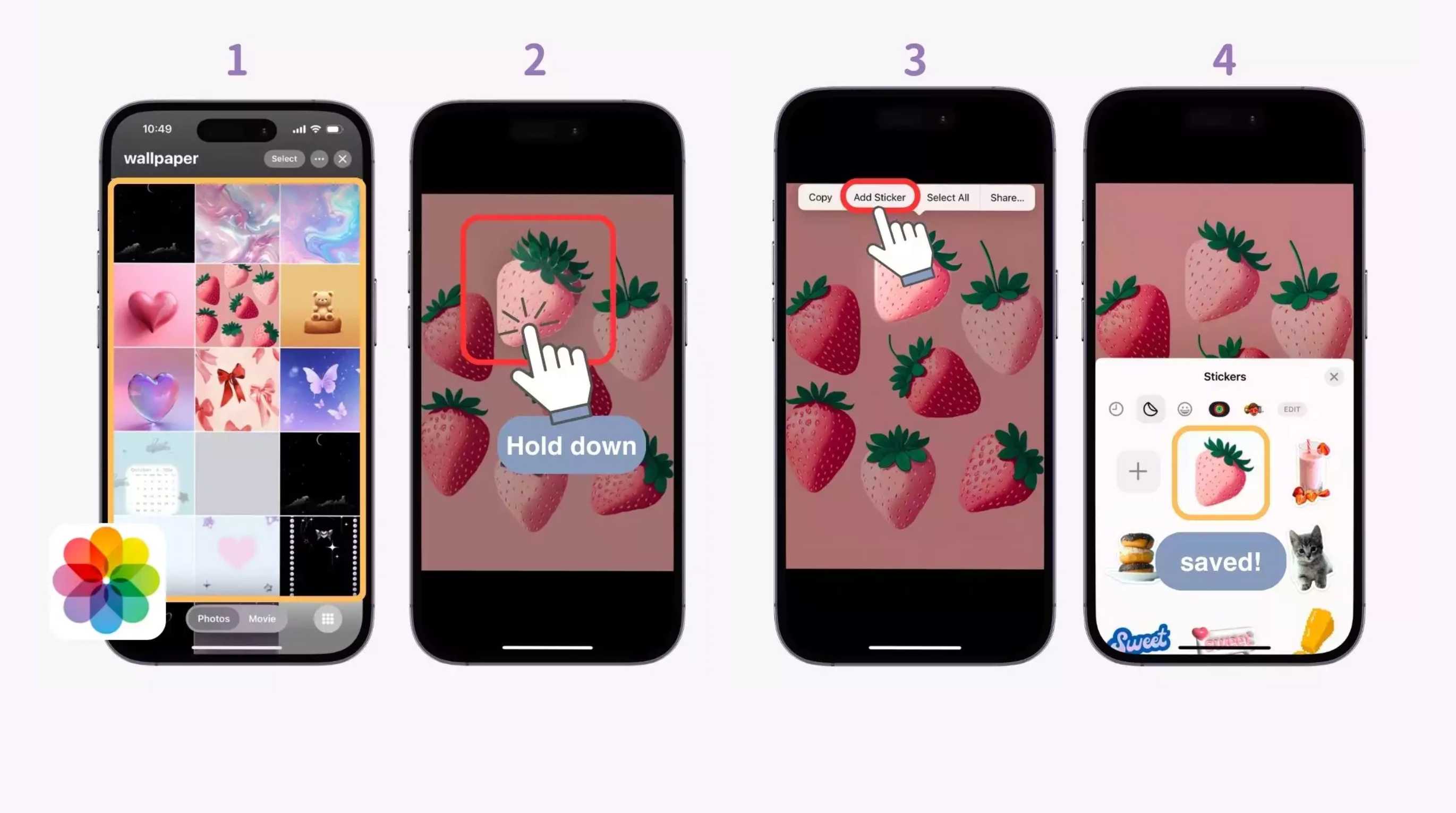
Open the Photos app and select the picture you want to turn into a sticker. Choose an image with a clear subject and enough contrast from the background for easier separation. If needed, photo editing tools can help you improve the image before creating the sticker.
Step 2: Press and Hold the Main Subject
Touch and hold the main subject in the photo. When the iPhone detects its outline, a menu will appear with options for interacting with the isolated subject.
Step 3: Tap Add Sticker
Tap Add Sticker from the menu. Your selected subject will be added to your sticker collection, where you can access it later when messaging.
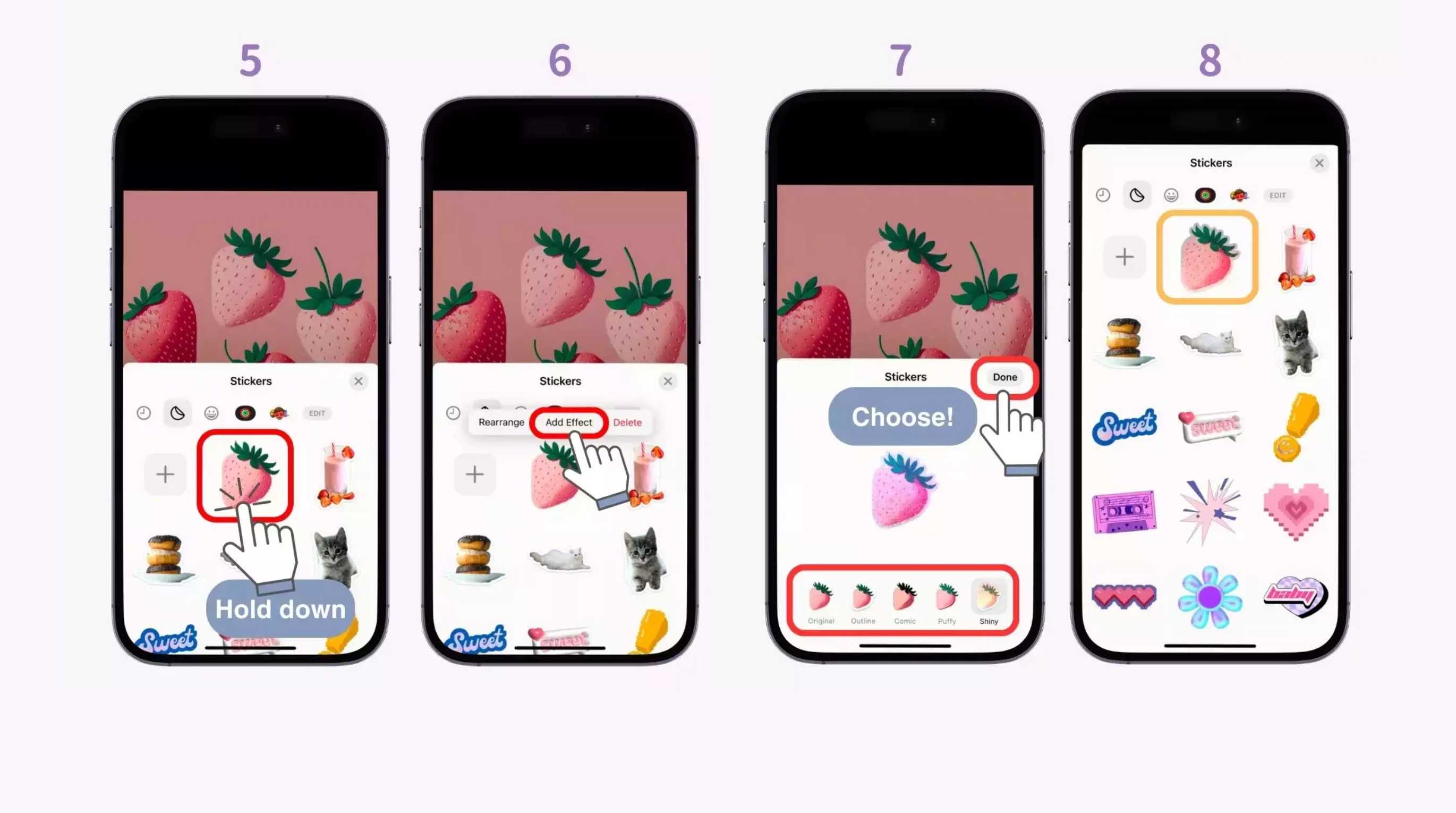
Step 4: Add Effects to Customize Your Sticker
After adding the sticker, you can apply available effects such as an outline or comic-style appearance. If the original image needs more editing, an AI photo editor can help refine it before you add it to your collection.
Step 5: Find and Use Your Sticker
Open a conversation in Messages, tap the + button, select Stickers, and choose your new sticker. This is also how you can make an iMessage sticker from your saved photo and use it in a conversation.
If you want something beyond a simple photo cutout, custom image designs can give you more creative options before saving the final visual to your iPhone.
How to Make a Sticker From a Screenshot on iPhone
If you want to create a sticker from an image you found online, a saved screenshot can also work. This is useful for turning memes, objects, icons, or other visual elements into custom stickers without needing the original photo file. A clean screenshot with a clearly visible subject usually makes it easier for the iPhone to detect and separate the object.
Method 1: Create a Sticker From Photos
Step 1: Open the Screenshot in Photos
Open the Photos app and select the screenshot you want to turn into a sticker.
Step 2: Select the Subject
Touch and hold the main subject in the image. When the iPhone detects and highlights it, release your finger to reveal the available options.
Step 3: Clean Up the Screenshot Before Creating the Sticker
For better results, use a screenshot where the subject is clearly separated from surrounding elements. Cropping out unnecessary text, icons, or other objects can help the iPhone identify the subject more accurately.
Step 4: Step 3: Add the Sticker
Tap Add Sticker. Your selected subject will be added to your sticker collection, where you can use it in supported apps.
Method 2: Create a Sticker in Messages
Step 1: Open Messages
Open the Messages app and select the conversation where you want to create the sticker.
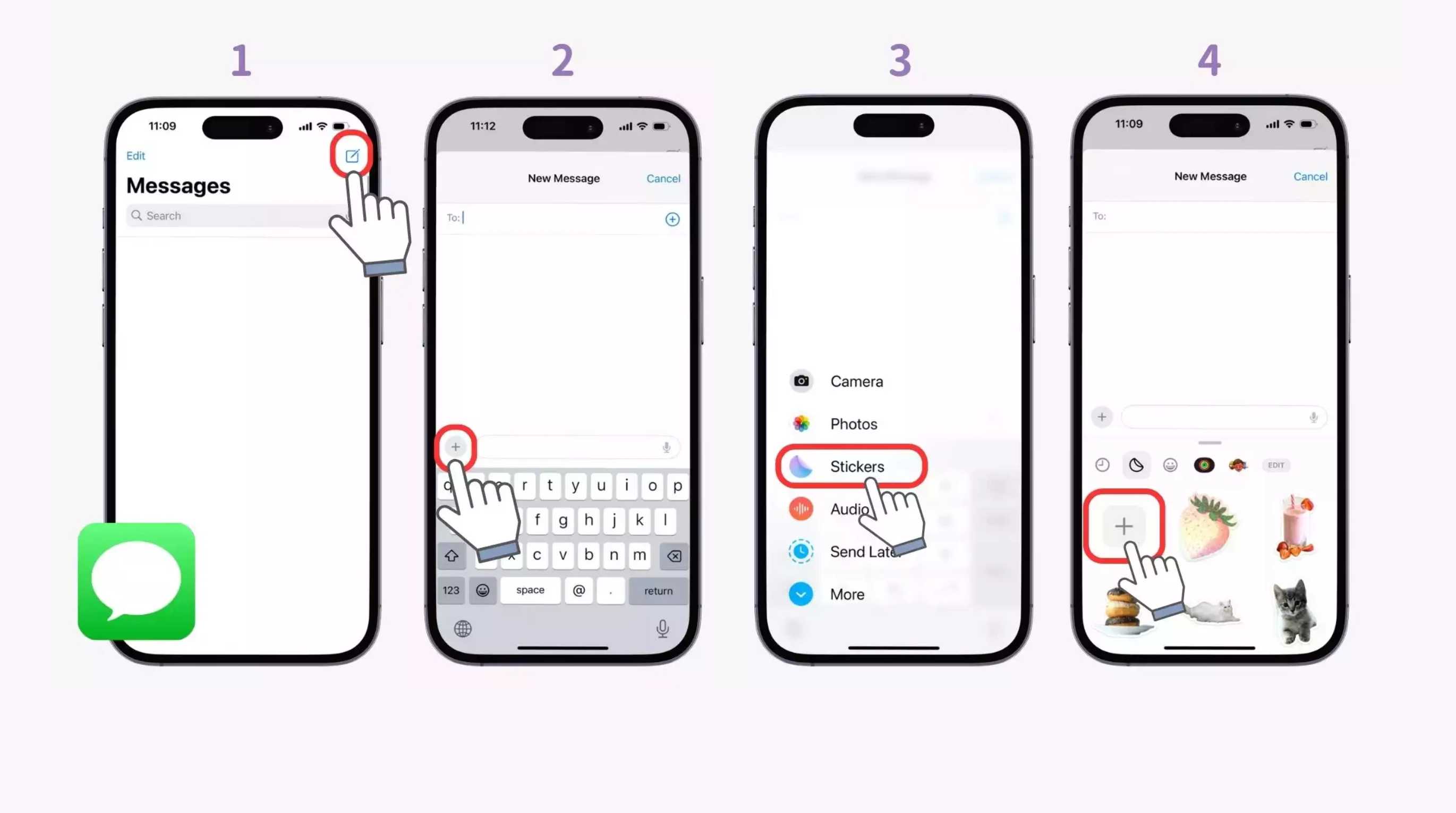
Step 2: Open Stickers
Tap the + button beside the text field, then select Stickers from the available options.
Step 3: Add a Photo
Tap the large + button in the Stickers panel and choose the screenshot or photo you want to turn into a sticker.
Step 4: Add the Sticker
Tap Add Sticker. Your iPhone will separate the main subject and save it to your sticker collection for later use.
How to Create a Live Sticker From a Live Photo
If you want a sticker with movement, you can turn a Live Photo into a Live Sticker on your iPhone. Unlike a regular sticker, it keeps the motion from the original image, making it more engaging in conversations.
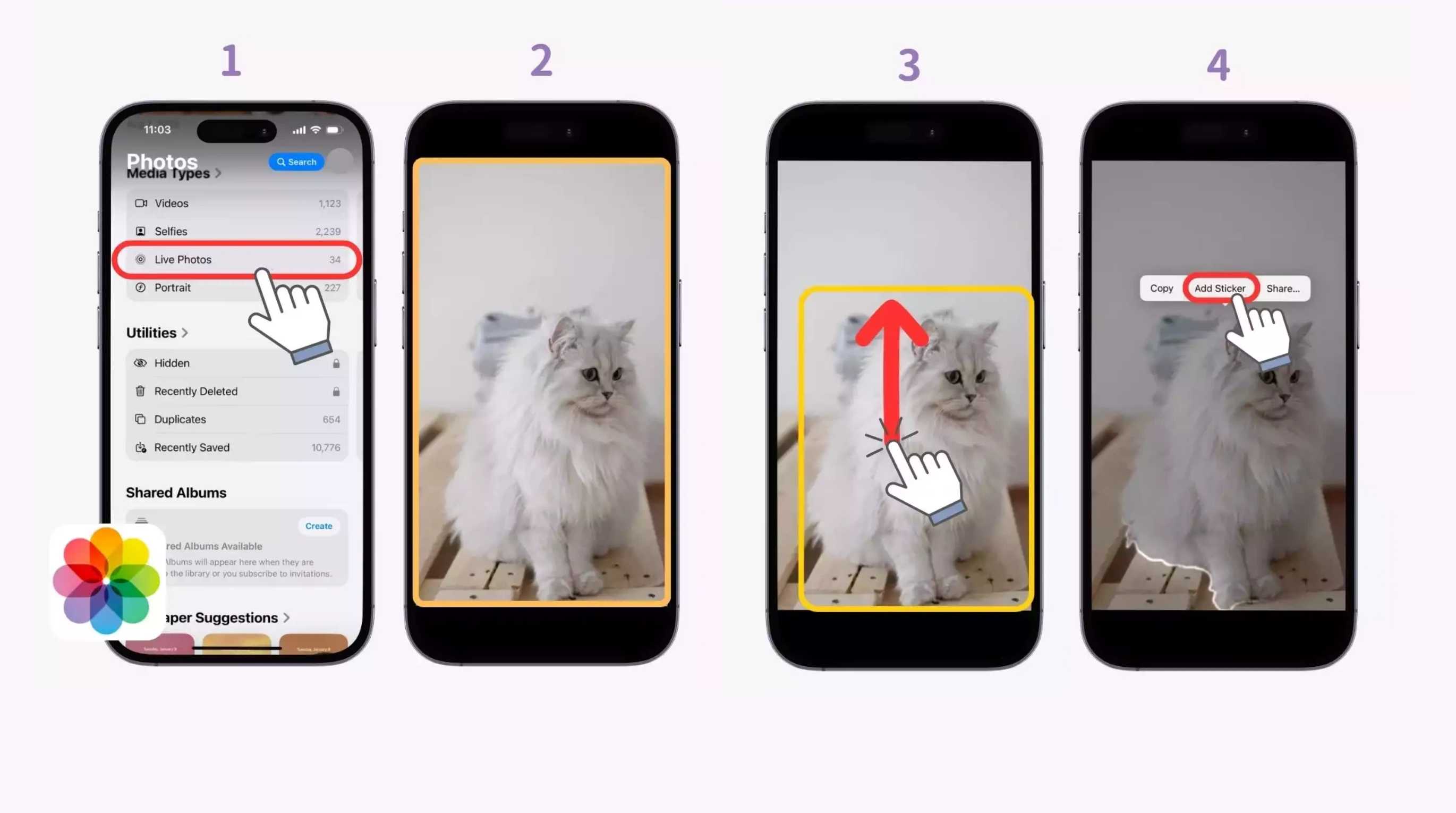
Step 1: Choose a Live Photo
Open the Photos app and select the Live Photo you want to use. Choose an image with a clear subject and smooth movement for the best result. If you're learning how to create a sticker on iPhone, starting with a well-composed Live Photo makes the process easier.
Step 2: Press and Hold the Subject
Press and hold the main subject in the Live Photo. Your iPhone will detect the subject and separate it from the background. This built-in iPhone sticker maker makes it possible to prepare the subject without manually removing the background.
Step 3: Add It as a Live Sticker
Tap Add Sticker when the option appears. The animated sticker will be saved to your sticker collection and can be accessed from the emoji or sticker keyboard in supported apps.
Tips for Better Live Stickers
-
Choose Live Photos with clear subjects and good lighting.
-
Avoid busy backgrounds that can make subject detection harder.
-
Pick moments with smooth, noticeable movement.
-
Keep the main subject fully visible in the frame.
-
For still images, you can create sticker from photo iphone using the same subject-selection feature.
-
If you want more customization, a dedicated sticker maker for iPhone can provide additional editing options.
-
Once your sticker is ready, you can make iPhone stickers from memorable photos and use them in supported conversations.
How to Use iPhone Stickers in Messages and Photos
Creating a sticker is only the first step. Once saved, you can use your custom stickers in Messages, add them as reactions, or place them over photos and screenshots for a more personal touch.
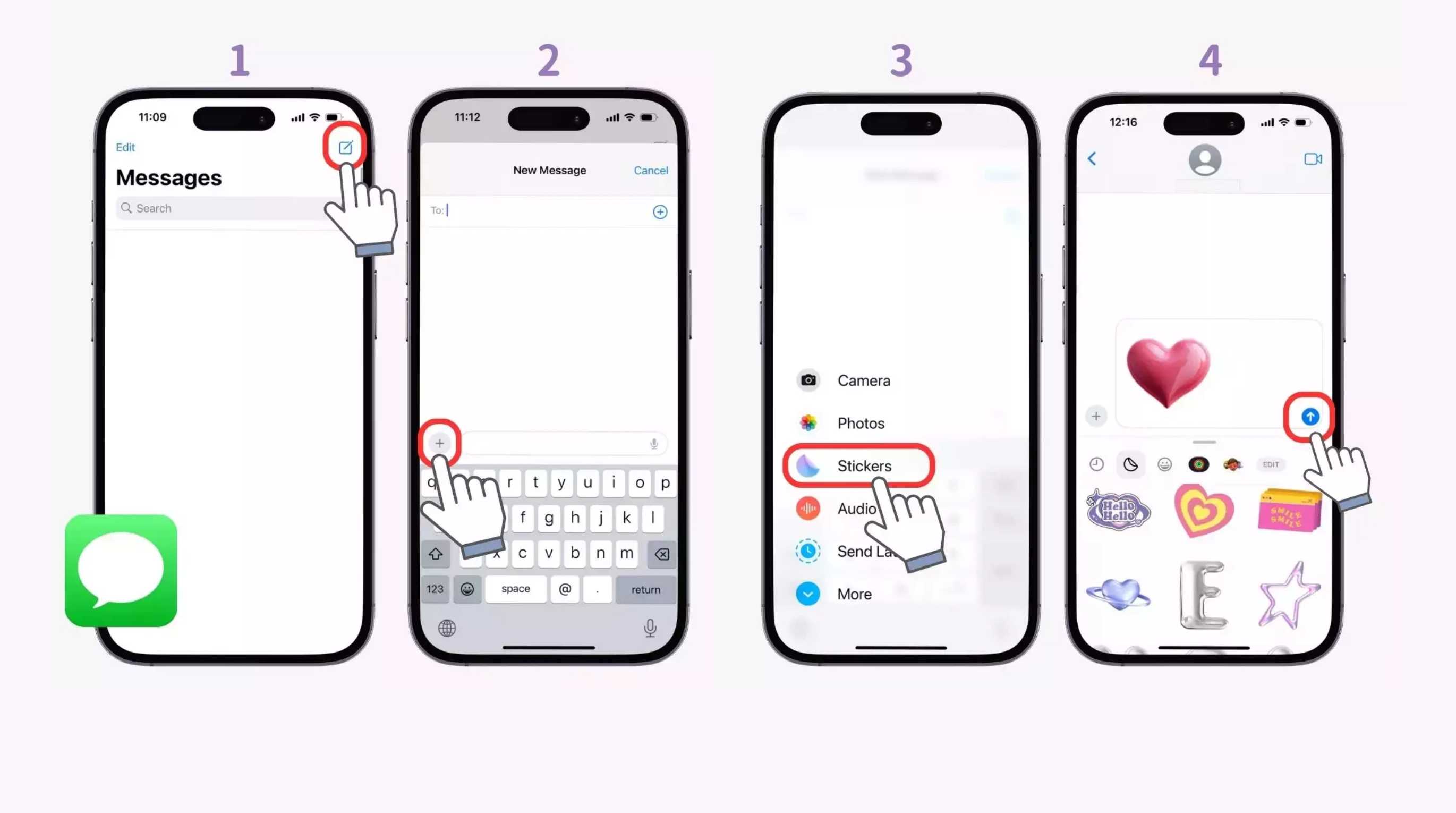
Send a Sticker in iMessage
Open a conversation in the Messages app and tap the + button or sticker option, depending on your iOS version. Select the sticker you want to use, then tap it to send. You can use both regular and Live Stickers in supported conversations.
Place Stickers on Messages as Reactions
You can also add stickers directly to a message instead of sending them separately. Press and hold the message you want to react to, choose the sticker option, and select your preferred sticker. This lets you respond with something more expressive than a standard reaction.
Add Stickers to Photos and Screenshots
Stickers can also be used when editing photos or screenshots. Open an image, enter the editing or markup tools, and add a sticker where you want it. Resize, move, or rotate it to fit the image naturally.
How to Fix Common iPhone Sticker Problems
Although making stickers on iPhone is simple, you may occasionally run into issues during the process. Problems are usually related to iOS version, image quality, subject detection, or the way a Live Photo was captured.
The "Add Sticker" Option Is Missing
Make sure you're using a supported iOS version and a compatible photo. Open the image in the Photos app, press and hold the subject, and wait for the selection menu to appear. If the option still doesn't show, try restarting the Photos app or updating iOS. You can also use image editing tools to prepare the photo before trying again.
iPhone Cannot Detect the Subject
Subject detection works best when the main object is clearly separated from the background. Try using a photo with good lighting, better contrast, and fewer distracting elements. If necessary, improve the image first with an image enhancer to make the subject easier to identify.
The Sticker Has Rough Edges
Rough or uneven edges can happen when the subject blends into the background or the original image is low quality. Choose a sharper photo with clear boundaries around the subject. For multiple images, batch photo editing can help you apply consistent adjustments before turning them into stickers.
My Live Sticker Is Not Moving
Check that you're starting with an actual Live Photo, rather than a regular still image or screenshot. The motion should be preserved when you select the subject and choose Add Sticker. If the sticker still appears static, try creating it again from the original Live Photo rather than an edited or converted copy.
Explore Designkit: Your AI Sticker Maker for Custom Designs
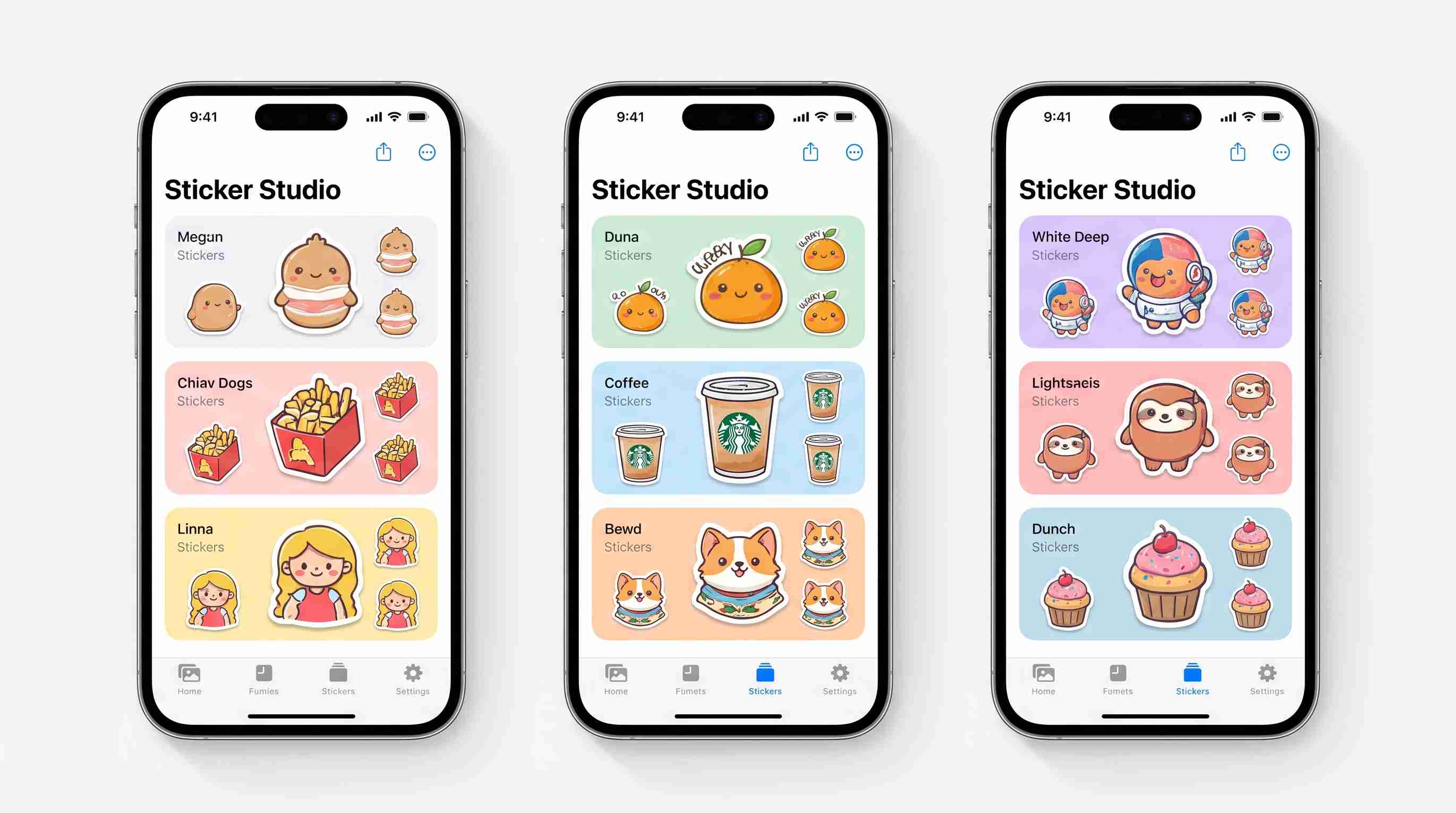
iPhone stickers are great for quickly turning a photo into a simple cutout, but they have limited customization options. If you want to create a sticker with a specific style, character design, or creative theme, an AI sticker maker gives you more flexibility. Designkit helps you transform photos and ideas into customized sticker-style visuals. You can start with an image, describe the style you want, and refine the result until it matches your creative idea.
How to Create a Custom Sticker With Designkit
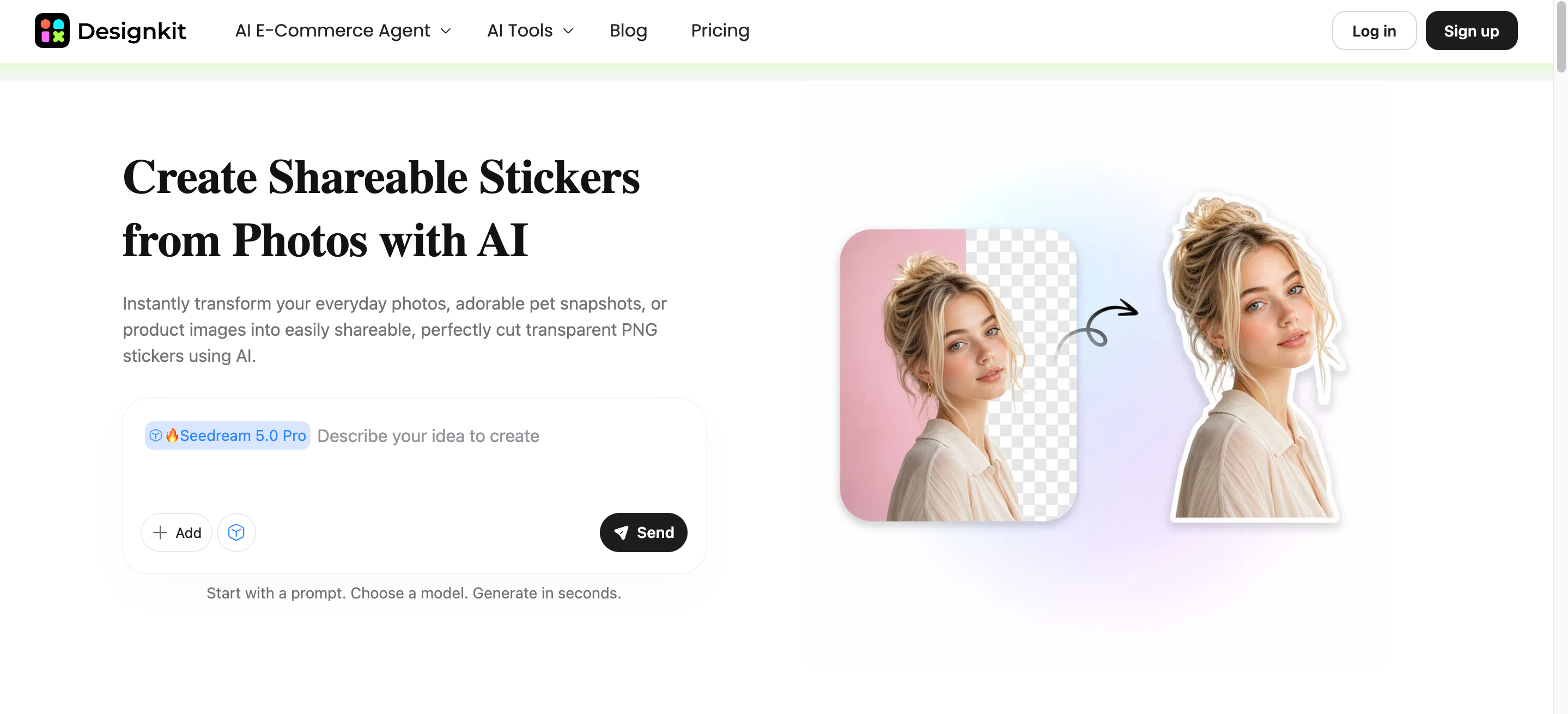
Step 1: Upload Your Photo or Describe Your Idea
Upload a portrait, pet photo, object, or reference image, or describe the sticker concept you want Designkit to turn into a custom visual.
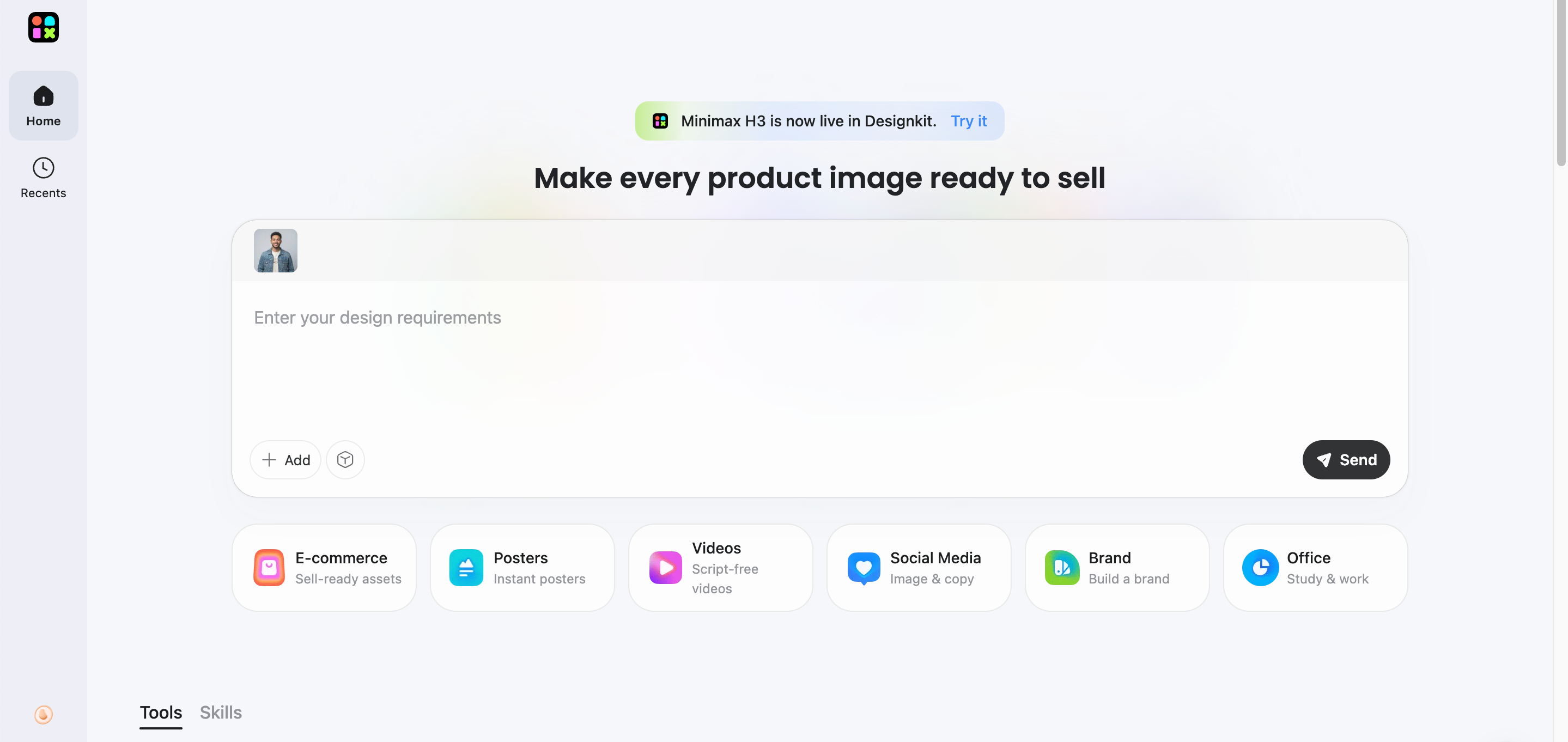
Step 2: Describe Your Sticker Style
Describe your preferred style, such as cute cartoon, anime, comic, 3D, or hand-drawn. Mention colors, outlines, and important details you want to preserve.
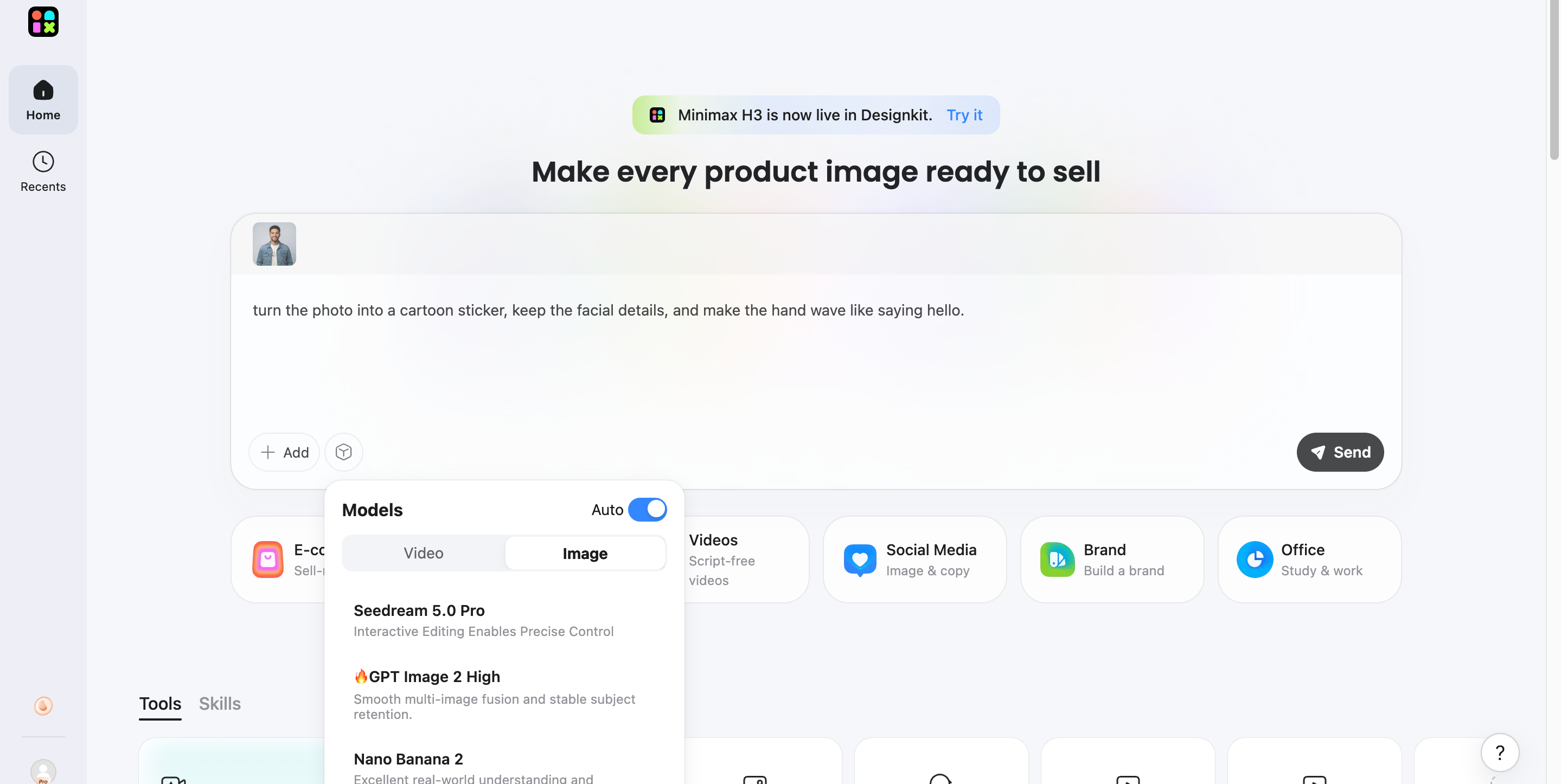
Step 3: Review, Refine, and Export
Review the generated options and refine your prompt if needed. Choose your favorite version, then export the finished sticker image for use on your iPhone.
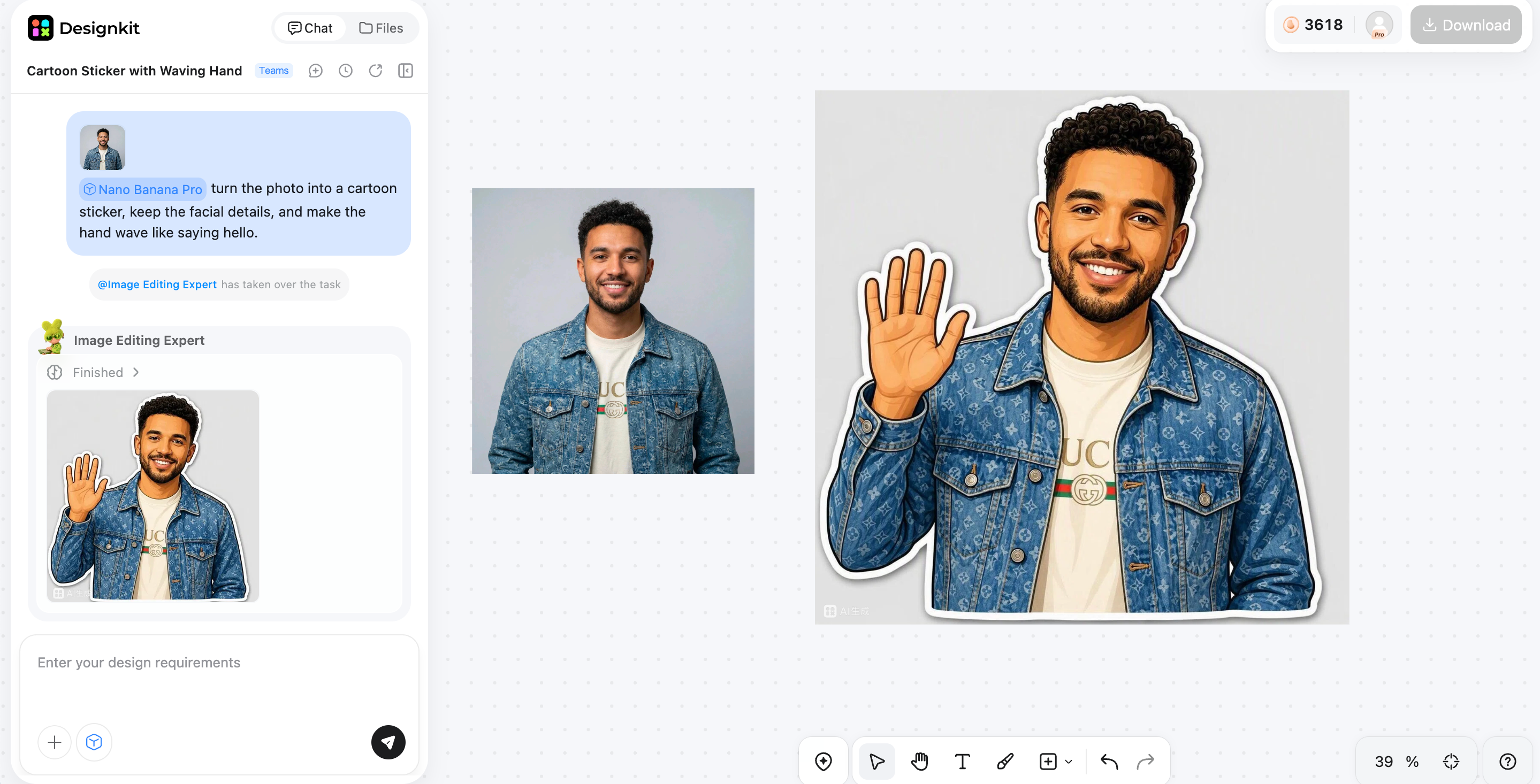
Capabilities of Designkit for Personalized Stickers Creation
AI Image Generation
Start with a text idea or reference image to generate custom visuals for stickers. Create several variations from one concept and choose the version that best matches your style. This can be useful for custom visual creation.
Image to Image Transformation
Upload an existing photo and describe the look you want. Transform subjects into cartoon, illustrated, or other sticker-ready styles while keeping the main subject recognizable. The image to image generator makes these style changes easier.
Custom Sticker Elements
Add shapes, arrows, hearts, stars, lines, and sticker packs to personalize your design. You can also turn your own images into custom stickers and combine different elements for a unique result.
AI-Powered Placement
Arrange sticker elements with controls for positioning, resizing, rotating, and layering. You can also combine images to bring multiple visual elements together in one composition.
Multiple Creative Variations
Explore different visual directions from one idea or reference image. Generate and compare multiple options before selecting the version that best fits your intended sticker style.
Creative Sticker Ideas to Try on iPhone
Once you know how to make a sticker on iPhone, you can turn everyday photos, illustrations, and product visuals into fun designs for messages, social posts, and personal projects.
Create Cartoon Avatar Stickers
Turn selfies or portraits into playful cartoon-style stickers with different expressions, poses, or accessories. Create a small collection that reflects your personality and use each one for different conversations. For more inspiration, explore social media poster designs.
Make Pet Stickers
Turn photos of your dog, cat, or other pets into personalized stickers that capture their personality. Choose clear photos with expressive poses, then make different versions for moments such as excitement, sleepiness, celebration, or funny reactions.
Design Reaction Stickers
Create custom stickers for common reactions such as laughing, celebrating, surprise, excitement, confusion, or approval. Building a collection of expressive designs gives you more ways to respond naturally without relying on standard emojis or reactions.
Create Stickers for Social Media Content
Use stickers to add personality to Stories, posts, and short-form videos. Place them around photos, captions, or other graphics to highlight important details and make your content more engaging. You can also explore creative poster ideas for inspiration.
Make Brand or Product Stickers
Turn logos, mascots, products, or recognizable brand elements into stickers for social campaigns and promotional content. Keep colors and visual details consistent so the stickers feel connected to your brand identity and work across different creative formats.
Final Thoughts
Making a sticker on iPhone is simple when you want to turn an existing photo into a quick cutout. The built-in feature works well for personal messages, reactions, and casual creations. But if you want more creative control, AI tools can help transform photos into unique sticker styles, characters, and branded designs. Designkit provides a more flexible workflow for creating and refining custom stickers beyond basic photo extraction.
Frequently Asked Questions
Can I make a sticker on iPhone without downloading an app?
Why can't my iPhone create a sticker from my photo?
The issue may be related to your iOS version, the photo itself, or subject detection. Make sure your iPhone is updated and the image has a clearly defined subject. Busy backgrounds and low contrast can make detection harder. For multiple images, Designkit provides a bulk background remover that helps prepare subjects more consistently and improves sticker creation results.
How do I make a sticker from a screenshot on iPhone?
Open the screenshot in photos and press and hold the subject you want to turn into a sticker. When your iPhone detects it, tap Add Sticker. If the screenshot contains unwanted details, you can remove them first with the remove text from image tool in Designkit, then create a cleaner, more polished sticker.
Can I make animated stickers on iPhone?
Yes. You can create animated Live Stickers from Live Photos on supported iPhones. Open a Live Photo, press and hold the subject, then tap Add Sticker. The sticker can retain movement from the original image. For more advanced creative editing and animation-style enhancements, Designkit also offers additional tools for working with visual content.
Can I turn my photo into a cartoon sticker?
Yes. You can transform a photo of yourself, a pet, or another subject into a cartoon-style design before using it as a sticker. Designkit's AI filter lets you experiment with different artistic styles and effects, helping you create more unique and expressive cartoon stickers.
What is the best photo for making an iPhone sticker?
The best photo has a clear, well-lit subject with good contrast to the background. Avoid blurry images, cluttered scenes, or subjects that blend into their surroundings. If you need to refine multiple images first, Designkit's tools help you standardize and enhance each image for better sticker results.
You May Also Like
Remove.bg Shutting Down Dec 1, 2026: What Users Are Saying

7 Best Remove.bg Alternatives in 2026: Free & Paid Tools
Instagram Carousel: What It Is, How to Post & Create One
Nano Banana Prompts: 20+ Examples for Better AI Images

Ideogram AI Review 2026: Features, Pricing & Alternatives
Free Mac Photo Editor: 5 Tools Compared for Mac Users
How to Crop a Photo Into a Circle Online (Keep Quality)
How to Make an Image Transparent Online (AI Guide)
Pixlr Background Remover Review 2026: Features, Pricing & Alternatives

How to Fix Overexposed Photos: Recover Highlights Fast
OpenArt AI Review 2026: Features, Pricing & Alternatives
Best AI Headshot Generator: 9 Tools Compared for 2026
Best Stencil Maker Tools 2026: Turn Photos Into Stencils
Pixelbin Watermark Remover Review: Image & Video Results Tested
How to Make a Sticker on iPhone: Easy Step by Step Guide
Best AI Logo Generator in 2026: 10 Tools Compared
How to Turn a Photo Into a Cartoon: A Beginner-Friendly Guide
Landscape vs Portrait: Key Differences & Best Uses in 2026
How to Remove Watermark From Photo: AI, Photoshop & More
How to Fix Pixelated Photos: Photoshop, AI Tools & Tips
Bing Image Creator: How It Works, Features, Uses & Alternatives
How to Remove People from Photos with AI: A Step-by-Step Guide
How to Increase Image Resolution: AI, Photoshop & PPI
How to Add Text to a Photo: 8 Tips for Better Results
How to Fix Grainy Photos: Easy Ways to Clear Images

Creative Profile Picture Ideas for Every Style and Platform
Evoto AI Review 2026: Features, Pricing, Pros & Cons
Pixlr Photo Editor Review: Features, Pricing & Alternatives
Best AI Image Extender Tools in 2026: Expand Photos with AI
How to Make a Collage on iPhone: Easy Guide for 2026
How to Sharpen an Image in Photoshop (Smart Sharpen and Unsharp Mask)
Best Image Background Remover Tools in 2026: AI Tools Compared
How to Make Transparent Background in Paint: Step-by-Step Guide
How to Resize an Image: Best Methods, Tools & Quality Tips
Best AI Image Generator Tools in 2026: Top AI Platforms Compared

Remove.bg Review 2026: Features, Pricing & Is It Worth It?
Luminar Neo Photo Editor Review 2026: AI Features, Price & Pros
How to Post Multiple Photos on Instagram (2026 Guide)
25 Facebook Cover Photo Ideas for Personal & Business Pages

What Is a PFP? Meaning, Examples & How to Create One
Can You Edit an Instagram Post After Posting?

11 Best Canva Alternatives in 2026 for AI Design & Marketing

8 Best Midjourney Alternatives in 2026: Features, Pricing & Comparison
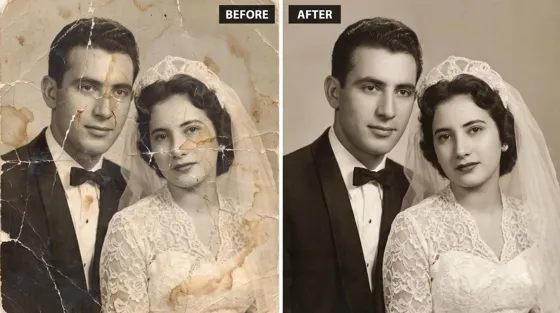
How to Restore Old Photos: AI Tools, Tips & Best Methods

Pixelcut AI Review 2026: Features, Pricing, Pros, Cons & Alternatives
How to Apply Watermark to Photos: Methods, Tips & AI Tools
How to Remove a Background in Illustrator: 4 Easy Methods
How to Change Background Color on Instagram Story (Easy Guide)
8 Best AI Poster Generators in 2026: Create Posters Faster with AI
10 Best AI Image Enhancers in 2026: Tested & Compared
10 Best AI Image Editors in 2026: Features, Pricing & Comparison
7 Best AI Background Changer in 2026: Remove & Replace Photo Backgrounds
Luminar Neo vs Lightroom: Features, Pricing & Comparison 2026
Kittl Review 2026: Is It Worth It? Features & Pricing
How to Make a Blurry Image Clear: 5 AI & Manual Ways
How to Remove Background on iPhone: 5 Easy Methods (2026)
Photoroom Background Remover Review 2026: Features & Alternatives
How to Remove Background in Canva: A Step-by-Step Guide
How to Remove Background in GIMP: Beginner-Friendly Guide

Funny Dog Memes to Try: Doge Meaning and 10 Original Ideas
Back to School Checklist 2026: Supplies, Timeline, and Planning
Recraft AI Review 2026: Features, Pricing, Pros, Cons & Alternatives
How to Make an Image Transparent in Google Slides: Opacity & Background Removal

VanceAI Photo Enhancer Review: Features, Pricing & Alternatives in 2026
What Does Emojify Mean? Text, Photos, & Emoji Art Explained
Top 8 Online Background Removers for Ecommerce Photos (2026)
How to Remove Background in Photoshop: 7 Easy Methods
6 Best AI Image Upscalers 2026: Tools Tested & Compared
Project Indigo Review: Is It Better Than iPhone Camera?
How Big Is an 8x10 Photo? Size, Pixels & Frame Guide
How Big Is a 4x6 Photo? Dimensions, Pixels & Printing Tips
Picsart AI Review: Features, Pricing, Pros, Cons & Alternatives
Lovart AI Review: AI Design Agent Features, Pricing & Alternatives
Fotor AI Image Generator Review: Features, Pricing & Alternatives
How to Add Emoji to Photo Online for Free
Emoji Wallpaper Ideas & How to Make One Online (2026)
Minimalist Poster Design: How to Make a Clean Poster (2026)
How to Make a Custom Poster That Is Ready to Print
Instagram Image Size Guide 2026: Post, Reel, Story & Carousel Specs
LinkedIn Image Size Guide: Profile, Post & Banner Dimensions
YouTube Profile Image Size: Best Dimensions & Safe Area 2026

How to Edit Amazon Product Photos That Boost Sales Fast
Make Custom Stickers Beyond Your iPhone
Turn photos and ideas into personalized stickers with AI. Explore cartoon, anime, illustrated, and branded sticker styles with a faster creative workflow.
