
AI Photo Retouch Tool for Cleaner, More Professional Images
Upload a portrait or product shot and tell Designkit what to change, like clear the blemishes or even out the skin tone. The AI applies the edit and you preview the result before downloading. No manual tools or masking.
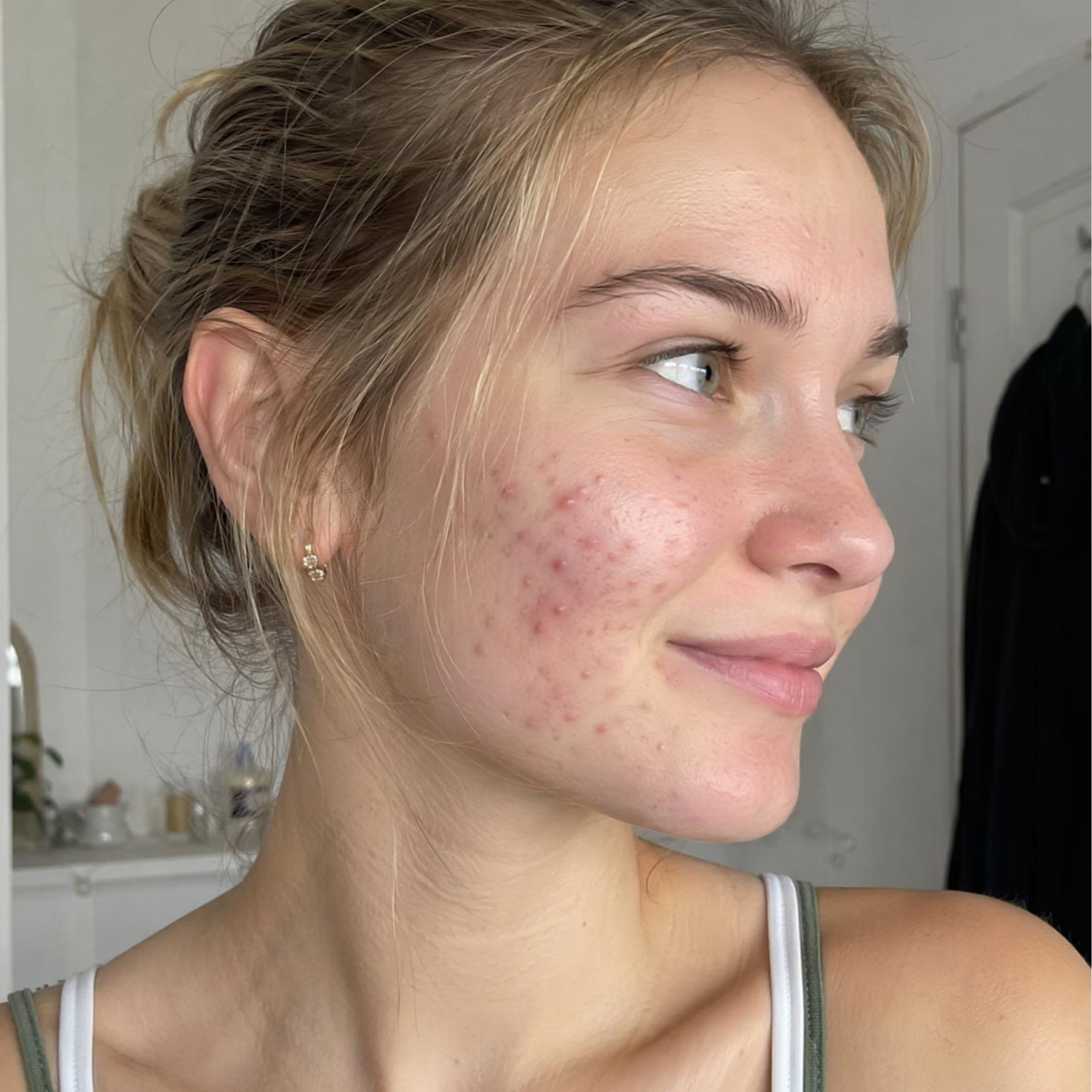
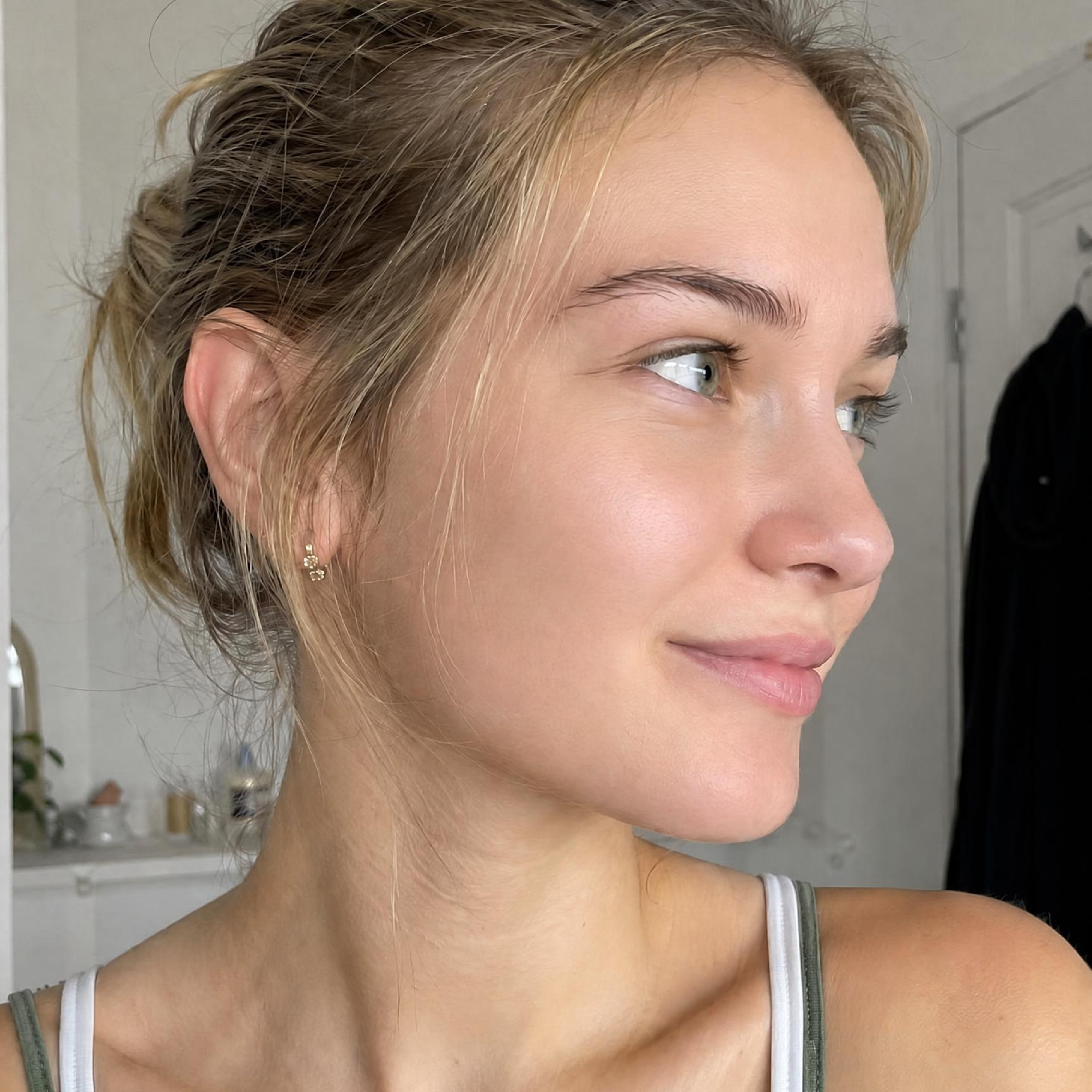
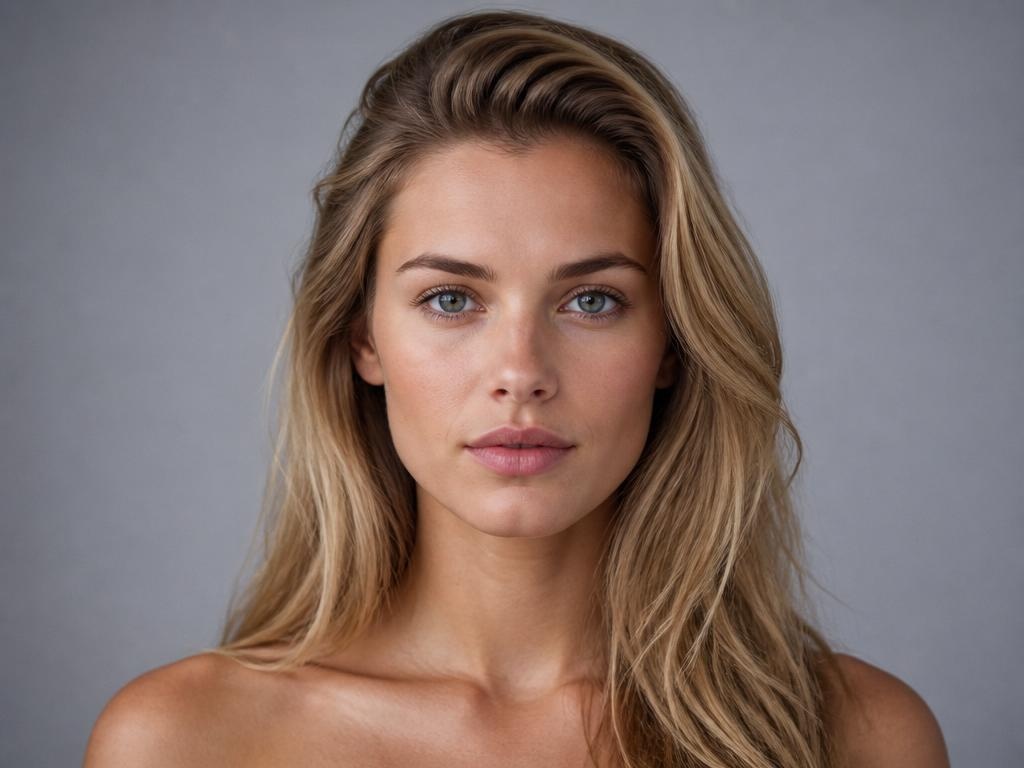
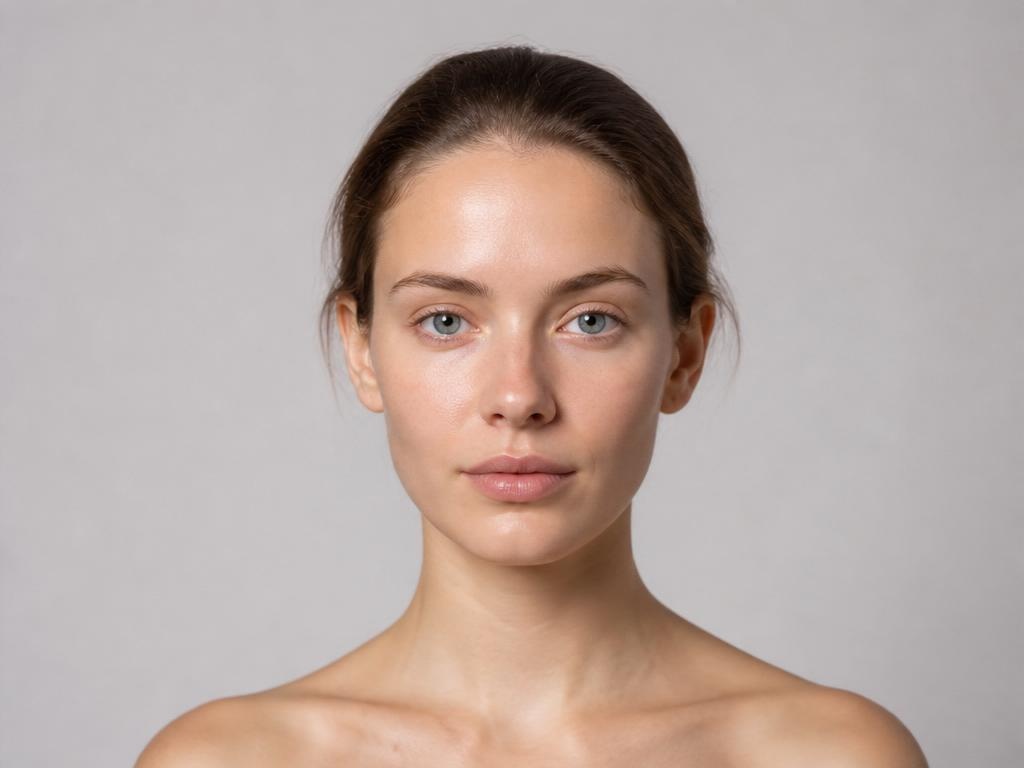
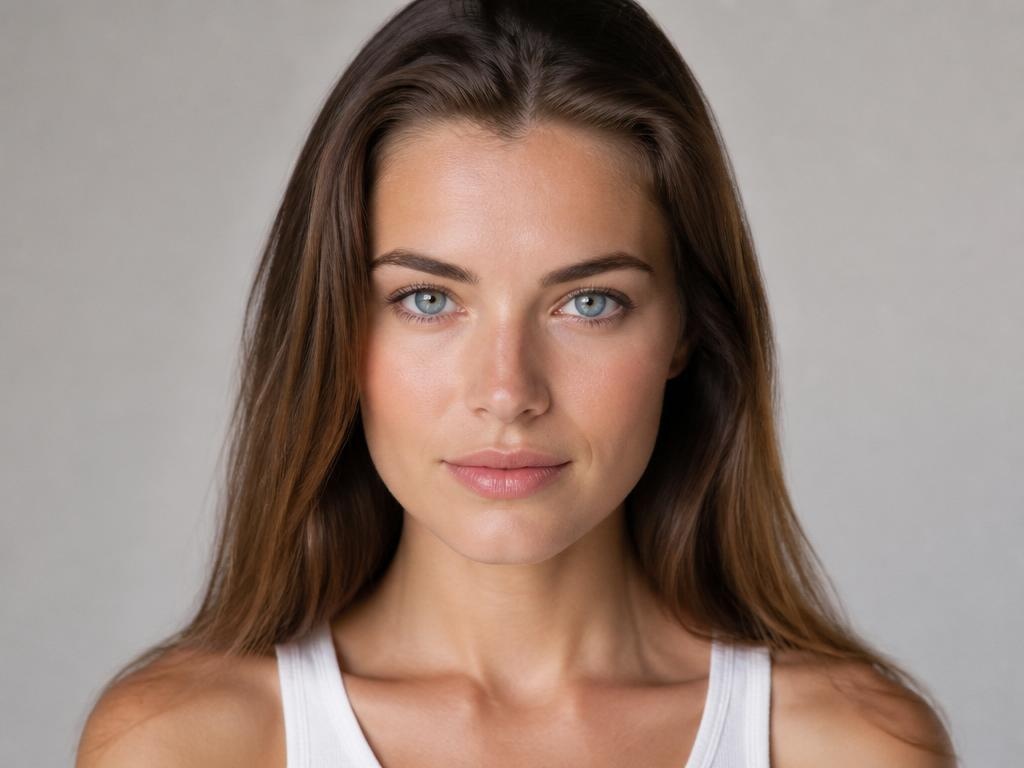
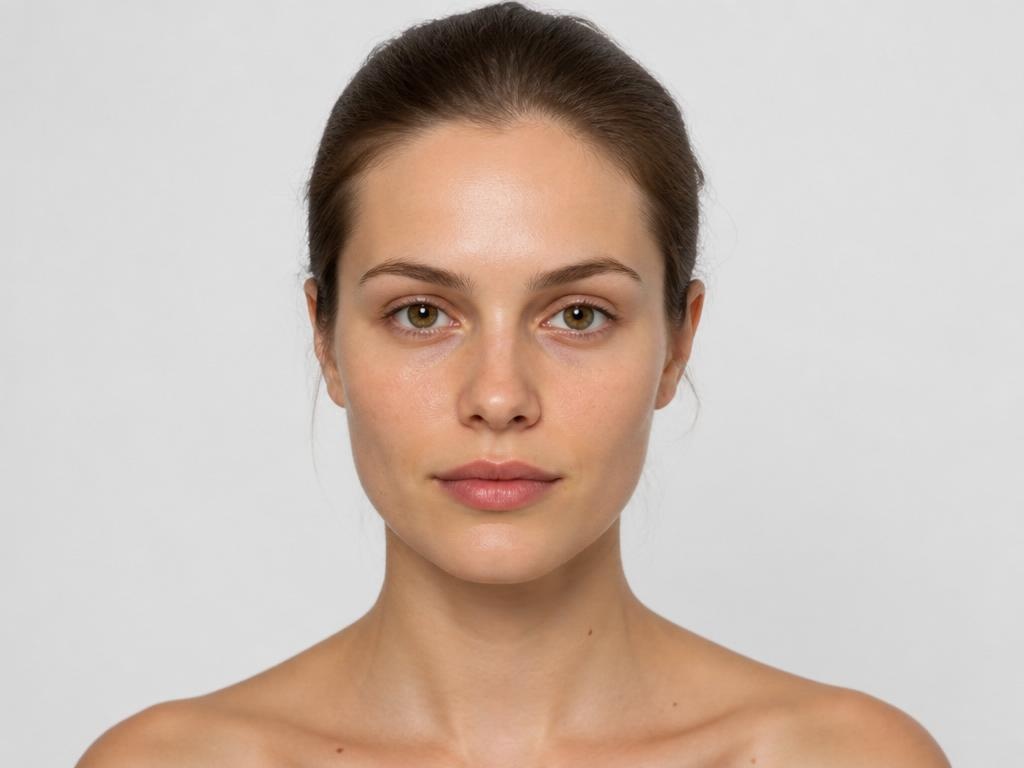
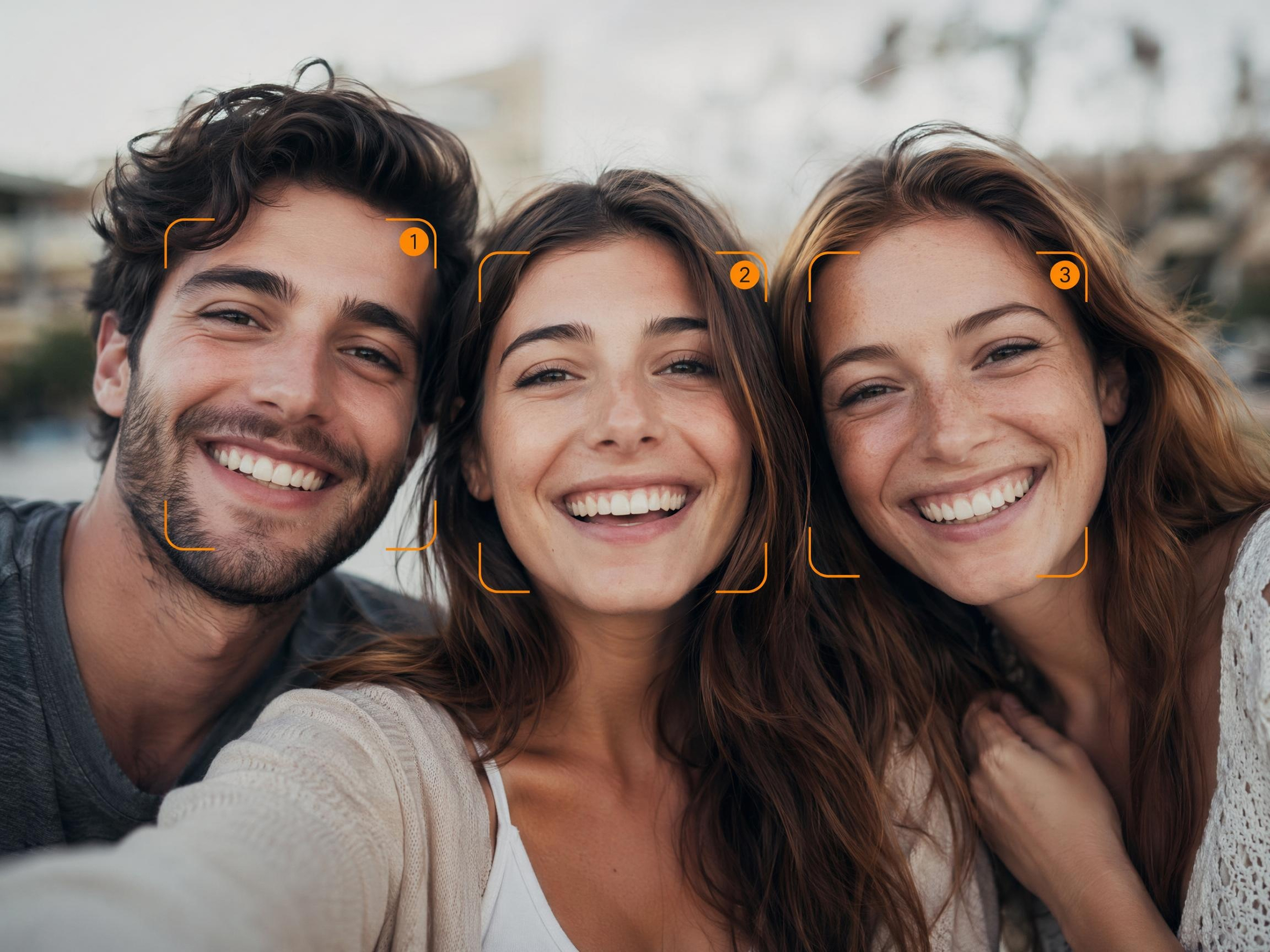
No picture on hand? Try with one of these
How to Retouch a Photo with AI in 3 Steps
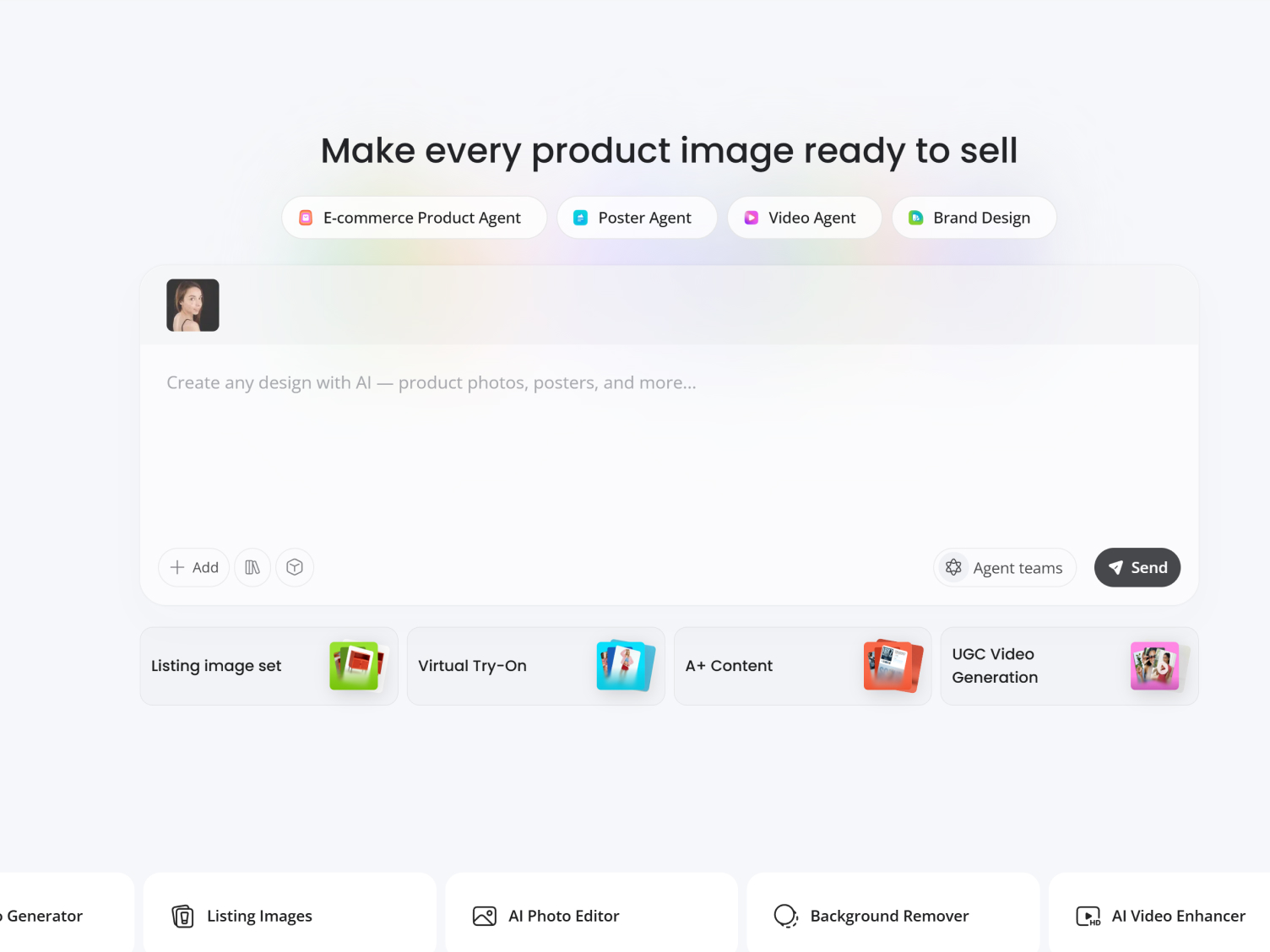
Upload Your Photo
Upload the portrait or product shot you want to clean up to Designkit
Describe the Retouch
Type an instruction in plain words, such as smooth the skin but keep the texture or remove the spot on the cheek. Refine the wording and run it again if you want a different result.
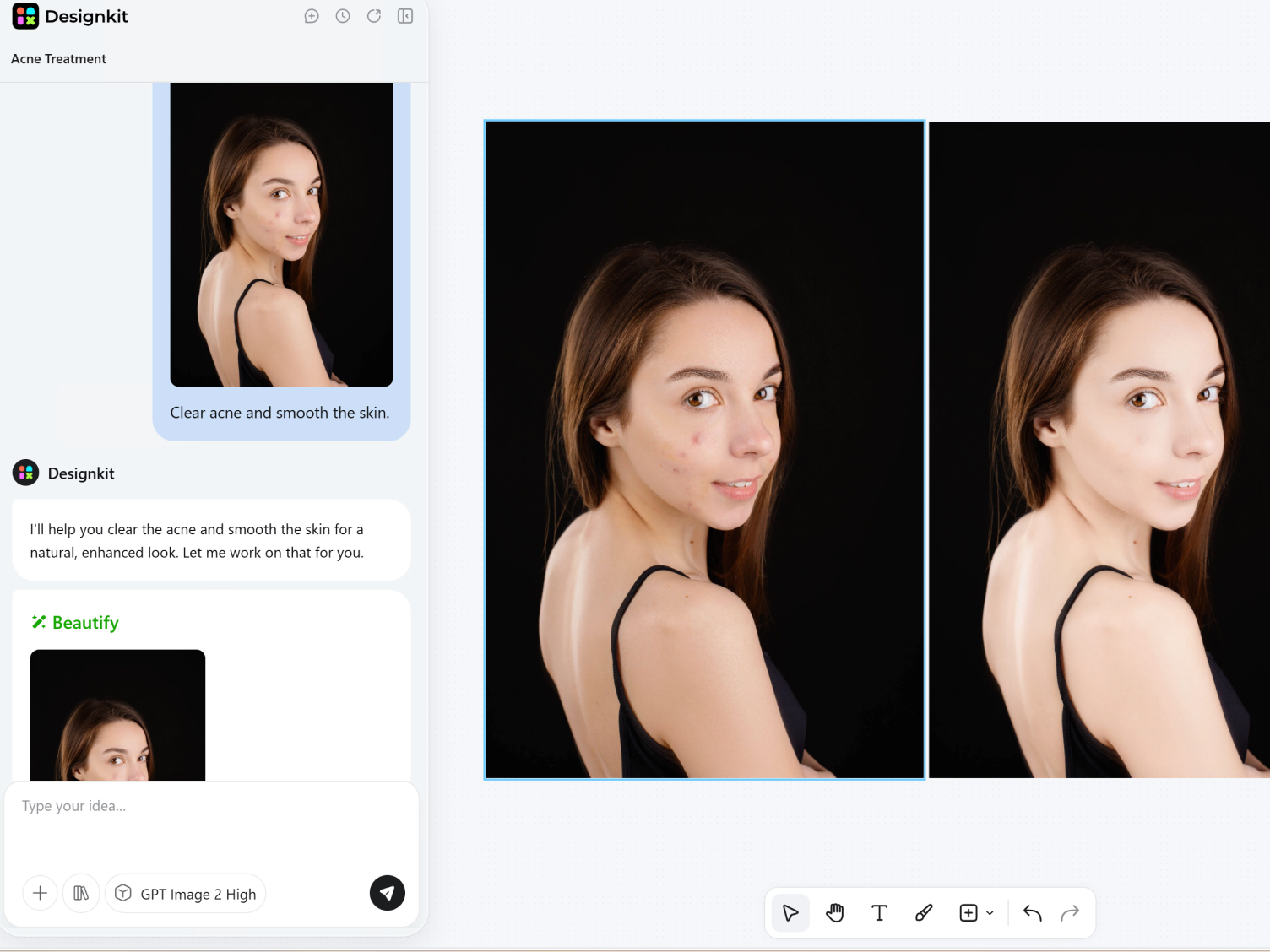
Preview and Download
Preview the result and export your polished image instantly. Download in high quality, ready for ecommerce, ads, or social media. Feature Highlight
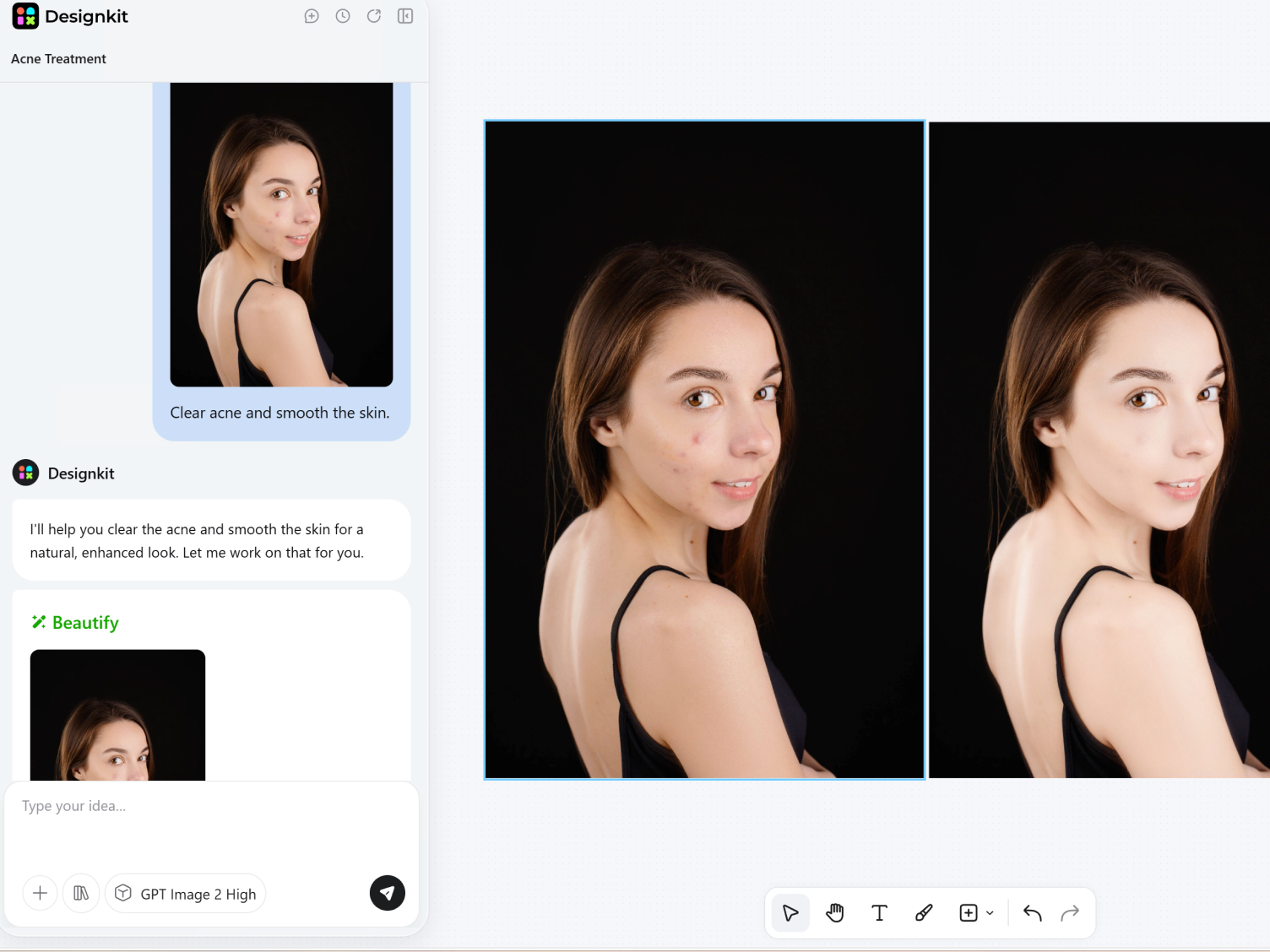
What You Can Ask Designkit to Retouch
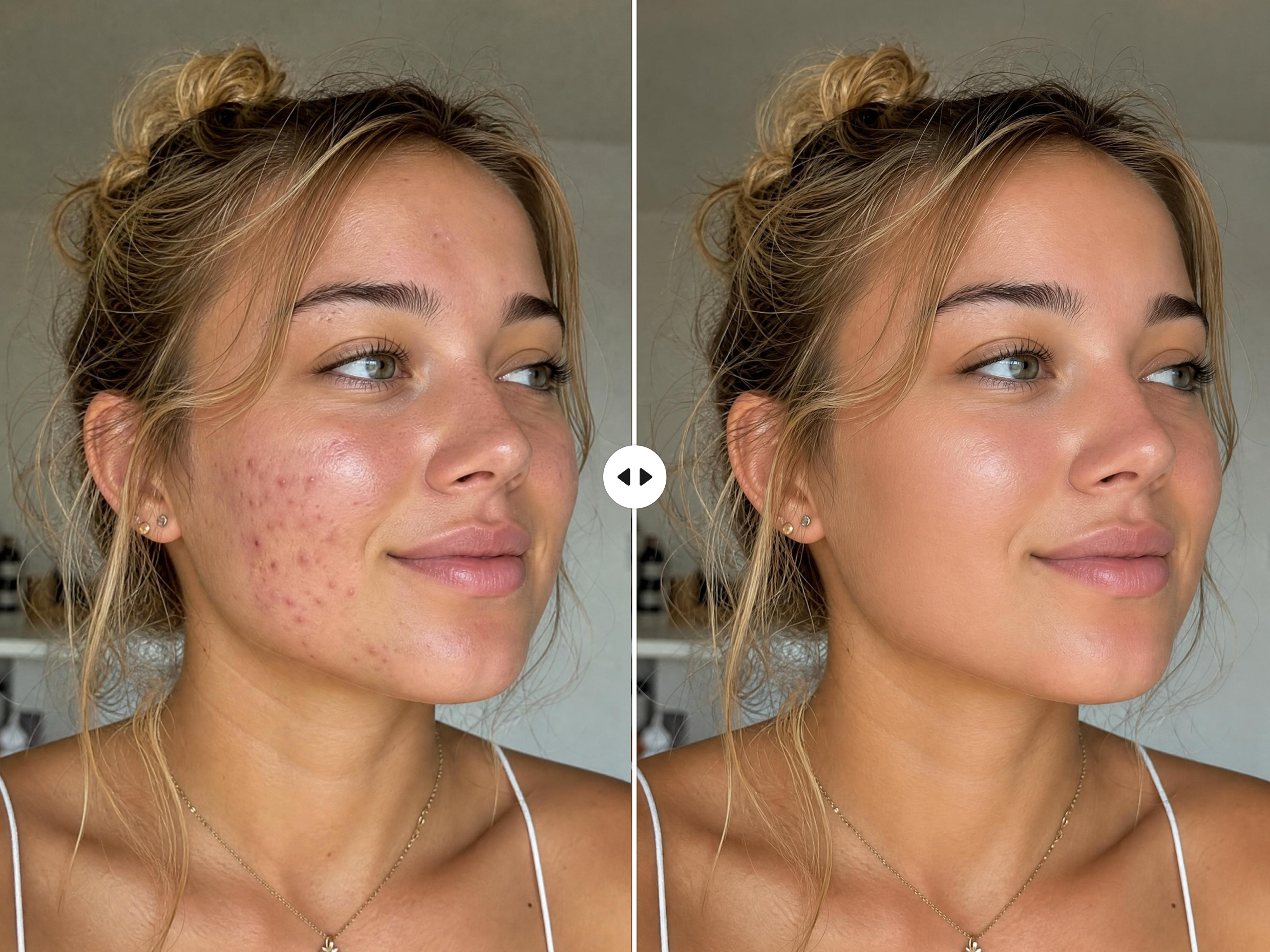
Clear Blemishes, Spots, and Marks
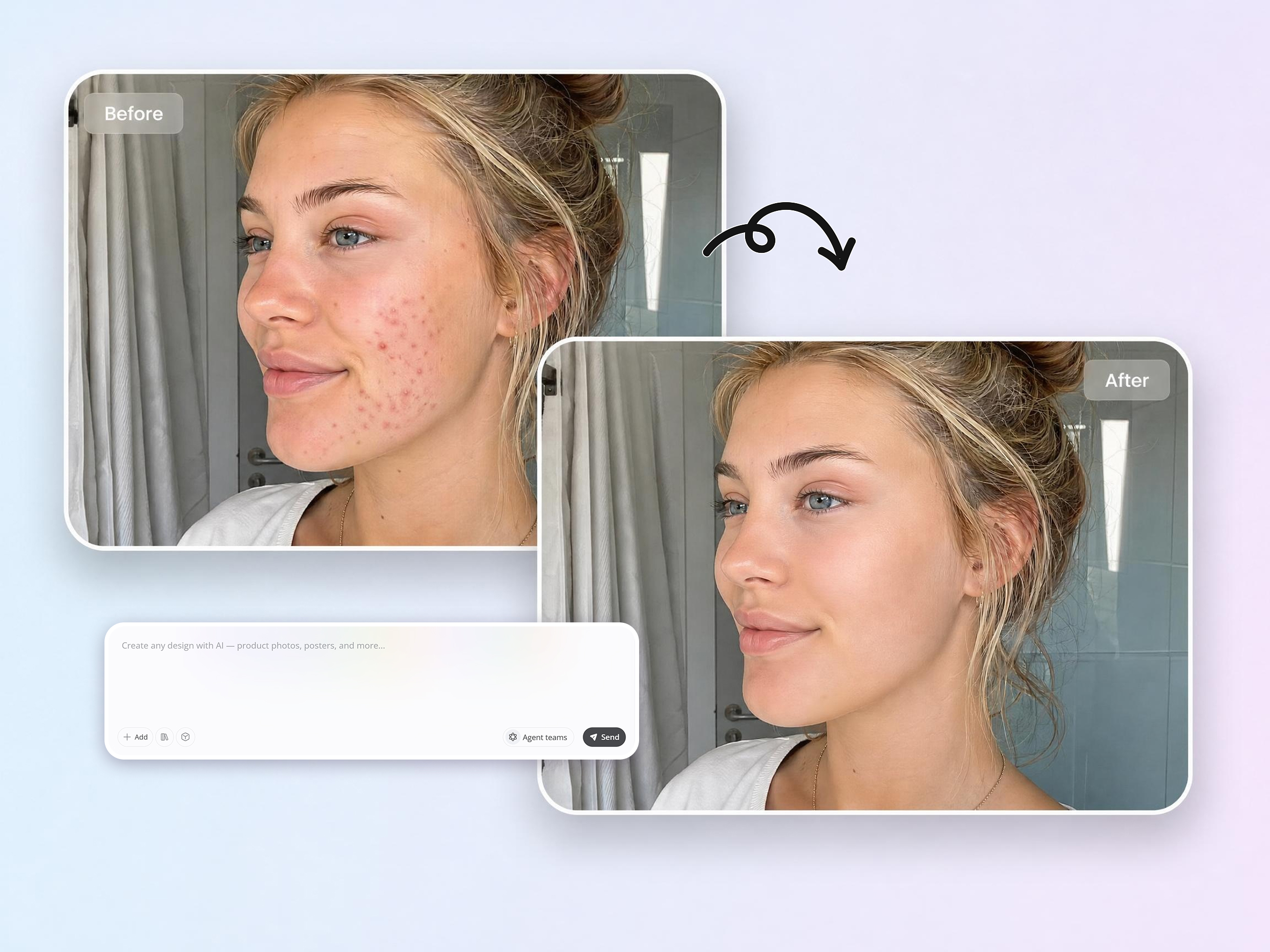
Small skin imperfections can draw attention away from an otherwise great photo. With retouching photo AI, simply describe what you want removed, and Designkit blends the changes naturally into the surrounding skin instead of creating an over-edited look.
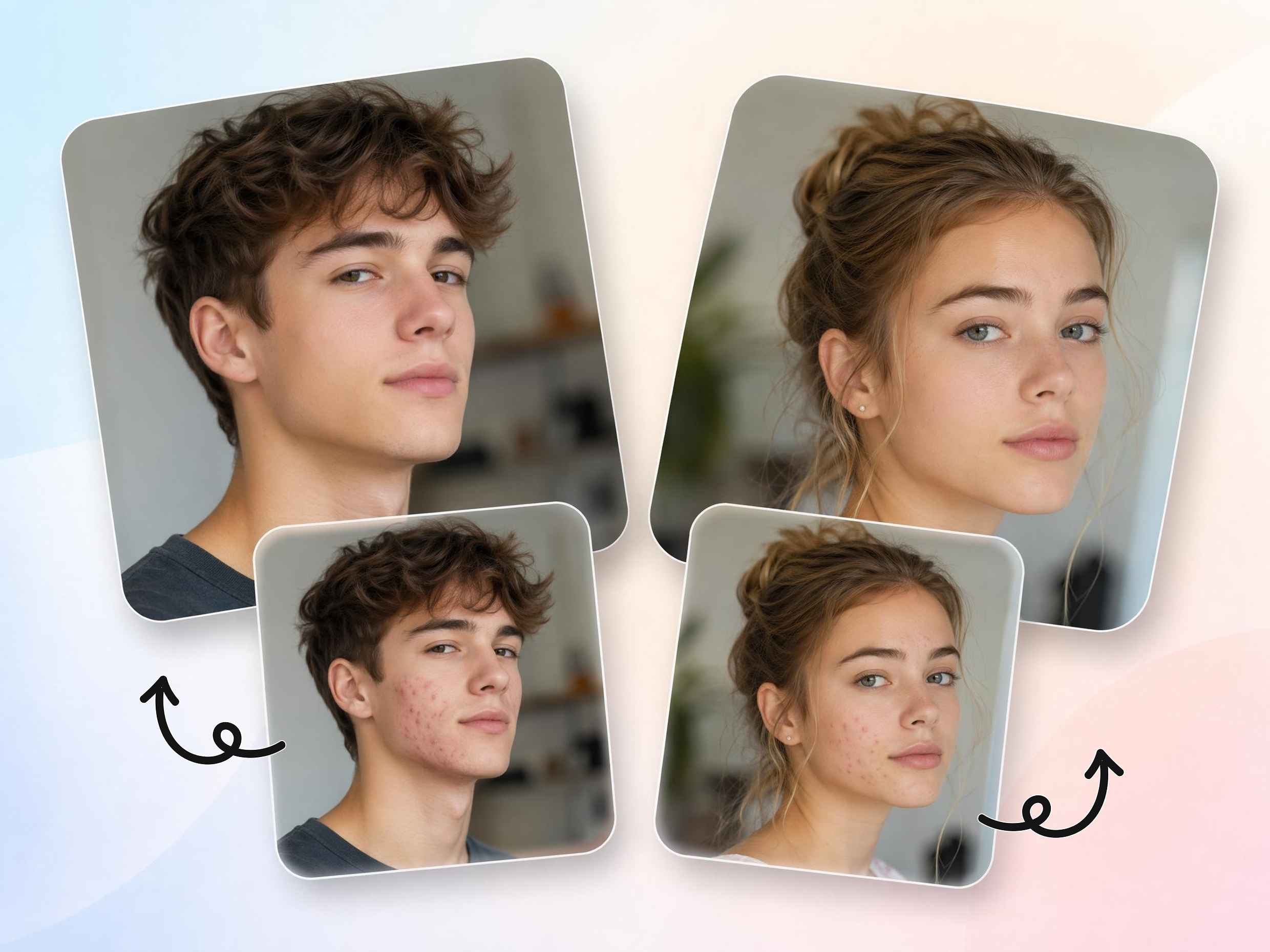
Smooth Skin and Keep It Realistic
Many retouching tools remove so much texture that faces start looking artificial. Designkit softens rough areas while preserving natural skin details, helping portraits feel polished without losing their authentic appearance.
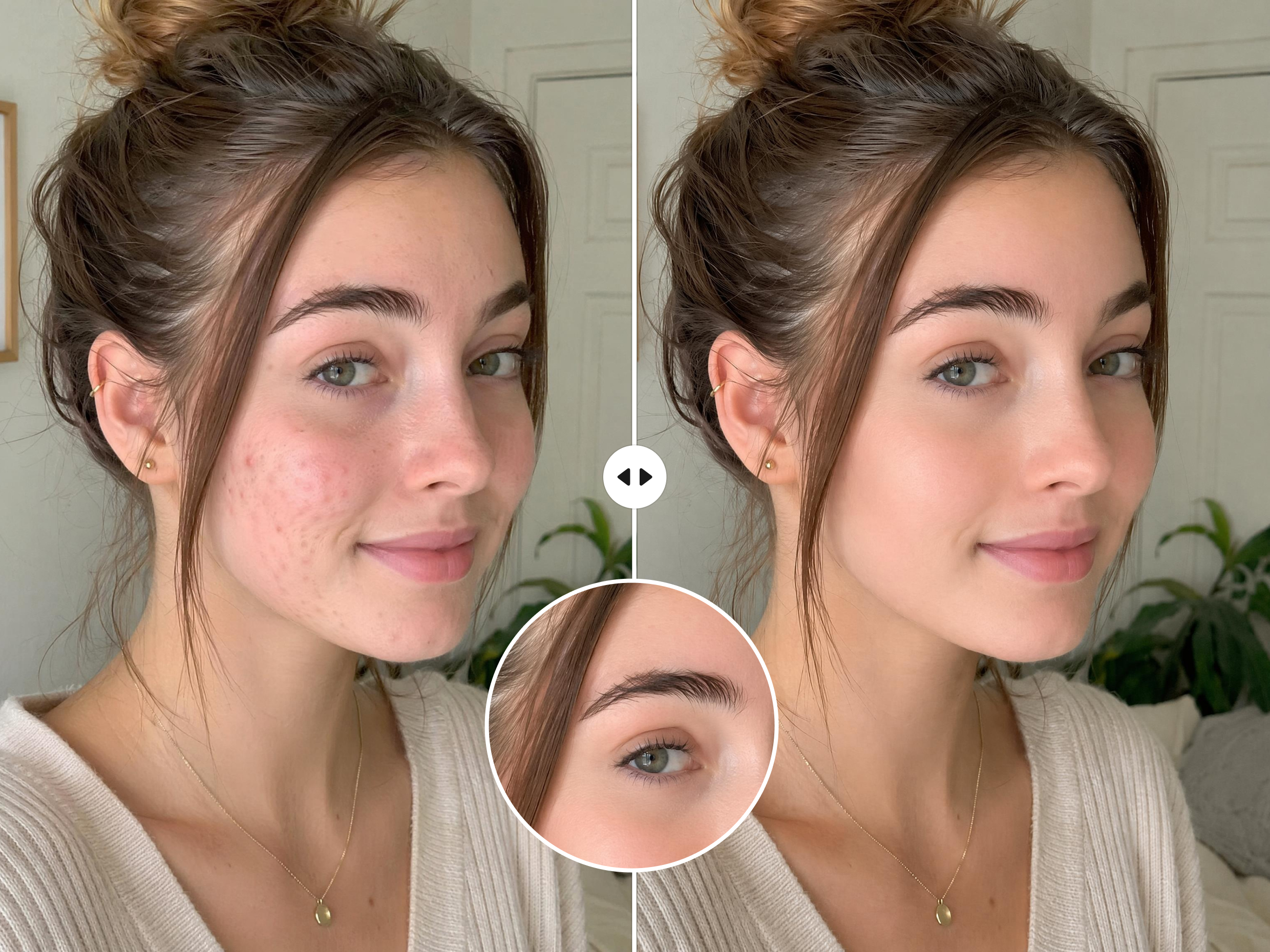
Even Out Skin Tone
Uneven skin tone, redness, or patchy color can make photos feel inconsistent. Designkit adjusts targeted areas based on your instructions, helping create a more balanced complexion while maintaining natural-looking results.
Refine the Result by Re-Prompting
Retouching preferences vary from person to person. If the first result feels too subtle or too strong, simply update your instructions and generate a new version until the edit matches the style you have in mind.
Preview Before You Download
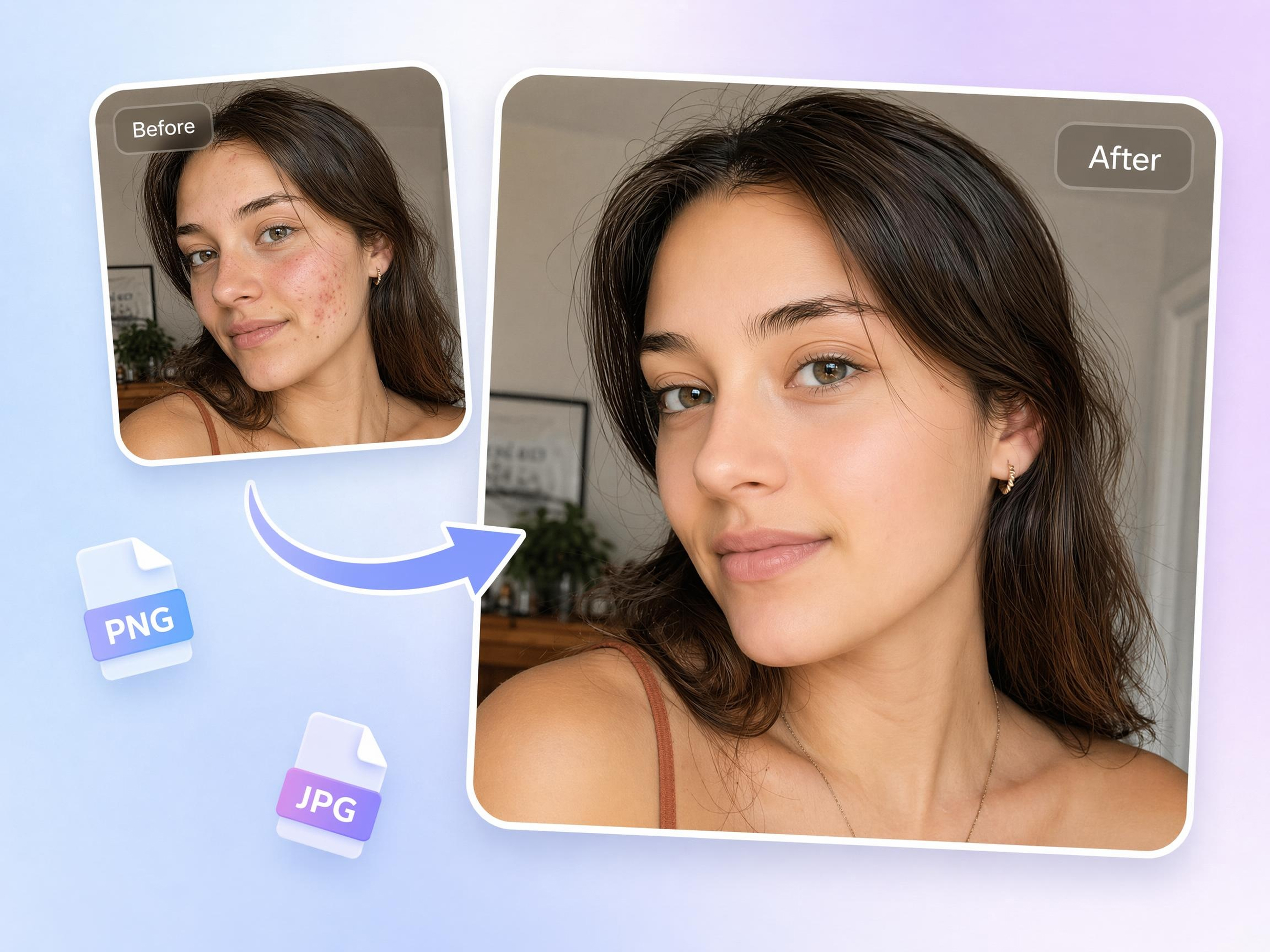
Retouching changes should feel intentional, not permanent. Designkit lets you compare the edited version with the original image, making it easier to review adjustments before saving your final result with a retouch photo editor.
Who Uses AI Photo Retouch
Polish a Portrait for LinkedIn and Team Pages
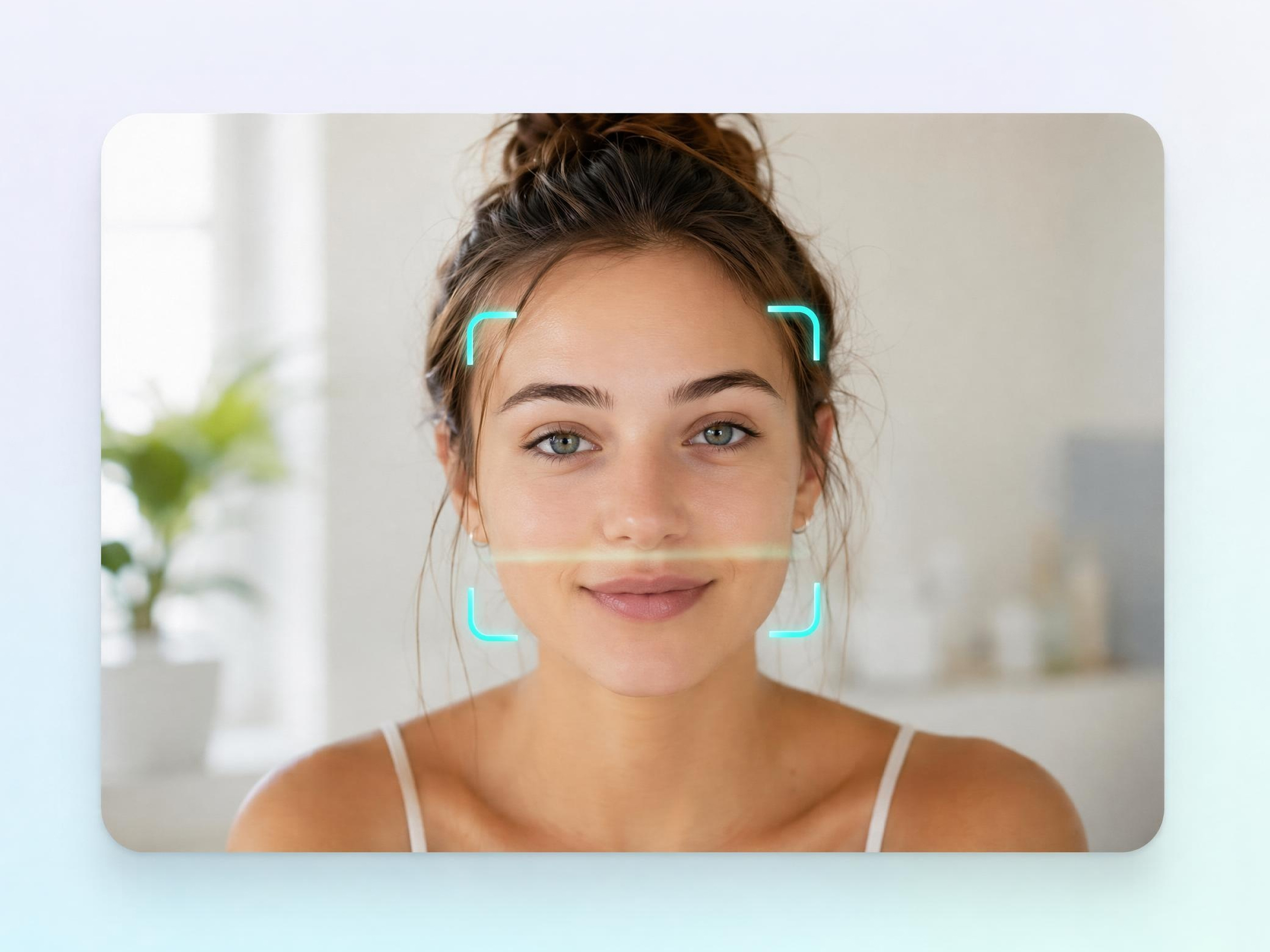
Professional portraits often need small adjustments without changing how a person looks. Designkit helps smooth skin, reduce blemishes, and balance skin tone while keeping headshots natural and suitable for professional profiles.
Why People Choose Designkit to Retouch Photos
Edit by Typing, No Manual Tools
Traditional retouching often requires brushes, layers, and careful selections. Designkit simplifies the process by letting you describe the changes you want in everyday language.
Skin Stays Real, Texture Intact
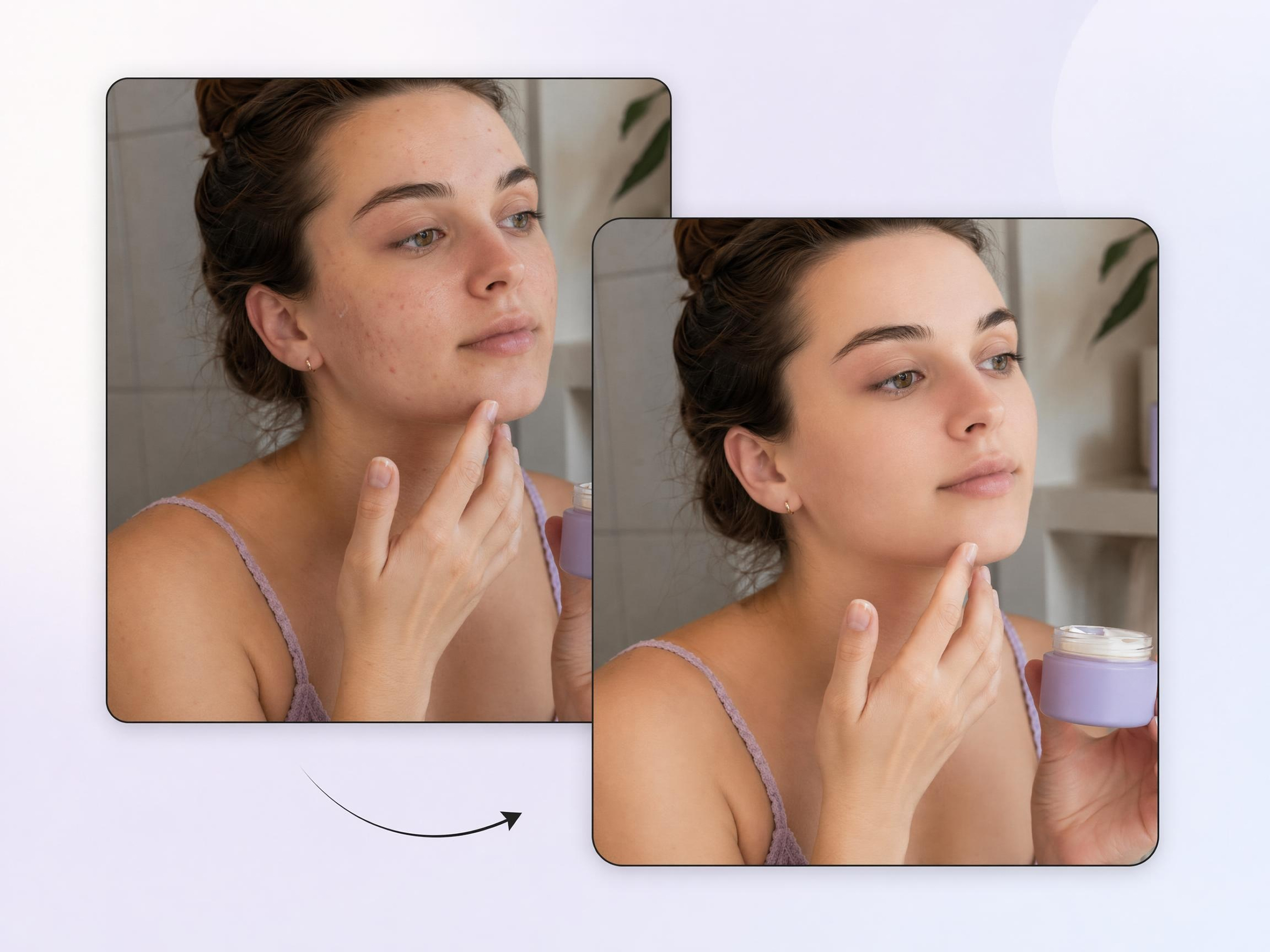
Over-retouching can make portraits look unnatural. Designkit reduces distractions while preserving skin texture and facial details for a more authentic result.
Re-Prompt Until the Result Fits
Every photo is different, and so are personal preferences. With Designkit, you can adjust your instructions and generate new results until the retouch matches your vision.
Preview Before Anything Saves
It's easier to make confident editing decisions when you can compare results. Designkit lets you review the original and retouched versions before downloading.

Plain-Language Instructions, No Skills
You don't need professional editing experience to retouch photos. Designkit understands simple instructions and turns them into targeted photo adjustments.
High-Resolution Export, Free to Start
After reviewing your edits, Designkit allows you to export high-resolution images suitable for professional profiles, social media, marketing materials, and more.
Unlock More Creative Possibilities
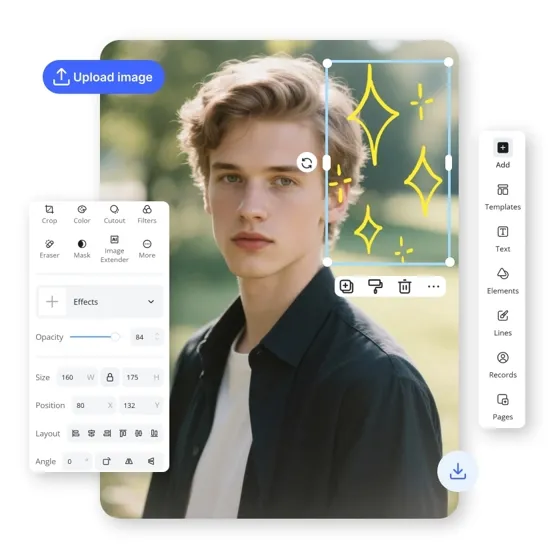
AI Photo Editor
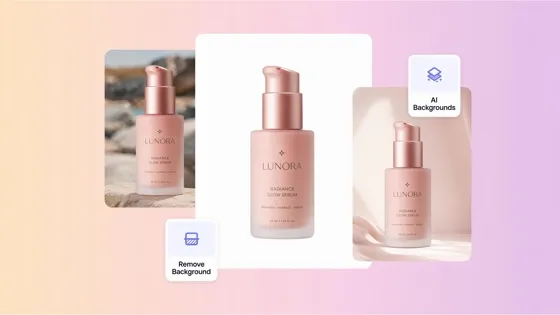
AI Beauty Photo Editor
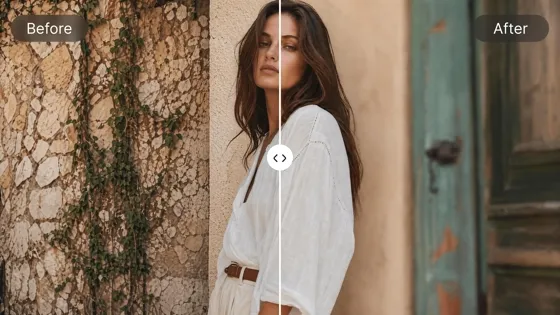
Blur Photo Online
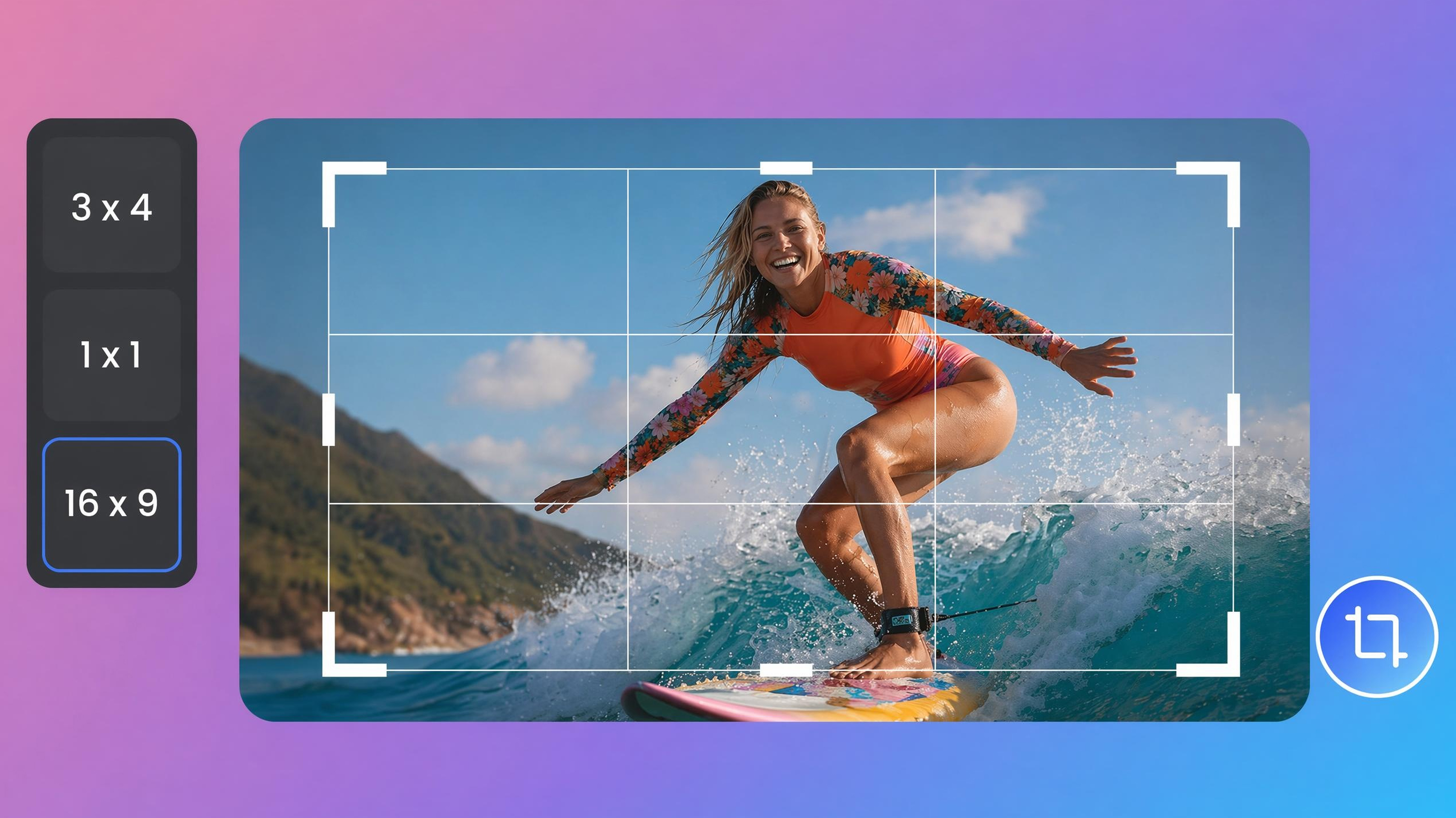
Image Cropper Online
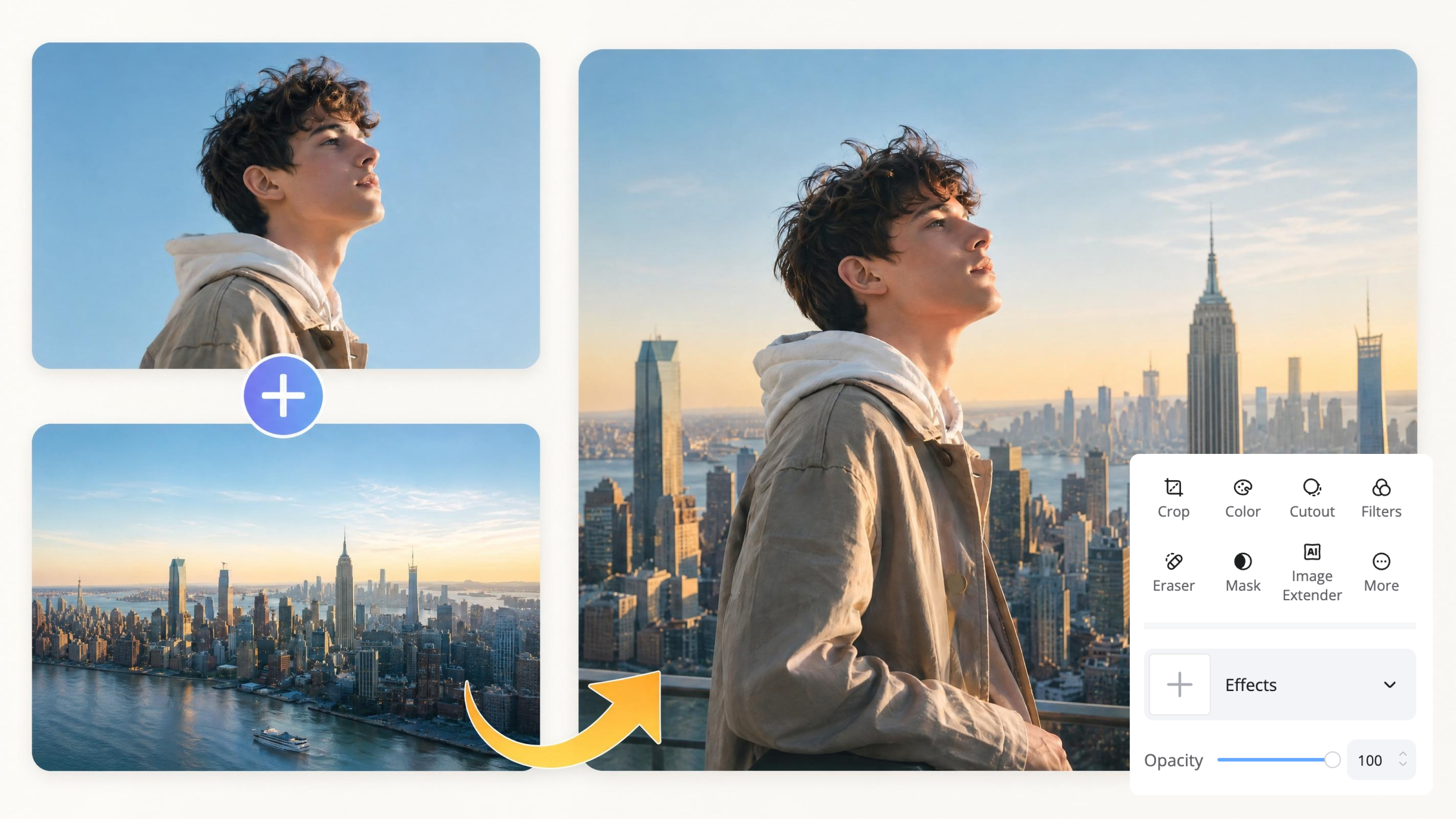
Image Overlay Tool
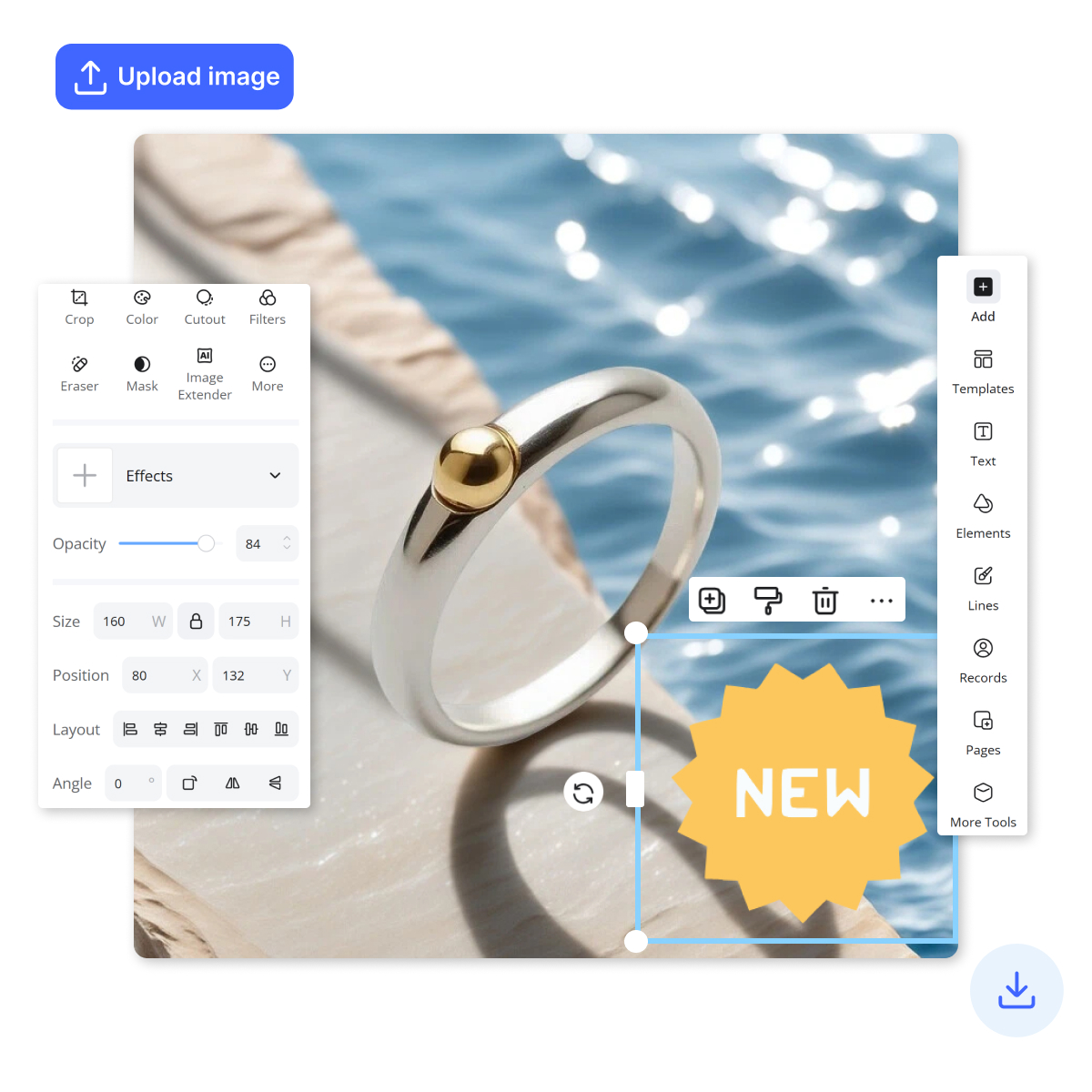
Add Stickers to Photos
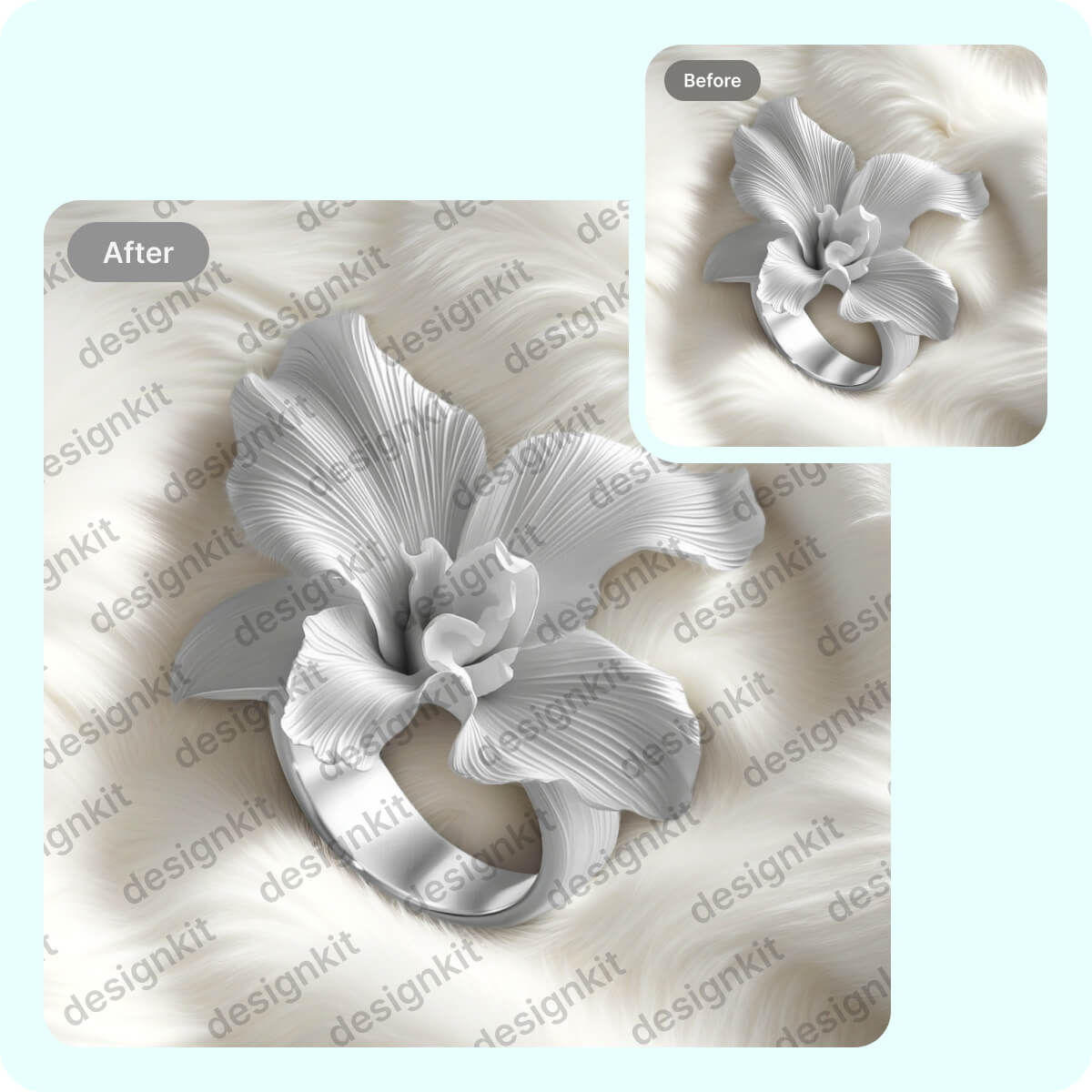
Watermark Adder Online
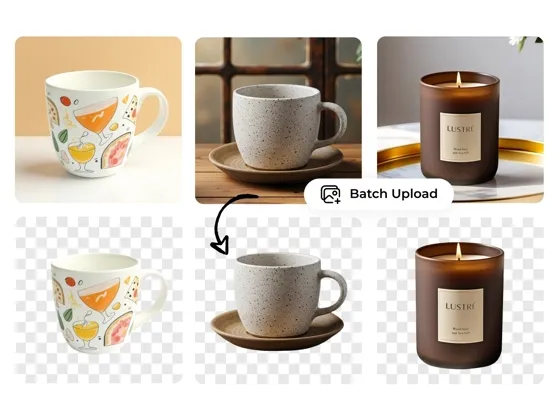
Background Remover
Frequently Asked Questions
How does AI photo retouching work, and how is it different from enhancing image quality?
Do I need editing skills, or can I just describe the fix?
No editing experience is required. Modern AI retouching tools can understand requests like removing blemishes, softening skin, or balancing skin tone without requiring manual selections or brush tools. Designkit is built around text-based editing, making it easy to retouch photos by simply describing the changes you want.
Will the AI keep skin looking natural?
Yes, when retouching is done properly, skin should still retain its natural texture and character. The goal is to reduce distractions rather than completely change someone's appearance. Designkit is designed to preserve realistic skin details while making targeted adjustments to areas that need attention.
What kind of instructions can I type to retouch a photo?
You can request changes such as removing acne, reducing wrinkles, softening rough skin, balancing redness, whitening teeth, or creating a more even complexion. Designkit understands everyday language, allowing users to describe retouching goals naturally instead of learning professional editing terminology.
Can I redo the retouch if the first result isn't right?
Yes. Retouching is often subjective, and different people prefer different levels of adjustment. If the initial result feels too strong or too subtle, Designkit allows you to revise your instructions and generate another version until the outcome matches your expectations.
Can I preview the edit before downloading?
Yes. Comparing the edited version with the original helps users evaluate whether the retouch looks natural and appropriate. Designkit includes a preview workflow that lets you review changes before saving, giving you more confidence in the final result.
What image formats can I upload and export?
Most users work with common image formats such as JPG, JPEG, PNG, and WEBP for portraits, social media content, professional profiles, and marketing materials. Designkit supports widely used formats, making it easy to upload existing photos and export finished retouched images.
Tell Designkit What to Fix and See It in Seconds
Upload a photo, describe the retouch in plain words, and preview the result before you download. Clean, natural skin and tone for profiles, listings, and social.



Real Users Share Their Experience with AI Photo Retouching
Creators, sellers, and first-timers share how they retouch photos in Designkit by describing the fix.
Just Told It What I Wanted
I typed that I wanted clearer skin but not a fake look, and that's basically what came back. It still looks like me, which is the part most tools get wrong.
No Tools to Learn
I expected to hunt through menus. Instead I wrote remove the spot on the cheek and it did it. Being able to just say the change made the whole thing easy.
Reworded It Until It Was Right
The first headshot pass was a bit much, so I asked for something lighter and ran it again. After a couple of tries, the skin looked clean but still natural.
Skipped Outsourcing Small Fixes
I used to send simple skin cleanups to someone else. Now I describe the fix, preview it, and move on. Keeps that budget for bigger work.
Checked Before I Saved
I like that it shows the edit against the original first. I could see exactly what changed before committing, so nothing got over-edited by accident.
Product Shots Evened Out
Our model shots had uneven tone. I asked for even skin tone across the set and the feed finally looked consistent.