
How to Make a Collage on iPhone: Easy Methods for Stunning Photo Layouts
Learn how to make a collage on iPhone using built-in tools, shortcuts, and the best collage apps. Create beautiful photo layouts for social media, memories, and more with this easy 2026 guide today. Now!


Creating a photo collage on your iPhone is one of the easiest ways to tell a story with multiple images instead of sharing them one by one. Whether you're highlighting vacation memories, designing an Instagram post, creating a birthday card, comparing products, or preparing marketing content, a well-designed collage makes your photos more engaging and easier to share. Whether you're sharing holiday memories, creating an Instagram post, designing a birthday card, comparing products, or preparing marketing material, a good collage is what you need. You can't create collages in the iPhone's Photos app, but Apple does provide some basic layout options, and there are third-party collage apps that can provide more creative possibilities.
Can you make a collage on your iPhone?
While you are able to create a collage on your iPhone, the Photos app doesn't include a built-in collage feature, so you can't do it in the Photos app itself. Or you can use Apple's Shortcuts, Pages, or Keynote apps, or a third-party collage maker for more layouts and customization. What's best will depend on whether you're making personal memories, social media content, or marketing visuals.
Does the Photos app have a collage feature?
No, the iPhone Photos app does not have a collage feature. You can organize, crop, edit, and enhance individual photos, but it cannot combine multiple images into one layout. If you don't want to install another app to make a collage, you can use Apple's Shortcuts, Pages, or Keynote, though they have fewer templates and options for customization than apps made for creating collages.
Why do people create photo collages on iPhone?
Photo collages allow you to tell a visual story without bombarding the viewer with dozens of individual photos. Instead of flipping through an entire album, your audience can view the highlights in one organized design.
-
Remembering travel memories
-
Instagram Posts & Carousel Cover
-
Design story highlights
-
Creating Birthday and Holiday Cards
-
Creating mood boards
When should you use a photo collage?
When you want to showcase several photos in one organized layout, photo collages are a great option. It helps tell a fuller story, a comparison of moments, and a variety of viewpoints without overwhelming the viewer with individual photos.
-
Travel photos
-
Family memories
-
Wedding albums
-
Before & after comparisons
-
Product showcases
-
Social media posts
How to make a collage on an iPhone without an app
If you prefer not to install additional apps, Apple provides several built-in tools that let you create simple photo collages for free. While these methods don't offer advanced templates or AI-powered editing, they're great for personal projects and quick photo layouts.
Method 1: Use the Shortcuts app
The Shortcuts app offers a simple way to create a basic photo collage without installing a third-party app. Follow these steps to generate a photo grid:
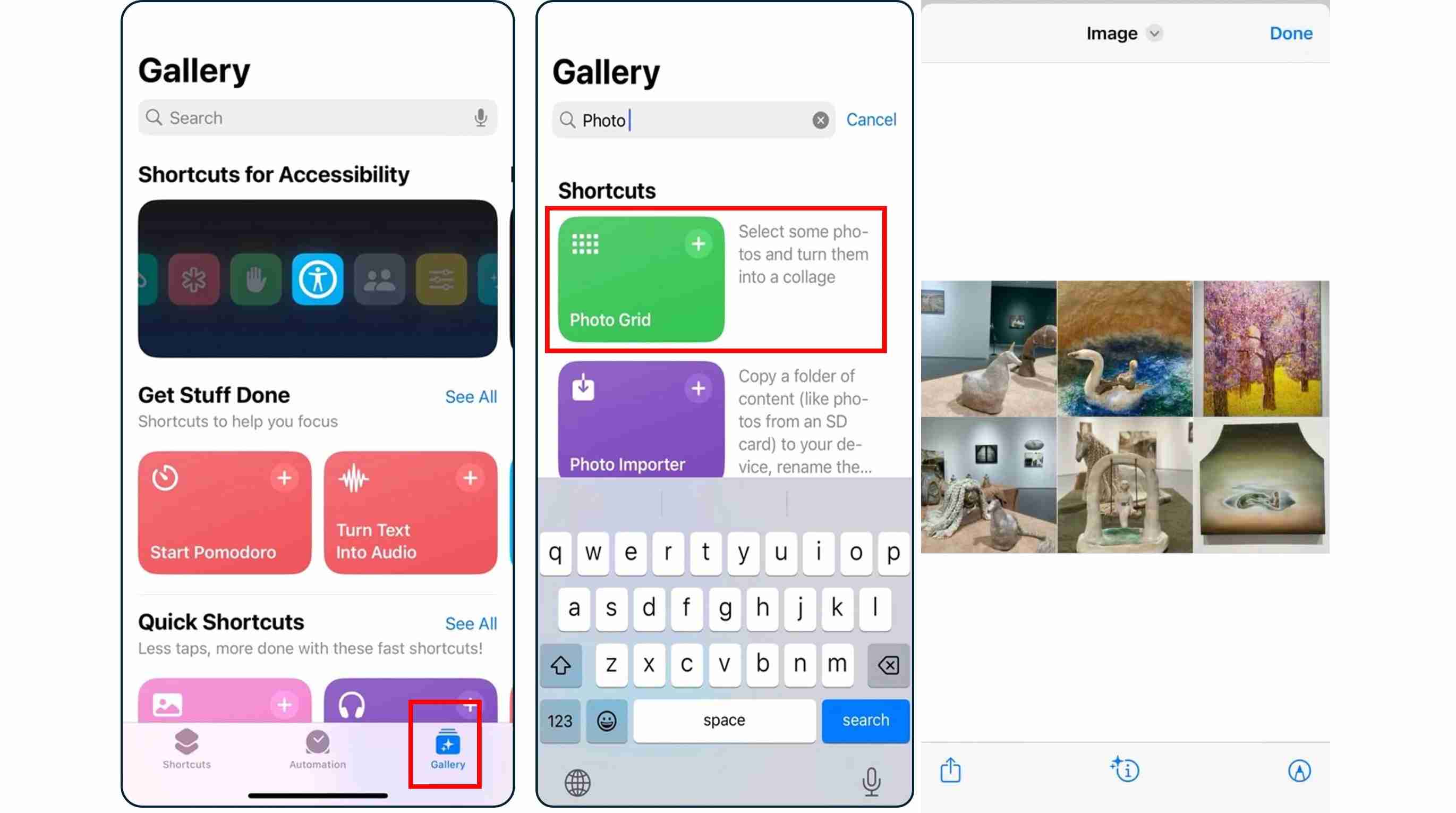
Step 1: Open the Shortcuts app
Launch the Shortcuts app, tap Gallery, search for Photo Grid, and tap Add Shortcut to save it to your library.
Step 2: Go to the Gallery tab
Open the Gallery tab in the Shortcuts app to browse available shortcuts.
Step 3: Search for "Photo Grid"
Search for Photo Grid, then select the photos you want to combine into a collage.
Step 4: Add the "Photo Grid" Shortcut
Preview the finished collage, then save it to your Photos library to edit further or share with others.
Step 5: Run the Photo Grid Shortcut
Open the shortcut and follow the prompts to automatically create your photo collage.
Step 6: Save or Share Your Collage
Save the completed collage to your Photos app or share it directly with others.
Method 2: Use pages or keynote
If you want more control over your collage layout, Apple's Pages and Keynote apps provide a surprisingly flexible solution.
Step 1: Create a blank document
Open Pages or Keynote and start with a blank page or presentation.
Step 2: Insert your photos
Tap the Insert button and select images from your photo library.
Step 3: Arrange your layout
Drag, resize, crop, and rotate each photo until you're satisfied with the composition.
Step 4: Add finishing touches
If needed, include text, simple shapes, or backgrounds to personalize your collage.
Step 5: Export your design
When finished, export the page as an image and save it to your photos app for sharing.
Pros and Cons
|
Pros |
Cons |
|---|---|
|
|
Best iPhone collage maker apps
If you create collages regularly, you might save time and unlock a lot more creative possibilities with a dedicated collage app rather than Apple's built-in tools.
Canva
Canva is a beginner-friendly design platform that offers thousands of customizable collage templates for social media, presentations, and marketing materials. Its drag-and-drop editor, built-in graphics, and free plan make it easy to create professional-looking collages in minutes.
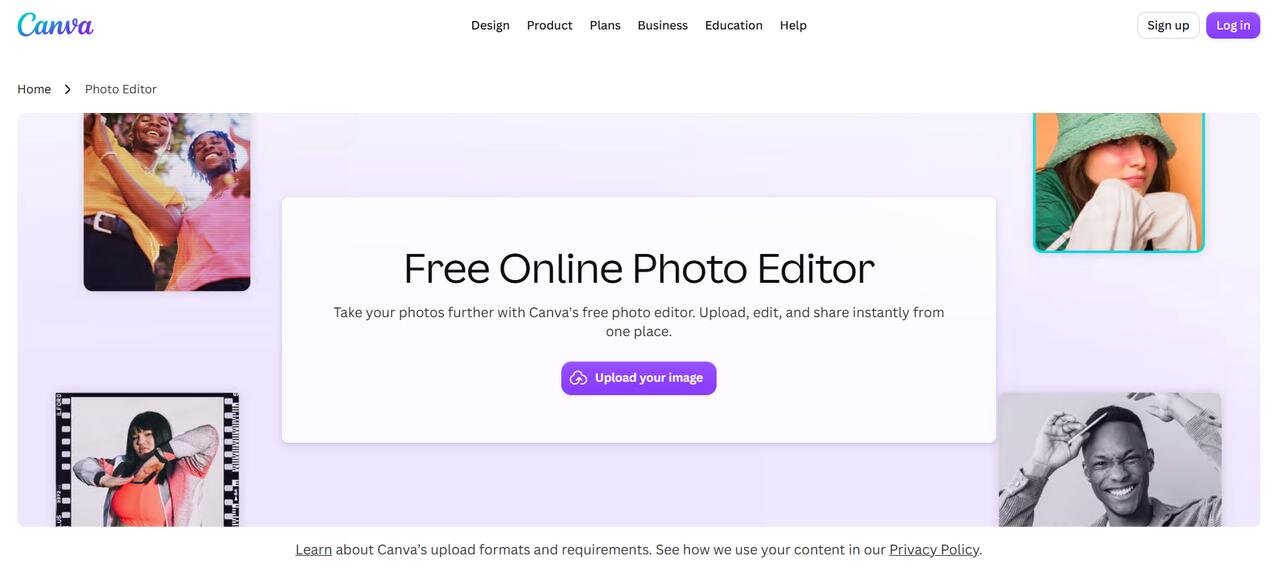
Key features
-
Thousands of collage templates
-
Instagram, Facebook, Pinterest, and TikTok layouts
-
Drag-and-drop editor
-
Free plan with optional Pro features
Best for: Social media creators, marketers, students, and small businesses.
PhotoGrid
PhotoGrid is a dedicated collage maker, with hundreds of layouts, stickers, frames, and AI-powered editing tools. Great for making creative photo collages, mood boards, and social media content in no time at all.
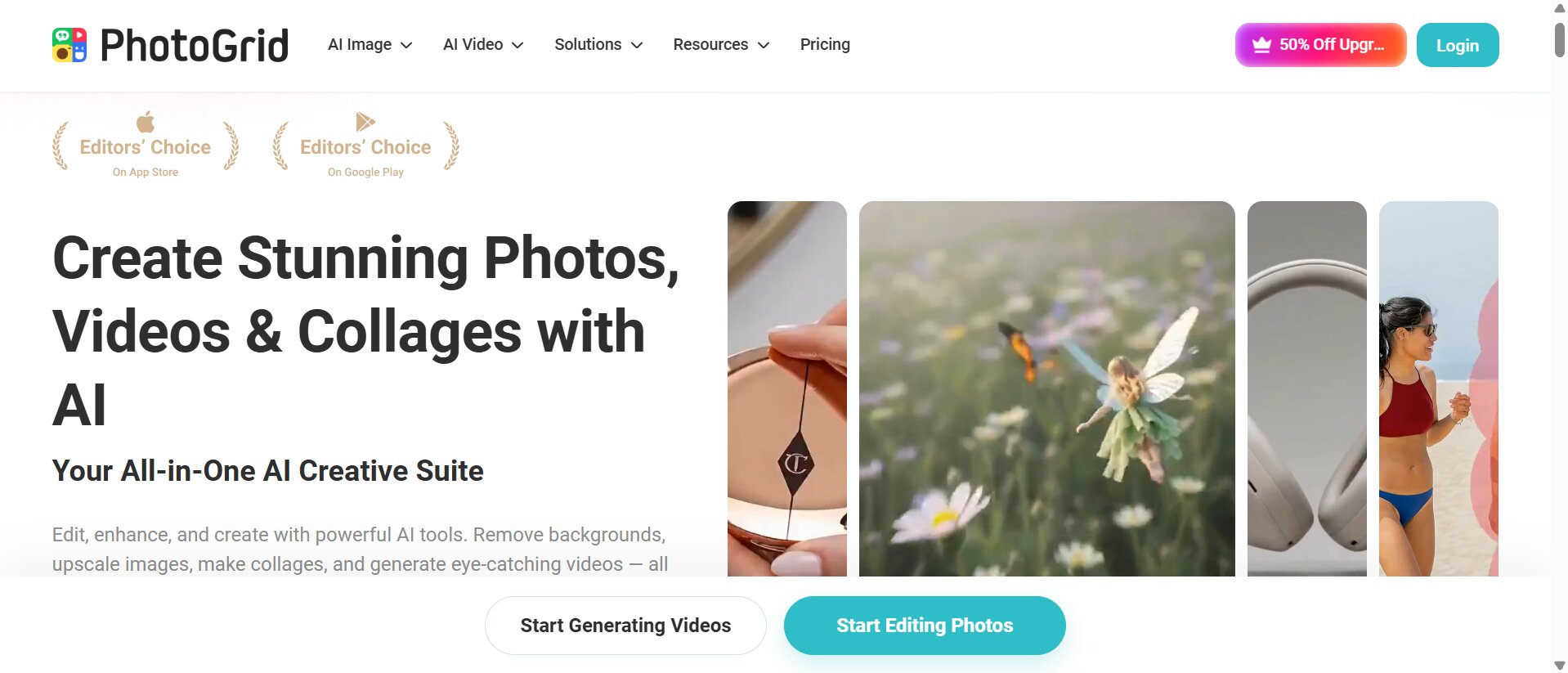
Key features
-
Hundreds of collage layouts
-
Stickers, borders, and frames
-
AI-powered editing tools
-
Background editing
Best for: Creative photo collages and lifestyle content.
PicCollage
PicCollage allows you to make your own collages using pre-made templates and grid and freestyle layouts. It also features text, stickers, and seasonal designs for family memories, greeting cards, and everyday projects.
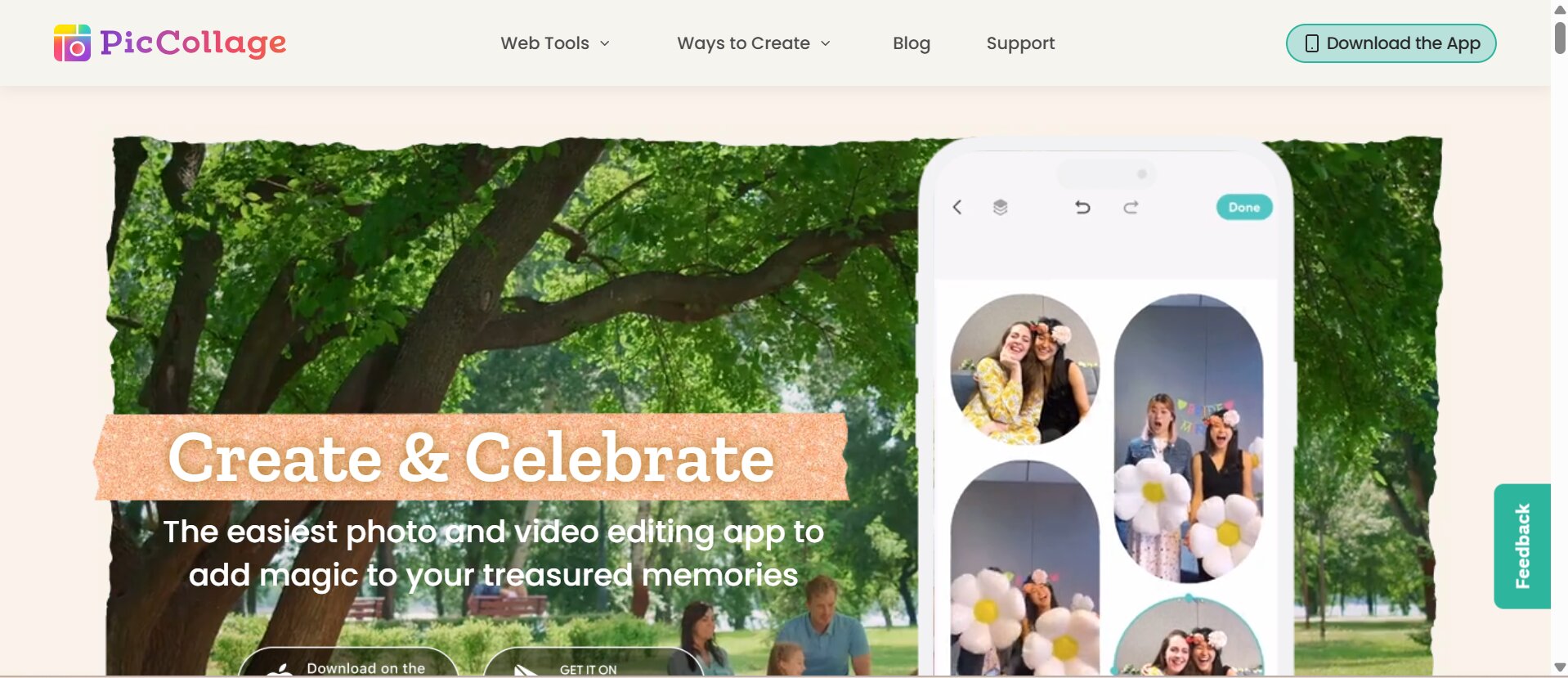
Key features
-
Ready-made collage templates
-
Grid and freestyle layouts
-
Text editing and stickers
-
Greeting card templates
Best for: Family memories, greeting cards, and everyday photo collages.
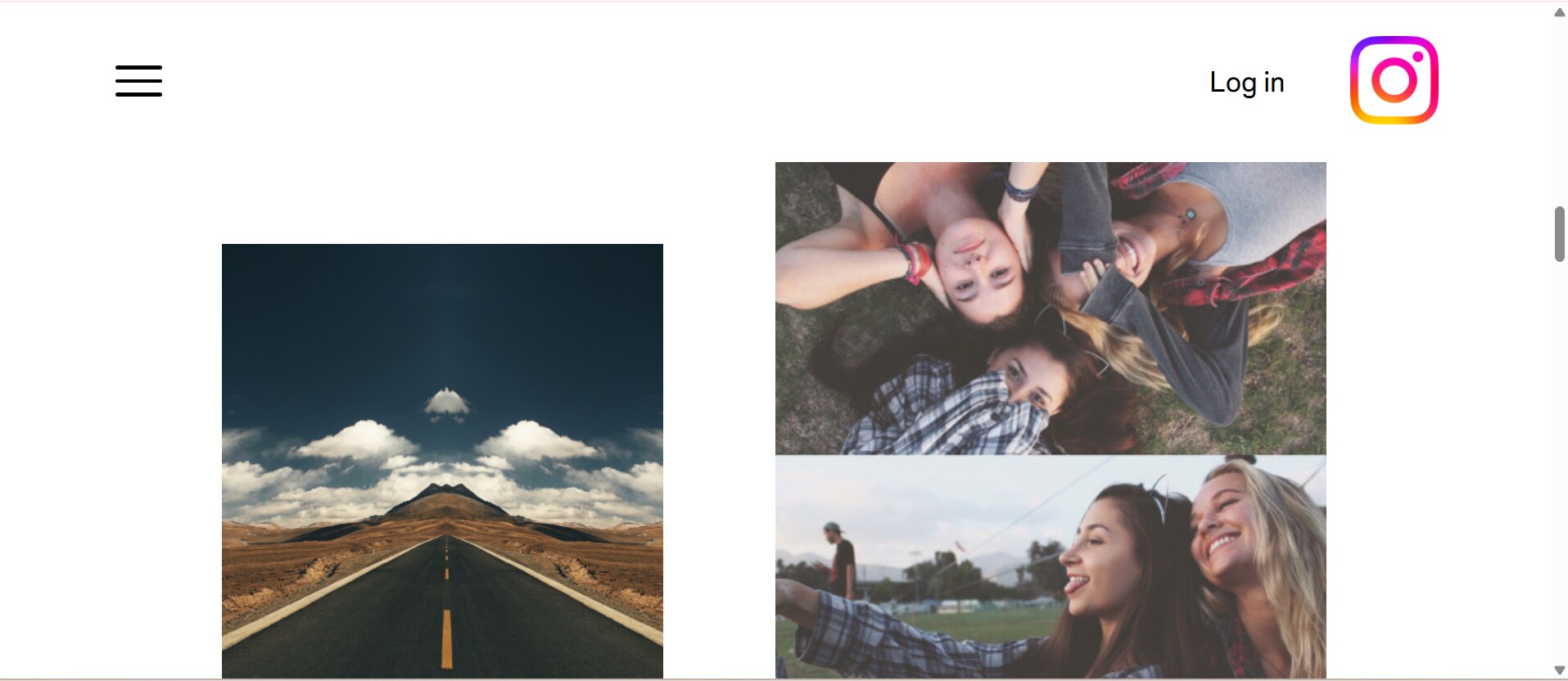
Layout from Instagram
Layout from Instagram is a quick and easy collage maker to quickly create fun collages with multiple photos and to share them on social media. It's perfect for your everyday posts and stories, with a user-friendly layout and direct sharing to Instagram.
Key features
-
Simple and lightweight interface
-
Quick grid creation
-
Instagram-ready layouts
-
Fast sharing
Best for: Quick Instagram collages and Stories.
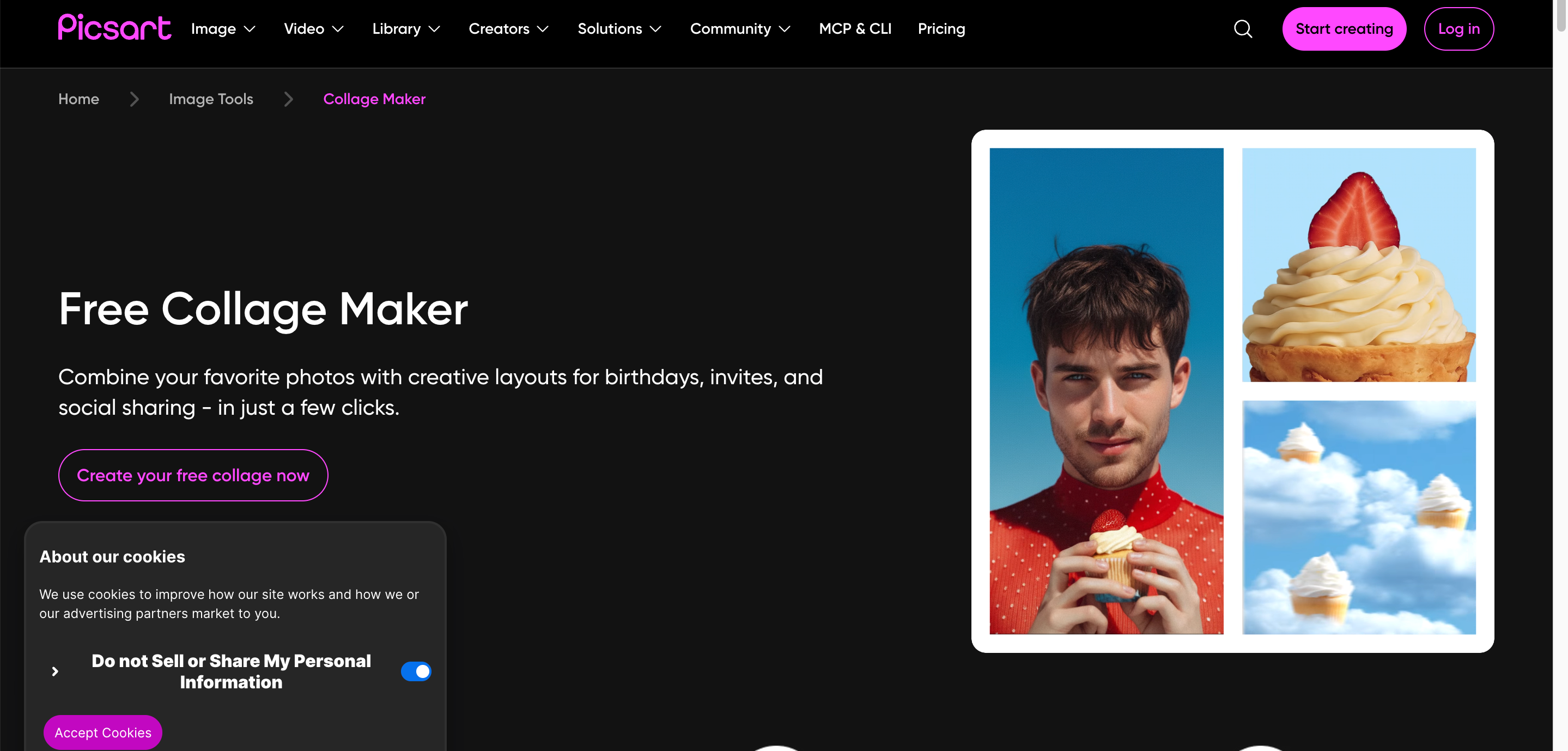
PicsArt
PicsArt combines collage-making with powerful AI editing features, including background editing, filters, text, and creative effects. It's well suited for users who want to create eye-catching social media graphics with more advanced customization.
Key features
-
AI creative editing tools
-
Background editing
-
Artistic filters and effects
-
Text customization
Best for: Advanced creative editing and content creation.
Which collage app should you choose?
The right app depends on your goals. Some prioritize speed, while others provide advanced creative control or marketing-focused templates.
|
Collage App |
Best For |
|---|---|
|
Canva |
Social media posts and marketing designs |
|
PhotoGrid |
Creative photo collages |
|
PicCollage |
Everyday photo collages |
|
Layout from Instagram |
Quick and simple photo grids |
|
PicsArt |
Advanced creative editing |
How to make a photo collage on an iPhone like a pro
A collage is not just a collection of photos on a single canvas. A good collage will guide the viewer's eye, tell a story, and look balanced across devices and platforms. Following these best practices will help your collages to look cleaner, more professional, and easier to understand.
Choose photos with a consistent style
Make the collage look cohesive by using photos that are similar in color, lighting, and editing style. Images should be clean, balanced evenly and look professional. This will make your design uniform and high resolution.
-
Similar color tones
-
Correct lighting conditions
-
Editing style: Consistent
-
High-res images
-
Aspect ratios matched where possible
Pick the right layout
Some collage layouts are better than others for different purposes. Picking the right structure makes it easier to read and more visually appealing.
-
Grid Layout: Perfect for product comparisons, travel highlights, and family photos.
-
Magazine Layout: Ideal for storytelling, lifestyle content, and editorial-style designs.
-
Story Layout: Designed for vertical content on Instagram Stories, Facebook Stories, and Snapchat.
-
Scrapbook Layout: Works well for birthdays, weddings, and memory books by combining photos with decorative elements.
-
Minimal Layout: Uses fewer images and generous spacing to create a clean, modern appearance that's ideal for professional portfolios or business presentations.
Leave enough white space
Leave enough space between photos to keep your collage clean and easy to view. White space improves visual balance, highlights important images, and gives your design a more professional appearance.
-
Better readability
-
Cleaner design
-
Professional appearance
Add text carefully
Text should support your collage rather than compete with your photos. When adding text, keep it concise and use readable fonts.
Good examples include:
-
Event titles
-
Travel destinations
-
Short quotes
-
Birthday messages
-
Wedding names
Export to the correct size
Before saving your collage, choose dimensions that match where you'll share it. Using the correct size helps maintain image quality and prevents unwanted cropping.
|
Platform |
Recommended Orientation |
|---|---|
|
Instagram Post |
Square (1:1) or Portrait (4:5) |
|
Instagram Story |
Vertical (9:16) |
|
Pinterest Pin |
portrait |
|
Facebook Post |
Landscape or Square |
|
Mobile wallpaper |
Match your iPhone screen resolution |
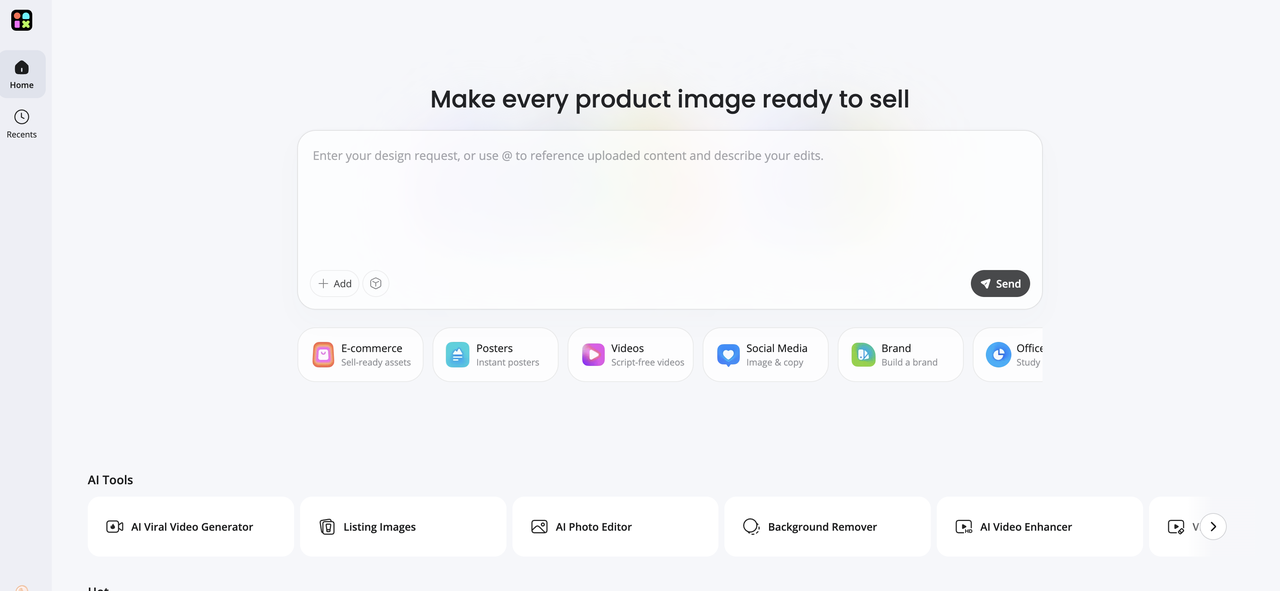
If you want an easier way to create a collage directly on your iPhone, Designkit provides collage templates and customization options in its Designer workflow. You can start with a template, add your photos, customize the layout, and then refine and export the finished collage.
Create stunning iPhone collages faster with Designkit
Creating an iPhone photo collage is easier with Designkit's collage templates. You can start in the Go to Designer panel, choose a collage template, add your photos, and customize the layout. After creating the collage, you can further refine it with Designkit's editing tools and export the finished design.
How to create an iPhone photo collage with Designkit
Creating an iPhone photo collage with Designkit is simple. Choose a collage template, add your favorite photos, and customize the layout to create a polished design. Follow these steps to get started.
Step 1: Choose a collage template
Open Designkit and go to the Go to Designer panel. Browse the available collage templates and select a layout that fits your photos and intended use.
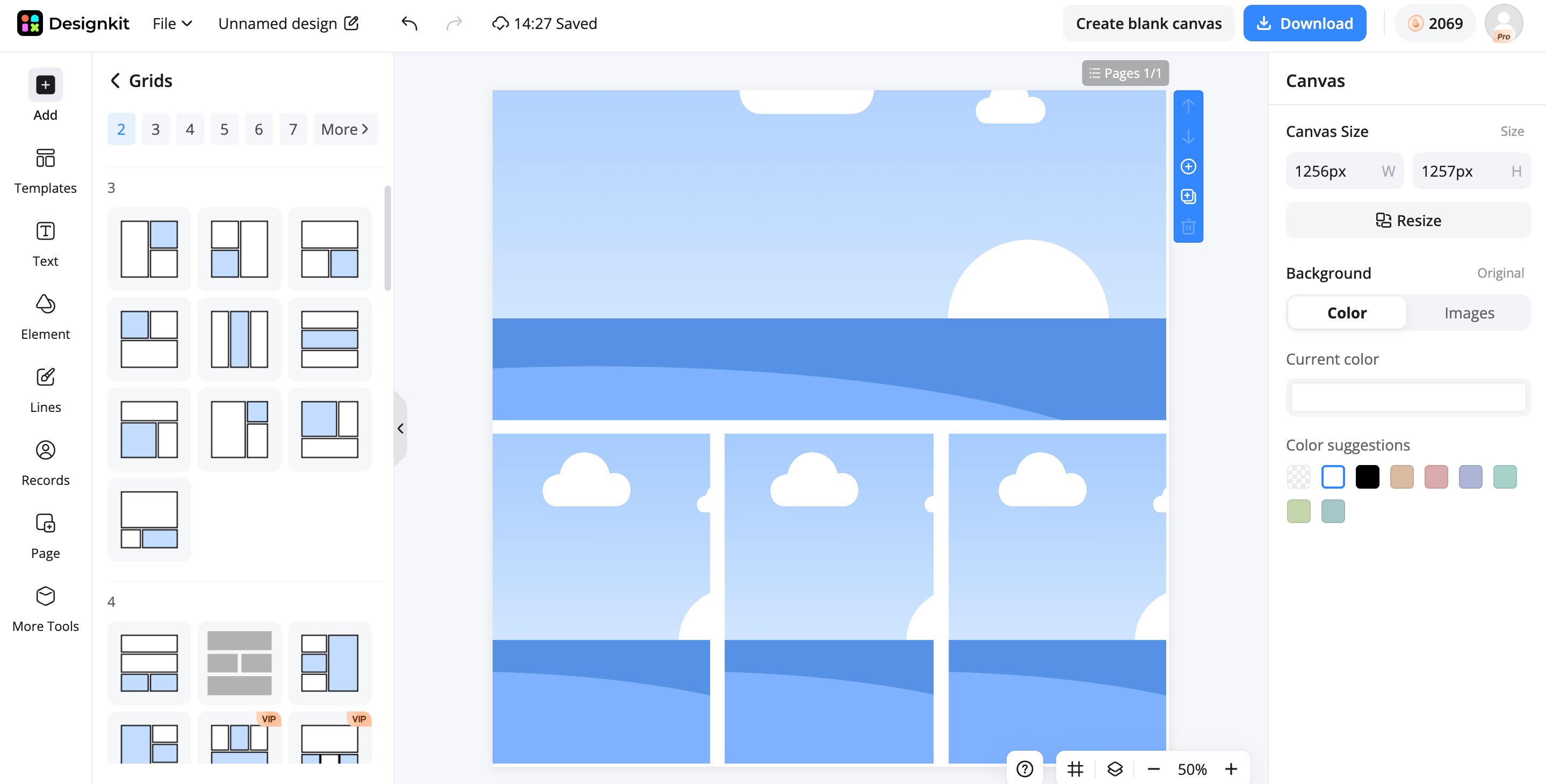
Step 2: Upload photos and customize your collage
Upload the photos you want to include and place them into the selected template. Adjust the layout, positioning, spacing, and other available design elements to create your preferred collage.
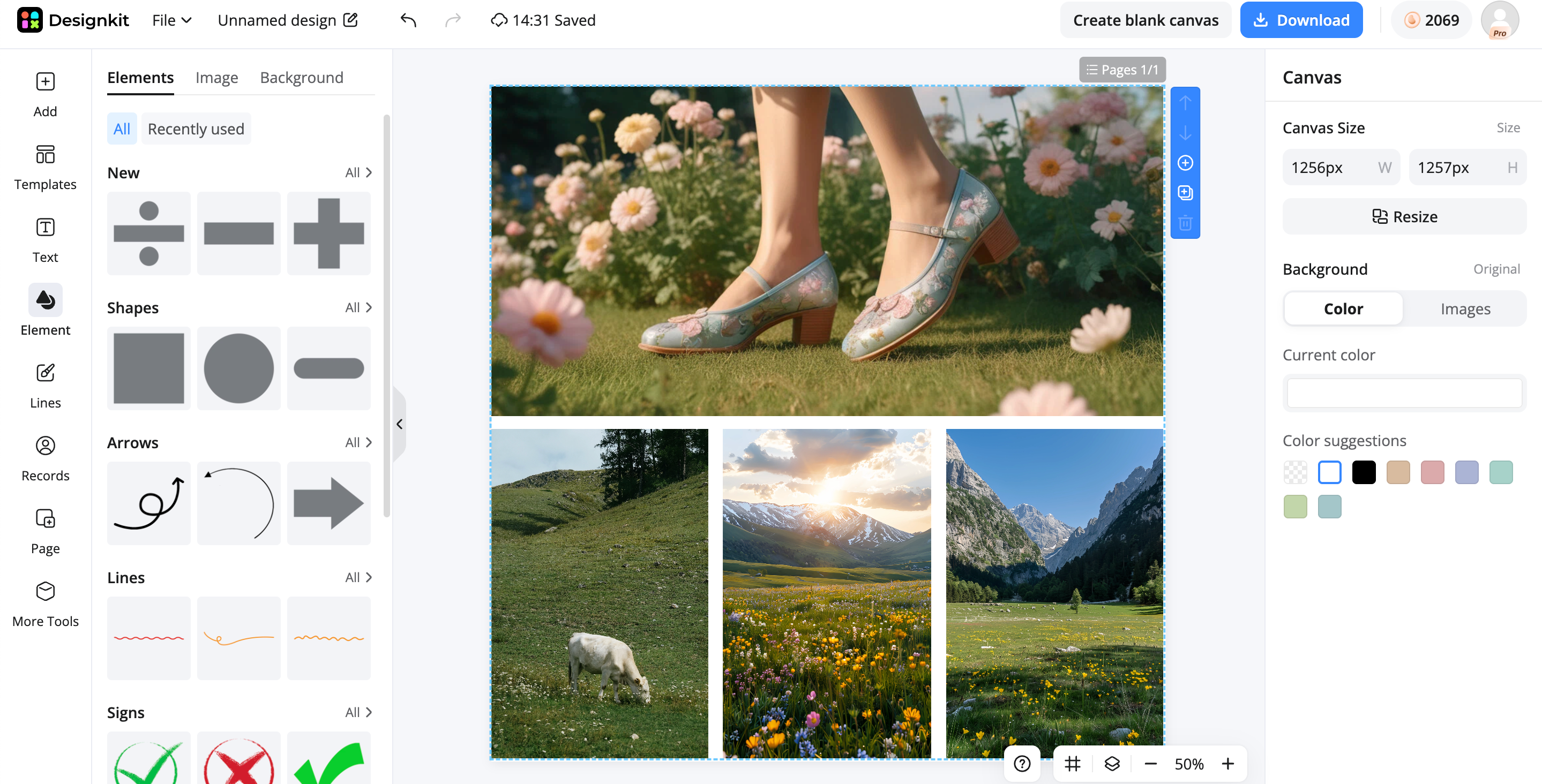
Step 3: Preview, refine, and download
Preview the finished collage and make any final adjustments. You can use Designkit's available editing and enhancement tools to refine the visuals, then download the completed collage for sharing or publishing.
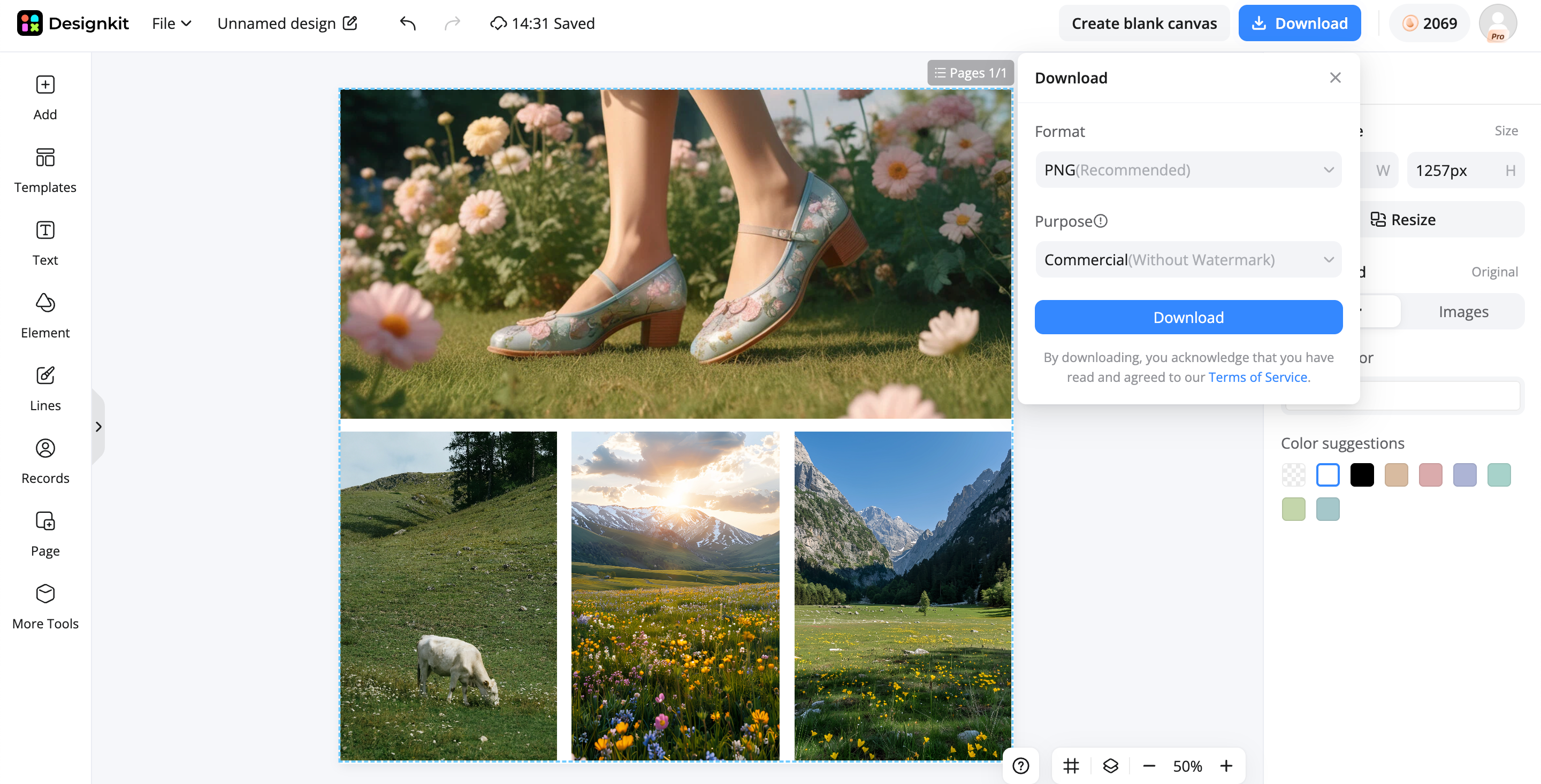
Designkit features for creating iPhone photo collages
-
Collage templates: Choose a ready-made collage template to arrange multiple iPhone photos into a structured layout quickly.
-
Photo customization: Upload your selected photos and customize their placement within the collage template to create a layout that fits your content.
-
Image enhancement: Improve the clarity and sharpness of photos when you want your collage images to look cleaner and more polished.
-
Background generation: Adjust or replace backgrounds when your collage design requires a different visual style or cleaner presentation.
-
Flexible export: Export the finished collage in a suitable format and size for social media, sharing, marketing, or other uses.
Common mistakes when making a collage on iPhone
Photo collages are easy to put together, but there are a few common mistakes that can make your finished design look cluttered or unprofessional. By sidestepping these problems, your collage will be more effective in telling your story and have a greater visual impact.
Using too many photos
Too many photos can make your collage look cluttered and take away from the main story. Select only the best pictures to make a clean, balanced layout that is easy to see.
Mixing different image styles
Using photos with different lighting, colors, or editing styles can make your collage appear inconsistent. Select images with a similar look to create a more cohesive and professional design.
Choosing low-resolution pictures
Low-resolution images can appear blurry or pixelated, especially when printed or shared. Use images of good quality if you want to keep your collage sharp and visually appealing.
Overusing stickers and filters
Too many stickers, filters, or decorative effects can overwhelm your collage and take attention away from the photos. Use these elements sparingly to maintain a clean and polished design.
Ignoring spacing and alignment
Proper spacing and alignment help to organize your collage and make it easier to read. Keep margins between photos consistent, so they have a more balanced and professional look.
Exporting at low quality
Exporting your collage in a low resolution can reduce image clarity and detail. Always choose a high-quality export setting that matches the platform where you plan to share or print your design.
Final thoughts
Creating a photo collage on your iPhone is quick and easy with the right tools. Whether you use Apple's built-in options or a dedicated collage app, you can design attractive layouts for personal memories, social media, or business use. Designkit makes collage creation easier with collage templates that let you add photos, customize your layout, refine your design, and create polished iPhone photo collages ready to share.
Frequently Asked Questions
What is the best free iPhone collage maker?
Can I make a collage with Freeform on iPhone?
Yes. Although Freeform isn't a dedicated collage maker, you can insert multiple images onto a board, resize them, and arrange them manually. It's a flexible option for brainstorming, mood boards, or simple visual layouts. If you prefer a dedicated collage workflow, Designkit provides collage templates that let you arrange photos into a more structured layout.
How do I use Shortcuts to create a photo grid?
Open the Shortcuts app, tap Gallery, search for Photo Grid, add the shortcut, run it, select your photos, and save the generated collage to your Photos library. Alternatively, Designkit lets you create a collage using a template, add your photos, customize the layout, and export the finished design.
Which collage app is best for Instagram?
Canva and Layout from Instagram are excellent choices. Canva offers professionally designed templates and branding tools, while Layout is ideal for creating quick, clean photo grids optimized for Instagram posts and Stories. Designkit can also help you create an Instagram-ready collage using its collage templates and customization workflow.
Can I make a photo collage on iPhone for free?
Yes. You can use Apple's built-in apps such as Shortcuts, Pages, or Keynote at no additional cost. Several third-party collage apps also provide free plans with optional premium features. Designkit provides another option for creating photo collages with templates and customization tools.
How many photos can I include in one collage?
There isn't a fixed limit, but most well-designed collages use between four and twelve photos. Using too many images can make the layout appear crowded and reduce the visual impact of each photo. When using Designkit, the number of photos you can include will depend on the selected collage template and available layout.
What's the best collage app for product photos?
For simple layouts, Canva and PhotoGrid work well. If you're preparing product visuals for e-commerce or marketing collages, Designkit can help you start with a collage template, arrange product photos, customize the layout, and refine the final visuals.
How can I export high-quality collages from my iPhone?
Export your collage using the highest available resolution and choose dimensions that match your intended platform. If you need multiple versions for Instagram, Facebook, Shopify, or Amazon, AI-powered resizing tools can help maintain image quality across different formats. If you're creating the collage with Designkit, you can customize the layout first and then export the completed collage for your intended use.
You May Also Like

Remove.bg Shutting Down Dec 1, 2026: What Users Are Saying

7 Best Remove.bg Alternatives in 2026: Free & Paid Tools
Instagram Carousel: What It Is, How to Post & Create One
Nano Banana Prompts: 20+ Examples for Better AI Images

Ideogram AI Review 2026: Features, Pricing & Alternatives
Free Mac Photo Editor: 5 Tools Compared for Mac Users
How to Crop a Photo Into a Circle Online (Keep Quality)
How to Make an Image Transparent Online (AI Guide)

Pixlr Background Remover Review 2026: Features, Pricing & Alternatives

How to Fix Overexposed Photos: Recover Highlights Fast

OpenArt AI Review 2026: Features, Pricing & Alternatives

Best AI Headshot Generator: 9 Tools Compared for 2026
Best Stencil Maker Tools 2026: Turn Photos Into Stencils
Pixelbin Watermark Remover Review: Image & Video Results Tested
How to Make a Sticker on iPhone: Easy Step by Step Guide

Best AI Logo Generator in 2026: 10 Tools Compared
How to Turn a Photo Into a Cartoon: A Beginner-Friendly Guide
Landscape vs Portrait: Key Differences & Best Uses in 2026

How to Remove Watermark From Photo: AI, Photoshop & More
How to Fix Pixelated Photos: Photoshop, AI Tools & Tips

Bing Image Creator: How It Works, Features, Uses & Alternatives
How to Remove People from Photos with AI: A Step-by-Step Guide

How to Increase Image Resolution: AI, Photoshop & PPI

How to Add Text to a Photo: 8 Tips for Better Results
How to Fix Grainy Photos: Easy Ways to Clear Images

Creative Profile Picture Ideas for Every Style and Platform

Evoto AI Review 2026: Features, Pricing, Pros & Cons

Pixlr Photo Editor Review: Features, Pricing & Alternatives
Best AI Image Extender Tools in 2026: Expand Photos with AI

How to Make a Collage on iPhone: Easy Guide for 2026
How to Sharpen an Image in Photoshop (Smart Sharpen and Unsharp Mask)
Best Image Background Remover Tools in 2026: AI Tools Compared
How to Make Transparent Background in Paint: Step-by-Step Guide
How to Resize an Image: Best Methods, Tools & Quality Tips

Best AI Image Generator Tools in 2026: Top AI Platforms Compared

Remove.bg Review 2026: Features, Pricing & Is It Worth It?

Luminar Neo Photo Editor Review 2026: AI Features, Price & Pros

How to Post Multiple Photos on Instagram (2026 Guide)
25 Facebook Cover Photo Ideas for Personal & Business Pages

What Is a PFP? Meaning, Examples & How to Create One
Can You Edit an Instagram Post After Posting?

11 Best Canva Alternatives in 2026 for AI Design & Marketing

8 Best Midjourney Alternatives in 2026: Features, Pricing & Comparison
How to Restore Old Photos: AI Tools, Tips & Best Methods

Pixelcut AI Review 2026: Features, Pricing, Pros, Cons & Alternatives
How to Apply Watermark to Photos: Methods, Tips & AI Tools
How to Remove a Background in Illustrator: 4 Easy Methods
How to Change Background Color on Instagram Story (Easy Guide)

8 Best AI Poster Generators in 2026: Create Posters Faster with AI
10 Best AI Image Enhancers in 2026: Tested & Compared
10 Best AI Image Editors in 2026: Features, Pricing & Comparison

7 Best AI Background Changer in 2026: Remove & Replace Photo Backgrounds
Luminar Neo vs Lightroom: Features, Pricing & Comparison 2026

Kittl Review 2026: Is It Worth It? Features & Pricing

How to Make a Blurry Image Clear: 5 AI & Manual Ways
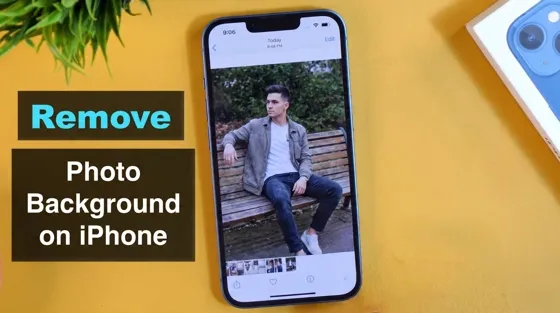
How to Remove Background on iPhone: 5 Easy Methods (2026)
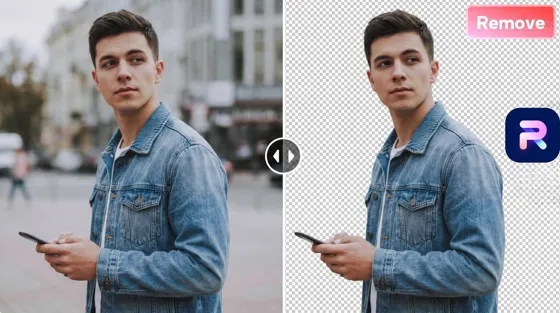
Photoroom Background Remover Review 2026: Features & Alternatives
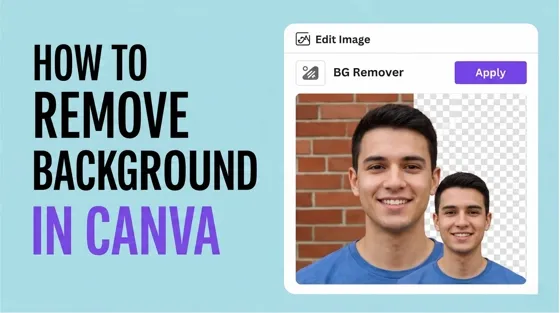
How to Remove Background in Canva: A Step-by-Step Guide
How to Remove Background in GIMP: Beginner-Friendly Guide

Funny Dog Memes to Try: Doge Meaning and 10 Original Ideas
Back to School Checklist 2026: Supplies, Timeline, and Planning

Recraft AI Review 2026: Features, Pricing, Pros, Cons & Alternatives

How to Make an Image Transparent in Google Slides: Opacity & Background Removal

VanceAI Photo Enhancer Review: Features, Pricing & Alternatives in 2026
What Does Emojify Mean? Text, Photos, & Emoji Art Explained
Top 8 Online Background Removers for Ecommerce Photos (2026)
How to Remove Background in Photoshop: 7 Easy Methods

6 Best AI Image Upscalers 2026: Tools Tested & Compared

Project Indigo Review: Is It Better Than iPhone Camera?
How Big Is an 8x10 Photo? Size, Pixels & Frame Guide

How Big Is a 4x6 Photo? Dimensions, Pixels & Printing Tips
Picsart AI Review: Features, Pricing, Pros, Cons & Alternatives

Lovart AI Review: AI Design Agent Features, Pricing & Alternatives

Fotor AI Image Generator Review: Features, Pricing & Alternatives

How to Add Emoji to Photo Online for Free

Emoji Wallpaper Ideas & How to Make One Online (2026)
Minimalist Poster Design: How to Make a Clean Poster (2026)

How to Make a Custom Poster That Is Ready to Print
Instagram Image Size Guide 2026: Post, Reel, Story & Carousel Specs
LinkedIn Image Size Guide: Profile, Post & Banner Dimensions

YouTube Profile Image Size: Best Dimensions & Safe Area 2026

How to Edit Amazon Product Photos That Boost Sales Fast
Create Beautiful Photo Collages Today
Create an iPhone photo collage with Designkit's collage templates. Add your photos, customize the layout, refine your design, and create a polished collage ready to share.
