
How to Change Background Color on Instagram Story: Complete Guide
Change Instagram story background color with solid fills, custom images, and gradients, plus tips for readability and brand-ready story layouts.


Instagram Stories are all about quick sharing, but the default background is not always a good match for your content, brand, or creative style. Whether you're posting a photo, sharing someone else's post, creating a text-only story, or promoting a product, changing the background color can improve readability and help your content stand out. Instagram provides several built-in options for customizing story backgrounds, including solid colors, gradients, and custom images.
In this guide, you'll learn how to change background color on Instagram stories using different methods, discover common design mistakes to avoid, and see how Designkit can help you create polished, brand-ready story visuals more efficiently.
Why your Instagram Story background color matters
The background sets the foundation for every Instagram story. While it may seem like a small design choice, the right background color helps direct attention, improves readability, and creates a more professional appearance. Whether you're posting for personal use or promoting a business, choosing the right Instagram story background colors can make your content easier to understand and more visually engaging.
Improve text readability
Many stories use text to make announcements, promotions or calls to action. Too busy, too light, or too dark a background can make your message hard to read quickly. High-contrast colors help captions, stickers and interactive elements stand out so viewers can easily understand your story.
Make photos and products stand out
Use your background to support your main content, not compete with it. A clean, well-selected IG story background color can draw attention to a product, highlight a featured image, or create a more balanced layout for lifestyle content. You can also use solid colors or subtle gradients to minimize distractions and keep the focus on what matters most.

Keep your brand style consistent
If you post regularly for a business or creator account, consistent branding will make your stories instantly recognizable. Consistency in the color palette you use for promotions, product launches, and day-to-day updates creates a cohesive visual identity and helps foster familiarity with your audience. Even something as simple as using your own brand colors as opposed to the default backgrounds of Instagram can make your stories look more polished and professional.
How to change background color on Instagram story step by step
Instagram has a few options for changing your story background depending on what you're posting. With Create Mode, you can make stories with text only; the Draw tool allows you to make your own color fills, and you can upload your own background image for more creativity. Here are the most common methods below, so it's easy to change the background of your IG story while keeping your content clear and visually appealing.
Method 1: Change background color for a text-only story (Create Mode)
If you're creating a story without a photo or video, Create Mode is the quickest way to add a colorful background to your Instagram story. It's ideal for quotes, announcements, polls, questions, or any text-first content.
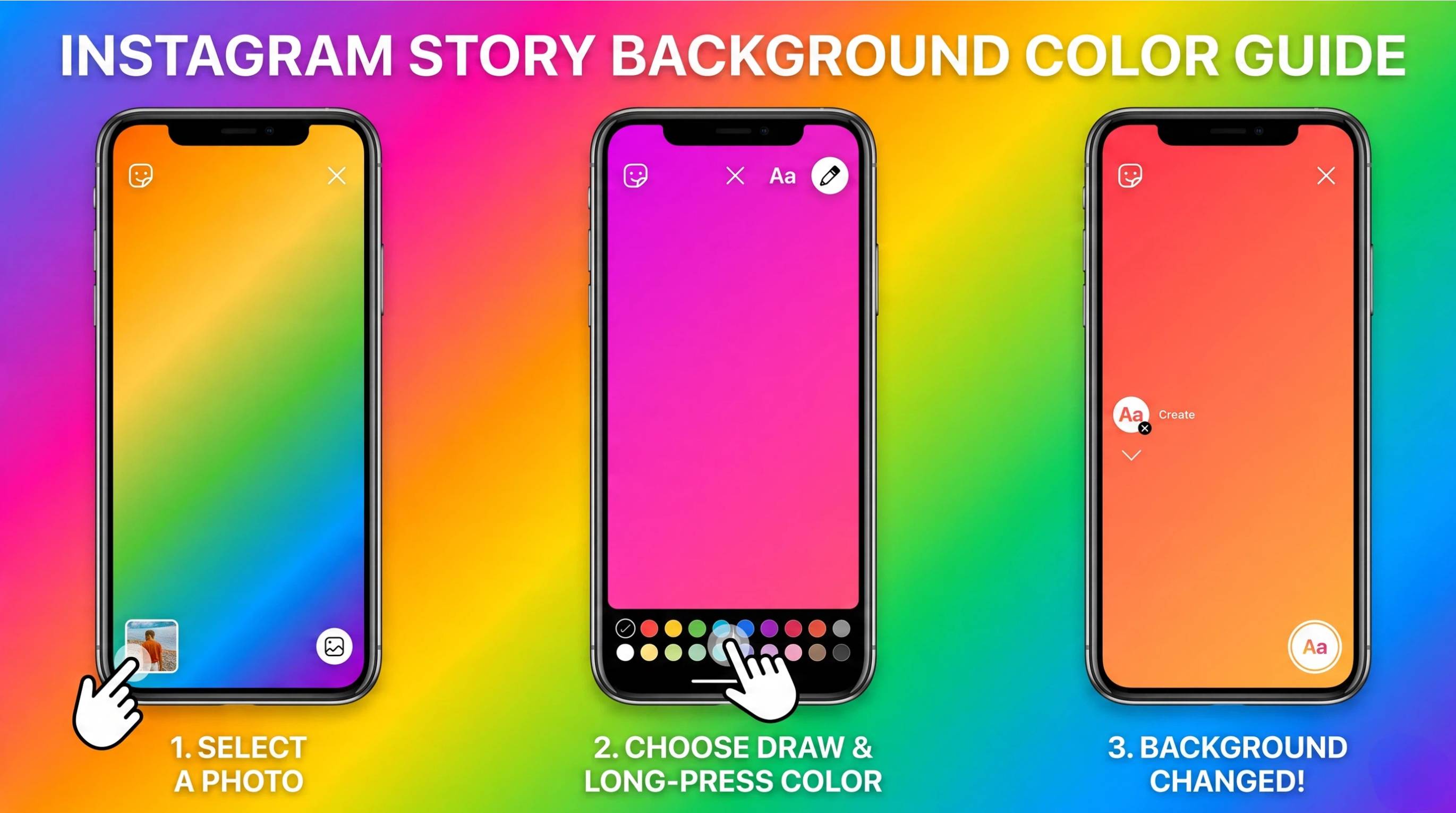
Directions: To change your Instagram Story background, open Instagram and swipe right to create a new Story. Tap Create (Aa), then use color control to switch between the available solid colors and gradient backgrounds. Once you've chosen a background, add your text, stickers, or GIFs, and share your story when you're ready.
Method 2: Fill a Solid Background with the Draw tool
The Draw tool lets you apply any color to an existing story, giving you more flexibility than the default presets. This method works well when you want a solid color background Instagram story behind a photo, video, or blank canvas.
Direction: Add a photo, video, or start with a blank Story. Tap the Draw tool, select the Pen, and choose a color. You can long-press a color swatch to access more shades or use the Eyedropper to sample a color. Press and hold anywhere on the screen to fill the background, then tap Done. Add your text or stickers if needed. For a semi-transparent overlay, use the Highlighter instead of the Pen.
Method 3: Change the background without covering your photo
So you can change the background and still have your photo. There are a couple of easy ways to keep your subject in view while adding a new background color on Instagram.
Direction:
-
Option A: Create or fill your story with a colored background. Tap the Photo Sticker to add your image, then resize and position it as needed.
-
Option B: Add your photo to the Story, then use the Draw tool to fill the background with a color. Select the Eraser tool and erase the areas where you want the original photo to show through.
Method 4: Change background color when sharing someone else's post
When you share someone else's post or Reel to your story, Instagram automatically applies a background that may not match your preferred style. You can easily customize it without affecting the shared content.
Directions: Share the post or Reel to your Story, then use the Draw tool to add a color fill or place the shared post on a background created in Create Mode. Adjust the layout, so the original post remains easy to read before sharing your story.
Method 5: Use a custom image or gradient file as the background
If Instagram's built-in colors don't match your brand, uploading a custom background gives you complete creative control. This option works well for promotions, product launches, and branded campaigns.
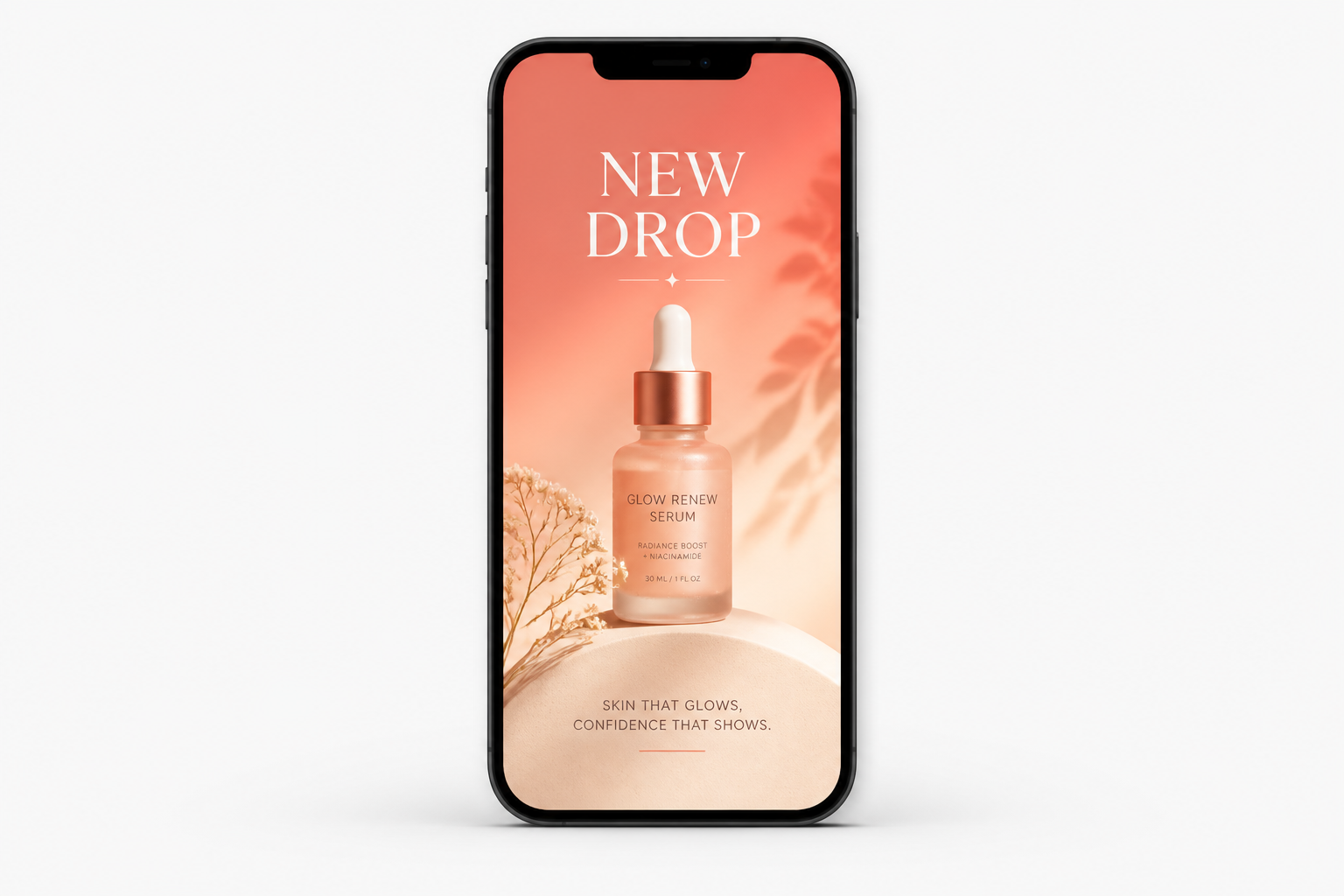
Direction: Upload a solid color, gradient, o r branded 1080 × 1920 px (9:16) image as your Story background. Then add your product photo, text, stickers, or other design elements on top. Adjust the layout until everything looks balanced, then publish your Story.
How to create better Instagram Story background designs
Choosing the right background does more than improve appearance. It helps viewers focus on your content, makes text easier to read, and creates a more consistent look across your stories.
Tips for Better Instagram Story Background Designs
A few simple design choices can make your stories look more polished without adding extra editing time.
|
Story type |
Recommended background |
|---|---|
|
Product promotions |
Brand colors with a clean layout |
|
Quotes |
Soft gradients |
|
Polls and questions |
High-contrast solid colors |
|
Shared posts |
Semi-transparent overlays |
|
Sales |
Bold colors with clear text |
|
Lifestyle content |
Custom images or subtle backgrounds |
Use brand colors for business stories
Using the same Instagram story background colors across your content helps build a recognizable brand. Stick to a small color palette that matches your logo or campaign, and reuse it for promotions, announcements, and product updates.
Keep visual balance between background and content
Your background should be complementary to the main content, not a distraction away from it. Choose colors with sufficient contrast for text and avoid overly busy designs. Whether you choose solid colors or custom backgrounds for Instagram Stories, a clean layout will make your Stories easier to read and more engaging.
Create branded Instagram Story designs faster with Designkit
Instagram's tools are good for quick edits, but don't give you a lot of control over layout and branding. If you're creating Stories for products, promotions or social media campaigns regularly, Designkit helps you generate consistent story designs with AI and reduce manual editing.

Step 1: Upload your content
Upload your standard product images or creator photos into the Designkit workspace. No studio shots or complex design files are required.

Step 2: Generate your design
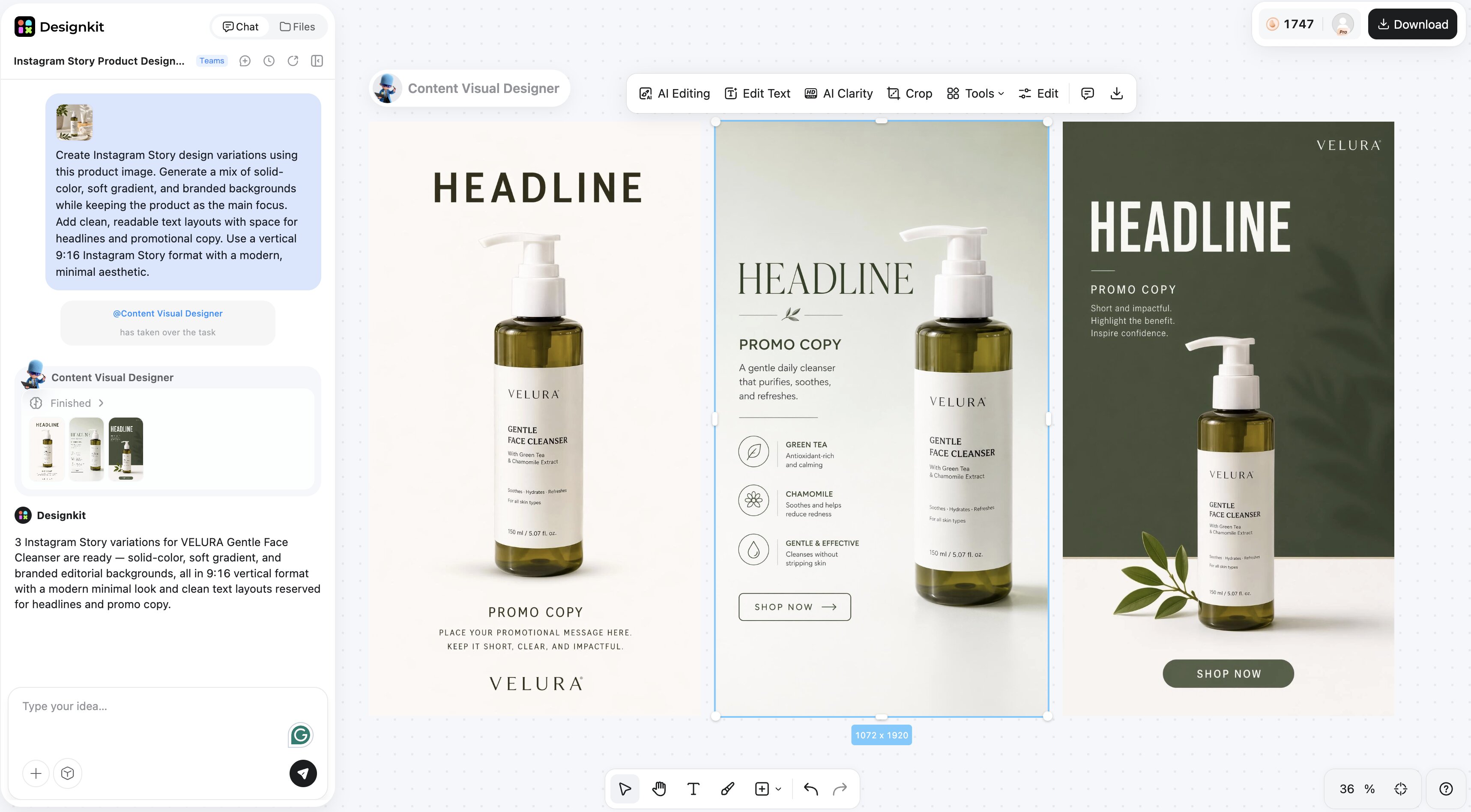
Choose your ad format and add your key selling points. Let Designkit's AI generate multiple visual variations and video layouts tailored for your specific campaign.
Step 3: Edit and export
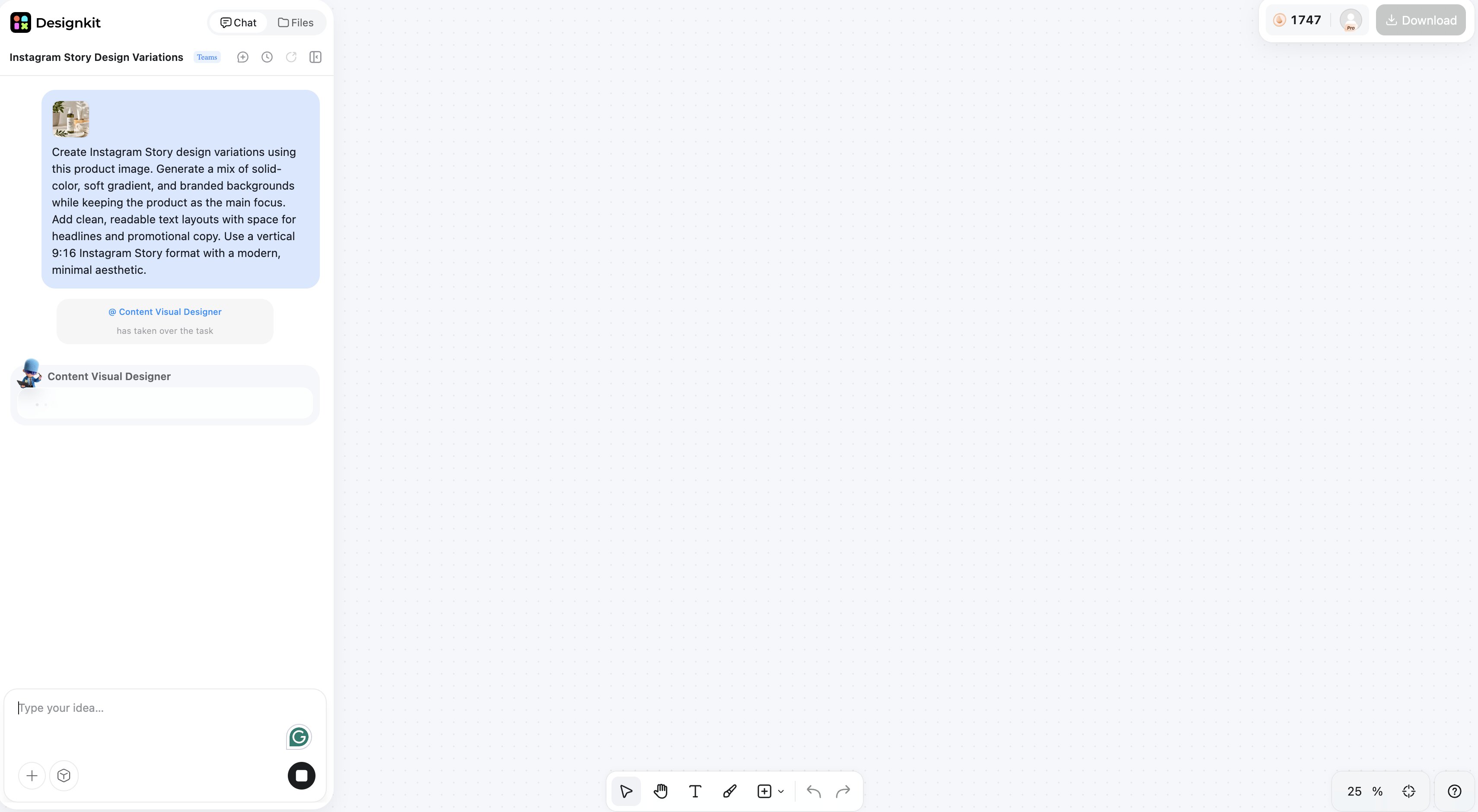
Preview your creatives, make quick adjustments and export high-quality files, perfectly sized for Meta, TikTok, Google or your ecommerce site.
Features that help create better Instagram Stories
-
AI Background Generation: Create custom Story backgrounds with Designkit's AI Background Generator that matches your content, campaign, or brand style.
-
Background Removal and Replacement: Remove distracting backgrounds with Designkit's Background Removerbefore adding a new Story background.
-
Multiple Layout Variations: Generate different story layouts to find the one that best fits your content.
-
Brand Style Consistency: Keep colors, fonts, and visual styles consistent across your Stories.
-
Instagram-Ready Export: Export designs in the correct dimensions for Instagram Stories without extra resizing.
Things to consider when changing Instagram Story backgrounds
It's simple to change your Instagram story background, but a few easy errors can make your content less effective. Avoid these common problems to make your stories clean, readable and visually appealing.
-
Using low-contrast colors: If your text blends into the background, viewers may struggle to read your message. Choose colors that provide enough contrast.
-
Adding too many design elements: Filling your story with stickers, GIFs, and effects can distract you from the main content. Keep the layout simple and focused.
-
Ignoring brand consistency: Using different colors and styles for every story can make your content look inconsistent. Stick to a recognizable color palette whenever possible.
-
Using low-quality background images: Blurry or stretched backgrounds can reduce the overall quality of your story. Always use high-resolution images that fit Instagram's story dimensions.
-
Covering important content: When changing the background, make sure your photo, text, or product remains the focal point by adjusting the layout or using transparency where needed.
Final thoughts
Learning how to change background color on Instagram Story allows you to make your content more engaging, more readable, and more visually consistent. Instagram's own tools make it easy for you to personalize your story with solid colors, gradients, or custom images, whether you're posting personal updates, promoting products, or reposting content. By using basic design principles, such as colors with high contrast and consistent visual style, your stories will pop and create a greater impact.
Designkit offers AI-powered tools to generate customized backgrounds, layouts, and story-ready designs. You can also use its Change Background Colortool to quickly create branded visuals for Instagram Stories and other social media content.
Frequently Asked Questions
How do I change the background color on an Instagram story?
Can I use a custom image as my Instagram story background?
Yes. Upload your image for the background of the story and add text, stickers or anything else on top of it. Designkit can also create custom backgrounds to match your brand or campaign, saving you time when creating multiple stories.
How do I create a solid color background on Instagram story?
Use Create Mode for text-only Stories, or use the Draw tool to fill the screen with any color. You can also create branded solid-color backgrounds in Designkit and reuse them across different stories.
How do I change the background without covering my photo?
You can create a colored background and then add your photo as a sticker. You can also use the Eraser tool to reveal parts of the original image. This way you keep the main subject in sight but give your story a new perspective.
Why can't I change the background color on Instagram story?
Some story types can only be edited in some ways, and older versions of Instagram may not have the newest features. If they are not available, then updating the app usually solves the problem.
Can I edit the background after posting my story?
No. Once a story is published, its background can't be edited. If you need changes, you'll have to create and upload a new story.
What background colors work best for business stories?
Colors that are consistent with your brand and that offer good contrast to text generally work best. If you produce business or ecommerce content with Designkit, you can create story backgrounds that are consistent and fit your brand identity.
Can I change the background when sharing someone else's post?
Yes. After you post your story, you can change its appearance with the Draw tool, or layer it over a custom background, while still seeing the original post.
How can Designkit help create Instagram stories?
Designkit helps you create Instagram story designs with AI-generated backgrounds, editable layouts, and brand-consistent templates. This makes it easier to produce polished story content for promotions, product launches, and everyday social media posts.
You May Also Like

PixVerse AI Review 2026: Is It Worth Using for AI Videos?

How to Animate a Picture with AI: Easy Step-by-Step Guide

How to Write a Video Script: Structure, Tips & Examples

What Is B-Roll? Meaning, Examples, and How to Use It

How to Make a TikTok Video: A Step-by-Step Guide 2026

How to Make an Instagram Post: Step by Step Creation Guide

Social Media Copywriting: Tips, Examples & Best Practices

What Are AI Fruits? The Trend, the Formats, and How to Make One

LTX Studio Review: Features, Pricing & AI Filmmaking Guide

HeyGen vs Arcads: Which AI Video Tool Wins in 2026?

Arcads AI Review 2026: Features, Pricing, Pros, Cons & Alternatives

Creatify AI Reviews: Features, Pricing & Alternatives (2026)
What Are Satisfying Videos? Types, Tips & How to Make (2026)

How to Generate Product Videos from Images with AI (2026 Guide)

How to Create a Product Launch Video with AI: A Step-by-Step Guide

What Is a Brand Video? Types, Examples & How to Create One

AI Product Demo vs Live Demo: Which Gets More SaaS Sign-Ups?

How to Create AI Product Promotion Videos in Minutes (Step-by-Step)

Best AI Product Video Ad Generators for Ecommerce in 2026

How to Boost Ecommerce Sales: Proven Strategies That Work

How to Add Video to eBay Listing: Step-by-Step Seller Guide
Short Form Video Marketing for E-commerce: AI Video Guide

What Is Video Marketing? E-commerce Guide & Strategies 2026
Create Better Instagram Stories with Designkit
Build branded Story backgrounds and product layouts when you need more than a one-tap color fill, then upload to Instagram.
