
Pixelcut AI Review: Is This AI Photo Editor Worth Using in 2026?
Pixelcut AI helps creators and ecommerce sellers edit photos, remove backgrounds, generate scenes, and enhance product images. Explore its features, pricing, limits, and alternatives in this review.


You don't need a studio, a lightbox, or years of Photoshop practice to get a product photo that looks good enough to sell. That's basically the pitch behind Pixelcut AI, an editor built around cutting out backgrounds, stretching a photo to fit a new aspect ratio, filling in gaps, and sharpening up images that were never shot for a listing in the first place. If you sell on Amazon, Etsy, or Shopify, or you run a small brand page on Instagram, chances are you've stumbled across it while hunting for a faster way to clean up a batch of product shots.
This Pixelcut AI review breaks down what the tool actually does well, where it falls short, what it costs, and how it stacks up against a few alternatives. By the time you finish reading, you'll have a clearer sense of whether it fits your everyday listing edits, or whether you need something built for bigger campaigns.
What Is Pixelcut AI?
Pixelcut AI runs in the browser and as a mobile app, and it's aimed squarely at product and social content edits. The focus is on fixing what you already have rather than generating something brand new. Yes, there's an AI image generation feature tucked in there, but if you talk to actual sellers using it, editing is what they open the app for most days.
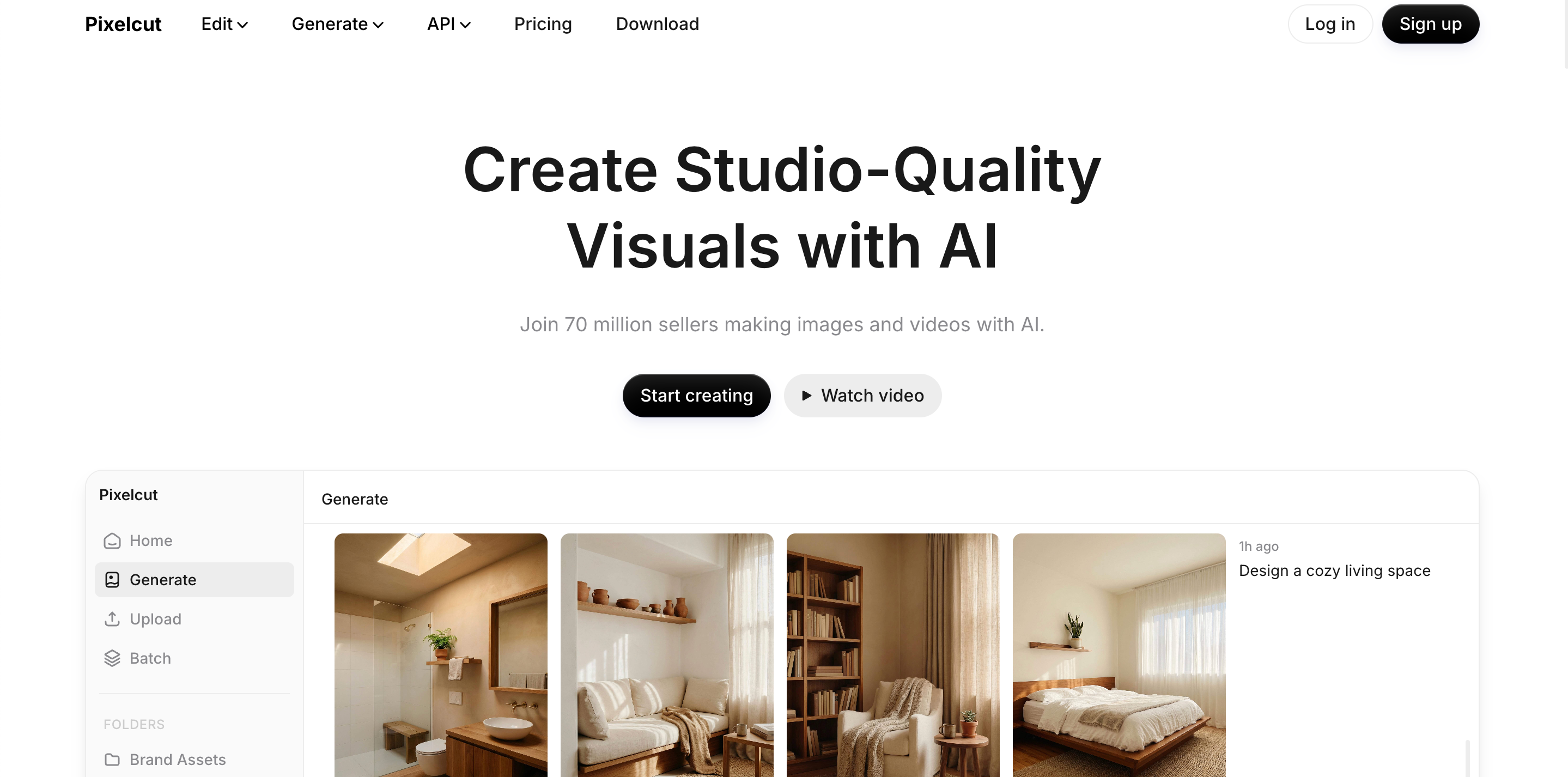
Pixelcut AI Overview
Because it works on both desktop and mobile, sellers who shoot photos on their phone can fix them up right there without switching devices. Small ecommerce sellers, dropshippers, and content creators make up most of the user base, and the appeal comes down to speed. Nobody using this tool is trying to build a full production pipeline; they just want the photo to look decent before it goes live.
Who Uses Pixelcut AI?
Honestly, it's a grab bag of people who all want roughly the same thing: results without the wait. Ecommerce sellers preparing listing photos, creators editing on their phone between posts, small businesses without a design budget, marketplace sellers managing several SKUs at once, and marketing teams that need something quick without opening a heavier tool. Speed is the common thread across all of them.
Pixelcut AI Review: Key Features
Instead of just listing every button in the menu, here's what actually happened when these tools were tested on real product photos. And a fair warning up front: results shift a lot depending on how messy or clean the original photo is.
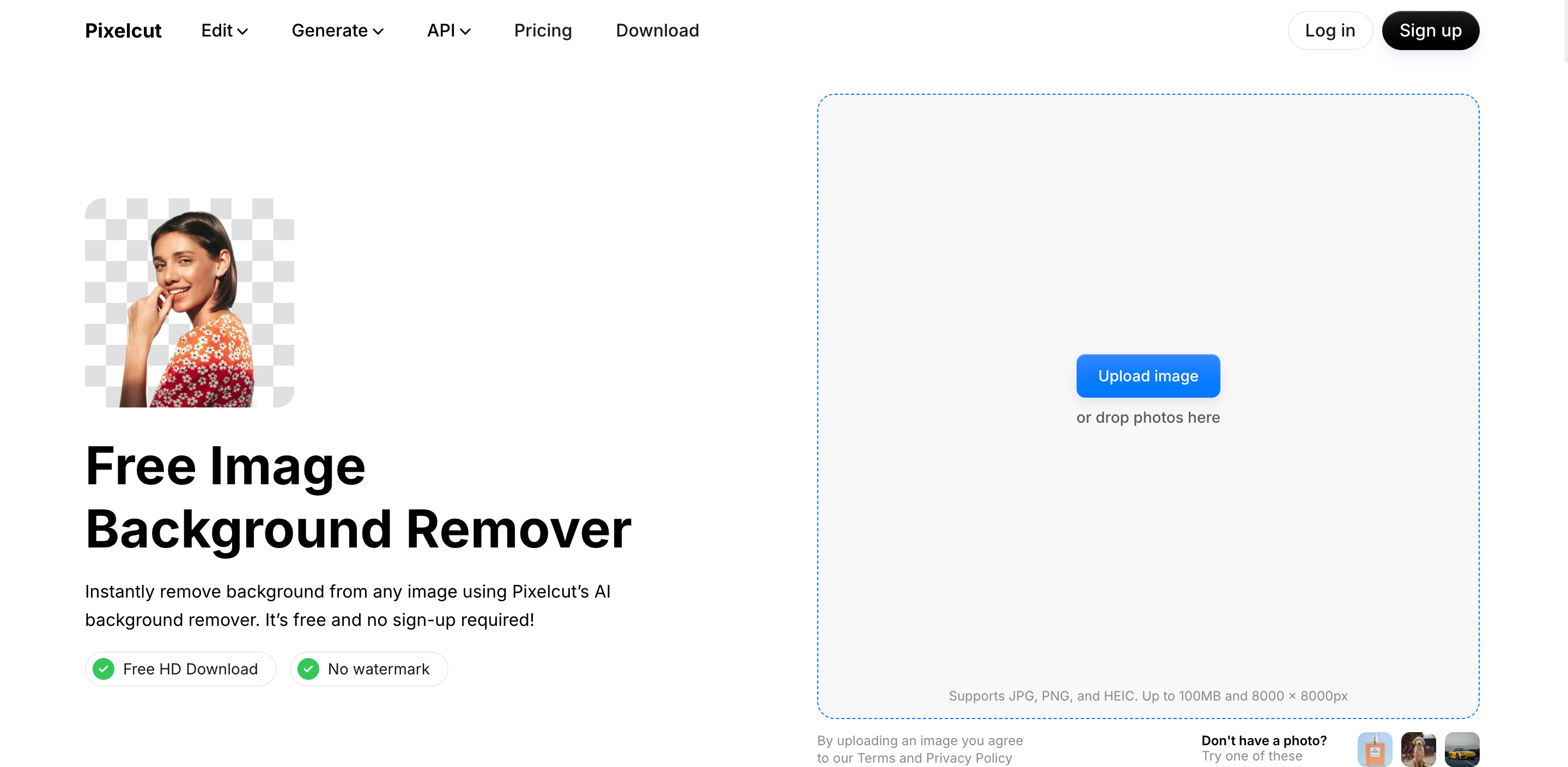
Pixelcut AI Background Remover
Use Cases:
-
Cutting products out for clean marketplace photos
-
Making transparent PNGs you can drop onto any web page
-
Getting assets ready for a multi-channel campaign push
Strengths:
This tool delivers exceptionally fast cutouts. It functions beautifully as a simple background remover for standard product images like shoes, bottles, and electronics. The interface is completely beginner-friendly, requiring zero manual masking for basic shapes.
Limitations:
Hair and fur edges are where it starts to slip. Anything with fine detail, jewelry chains, mesh, semi-transparent material, tends to come back a little rough around the border, and you'll probably want to zoom in and smooth that out by hand before it's listing-ready.
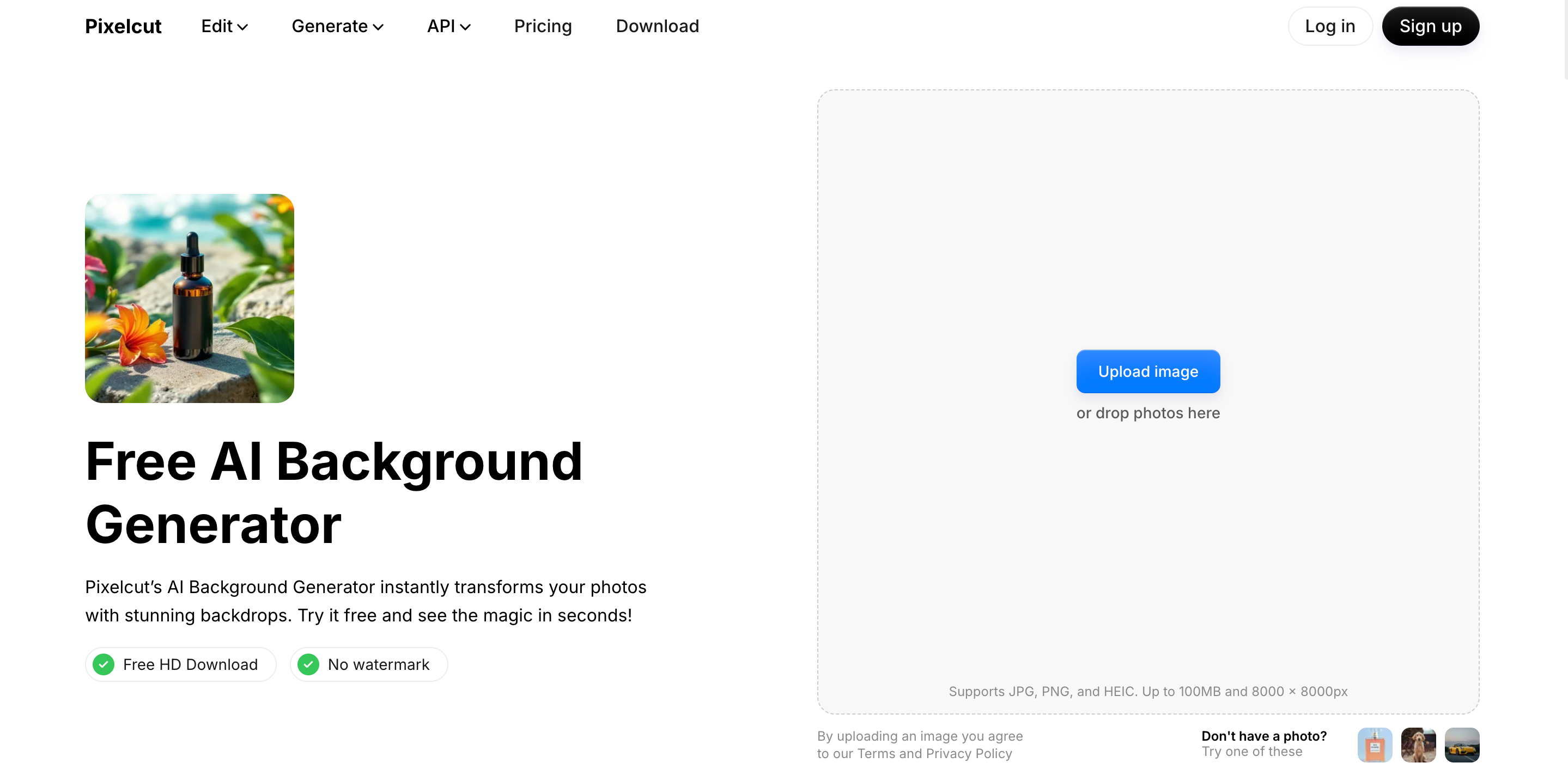
Pixelcut AI Background Generator
Use Cases:
-
Building lifestyle scenes for social posts
-
Putting together ecommerce banners for a seasonal sale
-
Producing quick promo images for an email campaign
Strengths:
Drop a cutout product in, and the generator is good at placing it into a simple, well-lit scene, basically a stand-in for a studio backdrop when you don't have time to shoot one. The Pixelcut AI blur background option adds a bit of depth too, which helps the product pop instead of sitting flat against the background.
Limitations:
Ask for something more elaborate, a busy lifestyle setting with several props and specific lighting, and the results start to wobble. Lighting can end up mismatched, proportions can look slightly off, and it's not really built for editorial-level polish.
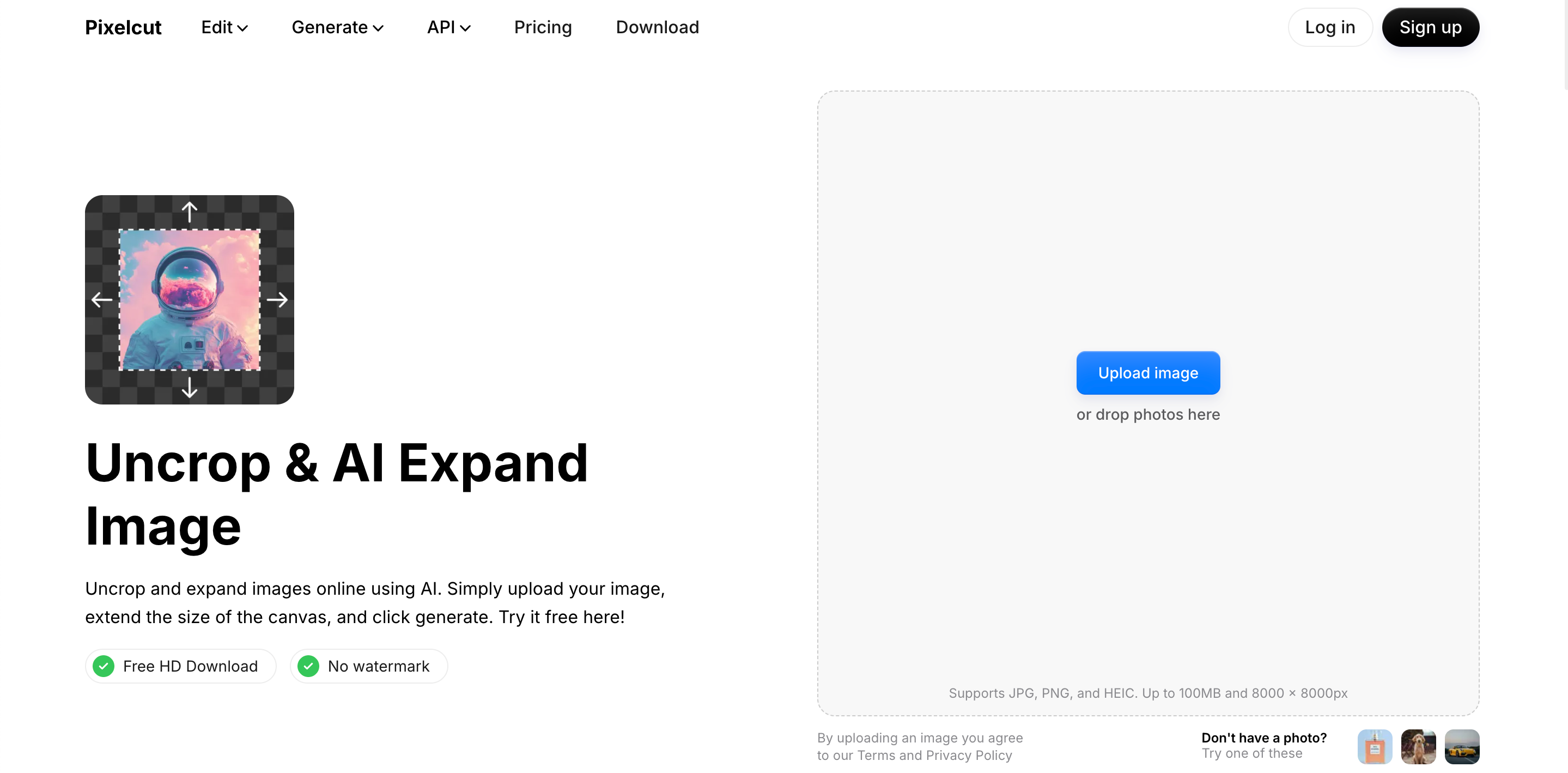
Pixelcut AI Expand & Uncrop
|
Feature |
Purpose |
|---|---|
|
AI Expand |
Extends the canvas or changes the aspect ratio of an image |
|
AI Uncrop |
Reconstructs the composition around a subject that's been cropped too tight |
Use Cases:
-
Resizing the same photo for different social platforms
-
Meeting a marketplace's specific padding requirements
-
Turning one photo into several aspect ratios without reshooting
Strengths:
These two come in handy anytime a square Instagram post needs to become a vertical TikTok frame. They're decent at filling in plain background patterns on their own, which saves you from having to reshoot something that got cropped too close.
Limitations:
Push it on a busy or cluttered scene and you'll start to see artifacts creep in near the edges. Backgrounds with fine texture or any text in them are especially tricky, since the AI has to guess at detail it can't actually see.
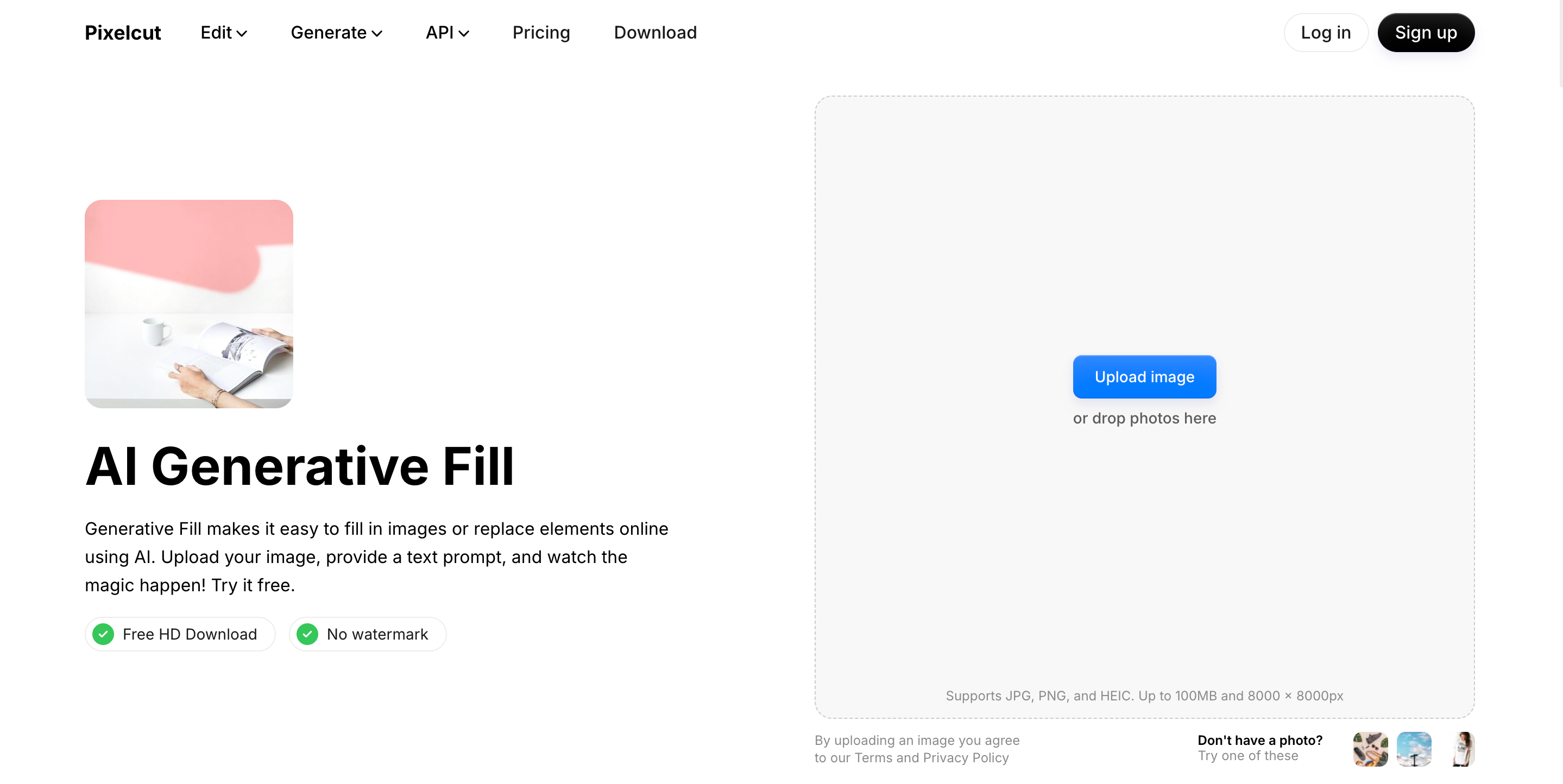
Pixelcut AI Generative Fill
Use Cases:
-
Clearing out something cluttering the shot
-
Swapping an awkward background element for something cleaner
-
Stretching a scene out past its original edges
Strengths:
Unlike a full Pixelcut AI image generator built for conceptual art, the Pixelcut AI generative fill tool focuses purely on practical, quick edits. If you need to erase a stray price tag, clean up dust, or hide a reflection, this feature keeps your workflow moving without requiring advanced design software.
Limitations:
The tool falls short when dealing with complex textures or generating realistic shadows. The filled areas can sometimes appear noticeably softer than the rest of your original high resolution image.
Pixelcut AI Image Upscaler & Photo Enhancer
Use Cases:
-
Reviving old product photos for a modernized storefront.
-
Fixing low-resolution assets provided by suppliers.
Strengths:
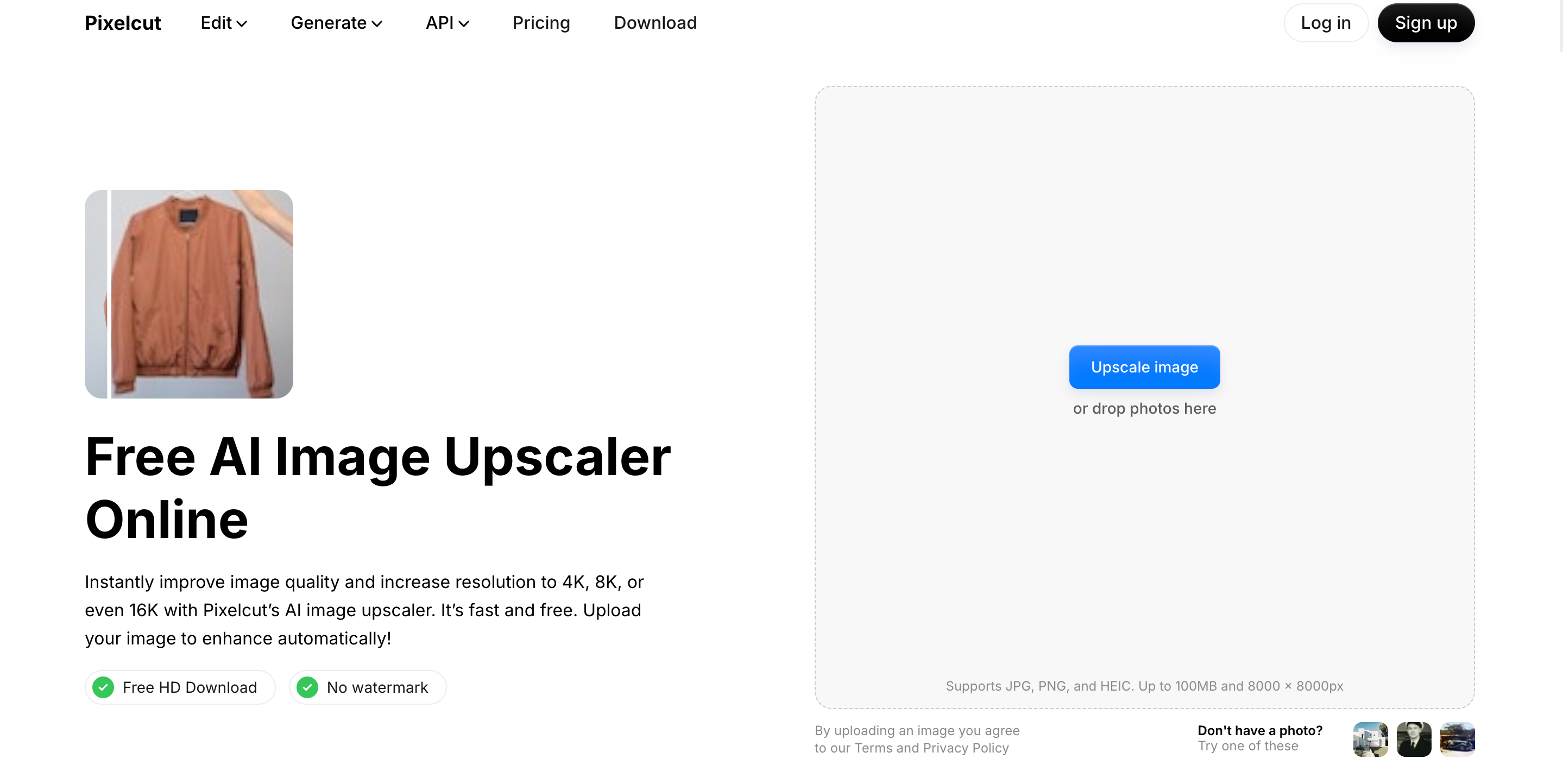
Low quality photos directly hurt conversion rates. The Pixelcut AI image upscaler is highly effective when you need to enlarge images for desktop viewing. Using the Pixelcut photo enhancer features will noticeably improve sharpness and enhance fine details on flat textures.
Limitations:
A Pixelcut AI photo enhancer cannot invent missing data from scratch. If your original image is severely blurred or pixelated, the AI will struggle to reconstruct accurate branding or intricate product labels.
How Pixelcut AI Works for Ecommerce Product Images
The typical workflow isn't complicated. You start by uploading the photo from your camera roll or desktop. From there you either strip the background or run the enhancer, depending on what the photo needs. Next comes the scene, either a clean studio look or a lifestyle backdrop, whichever matches the platform you're listing on. Last, you export at whatever size that marketplace or social channel requires.
For a handful of photos, this whole process takes a few minutes. The catch shows up once you're managing dozens of SKUs across several channels, because at that point you're repeating these same four steps over and over, one image at a time.
Pixelcut AI Pricing Review
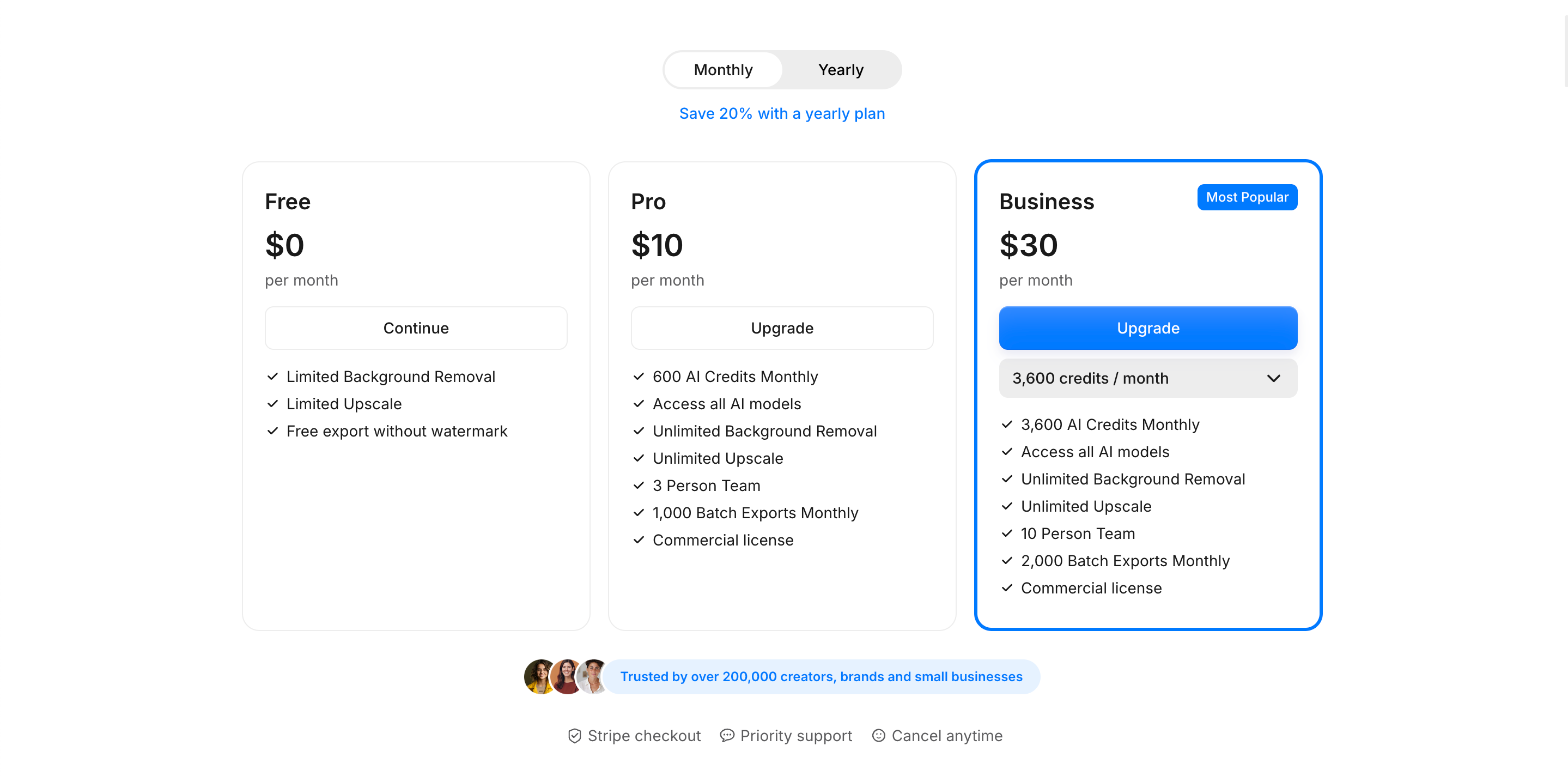
Pixelcut currently runs a three-tier pricing structure, billed monthly or yearly (yearly billing saves around 20%.
-
Free, $0/month. Includes limited background removal and limited upscaling, with free export and no watermark. It's enough to test the tools, but the daily limits make it impractical for anyone editing images regularly.
-
Pro, $10/month (less with annual billing). Includes 600 AI credits per month, access to all AI models, unlimited background removal, unlimited upscaling, a 3-person team seat, 1,000 monthly batch exports, and a commercial license.
-
Business, $30/month (less with annual billing). Includes 3,600 AI credits per month, access to all AI models, unlimited background removal and upscaling, a 10-person team seat, 2,000 monthly batch exports, and a commercial license.
A few things worth knowing before you commit:
-
Credits power the advanced AI models: Simple tasks like background removal and upscaling are unlimited on paid plans, but generative tools that call third-party AI models (image and video generators) draw down your monthly credit balance, and usage varies a lot by which model you choose.
-
Free-plan limits matter for listings: If you're editing product photos for a live store, the free tier's daily caps will slow you down quickly, most active sellers will outgrow it within the first week.
-
Team seats scale with the plan: Pro includes room for a small team, while Business is built for agencies or brands managing multiple collaborators.
Who should stay free vs. upgrade: Casual users testing the tool, or anyone editing just a photo or two a month, can get by on the free plan. Anyone managing an active storefront, running regular social content, or working with a small team will hit the free plan's ceiling fast and should expect to land on Pro at minimum.
Pricing and credit allocations can shift, so it's worth checking Pixelcut's official pricing page before you subscribe.
Pixelcut AI Pros and Cons
Pros
-
Easy, guided AI editing workflow with minimal learning curve
-
Strong background removal and cutout tools, especially for product photos
-
Fast path from a raw phone photo to a cleaner listing image
-
Good fit for beginners and one-off edits
Cons
-
Limited manual/advanced editing controls compared to full design software
-
AI output quality varies with complex edges, textures, and busy scenes
-
Higher-volume features (unlimited use, batch exports, commercial license) require a paid plan
-
Less suited to producing large volumes of varied campaign creative across multiple channels
Pixelcut AI vs Other AI Photo Editors
Which tool wins really depends on what you're trying to do. Cleaning up photos of products you already have is a different task than generating a whole batch of new campaign visuals, and the table below reflects that split rather than crowning one tool the overall winner.
|
Category |
Pixelcut AI |
Photoroom |
Designkit |
|---|---|---|---|
|
Background removal |
Strong |
Strong |
Strong |
|
Quick product photo cleanup |
Strong |
Strong |
Good |
|
AI scene generation |
Good |
Good |
Strong |
|
Multi-channel campaign variations |
Limited |
Limited |
Strong |
|
Best fit |
Fast single-image edits |
Mobile product studio edits |
Scaled ecommerce visual production |
Pixelcut AI vs Designkit: Which Tool Fits Your Workflow?
If your to-do list is "clean up these five photos before I list them tonight," Pixelcut AI handles that well. It's built for quick edits and background swaps on photos you've already taken.
Designkit is a different animal. It's meant for full ecommerce campaigns, generating product imagery from nothing, advertising creatives, and pushing content out across dozens of SKUs and channels at once. Rather than just touching up what already exists, Designkit's product visual AI starts from your product and your marketing goal, then builds out layouts, copy, and multi-size creatives as one connected process.
Create Ecommerce Marketing Assets with Designkit
Editing what you already have will only get you so far. At some point most sellers need brand new marketing visuals, not just a touched-up version of an existing photo, and that's a gap Pixelcut AI wasn't really built to fill. A workflow-based tool like Designkit picks up right there, and it's especially useful for brands producing lifestyle product photography across a whole catalog instead of one image at a time.
How to Create Marketing Visuals With Designkit
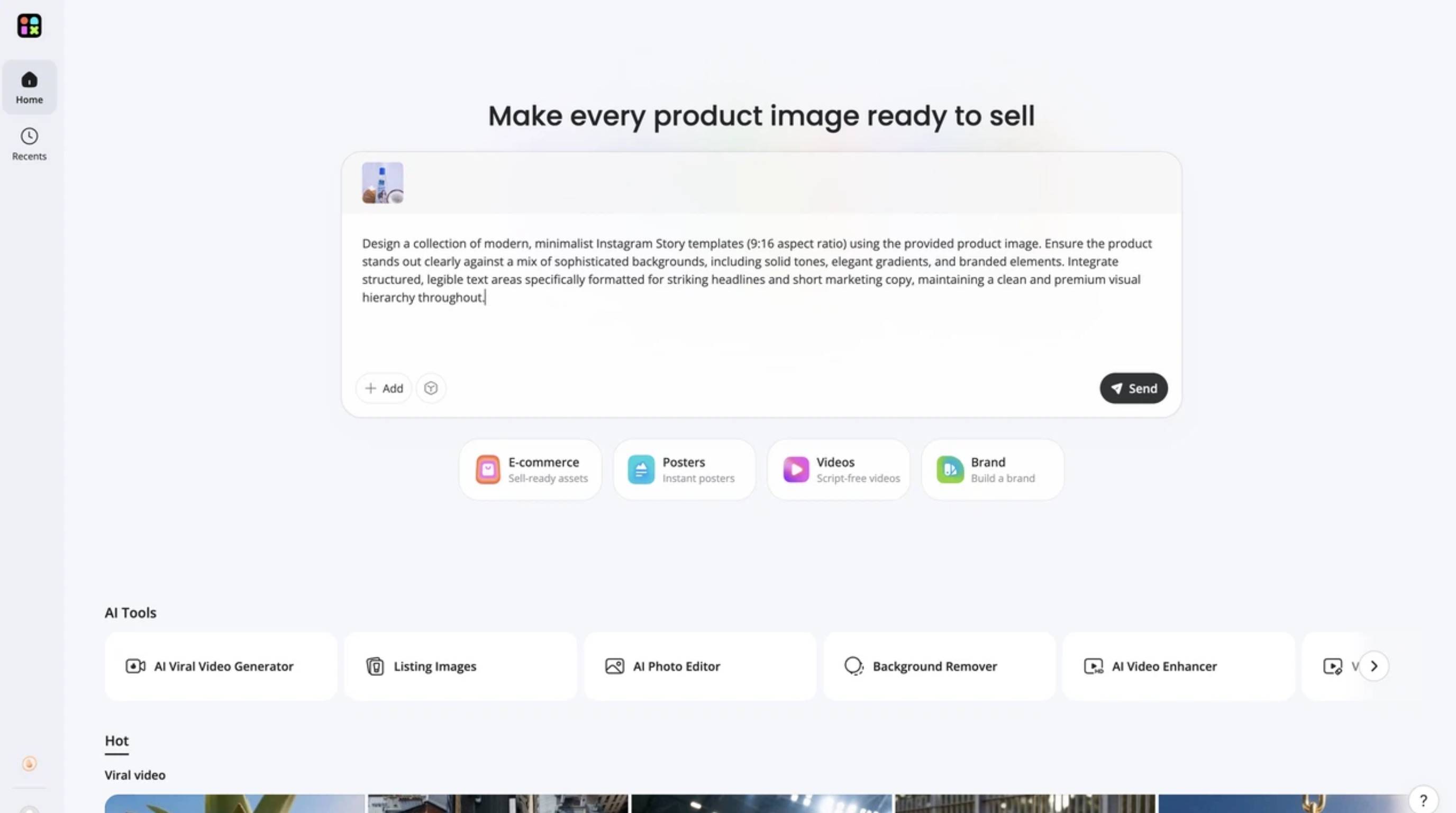
Step 1: Upload Product Images
Begin by adding your standard product photos directly into the main workspace. You do not need expensive studio shots or complex layered design files to get started. Simply click the + Add icon inside the central prompt box to insert the clearest version of your product image from your device.
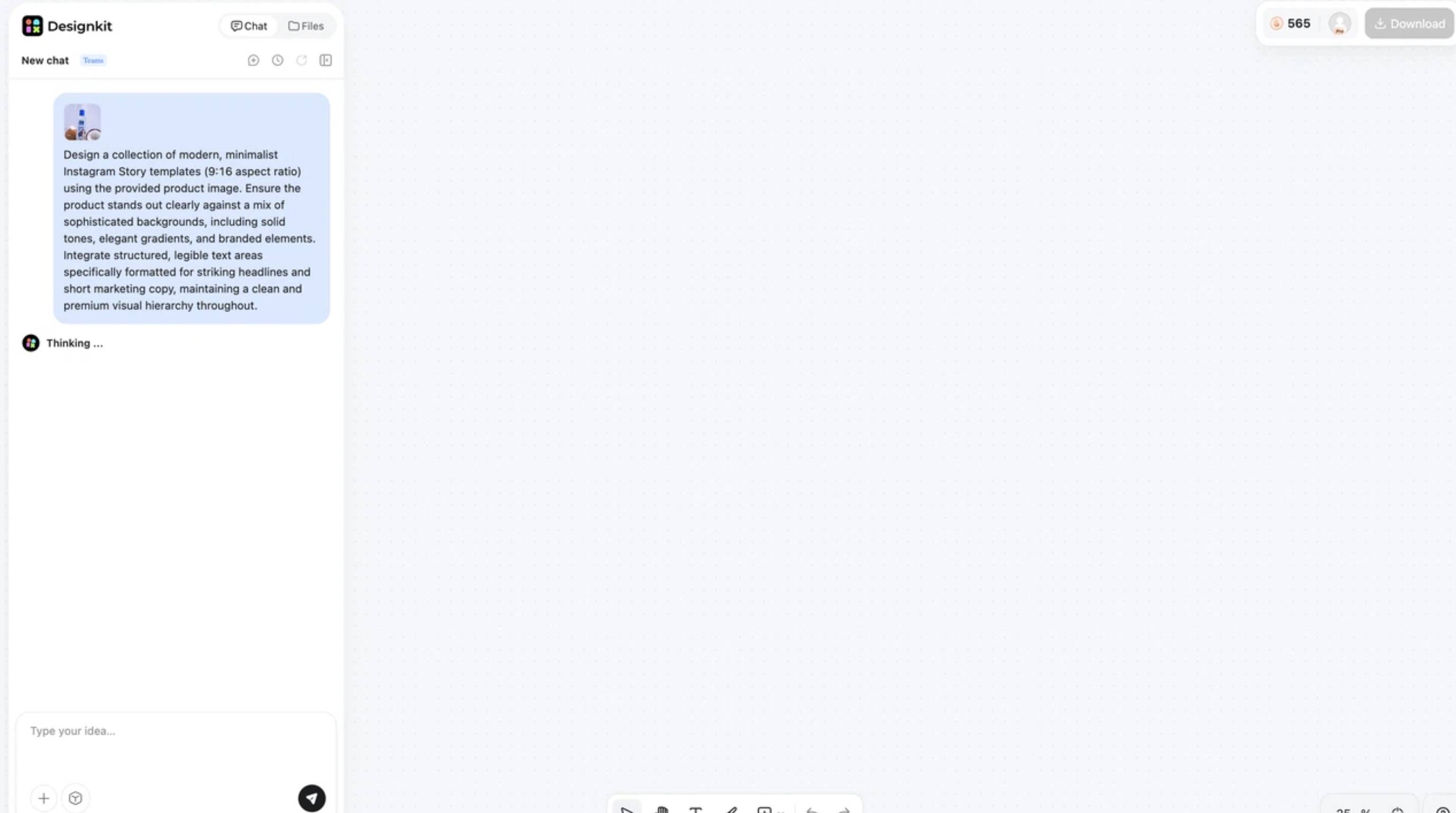
Step 2: Generate Branded Product Visuals
After uploading your asset, define your specific campaign needs by typing a detailed description into the text area. You can request specific ad formats, such as a 9:16 layout, and outline your key selling points. Once your instructions are ready, click the Send button and wait while the AI processes the request. The platform will automatically construct multiple visual variations tailored to your specific promotional goals.
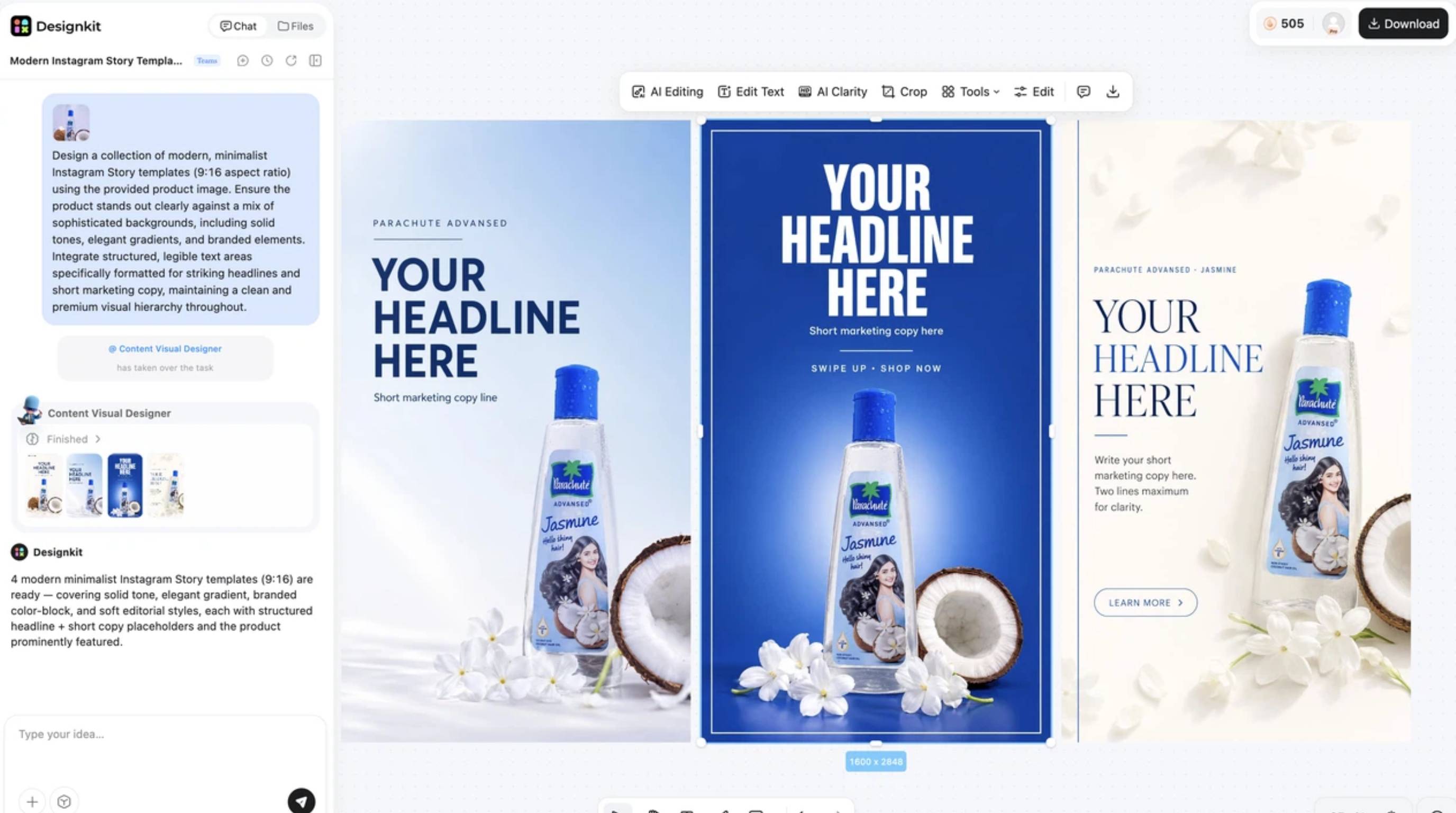
Step 3: Create Variations and Export by Channel
Once the AI finishes generating, your new creatives will populate on the main canvas. Take a moment to preview the designs and use the top toolbar options like Edit Text to make any quick adjustments to the placeholders. When the visuals perfectly match your vision, click the Download button located in the top right corner to export your high-quality files, sized perfectly for Meta, TikTok, Google, or your ecommerce storefront.
Create Ecommerce Marketing Images Free
Designkit Features for Creators and Businesses
-
AI image generation: Generate new product visuals from a prompt or a reference photo instead of starting from a physical photoshoot, useful when you need a product placed in scenes you haven't actually shot.
-
AI background generation: Build custom scenes and backdrops around a product, from clean studio setups to detailed lifestyle environments, without booking a location or set.
-
Marketing image creation: Turn product shots into ad-ready creative, banners, promo graphics, and social posts, with layouts built for marketing use rather than just a clean cutout.
-
Batch content creation: Generate variations across an entire catalog at once instead of editing SKUs one by one, which is where single-image editors start to slow teams down.
-
Multi-channel resizing and high-resolution exports: Export the same creative pre-sized for Amazon, Shopify, TikTok, and Instagram in one pass, in resolutions high enough for both web and print use.
Conclusion
For beginners, solo sellers, and anyone who just needs to fix up a few listing photos, Pixelcut AI does what it needs to. It's fast, the background tools hold up well, and there's barely a learning curve to speak of.
Where it runs out of road is deeper manual control and campaign-level output. If your work involves multi-size ad sets, keeping templates consistent across a brand, or building new visuals rather than editing old ones, it's worth putting Designkit into the mix alongside it. These two tools aren't really solving the same problem, and using both often covers more ground than sticking with just one.
Frequently Asked Questions
What is Pixelcut AI used for?
Is Pixelcut AI free?
There's a free plan, though it comes with daily limits and possible watermarks depending on what you export. Paying removes both of those and unlocks higher resolution output and newer AI models.
Is Pixelcut AI good for ecommerce?
For fixing up individual product photos, yes, it works well. If you need to generate a full round of campaign visuals or keep dozens of SKUs looking consistent, a workflow-based platform like Designkit tends to handle that scale better.
Can Pixelcut AI generate product photos from scratch?
It can build simple scenes and backgrounds around a photo you already have, but full product photography from nothing isn't really its strength. That's more the territory of tools built specifically around AI image generation, like Designkit's product visual AI.
Does Pixelcut AI remove backgrounds accurately?
On a typical product shot with clean edges, yes, quite well. Accuracy dips once you get into fine detail like hair, fur, or mesh, where a manual touch-up is often still needed.
What are the best Pixelcut AI alternatives in 2026?
Photoroom is close in what it offers for mobile-first product editing. Designkit is the better call if you need scaled, multi-channel visual production rather than editing images one at a time.
Pixelcut vs Photoroom: which is better for sellers?
They're pretty evenly matched on background removal and quick cleanup. It usually comes down to which interface you prefer and how you like to work on mobile, since the core editing features aren't far apart.
Pixelcut vs Designkit: which should ecommerce businesses choose?
If you're just cleaning up a handful of existing photos, Pixelcut AI is quicker and simpler to use. If you're generating new visuals, running a seasonal campaign, or producing assets for several marketplaces at once, Designkit's AI photo editing for ecommerce workflow is built for that kind of scale.
You May Also Like

7 Best Remove.bg Alternatives in 2026: Free & Paid Tools

Instagram Carousel: What It Is, How to Post & Create One
Nano Banana Prompts: 20+ Examples for Better AI Images

Ideogram AI Review 2026: Features, Pricing & Alternatives
Free Mac Photo Editor: 5 Tools Compared for Mac Users
How to Crop a Photo Into a Circle Online (Keep Quality)

How to Make an Image Transparent Online (AI Guide)

Pixlr Background Remover Review 2026: Features, Pricing & Alternatives

How to Fix Overexposed Photos: Recover Highlights Fast
OpenArt AI Review 2026: Features, Pricing & Alternatives

Best AI Headshot Generator: 9 Tools Compared for 2026
Best Stencil Maker Tools 2026: Turn Photos Into Stencils
Pixelbin Watermark Remover Review: Image & Video Results Tested

How to Make a Sticker on iPhone: Easy Step by Step Guide

Best AI Logo Generator in 2026: 10 Tools Compared

How to Turn a Photo Into a Cartoon: A Beginner-Friendly Guide
Landscape vs Portrait: Key Differences & Best Uses in 2026
How to Remove Watermark From Photo: AI, Photoshop & More
How to Fix Pixelated Photos: Photoshop, AI Tools & Tips
Bing Image Creator: How It Works, Features, Uses & Alternatives
How to Remove People from Photos with AI: A Step-by-Step Guide

How to Increase Image Resolution: AI, Photoshop & PPI
How to Add Text to a Photo: 8 Tips for Better Results
How to Fix Grainy Photos: Easy Ways to Clear Images

Creative Profile Picture Ideas for Every Style and Platform
Evoto AI Review 2026: Features, Pricing, Pros & Cons
Pixlr Photo Editor Review: Features, Pricing & Alternatives
Best AI Image Extender Tools in 2026: Expand Photos with AI

How to Make a Collage on iPhone: Easy Guide for 2026
How to Sharpen an Image in Photoshop (Smart Sharpen and Unsharp Mask)
Best Image Background Remover Tools in 2026: AI Tools Compared
How to Make Transparent Background in Paint: Step-by-Step Guide
How to Resize an Image: Best Methods, Tools & Quality Tips
Best AI Image Generator Tools in 2026: Top AI Platforms Compared

Remove.bg Review 2026: Features, Pricing & Is It Worth It?
Luminar Neo Photo Editor Review 2026: AI Features, Price & Pros

How to Post Multiple Photos on Instagram (2026 Guide)

25 Facebook Cover Photo Ideas for Personal & Business Pages

What Is a PFP? Meaning, Examples & How to Create One
Can You Edit an Instagram Post After Posting?

11 Best Canva Alternatives in 2026 for AI Design & Marketing

8 Best Midjourney Alternatives in 2026: Features, Pricing & Comparison
How to Restore Old Photos: AI Tools, Tips & Best Methods
Pixelcut AI Review 2026: Features, Pricing, Pros, Cons & Alternatives
How to Apply Watermark to Photos: Methods, Tips & AI Tools
How to Remove a Background in Illustrator: 4 Easy Methods

How to Change Background Color on Instagram Story (Easy Guide)

8 Best AI Poster Generators in 2026: Create Posters Faster with AI
10 Best AI Image Enhancers in 2026: Tested & Compared
10 Best AI Image Editors in 2026: Features, Pricing & Comparison

7 Best AI Background Changer in 2026: Remove & Replace Photo Backgrounds
Luminar Neo vs Lightroom: Features, Pricing & Comparison 2026

Kittl Review 2026: Is It Worth It? Features & Pricing
How to Make a Blurry Image Clear: 5 AI & Manual Ways

How to Remove Background on iPhone: 5 Easy Methods (2026)
Photoroom Background Remover Review 2026: Features & Alternatives
How to Remove Background in Canva: A Step-by-Step Guide
How to Remove Background in GIMP: Beginner-Friendly Guide

Funny Dog Memes to Try: Doge Meaning and 10 Original Ideas
Back to School Checklist 2026: Supplies, Timeline, and Planning
Recraft AI Review 2026: Features, Pricing, Pros, Cons & Alternatives
How to Make an Image Transparent in Google Slides: Opacity & Background Removal

VanceAI Photo Enhancer Review: Features, Pricing & Alternatives in 2026
What Does Emojify Mean? Text, Photos, & Emoji Art Explained
Top 8 Online Background Removers for Ecommerce Photos (2026)
How to Remove Background in Photoshop: 7 Easy Methods
6 Best AI Image Upscalers 2026: Tools Tested & Compared
Project Indigo Review: Is It Better Than iPhone Camera?
How Big Is an 8x10 Photo? Size, Pixels & Frame Guide
How Big Is a 4x6 Photo? Dimensions, Pixels & Printing Tips
Picsart AI Review: Features, Pricing, Pros, Cons & Alternatives
Lovart AI Review: AI Design Agent Features, Pricing & Alternatives

Fotor AI Image Generator Review: Features, Pricing & Alternatives

How to Add Emoji to Photo Online for Free

Emoji Wallpaper Ideas & How to Make One Online (2026)
Minimalist Poster Design: How to Make a Clean Poster (2026)

How to Make a Custom Poster That Is Ready to Print
Instagram Image Size Guide 2026: Post, Reel, Story & Carousel Specs
LinkedIn Image Size Guide: Profile, Post & Banner Dimensions
YouTube Profile Image Size: Best Dimensions & Safe Area 2026

How to Edit Amazon Product Photos That Boost Sales Fast
Turn Product Photos Into Complete Marketing Campaigns
Pixelcut AI is strong for editing and enhancing individual images. When you need branded scenes, ad creatives, and multi-channel assets at scale, Designkit helps you produce ecommerce visuals faster.
