
What Does Emojify Mean? How to Emojify Text, Photos, and Ideas
Emojify can mean adding emojis to a message or turning a photo or idea into emoji art. Learn both uses, then create a clear emoji effect.


Emojify is basically an informal word that describes two separate common uses. One meaning covers adding emojis to text that already exists somewhere. The other meaning covers converting a photo or idea into art.
People use this word for messages, photos, artwork, and original ideas. This guide previews both meanings prior to moving into practical, step-by-step advice. You will also explore how to turn photos and ideas into emoji art using modern creative tools.
What Does Emojify Mean?
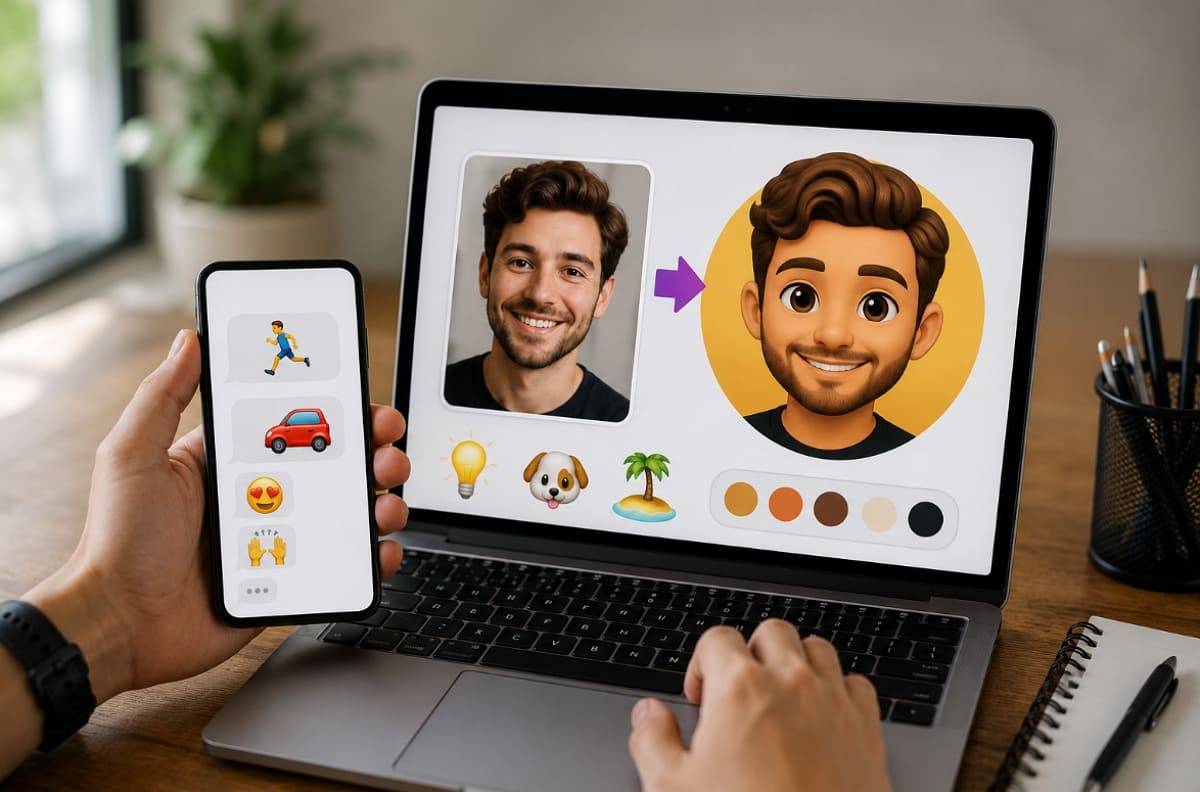
Emojify means adding emojis to content, or creating an emoji-based version. These two actions share one informal name, which causes some confusion. The first meaning adds relevant emojis to convey tone or emotion. The second meaning turns a photo, object, or idea into emoji art.
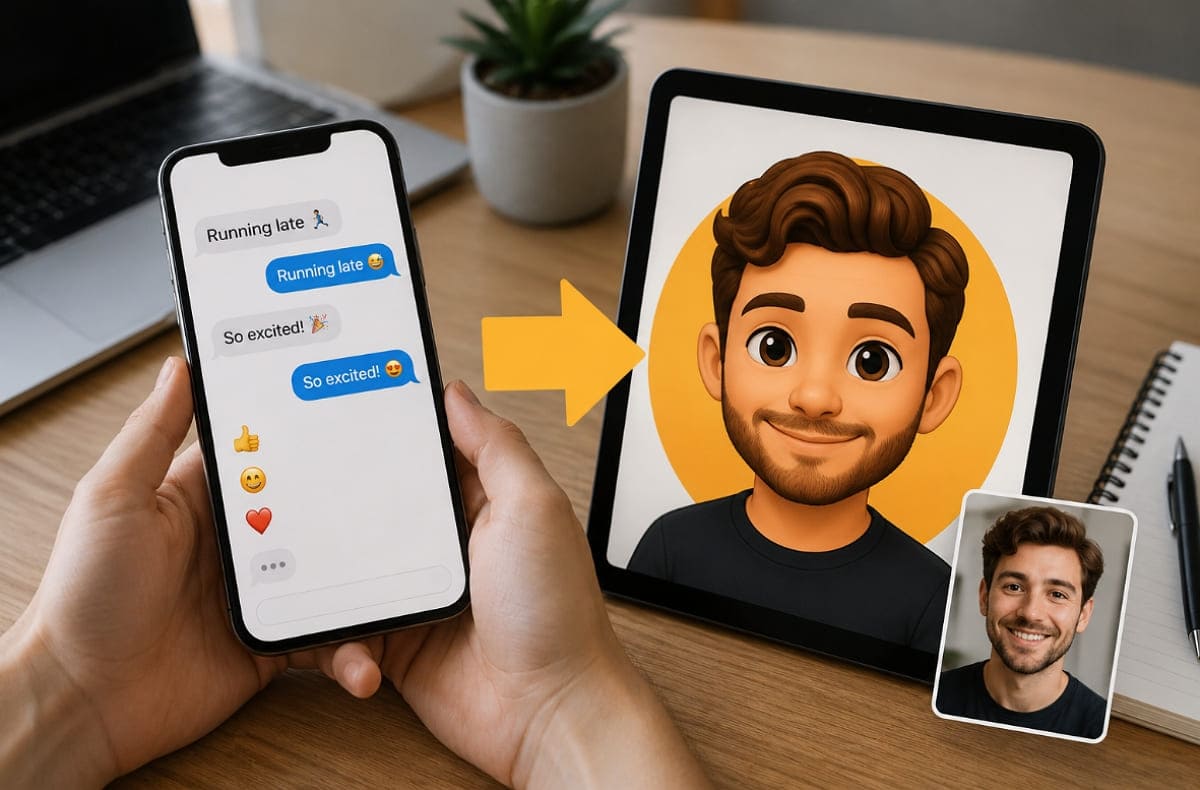
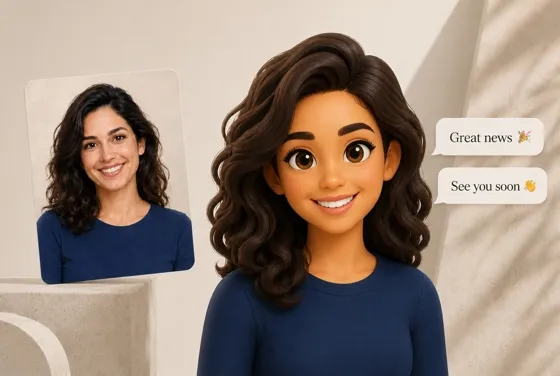
A single emoji added to “Running late” changes only its tone. Apart from that, a headshot turned into a rounded character shows a different emoji effect. The subject still stays fully recognizable despite this dramatic format change.
Emojify isn't one fixed technical process or a single defined method. It remains simply an informal digital term people use loosely today. Nearly 4,000 emojis now exist within the official Unicode Standard list, as per Emojipedia. The growing number of Unicode emojis has contributed to the wider use of emoji-based communication.
What Types of Content Can You Emojify?
Emojify applies to several distinct content types, each starting from different material. Four main categories cover text, photos, original ideas, and existing artwork:
1. Text and Messages
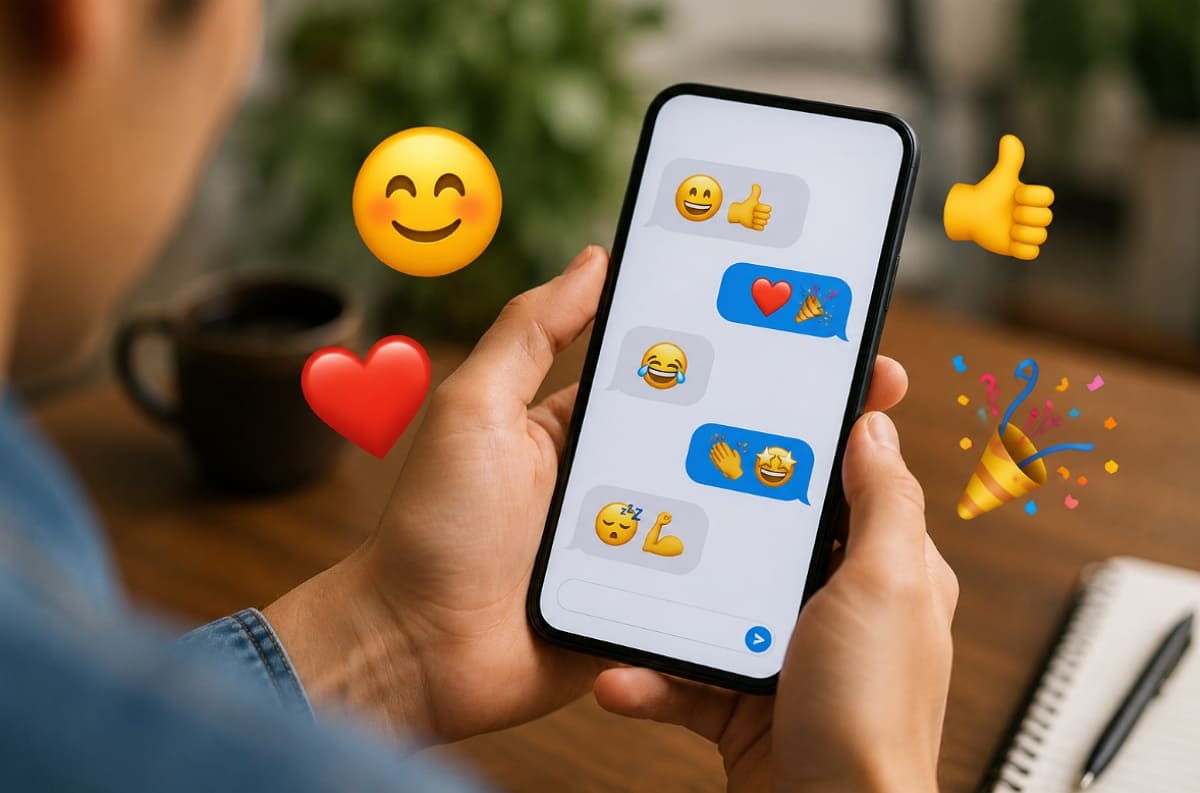
Add emojis beside important words to show emotion and actions. Some emojis also replace simple ideas without making short messages difficult to understand. It works best for casual conversations that feel friendlier and clearer.
2. Photos
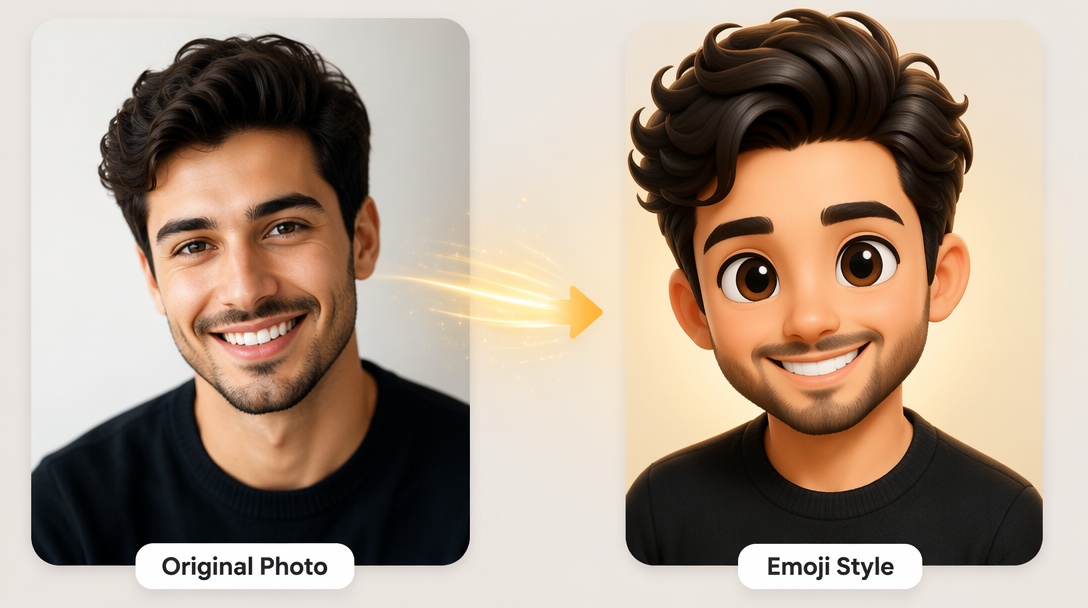
A photo's main subject can become a fun emoji-style character while staying recognizable throughout. Many people use an emoji filter or AI tool to simplify facial features naturally. The result keeps the original subject but adds a playful and expressive visual style instead.
3. Original Ideas
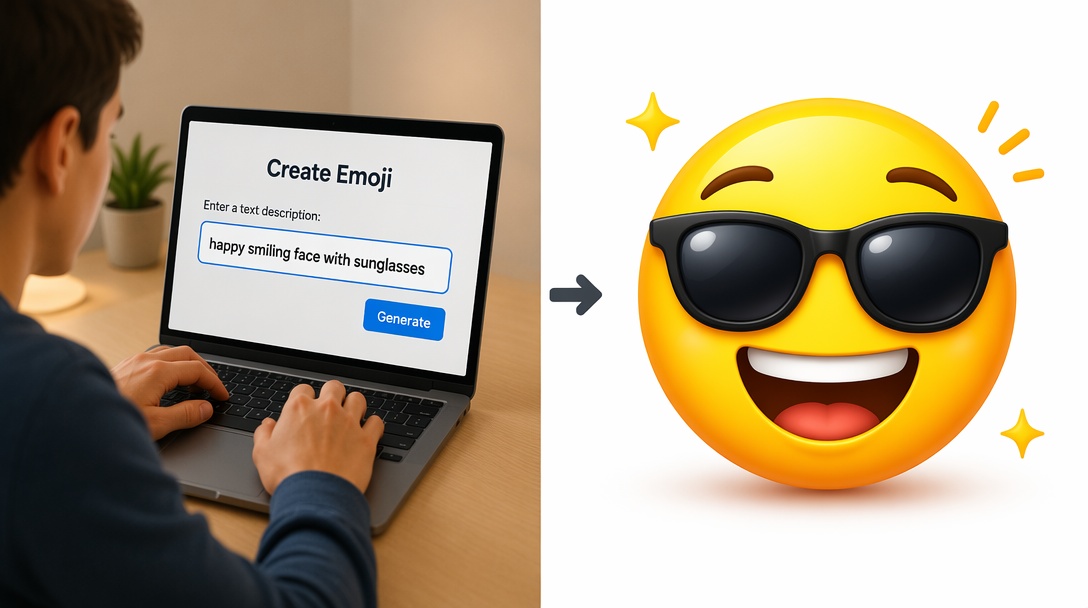
Such ideas skip photos entirely and start with a written description. You need to describe the expression, object, or character in plain written words. An emoji art generator then creates the image from that description directly.
4. Existing Artwork
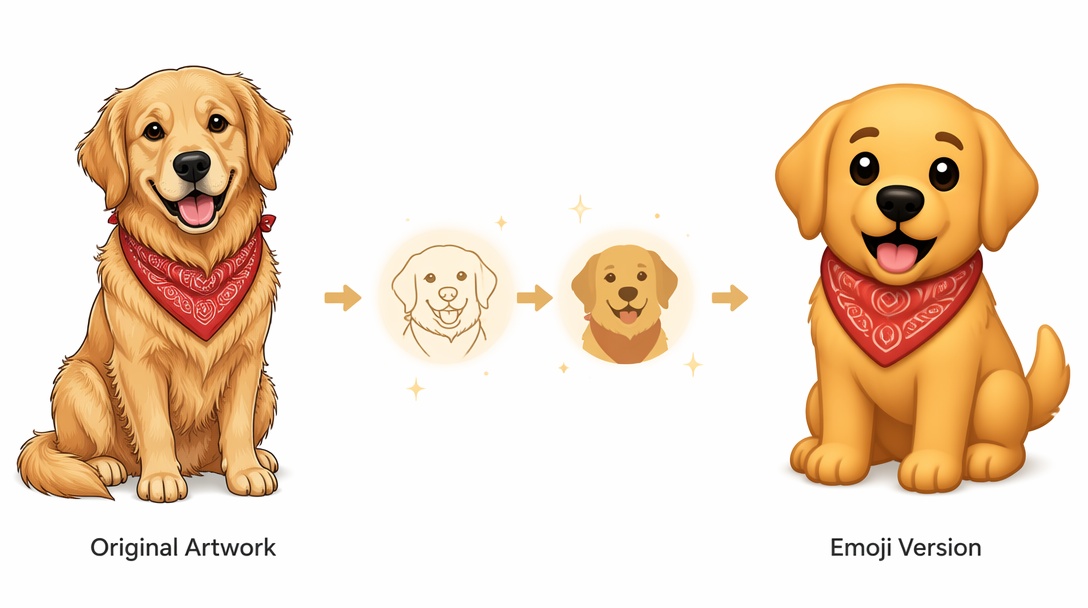
Existing illustrations can also be transformed into a fresh emoji-inspired version without manual redrawing. An emoji effect simplifies shapes while making expressions clearer and more visually appealing overall. The finished artwork looks playful while still preserving the original subject's key details.
How to Emojify Text
Emojifying text follows 3 simple, sequential steps for clear results. Each step below builds directly on the previous one.
Step 1. Identify the Meaning or Tone
Decide what emotion or detail the emoji should communicate before choosing one. It determines which specific emoji actually fits your message. A clear purpose helps every emoji match the conversation and improves the overall emoji effect.
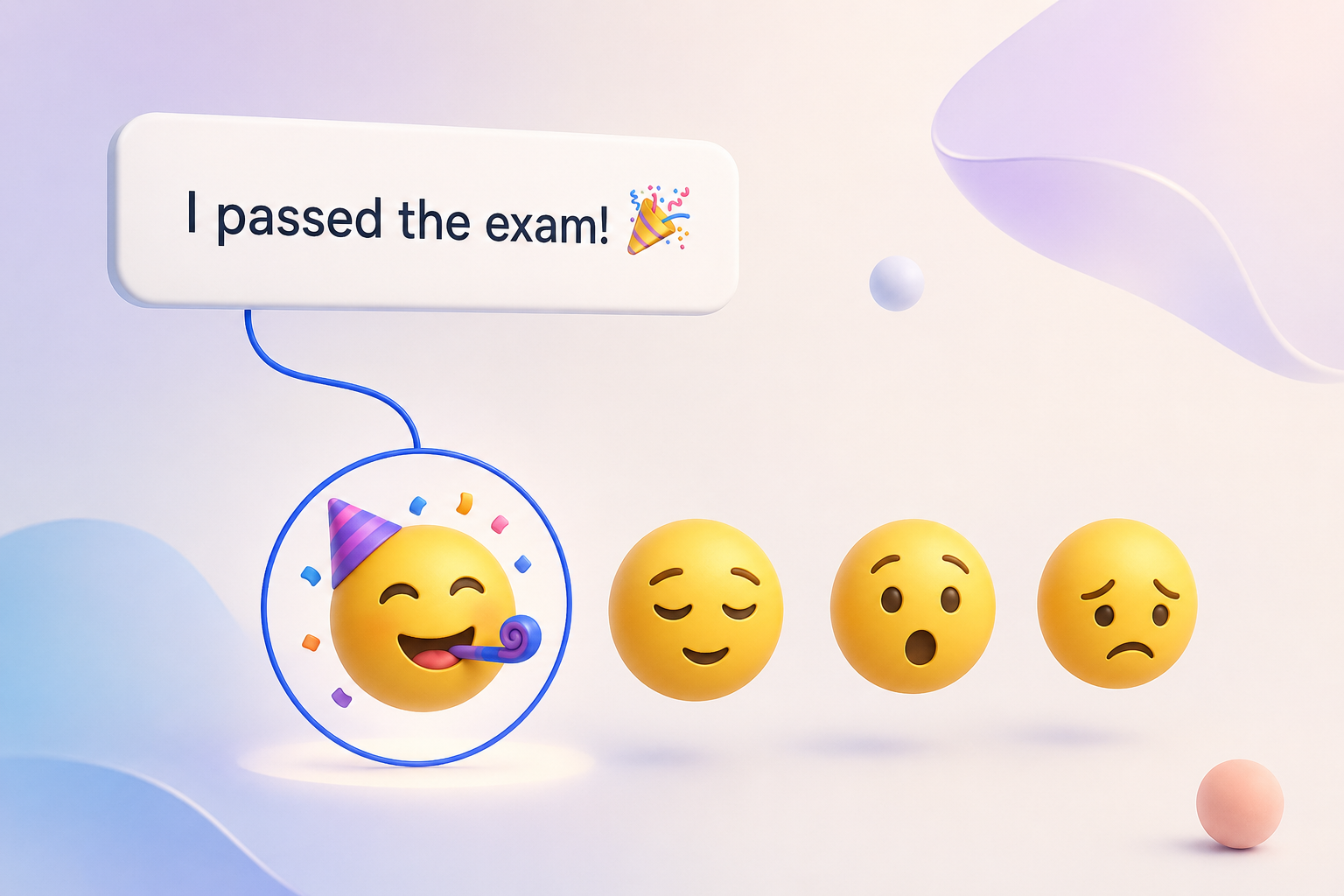
Step 2. Add Emojis Beside Relevant Words
Place emojis only where they genuinely support the intended message. Avoid adding symbols after every single word choice. Too many symbols create an unclear, cluttered emoji effect overall.
Step 3. Review the Final Message
Check that selected emojis still match the surrounding context closely. Confirm the original meaning hasn't gotten lost during editing.
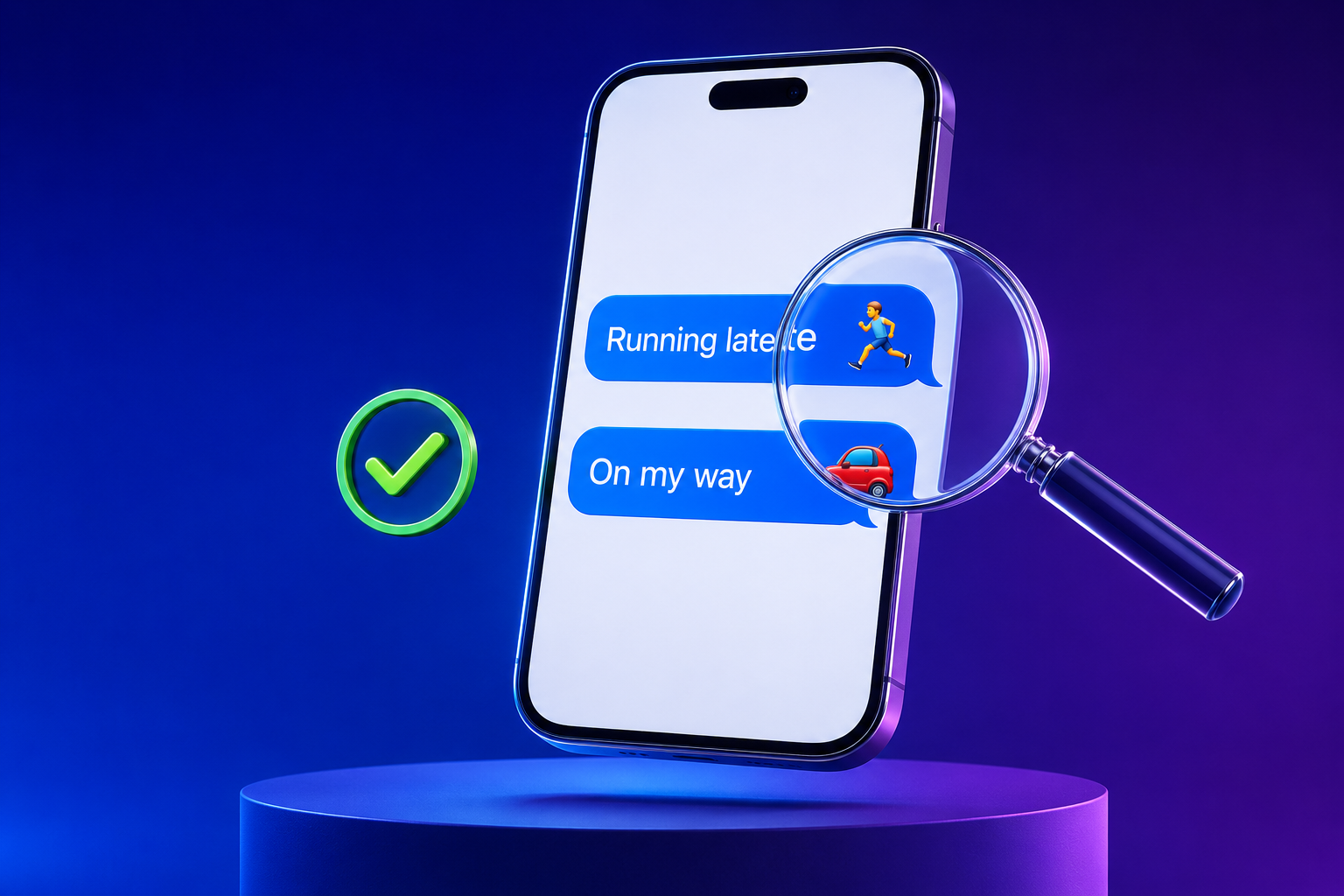
As an example, “Running late, on my way” becomes “Running late 🏃, on my way 🚗.” Some keyboards and online tools suggest emojis automatically for convenience. Their suggestions still deserve a quick review before sending anything.
How to Emojify an Image (Photo or Idea)
Two main approaches exist for creating emoji-style artwork. An emoji filter creates a preset look, while a written prompt builds custom results. This section covers both methods using Designkit's tools:
|
Approach |
Best For |
|---|---|
|
Photo to Emoji |
Turning an existing photo into an emoji-style character. |
|
Emoji Maker |
Original ideas or characters with no source photo needed. |
1. Turn a Photo into an Emoji
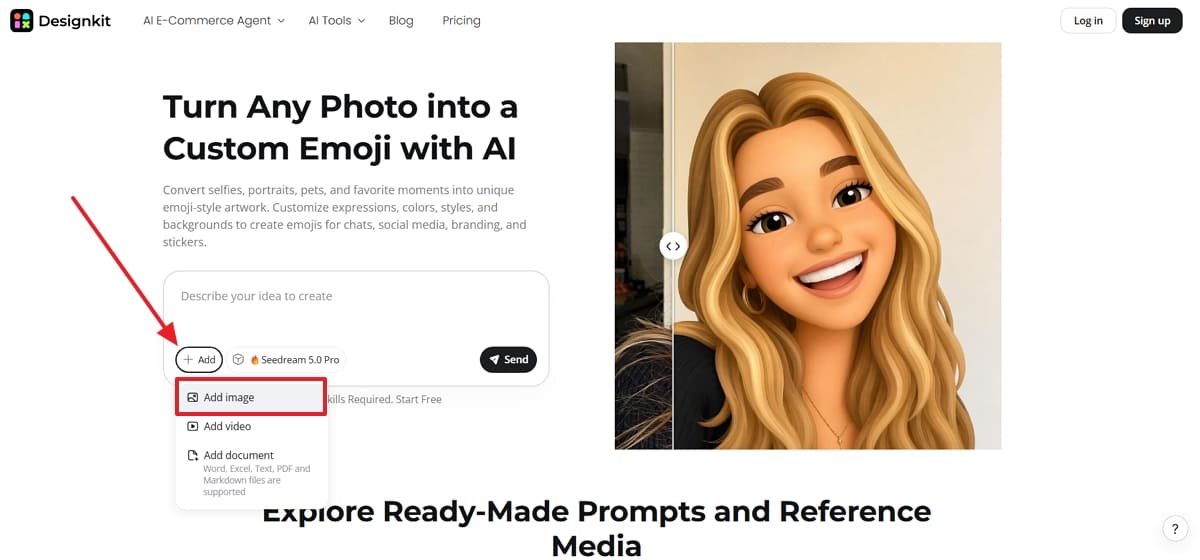
Designkit's Image to Emoji tool converts photos into emoji-style images in four simple steps:
Step 1. Upload a Clear Photo
From the Image to Emoji page of Designkit, press the “ +Add ” button and select the “ Add Image ” option. Choose a photo with one recognizable subject and limited background distractions.
Step 2. Describe the Emoji Effect
After uploading the photo, write a prompt covering the emoji style you want and press “Send”.
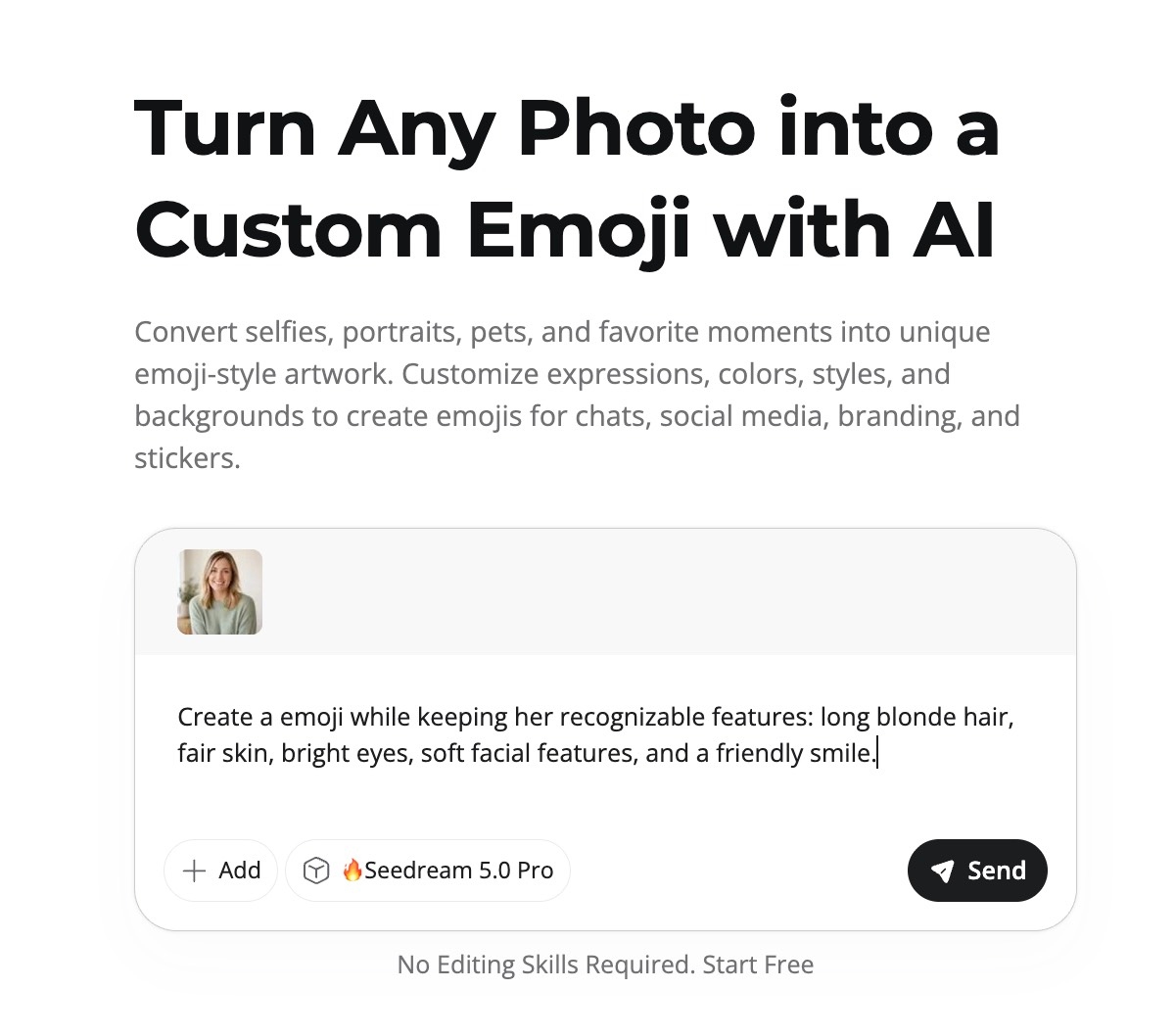
For example: “Turn this portrait into a cheerful 3D emoji with rounded features.”
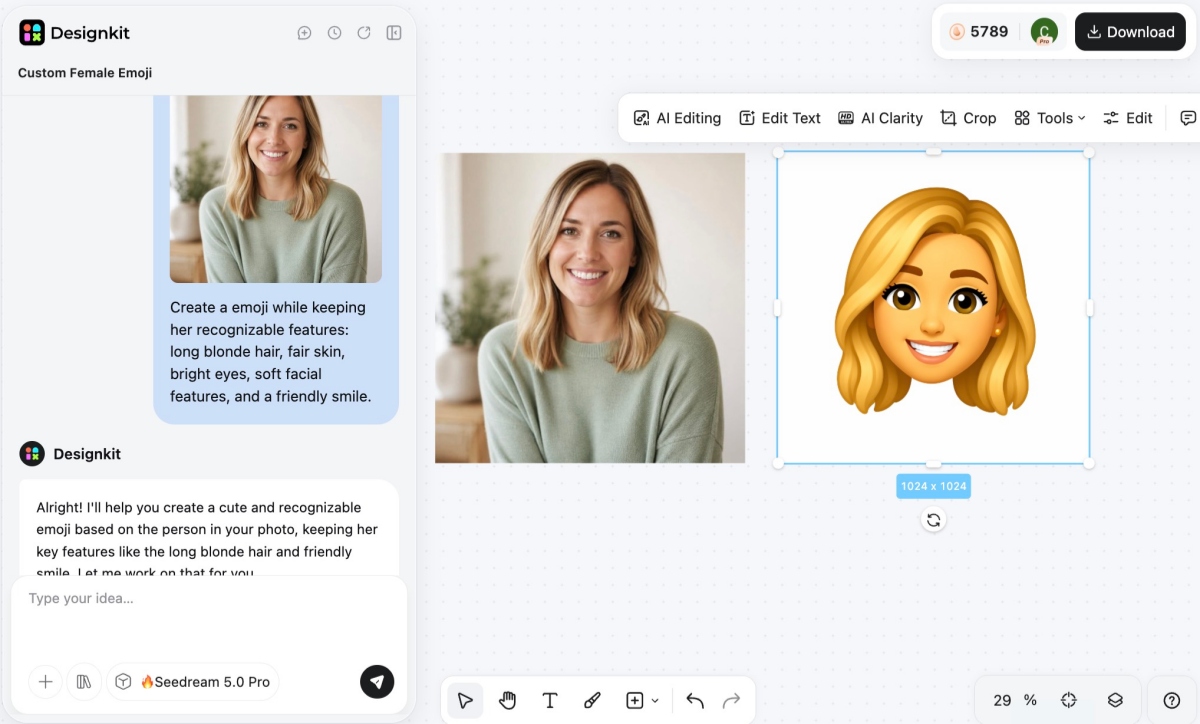
Step 3. Generate and Compare
Review the generated options and choose the one that best preserves the subject's recognizable features and intended expression.
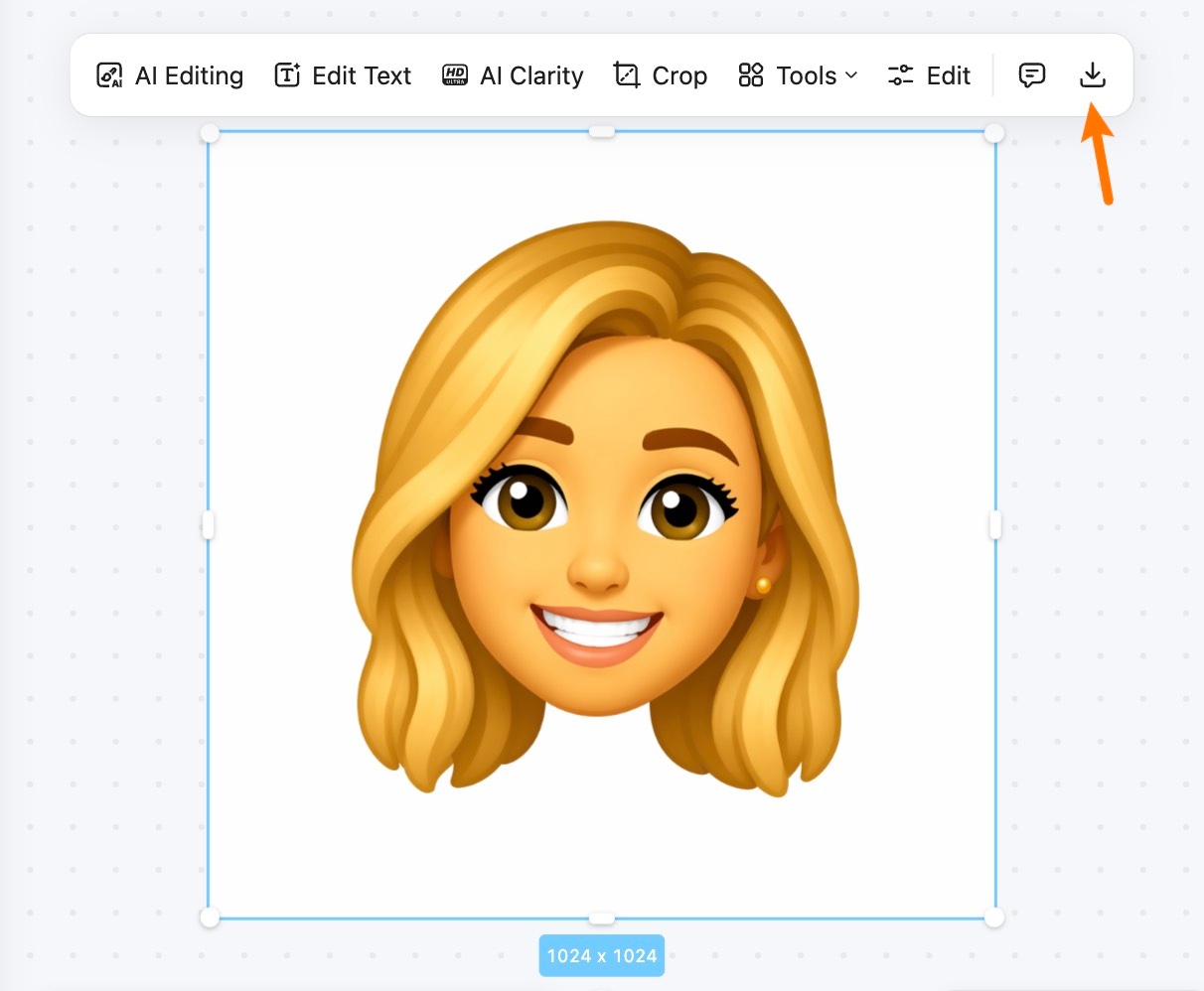
Step 4. Refine and Download
You can now adjust the prompt if the style or expression still needs work, then generate again. Once a version looks right, press the “Download ” button and select your preferred output format to export it.
2. Create Emoji Art from a Written Idea
Designkit's Emoji Maker starts with a written description instead of a photo. Define your subject and one clear expression you want shown. Choose a style, such as flat or 3D, then generate the artwork. Generate several options, then compare them before choosing a favorite.
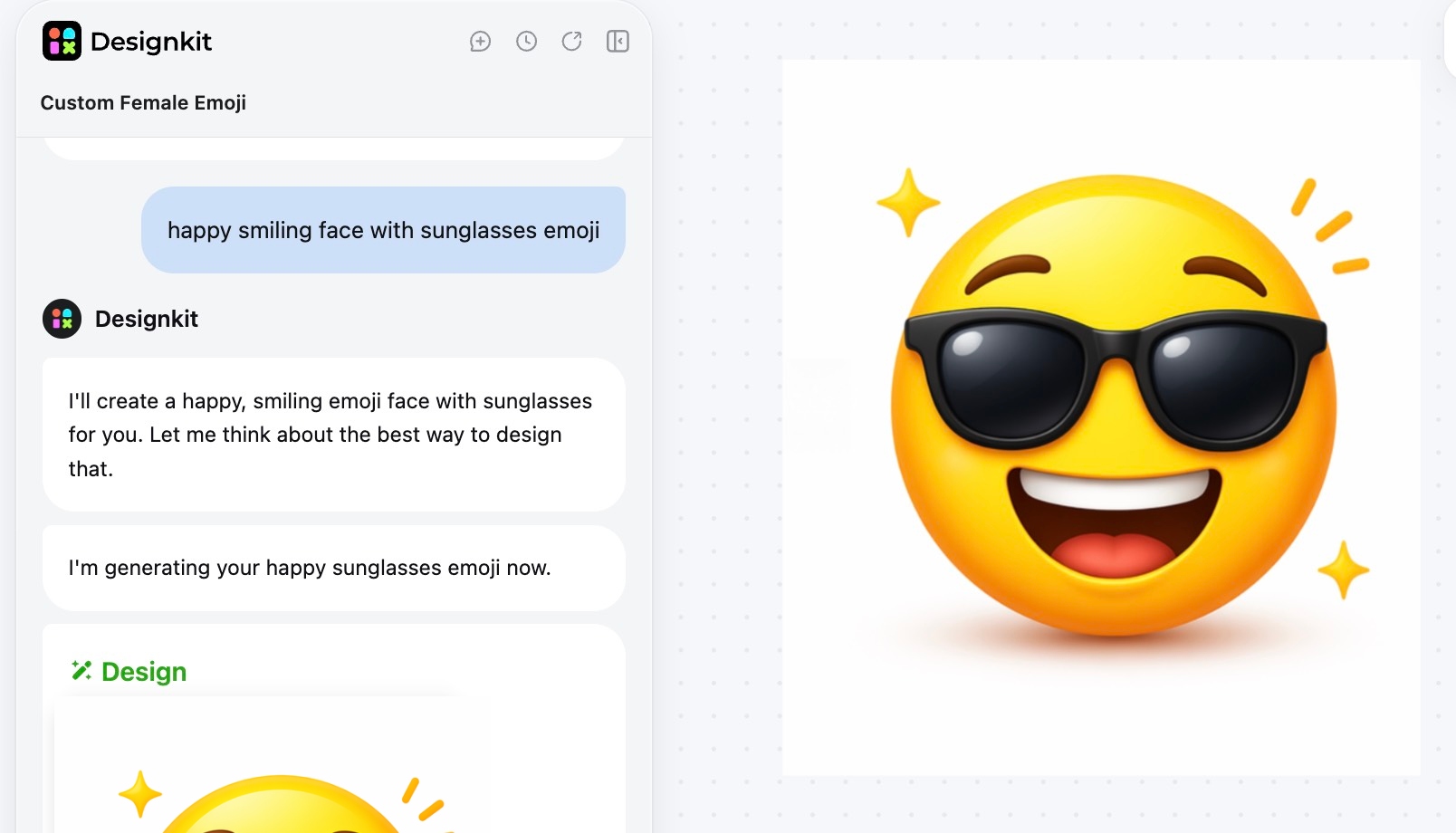
Create Emoji Art from a Written Idea
In addition to that, this tool works as an emoji art generator or emoji art maker. It lets you make the same choices an emoji artist makes daily. No manual drawing skill is required for this creative process.
How to Create a Clear Emoji Effect
Whether you start with a photo or a written prompt, a few simple practices can improve the result. The practical tips provided below will help you create emoji-style images that are clear and easy to recognize:
|
Tip |
Why It Helps |
|---|---|
|
Use One Main Subject |
A single subject keeps the image clean and easy to understand. |
|
Choose a Clear Expression |
A recognizable expression makes the emoji feel more natural and expressive. |
|
Avoid Busy Backgrounds |
Simple backgrounds help the subject stand out more clearly. |
|
Describe One Visual Style |
Focus on one style instead of mixing several different looks together. |
|
Limit Small Details |
Fewer details create a cleaner emoji-style appearance. |
|
Use Bold Colors and Clear Shapes |
Strong colors and simple shapes make the image easier to recognize. |
|
Generate Several Versions |
Comparing different results helps you choose the strongest design. |
|
Refine Your Prompt |
Update the prompt until the final image matches your original idea. |
An emoji filter typically applies one preset look automatically. By comparison, emoji art generators reinterpret the subject more freely. Both approaches can produce a strong emoji effect.
Conclusion
Emojify covers two actions under one informal word: adding emojis to text, and turning a photo or idea into emoji art. Text-based emojifying takes a few seconds of judgment about tone and placement. Image-based emoji art benefits from an actual workflow, which is where Image to Emoji or Emoji Maker comes in.
Frequently Asked Questions
What does emojify mean?
How do you emojify text?
Identify the emotion or detail you want emphasized. Place emojis beside relevant words that support your message. Check that the message still reads clearly afterward.
How do you emojify a photo?
Upload a clear photo with one recognizable subject, then describe the emoji style and expression you want in a short prompt. Generate and compare a few options. Refine the prompt and download the version that works best.
What is the difference between an emoji filter and an emoji art generator?
An emoji filter applies a preset style to a photo. Meanwhile, an emoji art generator creates or transforms images based on your written prompt.
Can I create emoji art from a written idea?
Yes, tools like Designkit's Emoji Maker let you describe a subject and expression in words, then generate emoji-style art without needing a source photo.
What makes a clear emoji effect?
You should use one main subject, a clear expression, a simple background, and bold colors. Creating multiple versions and refining the prompt also helps.
Do I need design skills to make emoji art?
No, tools built for this describe the creative decisions in plain language, prompts, styles, and expressions, rather than requiring manual drawing or illustration skills.
Can Designkit add emojis to my written messages automatically?
No, Designkit's tools are built for creating image-based emoji art, not for suggesting emojis inside written messages.
You May Also Like
Remove.bg Shutting Down Dec 1, 2026: What Users Are Saying

7 Best Remove.bg Alternatives in 2026: Free & Paid Tools
Instagram Carousel: What It Is, How to Post & Create One
Nano Banana Prompts: 20+ Examples for Better AI Images

Ideogram AI Review 2026: Features, Pricing & Alternatives
Free Mac Photo Editor: 5 Tools Compared for Mac Users
How to Crop a Photo Into a Circle Online (Keep Quality)
How to Make an Image Transparent Online (AI Guide)
Pixlr Background Remover Review 2026: Features, Pricing & Alternatives
How to Fix Overexposed Photos: Recover Highlights Fast
OpenArt AI Review 2026: Features, Pricing & Alternatives
Best AI Headshot Generator: 9 Tools Compared for 2026
Best Stencil Maker Tools 2026: Turn Photos Into Stencils
Pixelbin Watermark Remover Review: Image & Video Results Tested
How to Make a Sticker on iPhone: Easy Step by Step Guide
Best AI Logo Generator in 2026: 10 Tools Compared
How to Turn a Photo Into a Cartoon: A Beginner-Friendly Guide
Landscape vs Portrait: Key Differences & Best Uses in 2026
How to Remove Watermark From Photo: AI, Photoshop & More
How to Fix Pixelated Photos: Photoshop, AI Tools & Tips
Bing Image Creator: How It Works, Features, Uses & Alternatives
How to Remove People from Photos with AI: A Step-by-Step Guide
How to Increase Image Resolution: AI, Photoshop & PPI
How to Add Text to a Photo: 8 Tips for Better Results
How to Fix Grainy Photos: Easy Ways to Clear Images
Creative Profile Picture Ideas for Every Style and Platform
Evoto AI Review 2026: Features, Pricing, Pros & Cons
Pixlr Photo Editor Review: Features, Pricing & Alternatives
Best AI Image Extender Tools in 2026: Expand Photos with AI
How to Make a Collage on iPhone: Easy Guide for 2026
How to Sharpen an Image in Photoshop (Smart Sharpen and Unsharp Mask)
Best Image Background Remover Tools in 2026: AI Tools Compared
How to Make Transparent Background in Paint: Step-by-Step Guide
How to Resize an Image: Best Methods, Tools & Quality Tips
Best AI Image Generator Tools in 2026: Top AI Platforms Compared

Remove.bg Review 2026: Features, Pricing & Is It Worth It?
Luminar Neo Photo Editor Review 2026: AI Features, Price & Pros
How to Post Multiple Photos on Instagram (2026 Guide)
25 Facebook Cover Photo Ideas for Personal & Business Pages
What Is a PFP? Meaning, Examples & How to Create One
Can You Edit an Instagram Post After Posting?

11 Best Canva Alternatives in 2026 for AI Design & Marketing

8 Best Midjourney Alternatives in 2026: Features, Pricing & Comparison
How to Restore Old Photos: AI Tools, Tips & Best Methods
Pixelcut AI Review 2026: Features, Pricing, Pros, Cons & Alternatives
How to Apply Watermark to Photos: Methods, Tips & AI Tools
How to Remove a Background in Illustrator: 4 Easy Methods
How to Change Background Color on Instagram Story (Easy Guide)
8 Best AI Poster Generators in 2026: Create Posters Faster with AI
10 Best AI Image Enhancers in 2026: Tested & Compared
10 Best AI Image Editors in 2026: Features, Pricing & Comparison
7 Best AI Background Changer in 2026: Remove & Replace Photo Backgrounds
Luminar Neo vs Lightroom: Features, Pricing & Comparison 2026
Kittl Review 2026: Is It Worth It? Features & Pricing
How to Make a Blurry Image Clear: 5 AI & Manual Ways
How to Remove Background on iPhone: 5 Easy Methods (2026)
Photoroom Background Remover Review 2026: Features & Alternatives
How to Remove Background in Canva: A Step-by-Step Guide
How to Remove Background in GIMP: Beginner-Friendly Guide
Funny Dog Memes to Try: Doge Meaning and 10 Original Ideas
Back to School Checklist 2026: Supplies, Timeline, and Planning
Recraft AI Review 2026: Features, Pricing, Pros, Cons & Alternatives
How to Make an Image Transparent in Google Slides: Opacity & Background Removal

VanceAI Photo Enhancer Review: Features, Pricing & Alternatives in 2026
What Does Emojify Mean? Text, Photos, & Emoji Art Explained
Top 8 Online Background Removers for Ecommerce Photos (2026)
How to Remove Background in Photoshop: 7 Easy Methods
6 Best AI Image Upscalers 2026: Tools Tested & Compared
Project Indigo Review: Is It Better Than iPhone Camera?
How Big Is an 8x10 Photo? Size, Pixels & Frame Guide
How Big Is a 4x6 Photo? Dimensions, Pixels & Printing Tips
Picsart AI Review: Features, Pricing, Pros, Cons & Alternatives
Lovart AI Review: AI Design Agent Features, Pricing & Alternatives
Fotor AI Image Generator Review: Features, Pricing & Alternatives
How to Add Emoji to Photo Online for Free
Emoji Wallpaper Ideas & How to Make One Online (2026)
Minimalist Poster Design: How to Make a Clean Poster (2026)
How to Make a Custom Poster That Is Ready to Print
Instagram Image Size Guide 2026: Post, Reel, Story & Carousel Specs
LinkedIn Image Size Guide: Profile, Post & Banner Dimensions
YouTube Profile Image Size: Best Dimensions & Safe Area 2026

How to Edit Amazon Product Photos That Boost Sales Fast
Create Emoji Art from a Photo or Idea
Upload a photo or describe an original idea to create a custom emoji-style image with a clear, expressive look.


