
Luminar Neo Photo Editor Review: Is This AI Photo Editor Worth It in 2026?
Explore Luminar Neo Photo Editor’s AI tools, pricing, performance, strengths, and limits. See if this AI photo editor fits photographers and creators in 2026.


Luminar Neo Photo Editor is one of the most popular AI-powered photo editing tools for photographers who want professional results without spending hours on manual adjustments. Unlike traditional editors that require complex workflows, Luminar Neo uses AI features like Sky AI, Relight AI, Face AI, and automatic enhancement tools to simplify creative editing.
In this Luminar Neo review, we put to the test its features, pricing, performance, pros, cons, and alternatives to help you decide if it is the right photo editor for your workflow.
What is Luminar Neo Photo Editor?
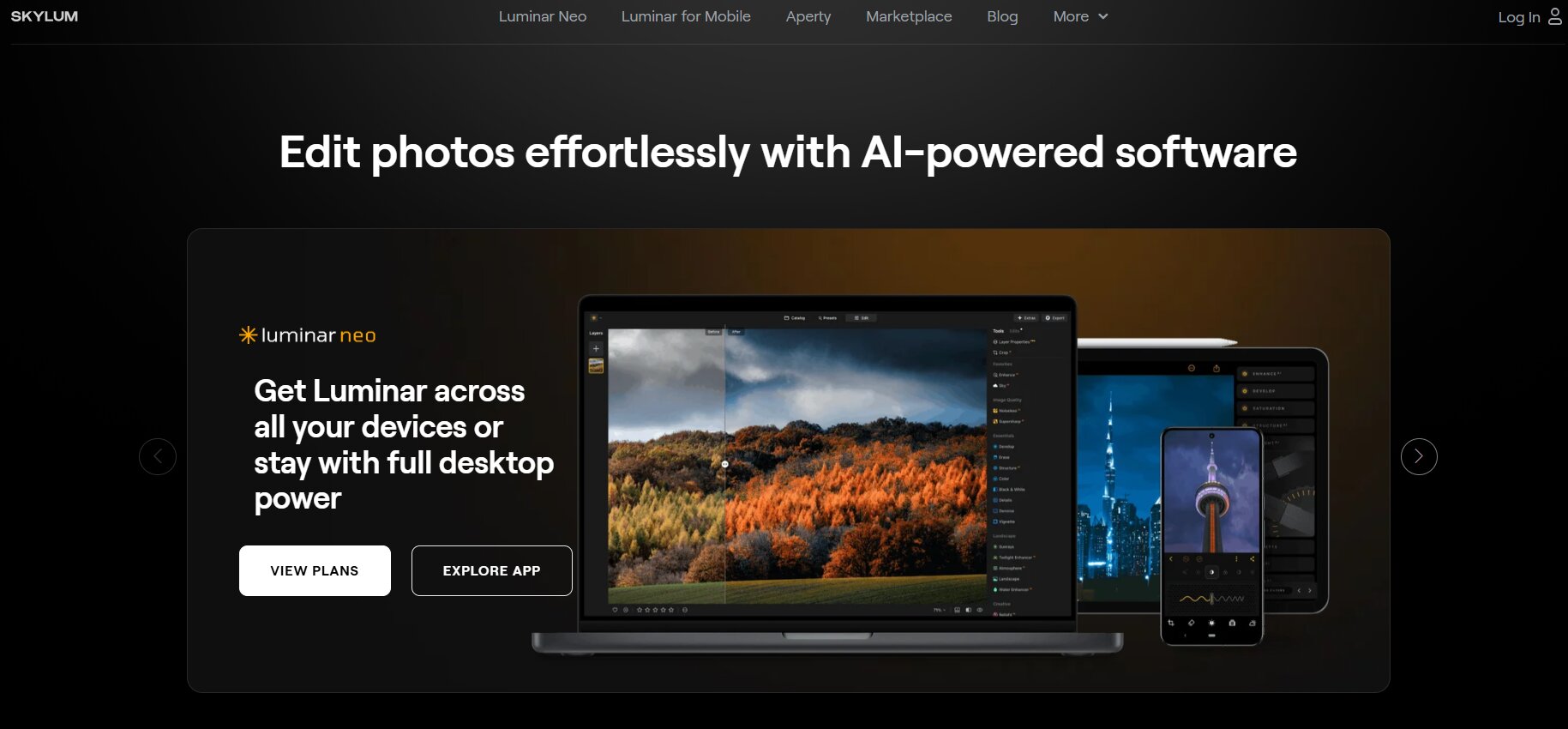
Luminar Neo Photo Editor is a desktop-based Luminar photo editing software that harnesses the power of artificial intelligence to automate complex editing tasks while maintaining creative freedom. It combines powerful AI tools with a simple editing experience, whether you're enhancing portraits, replacing skies, or improving RAW photos.
What makes Luminar Neo Photo Editor unique?
With Luminar Neo AI, you get simple professional editing with intelligent automation, not a traditional photo editor that requires hours of manual adjustments. With its AI-powered tools, it reduces the time you spend editing, while putting you in charge of each image's creativity.
-
AI-powered editing tools: Automatically enhance exposure, colors, contrast, and details with intelligent AI adjustments.
-
Layer-based workflow: Edit images using layers, masks, and blend modes without permanently altering the original file.
-
Sky replacement and relighting: Replace dull skies and relight scenes naturally with Sky AI and Relight AI.
-
Portrait enhancement: Improve facial features, skin texture, lighting, and background blur using dedicated portrait AI tools.
-
Non-destructive editing: Every adjustment remains editable, allowing photographers to revisit projects without losing quality.
-
Extension marketplace: Expand functionality with optional extensions such as HDR Merge, Focus Stacking, Upscale AI, and Noiseless AI.
Who should use Luminar Neo?
Luminar Neo is ideal for anyone who wants professional results without the complex editing workflows. The AI-powered tools help photographers of all skill levels and creative fields.
-
Hobby photographers looking for fast and simple photo improvements.
-
Portrait photographers who frequently retouch faces and enhance skin tones.
-
Landscape photographers who create dramatic skies and atmospheric effects.
-
Travel photographers edit RAW images on the desktop.
-
Content creators produce polished visuals for websites and social media.
Luminar Neo Photo Editor features review
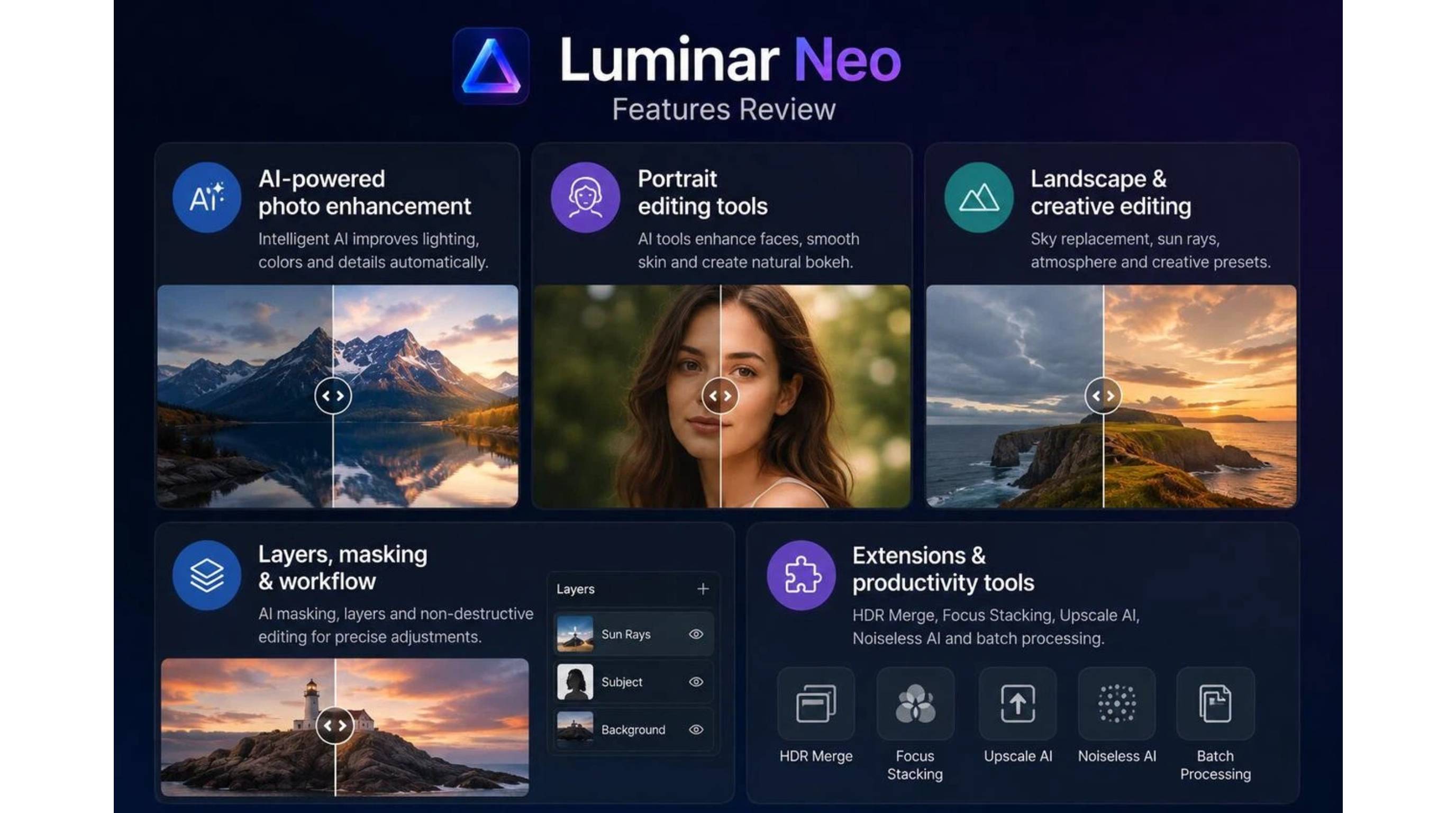
Luminar Neo offers a broad collection of AI-powered editing tools, but its real value comes from how well these features work in everyday editing. Rather than overwhelming users with endless controls, it focuses on speeding up common editing tasks while maintaining image quality.
AI-powered photo enhancement
Luminar Neo provides easy editing with AI tools that automatically improve lighting, colors, contrast, and overall image quality. The AI Enhance, AI Accent, and AI Relight work in tandem to produce natural-looking results but still maintain manual control, making the software suitable for portraits, landscapes, travel photography, and everyday image enhancement.
Portrait editing tools
Luminar Neo has dedicated AI portrait tools designed to refine facial features while keeping natural skin textures. Face AI, Skin AI, Portrait Bokeh AI, and Body AI automate the most common retouching tasks to help photographers produce polished portraits with realistic results in a fraction of the time it takes to do it manually.
Landscape and creative editing
AI tools like Sky AI, Atmosphere AI, Sun Rays, and other such tools are changing the game of landscape editing by easily improving skies, lighting, and depth. Along with color grading options and creative presets, these features help photographers create realistic or artistic images of the outdoors in no time.
Layers, masking, and workflow
Luminar Neo combines AI automation with powerful editing controls in its layers, AI Masking, and non-destructive editing. Here you can make precise local edits, save custom presets, and revert to edits at any time, creating a fast workflow for novice and experienced photographers alike.
Extensions and productivity tools
Luminar Neo has a few AI-powered extensions that make advanced editing easy. HDR Merge blends exposures to get the best lighting, Focus Stacking enhances macro shots, Upscale AI boosts image resolution, and Noiseless AI reduces digital noise. Batch processing also speeds up the editing process, since users can improve many photos in one workflow.
Luminar Neo Photo Editor performance review
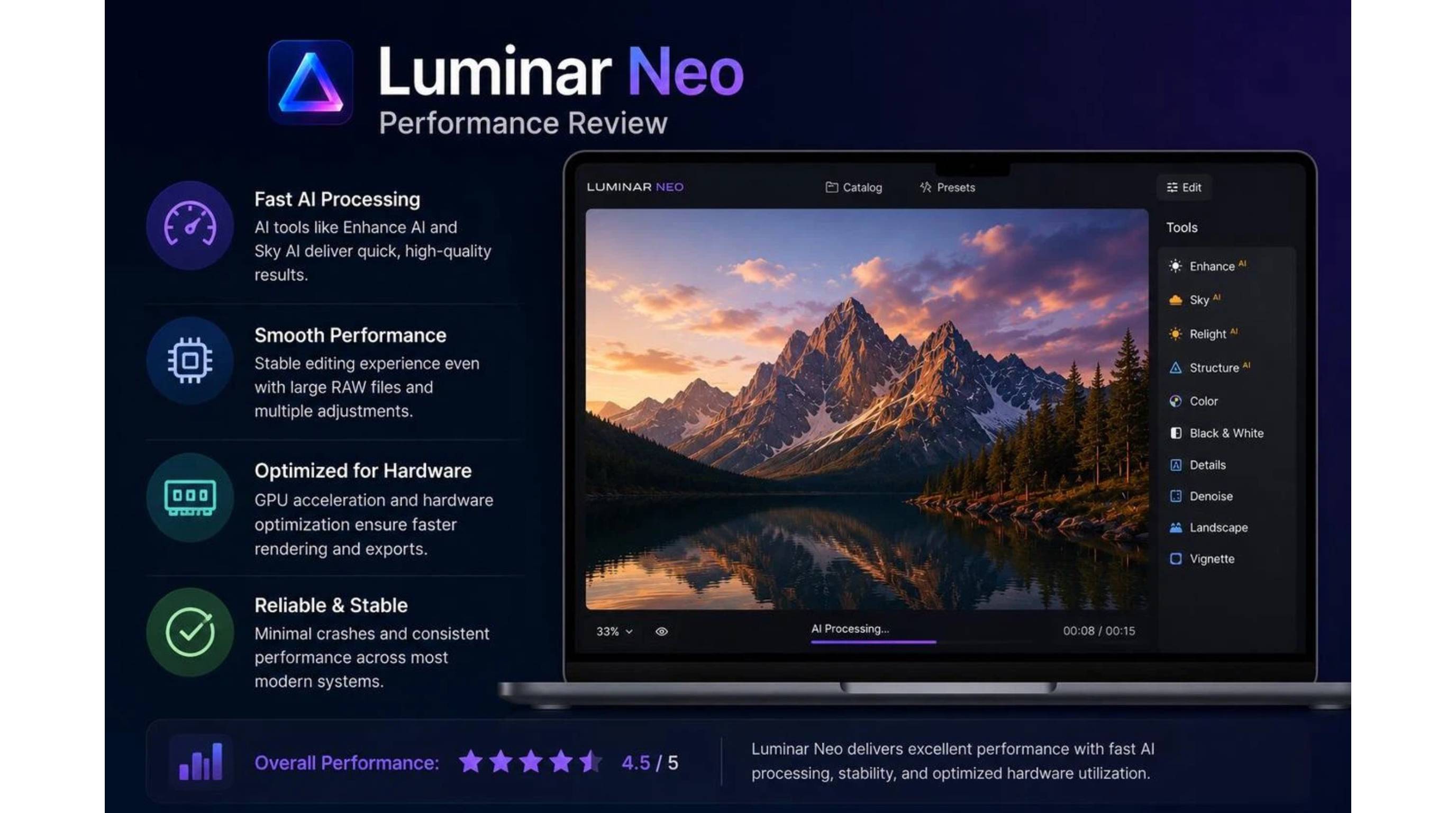
AI features only the most important power in the context of real-world editing results. We tested Luminar Neo on editing speed, interface design, and overall usability to find out how well it performs throughout everyday photography operations.
Editing speed
On modern computers, Luminar Neo's editing performance is smooth, and AI-powered adjustments process quickly for most images. Basic enhancements are applied almost immediately, but more advanced tools such as Upscale AI and HDR Merge may take a bit longer, depending on the image size and your hardware. On the whole, the software provides an efficient editing experience for everyday workflows.
User interface
It's clean, modern, and easy to navigate, which makes it suitable for beginners and experienced photographers alike. Editing tools are organized into intuitive groups, and AI-powered suggestions make common tasks a snap. The customizable workspace also helps users access frequently used features more efficiently, keeping your editing workflow productive.
Learning curve
Luminar Neo is not just for the pros. With its AI-assisted workflow, it is user-friendly for new users too. Automatic enhancements mean you don't have to do much manual tweaking, and as you become more experienced, there are advanced tools like layers, masking, etc. This balance makes software easy to learn, without limiting creative control.
Luminar Neo price
Picking a photo editor isn't just about looking at the features. There's pricing, licensing options, update policies, and long-term value, all of which play into the equation of whether or not Luminar Neo AI Photo Editor is the right investment for your editing workflow. Here's what you should know before you buy.
Luminar Neo pricing plans
|
License Tier |
Price |
Included Features & Services |
|---|---|---|
|
Desktop License |
$119.00 |
|
|
Cross-Device License |
$159.00 |
|
|
Max License |
$179.00 |
|
Is Luminar Neo worth the price?
Instead of the usual subscription, Luminar Neo has a one-time license model, which is tempting users looking to avoid ongoing fees. However, some premium extensions, creative asset packs, and future major updates may require further purchases. Overall, it's great value for photographers looking for AI-powered editing tools, although it may not be the greatest fit for all workflows.
Worth it for
-
Hobby photographers: AI-powered editing tools simplify everyday enhancements, helping users improve photos quickly without learning complex editing techniques.
-
Portrait photographers: Face AI, Skin AI, and Portrait Bokeh produce natural-looking portraits while reducing the time spent on manual retouching.
-
Landscape photographers: Sky AI, Relight AI, and atmospheric effects make it easy to create dramatic outdoor images with realistic lighting.
-
Travel photographers: Fast RAW editing and intelligent enhancements help process large collections of travel photos efficiently.
Not ideal for
-
Professional DAM workflows: It lacks the advanced photo cataloging and asset management capabilities available in dedicated software like Lightroom.
-
Large creative teams: Collaboration and cloud-sharing features are limited, making team-based editing less efficient.
-
Ecommerce production: The software is designed for creative photography rather than high-volume product image processing and catalog management.
-
Marketing agencies: Teams creating advertising assets at scale may benefit more from platforms built specifically for marketing content creation.
Things to know before buying
Some AI expansions and creative packs are additional, so check before purchasing Luminar Neo. Lifetime licenses may not cover future major upgrades, and some AI capabilities may need to be renewed. Your computer hardware will impact performance, so it's definitely worth taking advantage of the free trial before you purchase.
Luminar Neo review: Pros and cons
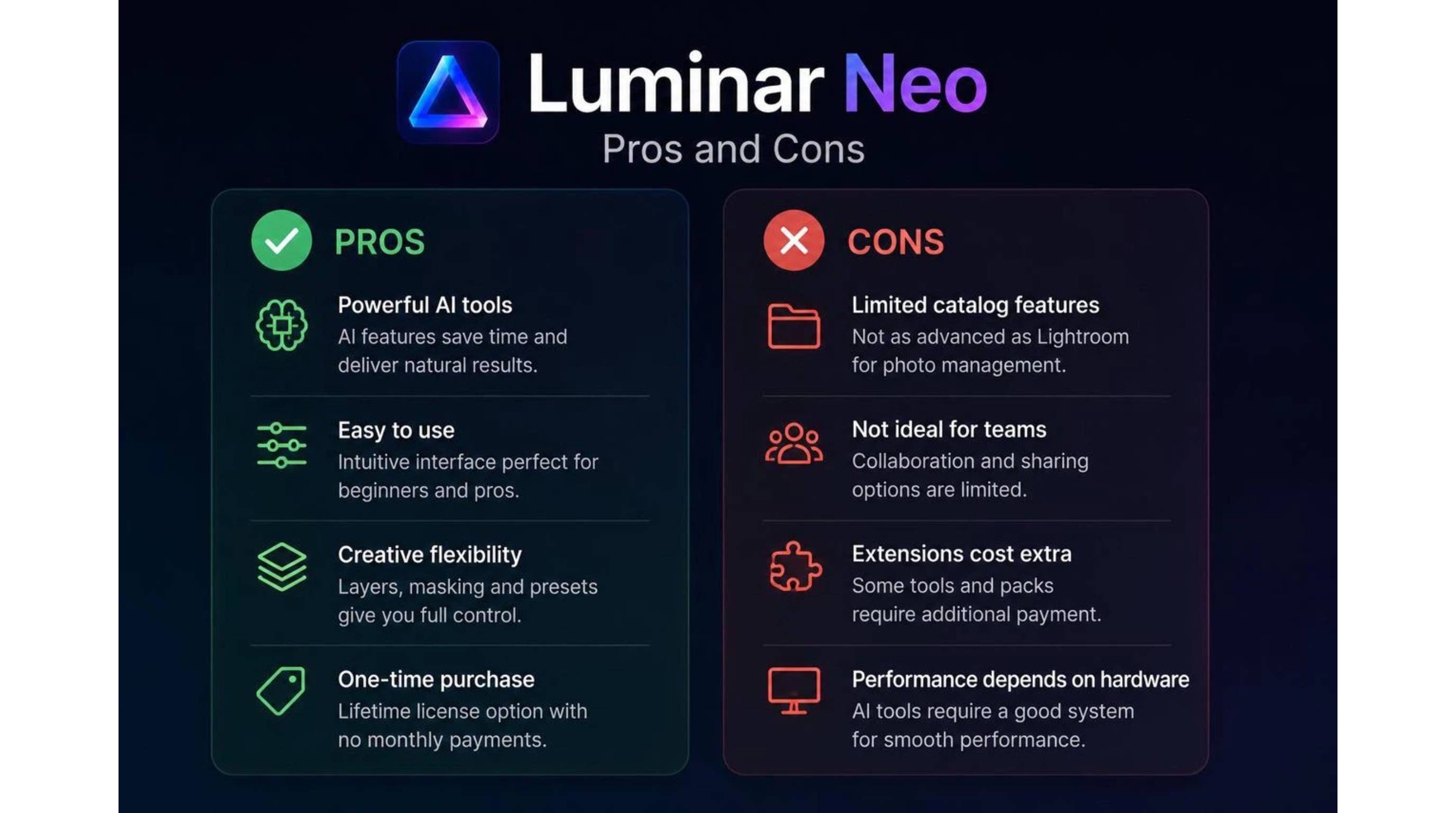
No picture editor is a one-size-fits-all. While Luminar Neo is great for the AI automation of creative editing, there are a few limits you should be aware of before purchasing it.
What Luminar Neo does well
Luminar Neo uses intelligent automation to simplify complex edits, combining professional editing tools. Its workflow is designed to let photographers spend less time editing, but still get high-quality results.
-
Powerful AI editing: Automatically enhances lighting, colors, and details while reducing the need for manual adjustments.
-
Beginner-friendly interface: Even users with limited editing knowledge may easily handle professional photo editing because of its simple style.
-
Excellent portrait enhancement: Face AI, Skin AI, and Portrait Bokeh create natural-looking portraits without excessive retouching.
-
Creative landscape tools: Sky replacement, atmospheric effects, and relighting tools add depth and realism to outdoor photography.
-
Non-destructive workflow: Every adjustment remains editable, allowing photographers to refine images without affecting the original file.
-
Frequent software updates: Regular improvements introduce new AI features and enhance overall editing performance.
Luminar Neo limitations
Although Luminar Neo delivers excellent editing capabilities, certain limitations may influence whether it suits your workflow.
-
Performance depends on hardware: AI processing can be slower when editing large files on older or less powerful computers.
-
Extra cost for some extensions: Several advanced AI features and creative extensions require separate purchases.
-
Limited cloud collaboration: Team sharing and collaborative editing options are less comprehensive than competing platforms.
-
Photography-focused software: It is designed for photographers rather than users creating graphic designs or marketing materials.
-
Advanced tools require practice: Features such as layers and masking are powerful but may take time for beginners to master.
Best Luminar Neo Photo Editor alternatives
Luminar Neo AI is great for artistic photography, but other editing tools may be more suited to certain processes. If your aim is professional photo management, advanced image manipulation, or AI-generated visuals for marketing purposes, there are a few other options to consider.
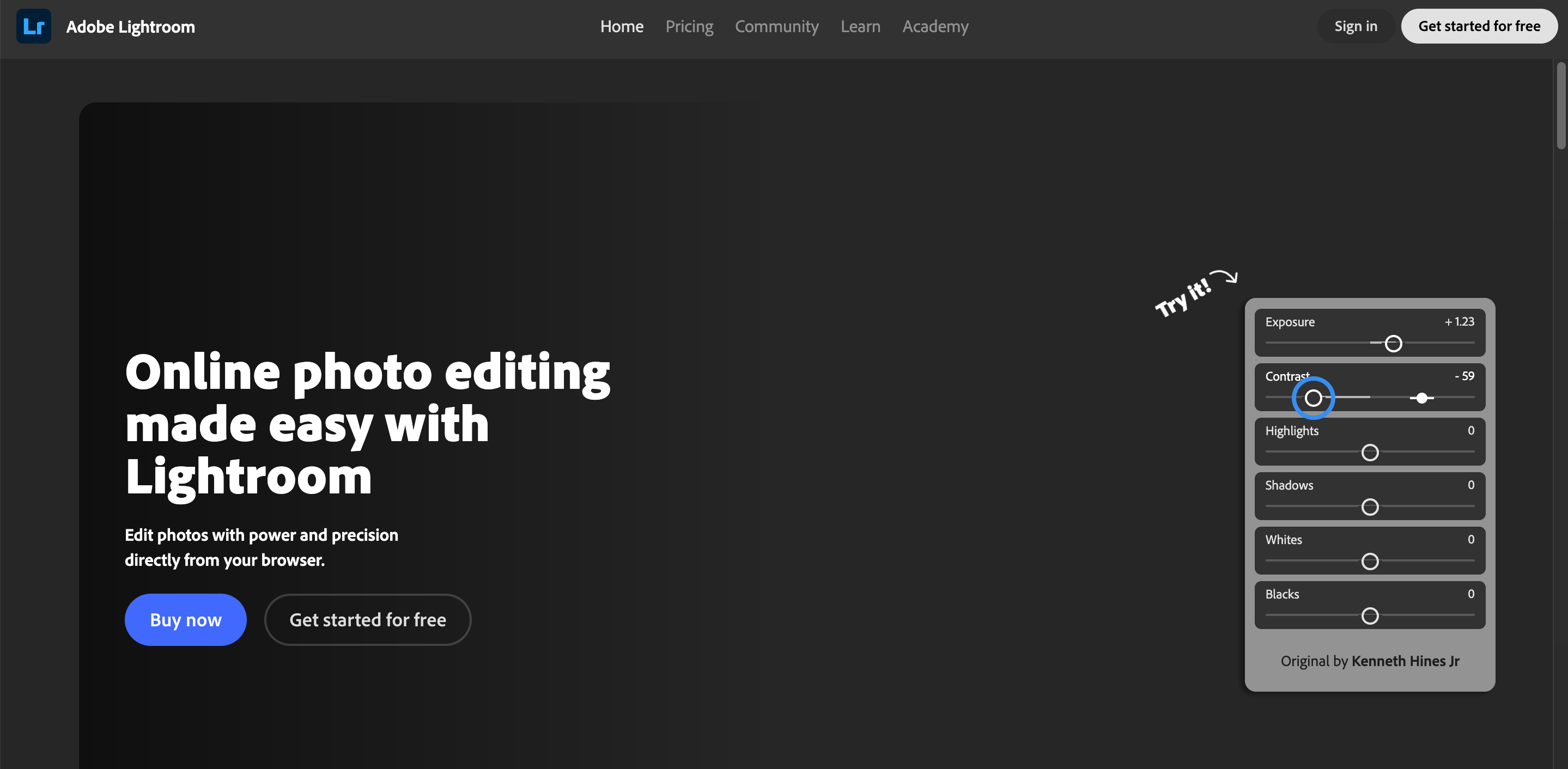
Adobe Lightroom
Best for: Professional photo management and RAW editing
-
Comprehensive photo organization: Organize thousands of images using collections, keywords, ratings, and smart catalogs.
-
Professional RAW processing: Fine-tune exposure, colors, highlights, and shadows using industry-standard editing controls.
-
Cloud synchronization: Edit photos seamlessly across desktop, mobile, and web with automatic cloud syncing.
-
Reliable photography workflow: A trusted solution for photographers handling weddings, events, and commercial projects.
Adobe Photoshop
Best for: Advanced photo manipulation
-
Professional editing tools: Handle complex retouching, compositing, and image manipulation with precision.
-
Layer-based workflow: Use layers, masks, smart objects, and blending modes for maximum creative flexibility.
-
AI-powered features: Generative Fill and other AI tools speed up difficult editing tasks while improving productivity.
-
Creative versatility: Suitable for photography, advertising, graphic design, and digital artwork.

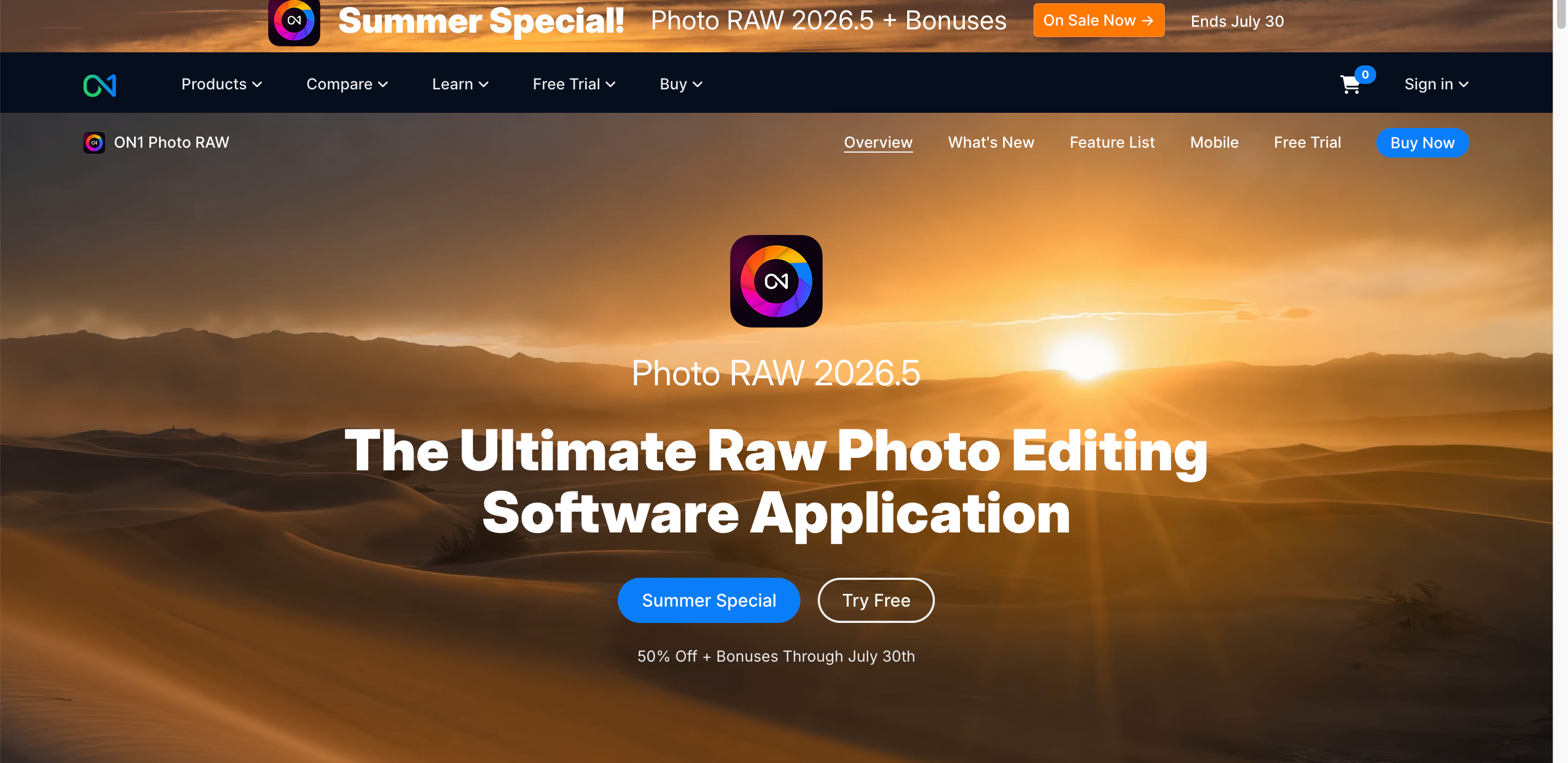
ON1 Photo RAW
Best for: Photographers wanting an all-in-one editing suite
-
Complete photography workflow: Combines RAW editing, photo organization, and creative effects in one application.
-
AI-assisted enhancements: Improve photos faster with intelligent editing tools while retaining manual control.
-
Creative presets: Apply professional-looking styles quickly using an extensive collection of presets and filters.
-
Flexible licensing: Available as a perpetual license without requiring a subscription.
Designkit
Best for: AI-powered marketing visuals and ecommerce image creation
-
AI image enhancement: Leverage Designkit's AI to automatically increase image clarity, lighting, colors, and sharpness, enabling you to produce professional-quality visuals for marketing, e-commerce, and social media with less editing effort.
-
Background replacement: Replace simple or distracting backdrops with clean, bespoke settings to generate polished product images ready for online retailers, commercials, and promotional campaigns.
-
Marketing creative generation: Generate banners, social media posts, promotional graphics, and branded visuals from a single platform, making it easier to create consistent marketing assets across multiple channels.
-
Browser-based editing: Unlike desktop-only editors, Designkit runs entirely in your browser, allowing you to edit, enhance, and export images from anywhere without installing additional software.

How to enhance photos with Designkit
Designkit simplifies image enhancement by combining AI editing with an intuitive browser-based workflow.
Step 1: Upload your photo
Upload a portrait, product image, or lifestyle photo directly into Designkit. The platform supports high-quality images and prepares them automatically for AI enhancement.

Step 2: Edit your image with AI
Use Designkit's AI photo editing tools to customize your image based on your needs. Remove or generate backgrounds, erase unwanted objects, enhance image details, adjust lighting and colors, or apply other AI-powered edits to create polished, professional visuals in just a few clicks.

Step 3: Export your final image
Check your final edited image, then export it to high-quality ecommerce stores, advertisements, websites, or social media.

Luminar Neo vs Designkit: Which one should you choose?
Although both platforms use AI to improve images, they are designed for different audiences. Luminar Neo focuses on creative desktop photo editing, while Designkit emphasizes fast content production for businesses, ecommerce, and marketing teams.
|
Feature |
Luminar Neo |
Designkit |
|---|---|---|
|
Main focus |
Creative photo editing |
Ecommerce & marketing visuals |
|
Portrait editing |
Excellent |
Not the core job |
|
Product photography pipelines |
Limited |
Strong |
|
Background/scene generation for SKUs |
Good creative tools |
Strong for catalogs/ads |
|
Desktop app |
Yes |
Browser-based |
|
Best for |
Photographers |
Businesses & marketers |
Choose Luminar Neo if you need:
Choose Luminar Neo if your primary focus is creative photo editing. It is well suited for photographers who need AI-powered tools for portrait retouching, landscape enhancement, sky replacement, and artistic effects. Its desktop-based workflow, combined with layers, masking, and non-destructive editing, provides greater creative control for users who want to refine their images in detail.
Choose Designkit if you need:
Designkit is the way to go if you want to generate marketing-ready visuals quickly and efficiently. It is a better option for businesses, ecommerce sellers, and marketers who need professional product photography, promotional banners, social media graphics, and branded content. It's a web-based AI workflow, so no complex editing, no desktop program to install, and it's easy to create high-quality visuals.
Conclusion
Luminar Neo Picture Editor is a fantastic AI-powered picture editing program for photographers who wish to make professional-quality alterations without having to become experts in complicated editing procedures. It's one of the most powerful desktop editors out there with its smart AI tools, portrait upgrades, and landscape edits.
However, businesses and marketers often require more than photo enhancement. They need product photography, promotional graphics, and marketing assets that can be created quickly at scale. For these workflows, Designkit offers a faster and more business-focused AI solution.
Frequently Asked Questions
What is Luminar Neo Photo Editor used for?
Is Luminar Neo good for beginners?
Yes, the intuitive interface and AI-powered editing capabilities allow beginners to enhance photographs easily, while still offering extensive functionality for professional photographers.
Is Luminar Neo available as a lifetime license?
Yes. Luminar Neo offers both subscription plans and a lifetime license, although certain extensions and future major upgrades may require additional purchases.
Can Luminar Neo replace Lightroom?
For photographers who are primarily processing, Luminar Neo can replace Lightroom in many workflows. That said, for advanced picture library management and vast image archives, Lightroom still wins out.
Does Luminar Neo work as a Lightroom or Photoshop plugin?
Yes. Luminar Neo can be used as a standalone application or as a plugin for Adobe Lightroom and Photoshop, allowing users to add its AI editing tools to their existing workflows.
Does Luminar Neo work offline?
Yes. Once installed, you can use most of the editing functions while offline. An online connection is necessary to verify your license, download software updates, and use select AI-powered services.
Is Luminar Neo better than Photoshop for photographers?
Photoshop is more powerful for compositing, graphic design, and deep image editing. Luminar Neo is generally simpler and faster for AI-assisted image editing.
What is the best alternative to Luminar Neo?
The best alternative depends on your workflow. Adobe Lightroom is best for editing RAW files, Photoshop is best for sophisticated image editing, ON1 Photo RAW is a great all-in-one photography suite, and Designkit is a good pick for AI-powered marketing and ecommerce visuals.
Is Luminar Neo worth the price in 2026?
If you're into portrait, landscape, or travel photography, then Luminar Neo is great value with its AI-powered editing features. For businesses that are developing product photos and marketing assets at scale, Designkit might be a better fit.
You May Also Like

How to Edit an Instagram Post After Posting: A Complete Guide

11 Best Canva Alternatives in 2026 for AI Design & Marketing

8 Best Midjourney Alternatives in 2026: Features, Pricing & Comparison

How to Restore Old Photos: AI Tools, Tips & Best Methods

Pixelcut AI Review 2026: Features, Pricing, Pros, Cons & Alternatives
How to Apply Watermark to Photos: Methods, Tips & AI Tools
How to Remove a Background in Illustrator: 4 Easy Methods

How to Change Background Color on Instagram Story (Easy Guide)

8 Best AI Poster Generators in 2026: Create Posters Faster with AI
10 Best AI Image Enhancers in 2026: Tested & Compared
10 Best AI Image Editors in 2026: Features, Pricing & Comparison

7 Best AI Background Changer in 2026: Remove & Replace Photo Backgrounds
Luminar Neo vs Lightroom: Features, Pricing & Comparison 2026

Kittl Review 2026: Is It Worth It? Features & Pricing
How to Make a Blurry Image Clear: 5 AI & Manual Ways

How to Remove Background on iPhone: 5 Easy Methods (2026)

Photoroom Background Remover Review 2026: Features & Alternatives
How to Remove Background in Canva: A Step-by-Step Guide
How to Remove Background in GIMP: Beginner-Friendly Guide

Funny Dog Memes to Try: Doge Meaning and 10 Original Ideas

Back to School Checklist 2026: Supplies, Timeline, and Planning

Recraft AI Review 2026: Features, Pricing, Pros, Cons & Alternatives

How to Make an Image Transparent in Google Slides: Opacity & Background Removal

VanceAI Photo Enhancer Review: Features, Pricing & Alternatives in 2026

What Does Emojify Mean? Text, Photos, & Emoji Art Explained

Top 8 Online Background Removers for Ecommerce Photos (2026)
How to Remove Background in Photoshop: 7 Easy Methods
6 Best AI Image Upscalers 2026: Tools Tested & Compared
Project Indigo Review: Is It Better Than iPhone Camera?

How Big Is an 8x10 Photo? Size, Pixels & Frame Guide

How Big Is a 4x6 Photo? Dimensions, Pixels & Printing Tips

Picsart AI Review: Features, Pricing, Pros, Cons & Alternatives

Lovart AI Review: AI Design Agent Features, Pricing & Alternatives

Fotor AI Image Generator Review: Features, Pricing & Alternatives

How to Add Emoji to Photo Online for Free

Emoji Wallpaper Ideas & How to Make One Online (2026)

Minimalist Poster Design: How to Make a Clean Poster (2026)

How to Make a Custom Poster That Is Ready to Print

Instagram Image Size Guide 2026: Post, Reel, Story & Carousel Specs
LinkedIn Image Size Guide: Profile, Post & Banner Dimensions

YouTube Profile Image Size: Best Dimensions & Safe Area 2026

How to Edit Amazon Product Photos That Boost Sales Fast
Create Better Images with AI-Powered Workflows
Luminar Neo is ideal for creative photo editing, but businesses often need more than enhanced photos. With Designkit, you can create professional product images, marketing creatives, advertising visuals, and branded content using AI-powered tools designed for fast, scalable content production.
