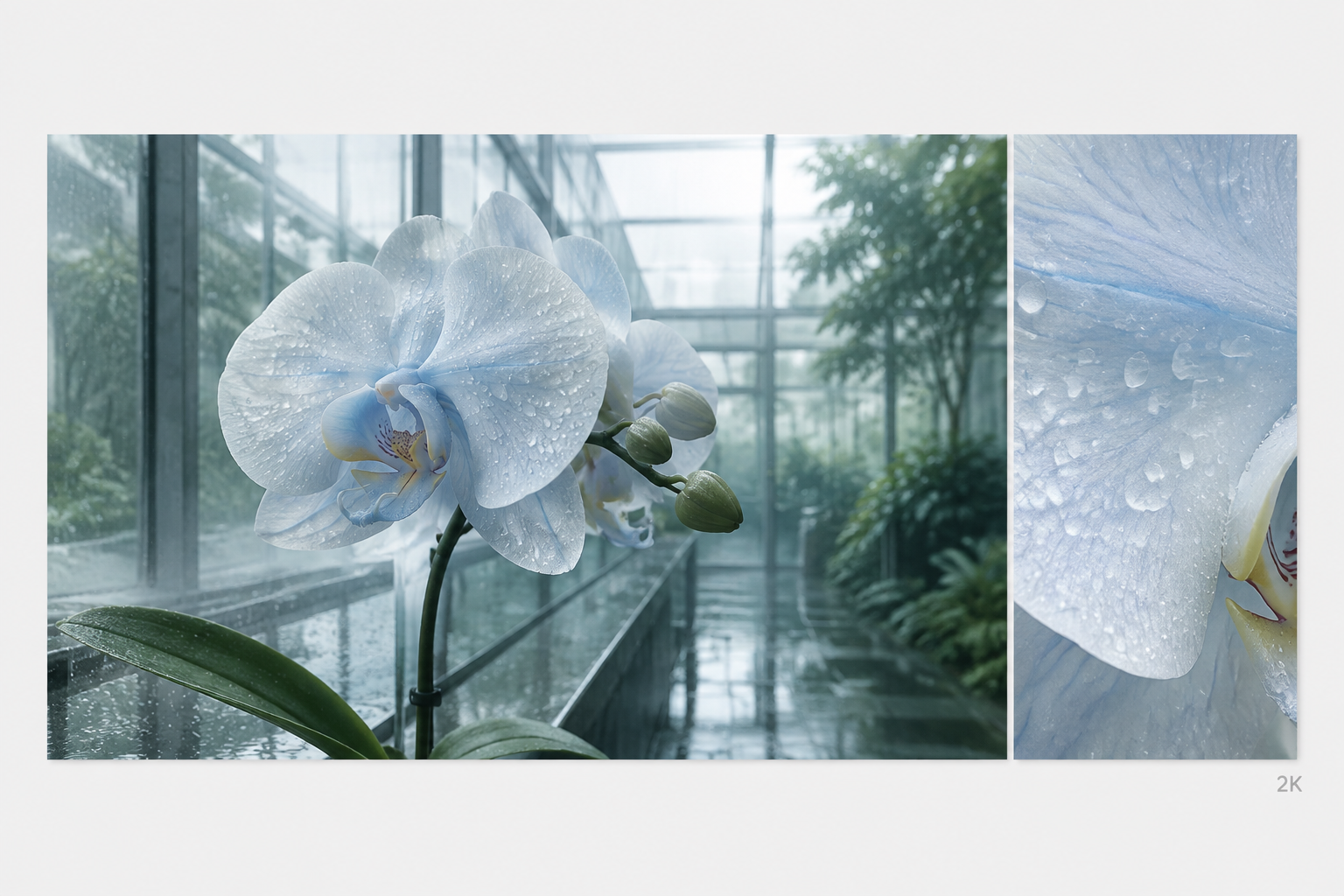
Upload a Product Photo or Enter a Prompt
Upload a product image as a visual reference, or describe the product and the scene you want to create.

Create product visuals for ecommerce listings, lifestyle photography, and marketing campaigns with GPT Image 2.6 in Designkit.
Go from a product photo or idea to a new visual in three simple steps.
Upload a product image as a visual reference, or describe the product and the scene you want to create.

Select GPT Image 2.6 in Designkit. Describe the background, lighting, setting, and composition to guide your product image.

Generate your image and review the result. Use follow-up prompts to explore changes or create another variation.
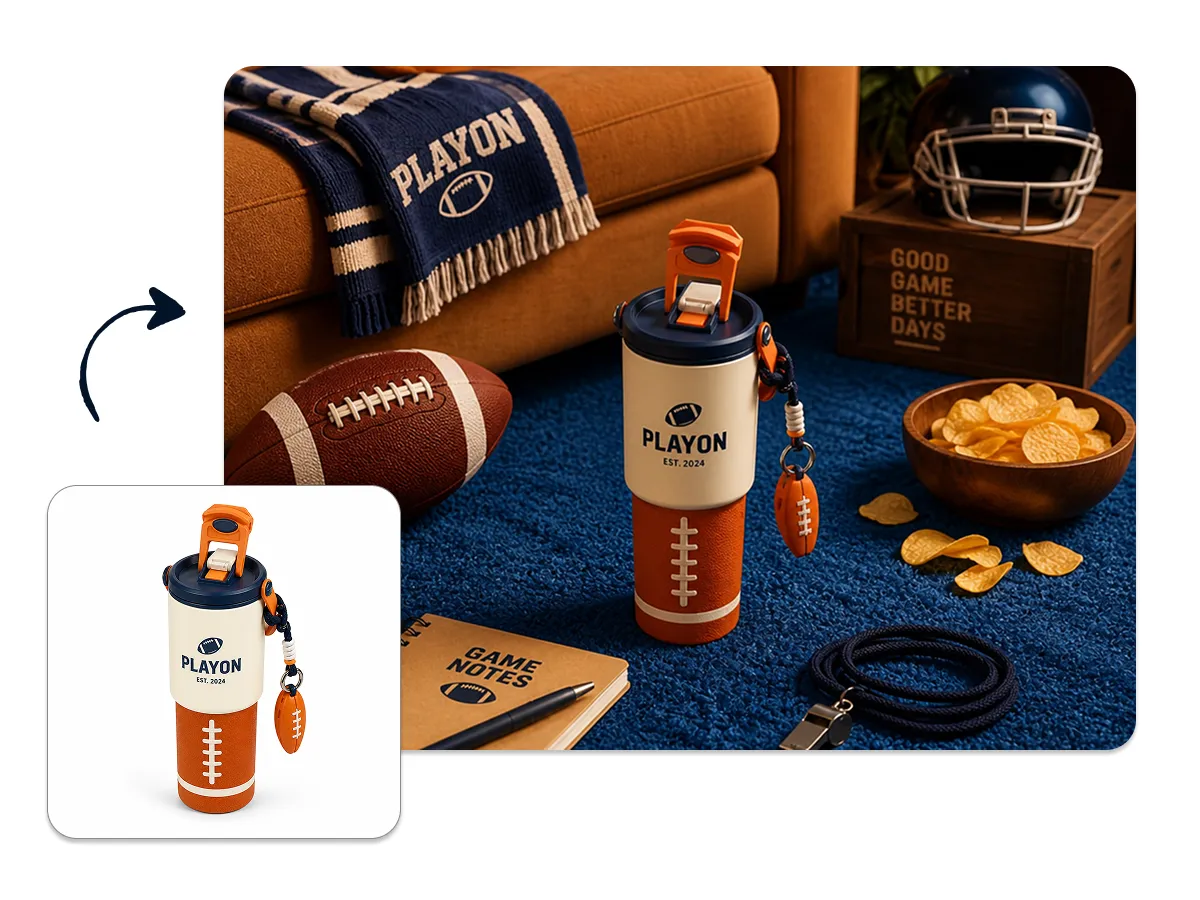
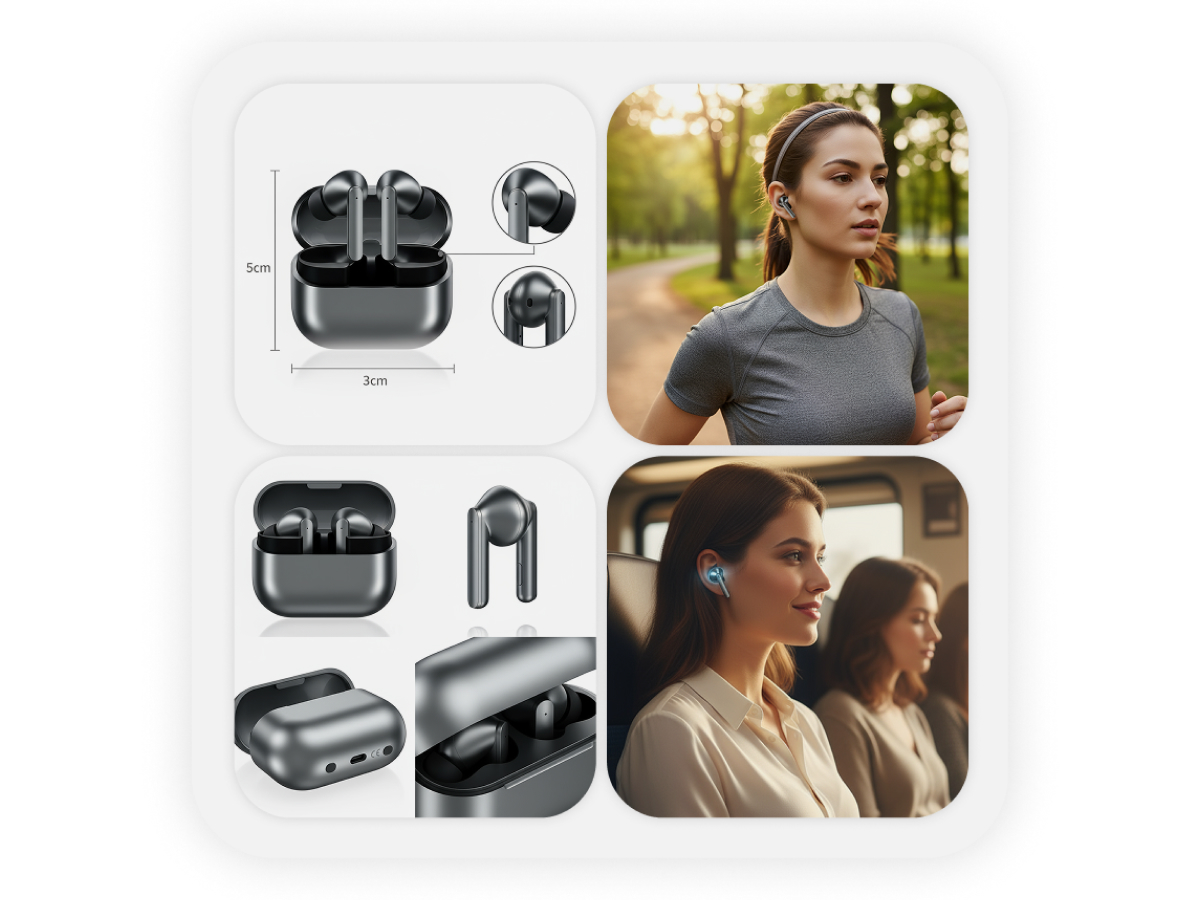
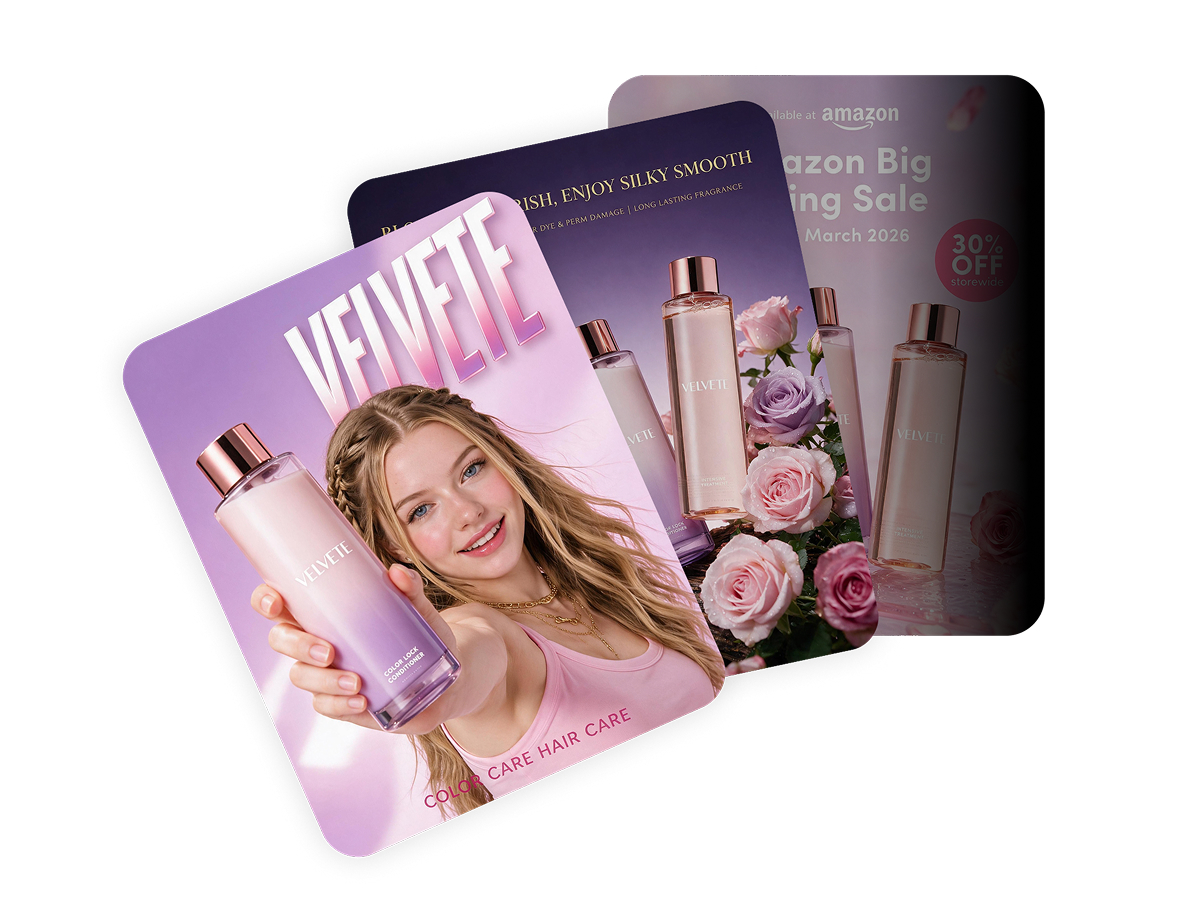
Use an existing product photo as a reference to explore new backgrounds, lifestyle settings, packaging concepts, and advertising visuals.
You can also start with a text prompt when you don't have a product photo ready.
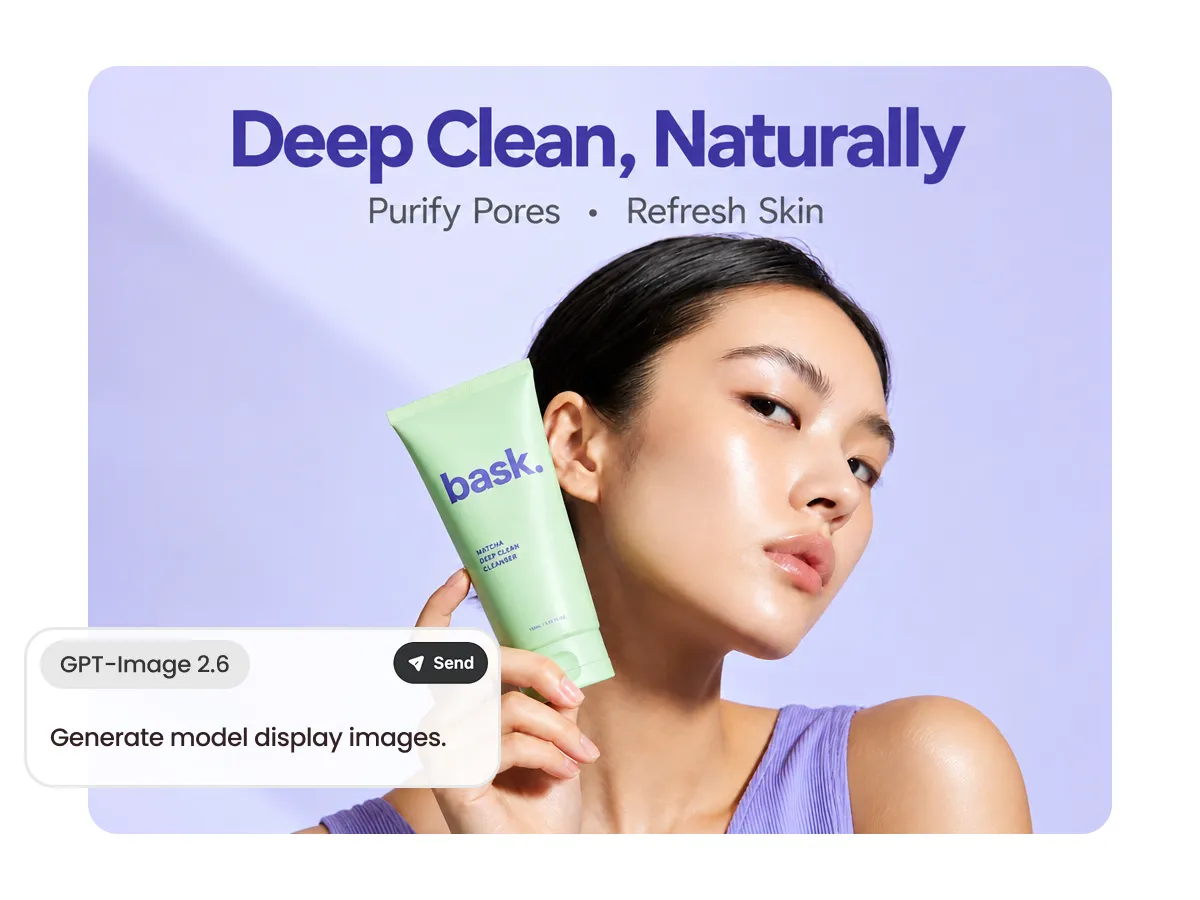
Describe the setting, lighting, background, and composition in your own words.
Guide GPT Image 2.6 toward different creative directions for product listings, launches, and campaigns.
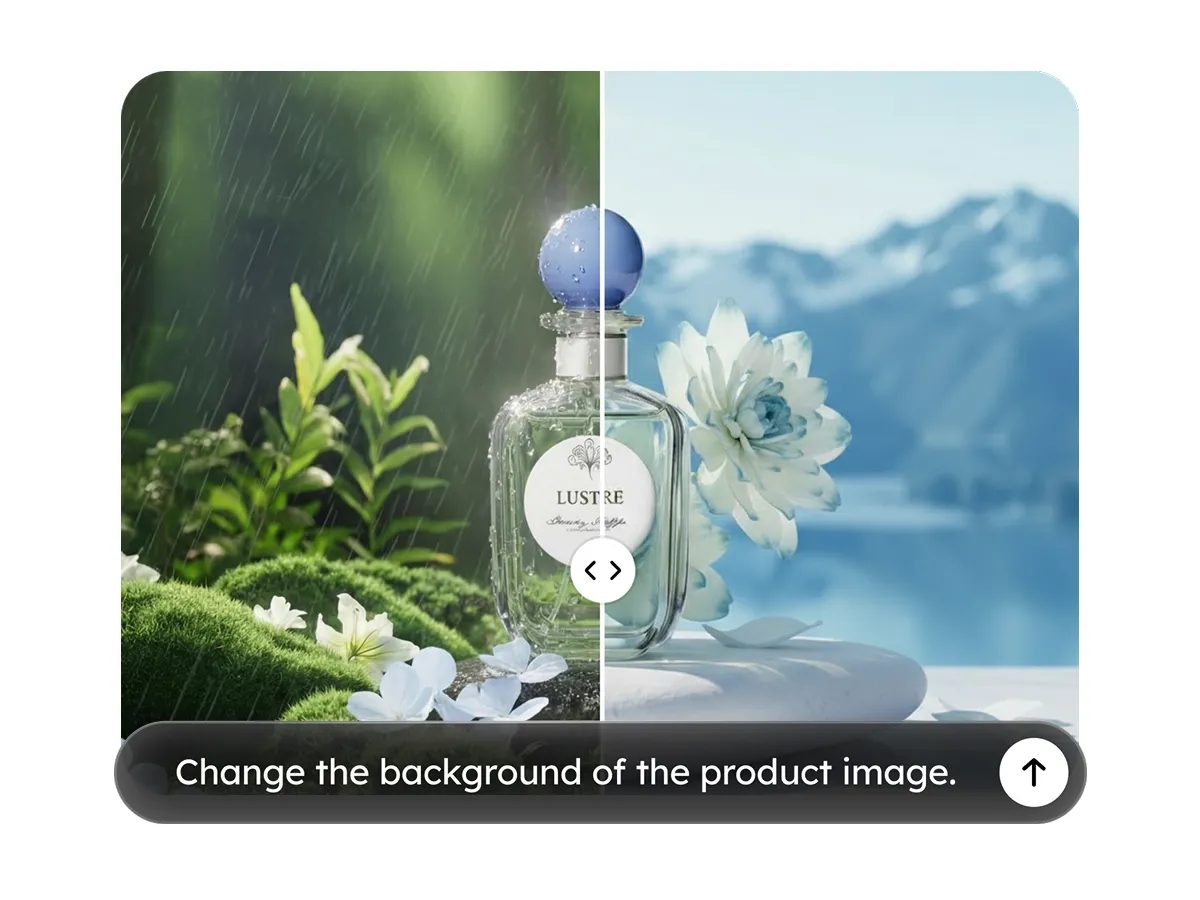
Build on your generated image with follow-up prompts.
Request changes, explore alternative compositions, and develop new versions without starting every concept from scratch.

Create different visual directions for product presentation, from clean product-focused scenes to detailed lifestyle concepts.
Review generated shapes, colors, labels, and other product details against your original reference.
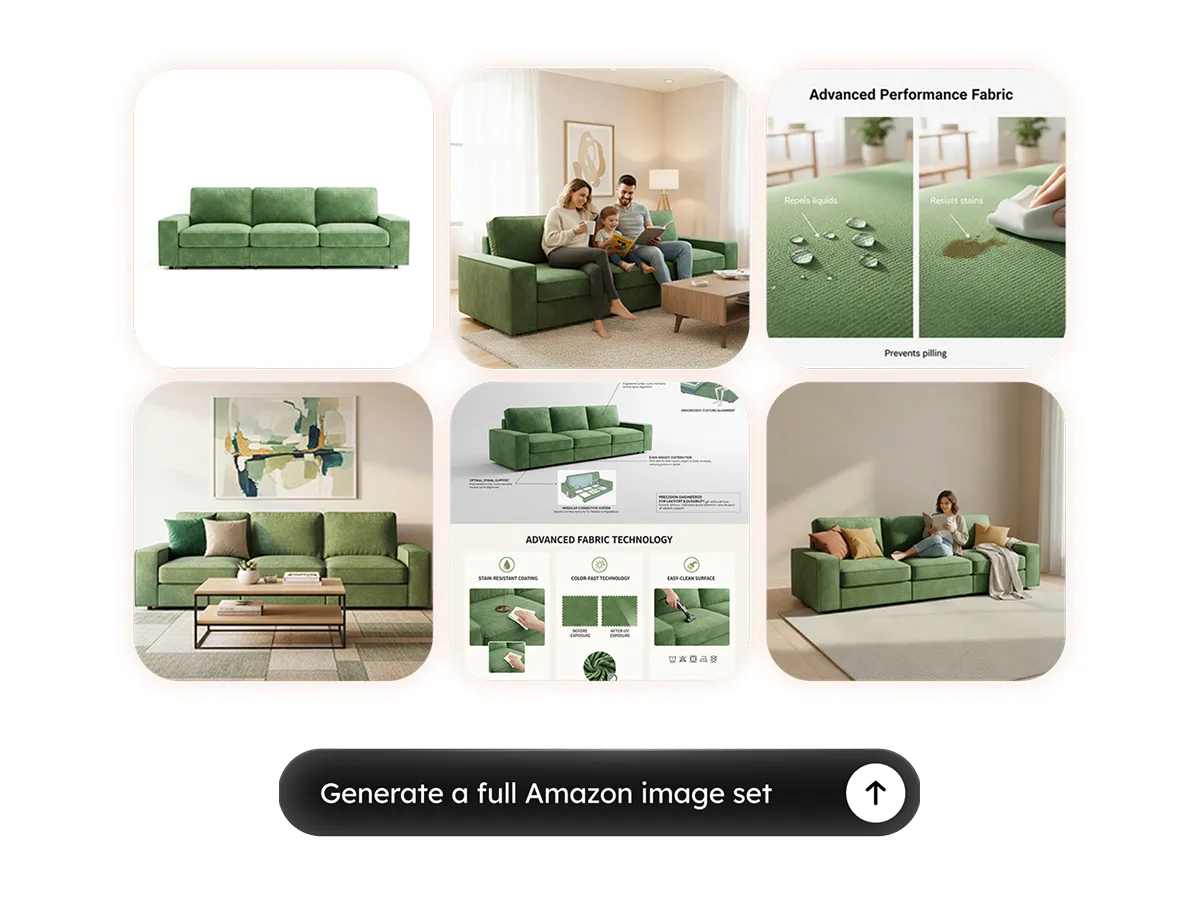
Create new product image concepts from catalog photos. Explore clean backgrounds, alternative compositions, and different ways to present products for online stores.
Get more from GPT Image 2.6 with Designkit.

Choose a direction for white-background listings, lifestyle scenes, packaging, or product ads. You can also describe a different setting in your prompt.

Use a product photo as a visual reference while exploring a new scene. Review shape, color, and labels against the real item before publishing.

Select GPT Image 2.6 in Designkit’s product image workflow, then use follow-up prompts or create another variation as you develop the visual direction.
The latest image and video models currently available in Designkit.
Yes. GPT Image 2.6 is available in Designkit's product image workflow.
Yes. You can start with a text prompt describing the product and the scene you want to explore.
Yes. Upload a product photo to guide the generated image and describe the new setting, background, or composition you want.
Yes. Use follow-up prompts to request changes or explore different variations. You can also continue editing with Designkit's image editing tools.
Exact preservation is not guaranteed. Always compare generated images with your original product photo, especially when checking product labels, logos, colors, and other identifying details.
Image generation uses Designkit credits. The cost depends on the selected tool and generation settings. Check the current credit cost in Designkit before generating.
Generated images should follow the latest image requirements of your sales platform and accurately represent the product. Review each image before publishing.
Start with a product photo or text prompt. Explore new scenes, develop different visual directions, and refine your product images in Designkit.