
YouTube Profile Image Size: Best Dimensions, Safe Area & Creator Tips
Learn the ideal YouTube profile image size, exact dimensions, safe area tips, and common mistakes to avoid. Create a sharp, professional channel image that looks clear across search, comments, and every device.


Using the wrong YouTube profile image size can make your logo blurry, crop important branding, and weaken channel recognition.
The good news is that YouTube only requires a few simple sizing rules. In this guide, you'll learn the recommended dimensions, safe area guidelines, and practical design tips to keep your profile picture sharp across search results, comments, and channel pages.
Exact YouTube Profile Image Size Requirements
If your profile picture looks blurry after upload, incorrect sizing is usually the first thing to check.
For most channels, using the recommended dimensions below is enough to keep logos and profile photos sharp across YouTube.
Recommended YouTube Profile Picture Dimensions
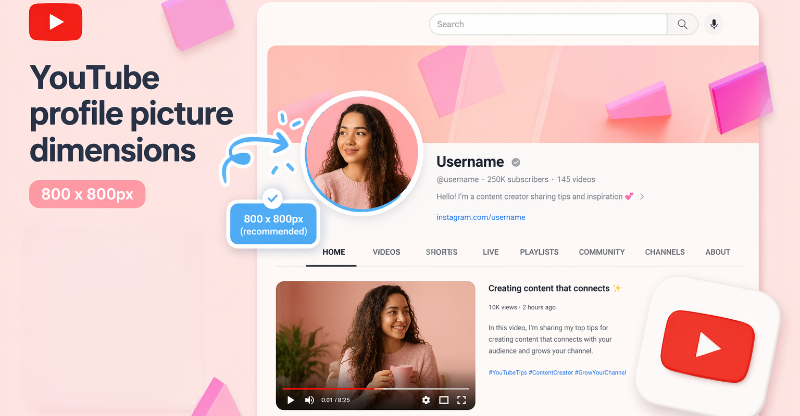
The recommended YouTube profile image size is:
-
800 × 800 pixels
-
Square 1:1 ratio
-
Circle display crop
Although YouTube displays profile pictures in a circular format, uploading a square image ensures proper scaling across the platform. Keeping important elements such as logos, faces, or text near the center helps prevent them from being cut off by the circular crop. Using the recommended dimensions also helps maintain image quality on both desktop and mobile devices.
File Formats and Upload Limits
YouTube accepts PNG, JPG, non-animated GIF, and BMP files, with a maximum upload size of 4MB. PNG is recommended for logos and graphics because it preserves sharp edges and supports transparency, while JPG works well for photo-based profile images.
Where Your Profile Image Appears Across YouTube
Your profile picture appears far more often than your channel banner.
Most viewers first see it in comments, search results, and subscription feeds. Because these placements are small, simple designs usually outperform detailed logos and text-heavy graphics.
Why Do Many YouTube Profile Pictures Look Blurry After Upload
Even when creators use the correct image dimensions, profile pictures can still appear blurry, pixelated, or poorly cropped after uploading. In most cases, the issue is not the file format itself, but how YouTube processes and displays the image across different areas of the platform.
Uploading Images Smaller Than the Recommended Size
One of the most common mistakes is uploading images below the recommended 800 × 800 pixel size. When YouTube enlarges a low-resolution image to fit its display requirements, details become softer, and edges appear less sharp. This is especially noticeable with logos, text, and graphic-based profile pictures.
Circular Cropping Cuts Off Logos and Text
Although profile pictures are uploaded as squares, YouTube displays them inside a circular frame. Elements placed too close to the edges may be cropped out after upload. Logos with wide layouts, text-based branding, or profile images with important details near the border are particularly vulnerable to this issue.
Why Detailed Logos Often Lose Quality
If your logo looks sharp in Photoshop but blurry on YouTube, image compression is usually the reason.
This often affects logos with thin lines, small text, or intricate details.
Quick Fixes to Keep Your Image Sharp
To improve image quality after upload:
-
Start with an 800 × 800 pixel image or larger
-
Use PNG format when possible
-
Keep logos, faces, and text centered
-
Leave padding around important design elements
-
Avoid small text and intricate details
-
Preview the image at small sizes before uploading
Following these simple adjustments helps your profile picture stay clear, recognizable, and professional throughout YouTube's interface.
How to Avoid Cropping Issues to Prevent Logo and Text Cropping
Using the correct image dimensions is only part of the process. To ensure your profile picture displays properly everywhere on YouTube, you also need to position important elements within a safe area that remains visible after the circular crop is applied.
Center Your Logo to Avoid Cropping
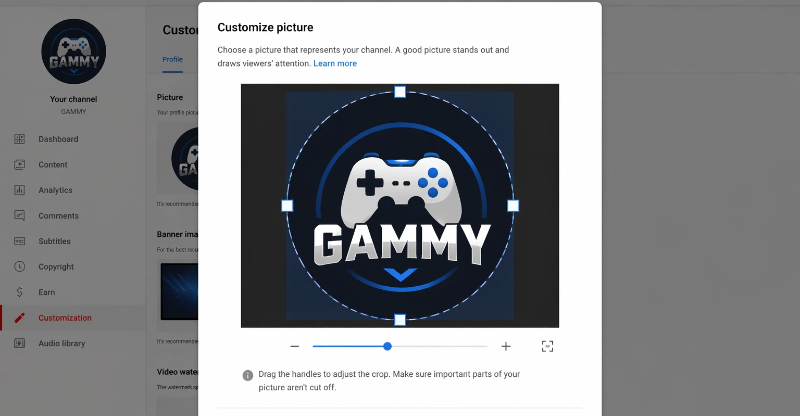
The size of the YouTube profile picture matters, but placement is equally important. Keep logos, faces, initials, and key branding elements near the center of the image. Leaving extra space around the edges reduces the risk of important details being cropped after uploading.
Avoid Placing Text Near the Edges
YouTube converts square uploads into circular profile images. As a result, the four corners of your original image fall outside the visible area. Any text, icons, or branding placed in these corners may be partially or completely hidden once the image is displayed.
Best Profile Picture Layouts for Brands and Creators
The best profile picture depends on what viewers are expected to remember.
For business channels, a simplified logo usually works better than a full company logo. For creator-led channels, a clear headshot often builds stronger recognition because viewers associate the content with a person.
For example, a gaming channel may use a bold icon or mascot instead of a detailed logo because it stays recognizable at small sizes. A tutorial creator often gets better recognition with a clear headshot and simple background, especially when viewers frequently encounter the channel in search results and recommendations.
Create a YouTube Profile Image with Designkit
Most profile picture problems come from three issues:
-
Low image quality
-
Incorrect cropping
-
Poor logo placement
Designkit helps fix all three before you upload to YouTube.
Instead of manually adjusting dimensions and testing crops, creators can upload an image, optimize it for YouTube profile requirements, and export high-quality results in minutes. Whether you manage a personal creator channel, gaming brand, tutorial channel, or eCommerce content page, Designkit simplifies the process.
How to Create a YouTube Profile Image with Designkit in 3 Simple Steps
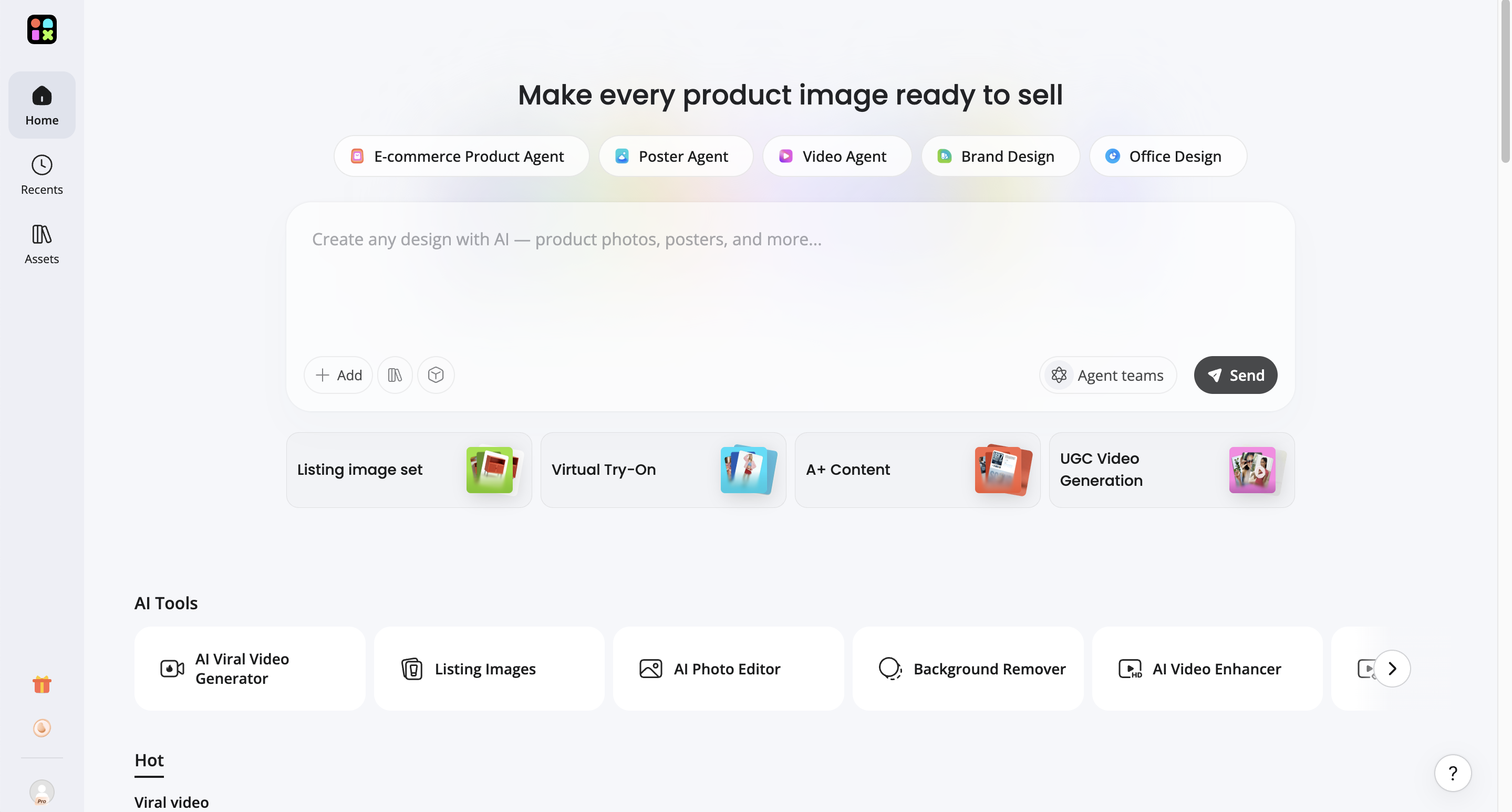
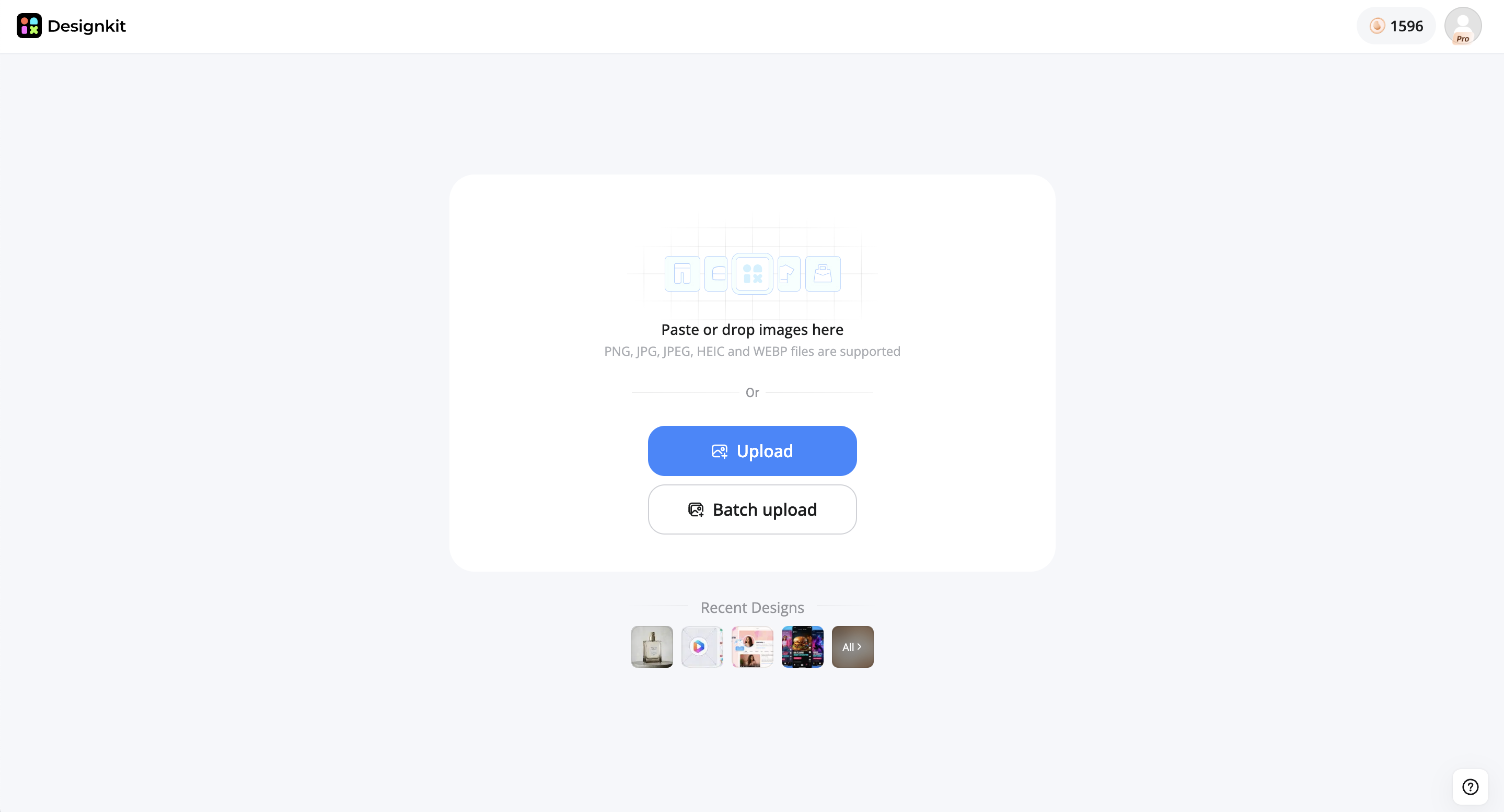
Step 1: Upload Your Logo or Creator Photo
Open the Designkit Image Editor and upload your source image, ideally a high-resolution logo or a clear headshot, so the AI has enough detail to work with.
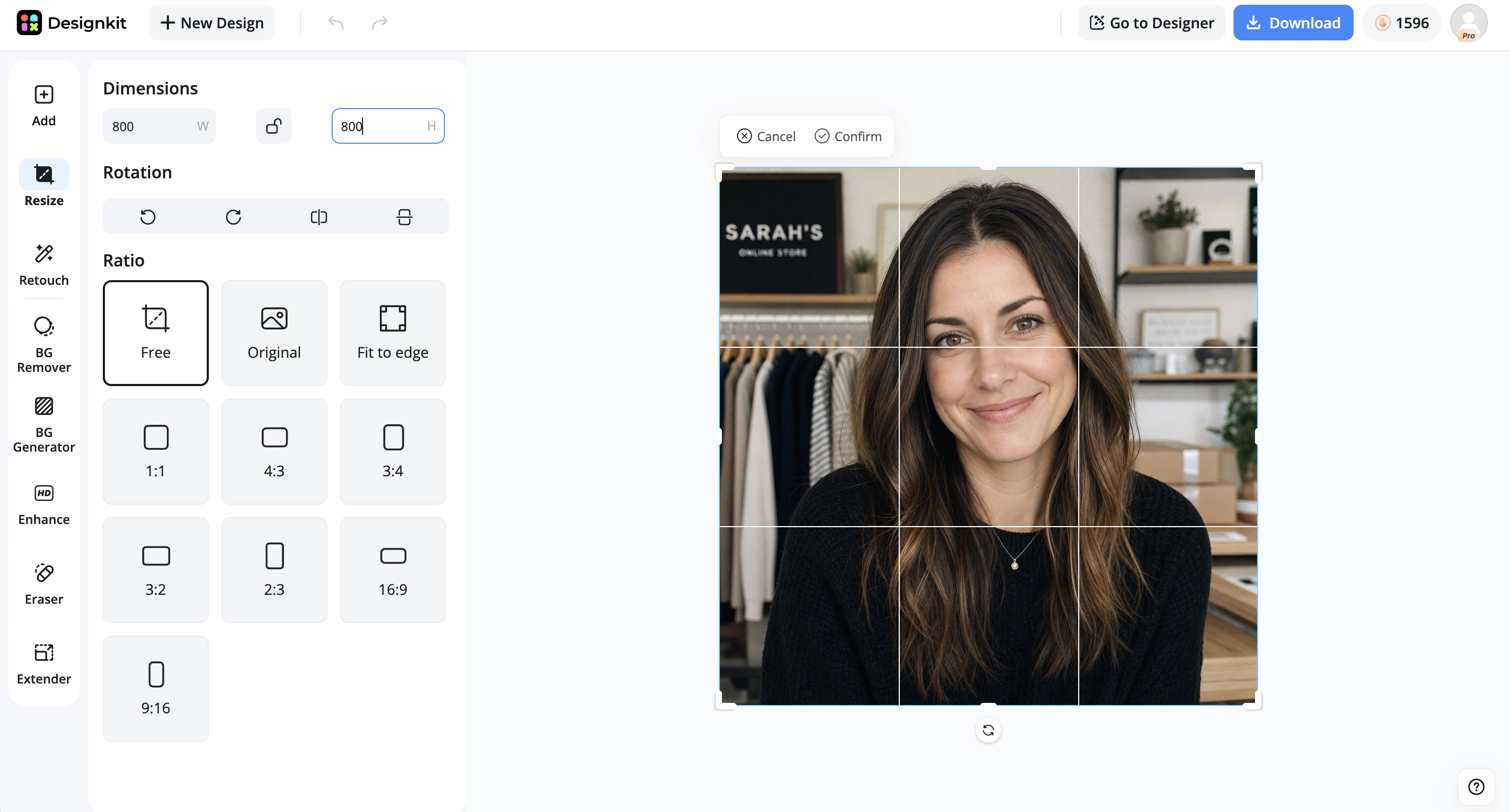
Step 2: Resize the YouTube Profile Image Size
Use Designkit's background cleanup and image enhancement tools to refine your logo or photo, then crop it to a centered square before upload. Set the recommended 800×800 pixel size and keep important elements centered for circular display cropping.
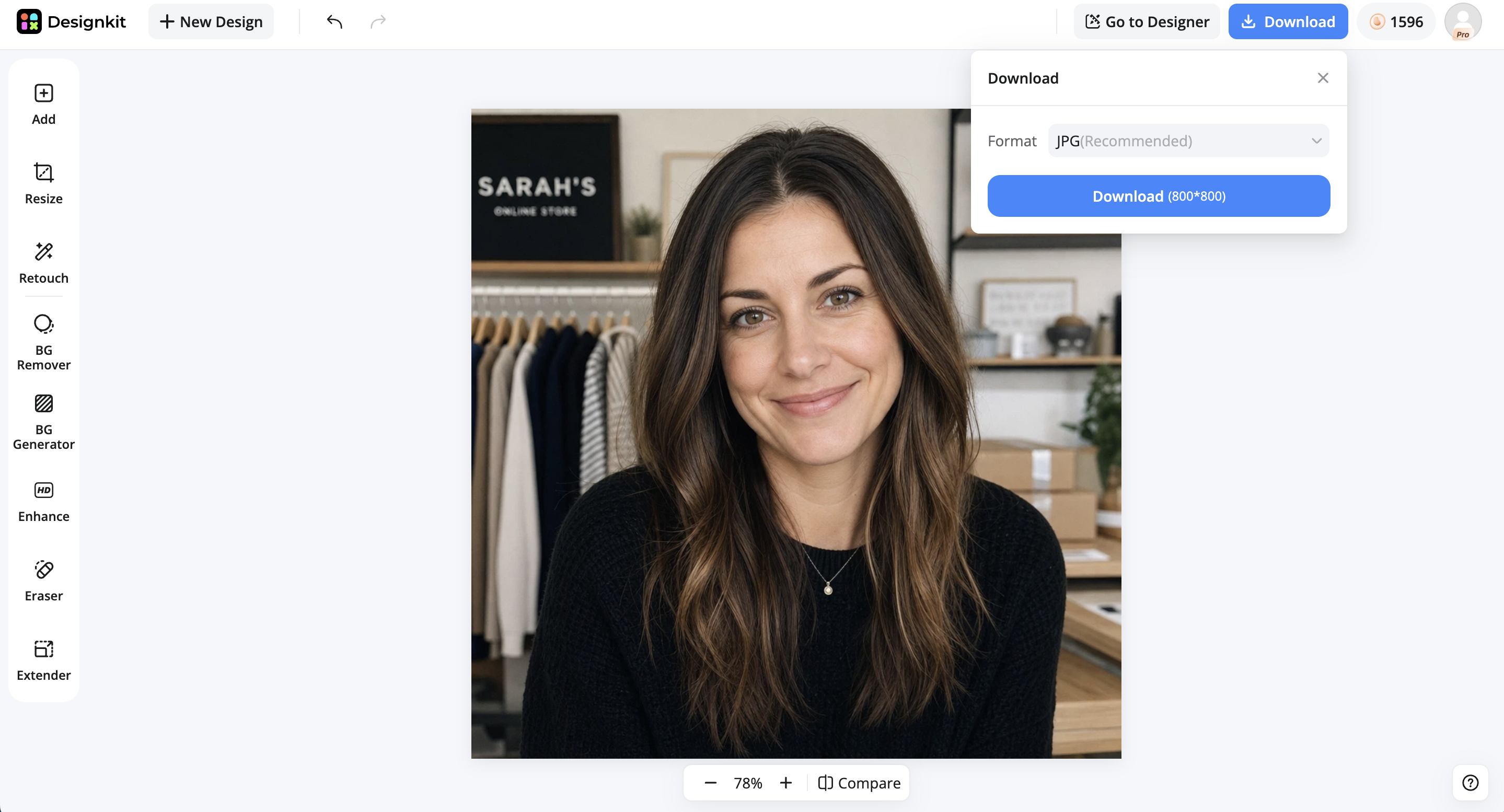
Step 3: Export Your YouTube-Ready Profile Image
Preview the result at a small size to confirm nothing important is cut off, then export in high-quality PNG or JPG and upload it directly to your channel.
Edit a YouTube Profile Image Free
Features of Designkit for YouTube Profile Images
Resize Images Without Manual Cropping
Designkit's image resizer helps you instantly adjust images to the recommended YouTube profile picture dimensions without manual cropping. Upload any image, select a square profile format, and quickly prepare it for YouTube while maintaining proper proportions and visual quality.
Make Blurry Logos Look Sharper
If your logo was created years ago or exported at a small size, it may look soft after uploading to YouTube. Designkit's image enhancer sharpens details, improves clarity, and upscales image quality, so logos, faces, and branding elements remain crisp when displayed across YouTube comments, search results, and channel pages.
Improve Visibility with Cleaner Backgrounds
A clean background makes profile pictures easier to recognize at small sizes. Designkit lets you remove distractions, replace backgrounds, and refine image composition, so the main subject stays visible even after YouTube applies circular cropping and image scaling.
Keep Logos Inside YouTube's Safe Area
Designkit includes square profile presets designed for social media platforms. These presets help position logos, text, and profile photos within a safe central area, reducing the risk of important elements being cut off when YouTube converts the image into a circle.
Fast Export in Multiple Formats
Once your profile picture is ready, Designkit allows fast export in popular formats such as PNG and JPG. This makes it easy to download a YouTube-ready image with the correct dimensions and quality settings for a smooth upload process.
How to Make Your YouTube Profile Picture More Recognizable
Choosing the right profile picture size is important, but strong channel branding goes beyond technical specifications. Many channels lose credibility because their profile image is difficult to recognize or inconsistent with the rest of their visual identity.
Avoid Tiny Logos with Unreadable Text
A common mistake is shrinking a full company logo into a profile picture. Small text, taglines, and detailed graphics often become unreadable when displayed in comments, search results, and subscription feeds. Simple logos or recognizable symbols usually perform better.
Keep Designs Simple
Trying to fit too many elements into a small profile image can reduce clarity. Multiple colors, icons, text blocks, and decorative graphics compete for attention and become difficult to distinguish at smaller display sizes. A clean design with one clear focal point is more effective.
Use Consistent Branding Across Thumbnails and Profile Images
Viewers should be able to recognize your channel instantly. When profile pictures, thumbnails, and channel artwork use different colors, logos, or visual styles, brand recognition becomes weaker. Consistent visual elements help create a more professional appearance.
Choose the Right Profile Image Style
Your profile picture is only one part of your channel identity. When banners, video thumbnails, intros, and profile images follow a consistent design system, viewers can quickly associate content with your brand. Consistency improves recognition and creates a stronger first impression across the platform.
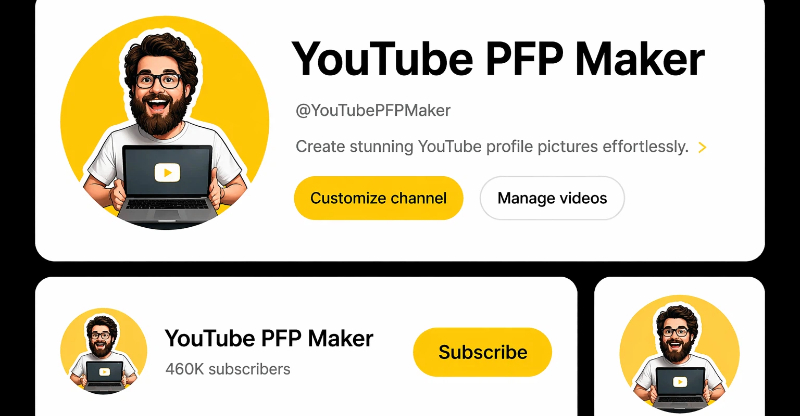
Before finalizing your profile picture, view it at a small size and compare it with your channel banner and recent thumbnails. If all three feel visually connected, your branding will appear more polished and memorable.
Conclusion
For most channels, a clear profile picture does more for recognition than a complex logo.
Use an 800×800 image, keep important elements centered, avoid small text, and preview the design at a small size before uploading.
A profile picture that remains recognizable in comments and search results makes your channel look more professional and easier to remember.
Frequently Asked Questions
What is the recommended YouTube profile image size?
Why does my YouTube profile picture look blurry after uploading?
Profile pictures often become blurry when the original image is too small, contains fine details, or includes text that becomes difficult to read after compression. Using a high-resolution image, keeping designs simple, and exporting in PNG format can help maintain clarity across comments, search results, and channel pages.
How much of a YouTube profile picture is actually visible?
YouTube crops square profile images into a circle, which means the corners are never visible. To avoid losing important branding elements, keep logos, faces, initials, and text inside the center area and leave extra padding around the edges.
Should I use a logo or a photo for my YouTube profile picture?
The best choice depends on your channel. Business and brand channels often perform best with a simplified logo, while creator-led channels usually benefit from a clear headshot. The goal is to make your profile picture recognizable at small sizes where most viewers encounter it.
Can I use text in my YouTube profile picture?
You can, but it is usually not recommended. Profile pictures appear very small across YouTube, making short text, taglines, and detailed typography difficult to read. Simple icons, logos, initials, or faces tend to remain recognizable more consistently.
Can I use the same image for my YouTube profile picture and channel banner?
Not usually. Profile pictures use a square format, while YouTube banners use a wide layout. Designing them separately helps maintain readability, proper cropping, and consistent branding across your channel.
What makes a YouTube profile picture easy to recognize?
Recognizable profile pictures typically have one clear focal point, strong contrast, and minimal visual clutter. Whether you use a logo, mascot, or headshot, viewers should be able to identify it instantly in comments, search results, and subscription feeds.
How do I convert an image to YouTube profile size?
Resize the image to 800 × 800 pixels, crop it into a square format, and keep the main subject centered. Before uploading, preview the image at a small size to make sure logos, faces, or key branding elements remain clear after YouTube applies circular cropping.
You May Also Like

7 Best Remove.bg Alternatives in 2026: Free & Paid Tools
Instagram Carousel: What It Is, How to Post & Create One
Nano Banana Prompts: 20+ Examples for Better AI Images

Ideogram AI Review 2026: Features, Pricing & Alternatives
Free Mac Photo Editor: 5 Tools Compared for Mac Users
How to Crop a Photo Into a Circle Online (Keep Quality)
How to Make an Image Transparent Online (AI Guide)
Pixlr Background Remover Review 2026: Features, Pricing & Alternatives

How to Fix Overexposed Photos: Recover Highlights Fast
OpenArt AI Review 2026: Features, Pricing & Alternatives
Best AI Headshot Generator: 9 Tools Compared for 2026
Best Stencil Maker Tools 2026: Turn Photos Into Stencils
Pixelbin Watermark Remover Review: Image & Video Results Tested
How to Make a Sticker on iPhone: Easy Step by Step Guide
Best AI Logo Generator in 2026: 10 Tools Compared
How to Turn a Photo Into a Cartoon: A Beginner-Friendly Guide
Landscape vs Portrait: Key Differences & Best Uses in 2026
How to Remove Watermark From Photo: AI, Photoshop & More
How to Fix Pixelated Photos: Photoshop, AI Tools & Tips
Bing Image Creator: How It Works, Features, Uses & Alternatives
How to Remove People from Photos with AI: A Step-by-Step Guide
How to Increase Image Resolution: AI, Photoshop & PPI
How to Add Text to a Photo: 8 Tips for Better Results
How to Fix Grainy Photos: Easy Ways to Clear Images

Creative Profile Picture Ideas for Every Style and Platform
Evoto AI Review 2026: Features, Pricing, Pros & Cons
Pixlr Photo Editor Review: Features, Pricing & Alternatives
Best AI Image Extender Tools in 2026: Expand Photos with AI
How to Make a Collage on iPhone: Easy Guide for 2026
How to Sharpen an Image in Photoshop (Smart Sharpen and Unsharp Mask)
Best Image Background Remover Tools in 2026: AI Tools Compared
How to Make Transparent Background in Paint: Step-by-Step Guide
How to Resize an Image: Best Methods, Tools & Quality Tips
Best AI Image Generator Tools in 2026: Top AI Platforms Compared

Remove.bg Review 2026: Features, Pricing & Is It Worth It?

Luminar Neo Photo Editor Review 2026: AI Features, Price & Pros

How to Post Multiple Photos on Instagram (2026 Guide)
25 Facebook Cover Photo Ideas for Personal & Business Pages
What Is a PFP? Meaning, Examples & How to Create One
Can You Edit an Instagram Post After Posting?

11 Best Canva Alternatives in 2026 for AI Design & Marketing

8 Best Midjourney Alternatives in 2026: Features, Pricing & Comparison
How to Restore Old Photos: AI Tools, Tips & Best Methods

Pixelcut AI Review 2026: Features, Pricing, Pros, Cons & Alternatives
How to Apply Watermark to Photos: Methods, Tips & AI Tools
How to Remove a Background in Illustrator: 4 Easy Methods
How to Change Background Color on Instagram Story (Easy Guide)

8 Best AI Poster Generators in 2026: Create Posters Faster with AI
10 Best AI Image Enhancers in 2026: Tested & Compared
10 Best AI Image Editors in 2026: Features, Pricing & Comparison

7 Best AI Background Changer in 2026: Remove & Replace Photo Backgrounds
Luminar Neo vs Lightroom: Features, Pricing & Comparison 2026
Kittl Review 2026: Is It Worth It? Features & Pricing
How to Make a Blurry Image Clear: 5 AI & Manual Ways
How to Remove Background on iPhone: 5 Easy Methods (2026)
Photoroom Background Remover Review 2026: Features & Alternatives
How to Remove Background in Canva: A Step-by-Step Guide
How to Remove Background in GIMP: Beginner-Friendly Guide

Funny Dog Memes to Try: Doge Meaning and 10 Original Ideas
Back to School Checklist 2026: Supplies, Timeline, and Planning
Recraft AI Review 2026: Features, Pricing, Pros, Cons & Alternatives
How to Make an Image Transparent in Google Slides: Opacity & Background Removal

VanceAI Photo Enhancer Review: Features, Pricing & Alternatives in 2026
What Does Emojify Mean? Text, Photos, & Emoji Art Explained
Top 8 Online Background Removers for Ecommerce Photos (2026)
How to Remove Background in Photoshop: 7 Easy Methods
6 Best AI Image Upscalers 2026: Tools Tested & Compared
Project Indigo Review: Is It Better Than iPhone Camera?
How Big Is an 8x10 Photo? Size, Pixels & Frame Guide
How Big Is a 4x6 Photo? Dimensions, Pixels & Printing Tips
Picsart AI Review: Features, Pricing, Pros, Cons & Alternatives
Lovart AI Review: AI Design Agent Features, Pricing & Alternatives
Fotor AI Image Generator Review: Features, Pricing & Alternatives
How to Add Emoji to Photo Online for Free
Emoji Wallpaper Ideas & How to Make One Online (2026)

Minimalist Poster Design: How to Make a Clean Poster (2026)

How to Make a Custom Poster That Is Ready to Print
Instagram Image Size Guide 2026: Post, Reel, Story & Carousel Specs
LinkedIn Image Size Guide: Profile, Post & Banner Dimensions
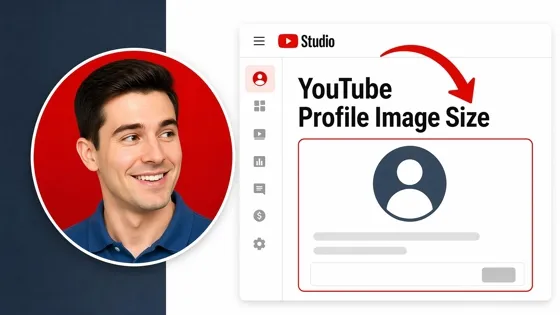
YouTube Profile Image Size: Best Dimensions & Safe Area 2026

How to Edit Amazon Product Photos That Boost Sales Fast
Turn Your YouTube Profile Image into a Clean, Professional Brand Icon
Get the perfect YouTube profile picture size, optimize safe areas, and avoid blur or cropping issues. Create a sharp, recognizable channel identity that builds trust and improves visibility across YouTube.