
Project Indigo Review: Is It Better Than the iPhone Camera App?
Adobe’s experimental camera app offers a more controlled approach to iPhone photography. Here is what it does, where it helps, and when Apple’s Camera app remains the better option.


Adobe Project Indigo is an experimental camera app for iPhone and iPad. It combines computational photography with manual controls, RAW capture, and Adobe’s editing workflow.
Unlike the default iPhone Camera app, which is designed for fast capture and immediate results, Indigo uses multi-frame processing to create a more natural image. It aims to preserve highlight detail, maintain stronger contrast, and reduce the heavily processed appearance often associated with smartphone photography.
This Project Indigo review explains how the app works, compares it with Apple’s Camera app, examines its RAW and AI features, and identifies the users who are most likely to benefit from it.
Quick Verdict: Is Project Indigo Worth Trying?
Project Indigo is worth testing if you want manual controls, computational DNG RAW files, and a less processed image style. It is not a complete replacement for the iPhone Camera app because it is slower and does not provide the same breadth of everyday shooting features.
| Category | Project Indigo | iPhone Camera App |
|---|---|---|
| Image style | More restrained and photography focused | Bright, polished, and ready to share |
| Manual controls | Shutter, ISO, focus, white balance, and exposure controls | Limited manual control in the standard interface |
| RAW workflow | Computational DNG support | RAW support on selected Pro models |
| Processing speed | Slower because of multi-frame processing | Faster for everyday capture |
| Best use case | Controlled still photography and editing | Quick photos, video, and moving subjects |
Use Project Indigo when you want to control the capture and editing process. Use Apple’s Camera app when speed, video, or reliability matters more.
What Is Adobe Project Indigo?
Project Indigo is an experimental computational photography camera from Adobe Labs. Adobe designed it to explore how mobile cameras can combine advanced image processing with controls normally associated with dedicated cameras.
Most smartphone cameras automatically adjust exposure, color, sharpening, noise reduction, and HDR balance. That approach produces attractive images quickly, but it can also create an overly bright or heavily processed result.
Indigo takes a different approach. It can capture several frames for one photograph and combine them into a final image. This process can improve noise control, dynamic range, and detail while preserving a more restrained appearance.
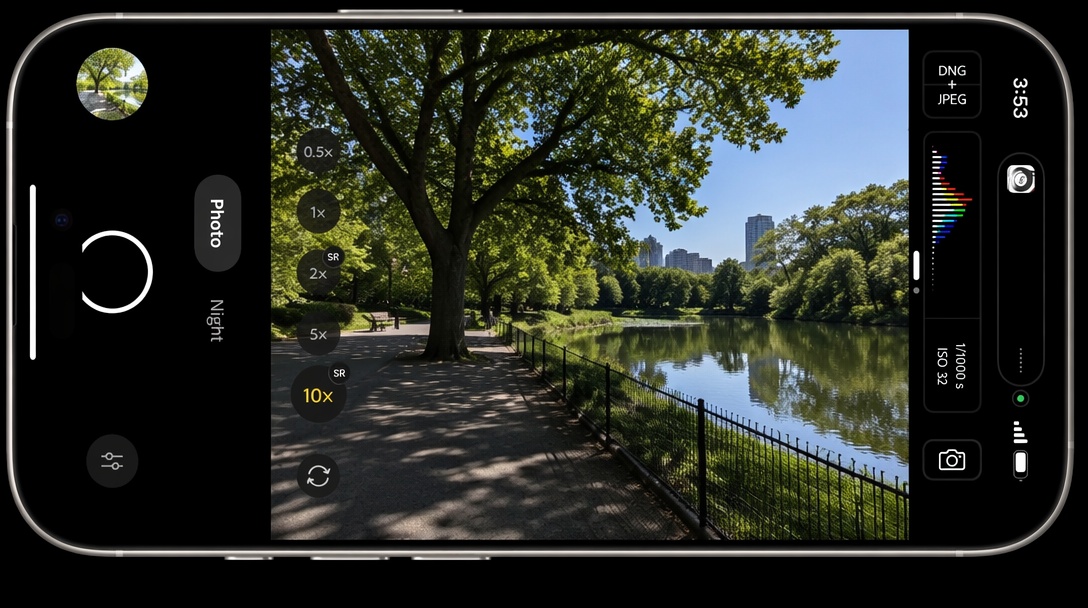
The app is therefore aimed at two different groups. Photographers may appreciate the additional control and editing flexibility. Casual users may prefer the faster workflow of Apple’s Camera app.
Project Indigo Supported Devices and Requirements
Compatibility should be checked before downloading the app. Computational photography requires substantial processing power, so the experience can vary between supported devices.
| Requirement | Current information |
|---|---|
| Supported phones | iPhone 12 Pro and newer Pro models, plus selected newer non-Pro models |
| Operating system | iOS 18.5 or later |
| Recommended device | iPhone 15 Pro or newer |
| Tablet support | Initial iPad support is listed by Apple |
| Storage | Extra space is recommended for photos and downloadable models |
Older supported devices may take longer to process images and may consume more battery during extended shooting. Adobe’s community guidance also recommends keeping at least 1GB of free storage for the app, models, and captured photos.
The Core Project Indigo Camera Features
1. Computational Photography With a Natural Image Style
The main difference between Indigo and the standard iPhone Camera app is the way each system processes the image.
Apple’s camera generally prioritizes a polished result that looks good immediately on a phone screen. Indigo aims for more controlled highlights, deeper shadows, and less aggressive sharpening.
Neither approach is automatically better. A bright HDR image may be preferable for immediate sharing. A darker and more restrained file may be more useful if you plan to edit it later.
Indigo may be a better fit if you prefer:
- More controlled highlights
- Deeper shadows
- Less aggressive sharpening
- Natural contrast
- More editing flexibility
2. Photo, Night, and Long Exposure Modes
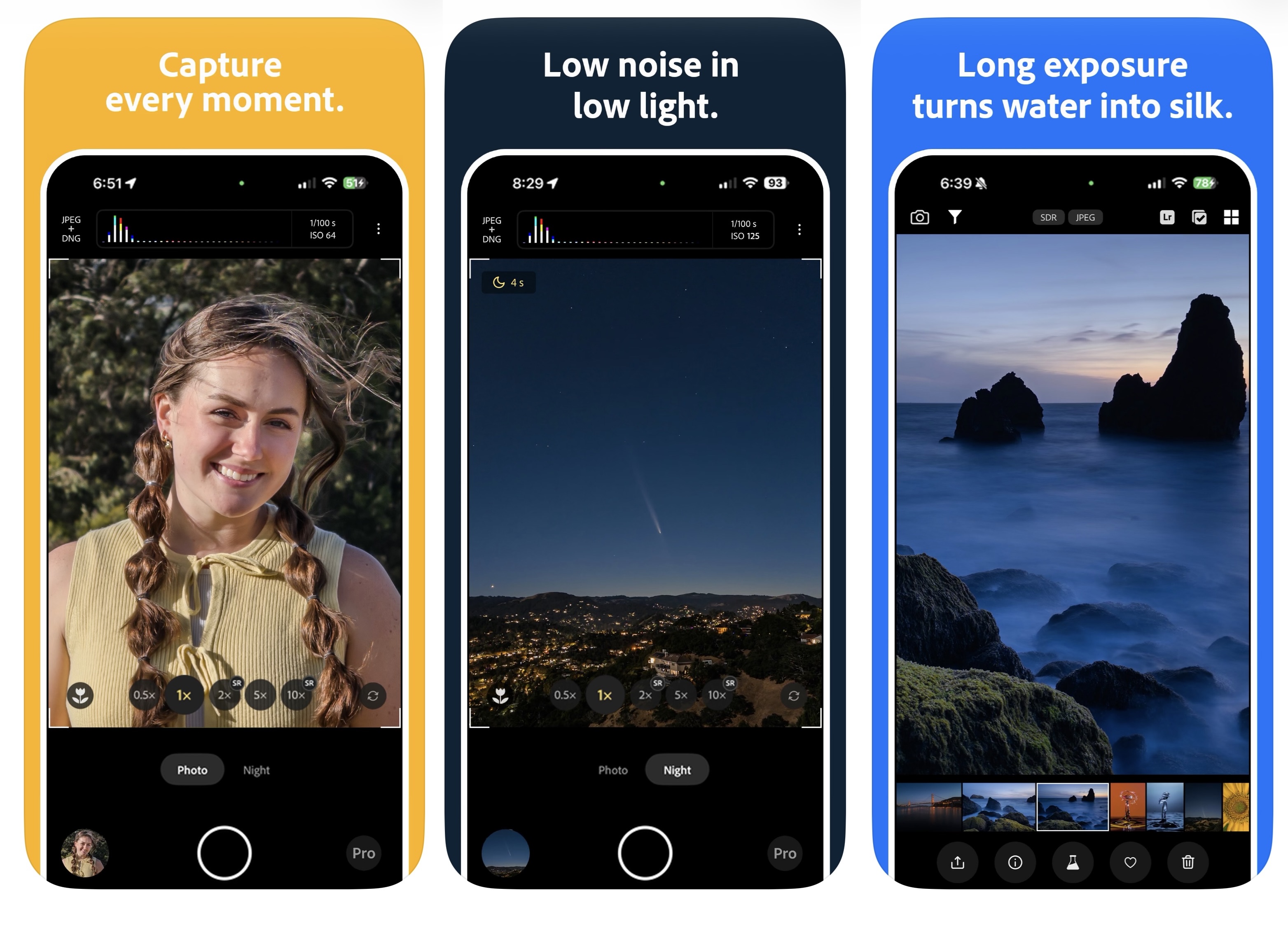
Photo mode is designed for general still photography. It keeps the capture process simple while applying Indigo’s computational processing.
Night mode combines multiple exposures to reduce noise in low-light scenes. It is most useful for stationary subjects such as buildings, landscapes, and indoor still life. Moving people or objects can produce motion artifacts because the app needs several frames to create the final image.
Long Exposure mode can produce effects such as smooth water and light trails. A stable phone position is important because the image is created by combining multiple frames.
3. Manual Controls
The app provides controls for:
- Shutter speed
- ISO
- Focus
- Exposure compensation
- White balance
- Temperature and tint
It also includes a focus magnifier, live histogram, zebra warnings, and a level indicator.
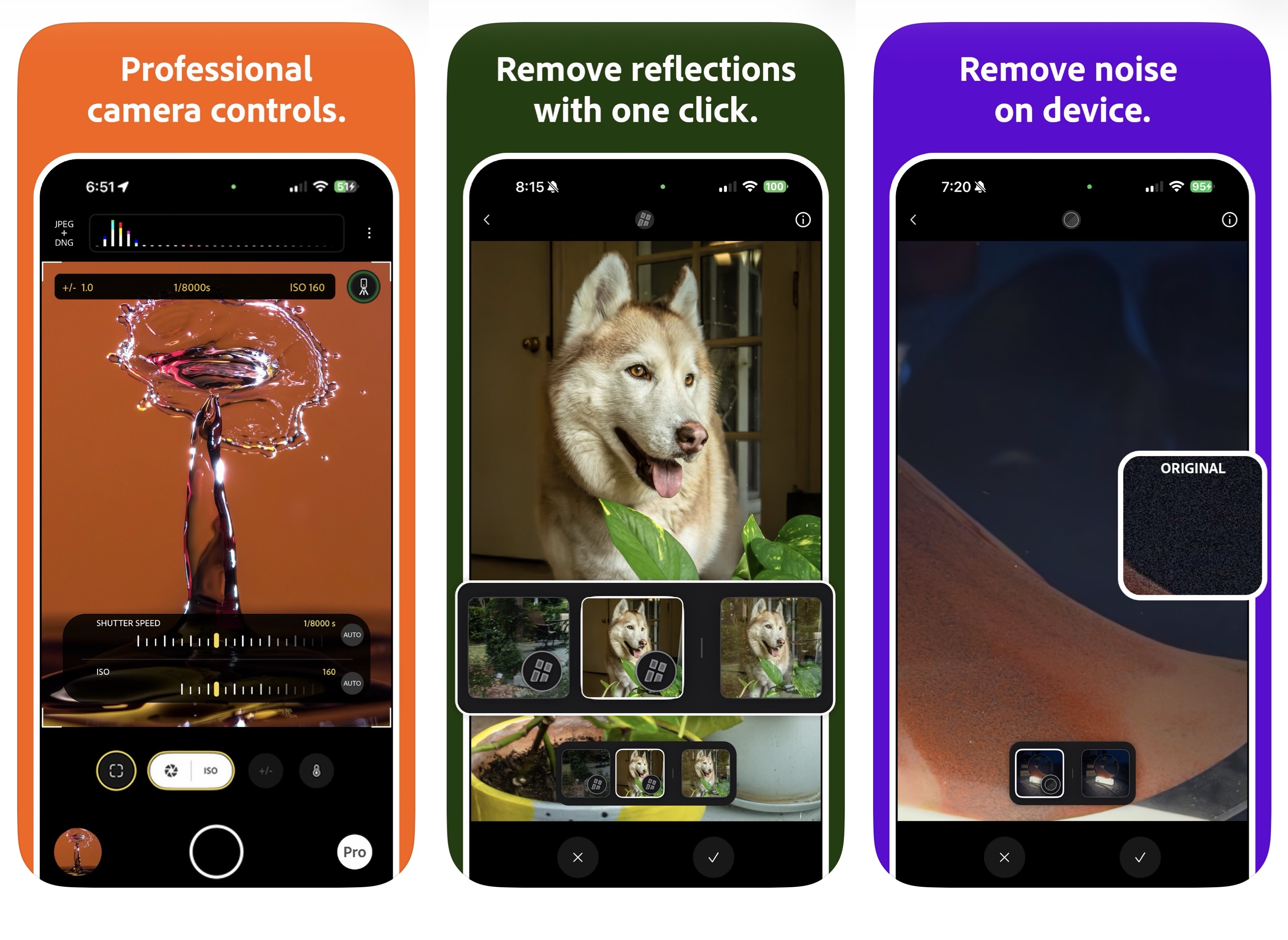
Two controls are especially relevant to computational photography:
Frames to Merge
This setting controls how many frames are combined during capture. More frames can reduce noise, but they can also increase processing time and the risk of movement between frames.
Merge Method
This setting exposes part of the processing decision that is normally hidden inside a smartphone camera. Experienced photographers may use it to fine-tune the balance between image quality and capture speed. Most beginners can leave it on automatic settings.
4. Project Indigo RAW and Lightroom Integration
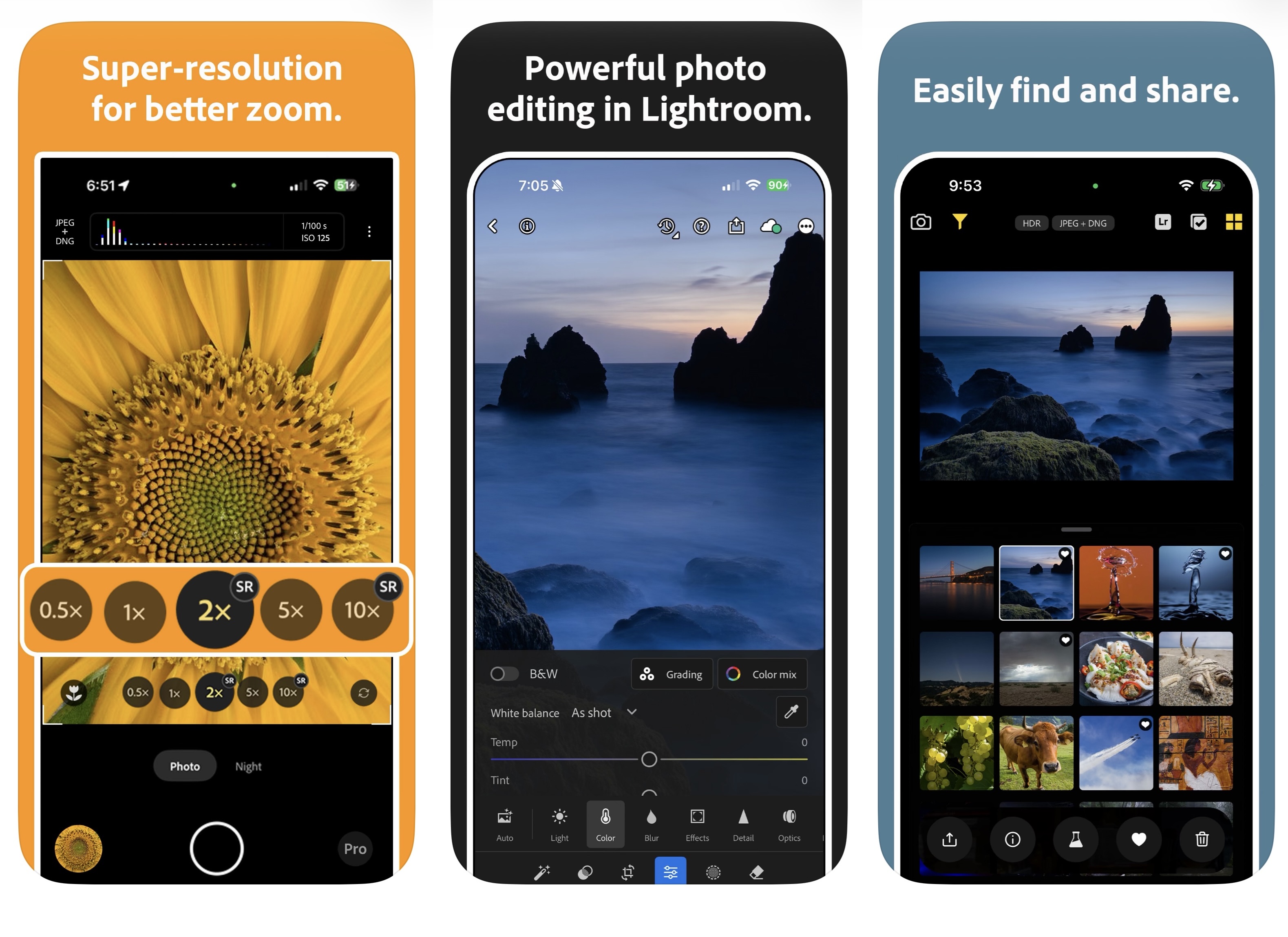
One of the strongest reasons to try Project Indigo RAW is its integration with Lightroom and Photoshop.
The app can save JPEG files and computational DNG RAW files. These DNG files may contain information from multiple merged frames rather than a single exposure. This creates a different type of RAW workflow from a traditional camera.
The main advantage is post-processing flexibility. Users can adjust:
- Exposure
- Highlights
- Shadows
- White balance
- Color grading
- Fine detail and noise reduction
This feature is most useful for photographers who already edit in Lightroom Mobile, Lightroom Classic, or Photoshop. For users who rarely edit photos, RAW files may add storage requirements and extra steps without providing much practical value.
5. Super Resolution Zoom and Technology Previews
Indigo uses multi-frame processing to improve detail at non-native zoom levels. This can be useful for distant architecture, signs, landscapes, and other subjects beyond the phone’s optical range.
Results depend on light, subject movement, lens quality, and camera stability. Check for artificial textures, halos, and inconsistent fine detail before treating the feature as a replacement for optical zoom.
The app also includes experimental tools such as AI Denoise, Remove Reflections, and Face Dewarp. These features are intended to demonstrate technology that may later appear in Adobe’s wider photography products.
Project Indigo vs iPhone Camera: Which One Takes Better Photos?
The most useful comparison is based on matched scenes rather than one sample image. Use the same iPhone, lens, framing, and lighting conditions whenever possible.
| Test scene | What to compare | What it reveals |
|---|---|---|
| Bright sky and dark foreground | Highlight detail and HDR processing | Which image style suits your preference |
| Indoor low light | Noise, detail, and processing time | Whether multi-frame processing helps |
| Zoomed subject | Detail and artificial texture | How useful super-resolution is |
| Moving subject | Motion blur and shutter response | Whether the app suits spontaneous photography |
| JPEG and RAW workflow | Exposure recovery and color flexibility | Whether editing justifies larger files |
Daylight, HDR, and Color
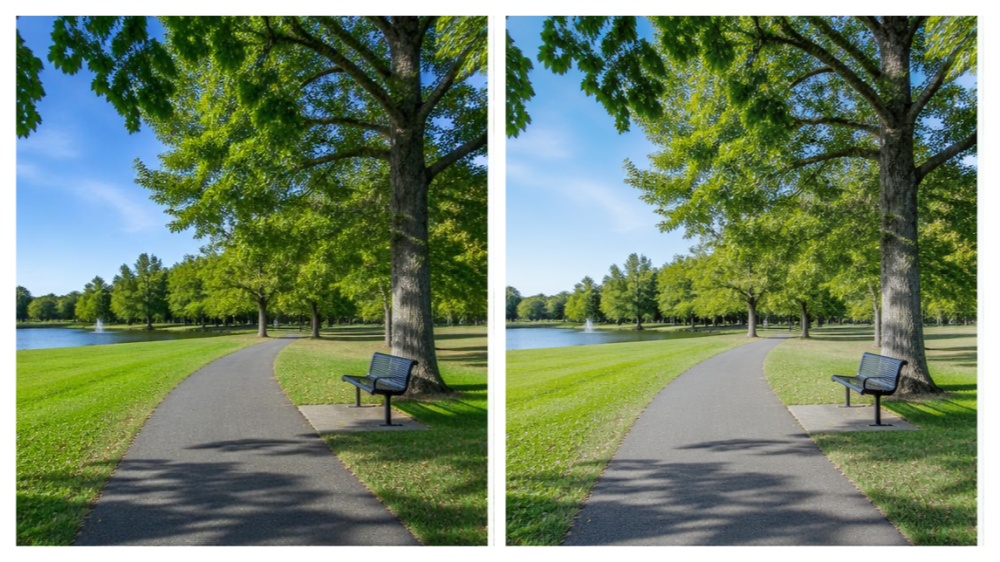
In bright outdoor scenes, Apple’s Camera app usually produces a polished result with lifted shadows and strong HDR processing. Indigo often produces more restrained highlights, deeper shadows, and a stronger sense of contrast.
Photographers who dislike excessive HDR may prefer Indigo. Users who want a bright image that can be shared immediately may prefer Apple’s processing.
For a useful test, photograph a building against a bright sky, a person near a window, and a landscape with both sunlit and shaded areas. Compare the sky detail, shadow information, color consistency, and editing flexibility.
Night Photography
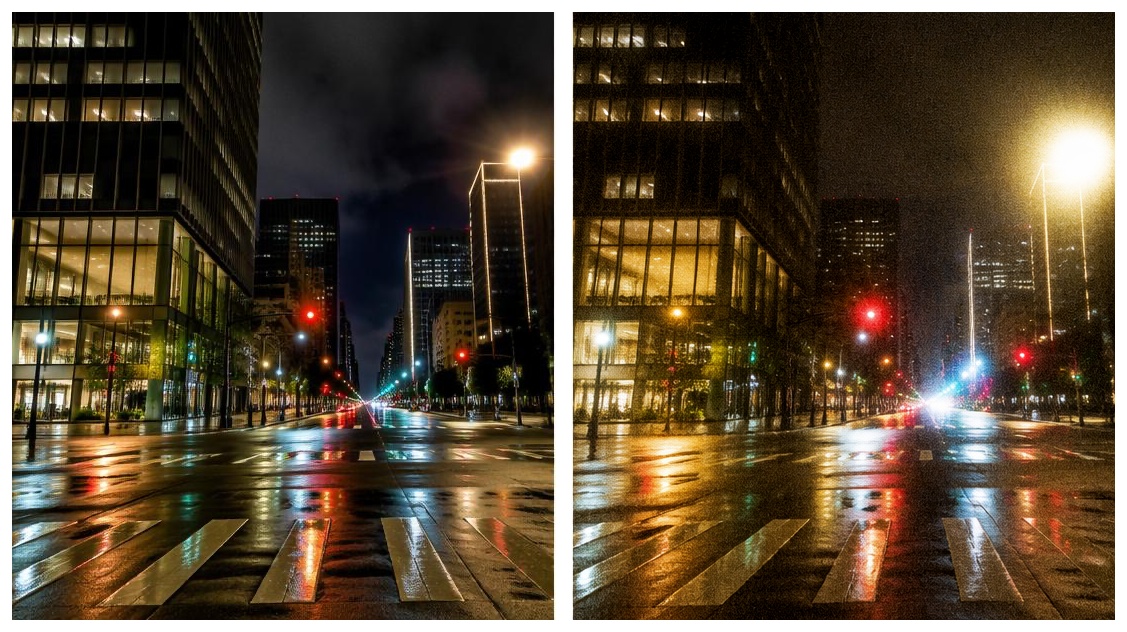
Indigo’s multi-frame approach is most visible in low light. A stationary building may benefit from cleaner detail and lower noise. A moving street scene may favor Apple’s faster workflow because it reduces the time between capture and the final image.
Test both a stationary subject and a moving subject. This will show whether the app’s processing method matches the way you normally take photos.
Performance, Heat, and Battery Usage
Independent hands-on reports from The Verge, Tom’s Guide, Android Authority, and other publications have described slower processing, device heat, and higher battery use during extended shooting. The exact result depends on the iPhone model, shooting mode, resolution, and number of merged frames.
Before making Indigo your primary camera, measure:
- The time from shutter press to completed image
- The delay between consecutive photographs
- Battery use after a fixed number of photos
- Device temperature during Night mode
- Storage use for JPEG and DNG files
Project Indigo AI Playground
The Project Indigo AI Playground adds experimental generative editing and photography guidance tools. It expands the app beyond image capture, but it should be evaluated separately from the core camera system.
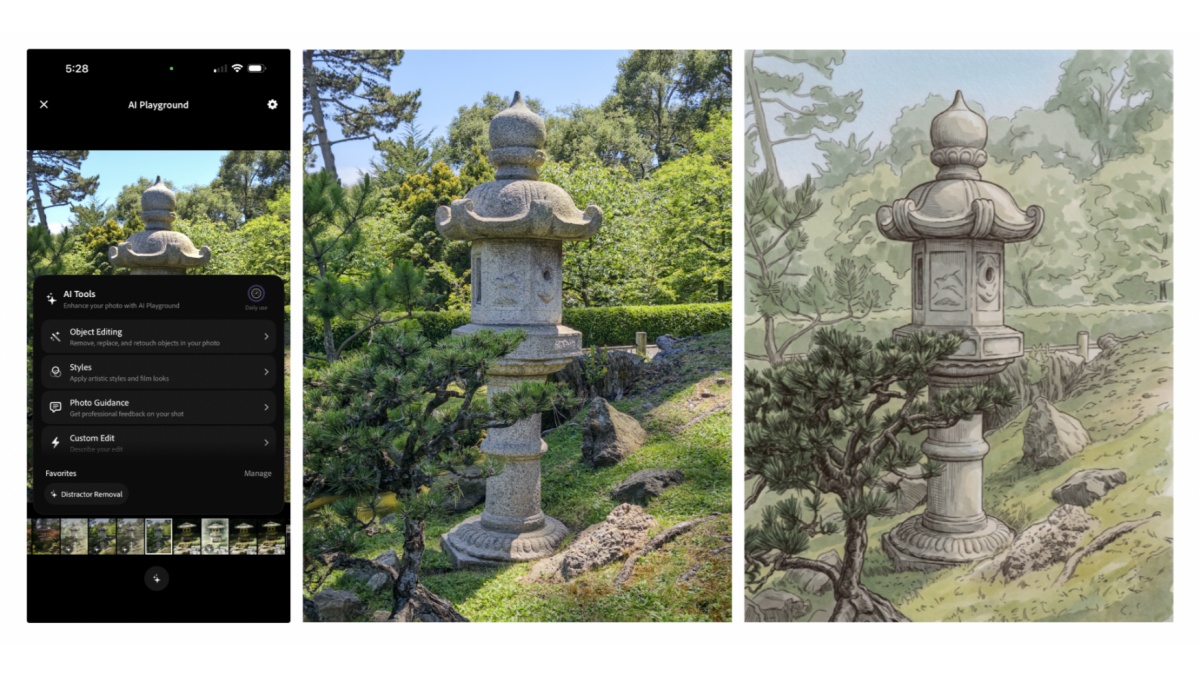
What the AI Playground Can Do
- Object Editing: Removes selected people, vehicles, clutter, and other distractions.
- Styles: Applies illustration and photographic treatments.
- Photo Guidance: Provides composition, reshooting, and editing suggestions.
- Custom Edit: Uses natural-language prompts to request an image change.
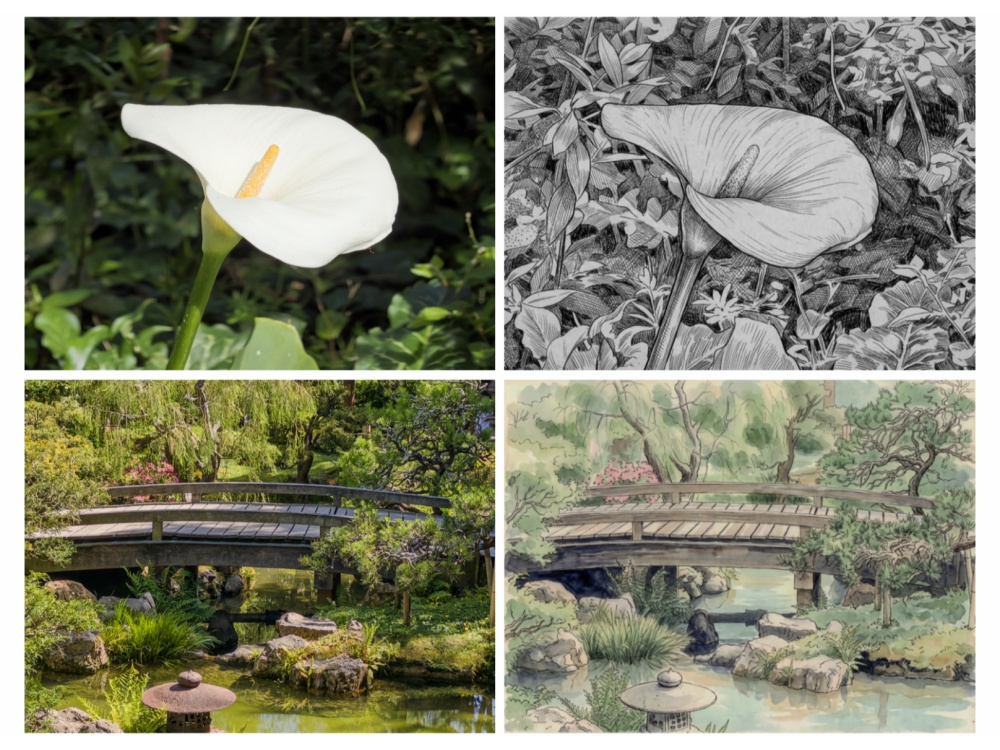
Adobe’s official announcement states that the initial experience uses Google’s Nano Banana model. Because the model is cloud based, an internet connection is required. Generated results are approximately 2K pixels on a side, which is lower than the original capture.
Important AI Playground Limitations
- Access is limited to a small, randomly selected group of users.
- Updating the app does not guarantee access.
- The tools currently work with photographs captured by Indigo.
- Generative edits may change faces, textures, and small details.
- The feature is currently free during the experiment, but future pricing may change.
- Professional and documentary users should keep the original file and inspect every edited image carefully.
Who Should Use Project Indigo?
Indigo is a good choice for users who:
- Prefer a natural image style with less aggressive HDR.
- Want manual control over shutter speed, ISO, focus, or white balance.
- Shoot RAW and edit in Lightroom or Photoshop.
- Photograph landscapes, architecture, products, or controlled still subjects.
- Are comfortable testing an experimental photography tool.
Apple’s Camera app is likely more suitable for users who:
- Need fast capture for children, pets, sports, or events.
- Record a significant amount of video.
- Want a simple point-and-shoot workflow.
- Do not want to manage RAW files or processing delays.
- Need a mature camera system with broad everyday coverage.
Final Verdict
Project Indigo is not a universal replacement for Apple’s Camera app. It is a specialized photography tool that gives users more control over computational processing, RAW capture, and image style.
It is worth trying if you care about natural contrast, highlight preservation, manual controls, and Lightroom editing. It is less suitable as the only camera for users who need fast snapshots, reliable video, portrait features, and a complete everyday workflow.
The most practical solution is to use both apps. Keep Apple’s Camera app for video, quick moments, and moving subjects. Use Indigo when image character, control, or editing flexibility matters more than speed.
Frequently Asked Questions
Is Project Indigo free?
Is Project Indigo better than the iPhone Camera app?
It can provide a more natural image style and more manual control. Apple’s Camera app remains stronger for speed, video, and general convenience.
Does Project Indigo support RAW?
Yes. The app supports computational DNG RAW files that can be edited in Lightroom and Photoshop.
What is the difference between Project Indigo RAW and traditional RAW?
Traditional RAW usually stores sensor data from one exposure. Indigo RAW may include data from multiple computationally merged frames, creating a different editing workflow.
Does Project Indigo work on Android?
Adobe’s current public information focuses on iPhone and initial iPad support. An Android version has not been officially announced.
Does the AI Playground require an internet connection?
Yes. Adobe’s current AI Playground experience uses cloud based processing.
You May Also Like
Remove.bg Shutting Down Dec 1, 2026: What Users Are Saying

7 Best Remove.bg Alternatives in 2026: Free & Paid Tools

Instagram Carousel: What It Is, How to Post & Create One
Nano Banana Prompts: 20+ Examples for Better AI Images

Ideogram AI Review 2026: Features, Pricing & Alternatives
Free Mac Photo Editor: 5 Tools Compared for Mac Users
How to Crop a Photo Into a Circle Online (Keep Quality)
How to Make an Image Transparent Online (AI Guide)
Pixlr Background Remover Review 2026: Features, Pricing & Alternatives

How to Fix Overexposed Photos: Recover Highlights Fast
OpenArt AI Review 2026: Features, Pricing & Alternatives

Best AI Headshot Generator: 9 Tools Compared for 2026
Best Stencil Maker Tools 2026: Turn Photos Into Stencils
Pixelbin Watermark Remover Review: Image & Video Results Tested

How to Make a Sticker on iPhone: Easy Step by Step Guide

Best AI Logo Generator in 2026: 10 Tools Compared
How to Turn a Photo Into a Cartoon: A Beginner-Friendly Guide
Landscape vs Portrait: Key Differences & Best Uses in 2026
How to Remove Watermark From Photo: AI, Photoshop & More
How to Fix Pixelated Photos: Photoshop, AI Tools & Tips
Bing Image Creator: How It Works, Features, Uses & Alternatives
How to Remove People from Photos with AI: A Step-by-Step Guide
How to Increase Image Resolution: AI, Photoshop & PPI
How to Add Text to a Photo: 8 Tips for Better Results
How to Fix Grainy Photos: Easy Ways to Clear Images

Creative Profile Picture Ideas for Every Style and Platform
Evoto AI Review 2026: Features, Pricing, Pros & Cons
Pixlr Photo Editor Review: Features, Pricing & Alternatives
Best AI Image Extender Tools in 2026: Expand Photos with AI
How to Make a Collage on iPhone: Easy Guide for 2026
How to Sharpen an Image in Photoshop (Smart Sharpen and Unsharp Mask)
Best Image Background Remover Tools in 2026: AI Tools Compared
How to Make Transparent Background in Paint: Step-by-Step Guide
How to Resize an Image: Best Methods, Tools & Quality Tips
Best AI Image Generator Tools in 2026: Top AI Platforms Compared

Remove.bg Review 2026: Features, Pricing & Is It Worth It?
Luminar Neo Photo Editor Review 2026: AI Features, Price & Pros

How to Post Multiple Photos on Instagram (2026 Guide)

25 Facebook Cover Photo Ideas for Personal & Business Pages

What Is a PFP? Meaning, Examples & How to Create One
Can You Edit an Instagram Post After Posting?

11 Best Canva Alternatives in 2026 for AI Design & Marketing

8 Best Midjourney Alternatives in 2026: Features, Pricing & Comparison
How to Restore Old Photos: AI Tools, Tips & Best Methods

Pixelcut AI Review 2026: Features, Pricing, Pros, Cons & Alternatives
How to Apply Watermark to Photos: Methods, Tips & AI Tools
How to Remove a Background in Illustrator: 4 Easy Methods
How to Change Background Color on Instagram Story (Easy Guide)

8 Best AI Poster Generators in 2026: Create Posters Faster with AI
10 Best AI Image Enhancers in 2026: Tested & Compared
10 Best AI Image Editors in 2026: Features, Pricing & Comparison

7 Best AI Background Changer in 2026: Remove & Replace Photo Backgrounds
Luminar Neo vs Lightroom: Features, Pricing & Comparison 2026

Kittl Review 2026: Is It Worth It? Features & Pricing
How to Make a Blurry Image Clear: 5 AI & Manual Ways
How to Remove Background on iPhone: 5 Easy Methods (2026)
Photoroom Background Remover Review 2026: Features & Alternatives
How to Remove Background in Canva: A Step-by-Step Guide
How to Remove Background in GIMP: Beginner-Friendly Guide

Funny Dog Memes to Try: Doge Meaning and 10 Original Ideas
Back to School Checklist 2026: Supplies, Timeline, and Planning
Recraft AI Review 2026: Features, Pricing, Pros, Cons & Alternatives
How to Make an Image Transparent in Google Slides: Opacity & Background Removal

VanceAI Photo Enhancer Review: Features, Pricing & Alternatives in 2026

What Does Emojify Mean? Text, Photos, & Emoji Art Explained
Top 8 Online Background Removers for Ecommerce Photos (2026)
How to Remove Background in Photoshop: 7 Easy Methods
6 Best AI Image Upscalers 2026: Tools Tested & Compared
Project Indigo Review: Is It Better Than iPhone Camera?
How Big Is an 8x10 Photo? Size, Pixels & Frame Guide
How Big Is a 4x6 Photo? Dimensions, Pixels & Printing Tips
Picsart AI Review: Features, Pricing, Pros, Cons & Alternatives

Lovart AI Review: AI Design Agent Features, Pricing & Alternatives
Fotor AI Image Generator Review: Features, Pricing & Alternatives

How to Add Emoji to Photo Online for Free

Emoji Wallpaper Ideas & How to Make One Online (2026)
Minimalist Poster Design: How to Make a Clean Poster (2026)

How to Make a Custom Poster That Is Ready to Print
Instagram Image Size Guide 2026: Post, Reel, Story & Carousel Specs
LinkedIn Image Size Guide: Profile, Post & Banner Dimensions
YouTube Profile Image Size: Best Dimensions & Safe Area 2026

How to Edit Amazon Product Photos That Boost Sales Fast
Turn Your Photos Into Polished Visual Content
Use Designkit to transform everyday photos into polished marketing visuals, social posts, and creative content in minutes.


