
How Big Is an 8x10 Photo? Complete Size & Print Guide
An 8x10 photo has fixed print dimensions, pixel targets, and a 4:5 aspect ratio. This guide covers inches, centimeters, pixels, frame fit, and how to prepare a file before you print.


An 8×10 photo is one of the most popular print sizes for portraits, artwork, professional photography, and framed displays. While the physical dimensions are fixed, producing a sharp print also depends on using the correct resolution, aspect ratio, and image quality.
If you've ever wondered how big is 8x10 photo is for printing, framing, or digital editing, this guide covers everything you need to know. You will learn the exact measurements in inches, centimeters, and pixels, learn about the 4:5 aspect ratio, how to pick the right frame, and prepare images for high-quality printing.
Quick answer: How big is an 8x10 photo?
|
Measurement |
Size |
|---|---|
|
Inches |
8 × 10 inches |
|
Centimeters |
20.32 × 25.4 cm |
|
Millimeters |
203.2 × 254 mm |
|
Pixels (300 PPI) |
2400 × 3000 px |
|
Aspect ratio |
4:5 (landscape is often labeled 10×8 or 5:4) |
How big is an 8x10 photo?
Knowing how big is 8x10 photo is involves more than the paper's physical dimensions. Print quality also depends on the correct pixel resolution and aspect ratio. Whether you're printing family portraits, creating artwork, or preparing marketing materials, understanding these measurements helps you avoid unwanted cropping, blurry prints, and framing issues.
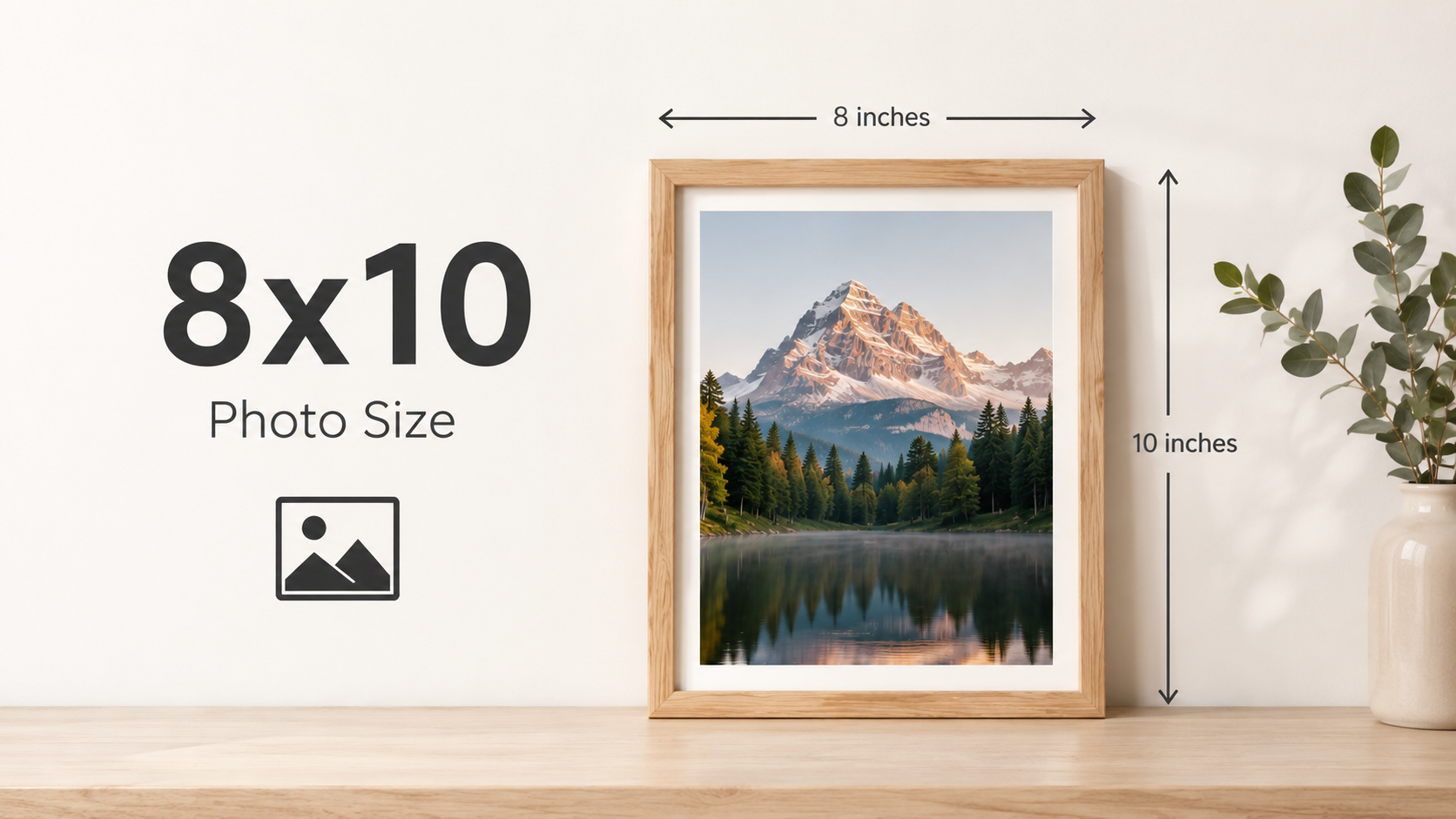
8x10 photo dimensions at a glance
If you're wondering how big is 8x10 photo is, the standard dimensions are 8 × 10 inches, or 20.32 × 25.4 cm. The 8x10 picture size in cm is commonly used for portraits, artwork, and framed displays.
Why does the 8×10 size matter?
The right 8x10 picture size ensures good print quality and image composition. The correct size will also help your photo fit into standard frames without having to cut anything off. For portrait or art prints, you'll want to print at the size you intend to use. That way, you avoid stretching, distortion, or cropping unexpectedly.
8 × 10 in pixels: choosing the right print resolution
The physical size will tell you how large the paper is, but the pixels will tell you how sharp the final print will be. The higher the resolution, the more detail your picture can hold. Knowing 8 x 10 in pixels will help you pick the right file before you send it to print.
Recommended pixel dimensions
|
Resolution |
Pixels |
Best for |
|---|---|---|
|
150 PPI |
1200 × 1500 |
Draft or basic prints |
|
300 PPI |
2400×3000 |
Standard high-quality prints |
|
600 PPI |
4800×6000 |
Specialist or archival work |
For anyone wondering how big is 8x10 photo is in digital format, 2400 × 3000 pixels at 300 PPI is the recommended size for producing sharp, high-quality prints.
What happens if your image is too small?
A low-resolution image may look good on a phone or monitor but will appear blurry when printed. You can see the image pixelate, edges blur, and detail disappear when you scale up a small file. Printing from the largest resolution image you have will give far better results than enlarging a small image later.
Tips for better print quality
Following these best practices can help you produce sharper, more professional-looking 8×10 prints.
-
Print at 300 PPI: Use a resolution of 300 PPI whenever possible to achieve crisp details and clear text.
-
Use a high-resolution image: Start with the highest-quality version of your photo to avoid pixelation when printing.
-
Crop instead of stretching: Adjust the image to the correct 4:5 aspect ratio rather than enlarging it unnaturally.
-
Leave safe margins: Keep faces, text, and important subjects away from the edges to prevent accidental trimming.
-
Print a test copy: Review a single print first to check the colors, crop, and overall quality before printing multiple copies.
Understanding the 8×10 aspect ratio (4:5)
Dimensions alone won't tell you how your image fits on the page. The 8x10 print size has a 4:5 aspect ratio. This will affect how you crop in your editing and printing. Knowing this ratio helps you avoid having important parts of your image unexpectedly cropped out.
What is the 4:5 ratio?
The 4:5 aspect ratio means that the width of the image is four units, and the height is five units. An 8×10 print is exactly this proportion, so any image with a different ratio must either be cropped or have extra white space added before it is printed.
Why camera and phone photos usually need cropping
Most DSLR cameras take photos in an image ratio close to 2:3, while many smartphones take photos in 4:3 or 16:9. These proportions are not 4:5, so some cropping is nearly always necessary. This is one of the reasons that people often ask what size 8 x 10 is before preparing images for print.
How to protect faces and key subjects when you crop
Always check the crop before you export your picture. Crop out unimportant subjects near the edges so you can keep them in view. Zoom out a little if needed when editing or using image extension tools to regain space, but maintain the overall composition.
What size frame fits an 8x10 photo?
Knowing the size of an 8x10 photo makes choosing the right frame much easier. Standard frame sizes are available at most retailers. Larger frames typically have a mat that centers the print. Knowing these choices helps you to create a polished and professional presentation. Knowing how big is 8x10 photo is also makes it easier to choose the right frame and mat size.
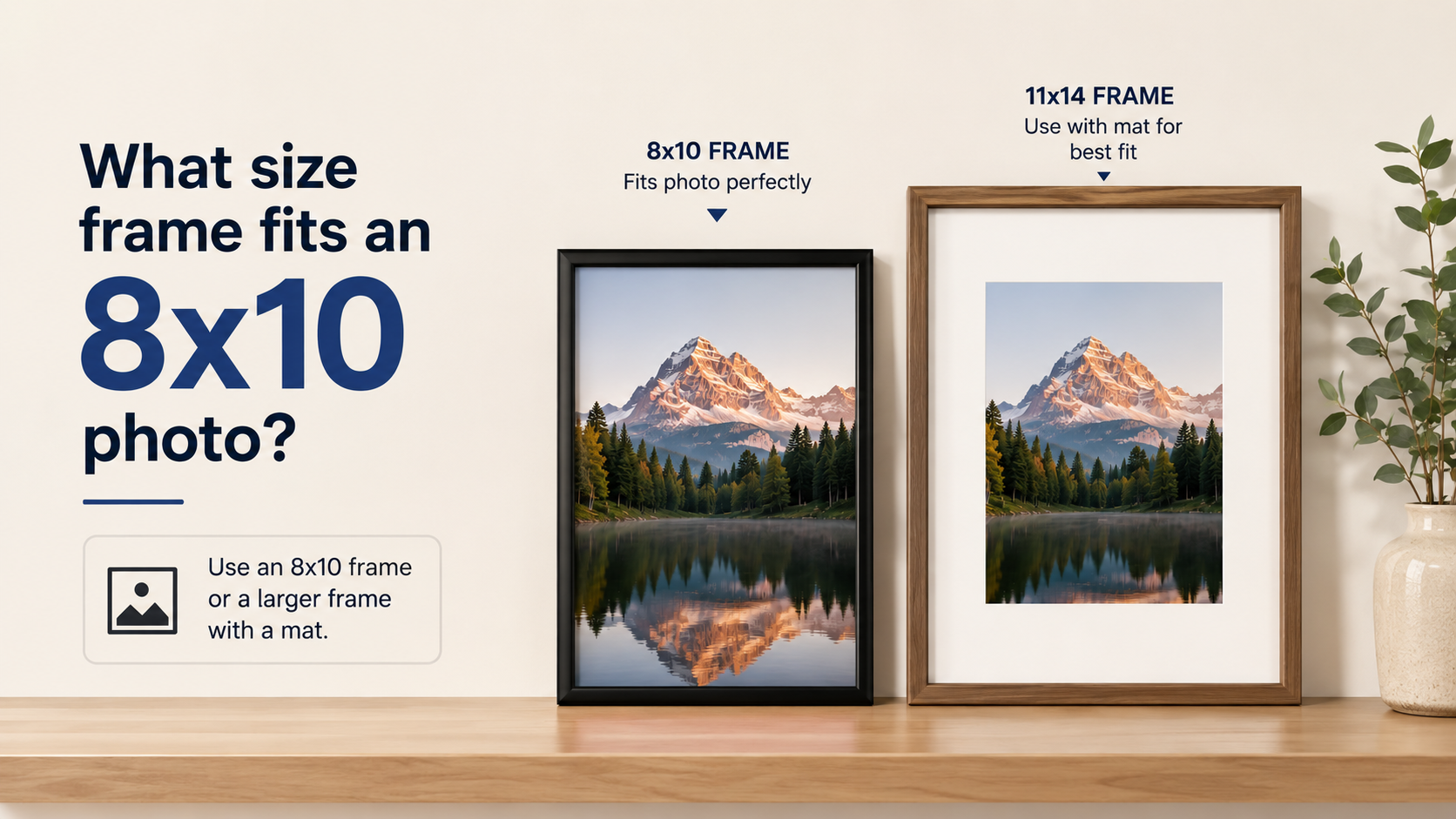
Frame size comparison
|
Frame Size |
Fits an 8×10 print directly |
Uses a Mat |
|---|---|---|
|
8×10 |
Yes |
No |
|
11×14 |
No |
Yes |
|
16×20 |
No |
Yes |
If you're wondering how big is 8x10 picture frame is, remember that an 8×10 frame fits the print directly, while larger frames require a mat for proper positioning and appearance.
Common uses of an 8×10 photo
Now you can see why 8×10 remains one of the most versatile print sizes when you take into consideration the dimensions, aspect ratio, and framing options. It allows enough space for fine details, but also fits comfortably on desks, walls, shelves, and display stands
Personal photos and keepsakes
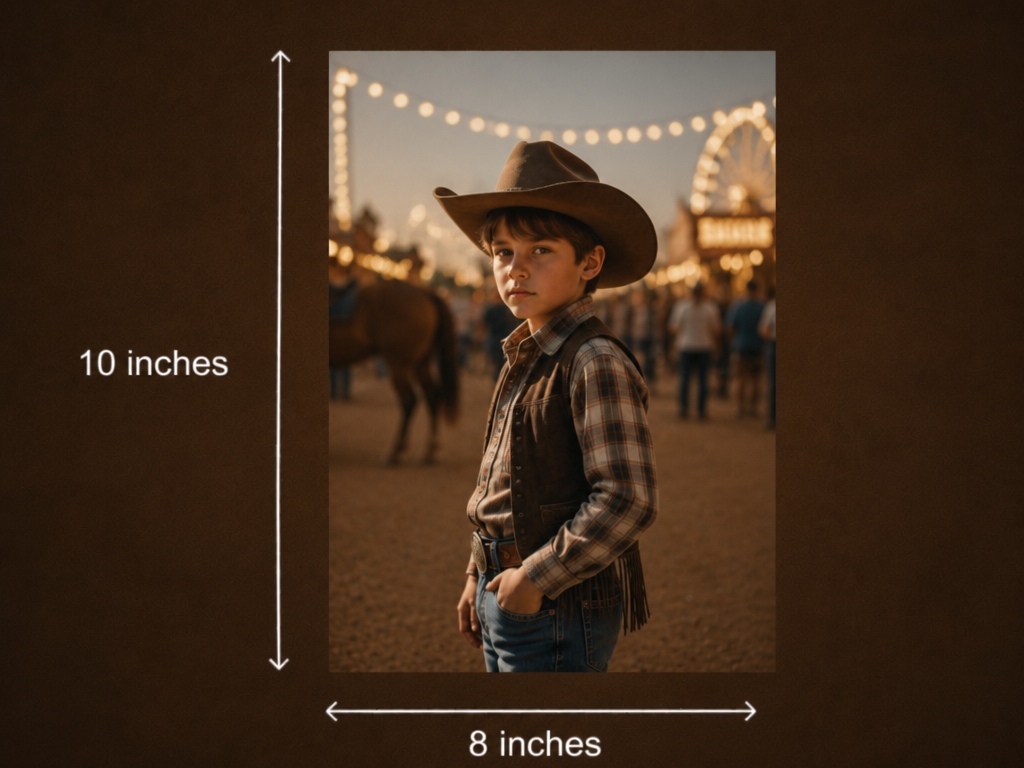
An 8×10 print is a great way to preserve meaningful memories. This size looks great for family portraits, graduation photos, wedding photos, holiday snaps, and personalised gifts. It fits neatly into albums, tabletop frames, and home galleries, but does not take up too much space.
Professional displays
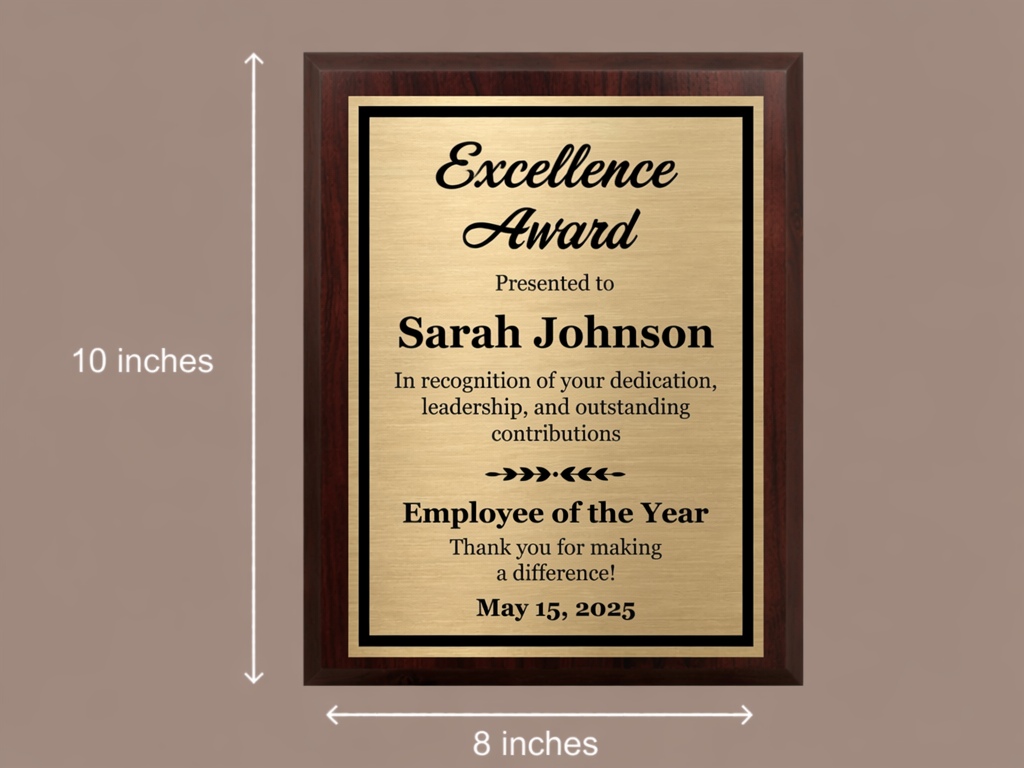
Businesses frequently use 8×10 prints for corporate headshots, certificates, awards, office décor, and event photography. The size offers excellent visibility while remaining practical for reception areas, conference rooms, and professional portfolios where clear presentation is important.
Creative and professional uses
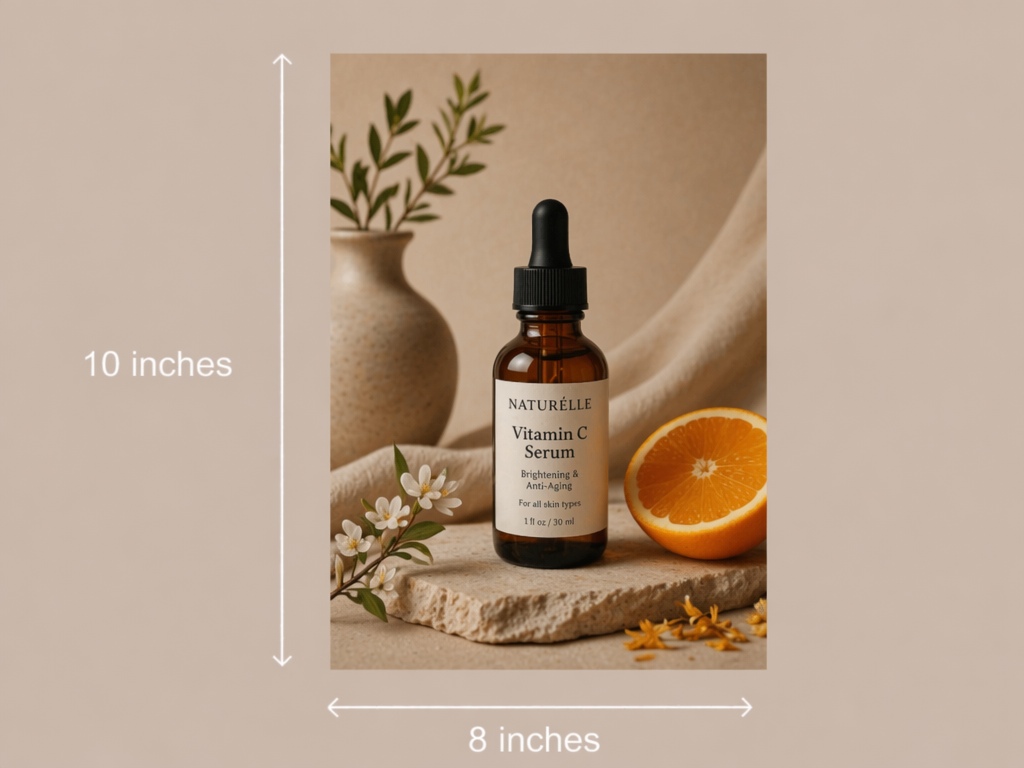
An 8×10 print is great for product catalogs, portfolio prints, presentation boards and printed marketing materials. Plus, the 4:5 aspect ratio works well for many digital marketing assets, so it's easier to maintain a consistent look across print and online content.
Businesses often need the same image in multiple formats. AI-powered editing tools can quickly resize and adapt visuals for different platforms while maintaining quality.
How to resize a photo to 8×10 using Adobe Express
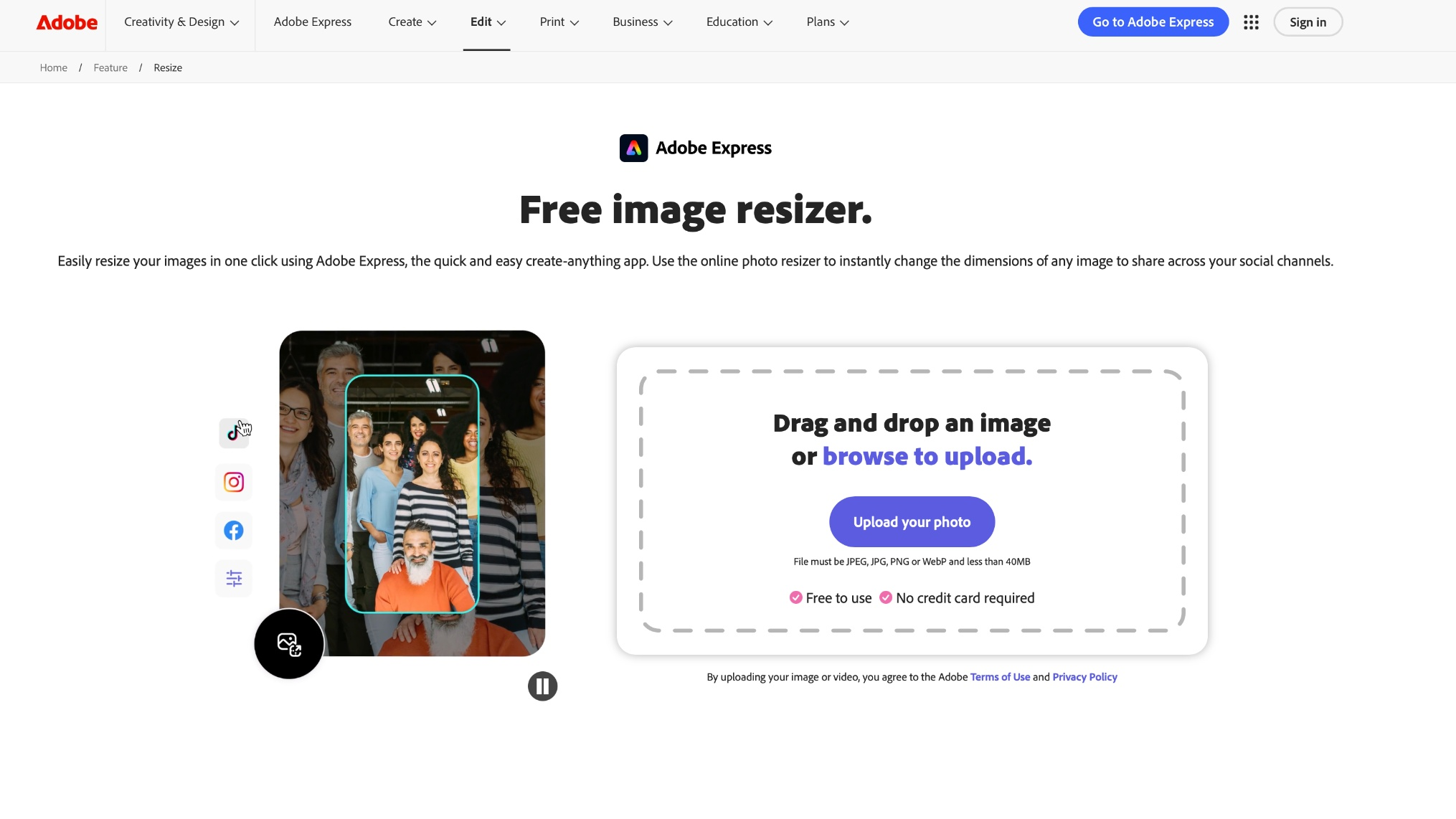
Adobe Express makes it easy to prepare an image for 8×10 printing. You can crop your photo to the correct aspect ratio, adjust its dimensions, and export a high-quality file that's ready for printing.
Step 1: Upload your image
Open Adobe Express and upload the image you want to resize. Use the highest-resolution version available to achieve the best print quality.
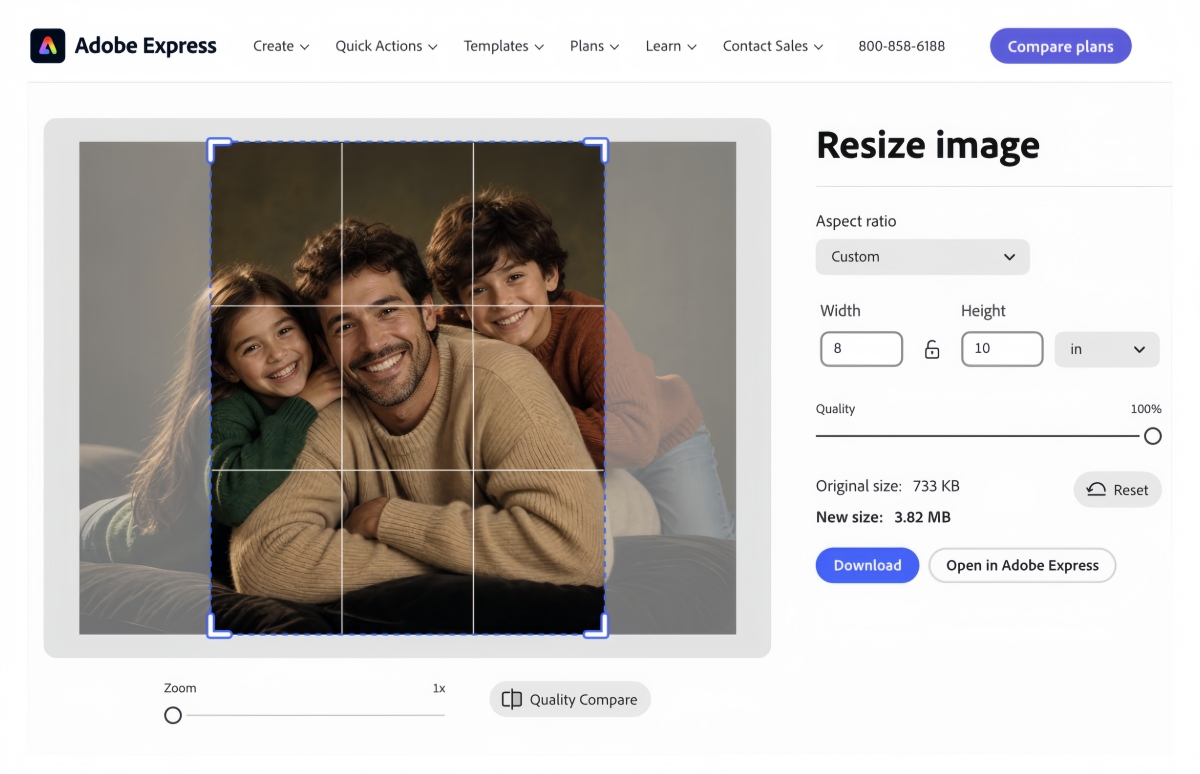
Step 2: Crop to a 8×10 size
On the right, choose "in" as the unit, then enter 8 × 10 for the dimensions. Reposition the crop box to keep important subjects, such as faces or products, within the frame.
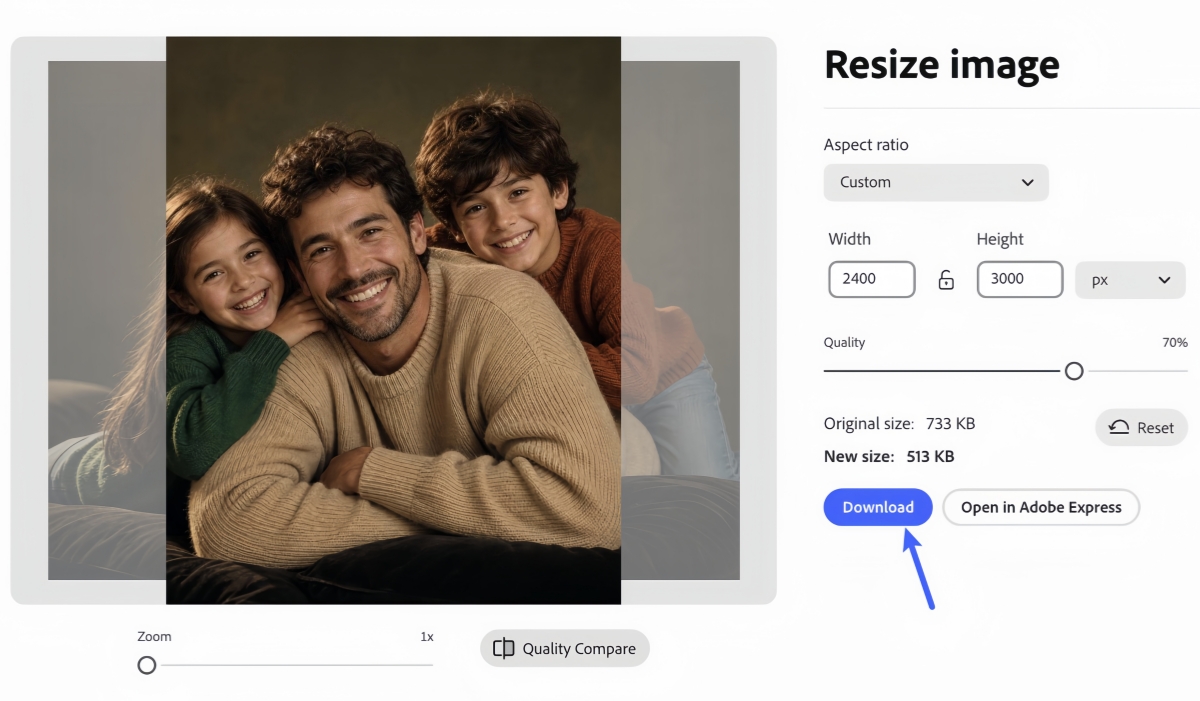
Step 3: Export the resized image
Resize the image to 2400 × 3000 pixels for a 300 PPI print and download it as a high-quality JPEG or PNG. Avoid heavy compression to preserve image quality.
How to resize a photo to 8×10 using Designkit
Preparing an 8x10 print is often more than just resizing. You might want to improve image quality, adjust composition, remove distractions, or create variations for different channels. Designkit is great for streamlining this visual prep workflow, especially for brands that need the same product image to be adapted into multiple formats.
Create an 8×10 print-ready image in 3 steps
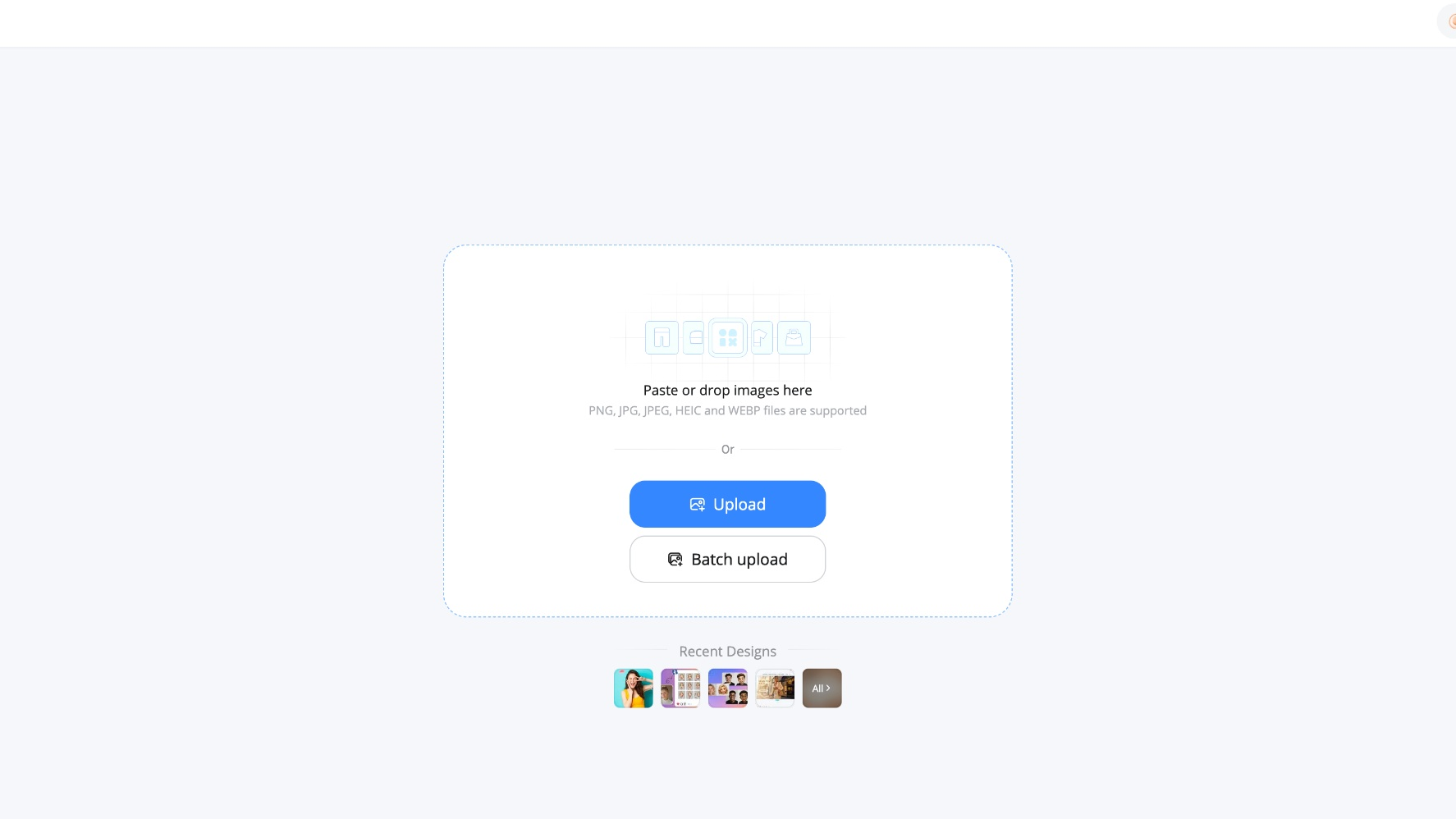
Step 1: Upload your original image
Begin with the highest-resolution version available. A larger source image preserves more detail during cropping and resizing, resulting in a cleaner final print.
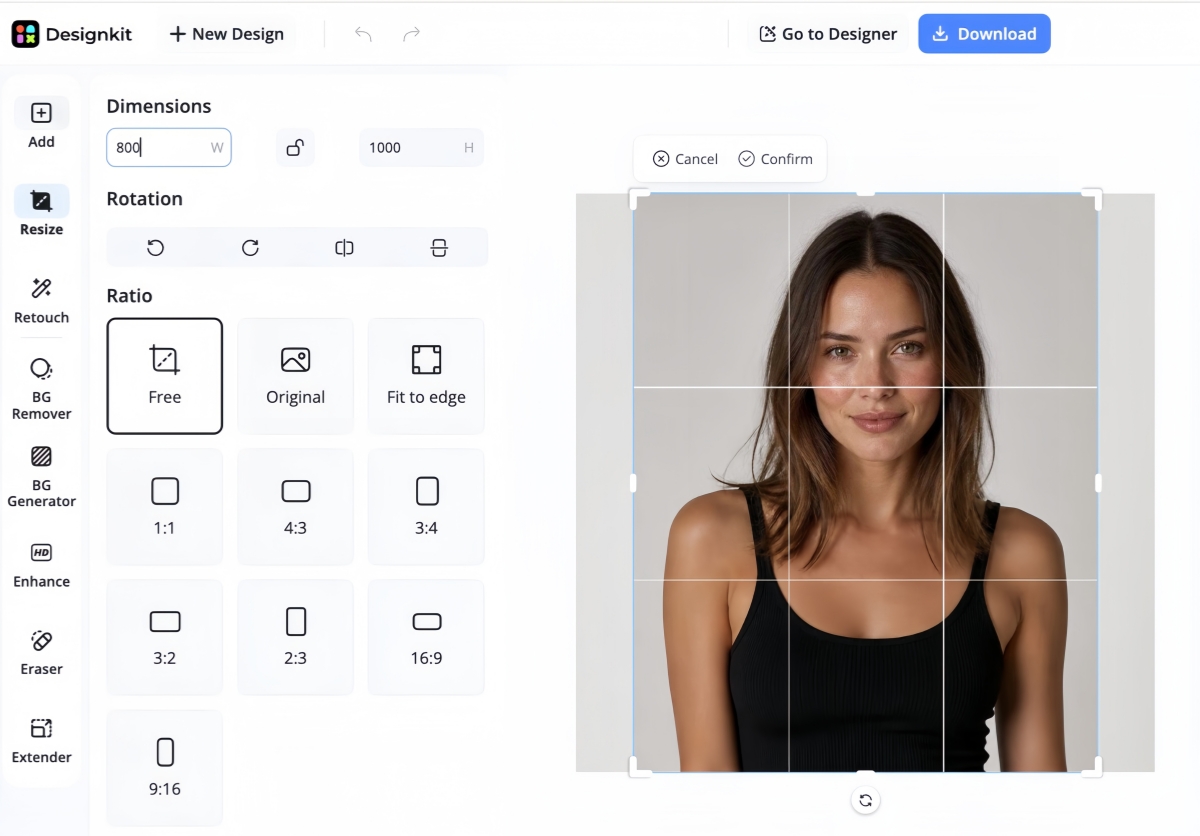
Step 2: Adjust the crop and layout for 8×10
Crop the image to the correct 4:3 aspect ratio while ensuring important subjects remain within the safe area. Check edges carefully before finalizing the composition.
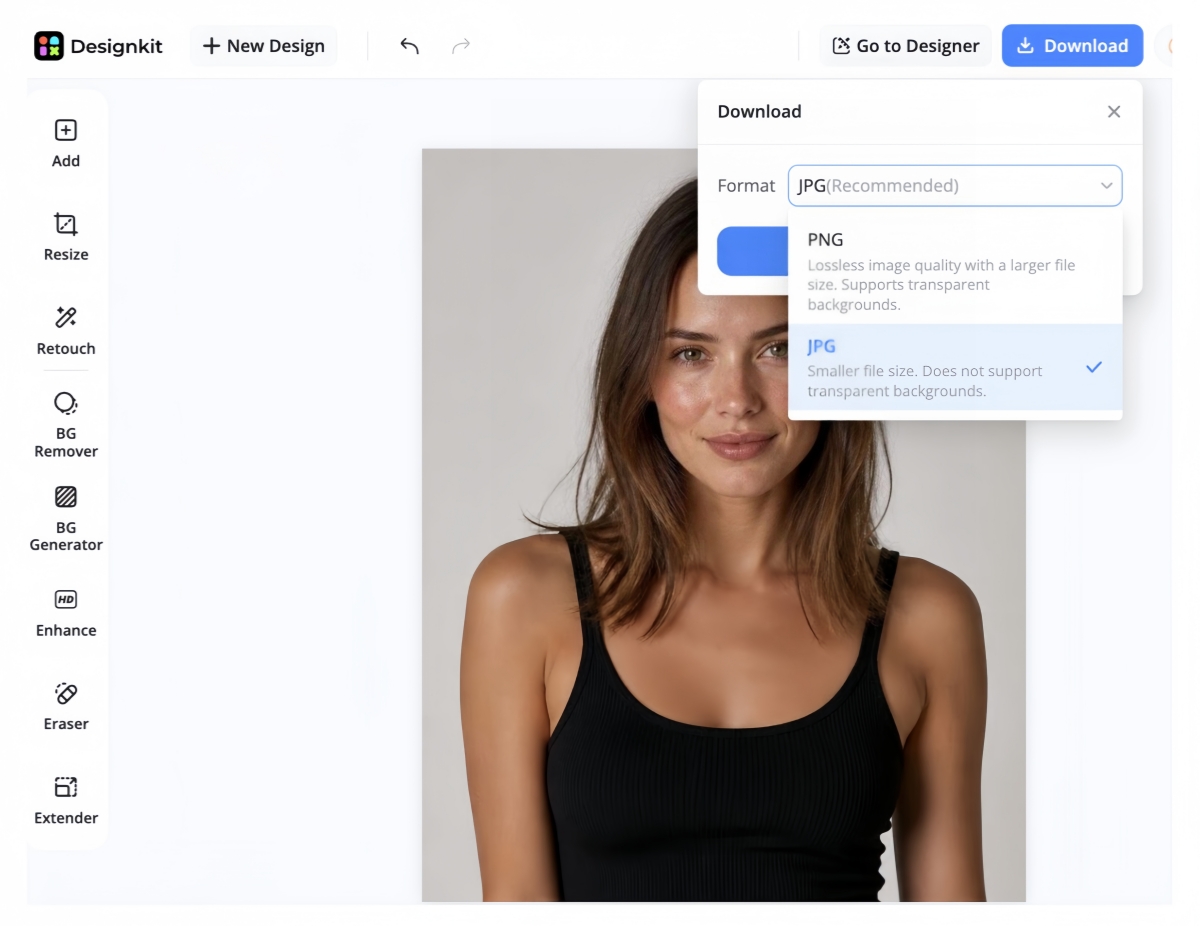
Step 3: Export a high-quality file
Export your image at 2400 × 3000 pixels when targeting approximately 300 PPI. Save it as a high-quality JPEG or PNG to preserve detail and produce sharp printed results.
Designkit tools that help with 8×10 prep
Designkit offers AI-powered editing tools that help you prepare images for high-quality 8×10 printing with minimal effort.
-
Resize image: Resize your photo to the exact dimensions required for an 8×10 print while maintaining the correct aspect ratio. This helps create a print-ready file without unwanted distortion.
-
AI image extender: Expand the edges of your image when important subjects are too close to the border. It provides extra space for cropping to a 4:5 layout without cutting off key details.
-
AI image enhancer: Improve sharpness, clarity, and overall image quality before printing. It's useful for enhancing older photos or images that need more detail at larger print sizes.
-
Background tools: Remove, replace, or refine backgrounds to create a cleaner composition. These tools help portraits, product photos, and creative visuals look polished and ready for print.
Common mistakes when preparing an 8x10 photo
Even if you know the correct dimensions and resolution, small preparation mistakes can affect the final print. Avoiding these common issues helps ensure your 8×10 photo looks sharp, properly framed, and professionally finished.
-
Using a low-resolution image that prints blurry or pixelated.
-
Ignoring the 4:5 aspect ratio before cropping.
-
Cropping out faces or other important subjects.
-
Printing without checking margins or crop previews.
-
Stretching an image instead of resizing it proportionally.
-
Exporting with heavy compression reduces image quality.
8×10 photo vs other common sizes
The correct print size depends on how you intend to display your photo. Portraits and framed displays are best at 8×10 print size, but there are other sizes that have their uses. Reviewing common print sizes will help you decide which is best for your project.
|
Size |
Aspect (approx.) |
Best For |
|---|---|---|
|
4x6 |
2:3 |
Everyday photo prints |
|
5x7 |
~5:7 |
Medium frames |
|
8x10 |
4:5 |
Portraits and displays |
|
11x14 |
~11:14 |
Large wall art |
A4 paper (210 × 297 mm) is not the same size as an 8×10 photo. Although they appear similar, they have different dimensions and aspect ratios, so images prepared for one size may require cropping before printing on the other.
Final thoughts
Know 8x10 photo size so you can prepare images to print clearly and fit standard frames without any surprises. 8x10 photo size is 8 x 10 inch (20.32 x 25.4 cm) with a 4:5 aspect ratio. Best printed at around 2400 x 3000 pixels, at 300 PPI. If you are creating family portraits, professional displays or marketing materials, you will want the right dimensions, resolution and framing options for best results. If you need to crop, enhance, or resize an image before printing, Designkit can easily prepare an 8×10-ready file for you.
Frequently Asked Questions
How big is an 8×10 photo in centimeters?
How many pixels is an 8×10 photo?
For high-quality printing, we recommend 2400x3000 pixels at 300 PPI. For draft prints, 1200 x 1500 pixels at 150 PPI may be sufficient, but professional archival prints commonly use 4800 x 6000 pixels at 600 PPI. Designkit easily resizes your images to the recommended pixel dimensions.
Is an 8×10 photo the same as A4?
No. An 8×10 photo measures 203.2 × 254 mm, whereas A4 paper measures 210 × 297 mm. Because they have different dimensions and aspect ratios, images may need to be cropped or resized when switching between the two formats.
Can I print an 8×10 photo from my phone?
Yes. Most modern smartphones capture images with enough resolution for an 8×10 print. For the best results, use the original image file, crop it to a 4:5 aspect ratio, and export it at the recommended resolution. If your photo needs enhancement before printing, Designkit can help improve clarity and prepare it for export.
What aspect ratio is an 8×10 photo?
An 8×10 photo uses a 4:5 aspect ratio. Photos taken in 2:3, 4:3, or 16:9 formats usually require some cropping to fit an 8×10 print without distortion. Designkit's cropping tools can help you adjust images while keeping the main subject properly framed.
What size frame should I buy for an 8×10 photo?
A standard 8×10 frame fits the photo directly without a mat. If you prefer a larger frame, such as 11×14 or 16×20, choose one with a mat designed for an 8×10 print. Previewing your crop in Designkit before printing can also help ensure the image fits your chosen frame as expected.
Is 300 PPI necessary for printing an 8×10 photo?
While you can print at lower resolutions, 300 PPI is the industry standard for producing sharp, detailed 8×10 prints. It offers a good balance between image quality and file size for most printing needs.
Can I resize a smaller image to 8×10 without losing quality?
You can enlarge a smaller image, but doing so may reduce sharpness and introduce pixelation. Starting with a high-resolution image produces the best results, and Designkit's AI Photo Enhancer can help improve image quality before resizing.
Will a 4×6 photo print as 8×10 without cropping?
No. A 4×6 photo has a 2:3 aspect ratio, while an 8×10 print uses a 4:5 aspect ratio. To fit an 8×10 print correctly, part of the image will usually need to be cropped. Tools like Designkit make it easier to preview and adjust the crop before printing.
You May Also Like
Remove.bg Shutting Down Dec 1, 2026: What Users Are Saying

7 Best Remove.bg Alternatives in 2026: Free & Paid Tools
Instagram Carousel: What It Is, How to Post & Create One
Nano Banana Prompts: 20+ Examples for Better AI Images

Ideogram AI Review 2026: Features, Pricing & Alternatives
Free Mac Photo Editor: 5 Tools Compared for Mac Users
How to Crop a Photo Into a Circle Online (Keep Quality)
How to Make an Image Transparent Online (AI Guide)
Pixlr Background Remover Review 2026: Features, Pricing & Alternatives

How to Fix Overexposed Photos: Recover Highlights Fast
OpenArt AI Review 2026: Features, Pricing & Alternatives

Best AI Headshot Generator: 9 Tools Compared for 2026
Best Stencil Maker Tools 2026: Turn Photos Into Stencils
Pixelbin Watermark Remover Review: Image & Video Results Tested
How to Make a Sticker on iPhone: Easy Step by Step Guide
Best AI Logo Generator in 2026: 10 Tools Compared
How to Turn a Photo Into a Cartoon: A Beginner-Friendly Guide
Landscape vs Portrait: Key Differences & Best Uses in 2026
How to Remove Watermark From Photo: AI, Photoshop & More
How to Fix Pixelated Photos: Photoshop, AI Tools & Tips
Bing Image Creator: How It Works, Features, Uses & Alternatives
How to Remove People from Photos with AI: A Step-by-Step Guide
How to Increase Image Resolution: AI, Photoshop & PPI
How to Add Text to a Photo: 8 Tips for Better Results
How to Fix Grainy Photos: Easy Ways to Clear Images

Creative Profile Picture Ideas for Every Style and Platform
Evoto AI Review 2026: Features, Pricing, Pros & Cons
Pixlr Photo Editor Review: Features, Pricing & Alternatives
Best AI Image Extender Tools in 2026: Expand Photos with AI
How to Make a Collage on iPhone: Easy Guide for 2026
How to Sharpen an Image in Photoshop (Smart Sharpen and Unsharp Mask)
Best Image Background Remover Tools in 2026: AI Tools Compared
How to Make Transparent Background in Paint: Step-by-Step Guide
How to Resize an Image: Best Methods, Tools & Quality Tips
Best AI Image Generator Tools in 2026: Top AI Platforms Compared

Remove.bg Review 2026: Features, Pricing & Is It Worth It?

Luminar Neo Photo Editor Review 2026: AI Features, Price & Pros
How to Post Multiple Photos on Instagram (2026 Guide)
25 Facebook Cover Photo Ideas for Personal & Business Pages

What Is a PFP? Meaning, Examples & How to Create One
Can You Edit an Instagram Post After Posting?

11 Best Canva Alternatives in 2026 for AI Design & Marketing

8 Best Midjourney Alternatives in 2026: Features, Pricing & Comparison
How to Restore Old Photos: AI Tools, Tips & Best Methods

Pixelcut AI Review 2026: Features, Pricing, Pros, Cons & Alternatives
How to Apply Watermark to Photos: Methods, Tips & AI Tools
How to Remove a Background in Illustrator: 4 Easy Methods
How to Change Background Color on Instagram Story (Easy Guide)

8 Best AI Poster Generators in 2026: Create Posters Faster with AI
10 Best AI Image Enhancers in 2026: Tested & Compared
10 Best AI Image Editors in 2026: Features, Pricing & Comparison
7 Best AI Background Changer in 2026: Remove & Replace Photo Backgrounds
Luminar Neo vs Lightroom: Features, Pricing & Comparison 2026

Kittl Review 2026: Is It Worth It? Features & Pricing
How to Make a Blurry Image Clear: 5 AI & Manual Ways
How to Remove Background on iPhone: 5 Easy Methods (2026)
Photoroom Background Remover Review 2026: Features & Alternatives
How to Remove Background in Canva: A Step-by-Step Guide
How to Remove Background in GIMP: Beginner-Friendly Guide

Funny Dog Memes to Try: Doge Meaning and 10 Original Ideas
Back to School Checklist 2026: Supplies, Timeline, and Planning
Recraft AI Review 2026: Features, Pricing, Pros, Cons & Alternatives
How to Make an Image Transparent in Google Slides: Opacity & Background Removal

VanceAI Photo Enhancer Review: Features, Pricing & Alternatives in 2026
What Does Emojify Mean? Text, Photos, & Emoji Art Explained
Top 8 Online Background Removers for Ecommerce Photos (2026)
How to Remove Background in Photoshop: 7 Easy Methods
6 Best AI Image Upscalers 2026: Tools Tested & Compared
Project Indigo Review: Is It Better Than iPhone Camera?
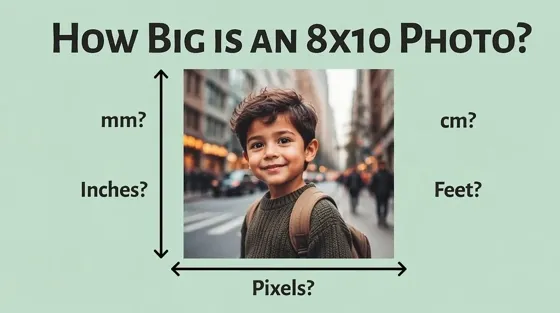
How Big Is an 8x10 Photo? Size, Pixels & Frame Guide
How Big Is a 4x6 Photo? Dimensions, Pixels & Printing Tips
Picsart AI Review: Features, Pricing, Pros, Cons & Alternatives
Lovart AI Review: AI Design Agent Features, Pricing & Alternatives
Fotor AI Image Generator Review: Features, Pricing & Alternatives
How to Add Emoji to Photo Online for Free

Emoji Wallpaper Ideas & How to Make One Online (2026)
Minimalist Poster Design: How to Make a Clean Poster (2026)
How to Make a Custom Poster That Is Ready to Print
Instagram Image Size Guide 2026: Post, Reel, Story & Carousel Specs
LinkedIn Image Size Guide: Profile, Post & Banner Dimensions
YouTube Profile Image Size: Best Dimensions & Safe Area 2026

How to Edit Amazon Product Photos That Boost Sales Fast
Prepare Print-Ready 8×10 Photos
Correct dimensions, aspect ratio, resolution, and frame selection are essential for producing a sharp 8×10 print. Designkit can help you crop, enhance, resize, and export images, so they're ready for printing.


