
Turn a Prompt Into a Chat-Ready Custom Emoji
Describe the expression you want, generate a few emoji-style options, then export a clear PNG sized for Slack, Discord, and other chat apps.

Custom Emoji Results From Simple Prompts
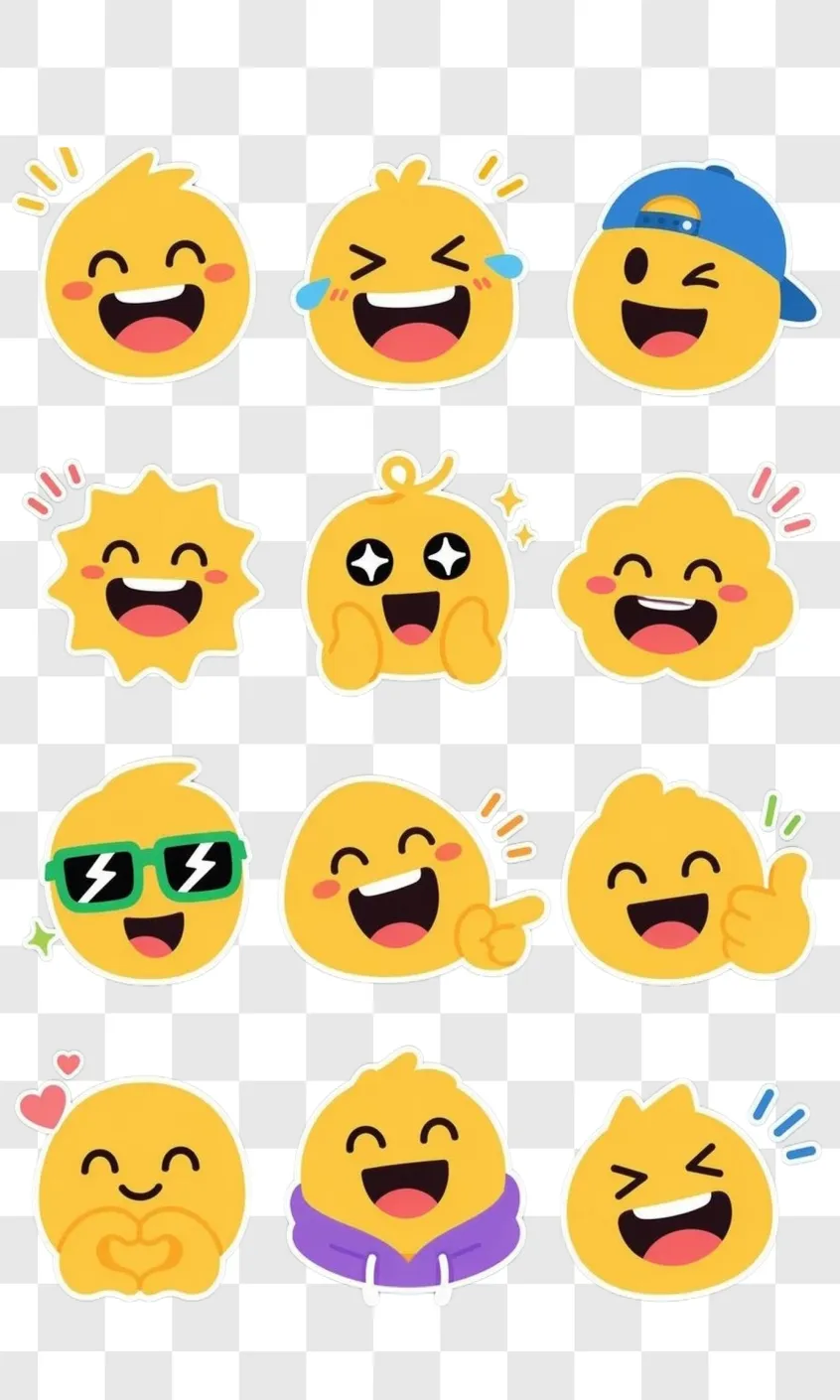
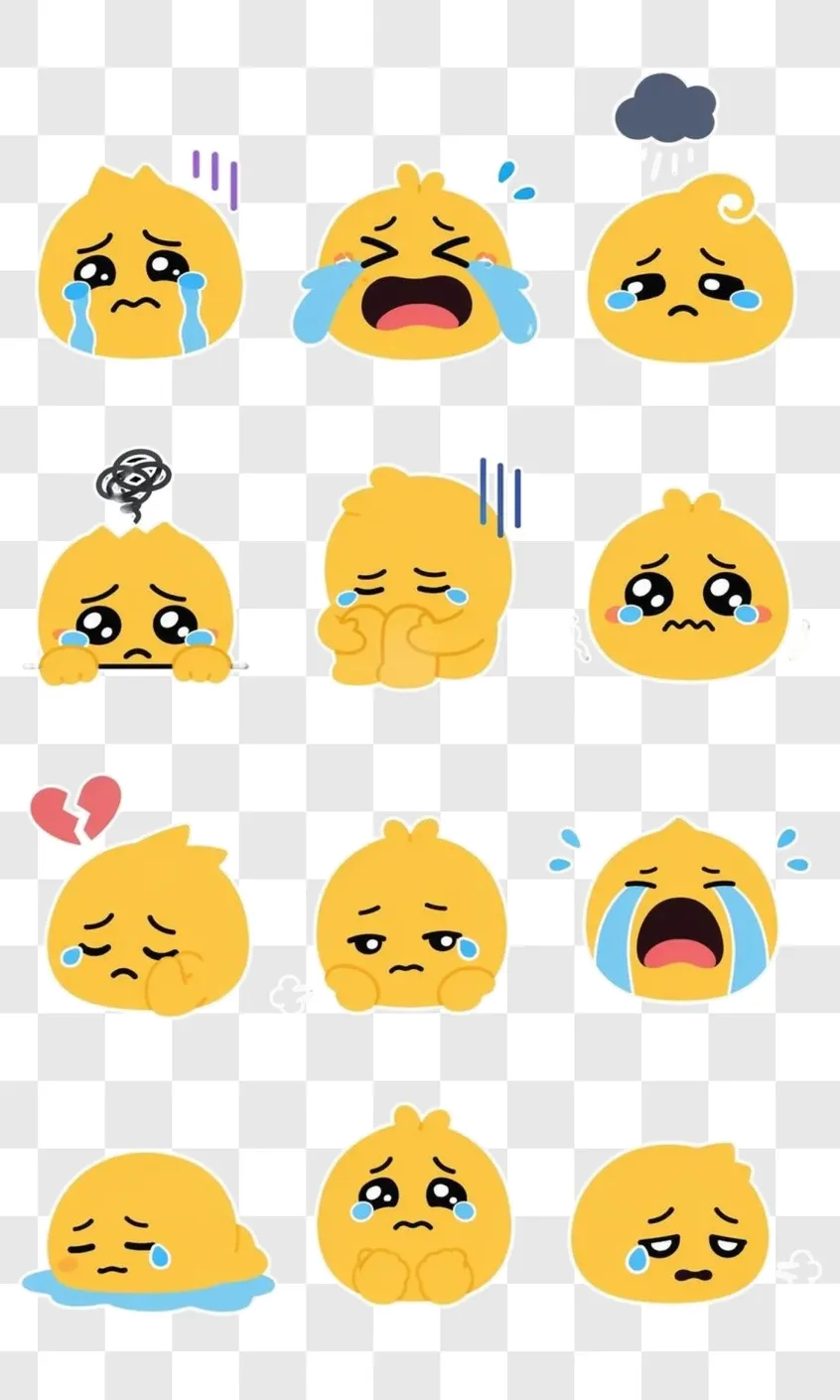
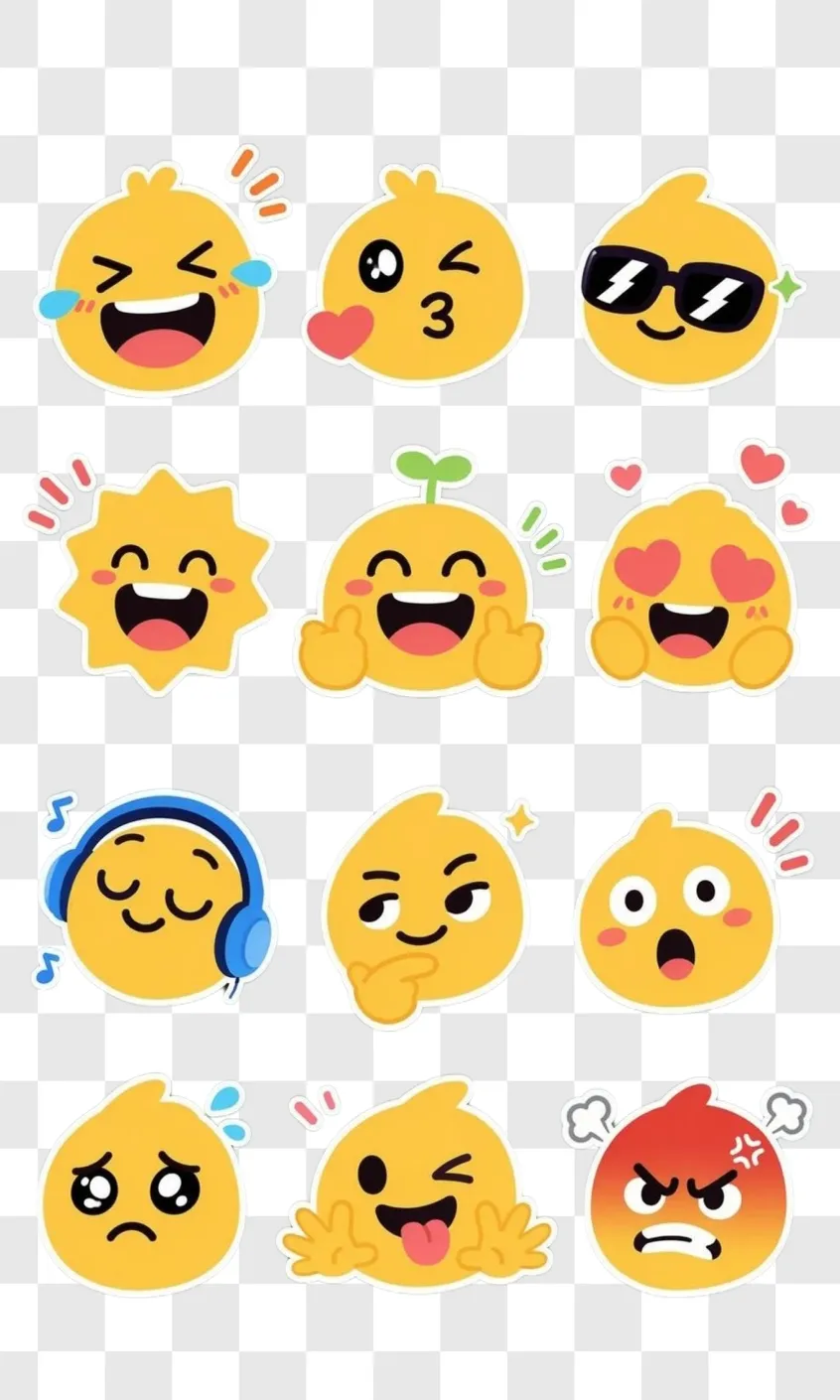
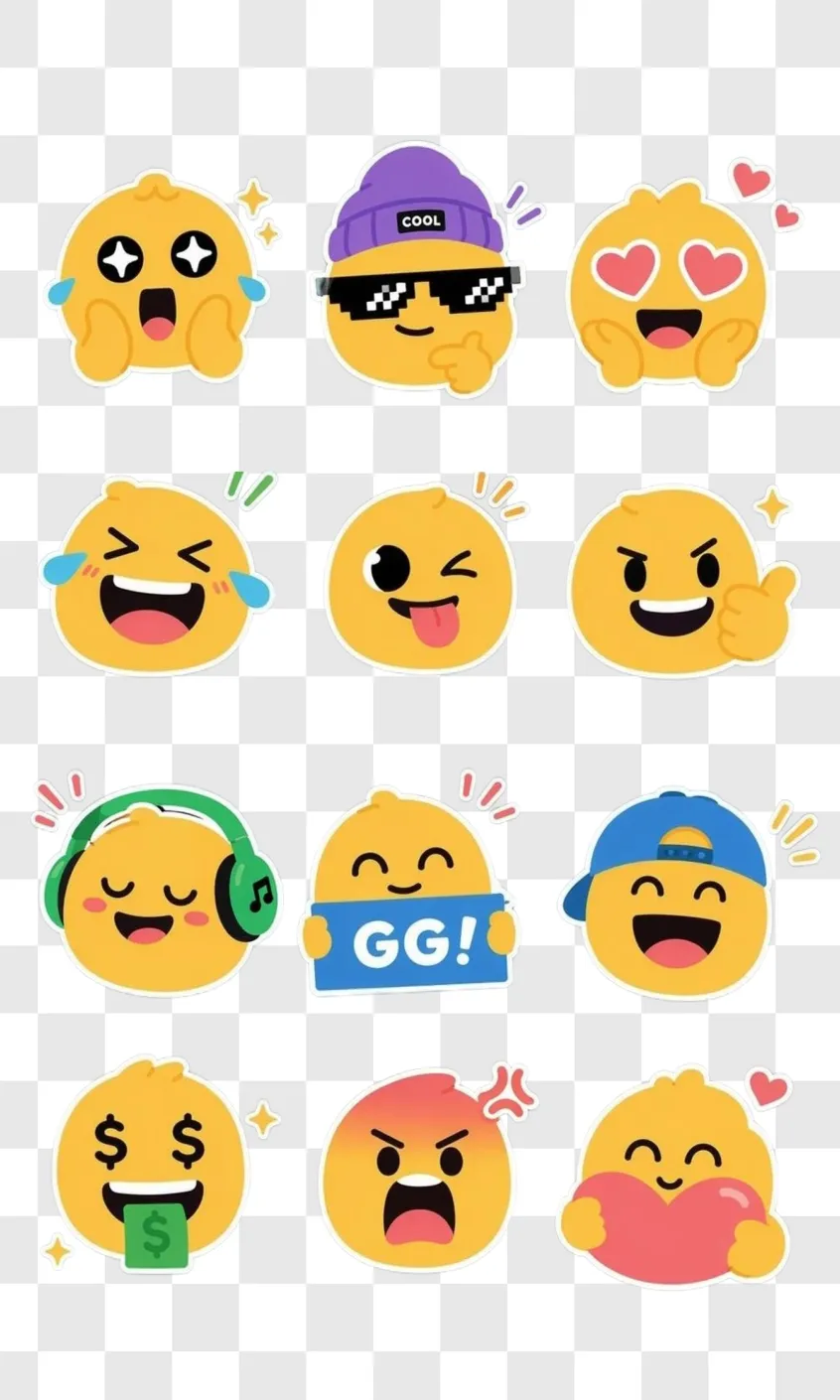
How to Make Your Own Emoji Online With AI
Write the Emoji Idea
Start with one expression, subject, or mood. A focused prompt helps the AI emoji maker create a clear custom emoji instead of a generic icon.
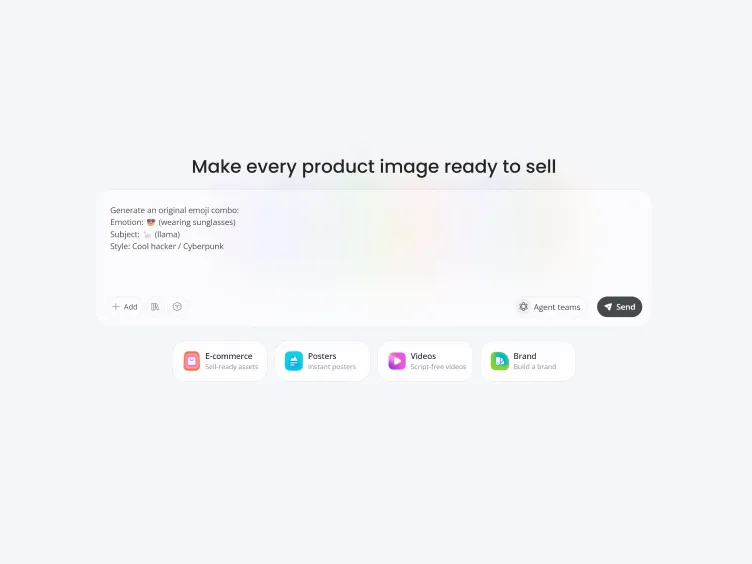
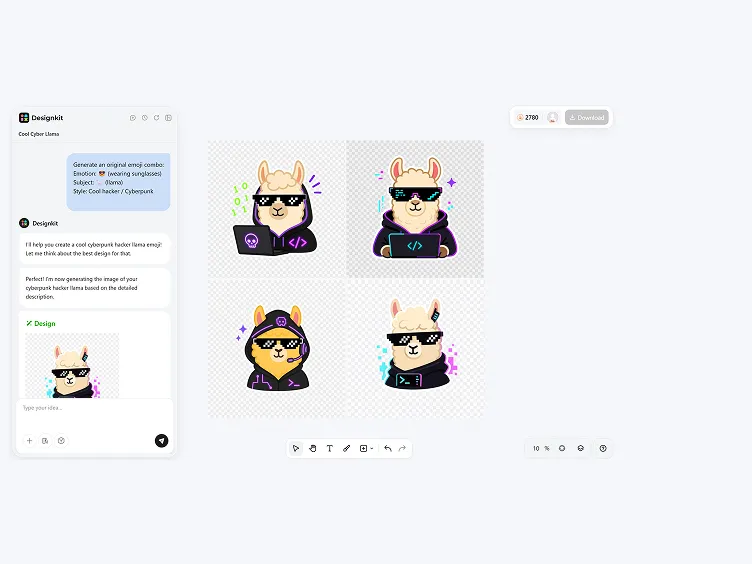
Generate Emoji Options
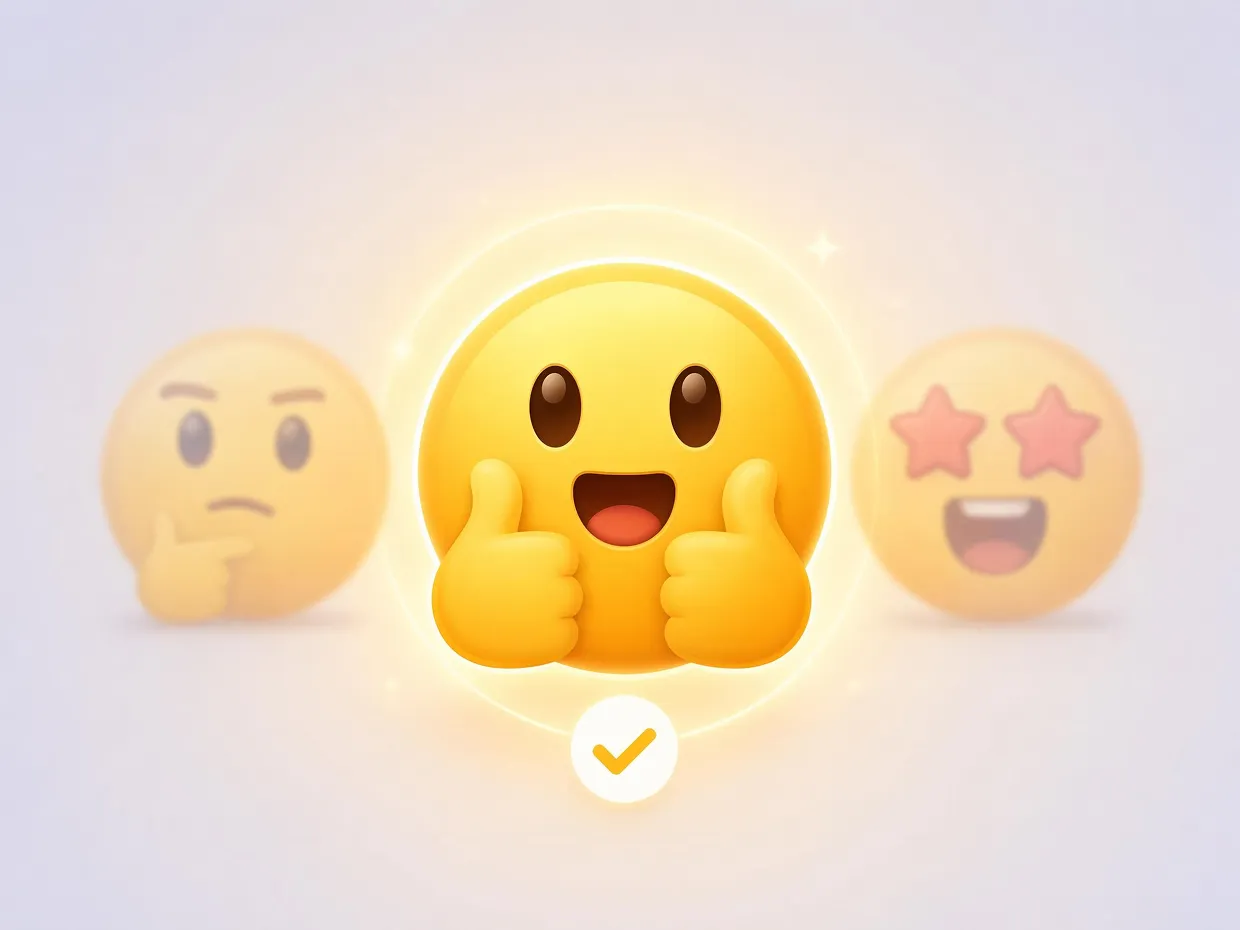
Make several emoji ideas from the same prompt. Compare the expression, shape, and color so you can choose the clearest version.
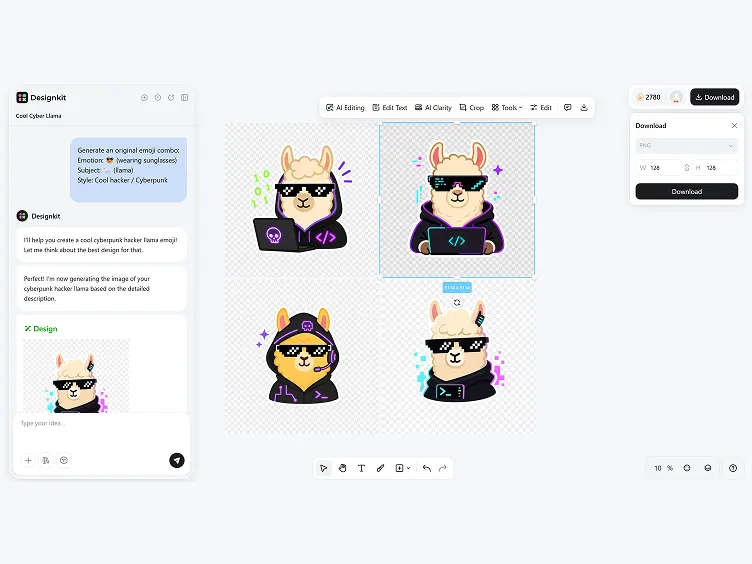
Edit and Download
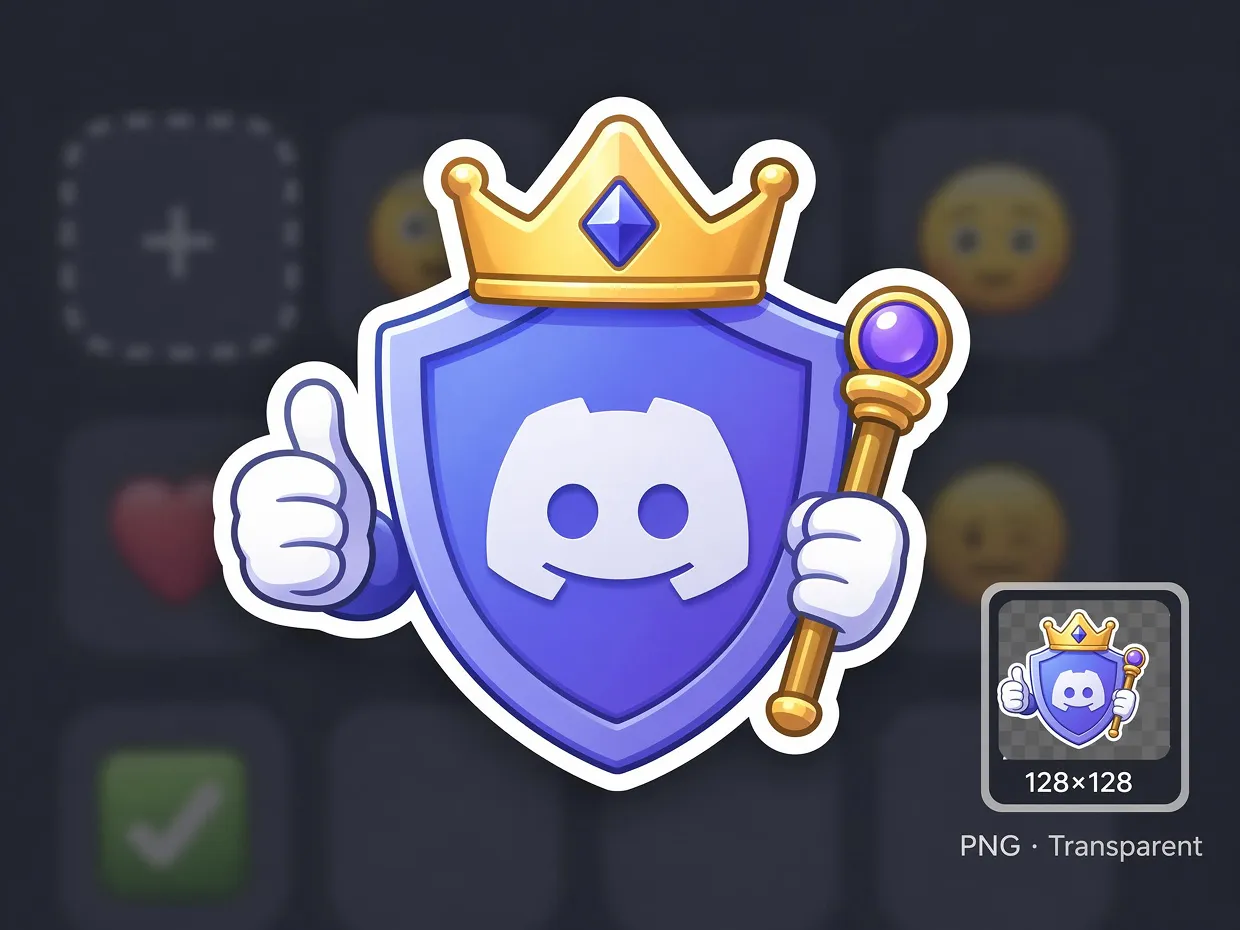
Refine color and details in the editor, then export a transparent PNG. Use 128×128 px when uploading to Slack or Discord.
Create Custom Emoji From Simple Prompts
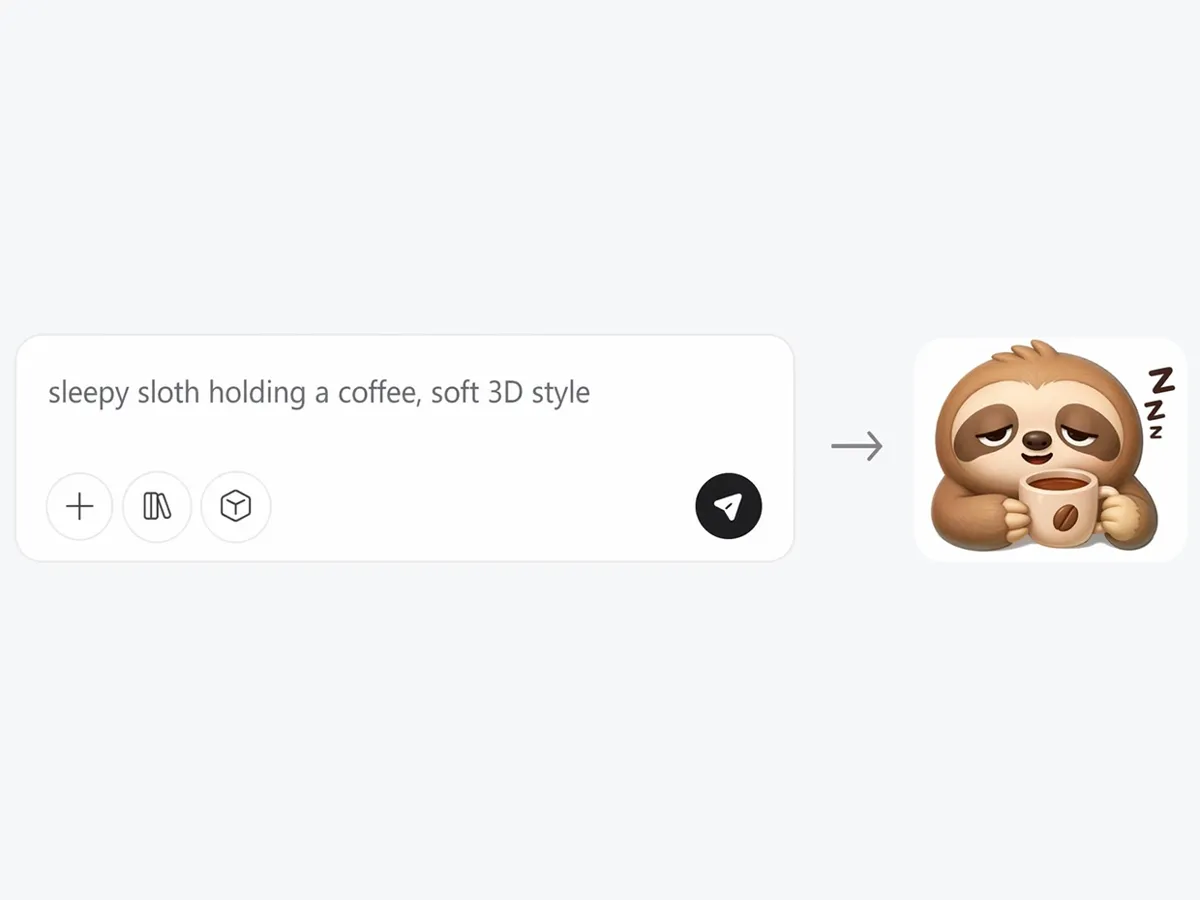
Start From Words, Not a Blank Canvas
Describe the emoji you want in plain language instead of starting from a blank editor. The AI emoji maker reads the expression, subject, and style cue in your prompt, then creates a custom emoji with a clear reaction. This makes it easier to create your own emoji from one focused idea.
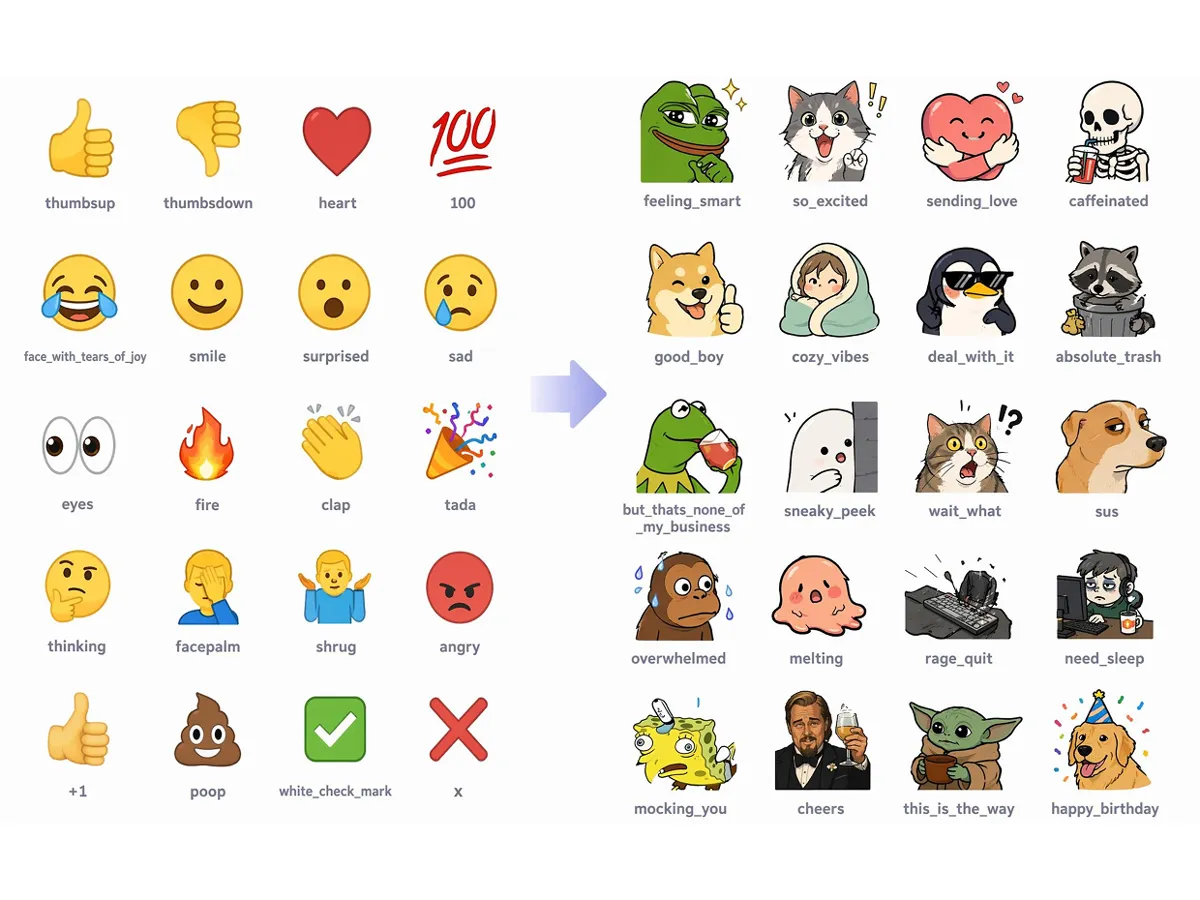
Create More Specific Reactions
Default emoji can feel too broad when you need a reaction with a certain mood, joke, or character idea. Write the feeling directly, then generate emoji options that match your wording more closely. This helps the final emoji feel more useful for a chat, post, or community space.
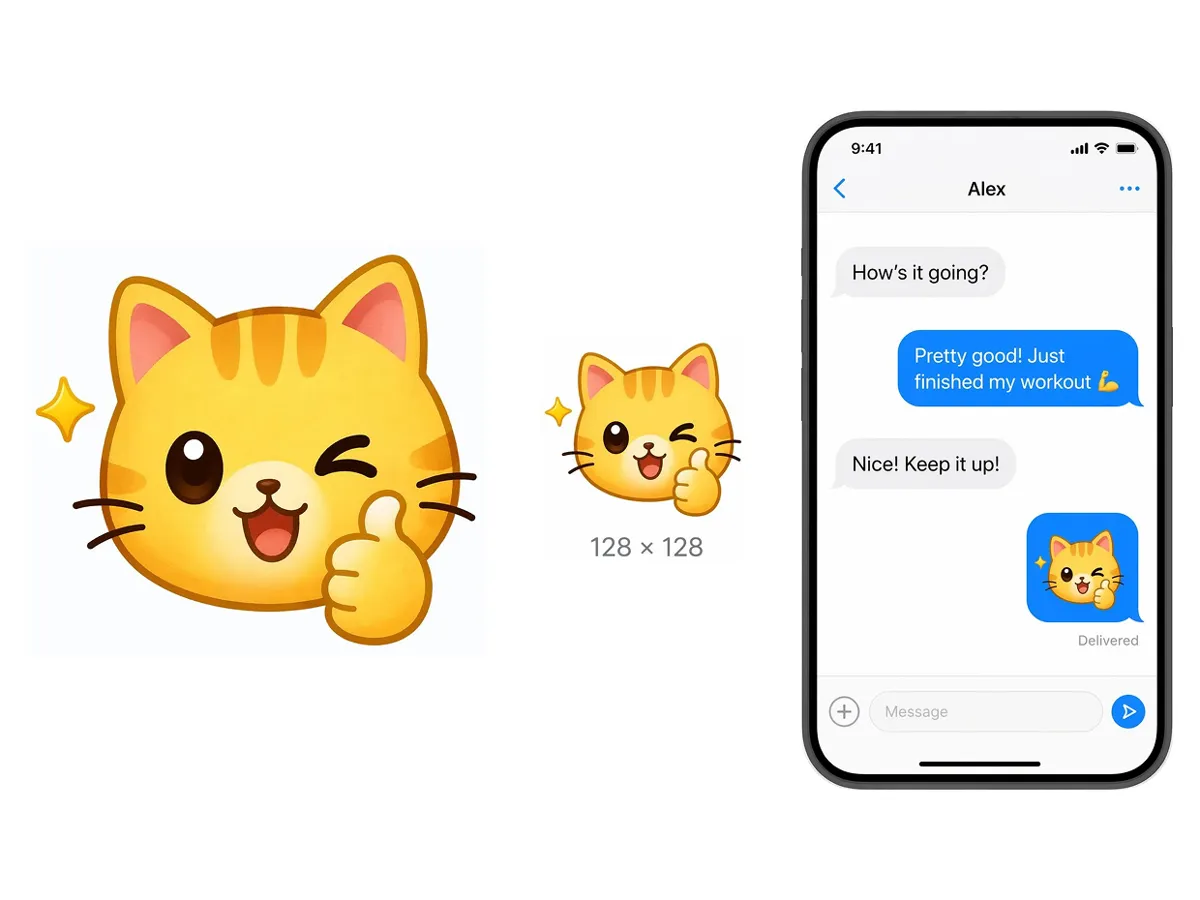
Keep the Emoji Easy to Recognize
Emoji need to stay clear at small sizes. Designkit favors simple shapes, strong expressions, and clean color choices so the result remains easy to recognize after export. This helps your custom emoji work better in compact digital spaces.
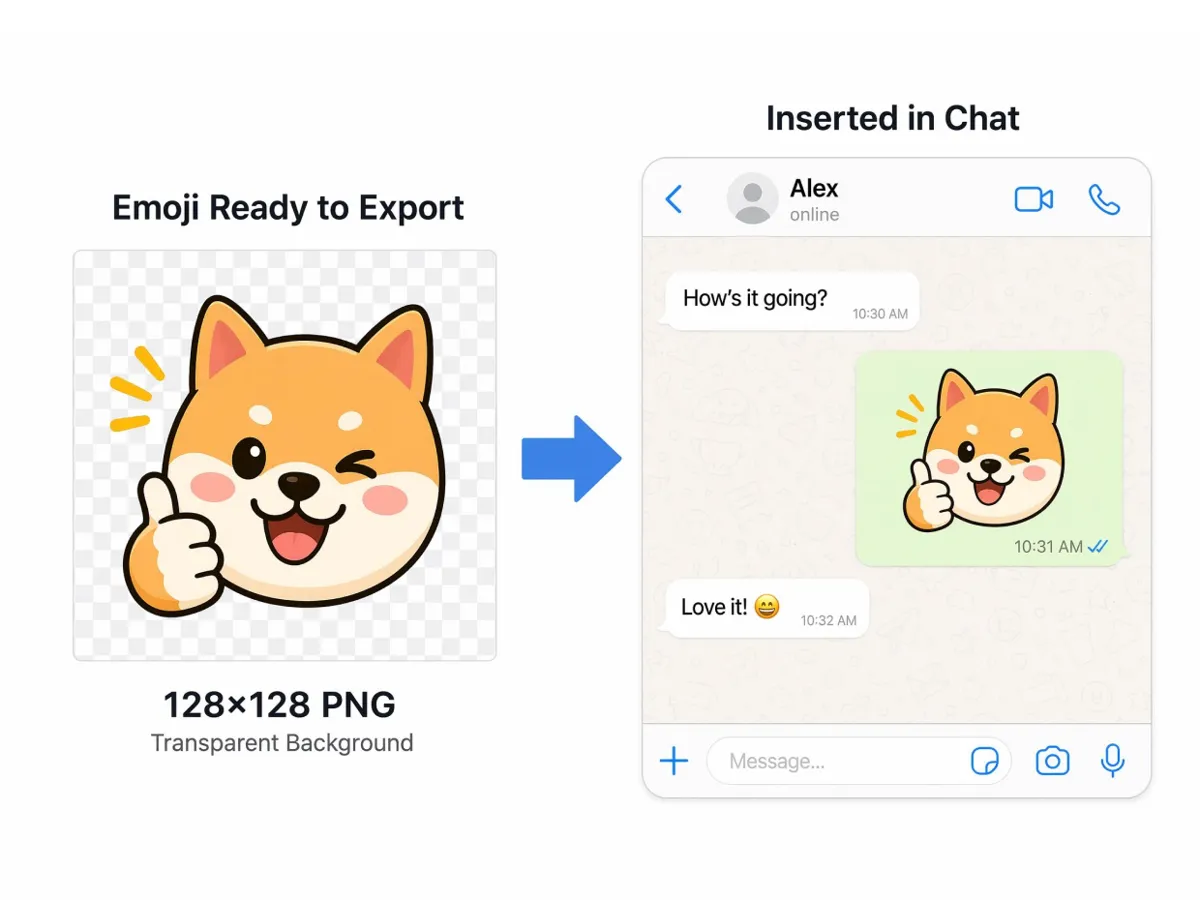
Export PNG Sized for Chat Apps
Export your custom emoji as a transparent 128×128 PNG for Slack, Discord, and other community tools. The compact size helps the emoji stay readable in small chat spaces, while the transparent background keeps it clean on different message themes.
Why Choose Designkit’s Custom Emoji Maker
No Illustrator Required
Write the idea in plain words and generate usable emoji-style art, so you can make a custom emoji from a prompt without drawing, tracing, or building the design from scratch.

Skip the Wait for a Designer
Briefing an artist for one small icon rarely feels worth the turnaround time. Generate and edit your emoji yourself in minutes, without emailing a designer or waiting on revisions.
Built to Work Across Chat Platforms
Export your custom emoji as a transparent 128×128 PNG, so it drops cleanly into Slack, Discord, or other chat and community spaces without extra resizing.
Built for Every Community Creator Who Needs Custom Emoji Reactions
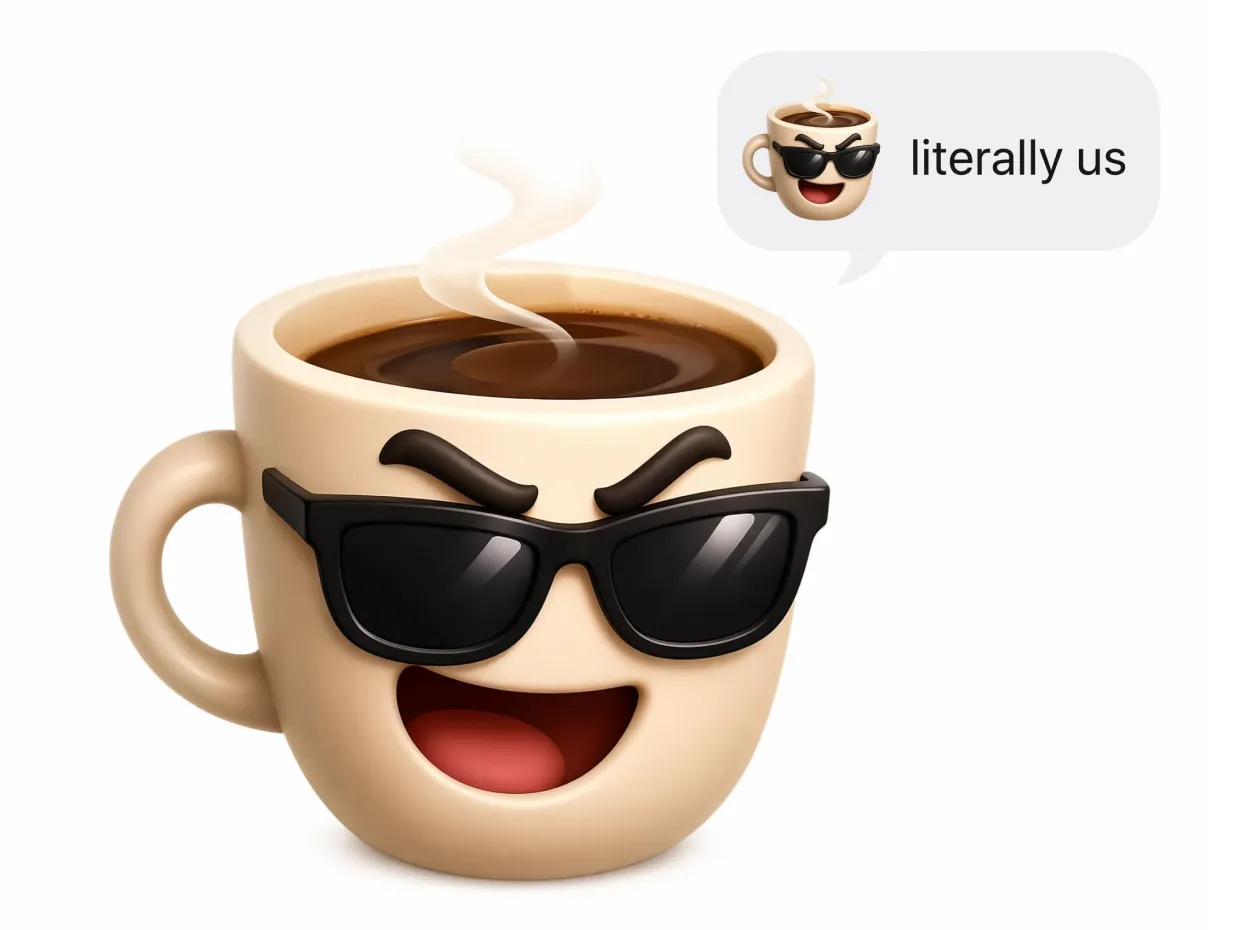
Community Managers: Create Custom Emoji for Inside Jokes and Make Group Reactions Easier to Reuse
Community managers usually start from the language people already use in the group. With Designkit, you can turn a familiar phrase or shared mood into a simple emoji prompt, then generate options that feel close to the way members communicate. Edit the expression and remove tiny details before export, so the final emoji stays clear in chat and feels natural to reuse.
Unlock More Creative Possibilities
AI Caricature Generator
AI Graffiti Generator
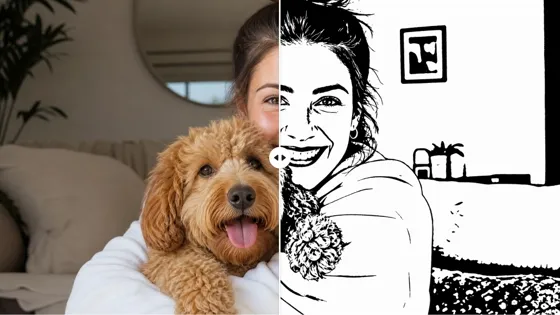
AI Stencil Maker
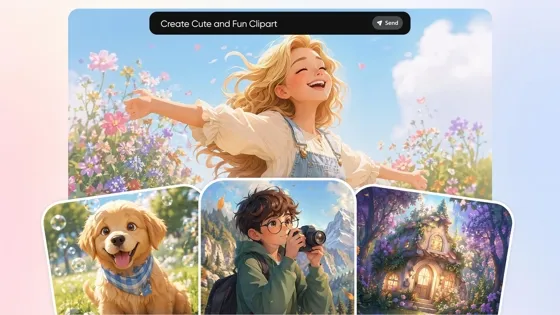
AI Clipart Generator
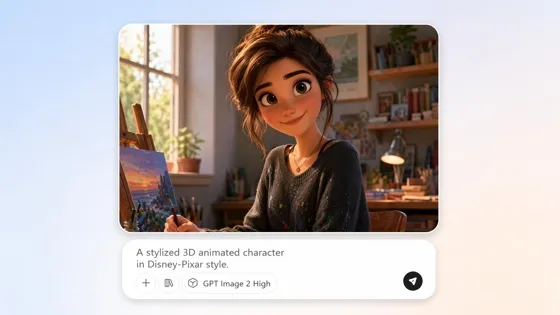
AI Cartoon Character Maker
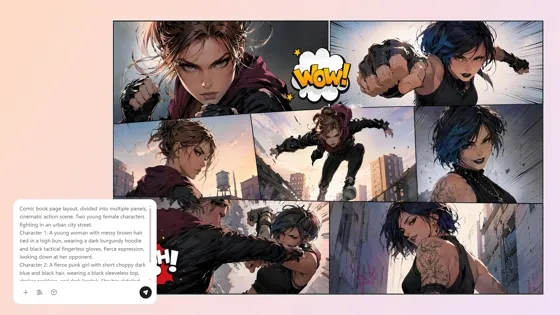
AI Comic Generator
Image to Image AI
AI Filter
Frequently Asked Questions
What is an emoji maker?
How do I make my own emoji?
Start with one clear prompt. Describe the reaction first, then add a subject or style cue. Generate a few options, choose the clearest result, and edit the final emoji before downloading it as a PNG.
Can I create custom emoji online?
Yes. You can create custom emoji online with Designkit. Write a prompt, generate emoji options, refine the design in the editor, and export the final emoji for digital use.
Will my custom emoji actually look good enough to use?
Designkit favors clear expressions and simple shapes that are designed to hold up at emoji size, not just at full resolution. You can keep adjusting color, shape, and detail in the editor until the result looks polished enough for regular use.
How do I write a good emoji prompt?
Start with the reaction first, then add one subject and one style cue. For example, describe the mood, the character or object, and the look you want. Short focused prompts usually create clearer emoji than long prompts with too many details.
Is this a free emoji maker?
You can start with the free emoji maker workflow and test custom emoji ideas online. Some export settings or advanced editing options may depend on the current product plan.
What size should a custom Discord or Slack emoji be?
Use a square PNG, typically 128×128 pixels. Discord allows up to 256 KB per emoji; Slack commonly expects files under 128 KB. Export transparent PNG for the cleanest chat display.
Create Your Own Emoji From One Simple Idea
Turn today's idea into an emoji you'll actually use. Try it free, no drawing skills required.



What Creators Say About Emoji Maker
Clear Emoji From a Short Prompt
I wanted a reaction emoji that felt more personal than a default face. The emoji maker gave me several options from one short prompt, and the editor helped me clean up the expression before export. The final emoji stayed simple enough to recognize in a small slot.
Better Reactions for Community Chats
Our community uses a lot of inside jokes, and normal emoji never felt specific enough. I wrote the reaction as a prompt, tested a few versions, and picked the one with the clearest face. It made the emoji feel connected to the group instead of generic.
Uploaded to Our Discord Server the Same Hour
I generated a reaction face from one prompt, exported a 128×128 PNG, and uploaded it to our server without cleaning anything up in another app. It actually survived the tiny chat preview.
Saved Me From Briefing an Artist
Our Discord server needed a few reaction icons, and hiring someone for something this small never felt worth it. I wrote a couple of prompts, picked the versions with the strongest expressions, and had them exported and added within the hour.
Good Fallback When Stock Emoji Feel Too Generic
I needed a specific mood for community replies, not another default reaction. I wrote the feeling into a short prompt, tested a few directions, and used the editor to adjust the colors before exporting the version that felt right.