
How to Send Your First Shipment to Amazon FBA
Sending your first FBA shipment? Build the plan in Seller Central, label units and cartons correctly, then hand off so the warehouse can receive your inventory.

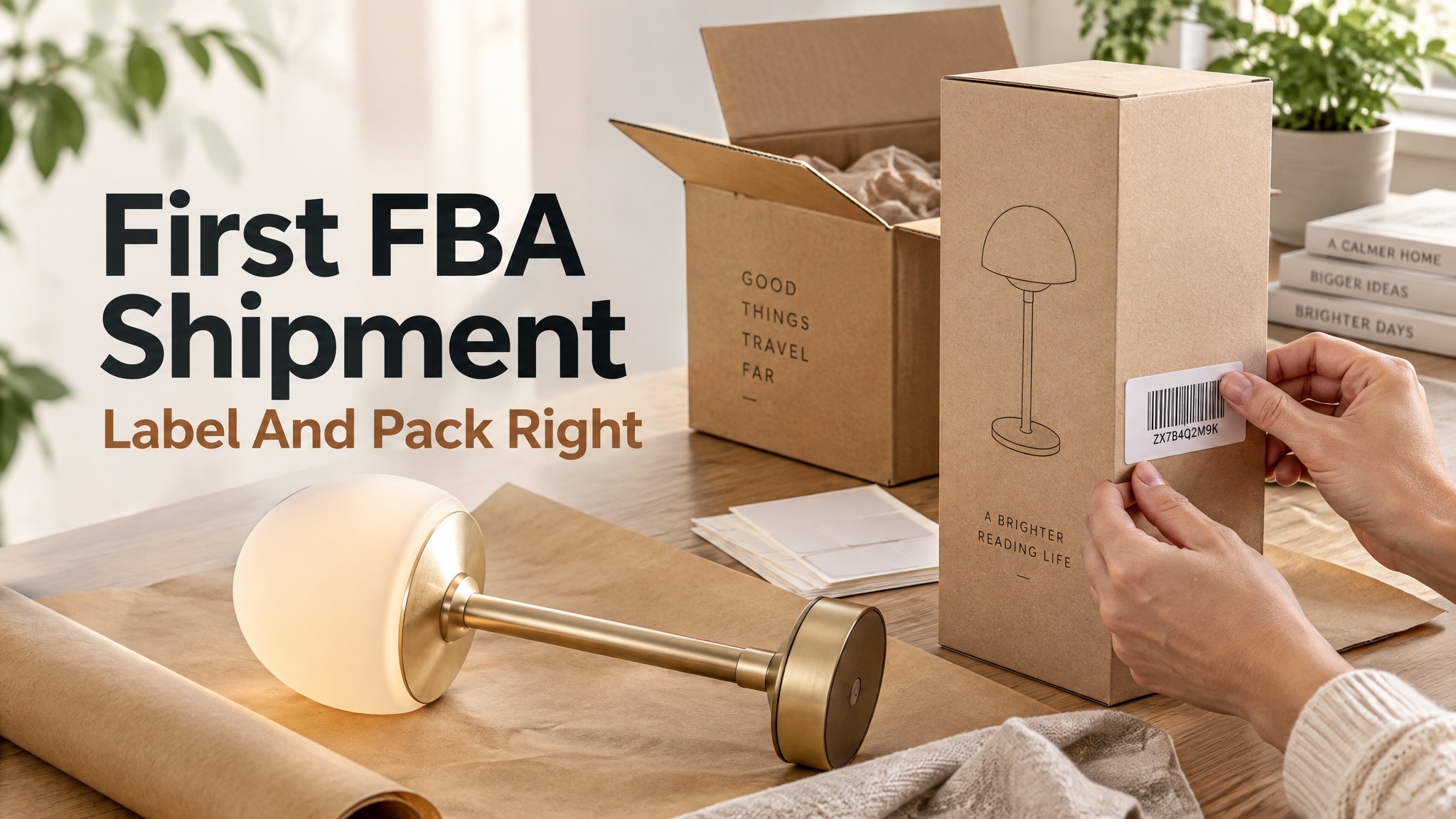
If you’re sending your first inventory to Amazon FBA, you need a clear sequence in Seller Central: build the shipment, label each unit as the workflow requires, seal and label the cartons, then hand them to a carrier so the warehouse can receive them.
That’s the order this job usually follows. Because Amazon’s screens and prep rules can change, use the steps below as a practical guide and confirm the details in Seller Central Help before you seal anything.
What to Settle Before Send to Amazon
Open Send to Amazon only after a few basics are true:
-
The SKU is converted to FBA and you can sell it.
-
You know how many units you will send , matching what is on the shelf.
-
You can print a clean barcode. Blurry labels cause more trouble than almost any other packing mistake.
If a unit needs extra prep (a poly bag, bubble wrap, a set band), plan that before you confirm quantities. Amazon may refuse, return, or prep non-compliant inventory at your expense.
Also glance at the listing shoppers will see. Stock in a fulfillment center sells through those images. If the main photo is still a draft, finish it before you depend on that inventory.
Create the Shipment in Send to Amazon
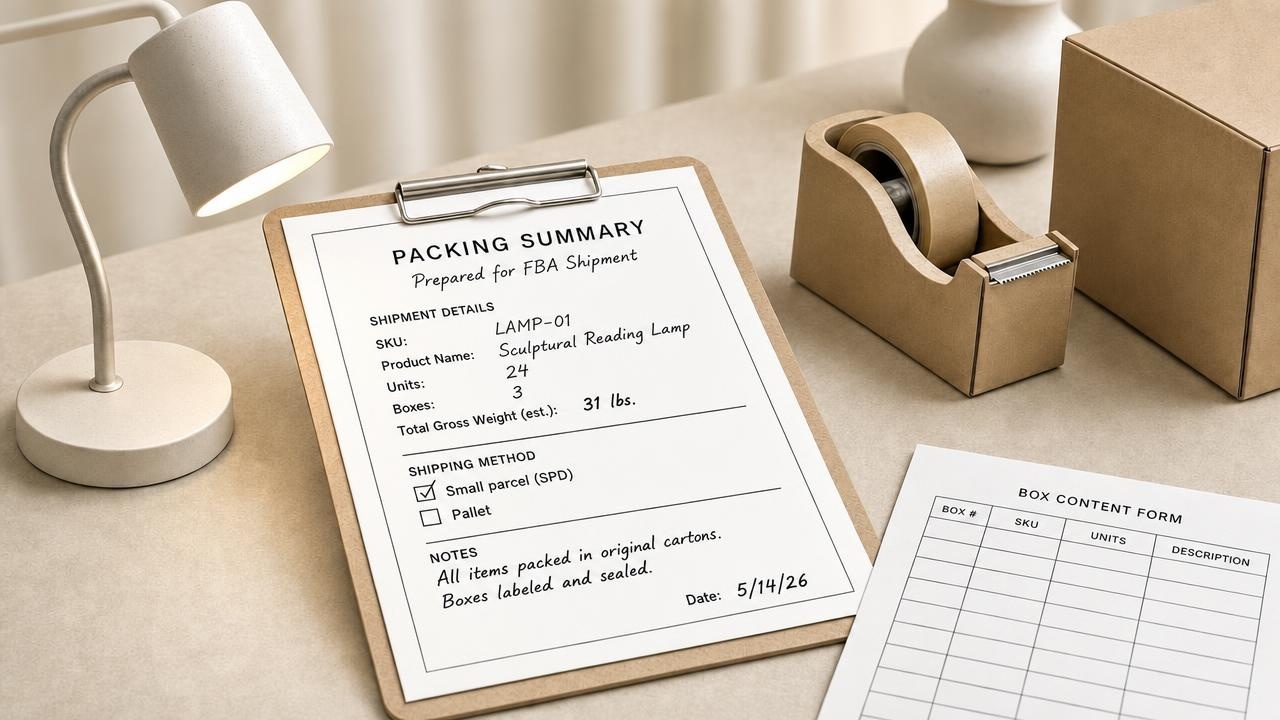
In Seller Central, go to your Shipping Queue and open Send to Amazon . That workflow is your shipping plan: what you send, how it is packed, and how it travels.
Work in this order:
-
Choose inventory. Pick the ship-from address, marketplace, and FBA SKUs. Enter quantities that match the physical count.
-
Complete packing details. Tell Amazon whether boxes are single-SKU or mixed, and who does prep and labeling (you or Amazon’s paid options where offered).
-
Confirm shipping. Add an estimated ship date. Choose small parcel for individual boxes, or LTL if you are sending pallets. Pick a carrier. Partnered-carrier options can print shipping labels and pass tracking back into Seller Central; non-partnered means you upload tracking yourself later.
-
Review destinations and charges. For a first send, prioritize a clean receive over squeezing every fee.
Do not invent a second count “for later.” Wrong quantities in the plan create receive mismatches even when the labels look fine.
Label Each Unit When the Workflow Asks
Once the shipment is open, the next risk is the barcode on each sellable unit. Amazon FBA labels tell the fulfillment center which offer the item belongs to.
Which barcode does this shipment need?
Before you print anything, check what Send to Amazon asks for on that SKU. An FNSKU is Amazon’s barcode for your offer. Many FBA paths require that Amazon barcode on each sellable unit. Other paths allow a manufacturer barcode such as a UPC when your settings allow it. Follow the choice shown in the workflow. Do not guess from an old screenshot.
Print and place labels so they can scan
Amazon’s seller guidance for self-printed Amazon barcodes typically calls for roughly 1–2 inches tall and 2–3 inches wide, black ink on non-reflective adhesive paper, and a scannable code with the FNSKU, title, and condition. Confirm the live Help page for your case. Then:
-
Print so the barcode scans. Test one label before you run the whole batch.
-
Put the label on a flat face, not on a corner or seam.
-
If Amazon requires its barcode, cover other barcodes on the unit so they cannot be scanned by mistake.
-
If the unit is bagged or wrapped, put the scannable label on the outside of that prep.
Do not photocopy Amazon labels. Damaged or copied labels are a common reason inventory gets delayed.
Pack Cartons, Apply Box Labels, and Hand Off
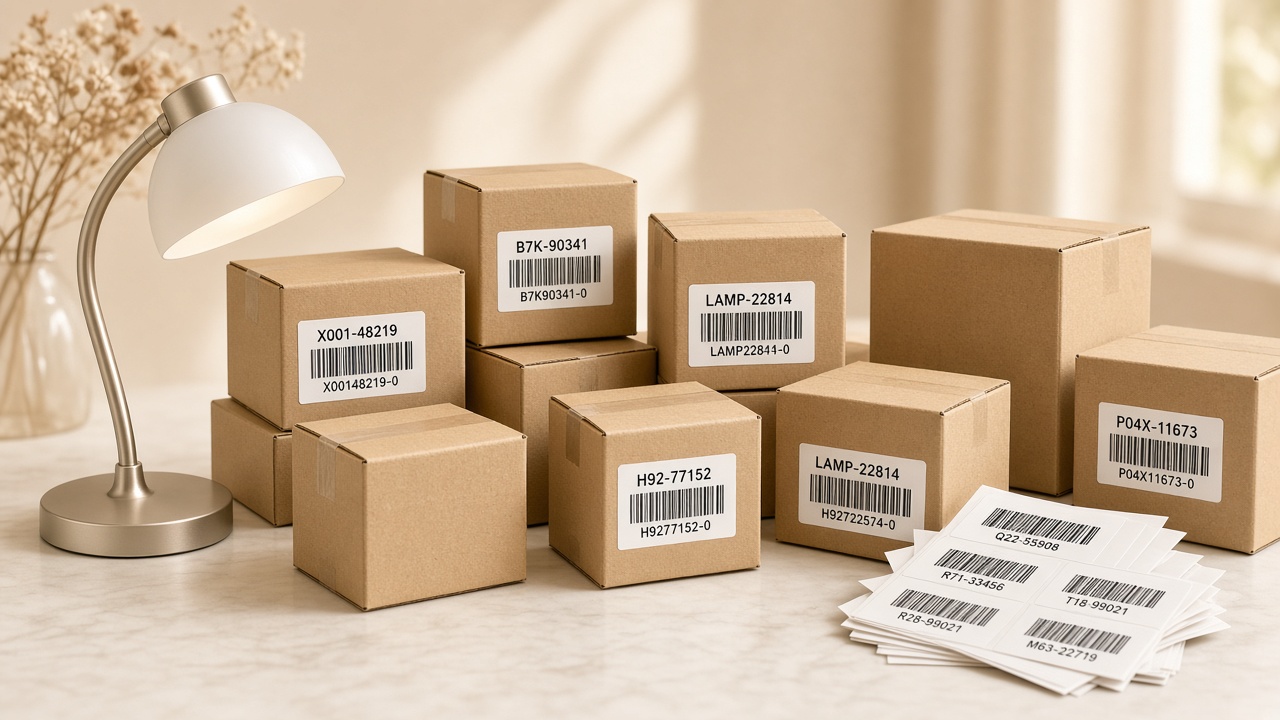
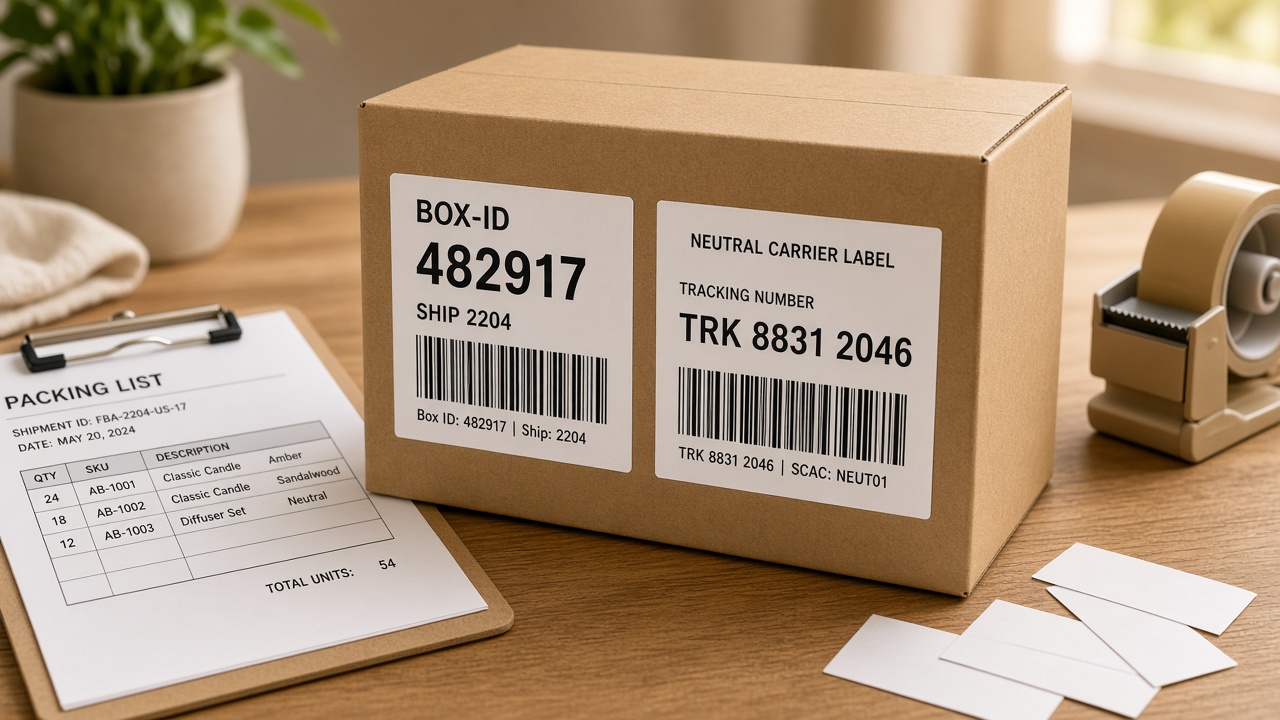
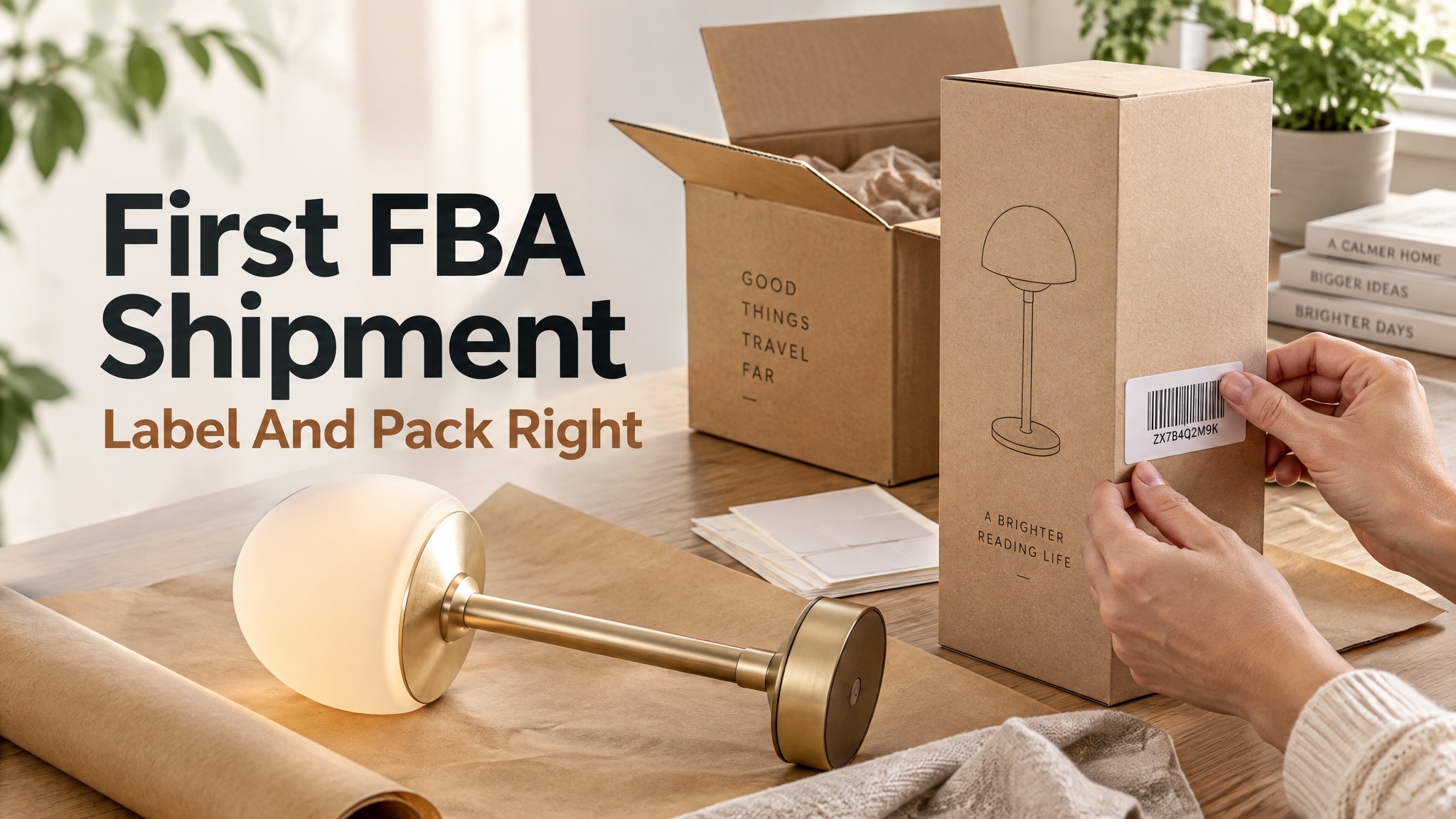
Amazon FBA box labels identify the carton. They are not the same as the FNSKU on each unit. Finish carton contents in the plan first, then print box labels so you are not resticking every carton.
When you pack each carton, do the following:
-
Seal a carton only when the contents match what you entered.
-
Put the Amazon box label on a large flat face. Do not tape over the barcode.
-
Place the carrier label beside it when both are required.
-
On reused boxes, cover or black out old outer barcodes so Amazon does not scan the wrong code.
Hand packages to the carrier with the shipment ID handy.
Check Before You Hand Off, Then Watch Receive
Run this checklist before the first carton leaves your space:
-
Plan status is ready to ship, with quantities matching the shelf.
-
Each unit has the barcode type the workflow required, applied so it can scan.
-
Each carton has the correct Amazon box label for this shipment.
-
Required prep is done for those SKUs.
-
Carrier method matches what you selected (small parcel or LTL).
Before those boxes leave, also confirm the listing shoppers will see is ready. Inventory in a fulfillment center sells through your photos. If the main image or supporting slots are still thin, finish them first. Designkit’s Amazon Listing Images tool can help you build a white main image and supporting frames from product shots. For a fuller image checklist, see the Amazon Listing Images Guide .
After the carrier takes the boxes, add or confirm tracking if Amazon did not capture it automatically. When receive starts, compare received units to what you sent. Fix discrepancies early; they are harder to untangle weeks later.
Conclusion
A clean first FBA send is one job: build the shipment in Send to Amazon, label units and cartons when the workflow requires it, then hand off freight you can track. Watch receive status until the inventory shows as available.
Frequently Asked Questions
Do I need an FNSKU on every FBA unit?
What is the difference between a product label and a box label?
The product label goes on each sellable unit. The box label goes on the outside of each carton. You usually need both.
Can I use my UPC instead of an Amazon barcode?
Only when Amazon allows manufacturer barcodes for that listing and shipment path. If Seller Central asks for Amazon barcodes, print those.
When should I print Amazon FBA box labels?
After carton contents are final in the plan. Printing earlier means resticking labels every time a box changes.
What happens if prep or labeling is wrong?
Amazon may refuse, return, or re-prep inventory and charge you. Catch problems before the carrier pickup.
You May Also Like

Amazon A+ Content Dimensions: Module Image Sizes

Print-On-Demand Designs: Create, Prepare, and Preview Your Work

Amazon A+ Content: What It Is and What to Build First
Is Print on Demand Profitable in 2026? Products and Niches
Amazon Brand Registry Application: How to Submit and Pass Review
How to Ship to Amazon FBA: Your First Shipment
What Is Amazon FBA? Should Beginners Use It in 2026

How to Get Ungated on Amazon: Restricted Category Approval Steps
Amazon Backend Keywords: Title, Bullets & Search Terms

What Is A/B Testing? A Practical Guide to Running Better Experiments

Best Time to Post on Instagram in 2026: Data & Tips
How to Get Verified on Instagram: Complete Guide

TikTok Monetization in 2026: Requirements & Ways to Earn

Instagram Desktop Posting Guide: Upload Posts, Stories & Reels

YouTube Shorts Monetization Requirements & Rules 2026

How Much Does YouTube Pay Per View? 1K, 100K & 1M Views

How to Make Money on Snapchat: 7 Ways to Earn

How to Get More Followers on Instagram in 2026

Best Time to Post on TikTok in 2026 for More Views

How to Repost on Instagram in 2026: A Simple Guide

Multichannel Marketing Guide: Strategy, Tools & Examples
How to Create Digital Products That Sell in 2026

Cyber Monday Marketing Ideas & Strategies (2026 Guide)

Black Friday Marketing Ideas for Ecommerce Brands (2026)
Instagram Marketing Guide: Strategies, Tips & AI Tools in 2026

Influencer Marketing Guide: Strategy, Campaigns & Creator Tips

15 Best Things to Sell on Etsy in 2026 (Listing Tips Included)
WooCommerce vs Shopify 2026: Pricing, Features & Which Is Better

How to Sell on Facebook Marketplace: Beginner Guide (2026)

How to Use Pinterest for Business: Strategy, Tips & Growth Guide

How to Sell on Etsy in 2026: Setup, Listings & Growth Tips

What Is a Target Audience? Types, Examples & How to Find Yours

TikTok Marketing Guide 2026: Strategies, Ideas & AI Tools

Vibe Marketing Explained: Strategy, Examples & AI Tools
How to Sell on Depop: Beginner Guide to Getting Your First Sale
Online Advertising Guide: Types, Costs & Examples (2026)

Facebook Advertising Guide: Costs, Strategy & Tools 2026

What Are E-commerce Ads? Examples, Strategy & Tools (2026)
Where to Sell Handmade Items Online (2026): Etsy, Amazon, or Shopify?
Shopify vs Amazon (2026): Brand Store or Marketplace FBA?

Amazon Handmade vs Etsy (2026): Which Is Better for Makers?
Etsy vs eBay (2026): Handmade, Vintage, or Secondhand?
Selling on Amazon vs eBay (2026): Fees, Profit & Where to Sell

What Is Brand Awareness? Examples, Strategies & Tools 2026

10 Best Online Selling Platforms (2026): Pick by What You Sell
Shopify vs Etsy (2026): Which Is Better for Handmade Sellers?

YouTube Automation Step-by-Step AI Guide for Beginners

What Is Brand Identity? Examples, Elements & Strategy

AI Marketing Agent: How It Works, Benefits & E-Commerce Examples

What Is Personalized Advertising? Examples & How It Works
How to Build a Shopify Store That Actually Converts Visitors

Amazon Marketing Guide 2026: Strategies, Tips & Tools
Local Advertising: Strategies, Examples & Tools (2026)

What Is Branded Content? Examples, Strategy & Tools 2026

What Is Performance Marketing? Strategies & Examples 2026

Inbound Marketing: Strategies, Examples & Tools (2026)
Prepare Listing Images Before You Ship
Before your first FBA shipment leaves, make sure the listing shoppers will see is ready. Designkit can turn product photos into Amazon-ready listing images.
