
First Listing Materials Checklist: How to List a Product on Amazon
New to Amazon and building your first listing? Use this materials checklist to gather product IDs, paperwork, title and bullets, and photos before you hit Create.

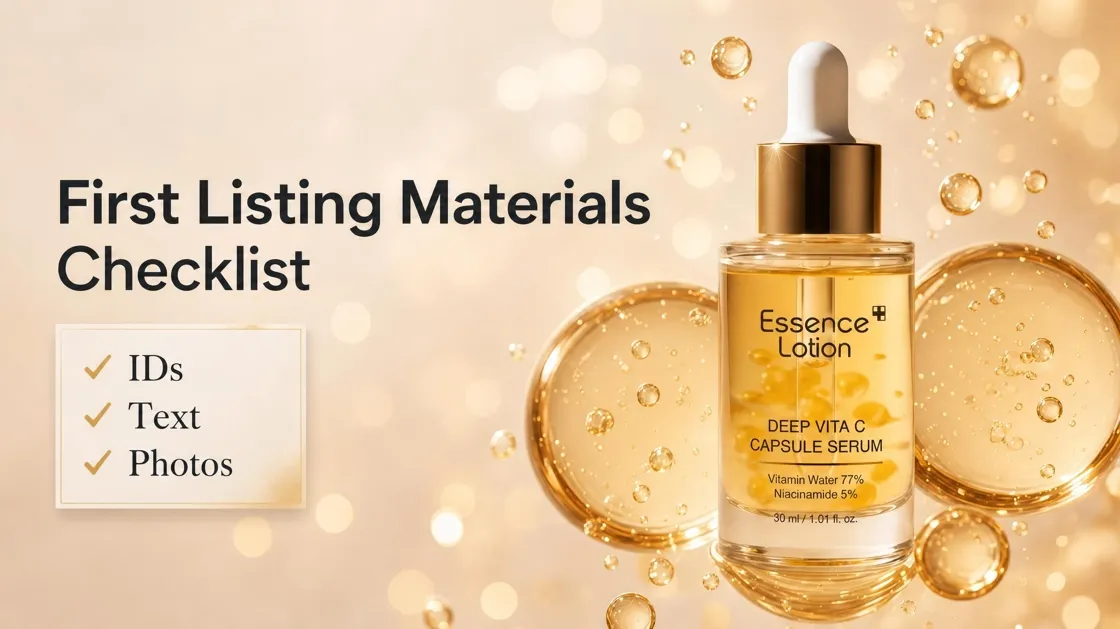
If this is your first listing, Seller Central can feel like a long form that keeps asking for files you do not have open yet. You do not need to memorize every menu. Use this materials checklist when you are learning how to list a product on Amazon: product IDs, paperwork, listing text, and photos.
You can use the checklist below as your working list. The later sections also walk you through each group in more detail.
Your First Listing Materials Checklist
Print or copy this list into a note for one product. Check items off before you click Create.
A. Product IDs and paperwork
-
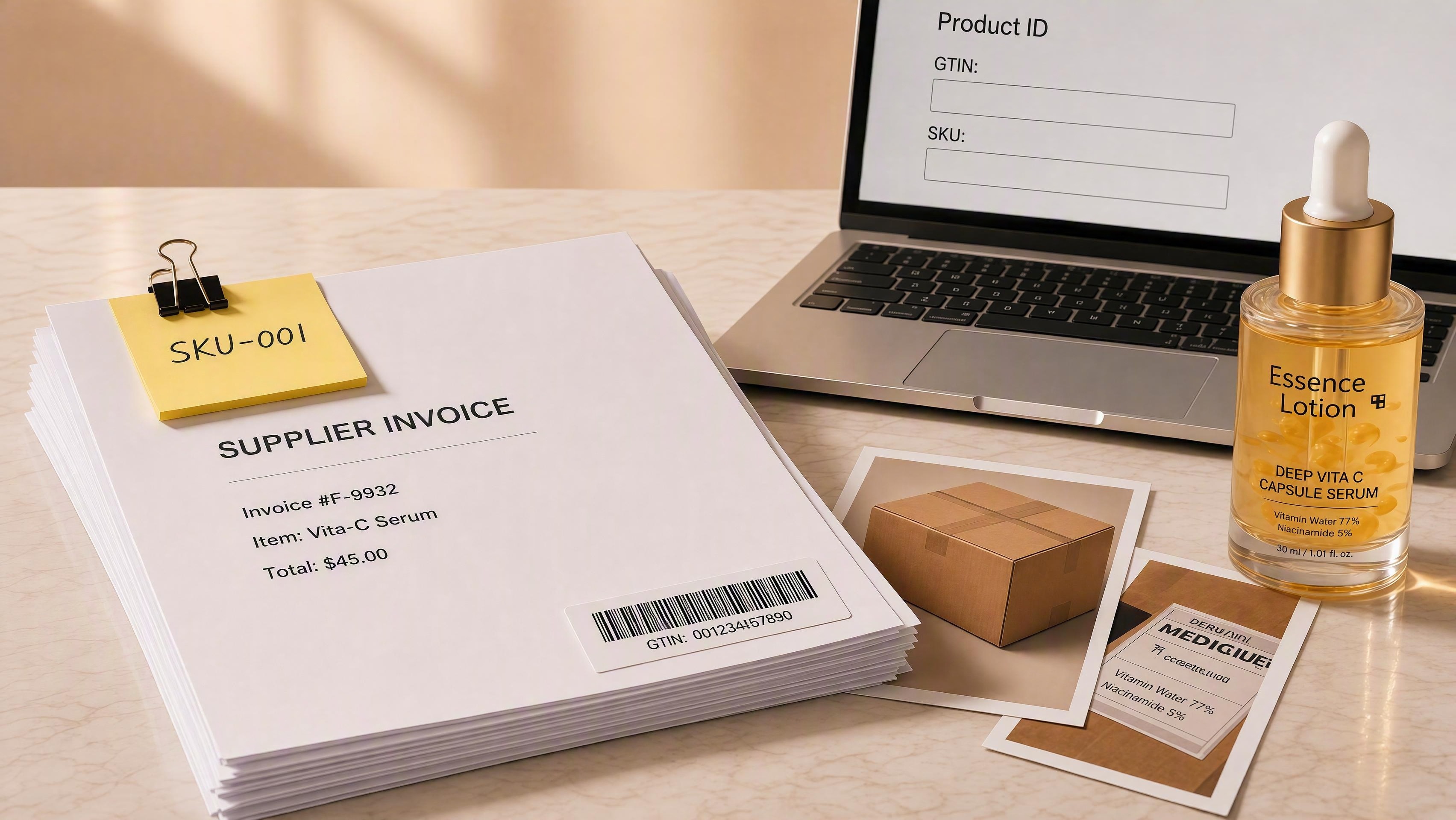
Find the barcode number printed on your product packaging, usually labeled UPC, EAN, or GTIN. If Amazon lets you skip a barcode, keep notes for a GTIN exemption instead.
-
Your own internal product code for this item. Sellers often save this as a SKU so files stay organized.
-
A clear scan or photo of your supplier invoice. If Amazon asks for brand authorization, add that letter too.
-
Photos of the outer package and any warning or info labels while the boxes are still with you.
B. Listing text to draft before you upload
-
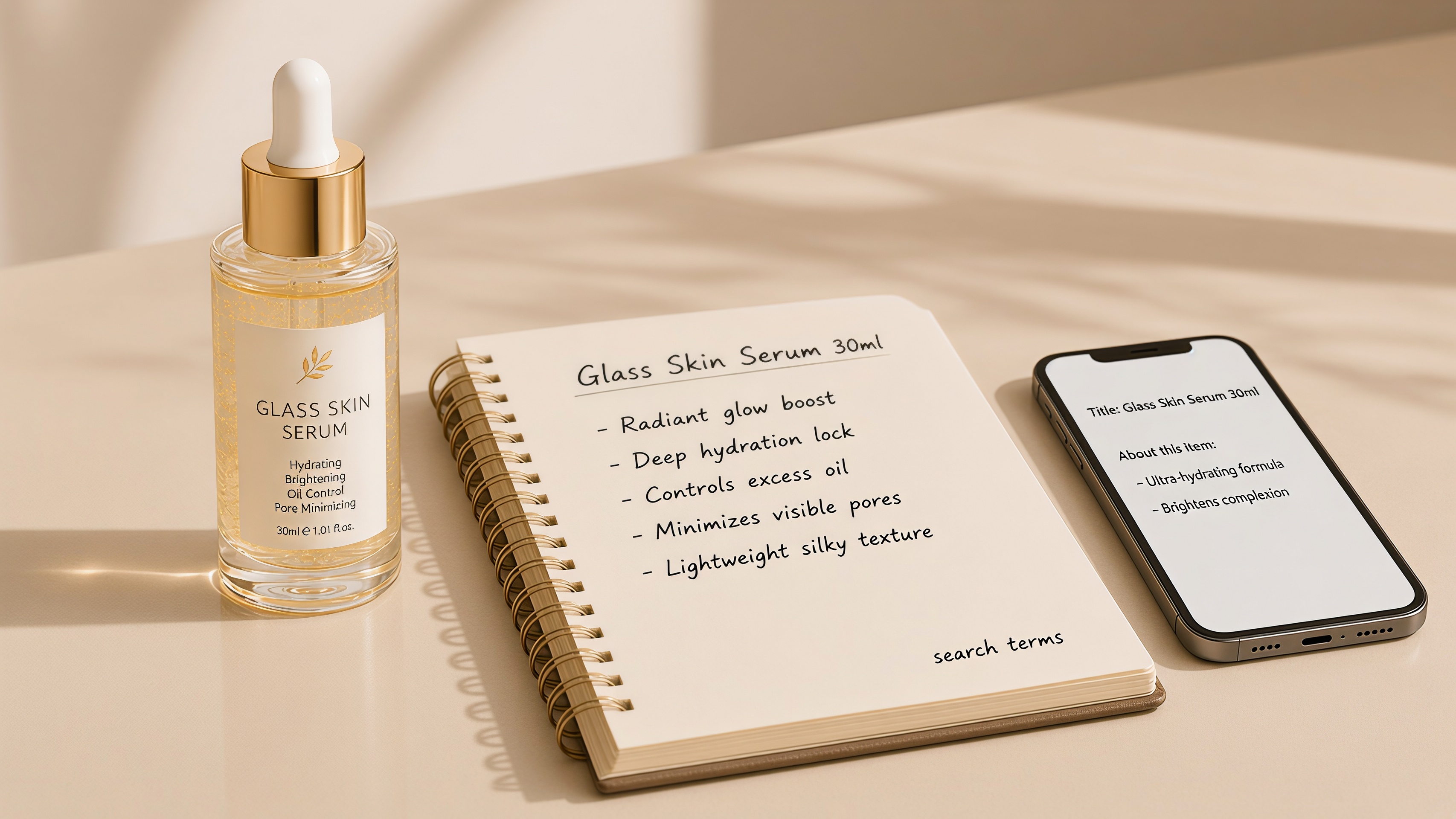
Product title draft
-
Five bullet points for the About this item section
-
Short product description
-
Extra search words for the hidden search terms field, also called backend keywords
C. Photos and listing images
-
Main photo on a pure white background, with no promo text on the image
-
Close-up or detail photos
-
A lifestyle or in-use photo when it helps shoppers understand the product
-
Feature or size callout images for secondary slots. Keep text on these images, not on the main photo.
D. Final check before you publish
-
Category and product details match what is in the box
-
You know who ships the order: Amazon through FBA, or you through FBM
-
If Amazon asks for category approval, often called gating, pause and apply before you force a publish
Product IDs and Paperwork
Amazon needs a way to identify what you are selling. For many first listings, that means a barcode number such as a UPC, EAN, or GTIN. When you have one on the packaging, enter that same number in Seller Central.
Keep the corresponding paperwork ready as well. A clean invoice from your supplier helps if Amazon asks for proof. Photograph the package and labels while the boxes are still with you, because those shots are hard to remake after inventory leaves.
If you do not have a barcode yet
If you sell a private-label product and Amazon offers an amazon GTIN exemption, you may apply for that path instead of buying a barcode. Whether you qualify depends on Amazon’s current rules for your case, so follow the prompts in Seller Central and open any Help article linked on that page. Skip random barcode numbers that do not belong to your brand. Using someone else’s code can create catalog problems later.
Listing Text to Draft Before You Upload
When you start building the listing, it is tempting to jump to photos first. However, for a first listing, draft the text offline first so you are not stuck mid-form.
-
Title: say what the product is, plus one or two clear details such as size, pack count, or material.
-
Five bullets: give each line one job, such as what is in the box, how to use it, and care or fit notes.
-
Description: add a short paragraph for shoppers who want more detail.
-
Search terms: use the backend field for extra words buyers might type that did not fit the title. Do not paste the whole title again. For a deeper walkthrough, see our full listing guide .
Field length limits can change by category. Keep drafts short, then check the live character limits in Seller Central before you paste.
Photos Your First Listing Needs
Photos are part of the materials checklist, not a step to fix later. As a beginner, plan at least:
-
One clean main image on white
-
A few supporting images that show detail, use, or key features
Keep sale stickers and big promo text off the main image. Put text-heavy graphics on secondary images when your category allows them.

If you only have phone photos or factory shots, turn them into a complete image set in one pass. Designkit’s Amazon Listing Images tool can help you create a white main image plus supporting frames from your uploads. For text-forward secondary images, the AI Poster Generator can help you lay out selling points. Recheck size and rules in Seller Central before you upload.

Final Check Before You Publish
When the folders above are ready, run this short publish checklist:
-
The category and required details such as size, material, and count match the real product.
-
If you plan size or color options under one product family, decide the parent and child setup before you publish.
-
You have already decided between FBA or FBM and set your quantity and shipping basics.
-
You are not blocked by a restricted category approval request.
Then publishing becomes uploading prepared materials, not hunting for missing files.
Conclusion
First listings go smoother when you complete the materials checklist before opening Create. Gather product IDs and paperwork, draft title and bullets offline, finish a white main image plus supporting shots, then run a short publish check on category details, fulfillment, and any approval gates.
Once those folders are ready, create the listing in one pass. If Seller Central asks for more proof later, you already have the files named and easy to upload instead of rebuilding the set under deadline pressure.
Frequently Asked Questions
Do I need a UPC before I list a product on Amazon?
What files should I ask my supplier for?
A clear invoice, any authorization letter Amazon asks for, and sharp photos of packaging and labels. Name files with your product code so you can find them again.
Can I list first and add images later?
You can sometimes save a draft with missing images, but thin image sets make it harder for shoppers to trust the product. Treat photos as launch materials for your first listing.
How is listing different from opening a seller account?
Opening an account proves who you are. Listing materials prove what you sell: IDs, details, text, and photos for that product.
How much does it cost to list a product on Amazon?
There is no per-ASIN fee to create a listing. Your costs include an Individual or Professional seller plan, referral fees, and materials like UPC or GTIN codes. Prepare documents, copy, and photos to avoid delays.
You May Also Like

Amazon A+ Content Dimensions: Module Image Sizes
Print-On-Demand Designs: Create, Prepare, and Preview Your Work

Amazon A+ Content: What It Is and What to Build First
Is Print on Demand Profitable in 2026? Products and Niches
Amazon Brand Registry Application: How to Submit and Pass Review
How to Ship to Amazon FBA: Your First Shipment
What Is Amazon FBA? Should Beginners Use It in 2026

How to Get Ungated on Amazon: Restricted Category Approval Steps
Amazon Backend Keywords: Title, Bullets & Search Terms

What Is A/B Testing? A Practical Guide to Running Better Experiments

Best Time to Post on Instagram in 2026: Data & Tips
How to Get Verified on Instagram: Complete Guide

TikTok Monetization in 2026: Requirements & Ways to Earn

Instagram Desktop Posting Guide: Upload Posts, Stories & Reels

YouTube Shorts Monetization Requirements & Rules 2026
How Much Does YouTube Pay Per View? 1K, 100K & 1M Views

How to Make Money on Snapchat: 7 Ways to Earn

How to Get More Followers on Instagram in 2026

Best Time to Post on TikTok in 2026 for More Views

How to Repost on Instagram in 2026: A Simple Guide

Multichannel Marketing Guide: Strategy, Tools & Examples
How to Create Digital Products That Sell in 2026

Cyber Monday Marketing Ideas & Strategies (2026 Guide)
Black Friday Marketing Ideas for Ecommerce Brands (2026)
Instagram Marketing Guide: Strategies, Tips & AI Tools in 2026

Influencer Marketing Guide: Strategy, Campaigns & Creator Tips

15 Best Things to Sell on Etsy in 2026 (Listing Tips Included)
WooCommerce vs Shopify 2026: Pricing, Features & Which Is Better

How to Sell on Facebook Marketplace: Beginner Guide (2026)
How to Use Pinterest for Business: Strategy, Tips & Growth Guide
How to Sell on Etsy in 2026: Setup, Listings & Growth Tips

What Is a Target Audience? Types, Examples & How to Find Yours

TikTok Marketing Guide 2026: Strategies, Ideas & AI Tools
Vibe Marketing Explained: Strategy, Examples & AI Tools
How to Sell on Depop: Beginner Guide to Getting Your First Sale
Online Advertising Guide: Types, Costs & Examples (2026)

Facebook Advertising Guide: Costs, Strategy & Tools 2026

What Are E-commerce Ads? Examples, Strategy & Tools (2026)
Where to Sell Handmade Items Online (2026): Etsy, Amazon, or Shopify?
Shopify vs Amazon (2026): Brand Store or Marketplace FBA?
Amazon Handmade vs Etsy (2026): Which Is Better for Makers?
Etsy vs eBay (2026): Handmade, Vintage, or Secondhand?
Selling on Amazon vs eBay (2026): Fees, Profit & Where to Sell
What Is Brand Awareness? Examples, Strategies & Tools 2026

10 Best Online Selling Platforms (2026): Pick by What You Sell
Shopify vs Etsy (2026): Which Is Better for Handmade Sellers?

YouTube Automation Step-by-Step AI Guide for Beginners

What Is Brand Identity? Examples, Elements & Strategy

AI Marketing Agent: How It Works, Benefits & E-Commerce Examples

What Is Personalized Advertising? Examples & How It Works
How to Build a Shopify Store That Actually Converts Visitors

Amazon Marketing Guide 2026: Strategies, Tips & Tools
Local Advertising: Strategies, Examples & Tools (2026)

What Is Branded Content? Examples, Strategy & Tools 2026

What Is Performance Marketing? Strategies & Examples 2026
Inbound Marketing: Strategies, Examples & Tools (2026)
Turn Checklist Photos Into Listing Images
When IDs and copy drafts are ready, use Designkit to turn your uploads into a white main image and supporting frames, then publish with a complete photo set.
