
Kling Motion Control for Product and Fashion Clips
Use Motion Control when you have a person in a photo and a short video of the move you want. That is how you make fashion walks and product-hold clips without inventing the motion. Use regular Kling when you only need a simple product move.

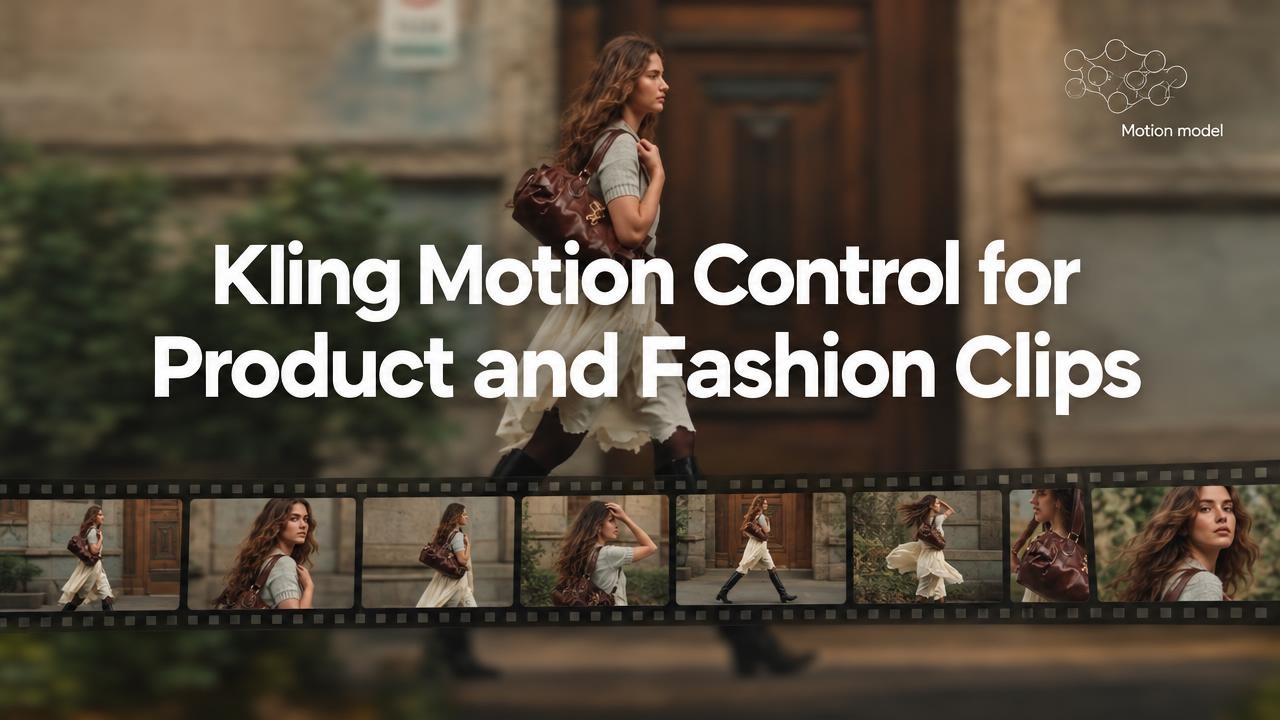
If you open a video model list, you will usually see Kling, and you will also see names that include Motion Control. They sit next to each other, so it is easy to think they are two sizes of the same tool. They are not. For short selling clips, a model walking in clothes, or a person holding a product up to the camera, the extra name is only useful when you already have that movement on video.
What Kling Motion Control Does
Kling is an AI video model. In plain language, it can turn a still picture or a short written description into a few seconds of video. Sellers use it when they do not want to book a second studio day for every new clip.
The default Kling option, here called regular Kling, invents the motion. You write something like “walk forward” or “slowly turn the bottle,” and the model makes up a movement that matches those words. The result can look usable. It can also look different every time you try, because nothing in your files locked the exact steps.
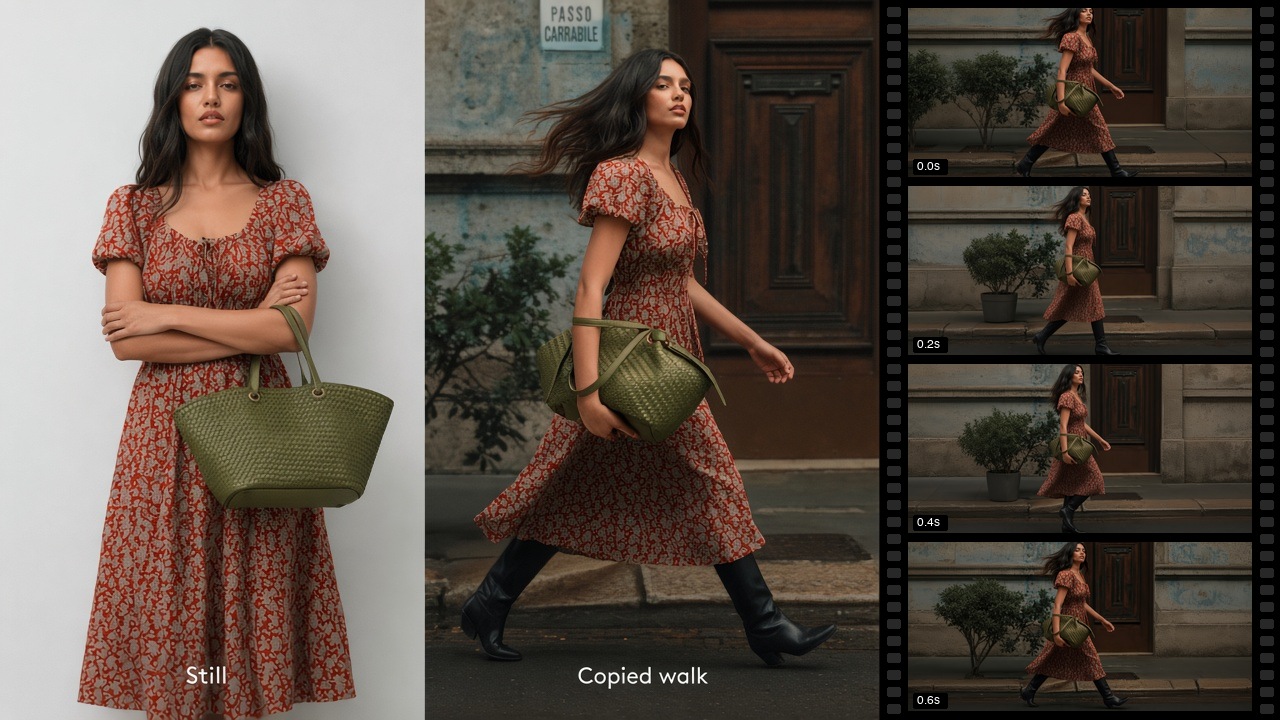
That is the gap Kling Motion Control is built to fill. Sometimes you already have the movement you want, recorded on video: a walk, a turn, or the way someone lifts a bottle to show the label. You also have a still photo of the person who should appear in the ad, wearing the clothes or holding the product you sell. Motion Control’s job is to combine those two files. It tries to keep the person from the photo, and it tries to copy the movement from the video.
It helps to split the two files by role. The photo answers “who is on screen”: the face, the body, and the outfit. The video answers “how the body moves”: the timing of the steps, the turn, or the hand path. Motion Control is not trying to write a new performance from a sentence. It is trying to reuse a performance you already filmed. If you have no video of a movement, Motion Control has nothing to copy, so the extra control is unused. In that case you are back to regular Kling, which invents motion from a sentence.
When to Use It, When to Skip It
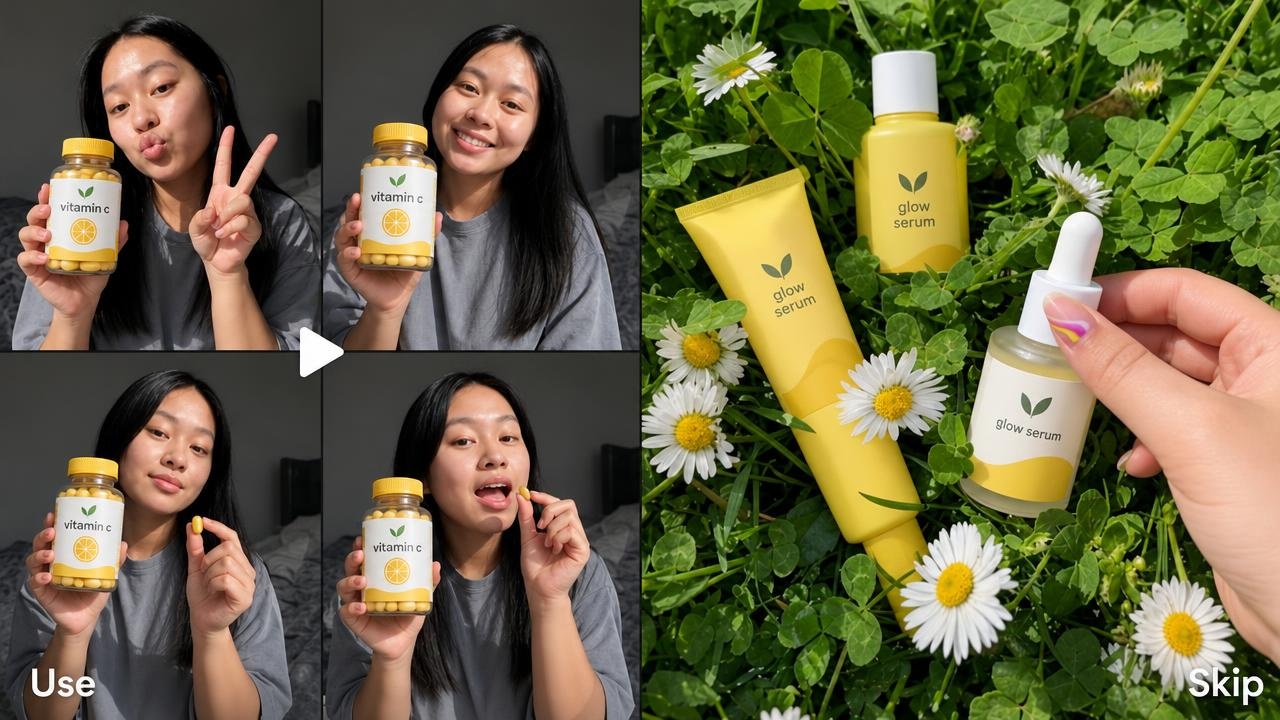
Use Motion Control only when both of these are true. First, a person is the main subject of the clip, not a product sitting alone on a table. Second, you already have a short video of the exact movement you want copied.
Skip Motion Control when either part is missing. The usual skip is a product-only still: you want the item to rotate, or the camera to move closer, and there is no person in the frame. Regular Kling can invent that simple motion from a sentence. Start from image to video and describe the spin. If nobody is on screen, the product-only Kling note is in Seedance vs Kling.
If the person has to talk, skip Motion Control as well. It copies body movement, not speech. That talking-ad case is in Kling vs Veo for product video.
The same rule shows up in everyday selling jobs like this:
| What you have, and what you want | What to use | Why |
|---|---|---|
| Fashion: a model photo in the garment, plus a walk or turn video | Motion Control | A person is on screen, and the movement already exists on video. |
| Product: a person in a photo, plus a video of hands showing the item | Motion Control | Same rule. The person presents the product; the video supplies the hand path. |
| Product: a bottle or box on a white background, no person, and you want a slow spin or push-in | Regular Kling | No person, and usually no movement video. Invent the motion from a sentence. |
| You have a person photo, but no video of the move, only words like “walk forward” | Regular Kling | There is no movement video to copy, only a sentence. |
| The clip must include someone talking to camera | Do not start with Motion Control | Motion Control copies body movement. It is the wrong first pick for speech. |
A clothing listing, a beauty hold, and a gadget demo all follow that table. If a person is on screen and you already filmed the move, use Motion Control. If the product sits alone and you only need a simple spin, stay on regular Kling.
Fashion Clips and Product Clips
Motion Control is worth the extra file when the selling clip depends on a body performance you already like. For fashion, that performance is usually a walk or a turn. For product, it is usually a person showing the item in their hands. The two jobs use the same feature. They fail in different places, so it helps to check them separately.
For a fashion clip, start with a still of the model already wearing the garment, plus a walk or turn you filmed (or have the right to use). A usable result keeps three things at once: the filmed footwork, the same person, and the same clothes.
If the dress warps, the hem jumps, or the walk no longer matches the video, go back to those two files. A clearer photo or a slower walk usually helps more than rewriting the background sentence. A flat photo of the garment with nobody in it will not work well, because Motion Control is copying a person’s movement, not animating fabric on a table.
For a product clip, start with a still of a person, plus a video of hands presenting the item. That can be turning a bottle, opening a compact, or lifting a device so the front faces the camera.
A usable result keeps the filmed hand path and keeps the product looking like itself. If the bottle warps, the label smears, or the hands go empty, go back to a clearer photo or a slower hold.
How to Use It
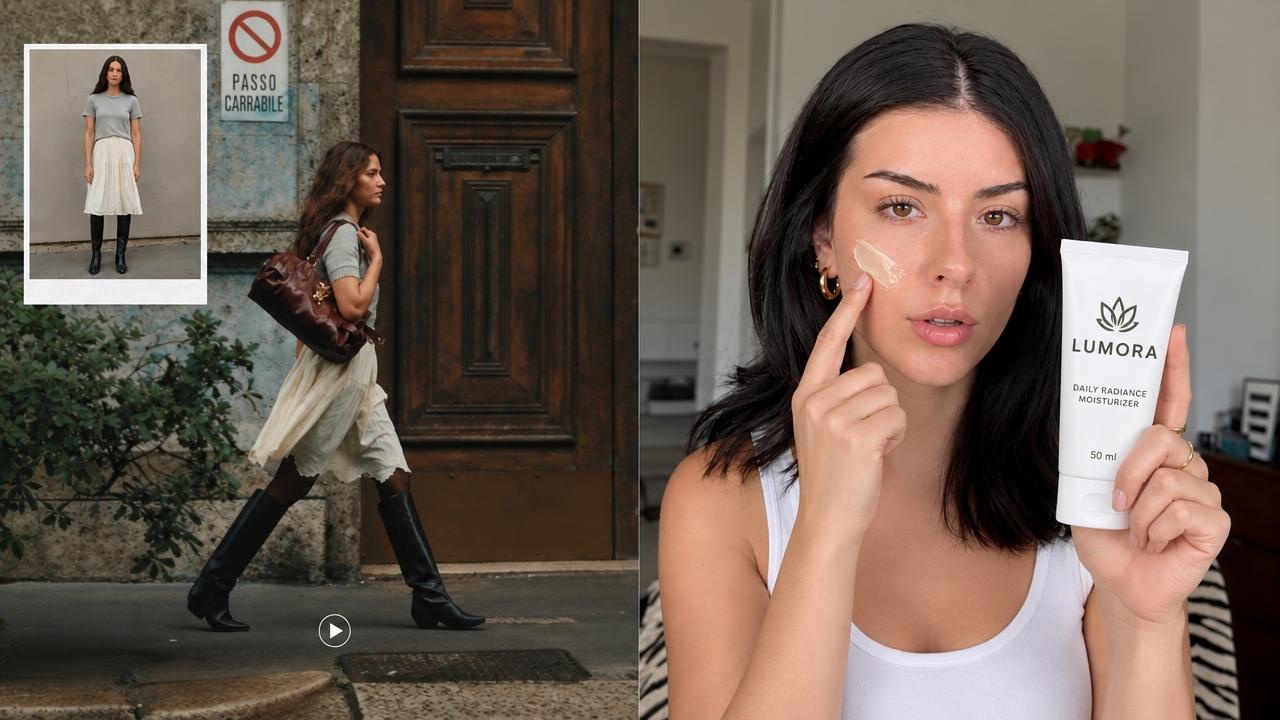
For a fashion walk or a product hold, the files go in the same order: pick a Motion Control name, add the person photo, add the movement video, then check the result.
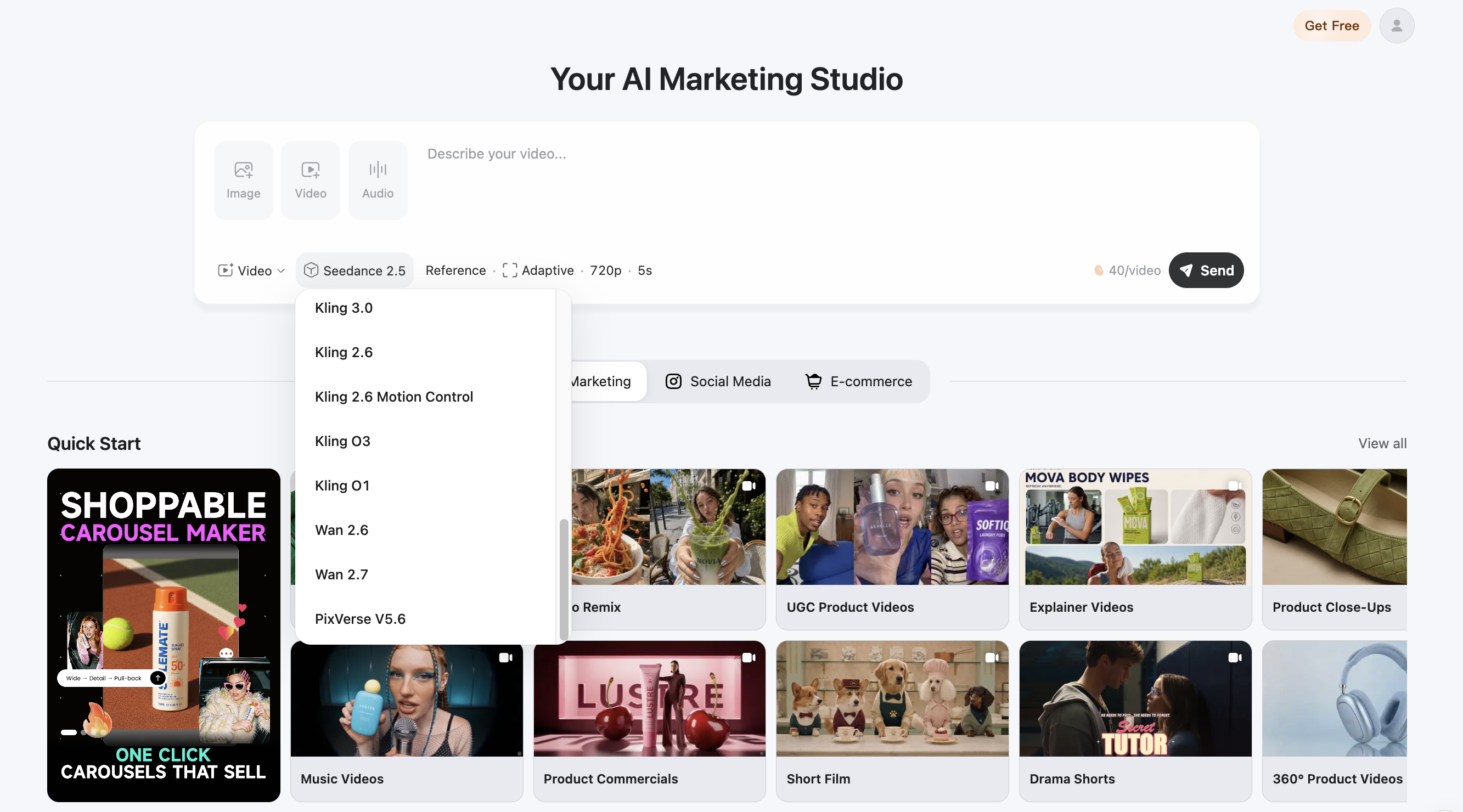
Open Video, then Models, and choose a name that includes the words Motion Control. Add the photo of the person who should appear. The outfit or the product-in-hand look you want to sell should already be in that photo. If the movement uses the legs, include the legs in the photo, because the video will try to drive those legs.
Next, add the movement video. Keep it one continuous take, with the person in the frame. A few seconds is enough if the walk or the hold is clear. Film it yourself when you can. A dance clip you found online is not a free movement file unless you have permission to use it.
If there is a text box, use it for light and background, such as “soft daylight, clean studio.” Do not rewrite the walk or the hand motion in that box. The video already carries the movement. A second written version of the same move gives the model two instructions that can fight.
When the clip comes back, check three things, in this order. Did the body follow the video? Is it still the same person? Are the clothes or the product still intact? If those three hold, you can publish. If they fail, change the photo or the video first. Only after the files are right should you switch between the two Motion Control names.
Kling 2.6 Motion Control or 3.0
Inside the Models list, Motion Control itself appears twice: Kling 2.6 Motion Control and Kling 3.0 Motion Control. Both names copy a filmed movement onto a person in a photo. Start with Kling 2.6 Motion Control. It is enough for many listing walks and short product holds. If the movement is right but the face changes, or a head turn looks broken, run the same photo and the same video again on Kling 3.0 Motion Control. Change only that name so you can see what the newer Motion Control option did.
The same list also includes regular Kling 3.0, without the words Motion Control. That name invents motion from a sentence. If you click it by mistake, you are no longer copying a filmed walk or hold.
You can run this in Designkit without leaving the video composer. Open Video, pick a Motion Control name in Models, and add the photo plus the movement video in the same place. Designkit’s AI product video generator keeps regular Kling and both Motion Control names in one menu.
Conclusion
Fashion walks and handheld product clips are the reason to use Motion Control: a person in a photo, plus a movement you already filmed. A product sitting alone on a table still belongs on regular Kling. Start with Kling 2.6 Motion Control, and switch to Kling 3.0 Motion Control only if the face or a head turn breaks. Keep the take that follows the filmed move and still shows the garment or the product clearly.
Frequently Asked Questions
Is Motion Control the same as regular Kling?
Can I use a dance video I found online as the movement file?
Only if you filmed it or you have permission. A popular clip on TikTok is not automatically free to copy.
The result is shorter than the video I uploaded. Why?
If the motion is too fast, or the person leaves the frame, the tool may keep only the clean stretch. Slow down and keep the person visible, then try again.
Is Kling Motion Control free?
It depends on the plan in the account you are using. Check that billing page. Designkit billing and Kling’s own website are separate.
I only have a product photo, with no person in it. Can I still use Motion Control?
No. Motion Control needs a person in the photo and a movement on video. For a product-only spin, use regular Kling.
You May Also Like
Kling Motion Control: When to Use It for Product Clips (2026)
Seedance vs Kling: Which AI Video Model Fits Product Clips?
Seedream vs GPT Image: Which Fits Ecommerce Product Photos? (2026)

Seedream 5.0 AI Review for Ecommerce Product Images

How to Use Google Veo 3.1 for Ecommerce Product Video

Nano Banana 2.1 Review: Features, Release Date & What’s New

GPT Image 2 Prompts for Product Photos (Copy-Paste Examples)

How to List a Product on Amazon: Materials Checklist for First Listings

Kling vs Veo for Product Video & UGC Ads (2026)

Nano Banana vs Midjourney for Product Photos and Campaign Visuals (2026)

Seedance 2.5 Review: What Changed in ByteDance's New Model

MiniMax H3: Features, Benchmarks, Pricing, and How to Use It

Luma vs Seedance (2026): Ray 3.2 or Seedance 2.0?

Gemini Omni Review: Real Tests, Pros & Limitations for Video Generation

GPT Image 2 Review: Features, Prompts & E-commerce Use Cases

Happy Horse 1.0: The AI Video Model E-Commerce Sellers Need to Know About

AI UGC for Ecommerce in 2026: Text-to-Video, Image-to-Video & Reference Replication Guide

HappyHorse AI Review: Features, Benchmarks & How to Use It

Seedance 3.0 Predictions: Will AI Video Enter the Feature Film Era?
Grok AI vs ChatGPT: Features, Pricing & Best Choice (2026)

How to Use Grok AI: Features, Tips & Best Prompts (2026 Guide)
Sora Is Shutting Down? Best AI Video Alternatives for Creators in 2026
Seedance 2.0 for Ecommerce: Create AI Product Videos in Minutes
Seedance 2.0 Review: Features, Improvements, Pricing & How It Works (2026)
Turn One Photo and One Movement Video Into a Listing Clip
If the clip is a fashion walk or a person holding a product, and you already have the movement on video, pick Motion Control in Designkit. Add the photo and the video, then keep the take that follows the move.


