
How to Add a Video to Your eBay Listing (Step-by-Step Guide)
Learn how to add a video to eBay listing with a clear step-by-step guide. Fix visibility issues, upload correctly, and boost conversions using videos. Create high-performing eBay listing videos faster with Designkit and improve product sales with ease.

Adding a video to an eBay listing can significantly improve buyer trust and increase conversion rates, but many sellers struggle to do it correctly. Videos often fail to show due to formatting issues, incorrect embedding, or platform limitations.
This guide breaks down the exact steps to add videos properly, fix common visibility problems, and understand what actually works on eBay. You’ll also learn how to create high-performing listing videos faster using Designkit, helping you scale product content without reshoots or technical complexity.
Choosing the right method for your eBay listing type
Adding video to your listings can significantly improve engagement and conversions, but eBay does not allow video in every listing format the same way. Before you try to add a video to an eBay listing, you first need to understand which method is supported for your specific case.
When to use eBay's native video upload
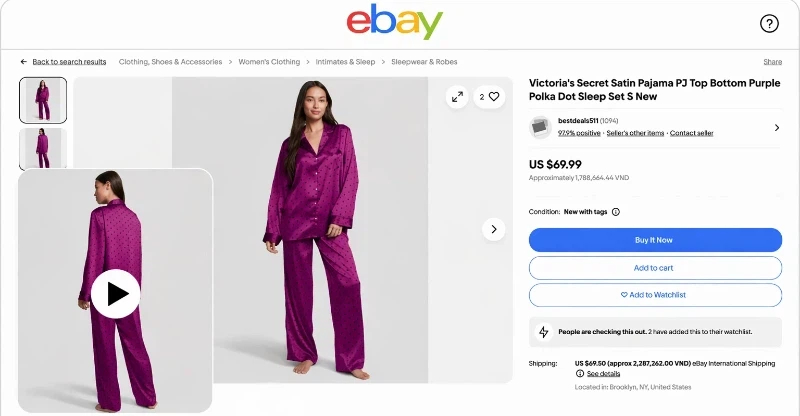
eBay supports direct video uploads inside the listing editor for many newer listings, though availability depends on your category and seller account. Native upload works best for new listings created through the eBay Sell interface, and it's well suited to product demonstrations, unboxings, and short usage clips that play directly on the listing page.
Use native upload when you're creating a listing from scratch, your category supports media-rich content, and you want fast playback inside the listing itself with no external links. This is the simplest method available — the video lives inside eBay's own player, so there's nothing to embed and nothing that can break later. If you see the "Add video" option in the editor, this is almost always the right choice.
When to embed a YouTube video instead
In many cases, eBay won't allow a direct upload — older listings and restricted categories are the usual culprits, and HTML embedding inside the description is no longer supported the way it once was. When you can't upload a file directly, a YouTube link is often the only workable route.
Choose YouTube embedding when the native upload option simply isn't showing, when you want to share a longer product video than eBay's limits allow, or when you're also driving external traffic and want the same video working across channels. This is exactly the situation most sellers hit when they search for how to add a video to an eBay listing but find no upload button in their editor.
Why some listings block video even when you upload correctly
Sometimes the upload option doesn't work, or disappears entirely, even though your file is fine. The cause is usually one of four things: the category is restricted from media content, the listing was created or is being edited on mobile (which exposes fewer options than desktop), the listing is an older or pre-existing one with limited editing features, or the seller account hasn't been enabled for video yet.
In any of these cases, a perfectly correct file and setup still won't enable video, so it's worth checking these conditions before assuming you've done something wrong. Most "failed upload" reports are actually one of these account- or listing-level limitations.
Which method fits new, existing, and variation listings
The right approach depends on how your listing is structured.
New listings give you the best shot at native video upload and the most editing flexibility, which makes them ideal for product launches and full optimization. If video matters to you, building it into a fresh listing from the start is always the cleanest path.
Existing listings tend to have limited media-editing options. Enabling video on a live listing often requires relisting it, and if that's not practical, YouTube embedding may be your only route without disrupting the current listing.
Variation listings are the trickiest: video usually applies only to the parent listing and isn't reliably shown across every variant. Confirm your category's support for variation-level video before you build your strategy around it, so you don't assume coverage that isn't there.
Preparing your product video before uploading to eBay
Before you work out how to add a video to an eBay listing, the video itself needs to meet both eBay's technical standards and buyer expectations. Getting this right up front prevents the two most common headaches — failed uploads and choppy playback — and saves you from re-exporting the same clip three times.
eBay's video format, length, and file size requirements
For smooth processing, stick to platform-friendly specifications. MP4 is the most reliable format and the safest default for eBay's player. Aim for 720p or 1080p resolution so product details stay sharp, and keep clips short and focused — typically under 60–90 seconds, since attention drops fast on a listing page. Keep the file size optimized rather than exporting at maximum quality; oversized files are the single most frequent cause of upload errors.
-
Supported format: MP4 is the most reliable
-
Recommended resolution: 720p or 1080p for clear product visibility
-
Ideal length: Short, focused clips (typically under 60–90 seconds)
-
File size: Keep it optimized to avoid upload errors
Beyond the specs, two content rules matter just as much: show the product in real use rather than relying on static shots, and keep the framing clean and stable. A steady, well-lit clip of the product actually working processes smoothly and earns more buyer trust than a high-resolution but shaky one. Following these rules makes it far easier to upload a video on eBay without running into compression or rejection issues.
Common upload mistakes that cause failures
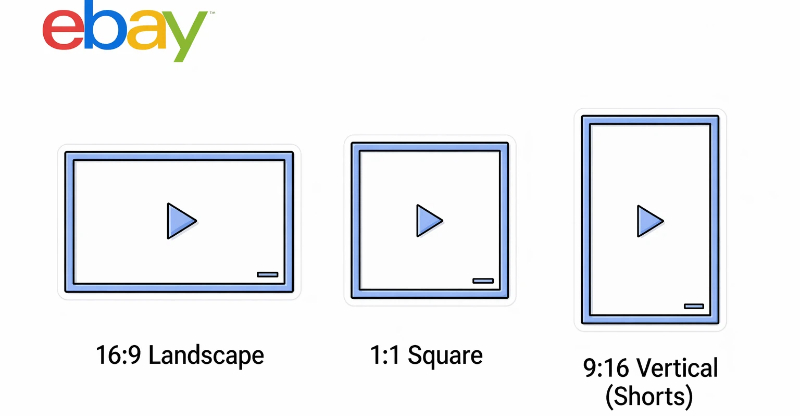
Most upload failures and weak-performing videos come from a handful of avoidable mistakes. Oversized files lead to slow uploads or outright rejection, this is the error sellers hit most. Incorrect aspect ratios cause eBay to crop or distort the frame, cutting off the product you're trying to show. Low-light or blurry footage may upload fine but quietly erodes buyer trust, since shoppers read poor video quality as a signal of a low-quality product. And overly long videos lose viewers before the key selling point ever appears.
Catching these before you export: right file size, right ratio, good lighting, tight length is what makes the difference between a clip that processes on the first try and one that fails repeatedly when you're learning how to add a video to an eBay listing.
How to structure your video so buyers understand it fast
A well-structured product video helps buyers decide faster, which is what actually moves conversion.
Open with a clear product overview in the first 3–5 seconds so viewers immediately know what they're looking at. Bring the key features in early rather than saving them for the end — most buyers won't watch that far. Demonstrate real usage instead of just describing the product, since seeing it in action removes doubt more effectively than any voiceover. Then close with a quick recap or visual summary that reinforces the main selling point.
In short, follow a simple Hook → Feature highlight → Usage demo → Final view structure. This sequence mirrors how shoppers evaluate a product and keeps the clip clear and purposeful when you're using videos on eBay listings to support your products.
How to add a video to your eBay listing step by step
Once your video meets eBay's specs, the actual process depends on whether you're working with a new listing, an existing one, or relying on YouTube.
Here's how to handle each case and how to confirm the video is genuinely showing up for buyers afterward.
Adding video while creating a new listing
A fresh listing gives you the most flexibility, since video support is built into the creation flow.
Open the eBay Sell interface and start a new product listing, then go to the media section during item setup.
If the upload option is available, add your product video file there and position it alongside your product images so buyers see it as part of the main media gallery rather than buried at the bottom.
For the cleanest result, finalize your product images first, then add the video so it slots in without reshuffling your gallery. Make sure the video matches the listing's title and category, a mismatch can trigger eBay's content checks, and keep all your media consistent in style and quality, since a polished gallery signals a trustworthy listing.
Embedding a YouTube video into the description safely
When direct upload isn't available, YouTube serves as a reliable fallback.
Upload your product video to YouTube first, then copy a clean link, strip out any tracking or playlist parameters so the URL stays simple.
Place that link in the description area only, and keep the surrounding formatting minimal to avoid breaking the listing's layout.
A few things to keep in mind: eBay won't always render a full embedded player from a YouTube link, so in some cases, buyers will see a link rather than an inline video. Avoid cluttering the description with multiple links, which dilutes attention and can look spammy, and double-check that the linked video clearly matches the exact product listed, a generic or unrelated clip does more harm than no video at all.
Adding video to an existing listing without breaking SEO or images
Editing a live listing calls for caution, because careless changes can cost you search ranking or scramble your existing media.
Treat the video as a supplementary asset, not a replacement: never remove or swap out your primary product images, and avoid touching the title or category unless it's genuinely necessary.
Where possible, make the update during a low-traffic period so any temporary indexing hiccups have minimal impact.
The safe approach is to leave your product data unchanged and add the video purely to enhance what's already there. Keep the keyword phrasing in your listing text consistent, eBay's search responds to listing stability, so preserving your existing copy protects the ranking you've already built while still letting you layer in the new video.
Checking that the video is actually visible to buyers
Publishing isn't the finish line, always verify the video from a buyer's point of view.
Open the listing in an incognito or logged-out browser window, then check it on both desktop and mobile, since the two often display media differently.
Confirm the video loads without errors or delays and that it sits where you intended, near the product images or within the description.
Run through a quick final checklist before you consider it done: the video should play without redirecting buyers off the page, there should be no broken or missing media placeholders, and playback should stay smooth on mobile, where most eBay shoppers actually browse. If anything fails here, it's almost always a template or format issue rather than the upload itself, which is exactly what the next section covers.
How to fix an eBay video that won't show or load
Even after you successfully try to add a video to an eBay listing, it may not appear to buyers due to technical or format-related restrictions. These issues are usually fixable once you identify the root cause.
Uploaded but not visible: listing template issues
Sometimes the video is actually uploaded, but the listing template prevents it from displaying.
Common causes:
-
Using an older or custom listing template
-
A category that does not fully support media elements
-
Third-party listing tools are overriding eBay media fields
-
Cached version of the listing still showing outdated content
Fix approach:
-
Switch to a standard eBay listing template
-
Re-save the listing without changing product details
-
Clear and re-upload media in the correct section
This is one of the most common reasons sellers think that adding a video to an eBay listing fails, when it is actually a template issue.
HTML formatting that strips embedded video
If you are using YouTube links or description-based media, HTML formatting can break video visibility.
Typical problems:
-
Broken or incomplete HTML tags in the description
-
Copy-pasting from external editors
-
Unsupported scripts or embed codes were removed by eBay
Fix approach:
-
Use plain text formatting in the description
-
Remove unnecessary HTML tags or styling
-
Reinsert clean YouTube links only
This helps maintain stable performance when working with videos on eBay listings.
Mobile vs desktop video display differences
Video visibility can vary depending on the device used by the buyer.
Key differences:
-
Mobile apps may prioritize images over video placement
-
Desktop view may show video closer to product description
-
Some embedded videos only open in an external player on mobile
Fix approach:
-
Always test both mobile and desktop views
-
Ensure the video is placed in a supported media section
-
Avoid relying only on description-based embeds
-
Check eBay listings to ensure a consistent buyer experience across devices.
How to create eBay listing videos faster with Designkit
Creating high-quality videos for eBay listings doesn't need expensive shoots or editing teams. With Designkit, sellers can transform simple product images into professional, conversion-focused videos in minutes. This helps solve one of the biggest challenges in eCommerce—scaling visual content while maintaining consistency and quality. Instead of relying on repeated reshoots, sellers can generate multiple video versions for different products, test what performs best, and quickly optimize listings. The goal is not just to create videos, but to create sales-driven listing assets that improve visibility, trust, and conversion rates across large product catalogs efficiently.
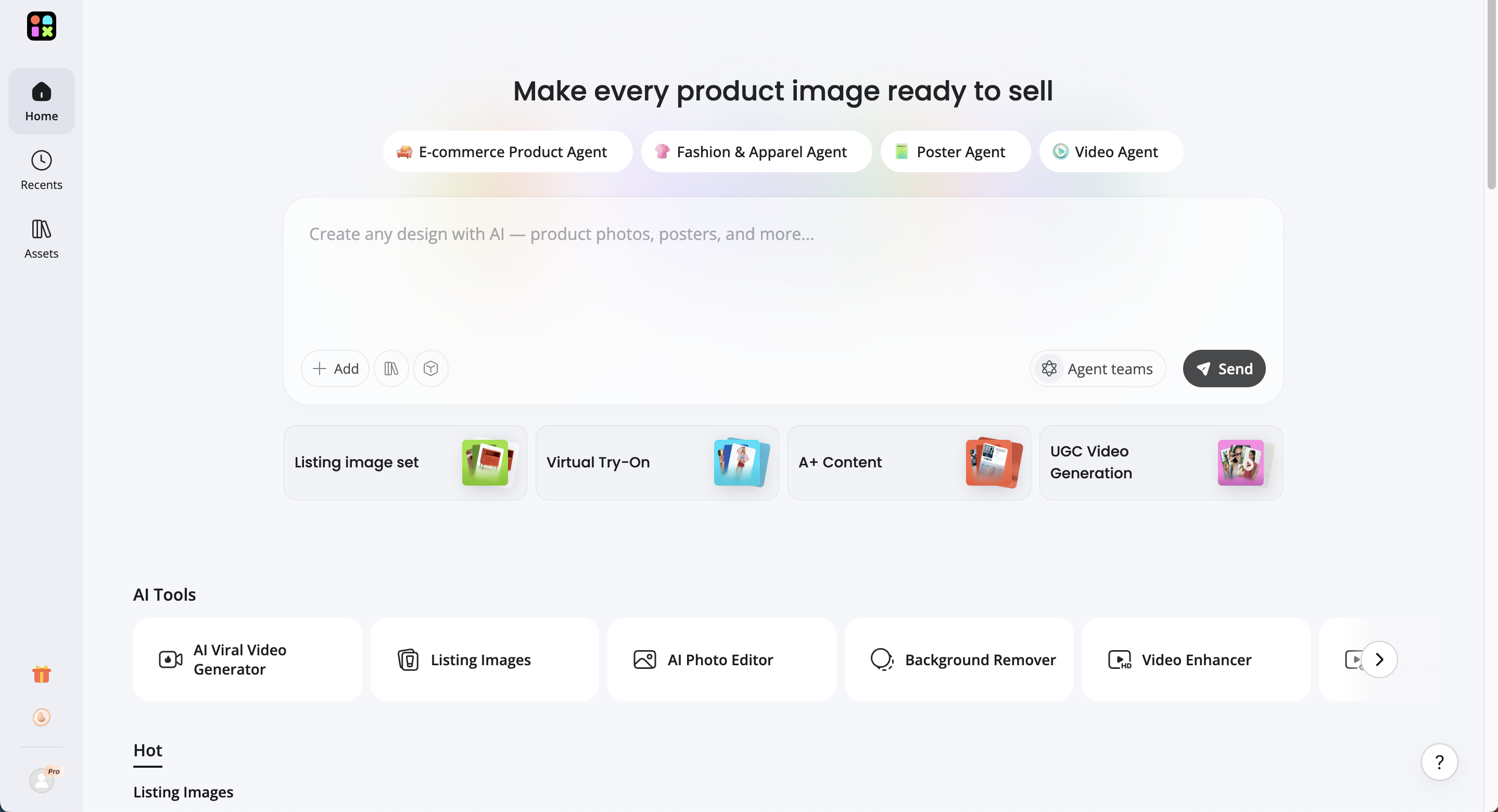
Make an eBay listing video in 3 steps
Step 1: Upload your product image
Open the Designkit workspace to upload clear eBay-ready product images (front, side, close-up angles, and usage shots). These visuals will be used to automatically build your listing video without needing a reshoot.
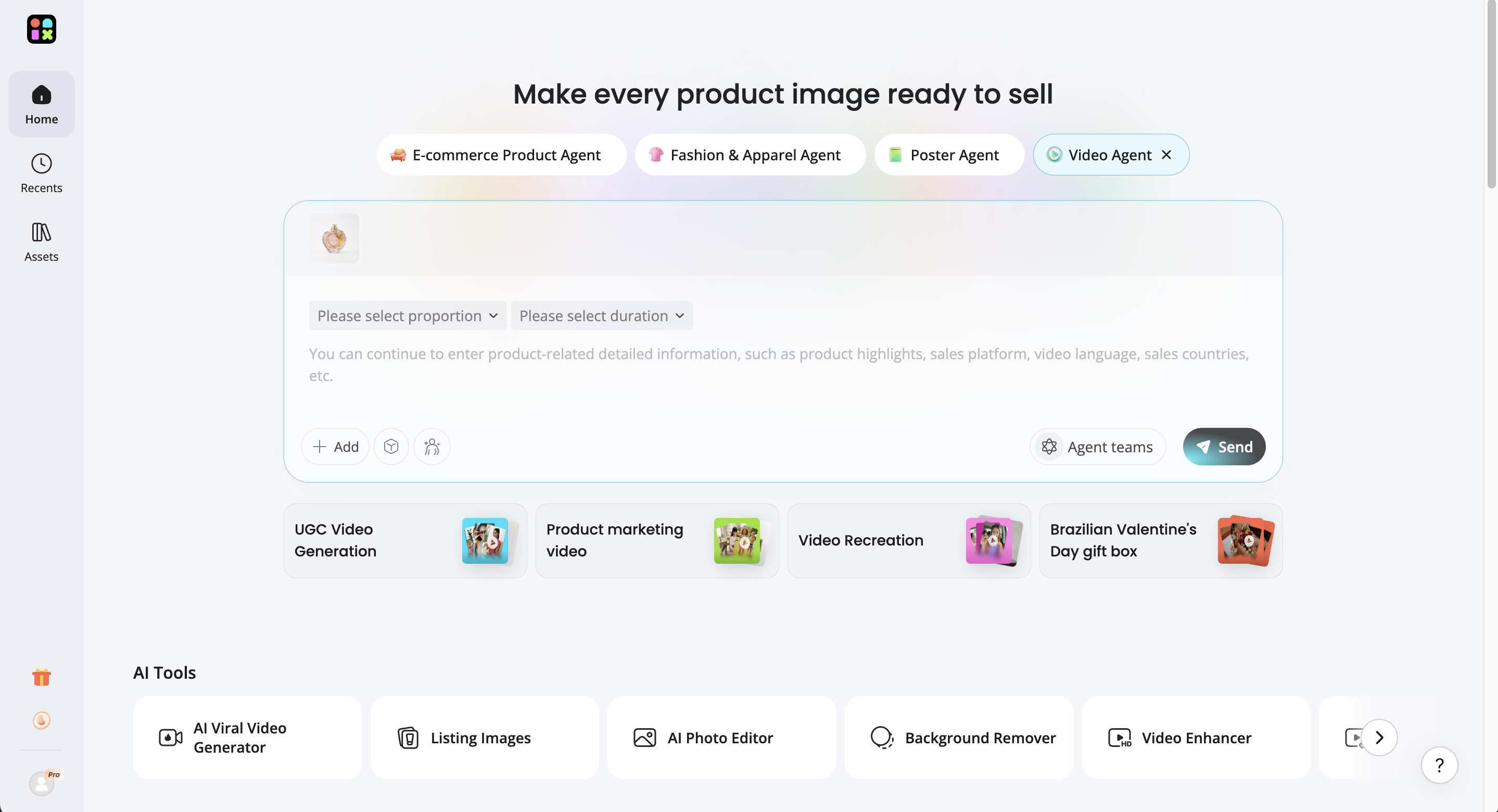
Step 2: Generate your eBay listing video
Choose an eBay-optimized aspect ratio such as 1:1 (recommended for best compatibility) or 16:9 (for wider product presentation). Keep the video short for fast product viewing and better buyer engagement. Enter clear product-focused prompts, including key features, benefits, and selling points. Select an AI model such as Seedance 2.0 or Kling 3.0 to control motion style and visual quality. Click "Send" and let Designkit generate a conversion-focused eBay listing video automatically.
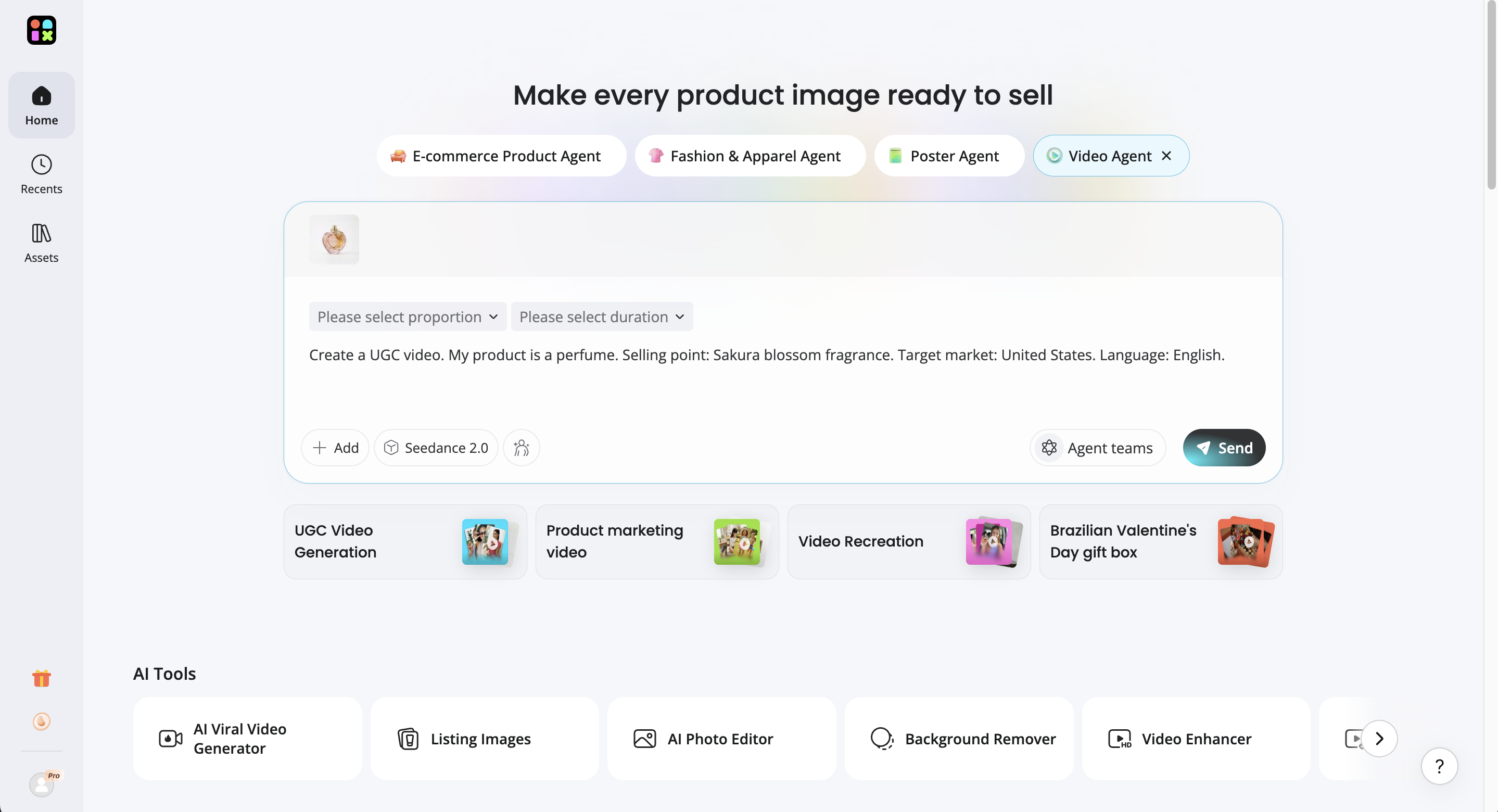
Step 3: Preview, refine, and download for eBay upload
Review your generated video and adjust key elements like product text, branding, scene order, or visuals if needed. Make sure the video clearly shows product details in the first few seconds. Once satisfied, click "Download" and upload it directly to your eBay listing to increase engagement and buyer trust.

Core Designkit capabilities for eBay sellers
Modern eCommerce workflows focus on scaling content production while keeping quality consistent. These capabilities are especially useful for sellers looking to streamline how to add a video to an eBay listing without manual editing or reshoots.
Product-to-video transformation
At its core, Designkit converts static product images into dynamic listing videos that look professionally produced. Instead of reshooting or hiring editors, sellers can rely on existing product photos and instantly generate motion-based videos with natural transitions, zoom effects, and visual emphasis on key product details. This allows sellers to quickly generate videos for eBay listings using assets they already have, making video content creation significantly faster and more accessible.
UGC-style video generation
Designkit also specializes in creating UGC-style videos that simulate real customer experiences and product usage scenarios. These videos are designed to feel authentic, helping products appear more trustworthy and relatable to potential buyers. By transforming basic product information into lifestyle-driven storytelling, Designkit helps sellers improve engagement and conversion rates without needing real influencers or customer footage.
Scalable bulk video creation
For sellers managing large inventories, Designkit enables bulk video generation across entire product catalogs. Multiple video variations can be created for the same product or across different listings, allowing sellers to test different hooks, messaging styles, and visual approaches. This makes it easier to optimize performance at scale, especially when refining strategies for adding video content to eBay listings across dozens or even hundreds of products.
Conclusion
Adding video to eBay listings is essential for building trust and improving conversion rates. When you understand how to add a video to eBay listings and follow proper upload rules, you ensure smoother performance across devices and better product visibility. The goal is always clear and fast product communication that helps buyers make confident decisions. Designkit makes this process even faster by turning product images into ready-to-use listing videos in minutes. Instead of filming or editing, sellers can quickly generate professional videos, launch listings faster, and keep their catalog consistent. This helps scale video creation efficiently while improving overall sales performance on eBay.
Frequently Asked Questions
Can I upload a video directly to eBay instead of YouTube?
What type of videos work best for eBay listings?
Short, clear product-focused videos work best. Show real usage, key features, and close-up details within the first few seconds. Avoid long intros or unrelated visuals, as buyers prefer quick decision-making content that builds trust instantly. With Designkit, you can generate clean, sales-focused product videos from images using AI motion and structured scenes designed specifically for eCommerce listings.
How long should an eBay listing video be?
Ideal eBay videos are usually 30–90 seconds long. This is enough time to showcase product features, usage, and benefits without losing buyer attention. Longer videos often reduce engagement and are less effective for quick shopping decisions. Designkit automatically generates videos within the optimal length range, ensuring the content is structured for impact from the start and aligned with listing performance needs.
Do eBay videos improve sales or just engagement?
eBay videos improve both engagement and sales. They help buyers understand the product faster, reduce hesitation, and increase trust, which directly impacts conversion rates. Listings with video often perform better than image-only listings. Designkit enhances this impact by generating conversion-optimized videos that highlight selling points clearly and make products more persuasive.
Can I use the same video for multiple eBay listings?
Yes, you can reuse the same video across multiple listings if the product is identical or similar. However, using identical videos everywhere can reduce engagement and limit conversion testing because buyers see repetitive content and listings lack variation. Designkit solves this by generating multiple video variations from the same product images, allowing A/B testing of different hooks, styles, and messaging across listings to improve performance.
What are eBay's video file size and format requirements?
eBay typically supports MP4 format with optimized resolution like 720p or 1080p. File size should remain lightweight to ensure smooth upload and playback. Overly large or uncompressed files may fail during upload or reduce performance. Designkit exports eCommerce-ready MP4 videos with optimized size, resolution, and compression, so they upload smoothly without manual formatting.
Can I add a video to an eBay listing from my phone?
Yes, you can add or upload videos from the eBay mobile app when the feature is available. However, editing options may be limited compared to desktop, and some advanced upload features may not appear on mobile for all listings. Designkit lets you create mobile-ready eBay videos directly from any device, so you can generate and upload professional content even without desktop editing tools.
Does adding video to eBay listings improve search ranking?
Videos do not directly guarantee higher search ranking, but they improve engagement metrics like clicks, watch time, and conversions. These signals can indirectly support better visibility over time within eBay’s listing performance system. Designkit helps maximize these benefits by producing high-retention videos designed to keep buyers engaged longer, improving overall listing performance.
You May Also Like

How to Automate Your E-commerce Visuals with OpenClaw Workflow

Short Form Video Marketing for E-commerce: AI Video Guide

How to Use AI Fashion Models for E-Commerce Product Photos: A Complete 2026 Guide

10 High-Converting Lifestyle Product Images for Amazon Listings

What Is Video Marketing? E-commerce Guide & Strategies 2026
Create eBay listing videos that boost sales fast with Designkit
Turn your product images into high-converting eBay videos in minutes using Designkit. No reshoots, no editing skills needed, just upload, generate, and optimize for better visibility and trust.