
How to Animate a Picture with AI: A Complete Guide
Learn how to animate a picture with AI and turn still photos into engaging moving images. Explore simple techniques and create animated visuals online.

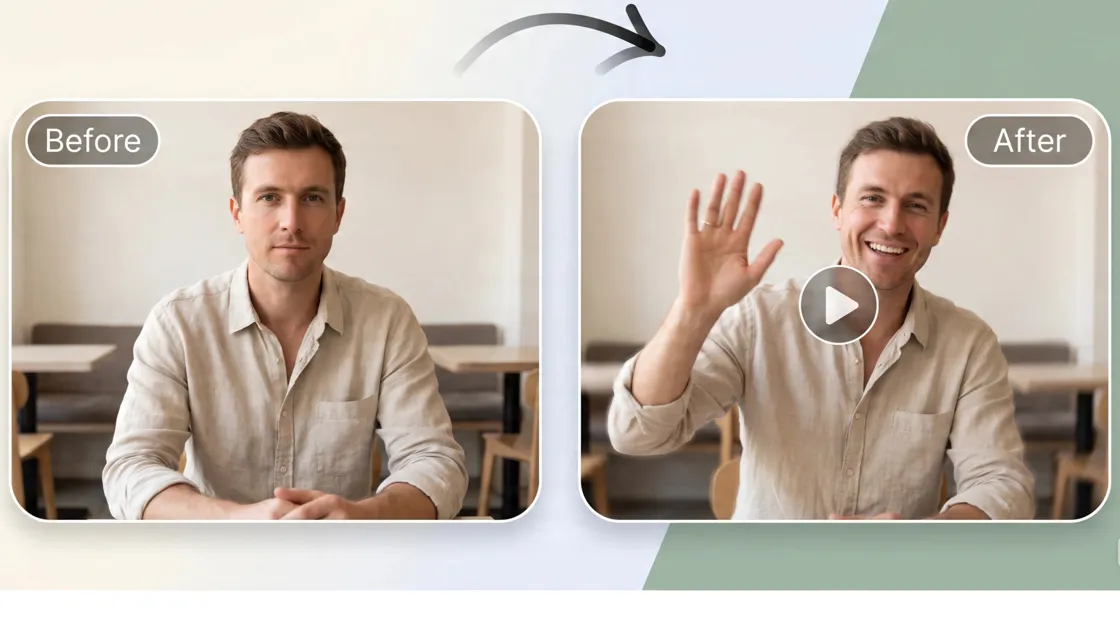
A still photo can become much more engaging when you add natural movement to it. If you want to learn how to animate a picture, AI tools can turn a single image into a short moving clip without requiring frame-by-frame editing. You can animate portraits, products, illustrations, landscapes, and marketing visuals by describing the movement you want. This guide explains how the process works, what you can animate, and how to create better results with an AI image animator.
What does it mean to animate a picture?
Animating a picture means that you add movement to the image, so it becomes a moving picture or short video. This can be anything from a simple zoom or pan to facial expressions, object motion, or AI-generated environmental movement. A still image doesn't move; an animated image adds movement to selected elements. GIFs are usually short, looping animations, while image-to-video tools use AI to add motion and convert a still image into a video clip.
What types of pictures can you animate?
You can animate many types of images, depending on the tool and the visual you want to create:
-
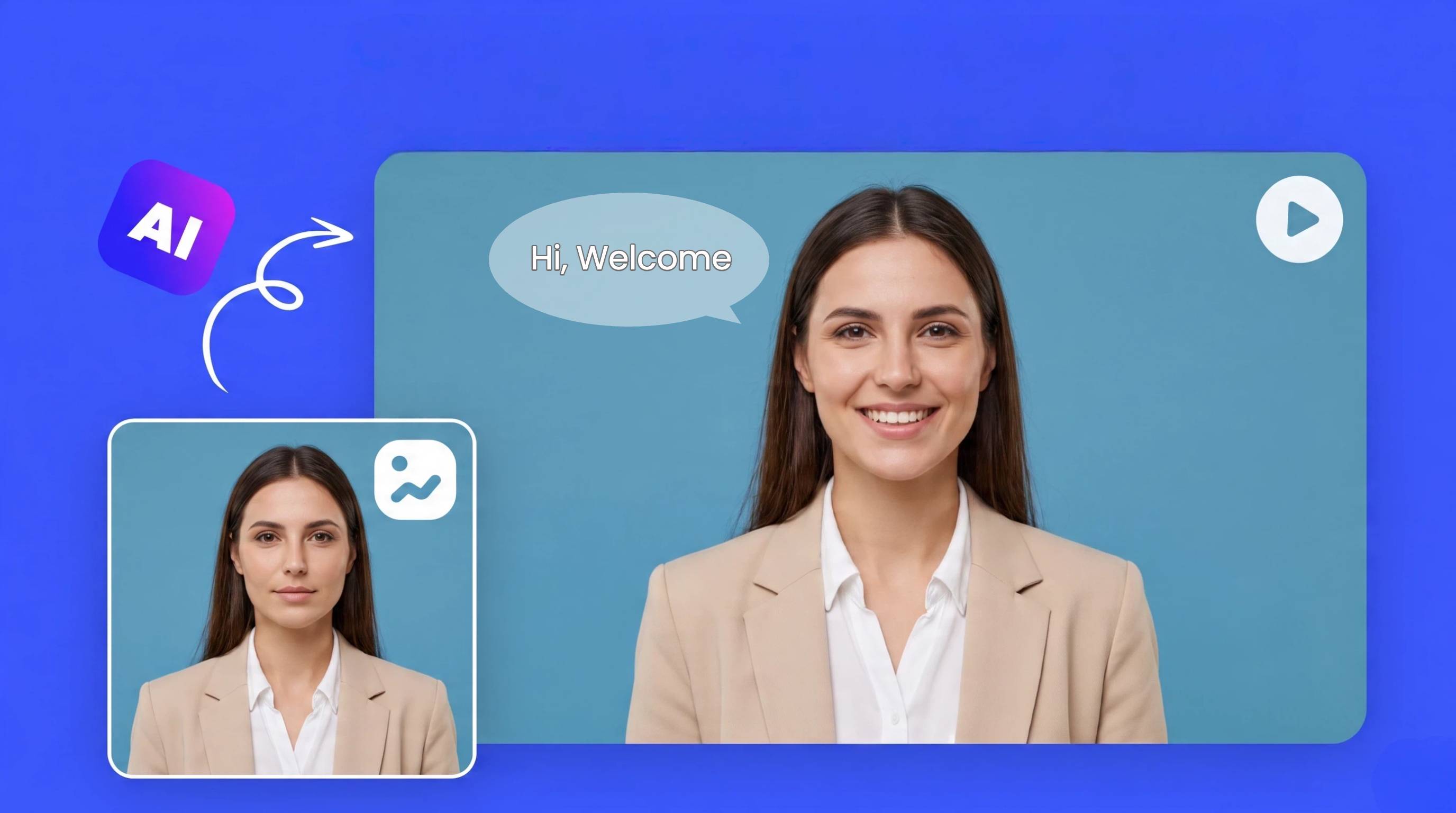
Portraits: Add blinking, facial expressions, head movement, or talking effects.
-
Product photos: Create subtle rotation, camera movement, or product reveals.
-
Illustrations: Add movement to characters, objects, or selected areas.
-
Character images: Create facial, body, or clothing movement.
-
Landscapes: Animate clouds, water, trees, lighting, or other environmental details.
-
Marketing graphics: Add movement to products, text elements, or visual backgrounds.
The right animation depends on both the source image and the result you want. A portrait may work well with facial movement, while a landscape may benefit from subtle environmental motion. Once you know what can be animated, you can choose a method. For beginners, AI is one of the simplest ways to turn a single image into a moving video.
How to animate a picture with AI
An AI image animator can create movement from a single image based on your instructions. You provide the source image, describe the desired motion, review the generated clip, and export it when the result looks right.
Step 1: Choose the right picture
Start with a clear, high-resolution image where the main subject is easy to identify. Avoid blurry or heavily compressed images, especially when animating faces, products, or small objects. Before uploading, decide what should move and what should remain still.
Step 2: Upload the image to an AI image animator
Upload your source image to an AI image animation or image-to-video tool. Supported image formats, video duration, resolution, and export options can vary by platform. Choose an image with enough visual detail for the AI to identify the subject, foreground, and background.
Step 3: Describe movement
Tell the AI exactly how you want the image to move. Keep your instructions short and specific. For example, you can ask it to:
-
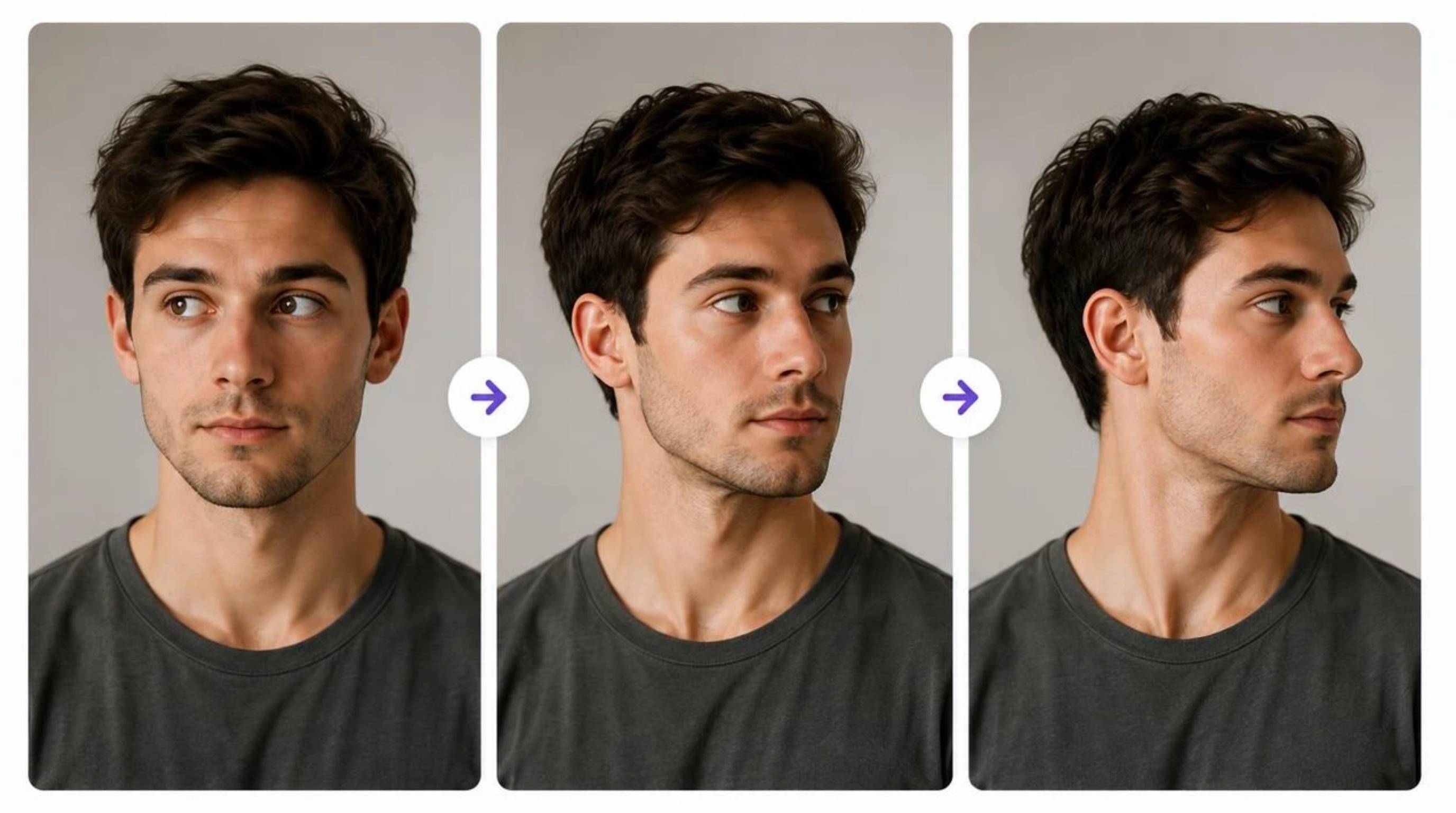
Make the person slowly turn toward the camera.
-
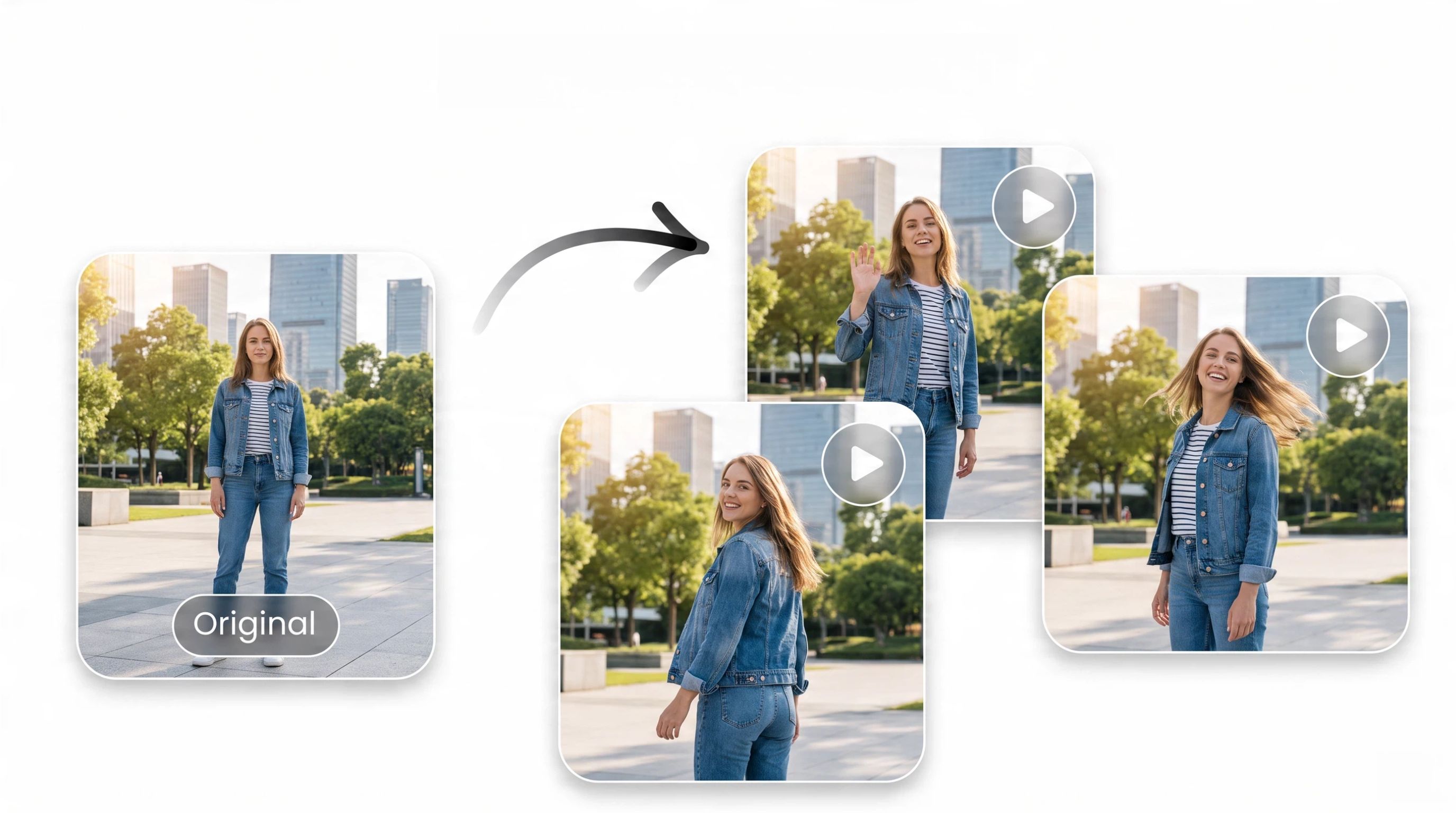
Add gentle hair and clothing movement.
-
Create a slow camera zoom.
-
Make the product rotate naturally.
-
Add subtle movement to the background.
When you animate AI images, avoid describing too many complex actions at once. Start with one or two movements and refine your prompt if needed.
Step 4: Generate and review the video
Generate the video and watch the full clip rather than judging it from a single frame. Check whether the movement follows your instructions and remains consistent with the original image. Pay attention to faces, hands, product details, text, and backgrounds. If anything looks unnatural, adjust your movement instructions and generate another version.
Step 5: Export the video
Once the animation looks right, export the final video. Choose a suitable resolution and aspect ratio based on where you plan to use it. For example, vertical video works well for short-form social content, while landscape video may be better for websites or presentations.
How to animate a photo using different techniques
Learning how to create animated images gives you more control over the type of movement you add to a still photo, from subtle camera effects to animated subjects and backgrounds.
Add camera movement
Camera movement can create a sense of video even in a largely static image. You can zoom in slowly, zoom out, or pan across the image. A soft zoom can draw attention to the face in portraits. For products, camera movement can bring important details into closer view without changing the object itself.
Animate people and characters
People and character images can support several types of movement. You can animate facial expressions, eye movement, head movement, hair, clothing, or simple body actions. If you want to create a talking portrait, an AI image animator may also support lip synchronization with audio. Keep the movement relatively subtle when realism is the goal.
Animate products and objects
Product images can become short promotional clips with movement such as rotation, floating effects, or product reveals. For example, a product photo showing a pair of shoes could use a slow rotation to reveal different angles. A beauty product could use a gentle camera movement that brings the packaging into focus.
Animate backgrounds and environments
Background animation works particularly well for landscapes and scenes with natural elements. You can add movement to clouds, flowing water, trees, lighting, or other environmental details. The background does not need dramatic movement. Small changes can make the image feel more active while keeping the main subject stable.
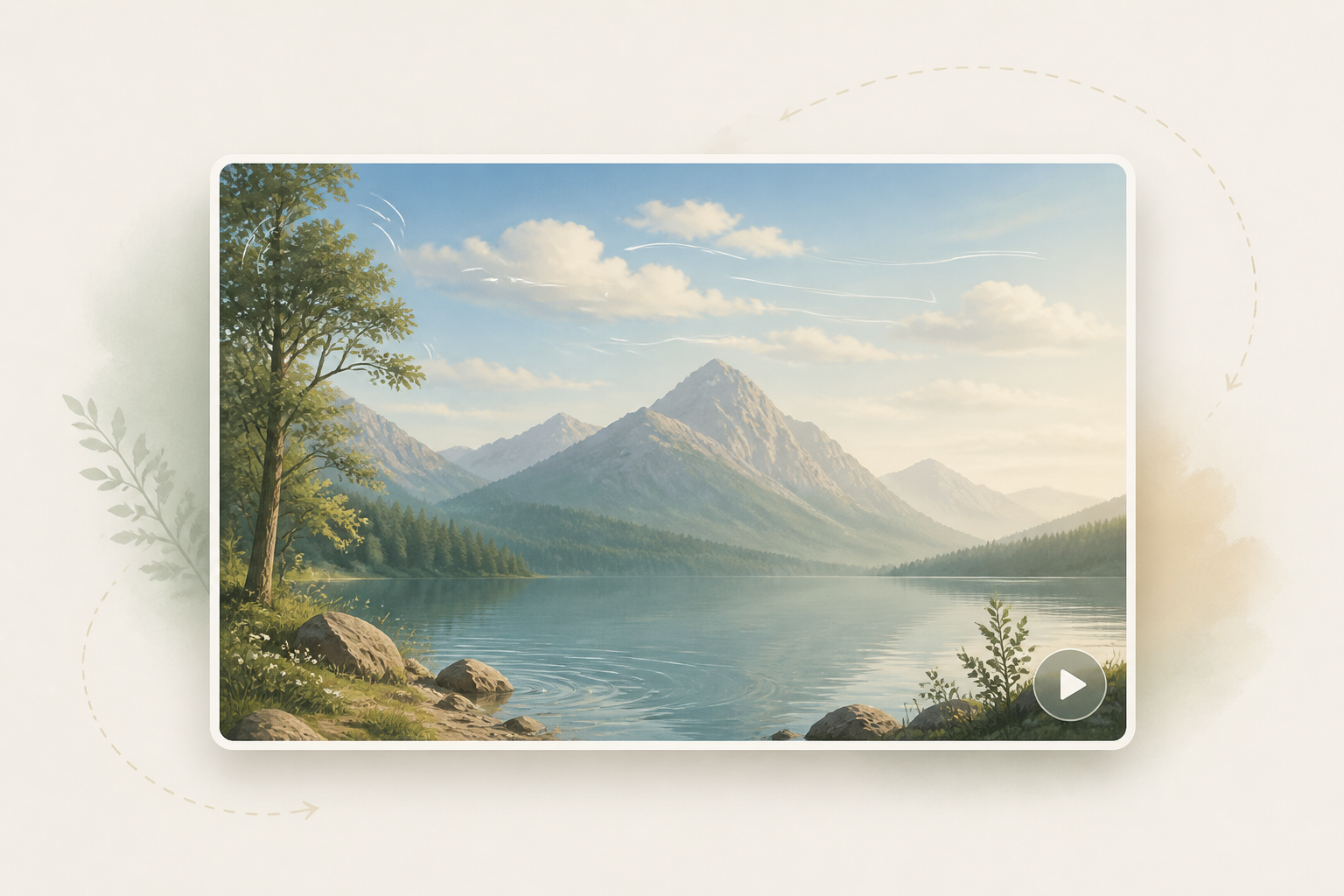
Choose motion that fits the image
The most convincing animation usually follows the existing perspective and subject. A product should not rotate in a way that changes its shape, and a portrait should not have exaggerated facial movement without a reason. Try subtle motion first. If the result looks too static, you can gradually increase the movement instead of asking for several dramatic effects at once. These techniques can be created with differen t types of tools. If you want a browser-based workflow, you can use an online picture animator to turn a still image into a short video without complicated editing.
How to animate a picture online with Designkit
Designkit works as an online image animator for turning existing photos and graphics into short moving clips. You can upload an image, describe the desired movement, generate the animation, and export the result online.
How to animate a picture with Designkit
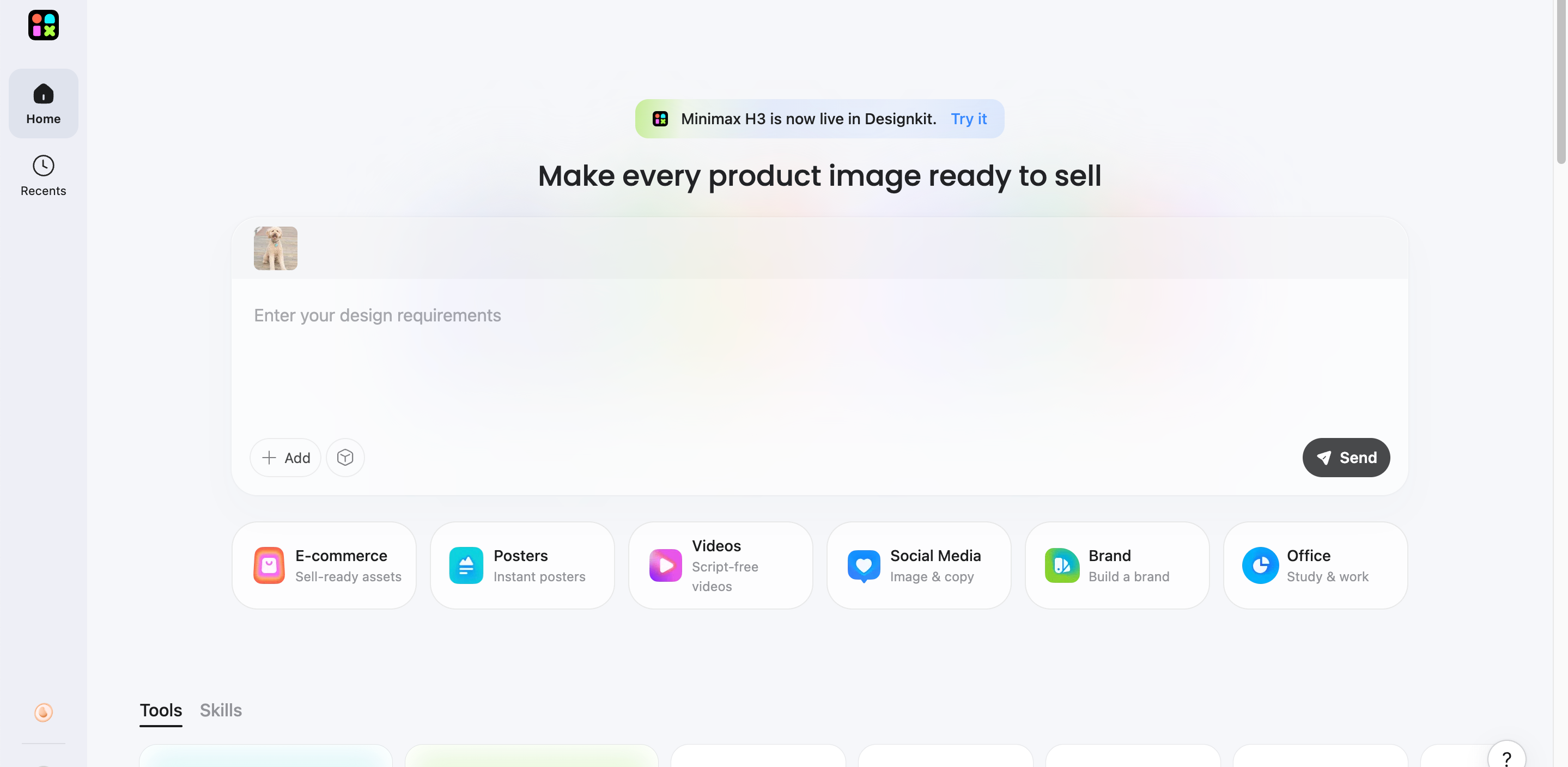
Step 1: Upload your image
Choose a clear photo, illustration, product image, or other visual and upload it to Designkit. A strong source image gives you a better starting point for animation.
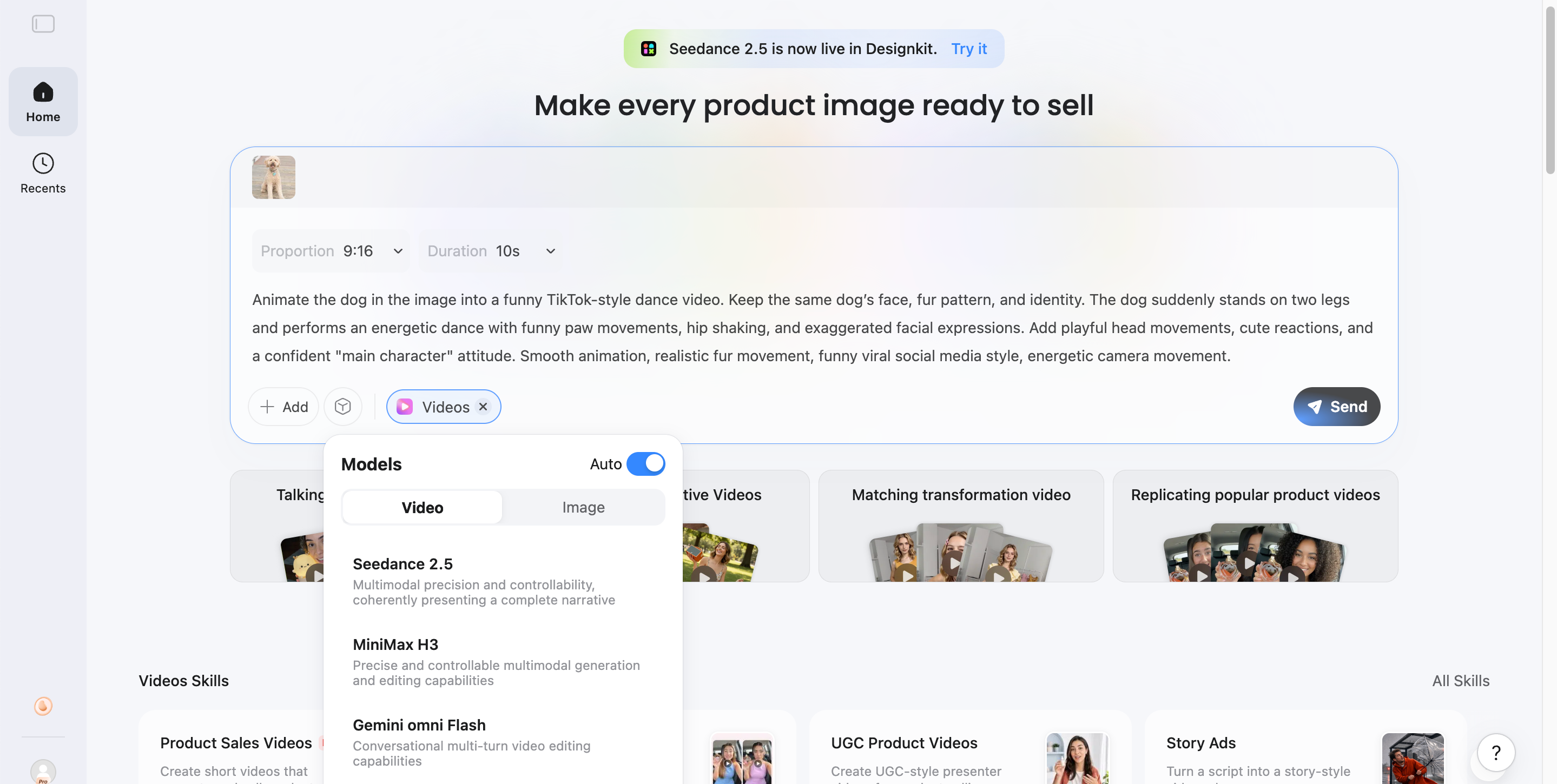
Step 2: Describe and generate the animation
Enter a simple prompt describing how you want your image to move, such as adding camera movement, character motion, or dynamic visual effects. Designkit uses AI to transform your static image into an engaging animated video based on your instructions.
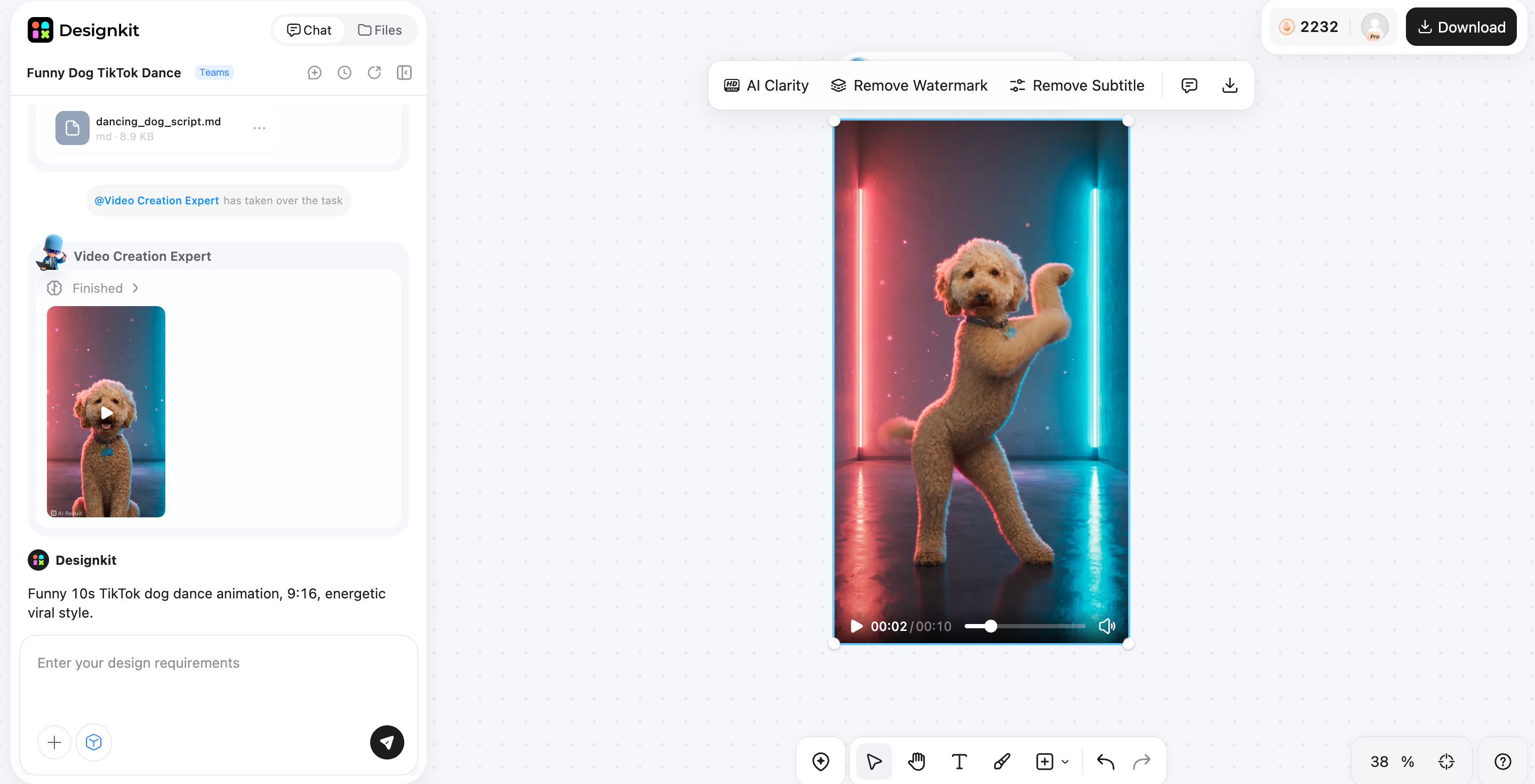
Step 3: Review and export
Preview the generated animation and check if the movement matches your creative vision. Make adjustments if needed, then export your animated image and share it across social media, websites, or marketing campaigns.
What makes Designkit useful for picture animation?
-
Simple online workflow: Upload an image, describe the desired movement, and generate an animated clip without a complicated editing process.
-
AI-assisted image animation: Use AI to add movement to still images based on your instructions, making it easier to create animated visuals.
-
No frame-by-frame editing: Create motion without manually setting up and editing individual frames, which can save time for simple image to video projects.
-
Useful for social media and marketing: Turn existing photos and graphics into moving visuals for social posts, promotional content, and marketing campaigns.
-
Works with existing images: Start with product photos, portraits, illustrations, or other visual assets and turn them into short animated videos.
Tips for creating better animated images
Good animation depends more on the tool you choose. The source image, movement instructions, and final export all affect how natural the result looks.
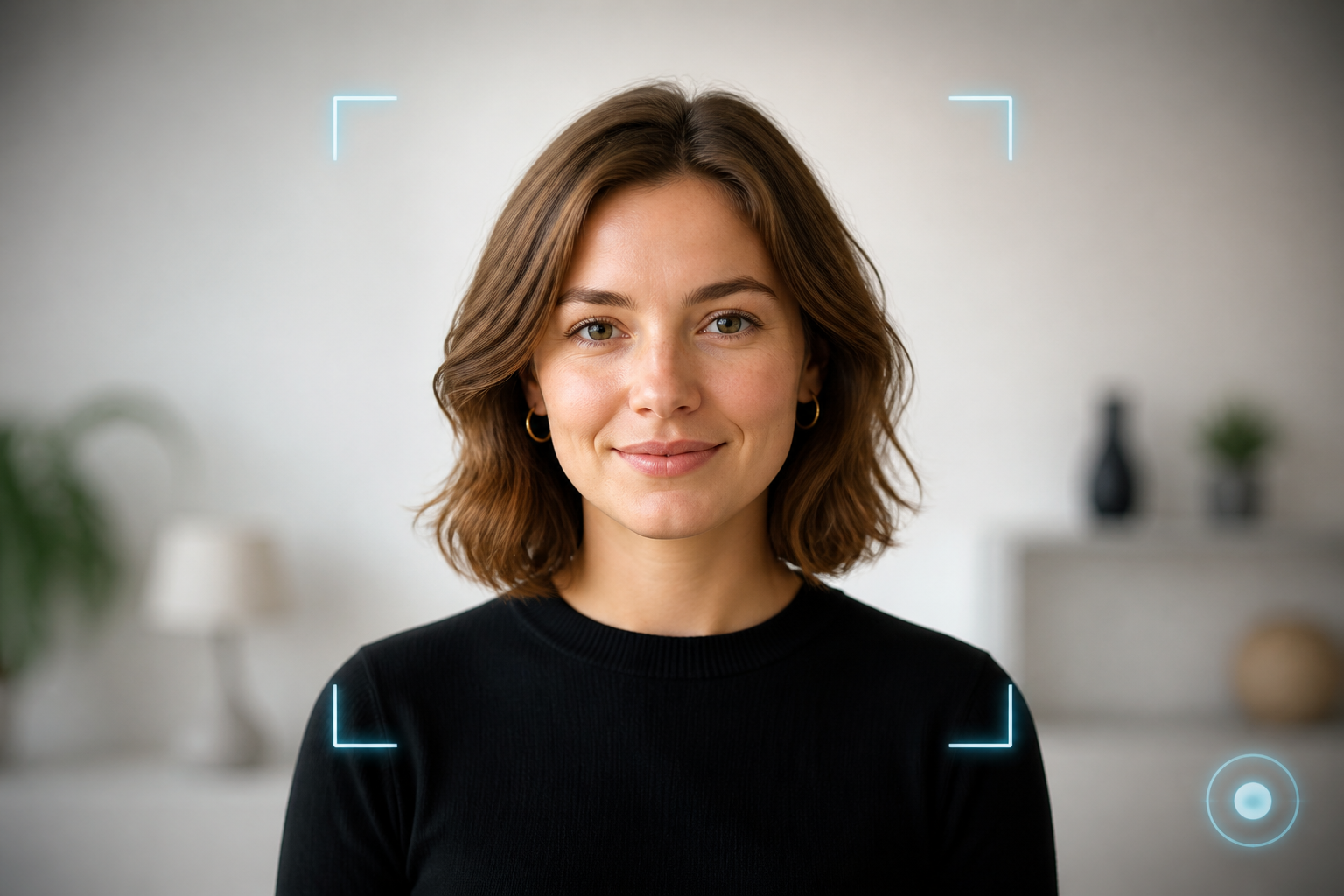
Start with a high-quality source image
Use a sharp, well-lit photo with clearly defined subjects. Blurry or heavily pixelated images can make generated movement look less consistent. If possible, choose an image where the subject is separated clearly from the background. This gives the animation tool a cleaner visual structure to work with.
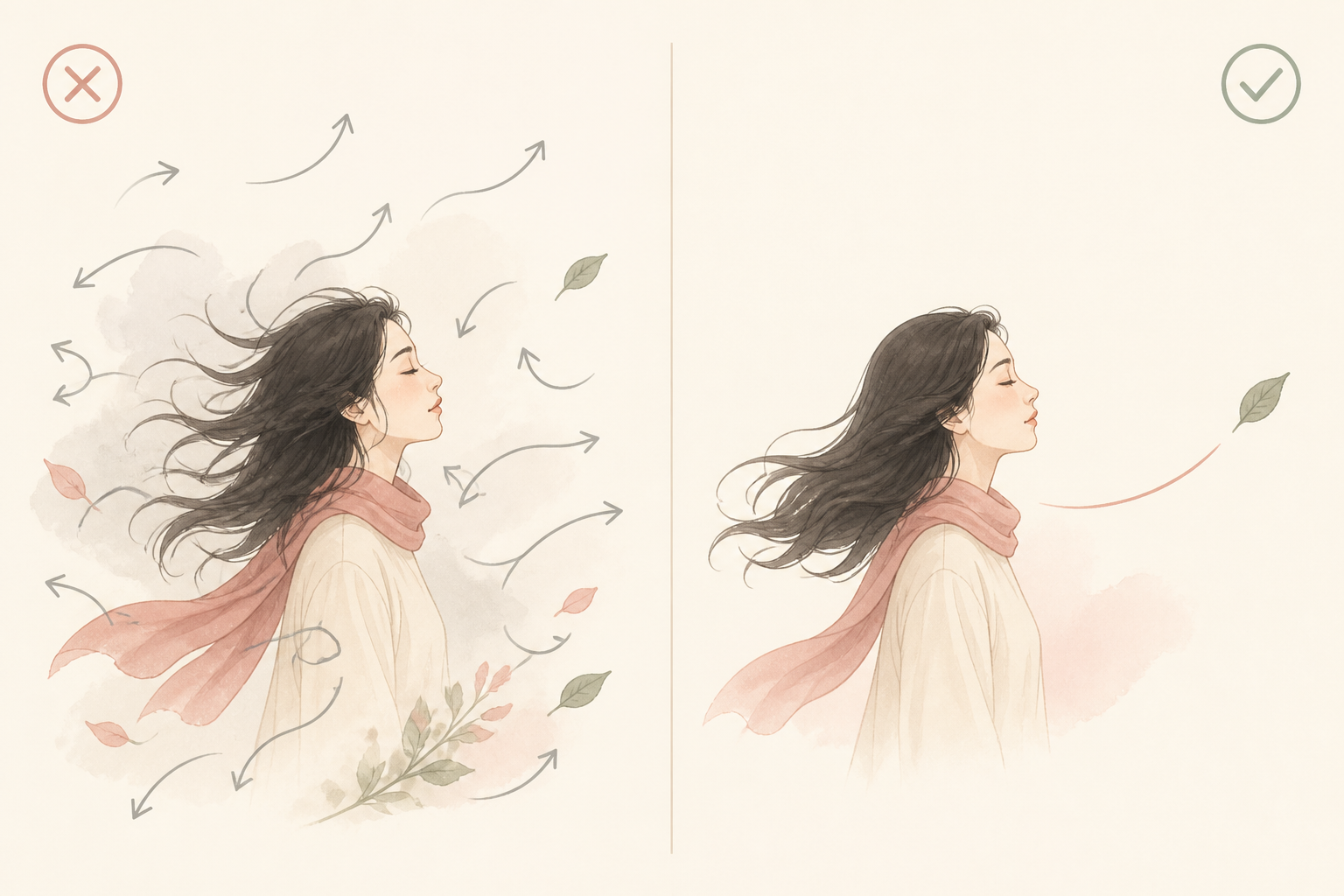
Keep movement natural
Avoid asking for too many movements at the same time. A person does not need to move their head, arms, hair, clothes, and background simultaneously for an animation to feel dynamic. Start with on e clear movement and build from there. Subtle motion often works better for realistic portraits and product visuals.
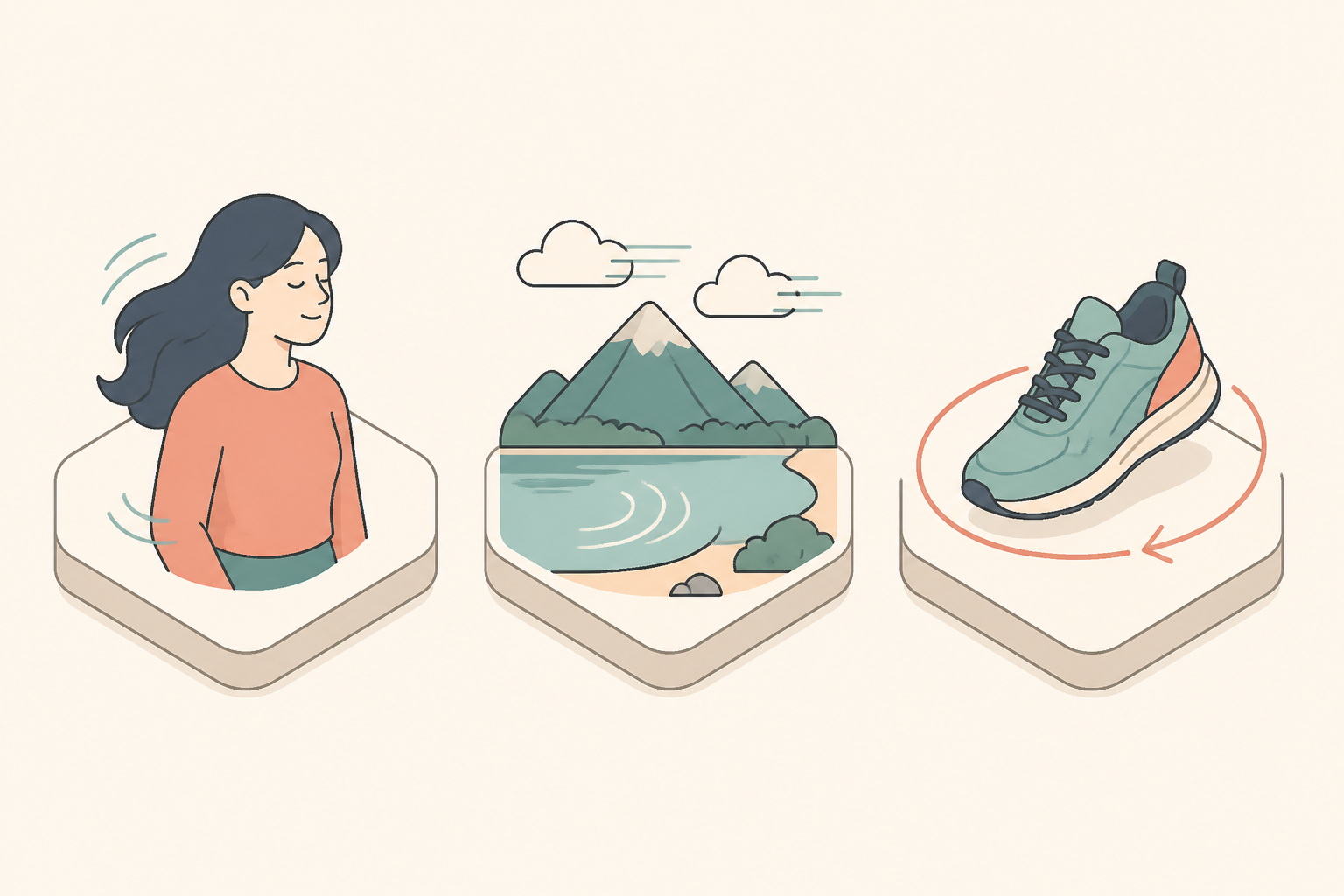
Match movement to the subject
Think about what would naturally be moving in the original scene. In a portrait, hair and clothing can move a little. In a landscape, clouds and water can move. Changing the shape or position of the product itself may not be the best solution for product visuals; rotation or camera movement may be more appropriate.
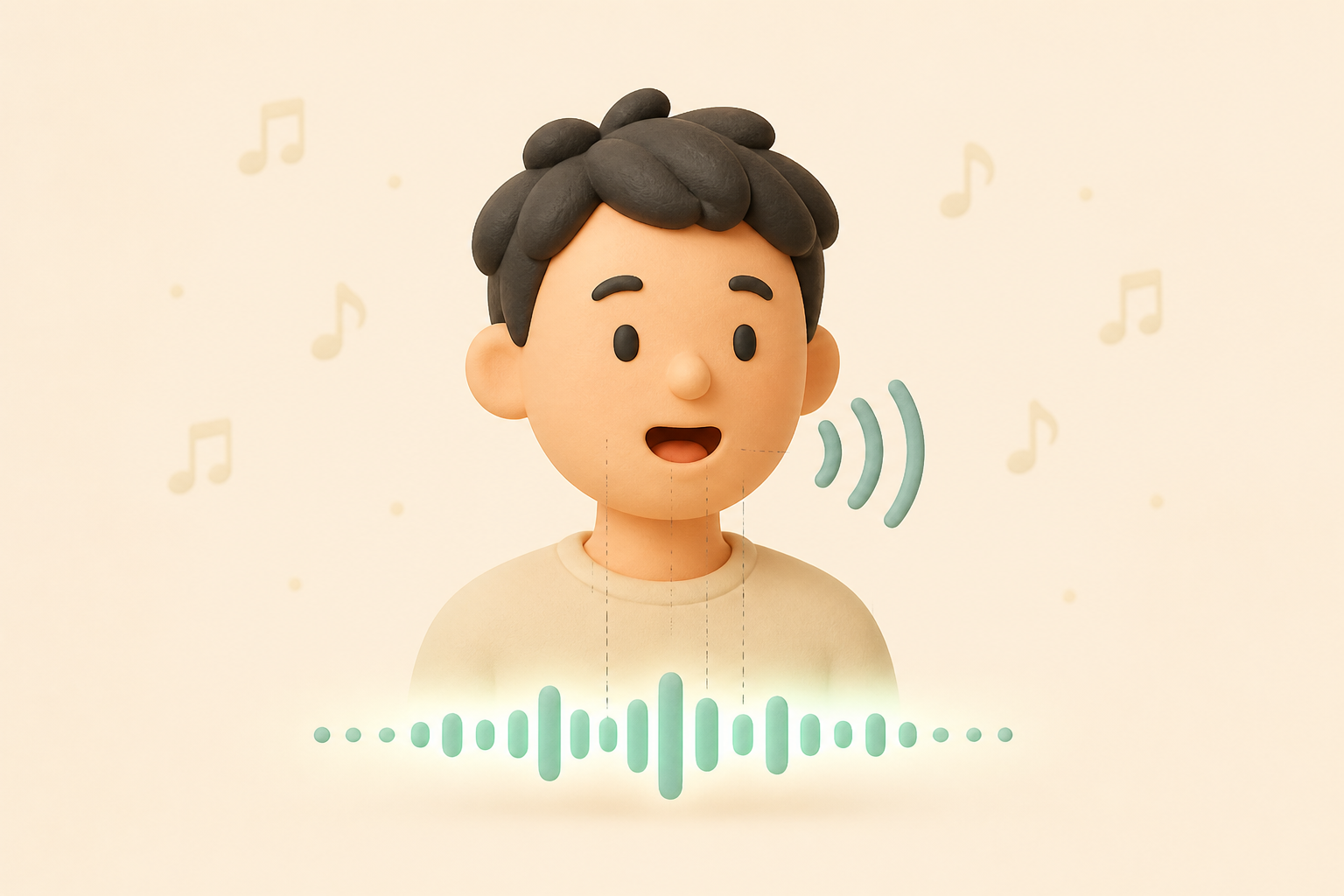
Match audio with movement
If you create a talking image, the voice and facial movement should match. Lip synchronization can help align mouth movement with spoken audio. Background music can also add context to an animated clip, but keep the volume low enough that it does not compete with narration or dialogue.
Choose the right output for your platform
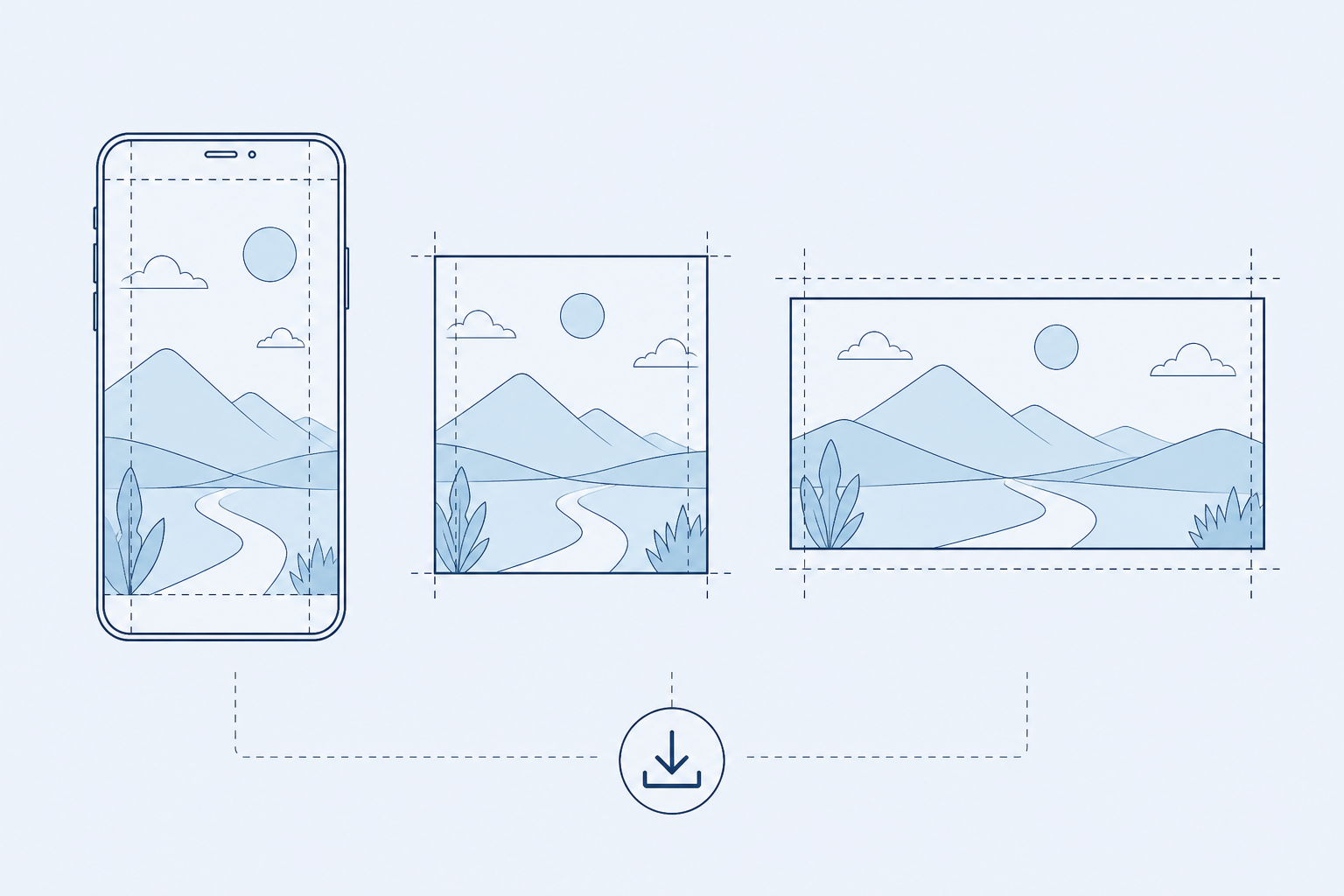
Consider where the fin ished animation will appear before exporting it. TikTok and Instagram Reels generally use vertical video, while websites and YouTube may require different dimensions. Check the resolution, aspect ratio, and duration, so you do not have to rework the animation later.
Final thoughts
Learning how to animate a picture is much easier when you start with a clear image and a specific movement in mind. AI tools can create image-to-video animations without requiring you to build every frame manually. Bring portraits, products, characters, landscapes, and marketing visuals to life with different types of movement. Camera effects are good for static compositions, whereas facial, object, or environmental animation can give more specific motion. Designkit is a simple way to create moving images for the web. You upload a visual, describe how you want it to move, and it will generate the animation and allow you to export it. Take a simple idea, look at the output carefully, and adjust the motion until it matches the original image.
Frequently Asked Questions
What photos work best for AI animation?
Can I animate a photo without changing the original person or object?
Yes, AI tools can preserve the main subject while adding movement, but the result depends on the source image and prompt instructions. Adding details like "keep the face unchanged" or "preserve the product shape" can help maintain consistency.
Can AI animate a product photo for advertising?
Yes, AI can turn static product images into short marketing videos with effects like camera zoom, product rotation, lighting changes, and showcase movements. Designkit helps businesses transform existing product visuals into engaging content for social media, ads, and campaigns.
Can I turn a photo into a video for TikTok or Instagram?
Yes, animated photos are widely used for TikTok, Instagram Reels, and other short-form platforms. Designkit helps users convert static images into ready-to-share videos with motion effects that make social content more engaging.
Can I control what part of the photo moves?
Yes, you can guide AI animation by describing which elements should move, such as hair, water, products, or camera motion, while keeping other areas unchanged. Designkit allows you to create targeted animations by turning your motion ideas into dynamic visual effects.
You May Also Like

PixVerse AI Review 2026: Is It Worth Using for AI Videos?

How to Animate a Picture with AI: Easy Step-by-Step Guide

How to Write a Video Script: Structure, Tips & Examples

What Is B-Roll? Meaning, Examples, and How to Use It

How to Make a TikTok Video: A Step-by-Step Guide 2026

How to Make an Instagram Post: Step by Step Creation Guide

Social Media Copywriting: Tips, Examples & Best Practices

What Are AI Fruits? The Trend, the Formats, and How to Make One

LTX Studio Review: Features, Pricing & AI Filmmaking Guide

HeyGen vs Arcads: Which AI Video Tool Wins in 2026?

Arcads AI Review 2026: Features, Pricing, Pros, Cons & Alternatives
Creatify AI Reviews: Features, Pricing & Alternatives (2026)
What Are Satisfying Videos? Types, Tips & How to Make (2026)
How to Generate Product Videos from Images with AI (2026 Guide)
How to Create a Product Launch Video with AI: A Step-by-Step Guide
What Is a Brand Video? Types, Examples & How to Create One
AI Product Demo vs Live Demo: Which Gets More SaaS Sign-Ups?
How to Create AI Product Promotion Videos in Minutes (Step-by-Step)

Best AI Product Video Ad Generators for Ecommerce in 2026

How to Boost Ecommerce Sales: Proven Strategies That Work

How to Add Video to eBay Listing: Step-by-Step Seller Guide
Short Form Video Marketing for E-commerce: AI Video Guide

What Is Video Marketing? E-commerce Guide & Strategies 2026
Turn Pictures Into Moving Images
Bring still images to life with Designkit's AI-powered image animation tools. Create engaging moving visuals from your photos without complicated editing.


