
AI Photo Editor Online for Flexible Image Editing
Remove distractions, improve image quality, retouch details, and adapt photos for new formats in one online AI image editor.
No image? Try one of these:

How to Edit a Photo With AI
Step 1. Upload Your Photo
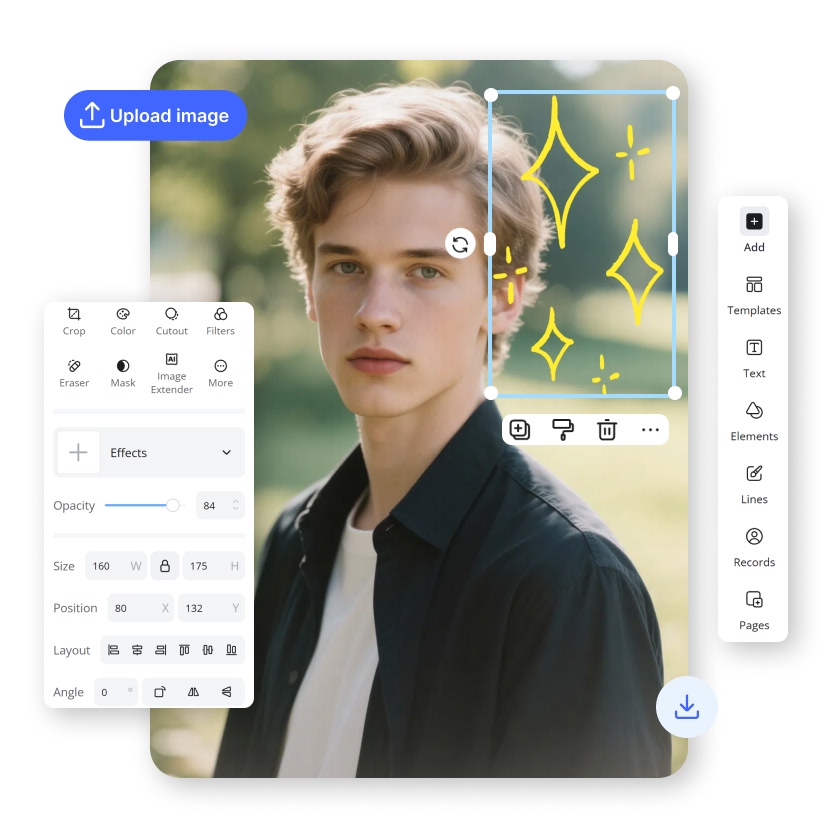
Add the image you want to edit and open it in the AI photo editor.
Step 2. Choose an AI Editing Tool
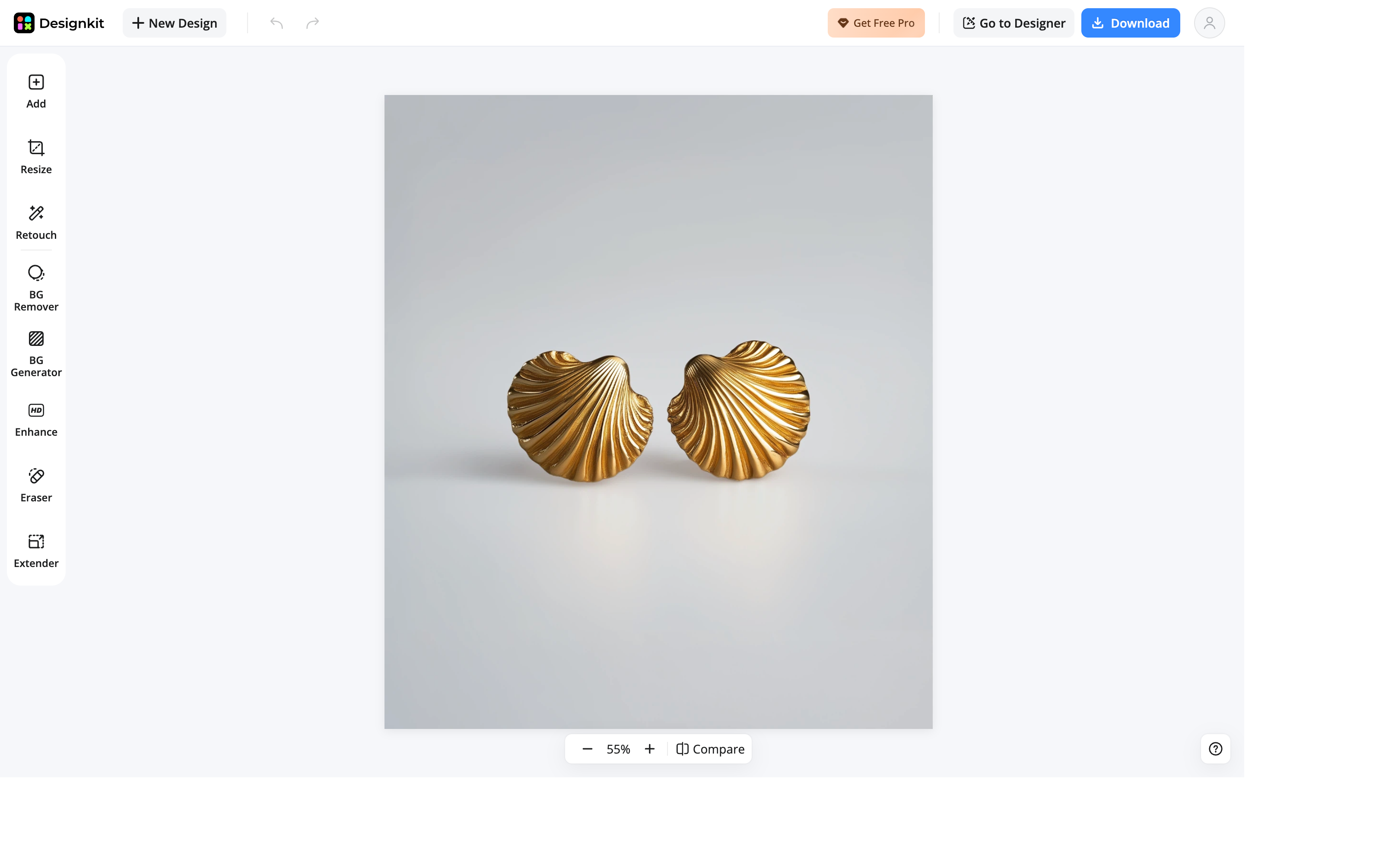
Select the editing tool that matches your goal, or enter a prompt to guide the change.
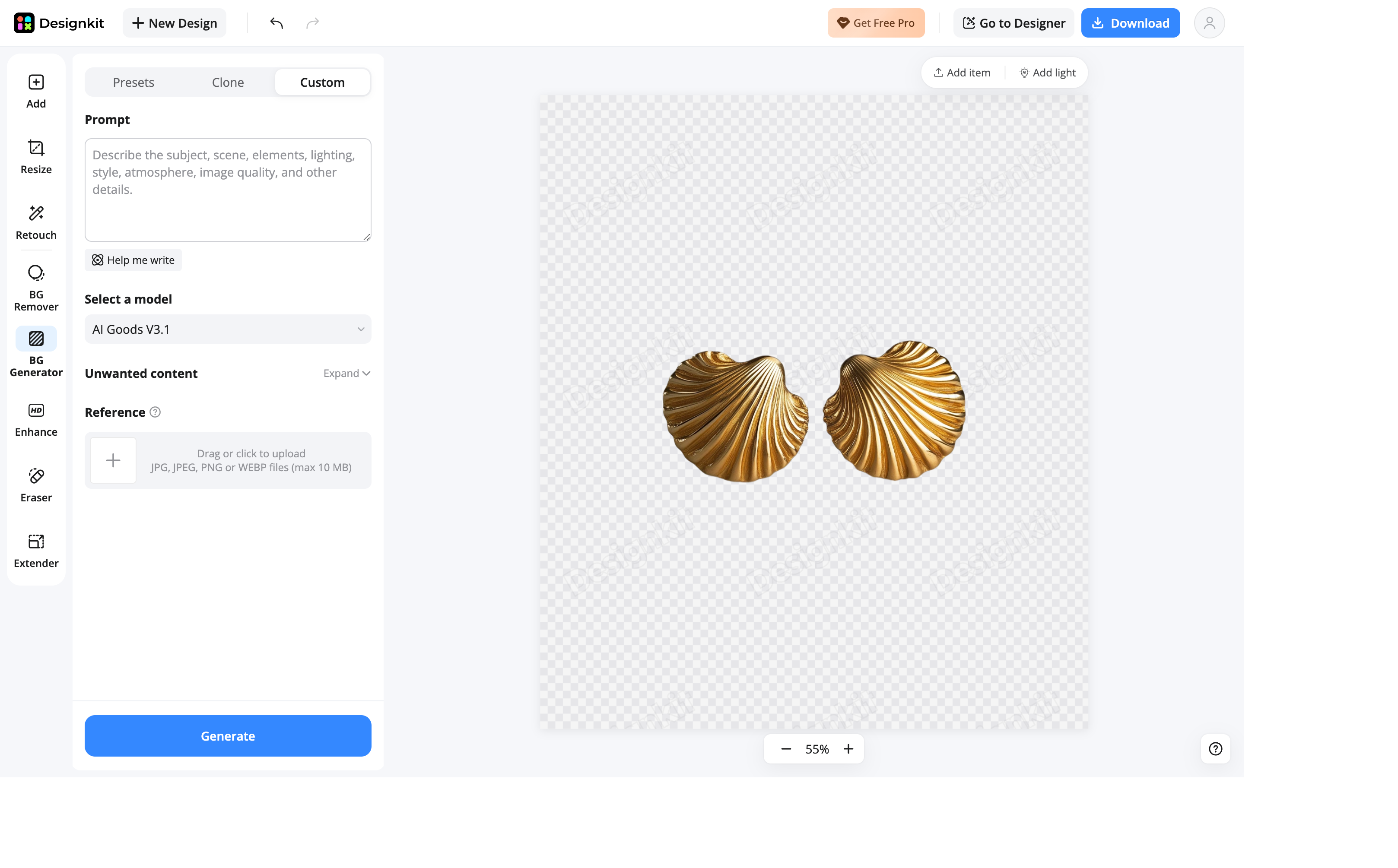
Step 3. Compare, Refine, and Export
Review the result beside the original, adjust important details, and download the finished image.
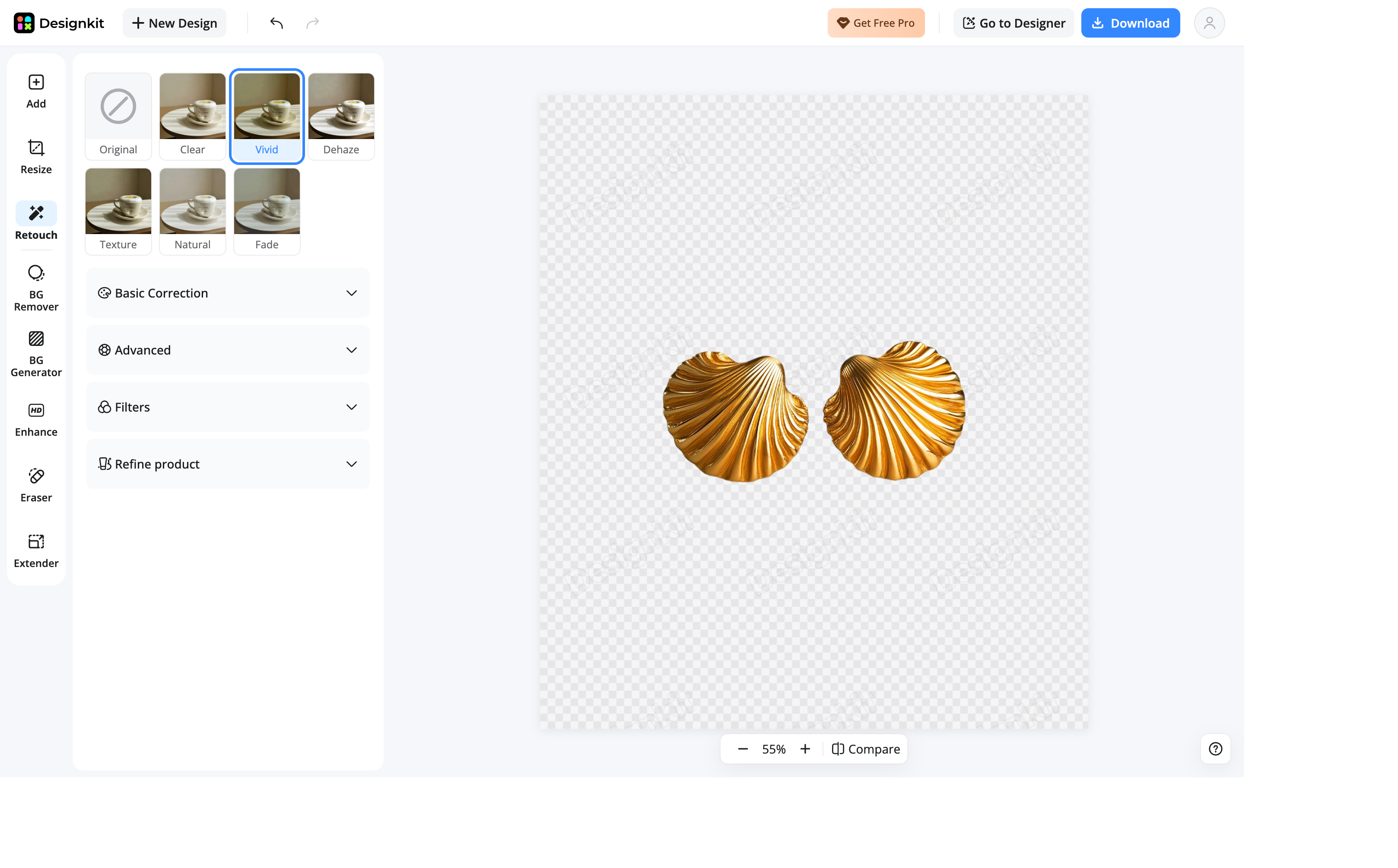
AI Photo Editing Tools in One Workspace
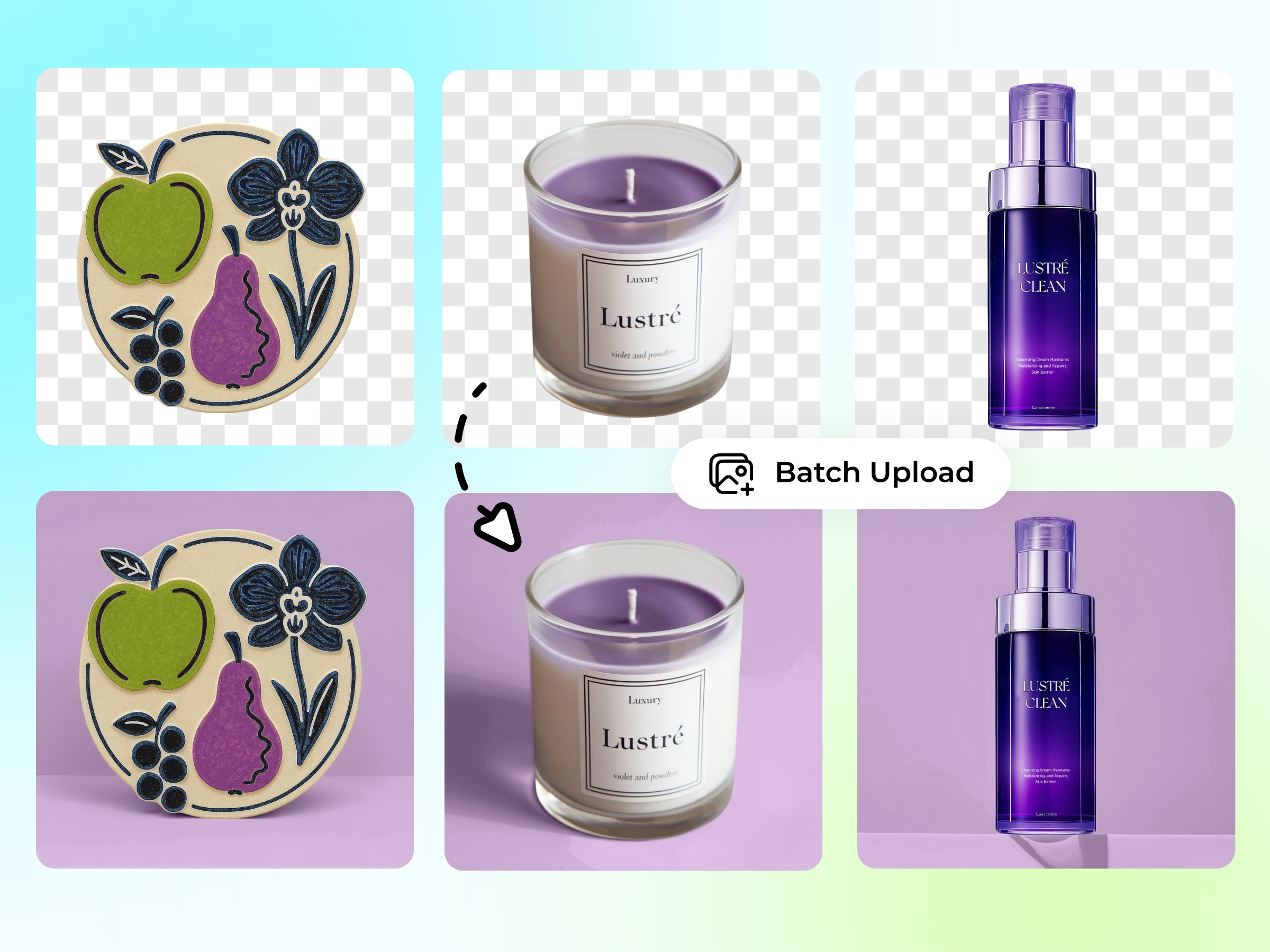
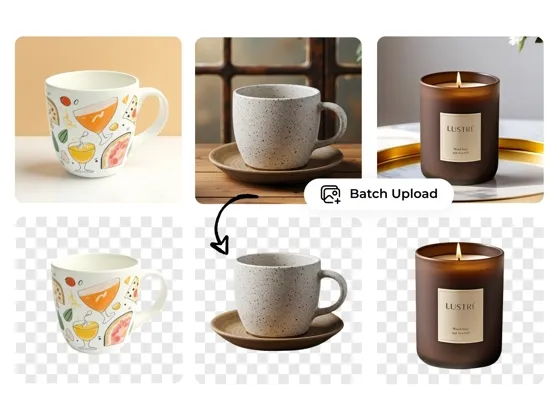
Remove or Replace Photo Backgrounds
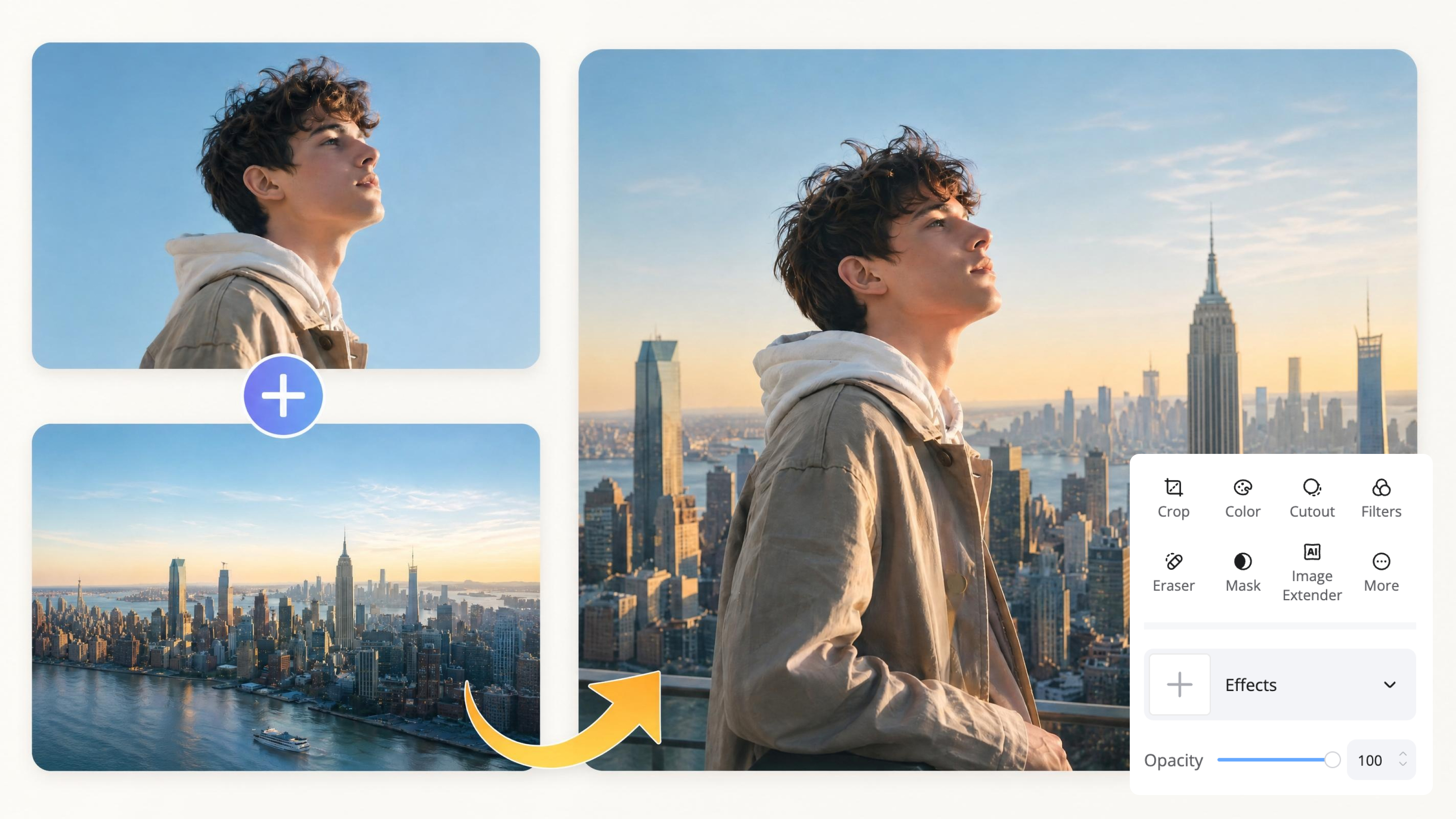
Separate the main subject from its original background and create a clean cutout for further editing. Keep the background transparent, replace it with a solid color, or generate a new setting that better fits the image while preserving clear edges around the subject.
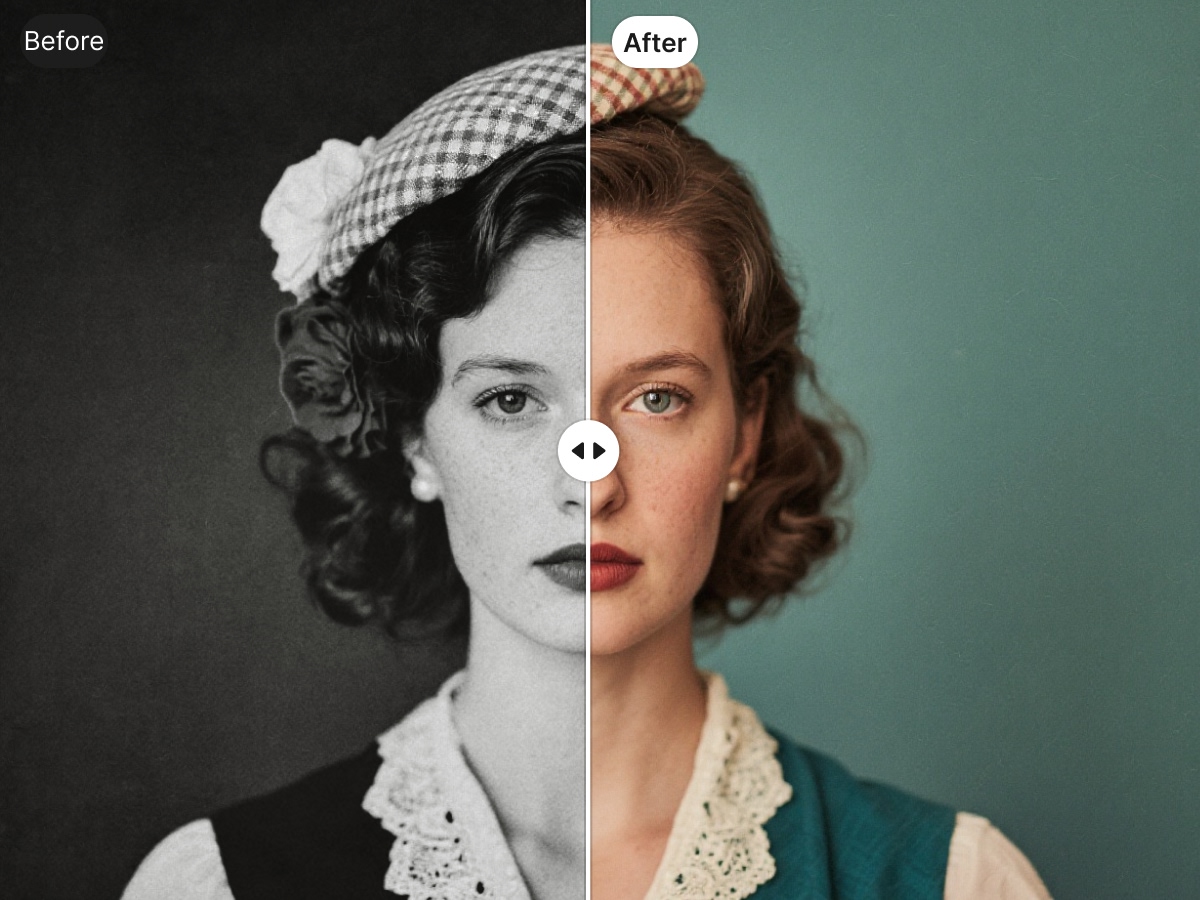
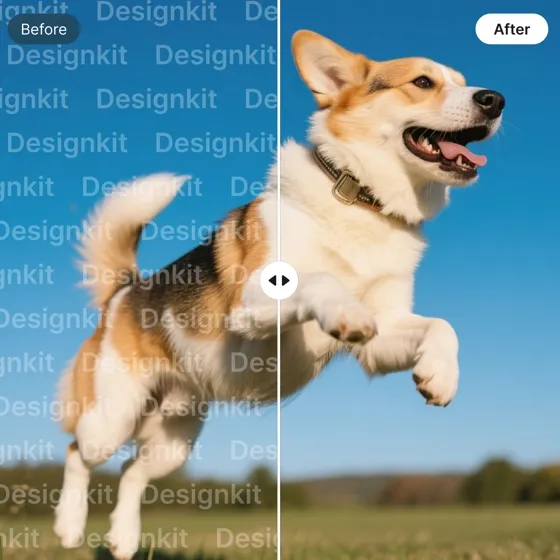
Enhance and Retouch Image Quality
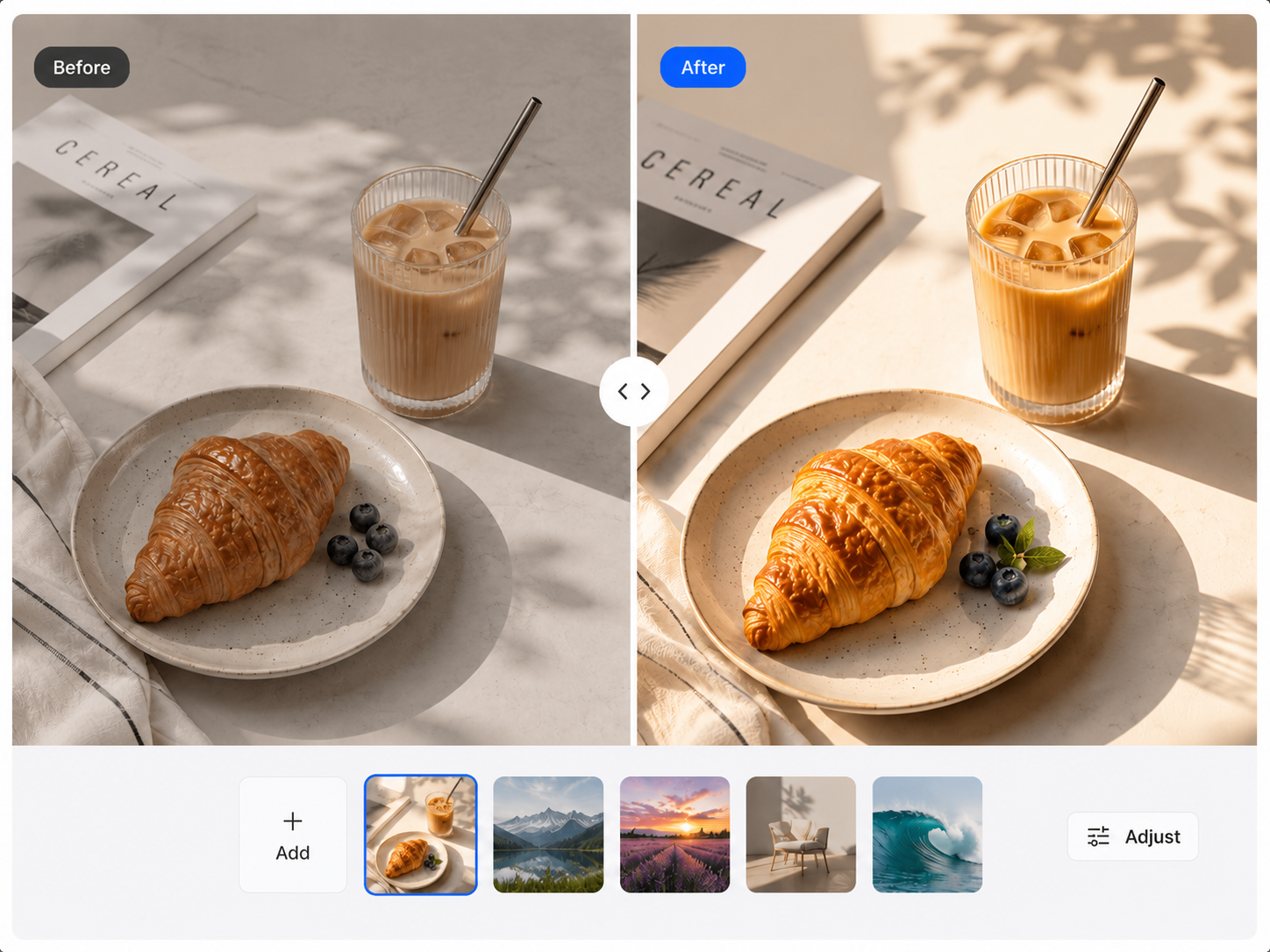
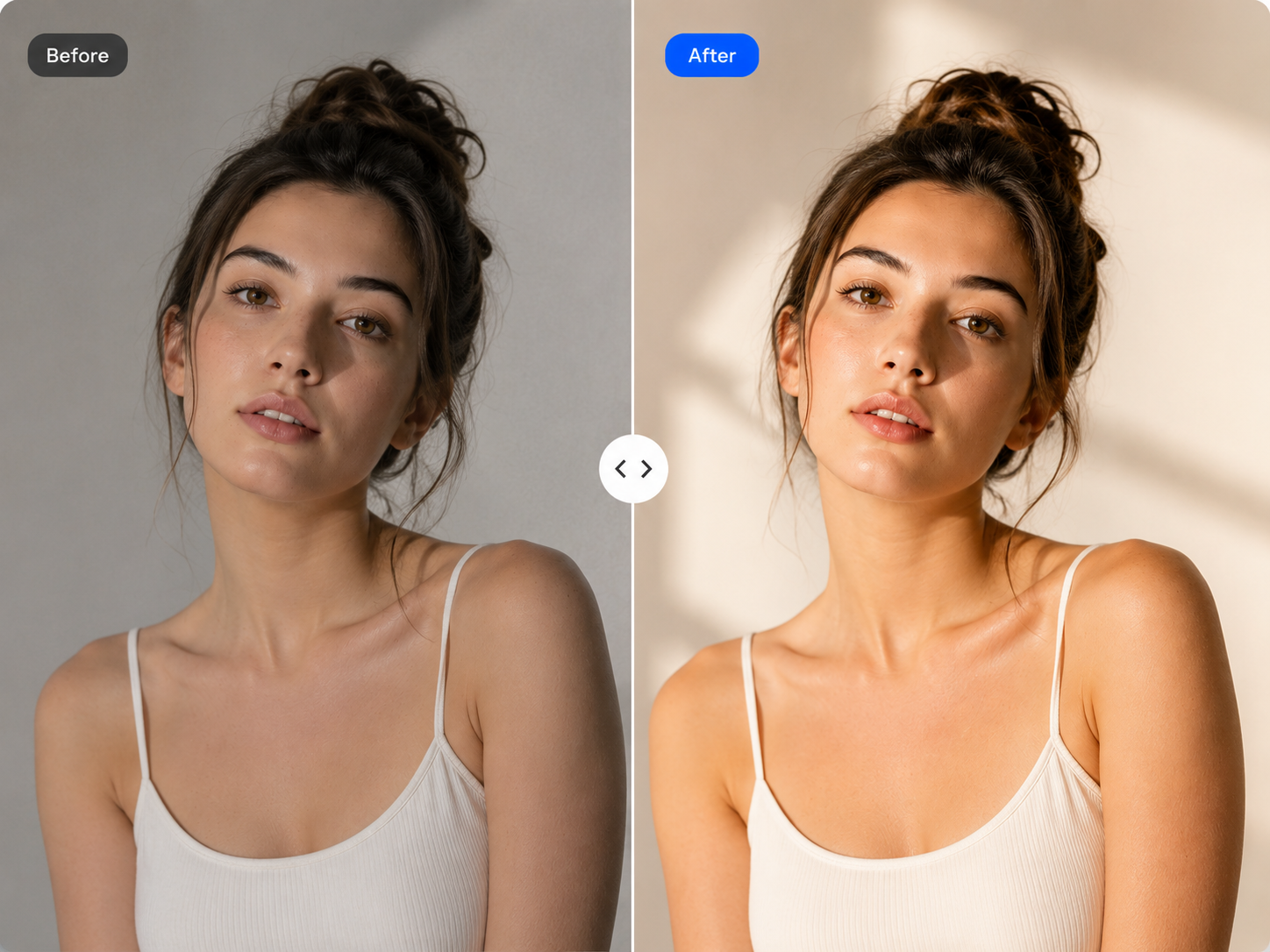
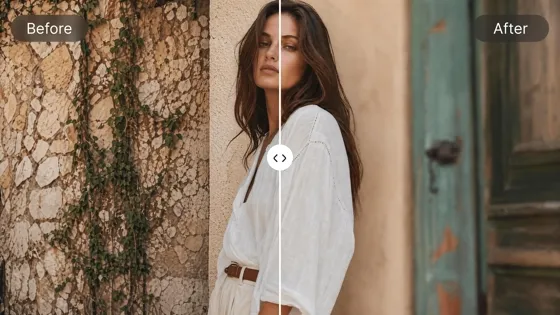
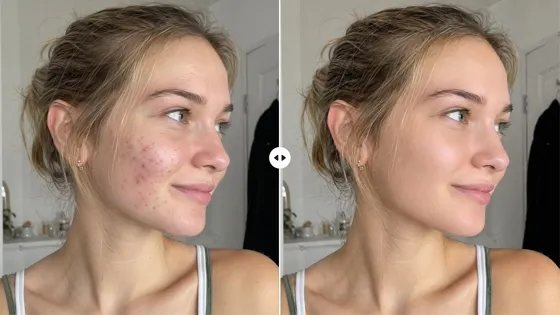
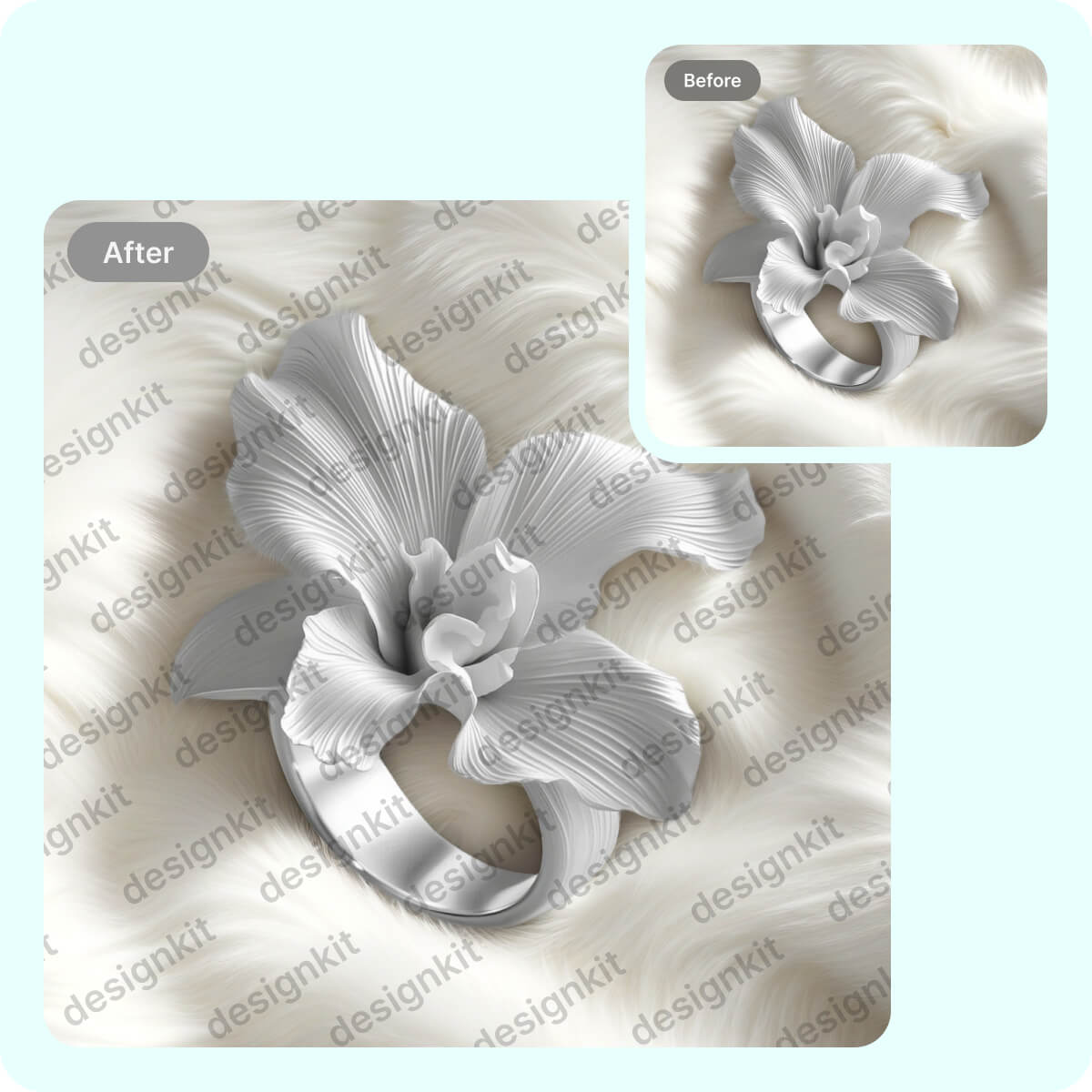
Improve clarity, lighting, and visible detail in photos that appear soft or uneven. Use AI photo retouching to refine the image while keeping its overall appearance natural and preserving the important features of the original photo.
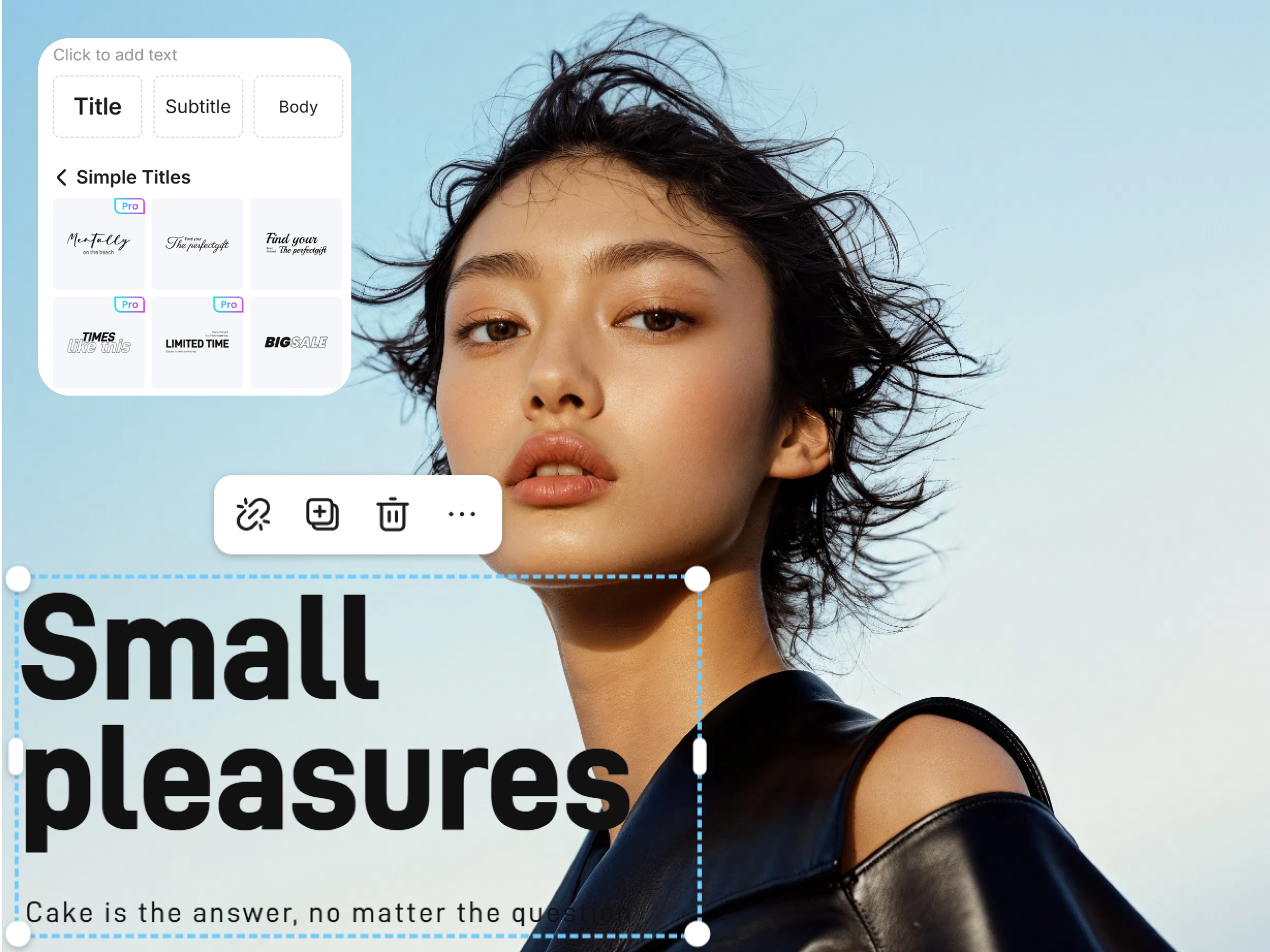
Edit Text Directly in Images
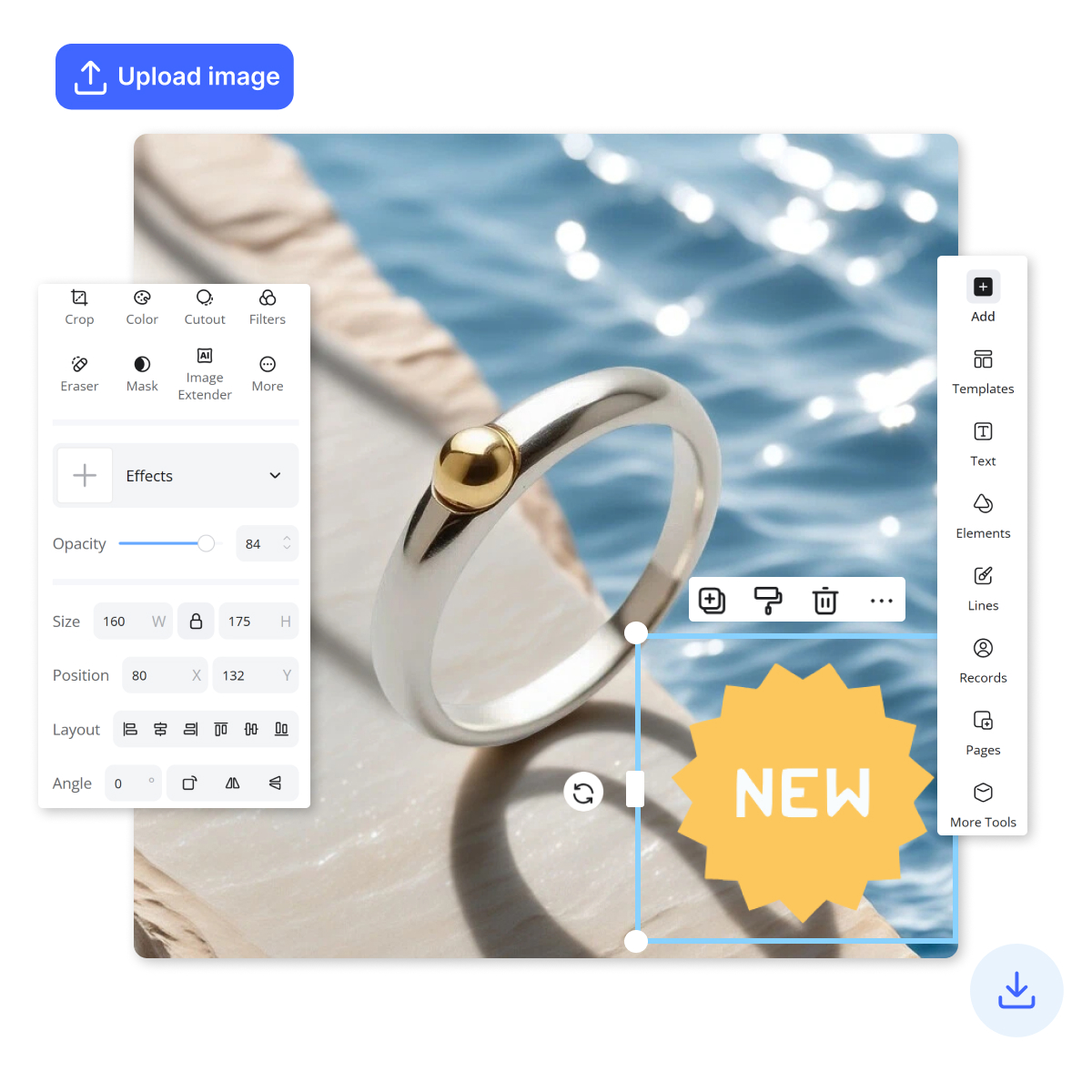
Select existing text in an image and update its wording, style, size, color, or position without rebuilding the full design. Keep the surrounding layout intact while correcting a headline or adapting the same visual for new content.
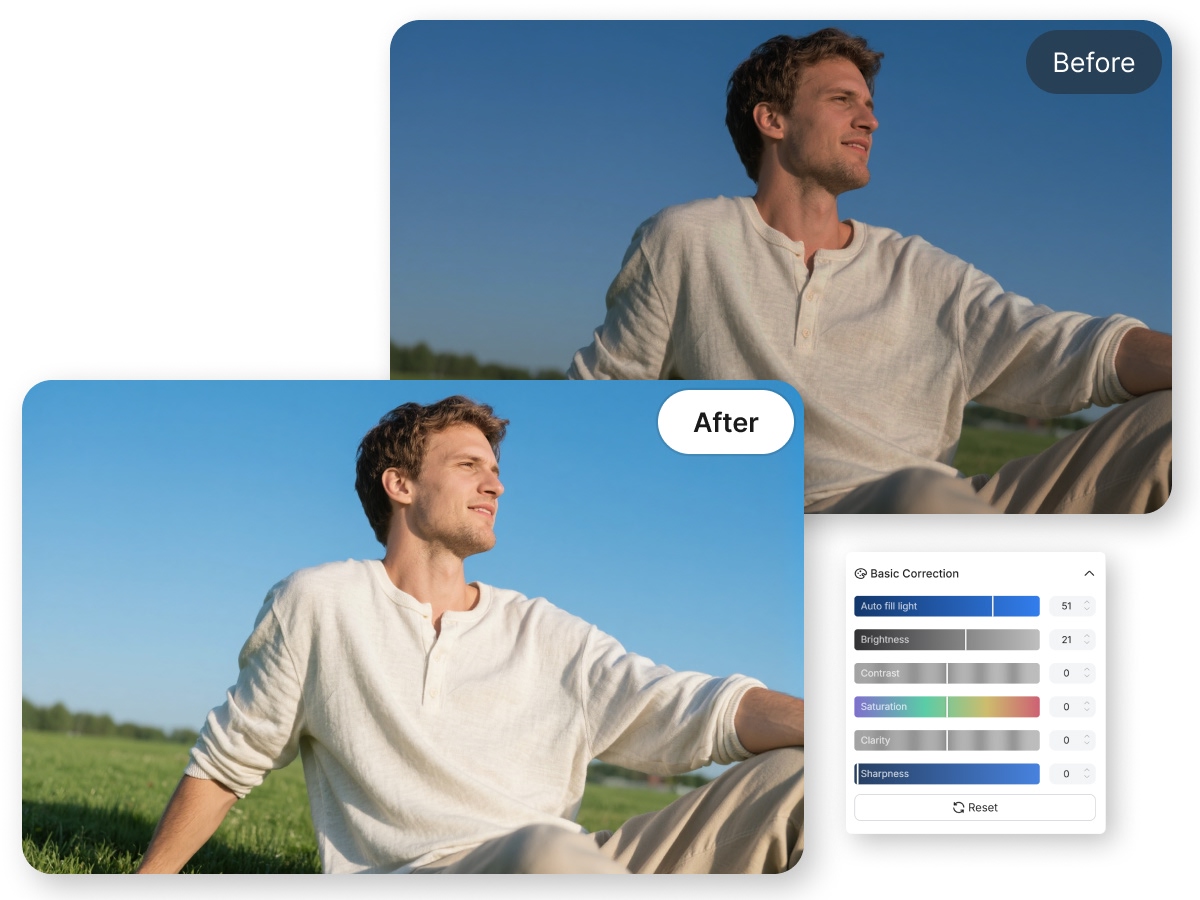
Refine Photo Color and Appearance
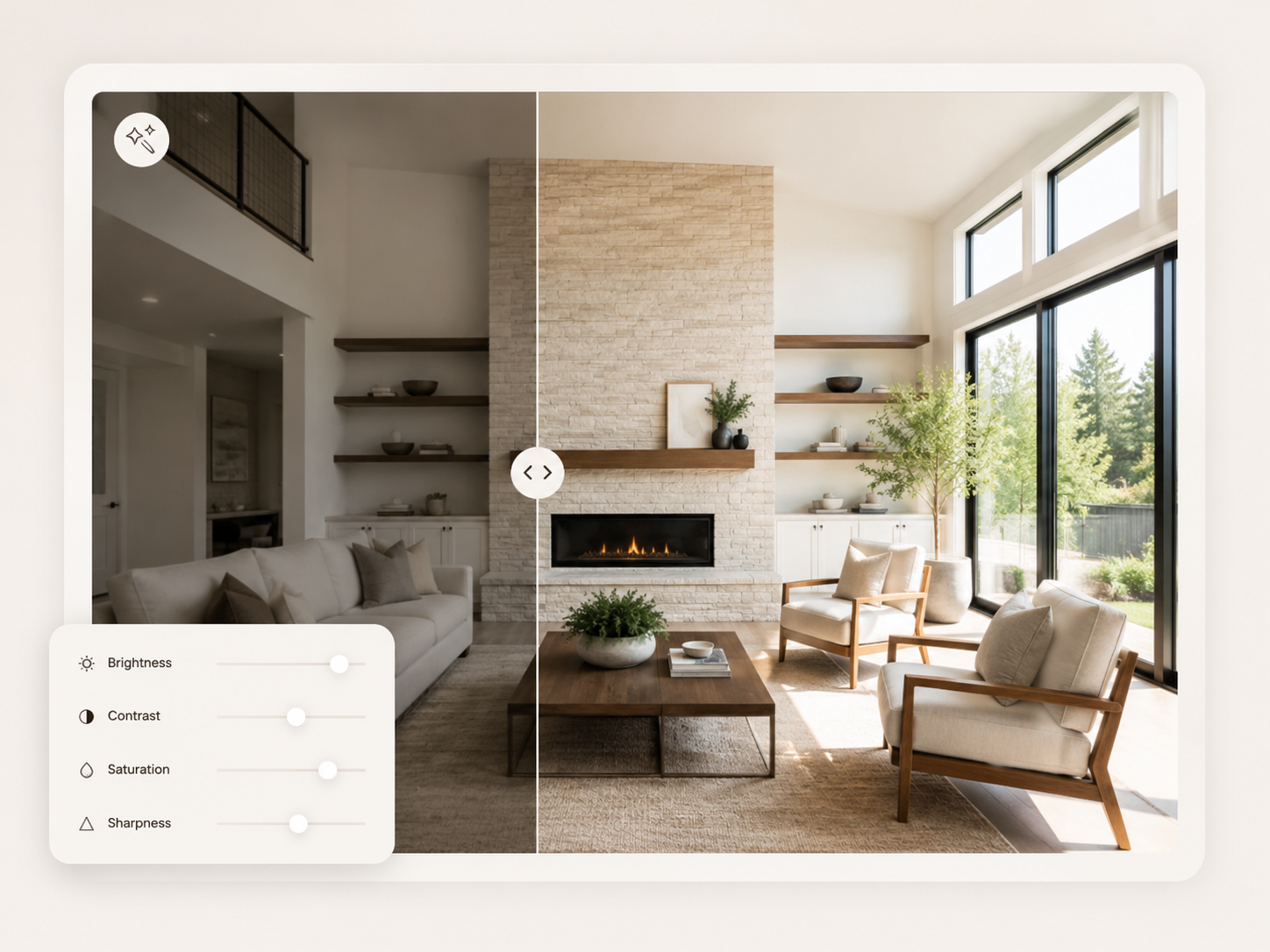
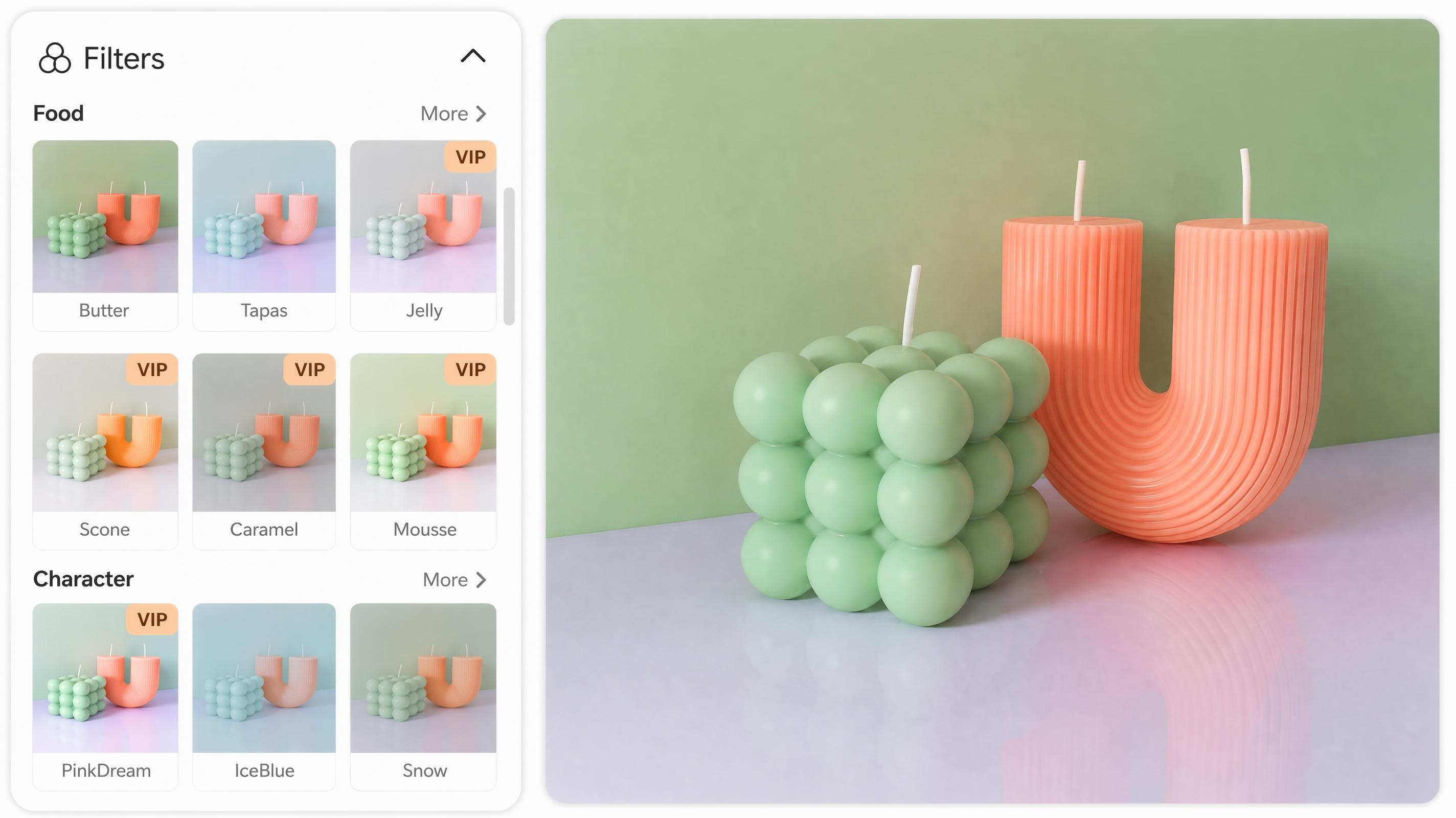
Adjust color, lighting, and overall tone through simple controls while previewing the result beside the original image. Fine-tune the photo until the subject and background feel more balanced, polished, and consistent with the intended look.
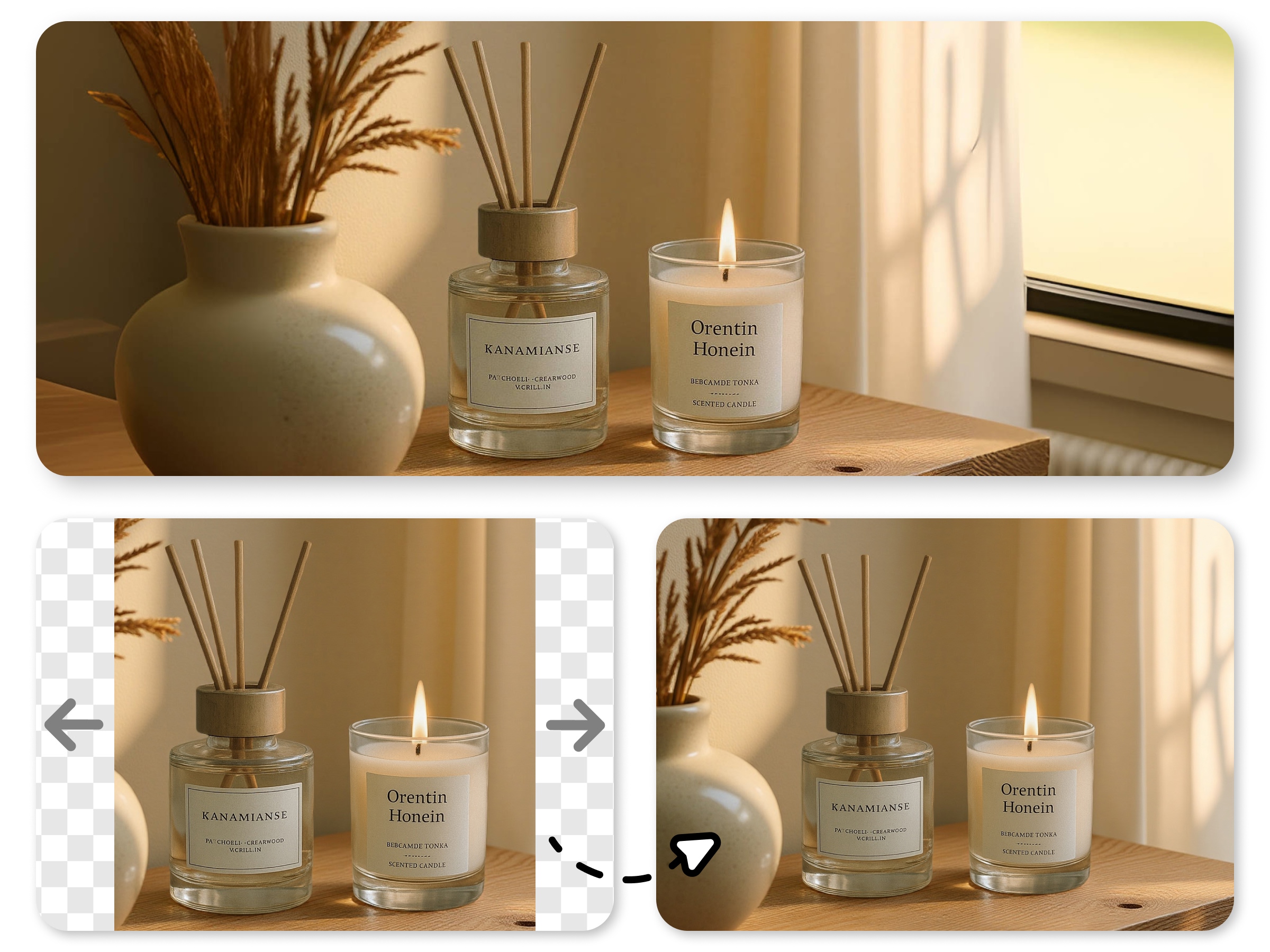
Expand and Resize Images for New Formats
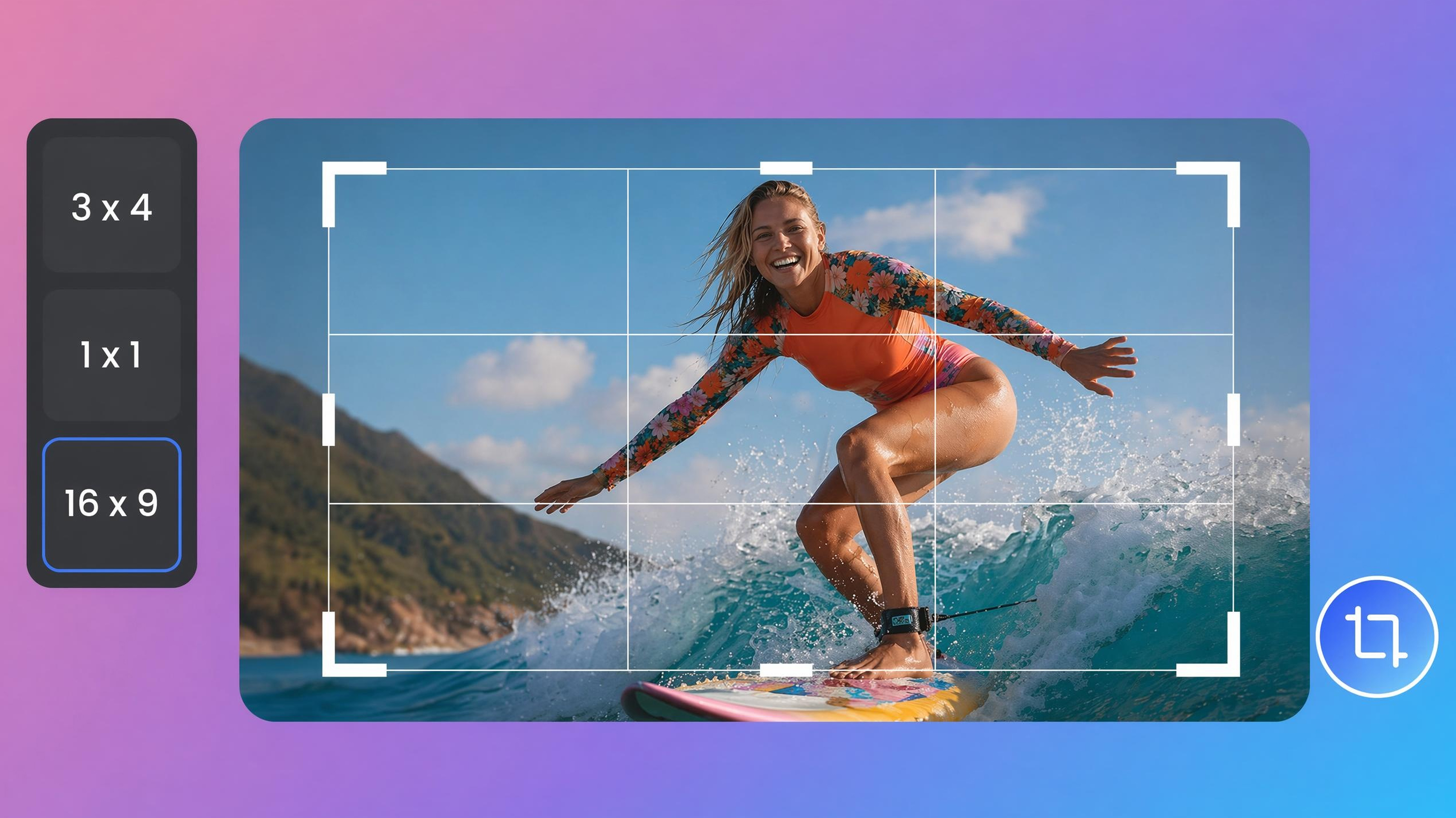
Extend the canvas when the original crop does not fit the format you need. The AI image editor generates additional space around the existing photo, while resizing tools help prepare the finished visual for a new layout without rebuilding the design from the beginning.
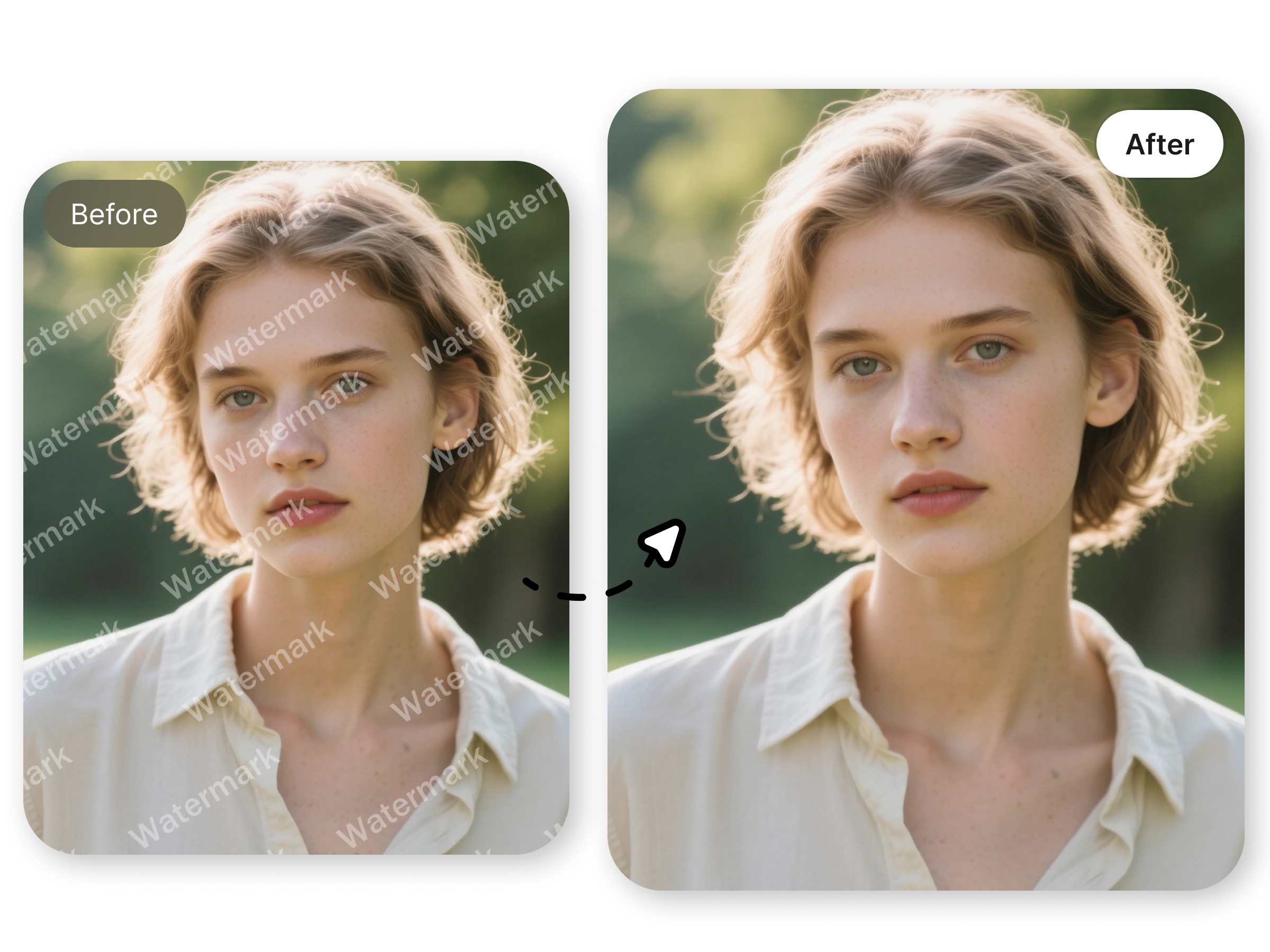
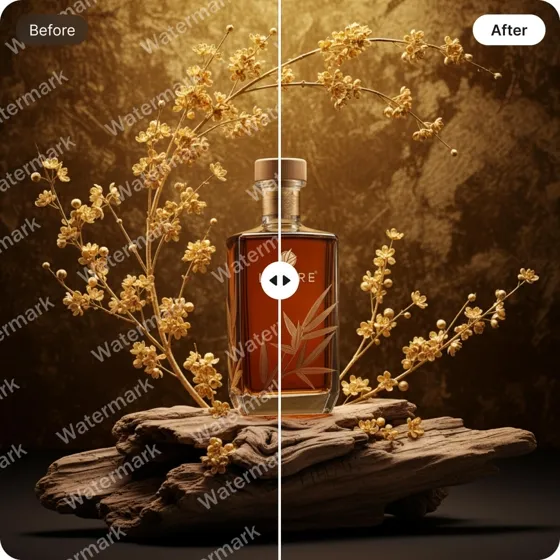
Erase Objects, Text, Watermarks, and Logos
Remove an unwanted area by choosing a supported category or marking it manually. The AI analyzes the surrounding image and rebuilds the cleared space, helping you clean up distractions while keeping the remaining composition visually consistent.
Built for Different Photo Editing Workflows
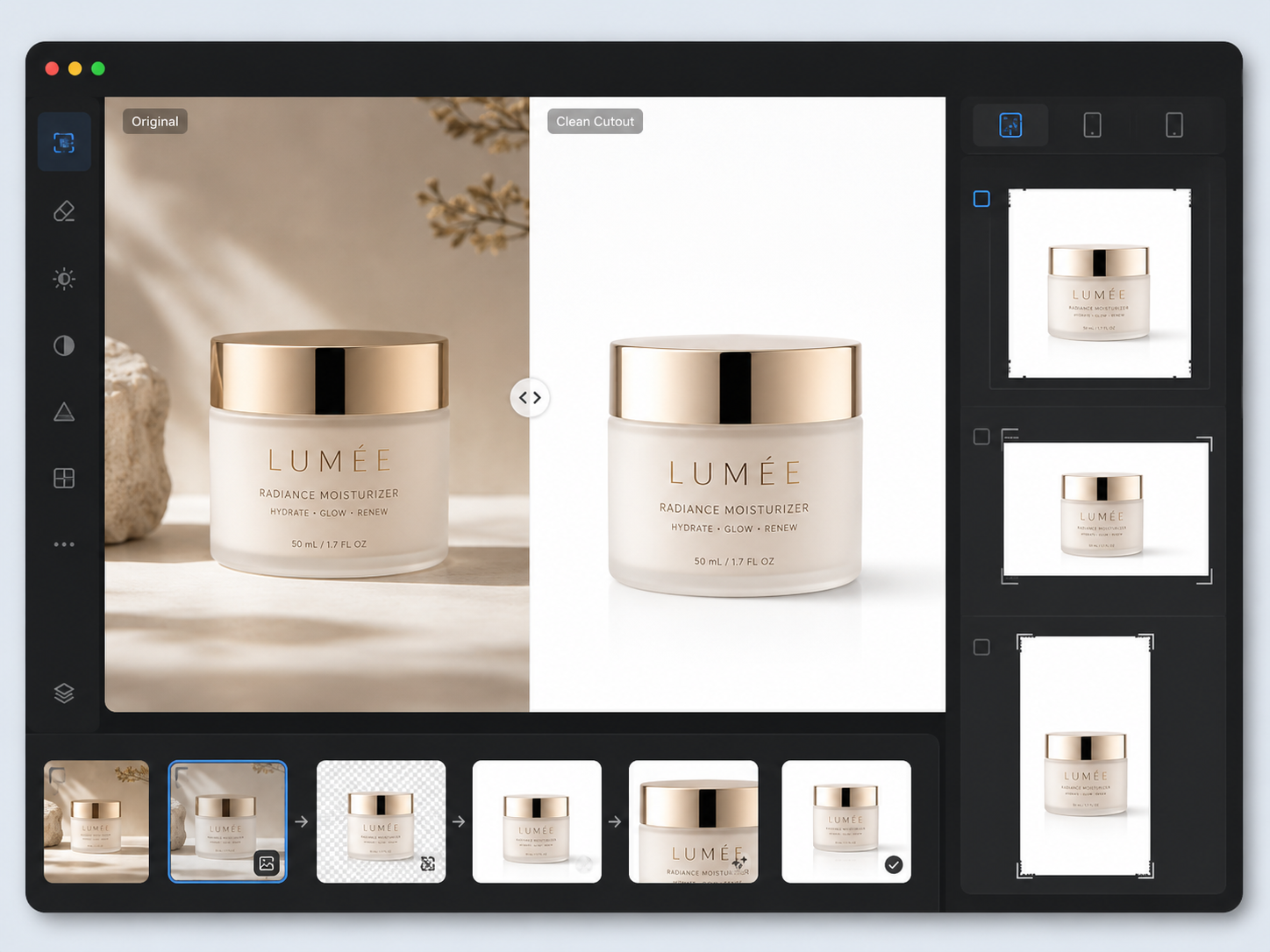
Prepare Cleaner Ecommerce Photos
Use the AI photo editor for ecommerce to remove distracting backgrounds, improve product clarity, and prepare images for different store layouts. Sellers can refine approved photos and adapt them for new placements instead of arranging another shoot for every update.
Why Edit Photos with Designkit?

Keep the Full Editing Process Connected
Move from cleanup and retouching to expansion and resizing in one workflow, without re-uploading the image across separate tools.

No Advanced Editing Skills Required
Designkit handles complex edits behind the scenes, so you can refine images without learning professional photo-editing software.

Review Every Change Before Export
Compare the edited image with the original, check important details, and refine the result before downloading.
Explore AI Photo Editing Tools for Every Editing Need


AI Photo Editor for Every Industry
Frequently Asked Questions
Is Designkit a free AI photo editor?
Can I use the AI photo editor online without installing software?
Yes. Designkit is an online AI photo editor that runs in a supported browser, so you can upload, edit, review, and export photos without installing traditional editing software.
Can I edit a photo with an AI prompt?
Yes. Go to Designkit’s Workspace, describe the change you want, including the subject and intended result, and the AI photo editor will use the prompt to guide the edit.
Will the AI change important details in my original photo?
No. However, generated or reconstructed areas may vary from the original. Review faces, product shapes, text, logos, and other important details before exporting the edited image.
Which image formats can I upload and export?
Designkit supports its currently listed image formats for upload and export. Add the confirmed formats and any file-size or resolution limits here so users know whether their images are compatible before editing.
Are the photos I upload kept private?
Uploaded images are handled according to Designkit’s current privacy policy. Before publication, confirm how long files are stored, who can access them, and whether uploaded content is used to improve AI models.
Finish Every Photo in One AI Editing Workflow
Clean up distractions, refine important details, and adapt the final composition for its next use without moving between separate editing tools.



What Users Say About Designkit’s AI Photo Editor
See how teams and individual creators refine product images, property photos, social content, and everyday pictures with AI.
Cleaner Product Photos from Existing Assets
Designkit gives our team a practical way to prepare product images for new store layouts. I can remove the original background, improve clarity, and adjust the crop in the same AI photo editor. The comparison view also makes it easier to check packaging details before we approve the final image.
More Polished Property Photos for Listings
We use Designkit to improve listing photos before they go live. The lighting and color tools help rooms look clearer while keeping the property itself accurate. I can review the edited version beside the original, make another adjustment when needed, and export a cleaner photo for the listing page.
Easier Image Editing for Social Content
The AI image editor helps me adapt the same photo for different content formats. I can clean up distracting details, extend the composition, and resize the finished image while keeping the subject in place. It makes my editing process feel more connected and gives me a stronger result to publish.
Simple Retouching for Everyday Photos
I started using Designkit for photo edits that felt too detailed for basic mobile apps. The AI photo retouching tools help improve lighting, remove small distractions, and refine the image while keeping it natural. The controls are clear, and I can inspect the result before deciding to download it.
One Workspace for Different Editing Tasks
My photo editing needs change across different projects, so having several tools in one workspace is useful. I can edit a photo with AI, improve its quality, replace the background, and prepare the final format without restarting the process. The workflow stays manageable even when an image needs more than one adjustment.