
TikTok Carousel: How to Create and Post Photo Carousels
Learn how to create and post a TikTok carousel, choose the right image size, design engaging slides, and use AI to create photo carousels faster.

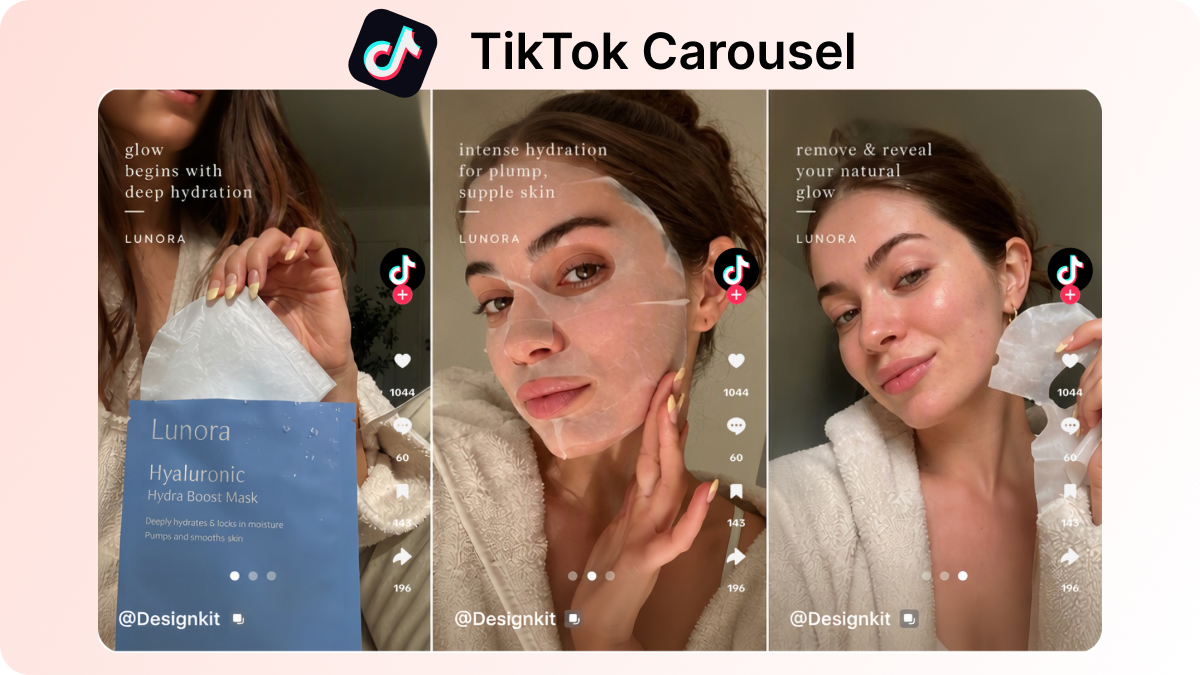
A TikTok carousel lets you share multiple photos in a single swipeable post. It's useful for tutorials, product showcases, before-and-after comparisons, and stories that work better across several images than in a single video.
To create an effective carousel, you need more than a collection of photos. A strong cover, a logical slide sequence, readable text, and consistent visuals help turn individual images into a cohesive post.
This guide explains how to create and post a TikTok carousel, choose the right image size, plan engaging slides, and use an AI-powered TikTok carousel generator to streamline the design process. You'll also find content ideas, design tips, and a comparison of organic photo posts and carousel ads.
What Is a TikTok Carousel?
A TikTok carousel is a multi-image post created in Photos mode. Viewers swipe through still images one by one instead of watching a timed video.
In the feed, the post usually opens on the first image, with dots or a slide counter showing progress. Creators use this format for tutorials, product details, lists, before-and-after sets, and short stories that need clear frames.
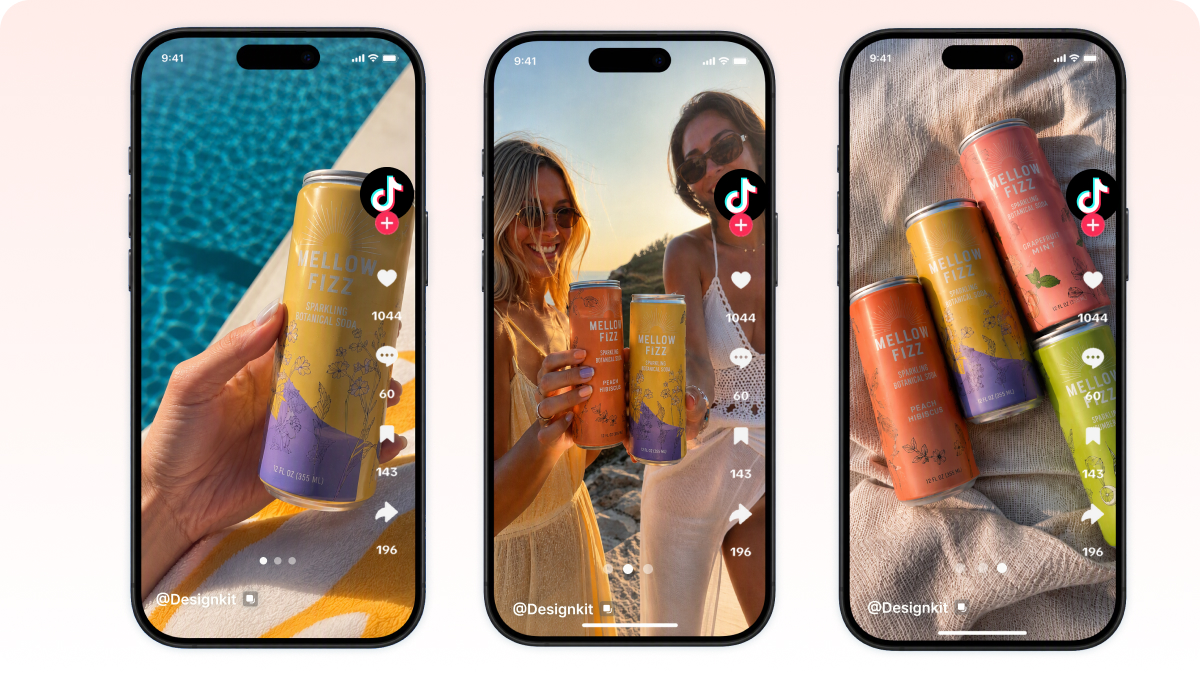
Captions, hashtags, and music can still be added. The main difference is viewing control: people decide when to move to the next slide.
TikTok Carousel vs. Video vs. Slideshow
These formats can all start with photos, but they create different viewer experiences and production workflows.
|
Format |
How people interact |
Content form |
Best for |
|---|---|---|---|
|
TikTok Carousel (Photos mode) |
Swipe through still images at their own pace |
Multi-image photo post with optional music and on-image text |
Tutorials, product details, lists, and stories that need clear frames |
|
TikTok Video |
Watch a timed clip with motion, cuts, and audio |
Motion-first video, often with voiceover or trending sound |
Hooks, demos, entertainment, and sound-led trends |
|
Slideshow-style video |
Images auto-advance inside a video timeline |
Photos compiled into a video export |
Quick photo dumps when you want video behavior, not swipe control |
Choose a carousel when each slide should stand on its own and still lead to the next swipe. Choose video when motion, timing, or sound is the point. Results depend on topic and audience, not the format alone.
TikTok Carousel Size and Image Requirements
Choosing the right image dimensions helps your carousel look consistent on mobile. For a full-screen vertical layout, start with a 9:16 aspect ratio and an export size of 1080 × 1920 pixels.

Recommended Image Size and Aspect Ratio
- Aspect ratio: 9:16 for a full-screen vertical design
- Image dimensions: 1080 × 1920 pixels as a practical starting point
- Safe area: keep text, logos, and key visuals away from the edges to reduce cropping or interface overlap
- Other ratios may still upload, but non-vertical images can letterbox or feel smaller in feed
Treat 1080 × 1920 as a design recommendation, not a universal platform requirement. Confirm current publishing or advertising specifications in TikTok when exact upload limits matter.
Supported File Formats
- Use a supported image format such as JPG or PNG
- Keep each image sharp and compressed enough for a smooth upload; if the app rejects a file, reduce size and retry
- For carousel ads, check TikTok Ads Manager creative specs separately, ad delivery requirements are not the same as organic Photos posts
How Many Photos Can You Add?
The number of images you can add depends on the posting workflow and the current TikTok app experience. TikTok's developer documentation has described support for photo posts containing up to 35 images, but that technical reference should not be treated as a guarantee that every account or app version offers the same selection limit in the consumer app.
Before preparing a long set, check the image picker in your TikTok app. For most tutorials, product showcases, and educational posts, a shorter sequence is often easier to follow. Many marketers test around 5 to 9 slides so the story stays swipeable without feeling endless.
How to Create a TikTok Carousel
Before opening TikTok, plan what your carousel will communicate and prepare the images you need. A clear structure makes the design process easier and helps every slide contribute to the overall message.
1. Define Your Goal and Audience
Choose one primary goal, such as educating viewers, showcasing a product, building social proof, sharing a list, or promoting an offer. This determines your content, slide sequence, and final call to action.
2. Outline the Slides
Write a short note describing the purpose of each slide. Start with a compelling cover, arrange the main points in a logical order, and end with a takeaway or next step.
3. Gather Photos and Brand Assets
Collect product photos, lifestyle images, logos, and reference visuals before designing. Relevant source material helps keep the carousel visually consistent and aligned with your brand.
4. Choose How to Create Your Slides
You can design each image individually or use an AI-powered TikTok carousel generator to produce a coordinated set of visuals. If you're creating multiple slides for a product launch, tutorial, or social media campaign, an AI workflow can help streamline production.
Once your images are ready, review the sequence and export the files for uploading in TikTok Photos mode.
How to Post a TikTok Carousel
Once your images are ready, publish them as a swipeable photo post in TikTok Photos mode. Menu labels can change with app updates, so use this as a practical checklist and follow the prompts in your version.
- Open TikTok and tap the + button to create a new post.
- Choose Photo / Photos mode instead of recording a video.
- Upload images from your camera roll. Enable multi-select if available.
- Select your images and reorder them so the cover comes first.
- Add music. Browse for a better fit or adjust volume if you want the visuals to lead.
- Add text, stickers, or light effects on individual slides only if needed.
- Set your cover image if the editor lets you choose which slide appears first.
- Write your caption and hashtags, review privacy settings, then post.
Before you publish, confirm you are still in Photos mode. Switching into video mode can turn the set into an auto-playing slideshow video instead of a swipeable carousel.
How to Create a TikTok Carousel with AI
Creating each carousel slide individually takes time when you need a matching sequence, product context, and optional on-image text. Designkit's TikTok Carousel Generator turns your product photos and a short brief into a coordinated set of slides. You still publish the finished images in TikTok Photos mode.

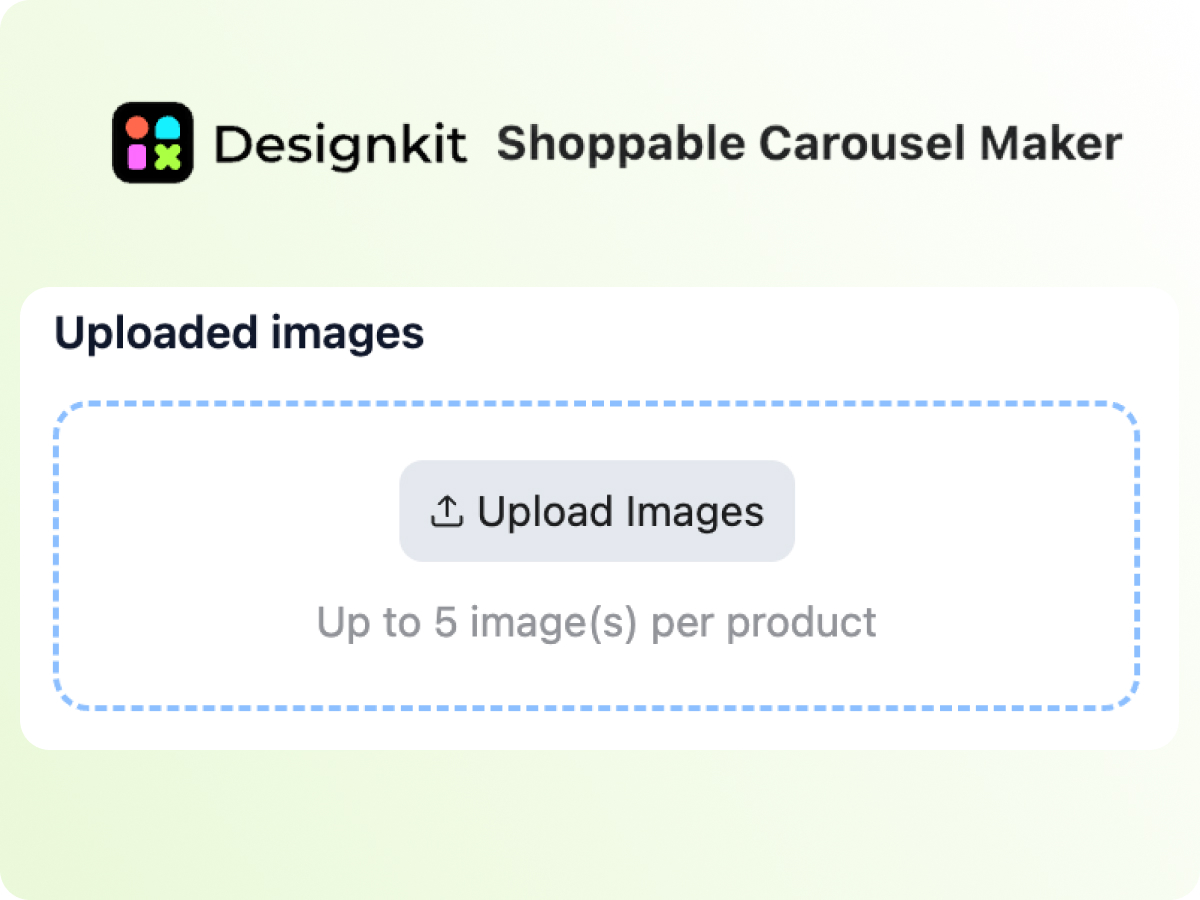
1. Upload your product images
Open the generator and upload your product photos under Uploaded images. You can add up to 5 images per product. Clear source photos of the product, packaging, or use context give the set a consistent starting point.
2. Set your Strategy
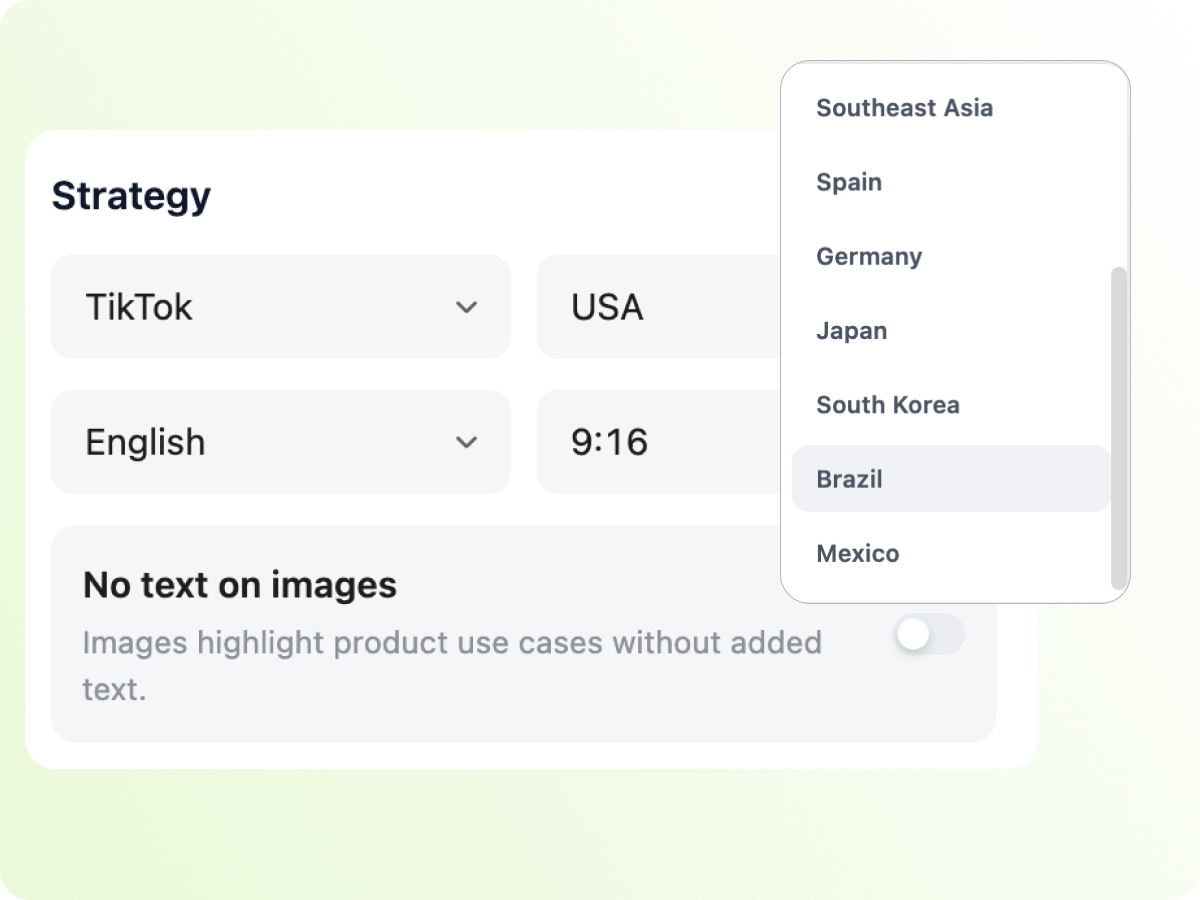
Under Strategy, choose the platform, market, language, and aspect ratio. For a full-screen TikTok carousel, set the platform to TikTok and the ratio to 9:16. Match the language and market to the audience you are posting for, such as English and USA.
Turn on No text on images if you want the slides to show the product and use cases without added copy. Leave it off when you want on-image text.
3. Add Product Highlights
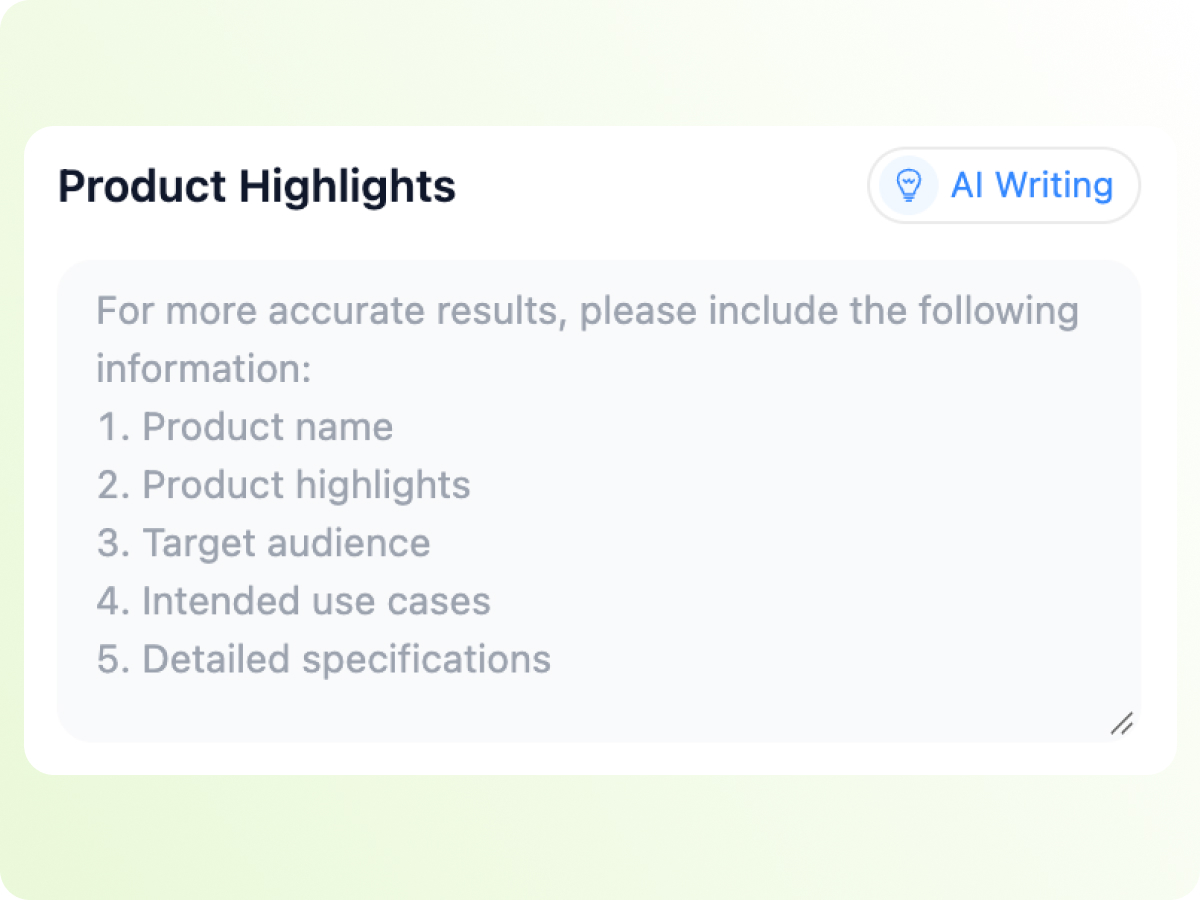
In Product Highlights, describe what the carousel should communicate. For more accurate results, include the product name, key highlights, target audience, intended use cases, and detailed specifications. You can also use AI Writing to draft this brief from your product information.
4. Choose a template
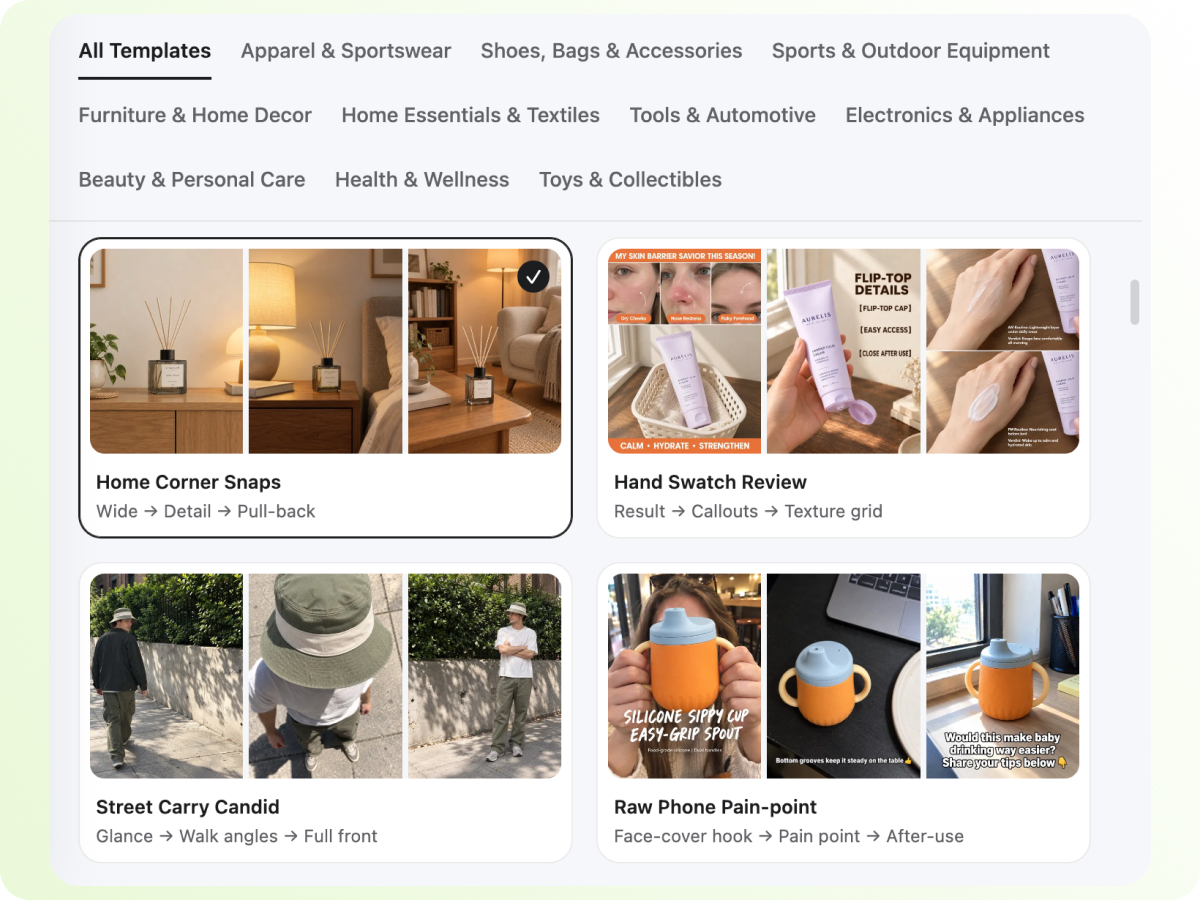
Under Choose A Template, pick a sequence that matches your story. Each template shows how the slides progress. For example, Home Corner Snaps moves from Wide to Detail to Pull-back. Select Change to browse templates by category, such as Beauty & Personal Care, Apparel & Sportswear, or Electronics & Appliances.
5. Set the image count and generate
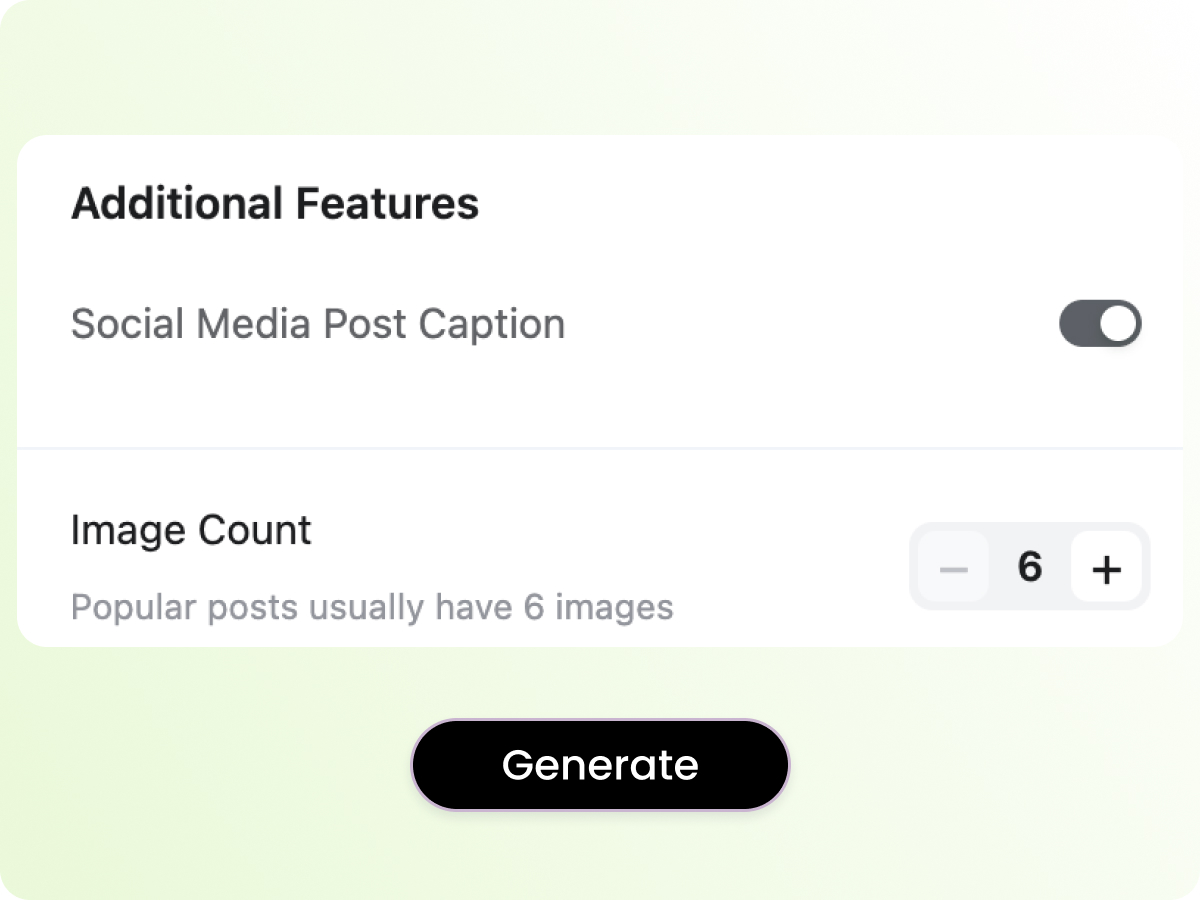
In Additional Features, turn on Social Media Post Caption if you also want a caption for the post. Set Image Count for the number of slides. The tool notes that popular posts usually have 6 images. Then select Generate Sales Post.
Review the generated slides for product accuracy, slide order, and readability. Download the images, then open TikTok, select Photos mode, and upload them in the same order. Add music and hashtags in TikTok before you publish.
Designkit prepares the carousel visuals and an optional caption. TikTok remains the place to complete the native post.
TikTok Carousel Ideas for Different Goals
Start with your content goal, then choose a carousel format that supports it.

Educational carousels
Break a process into one takeaway per slide. Tutorials, checklists, myth-versus-fact comparisons, and quick frameworks give viewers clear information they can revisit.
Product showcase carousels
Show product angles, materials, details, and benefits across multiple slides. Ecommerce brands can turn a product photo collection into a structured visual presentation.
Before-and-after carousels
Use paired images to show transformations, such as room makeovers, design revisions, or workflow improvements. Keep the comparison clear and easy to understand.
List and ranking carousels
Share tips, tools, outfit ideas, or recommendations. Numbered slides help viewers follow the sequence and understand each point individually.
Story and social-proof carousels
Build a short narrative using customer feedback, founder notes, customer photos, or behind-the-scenes moments. Make sure each slide adds context to the story.
Promotional and launch carousels
Introduce a product, feature, or offer through a sequence of visuals. Present the main hook first, explain the benefits, provide relevant details, and finish with a clear CTA.
How to Design a TikTok Carousel That Keeps People Swiping
With your outline and assets ready, focus design on what keeps people moving through the set: the cover, information hierarchy, swipe rhythm, and closing CTA.

- Cover first: Slide 1 must earn the swipe with a clear hook, question, or visual contrast.
- Clear information hierarchy: Put one dominant message on each slide, with supporting details secondary.
- Swipe rhythm: Alternate denser explanation slides with simpler visual beats so the pace stays light.
- Readable text: Keep lines short enough to scan in a second or two on a phone screen.
- Close with a CTA: The final slide should tell people what to do next, save, follow, shop, or try the next tip.
Reusable product-showcase structure
|
Slide |
What to put on the page |
|---|---|
|
Slide 1 |
Attention-grabbing cover or customer pain point |
|
Slide 2 |
Introduce the product or problem context |
|
Slide 3, 4 |
Show core features, benefits, or the solution |
|
Slide 5 |
Show proof: details, results, or use cases |
|
Final slide |
Summarize the key point and add a clear CTA |
Other reusable structures
- Tutorial: Cover promise to Step 1 to Step 2 to Step 3 to Result to Save/follow CTA
- List: Cover theme to Tip 1 to Tip 2 to Tip 3 to Tip 4 to Recap CTA
- Story: Hook moment to Context to Turning point to Outcome to Soft CTA
TikTok Carousel Ads vs. Organic Photo Posts
Organic Photos posts and carousel ads both use swipeable images, but goals, setup, and specs differ. Check TikTok Ads Manager creative requirements before reusing organic assets in ads.
|
|
Organic TikTok photo carousel |
TikTok carousel ad |
|---|---|---|
|
Goal |
Reach, saves, follows, and education through regular posting |
Traffic, conversions, installs, leads, or catalog clicks |
|
Where you create it |
TikTok app Photos mode |
TikTok Ads Manager / business ad tools |
|
Audience |
Organic discovery |
Paid targeting |
|
Best use |
Tips, product education, social proof, brand storytelling |
Offers, product sets, retargeting, creative tests |
If you also need pinned profile cover visuals, Designkit's TikTok Banner Maker can help with that adjacent asset. When the same idea needs motion instead of swipeable stills, use TikTok Video Maker.
Common TikTok Carousel Mistakes to Avoid
- Weak cover: If Slide 1 looks generic, people never reach the rest of the set.
- Too much text on one slide: Dense paragraphs are hard to read in a vertical feed.
- No narrative thread: Random images without a clear sequence feel like a dump, not a carousel.
- Inconsistent visuals: Mixing unrelated styles breaks trust and makes the set harder to follow.
- Wrong image ratio or low resolution: Soft exports or awkward crops can look unfinished on mobile.
- Vague ending: Ending without a next step wastes the attention earned through the swipe.
Frequently Asked Questions
What is a TikTok carousel?
How many photos can you add to a TikTok carousel?
Check the image picker in your TikTok app for the current selectable limit. Developer documentation has described support for larger photo post sets, but consumer-app limits can differ by version and account context. For most educational or product posts, shorter sequences are easier to follow.
What size should TikTok carousel images be?
Start with 9:16 and 1080 × 1920 as a recommended design size for a full-screen vertical look. Confirm current TikTok publishing or ad specs when exact limits matter.
How do you post a TikTok carousel?
Open TikTok, choose Photos mode, upload and reorder your images, add music and caption details, then publish. Stay in Photos mode so the post remains swipeable.
Can you edit a TikTok carousel after posting?
Image replacement and sequence rebuilds are usually limited after posting. Some caption or metadata fields may be editable depending on region and app version, check Edit post in your app rather than relying on a fixed rule.
How do you make a TikTok carousel with AI?
Plan the slides, generate consistent 9:16 visuals, export the set, then upload in TikTok Photos mode. Designkit can help create the assets; publishing still happens in TikTok.
You May Also Like

Best Time to Post on TikTok in 2026 for More Views

TikTok Marketing Guide 2026: Strategies, Ideas & AI Tools

How to Make a TikTok Video: A Step-by-Step Guide 2026

Create TikTok Ads From One Photo: An AI Product Launch Kit

TikTok Monetization in 2026: Requirements & Ways to Earn
Ready to Create Your TikTok Carousel?
Use Designkit's TikTok Carousel Generator to create a coordinated set of carousel visuals for your next tutorial, product showcase, or social media campaign.


