
Bald Filter: Create a Bald Version of Your Photo
Curious how a familiar portrait would look without hair? Apply a bald effect to your photo and create a recognizable version to compare or share.
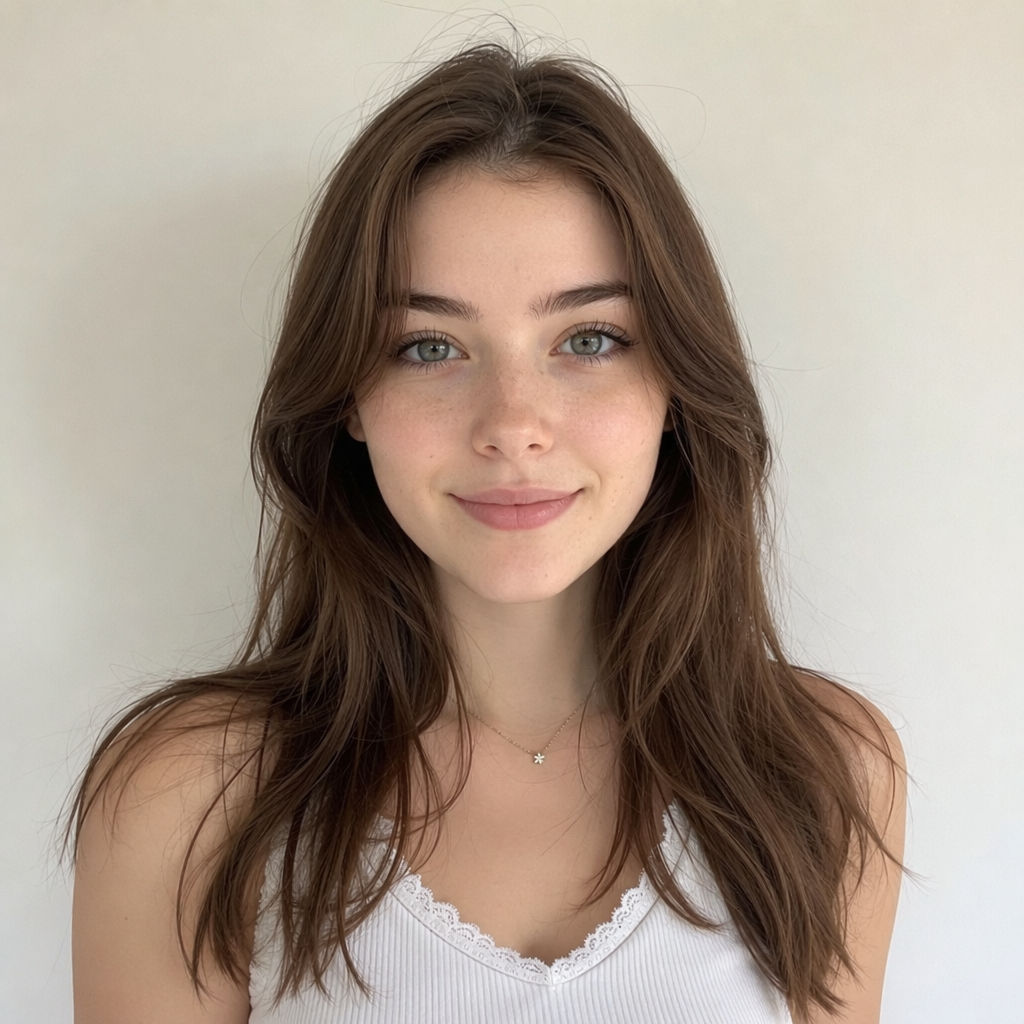
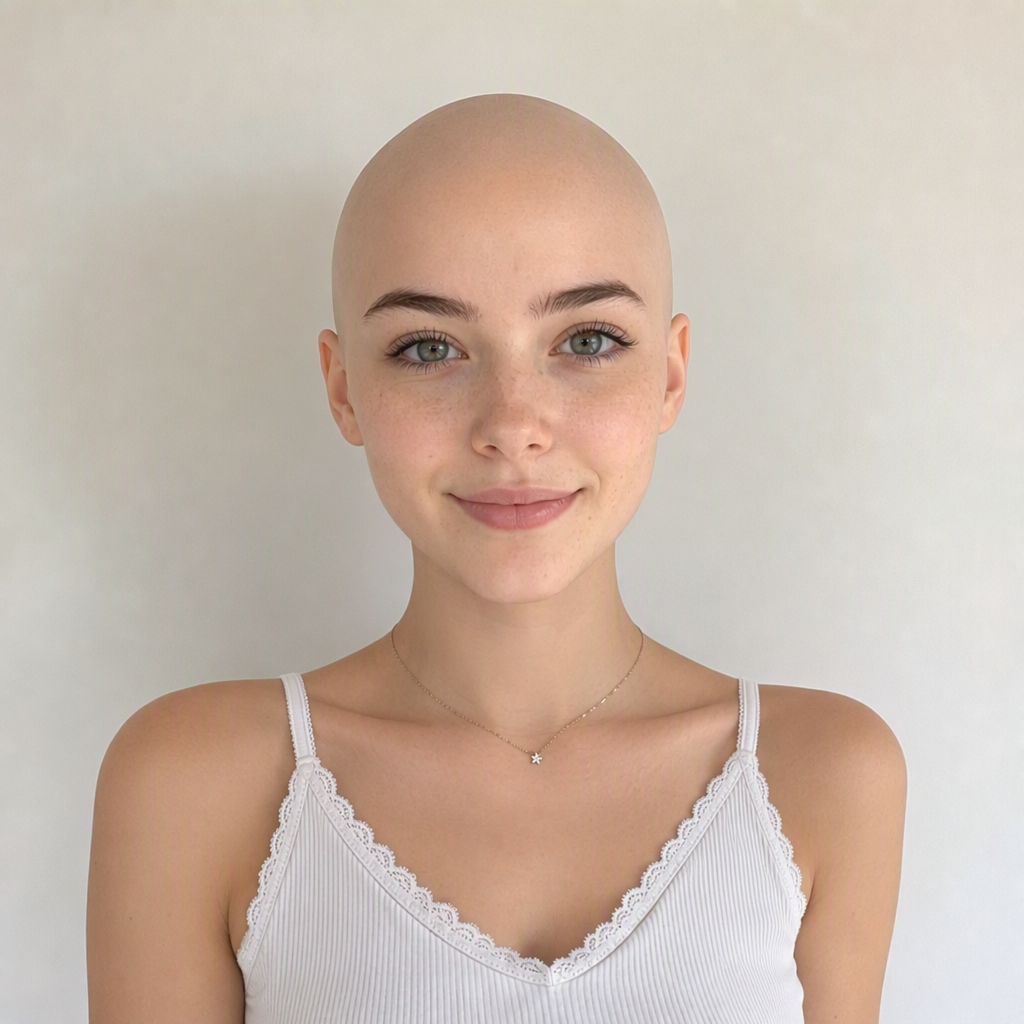
See What You Would Look Like Bald
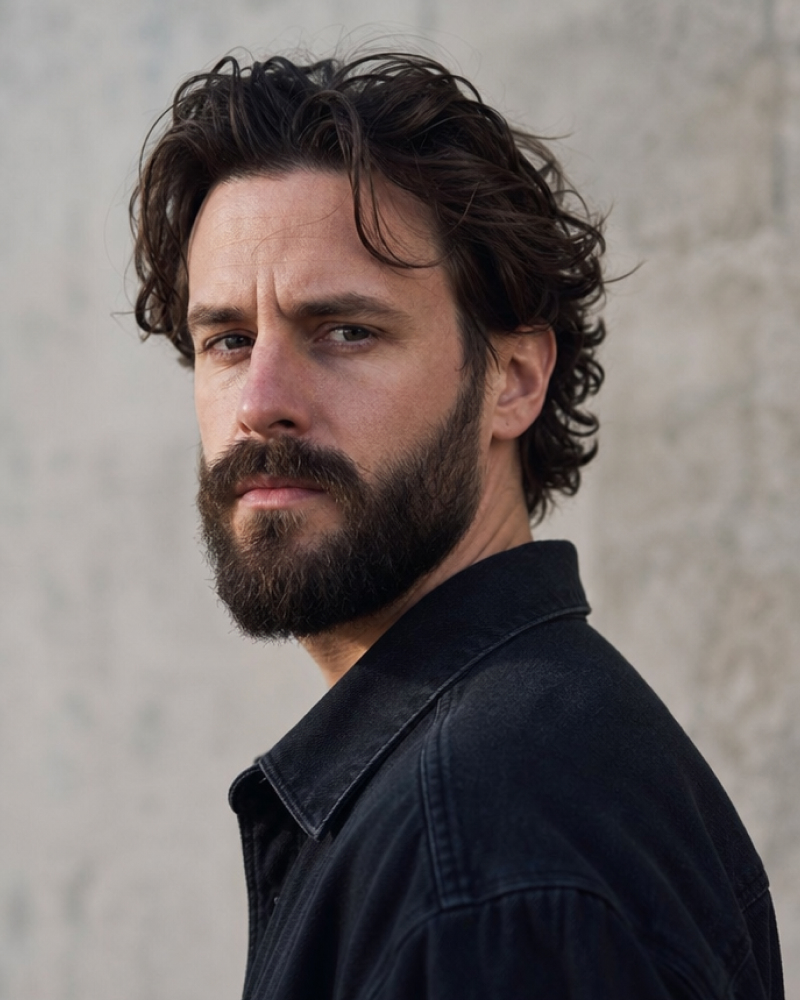
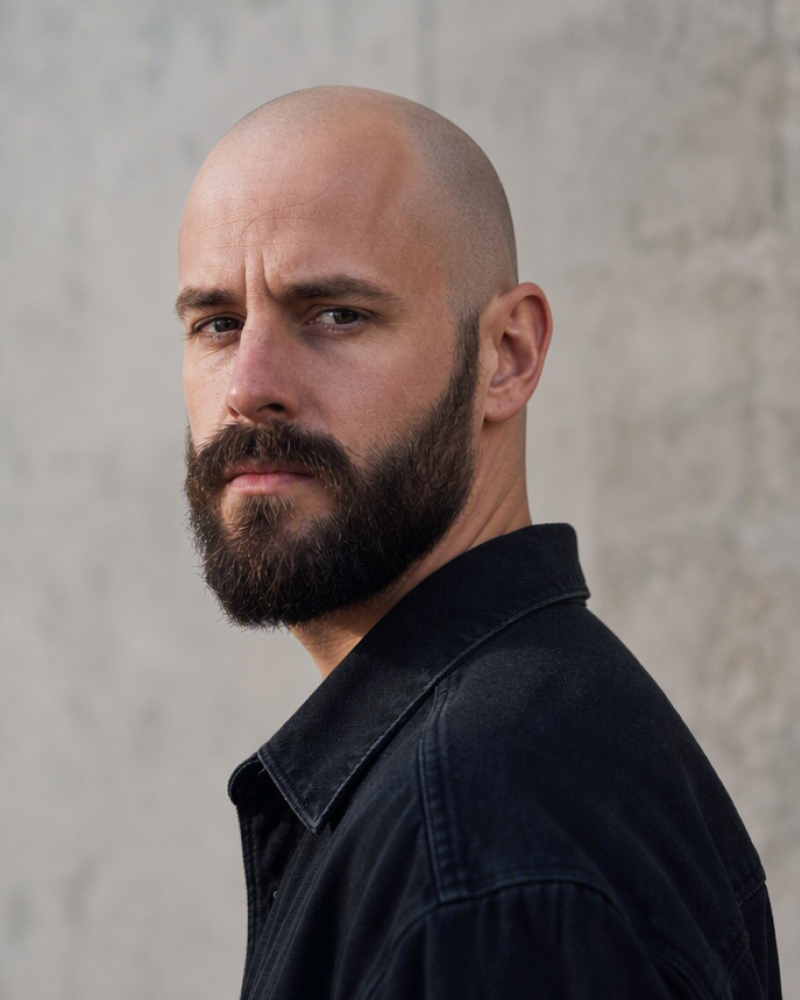
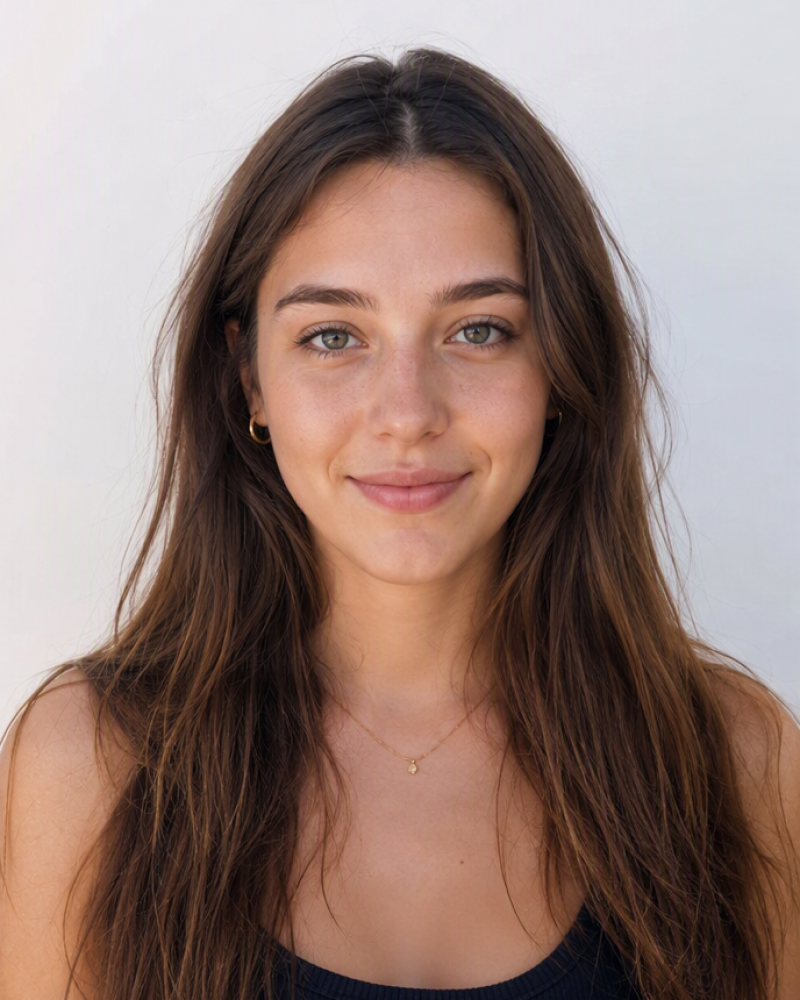
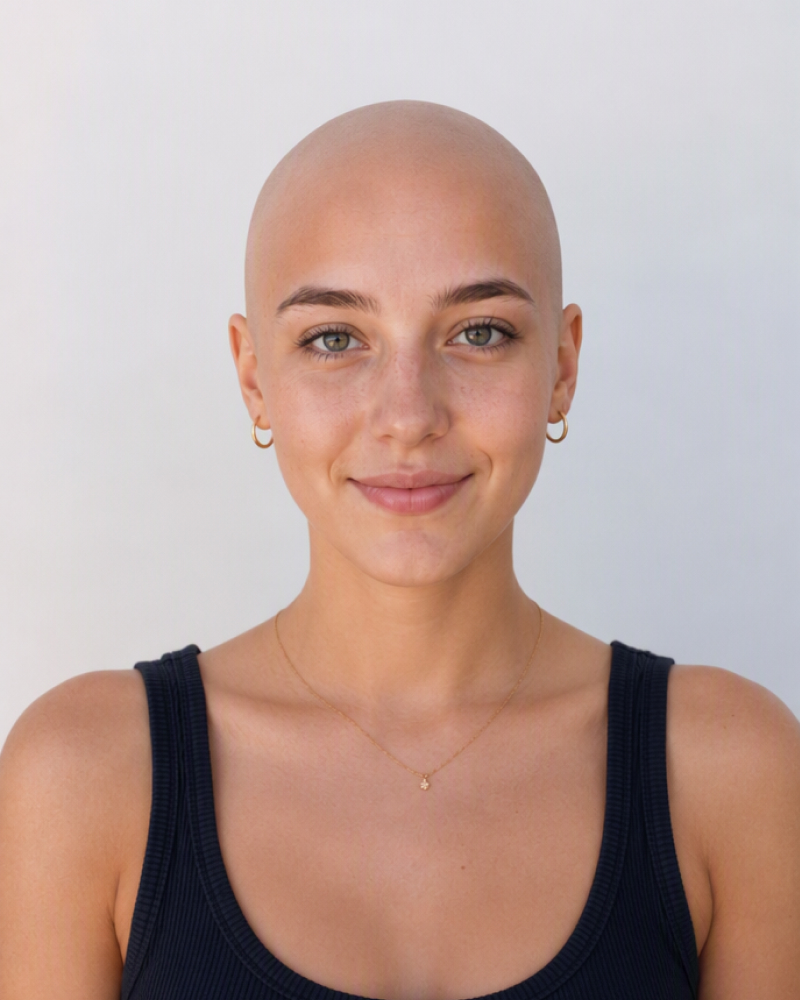
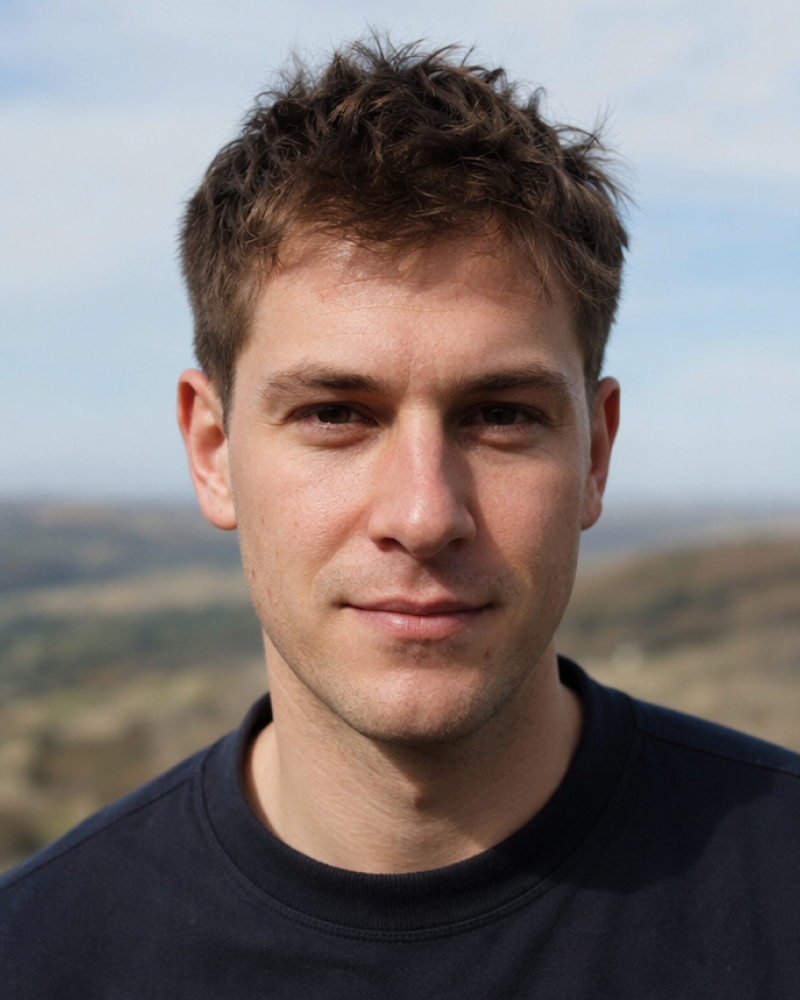
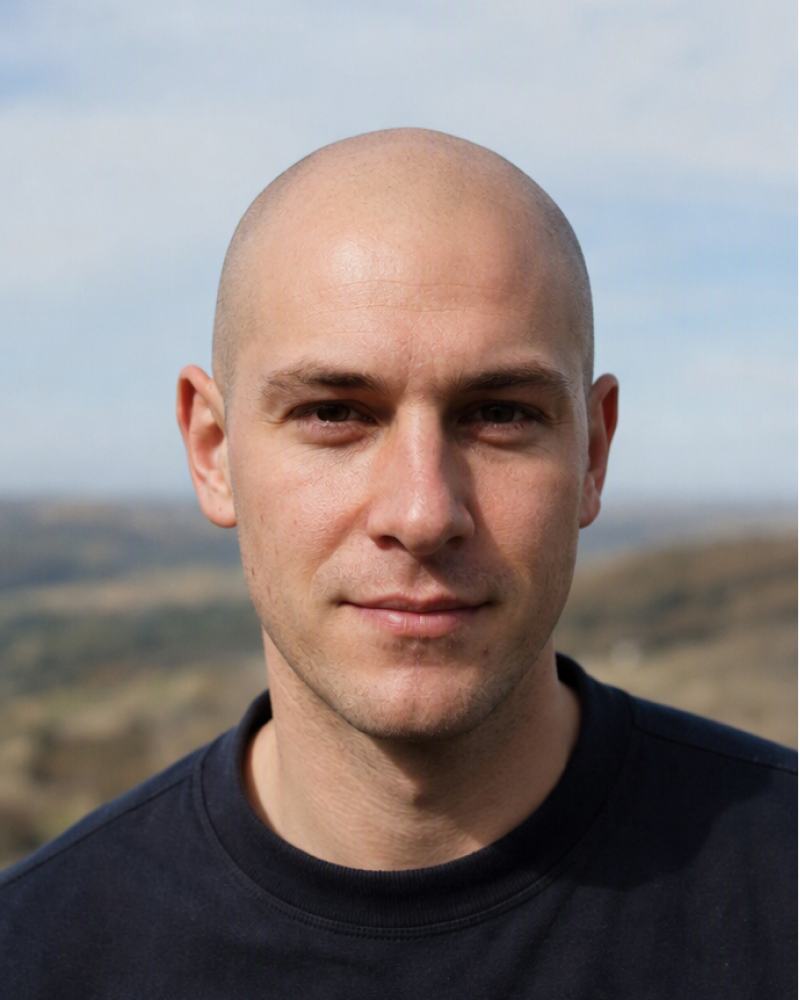
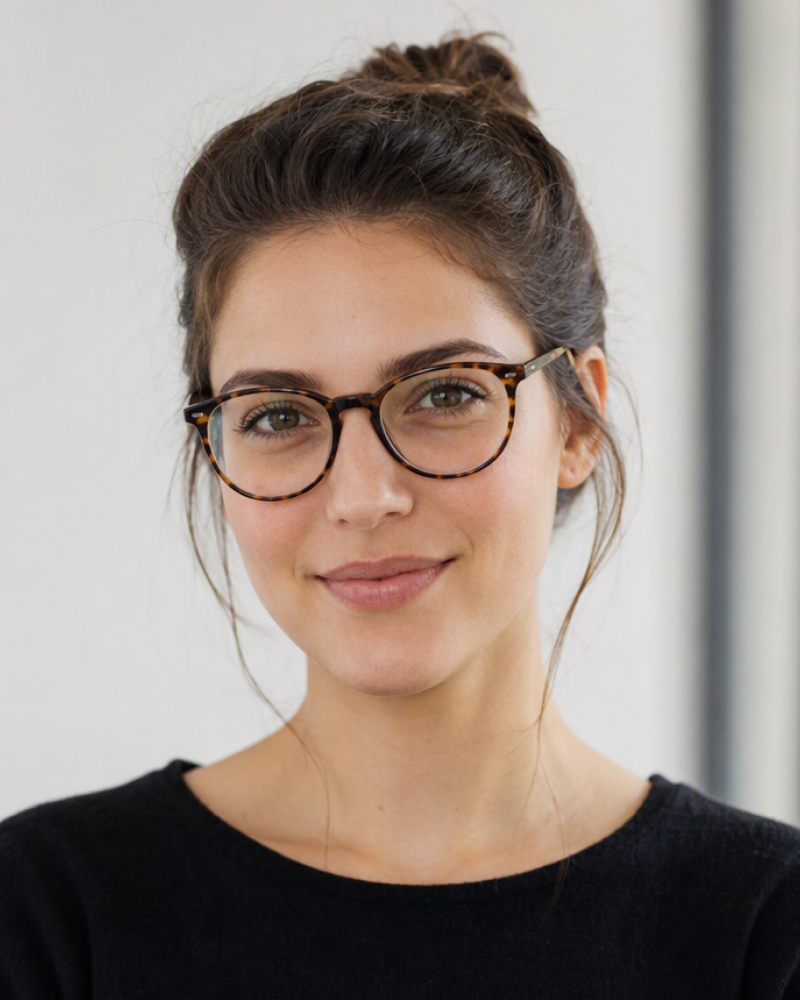
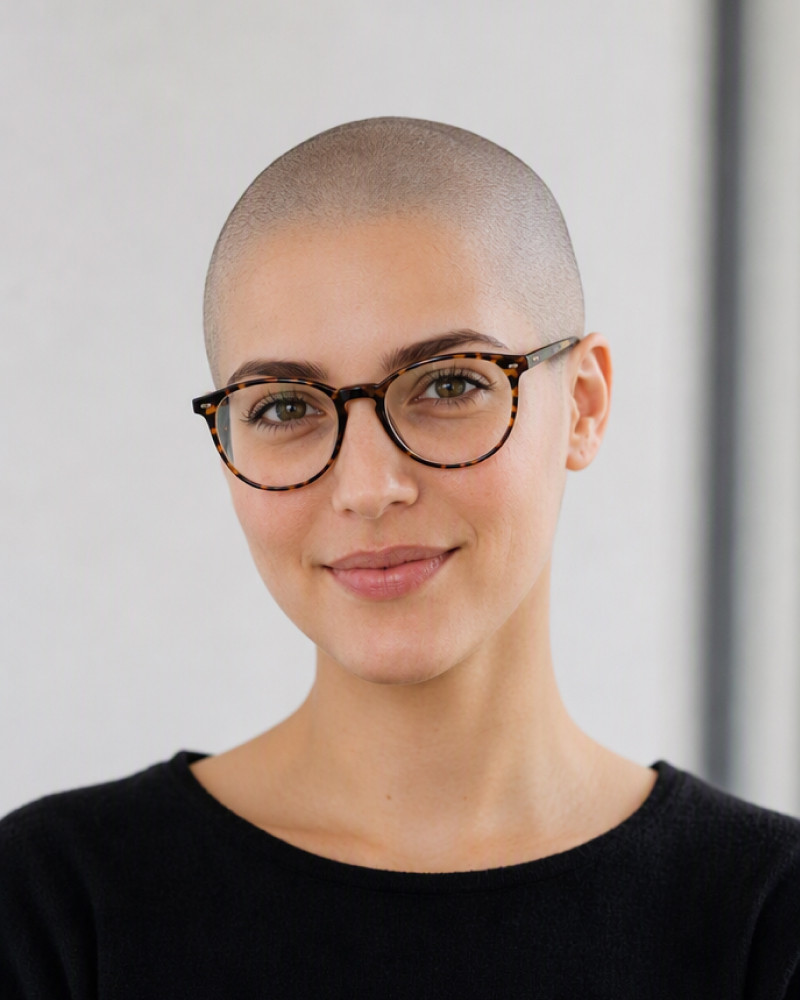
How to Make Yourself Look Bald With AI
Upload a Portrait
Choose a clear photo that shows your face, hair, and the full outline of your head.

Describe the Bald Effect
Describe the bald look you want, such as a smooth scalp, close shave, light stubble, or receding hairline.

Generate and Download
Create your bald photo, compare it with the original, and download the result you like.
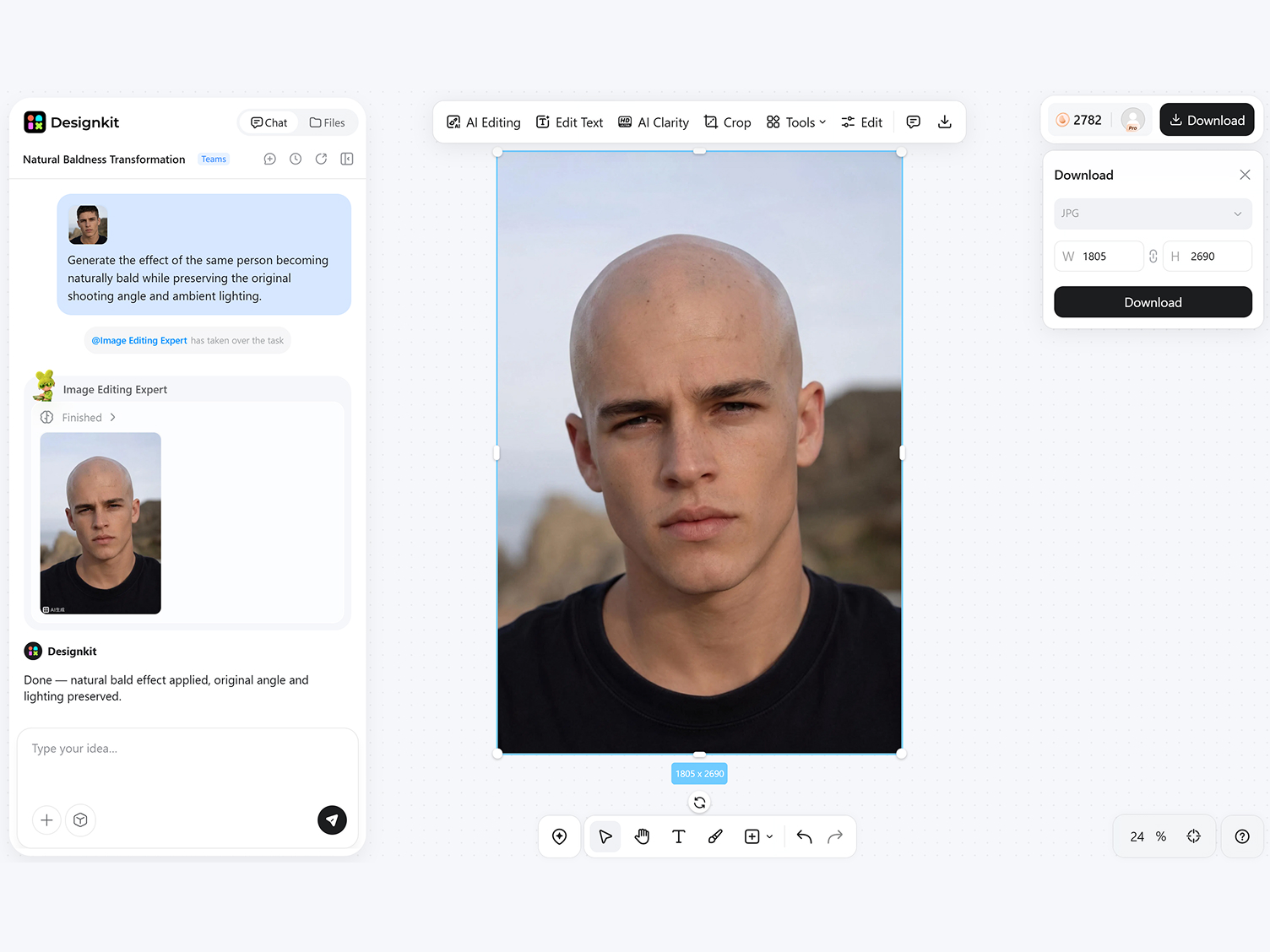
Create a Bald Effect That Follows the Original Portrait
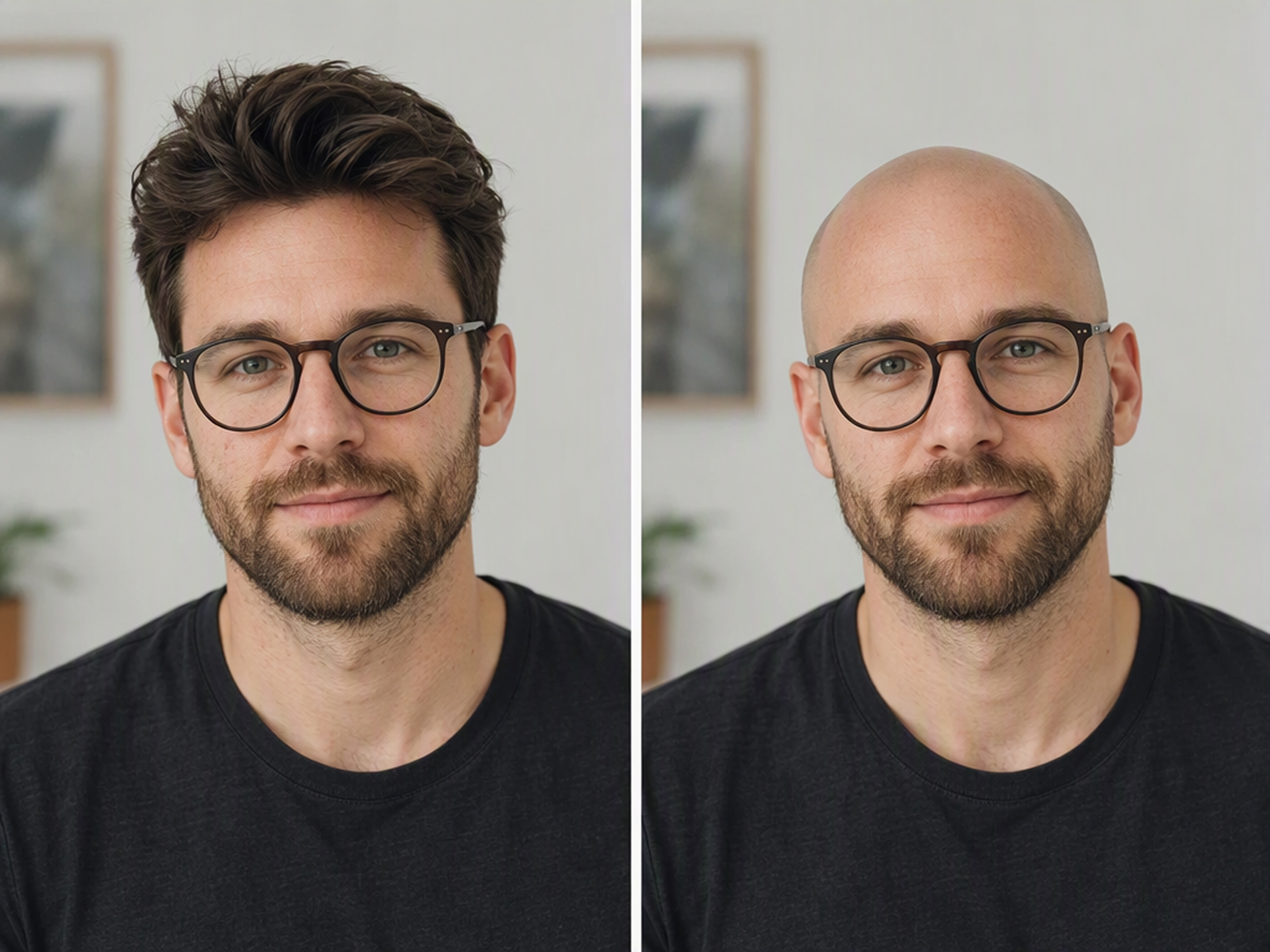
Preserve Recognizable Facial Details
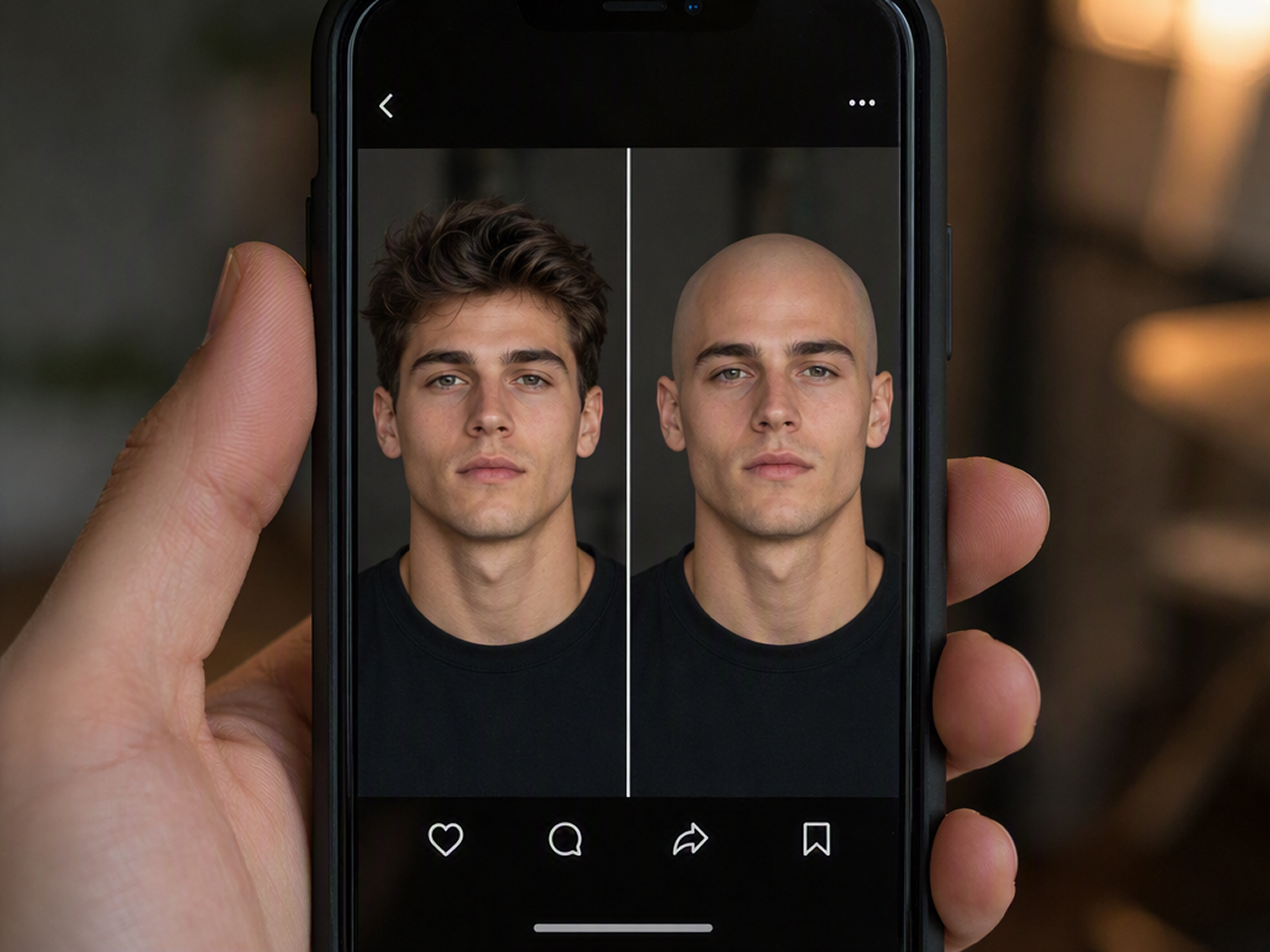
Change the hair while retaining the face, expression, and other defining details from the uploaded portrait. The result creates an obvious transformation without replacing the person with an unrelated subject.
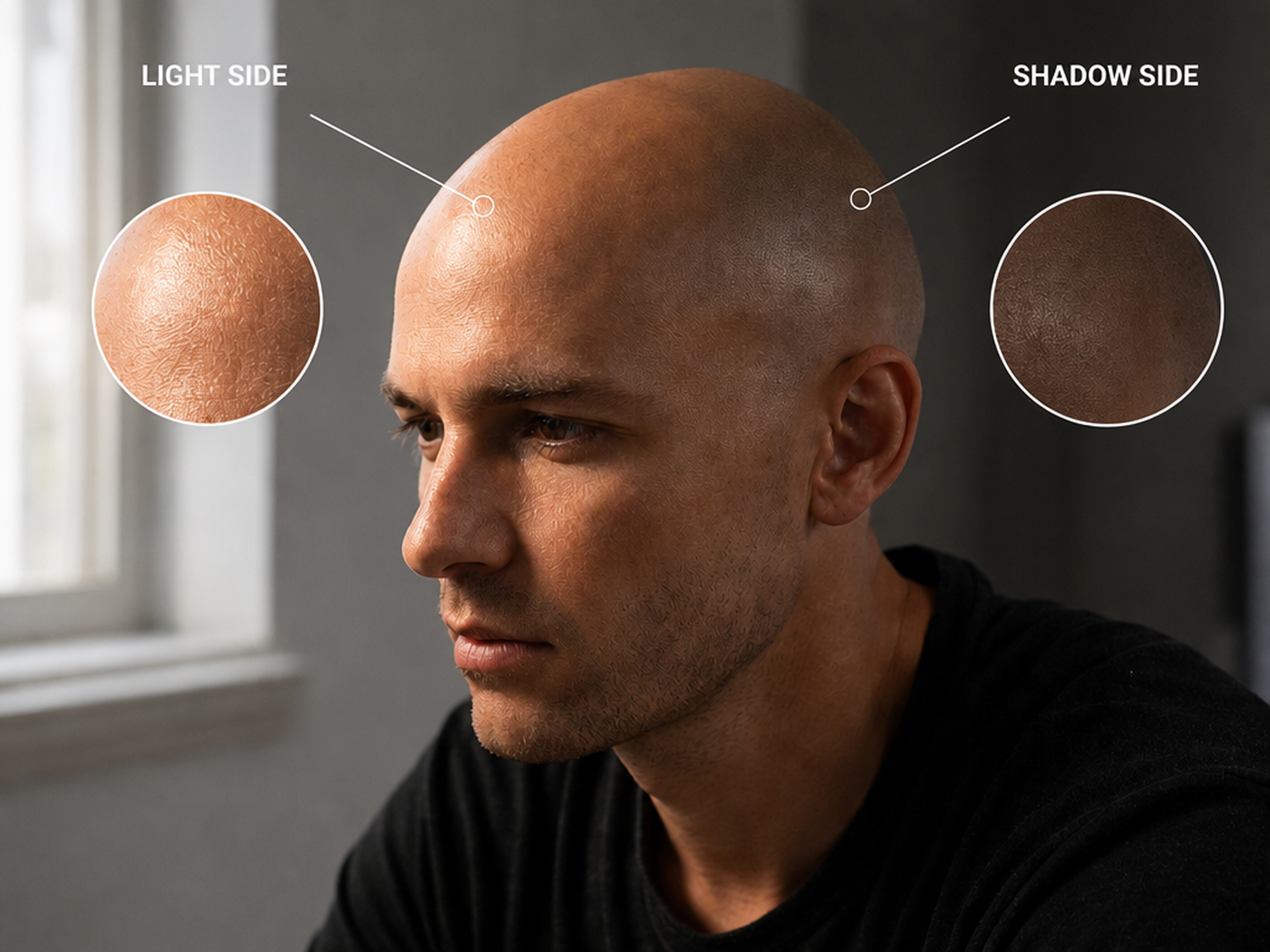
Match the Bald Effect to the Head Shape and Angle
Shape the exposed scalp around the portrait’s existing head angle, proportions, and visible outline. The generated area follows the person’s position and perspective, helping the bald transformation feel structurally connected to the original portrait instead of appearing like a flat sticker placed over the hair.
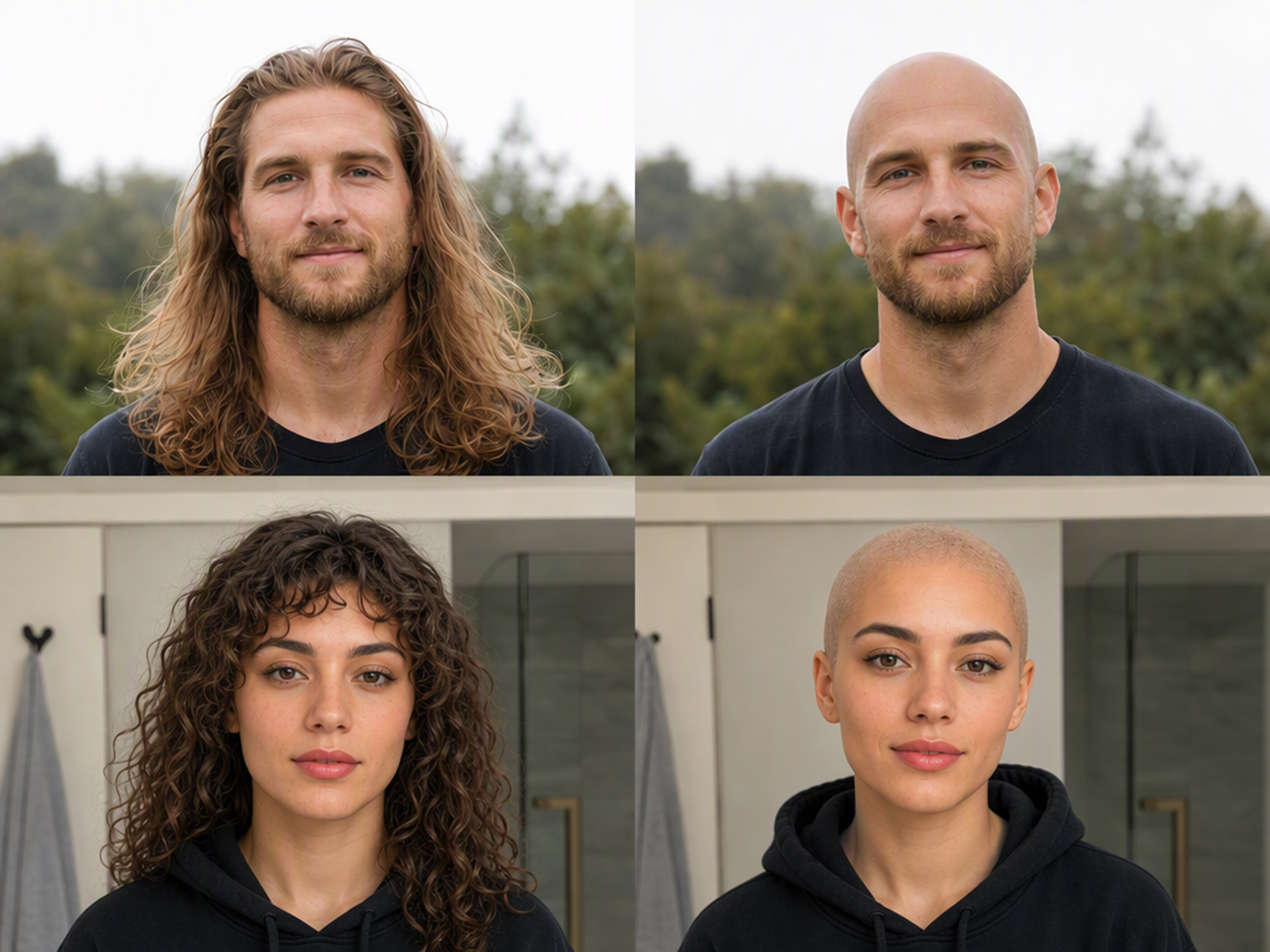
Start from Different Hair Lengths and Textures
Apply the AI bald filter to portraits with different starting hair lengths and textures. As long as the face and general head outline remain visible, you can use a long-haired, short-haired, or fuller-style photo to create a clear before-and-after transformation.
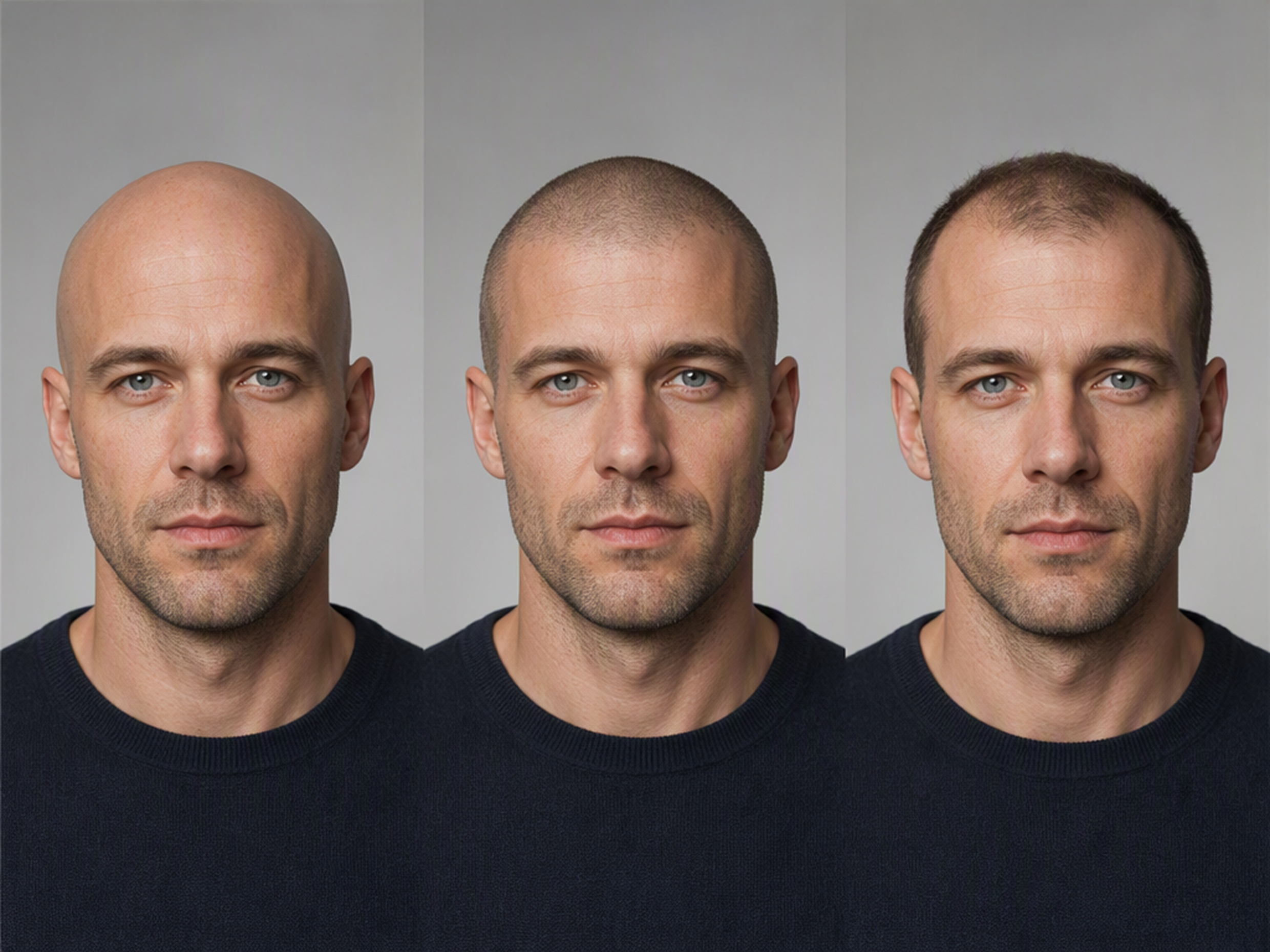
Maintain the Original Pose and Setting
Keep the pose, clothing, accessories, and background connected to the source image while the hair changes. The familiar setting makes the bald result more personal and gives the contrast more impact.
Why Choose Designkit for a Bald Filter
Use Any Portrait, Not Just a Live Selfie
Live filters depend on the camera view. Designkit works from an uploaded photo, letting you choose the pose and setting.

Skip Manual Retouching
Removing hair manually requires masking, edge cleanup, and scalp reconstruction. Designkit creates the transformation from one photo and a prompt.

Keep Editing in One Workspace
Single-purpose apps often stop after generation. Designkit lets you continue adjusting the result in the same workspace.
How Different People Use the Bald Filter
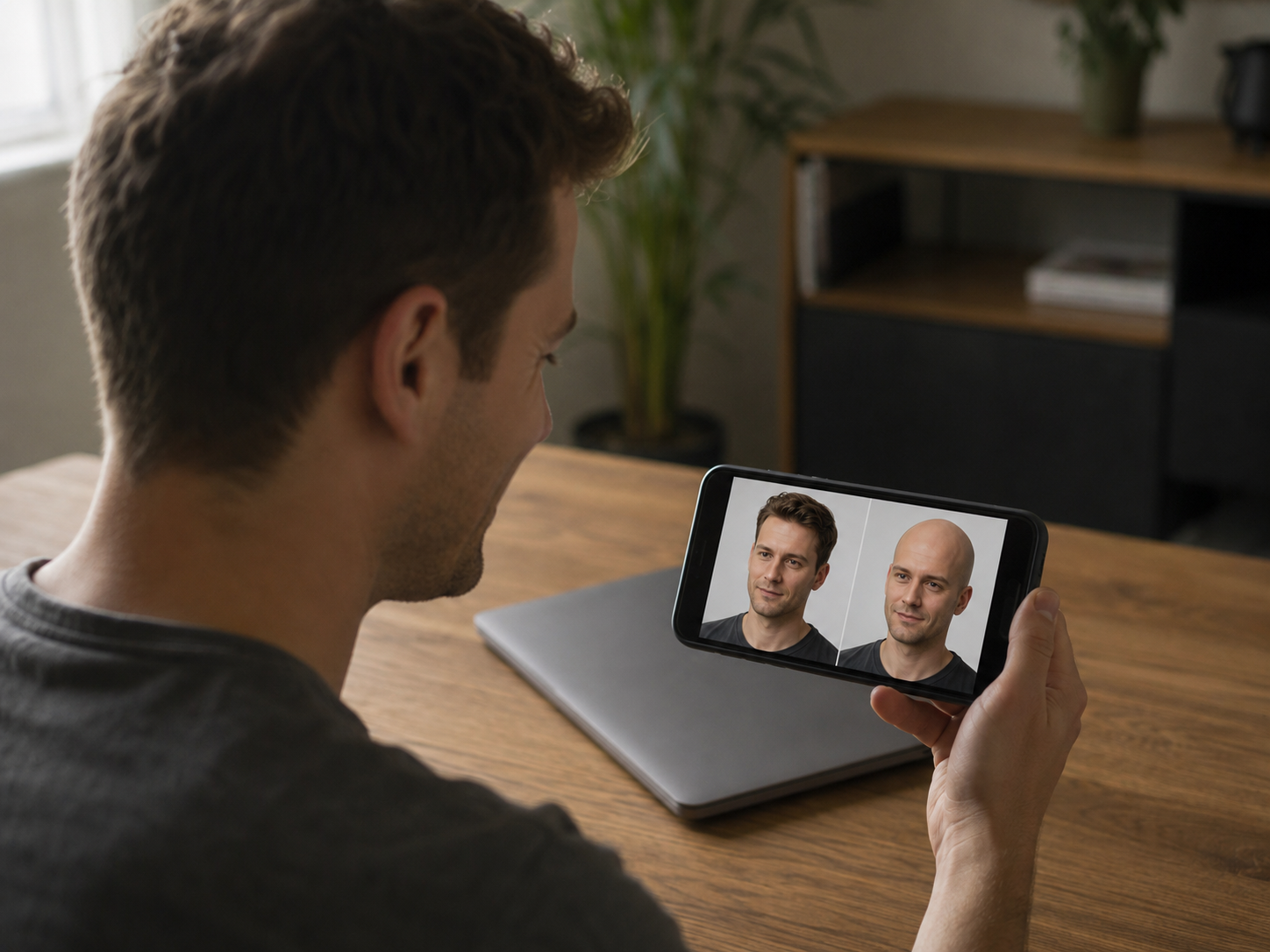
Give a Familiar Selfie an Unexpected Twist
pply the bald filter to a recognizable selfie for a playful change that still feels connected to the original photo. The familiar expression makes the transformation easy to notice and gives an ordinary portrait a completely different energy.

Virtual Try On Types You Can Create with Designkit
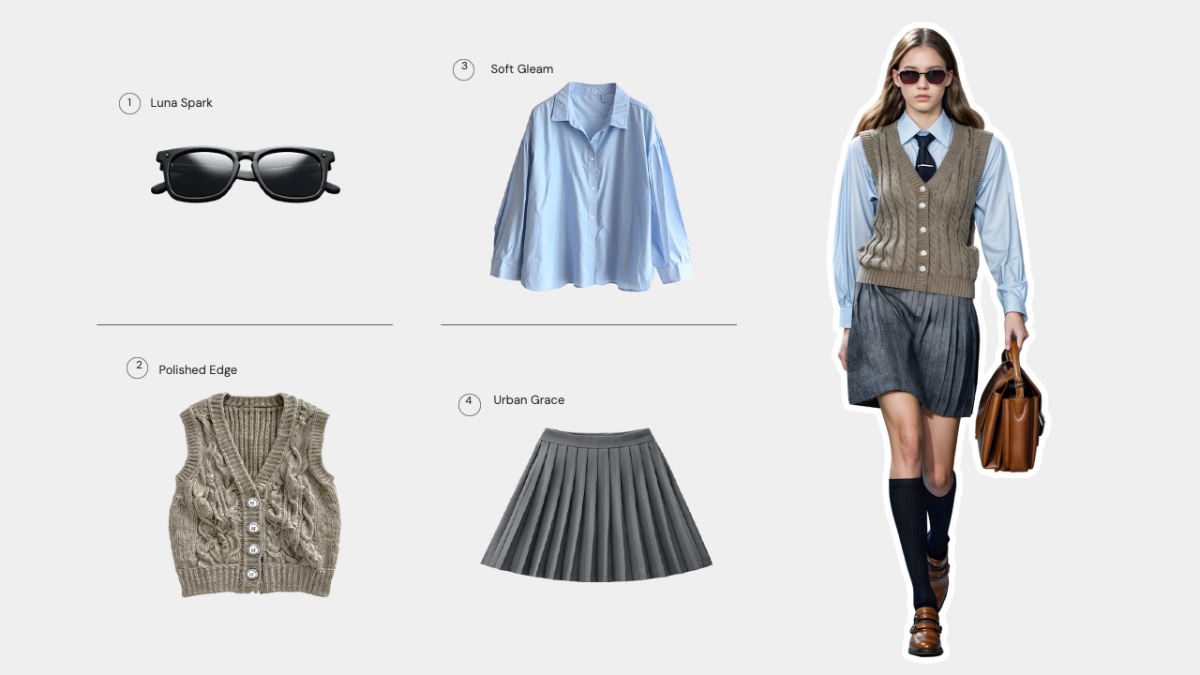
AI Virtual Try-On for Clothing, Shoes & Jewelry
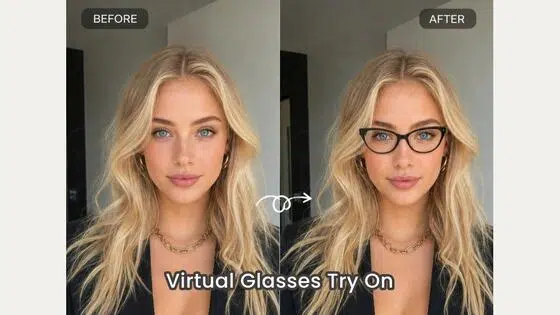
Virtual Glasses Try-On Online from Photo: Preview Any Eyewear with AI
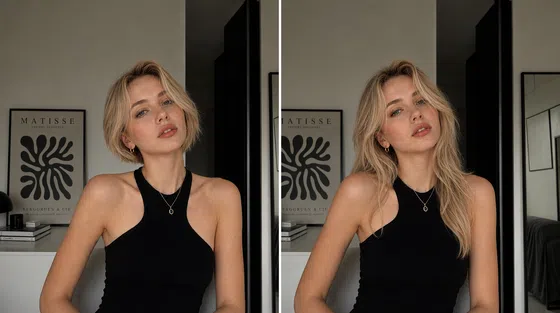
AI Hairstyle Changer: Try Hairstyles on Your Photo
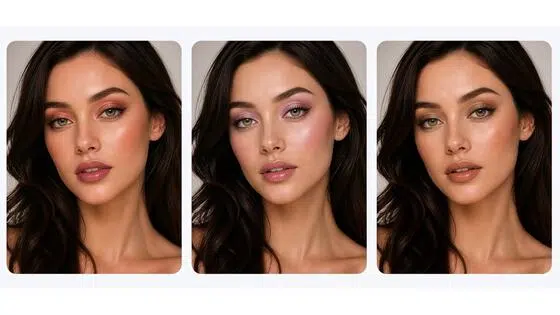
AI Virtual Makeup Try-On from a Photo Online
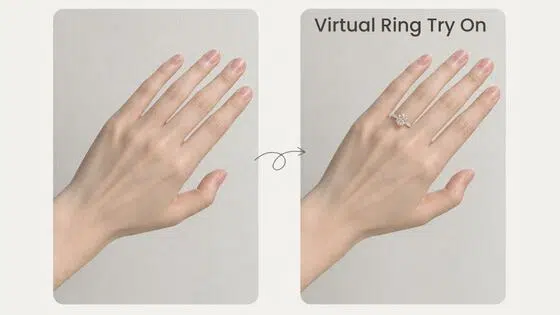
AI Virtual Ring Try-On from a Hand Photo Online
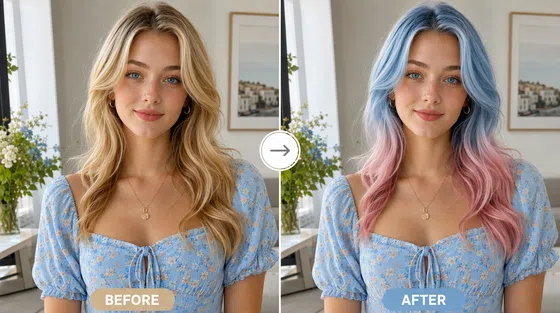
AI Hair Color Changer: Try Hair Colors on Your Photo
Frequently Asked Questions
What is a bald filter?
How can I see what I would look like bald?
Upload a clear portrait, describe the bald effect you want, and generate the edited image. Place the result beside the original photo to compare the change on your own face.
Can the AI bald filter work on long hair?
Yes. Use a photo with a visible head outline and limited obstruction around the hair. Complicated backgrounds or hair covering much of the face may make the transformation less consistent.
Can I create a balding effect instead of a fully bald head?
You can describe partial hair loss, such as a receding hairline, when you want a balding filter effect. Keep the wording specific so the generated result has a clear target.
Is a shaved head filter the same as a buzz cut filter?
No. A shaved head or bald filter removes visible hair or leaves very light stubble. A buzz cut filter keeps a short, even layer of hair and belongs to a different hairstyle result.
Can I use the bald generator on someone else’s photo?
Yes, when you have permission to use and edit the image. Avoid uploading private photos without consent, especially if you plan to share the generated result.
Find Out What You Look Like Bald
Add a bald effect to your portrait and create a surprising version to compare, share, or keep as a personal reference.

What Users Say About the Bald Filter
See how people used the bald filter for quick laughs, creative edits, and personal curiosity.
Everyone understood the joke immediately.
I used a selfie my friends had seen plenty of times, so the missing hair was obvious the moment I shared it. Because the face, expression, and setting still looked familiar, everyone understood the joke without needing a caption. It created an immediate reaction in our group chat and gave us something new to laugh about.
It gave an ordinary photo a completely different energy.
The original portrait was fairly straightforward and had been sitting unused in my camera roll. The bald version made it feel unexpected, playful, and worth sharing again. I liked that one noticeable change could give the same photo an entirely different mood without requiring a new pose, background, or complicated concept.
I could keep the joke light instead of overediting it.
I wanted the photo to be funny, but I did not want to cover my face with multiple effects or make the image look completely artificial. The bald transformation added one clear visual surprise while the expression, clothing, and background remained familiar. That balance kept the joke simple and made the result easier to recognize and share.
The result helped with a costume idea.
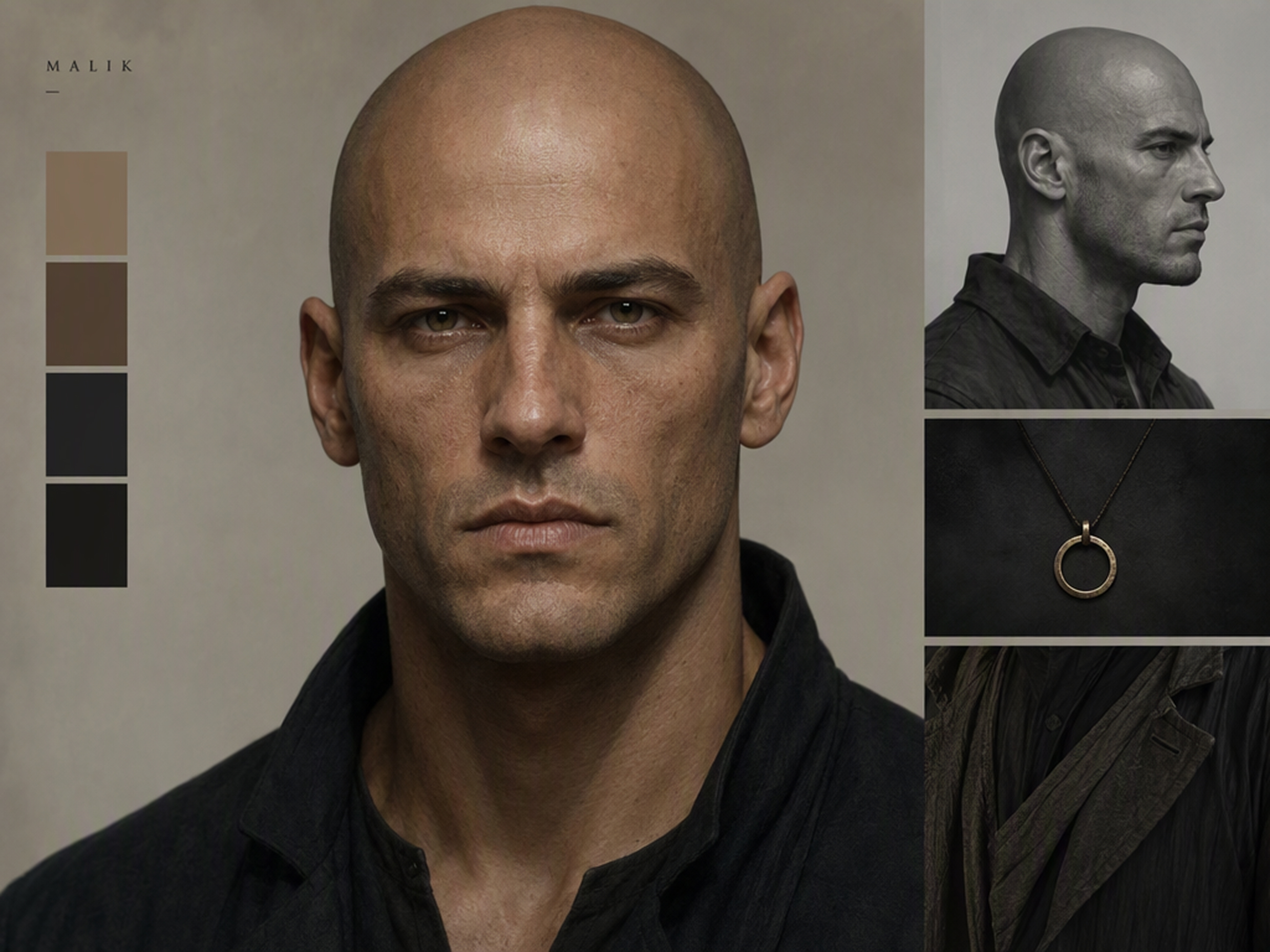
I was planning a character look and wanted a rough visual reference before choosing the outfit and makeup details. Applying the bald effect to my portrait helped me see how the hairstyle change influenced the character’s overall appearance. It gave me a clearer direction for the remaining costume choices before I started assembling everything.
It answered a question I had been curious about.
I had wondered what I might look like with a shaved head, but photos of other people could not give me a useful comparison. Seeing the change applied to my own portrait made the difference much easier to judge in relation to my face and usual expression. It gave me a more personal reference for considering the look.