
Try AI Makeup Looks on Your Own Photo
Upload a portrait and preview complete makeup looks shaped by your description, from subtle finishes to bolder styles.
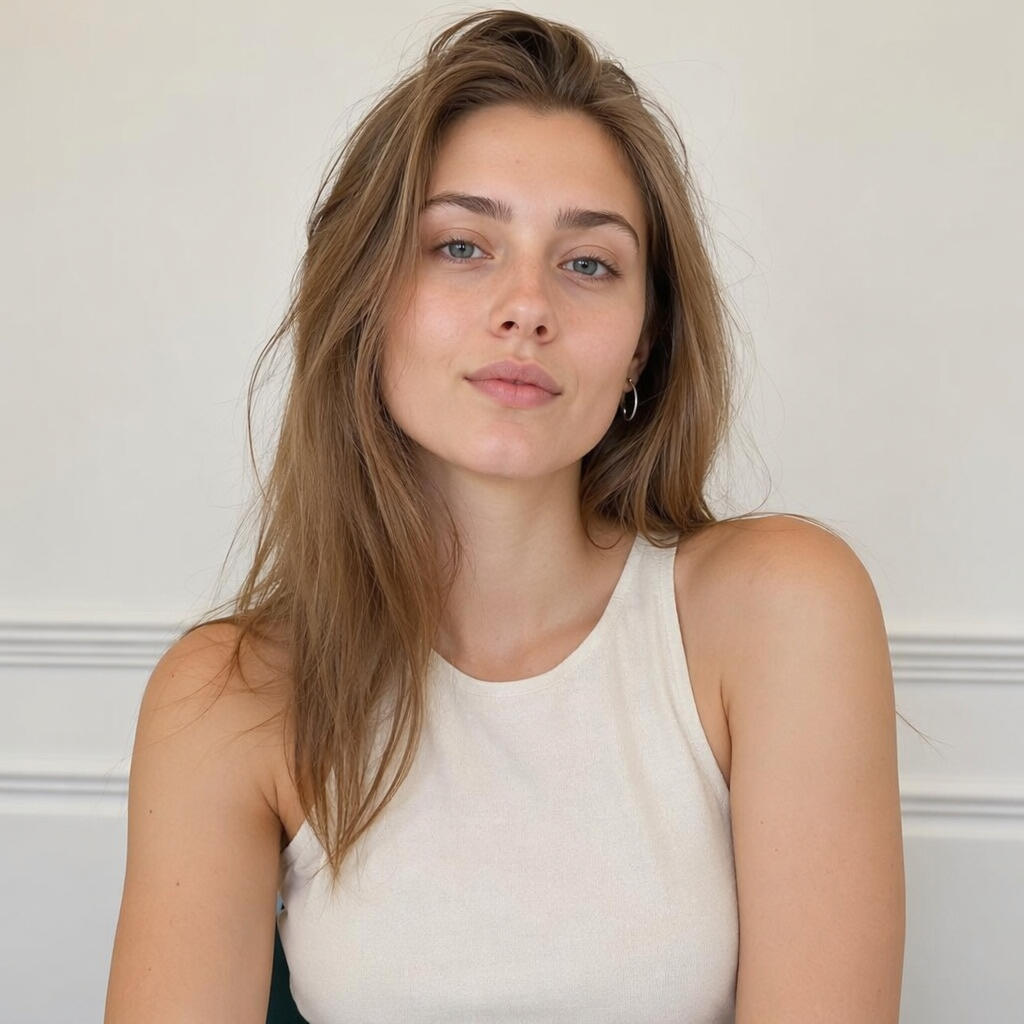
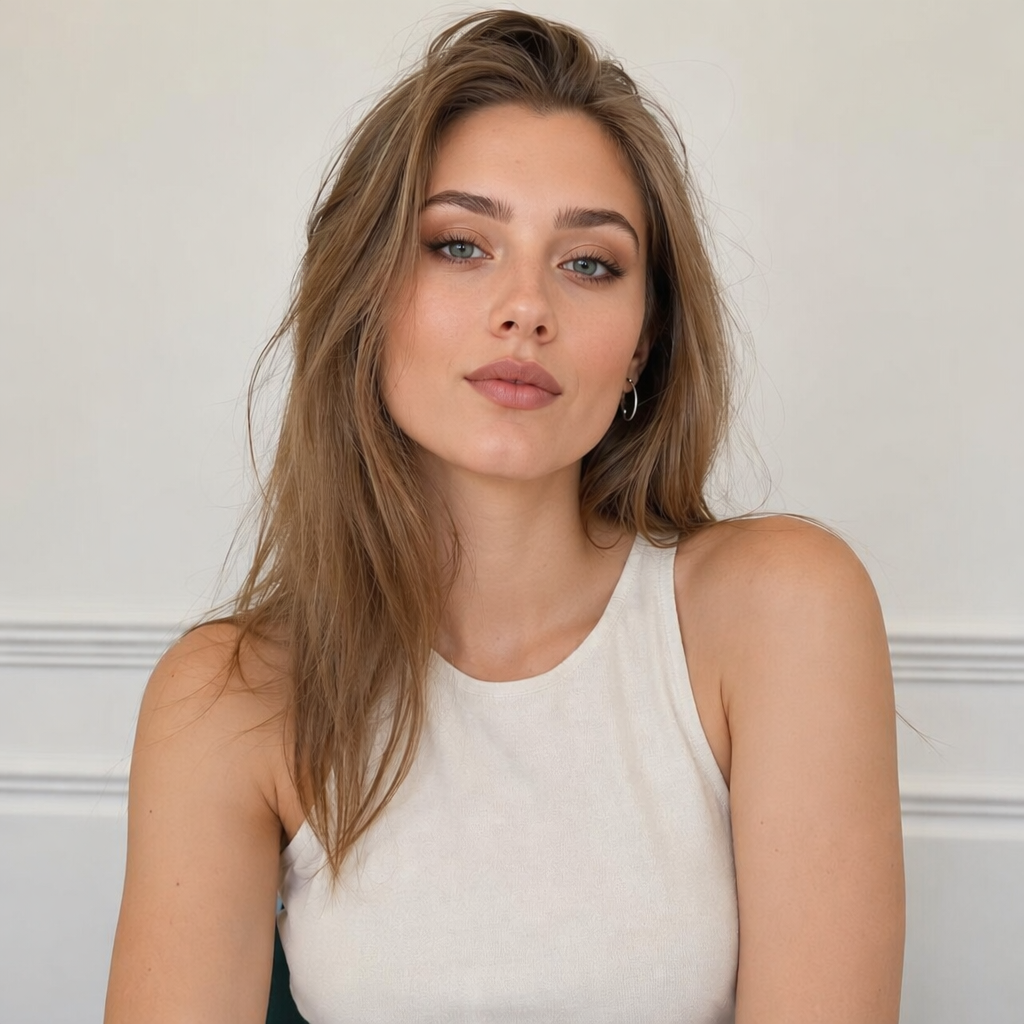
Preview Different Makeup Looks on One Portrait
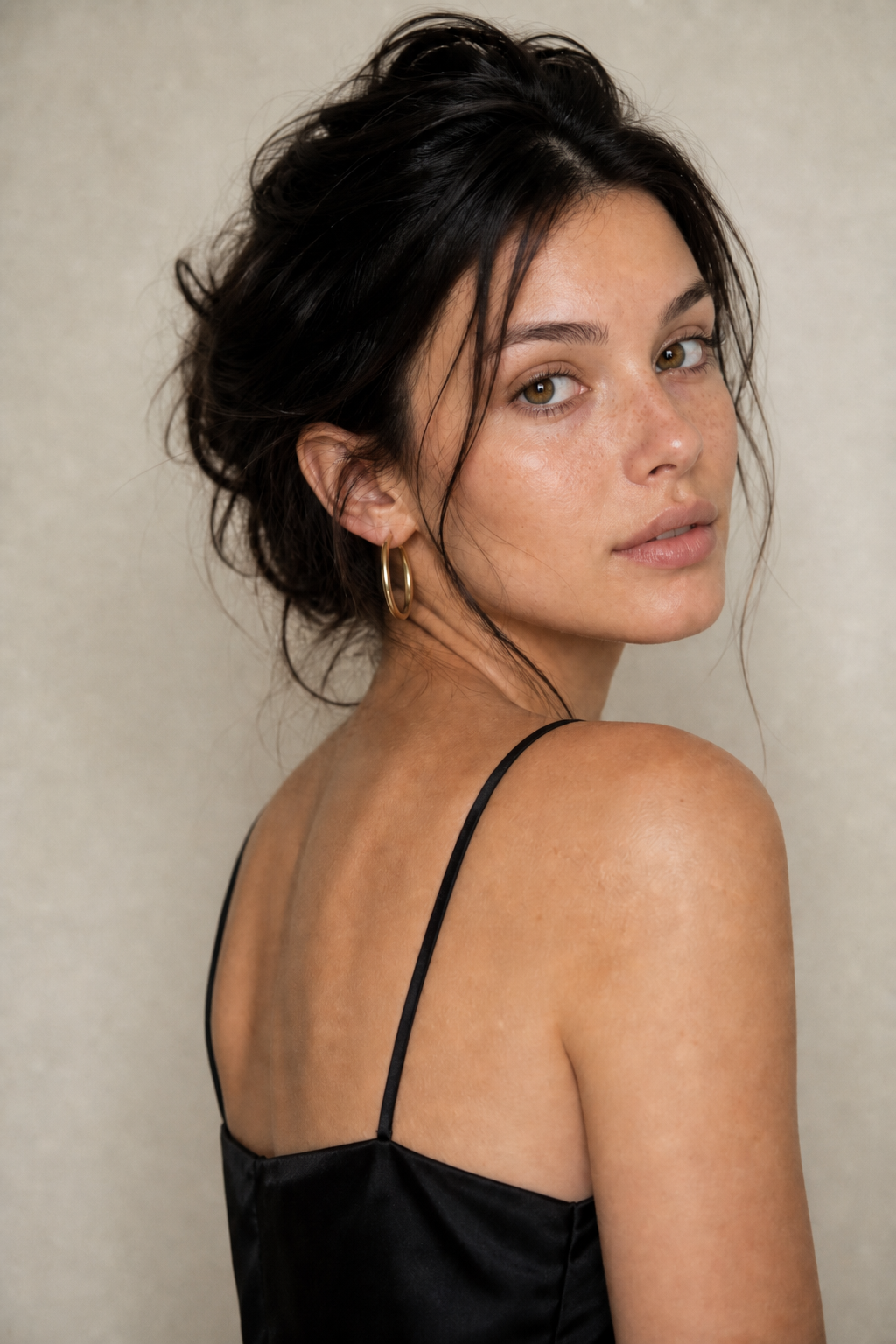
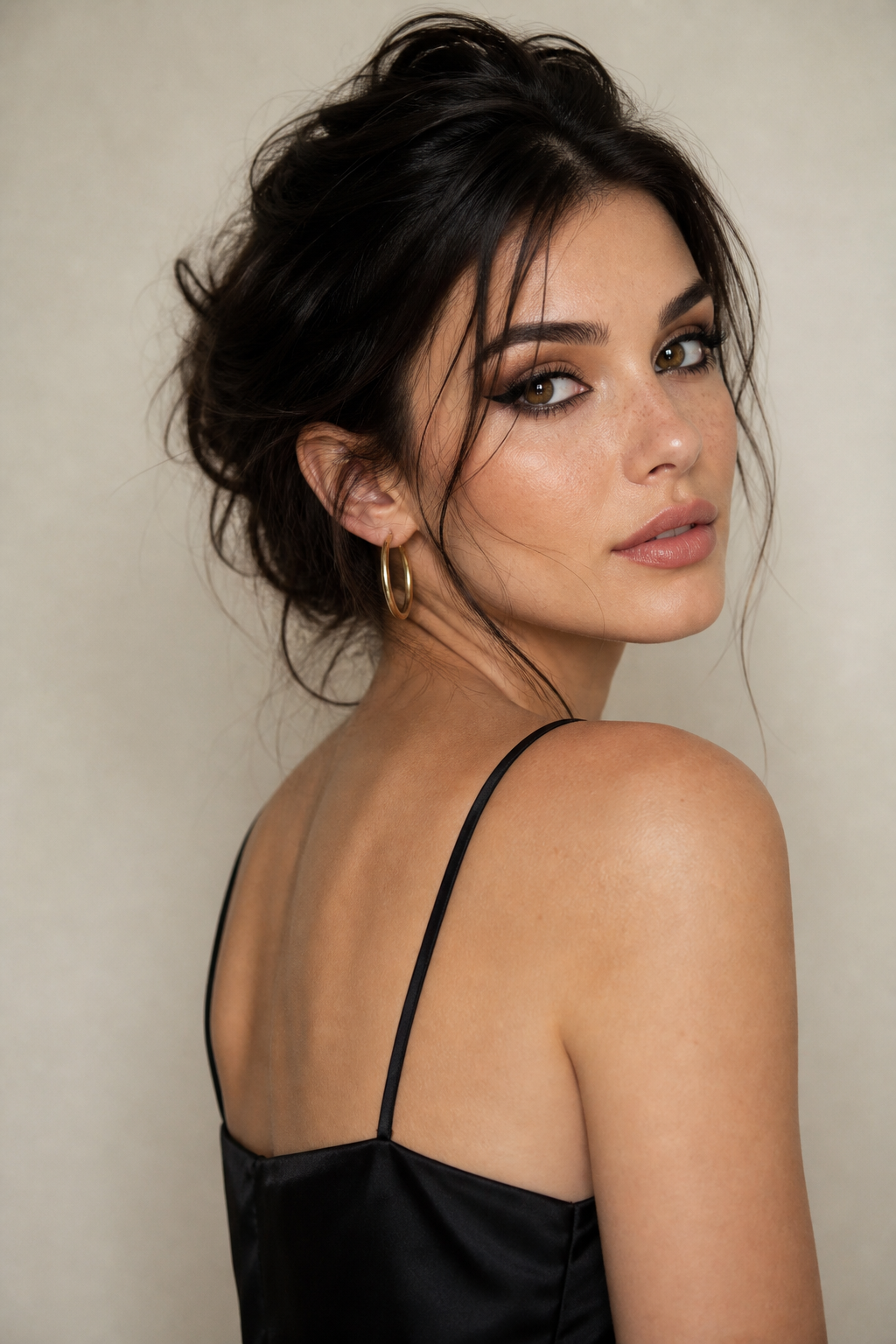
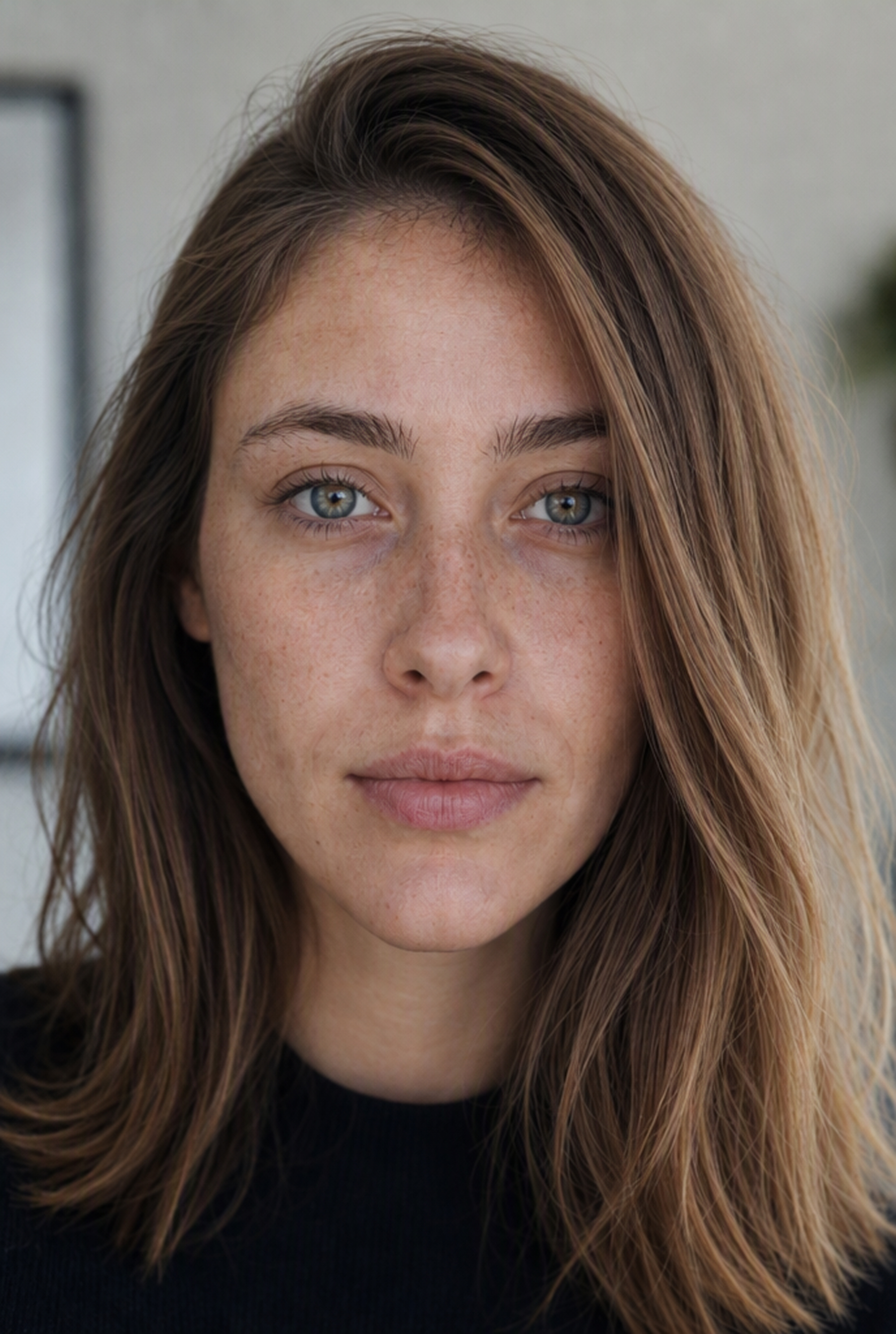
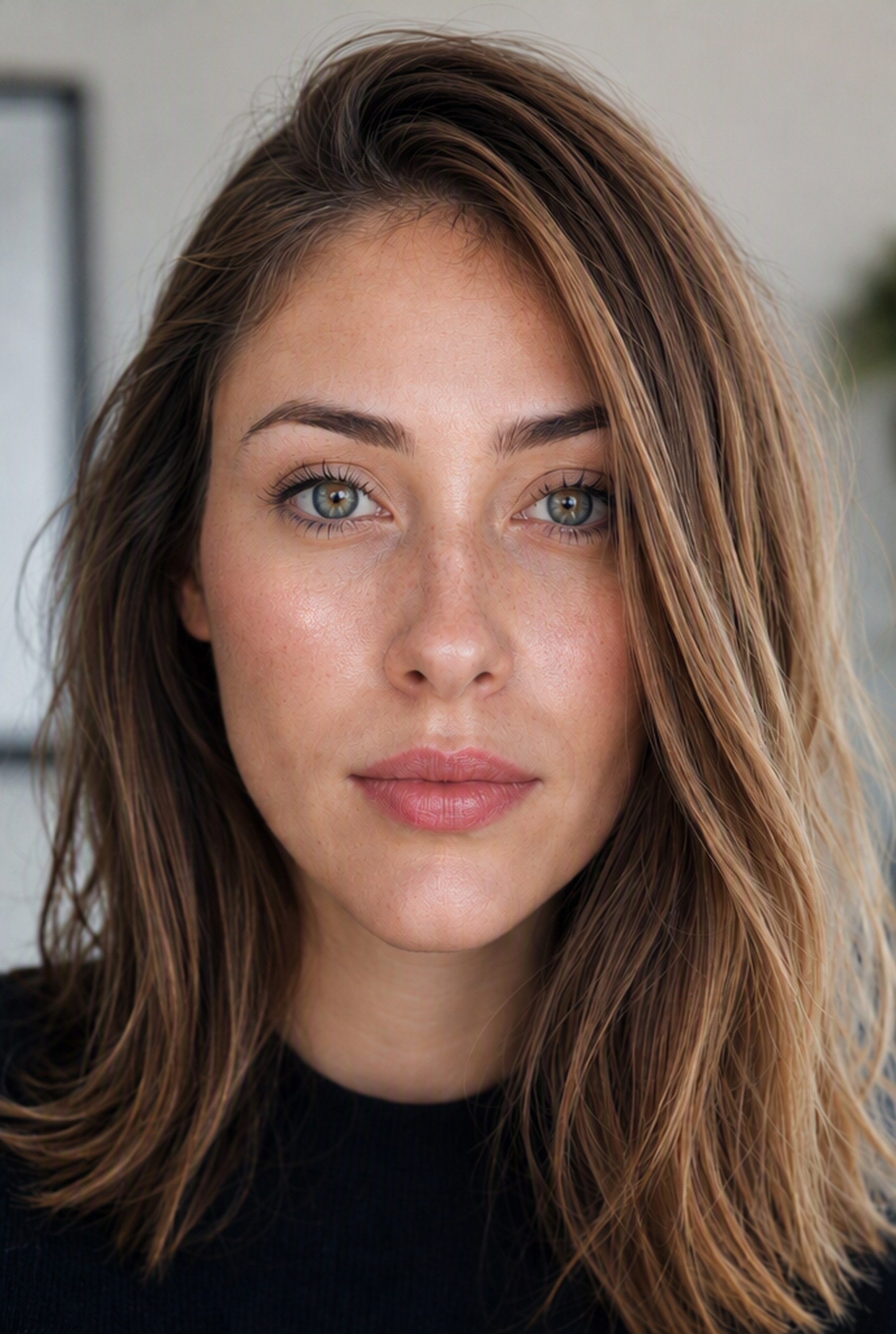
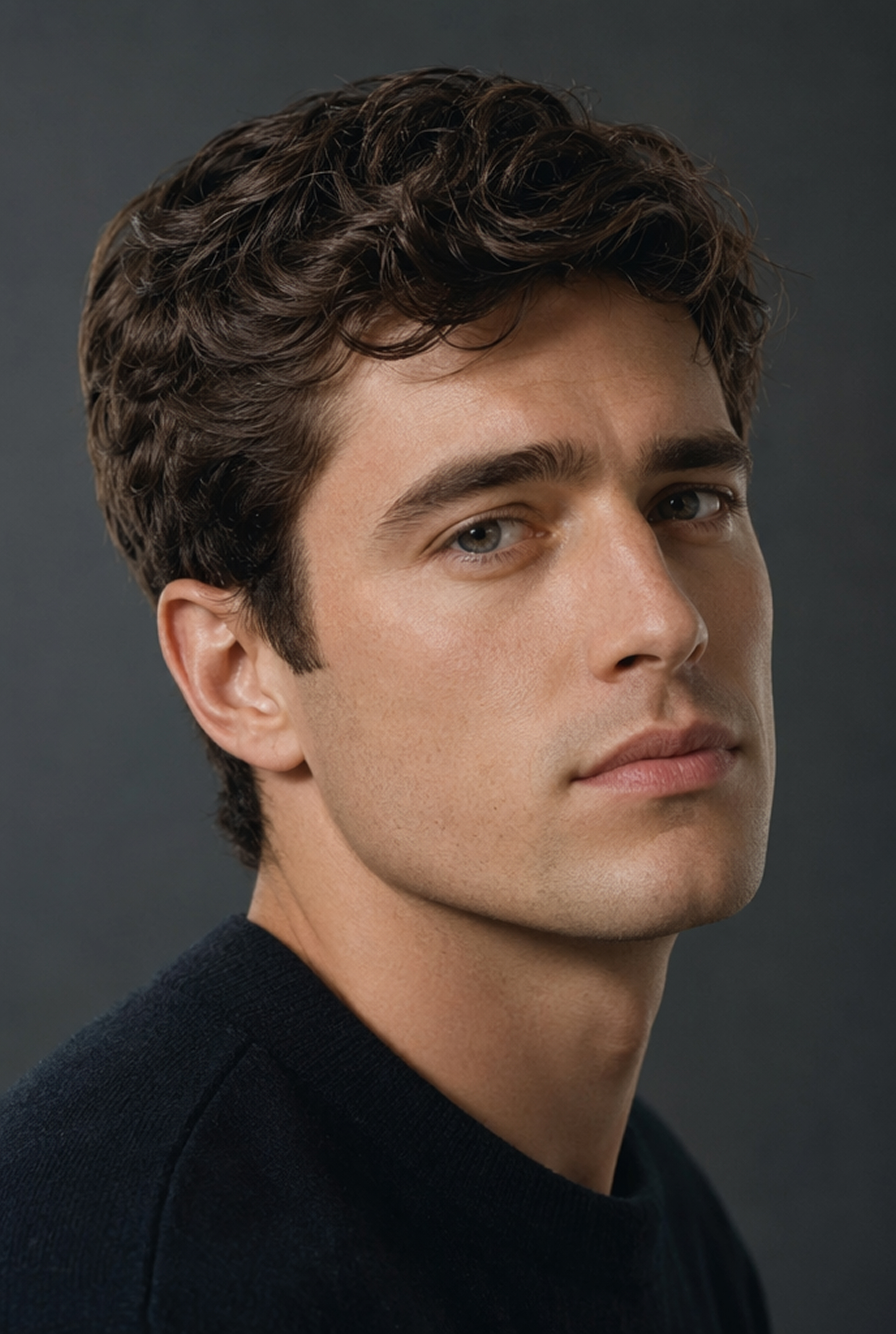
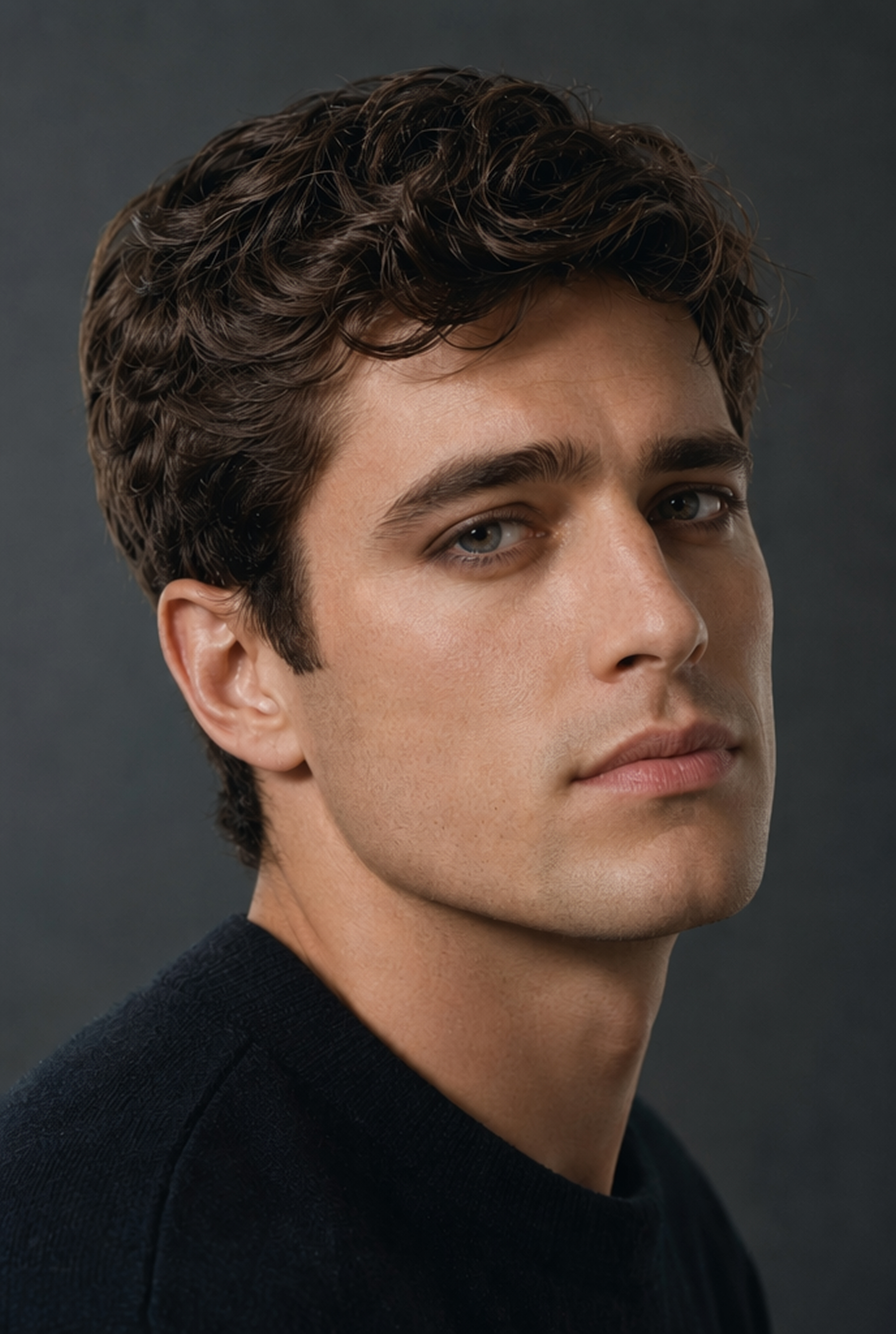
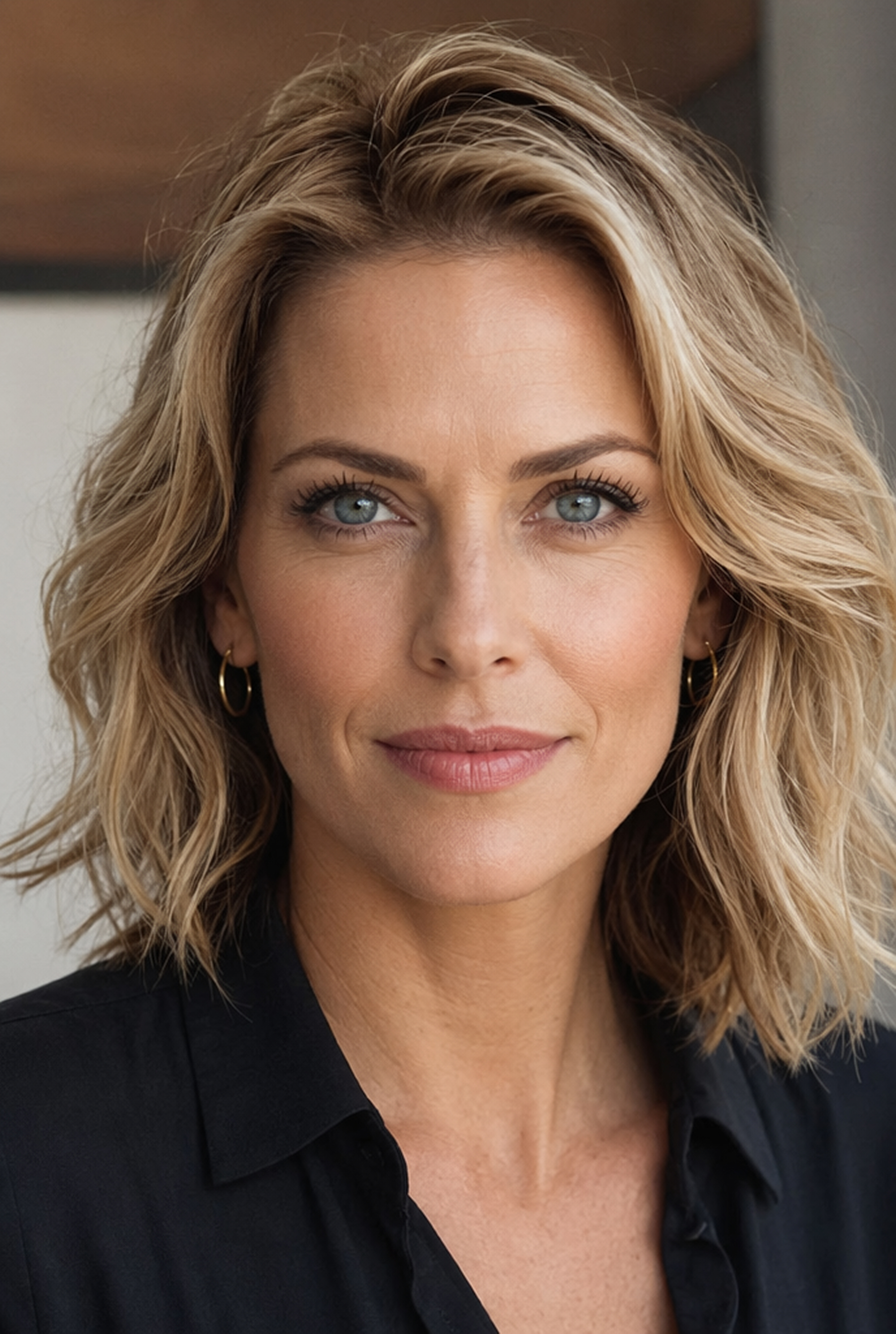
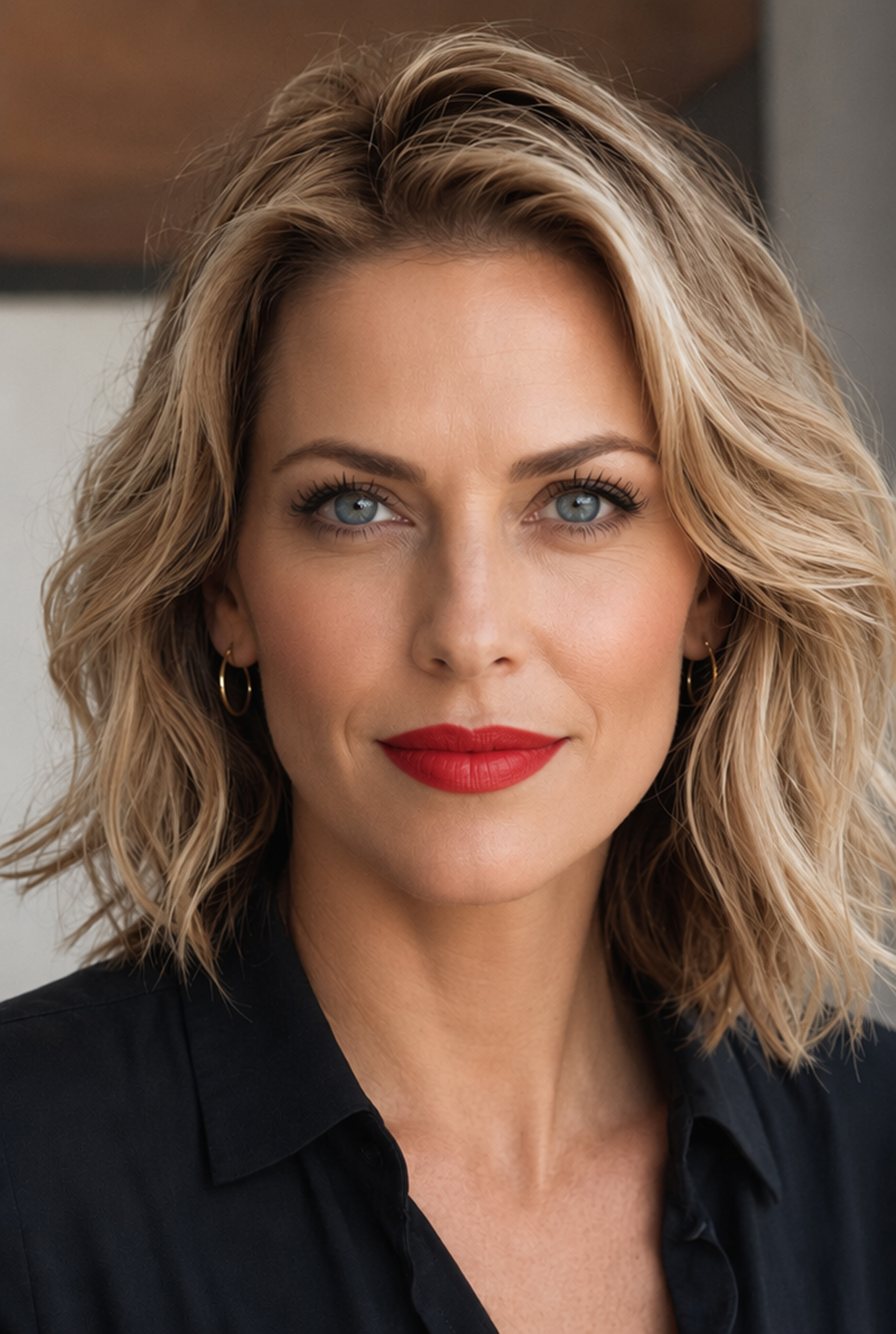
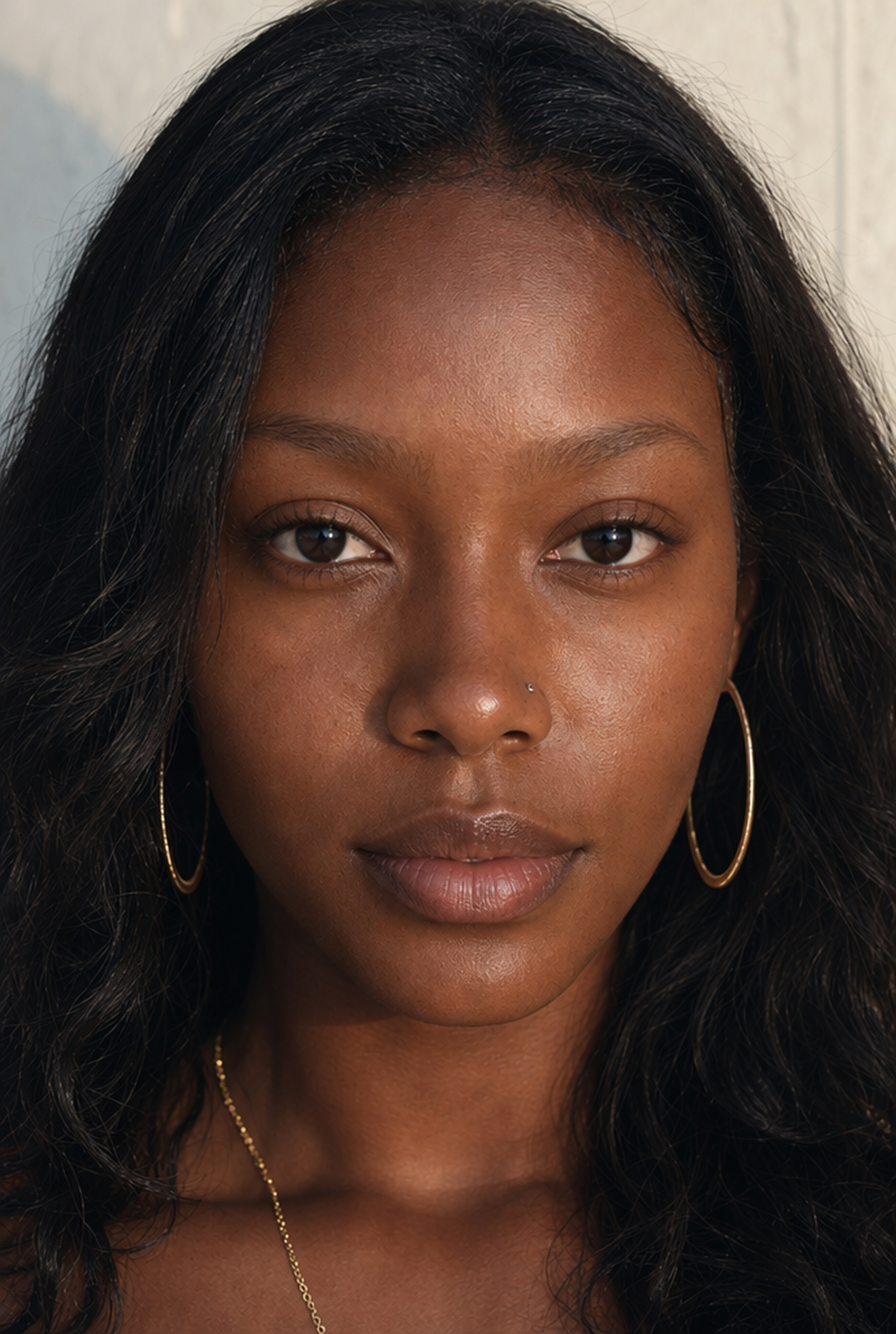
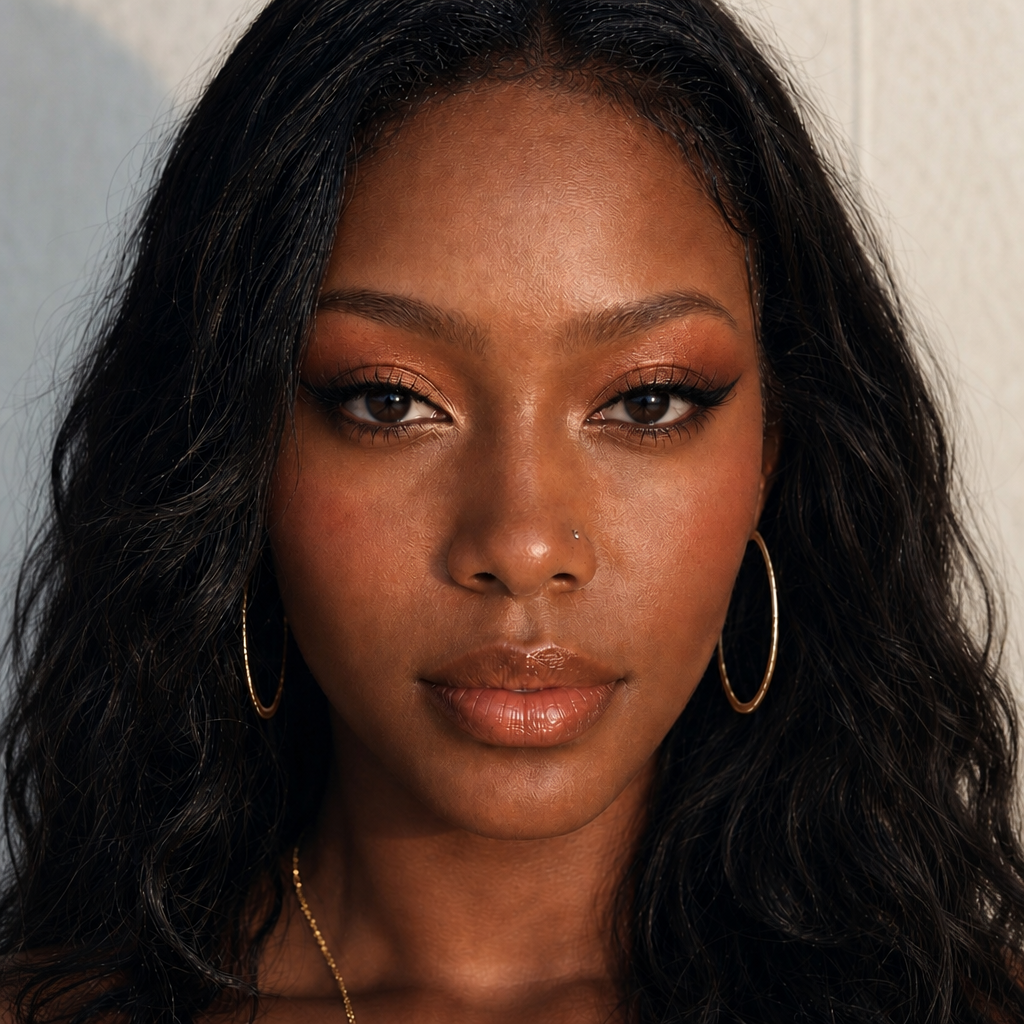
Find a Makeup Look to Try
Upload a portrait and describe the makeup look you want to create your result, or use these examples as templates if you need inspiration.
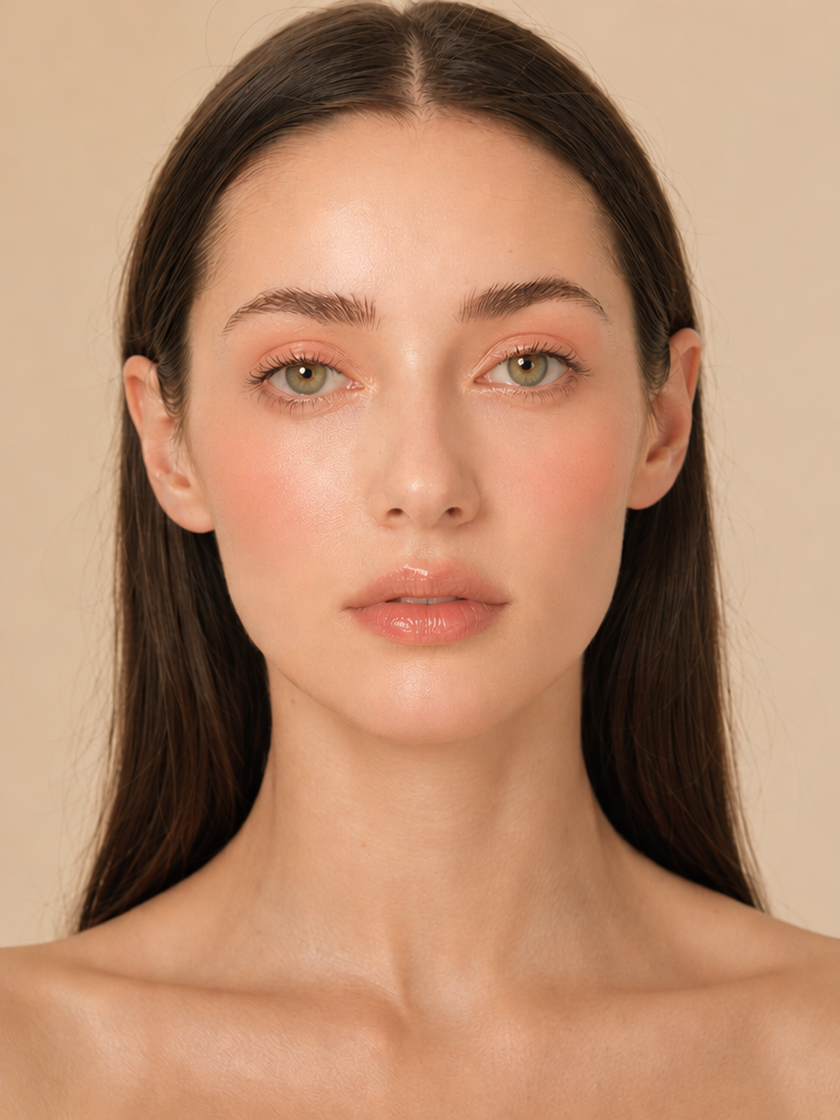
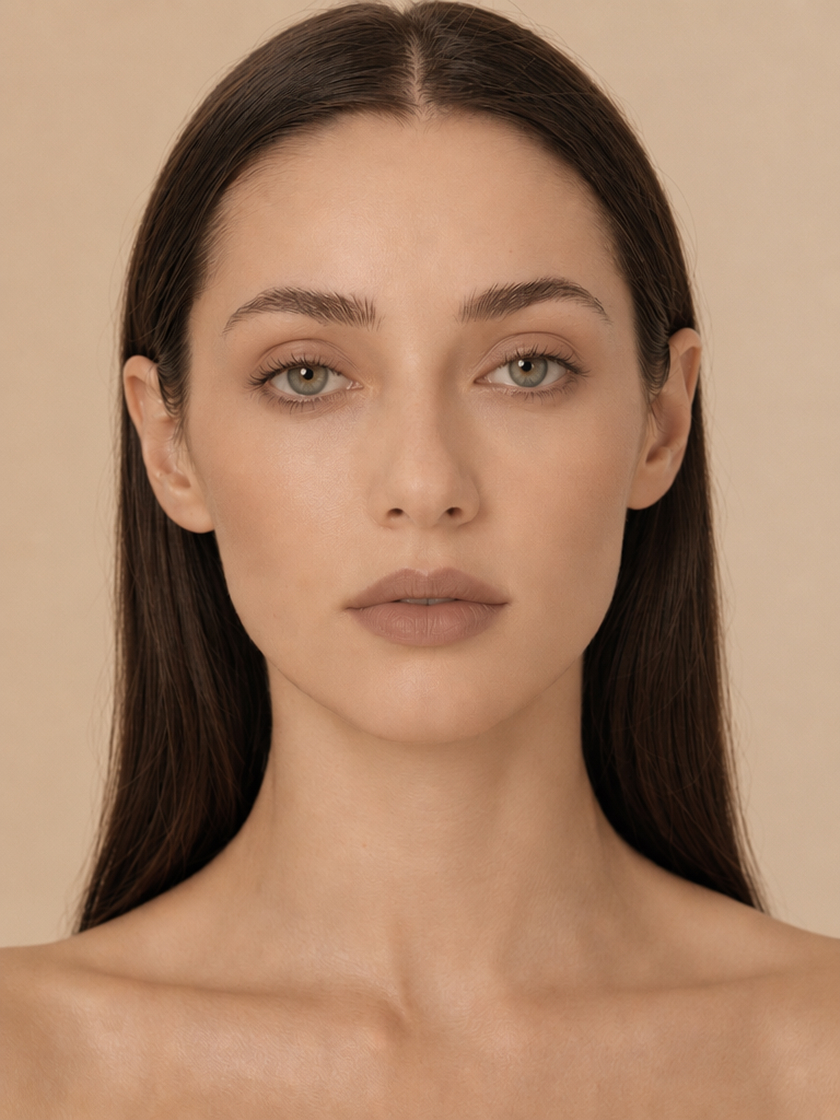
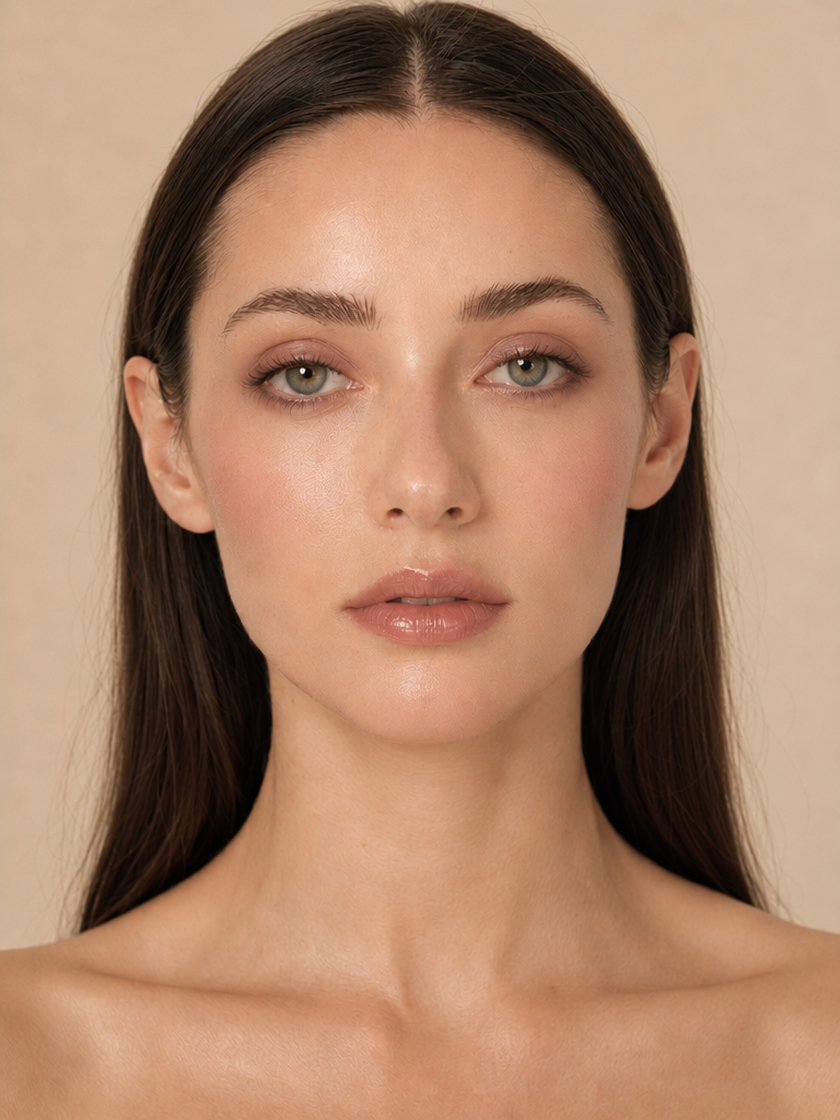
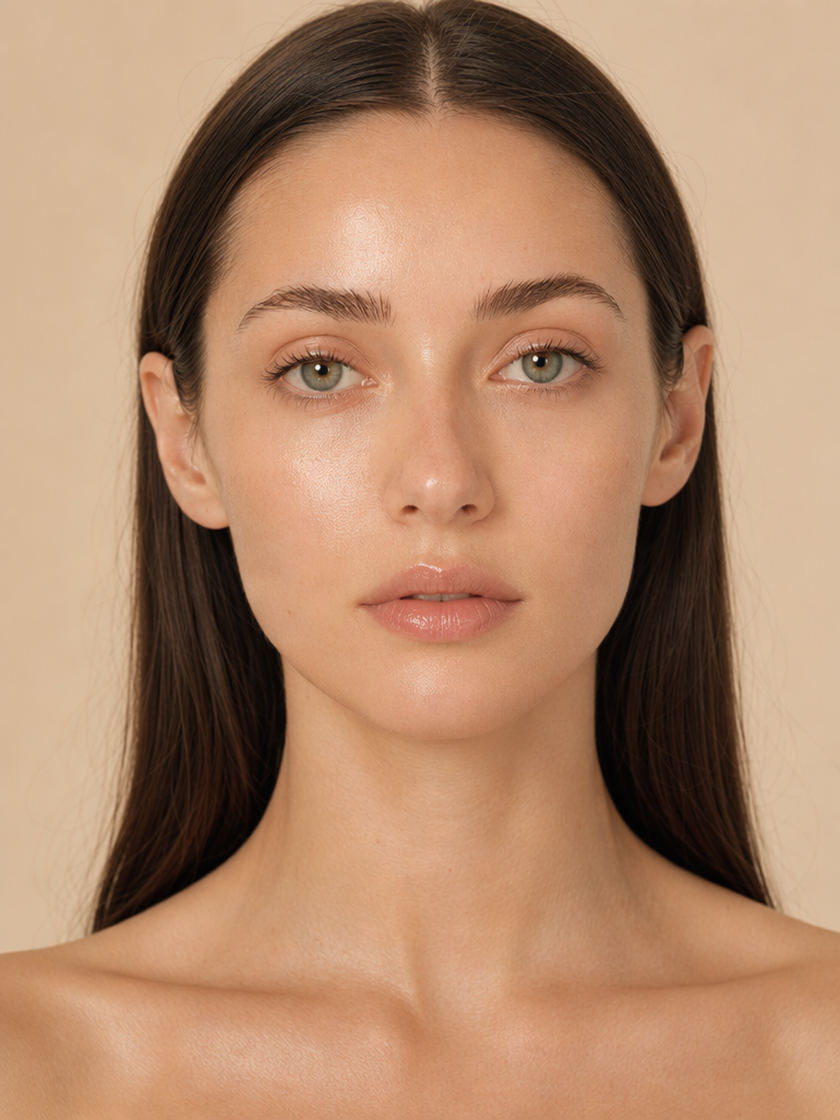
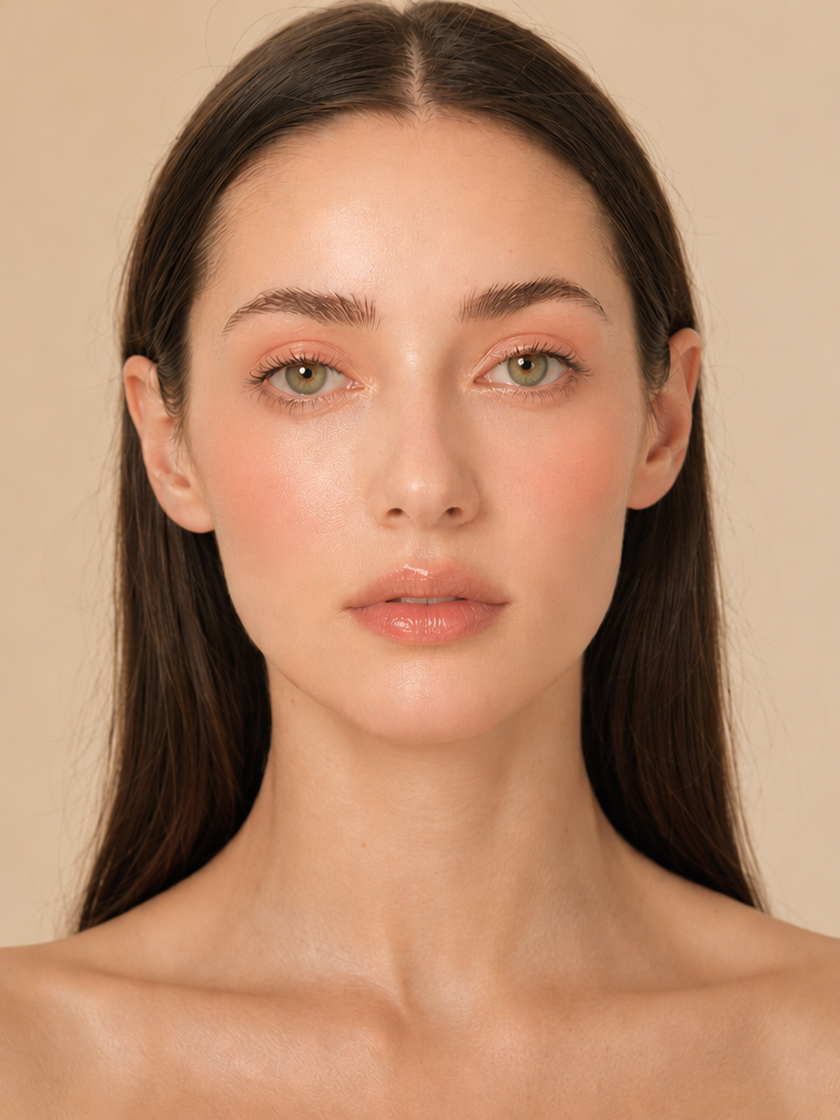 Natural Makeup
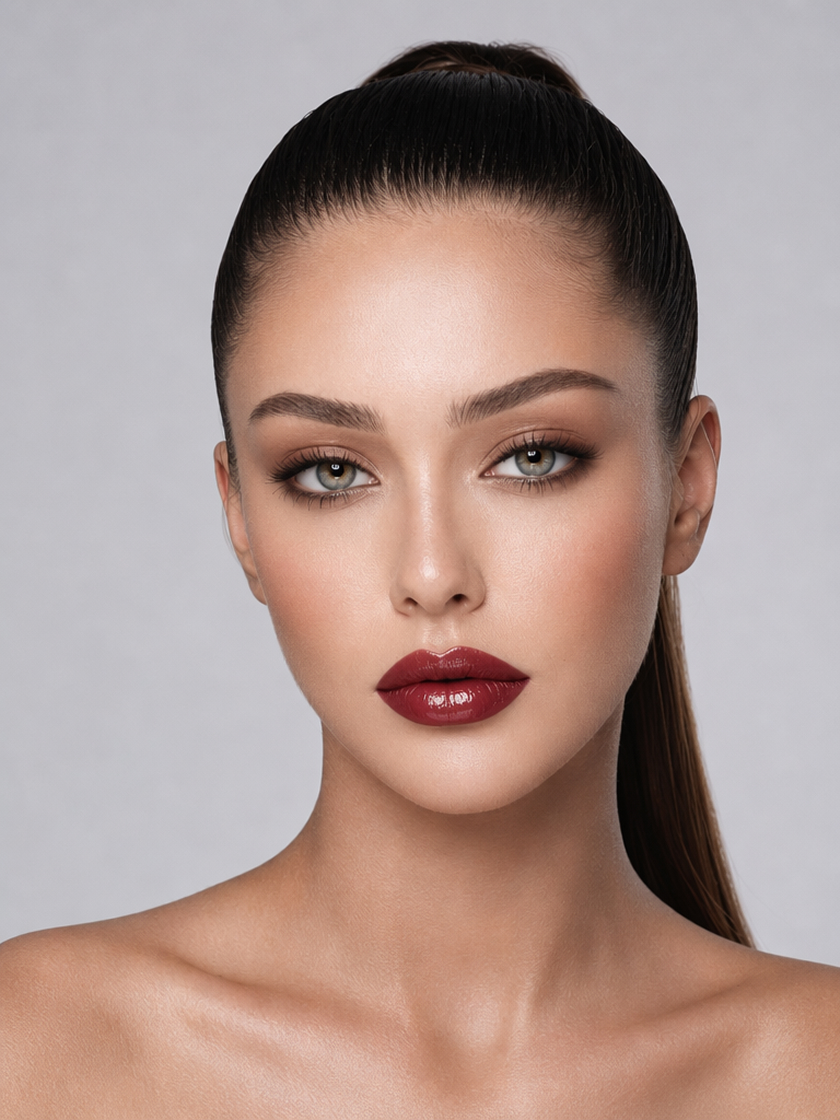 Bold Makeup
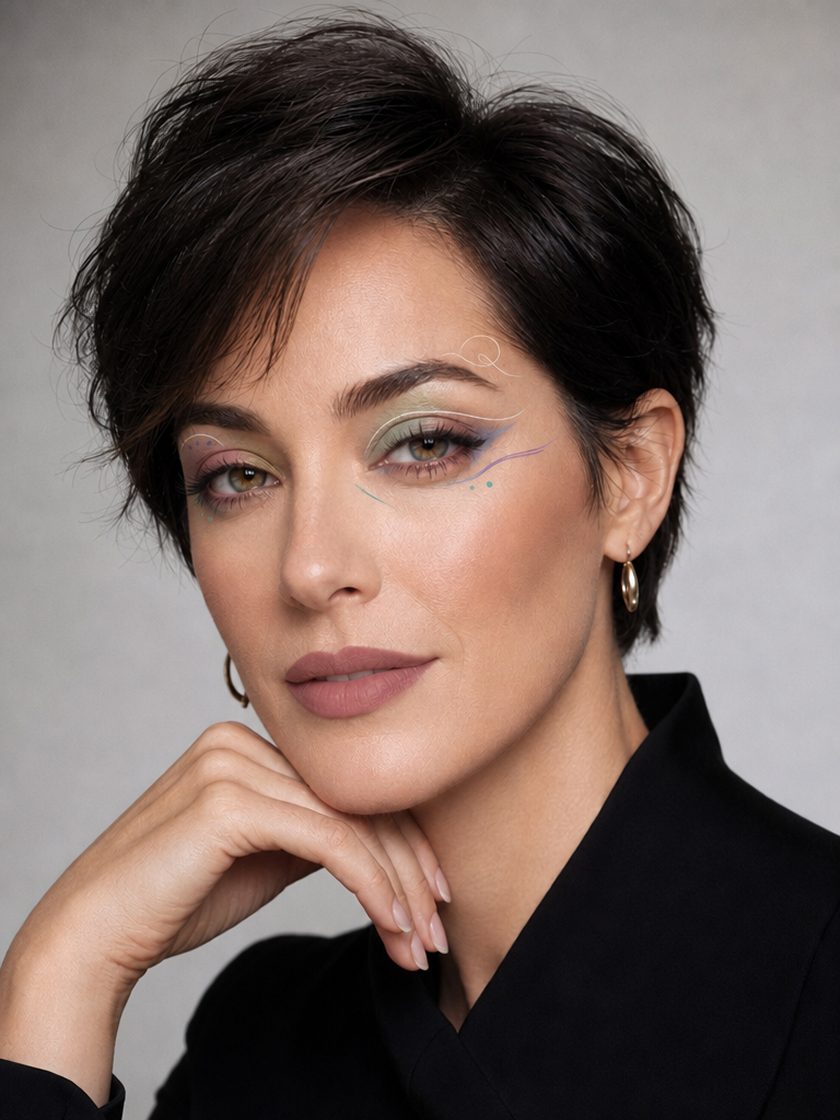 Event Makeup
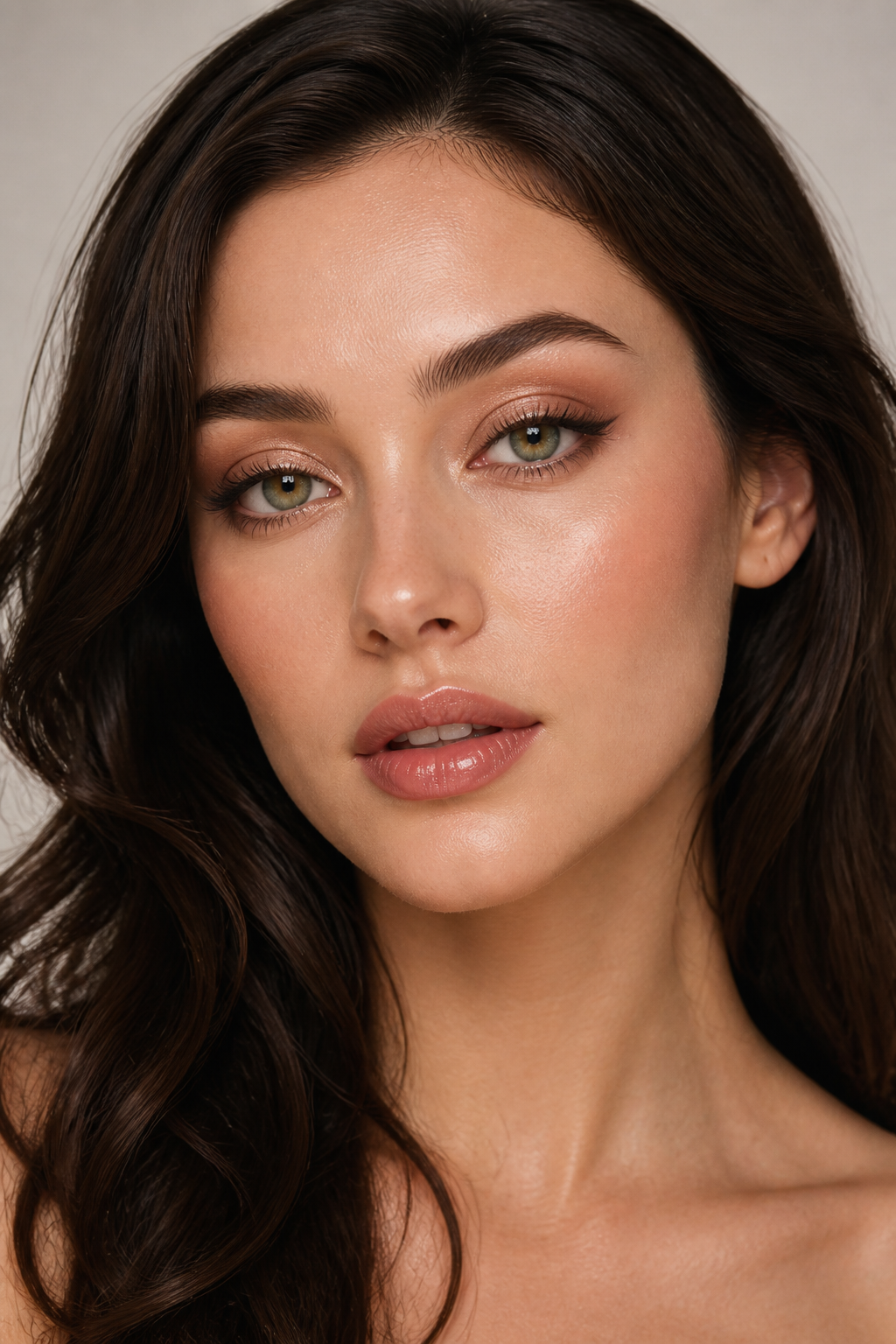 Soft Glam Makeup
How to Add Makeup to a Photo with AI
Upload a Portrait
Choose a clear photo that shows the face from the front with balanced lighting and visible facial details.
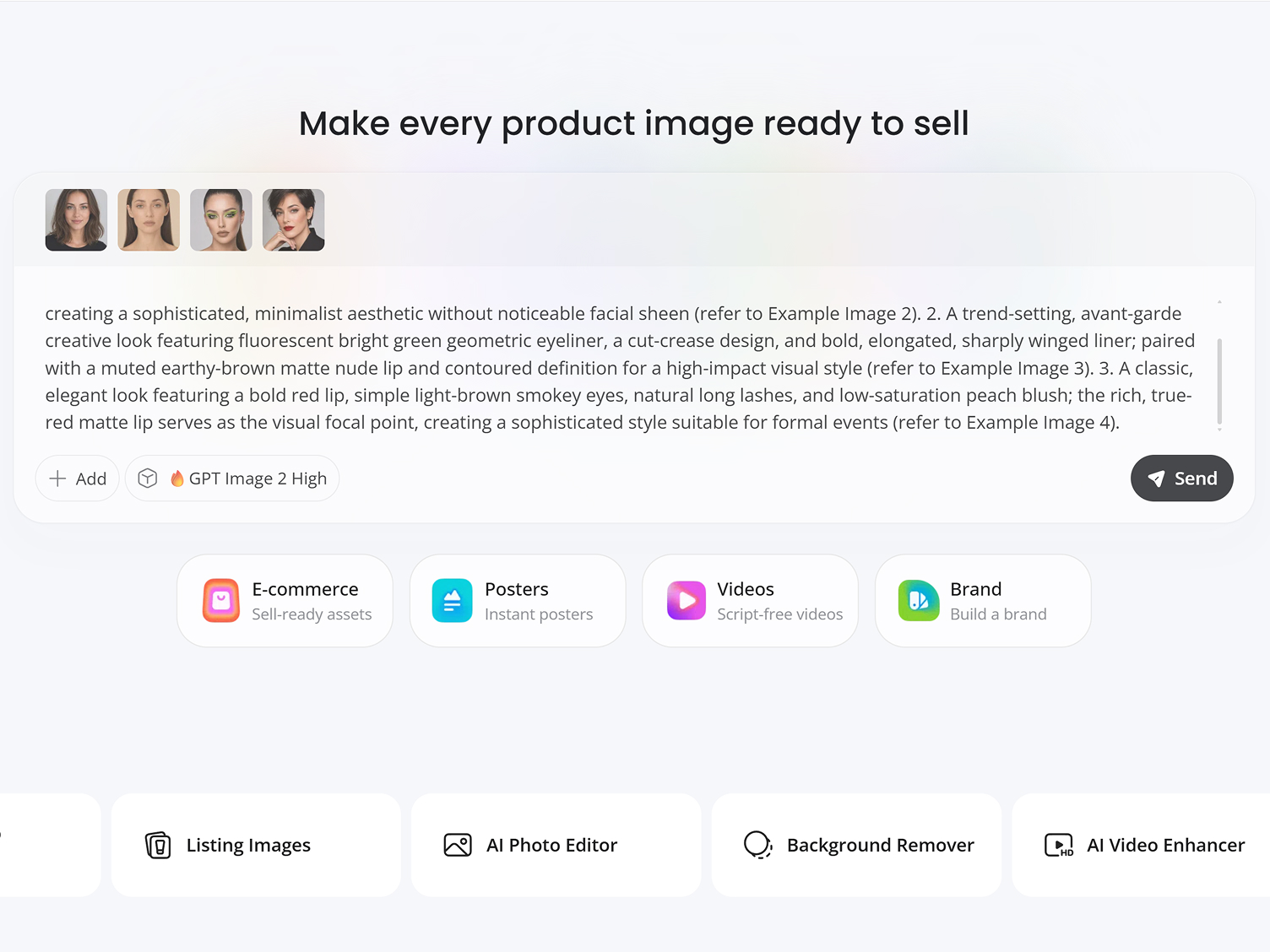
Set the Makeup Details
Enter the style, colors, finish, and intensity you want. The AI interprets these details together as one complete makeup direction.
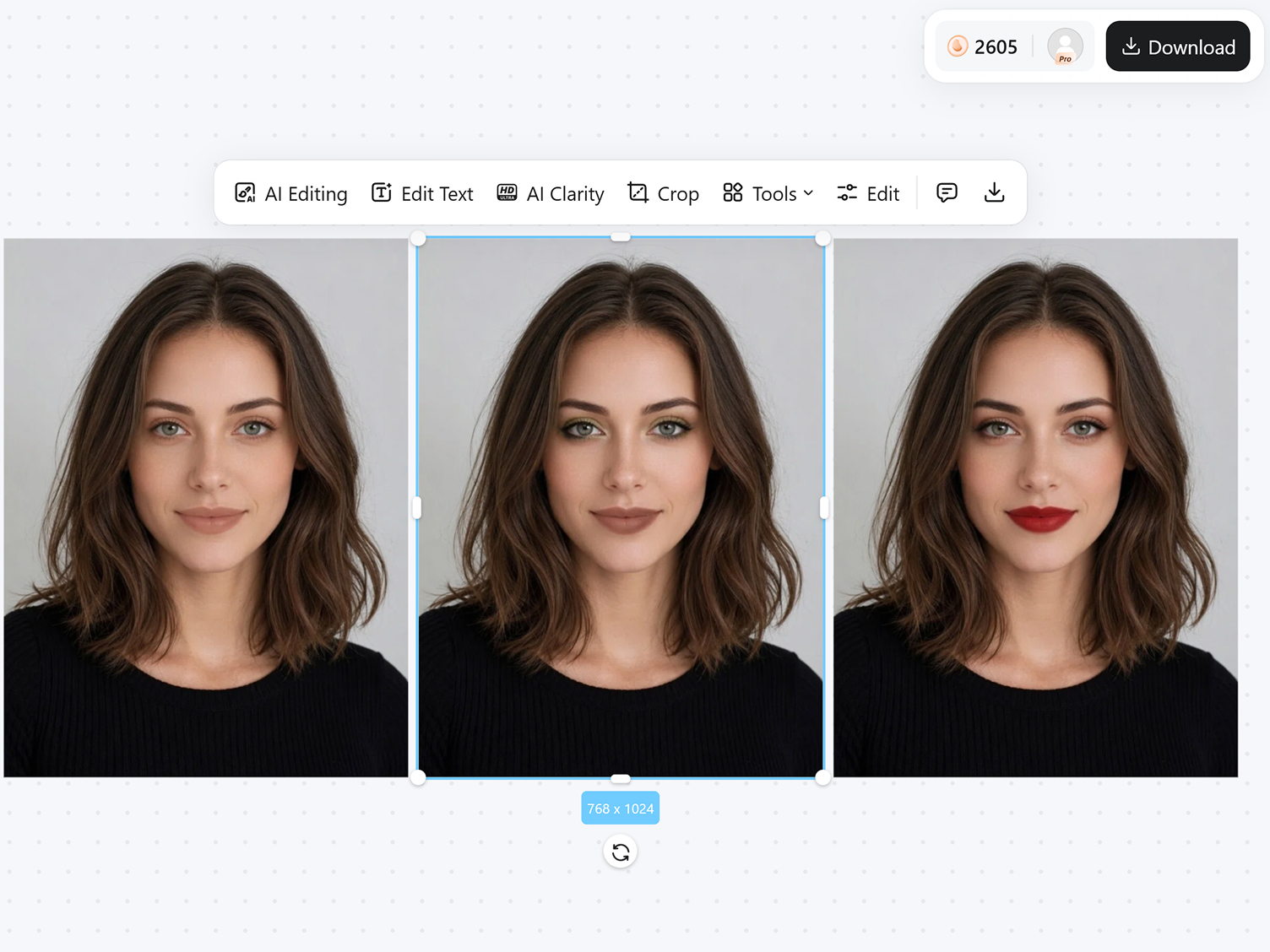
Generate and Compare
Create the makeup preview and compare it with other versions generated from the same portrait.
AI Makeup Features for Natural-Looking Results
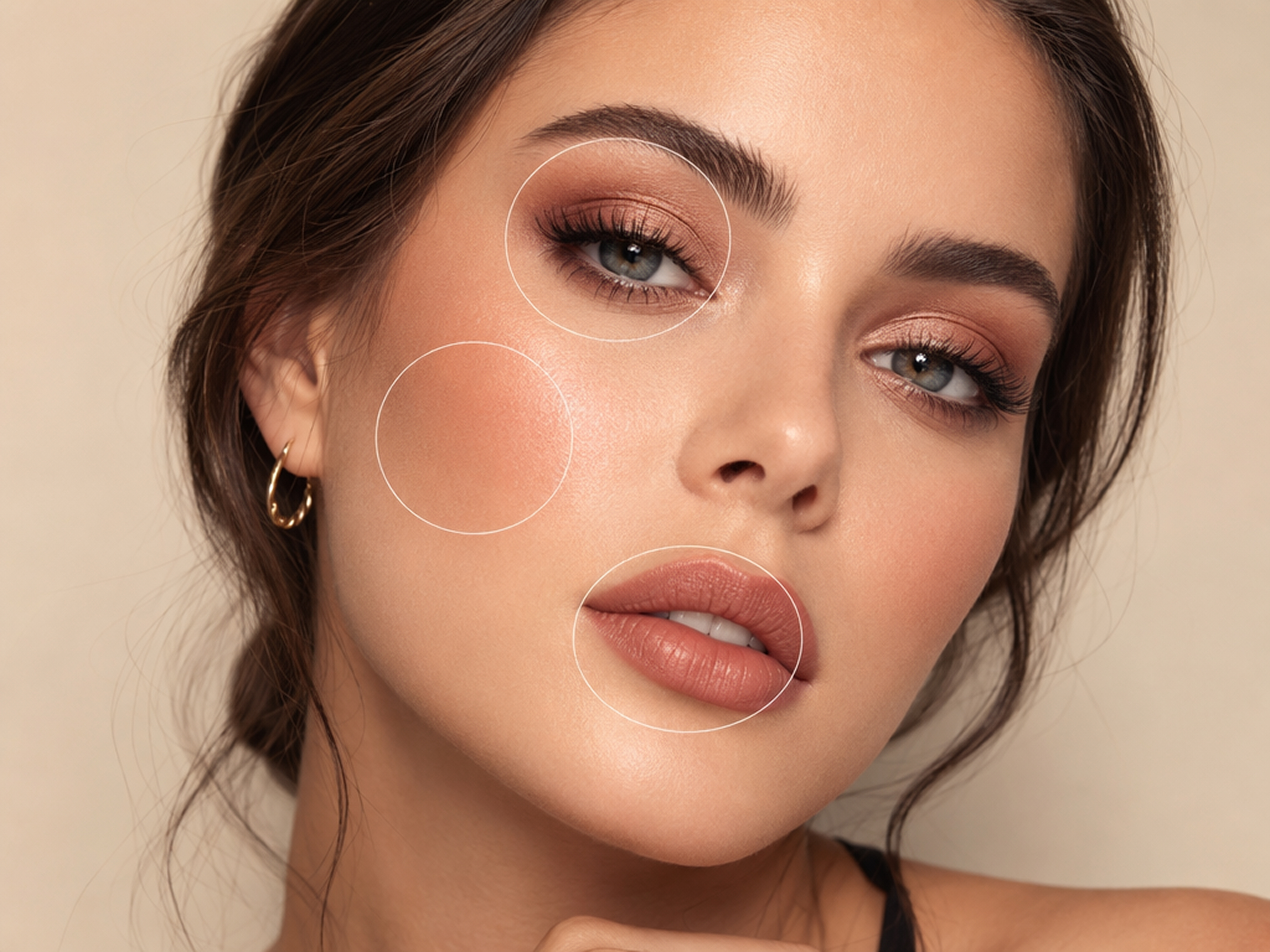
Preview a Look Before Using Real Products
Describe the overall makeup style instead of adjusting each facial area separately. Designkit interprets the portrait and prompt together, coordinating color, finish, and definition into one complete look that remains visually consistent across the face.
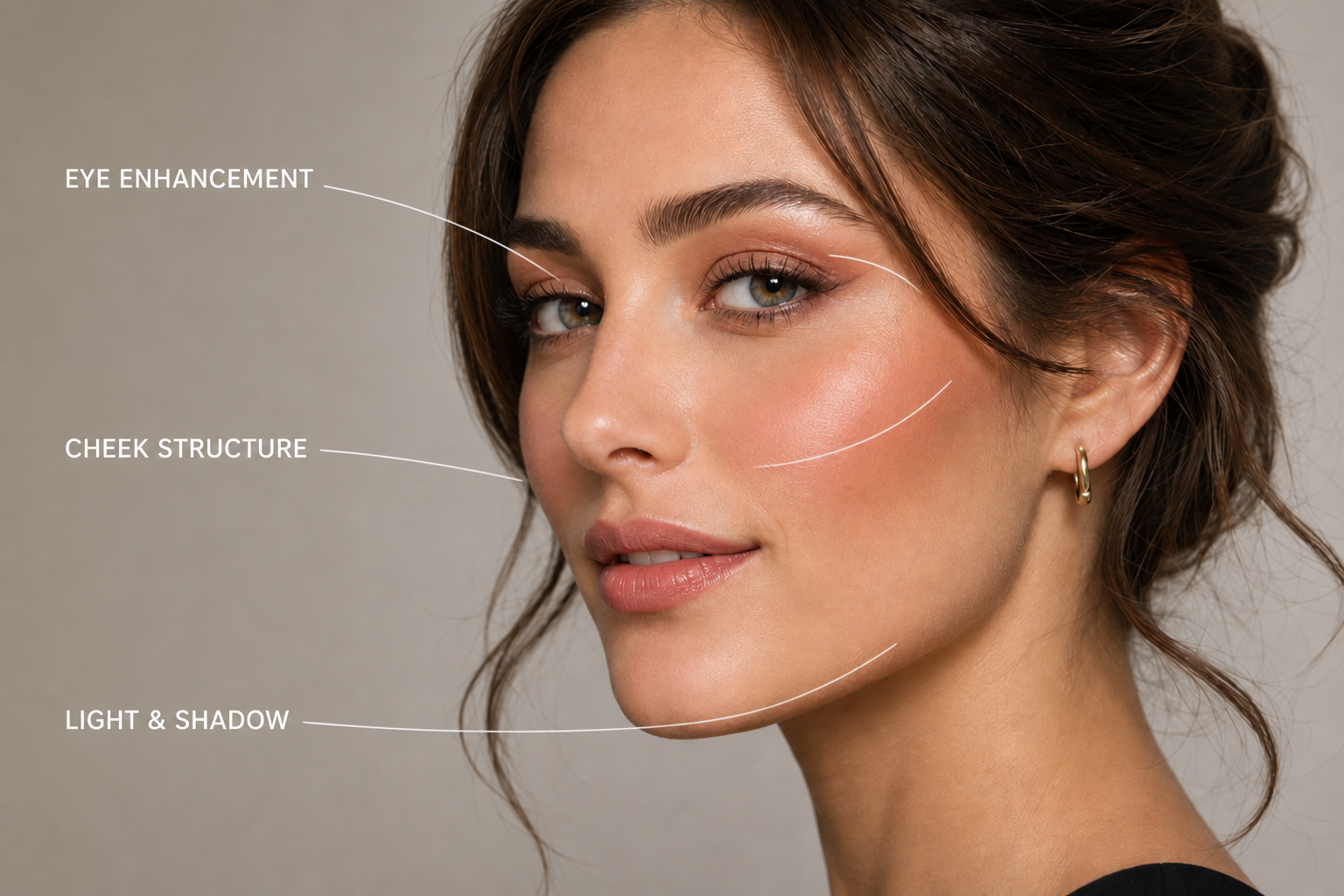
Fit the Makeup to the Original Portrait
The AI reads visible facial structure, lighting, and camera angle before generating the makeup. It adapts placement and shading to the source portrait, helping the result follow the original features instead of sitting on top like a flat filter.
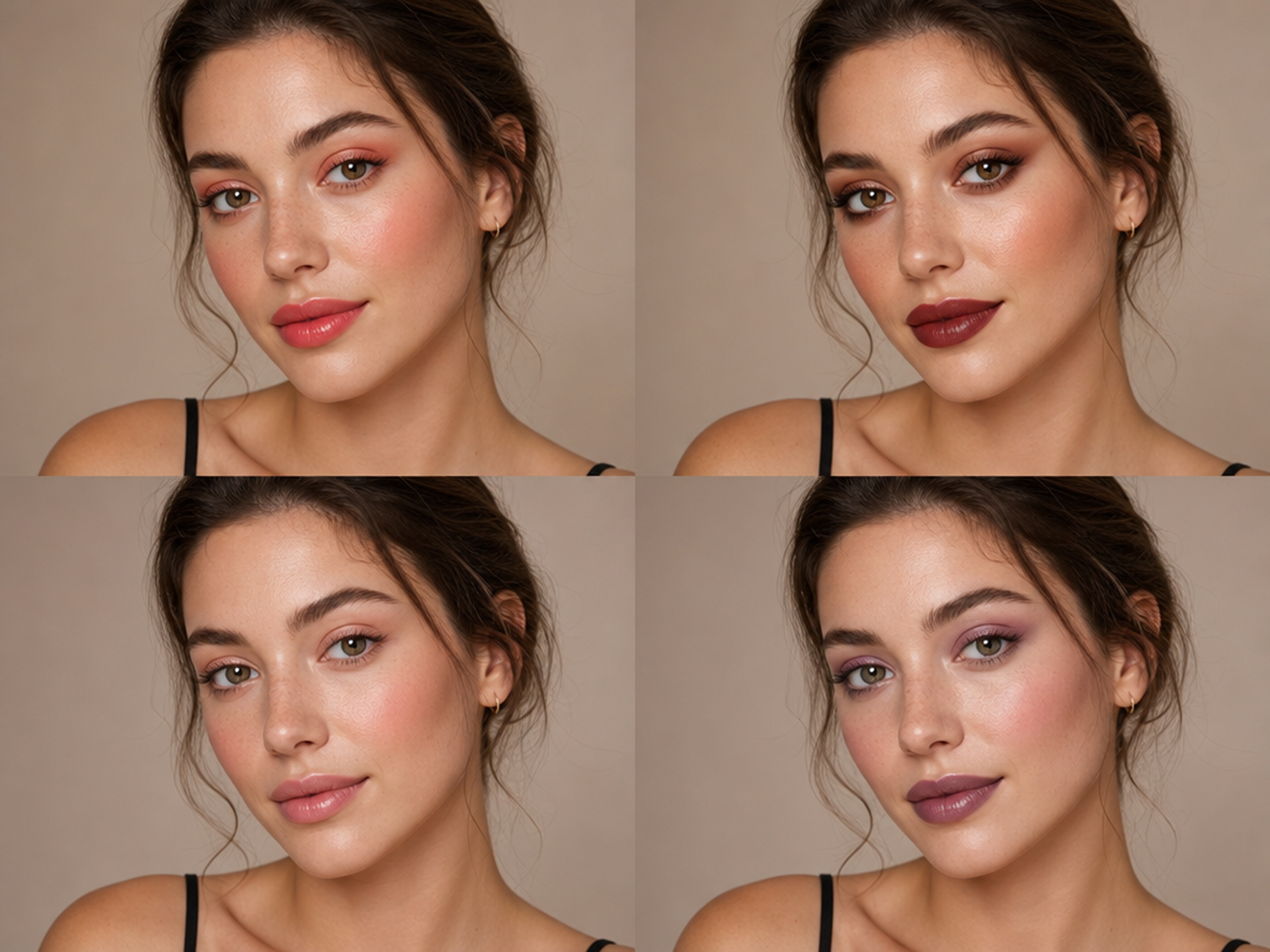
Compare Several Looks on the Same Face
Keep one portrait as the reference while generating several makeup directions. Because the person, pose, and framing remain familiar, you can focus on differences in color, intensity, and finish rather than unrelated changes elsewhere in the image.
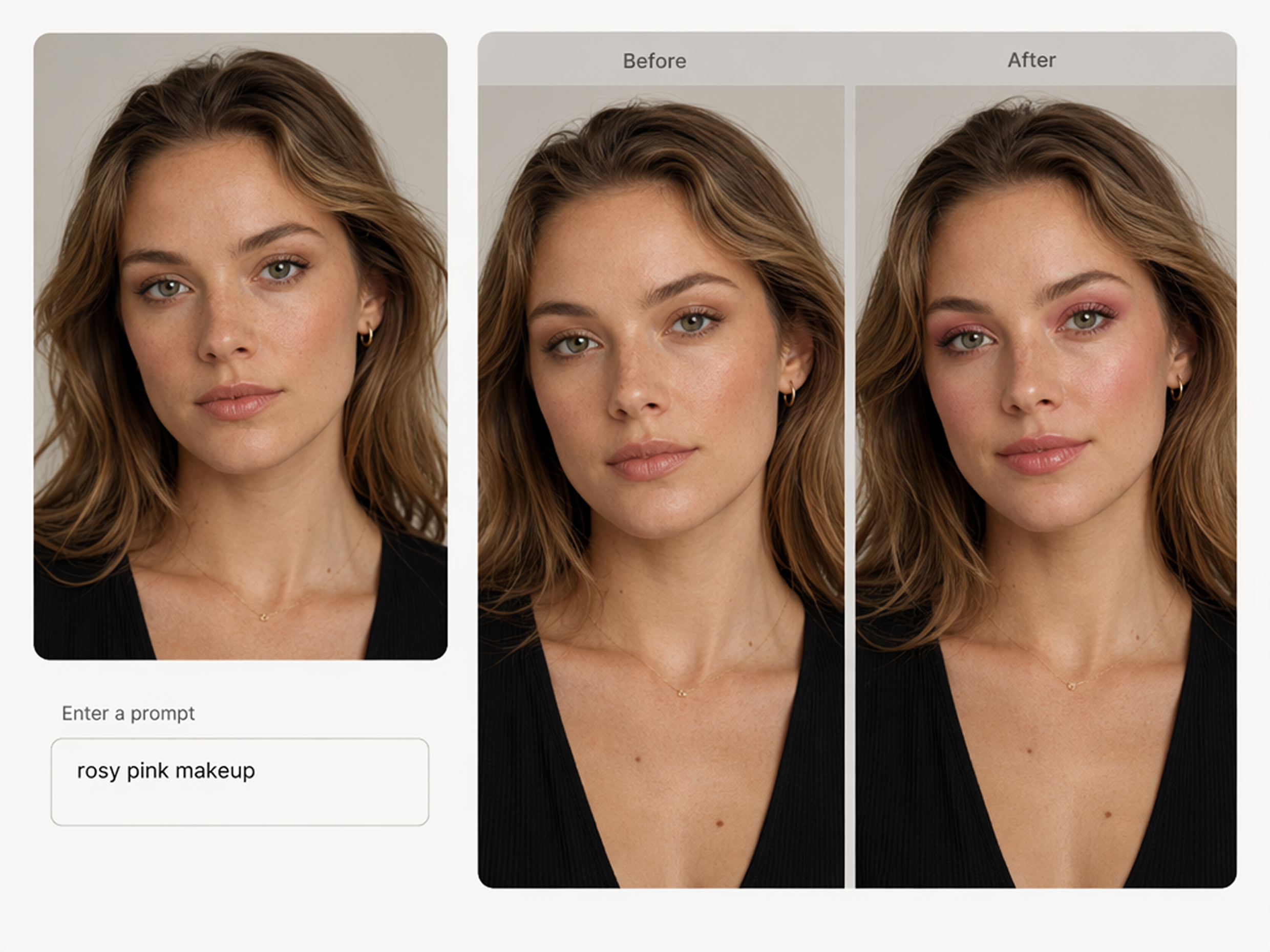
Adjust the Result with Specific Descriptions
Use detailed descriptions to refine the result beyond a preset makeup filter. Adjust the color balance, finish, or level of definition in the prompt, then generate another version that responds to the updated makeup direction.
Ways To Use AI Virtual Makeup Try On
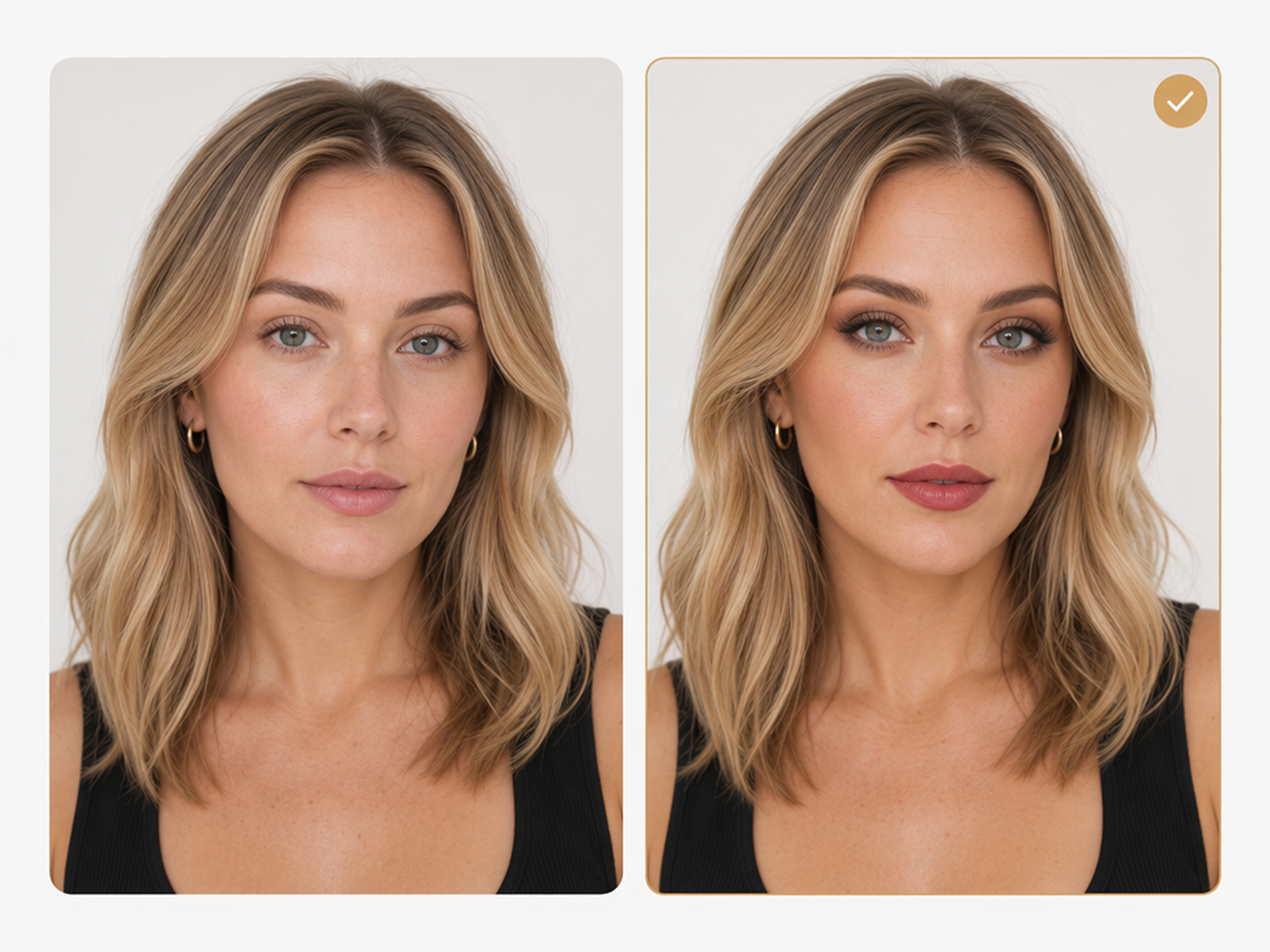
Individuals Planning a New Makeup Look
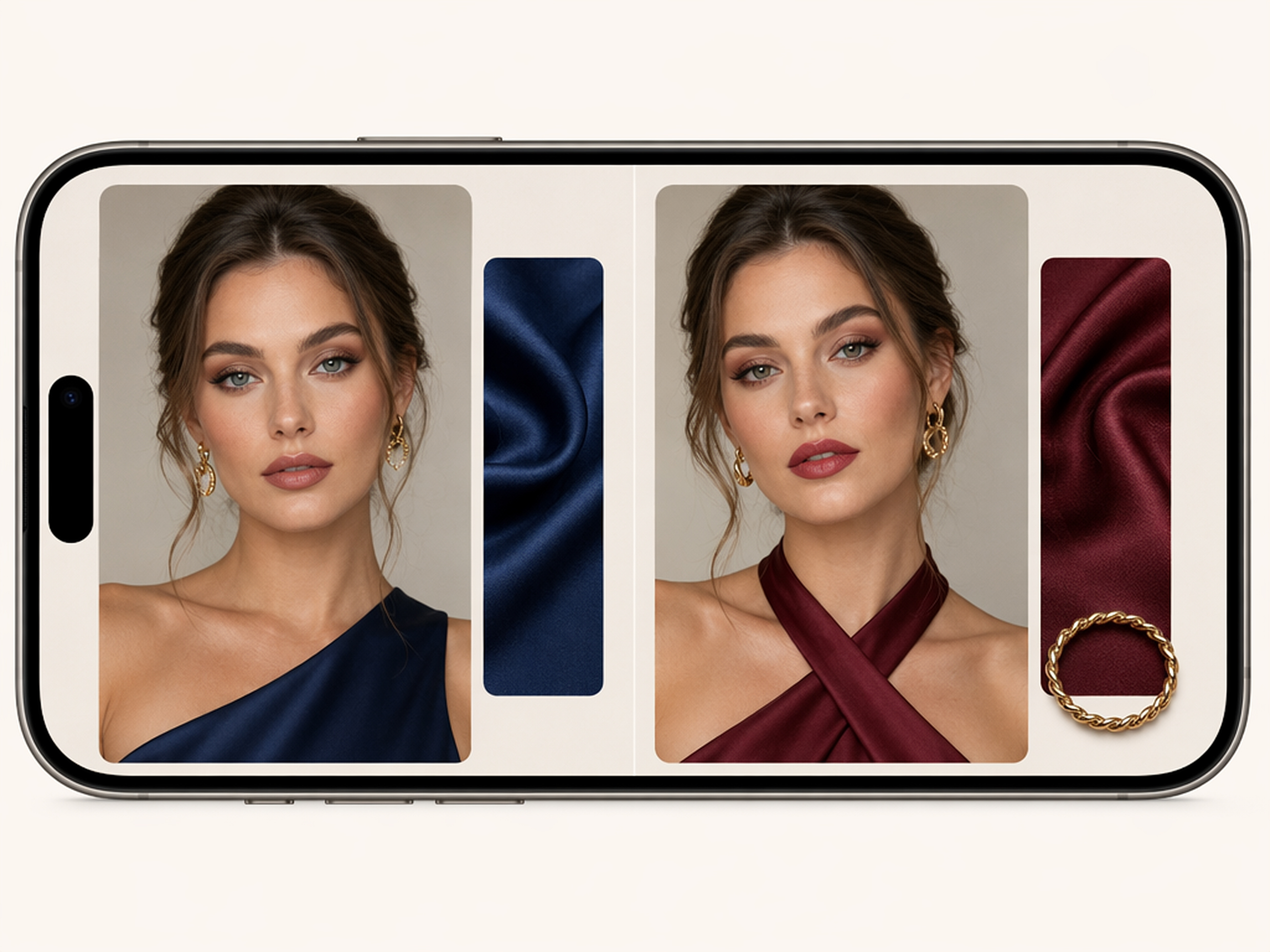
Preview makeup on your own portrait before recreating it with real products. Compare a restrained version with a more defined direction, then use the results to decide which color balance and overall finish fit the look you are planning.
Why Choose Designkit for AI Makeup Try On?
Preview Before Applying Real Makeup
Review the overall effect on your portrait before recreating the look with cosmetics. This provides a clearer basis for deciding which direction to try.
Use a Photo Instead of Live AR
Generate a still preview rather than a moving camera overlay. A saved portrait makes details easier to examine and different results easier to compare.
Move Beyond Fixed Product Catalogs
Retail try-on tools limit you to listed products. Designkit supports makeup concepts beyond fixed catalogs rather than exact SKU matching.
Virtual Try On Types You Can Create with Designkit
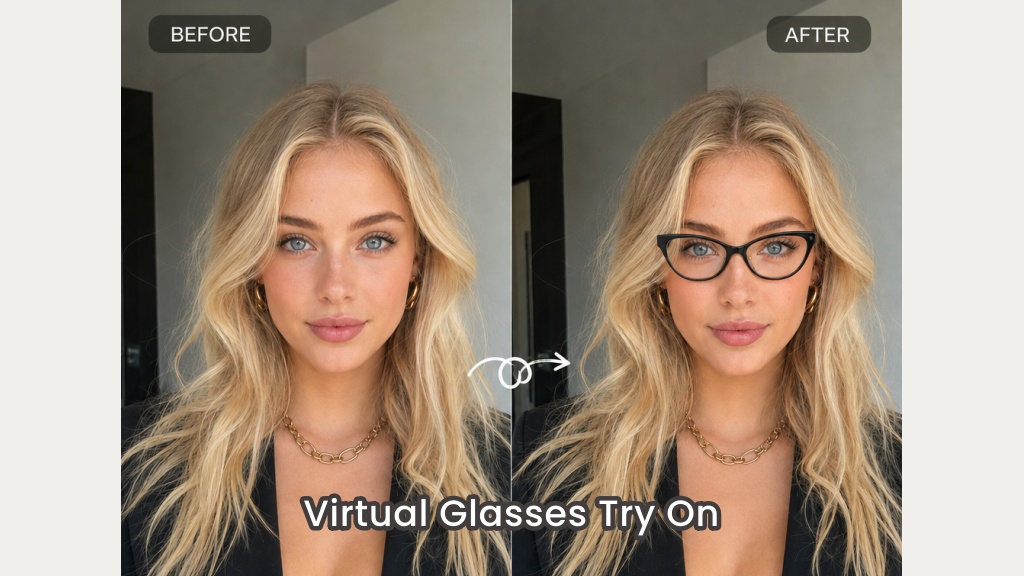
Virtual Glasses Try-On
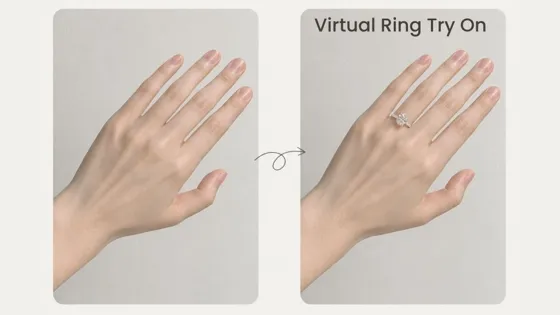
AI Virtual Ring Try-On
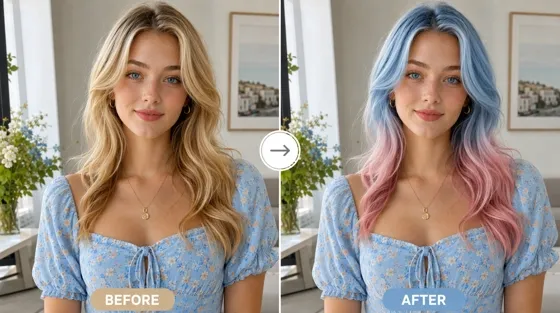
AI Hair Color Changer
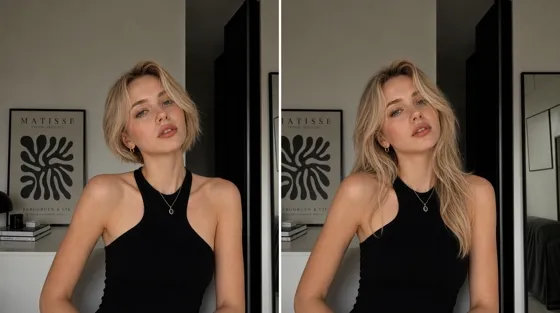
AI Hairstyle Changer
Frequently Asked Questions
How does the virtual makeup try on work?
Can I add makeup to an existing photo?
Yes. Designkit works as an AI makeup photo editor, allowing you to apply a newly generated makeup look to an uploaded portrait.
Will the generated makeup look natural?
Results depend on the source photo and description. Clear facial details, balanced lighting, and a specific prompt give the AI more information for creating makeup that follows the portrait naturally.
What type of photo should I upload?
Choose a well-lit portrait with the face clearly visible. A front-facing image with minimal obstruction provides the strongest starting point for a virtual makeup preview.
Can the makeup simulator reproduce an exact product shade?
No. Designkit creates a visual interpretation rather than an exact retail product simulation. Lighting and AI generation can affect how colors appear in the result.
Is this a live AR makeup try-on tool?
No. Designkit provides a photo-based AI makeup try-on rather than a live camera overlay. It generates a new portrait from the uploaded image and description.
Compare a Makeup Idea Before Recreating It
Check the credits available in your workspace, then generate a preview from your portrait and compare the result before recreating the look.



What Users Say About Designkit’s Makeup Tool
See how AI makeup previews help people plan, discuss, and compare makeup ideas before recreating them.
The makeup felt connected to the portrait
I wanted a polished result that still felt believable on the original photo. The eye makeup, cheek color, and lip finish followed the portrait’s lighting instead of covering it. The result looked more like a complete makeup concept than a pasted-on filter.
The differences were easier to judge
I generated a restrained version and a more defined version from the same portrait. Keeping the face, pose, and background consistent made the differences easier to judge. I could focus on the makeup itself and choose the level of color I preferred.
I could refine the mood gradually
I began with a broad soft-glam idea, then changed the color balance, finish, and intensity in later prompts. Each version moved the result closer to the mood I had in mind. I liked making gradual adjustments instead of choosing one fixed filter.
It gave my makeup artist a clearer reference
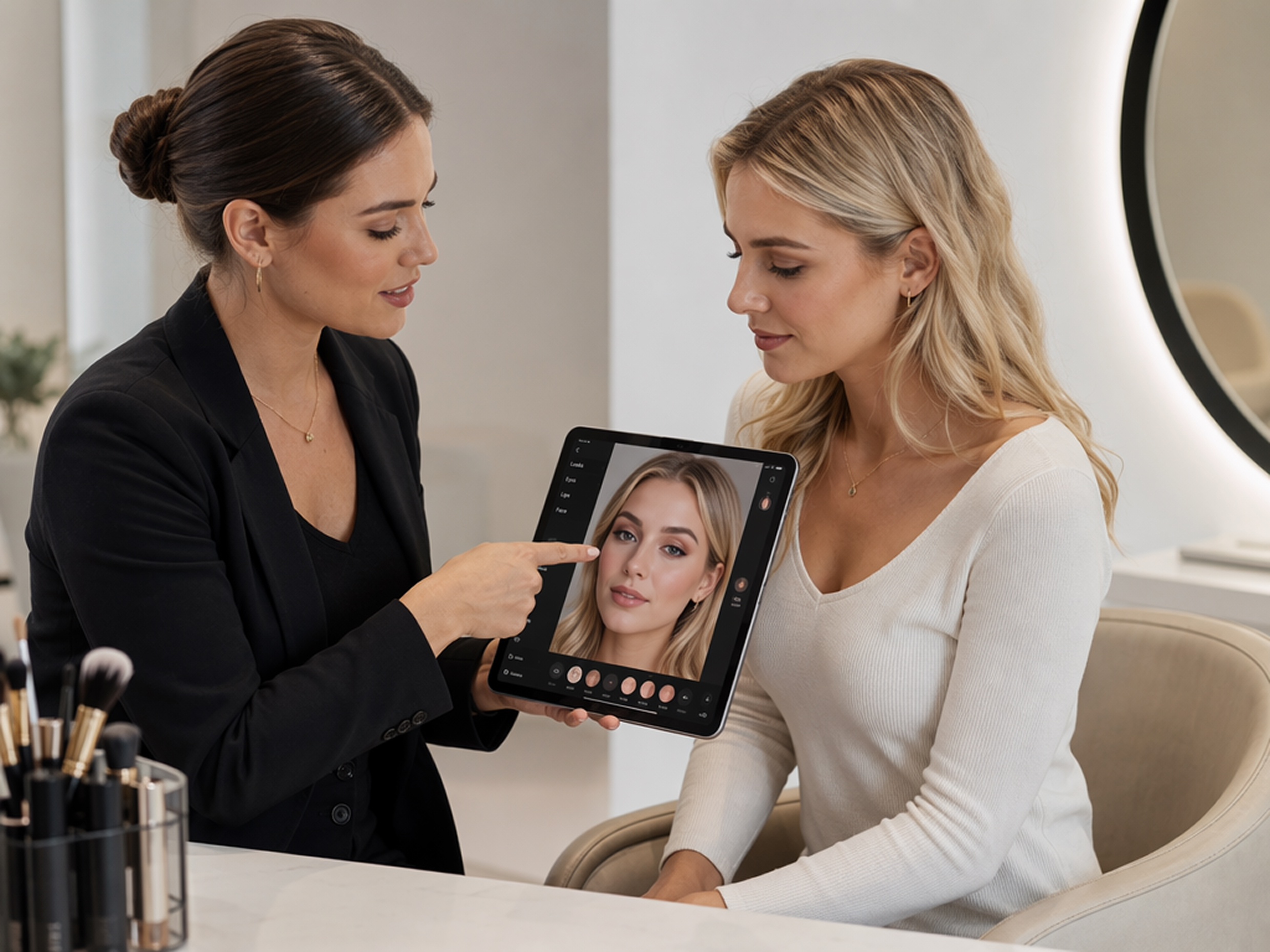
I had trouble explaining the overall balance I wanted for an event look. The preview was not an exact product shade match, but it gave my makeup artist a clearer reference for the eyes, lips, and level of definition before our appointment.
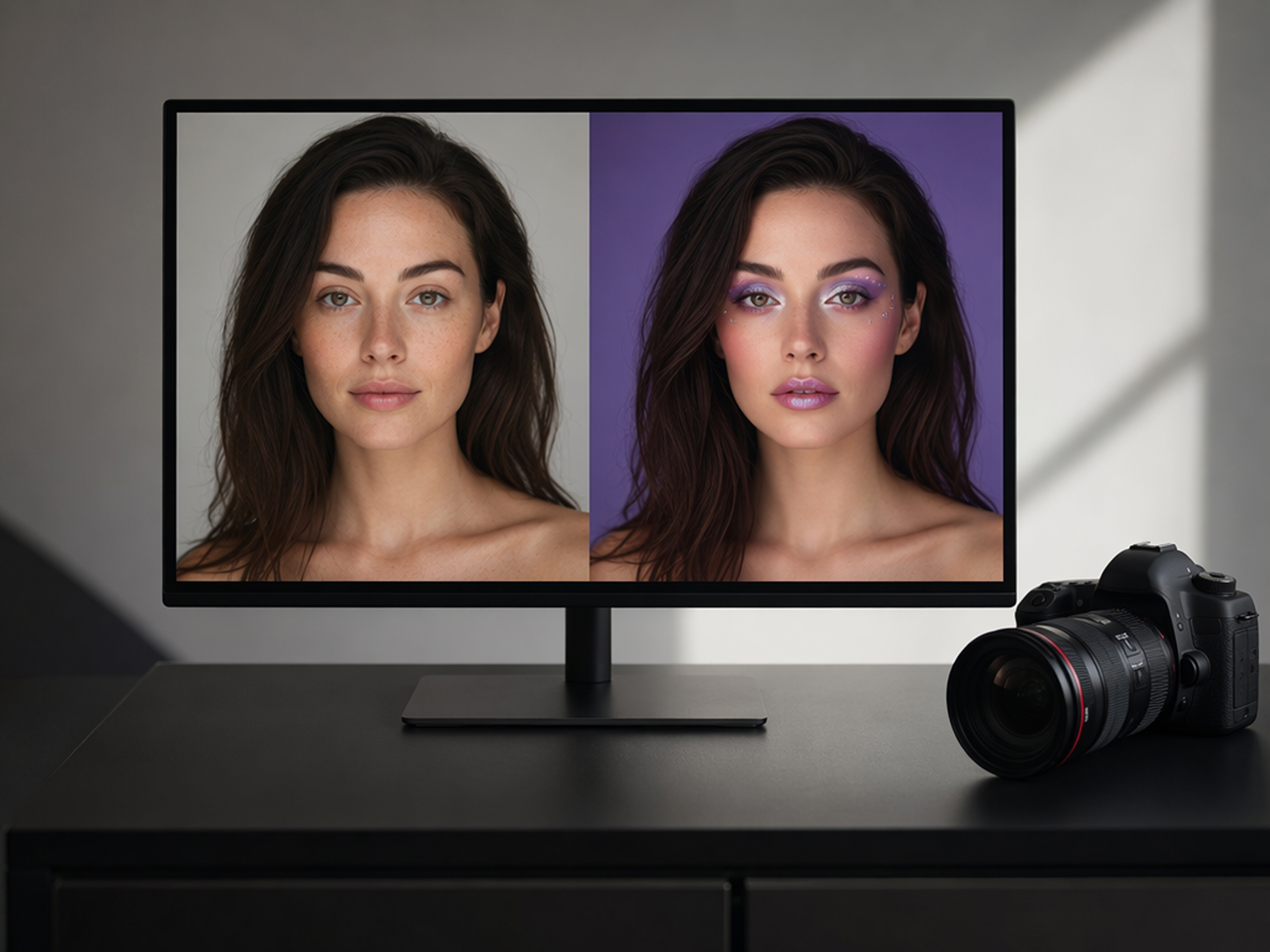
It supported a stronger portrait concept
I used the AI makeup editor to test a graphic look for a profile image. Seeing the makeup on the finished portrait helped me judge how much color the composition could carry. It gave me a stronger starting point for planning the final content.