
Kling 4.0: What It Can Do and Where to Try It
Kling 4.0 creates videos with sound from text, images, or references and can edit existing clips. This article covers where to try it, which mode to use, and how to make your first clip from a storyboard.

TL;DR:
Kling 4.0 generates and edits videos with stereo audio. Choose text-to-video for a new shot, reference-to-video when you need visual or motion guidance, or video editing for existing footage. Check your platform’s duration, resolution, and reference limits before generating.
What Can Kling 4.0 Do?
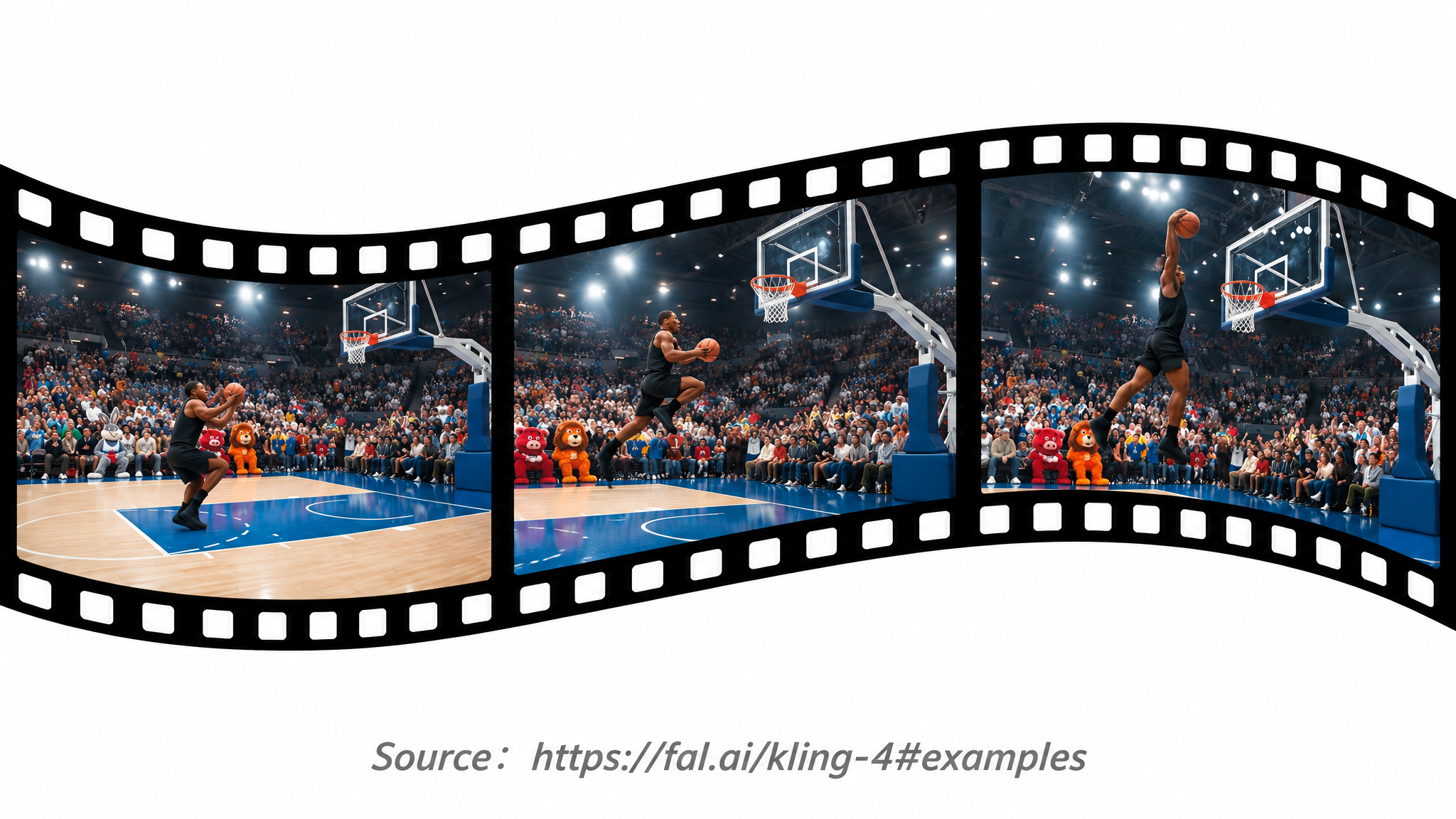
Kling AI officially launched Kling 4.0 on October 15, 2026. It doubles the maximum clip length from 15 seconds in Kling 3.0 Pro to 30 seconds, giving you room for a continuous take or a sequence of shots. It can also generate stereo dialogue, sound effects, and ambience alongside the video.
According to the Kling 4.0 release notes, the model improves lip sync and makes tracking shots and camera orbits smoother. With Omni Reference, you can use a photo to guide how a scene looks and a video clip to show how it should move. Keyframes let you specify what the scene should look like at particular moments. For setup instructions, see the Kling 4.0 user guide.
Which Kling 4.0 Mode Should You Use?
| What you have | What you want | Mode |
|---|---|---|
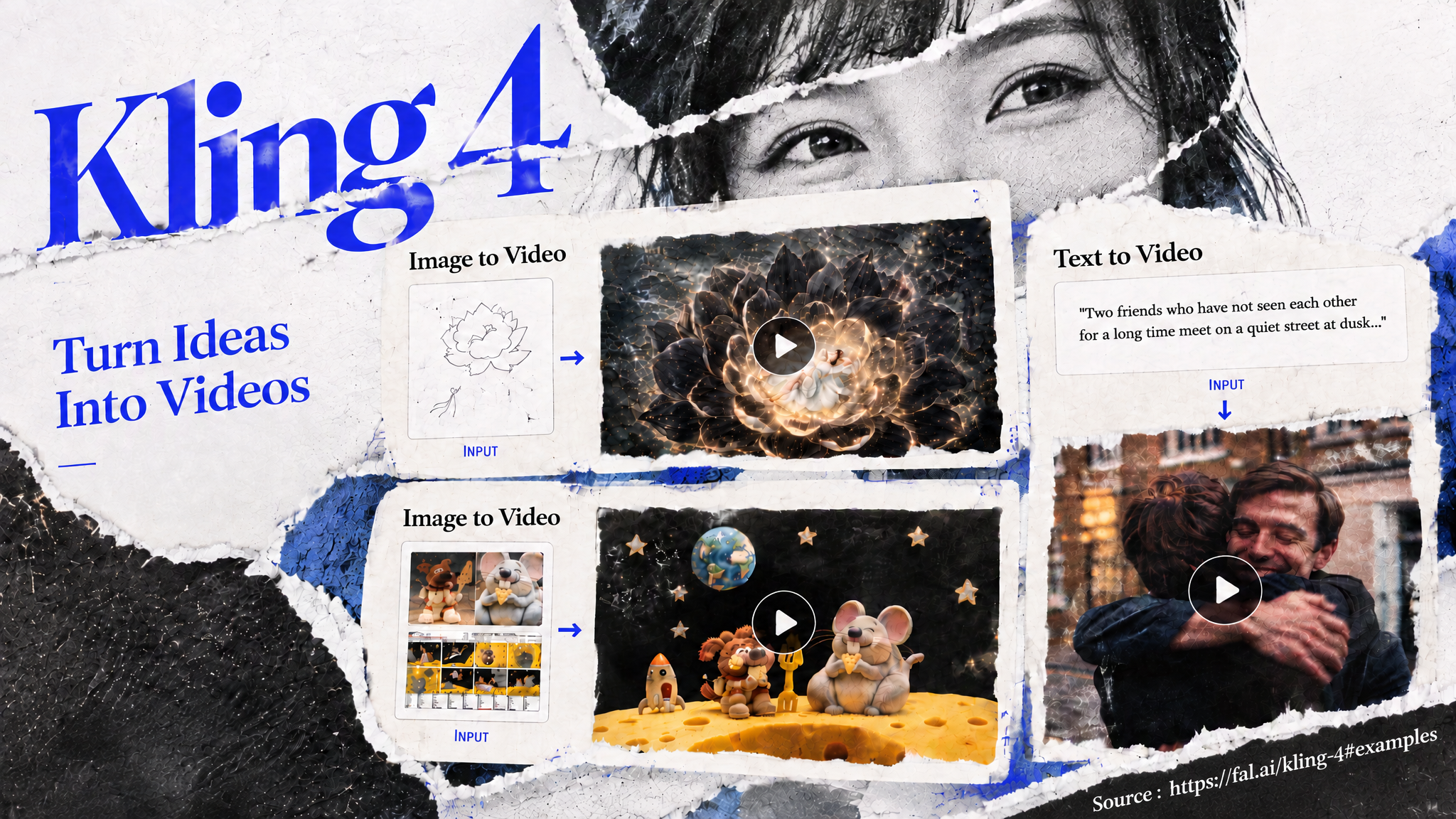
| A written idea | A new scene with movement and sound | Text to video |
| A still image | A clip that starts from that composition | Image to video |
| Photos, drawings, or clips | A new scene guided by their look or motion | Reference to video |
| A clip you want to revise | A targeted change to the existing footage | Video editing |
Text to Video and Image to Video
For text to video, describe who or what is in the shot, what happens, and where it takes place. Include any camera movement and sounds you want. For a product shot, you might ask for a fixed camera while the product rotates, or make the camera circle the product while it stays still.
For image to video, upload the photo you want to use as the first frame. Then describe what should move and what should stay still. If your platform accepts a last frame, add one when you want the shot to end on a specific image. For example, you could start with a wide shot of the product and end with a close-up of its label.
Reference-Based Generation and Video Editing
Give each reference a purpose. Use a product photo to show what the product should look like, a sketch to show where things go in the frame, and a video clip to show how fast and in which direction the camera should move. A keyframe tells Kling what to show at a specific moment. It can set the opening frame, guide a reveal, or define the final image.
To edit an existing clip, upload it and tell Kling what to change and what to keep. For example, you could ask Kling to add rain in the background while keeping the subject’s movements and the camera framing. On Runway, the edited clip keeps the same length and framing as the original.
How Kling 4.0 Compares on Kling AI, fal, and Runway
| Platform and mode | Duration | Output resolution | Native audio | Inputs and keyframes |
|---|---|---|---|---|
| Kling AI Omni Reference | 3 to 30 seconds | 720p, 1080p, and 4K listed in the guide | Stereo generation | Up to 15 total references, with up to 10 images, five video clips totaling up to 30 seconds, and seven reusable characters or objects. Voice references also count toward the total |
| Kling AI Keyframes | 3 to 30 seconds | 720p, 1080p, and 4K listed in the guide | Stereo generation | Images only, with up to 10 keyframes |
| fal Text to Video and Image to Video | 3 to 30 seconds | 720p or 1080p | Stereo generation | Prompt alone or a first image with an optional last image |
| fal Reference to Video | 3 to 30 seconds | 720p or 1080p | Stereo generation | Up to 15 mixed references. Check the playground for timed keyframes |
| fal Edit | 3 to 30 seconds for the source and output | 720p or 1080p | Check the edit controls and preview for source audio handling | Source clip with optional image references. Check the playground for timed keyframes |
| Runway generation | 3 to 30 seconds | 720p or 1080p. Runway lists 4K as upcoming | Sound generated with the picture | Up to 10 images and five videos, with up to 30 seconds of video references combined. Up to 10 keyframes within the image limit. Audio reference files are unavailable |
| Runway video editing | One source clip up to 30 seconds. Output follows its length | Check the Edit workspace for export options | Check how the Edit preview handles the source audio | One source clip. Check the Edit workspace for keyframe controls |
The specs were checked on November 19, 2026.
If your project needs 4K, sign in to Kling AI and check whether 4K appears in the resolution menu for your plan.
Where to Try Kling 4.0
- Kling AI. Sign in and select Kling 4.0 in the video generator. Choose Omni Reference to guide the scene with images or clips, or choose Keyframes to control how the shot looks at specific moments. Once you’ve signed in, check which resolutions you can select and how many credits your clip will cost.
- fal Playground. Choose a playground for text to video, image to video, reference to video, or editing. Sign in to check the cost before generating. You can also generate through fal Agent. fal lists API access as coming soon.
- Runway Creative. Open Kling 4.0 in Tool Mode or add it to a Workflow. If you’re building an API integration, see the Runway model page for supported inputs and a link to Runway Dev.
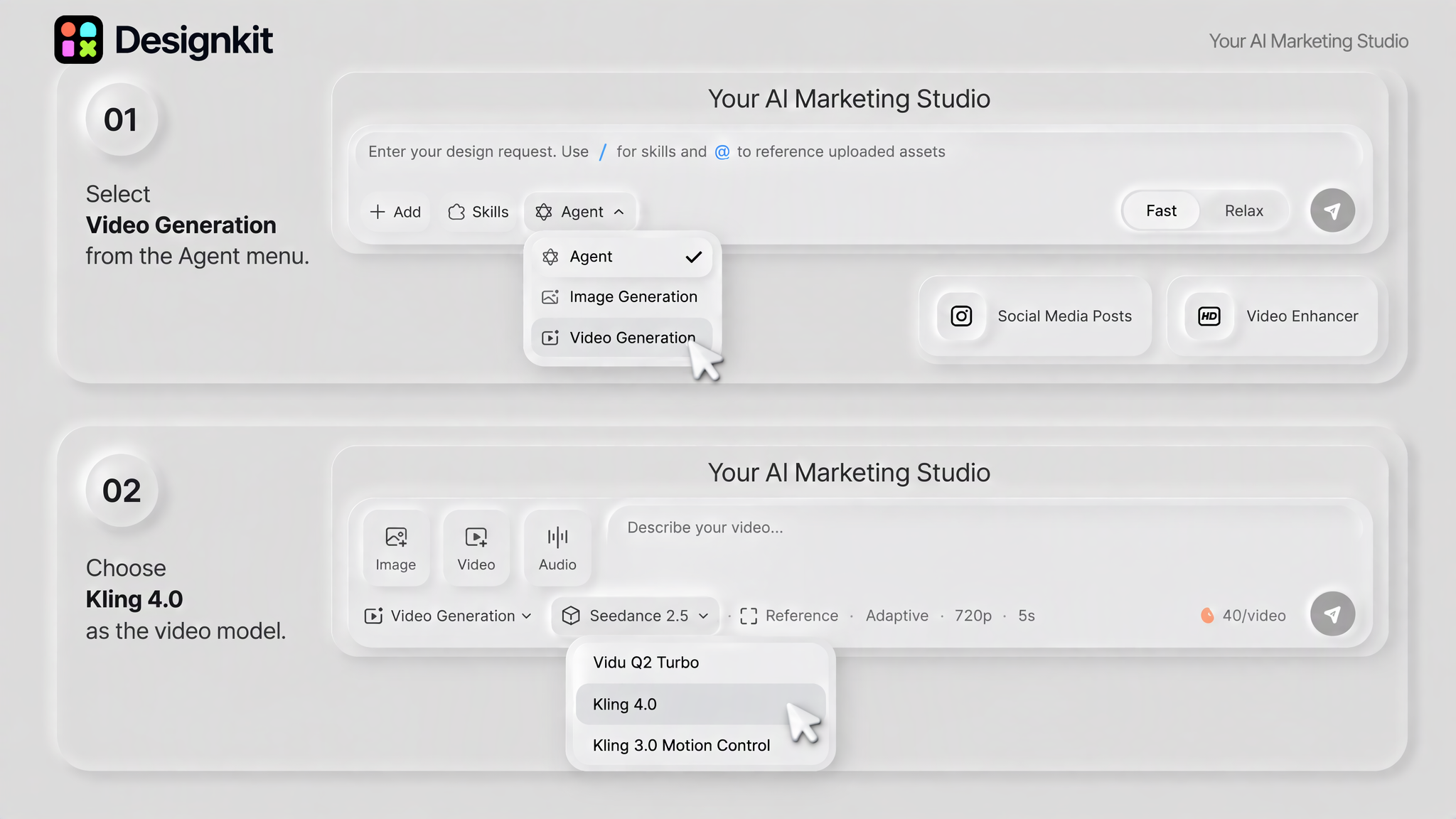
- DesignKit. If you’re making a product video, check the model menu in DesignKit’s video generator. DesignKit currently lists Kling 4.0 to turn your creative ideas into video.
For a quick test, start with a prompt in a text to video playground. If you already have an opening and a closing image, pick a mode that accepts both. If you want to show something partway through the shot, place a keyframe where you want it to appear.
Generate Your First Kling 4.0 Video
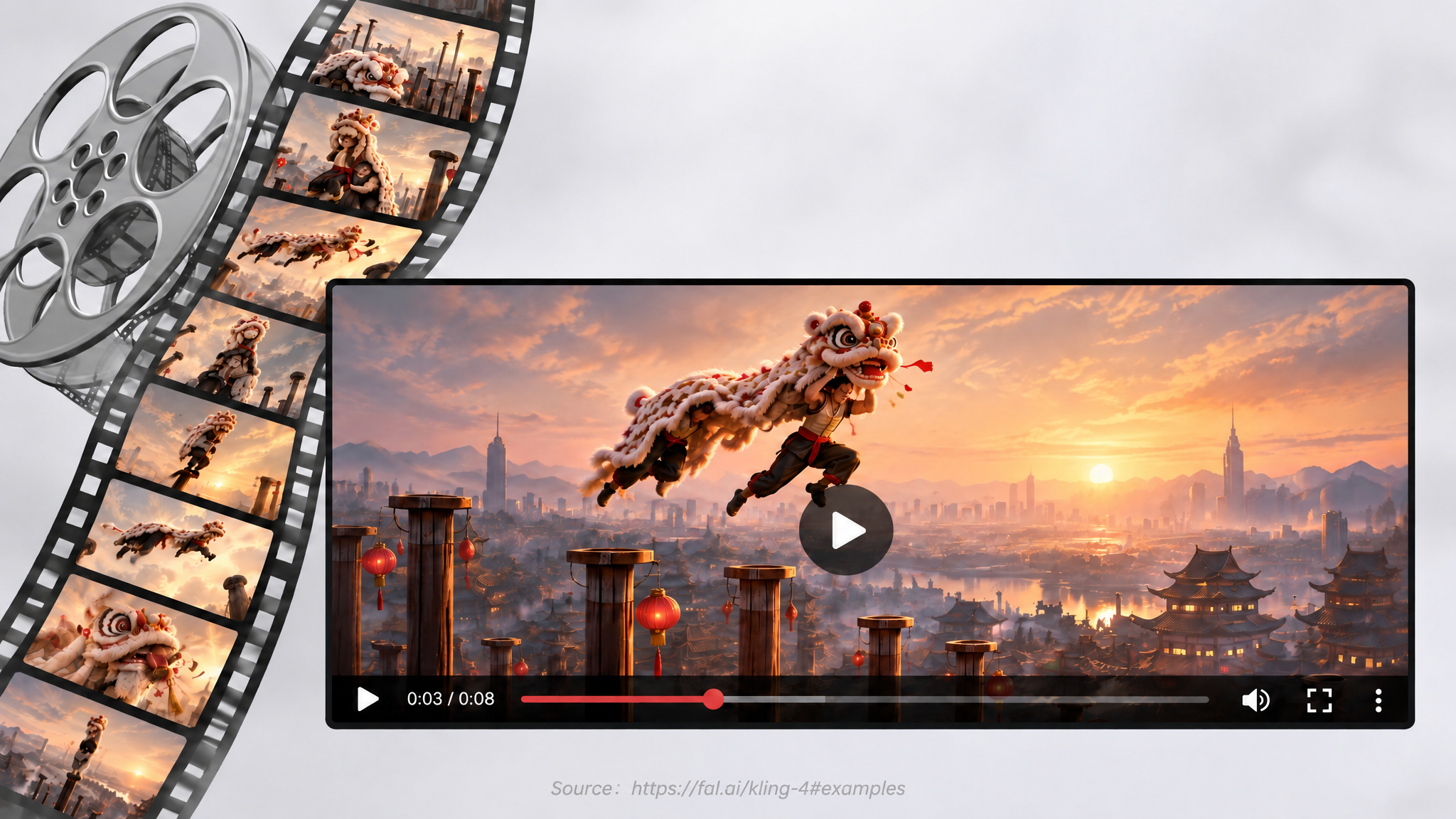
Start with a storyboard of a rooftop lion dance and see how Kling 4.0 turns the panels into a single moving shot. Open fal’s Reference to Video playground to follow along.
- Upload the storyboard. Sign in and add the rooftop lion dance storyboard as your first reference image. You’ll refer to it as
@Image1in the prompt. - Describe the shot. Paste this prompt into the playground.
Follow the panels in @Image1 from left to right in one continuous rooftop shot at sunset. Track the lion dancers as they jump from pillar to pillar. Time the drumbeats to their landings, with distant crowd cheers in the background.
- Generate the clip. Set the duration to 10 seconds, the resolution to 720p, and the aspect ratio to 16:9. Generate the clip and watch it with the sound on.
- Check the result against the storyboard. Do the jumps happen in the right order? Does the camera follow the dancers smoothly? Do the drumbeats line up with the landings? If the clip skips a jump, spell out where it belongs in the sequence and try again.
Conclusion
Start with a prompt if you want to see how an idea looks on screen. If the product needs to match a specific photo, add it as a reference. If the shot needs to look a certain way at a specific moment, choose a platform that supports timed keyframes. Once you’ve found a platform that offers the controls and resolution you need, make a short test clip before generating the full scene.
Frequently Asked Questions
How long can Kling 4.0 videos be?
Does Kling 4.0 generate native audio?
Yes. Kling 4.0 can generate stereo dialogue, sound effects, and ambience with the picture. Describe the sounds alongside the events that should trigger them, then review their timing in the result.
Does Kling 4.0 support 4K output?
Kling AI's guide lists 4K in its own workspace. The listed fal playground modes offer 720p or 1080p, and Runway lists 1080p as its current maximum.
How Does Kling 4.0 Compare with Kling 3.0 Pro?
Kling 4.0 can generate clips up to 30 seconds long, double Kling 3.0 Pro’s 15-second limit. Kling’s release notes also report improved lip sync and smoother camera motion in tracking shots and orbits.
You May Also Like
Kling Motion Control: When to Use It for Product Clips (2026)

Kling vs Veo for Product Video & UGC Ads (2026)
Seedance vs Kling: Which AI Video Model Fits Product Clips?

How to Animate a Picture with AI: Easy Step-by-Step Guide
Seedance 2.0 for Ecommerce: Create AI Product Videos in Minutes
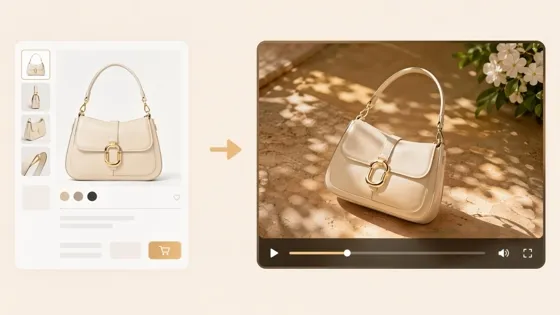
How to Generate Product Videos from Images with AI (2026 Guide)

Best AI Product Video Ad Generators for Ecommerce in 2026

Seedance 2.5 Review: What Changed in ByteDance's New Model

Best AI Video Generators in 2026: Free and Paid Tools Compared
Turn a product photo into a video
Start with a clear product photo and describe the motion you want. Create your first product video with Designkit.