
How to Make a Slideshow on Facebook: Complete Guide for 2026
Create engaging Facebook slideshows from photos and polished visuals. Learn how to add music, pick the right format, and prepare professional slideshow content for posts and ads.

Facebook slideshows are simple to make and an effective means of making content engaging from an existing selection of photos. A slideshow is a way to tell a story that tells a whole story, instead of posting individual images, whether you're sharing memories of your vacation, introducing a new product, or promoting a seasonal offer. A successful slideshow requires much more than just photos in sequence; the quality of the photos, the order of the photos, the pacing, music, captions, and slideshow branding all impact the viewer's engagement.
In this guide, you will learn how to make a video slideshow on Facebook and how to use tools like Designkit to enhance your videos, how to prepare your photos for the slideshow, add music, and upload your video.
Key Takeaways
-
Combine photos, music, captions, and smooth transitions to create Facebook slideshow videos.
-
Depending on your publishing needs, you can use Facebook's own publishing tools or a third-party slideshow creator.
-
Use the right size and video type for your slideshow when viewing on cell phones.
-
Enhance images with AI before creating your slideshow for a more professional appearance.
-
Make several versions of the slideshow to try out which one works best for organic posts and Facebook ads.
What Is a Facebook Slideshow?
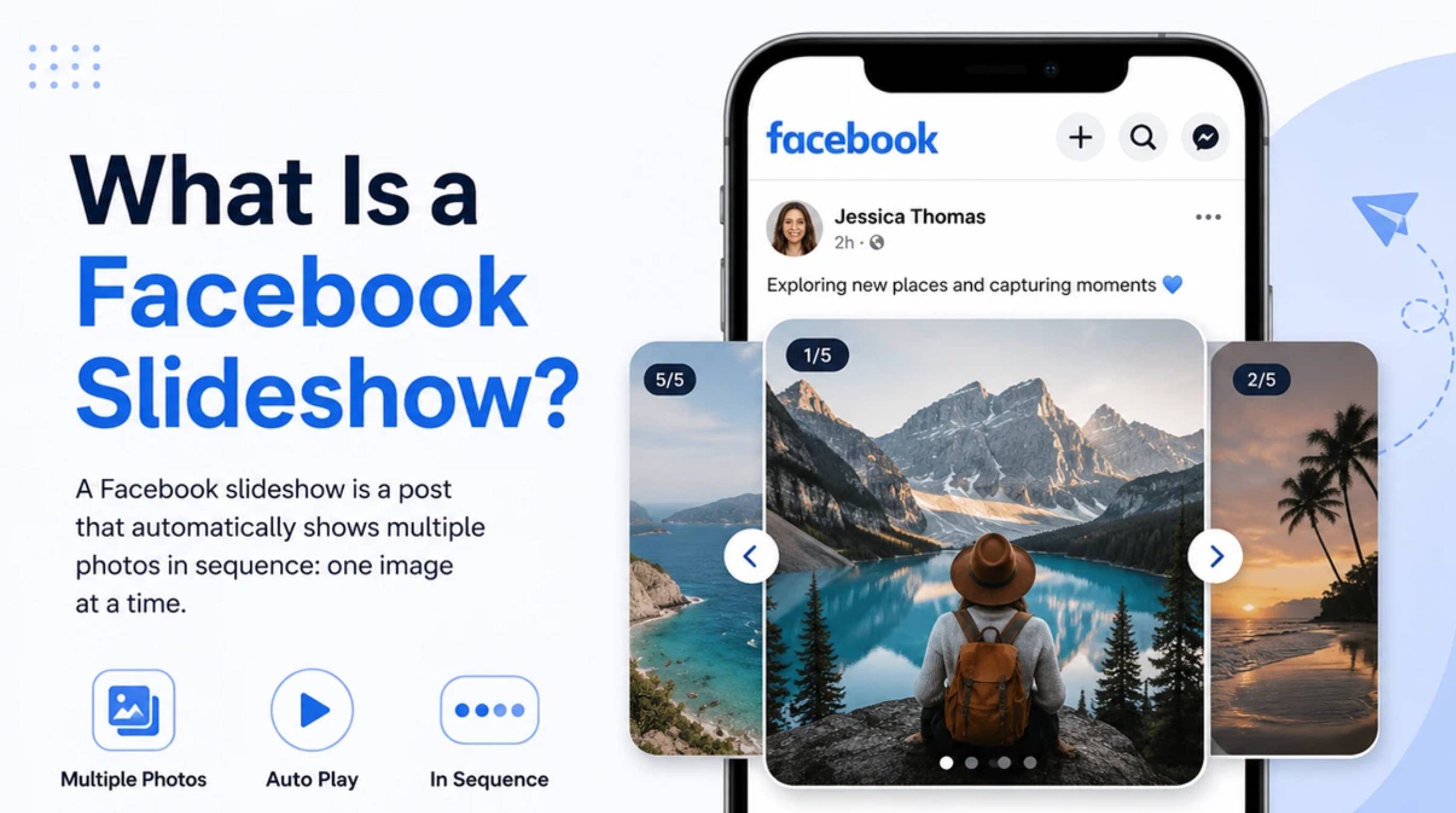
A Facebook slideshow is a brief video produced from a series of images and occasionally clips that are shown in order. It enables you to merge images into a single visual that viewers can take in at a single glance. Slideshows can be published on Facebook as Feed posts, Stories, or Reels (as a video), or even as slideshow ads. It is good for personal and business use, and is suitable for delivery of information in a format that can be readily consumed on a mobile device.
How Do Facebook Slideshow Videos Work?
Facebook slideshows are a series of photos that show one after another in a slideshow with some words, animation, music, and transitions, if desired. They are then exported as an MP4 and can be uploaded as any video. Slideshows are a great way for creators to share their travel photos, family photos, how-to videos, or product photos, and they're an effective promotional tool for businesses to use at product launches, customer testimonials, or for engaging promotions. Consider it a short video that is composed of arranged images instead of a traditional presentation.
Why Create a Slideshow Instead of Posting Individual Photos?
Individual photos are okay for quick updates, but a slideshow can provide a more orderly experience for the viewer that will lead them through a story. This can not only keep customers engaged, but also make it possible for companies to:
-
Tell a complete story.
-
Showcase multiple products.
-
Highlight before-and-after transformations.
-
Turn promotions and campaigns into reality.
-
Generate video-style content without recording.
How to Make a Slideshow on Facebook Step-By-Step
When you take the time to plan every detail ahead of time, crafting a slideshow on Facebook becomes a straightforward task. By thoughtfully organizing your content and selecting eye-catching visuals, your finished slideshow will not only appear sleek and professional but will also convey your message effectively. This careful preparation not only enhances the overall presentation but also helps you avoid last-minute rush and stress, ultimately saving you time and effort in the long run.
Step 1: Prepare Your Photos and Content
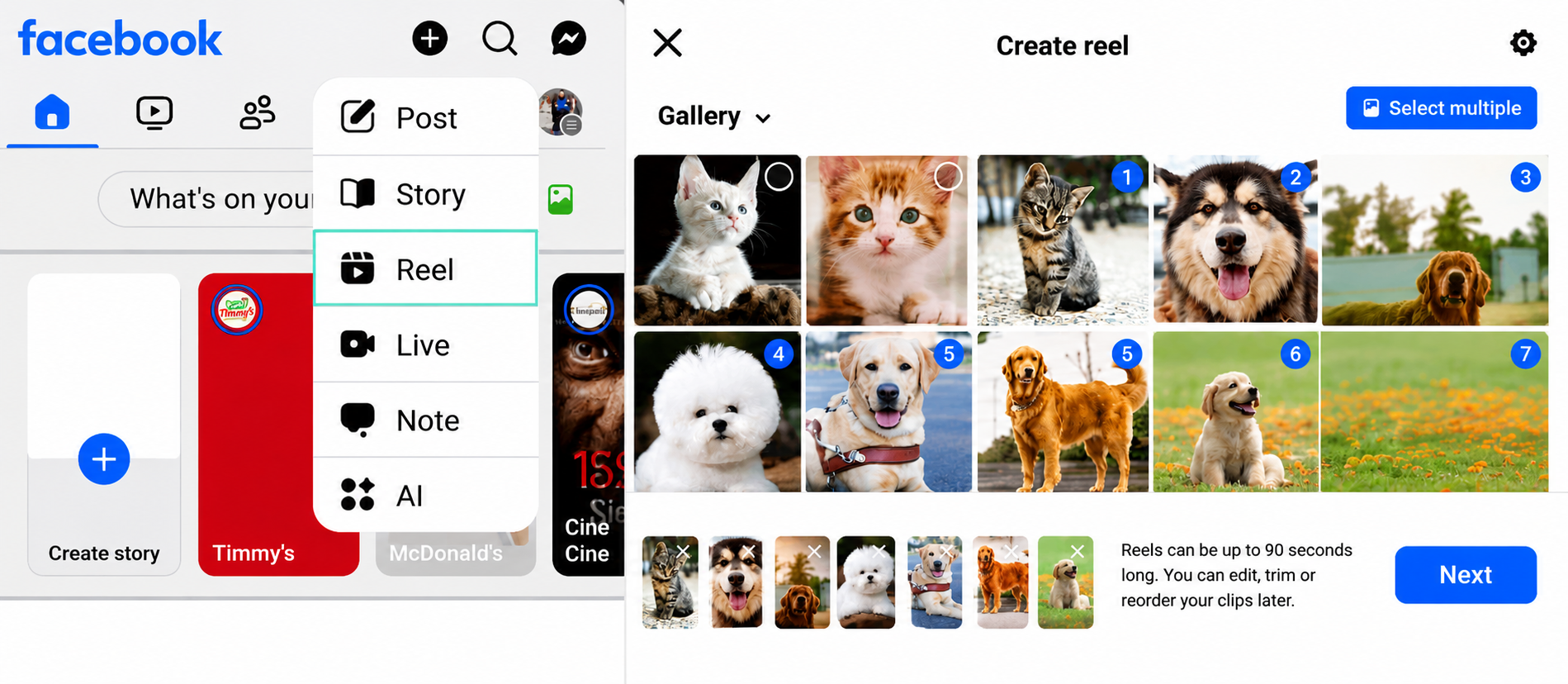
Choose 5-15 good images that enhance your story. Follow a consistent crop, with a key image at the start, followed by details and lifestyle images, and finally a call to action.
Step 2: Create Your Slideshow Video
Set the time for each slide using the creation flow on Facebook or a video editing app such as CapCut / Canva, and add captions and transitions.
Step 3: Upload Your Slideshow to Facebook
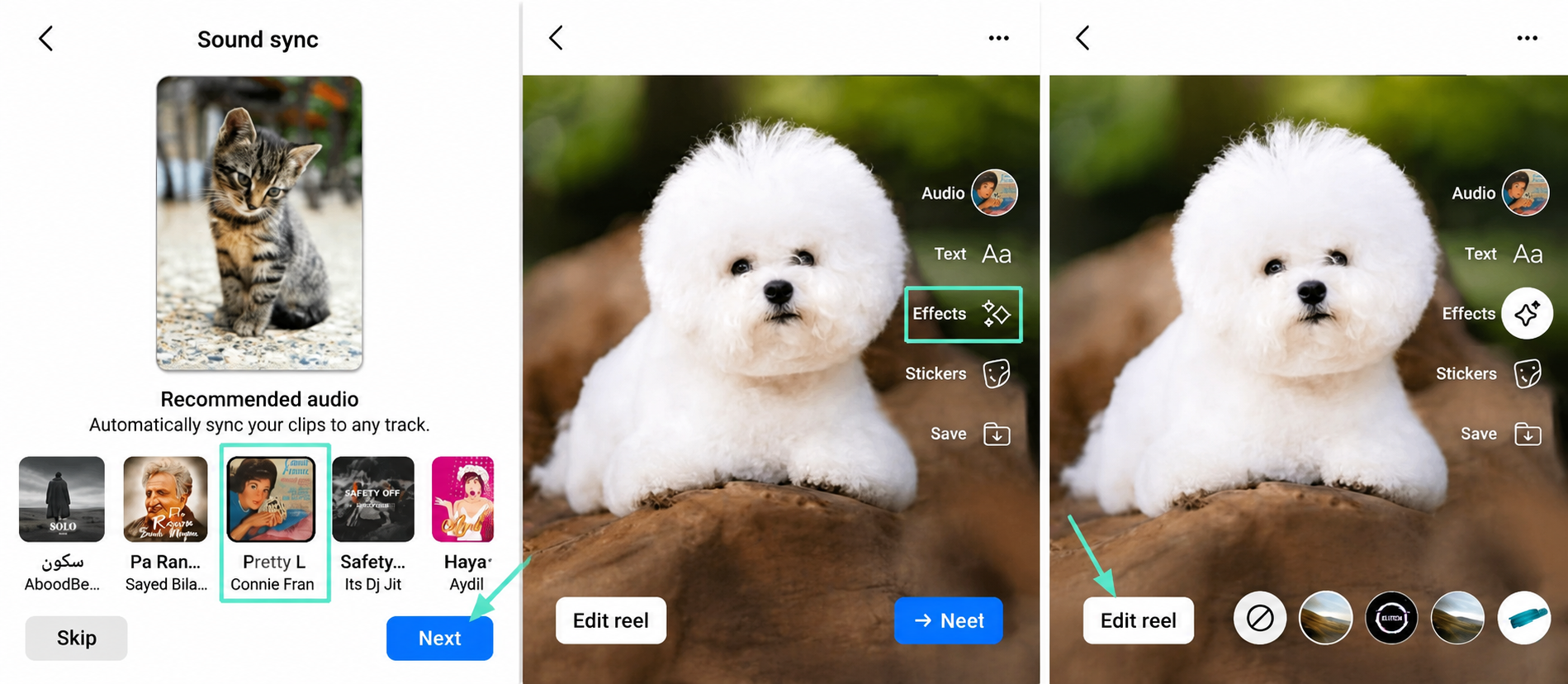
Export the MP4 file and upload it as a post, Reel, Story, or ad creative. Include a caption and target it as required.
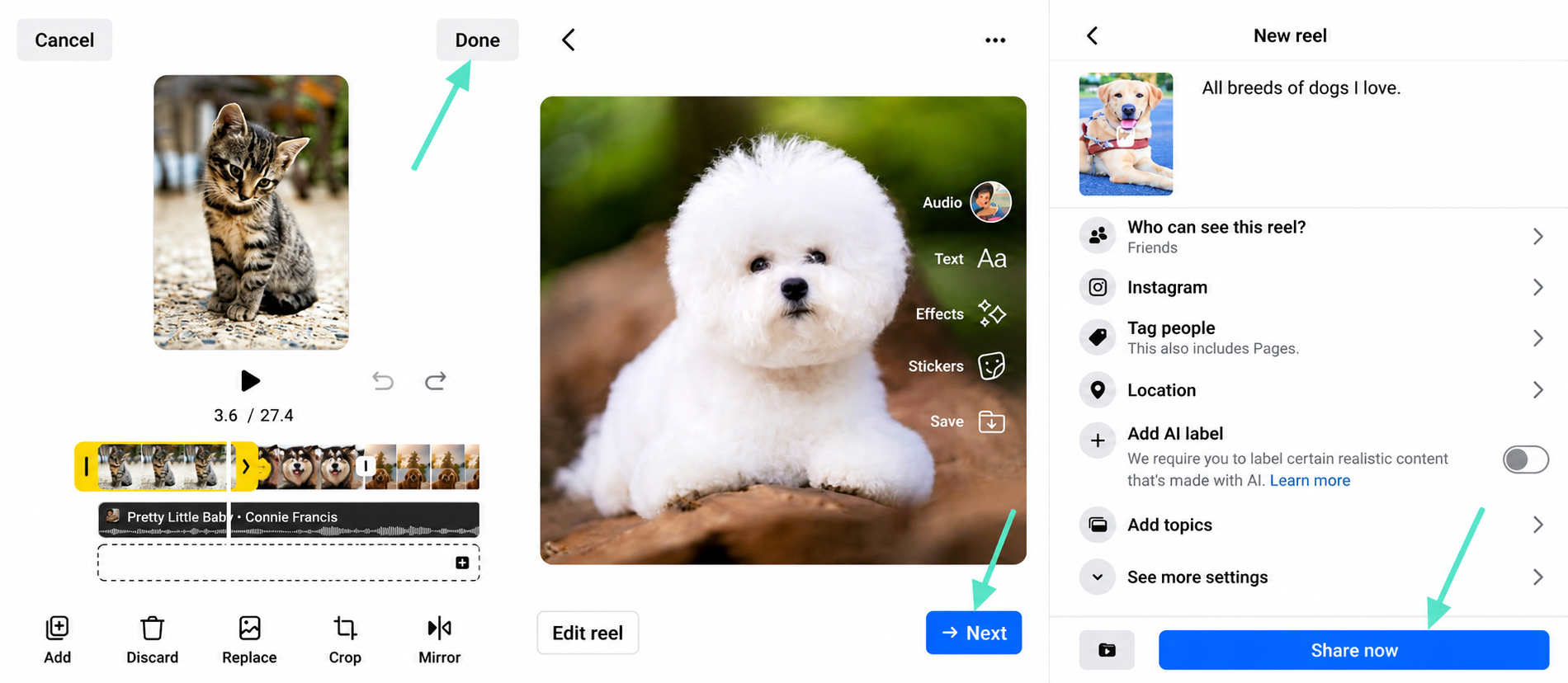
How to Make a Slideshow on Facebook for Free
There is free software available to create a professional-looking slideshow. There are a number of tools that can be used to create a Facebook Slideshow for free, so you can include photos, words, music, and transitions. This will be determined by the amount of creative control you desire. Facebook has limited capabilities, and free third-party editors have more customization capabilities for creating a brand and story.
Create a Slideshow with Facebook Tools
Facebook enables users to effortlessly upload slideshow movies from photos to their Feed, Story, or Reel. This is an excellent feature for anything personal that you want to post or perhaps easy business posts. However, many creators prefer to edit their slideshow in the dedicated editor before uploading it to Facebook, as the features of Facebook might change over time.
Use Free Online Slideshow Makers
To get creative, use a free slideshow maker such as Canva, CapCut, or Adobe Express. Their drag-and-drop editor, templates, animated text, and transition effects provide a sophisticated feel. Slide duration, reorder images, add captions, and export in Facebook-friendly formats. They're ideal for beginners and marketers alike. A slideshow maker that is easy to use, has good export quality, provides templates, and is compatible with mobile aspect ratios.
Create Slideshows from Photos with AI
AI has simplified slideshow preparation by enhancing photo quality before editing. AI tools can brighten dark images, remove distracting backgrounds, improve sharpness, and maintain consistent styles across campaigns. This is particularly beneficial for ecommerce businesses and content creators, as better source images lead to improved slideshows, even with basic editing software.
How to Make a Facebook Slideshow with Music
Music can change the ambiance of your slideshow. Music can summon emotions from travel experiences, stir up excitement for product launches, and energize promotional campaigns. If you are making a Facebook slideshow with music, choose music that will complement your pictures instead of distracting from them. The background music should be appropriate for your story and not overpower the audience. You can now add music to your slideshow by clicking on this button.
There are often music libraries in slideshow editors, and Facebook has music to use in Stories and Reels. Set the volume so it doesn't overpower narration and make sure that the soundtrack isn't repetitive when viewing the slideshow.
Best Practices for Slideshow Music
Select music that will enhance your slideshow, such as upbeat songs for product launches and softer music for travel stories or testimonials. One should always consider the audience, and for professional presentations, clean instrumentals are preferable, but for creative brands, energetic instrumentals are better. When using music in paid campaigns on Facebook, make sure to choose music that is commercially safe or licensed to prevent copyright issues.
Best Facebook Slideshow Maker Tools
Explore lots of fun Facebook slideshow tools and find some that have different editing options. Some focus on the ease of use of their templates; others offer a lot of customization features ideal for marketing. Choose the right slideshow builder for your creative vision, workflow, and editing needs to bring your ideas.
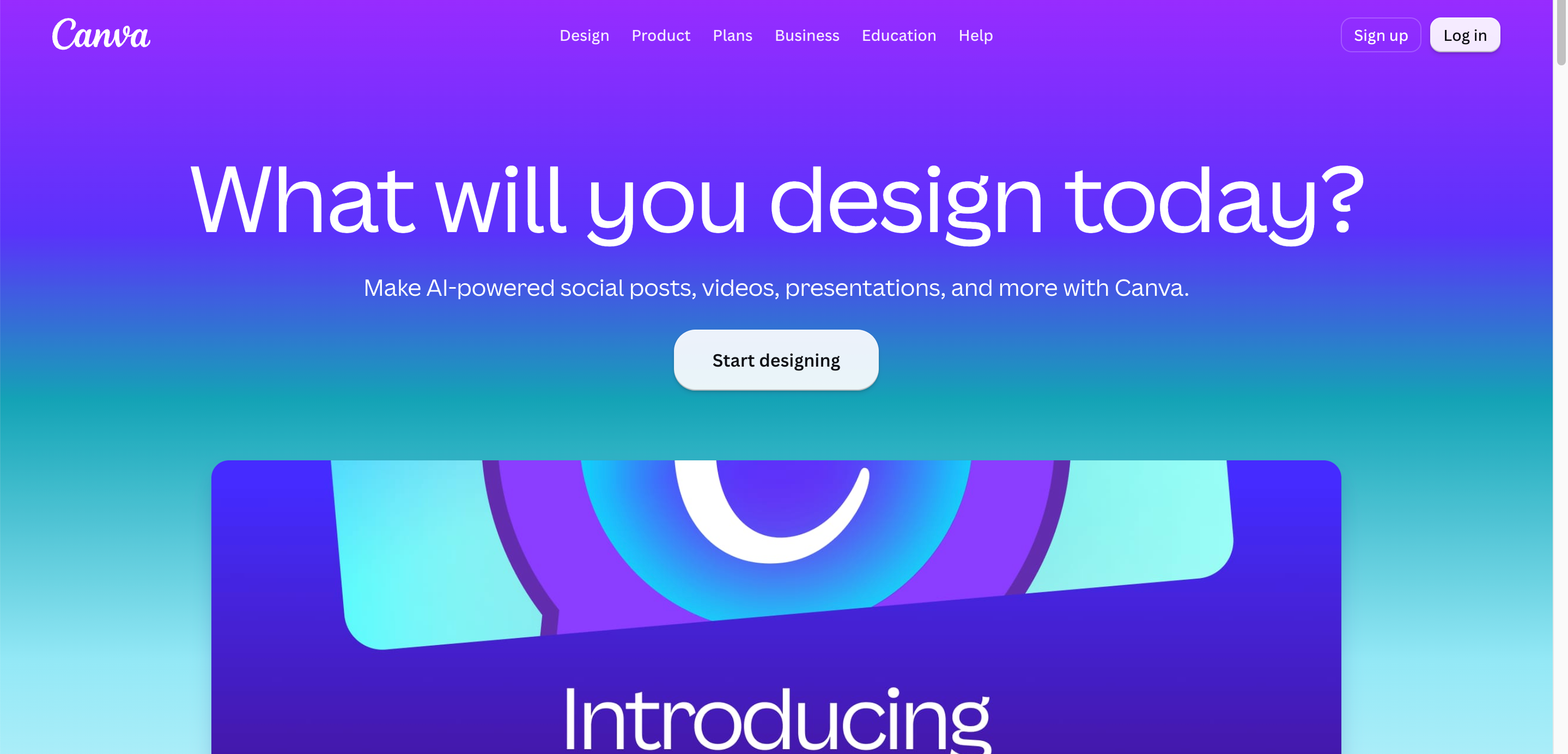
Canva
Canva is one of the most user-friendly slideshow editors. Its intuitive drag-and-drop interface, professionally designed templates, and extensive media library enable users to create polished slideshow videos quickly and easily.
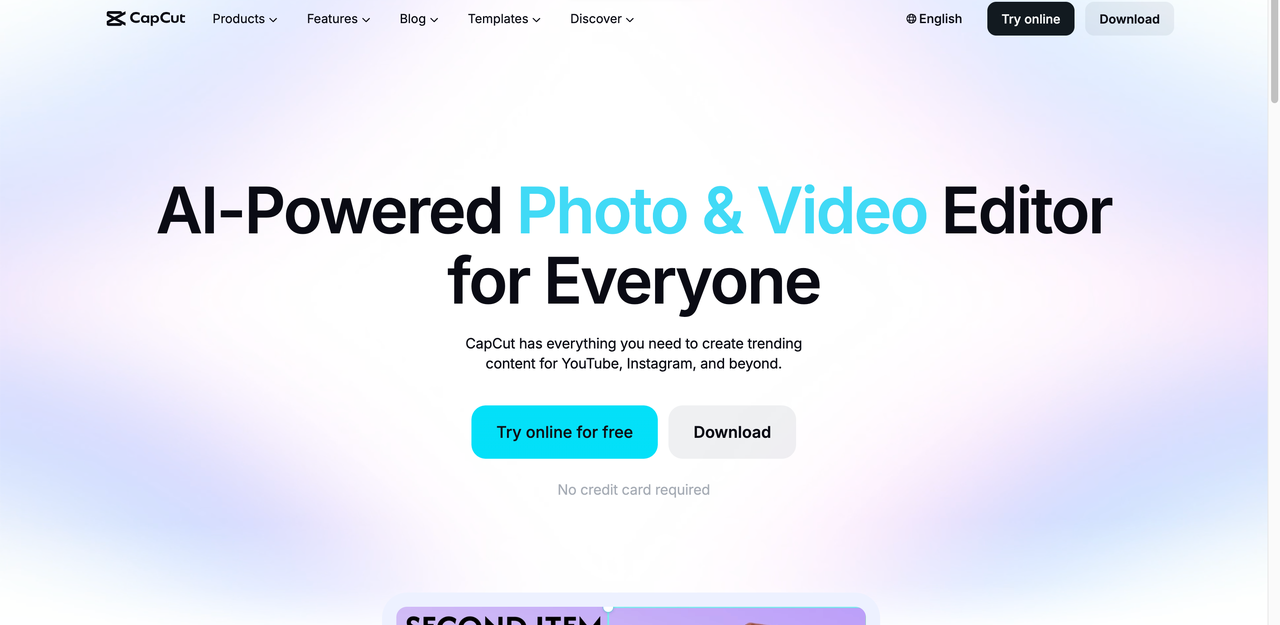
CapCut
CapCut has a range of advanced video editing tools, such as timeline editing, animated captions, visual effects, transitions, and different music tracks, to name just a few, which are available in an easy-to-use manner. This is best suited for creators who require greater pacing and storytelling control and need to be efficient.
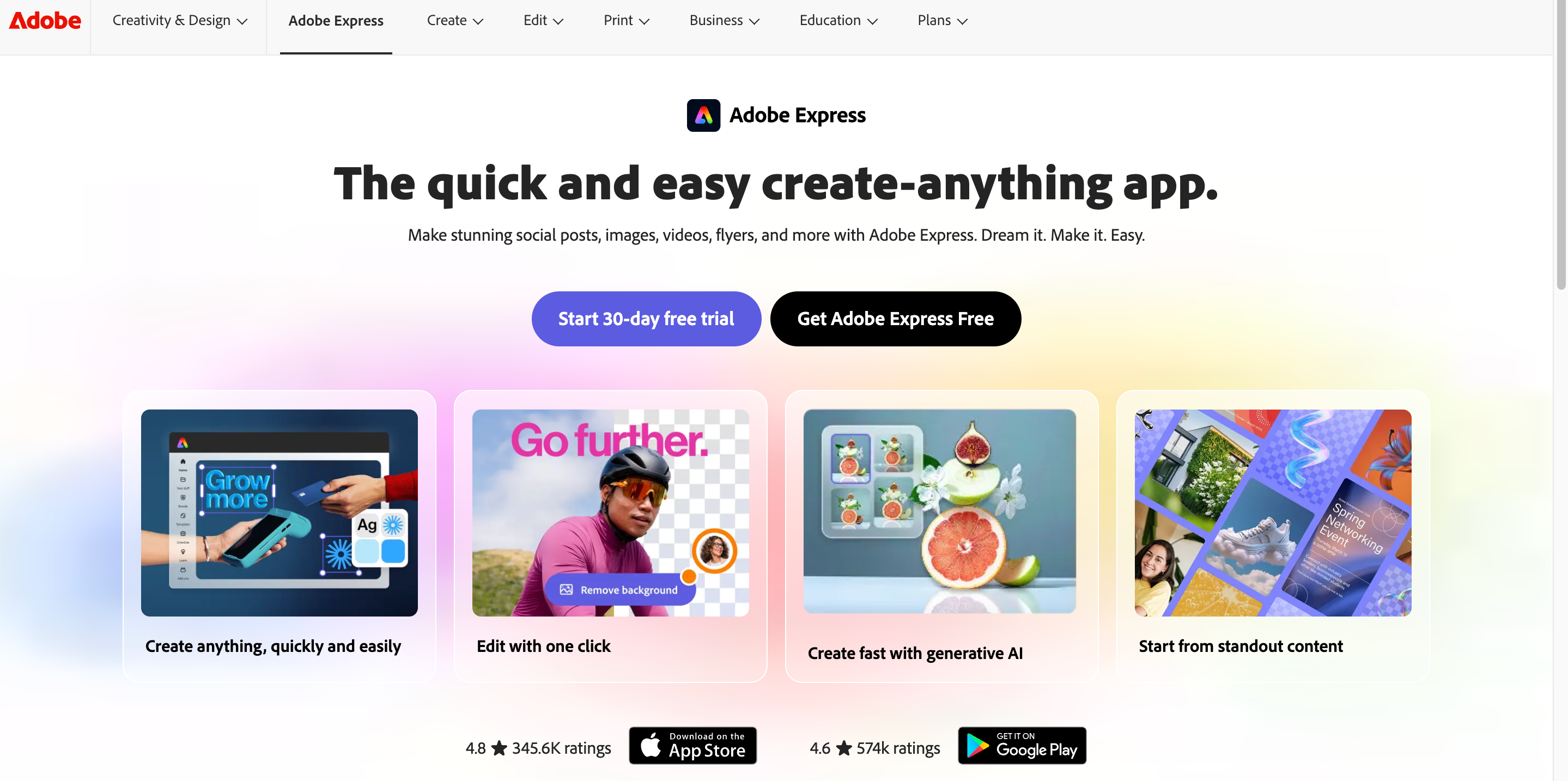
Adobe Express
Adobe Express provides easy-to-use professional design tools, allowing users to make slideshow videos using customizable templates, graphics, stock assets, and simple animation. Ideal for any enterprise that belongs to the Adobe ecosystem who want a more efficient editing process for their social media content.
Designkit
Designkit plays a crucial role in the marketing workflow, allowing marketers to create visually stunning content that captivates their audience. This feature is particularly valuable for crafting impactful slideshows that effectively convey messages and engage viewers. We invite you to be a part of our mission to enhance the quality of your presentations, making them not only more appealing but also more effective in communicating your ideas.

Facebook Slideshow Ideas for Businesses
A Facebook slideshow is more than just a series of images. It's a complete means of presenting products, a way to tell your brand story and give your customers the call to action to make a purchase. Be sure that the slideshow is appropriate for the campaign. It can be a new product or customer success, and you have equal messaging and branding on all the slides.
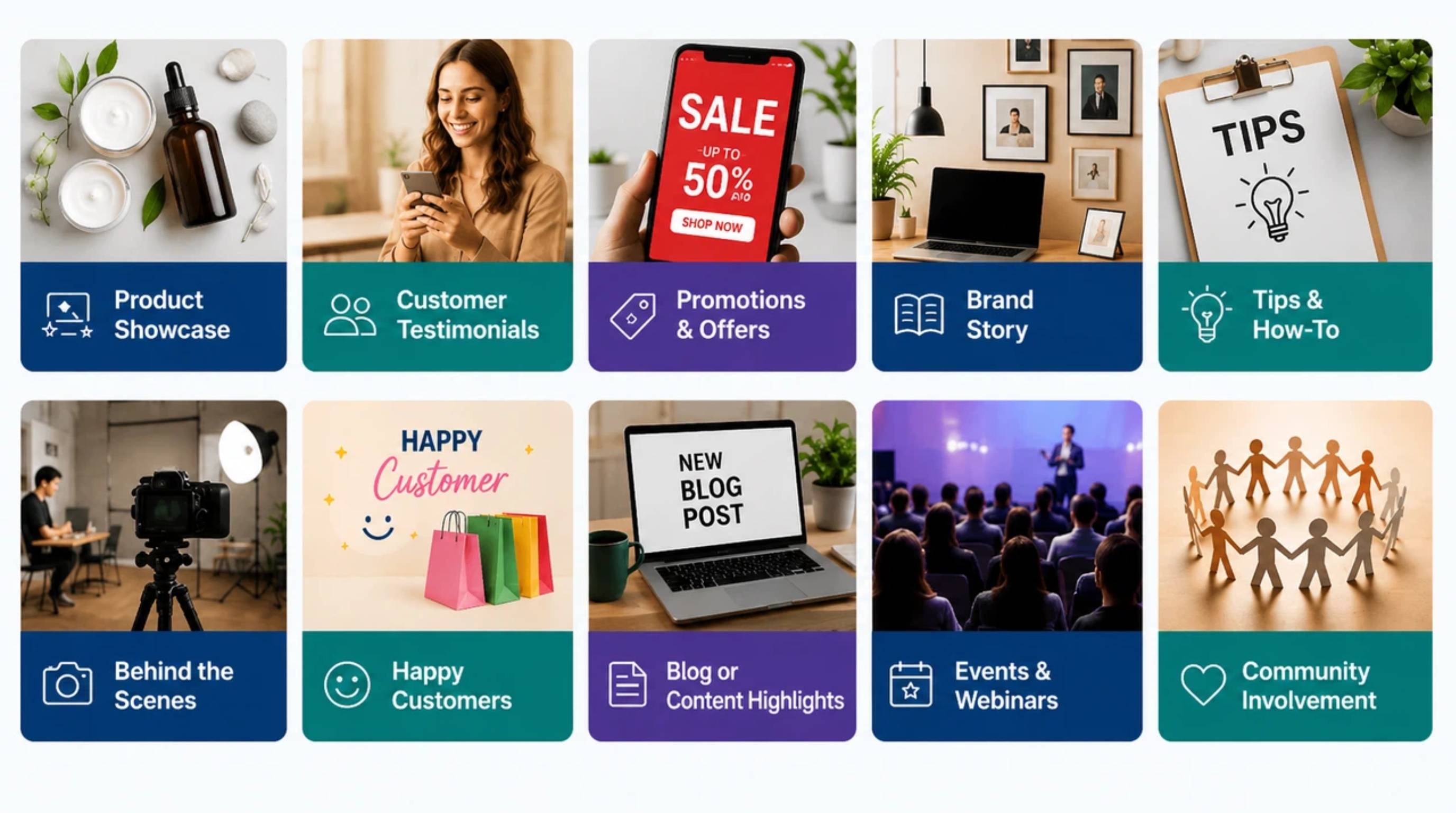
Product Showcase Slideshow
A Product Showcase Slideshow helps customers watch several product angles, or several products, in the same video, rather than what they would be able to do using individual posts. Start with a great hero shot, close-ups, lifestyle shots, and key benefits. Conclude with a clear call to action on your website or online store.
New Product Launch Slideshow
When introducing a new product, it's a fantastic opportunity to capture your audience's attention with a thoughtfully created slideshow. Start by demonstrating clearly the product and its design. Next, describe its major characteristics, making special emphasis on what sets it apart or differs from others. Then talk about the advantages it provides, focusing on how it can help the user(s) or provide a solution to a particular problem. Lastly, offer examples of the practical application, how and where the product can be used effectively.
Before-and-After Slideshow
Before and after photos work great in industries like beauty, fitness, home improvement, cleaning, and product restoration. Display the first image first and then the enhanced image. The consistent format enables the viewer to recognise the transformation and appreciate what you are offering them.
Facebook Slideshow Ads
Slideshows are an additional popular advertising creative as they provide a video-like experience without needing to produce lengthy videos. Slideshow ads on Facebook are a great way for businesses to display several products, point out a promotion, or explain services in a matter of seconds. Experimenting with various headlines, images, and calls to action can lead to better campaign effectiveness over time.
Use Designkit to Create More Compelling Facebook Visuals for Your Slideshows.
The best slideshows don't start with music or transitions. Each slide in the presentation is well-designed, and your message is clearly visible in the fast-paced Facebook stream. Designkit helps e-commerce brands, marketers, and content creators get beautiful images in front of them prior to the creation of the final slideshow. It doesn't replace slideshow editors; rather, it makes it easier to add visual content to tools like Canva, CapCut, and Facebook's publishing system.
Improve Images Before Creating Slideshows
Creating strong visuals from the start leads to better results than fixing them in editing. With Designkit, you can:
-
Enhance product photos
-
Improve lighting and clarity
-
Achieve cleaner, professional visuals
These enhancements ensure a polished and consistent quality across your slideshow.
Create Different Slideshow Styles
There are so many different styles of campaign and they require certain styles of creativity. Designkit lets you quickly make variations in the images for:
-
Product launches
-
Promotional campaigns
-
Seasonal marketing
-
Facebook advertising
This means that you can test out different messages without having to re-design each one.
How to Use Designkit in a Facebook Slideshow Workflow
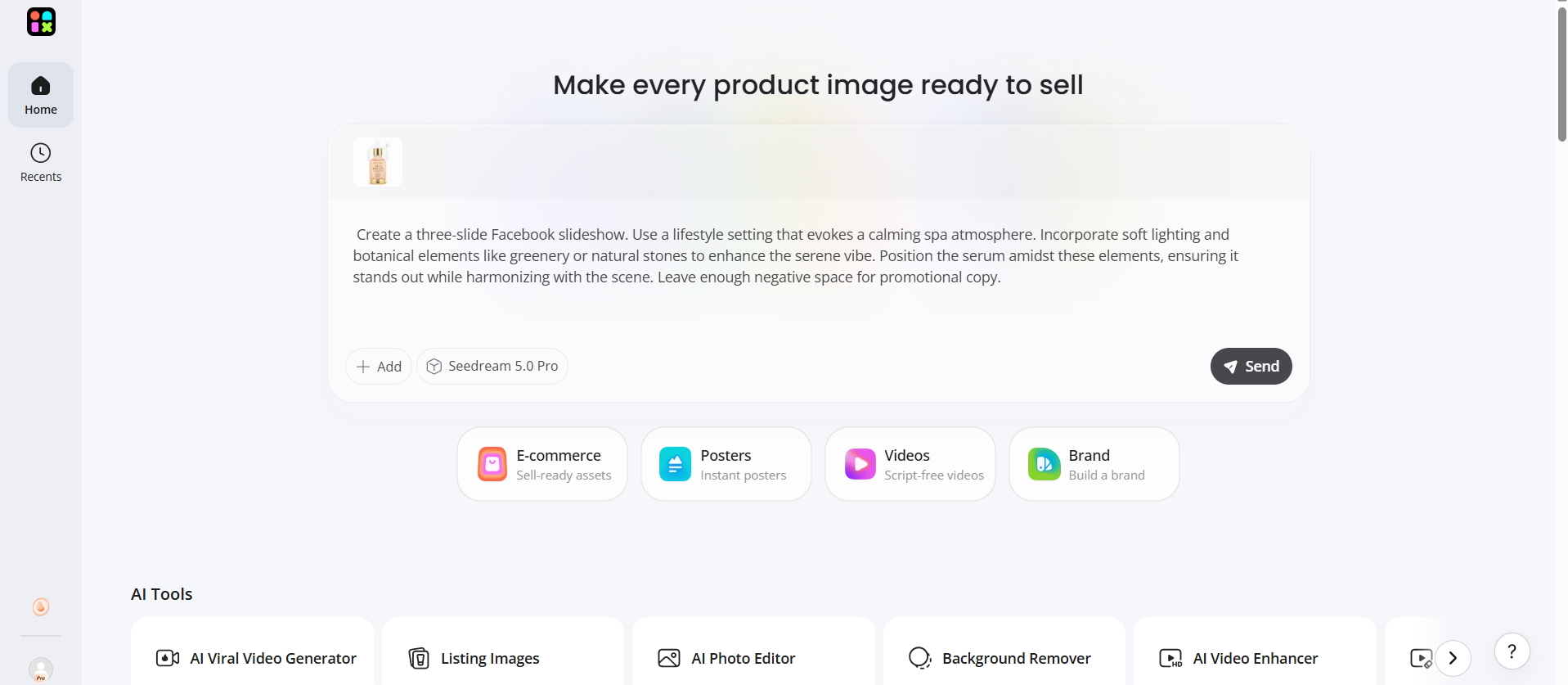
Step 1: Upload Product Photos and Campaign Notes
Upload your product images and campaign brief to the Designkit workspace, including your campaign objective, visual style, target audience, and branding guidelines, to create visuals that align with your marketing goals.
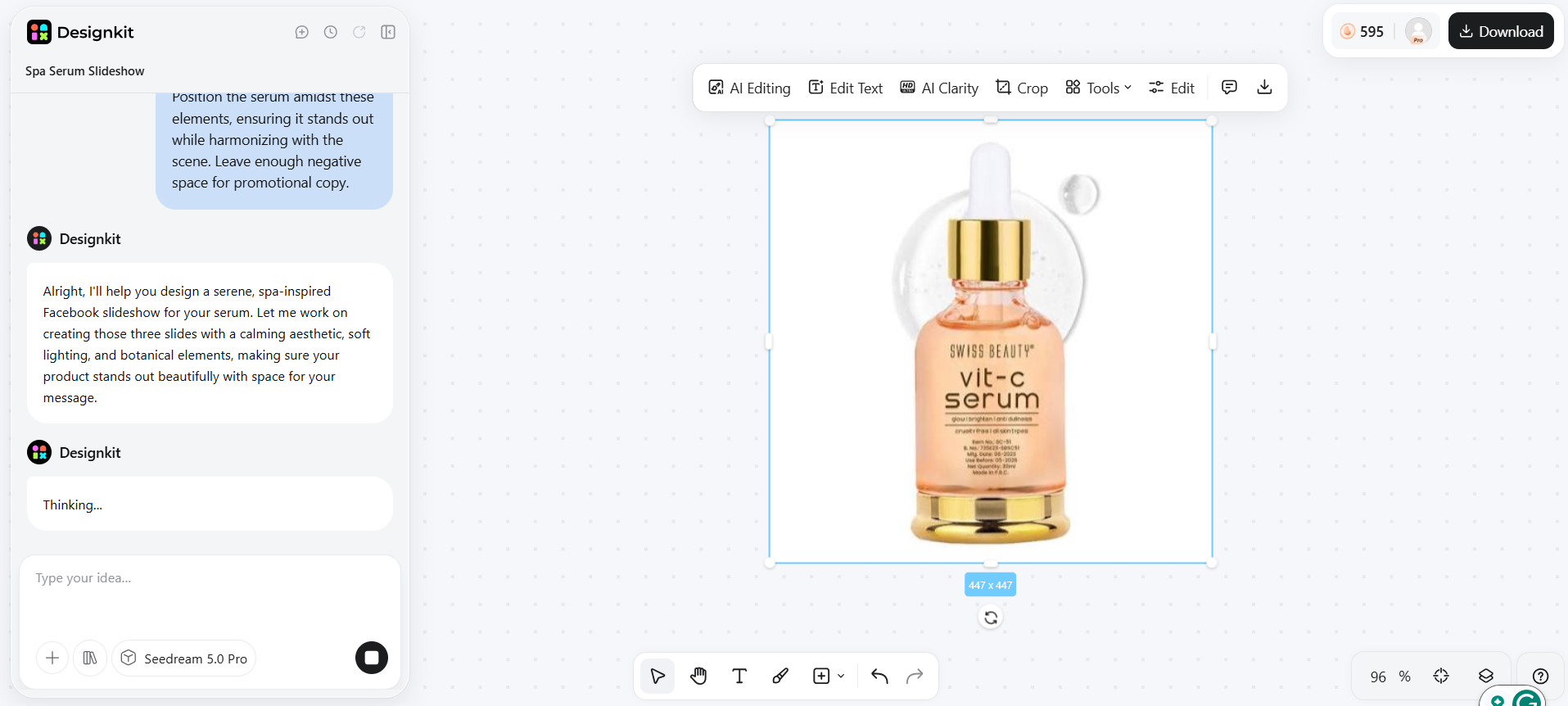
Step 2: Generate and Customize Slide-Ready Visuals
Use the Designkit workspace to generate lifestyle images, promotional graphics, and branded visuals that are ready to use as slideshow slides. You can create multiple variations and refine them to maintain a consistent brand identity.
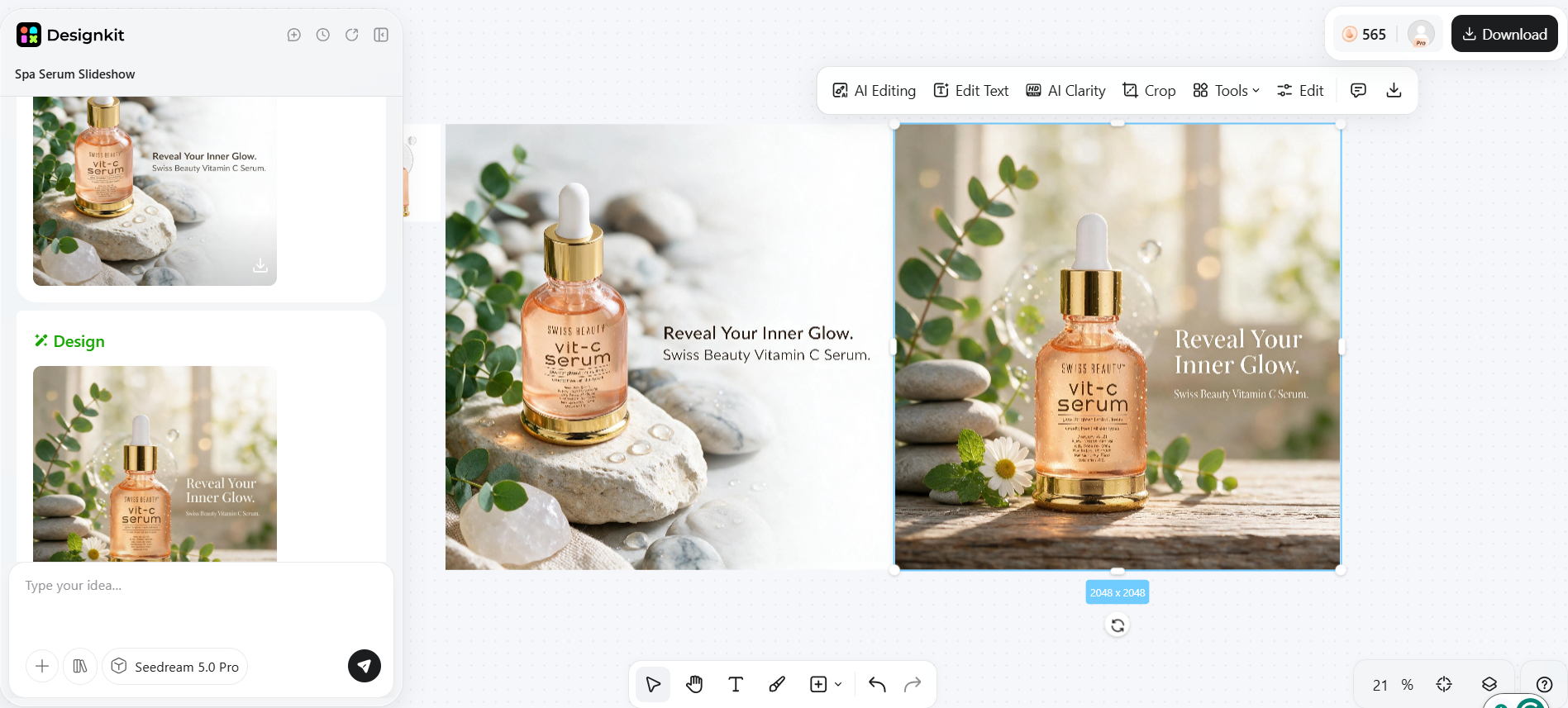
Step 3: Export and Upload to Facebook
Export your images or video clips from Designkit, import them into your slideshow editor, add music and captions, then upload the finished slideshow to Facebook.
Create Facebook Slideshow Visuals Free
Facebook Slideshow best practices
Use a strong opening image
The first slide determines whether viewers continue watching. Choose your most eye-catching image to immediately capture attention and introduce the story.
Keep slides simple
Avoid overcrowding each slide with excessive text or multiple messages. One clear idea per slide is easier to understand and creates a smoother viewing experience.
Design for mobile viewing
Most Facebook users browse on smartphones. Use large text, clear images, and simple layouts that remain readable on smaller screens.
Use the right aspect ratio and length
Different Facebook placements work best with different formats. Feed posts commonly use 1:1 or 4:5, while Stories and Reels perform best with 9:16 videos. Keep your slideshow concise so viewers stay engaged from beginning to end. Before publishing, verify Meta's latest recommendations, as platform specifications may change over time.
Create multiple versions for testing
Rather than relying on one creative, they produce several versions with different opening images, captions, or calls-to-action. Testing multiple variations helps identify which slideshow generates the highest engagement, click-through rate, or conversions.
Common Facebook slideshow mistakes
Using low-quality photos:
Blurry or poorly lit images can significantly detract from the overall quality and impact of your slideshow. To create a captivating presentation, it's essential to begin with the highest quality photos you have. Clear, well-lit images not only enhance visual appeal but also help convey your message more effectively. Before you start compiling your slideshow, take the time to review your photos and select those that are sharp, vibrant, and well-composed to ensure a polished final product.
Adding too much text
To enhance readability, especially on mobile, let's keep captions short and centered on one key message. This makes our slides engaging and easy to understand. To improve readability, particularly on mobile devices, it's essential to keep captions concise and focused on a single key message. This approach not only enhances engagement but also ensures that our slides are clear and easily comprehensible for the audience. By prioritizing brevity and clarity, we can create visually appealing content that effectively communicates our ideas.
Ignoring branding consistency
When you mix unrelated colors, fonts, or visual styles, it can dilute your brand's identity. To make a lasting impression, ensure your branding stays consistent across every slide. Consistency is key to strong brand recognition!
Using incorrect video dimensions
Inconsistent aspect ratios can lead to cropped images or a less-than-stellar presentation on various Facebook placements. Make sure your visuals shine everywhere by keeping those dimensions in check.
Creating only one version
Publishing a single slideshow limits your opportunities for optimization. Testing different creative versions often reveals which design performs best.
Using music you cannot license for ads
If you're running paid campaigns, always use commercially licensed or royalty-free music. Using copyrighted audio without permission can affect ad delivery or result in restrictions.
Final Thoughts
Learning how to make a slideshow on Facebook is easier than ever when you follow a structured workflow. Start by selecting strong photos, organize them into a clear story, add music and transitions, then export a mobile-friendly video for Facebook. The quality of your slideshow depends on the visuals you begin with. Preparing polished images before editing can significantly improve the final result. AI-powered creative tools like Designkit help enhance product photos, generate branded variations, and streamline creative production, making it easier to build professional Facebook slideshows for both organic content and advertising.
Frequently Asked Questions
How do I make a slideshow on Facebook?
How do I make a slideshow on Facebook for free?
You can use free tools such as Facebook's publishing options, Canva, CapCut, or Adobe Express to build slideshow videos without purchasing premium software.
Can I add music to a Facebook slideshow?
Yes. Many slideshow editors include built-in music libraries, and Facebook also offers music options in certain publishing experiences such as Stories and Reels.
What is the best Facebook slideshow maker?
Popular choices include Canva, CapCut, Adobe Express, and other video editing tools. The best option depends on the features and workflow you need.
How do I upload a slideshow on Facebook?
Export your slideshow as an MP4 file, upload it like any other video, add a caption, choose your audience or campaign settings, and publish.
What size should a Facebook slideshow be?
Feed posts generally perform well with 1:1 or 4:5 videos, while Stories and Reels are best in 9:16 format. Always confirm the latest Meta recommendations before publishing.
Can AI create Facebook slideshow videos?
AI can enhance images, generate creative variations, and prepare branded visuals. You can then assemble those assets into a slideshow using a dedicated slideshow editor.
Are slideshow ads effective on Facebook?
Yes. They provide a video-like experience using still images, making them an effective option for showcasing products, promotions, and brand stories while requiring less production effort than traditional videos.
You May Also Like

Hair Color Ideas 2026: Trending Shades & Virtual Try On

How to Write an Instagram Bio: Examples, Tips & Ideas

Best Products to Sell on Amazon: 10 Ideas for Beginners

How to Make a Slideshow for Facebook: Photos, Music & Tips 2026

How to Celebrate National Dog Day 2026: Date & Easy Ideas

15 Simple Self-Care Ideas for Busy Schedules and Daily Life

Celebrate International Cat Day 2026: Date & 10 Fun Ideas

Chic Outfit Ideas for Every Occasion: 15 Stylish Looks & Tips

How to Find a Product by Image: 7 Methods That Work (2026)

Aesthetic Poster Ideas: Find Your Style and Create Printable Art

20 FIFA World Cup Merchandise Ideas That Fans Actually Buy

Father's Day Gift Ideas: Personalized Card, Poster and Video

Father's Day Card Ideas: Messages, Printable and Personalized Cards
Create Professional Facebook Slideshows with AI
Turn photos into engaging Facebook slideshow visuals with Designkit. Enhance images, create branded variations, and prepare marketing-ready content faster.
