
Add a Blue Background to Your Photo
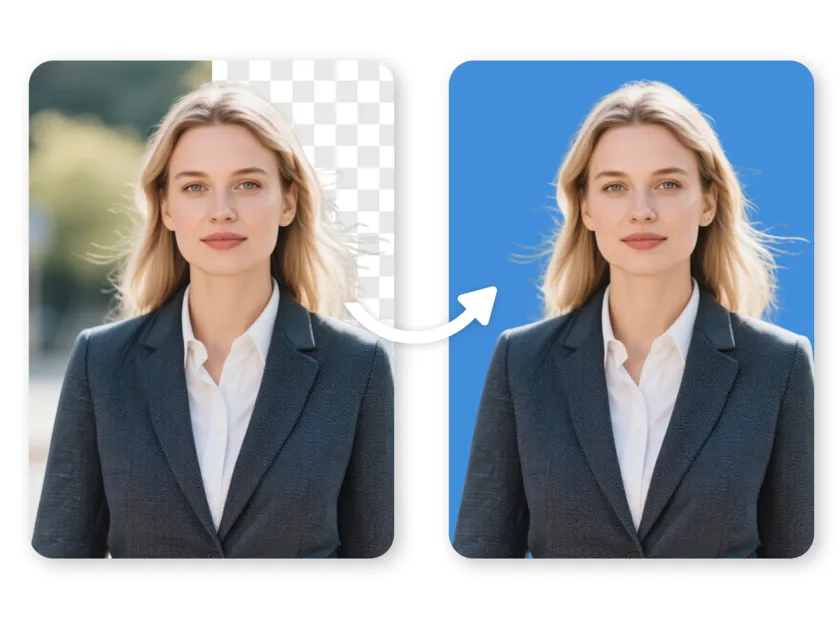
Add a blue background to any photo with Designkit. Choose solid blue shades for product photos, campaign graphics, and portraits without reshooting.
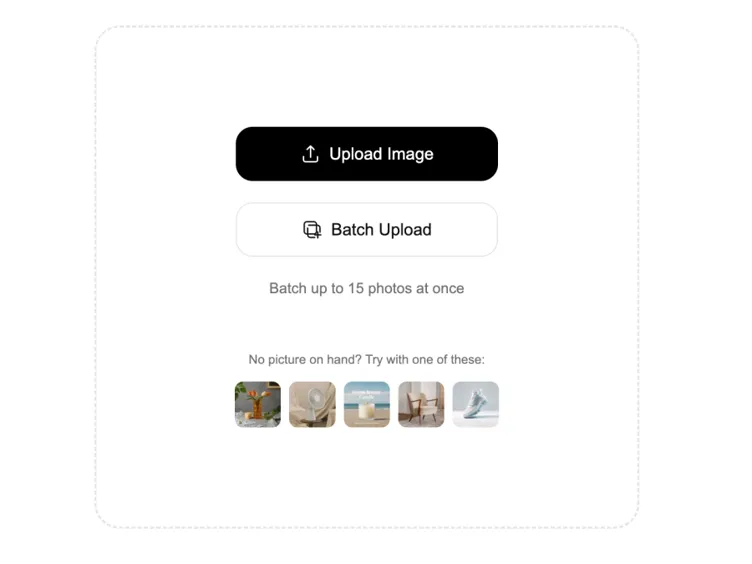
Batch up to 15 photos at once
No picture on hand? Try with one of these:
How to Add a Blue Background to a Photo
Step 1. Upload Your Photo
Open Designkit and upload the photo you want to update. It could be a product image with a distracting room background, a portrait with an unsuitable backdrop, or a photo that needs a different look for an upcoming campaign.
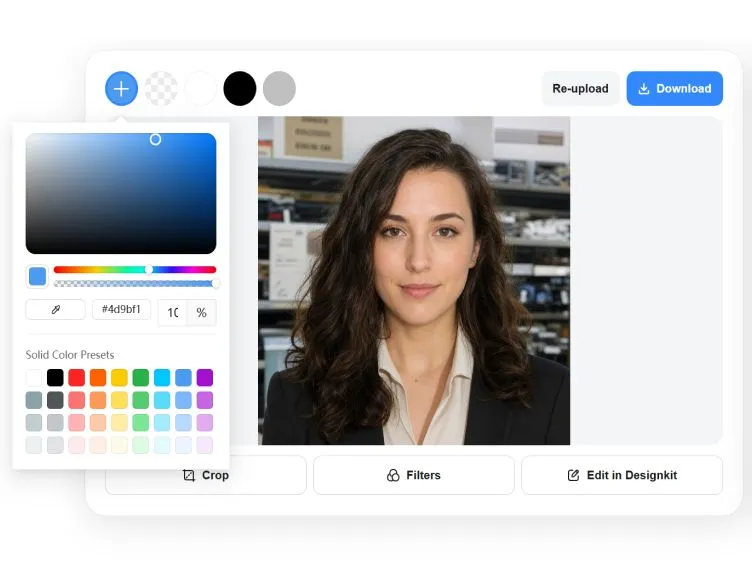
Step 2. Remove and Choose a Blue Shade
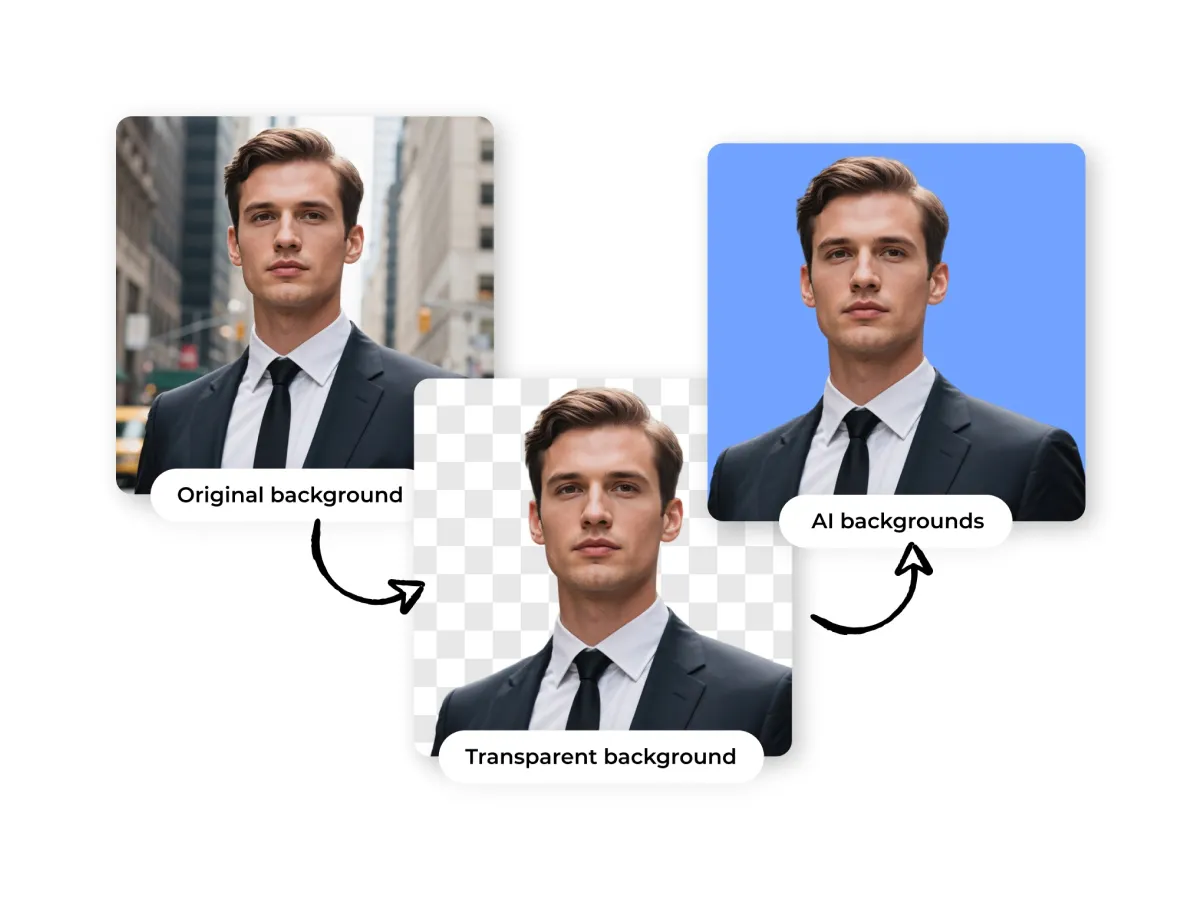
Designkit automatically removes the original background, allowing you to replace it with blue. Choose a shade such as light blue or deep blue, or enter a HEX color code to match your brand colors or preferred background exactly.
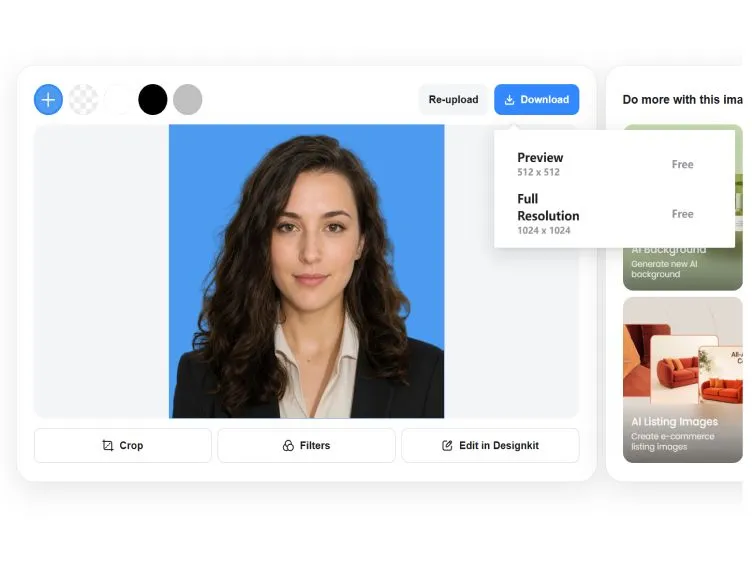
Step 3. Check Edges and Download
Check the result for rough edges, unwanted color spill, or changes to the main subject. Once the blue background looks right and the subject remains clear, download your finished image using the available export options.
What Can You Do With Designkit's Blue Background Editor
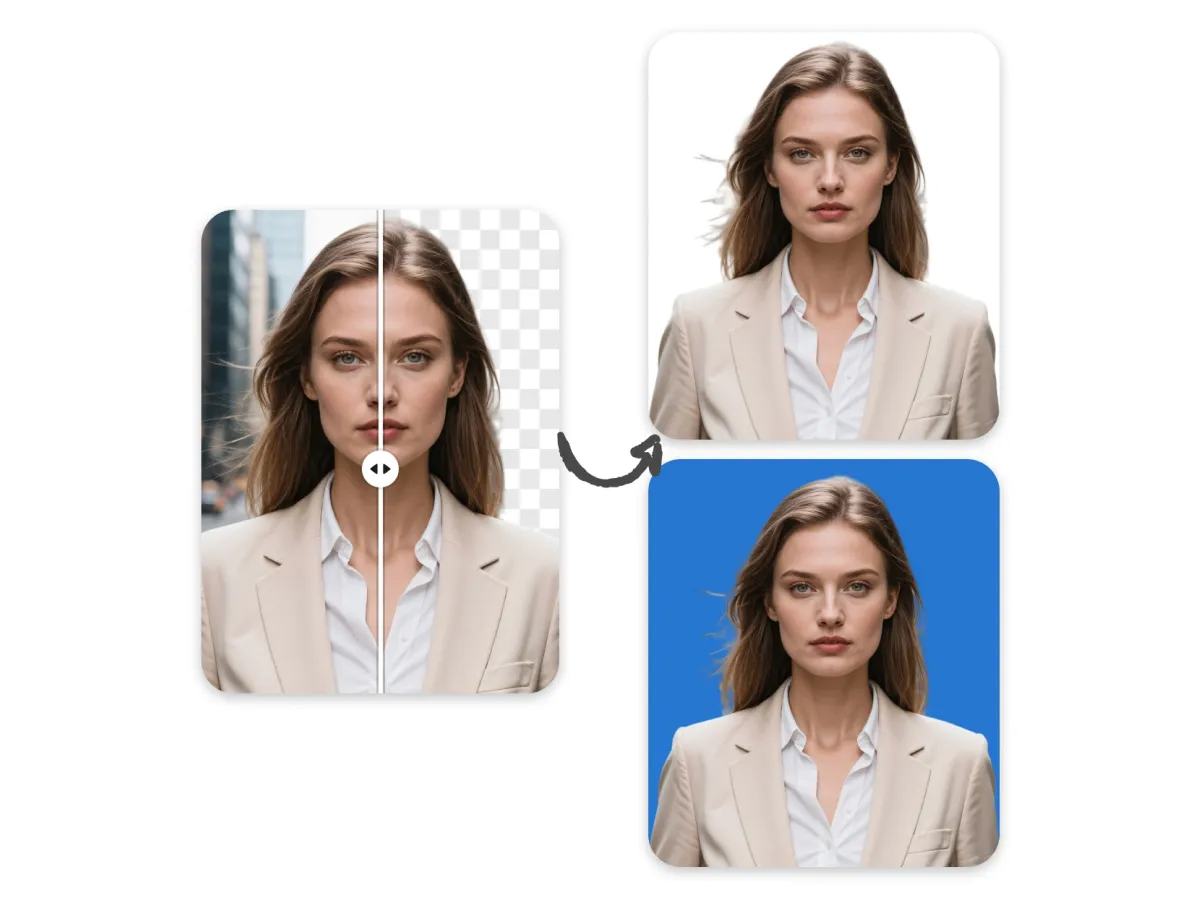
Replace Distracting Backdrops With a Clean Blue Shade
A distracting setting can make an otherwise usable photo difficult to work with. Use Designkit's available background editing tools to add a blue background to a photo while keeping the main subject, product details, and natural colours intact. Choose a shade that gives the subject enough contrast, then inspect fine edges before using the result in a listing or campaign. Explore an AI background changer workflow to update the setting without rebuilding the entire image.
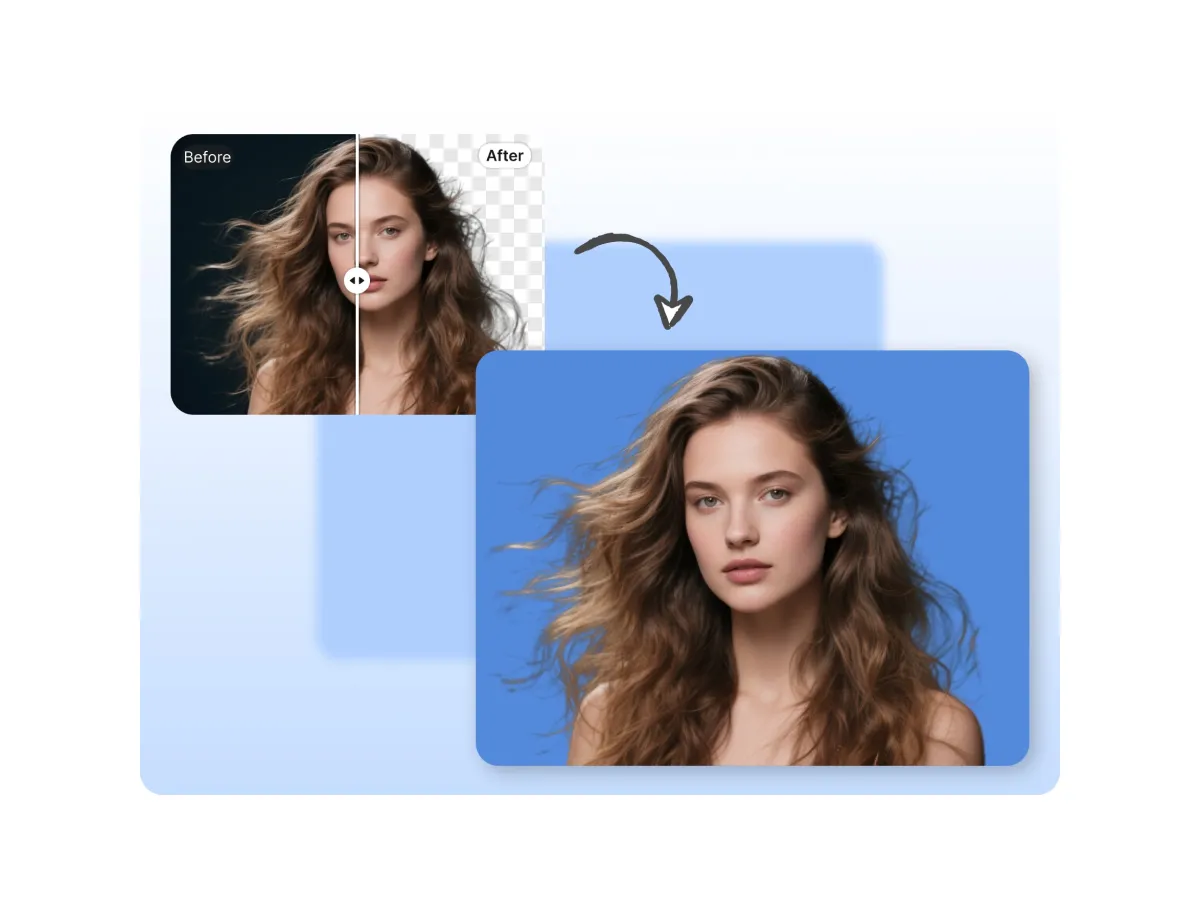
Give Flat Blue Backdrops More Depth With Gradients and Texture
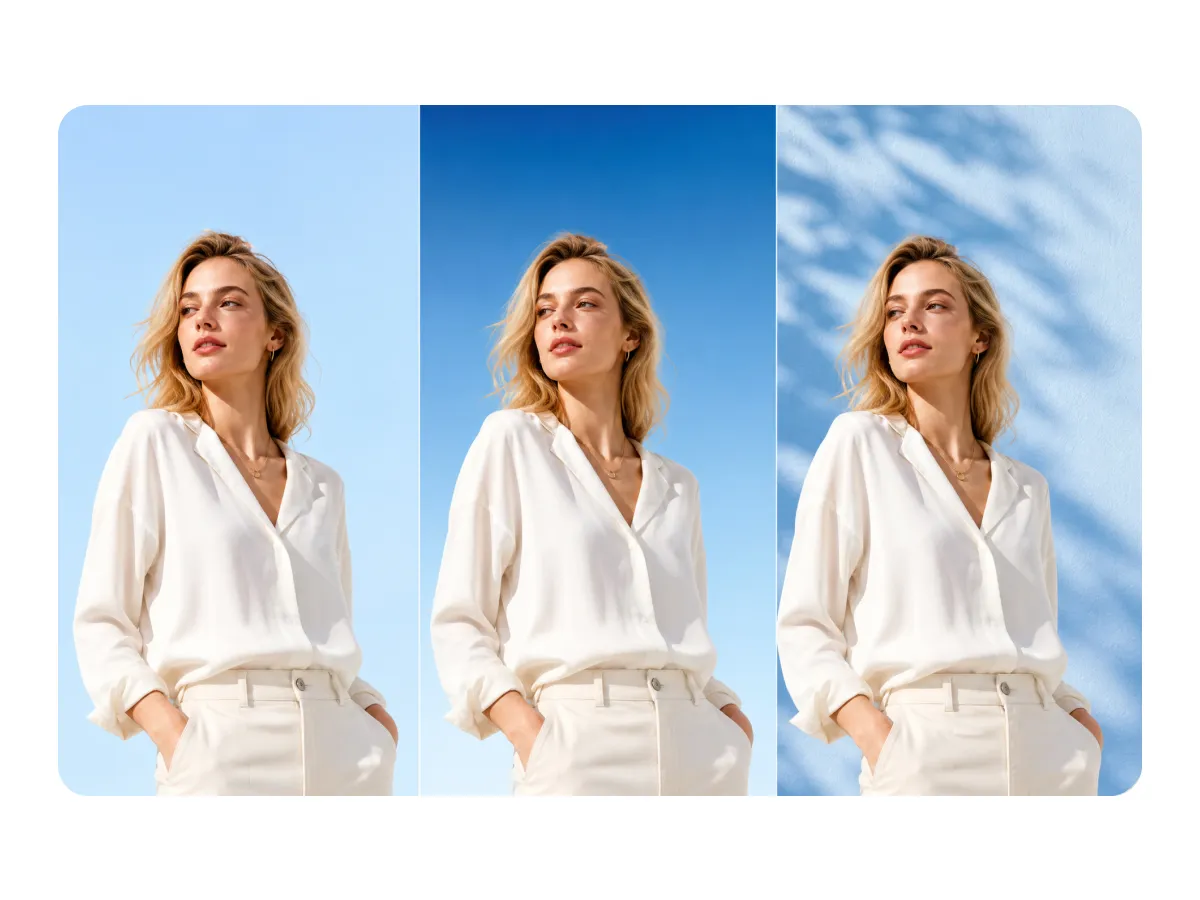
A flat blue backdrop can look plain when your design needs more depth or a specific mood. Explore different blue tones, gradients, or textures where supported to create a background that suits the subject. Whether you're preparing blue background images for a product page or a blue photo background for a promotional graphic, keep the shade intentional and avoid effects that compete with the main subject. Use change background color options where available to refine the look.

Make Product Photos Feel at Home in Their New Setting
Placing a product on a new colour can make it stand out, but poor contrast or mismatched lighting can make the edit feel artificial. When you add a blue background to a photo online, check how the product's edges, shadows, packaging, and surface finish sitting against the new setting. Choose a blue background that complements the actual product rather than changing its appearance. For more tailored scenes, explore an AI background generator workflow where supported.
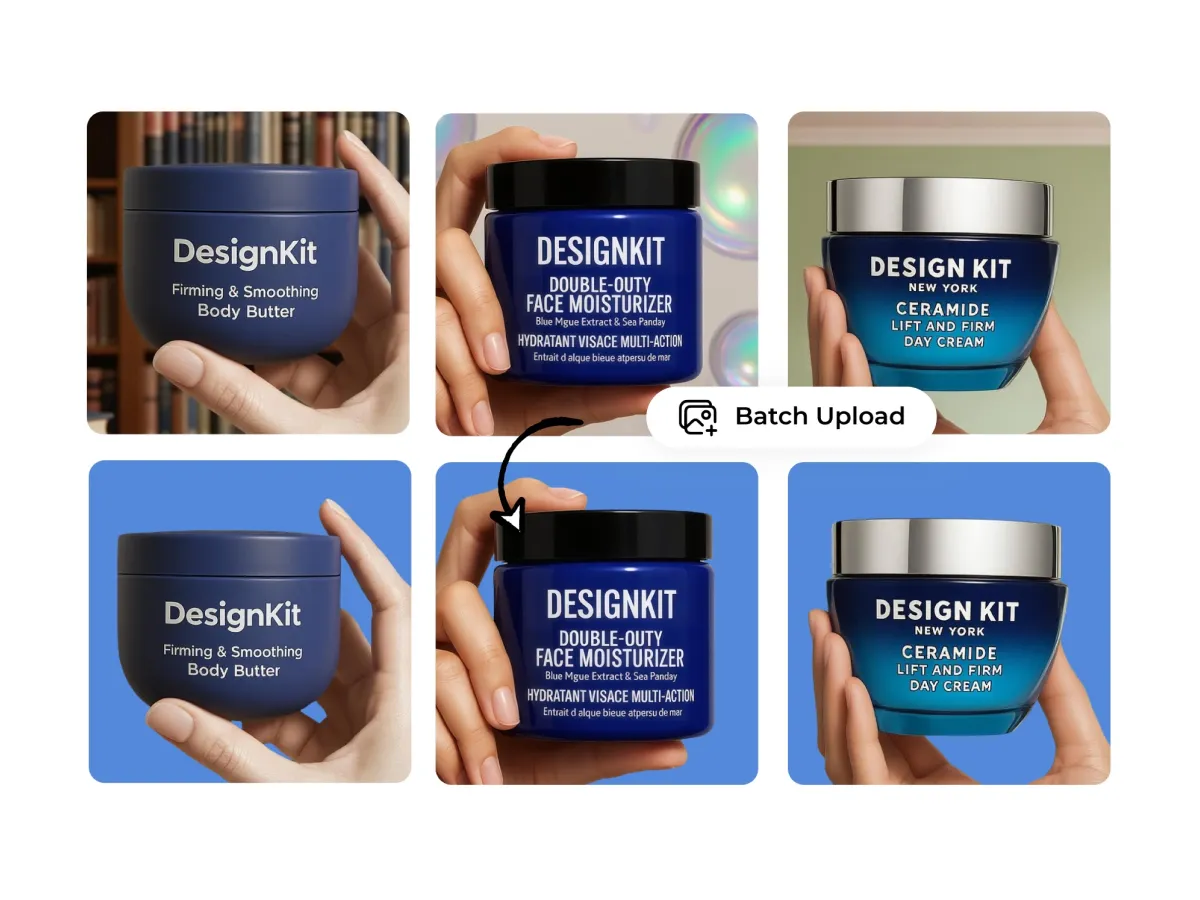
Keep Blue Backgrounds Consistent Across a Product Range
When product photos use different shades of blue, the collection can look uneven across a store or campaign. Establish a preferred blue tone and apply a consistent visual direction to related images, while adjusting for products that need more contrast. A repeatable blue background for photo editing workflow can help keep catalog visuals coordinated. Review each image individually to make sure labels, colours, and product details remain clear.
Where Can a Blue Photo Background Make a Difference
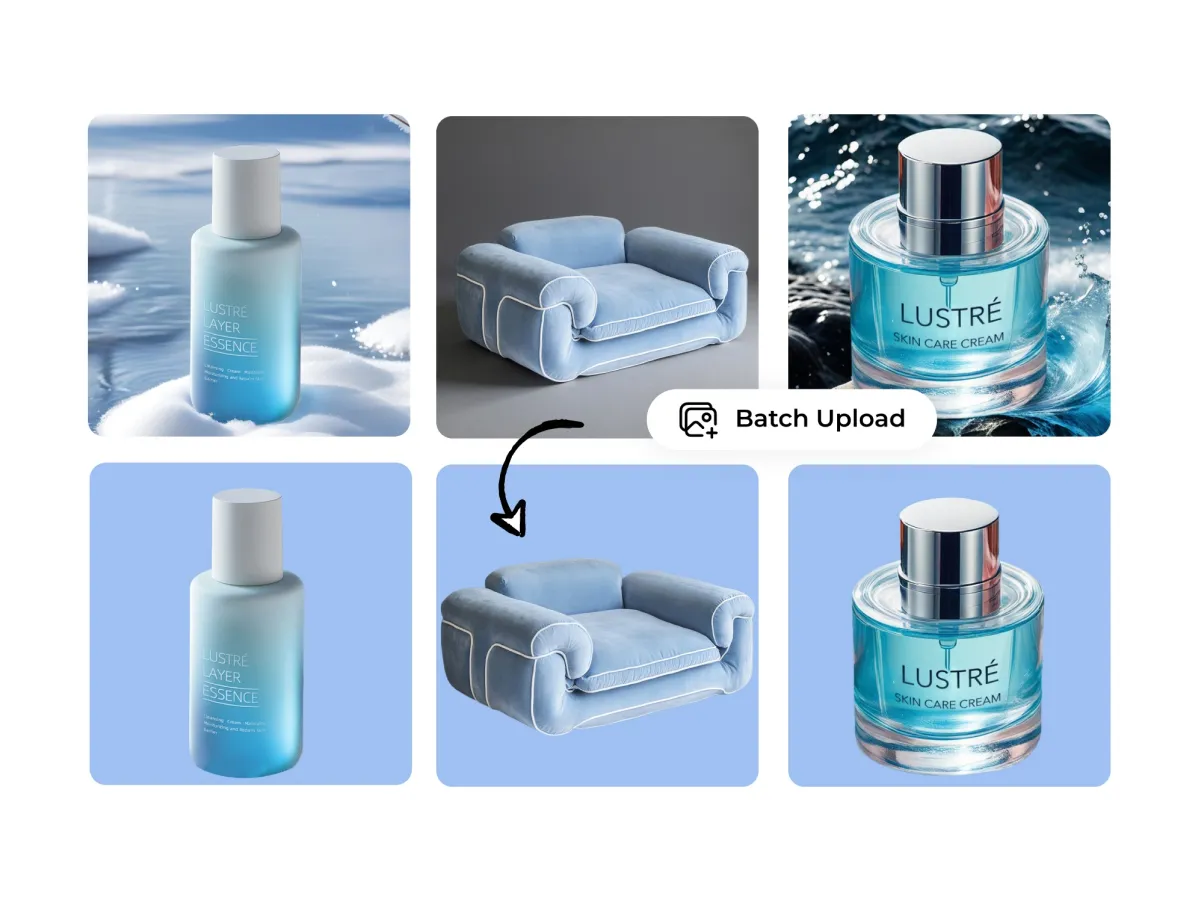
Create Blue Backgrounds for Online Product Listings
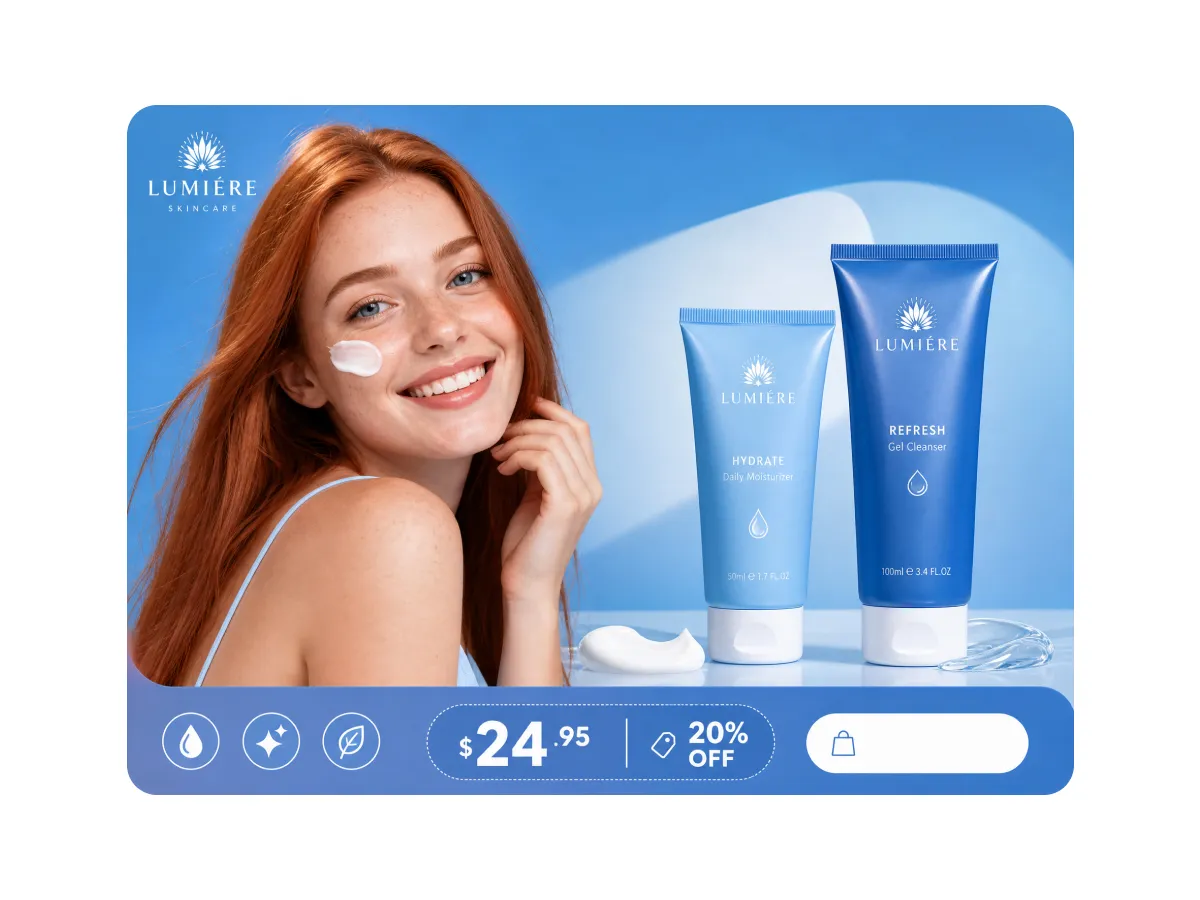
Product photos with mismatched or distracting backdrops can make an online catalog look inconsistent. Add a blue background to photo assets such as cosmetics, accessories, and packaging to create a more coordinated presentation. Keep product colours, labels, and details accurate so shoppers can clearly see what they are buying.
Why Choose Designkit for Blue Background Editing
Reuse Photos Instead of Reshooting
Add a blue background to photo assets you already have instead of arranging another shoot just to change the setting. Prepare existing product photos and portraits for new uses.
Match the Background to the Job, Not Just the Color
Choose a blue background image style that suits your subject and purpose. Whether editing product listings or portraits, compare shades and contrast to get a result that fits the intended use.

Move From Background Editing to the Finished Design
After you change a picture’s background online, refine the image for its destination. Use Designkit’s available editing tools to prepare visuals for product pages, campaign creatives, and profile layouts.
More Tools to Finish Your Image
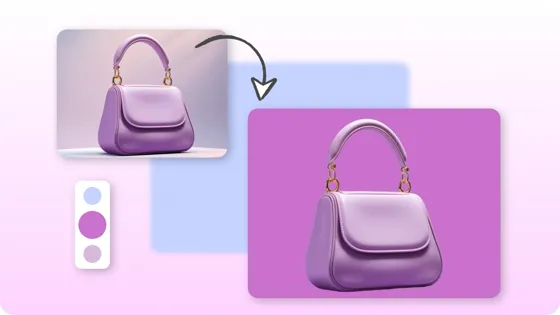
Change Background Color
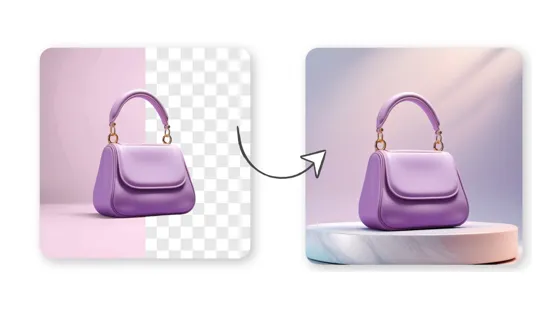
Change Background
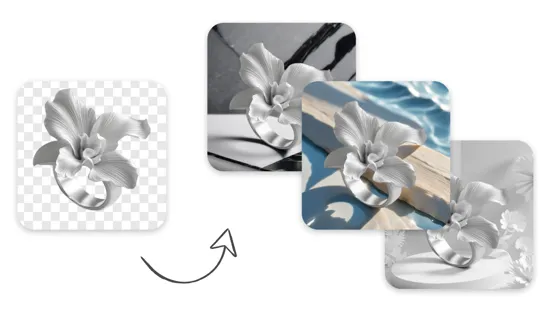
AI Background Generator
Product Background HD
Frequently Asked Questions
How do I add a blue background to a photo online?
Can I change the background of a picture to blue without removing the subject?
Yes, background editing can replace the setting while keeping the main subject visible. For the best result, use a clear photo and review the edges around the subject after editing. Designkit can help you explore an AI change background workflow, letting you try a blue photo background while checking that the person's features or product details remain intact.
How do I keep a product's original color when adding a blue background?
Choose background replacement rather than applying a blue filter to the entire image. Check the product's original colour, label, material, and lighting after editing, since these details affect how shoppers perceive it. Designkit's available background editing tools can help you add a blue background to a photo while reviewing whether the product still looks accurate for online listings.
Do the edges look clean enough for listings and ads?
Clean edges depend on the source photo, lighting, and how clearly the subject stands out from its original background. Zoom in around hair, packaging, and reflective surfaces to spot leftover pixels or blue colour spill. Designkit can help you explore blue background editing, but review each blue background image carefully before using it in product listings or paid ads.
Which shade of blue works best for product photos?
The best blue depends on the product's colour, audience, and intended use. Light blue can create a softer look, while deeper blue may add contrast to pale packaging or metallic products. When choosing a blue background for photo editing, use Designkit to explore suitable visual options and check that the background complements the product without being distracted from its details.
Can I use a blue background for transparent or reflective products?
Yes, but glass, clear packaging, polished metal, and reflective surfaces need extra attention because their edges and reflections can blend with a new background. Review transparency, highlights, and product contours after editing. Designkit's available image editing capabilities can help you explore a blue background image, but inspect the final result closely to ensure the product still looks realistic.
Can I change a photo's background to blue for free with Designkit?
A7: Whether you can change a photo's background for free depends on Designkit's current plan, credit limits, and available export options. Check the current terms before editing a large batch. You can explore the available tools to add a blue background to a photo online, compare shades, and review the output before deciding whether it suits your project.
Give Your Photo a Blue Background That Fits the Purpose
Add a blue background to product photos, campaign graphics, or portraits with Designkit. Explore different shades and styles to suit your visual needs.



How Different Users Can Use Blue Background Editing
Explore how blue backgrounds can help with product photography, campaign design, client edits, and personal photos.
Our Product Photos Finally Feel Like Part of the Same Collection
We photographed our products over several months, so the original backgrounds never really matched. I used Designkit to explore blue-background versions of our existing photos and bring the catalog closer to one visual style. I still check the product colors and packaging details before publishing, but it gives us a useful starting point without planning a new shoot for every item.
We Can Plan the Layout Around the Image Instead of Fighting It
Some product photos leave almost no room for the campaign headline or offer. With Designkit, I can explore blue-background compositions with more space around the subject and see which direction works for the layout. That helps when we prepare landing-page graphics and promotional creatives, because we can review the image and message together before the design is finalized.
I Can Update Client Photos Without Rebuilding the Whole Image
Clients sometimes want a different backdrop after the main photo has already been edited. Designkit gives me another option to explore blue-background variations using the original portrait, rather than immediately starting over. I pay close attention to hair, clothing edges, and shadows so the new background still looks natural around the subject.
It Helps Our Social Visuals Follow One Creative Direction
When we plan a series of social posts, images from different sources can look disconnected. Designkit helps us explore blue-background versions that fit the campaign's visual direction, whether the post is about a product feature or a new offer. We still adapt the composition to each post, but the backgrounds give the series a more consistent starting point.