
Remove Gemini Watermarks Without Cropping Your Image
Strip the Gemini sparkle or logo from the corner and keep your full image frame. Preview the cleaned area, then export for listings, posts, or design drafts.

How to Remove a Gemini Watermark From an Image With Designkit
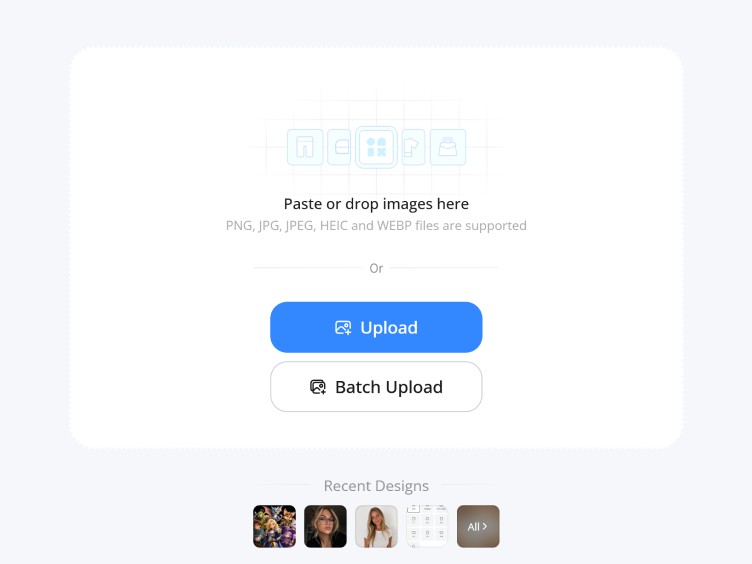
Step 1. Upload Your Gemini Image
Open Image Watermark Remover and upload the Gemini-generated image you own or have permission to edit.
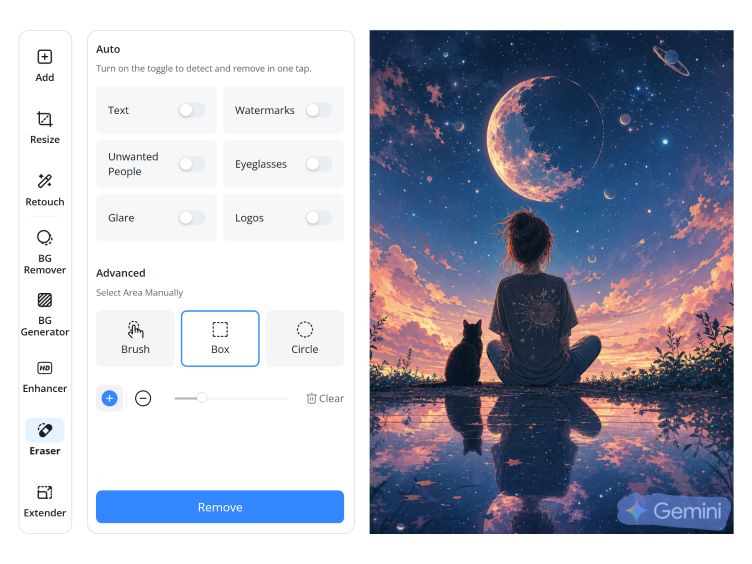
Step 2. Remove the Gemini Watermark
Use the available watermark removal tools to mark the visible Gemini logo or sparkle. Keep the selection precise to avoid affecting nearby image details.
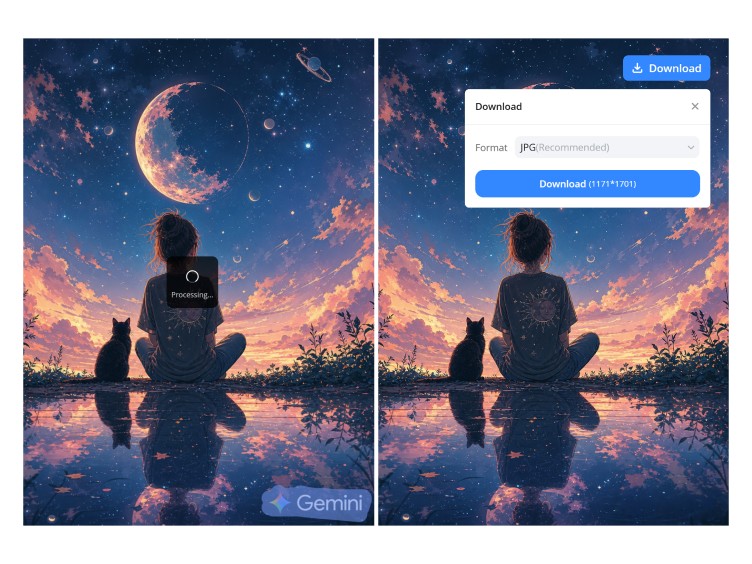
Step 3. Review and Download Your Image
Preview the edited image and check the repaired area for blur, uneven textures, or unwanted changes. Download the result when you're satisfied with the cleanup.
What Designkit's Gemini Watermark Remover Can Do

Locate and Remove the Visible Gemini Logo
A visible Gemini sparkle or logo can distract you from an AI-generated image and limit its use in your designs. Designkit's watermark remover helps clean up unwanted marks on images you own or have permission to edit. Use this Gemini icon remover workflow to refine the image, then check nearby details for unwanted changes and review the result before saving.

Rebuild Background Texture Where the Mark Was
Removing a Gemini watermark from a plain background may be easier than repairing marks over fabric, walls, or detailed product scenes. Designkit helps you review the edited area and check whether colors, textures, and patterns look consistent. For product visuals, explore product background HD options when you need a cleaner backdrop, but remember that hidden details cannot always be reconstructed accurately.
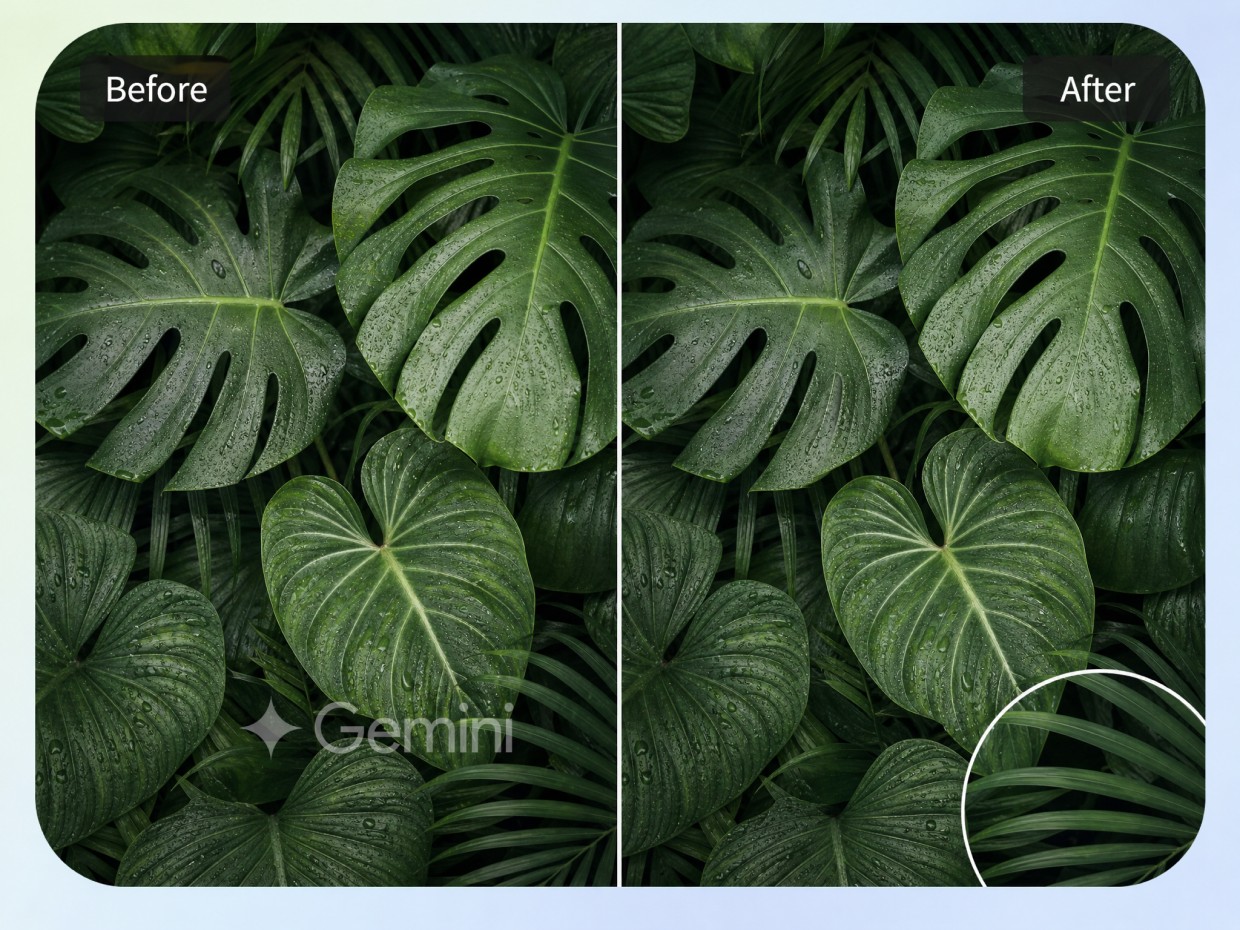
Protect Fine Edges Around the Main Subject
When a Gemini logo sits close to a face, product outline, or important object, editing may affect nearby pixels and leave uneven edges. Designkit helps you review authorized image edits and check the subject for unwanted changes. During Gemini logo removal, inspect fine details such as hair, packaging labels, and object contours before using the image in a listing, social post, or campaign design.
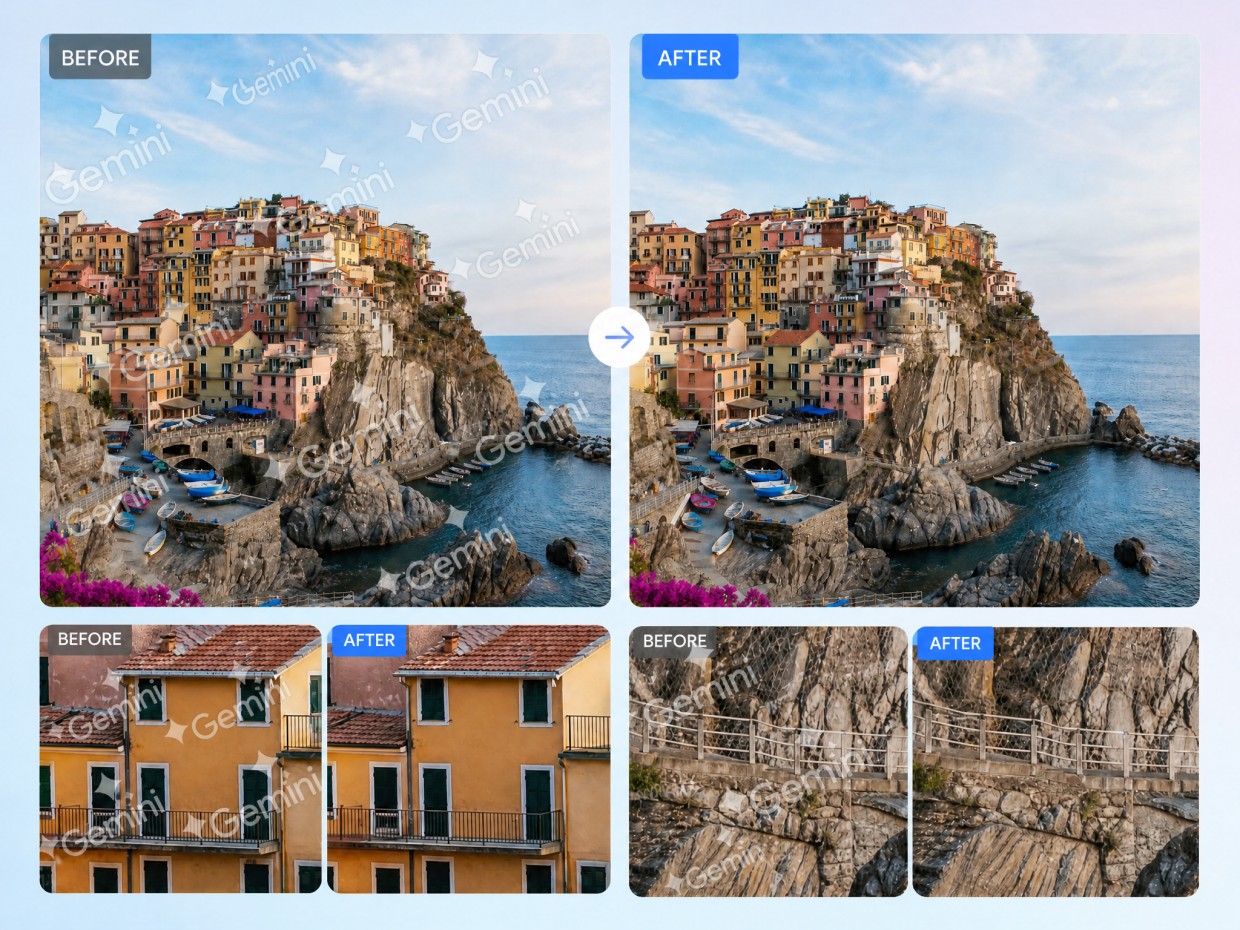
Refine Difficult Spots With Targeted Editing
Some Gemini marks overlap detailed backgrounds or objects, making a single edit insufficient. Designkit's AI photo editing workflow helps you focus on areas that need additional attention and review the result before moving forward. If you're exploring how to remove a Gemini watermark free, check the tool's usage limits and editing options, and make sure you have permission to modify the image.
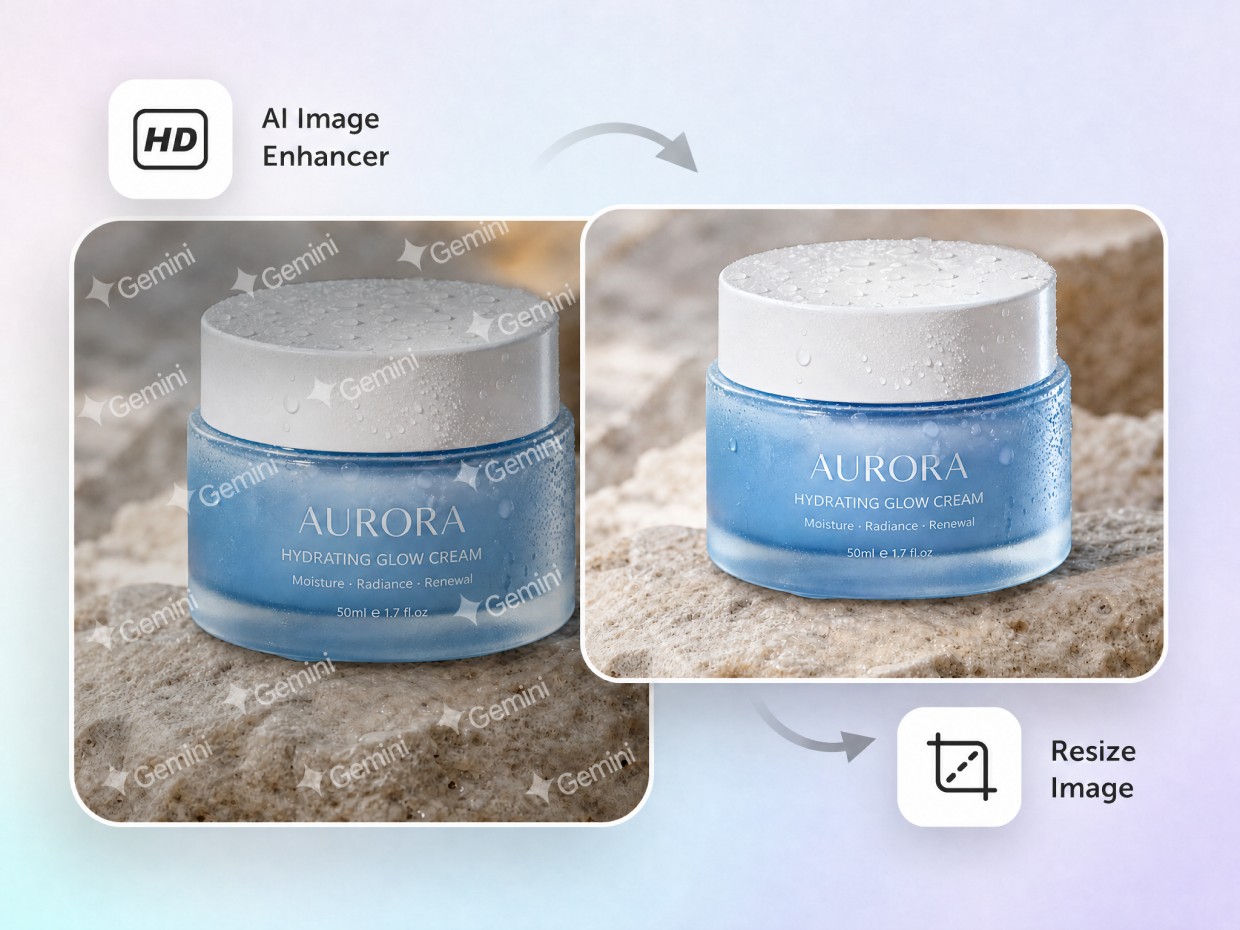
Improve Image Clarity Before the Next Edit
After removing a Gemini icon, you may notice softened textures, blurry edges, or small inconsistencies in the repaired area. Designkit's image enhancer can help improve perceived sharpness before you continue editing or prepare the visual for publishing. However, enhancement cannot guarantee recovery of details hidden beneath the original mark, so inspect the finished image at full size.
Where a Gemini Watermark Remover Fits Into Your Workflow

Get listing images past the sparkle in the corner
A Gemini sparkle mark can distract you from packaging details and product features in listing images. Designkit helps you edit authorized product visuals and review the affected corner before publishing. Use a Gemini mark remover workflow to check that labels, edges, and product details remain clear.



Why Use Designkit for Gemini Image Editing
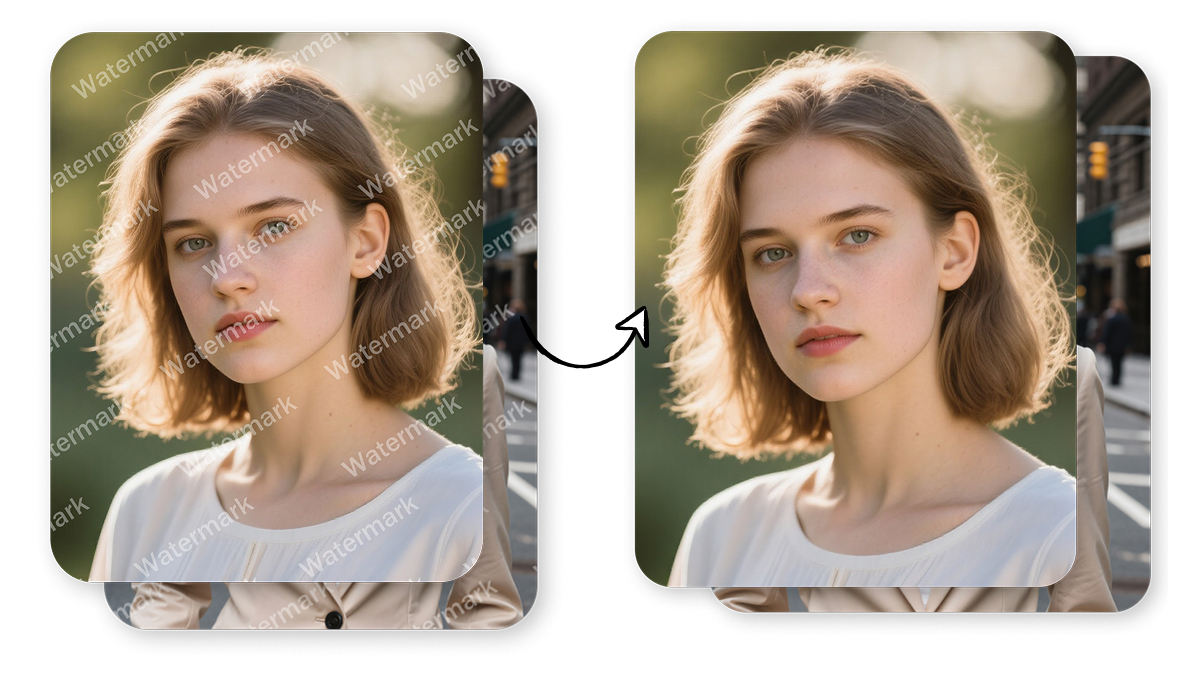

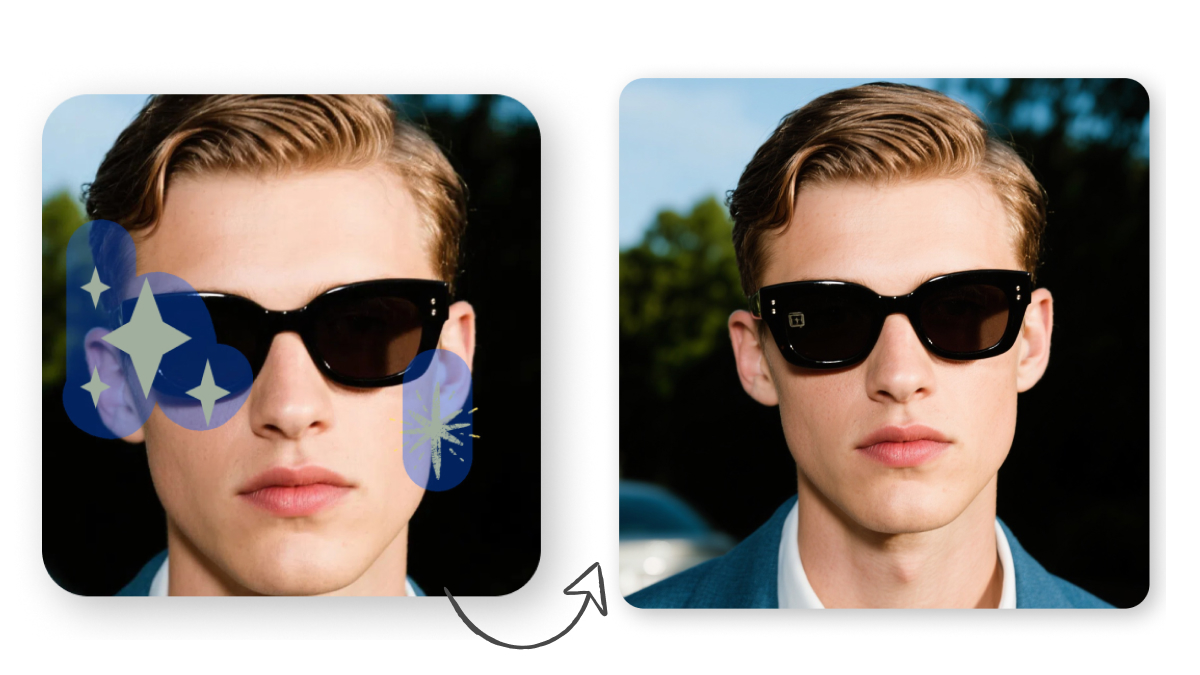

Remove Watermarks From Getty or Alamy
Frequently Asked Questions
How do I remove the Gemini logo from an AI-generated image?
Can I remove the mark without cropping?
Yes, an image editor may remove a Gemini mark without cropping by editing the affected area and reconstructing the surrounding background. Results depend on the logo's size, position, and the details behind it. Designkit helps you edit authorized images without automatically cutting off the edges. If you want to remove the Gemini watermark online, inspect the edited image to ensure the original composition remains intact.
Can I remove a Gemini watermark without changing the rest of the image?
You can target a specific area to minimize changes elsewhere, but no editing method guarantees that every surrounding pixel will remain identical. A suitable Gemini AI watermark remover should account for nearby textures, colors, and edges. Designkit provides image-editing tools for authorized content, allowing you to review the result and check whether other image details remain consistent before using the edited version.
Will removing a Gemini watermark make an image blurry?
It can. Removing a logo may soften nearby textures or create visible patches, especially when the mark overlaps detailed objects. After editing, you can use Designkit to review the image and try its unblur image tools if additional clarity is needed. However, sharpening cannot reliably restore details hidden by a watermark. Always inspect the result at full size before publishing or sharing it.
Can I remove Gemini watermarks without installing software?
Yes, browser-based editors let you work on images without installing a desktop application. Designkit offers online image-editing tools for authorized assets, making it convenient to upload an image, edit the relevant area, and review the result in your browser. If you're looking for a free Gemini watermark remover or a Google Gemini watermark remover, check the available features and usage limits before starting; free access may vary.
Remove the Gemini Watermark and Export a Clean Image
Edit Gemini images you own or have permission to modify with Designkit. Review repaired areas, check surrounding details, and export the image when you're satisfied with the result.



How Different Users Try Designkit for Gemini Image Cleanup
Explore how sellers, marketers, and designers can handle visible Gemini marks when preparing authorized images.
I Can Review Product Concepts Without Cropping the Image
When a Gemini sparkle appears near the edge of a product concept, cropping can cut into the layout. I prefer cleaning up the visible mark, then checking the packaging, product edges, and background before sharing the image with my team.
I Can Keep Campaign Reviews Focused on Creative
We use Gemini-generated visuals to explore campaign ideas before production. A visible logo can distract you from the concept, so I review the cleaned area and surrounding colors before adding the image to a campaign presentation or sharing it for feedback.
I Can Compare Image Details After Cleanup
When preparing AI-generated concepts, I need product outlines, background patterns, and text areas to remain clear. Comparing the original with the cleaned image helps me spot blurry patches or unwanted changes before using the visual in a design draft.
I Can Prepare Visuals for Client Discussions
Our team shares AI-generated concepts to discuss layouts, colors, and creative direction. I check that the visible Gemini mark has been cleaned up without damaging nearby details, and keep the original file available for comparison during client reviews. FAQs