
Remove Watermark From Getty Images
Remove watermarks from images you own or have permission to edit. Use AI-powered tools to clean up selected areas and review the results.


Why Choose Designkit

Remove watermarks with simple, AI-powered editing tools.

Switch between automatic removal and precise Brush selection.

Edit images you own or have permission to modify. Designkit does not grant image usage rights.
What You Can Do With Getty Images Watermark Remover

AI-Powered
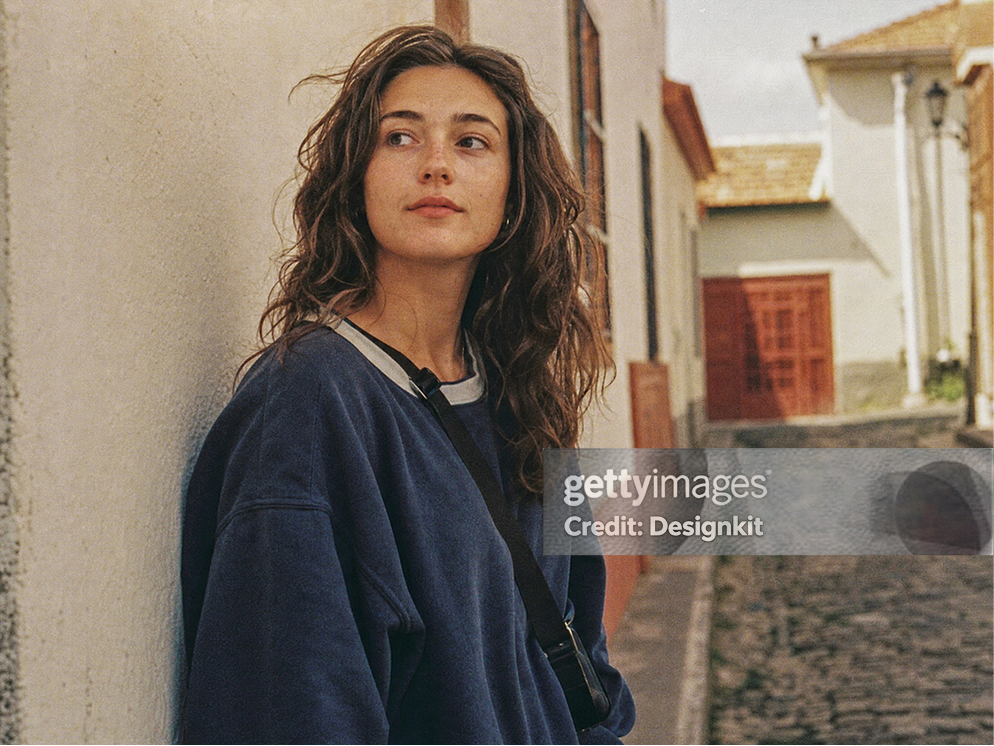
Remove Getty Images Watermarks With Targeted AI Editing
Use AI-powered watermark removal to target marked areas in images you own or are authorized to modify. Designkit helps clean up selected regions while preserving surrounding visual details where possible.
Background Repair
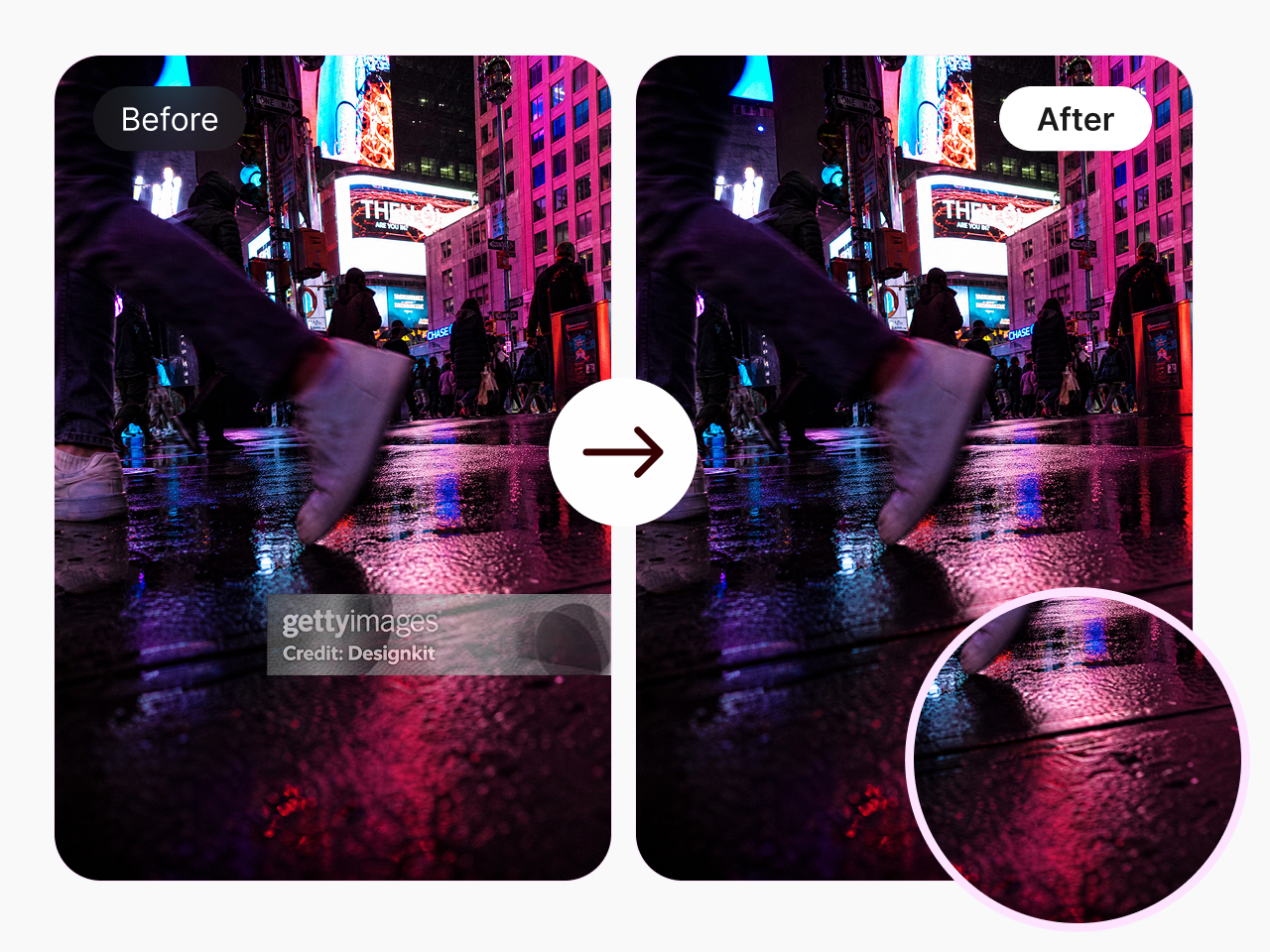
Repair Background Details Behind the Watermark
AI-powered editing helps fill selected areas based on their surroundings. For detailed surfaces such as brick walls, fabric, or textured packaging, zoom in after editing to check for changes in color, patterns, or texture.
Precise Control
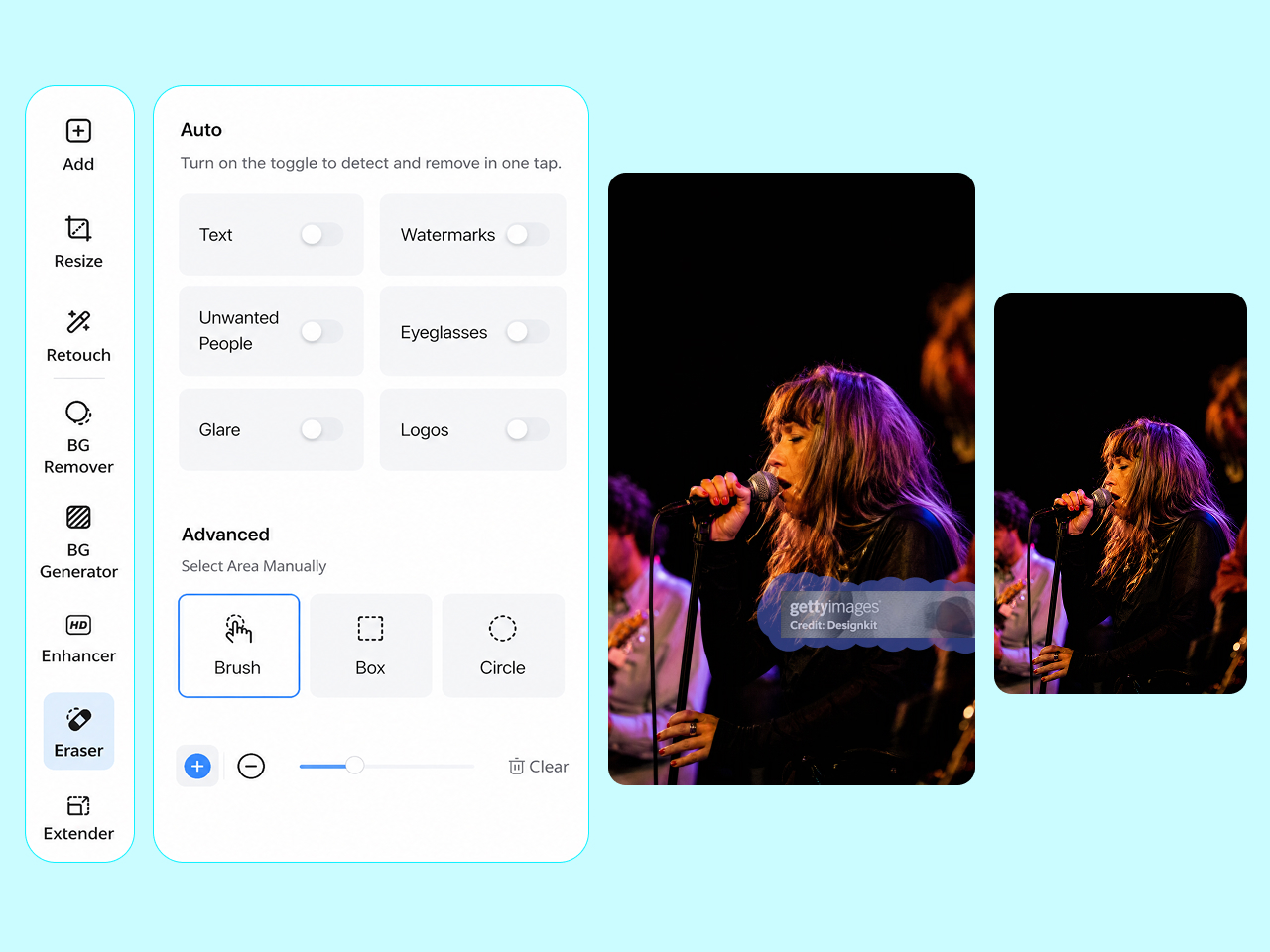
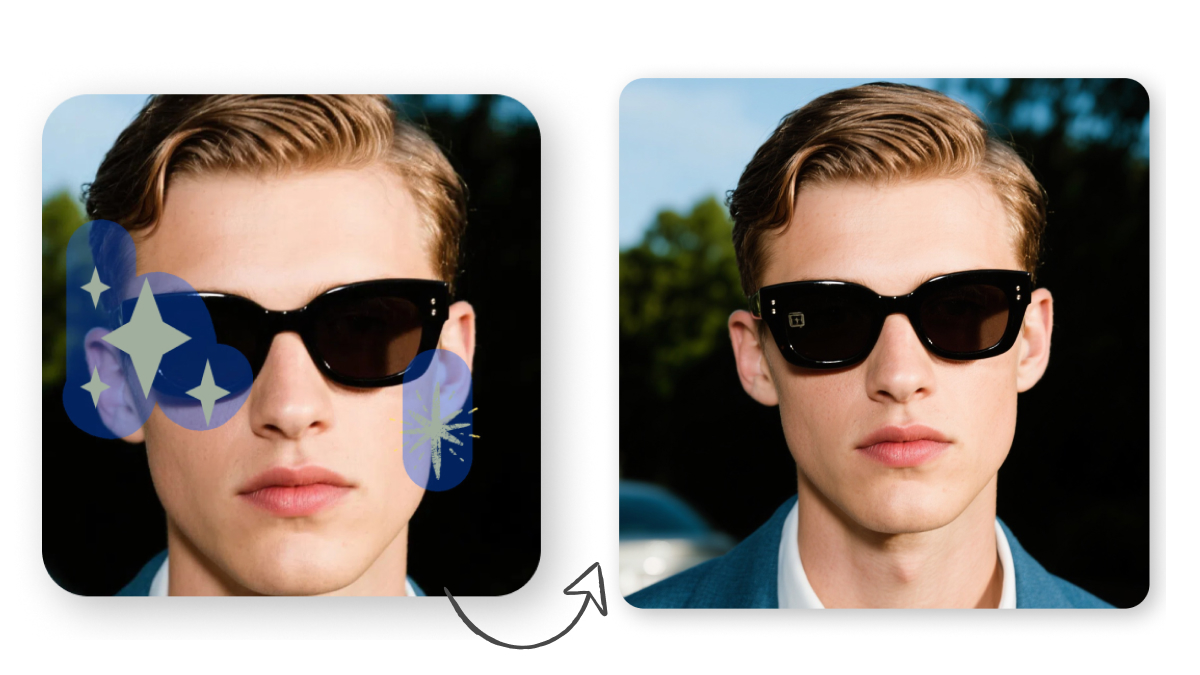
Control the Edit With Precise Brush Selection
Use the Brush tool to mark specific areas for editing, especially when a watermark overlaps a face, product edge, or intricate pattern. Refine your selection to avoid affecting nearby details, then compare the edited image with the original.
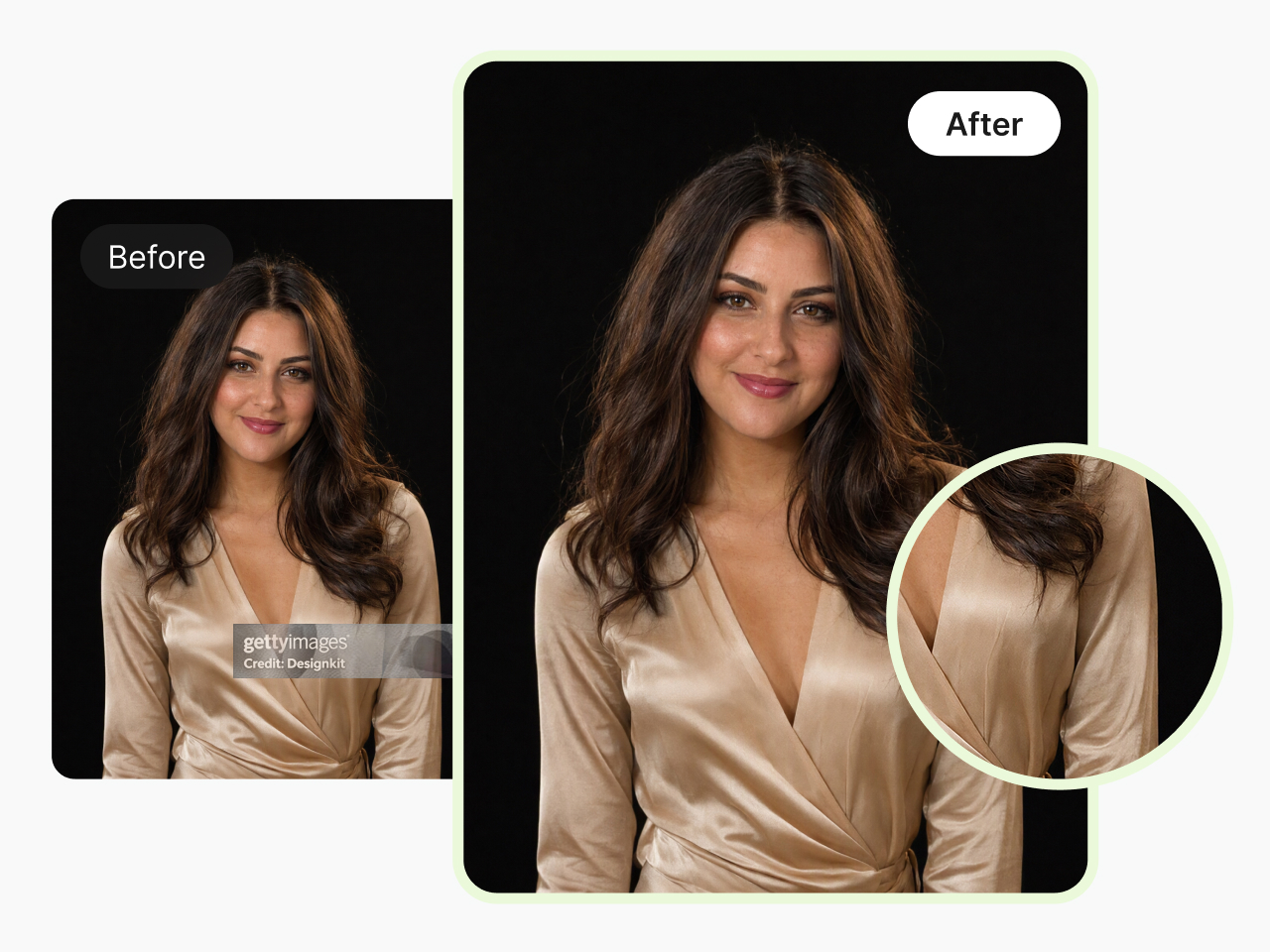
Image Enhancement
Restore Image Clarity After Watermark Removal
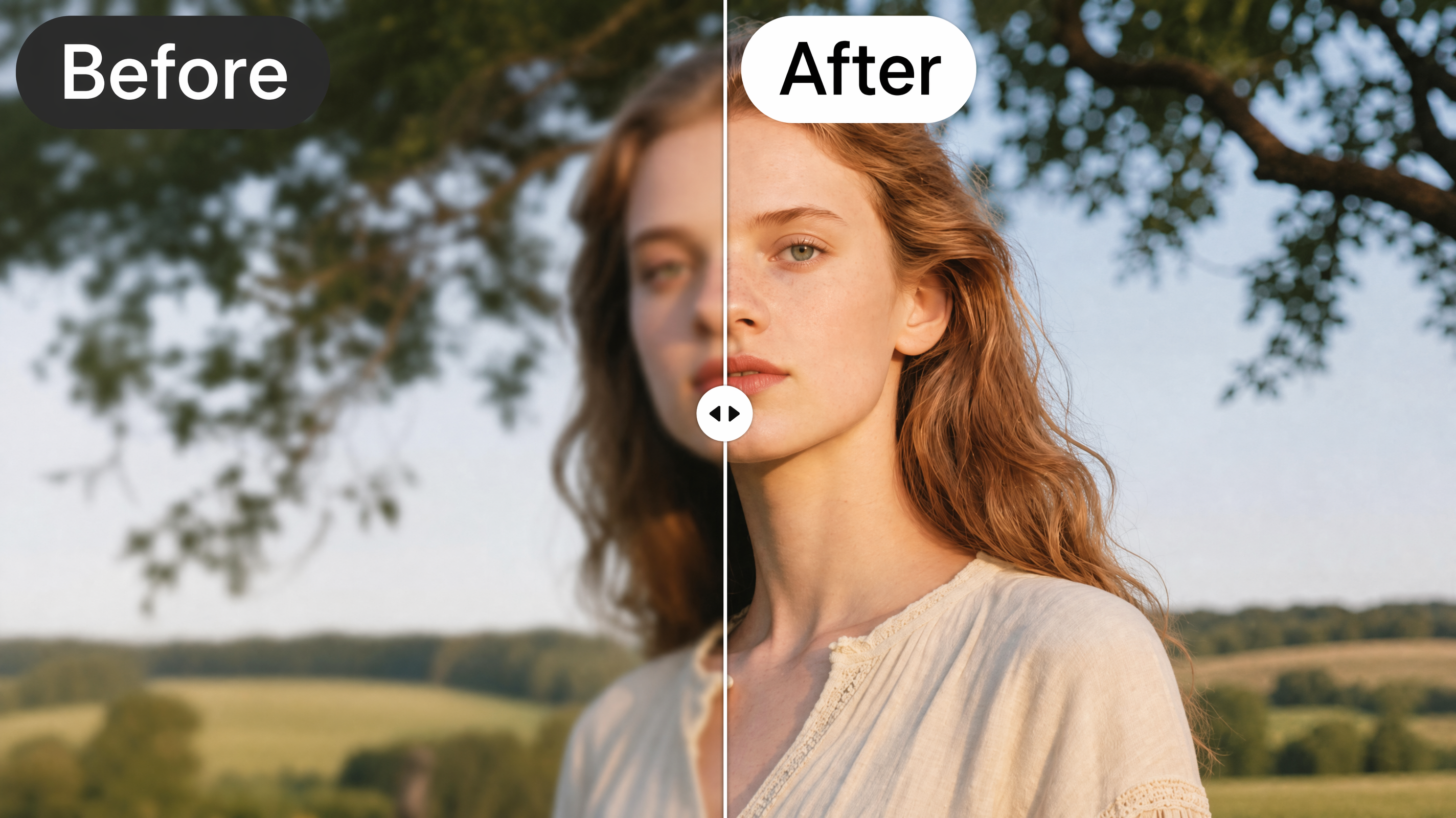
After editing, inspect the image for blurry edges, uneven textures, or missing details. If the result looks soft, try Designkit’s AI image enhancer to improve the clarity of remaining visible details.
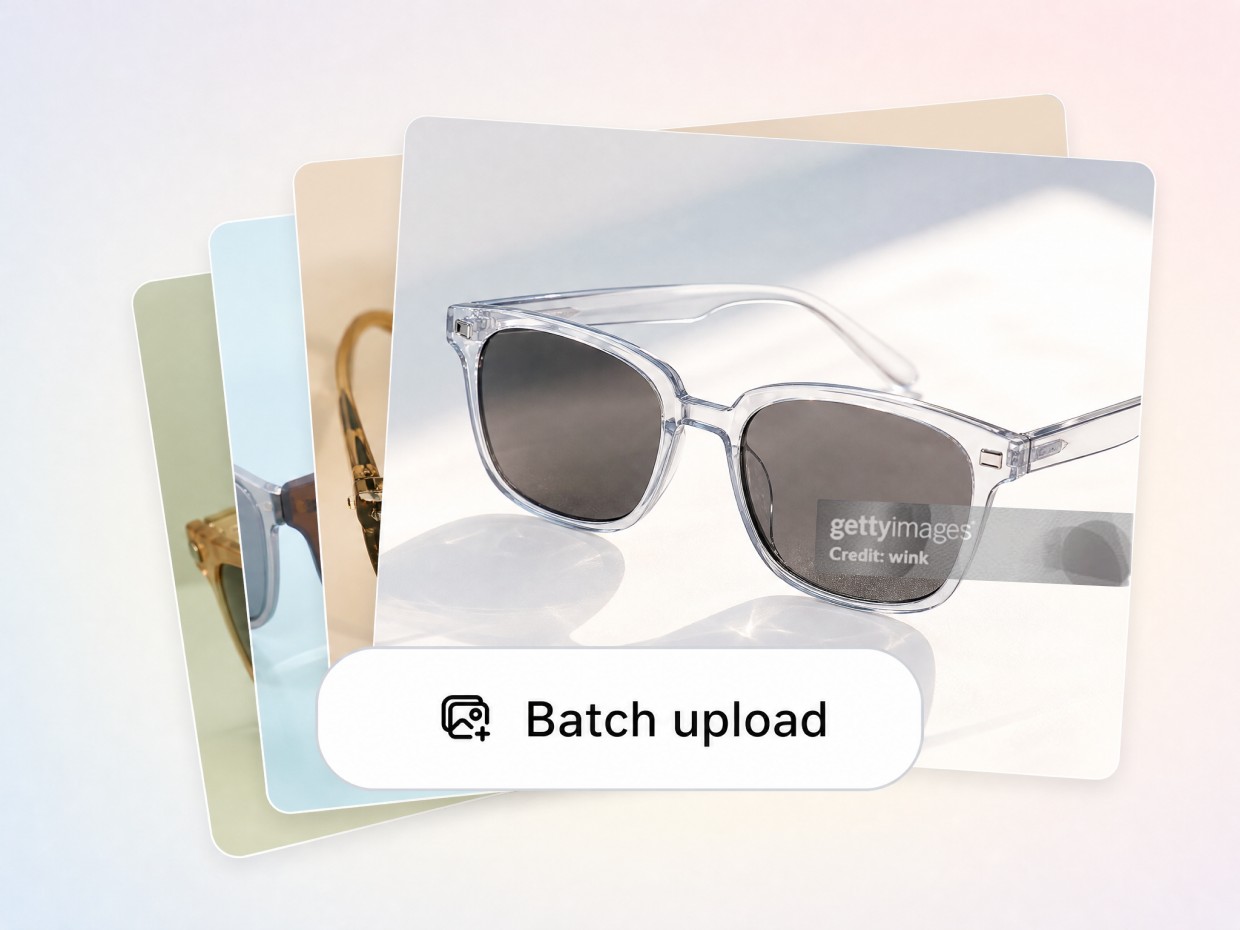
Batch Editing
Process Multiple Images for Catalog and Campaign Work
Working with multiple authorized images? Use Designkit’s batch upload and editing tools to process several files in one workflow. Review each result individually to make sure the edited images meet your visual quality requirements.
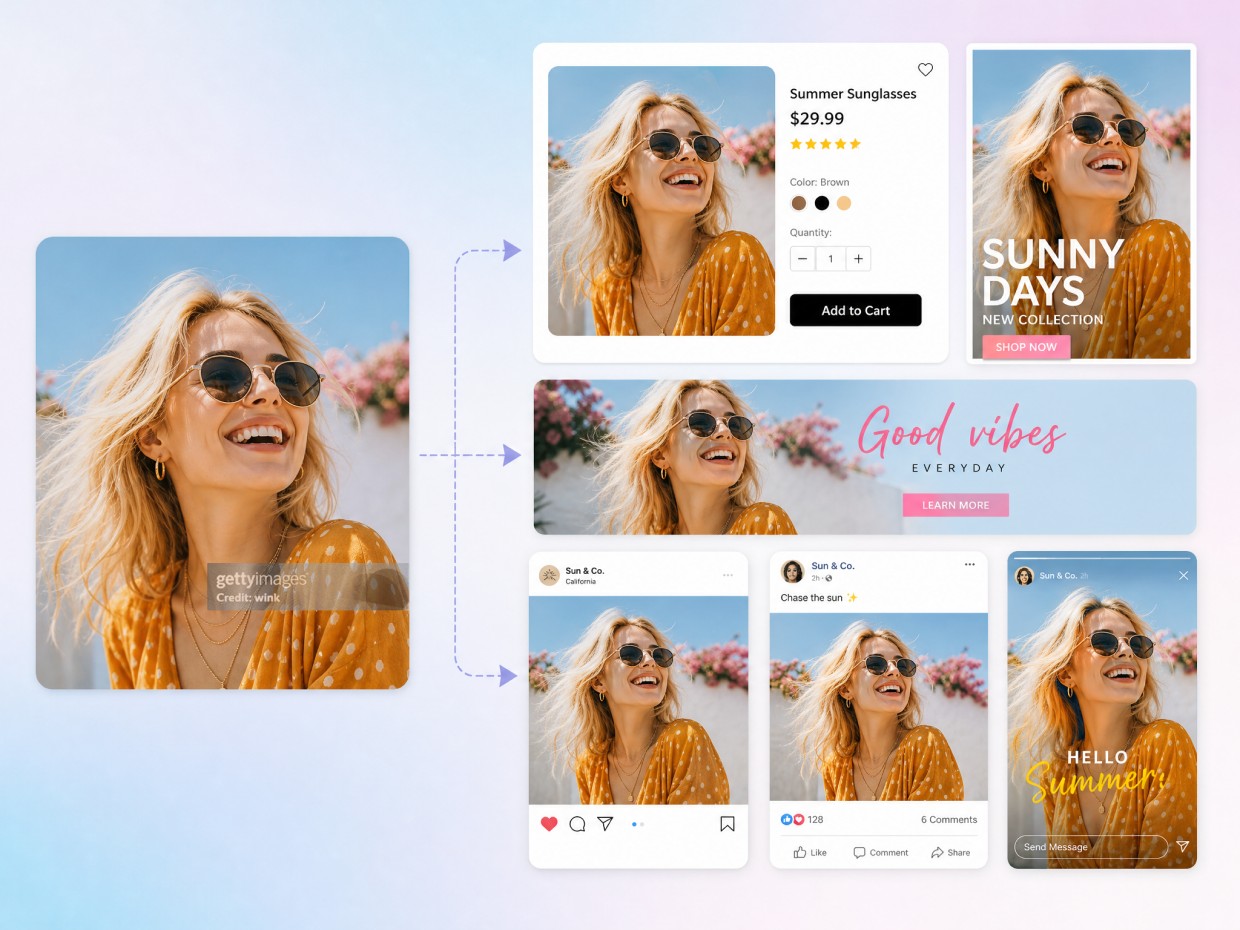
AI Creation
Create New Visuals With AI Image Generation
Need a different visual direction? Use Designkit’s AI image generator to create original images from text prompts or reference images. Explore new compositions and styles for your next creative project.
How to Remove Getty Images Watermark
Step 1. Upload Getty Images
Open Image Watermark Removal. Upload one or multiple images you have permission to edit.

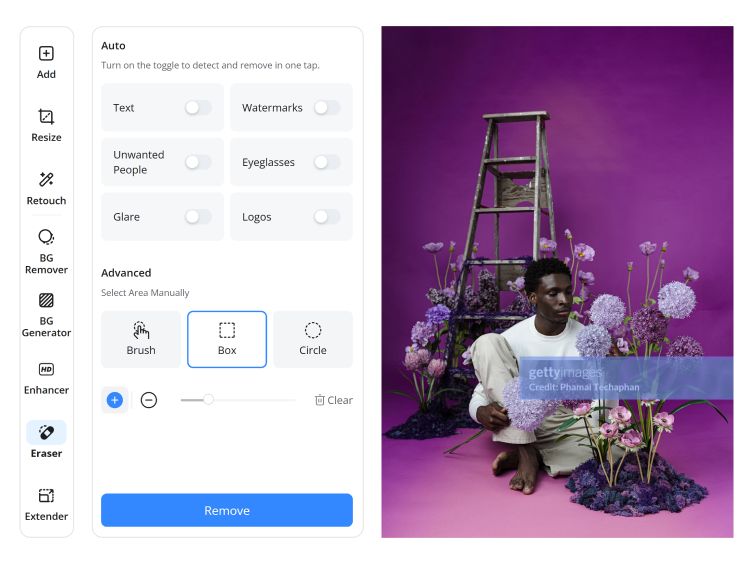
Step 2. Choose Automatic or Manual
Choose Auto to detect the watermark or use Brush in Advanced mode to select the area manually. Click Start to remove it.
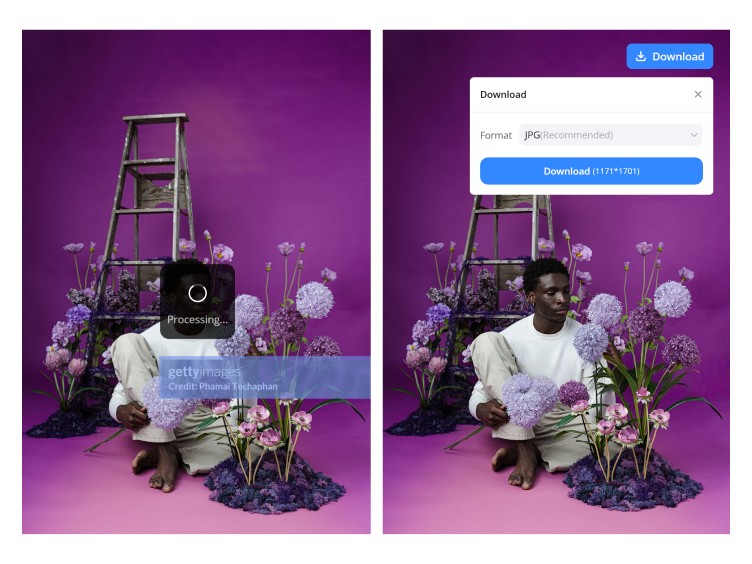
Step 3. Review and Download
Check the edited area, edges, textures, and overall quality. If satisfied, click Download.
Who Can Use Designkit for Getty Images Watermark Editing
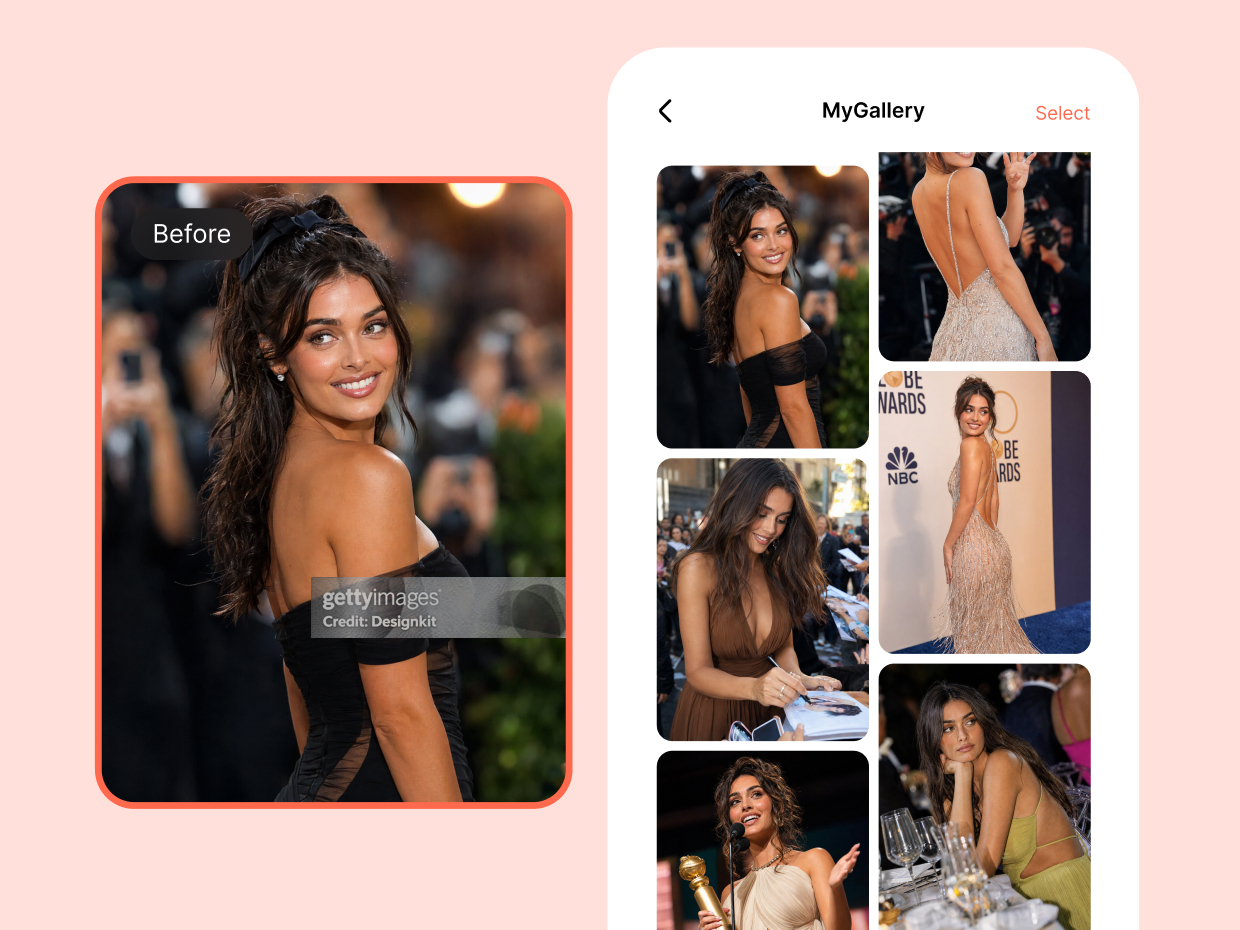
Create Fan Edits and Collages
Edit photos you own or have permission to modify, then incorporate them into fan edits, collages, and tribute designs.
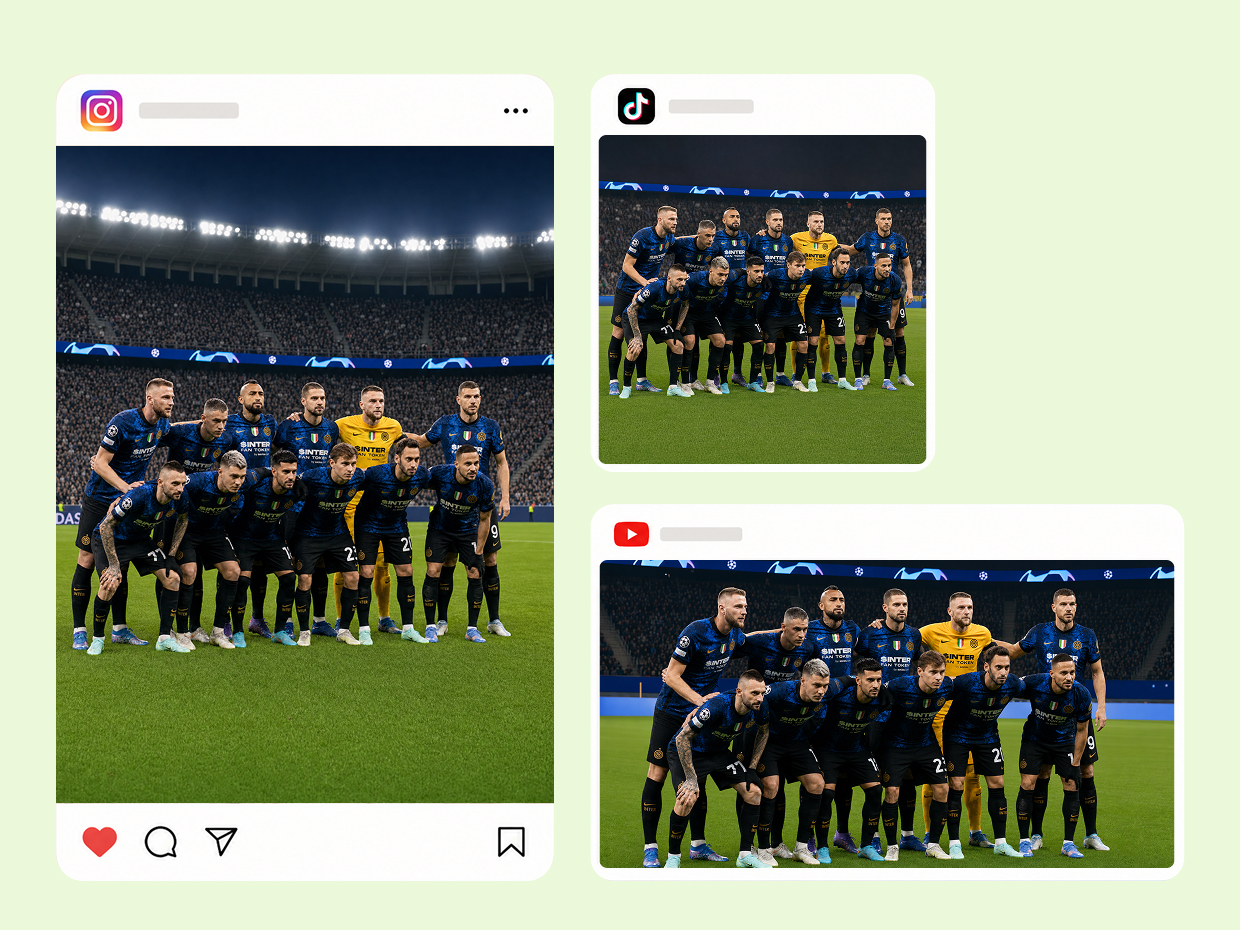

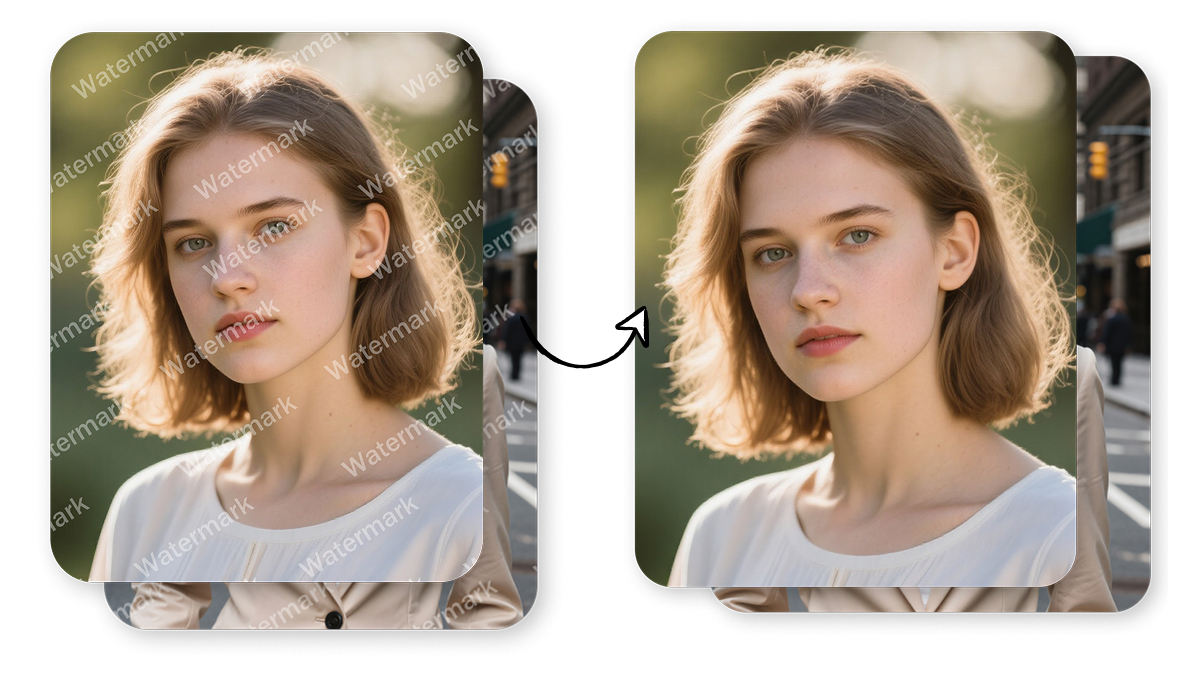
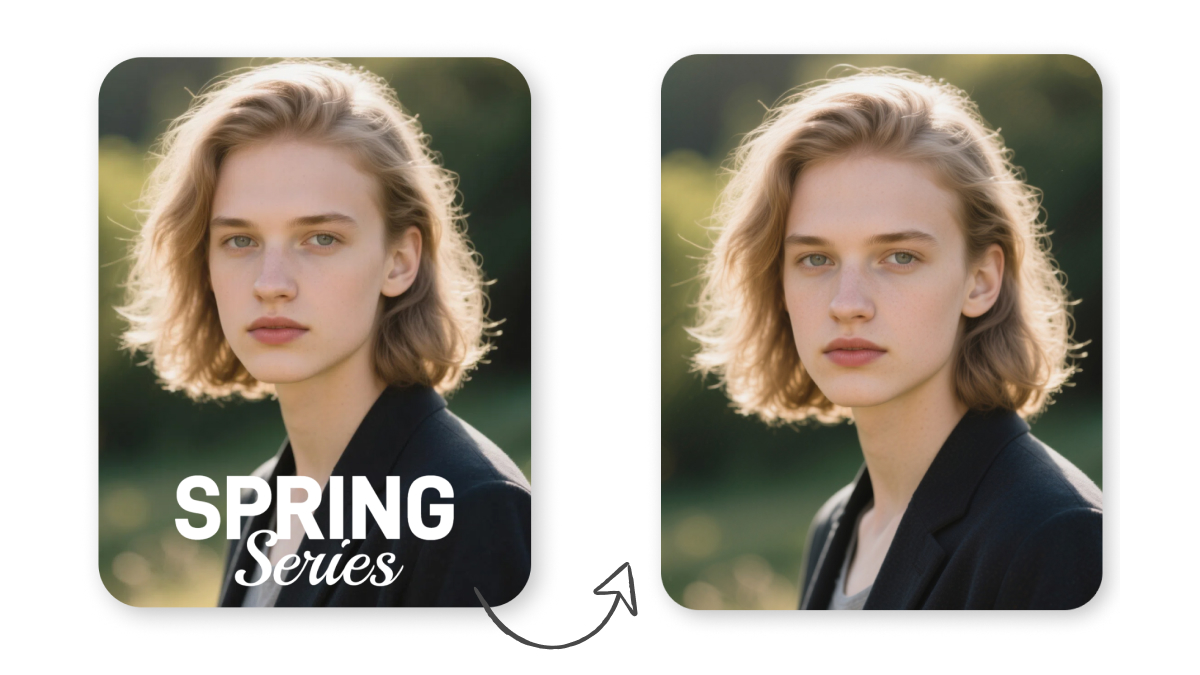
Remove Watermarks From Alamy or Gemini
Frequently Asked Questions
Can I remove a Getty Images watermark online for free?
How do I remove the diagonal Getty Images watermark?
Diagonal Getty Images watermarks often cross both the subject and background, making precise editing more challenging. If you have permission to modify the image, use Designkit’s automatic or Brush selection tools to target the marked areas. After editing, zoom in to check for visible traces or changes to nearby details. For licensed Getty Images content, download the watermark-free original whenever possible.
Can AI remove a Getty Images watermark without affecting the background?
Not always. The result depends on the watermark’s size, opacity, position, and the complexity of the underlying image. AI editing may produce visible changes to textures, patterns, or nearby objects, especially on detailed backgrounds. After using Designkit, zoom in and review the edited area. You can also use the Object Remover to edit other unwanted elements in images you are authorized to modify.
Can I remove multiple Getty Images watermarks at once?
Yes, Designkit supports batch upload for processing multiple images in one workflow. Upload your authorized images, edit them using the available watermark removal tools, and review each result individually. Batch availability and image limits may depend on your current plan and tool settings.
Can Designkit enhance an image after watermark removal?
Yes. After editing an image, you can use Designkit’s AI Image Enhancer to improve its overall clarity. However, enhancement cannot guarantee recovery of details originally hidden by a watermark. Review the result carefully, especially around edited areas, and make additional adjustments if needed.
Edit Watermarked Images With AI
Use Designkit’s AI-powered watermark removal tools to edit selected areas, refine image details, and review your results in one browser-based workflow.



How Creators Use Designkit for Image Editing
Explore practical ways to edit authorized images and prepare visuals for different creative projects.
Designkit Helps Me Clean Up Images Before Listing Products
I found a Getty watermark on an image I was preparing for a product listing, so I tried Designkit to see if I could remove it. It helped me work in the marked area without having to redo the whole image. I could check how the edited image looked and make further adjustments before moving on with my listing. I only use images I have permission to edit.
I Can Fix Watermark Issues Before Working on Campaign Designs
Sometimes a reference image has a visible Getty watermark, which gets in the way when I'm preparing campaign materials. Designkit gives me a way to work on that area and review the result before using the image in my design draft. It saves me from having to start over with every small image adjustment. I make sure I have the right to use the image first.
It Helps Me Prepare Images for Client Presentations
When a client sends over an image that needs editing, I don't want to spend too much time fixing one small area. I use Designkit to work on the watermark area and check whether the image looks natural afterward. If something still looks off, I can make more changes before adding it to the presentation. Of course, the image needs to be licensed or otherwise authorized for that use.
I Can Work on Watermarked Images Without Switching Apps
I sometimes need to clean up an image before putting together a social post. Designkit lets me upload the image, work on the Getty watermark, and check the result in the same place. If the edited area looks strange, I can review it before moving on. It makes the editing process more straightforward, as long as I have permission to modify and use the image.