
Seedance 2.5 Flash: Features, Specs, and Access Options
Seedance 2.5 Flash is an AI video model for quickly testing a shot, animating a still image, or revising an existing clip. Here’s how its inputs work, where it fits in the Seedance lineup, and how to try it.

TL;DR:
Seedance 2.5 Flash can generate and edit videos up to 720p. It creates clips that are 4 to 30 seconds long, generates synchronized audio, and accepts images, videos, and audio clips as references. Try it through BytePlus ModelArk or in the Vercel AI Gateway playground.
Seedance 2.5 Flash Features and Use Cases
- Generate a shot from text. Describe the subject, action, camera movement, and any sounds you want to hear. Flash can generate dialogue, sound effects, or ambience in sync with the video.
- Animate an image. Supply a first frame to set the starting composition. Add a last frame when the shot needs to end on a specific image.
- Guide a shot with references. An image can show what a character looks like, a video can demonstrate how they move, and an audio clip can guide timing. You can combine reference types in the same request.
- Edit or extend a clip. To edit, describe what you want to change in the existing footage. To extend, describe what should happen after it ends.
Seedance 2.5 Flash Specs and Input Limits
| Setting | Seedance 2.5 Flash on BytePlus |
|---|---|
| Output formats | MP4 or MOV |
| Frame rate | 24 fps |
| Aspect ratios | 21:9, 16:9, 4:3, 1:1, 3:4, 9:16, or automatic |
| Reference limits by file type | Up to 10 images, 5 videos, and 5 audio files |
| Total reference length | Up to 30 seconds of reference video and 30 seconds of reference audio per request |
When you provide a first frame, with or without a last frame, the output uses the starting image’s aspect ratio. When editing, Flash keeps the source clip’s aspect ratio and duration, and the clip you edit must be 4 to 30 seconds long. When extending, Flash keeps the source clip’s aspect ratio.
Your prompt, reference files, and API settings must all match the same task. If they don’t, the API may accept the request initially but fail to process it.

Comparison with Other Seedance Models
The table below compares Seedance 2.5 Flash with the other Seedance models, including 2.0 Mini and 2.0 Fast. It shows which video formats each model can produce, how long its clips can be, and how many reference files it accepts.
References: BytePlus model list
| Model | Output options | Clip length | Maximum reference files |
|---|---|---|---|
| Seedance 2.5 Flash | 480p or 720p, both 8-bit | 4–30 seconds | 20 |
| Seedance 2.5 | 480p and 720p at 8-bit, 1080p and 4K at 10-bit | 4–30 seconds | 50 |
| Seedance 2.0 | 480p, 720p, 1080p, or 4K | 4–15 seconds | 15 |
| Seedance 2.0 Fast | 480p or 720p | 4–15 seconds | 15 |
| Seedance 2.0 Mini | 480p or 720p | 4–15 seconds | 15 |
Choose Flash when you need to iterate quickly and 720p is enough for your final video. Use the full 2.5 model if you need 1080p, 4K, 10-bit color, or more reference files. The full model also offers a dedicated draft mode. If you’re upgrading from 2.0 Fast or Mini, Flash gives you more room for longer shots and additional references. If an existing integration depends on a 2.0 variant, check which model ID it calls before switching.
BytePlus ModelArk reports that Flash generates video about twice as fast as the full 2.5 model at about 34% lower cost. To check those figures against your own workflow, run both models at 720p on the same provider with the same prompt, references, clip length, aspect ratio, and audio settings. Compare generation time and billed cost alongside the quality of the two clips.

Seedance 2.5 Flash Access Options and API Setup
Direct API Access with BytePlus ModelArk
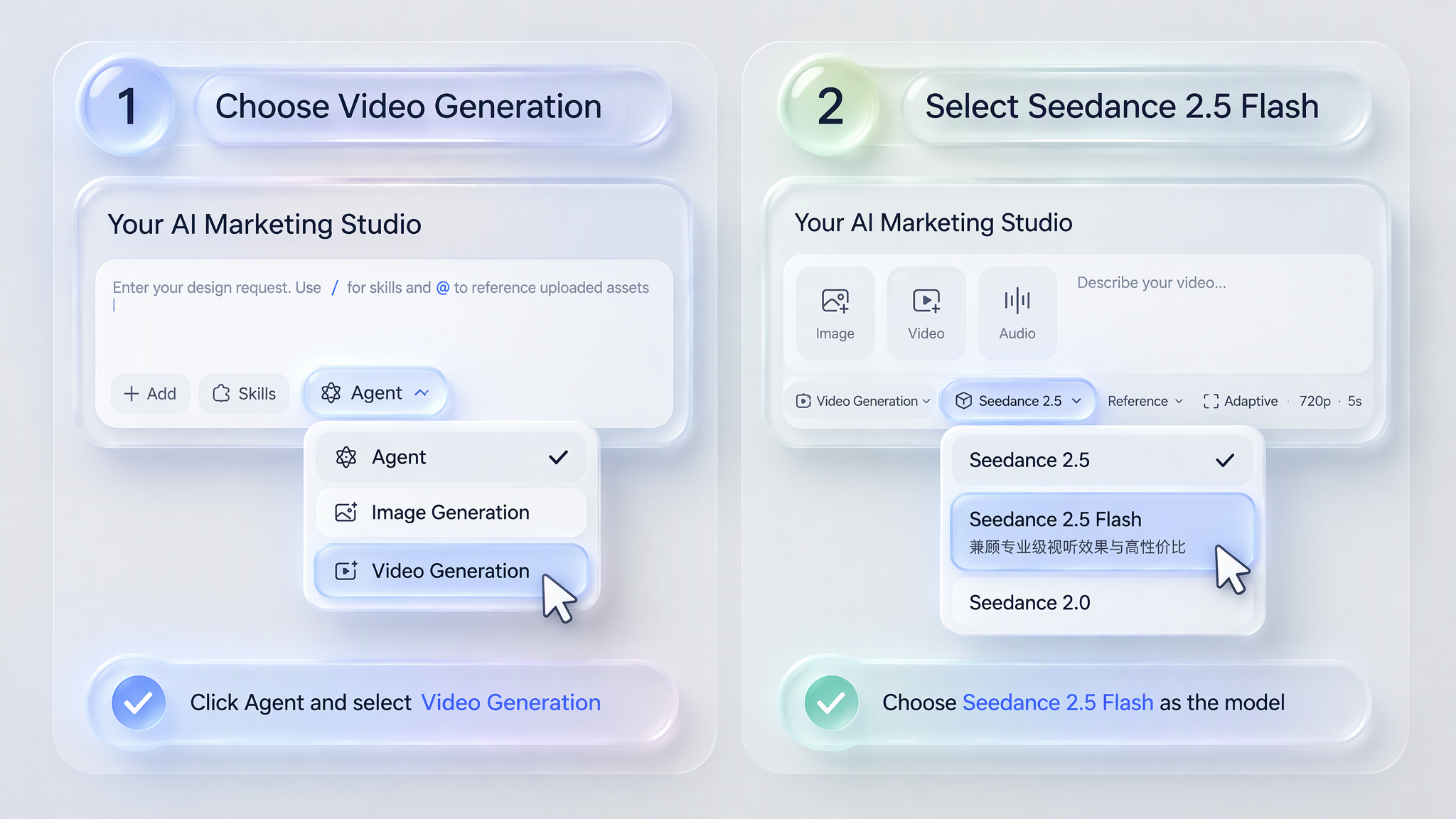
Sign in to ModelArk and search for Seedance 2.5 Flash. If the model is available for your account and region, activate it and create an API key. For setup details, see the BytePlus Seedance 2.5 series guide.
- Send a
POSTrequest tohttps://ark.ap-southeast.bytepluses.com/api/v3/contents/generations/taskswith the headerAuthorization: Bearer <API_KEY>. - Set
modeltodreamina-seedance-2-5-flash-261115and add your prompt as a text item incontent. If you use reference media, add each reference as a separatecontentitem with the role required for your task. - Save the task ID from the response. To check the status, send a
GETrequest to the same endpoint with/{id}appended. When the task succeeds, retrieve the video URL fromcontent.video_url.
API Access with Vercel AI Gateway
To generate videos from your app, follow the Vercel AI Gateway video generation quickstart and set the model ID to bytedance/seedance-2.5-flash.
Web Platforms
Designkit is a good starting point for product demos and listing videos. Use Seedance 2.5 Flash to animate a product photo, and describe how you want the product or camera to move. Check that the generated clip preserves the product’s shape, color, and label text.
First Test Prompt and What to Check
Start with a prompt that makes motion and audio easy to evaluate:
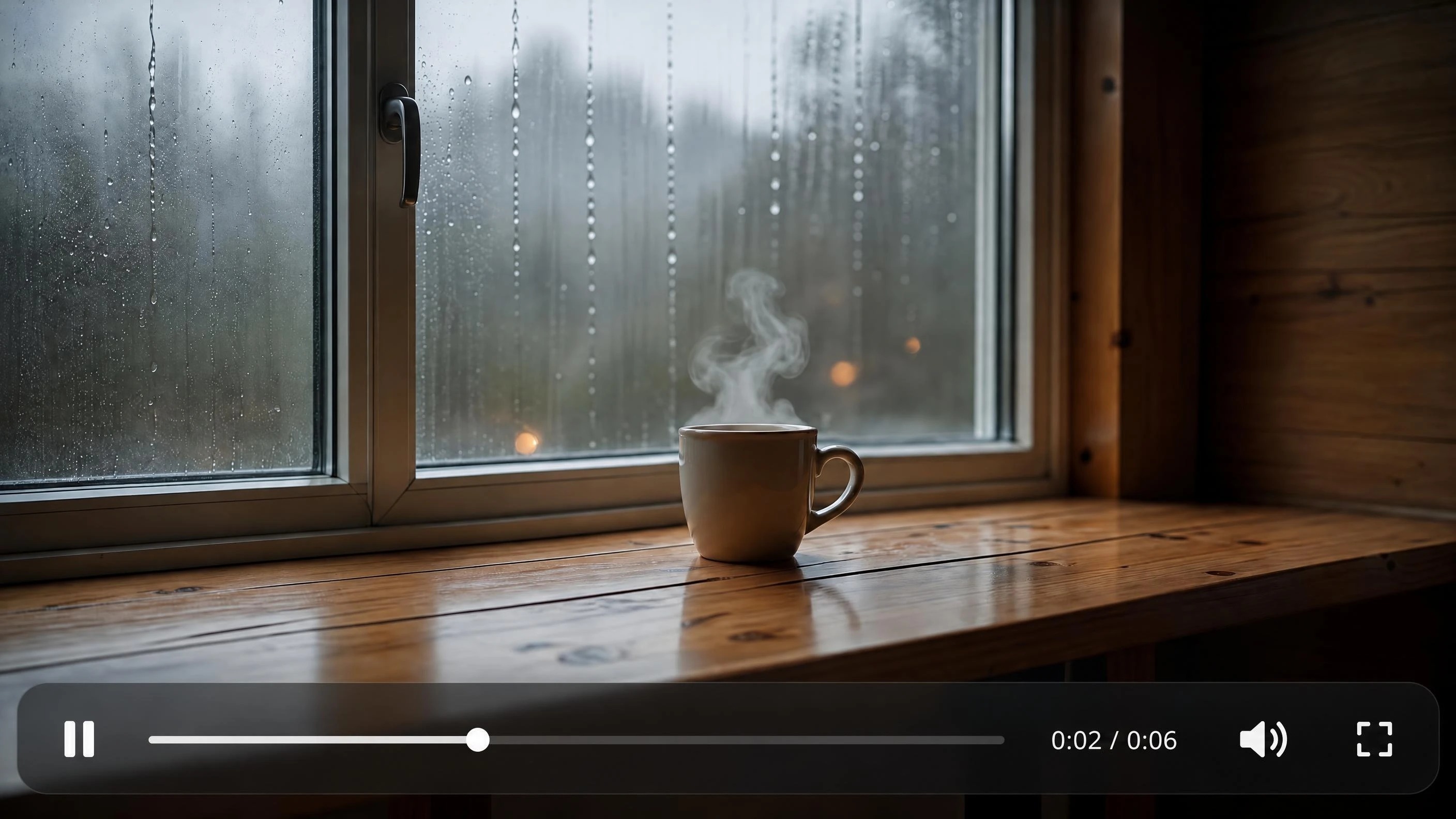
Create a six-second vertical video of a ceramic coffee cup on a wooden table beside a rainy window. Move the camera slowly toward the cup as steam rises. Include soft rain and quiet room ambience without music. Keep the shape of the cup consistent throughout the shot.
Watch for changes in the cup’s shape, uneven camera motion, and sound that feels out of place.
For the next test, use a reference image of a ceramic cup. If you don’t have one, you can create one with Seedream 5.5 on Designkit. Add the image to your Flash test and rerun the same prompt to see whether details like the handle and glaze stay consistent. If you’re testing first and last frames, use images with similar framing, subject scale, and lighting so you can focus on the transition.
Conclusion: Check Your Cost per Usable Video Before Setting a Budget
Before budgeting for production, track how many attempts it takes to get a clip you’d actually use. Divide your total generation spend by the number of clips you’d keep to estimate the cost per usable video.
Frequently Asked Questions
Can I Use Seedance 2.5 Flash in CapCut or Krea?
Can I Connect Seedance 2.5 Flash to n8n?
If your provider offers an HTTP API, use an HTTP Request node to submit the generation task and a later step to check its status. If the provider sends completion events, a webhook can resume the workflow when the video is ready. Store the API key in n8n’s credentials manager.
What Resolutions Does Seedance 2.5 Flash Support?
Seedance 2.5 Flash supports 480p and 720p output. If your final video needs 1080p or 4K, use the full Seedance 2.5 model.
Can Seedance 2.5 Flash Generate Audio with Video?
Yes. Seedance 2.5 Flash can generate dialogue, sound effects, and ambient audio in sync with the video. Describe what you want to hear and when it should happen in your prompt.
When Should I Use Seedance 2.5 Flash Instead of Seedance 2.5?
Use Flash when you want to test several versions of a shot quickly and 720p is enough. Use the full Seedance 2.5 model when you need higher resolution, 10-bit color, or more reference files.
You May Also Like
Seedance 3.0 Predictions: Will AI Video Enter the Feature Film Era?

Seedance 2.5 Review: What Changed in ByteDance's New Model
Seedance 2.0 Review: Features, Improvements, Pricing & How It Works (2026)
Seedance 2.0 for Ecommerce: Create AI Product Videos in Minutes

How to Generate Product Videos from Images with AI (2026 Guide)
Seedance vs Kling: Which AI Video Model Fits Product Clips?
Turn Your Ideas into a video
Upload an image and describe what you want to see. Designkit turns it into your first video.