
Seedream 5.5: Key Upgrades, Comparisons, and How to Use
Seedream 5.5 is ByteDance Seed’s latest image model for generation and editing. See what’s new versus 5.0 / 5.0 Pro, how it compares with Nano Banana Pro, and where you can try it today.

TL;DR:
Announced on November 9, 2026, Seedream 5.5 improves consistency across multiple edits, supports native transparent backgrounds, and produces more realistic images with clearer small text. It is available on platforms such as Higgsfield and Dreamina. Check that your platform preserves transparency when exporting PNGs.
Seedream 5.5 is an image generation and editing model developed by ByteDance Seed and announced on November 9, 2026. This article covers Seedream 5.5’s image generation and editing features, prompting tips, comparisons with Nano Banana Pro, and current access options.
Claims below follow ByteDance's Seedream 5.5 announcement. Official capability and evaluation data are current as of November 9, 2026; Higgsfield pricing is current as of November 10, 2026.
What Is Seedream 5.5?
Seedream 5.5 is an image generation and editing model from ByteDance's Seed team, announced on November 9, 2026. It follows the Seedream 5.0 family (including Lite, Flash, and Pro).
On the official Seedream 5.5 product page, ByteDance describes it as a multimodal image model with greater creativity and more precise execution. For professional work, image models need to deliver usable results on time and within budget, while giving teams precise control over further edits.
Note: Seedream creates images; Seedance creates videos.
What’s New vs Seedream 5.0 and 5.0 Pro
Stable multi-round editing
ByteDance says Seedream 5.5 can make targeted edits while keeping unedited areas consistent. Its launch demos include a sequence of 100 edits, with each new edit based on the previous result.
For best results, make one change at a time. After each edit, check that the rest of the image, including the perspective, overlapping objects, and lighting, still looks consistent.
The demos cover interiors, portraits, still lifes, game interfaces, watch faces, and paintings. You can use each edited image as the reference for the next edit.
Generate images with transparent backgrounds in one step
Seedream 5.5 supports native transparent and semi-transparent backgrounds (RGBA). ByteDance says Seedream 5.5 can create images with transparent backgrounds, ready to place in a design or composite with no extra background removal needed.
Official examples include sticker sheets, character cutouts, lettering on transparent canvases, action sequences on separate transparent layers, and extracting a subject into its own RGBA layer.
Seedream 5.5 can generate transparent backgrounds, but your downloaded image will be transparent only if the platform preserves that transparency. On Higgsfield, select Background > Transparent to download a PNG with an alpha channel. On other platforms, check whether the export keeps the alpha channel.
Lifelike textures and clearer small text
ByteDance reports that Seedream 5.5 produces more realistic lighting, material textures, and skin details.
These Improvements Are Useful For
- Realistic portraits and lifestyle images
- Packaging, posters, menus, and infographics with lots of small text
- Product and scene images where lighting needs to look natural
ByteDance’s Reported Evaluation Results
- Compared with Seedream 5.0 Pro, Seedream 5.5 scored higher for image quality and usability across six use cases: e-commerce, marketing, film and television, gaming, office productivity, and fashion design. Usability rates more than doubled in film and television and office productivity.
- Against GPT Image 2.5 Sunburst and Nano Banana 2.1, Seedream 5.5 scored better on text structure and showed a strong advantage in text-to-image realism.
- In ByteDance’s tests of Chinese and English text, including dense small text, severe text corruption affected 0.4% of images and minor corruption affected 1.7%. Both rates were lower than Seedream 5.0 Pro’s.
ByteDance has said that Seedream 5.5 Pro is coming, but has not shared a release date.
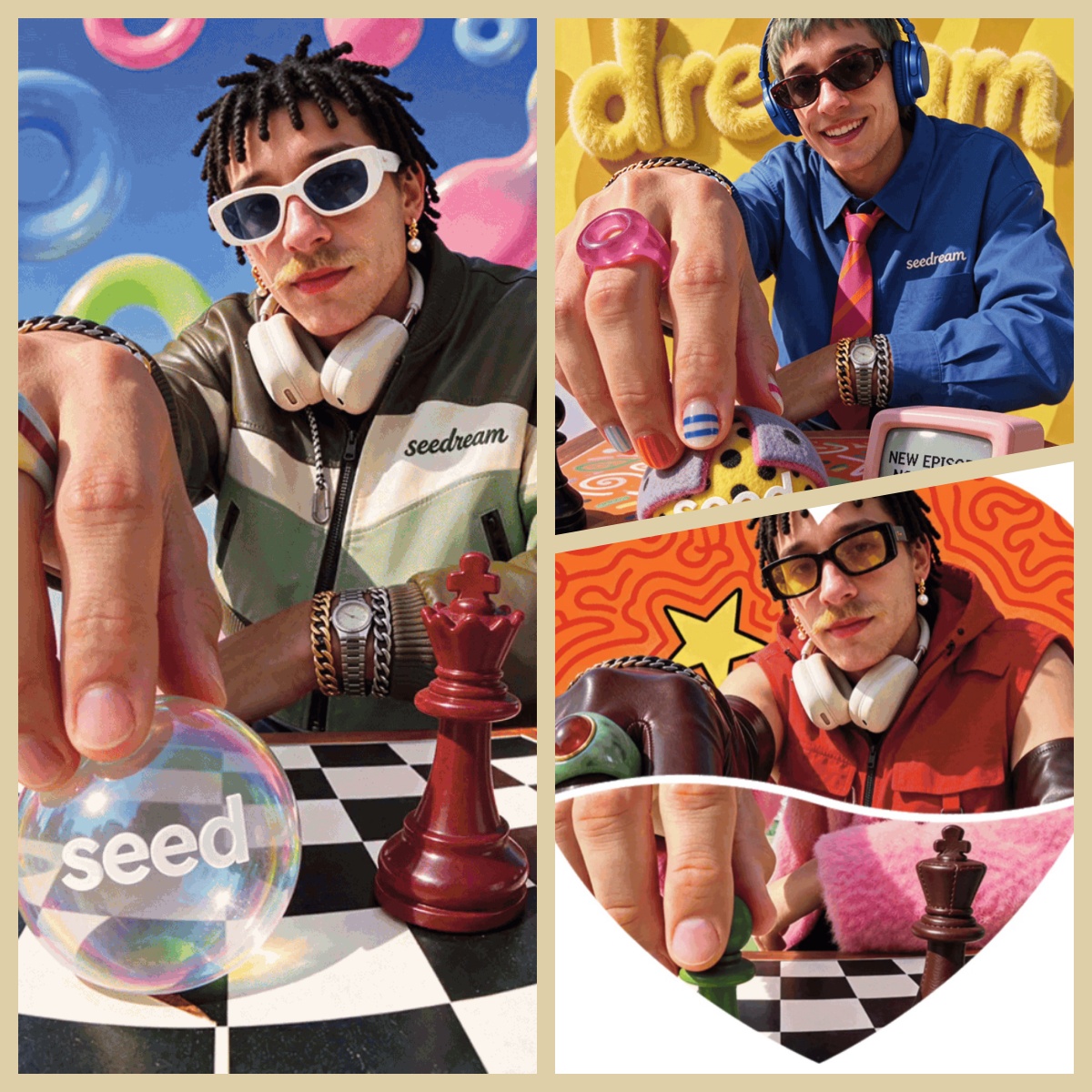
Picture Source:Bytedance / Seedream 5.5
Seedream 5.5 vs Nano Banana Pro
Seedream 5.5 and Nano Banana Pro are image generation and editing models. Here’s how their published features compare.
| Factor | Seedream 5.5 | Nano Banana Pro |
|---|---|---|
| Multi-round edits | Designed to preserve unchanged areas across successive edits | Supports local edits and character consistency |
| Transparent backgrounds | Supports transparency; Higgsfield exports transparent PNGs | Transparent PNG export is not specified. |
| Image quality and text | Improves realism and text structure | Generates readable text in multiple languages within images |
| Availability | Available through selected web platforms, APIs, and ComfyUI Partner Nodes | Available through Gemini and other Google products |
How to Use Seedream 5.5
The prompting basics from earlier Seedream versions still apply. Seedream 5.5 is designed for ongoing edits and can create transparent backgrounds on platforms that support them.
Prompt patterns
- Subject and purpose of the image
- Setting or action
- Style, light, and framing
- For edits, exactly what to change and what to keep
Prompting Tips
- Put exact on-image text in quotation marks, for example
"Cold Brew Coffee". - Say where the text should appear, such as on a label or in the top-left corner.
- If your design includes several text elements, give each one its own instruction. For example, specify the headline, product name, and ingredients separately.
- Specify which parts of the image should stay unchanged.
Example
A candid portrait of a woman in her thirties on a balcony at golden hour, looking back toward the camera. Backlight catches her loose hair, while her face remains softly lit and her skin texture is visible. She wears a linen shirt, with city rooftops softly out of focus behind her. Natural colors, an 85 mm lens, and minimal retouching.
Editing an image in several rounds
- Generate or upload a base image.
- Make one specific change and say what should remain the same.
- Check the person, lighting, perspective, and text.
- Use the edited image as the reference for your next change.
Common Mistakes to Avoid
- Changing several unrelated things in one edit
- Giving vague instructions like “make it better”
- Using a platform that does not carry the previous result into the next edit
- Assuming every platform can export transparent PNGs
Example cases to watch for
| Case | What to watch |
|---|---|
| Long edit chain on one person or scene | Clothes, props, furniture, or UI details change across many rounds; identity and layout stay coherent |
| Transparent stickers or character cutouts | Clean edges and easy to reuse in different designs |
| Extract subject to RGBA layer | Subject isolated without a separate matting tool |
| Dense small-text layout | Packaging, posters, or infographics with readable captions |
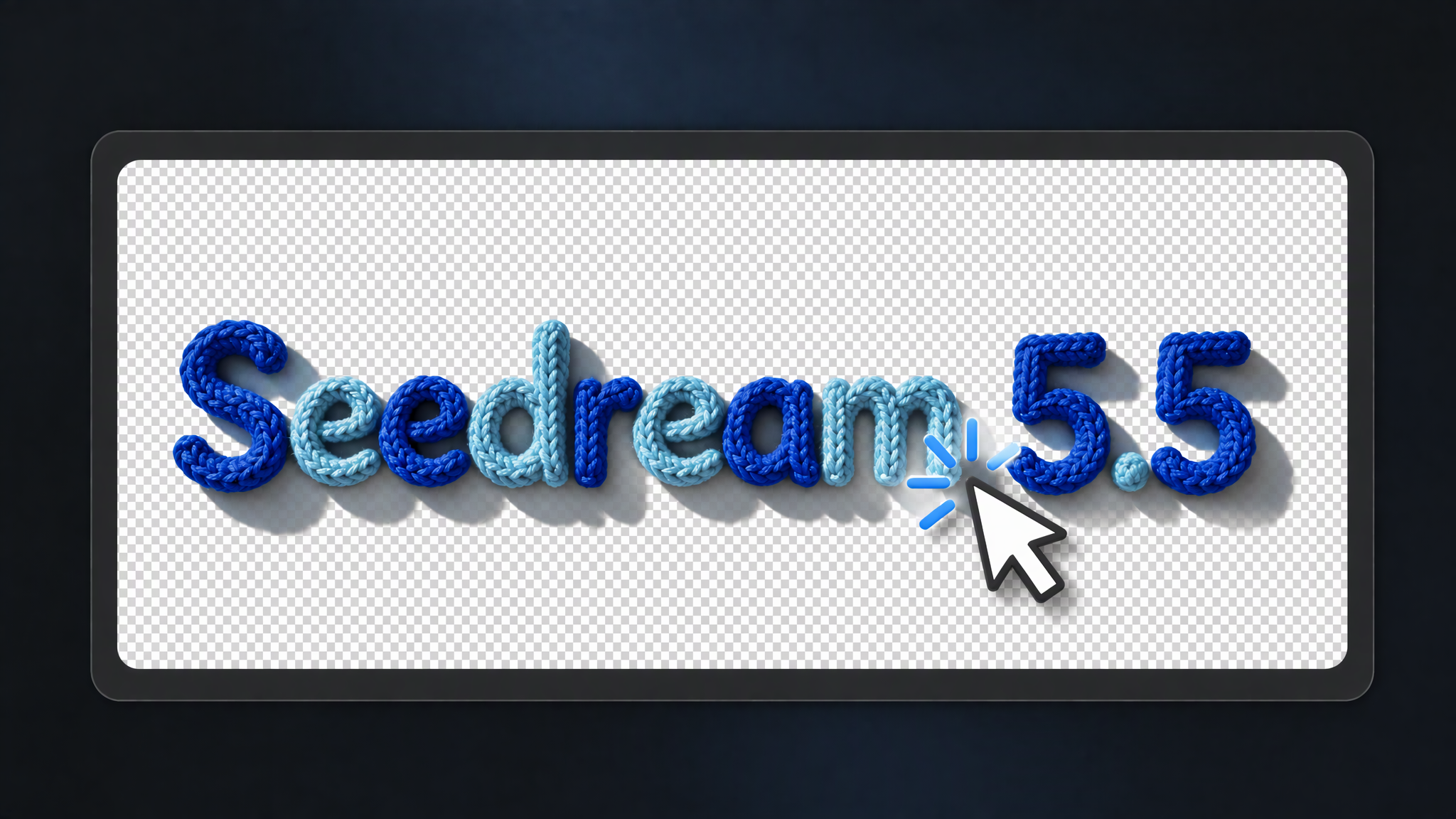
Picture Source:Bytedance / Seedream 5.5
Where to Access Seedream 5.5
Official access
- Start with the official Seedream 5.5 product page.
Web platforms
- Higgsfield lists Seedream 5.5 under Image > model selection. It offers 1K, 1.5K, and 2K images, with 1–4 images per run. You can choose Auto, Opaque, or Transparent for the background; Transparent downloads a PNG with an alpha channel. For 4K images, Higgsfield directs users to Seedream 4.5.
| Higgsfield resolution | Credits per image | Approx. cost* |
|---|---|---|
| 1K | 2.5 | $0.12 |
| 1.5K | 2.5 | $0.12 |
| 2K | 3.5 | $0.17 |
Estimated using Higgsfield’s rate of \$49 per 1,000 credits. Prices were checked on November 10, 2026 and may change.
- Dreamina: Select Image 5.5 by Seedream 5.5 in the image generator.
- Designkit: Use Seedream 5.5 for text-to-image, image-to-image, and creative workflows—generate from a prompt, refine with reference images, and continue editing in one workspace.
API and workflow options
- WaveSpeed API: Use it to add Seedream 5.5 to an app or automated workflow.
- ComfyUI Partner Nodes: Use the official templates for text-to-image or image editing. You’ll need a compatible ComfyUI version, an account, and credits. The model runs through an online Partner Node, not as a local download.
Conclusion
Seedream 5.5 is worth testing if you need repeated edits, transparent backgrounds, realistic images, or readable text in designs. Try your own prompts, and check that your platform exports transparency if you plan to use cutouts.
Frequently Asked Questions
What is the difference between Seedream 5.5 and Seedream 5.0 Lite?
Is Seedream 5.5 good for creating images with transparent backgrounds?
Seedream 5.5 can generate images with transparent backgrounds, which is useful for product cutouts, stickers, and other design assets. Whether the downloaded file keeps its transparency depends on the platform, so check that it exports transparent PNGs before using it for cutouts.
Does Seedream 5.5 support sequential edit chains?
Yes. That is one of its main upgrade themes. ByteDance’s launch materials show long edit chains on one image, including a 100-round demo, where each pass uses the previous result. In practice, make one change at a time and confirm that your platform carries the last output into the next edit.
You May Also Like
Best AI Image Generator Tools in 2026: Top AI Platforms Compared
Seedream 5.0 AI Review for Ecommerce Product Images
Seedream vs GPT Image: Which Fits Ecommerce Product Photos? (2026)
Seedance 3.0 Predictions: Will AI Video Enter the Feature Film Era?
Create with Seedream 5.5 in Designkit
Ready to turn ideas into listing-ready stills? Open Designkit, run a real product image, and keep only the frames that match your SKU.