
Fix Red Eyes and Keep Your Best Photos Looking Natural
Remove flash-related red eyes without complicated editing. Restore portraits and memories while keeping the rest of your image natural with Designkit.


How to Remove Red Eye in Photos With Designkit
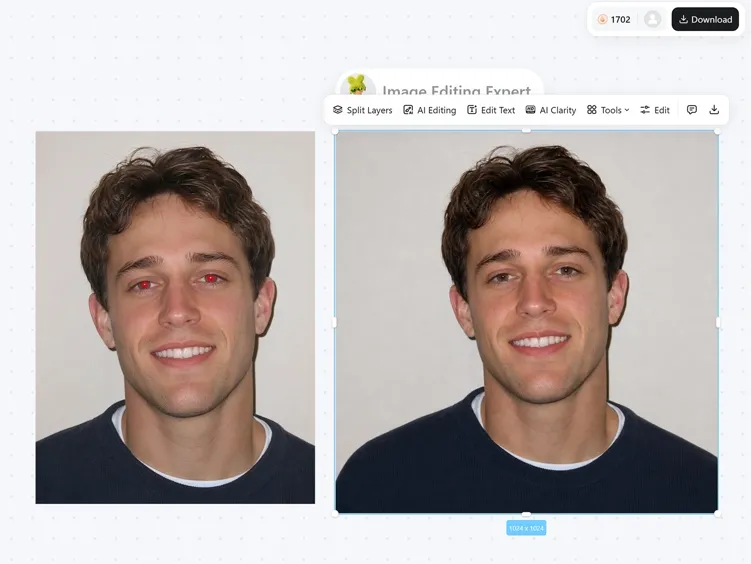
Upload Your Photo
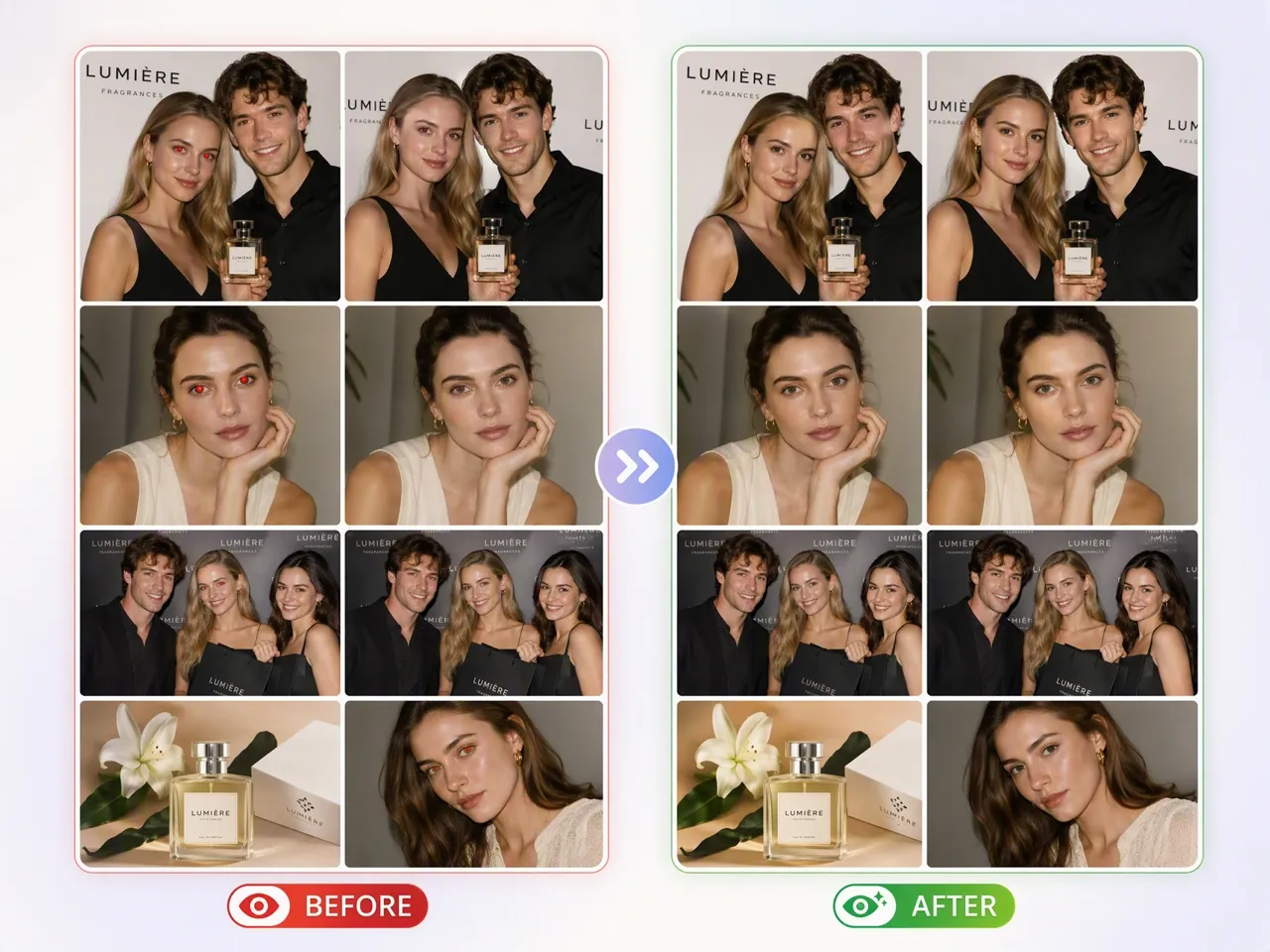
Upload a portrait, event photo, or image with red eyes. Designkit detects the affected areas and prepares them for correction.

Remove the Red Eye Effect
Enter a prompt such as "remove the red eye effect." Designkit corrects the affected eyes without manual selections, masks, or brushes.

Preview and Download
Compare the corrected image with the original before downloading. Review the result and continue editing in Designkit if needed.
What Makes Designkit a Practical Red Eye Remover
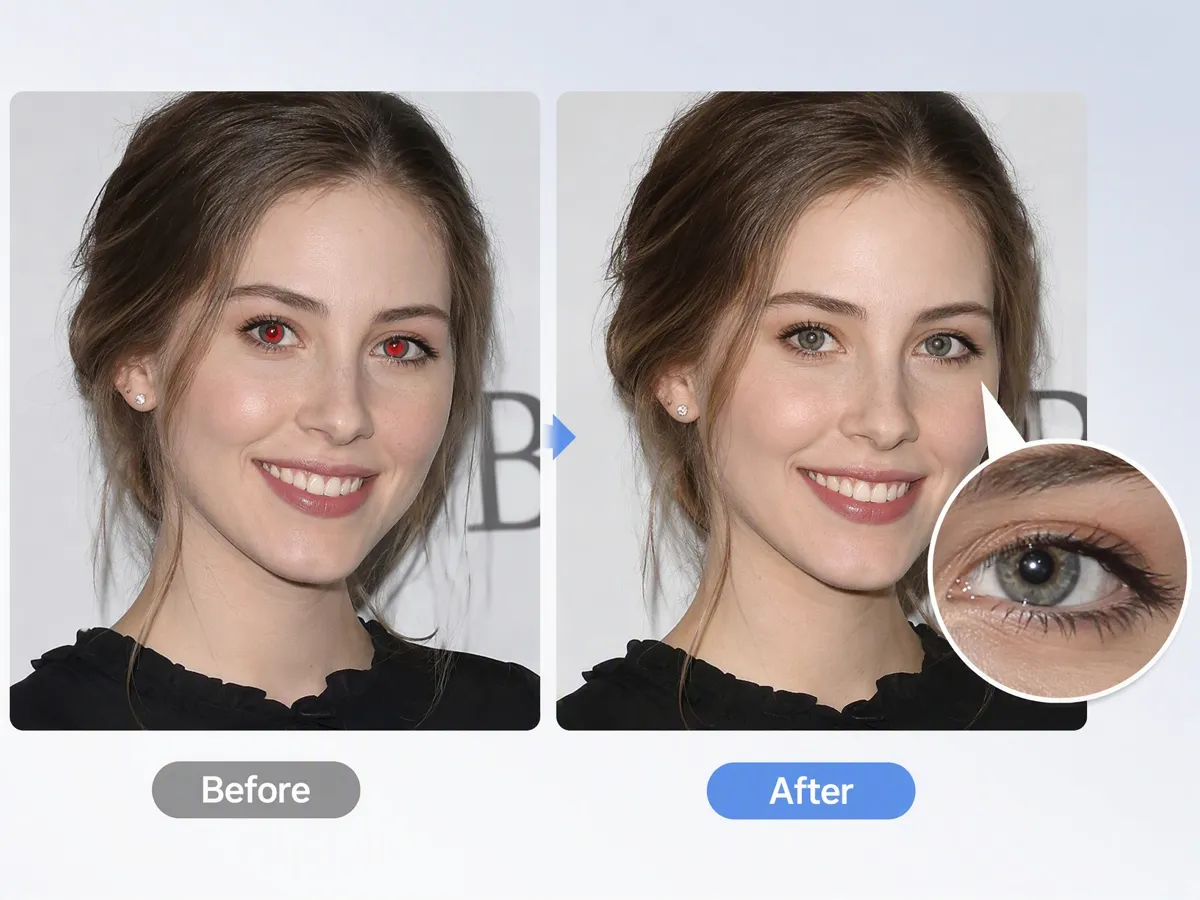
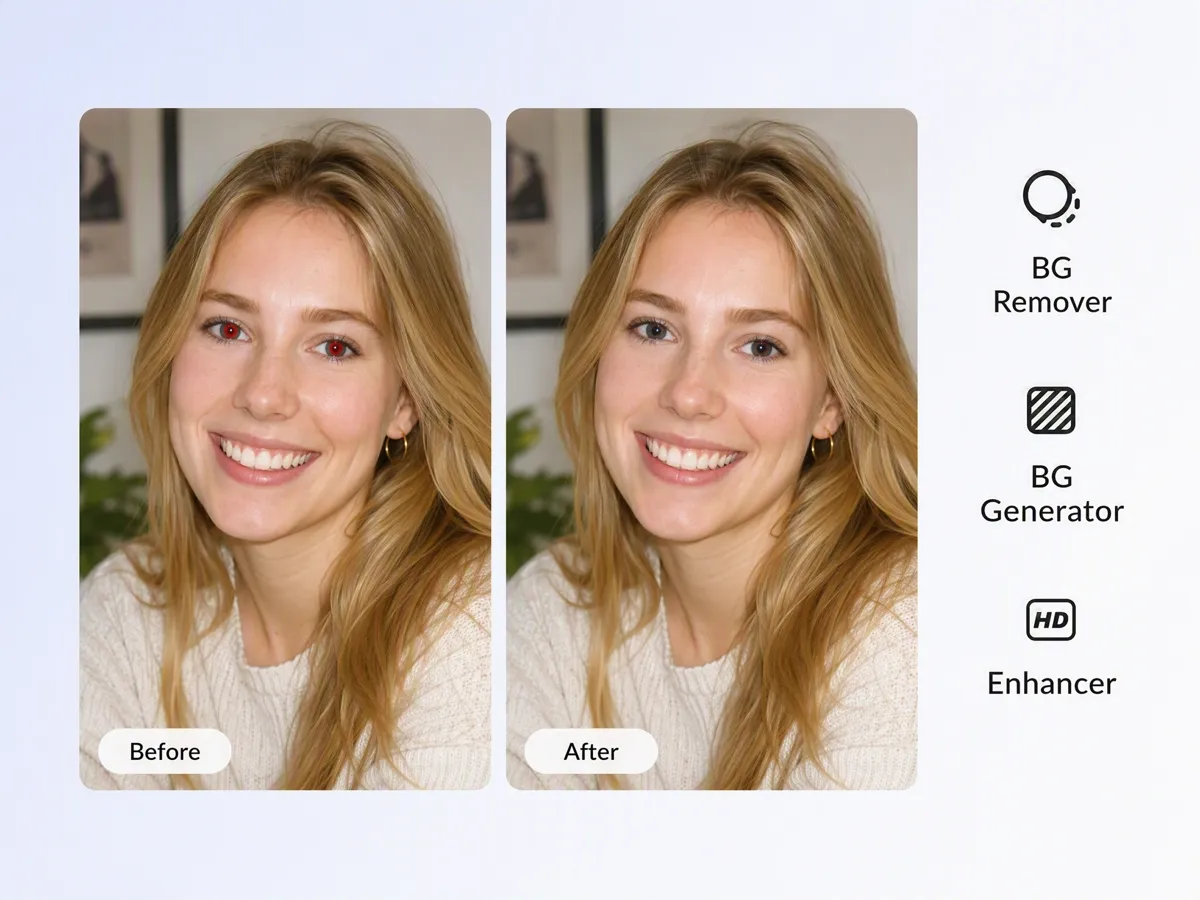
Restore Natural Eye Color, Leave the Face Intact
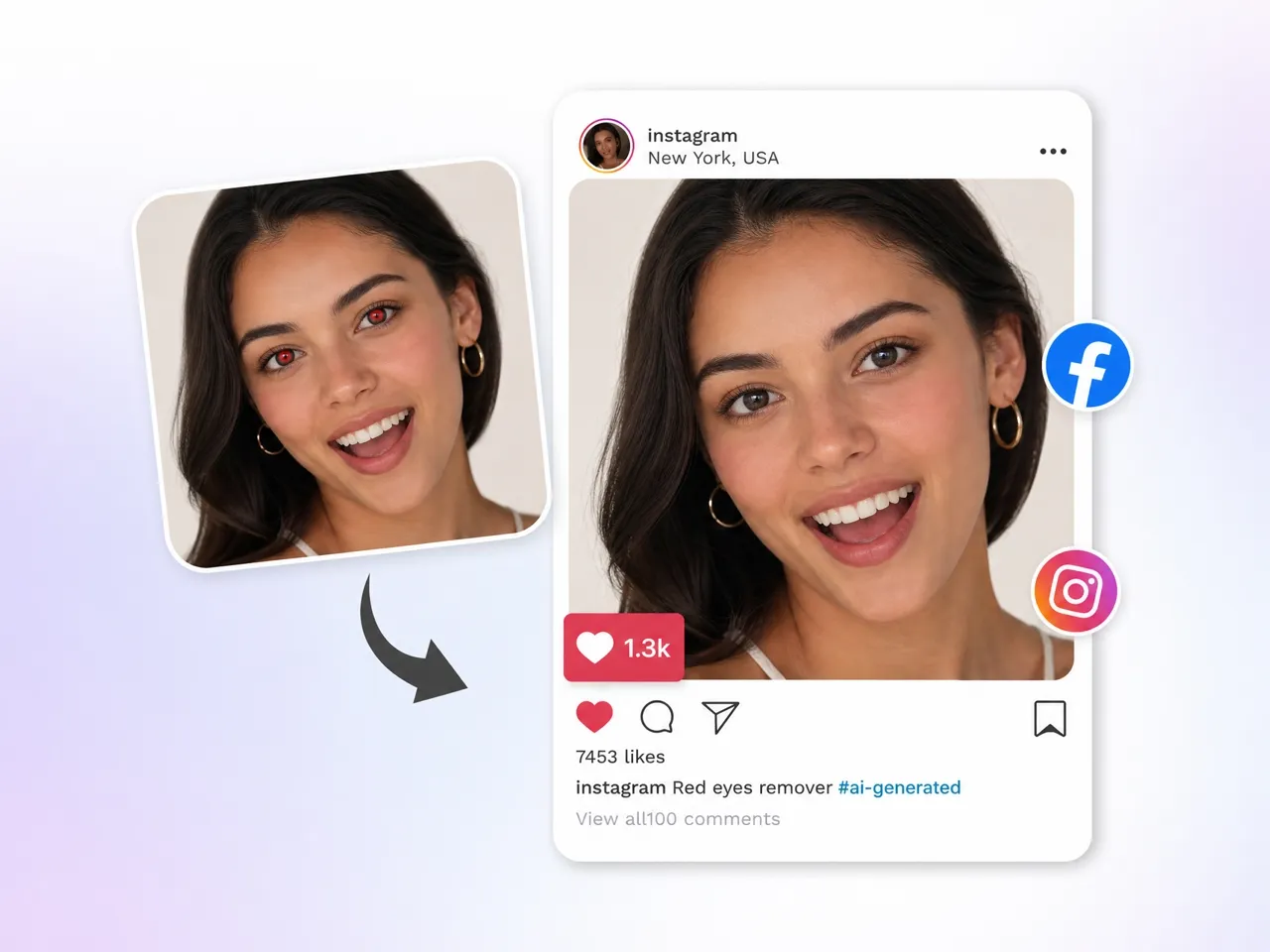
The editor targets the red glow caused by camera flash while leaving surrounding skin, hair, and lighting unchanged. For broader portrait cleanup, the face image enhancer can help refine other facial details without changing the overall look.
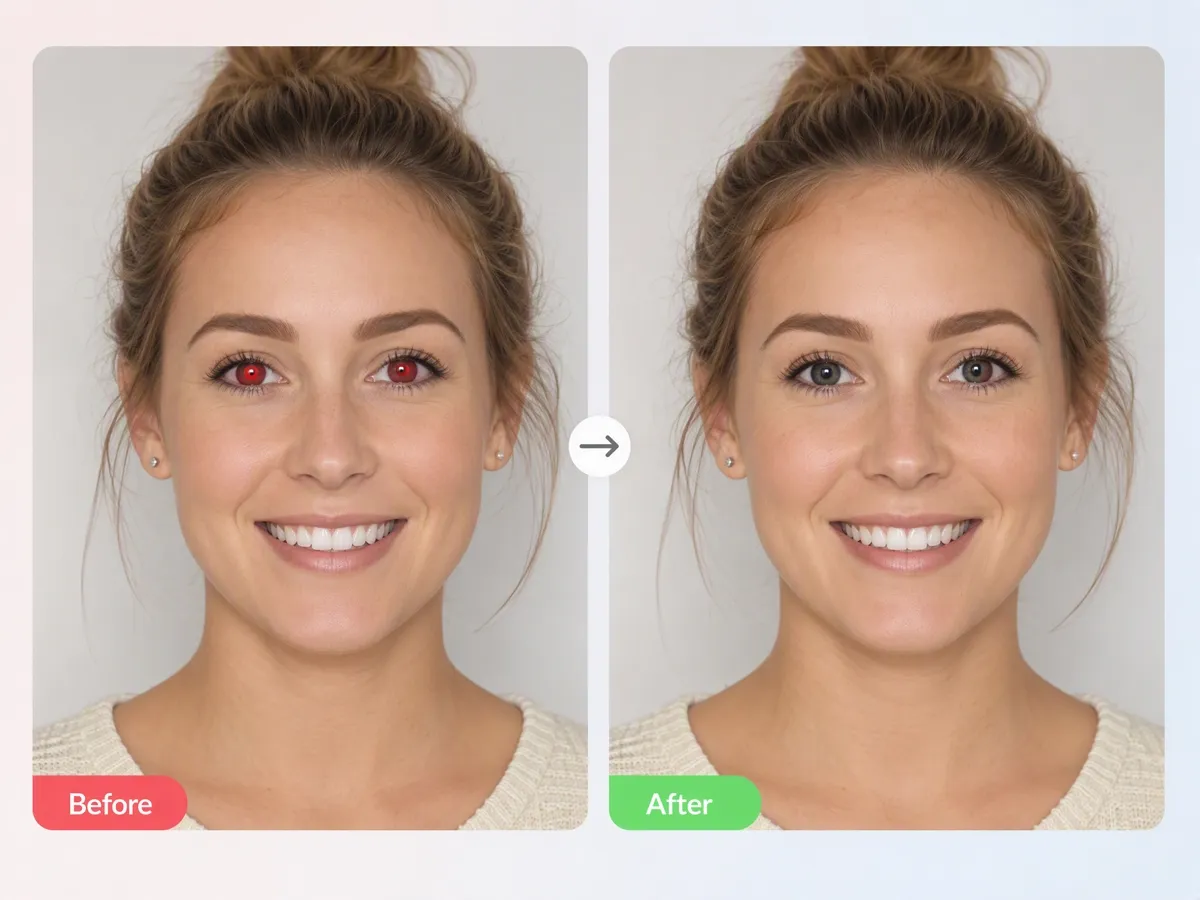
Correct Red Eyes Without Selecting or Brushing.
Type what you want changed instead of using a mask, spot-healing brush, or per-eye click tool. Designkit applies the correction from your prompt, making red eye removal more straightforward.
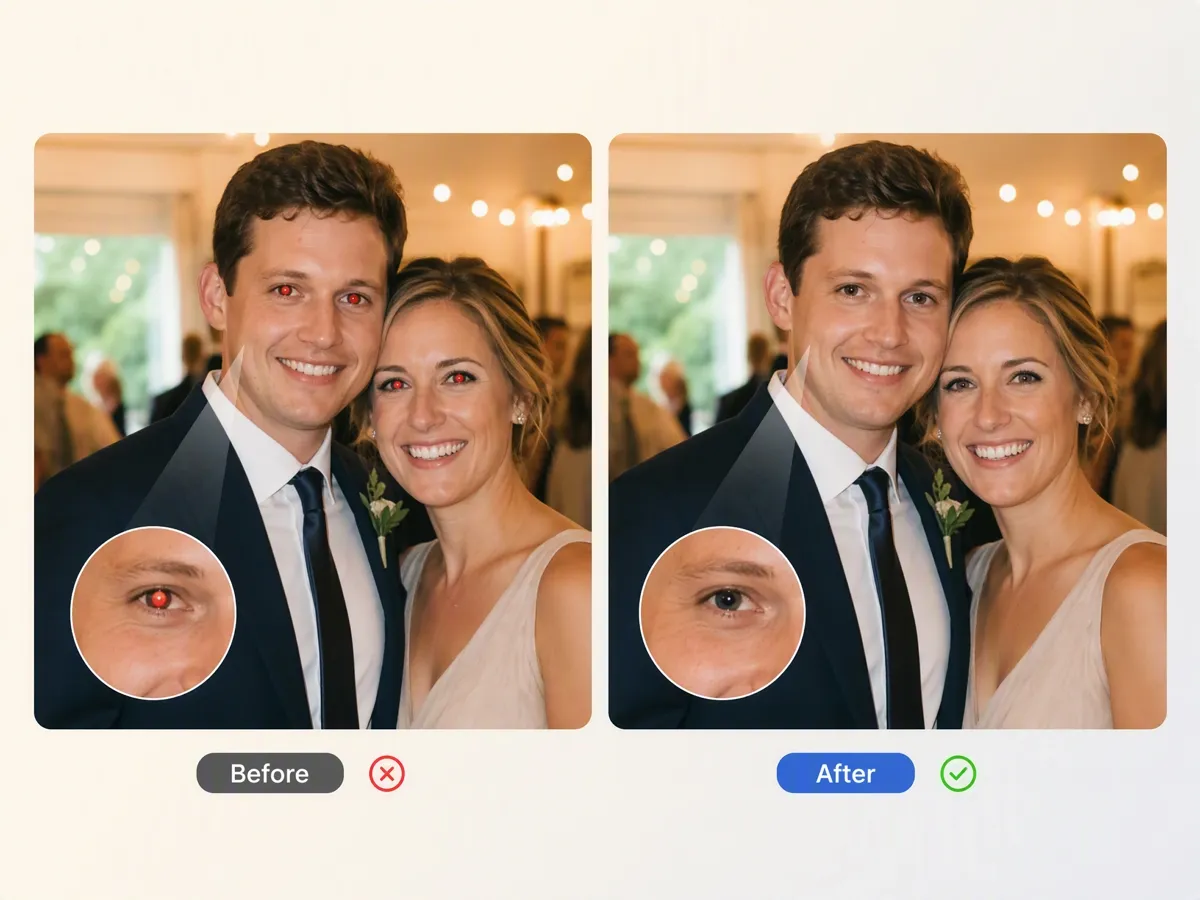
Save Good Photos Instead of Retaking Them
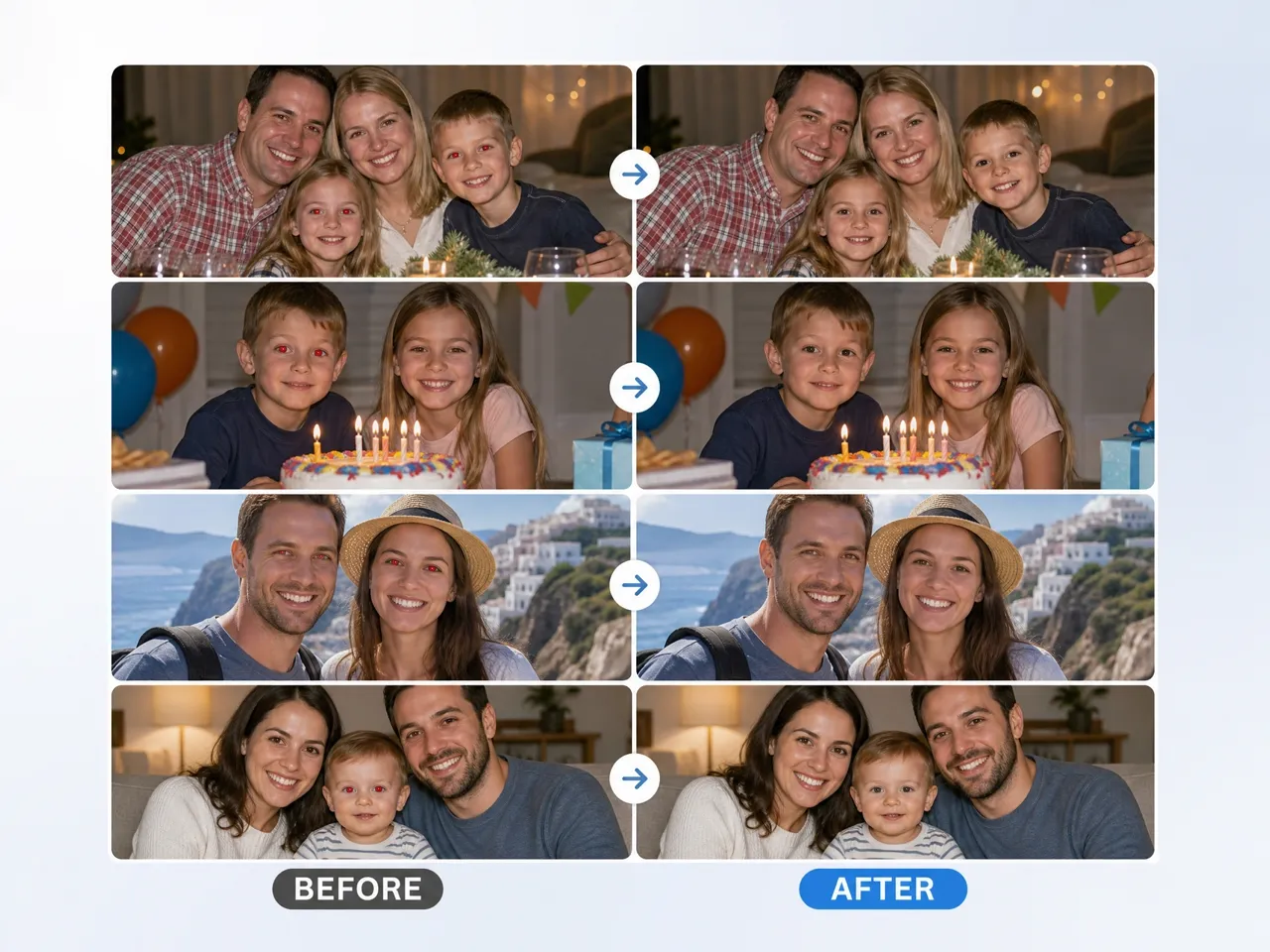
Keep photos that already have the right moment, expression, and composition. Designkit helps remove one distracting issue instead of replacing an otherwise usable image.
Continue Editing in One Creative Workspace
Fix red eyes and continue improving your images in Designkit without moving files between tools. For broader edits, the AI photo editor lets you continue working from the same workspace.
Who Uses Designkit to Fix Red Eye Effect
Fix Flash Issues Before Delivering Photos
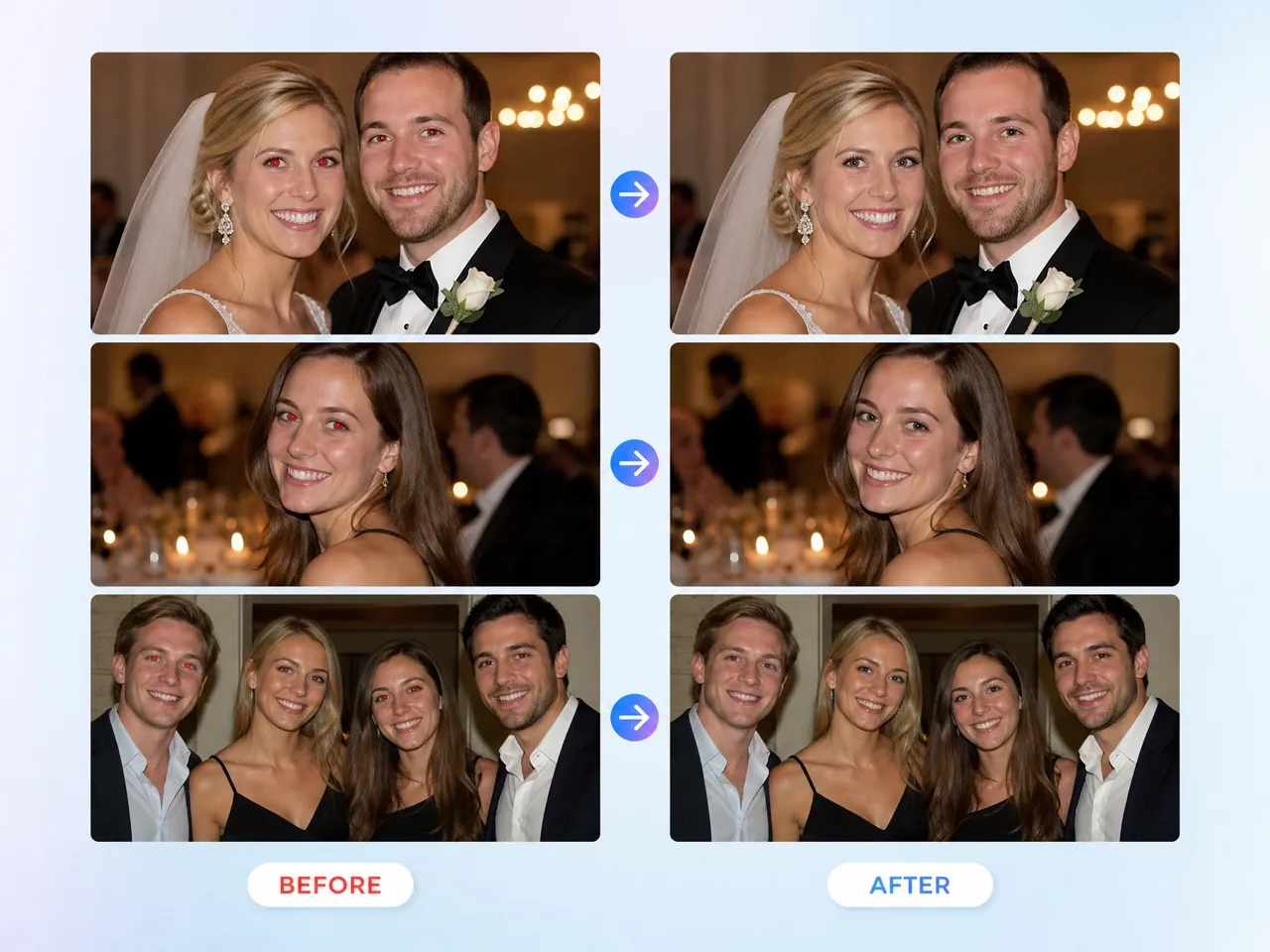
Clean up red eyes in portraits, weddings, and event photos before sending images to clients. Fix small issues without spending extra time on detailed manual edits.
Why Choose Designkit for Red Eye Removal

No Clicking Each Pupil in Photoshop.
Phone editors and Photoshop often require clicking each affected eye. Describe the fix instead and review the result.

No Retoucher Needed for a Small Eye Fix.
You do not need to send the file out for a full retouch when AI photo retouching can handle a small flash red-eye issue.

Try Red Eye Removal With Free Signup Credits
Start fixing red eye issues with free signup credits. Explore Designkit's photo editing workflow before choosing a plan.
Explore more Al tools
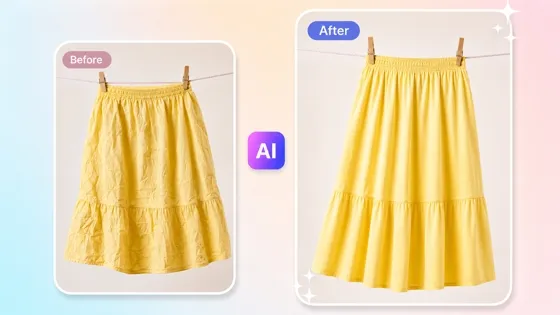
Remove Wrinkles From Clothes Photos With AI

AI Shopify Photo Editor

Free Background Remover
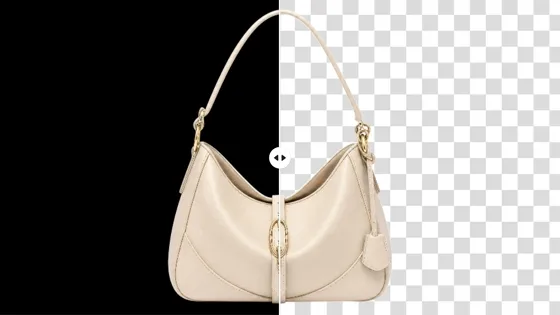
Black Background Remover
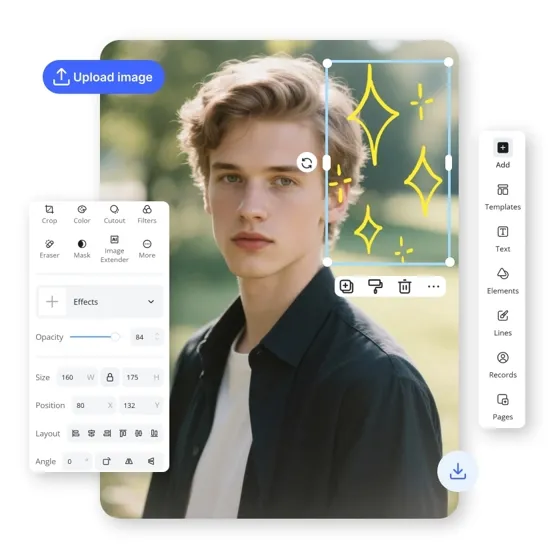
AI Photo Editor

AI Product Photo Editing Tool
AI Retouch Photo

Image Stretcher
Frequently Asked Questions
Why do my eyes look red in pictures?
Will AI red eye removal make my eyes look fake?
I don't know how to edit photos. Can I still fix red eyes?
Is there a free red eye remover online?
What can I do after removing red eyes?
Fix Red Eyes Before You Share Your Photo
Remove red eyes from portraits while keeping photos natural. Clean up great photos and prepare them for sharing or publishing with Designkit.

What Users Say About Designkit Red Eye Remover
Photographers, creators, and everyday users use Designkit to fix distracting red eyes and keep photos they already like.
I Almost Deleted a Good Photo Because of the Red Eyes
I had a portrait that I really liked, but the flash made the eyes look red. I didn't want to edit everything again, so I just fixed that one thing and kept the photo.
I Could Bring an Old Photo Back
I found an old family photo where the flash made the eyes look strange. I tried Designkit, and it helped clean up the red eyes while keeping the photo looking like the original.
I Already Use Designkit for Other Image Work
I already use Designkit for editing images, so having red eye removal in the same place is convenient. I can fix the photo and continue working on it without opening another app.
We Kept a Campaign Photo Instead of Replacing It
We had a product campaign image that looked great except for the red eyes. Designkit helped us fix that small issue, so we could keep using the photo instead of finding another one.