
AI Video Translator: Translate Videos Into More Languages
Turn your videos into localized content with AI translation. Choose your target language, retain background audio, and select a voiceover style that suits your viewers.
How to Translate a Video With Designkit
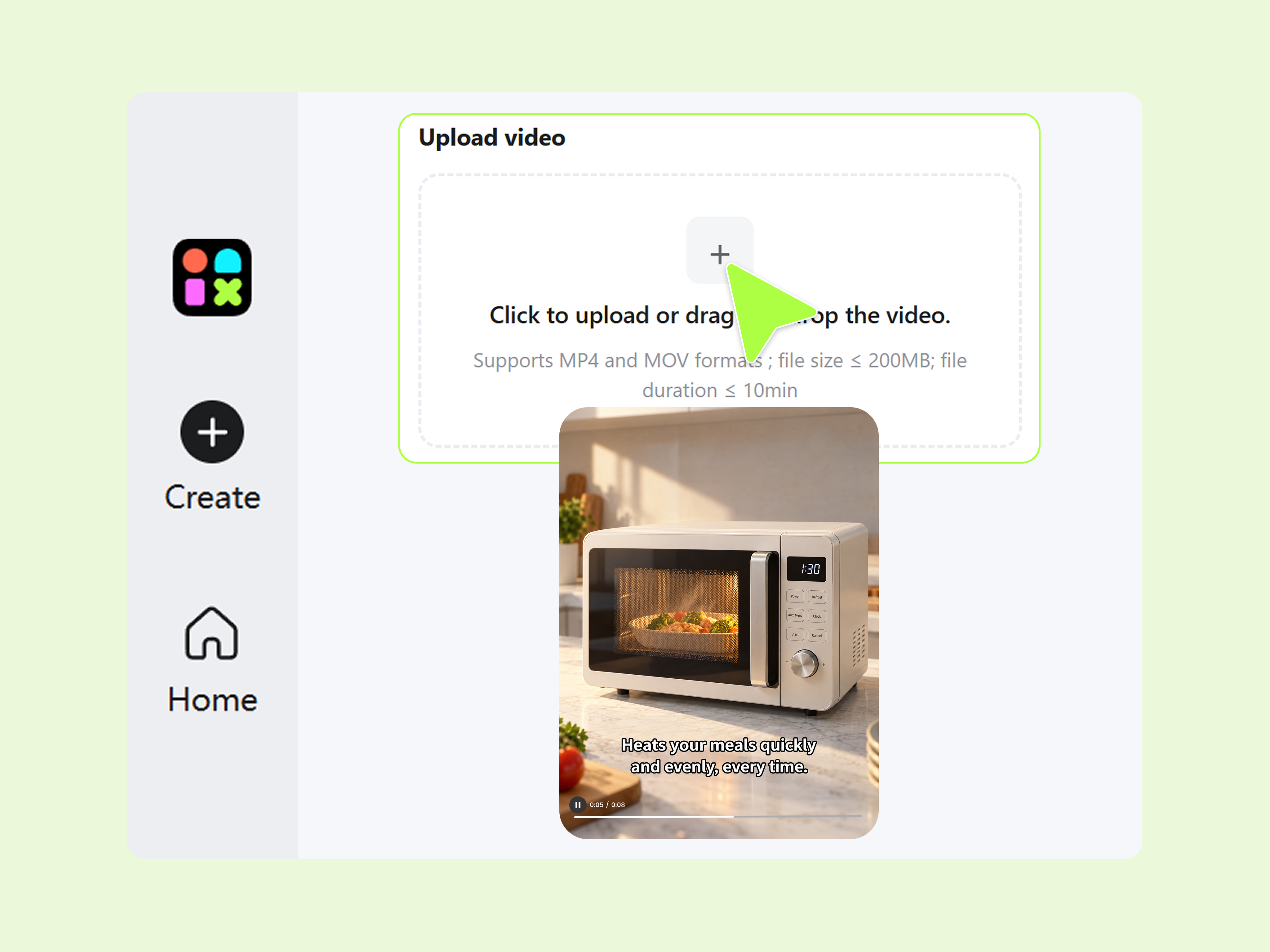
Step 1. Upload Your Video
Open Designkit AI Video Translator and upload the video you want to translate. Use footage you own or have permission to process.
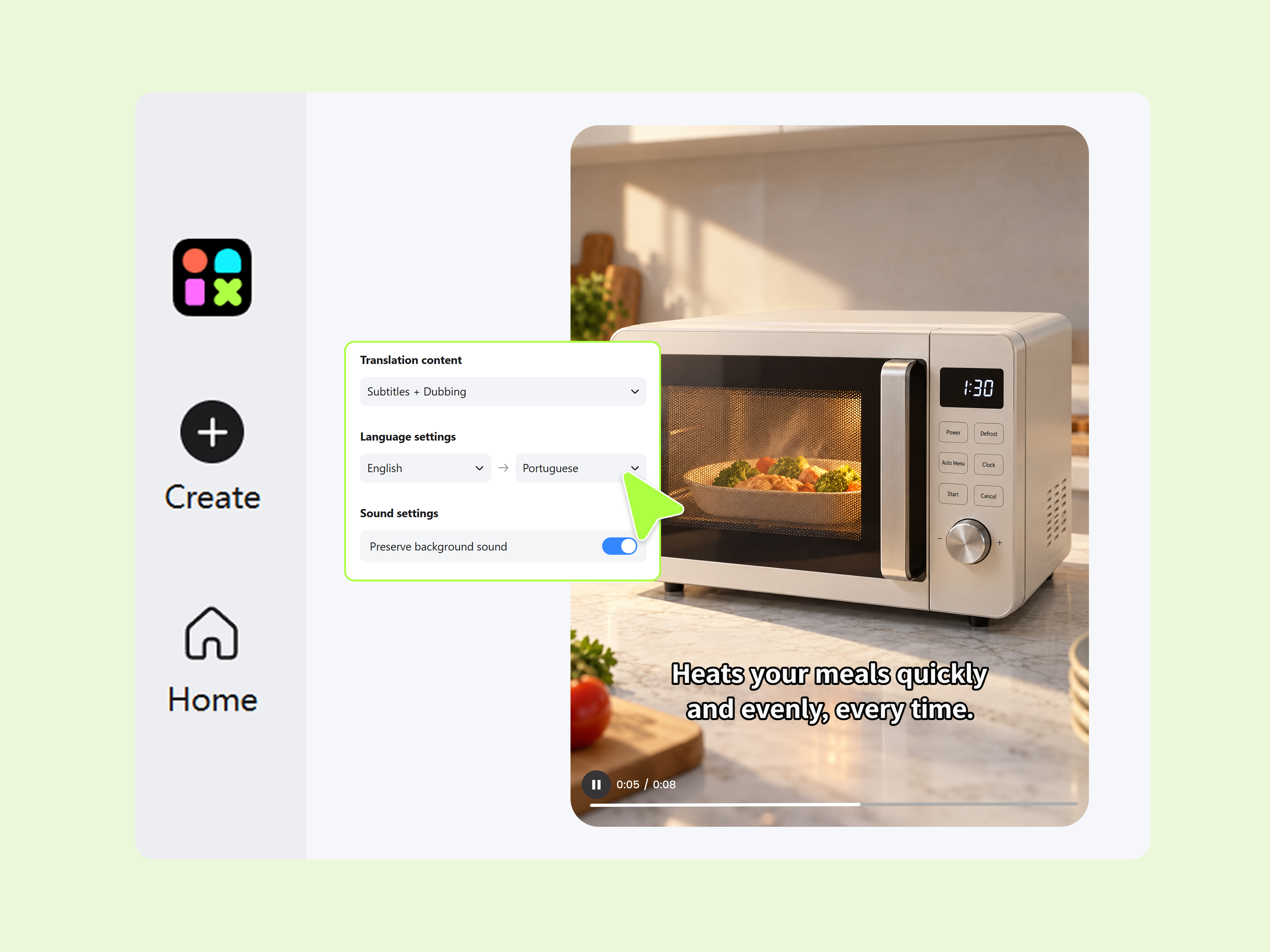
Step 2. Select Languages and Translate
Choose the video's original language and your target language, such as English to Spanish or Spanish to English. Start the translation and wait for the result to be ready.
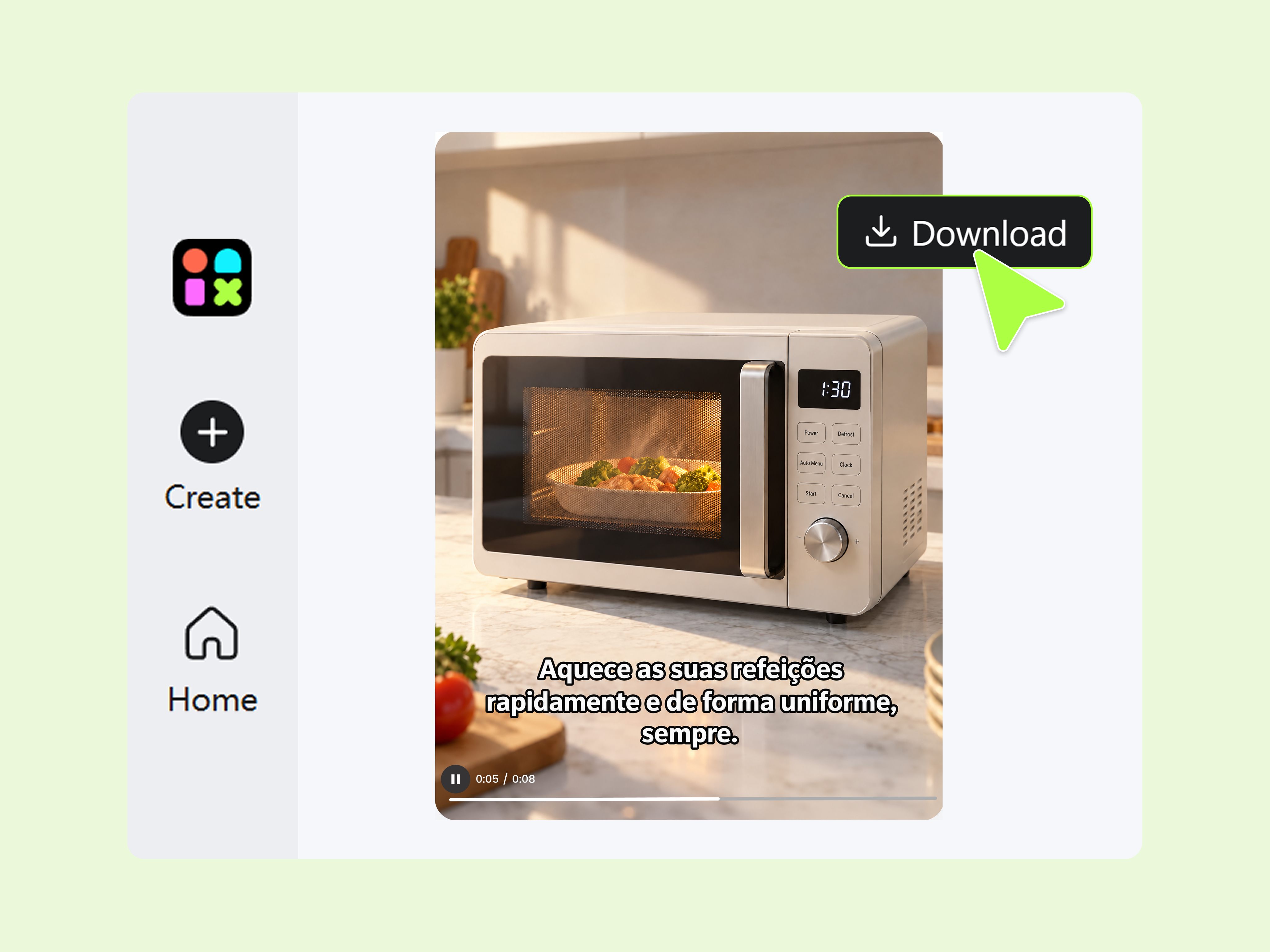
Step 3. Review and Download
Preview the translated video and check names, figures, technical terms, and context-sensitive phrases against the original. When the result meets your needs, use the available download option to save it.
What Can You Do With Designkit's AI Video Translator
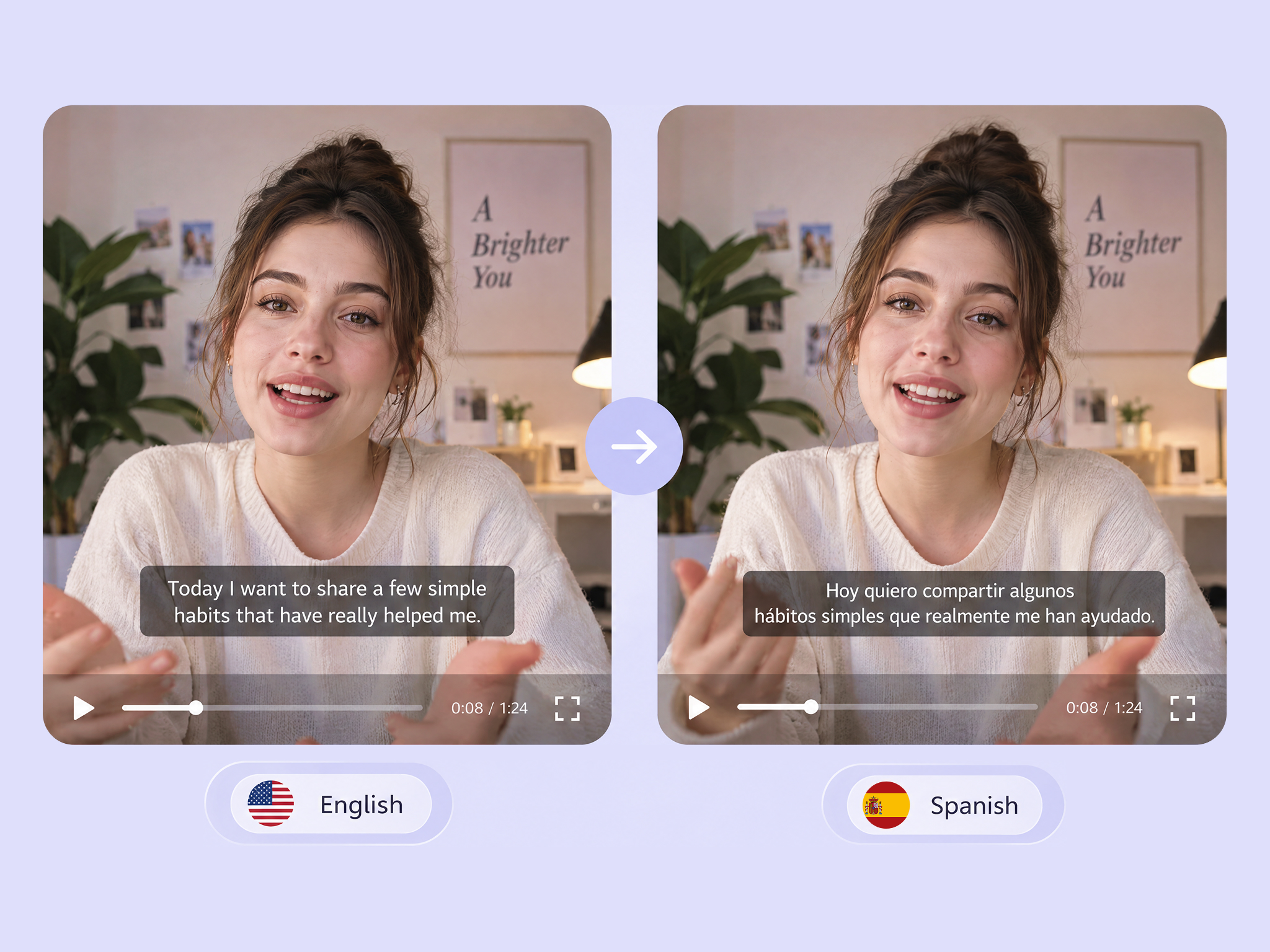
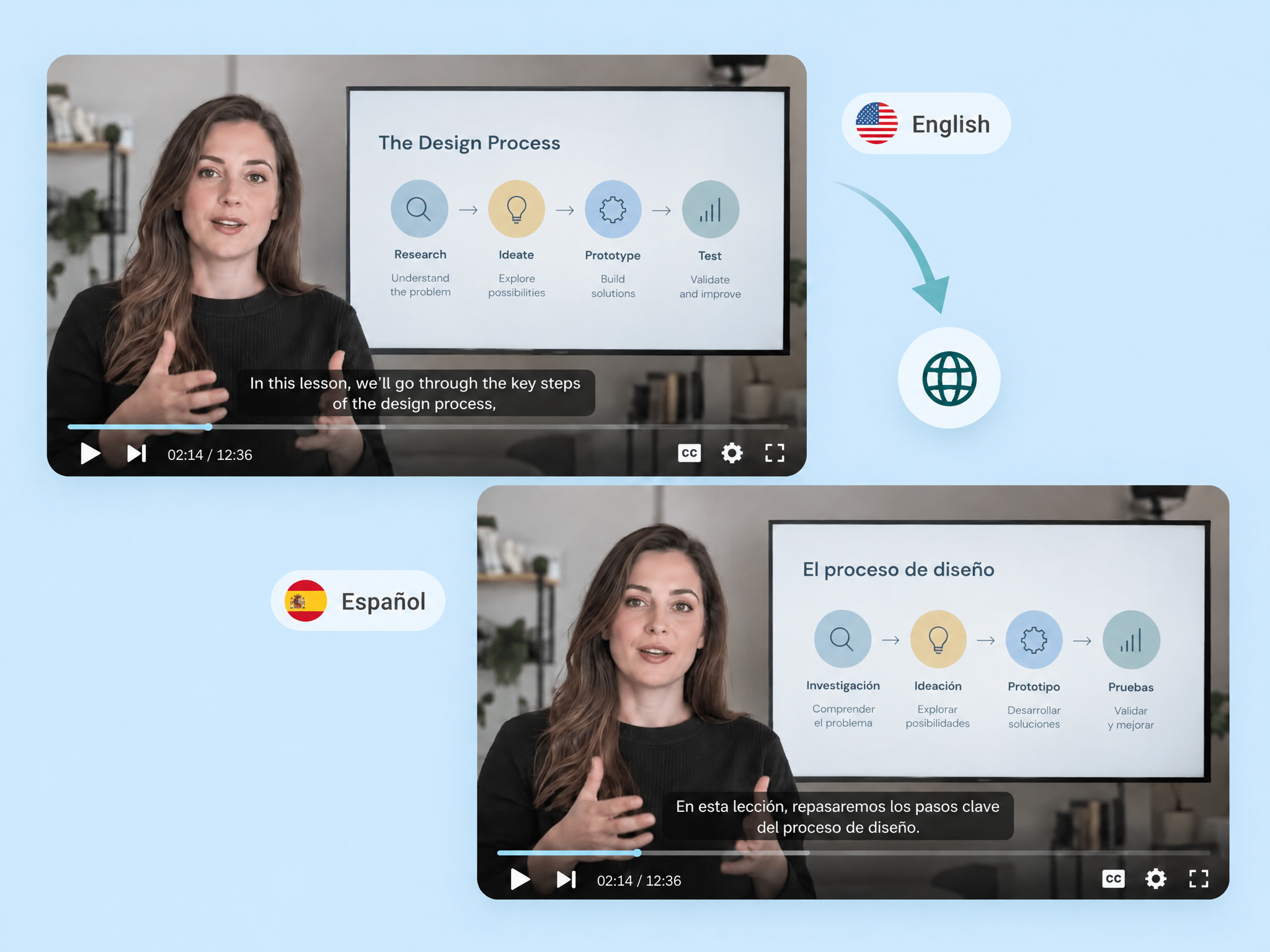
Turn Spoken Dialogue Into a Dubbed Video in Another Language
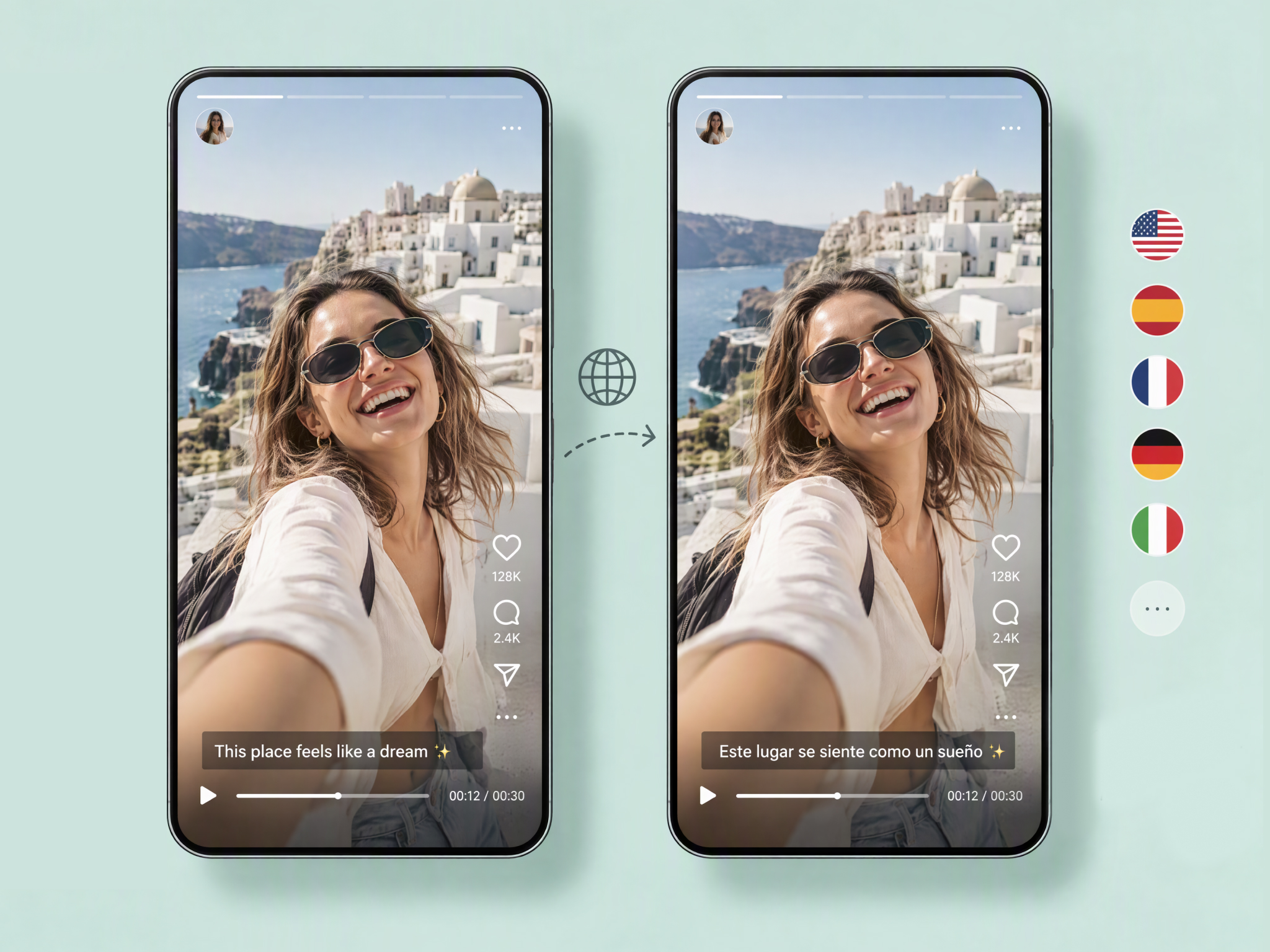
Translate spoken dialogue for viewers who prefer another language without rebuilding your video from scratch. Designkit's AI video translator helps you prepare localized versions of existing content for international audiences, from product explainers to social videos. Use it to translate video dialogue and make your message accessible to more viewers.
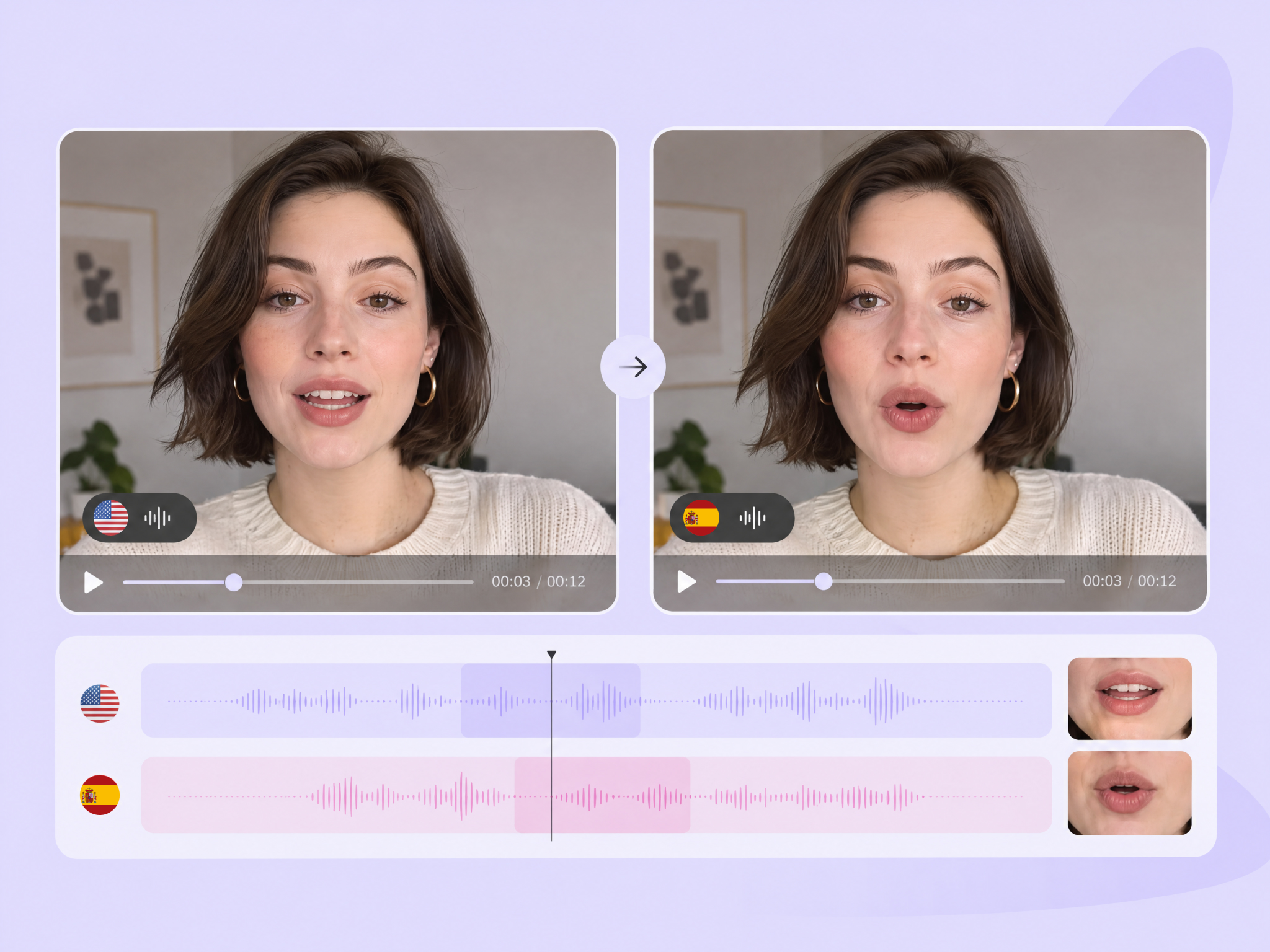
Keep the Speaker's Voice and Lip Movements in Sync
A dubbed video can feel distracting when the speaker's mouth movements don't match the translated audio. Use available lip-sync options to make translated dialogue feel more natural for product demos, creator videos, and marketing content. Explore Designkit's AI avatar for relevant voice and dubbing options, then preview the result to check that the speaker's delivery fits the localized version.
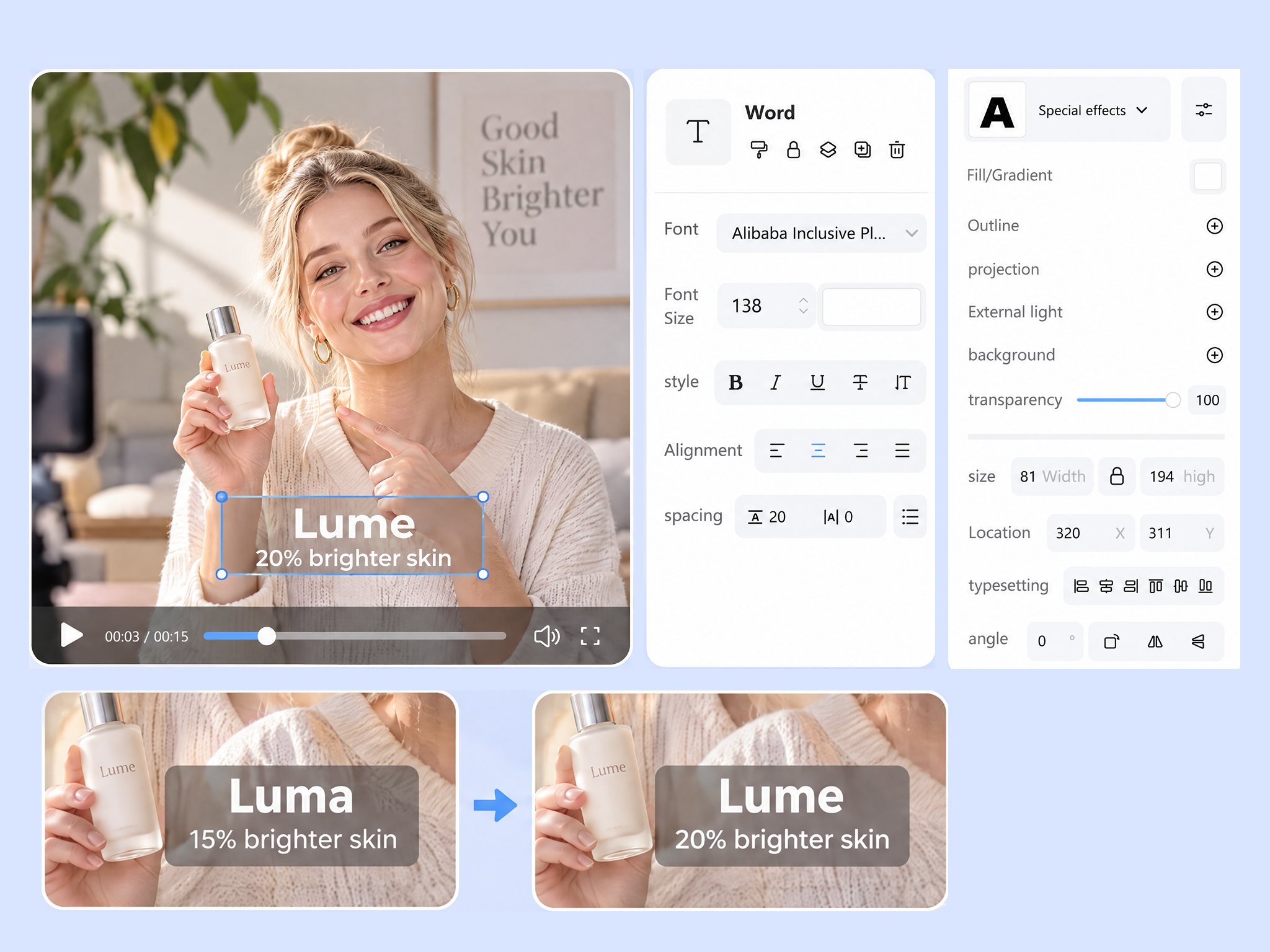
Preview and Edit Wording Before You Export
Machine-translated wording may need adjustments to sound natural or preserve your brand's message. Preview the translated dialogue, correct awkward phrases, and check product names before exporting. If you're learning how to translate a video for social media or international customers, reviewing the wording helps you catch errors before publishing. For new video projects, explore AI video generation as well.
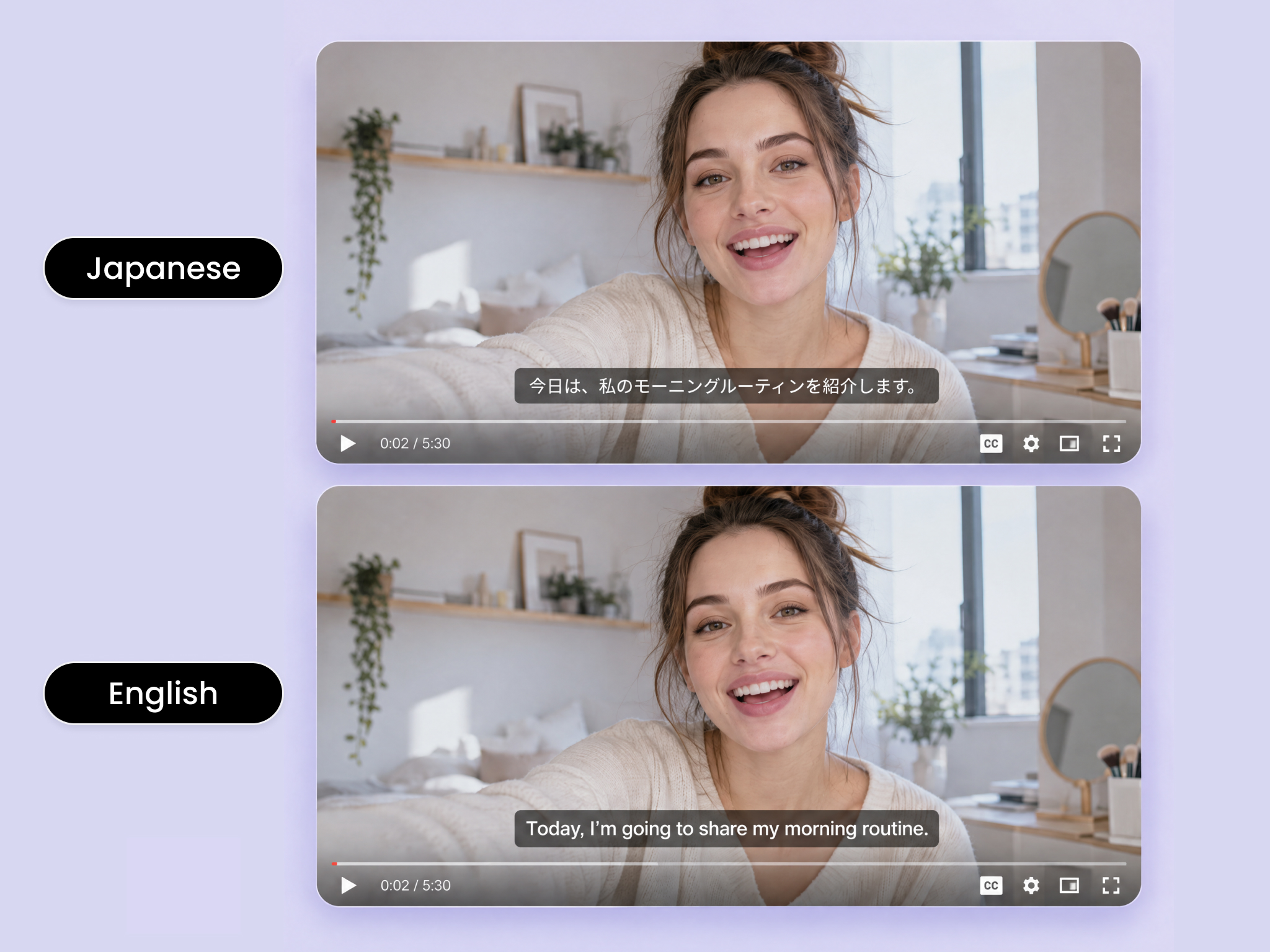
Translate On-Screen Text Without Losing the Visual Context
Text inside a video can carry important details, from product labels and callouts to titles and subtitles. Translate on-screen wording into your target language while considering how it fits the original scene and layout. Review the result to make sure translated text remains readable and relevant, especially when preparing localized product videos or content for international audiences.
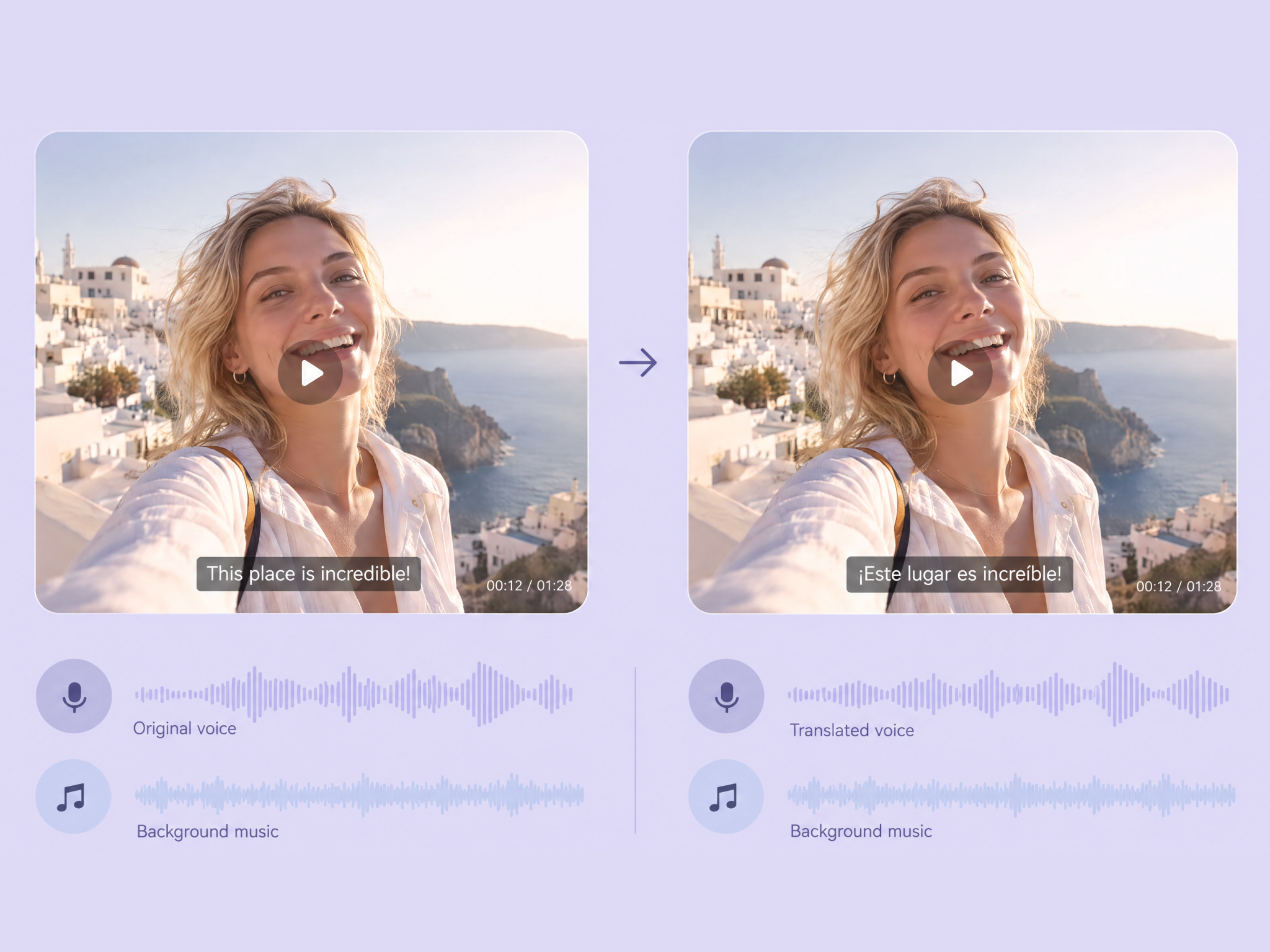
Translate Voiceovers Without Losing Background Audio
When localizing a video, dialogue may need to change while music and ambient sounds still support the scene. Use video translation workflows that account for the original background audio, then preview the result to check the balance between narration and sound. This is especially useful for promotional videos, tutorials, and product content where the audio atmosphere matters.
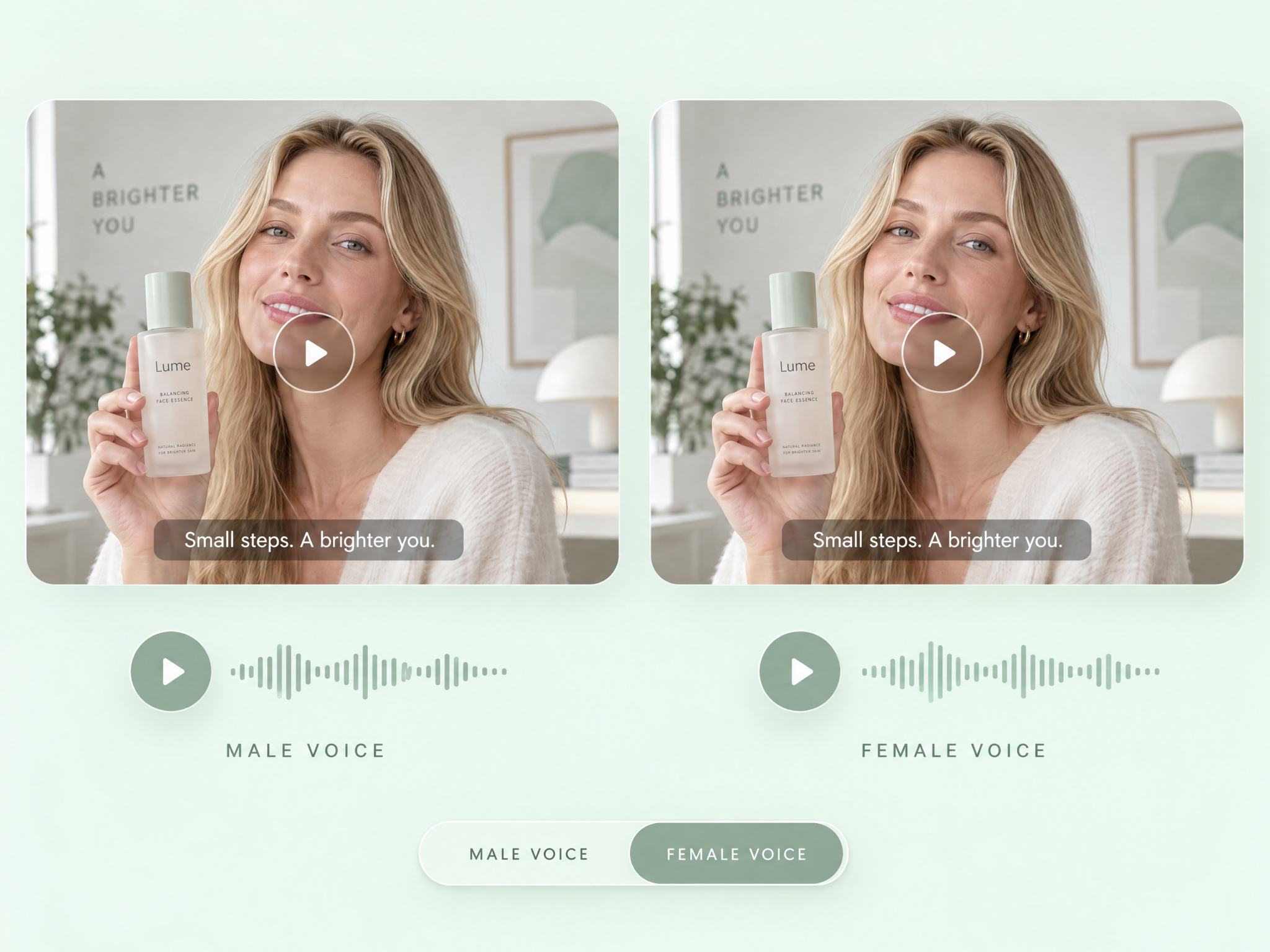
Switch to a Male or Female Voice for Dubbing
Choose a suitable dubbing voice for the tone and audience of your video. Depending on the available voice options, selecting a male or female voice can help you adapt narration for product explainers, social content, or promotional videos. Review the voice choices before exporting to ensure the delivery fits your message and feels consistent with the localized version.
Where Can You Use Designkit's AI Video Translator
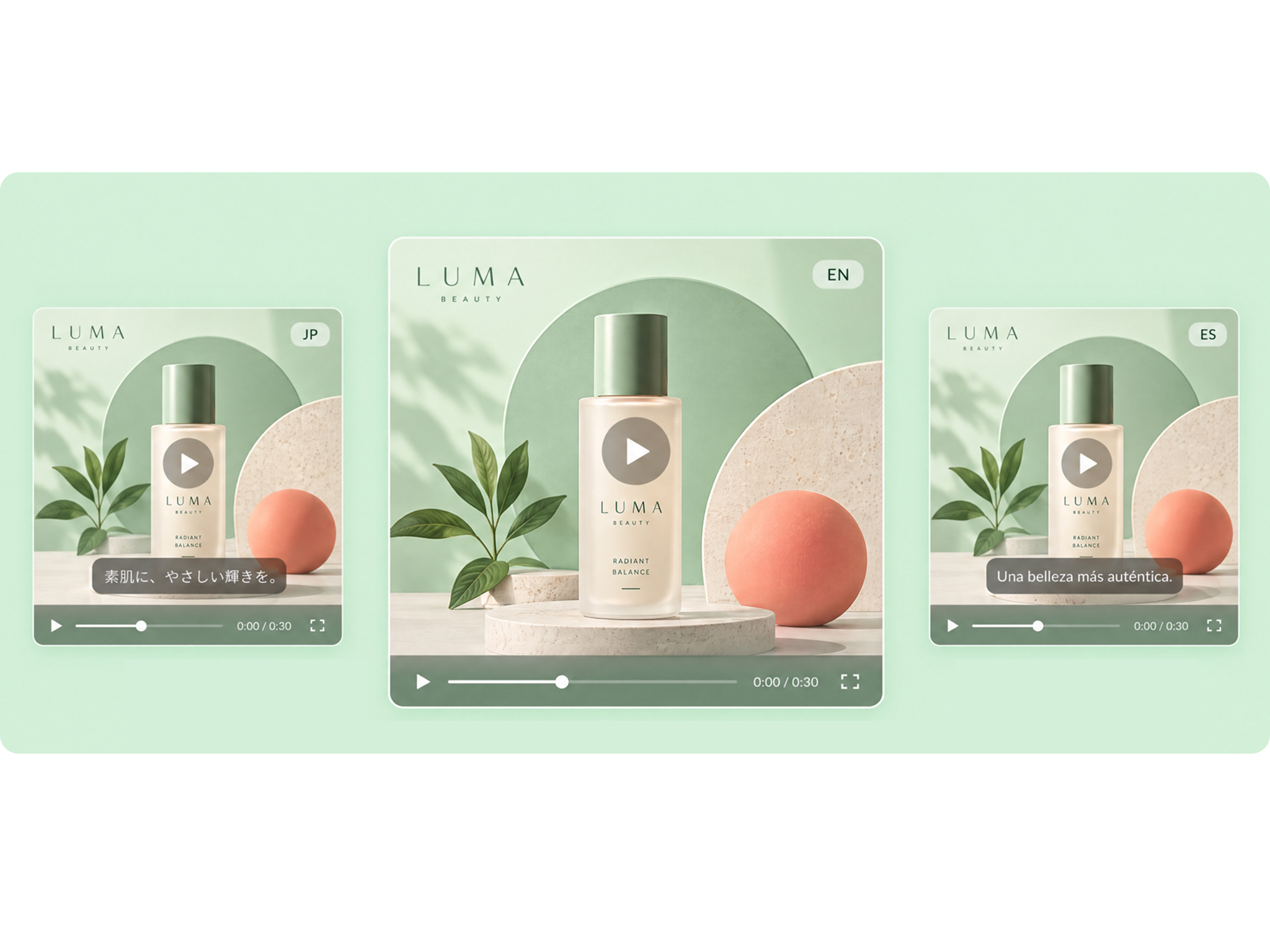
Take One Campaign Into More Language Markets
Localize campaign videos for audiences in different regions without planning a separate shoot for every language. Use a marketing video maker to support new video campaigns, then translate existing dialogue to help international viewers understand your offer.
Why Choose Designkit for AI Video Translation

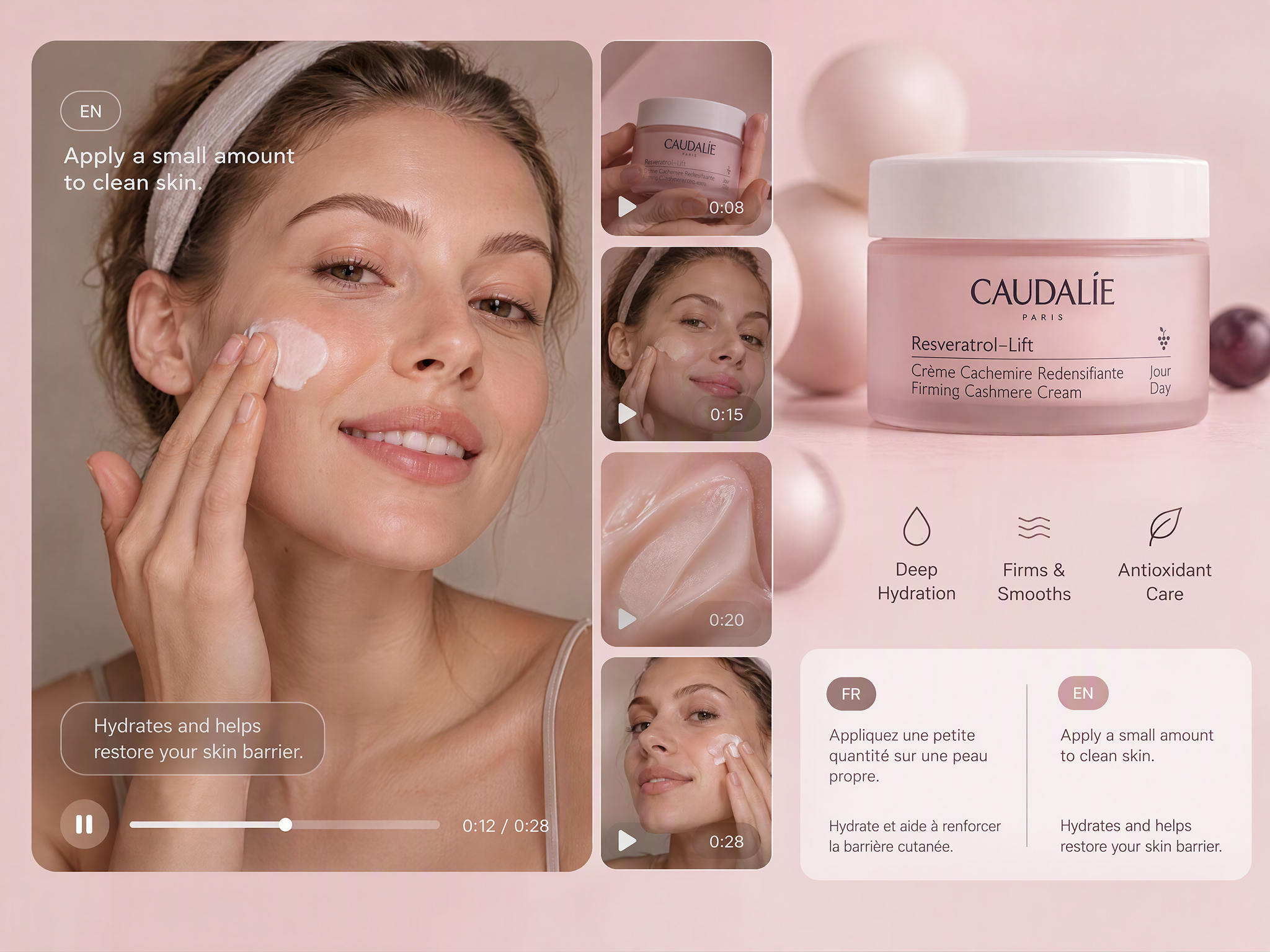
Translate dialogue and prepare localized subtitles in one workflow. Designkit helps you adapt videos for new audiences without recreating every version.

Explore available voice options for your audience and language. Use a Spanish-to-English video translator workflow and review the result before exporting.

Use an AI video translator online to localize product demos, campaigns, and social videos for international viewers without planning a new shoot for every language.
Explore More Video Tools After Translation
Frequently Asked Questions
How Accurate Is AI Video Translation?
What's the Difference Between Translated Subtitles and AI Dubbing?
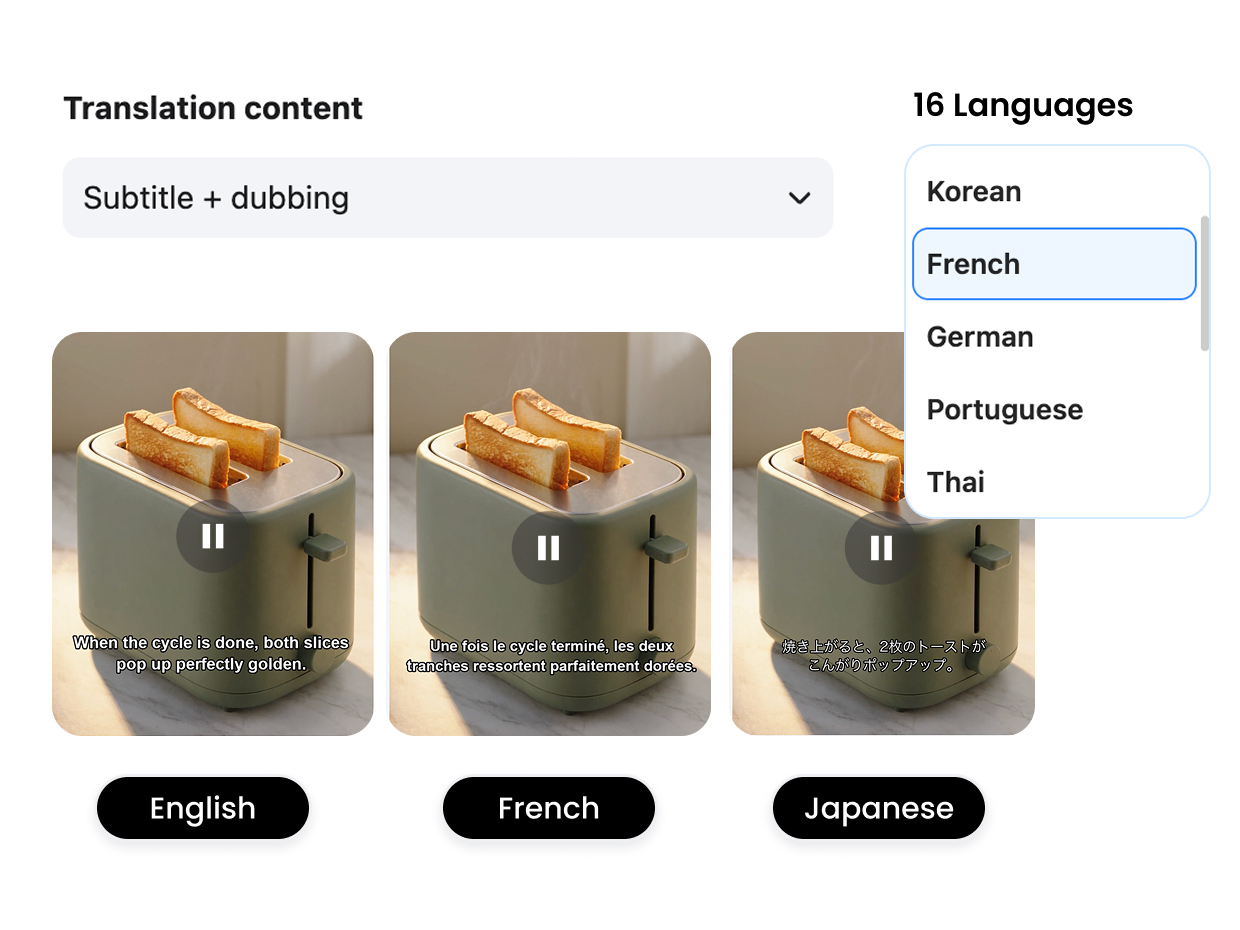
Translated subtitles display the dialogue in another language as text on screen, while AI dubbing replaces or overlays the original speech with translated audio. Subtitles suit viewers who prefer reading, while dubbing can make content easier to follow without reading every line. With Designkit, choose the translation approach that best fits your audience and video format.
Can I Keep the Original Speaker's Voice When Translating a Video?
Keeping the original speaker's voice depends on the translation tool and its available voice-preservation options. Some workflows use a similar voice, while others replace the original speech with a selected dubbing voice. When using Designkit, check the available voice settings and preview the translated video before exporting to confirm that the result fits your content and audience.
Does the AI Video Translator Support Both Subtitles and Dubbing?
Some AI video translation tools support subtitles and dubbed audio, but the available options vary by product and workflow. Subtitles translate spoken content into readable text, while dubbing provides translated speech. Designkit's available translation options determine which outputs you can prepare. Review the tool settings before starting so you can choose the workflow that matches your publishing needs.
How Many Languages Does the AI Video Translator Support?
Language support varies by tool and may differ between source-language recognition, translated subtitles, and voice dubbing. Before starting an AI video translation, check that your original language and intended target language are available. For example, someone looking for a Spanish-to-English video translator should confirm that exact language pair rather than assume every tool supports it. Check Designkit's current options before beginning.
What Video Formats and Lengths Work Best?
The best video format and length depend on the translator's upload limits, supported file types, and processing requirements. Clear speech and manageable clips can make translation easier to review. Before uploading to Designkit, check the current file and duration limits. If you want to translate a YouTube video, confirm that the workflow accepts your source file or provides a supported way to import it.
Can I Edit the Subtitles Before I Download Them?
Subtitle editing depends on the controls available in your translation workflow. When editing is supported, review spelling, punctuation, line breaks, names, and timing before downloading or exporting the video. This is especially important when you translate a video to English or another language for public use. Check Designkit's current editing options to see which subtitle adjustments are available.
Do the Translated Subtitles Look Clear Enough to Publish?
Translated subtitles are ready to publish only when the wording is accurate, readable, and timed properly with the dialogue. Check font size, contrast, line length, and placement to ensure the text doesn't cover faces or important product details. Before sharing a translated video, preview it on a small screen as well. Designkit's available preview and editing controls can help you check the final presentation.
Make Your Videos Easier to Understand Across Languages
Give existing video content a wider reach by preparing translations for the audiences you want to serve. Start with a compatible video, choose a supported target language, and review the result before sharing it.



What Users Say About Designkit’s AI Video Translator
Read about how video creators and teams approach translation for product videos, marketing campaigns, internal communications, social content, education, and filmmaking.
We Could Localize Product Demos Without Planning New Shoots
Our product demos explained the features well, but the original narration wasn't suitable for every market we sell in. I wanted to explore translated versions without planning another recording session for each language. Starting with the existing footage gave us a way to review the localized message before deciding what needed further work.
Our Team Cam Adapt One Campaign for Multiple Markets
We had a product campaign ready in English, but our regional teams needed versions for other audiences. The translation workflow gave us a starting point for reviewing the messaging in each language. We still checked product terminology and campaign wording, but we didn't have to treat every language version as a completely new video project.
I Could Prepare My Videos for More Viewers
I had tutorials that people outside my usual audience might find useful, but the language barrier limited who could follow them. I wanted to try translating the existing videos before making separate versions for different audiences. Reviewing the wording in context was important, especially where the tutorial included specific steps or technical terms.
The Translated Lessons Needed to Keep the Instructions Clear
My recorded lessons included explanations that students often needed to revisit. I wanted a translated version that helped learners follow the main ideas and terminology. The important part wasn't just changing the language; it was checking that the instructions still made sense in the context of the lesson. FAQs