
Make Large Images Small Enough to Upload
Large photos blocking uploads? Compress JPG and PNG images for forms, email, websites, and online stores. Upload a photo, adjust the compression level, and download a smaller copy without changing the original file.
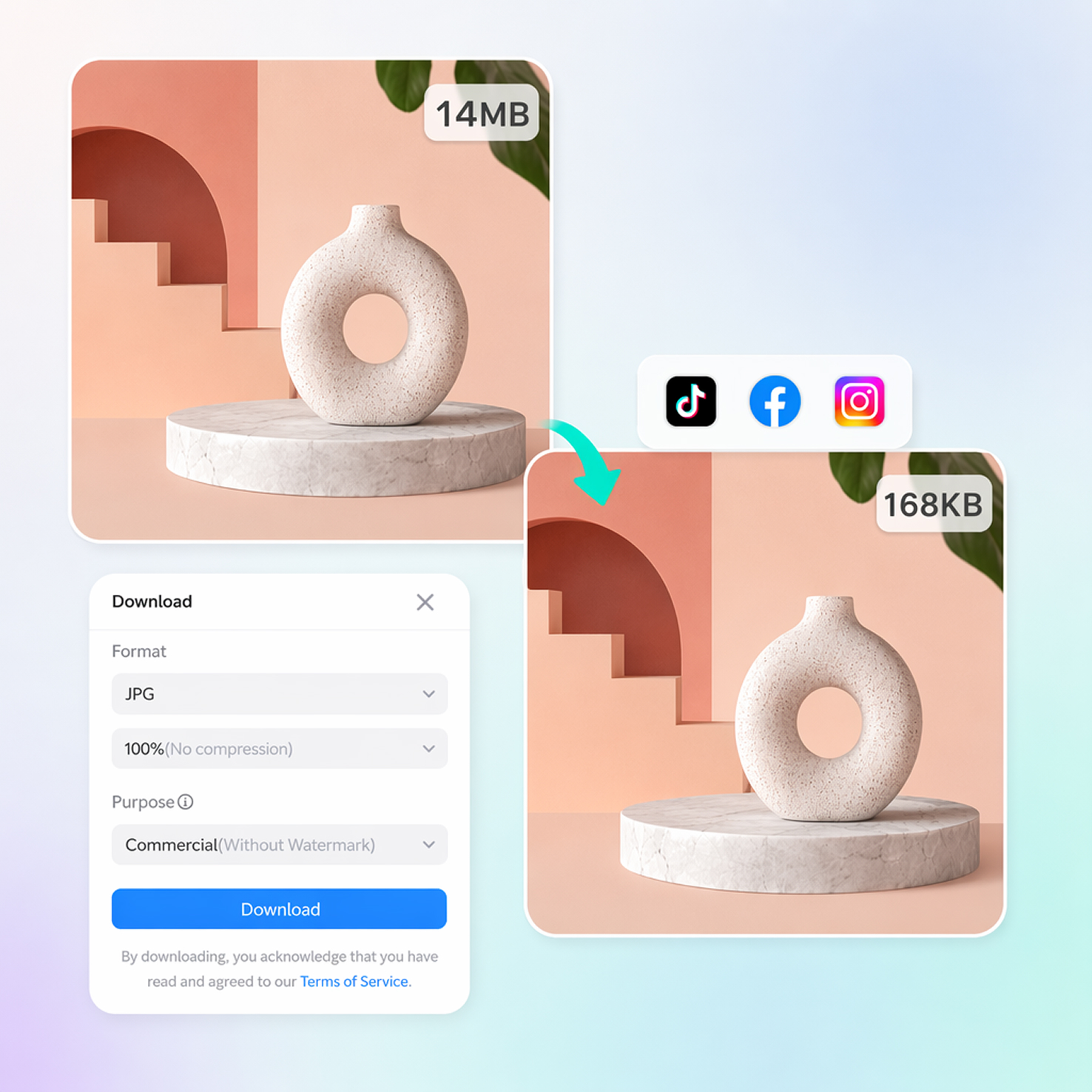
How to Reduce an Image from MB to KB
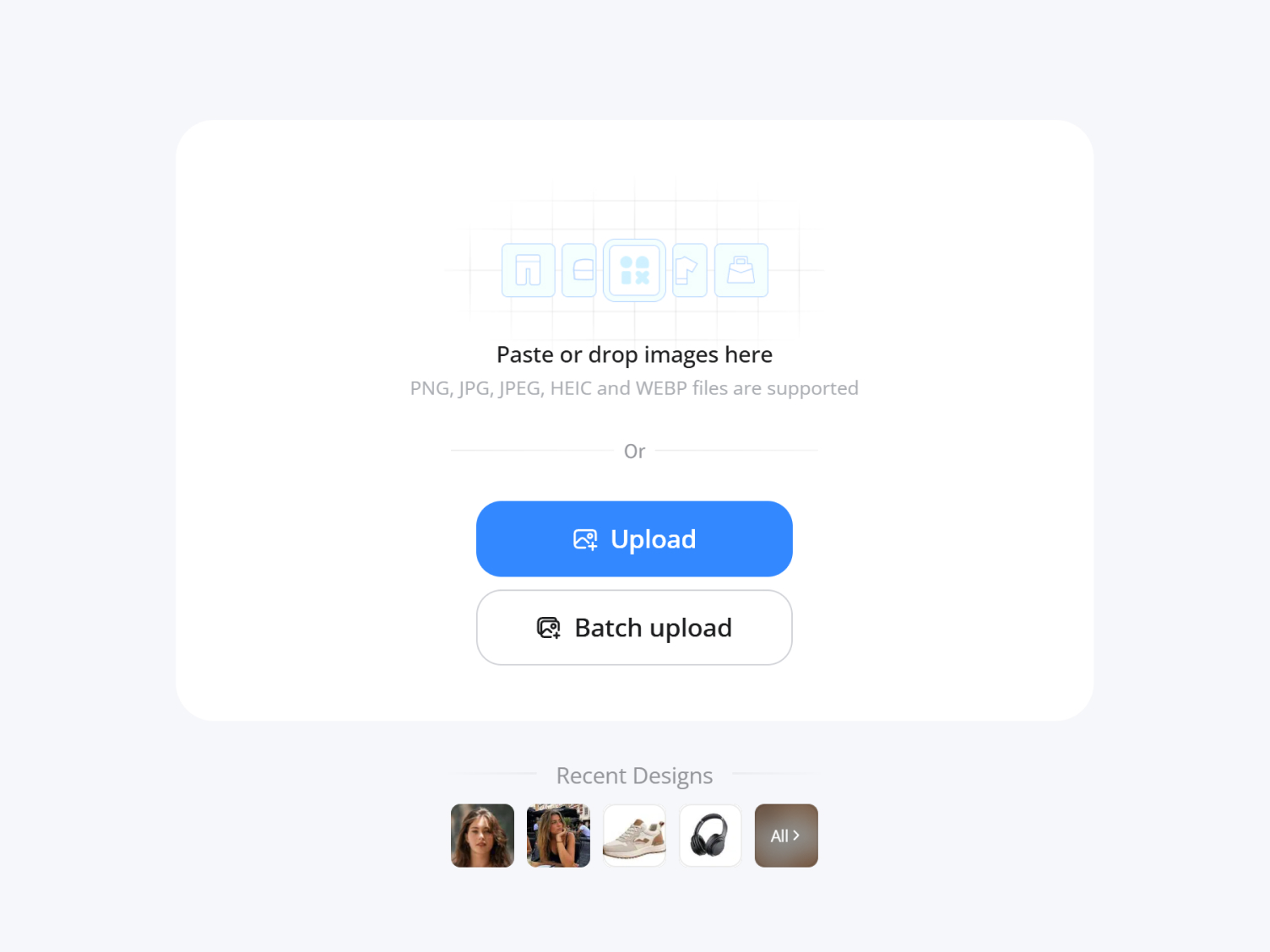
Upload Your Image
Upload a JPG, PNG, or another supported image that exceeds the file size limit for your email, online form, website, marketplace, or document submission. Your original image stays unchanged.
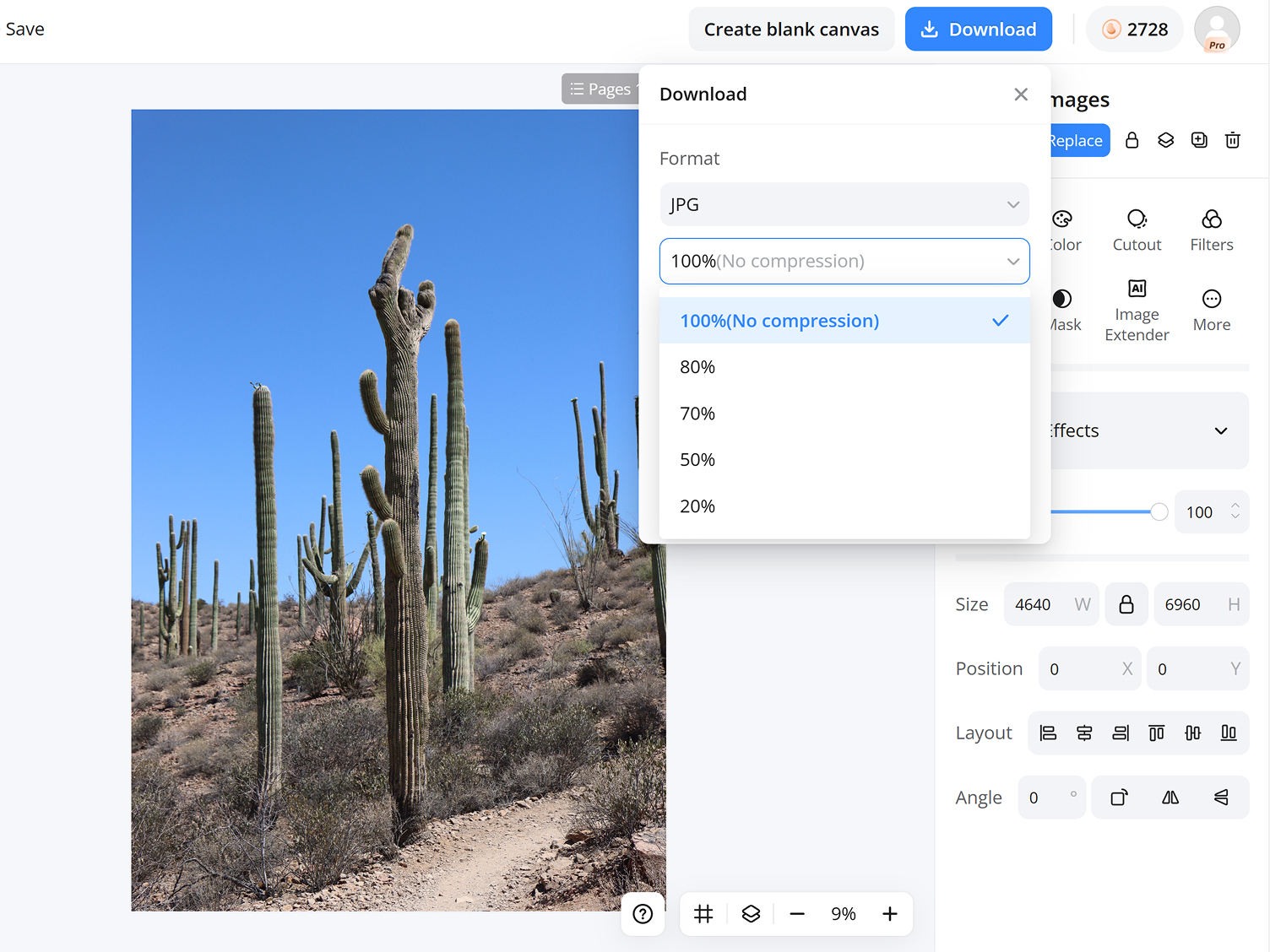
Adjust Compression
Choose a compression level and preview the expected file size before downloading. If the image is still larger than required, simply increase the compression and export another version.
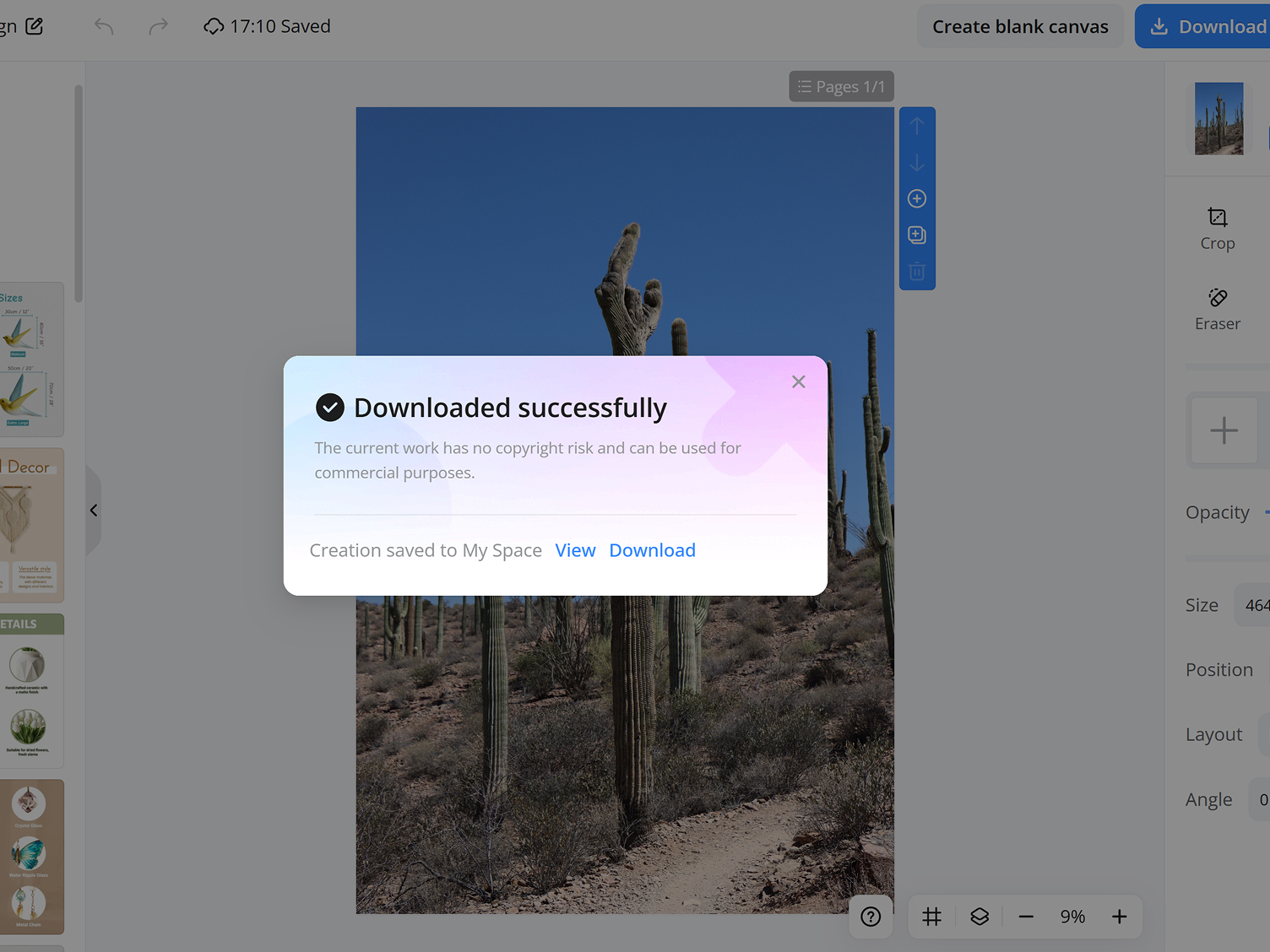
Download the Smaller File
Download the compressed image once it reaches the size you need, then upload it to your application, email, website, online store, or document portal. Your original image remains safely preserved.
What You Can Do with the Image Compressor
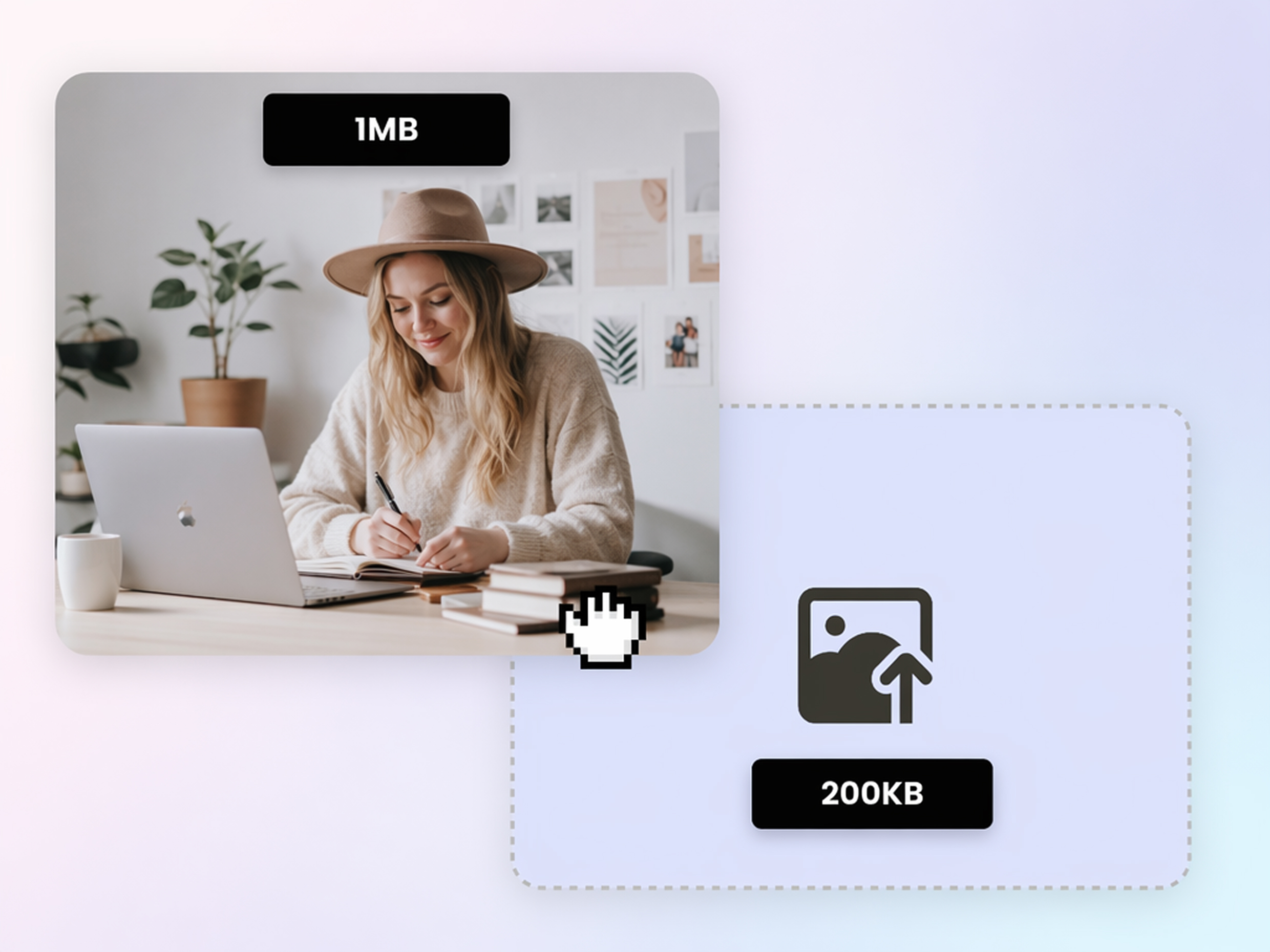
Reduce Photos for Strict Upload Limits
Use the AI photo editor to compress oversized images until they meet the file size requirements for passport photos, ID scans, application forms, and other uploads without changing the original image.
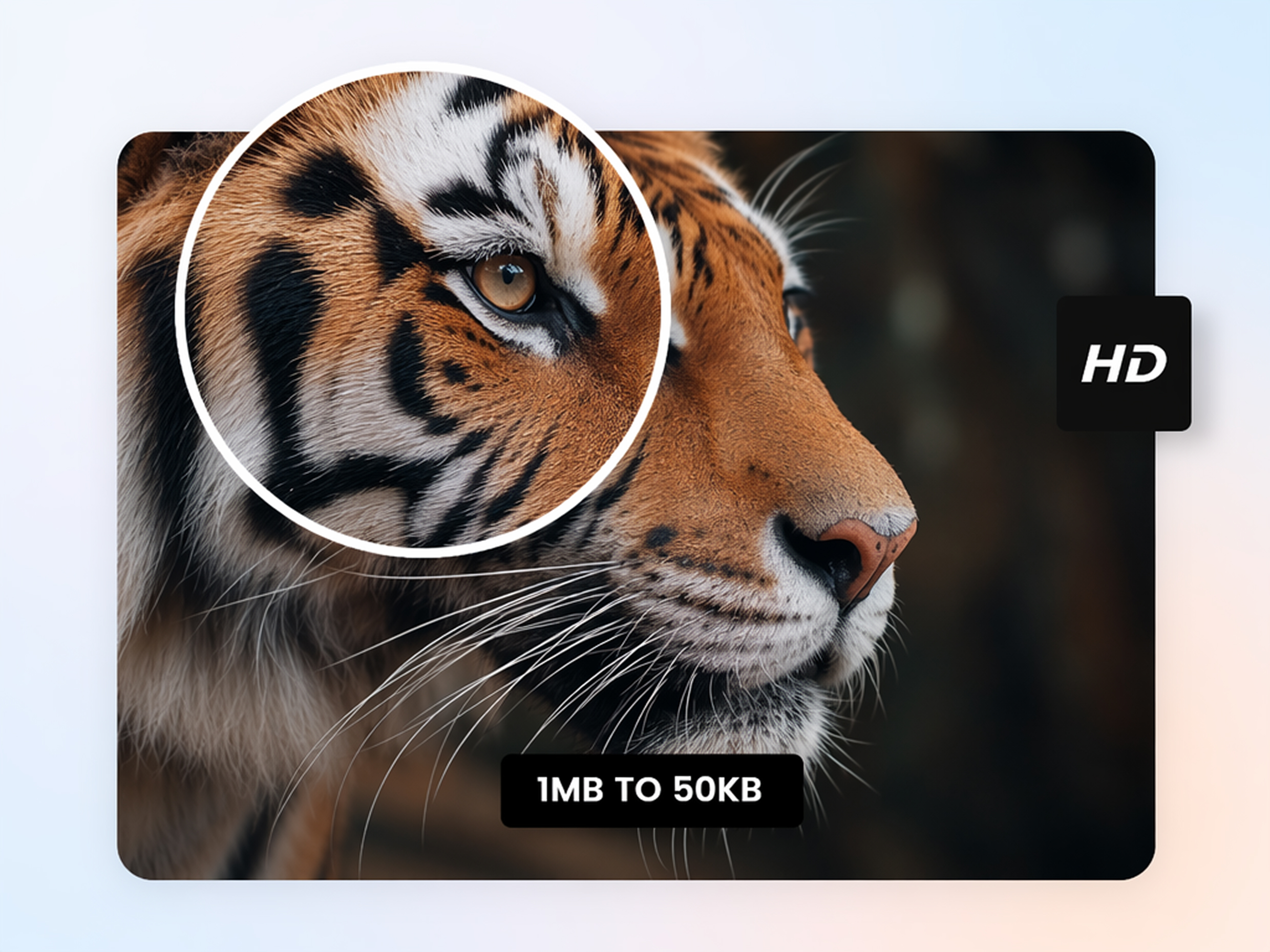
Keep Text and Product Details Readable
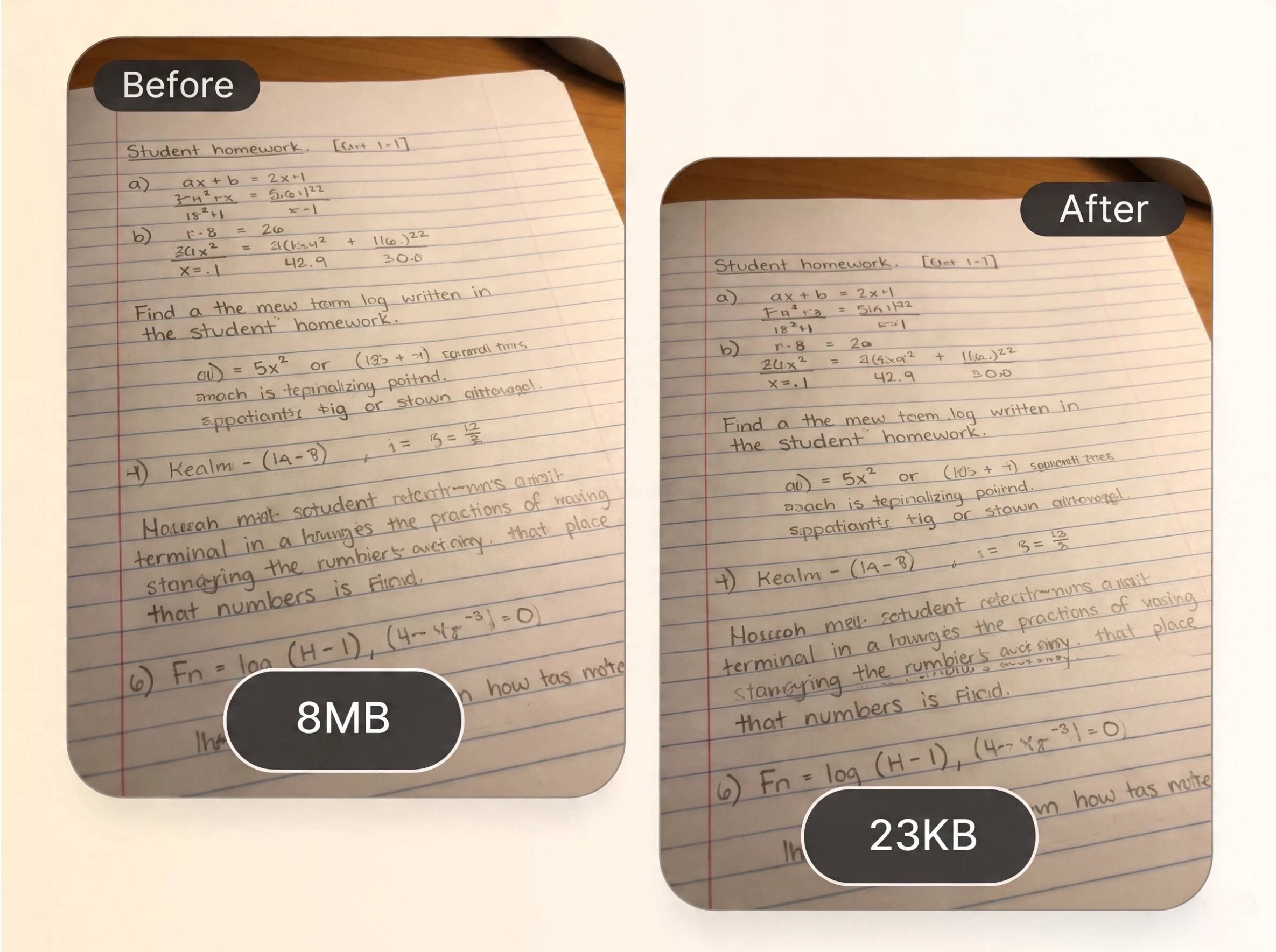
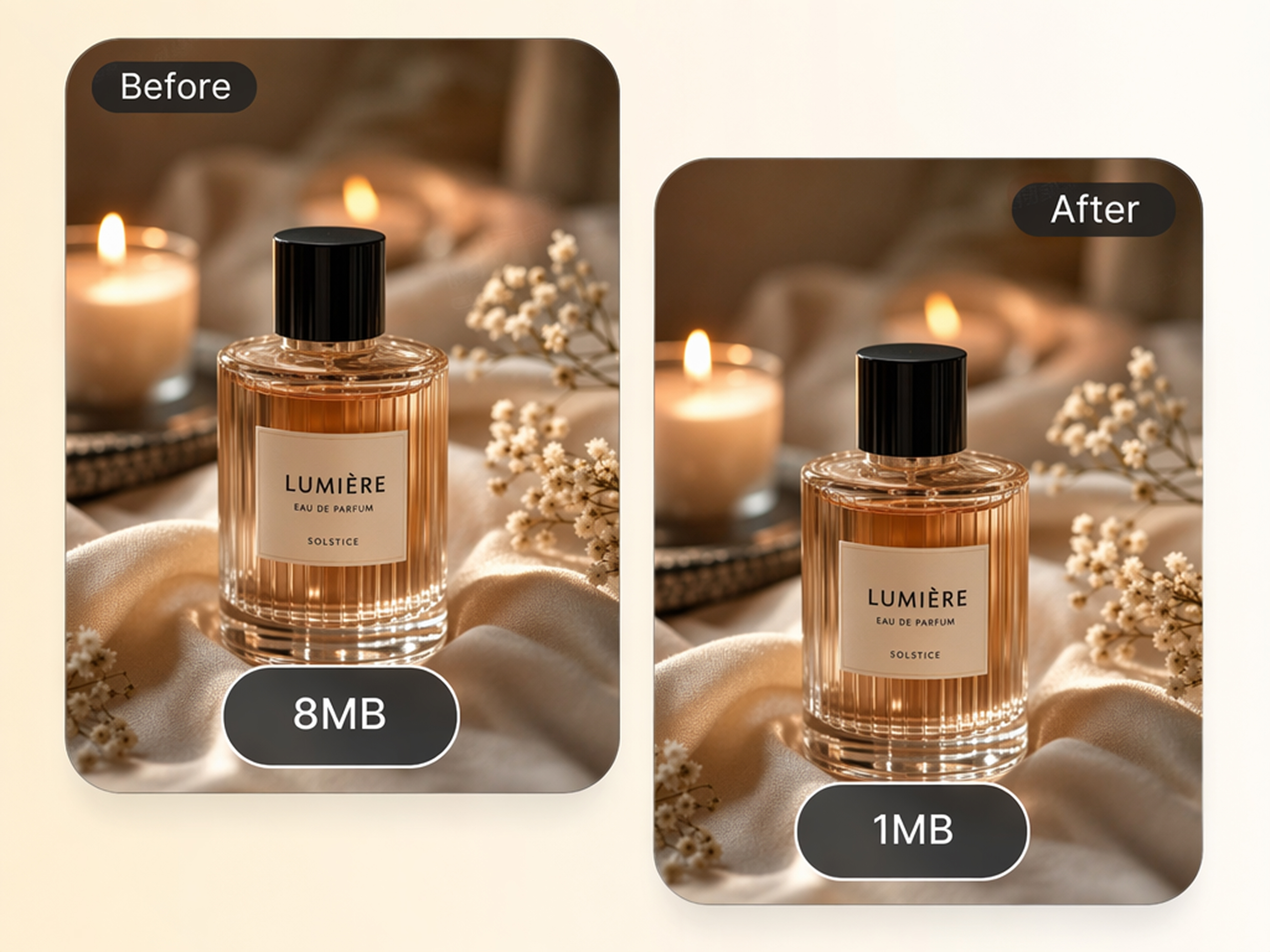
Compress image file size while preserving document text, product labels, logos, and important visual details, helping your images remain clear enough for sharing, reviewing, or publishing.
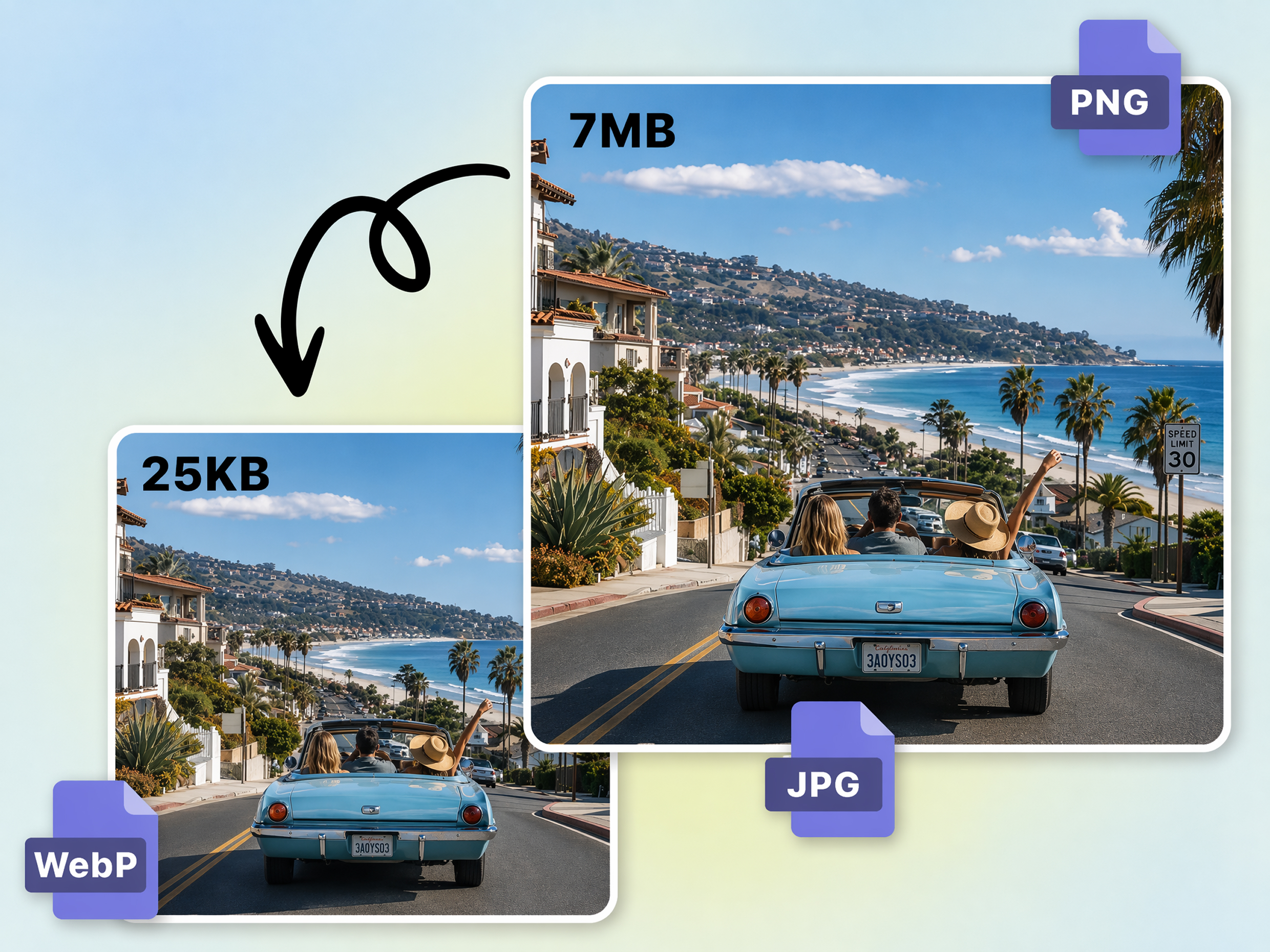
Work with JPG and PNG Files
Compress both JPG and PNG images in the same workspace without converting between formats or opening separate tools, making it easier to prepare files for different platforms.
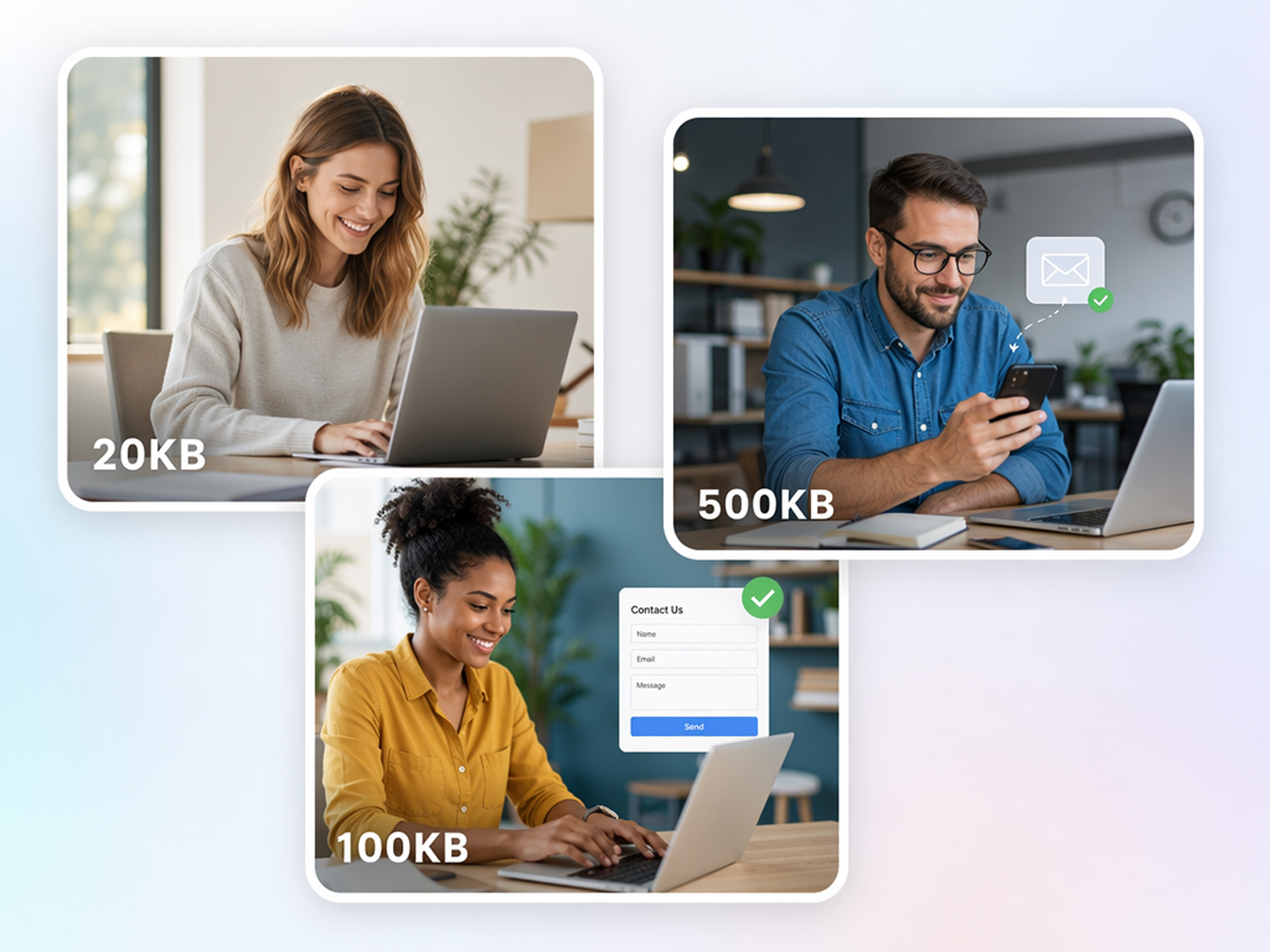
Compress Multiple Images Together
Use the batch photo editor to apply the same compression settings across multiple images, helping you prepare product photos, scanned documents, or website assets more efficiently.
Who Uses an MB to KB Image Compressor
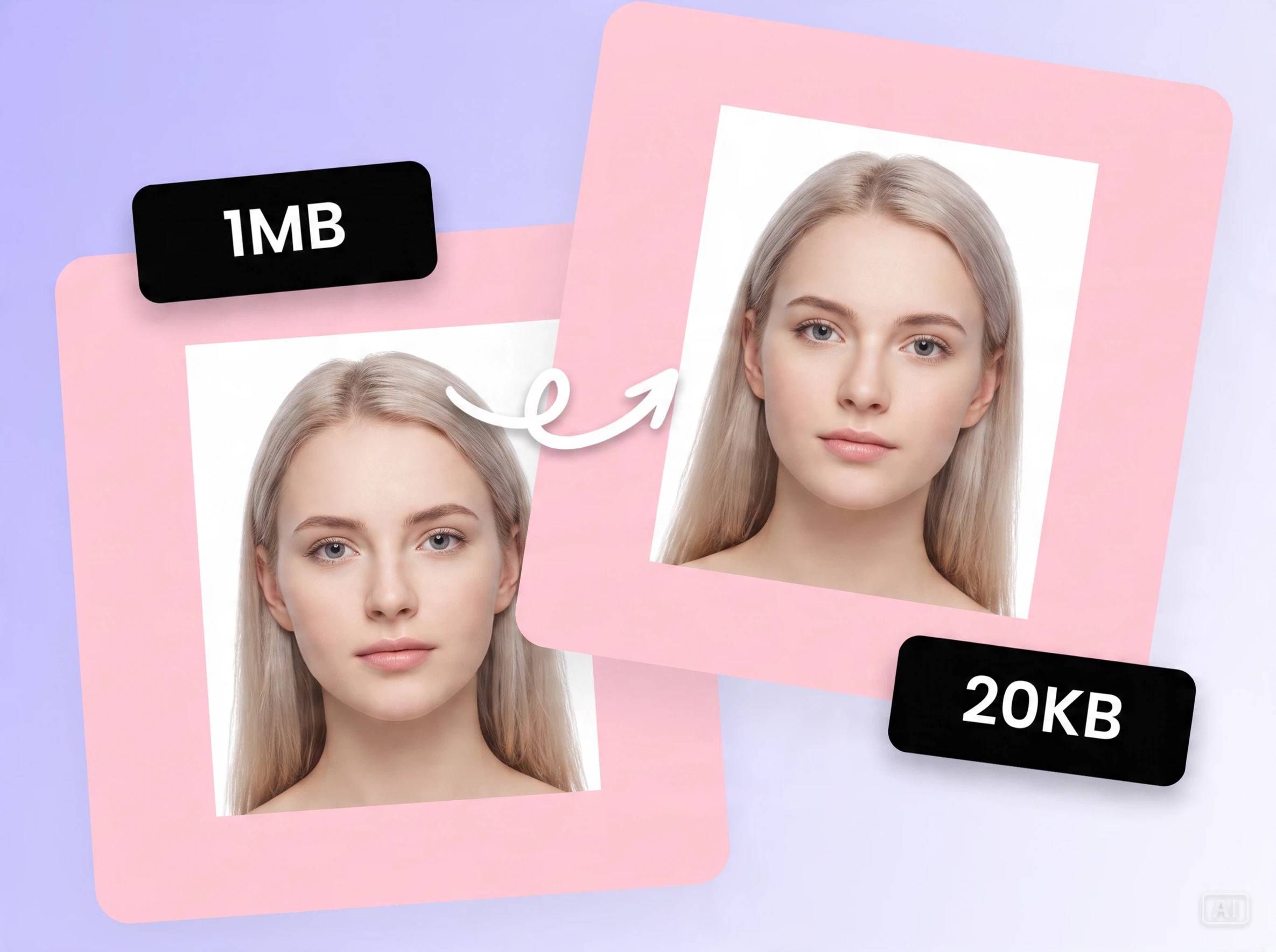
Meet a Form Image Size Limit
Prepare passport photos, ID scans, and application images so they meet the upload limits required by job, visa, or government portals without creating new copies from scratch.
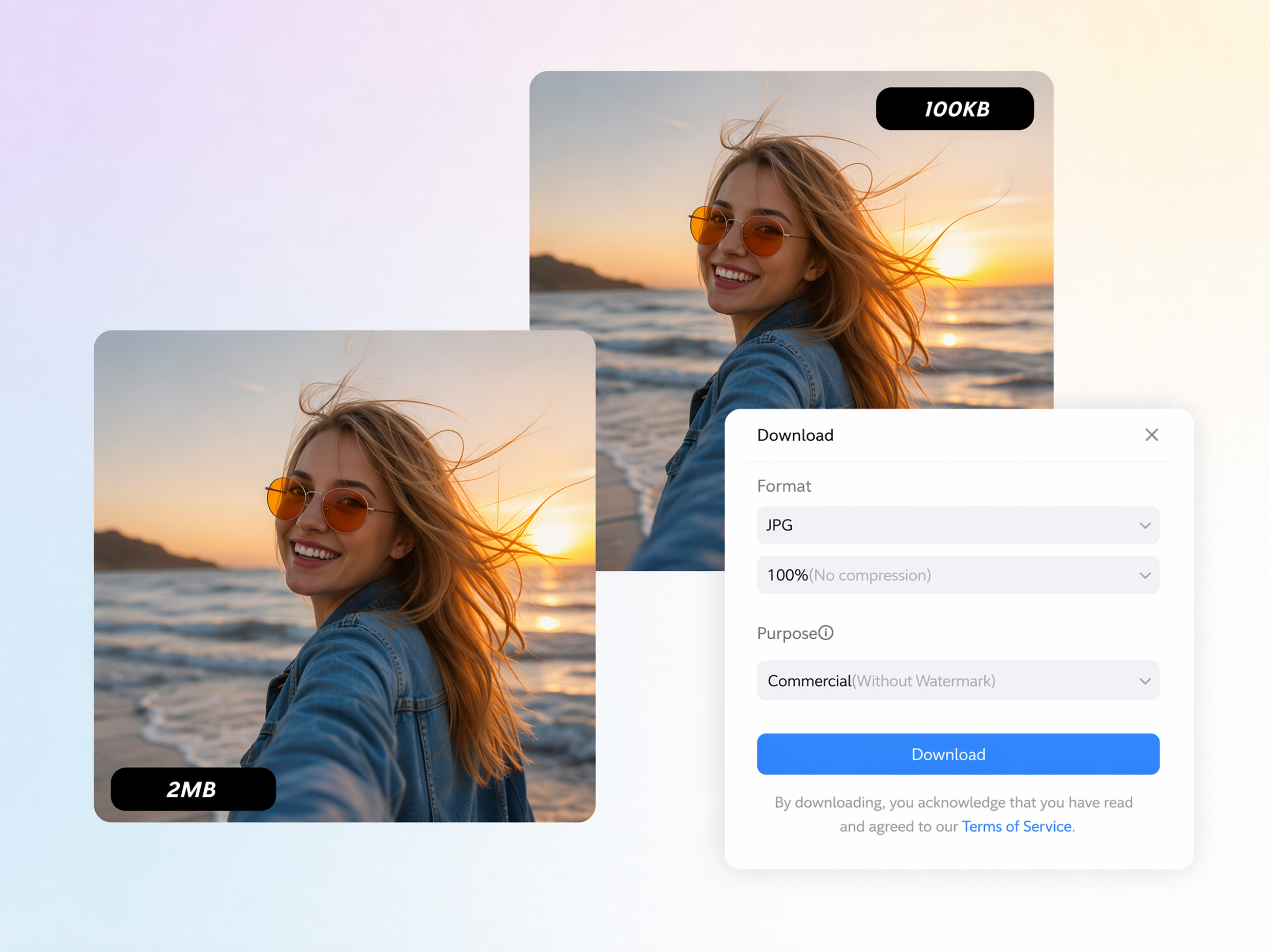
Why Choose Designkit for MB to KB Conversion

No Exact KB Number to Calculate
Adjust the compression level instead of calculating the exact KB value your image needs, making it easier to reduce file size through a simple visual workflow.
Format and Compression in One Download
Choose the output format and compression level in the same download panel instead of exporting your image first and finishing the job in another tool.

Commercial Licensing Set at Download
Choose a commercial, watermark-free export during the download process, so your image is ready for business use without additional editing or extra steps afterward.

Stays Inside the Same Editor
Use the image resizer tool to adjust image dimensions, then compress the same file in your Designkit workspace without switching between separate editing tools.

Re-Download Instead of Re-Uploading
If your image is still larger than required, adjust the compression level and download another version without uploading the original file again from the beginning.

Free to Test Before You Commit to a Plan
Use the included signup credits to compress your own images and compare the results before deciding whether a paid Designkit plan fits your workflow.
Unlock More Creative Possibilities
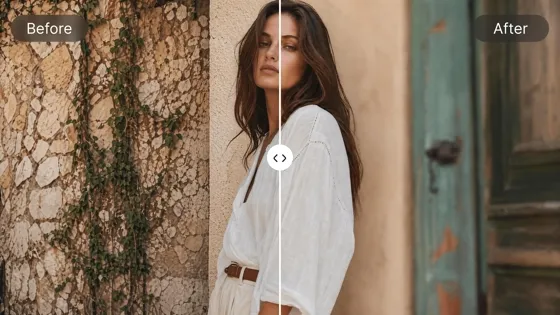
Blur Photo Online Free
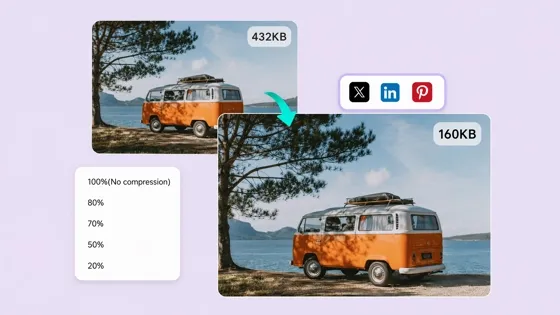
Image Compressor
Image Cropper Online

Image Combiner
Frequently Asked Questions
How do I convert MB to KB for a photo?
Can I compress an image to 50KB or 100KB?
Yes. Designkit lets you adjust the compression level and export your image, then check the file size and repeat the process until it is close to your required KB target.
Is this MB to KB image compressor free?
Yes. Designkit provides free signup credits so you can compress several real images and evaluate the results before deciding whether to upgrade to a paid plan.
Which image formats are supported?
Designkit supports JPG and PNG images for compression, covering the file formats most commonly accepted by online forms, email attachments, websites, and ecommerce platforms.
Will compression make my image blurry?
It depends on the compression level. Designkit lets you start with lighter compression to preserve more detail, then increase it only if the file still exceeds your required size.
Does compression change the image dimensions?
No. Designkit reduces the image file size without changing its original dimensions. If you need different pixel dimensions, you can resize the image separately before downloading.
Can I use compressed images for Shopify or Amazon?
Yes. Designkit helps you prepare smaller product images for Shopify, Amazon, and other ecommerce platforms, provided the final file size, dimensions, and format meet their requirements.
Make Your Image Ready to Upload
Try Designkit with a real JPG or PNG file. Compress it for your form, email, website, or product listing and download a smaller copy.

What Users Say About this MB to KB Converter
See the real experience from our users
Fit Under My Email Limit on the Second Try
My camera photos were routinely 4 to 6 MB, well over my client's 1 MB email cap for deliverables. Downloading at 50% got me under the limit on the second attempt instead of the two or three bounced emails I used to deal with regularly, even for a simple 2MB to KB shrink.
Finally Got Under a Visa Portal's Cap
The visa portal capped uploads at 300 KB, and my scanned passport photo was well over 2 MB straight out of the scanner. Downloading at a lower percentage got me under the limit on the second try instead of the three failed uploads from the night before the deadline.
Sped Up My Site Without Touching the Backend
My site's load time score was suffering noticeably because of a handful of oversized header images nobody had touched in months. With Designkit's MB shinker, downloading just those five files at 60% dropped my average page weight enough to notice clearly in the speed test the same day.
Converted a Scanned Form Without Re-Scanning
My university portal rejected my scanned transcript twice in a row for being too large to accept. Downloading it at a lower percentage fixed the problem without dragging the scanner back out and redoing the whole thing at a lower resolution setting.
Standardized 60 Files by Reusing One Setting
Our shared drive had a strict per-image size policy that almost nobody in the team actually followed consistently. Downloading about 60 flagged files at the same percentage took an afternoon instead of the full week it would have taken to open each file individually with no shared setting.
Prepped Photos for Three Marketplaces at Once
Amazon, Etsy, and my own site all enforce different size limits for product photos, and I used to resize for each platform separately every single time. Downloading the same photo at a few different percentages saved me from repeating the exact same job three separate times over. FAQs