
Change Skin Tone in a Picture With AI
Describe the skin tone, undertone, or color you want. Create natural corrections or creative variations while keeping the original portrait recognizable.
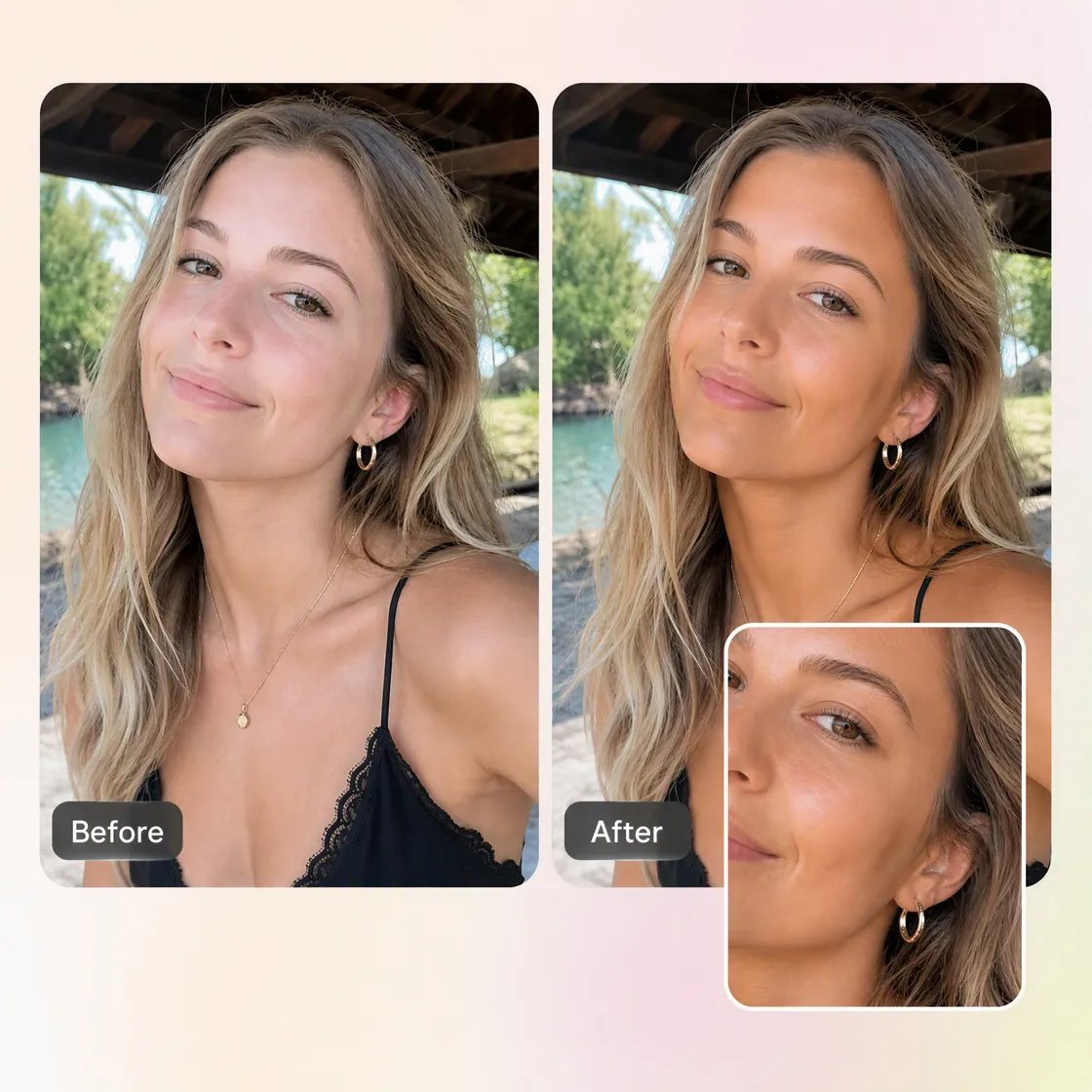
Change Skin Color in 3 Steps with Designkit
Step 1. Upload the Photo You Already Have
Sign in to Designkit and upload the portrait you want to edit, whether the issue is uneven lighting, a face-to-neck color difference, or a creative skin-tone change.

Step 2. Describe the Skin Tone You Want
Explain the change clearly, such as matching the face to the neck, a warmer or cooler tone, or a specific complexion, while keeping the face, hair, and clothing unchanged.

Step 3. Preview, Refine, and Download
Review the result to check whether the skin tone looks right across the visible areas. Refine the description if needed, then download the version you want.
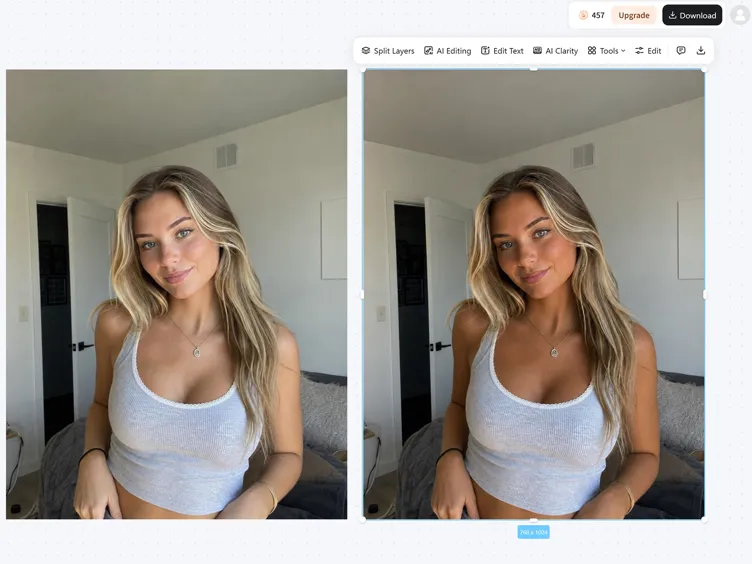
What You Can Do With Designkit's Skin Color Changer
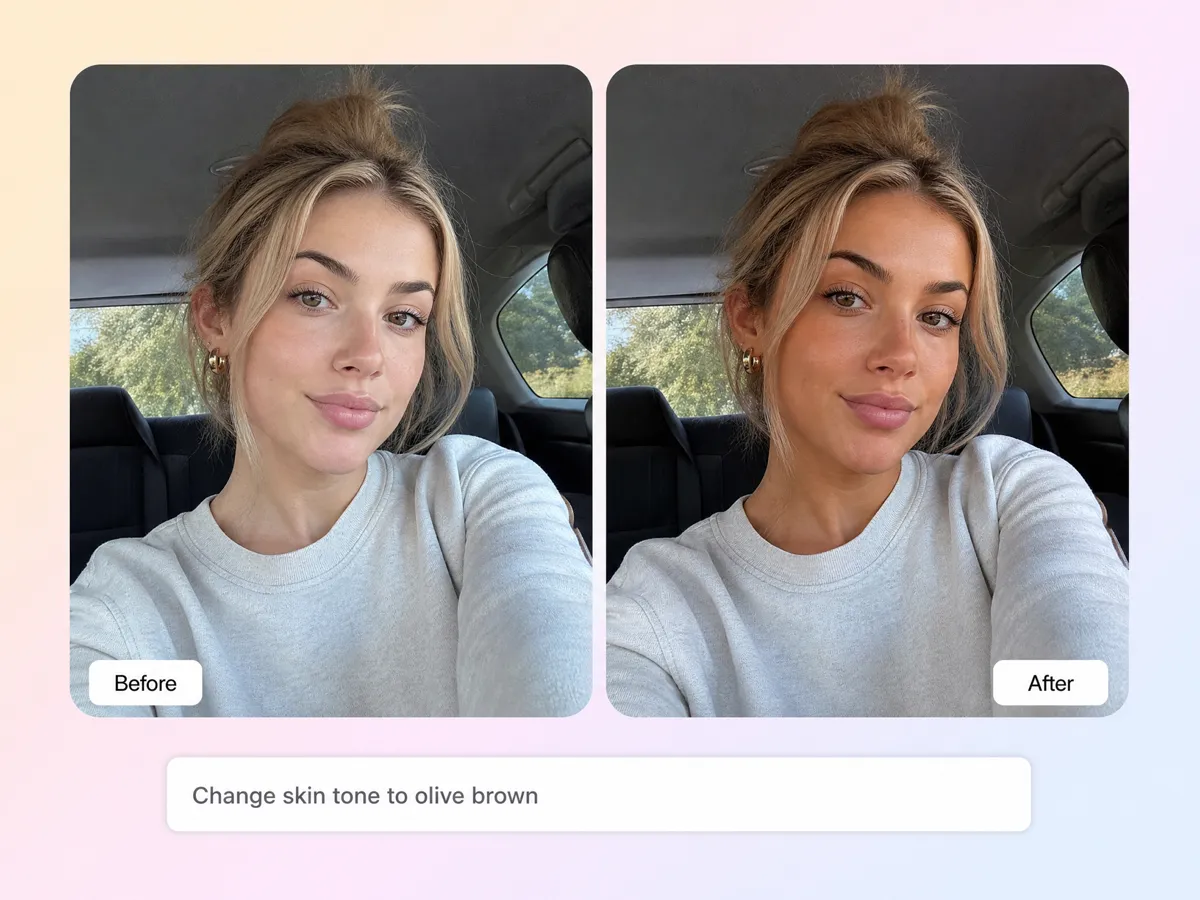
Change Skin Tone With a Specific Description
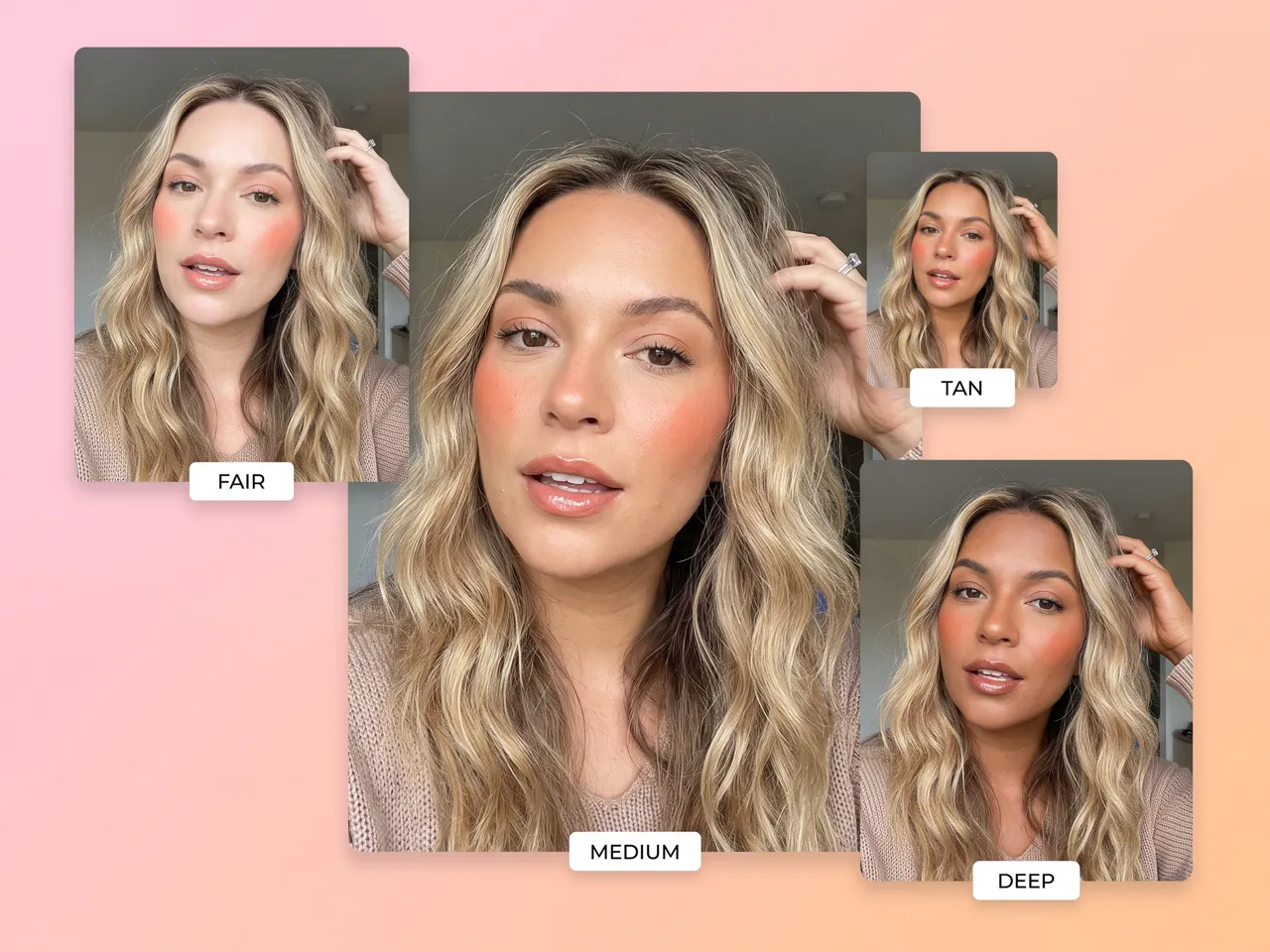
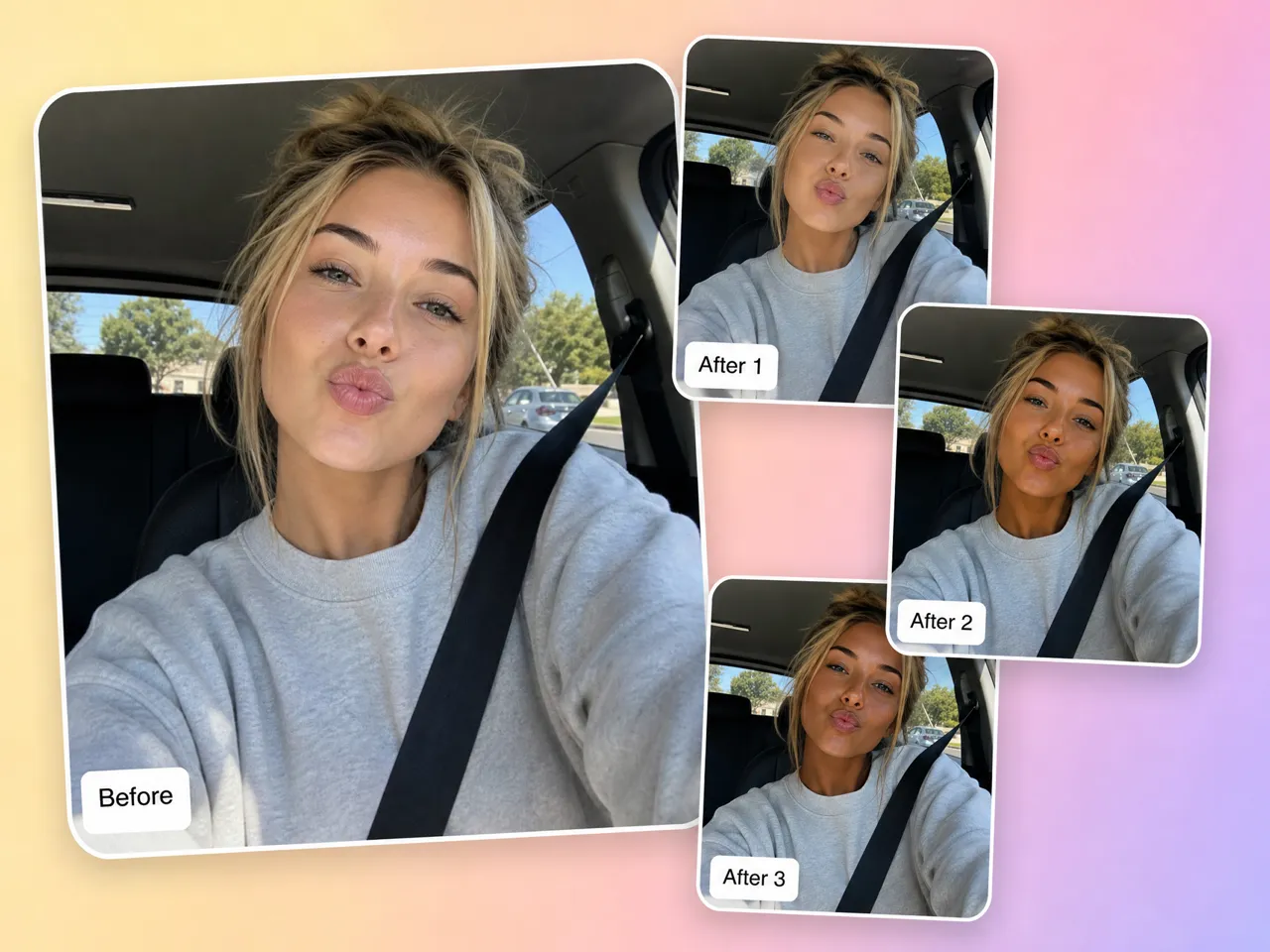
If you already know how you want the skin to look, describe the change instead of working through fixed presets. Tell Designkit whether you want a warmer, cooler, lighter, deeper, or more specific complexion. This makes it easier to change skin tone in a picture for portrait correction or to test a new look. You can also continue with AI retouching when the tone is right.
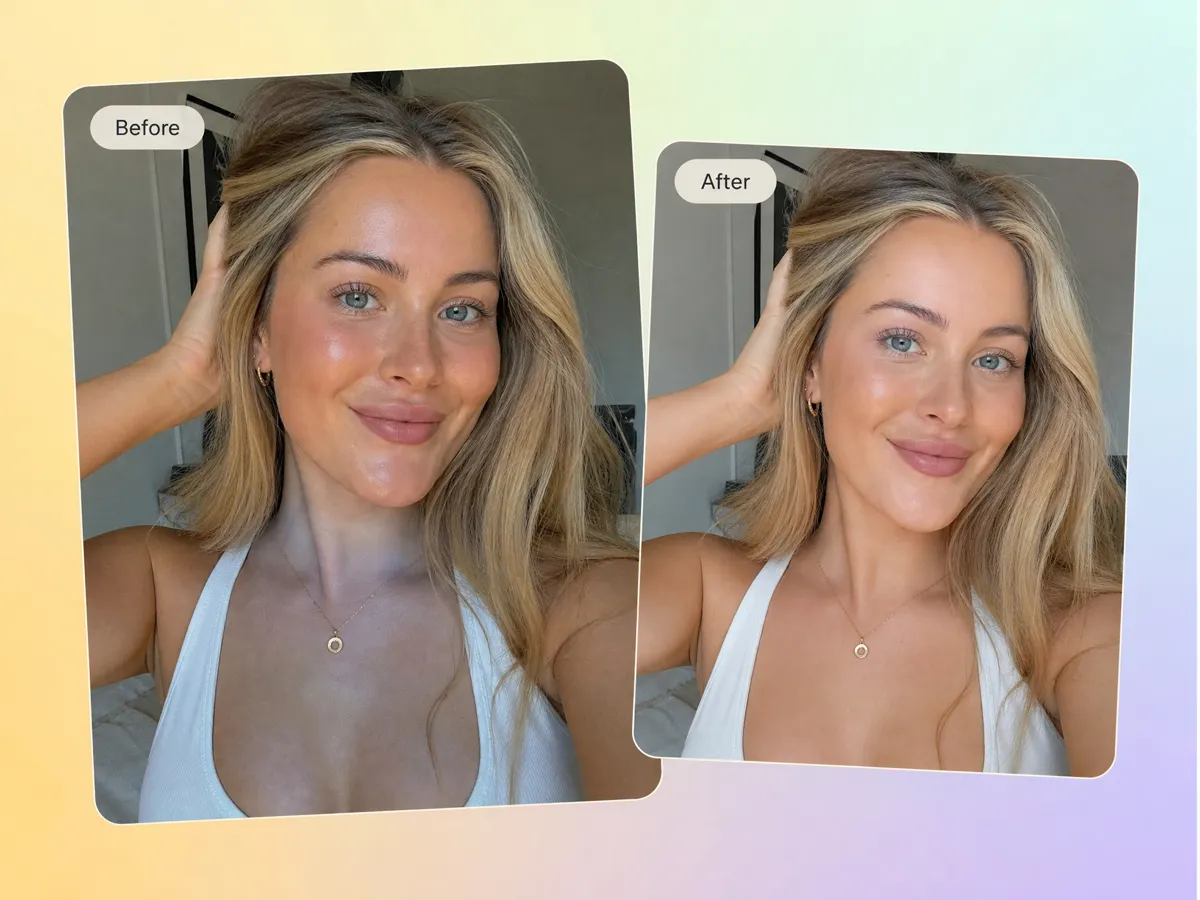
Match Skin Tones Across the Face, Neck, and Body
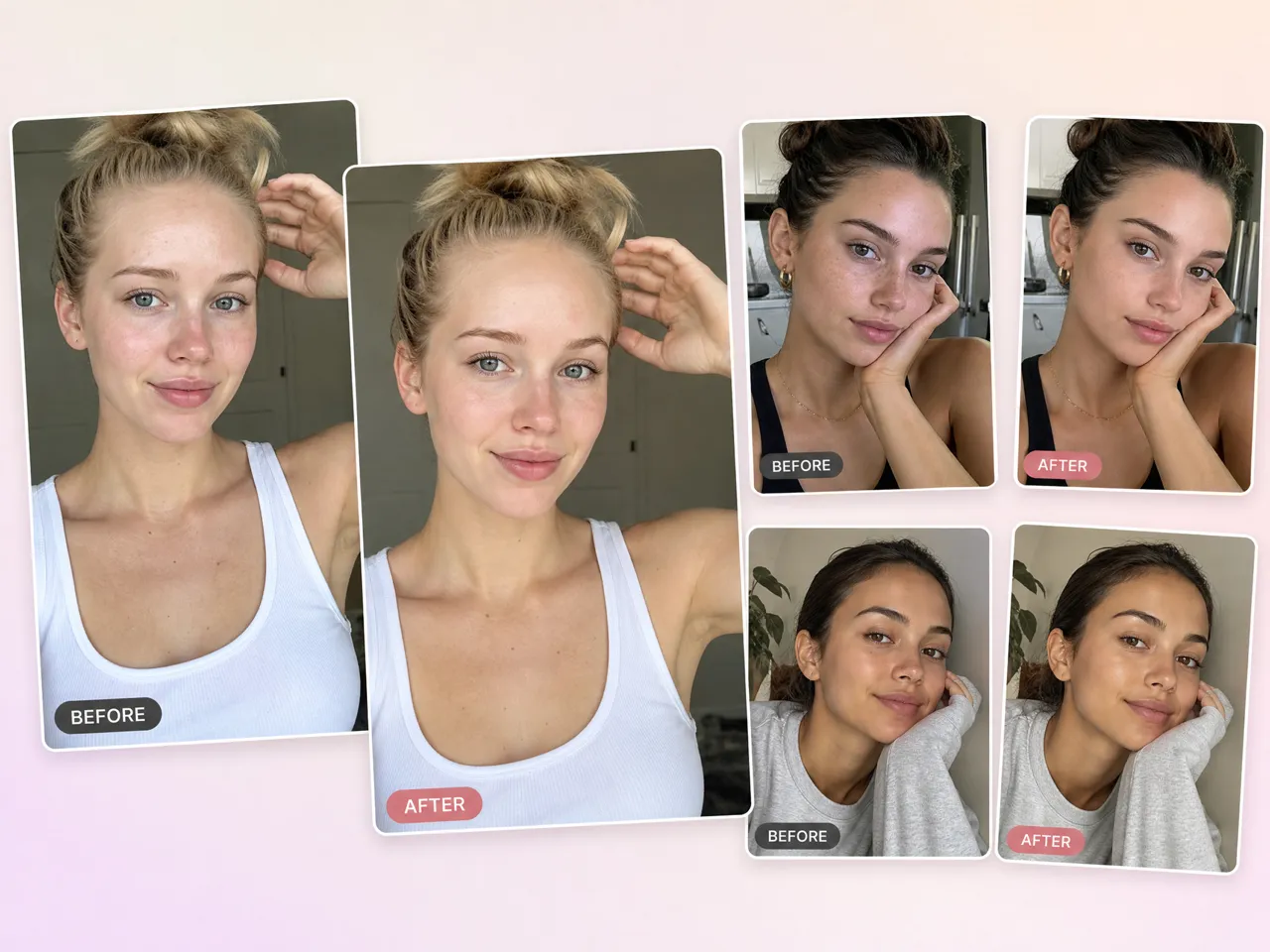
When the face looks warmer or cooler than the neck because of different lighting, you can describe which visible skin areas need to match. The skin tone changer helps you work from the photo you already have instead of manually masking each area. It is useful when you want to change skin tone online while keeping the rest of the portrait unchanged.
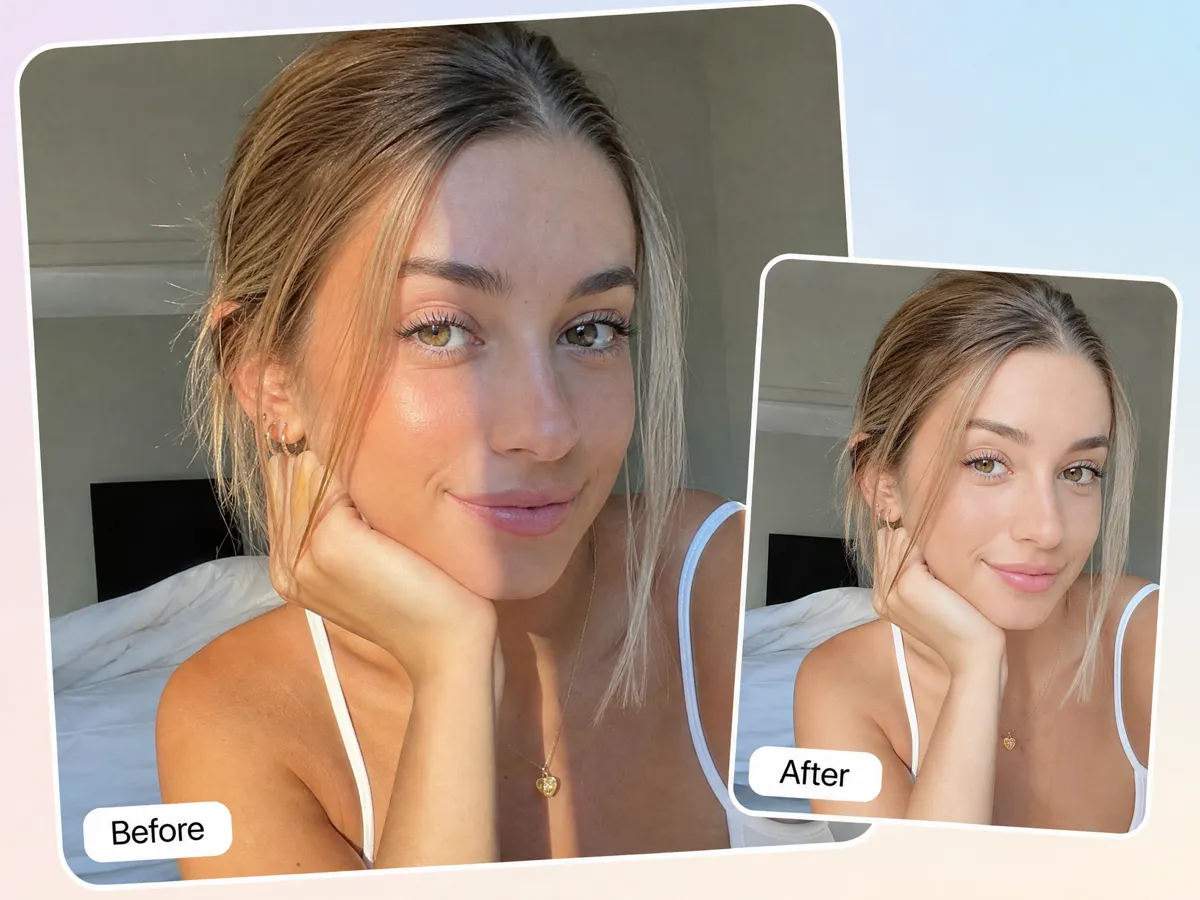
Correct Uneven Skin Color From Mixed Light Conditions
A portrait can look mismatched when one side of the face gets different light or the face and neck were photographed under different conditions. Instead of applying a filter to the entire image, describe the uneven area and the tone you want to correct. The AI skin color changer can help you fix the visible difference while keeping your existing photo.
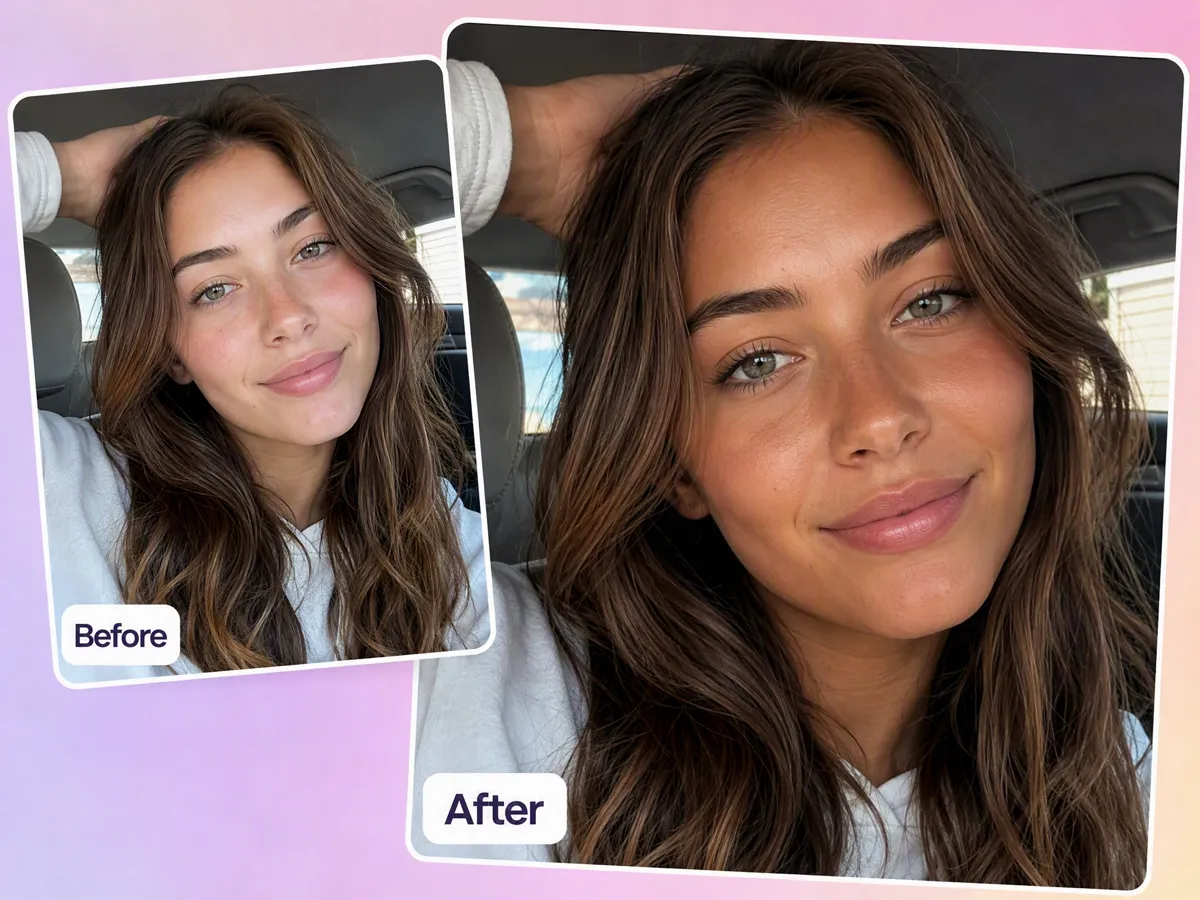
Keep the Face Recognizable After the Change
If you like the pose, expression, and face in your photo, you don't need to start over just to test another complexion. Describe the skin change while keeping the recognizable facial features and overall portrait direction. This is useful when exploring how to change your skin color for a creative concept, beauty idea, or change your skin tone meme without rebuilding the image.
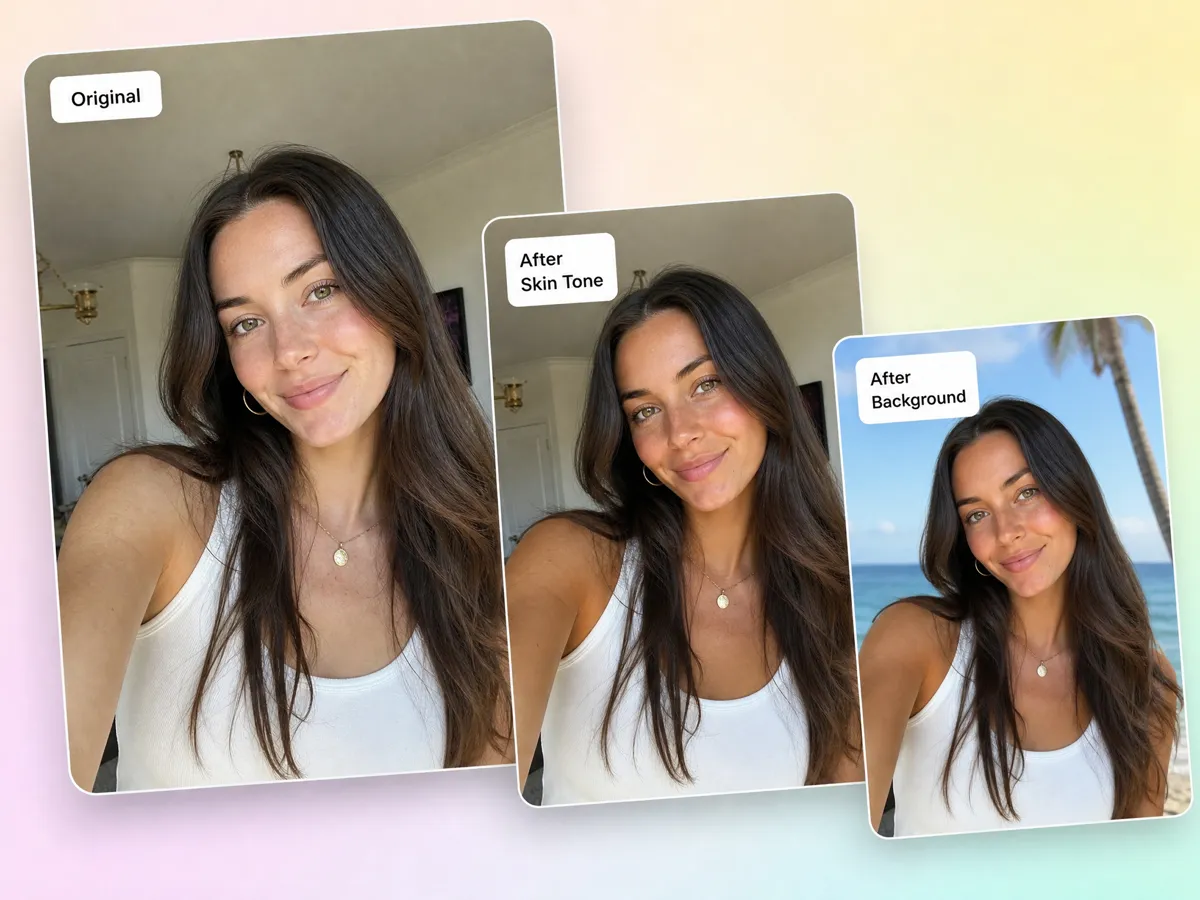
Keep Editing the Same Photo After the Skin Change
Changing the skin tone doesn't have to be the last edit. Once you have the version you want, continue working on the same image for background changes, cleanup, or other adjustments. Use Designkit as an AI photo editor when the portrait needs more editing, without having to start again with the original photo.
Who Can Use Designkit's Skin Color Changer
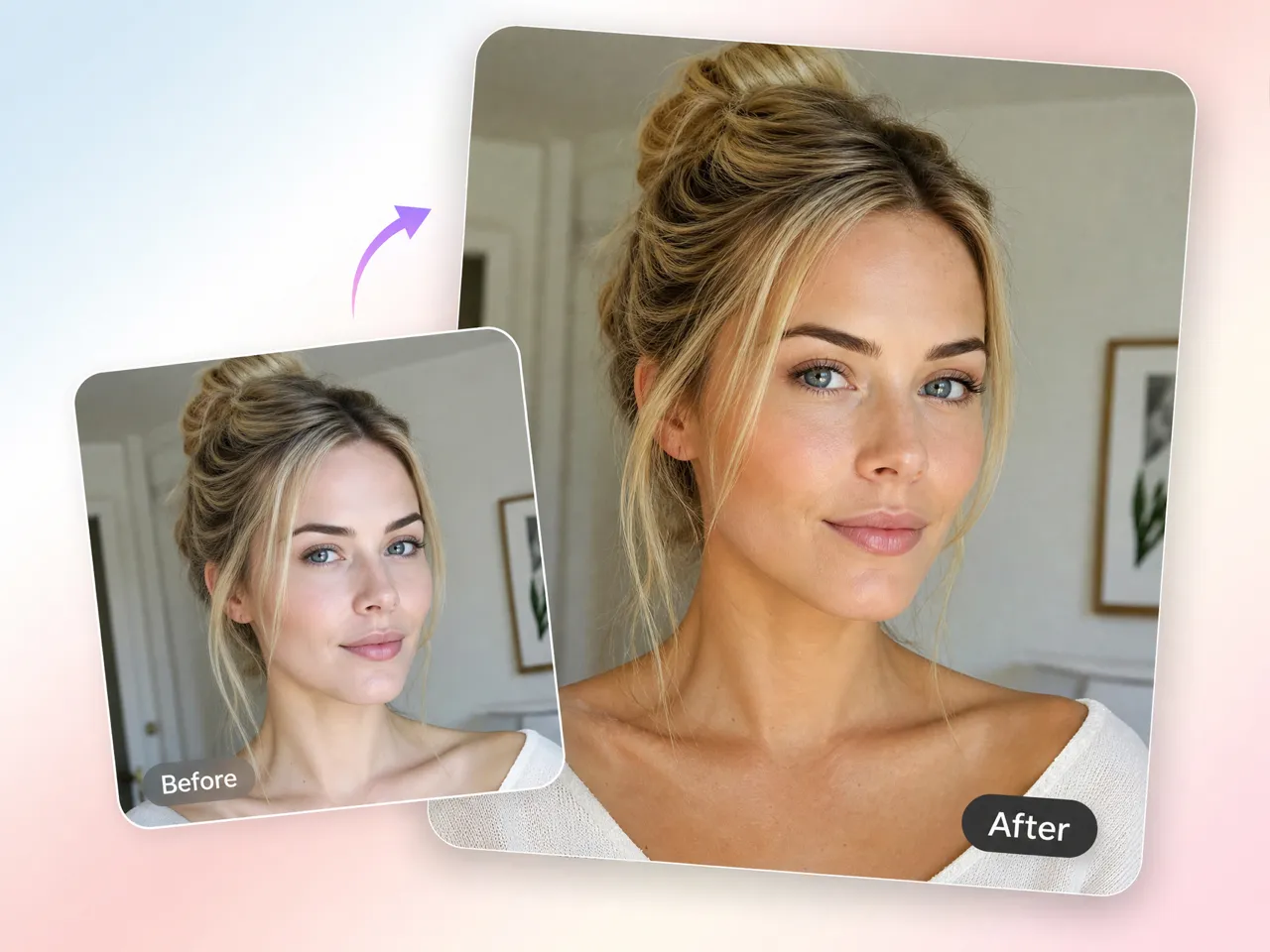
Correct Skin Tone Differences in Existing Portraits
When lighting makes the face warmer or cooler than the neck, use a skin color changer AI to adjust the visible skin areas without manually masking them. Keep the same pose and portrait instead of reshooting.
Why Choose Designkit for Skin Tone Editing
Skip Manual Color Masking for Simple Tone Changes
You don't have to manually select skin areas and adjust hue and saturation just to test a different complexion. Describe the change you want and use the result as a starting point.

Test More Ideas Before Committing to the Final Look
Whether you're planning a portrait, beauty concept, campaign, or character, explore the complexion direction before spending time on the final shoot, styling, or manual edit.
Try Skin Color Changes Using Free Credits
Use your free credits to test a few skin tone ideas before deciding whether you need more edits. Start with one photo and see which direction works for your project.
Unlock More Possibility for Your Photo
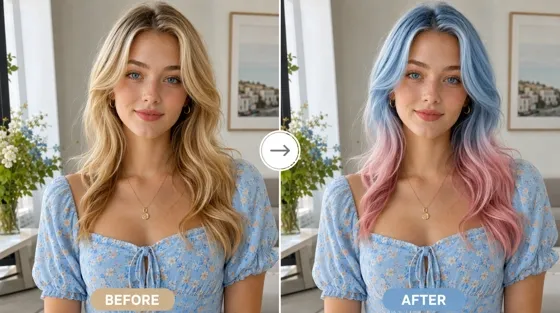
AI Hair Color Changer

AI Clothes Changer
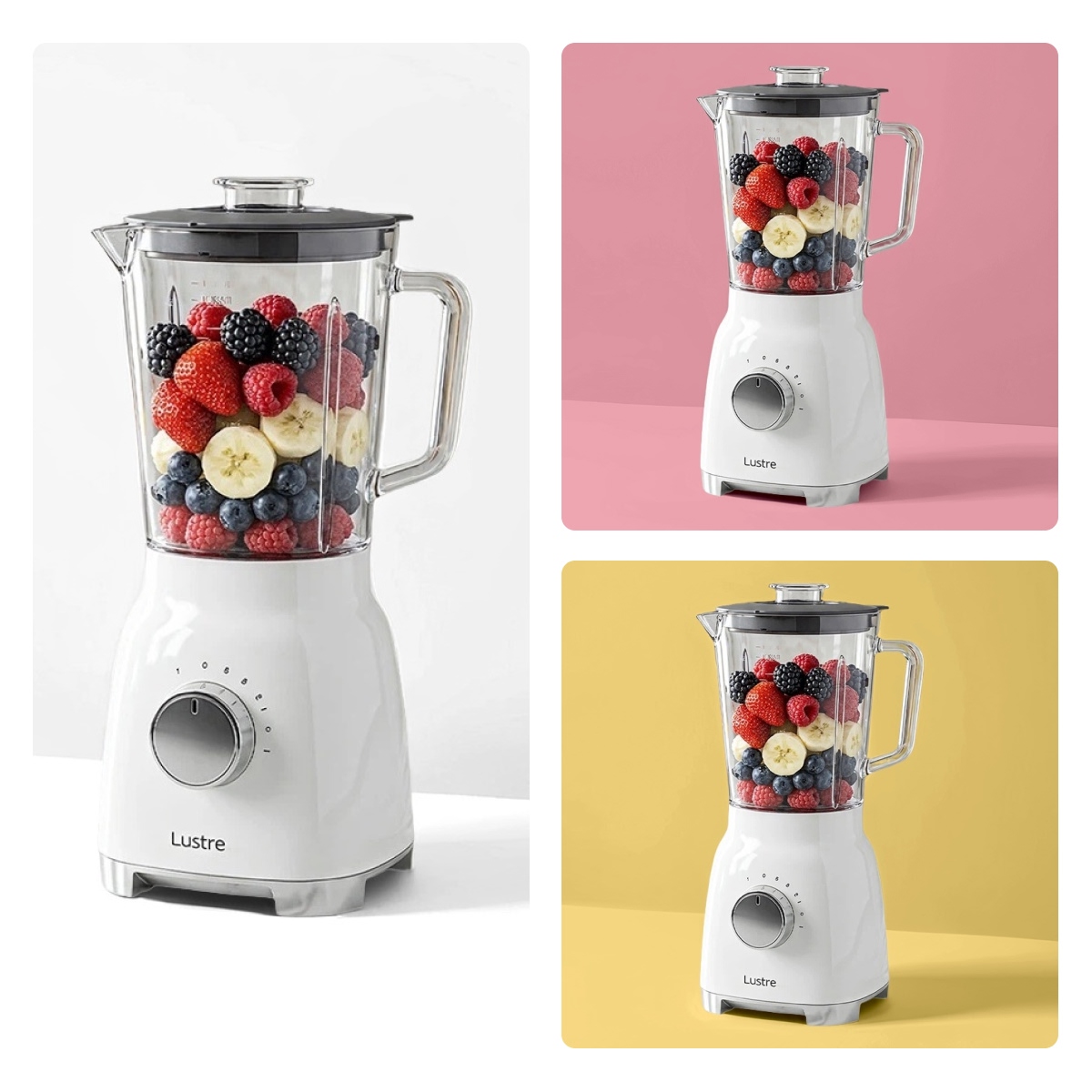
Change Background Color
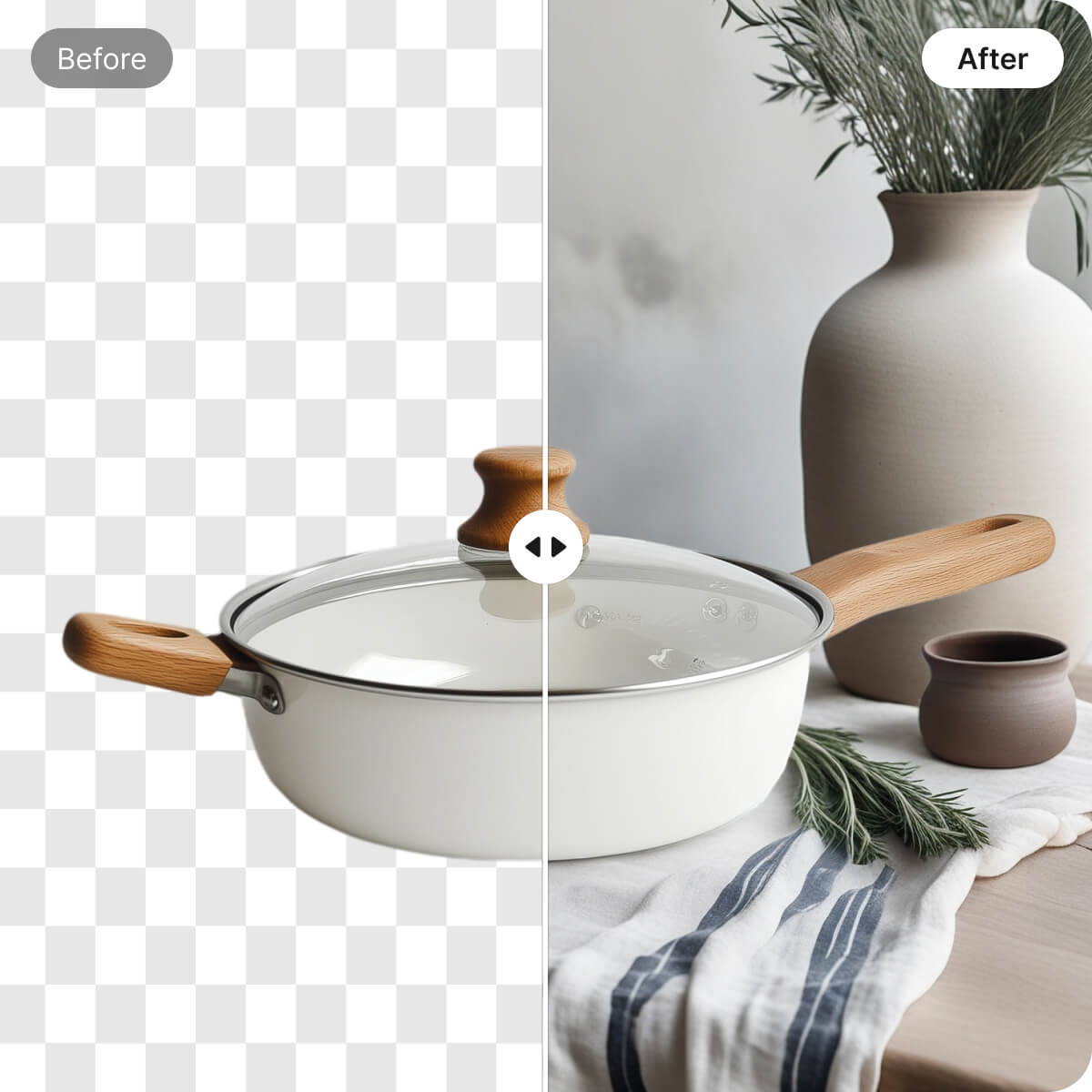
Change Image Backgrounds
Frequently Asked Questions
How can I change skin tone in a picture?
Can I change only the skin tone without changing my face?
Yes. You can change the visible skin tone while keeping the existing face, expression, pose, hair, clothing, and overall composition. With Designkit, describe the complexion change you want and use the existing portrait as the starting point, so you can explore another skin tone without rebuilding or reshooting the image.
Can I match the skin tone of my face and neck?
If your face looks warmer or cooler than your neck because of lighting, you can describe the tone you want the visible areas to match. Designkit helps you make this adjustment from the photo you already have, so you can address the face-to-neck difference without manually selecting and correcting each skin area.
Can I fix uneven skin color caused by lighting?
Uneven lighting can make different parts of the face or body appear noticeably warmer, cooler, lighter, or darker. With Designkit, you can describe the area and color change you need instead of applying a filter to the entire image, making it useful when you want to correct a visible skin-tone difference while keeping the rest of the photo intact.
Can I change skin tone for a meme or creative image?
You can create unusual or intentionally exaggerated skin-color variations for memes, trend posts, and creative concepts. Designkit lets you describe the skin change you want from your existing image, which is useful when a normal filter also recolors the hair, clothes, or background.
Do the results look natural, or will the skin look fake?
The result depends on the original photo and how specifically you describe the change. For a natural result, explain whether you want a subtle correction, a warmer or cooler tone, or a closer match between skin areas. Designkit lets you refine the direction from the existing image rather than relying only on preset filters.
How should I describe the skin tone I want?
Describe both the problem and the result you want. For example, mention that the face looks warmer than the neck, that the skin needs a cooler tone, or that you want a specific creative color. With Designkit, you can use that description to guide the skin-tone edit instead of choosing from a limited set of presets.
Can I keep editing the photo after changing the skin tone?
After changing the skin tone, you can continue adjusting the same image instead of starting over. Designkit also works as an AI photo editor, so you can make additional changes to the portrait when you need to clean up, adjust, or modify other parts of the image.
Try a New Skin Tone on the Photo You Already Have
Upload an existing image, describe the complexion you want, and explore a new skin tone from the photo you already have.



What Creators Say About Designkit's Skin Tone Edits
See how creators, photographers, and designers use skin-tone editing for different creative needs.
I Needed to Fix the Face-to-Neck Difference
One portrait had much warmer skin on the face than the neck because of the lighting. I used the original photo instead of starting the edit again and adjusted the tone until the two areas looked closer. It saved me from doing the whole color correction by hand.
I Could Test the Makeup Direction Before the Shoot
I was working on a beauty concept and wasn't sure which complexion direction worked best with the makeup. I tested a few versions from the same portrait first, then used the one I liked as a reference for the final look.
Normal Filters Weren't Enough for the Meme
I wanted a deliberately strange skin color for a meme, but normal filters affected the whole image. I described the color I wanted and used the result as the base for the post. It was much closer to the idea I had in mind.
It Helped Me Explore a Character Before Drawing It
I was testing a few versions of a character and wanted to see how different skin colors changed the overall look. I kept the same face and outfit and explored the complexion first before settling on the direction.