
Extract Editable Text From Images and Screenshots
Get the words out of screenshots, photos, and scanned pages so you can copy, edit, organize, or use them wherever you need.
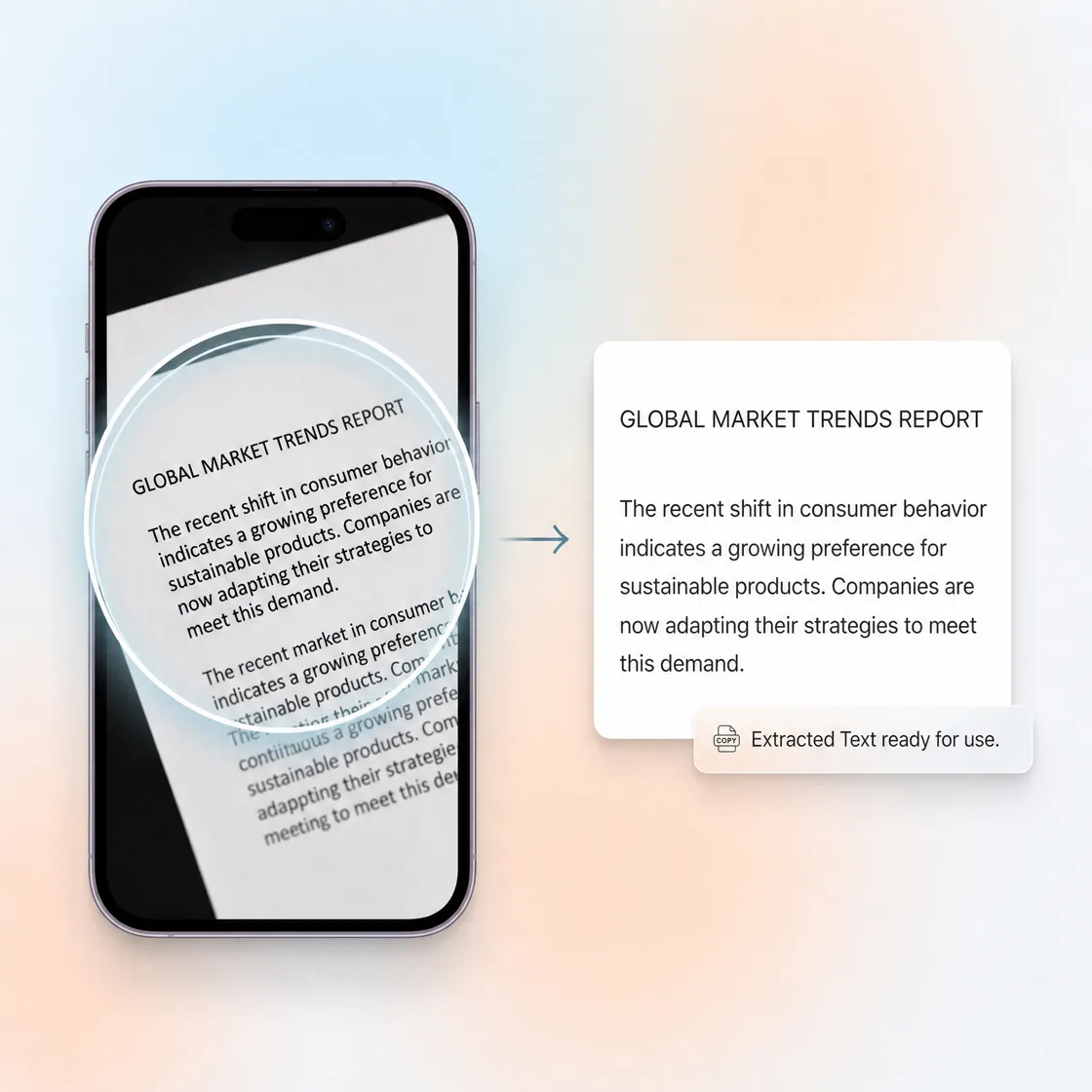
How To Extract Text From an Image in 3 Steps
Step 1. Upload Your Image
Sign in to Designkit and go to the home page. Upload the image that contains the text you want to extract, such as a photo, screenshot, or scanned page.

Step 2. Extract the Text
Write a prompt describing how you want the text extracted, such as extracting all visible text or text from a specific section. Then click Generate.

Step 3. Preview, Translate, or Reuse
Preview the extracted text, translate it if needed, then copy and paste the wording based on your requirements for editing or reuse.
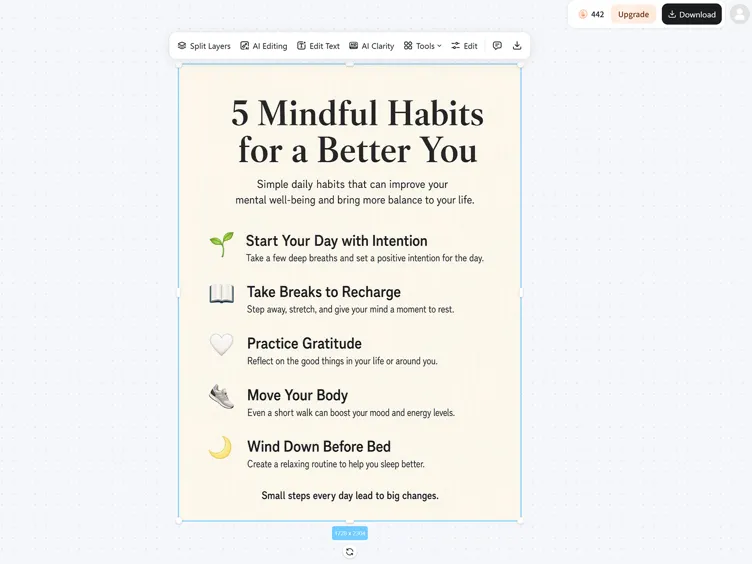
Extract, Copy, and Reuse Text From Images
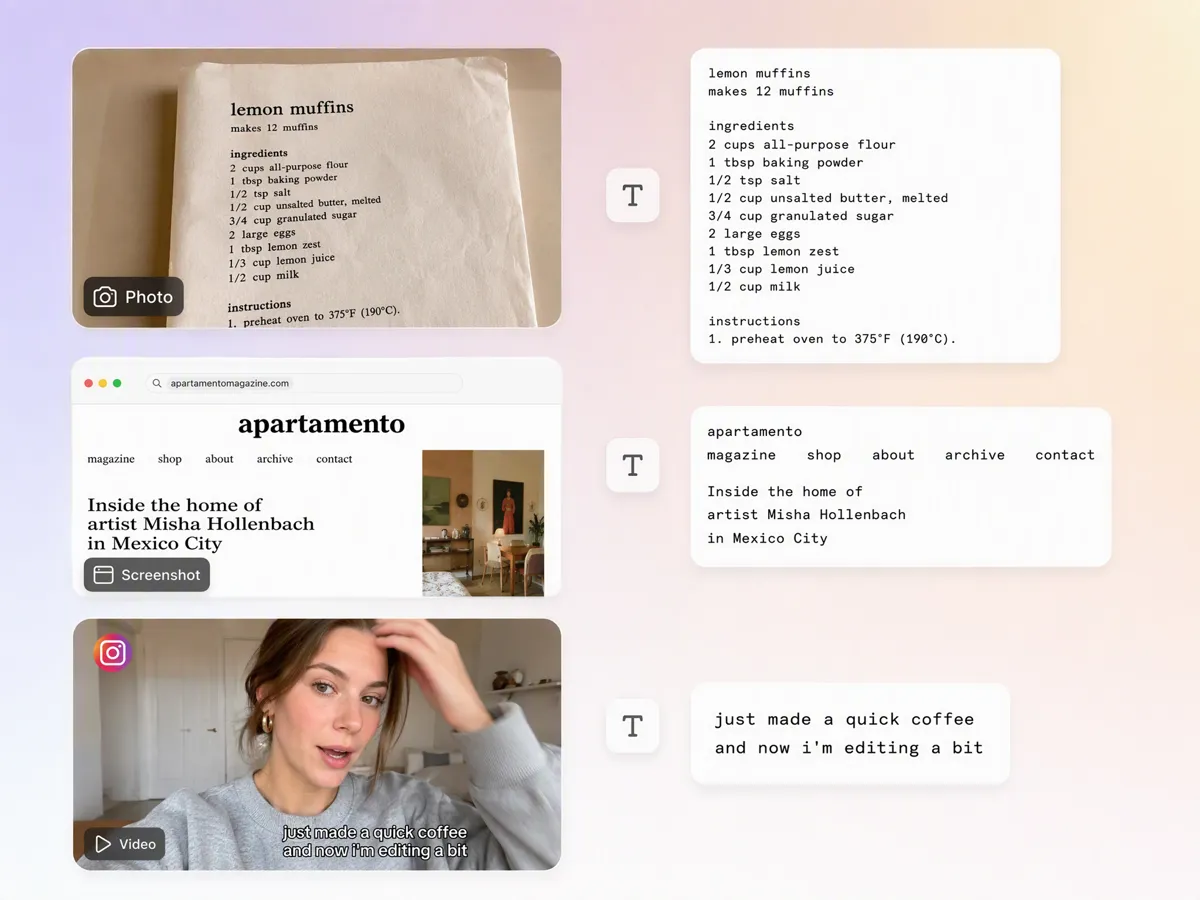
Extract Text From Photos, Screenshots, and Visual References
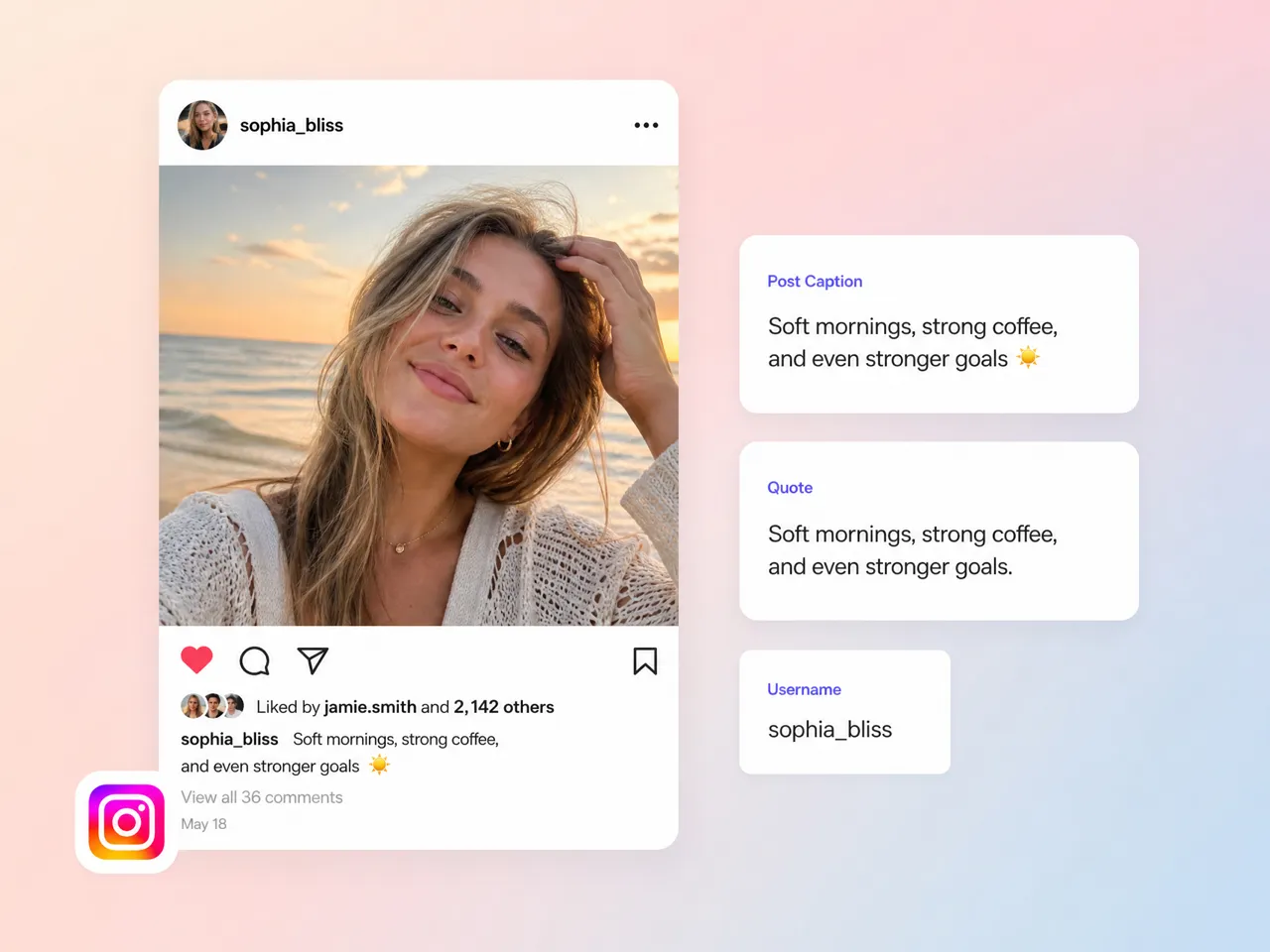
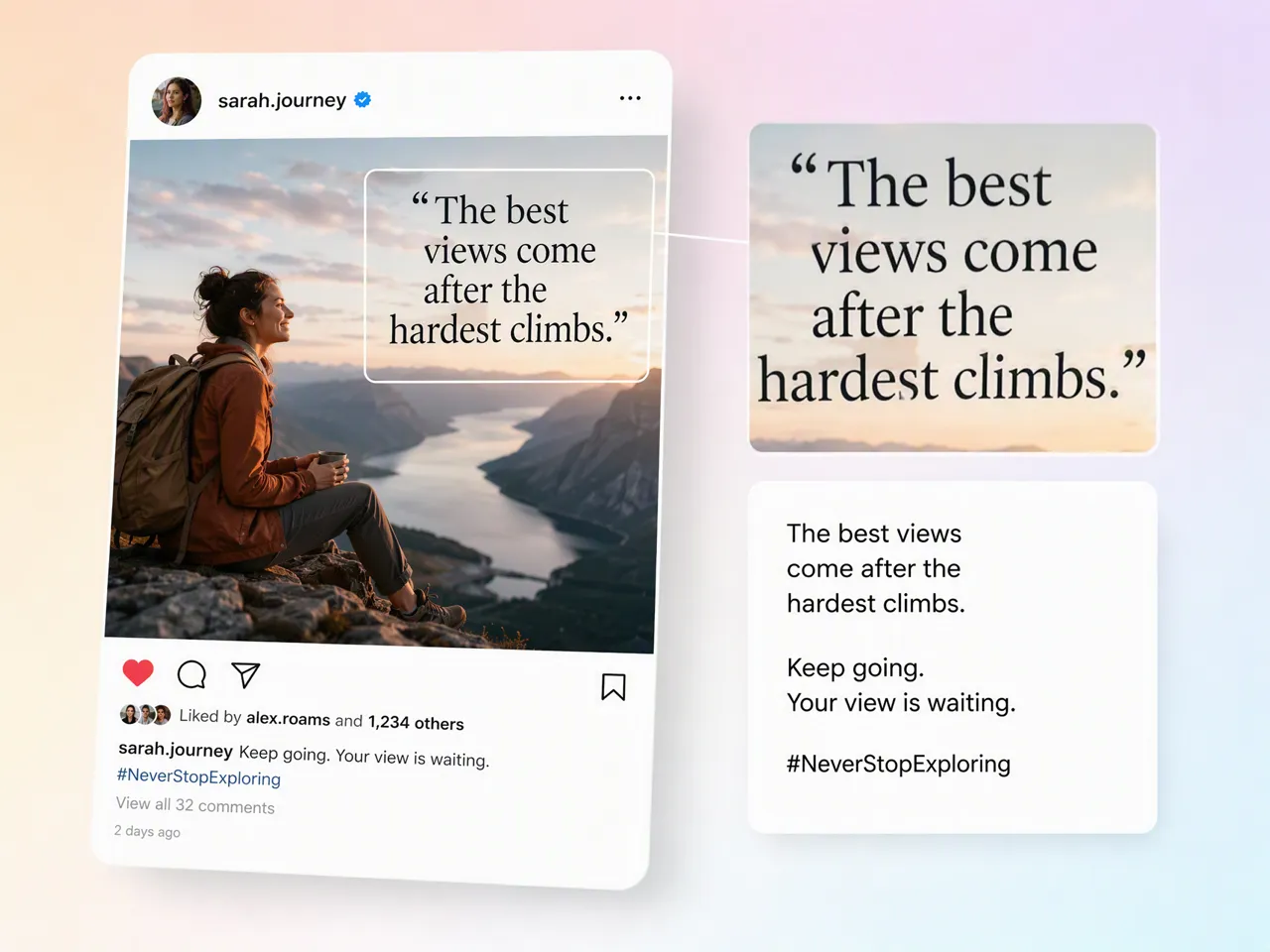
When text is buried inside a photo, screenshot, or visual reference, typing it out manually takes extra time and can introduce mistakes. Use a Designkit picture to text converter to extract visible wording from the image, then reuse it for captions, documents, product content, or other workflows. It works especially well when you need the wording from an existing visual without recreating the content from scratch.
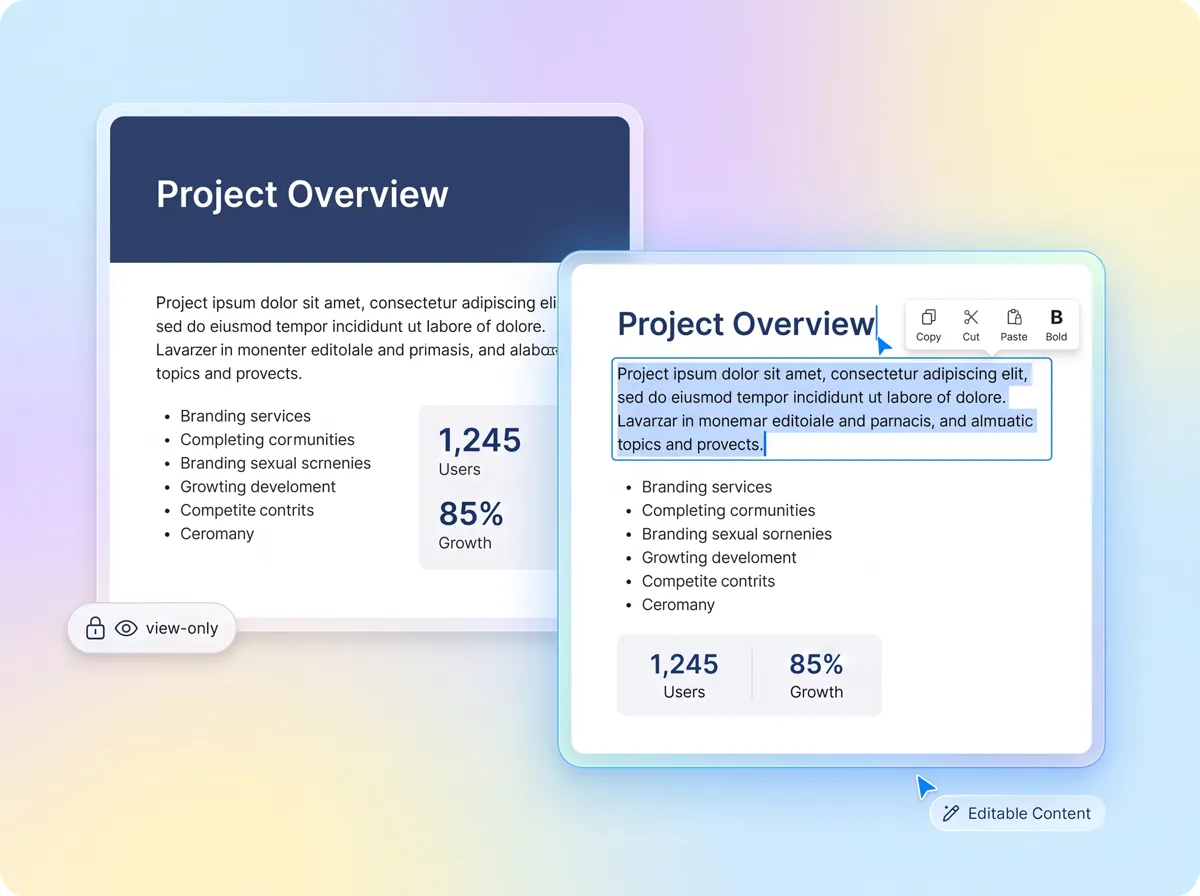
Turn Extracted Image Text Into Editable Content
Turn extracted wording into content you can actually work with instead of leaving it trapped inside the original image. Use Designkit to convert images to text, then copy the result for editing, rewriting, or reuse. When the extracted wording needs visual changes, you can also continue working in an image text editor instead of switching to another workflow or manually recreating the text. This keeps the extracted wording available for the next step.
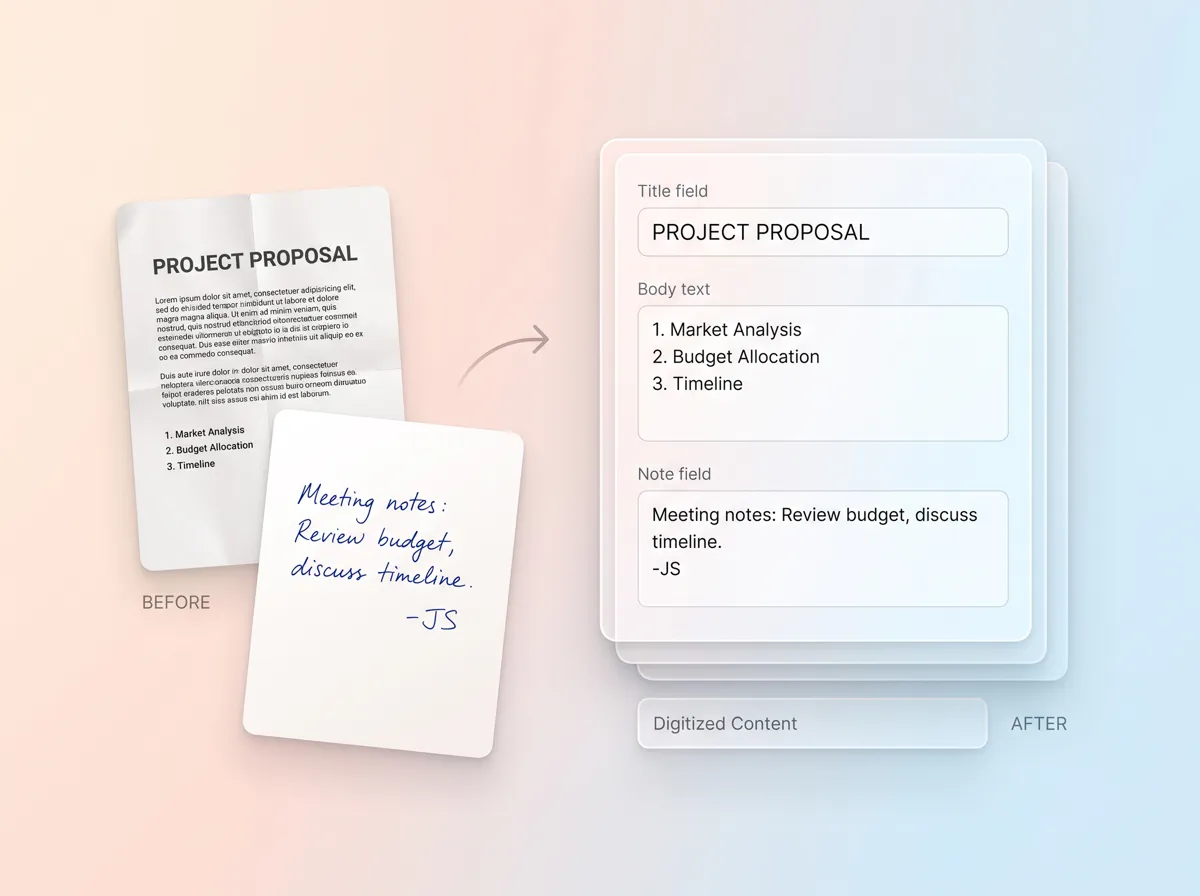
Capture Text From Scans and Handwritten Notes
Scanned notes, printed pages, receipts, and other text-heavy images can be difficult to reuse when the words are locked into pixels. Use AI image to text to extract the visible content from a photo and turn it into usable text. This gives you a practical way to digitize information for documents, records, research, or content creation without manually transcribing every line. It can also help when you need to convert photo to text for reuse.
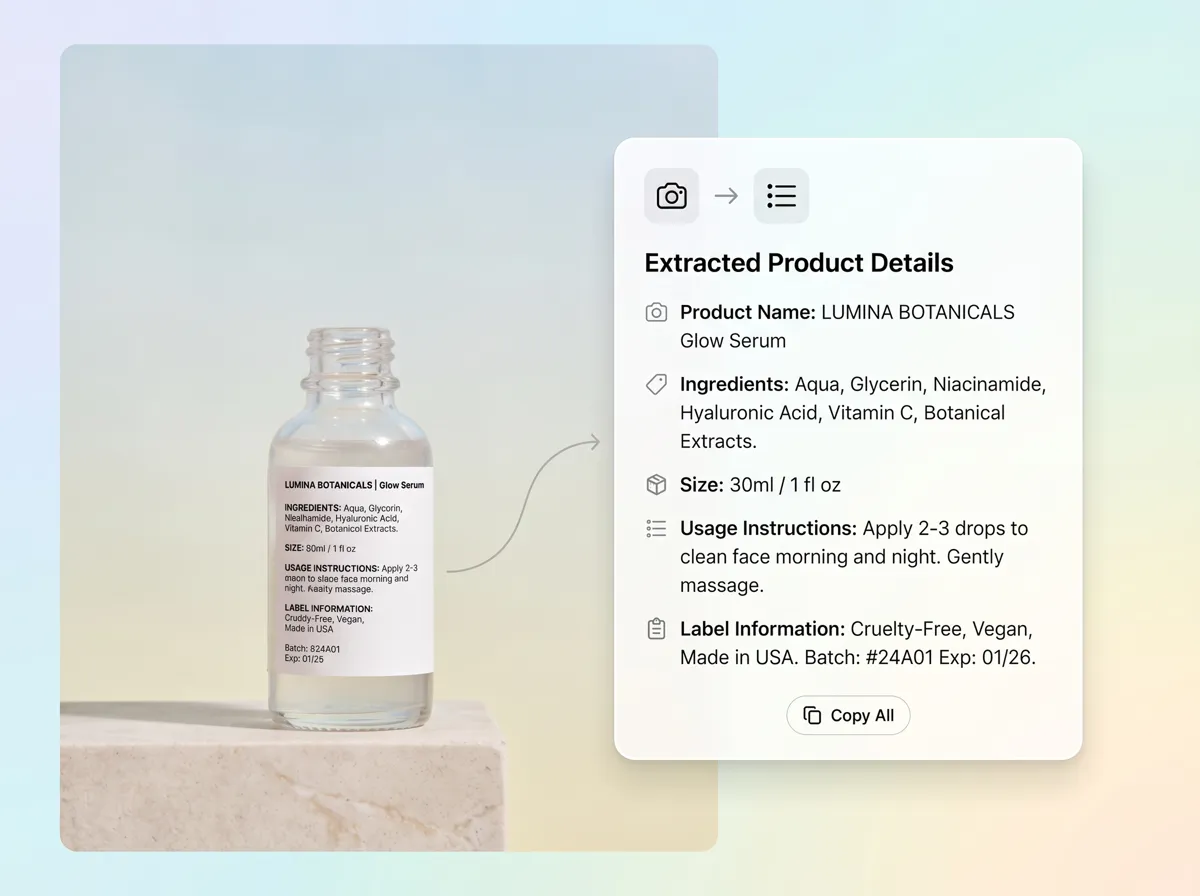
Pull product details from packaging photos
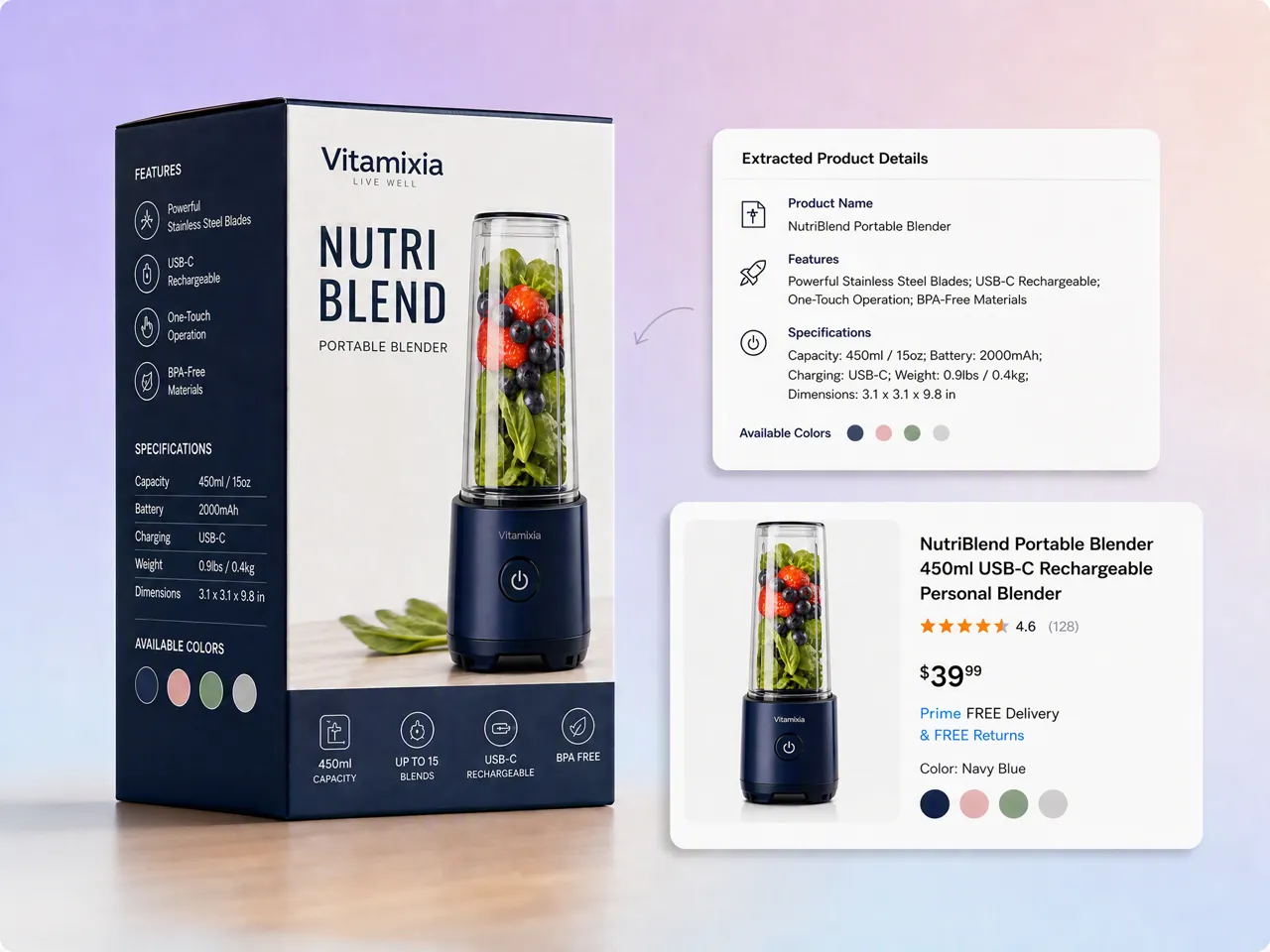
Product packaging often contains names, ingredients, instructions, features, or other details you may need for listings and marketing. Instead of typing everything from a package photo, use an image to text converter to extract the visible information and reuse it in product descriptions, research, content drafts, or marketplace materials. This is useful when the original packaging is the only source of the product details.
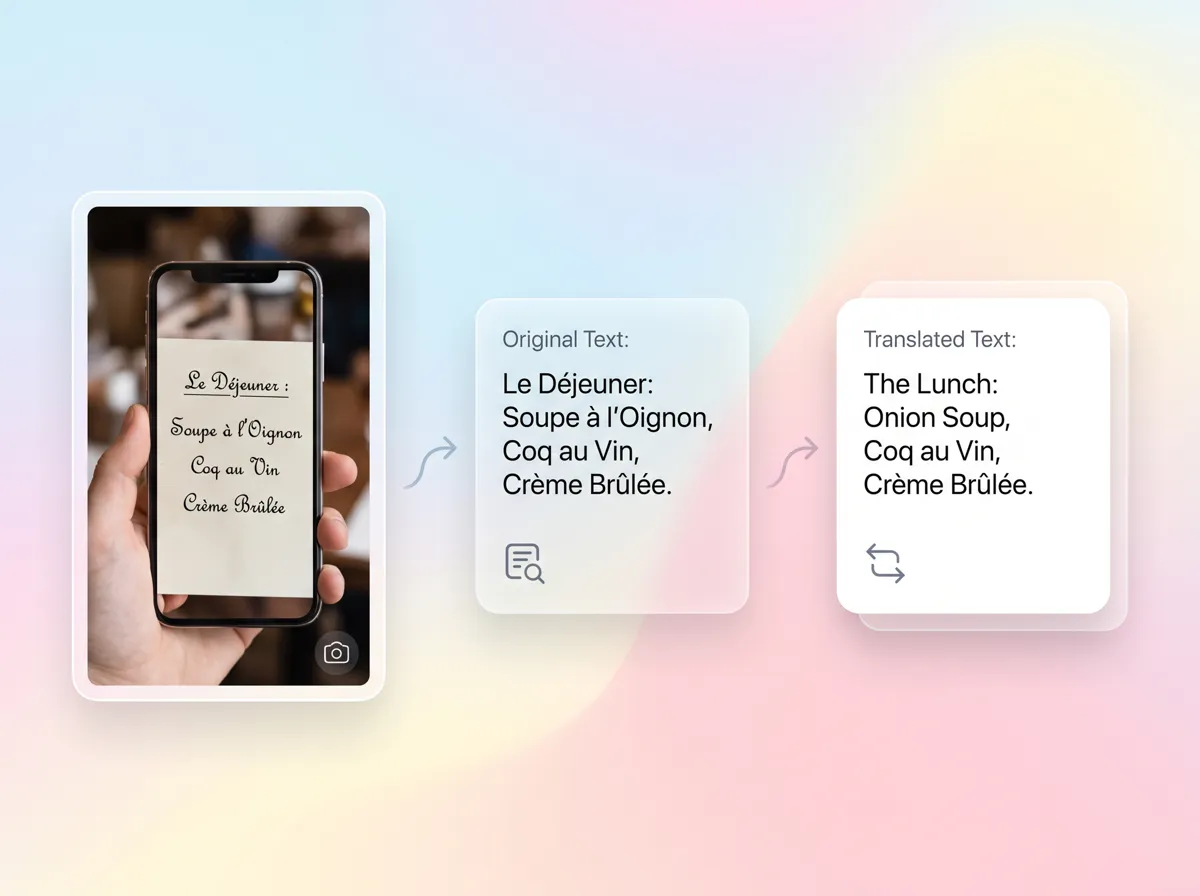
Extract and Translate Text in One Workflow
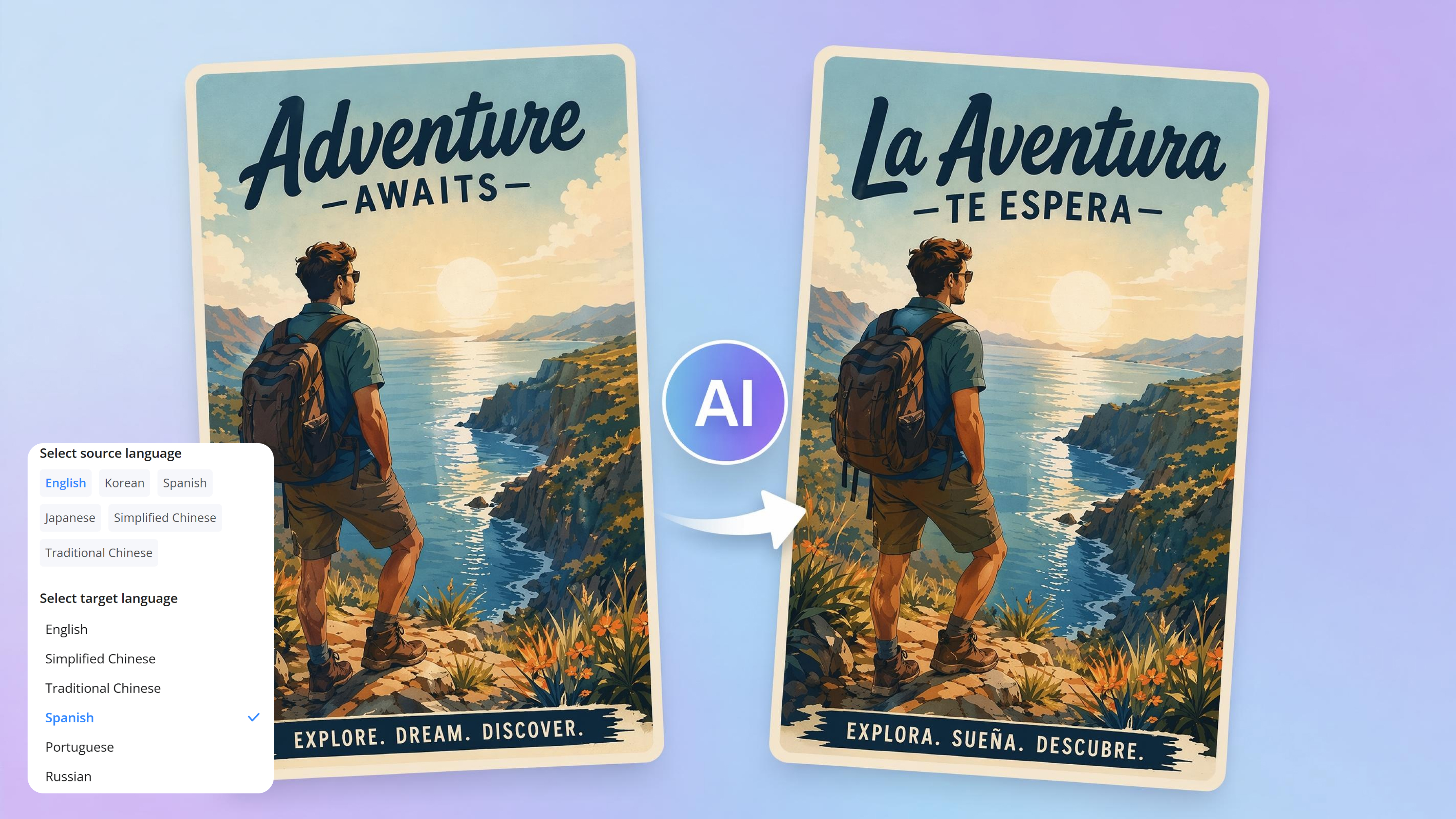
If an image contains text in another language, you can extract the wording first and then translate it without starting the process over. Designkit lets you work from the same image, making it useful for multilingual packaging, screenshots, posters, and reference materials. Use its AI image translator when the extracted text needs translation, while keeping the original visual as the starting point for the workflow.
Extract Text From Images for Real-World Tasks
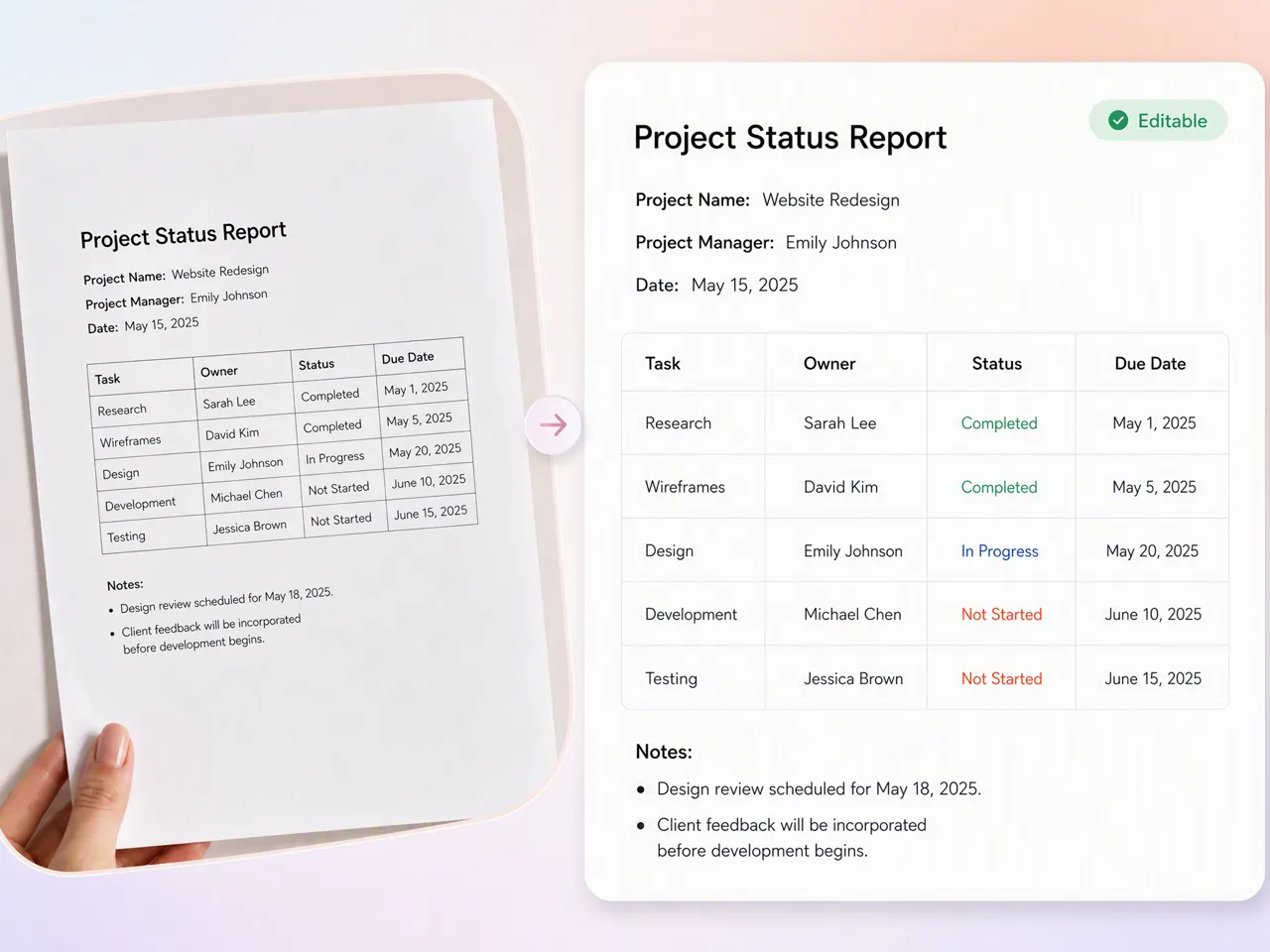
Convert Paper Records Into Editable Content
Turn scanned forms, receipts, printed records, and notes into editable text without manually typing every line. If you're looking for how to turn a photo into text, extracting the wording directly from the image gives you usable content for documents, records, and digital files.
Why Use Designkit to Extract Text From Images
No Manual Retyping From Screenshots
Extract visible wording from screenshots and photos instead of typing it out line by line. Use copy text from image workflows to turn captured content into reusable text.

Built for Listings and Content Work
Pull names, specifications, and other product details from packaging photos and reuse them in listings, descriptions, and content without recreating the information manually.
Keep Editing in the Same Workflow
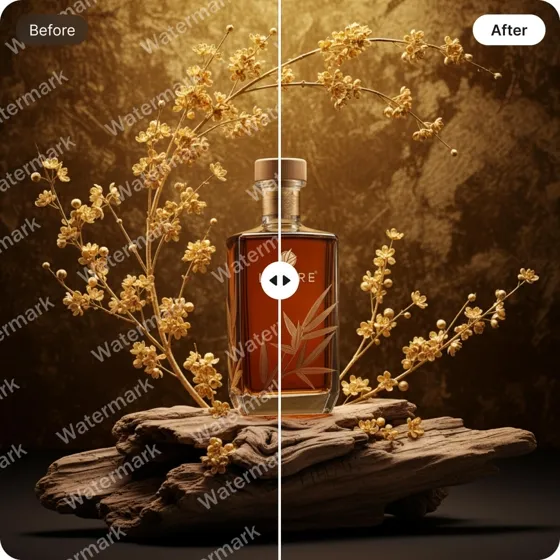
After extracting text, continue working with the image when more changes are needed. You can also use remove text from image when unwanted wording needs to be cleared.
Unlock More Image-Text Features Beyond Extraction

Image Text Editor
AI Image Translator
Remove Text From Image
AI Object Remover
Frequently Asked Questions
What is an image-to-text converter?
What types of images can I use for text extraction?
Can AI extract text from images with complex backgrounds?
Can I extract text from a screenshot and edit it?
Can image text be translated into another language?
Can I extract text from product images?
What affects the accuracy of image-to-text extraction?
How accurate is the extracted text?
Get the Text Out of Your Images
Upload a photo, screenshot, document, or product image and turn the text inside it into content you can copy, edit, translate, and reuse.



How Different Users Turn Image Text Into Usable Content
See how professionals use image-to-text extraction for different everyday and creative tasks.
Move Information From Paper Into Digital Records
We still receive quite a few documents as printed copies or scanned images. The problem was that I couldn't easily copy the information into our digital records. Designkit helps me extract text from these documents and give me editable text to work from, so I only need to check the result instead of typing every line myself.
Pull Listing Copy From Packaging Photos
I used to retype every ingredient list and claim from packaging photos when I updated listings. It was slow, and I still missed small details. Now I extract the text from the pack shot first, fix a few words if needed, and paste it into Shopify or Amazon. I still review everything, but I’m not starting from a blank box.
Turn Handwritten Notes Into Something Editable
Some of our meeting notes are still handwritten, so they usually stay in a notebook or as a photo on my phone. When the writing is clear enough, I can extract the text from the image and use it as a starting point for our project documentation. I still review it afterward, but I'm not starting from a blank page.
Reuse Copy From Promotional Graphics
We often get promotional graphics when the original copy isn't included separately. If I need to review or reuse the wording, manually typing it out is an unnecessary step. I can extract the text from the image first, check what was used, and then adapt the copy for the next piece of content.