
Turn a Portrait Into a Well-Framed ID Photo
Create an ID photo online with Designkit. Refine portrait framing, replace distracting backgrounds, and prepare images for passport-style photos, student cards, employee IDs, and other identification needs.
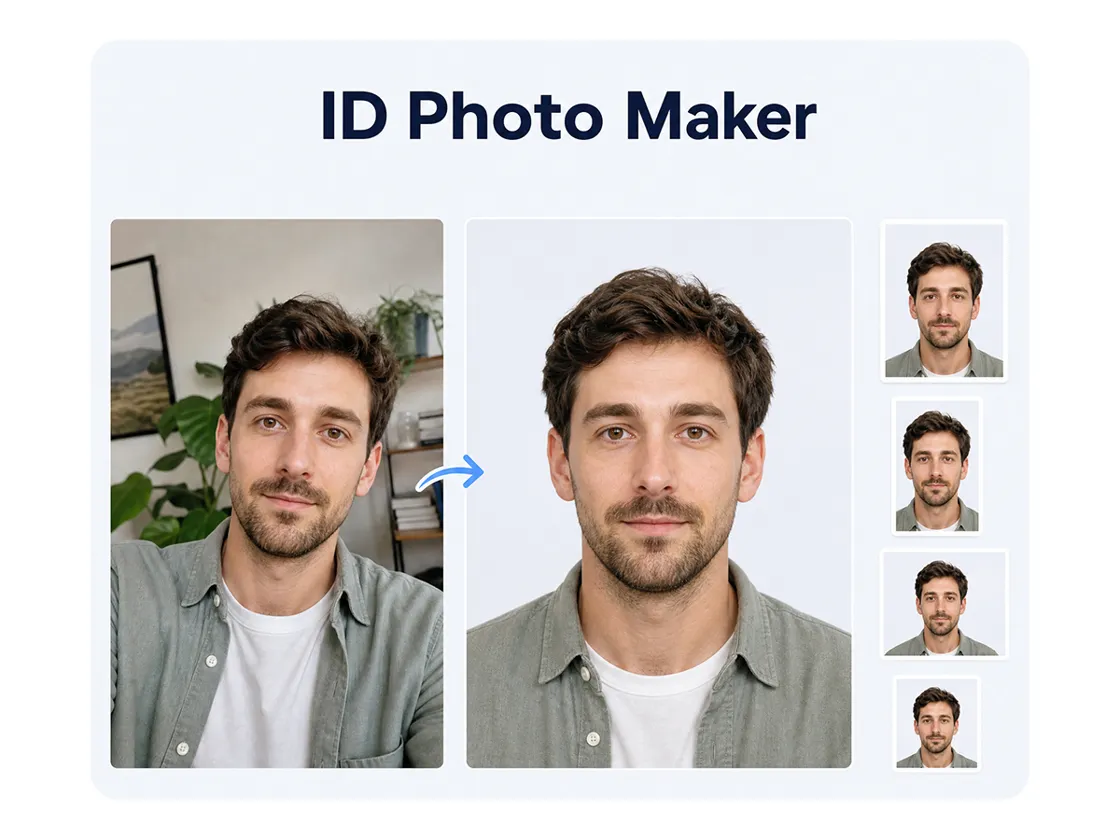
How to Make an ID Photo Online With Designkit
Step 1. Open the ID Photo Maker
Go to Designkit, choose Office Design, and click the ID photo maker to begin creating your portrait.
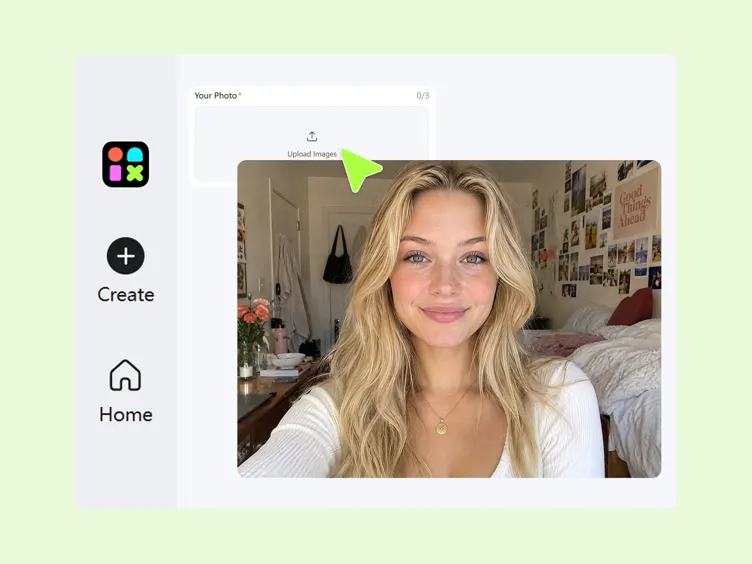
Step 2. Upload Your Portrait and Choose Photo Settings
Upload a clear portrait, select the photo type, size, and background color, then enter any additional requirements for your ID photo.
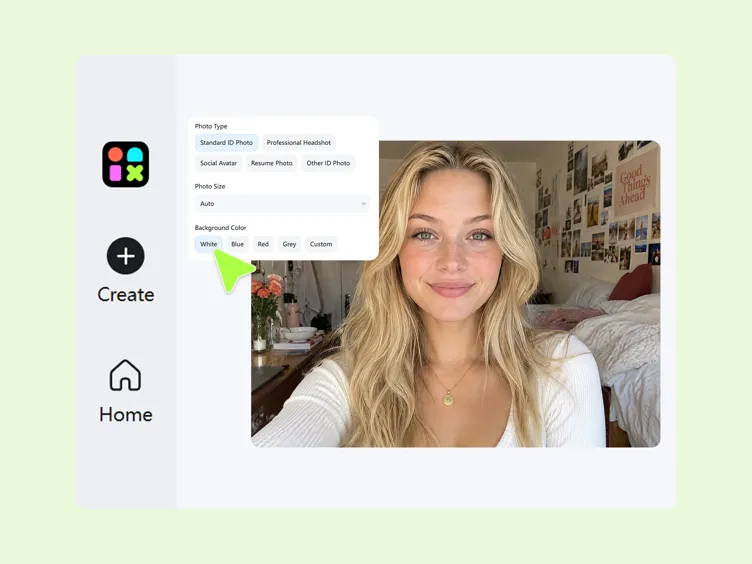
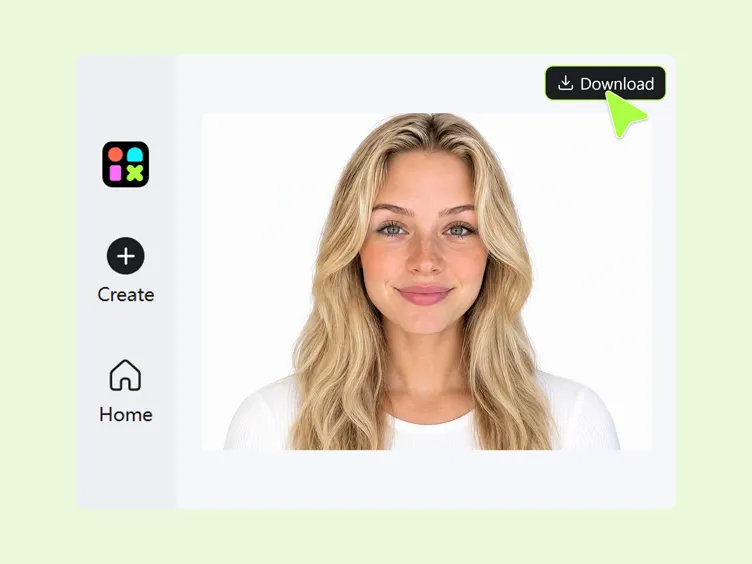
Step 3. Generate, Review, and Download Your ID Photo
Generate your photo, check the face alignment, background, and clarity, then download the result after confirming it meets your document requirements.
What You Can Customize With ID Photo Maker
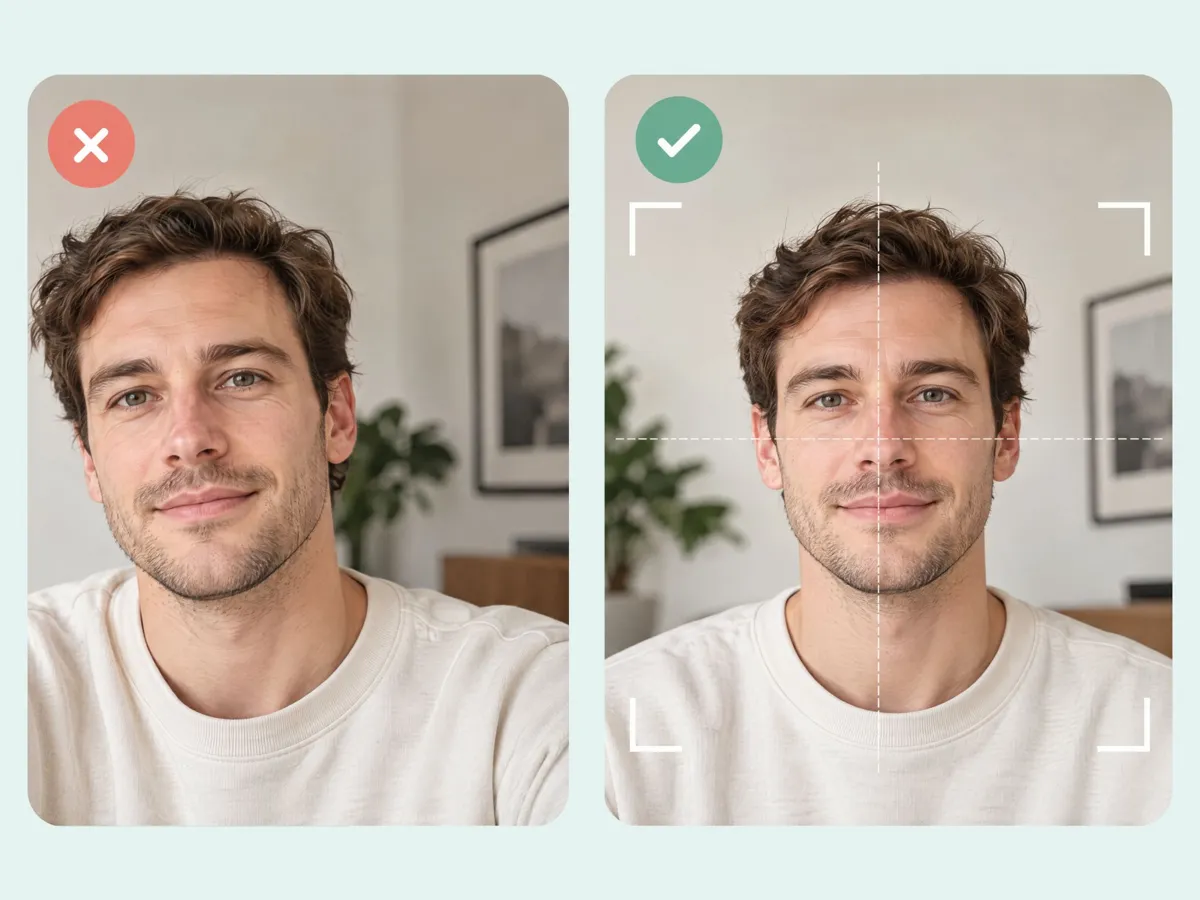
Keep the Face Centered With a Better-Fitting ID Photo Crop
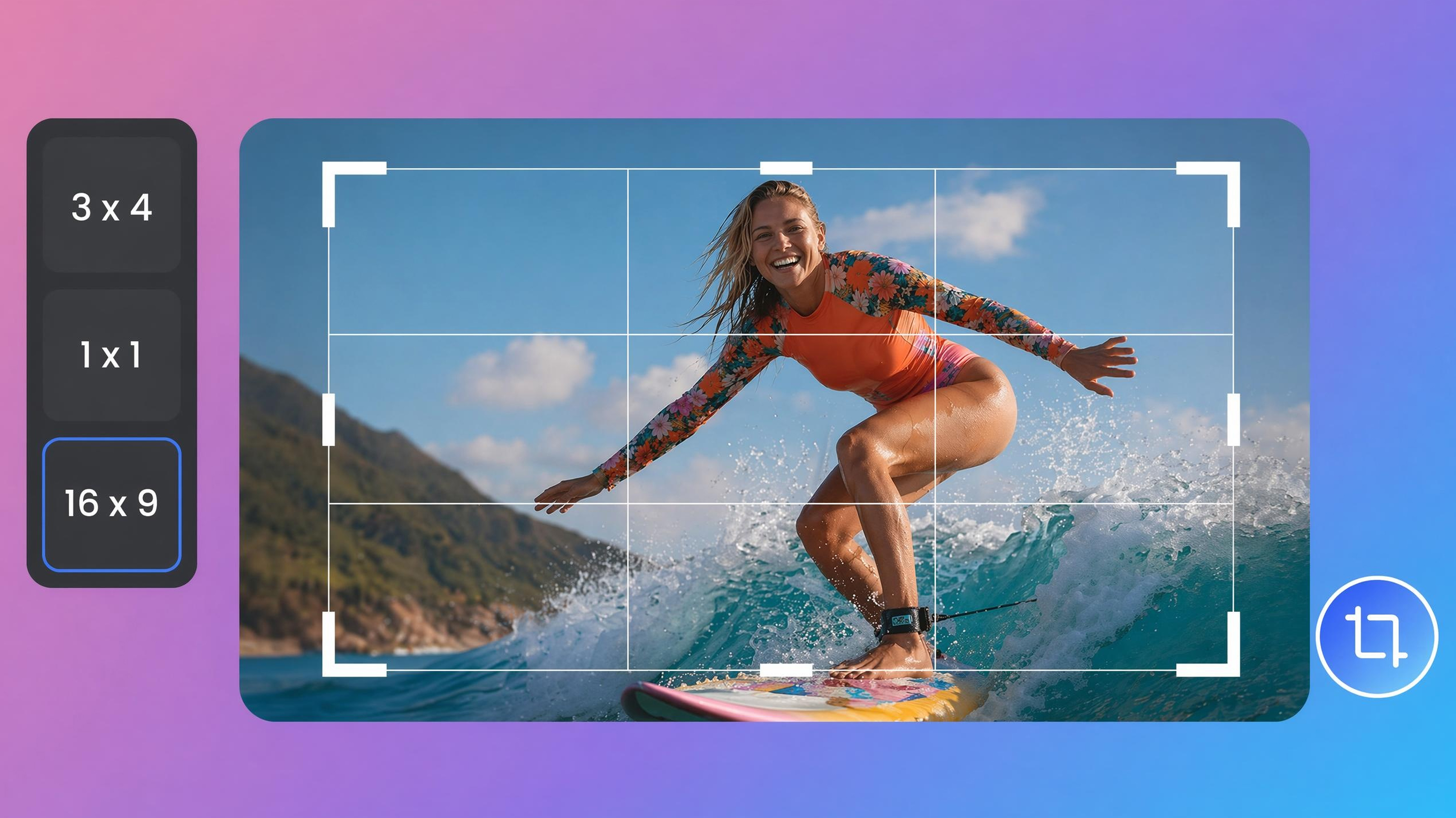
A poorly positioned portrait can fail to meet an ID photo's framing requirements. Designkit helps you crop and align your face within the image, making it easier to prepare a balanced portrait for identification documents, applications, and membership cards. Use this ID photo maker online to refine your composition, then check the required head size and margins before submission.
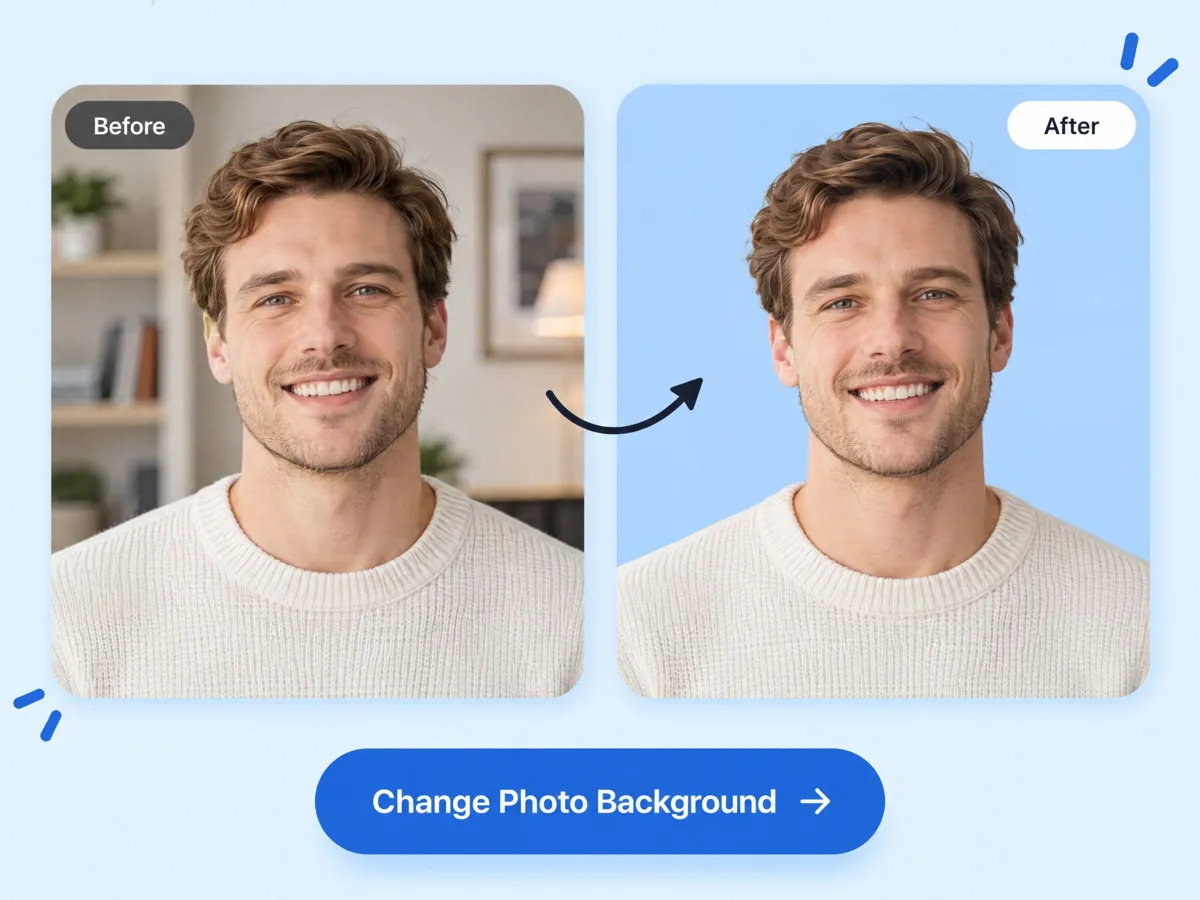
Replace Busy Backgrounds With a Clean, Even Backdrop
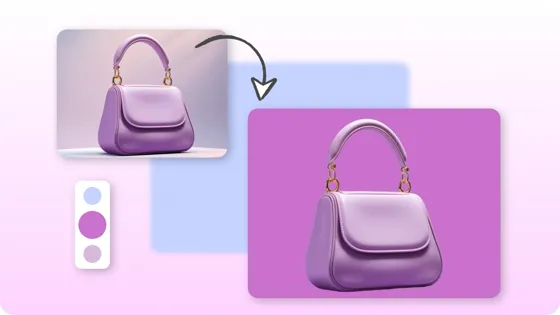
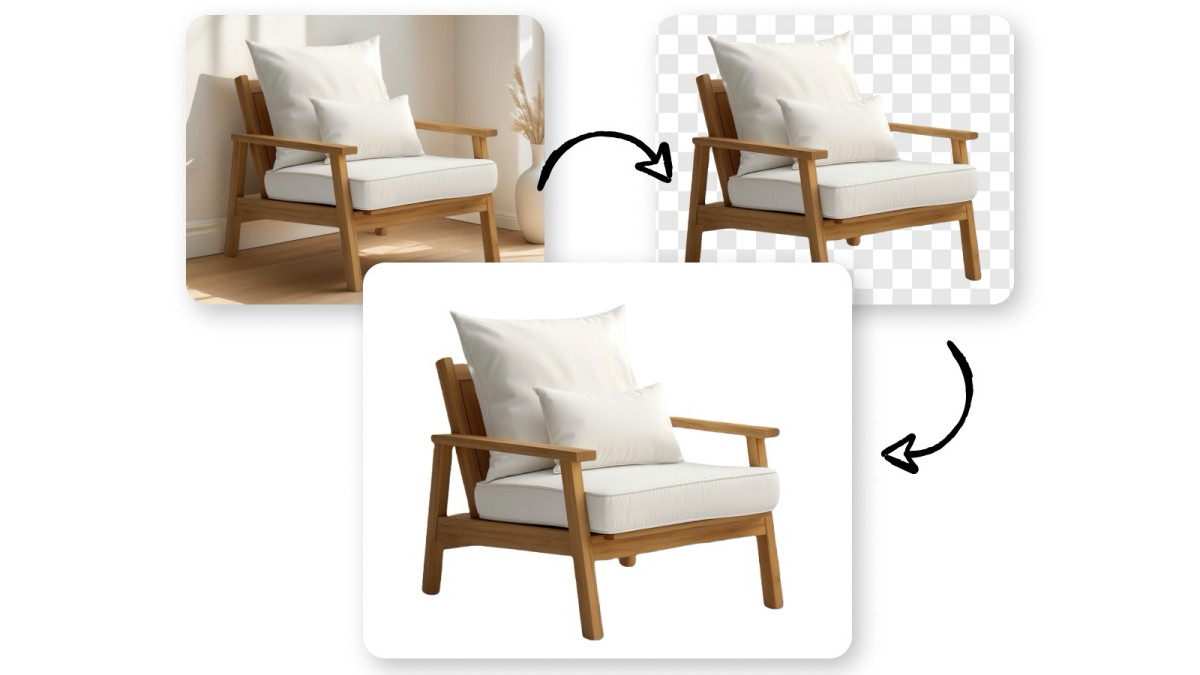
Distracting objects, uneven walls, or unwanted colors can make an ID portrait unsuitable for its intended purpose. Designkit helps you prepare a cleaner image using its background remover to remove the original backdrop and its AI background changer to replace it with a suitable color. Always verify the official background requirements before using the edited photo.
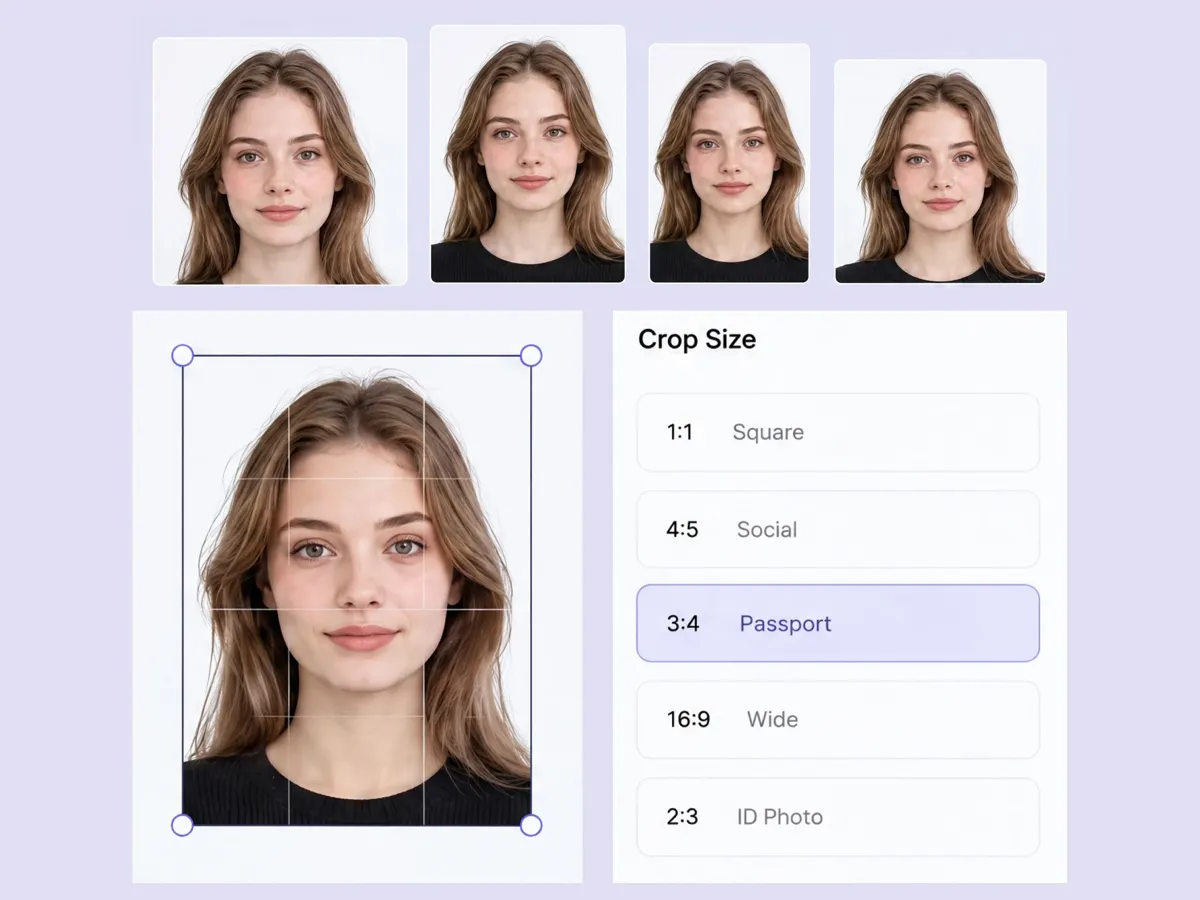
Resize for Common Passport and ID Formats
Passport photos, ID cards, and online applications can require different dimensions and aspect ratios. Designkit's image resizer helps you prepare portraits for common formats by refining the crop and image size with its AI ID photo maker workflow. Confirm the exact dimensions and specifications required by the receiving authority.
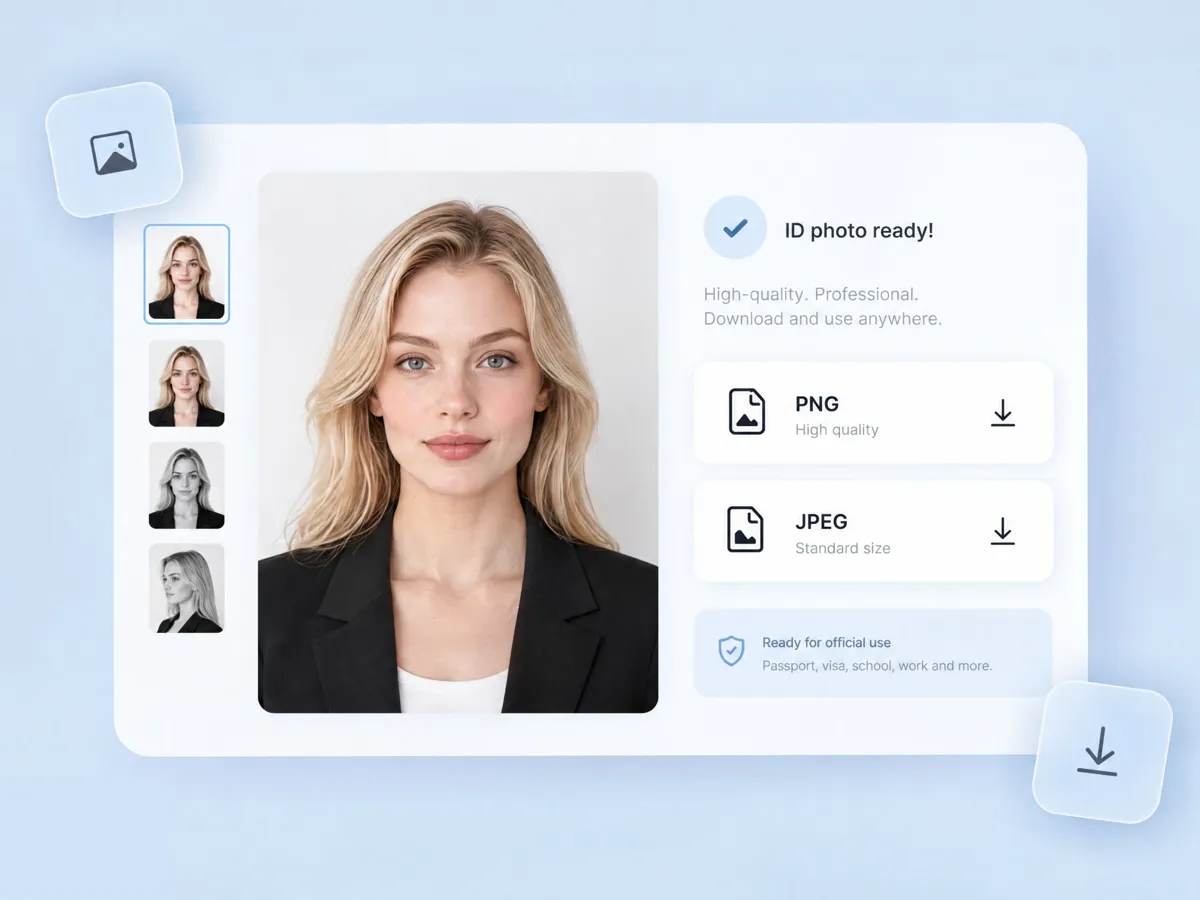
Prepare ID Photo Files for Digital Submission or Printing
Digital applications and printed identification photos may require specific image dimensions, file formats, and quality settings. Designkit helps you prepare a portrait for the intended output, whether you're using an online ID photo maker for an application or creating a photo for printing. Review the final crop, resolution, file type, and official submission rules before uploading or printing.
Make ID Photos for Applications, Work and School
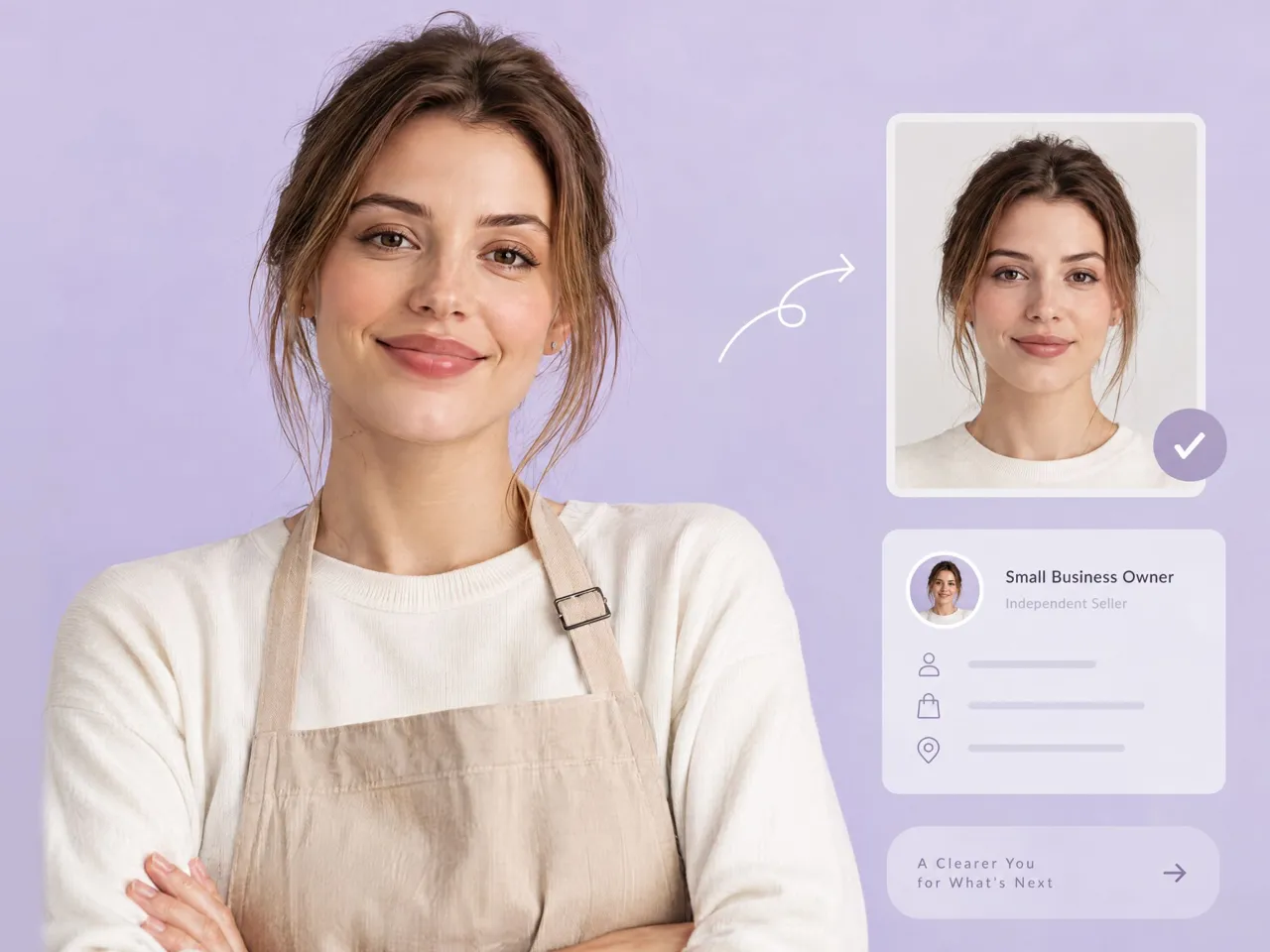
Prepare Clear Seller Profile and Verification Photos
As an online seller, you may need a clear identity photo for marketplace verification, business profiles, or seller account registration. Use Designkit as a free ID photo maker to prepare a well-framed portrait that meets the platform’s image guidelines, helping you get your photo ready without starting from scratch.
Why Choose Designkit for ID Photo Preparation
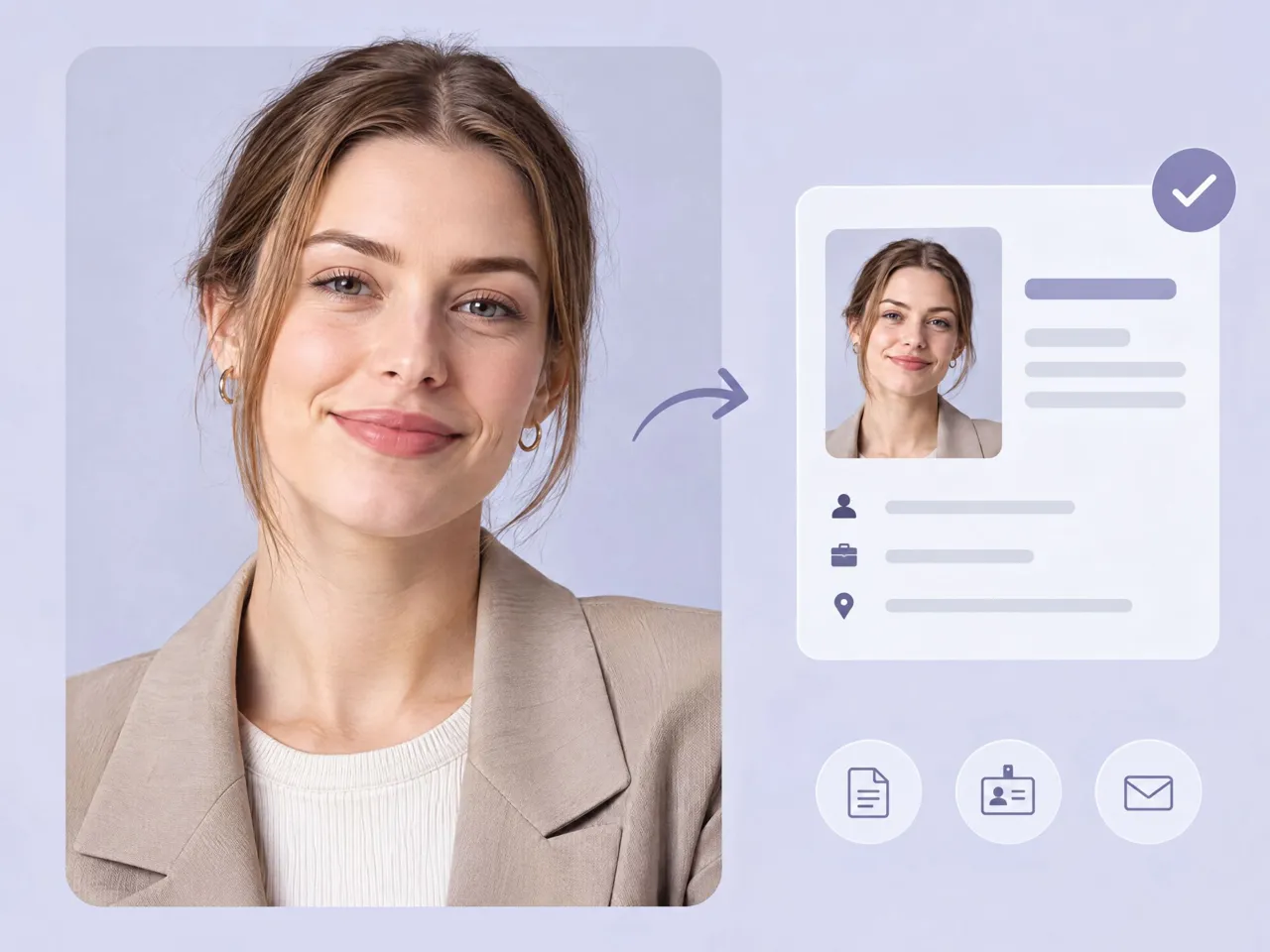
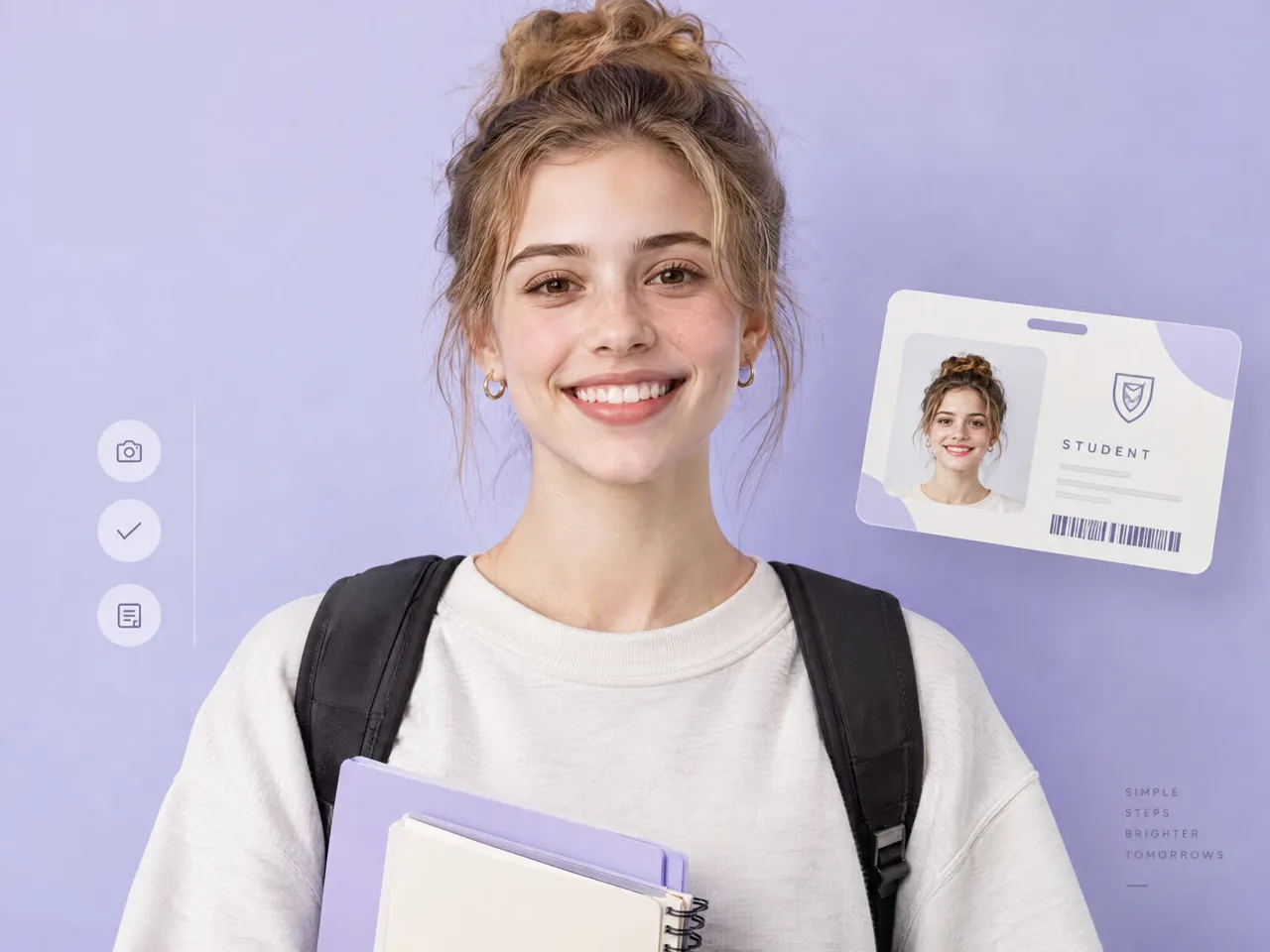
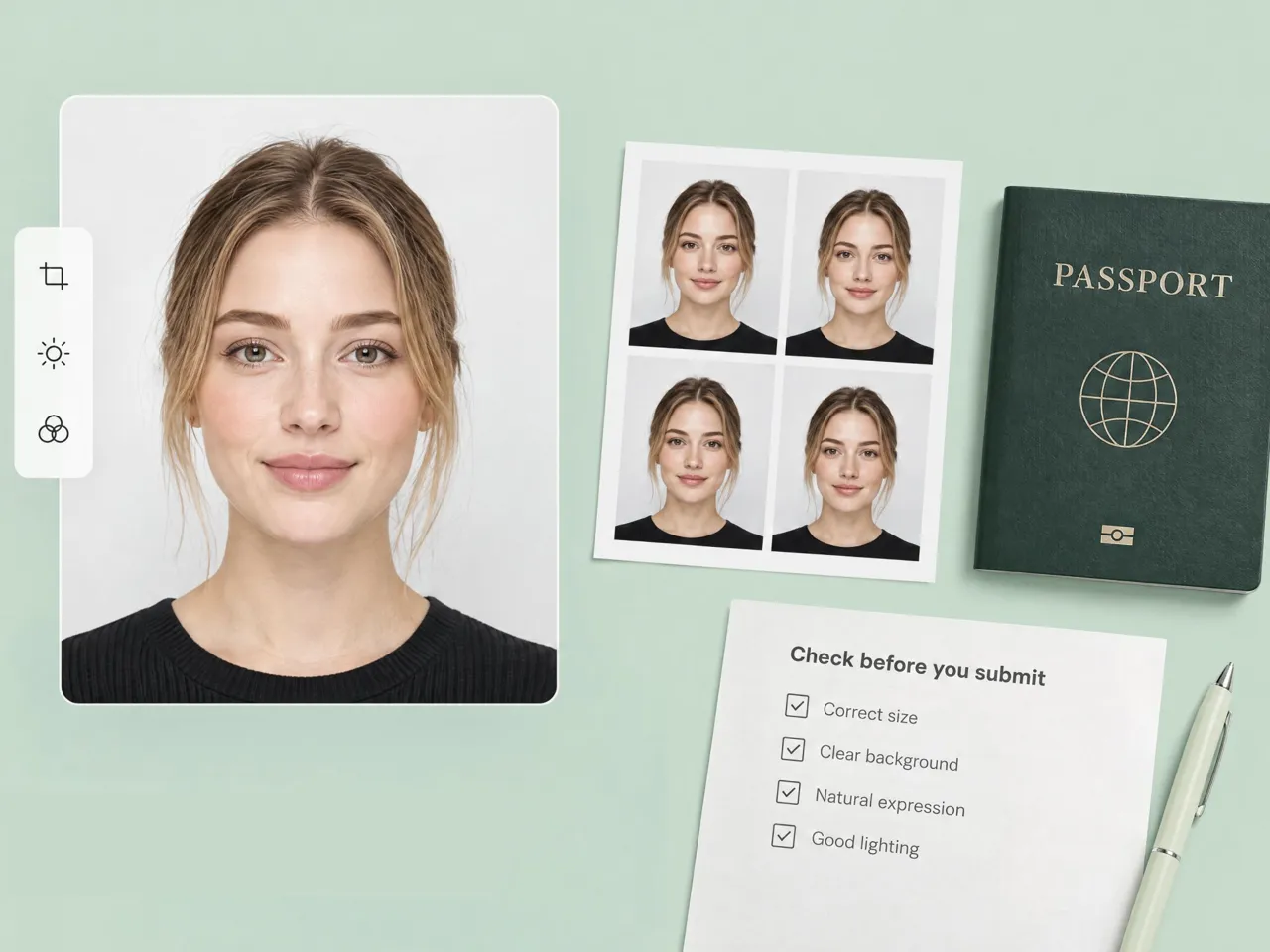
Use Designkit to adjust portrait backgrounds and framing online, making it easier to prepare ID-style photos without learning complex editing tools.

Prepare everyday ID photos for work, school, and seller profiles with Designkit, reducing the need for paid editing services for routine photo tasks.

Use Designkit to refine your portrait and background in one online workflow, then check the required photo dimensions and submission rules before use.
Frequently Asked Questions
How do I make an ID photo online without taking a new picture?
How can I change a busy selfie background to plain white for an ID photo?
You can replace a distracting selfie background with plain white using an online background editing tool. Designkit helps you refine your portrait by removing unwanted background distractions and adjusting the background color. Before using the result, check whether your application requires pure white, off-white, or another specific shade.
How do I resize an ID photo without stretching or distorting my face?
To resize an ID photo correctly, maintain the original proportions and crop the image to the required dimensions instead of stretching it. Designkit helps you prepare a properly framed portrait for an ID card photo maker workflow. Check the required image size, head height, and file specifications before exporting your photo for submission.
Does Designkit change my facial features?
Designkit can help you prepare an ID-style portrait by editing its background and framing, but you should avoid changes that alter your recognizable appearance. For identity documents, keep your facial features, expression, and natural appearance consistent with the original photograph. Review the edited result carefully before using it for official identification.
How can I make ID photos for different countries with different size requirements?
Each country may specify different photo dimensions, head proportions, background colors, and image quality requirements. Use Designkit to prepare your portrait and adjust its framing for the intended application. If you're using a passport generator or identity photo maker, verify the destination country's official specifications rather than assuming one image size works everywhere.
How do I prepare a visa photo when the required background color differs by country?
First, check the visa authority's required background color, photo dimensions, and head-position guidelines. Then use Designkit to adjust your portrait's background to the specified shade and refine its framing. An AI passport photo maker free workflow can help with preparation, but confirm that the final image meets the relevant embassy or consulate's requirements.
Can I use an AI-edited ID photo for a passport, visa, or government application?
It depends on the issuing authority's rules. Some authorities restrict retouching, background replacement, or AI-generated alterations, while others specify which adjustments are acceptable. Designkit can help prepare a portrait, but review the official submission guidelines before using an edited image. If AI editing is prohibited, submit an unaltered photograph that meets the required specifications.
Upload a Portrait and Build Your ID Photo
Use Designkit to refine your portrait's background and framing, explore the required photo format, and review the result before downloading or printing.



How Different Users Prepare ID Photos With Designkit
See how users prepare seller profiles, team portraits, staff IDs, student photos, travel-document photos, and print files.
Designkit Helped Me Prepare a Cleaner Seller Profile Photo
My seller profile photo had a cluttered background and too much empty space around my face. Designkit helped me clean up the backdrop and adjust the framing before I reviewed it against the marketplace's photo instructions. That gave me a more suitable image to work with without having to redo the entire editing process manually.
It Made Our Team Portraits Look More Consistent
We were preparing a company introduction and realized our team portraits had noticeably different backgrounds and crops. I used Designkit to bring the images closer to a consistent style before adding them to the layout. It saved us from having to correct each portrait entirely by hand and made the final team page feel more cohesive.
I Could Adjust My Passport Photo at Home Before Checking the Official Rule
I wanted to prepare a passport-style photo without immediately booking a studio appointment. Designkit gave me a way to work on the background and framing from home. Before deciding whether to use the image, I checked the relevant passport requirements because a clean-looking photo isn't automatically an acceptable one.
Designkit Helped Me Get My Child's School Photo Closer to the Requested Format
The school asked for a student portrait with a plain background, but the photo I wanted to use had household details behind my child. Designkit helped me replace the background and adjust the crop. I then checked the final image against the school's instructions before uploading it.