
GPT Image 2.6: Features, Image Editing, Product Photos & GIFs
Explore what’s new in GPT Image 2.6 and learn how to create product photos, make precise edits, and turn still images into GIFs.

TL;DR:
GPT Image 2.6 supports image creation and editing across ChatGPT, Codex, and the API, with GIF creation and API options including Flare and Sunburst. Start with a clear product reference, make focused edits, and check labels, shape, and color in every result. Availability and API access vary by feature.
GPT Image 2.6 is OpenAI’s image generation and editing release for ChatGPT, Codex, and the API. Announced on November 4, 2026, it focuses on faster generation and more consistent edits. It also introduces GIF creation and new API options for teams building visual workflows.
For a seller, the practical question is whether an existing product photo can become a useful white background image, lifestyle scene, or short animation while keeping the product recognizable. This guide explains how to get started, write specific editing instructions, review product details, and choose an API model. Availability below was checked on November 5, 2026.
What Is GPT Image 2.6 and Where Can You Use It?
| Platform | Best for | How to access |
|---|---|---|
| ChatGPT | Creating and editing images through prompts | ChatGPT conversation or Images |
| Codex | Image generation in development workflows | Codex |
| API | Integrating image generation into applications and automated workflows | Images API |
ChatGPT: Ask for an image in a conversation or open Images from the More menu. Upload an existing image to request an edit. OpenAI says ChatGPT Images is available across all tiers on web, iOS, and Android. GIF creation is rolling out separately, so check whether it is available in your account.
Codex: OpenAI also makes image generation and editing available in Codex. Describe the image or edit you need in your task. Availability of a particular control or output format can depend on the environment you use.
API: Developers can choose GPT Image 2.6 Flare (gpt-image-2.6-flare) or Sunburst (gpt-image-2.6-sunburst) in supported API workflows. API access, rate limits, and charges are separate from a ChatGPT subscription. Check the current API reference and pricing before building a production workflow.
What Is New in GPT Image 2.6?
Faster generation
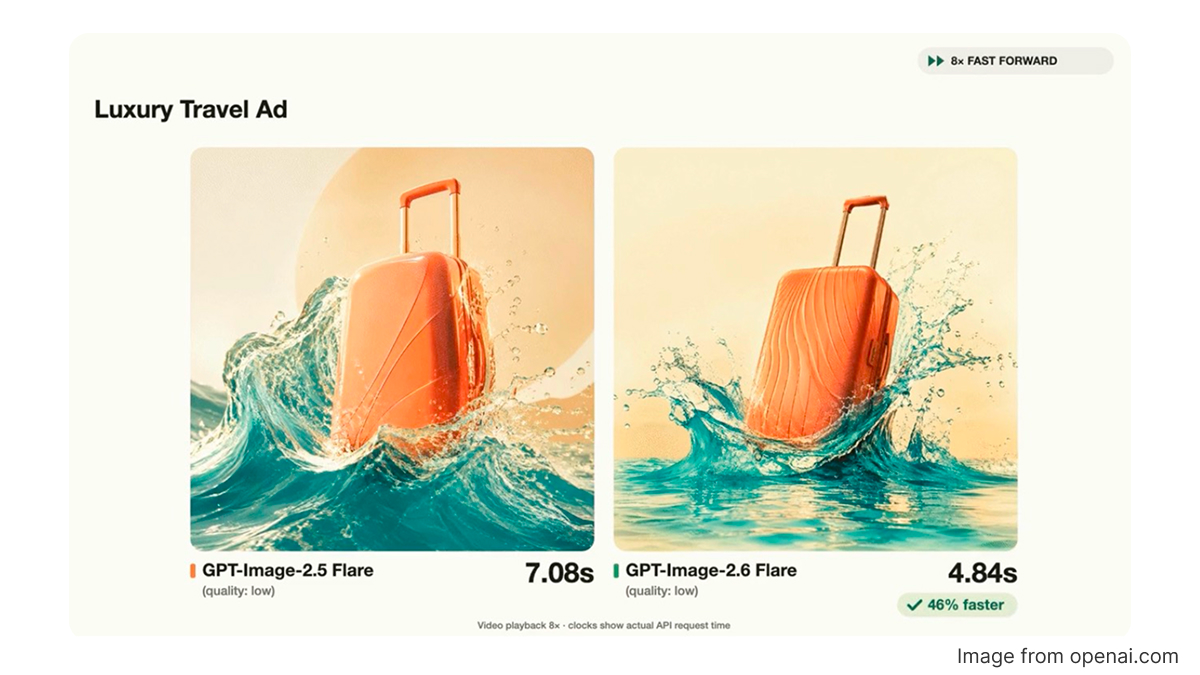
OpenAI reports that Images 2.6 generates images 50% faster than the previous version. In its announcement, Flare at low quality can generate an image in as little as six seconds. That is a specific reported case, not a guaranteed time for every image. Prompt complexity, settings, and service conditions can affect how long your request takes.
More consistent edits
The release is designed to better preserve visual details across successive edits. That matters when you want to change a background, then adjust lighting without redesigning the subject. You still need to compare each result with the source, especially when small text or product geometry matters.
GIFs from prompts or still images
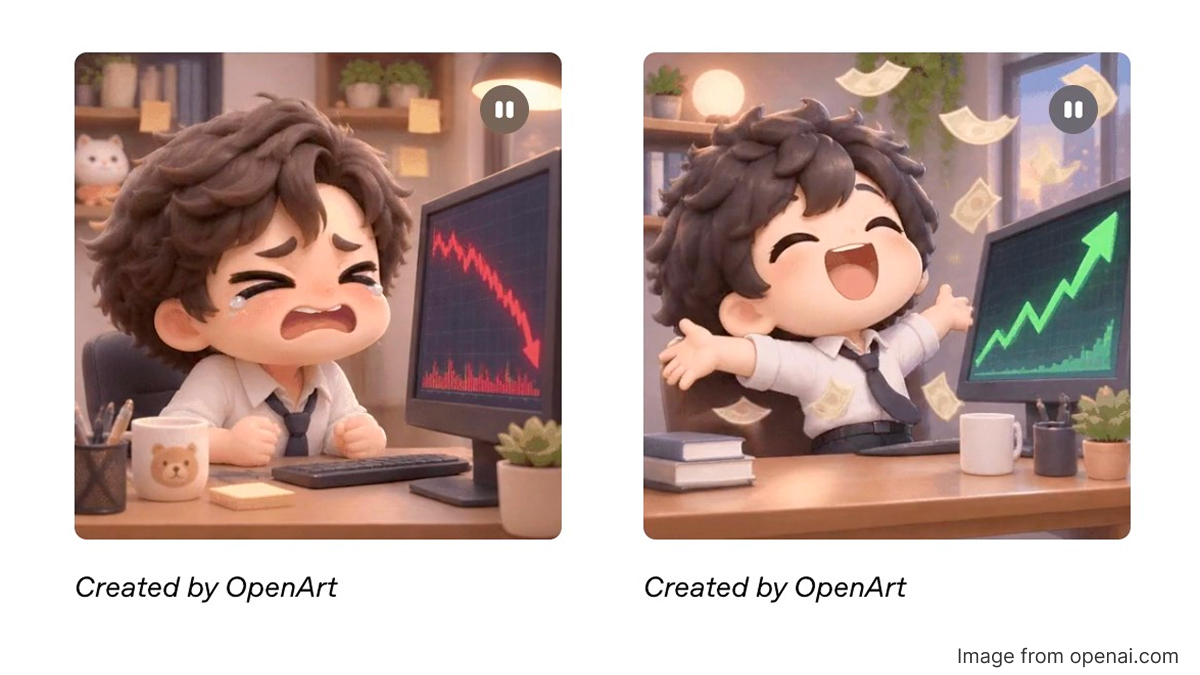
Where the feature is available, ChatGPT can create a looping GIF from a description or use a still image as the starting point. GIF availability is separate from general image generation availability.
Markup and SVG support in the API
OpenAI has added image markup to the API, allowing developers to provide visual guidance for an edit. The API also supports SVG output. Check the current reference for supported models, inputs, and output restrictions before using either feature.
How to Use GPT Image 2.6 in ChatGPT
Start in a conversation and describe the image you want, or choose Images from the More menu. To edit an existing image, upload it and describe the change. You can also open a generated image and select an area with the editing tool before writing your request.
A useful instruction has three parts: what must stay the same, what should change, and how the lighting or composition should look. For example:
“Keep the bottle shape, cap, label layout, and existing lettering. Replace the background with a light stone countertop. Use soft window light from the left and keep the bottle centered.”
For a second edit, make one focused request, such as changing the background color while retaining the product and composition. Compare the new image with the original before moving on. If you select a region, treat the selection as guidance rather than a precise boundary: changes can extend beyond it. Review the surrounding area and retry if needed.
When you have a result you want to keep, open it and use the available save or download control. The Images area can also help you find and reuse earlier creations.
How to Create Product Photos with GPT Image 2.6
Start with a clear reference image of the actual product. A sharp front view helps the model see the outline, color, packaging, and label. If the product has important features on another side, use an appropriate reference and verify that the details appear correctly. Plan each image around a specific placement, such as a product listing, a campaign banner, or a social post.
Create a white background product photo
Upload the product photo and ask for a clean background while retaining the product’s visible features. A clear prompt could be:
“Create a product listing photo from the uploaded image. Keep the bottle’s shape, cap, color, label, and proportions. Place it upright on a plain white background with a subtle contact shadow. Do not add props or change the wording on the label.”
Review the silhouette and base at full size. Check for an uneven white background, missing parts, or a shadow that makes the product appear to float. Compare the generated label with the original, letter by letter.
Turn the same product into a lifestyle photo
Once you have a product reference, describe a scene that supports how the product is actually used. For example:
“Use the uploaded bottle as the product reference. Place it on a pale stone bathroom counter beside a folded towel. Keep the bottle’s shape, cap, label layout, and color. Use soft morning light, a realistic contact shadow, and room for text above the product.”
Check whether the product is the correct relative size and whether reflections or props cover the label. A convincing setting is useful only if the product itself remains identifiable.
Create a product detail image
For a close view, specify the detail you want to show and make sure the reference actually contains it. You might request a closer composition of the cap, a fabric texture, or a package closure. Do not treat a generated close view as evidence of a feature hidden in the original: confirm materials, stitching, and other fine details against the real item.
Check logos, text, shape, and color
Before using an image in a listing or ad, compare it with the original product. Check the overall shape and proportions first, then inspect the logo, packaging text, color, cap or closure, and small accessories. Look for extra objects, missing components, invented claims, and unreadable lettering.
A detailed prompt can reduce ambiguity, but it does not guarantee exact preservation. If a label must be exact, keep the verified label asset available for a later compositing step and review the finished image against the source. Do not promise pixel level identity from a generated edit.
Refine a product image over multiple turns
Save the original reference and each useful version. Start by requesting a background change, then ask for a separate lighting adjustment. After each turn, compare the product outline, logo, label, and areas you did not ask to change. If the second edit alters the packaging, return to the earlier version or ask for a correction and inspect the result again.
For example, first request a white background and an understated shadow. In the next turn, ask for warmer light while keeping the product, position, and background unchanged. This gives you a clear way to judge which edit introduced a problem.
Prepare product image variations for ecommerce
Once the product looks accurate, request variations that serve different placements. You might try a neutral listing image, a lifestyle composition, and an ad image with space for a headline. Change a limited number of elements per request and check every version for product fidelity before use. Review any advertising claims and platform requirements independently.
For a separate workflow focused on product images, explore Designkit. This is a different product workflow from GPT Image 2.6 in ChatGPT or the API.

How to Create GIFs with GPT Image 2.6
In ChatGPT, check that GIF creation is available to your account. Ask for a looping GIF from a text prompt, or upload a still image and describe the movement. For a product visual, keep the product still and specify a small change in the scene.
Example prompt: “Create a short looping GIF from this product photo. Keep the bottle, cap, label, and camera position steady. Let a soft reflection move slowly across the background, then return to the starting look. Keep the loop calm and suitable for a product campaign.”
Preview the full loop, including the transition from the last frame back to the first. Check the label and logo throughout the animation, not just in the first frame. To revise a GIF created by ChatGPT, describe the change in the conversation. Open the GIF to adjust playback speed, save, or share it where those controls are available.
ChatGPT’s help documentation says it cannot edit an animated GIF that you upload. To start from your own image, upload a still image and request a new animation instead. The API has its own GIF parameters and access requirements, described below.
How to make a smooth loop
Choose motion that can return naturally to the starting position, such as a gentle reflection or a small repeated movement. Keep the product and camera steady, limit the number of moving elements, and avoid abrupt scene changes. Watch several repeats to spot a jump at the join. If the seam is visible, ask for a smaller movement or a closer match between the beginning and end.
GPT Image 2.6 Flare vs Sunburst: Which Should You Choose?
The model names below refer to the API. Do not assume that a standard ChatGPT conversation exposes the same model selector or parameters.
Flare is intended for fast generation and also improves layouts for posters and product visuals. Start here when you need to explore creative directions or iterate quickly. OpenAI’s six second example applies to a low quality setting and should not be treated as a general latency promise.
Sunburst is positioned for work that calls for more detail and precision. OpenAI highlights stronger consistency across edits at medium or high quality. Consider it for tasks where product details or repeated edits matter, then test it against your own reference images and review requirements.
Compare both models with the same product image, prompt, dimensions, and relevant settings. Check the output for accuracy and usable detail as well as speed and cost. A model that is well suited to one task may not be the best choice for every image in your workflow.
Quality and complexity are separate settings
Quality affects visual detail and fidelity. Complexity controls how much computation the model spends planning an image. OpenAI recommends trying low complexity for many editing tasks, and medium or high when a scene has many elements or constraints. The settings are independent, so choose the quality you need and test complexity for the task. Check the API reference for supported values and defaults.
API model IDs: gpt-image-2.6-flare and gpt-image-2.6-sunburst.
Python example: create an image with Flare
from openai import OpenAIclient = OpenAI()result = client.images.generate( model="gpt-image-2.6-flare", prompt="A clean product photo of a perfume bottle", quality="low", complexity="low",)
The model selects Flare or Sunburst. Quality controls visual detail and fidelity; complexity controls computation spent planning the image. Configure your API credentials before running the example.
Generate GIF or SVG output through the API
The Images API reference lists GIF and SVG as output formats. GIF requests require preview access for the selected model. With GIF output, frame_count accepts 2 to 16 frames and defaults to 9; frame_duration_ms defaults to 200 milliseconds, has a minimum of 20 milliseconds, and is rounded to the nearest 10 milliseconds in the encoded output. GIF output does not support streaming, partial images, masks, or custom output compression. Size limits also apply.
SVG output has separate model selection requirements and restrictions. SVG edits, streaming, and partial images are not supported. Check the current API reference for access, author model selection, and other SVG specific limits. API charges are separate from ChatGPT.
Start with a Real Product Reference
Use Images 2.6 to explore a background change, a product scene, or a short loop. Make focused requests and check the product after each edit. For API projects, compare Flare and Sunburst using your own images and consult the current reference for supported settings and access.
Frequently Asked Questions
What is new in GPT Image 2.6?
How do I use GPT Image 2.6?
In ChatGPT, upload an image or open a generated one, then describe the change. You can also select a region and explain the edit. Inspect the result and surrounding areas before using it.
Can GPT Image 2.6 create product photos?
You can use a product reference to request listing images, lifestyle scenes, and other compositions. Check the output against the actual product before publishing.
Can it preserve product logos and packaging text?
You can request that these details remain unchanged, but exact preservation is not guaranteed. Compare the output with the original and correct any errors before commercial use.
Can GPT Image 2.6 create a GIF from a still image?
In ChatGPT, you can upload a still image and request an animation when GIF creation is available on your account. The API also supports GIF output with the relevant preview access.
Can ChatGPT edit an animated GIF I upload?
OpenAI says ChatGPT cannot edit an animated GIF you upload. You can upload a still image and ask it to create a new animated GIF.
What is the difference between Flare and Sunburst?
Flare emphasizes speed and professional visuals. Sunburst is intended for more detailed work and greater consistency across edits at medium or high quality. Compare them on your own task using the API.
Does a ChatGPT subscription include API usage?
ChatGPT and the API are billed separately. Check your API account and OpenAI’s current pricing before making API requests.
More AI Image Guides
Seedream vs GPT Image: Which Fits Ecommerce Product Photos? (2026)

GPT Image 2 Prompts for Product Photos (Copy-Paste Examples)

GPT Image 2 Review: Features, Prompts & E-commerce Use Cases
GPT-Image-2 for Ecommerce Product Images: What It Means for Online Stores
Best AI Image Generator Tools in 2026: Top AI Platforms Compared
Create product images with Designkit
Turn product photos into fresh visual ideas with Designkit’s product image tools. Start creating today.