
ChatGPT GIF Generator: How to Create and Edit GIFs
Turn a text prompt or still image into a looping GIF in ChatGPT. Explore step-by-step instructions, prompt examples, and practical tips for checking your animation before sharing.

TL;DR:
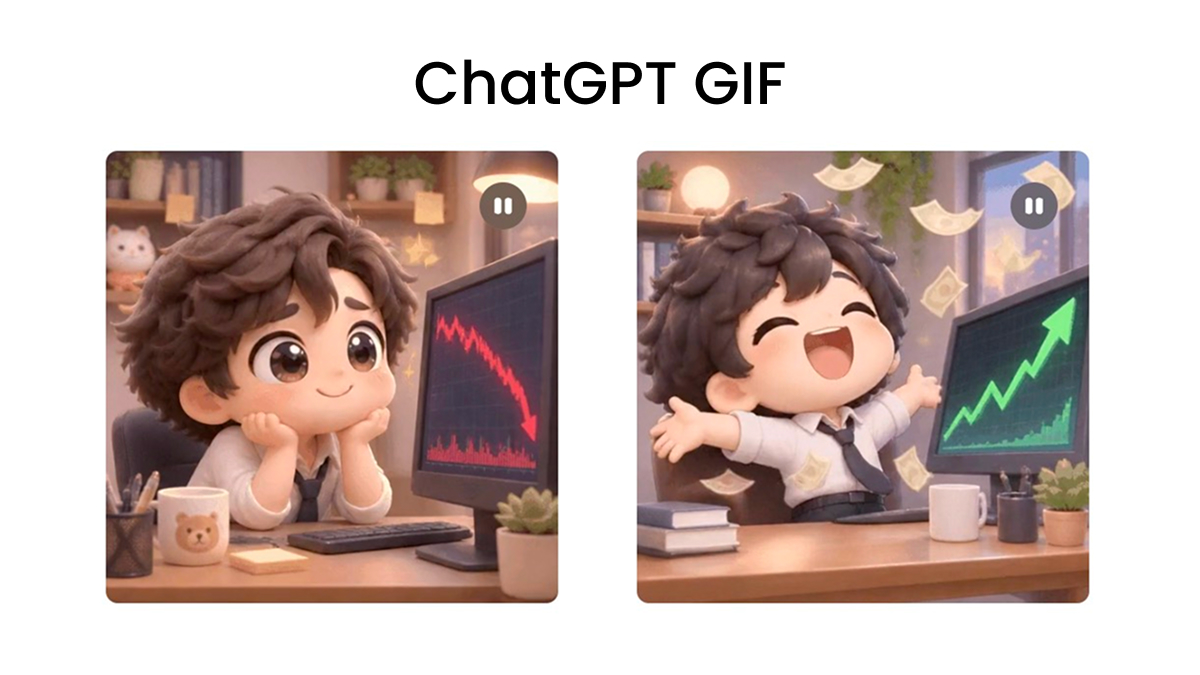
When GIF creation is available on your account, ChatGPT can create a looping GIF from a text prompt or still image. Describe the movement, refine the result in conversation, and check the complete loop before sharing. GIF availability is rolling out separately from general ChatGPT Images access.
ChatGPT can create animated GIFs from a text prompt or a still image when GIF creation is available on your account. You can describe the movement, refine the result through conversation, adjust playback speed, and save or share the finished GIF.
ChatGPT Images 2.6 is available across subscription tiers, but GIF creation is still rolling out. Having access to ChatGPT Images does not necessarily mean GIF creation is enabled on your account. This guide walks you through both creation methods, with prompt examples, practical use cases, and tips for checking your GIF before sharing.
Can ChatGPT Make Animated GIFs?
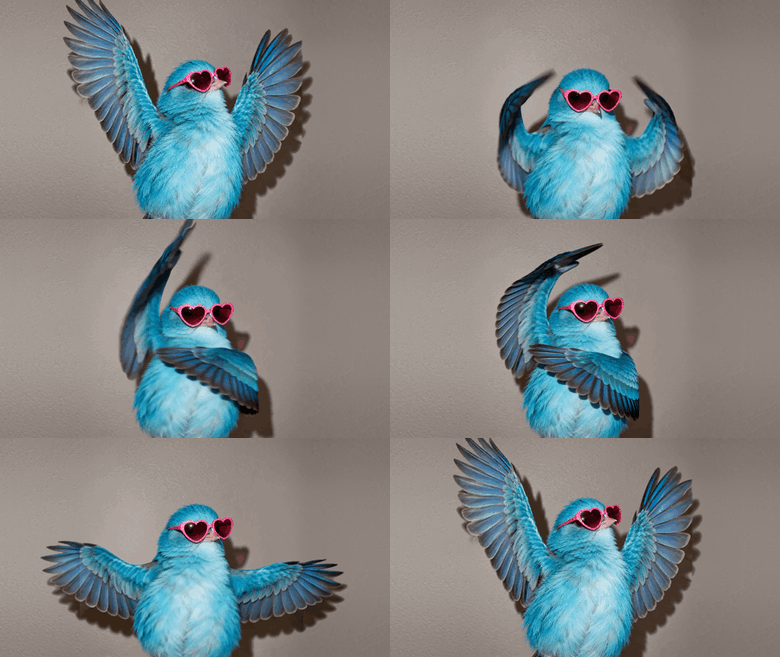
Yes. ChatGPT's native GIF creation can turn a text description into a looping animation or animate a still image you upload. The feature is rolling out, so you may not have access yet. ChatGPT Images is the broader image creation and editing experience; GIF creation is one capability within that experience.
| Workflow | Best for |
|---|---|
| ChatGPT GIF creation | Creating animations from prompts or still images and refining them through conversation |
| Frame-by-frame animation | Drawing or adjusting individual frames for precise motion |
| Dedicated GIF editor | Editing timelines and controlling dimensions, compression, and export settings |
How to Make a GIF in ChatGPT from a Prompt
If GIF creation is available on your account, you can start with a simple description and add detail about the movement and visual style.
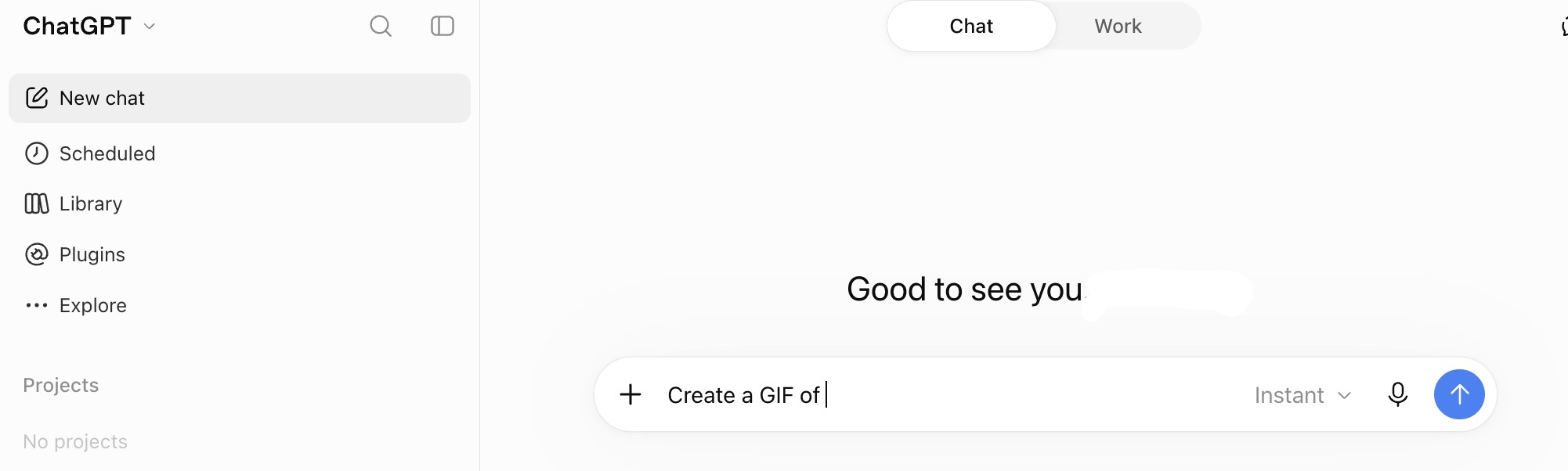
- Open ChatGPT and start a conversation. Ask for a looping GIF by describing the subject and movement. If you see an Images entry in your interface, you can also use it to access ChatGPT's image creation experience.
- Ask for a looping GIF. Describe the subject, what should move, and the setting or style you want.
- Send the prompt and preview the result. Watch the full loop, including the transition from the end back to the beginning.
- If something needs work, describe the change in the same conversation. For example, if the cat moves too quickly, ask ChatGPT to slow down the paw movement while keeping the camera and character design unchanged.
Start with an idea such as:
Create a looping GIF of a cat waving.
If the result needs more direction, try a more specific prompt:
Create a looping GIF of a cute orange cat slowly waving one paw. Keep the camera fixed, maintain the same character design, and use a simple pastel background.
The second prompt makes the motion, camera, character, and background clearer. It does not guarantee a seamless loop or an exact number of frames. If the transition looks abrupt, ask ChatGPT to reduce the movement and make the final position closer to the starting position. Then preview the full loop again.
How to Turn a Still Image into a GIF with ChatGPT
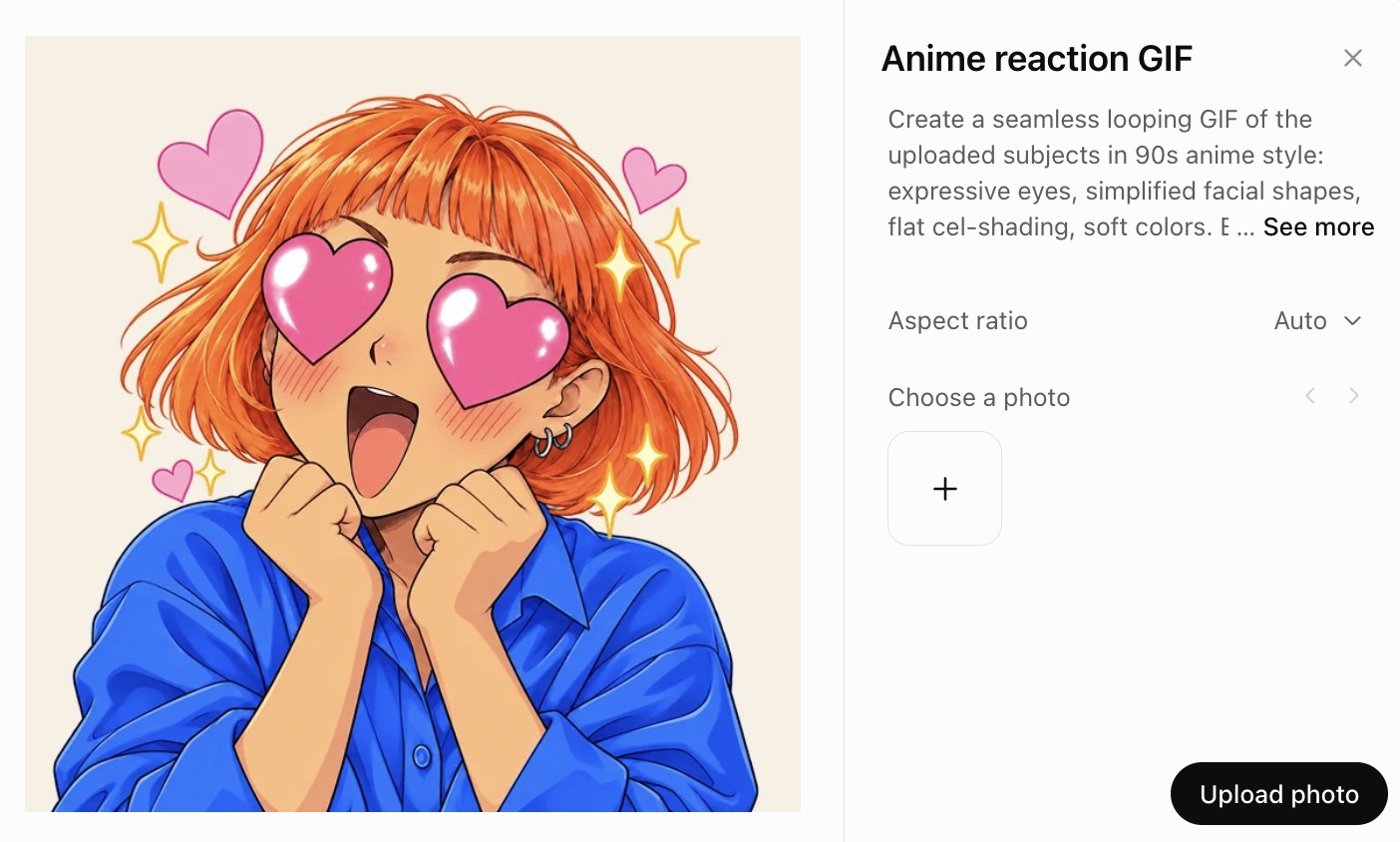
You can also upload a still image and ask ChatGPT to animate it. This is useful when you already have a character, illustration, or product photo that should guide the result.
- Open a conversation and upload the still image.
- Say which part should move and what should stay unchanged. Ask for a looping GIF.
- Preview the result from beginning to end. Check the subject and background throughout the animation.
- Ask for a focused adjustment if needed, such as less movement or a fixed camera.
For a product photo, you could try:
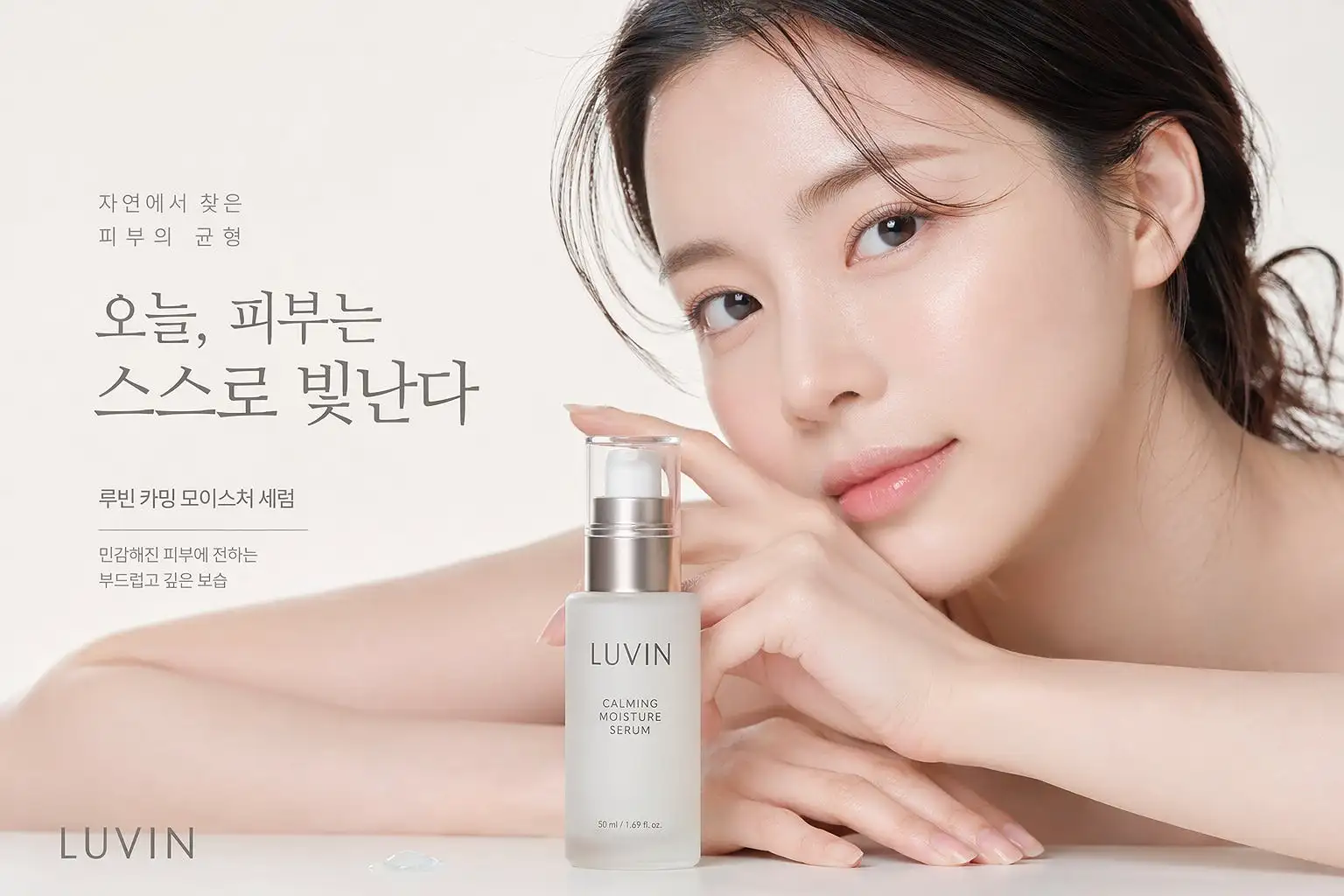
Animate this product photo as a looping GIF. Keep the bottle, cap, label, logo, and camera angle unchanged. Add a subtle moving light reflection in the background while keeping all packaging text readable.
Use this as a starting point, then compare the GIF with the original product image. Inspect the shape, color, logo, and label throughout the loop. A clear prompt can reduce unwanted changes, but it cannot guarantee that every detail will remain exact. Correct any inaccuracies before using the GIF in a product listing or branded marketing campaign.
Important limitation: ChatGPT can animate a still image, but OpenAI says it cannot edit an animated GIF that you upload. To start a new animation, use a still image as the input. To modify an existing animated file, use a tool that supports GIF editing.
How to Refine, Adjust, and Save a ChatGPT GIF
Edit the GIF through conversation
After ChatGPT creates a GIF, describe the change you want in the same conversation. For example, ask it to make the motion gentler or keep the background still. Review the new result for changes to details you wanted to preserve.
Adjust GIF playback speed
Select the generated GIF to open it, then use the playback speed control to change how quickly the animation plays. Choose a speed, then watch the whole loop again. Available controls and their appearance may vary with your interface.
Save or share your GIF
Open the GIF and use the available save or share control. After saving, open the downloaded file on your device to make sure it plays as expected. If you plan to upload it elsewhere, check the destination's file and animation requirements first.
Before sharing, check:
- Loop: Does the ending return to the beginning without an obvious jump?
- Motion: Does the movement look natural at the selected speed?
- Consistency: Do the subject, camera, and background stay as intended?
- Text: Are any labels, logos, and words still readable?
- Export: Does the saved GIF play correctly in the place you intend to use it?
What Can You Create with ChatGPT GIF Generator?
The following prompts are starting points for different GIF use cases. Results may vary, so review each animation before publishing or sharing it.
Reaction GIFs and Memes
Input: A text description of an original character.
Prompt: “Create a looping GIF of a cheerful green frog giving a small thumbs-up. Keep the character and background consistent.”
Use case: A short reaction animation. Quality check: Look for changes to the hand, face, or background between movements.
Animated Social Media Content
Input: A still illustration for a social post.
Prompt: “Animate the leaves in this illustration with a gentle breeze. Keep the lettering and the rest of the scene still, and create a loop.”
Use case: A subtle animated post. Quality check: Check that the text stays readable and the movement does not distract from the message.
Product GIFs for Ecommerce
Input: A clear still photograph of a product.
Prompt: “Create a looping GIF from this product photo. Keep the product shape, label, and camera angle unchanged while a soft highlight moves across the background.”
Use case: A product visual with restrained motion. Quality check: Compare the product, logo, and packaging text with the source image at several points in the loop.
ChatGPT GIF Generator Limitations and Troubleshooting
As of November 11, 2026, GIF creation is rolling out. Check current availability before publishing.
| Issue | What to do |
|---|---|
| GIF creation is not available | Check whether the feature has rolled out to your account |
| An uploaded animated GIF cannot be edited | Use a still image to start a new GIF or use a dedicated editor |
| The loop looks unnatural | Simplify the movement and adjust the ending |
| The subject or text changes | Specify the details that should remain stable |
| You need frame-by-frame control | Use animation software that supports individual frame editing |
| You need specific export settings | Use an editor that supports the required dimensions and compression |
Start with a Simple Loop
When GIF creation is available on your account, start with a prompt or upload a still image, then describe one clear movement. Refine the result in conversation, adjust the speed, and check the saved animation before sharing. For product images, compare the shape, logo, and packaging text with the original throughout the loop.
Frequently Asked Questions
Is ChatGPT GIF creation available to everyone?
Is the ChatGPT GIF generator free?
ChatGPT Images is available across all subscription tiers, including Free. However, GIF creation is rolling out separately, and OpenAI has not specified a universal free GIF allowance. Check your account for current availability and usage limits.
Can ChatGPT make a GIF from a prompt?
Yes, if GIF creation is available to you. Ask for a looping GIF and describe the subject, movement, and visual style.
Can ChatGPT animate a still image?
Yes. Upload a still image and describe what should move and what should remain unchanged. Review the result for changes to important details.
Can ChatGPT edit an animated GIF I upload?
No. OpenAI says ChatGPT cannot edit an animated GIF you upload. It can, however, modify a GIF it created when you describe the change in the conversation.
Can I change the playback speed of a GIF in ChatGPT?
Yes. OpenAI says you can open a GIF created in ChatGPT and adjust its playback speed. The appearance of the control may depend on your interface.
Can I edit individual frames in ChatGPT?
OpenAI's current GIF instructions describe conversational changes and playback speed adjustment, but do not document a dedicated frame-by-frame editing interface. Use a frame editor if you need precise control over individual frames.
More Image and Animation Guides


Create product visuals with Designkit
Start with your product photo and explore new visual ideas with Designkit.