


Affordable AI Image Generation
Create images with Seedream 5.5 at competitive credit costs. Sign up for Designkit and get free credits to start creating.

Create images with Seedream 5.5 using text prompts or reference image in Designkit.
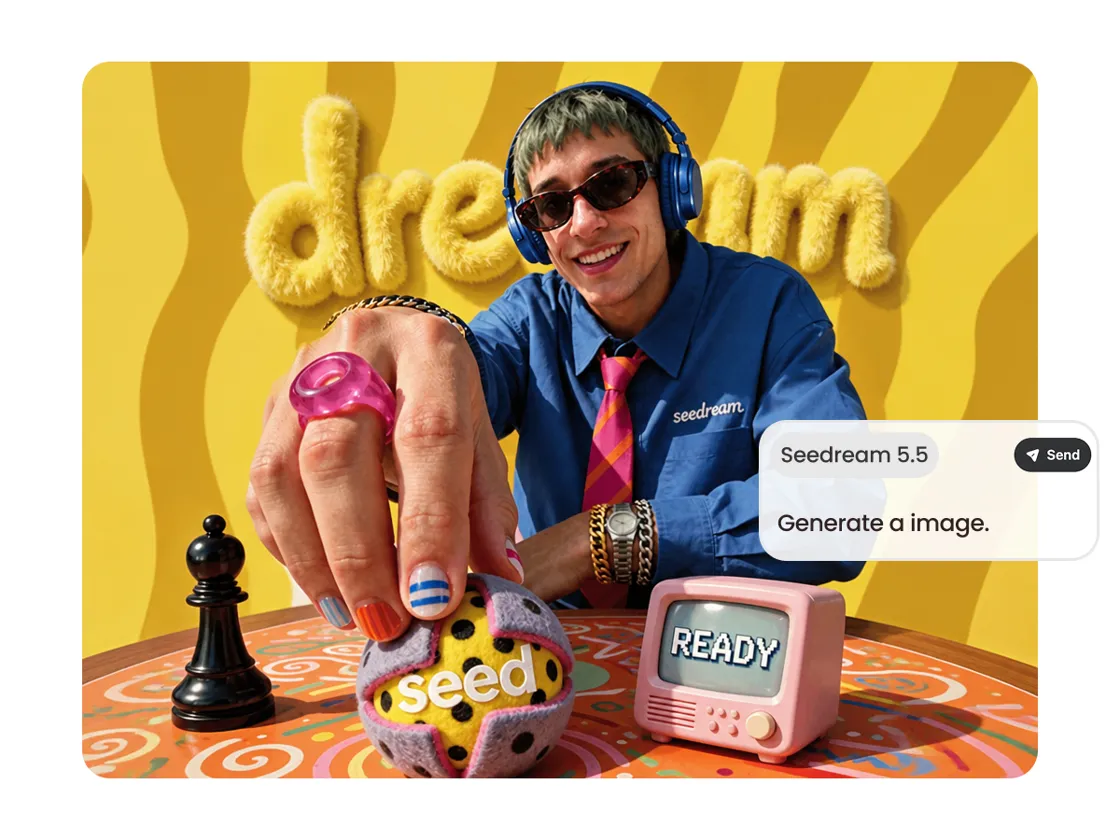
Open the Workspace home dialog and enter a prompt describing the image you want to create. You can also add a reference image to guide the visual direction.
Choose Image generation, then select Seedream 5.5 from the model options.
Select Send to generate your image. Then enter a follow-up prompt to explore another version or open Designkit's separate Edit image workspace for further editing.
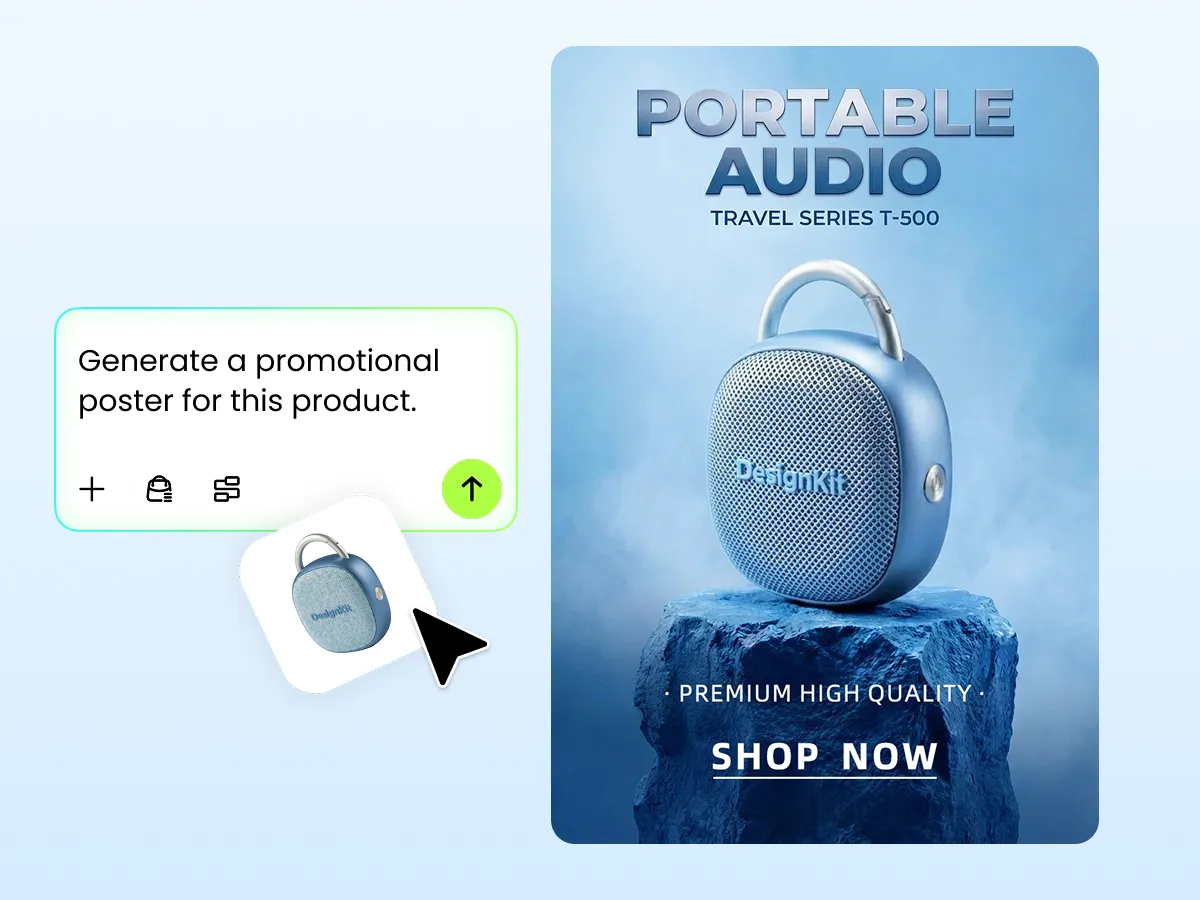
Text + image references
Combine text prompts with optional reference images to guide Seedream 5.5 in creating visuals that match your ideas and creative direction.

Targeted edits
Use follow-up prompts to refine specific details over multiple edits. Seedream 5.5 is designed to keep each change focused while preserving the rest of the image.
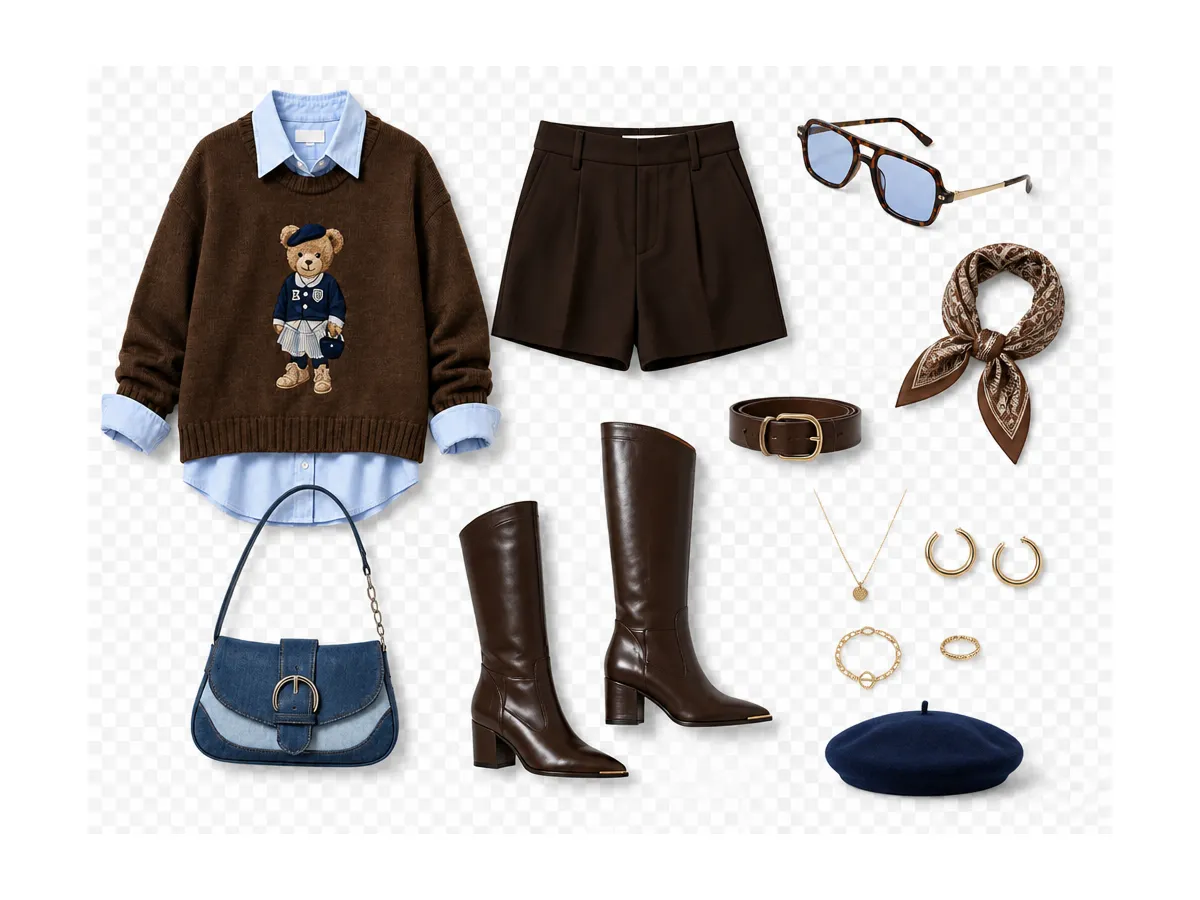
Transparent assets
Create transparent or semi-transparent visual assets for stickers, image cutouts, and other creative projects. Use them in product designs, marketing materials, and social media graphics.
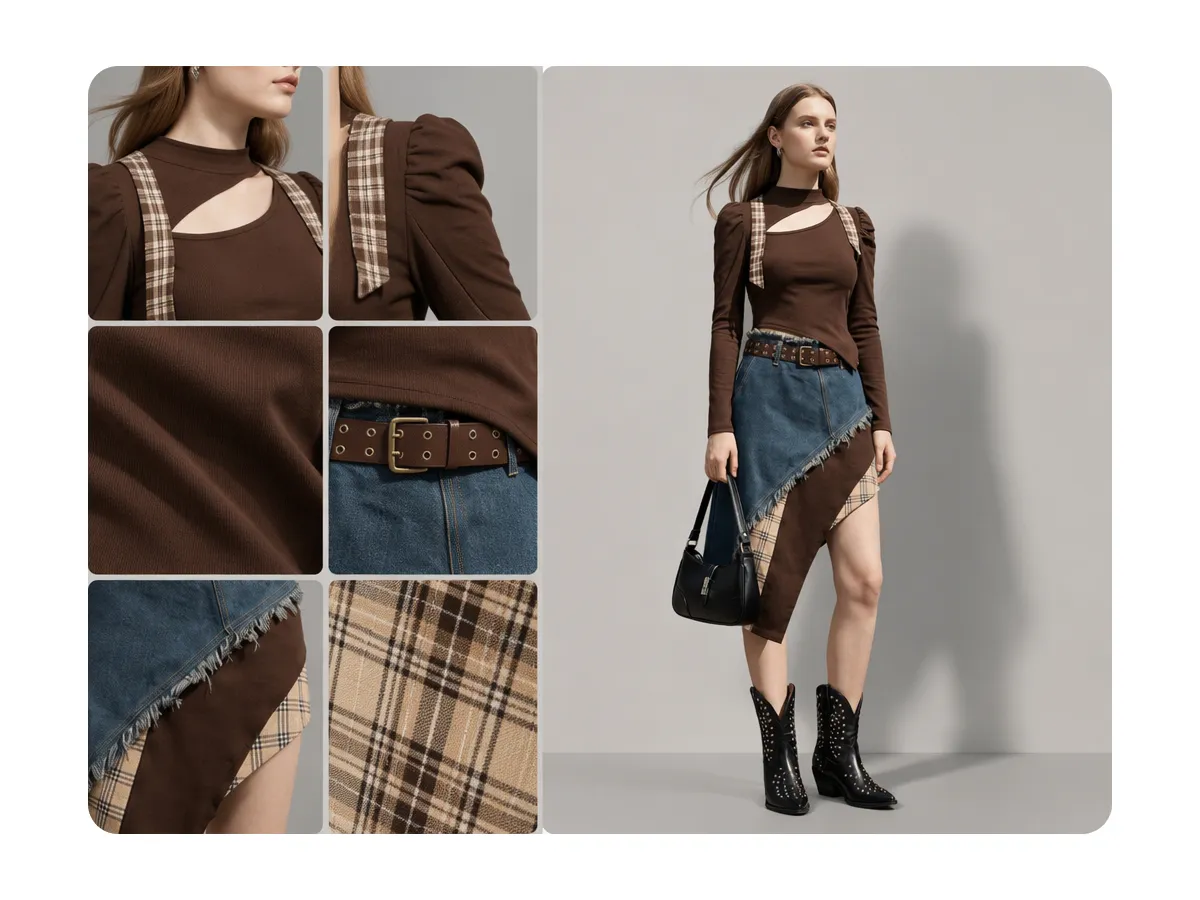
Natural light + texture
Explore image concepts with natural lighting, detailed textures, and realistic materials. Use prompts to shape the look and feel of your generated images.

Develop visual concepts for social media posts, content series, and promotional graphics. Explore different styles and compositions before finalizing your content.
Get more creative value with Seedream 5.5 in Designkit.
Create images with Seedream 5.5 at competitive credit costs. Sign up for Designkit and get free credits to start creating.

Access Seedream 5.5 directly in your browser. No software installation needed. Start generating images whenever inspiration strikes.

Refine your visuals, remove backgrounds, adjust images, and prepare creative assets for different platforms.

Generate with Seedream 5.5, then continue editing and refining your images in Designkit. Keep your creative workflow in one place.
Yes. Select Seedream 5.5 through the Image generation option in Designkit’s Workspace.
Open the Workspace home dialog, enter a prompt, and optionally add a reference image. Choose Image generation and Seedream 5.5, then select Send.
Seedream 5.5 creates images from text prompts and reference images. The model also supports transparent or semi-transparent backgrounds and focused edits across multiple rounds. Results depend on your prompt and inputs.
For model-led changes, send the image to Seedream 5.5 with a follow-up prompt. For separate editing controls, choose Edit image to open Designkit’s independent workbench.
Download images in JPG, PNG, SVG, PSD, or PDF format and choose a custom resolution in the download settings.
Image generation uses credits, and the cost depends on the selected tool. New users receive 20 credits when they first log in. Check your balance and the generation cost in Designkit before creating an image.
There is no download limit after generation. Image generation uses credits, so check your available balance before you start.
Turn your ideas into images with Seedream 5.5 in Designkit. Start creating online and refine your visuals with built-in editing tools.