
Enlarge Small Images to High-Resolution Sizes
Upload a low-resolution photo and enlarge it to higher resolution for listings, banners, and print. Get a bigger file without the stretched, pixelated look.
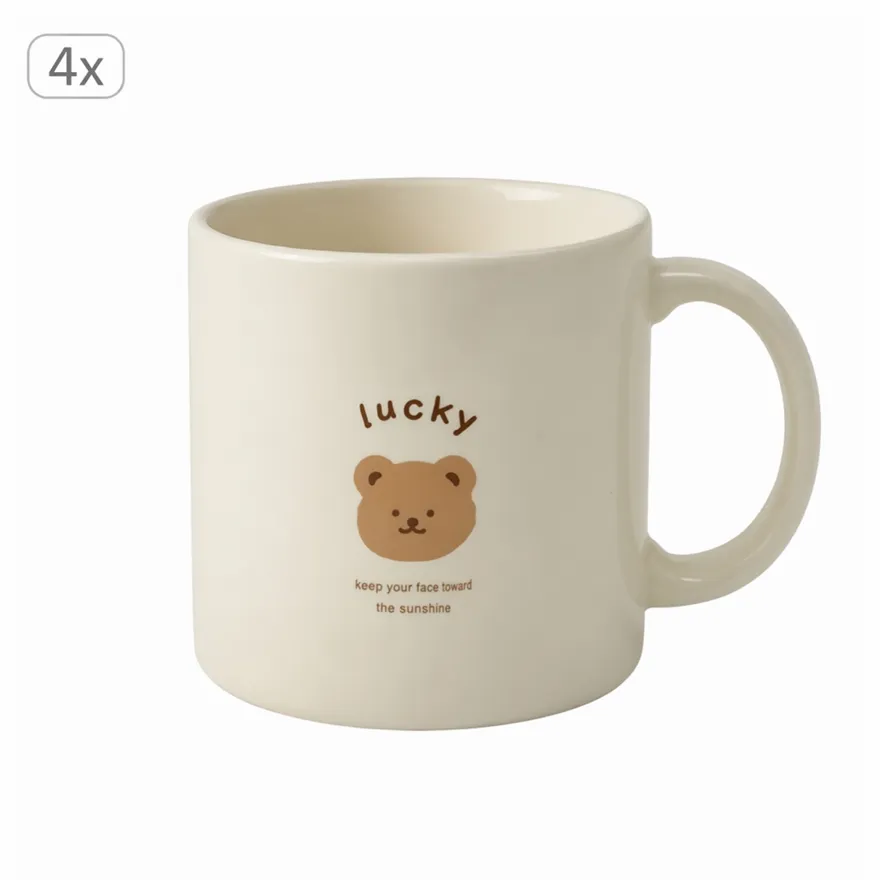
No image ready? Try one of these samples:




How to Enlarge an Image Online in 3 Steps
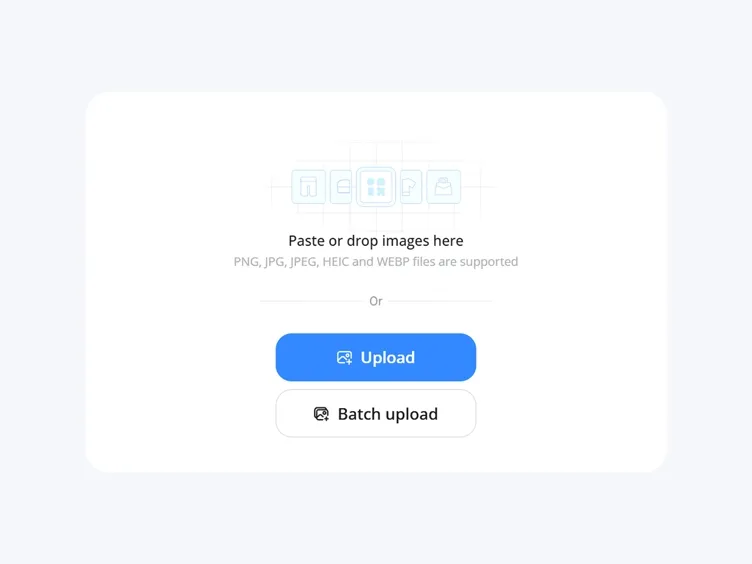
Upload Your Image
Add the photo you want to enlarge. JPG and PNG files are supported, including product images, portraits, artwork, and old photos.
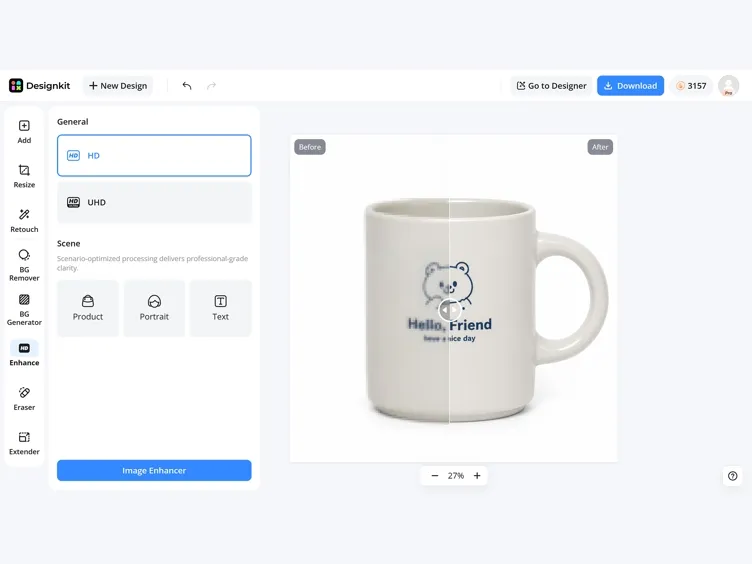
Choose Enlargement Size or Scale
Pick a target size, upscale factor, or marketplace preset. Designkit enlarges the image with AI instead of only stretching pixels.
Download Your Upscaled Image
Download a larger file ready for ecommerce listings, websites, posters, or social posts right away.
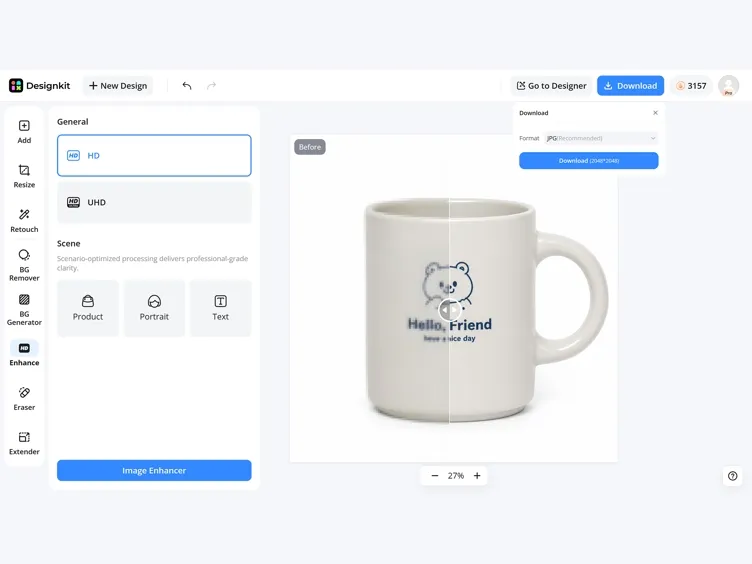
How Designkit AI Image Enlarger Keeps Photos Sharp
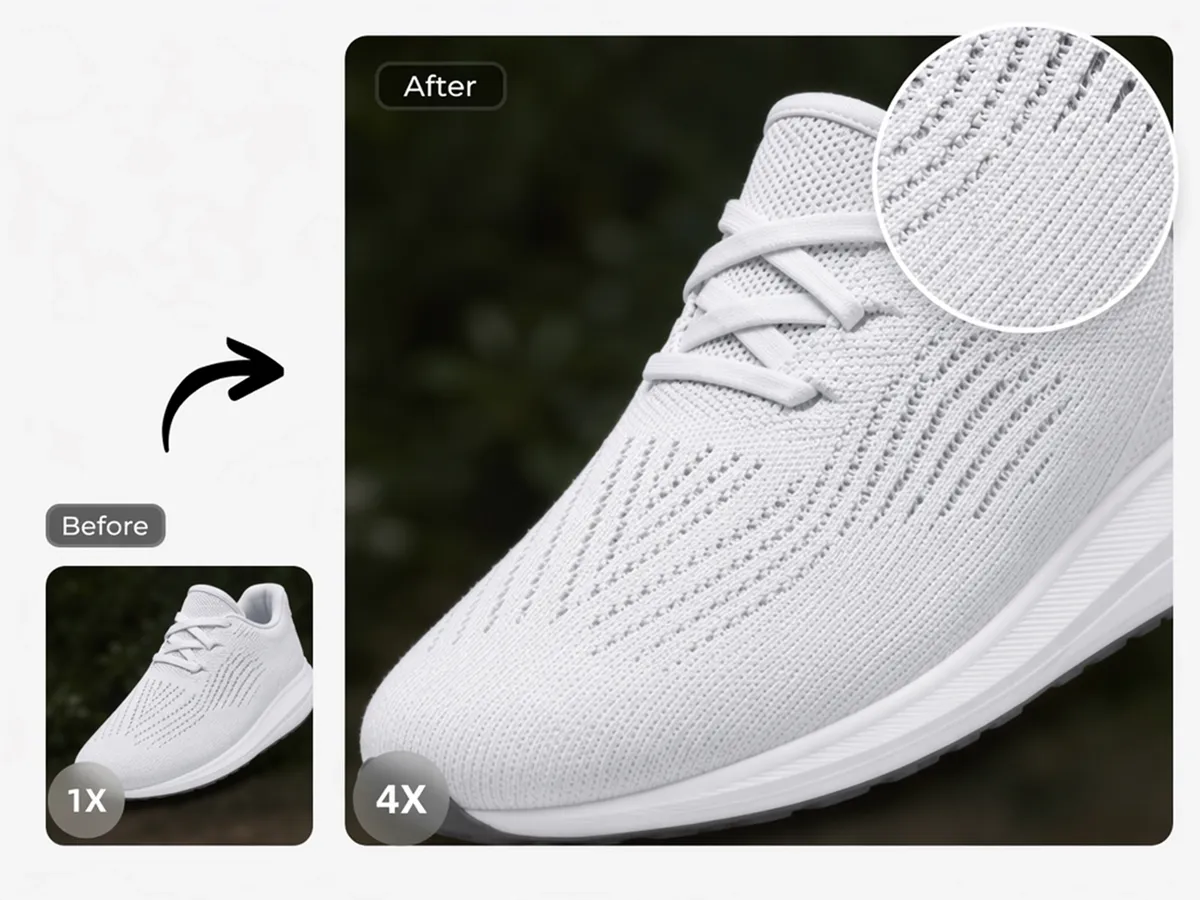
Rebuild Detail Instead of Just Stretching Pixels
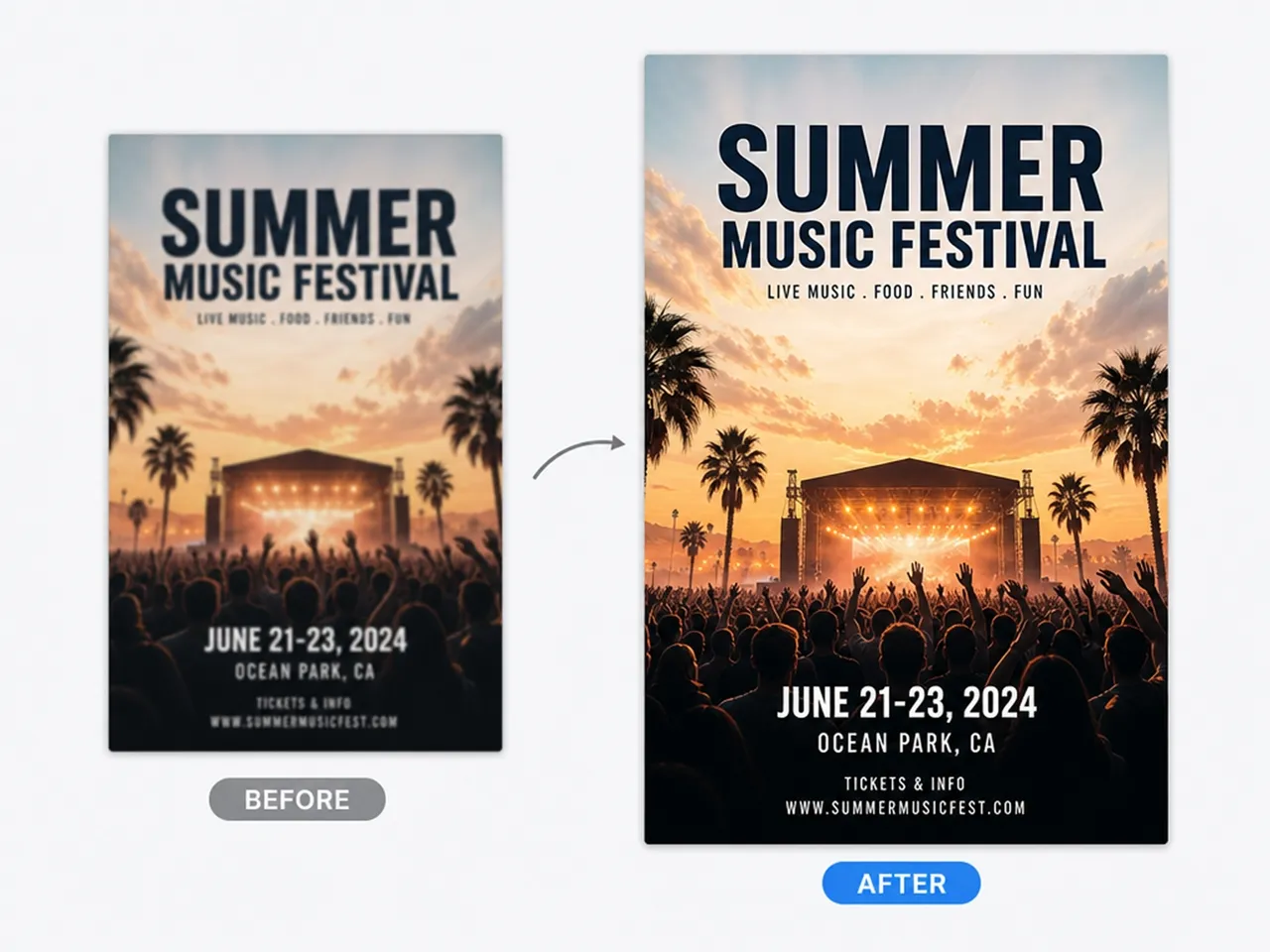
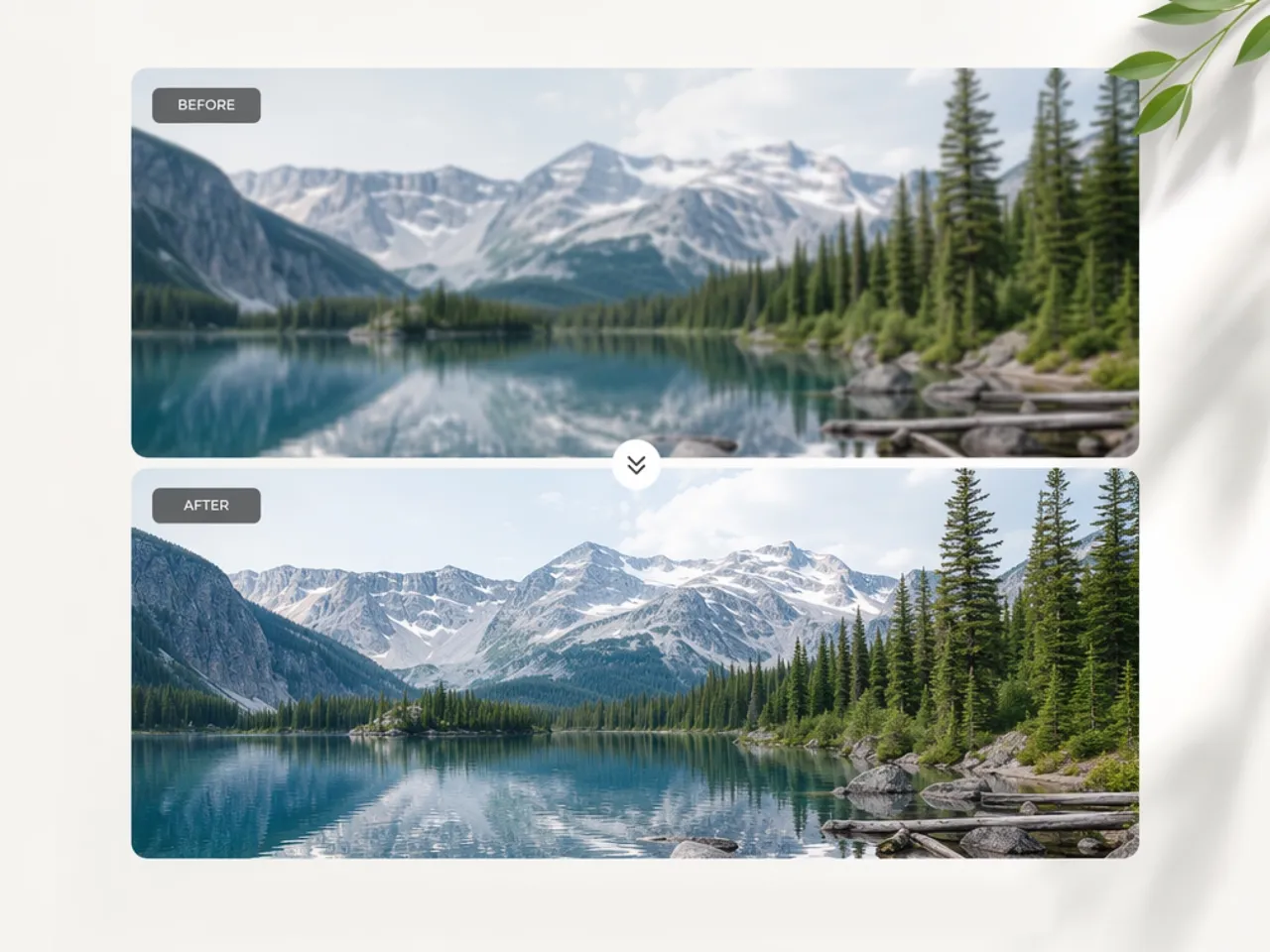
Standard resize stretches existing pixels and softens edges. This enlarger rebuilds detail as the image gets bigger, so text and product edges stay cleaner at 4x or 8x.
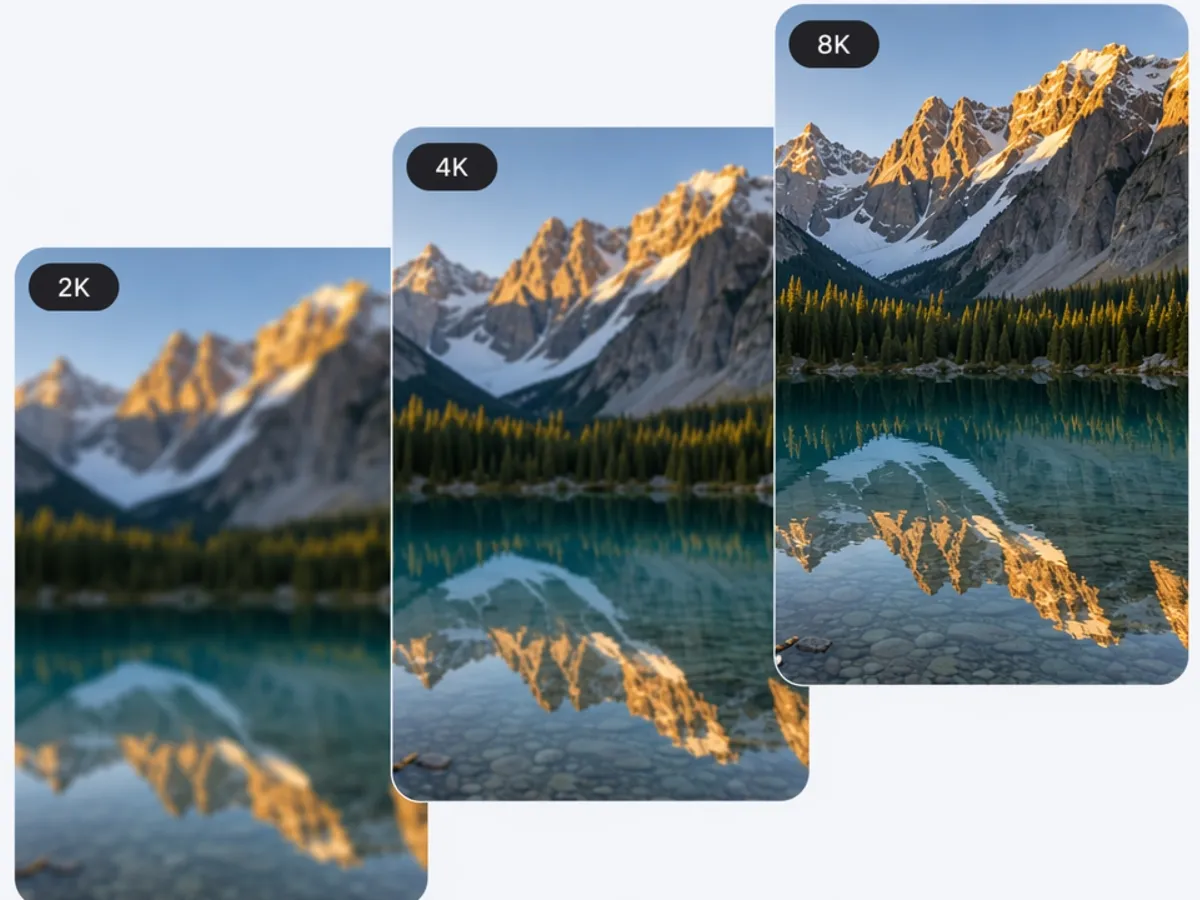
Enlarge Up to 4K or 8x in One Pass
Some tools cap out at 2k and make you run the same image through the process repeatedly to get further, degrading quality with each pass. Designkit enlarges up to 4k in one go, avoiding that compounding loss.
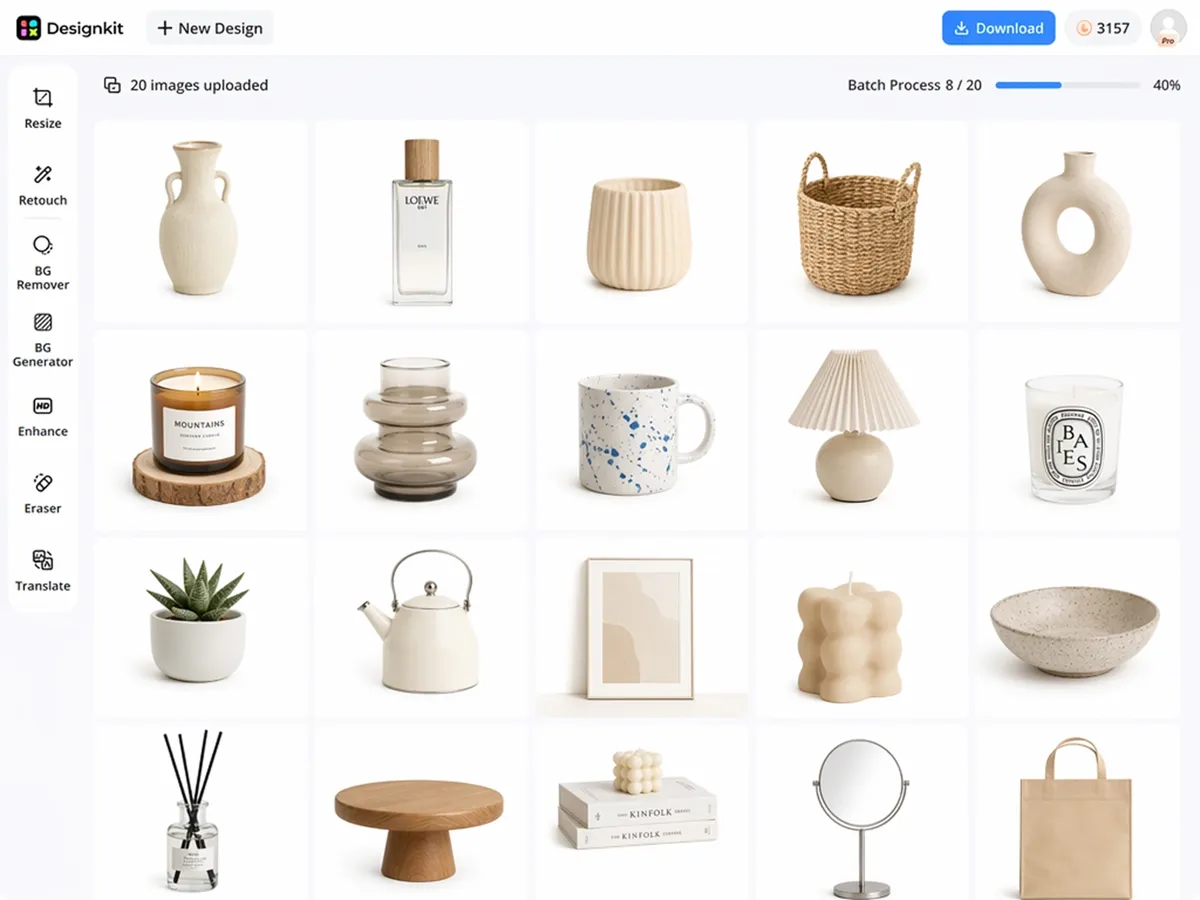
Batch Enlarge a Catalog Instead of One File
Upload up to 20 product photos to the bulk image enhancer and upscale them in one batch, instead of repeating upload, enlarge, and download for every SKU.
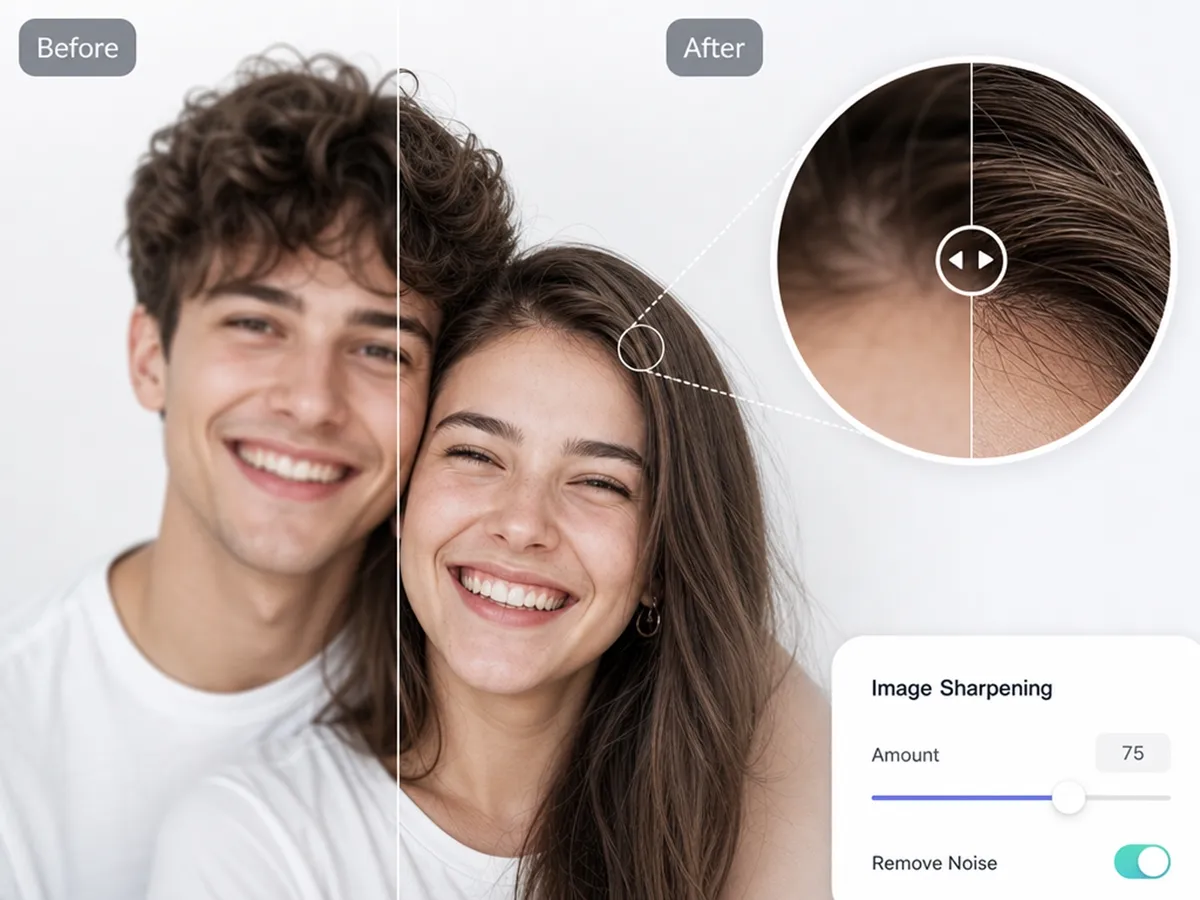
Sharpen Enlarged Images for Better Clarity
After enlarging your image, use the AI image sharpen tool to refine soft edges, enhance fine details, and improve overall clarity. It's an easy way to give upscaled photos a cleaner, more polished finish.
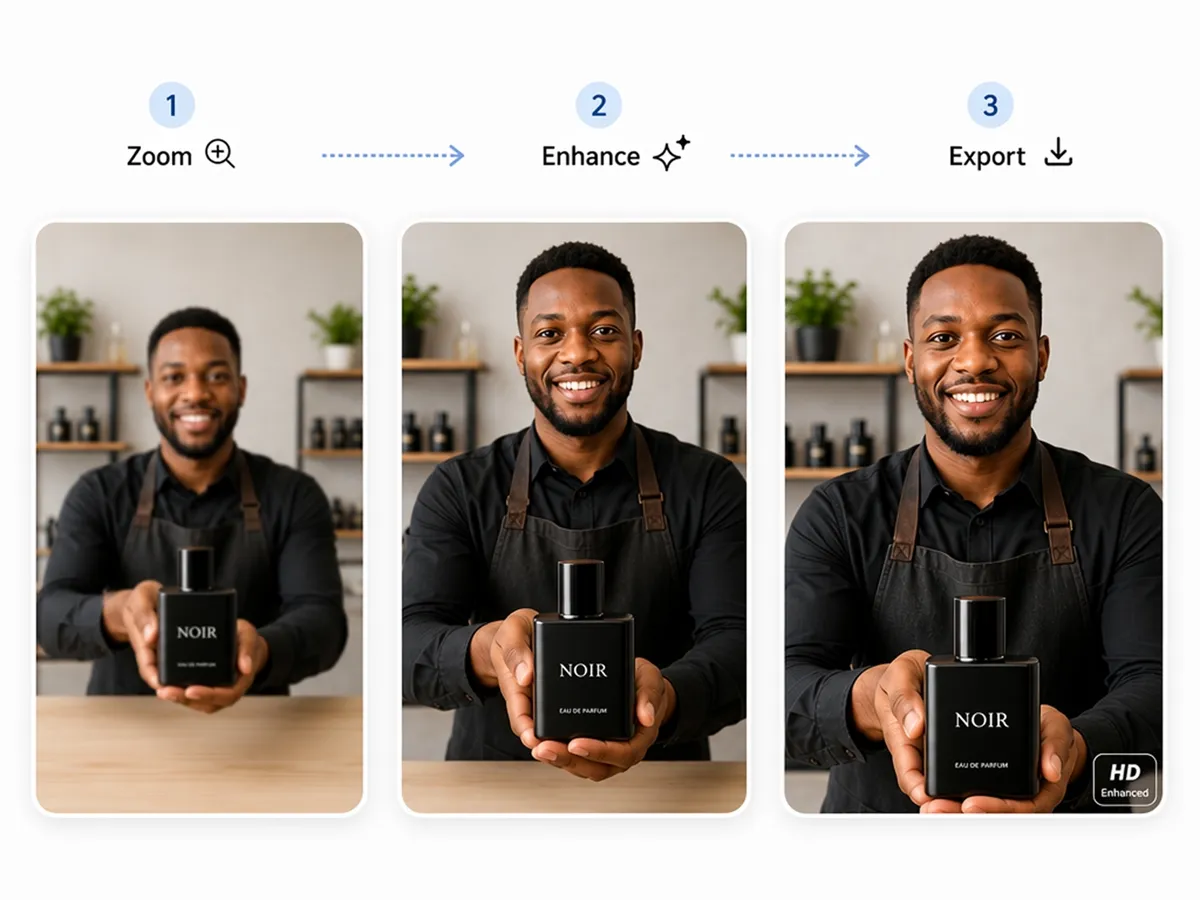
Give Enlarged Images a Final Quality Boost
Complete your editing workflow with the image enhancer. It refines details, improves sharpness, and enhances overall image quality, so your enlarged photos are ready to use.
Who Uses Designkit's Image Enlarger
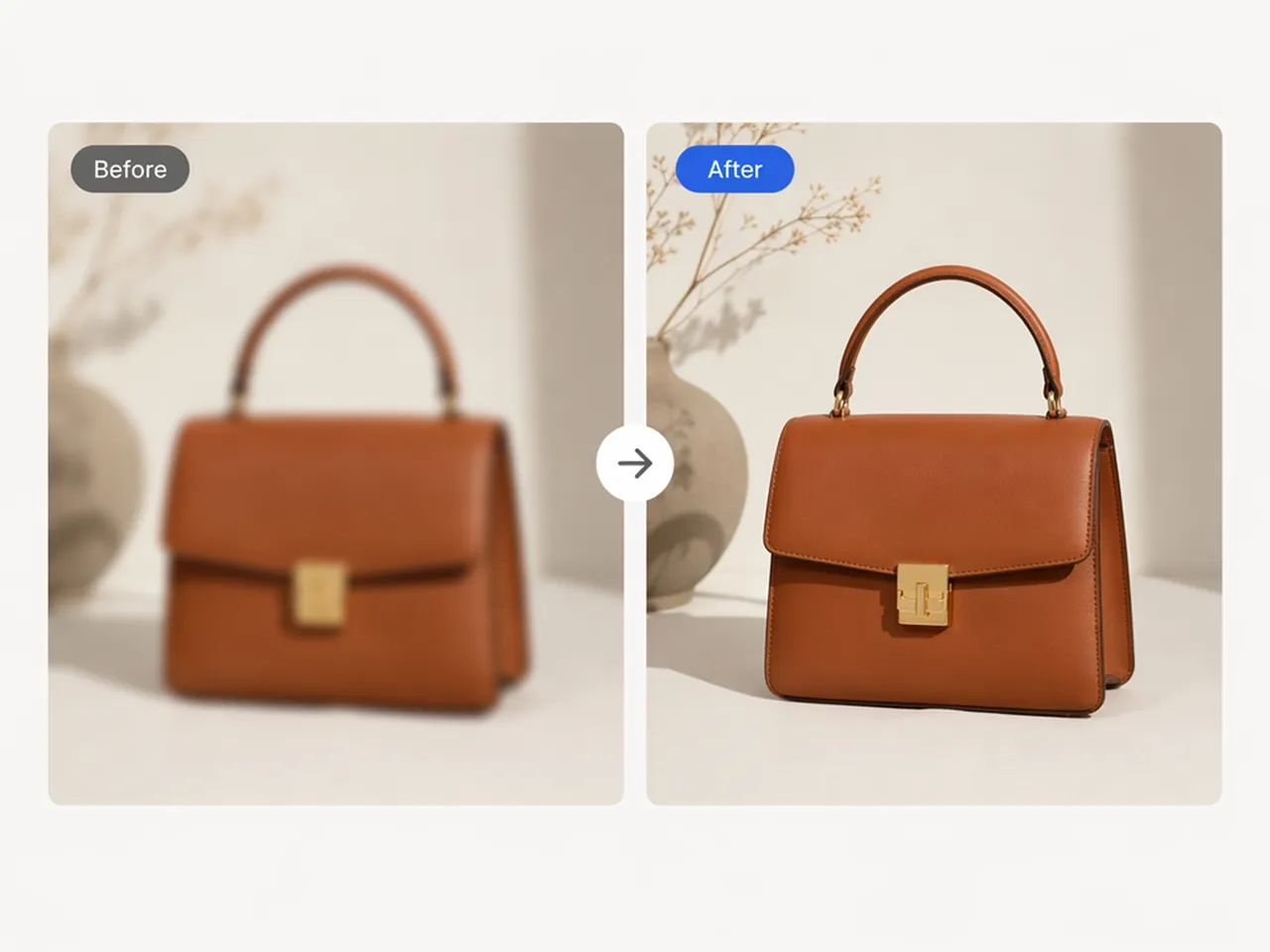
Enlarge Product Photos Without Soft Edges
Prepare product photos for online marketplaces by enlarging small supplier images while preserving the clarity shoppers expect when viewing product details.
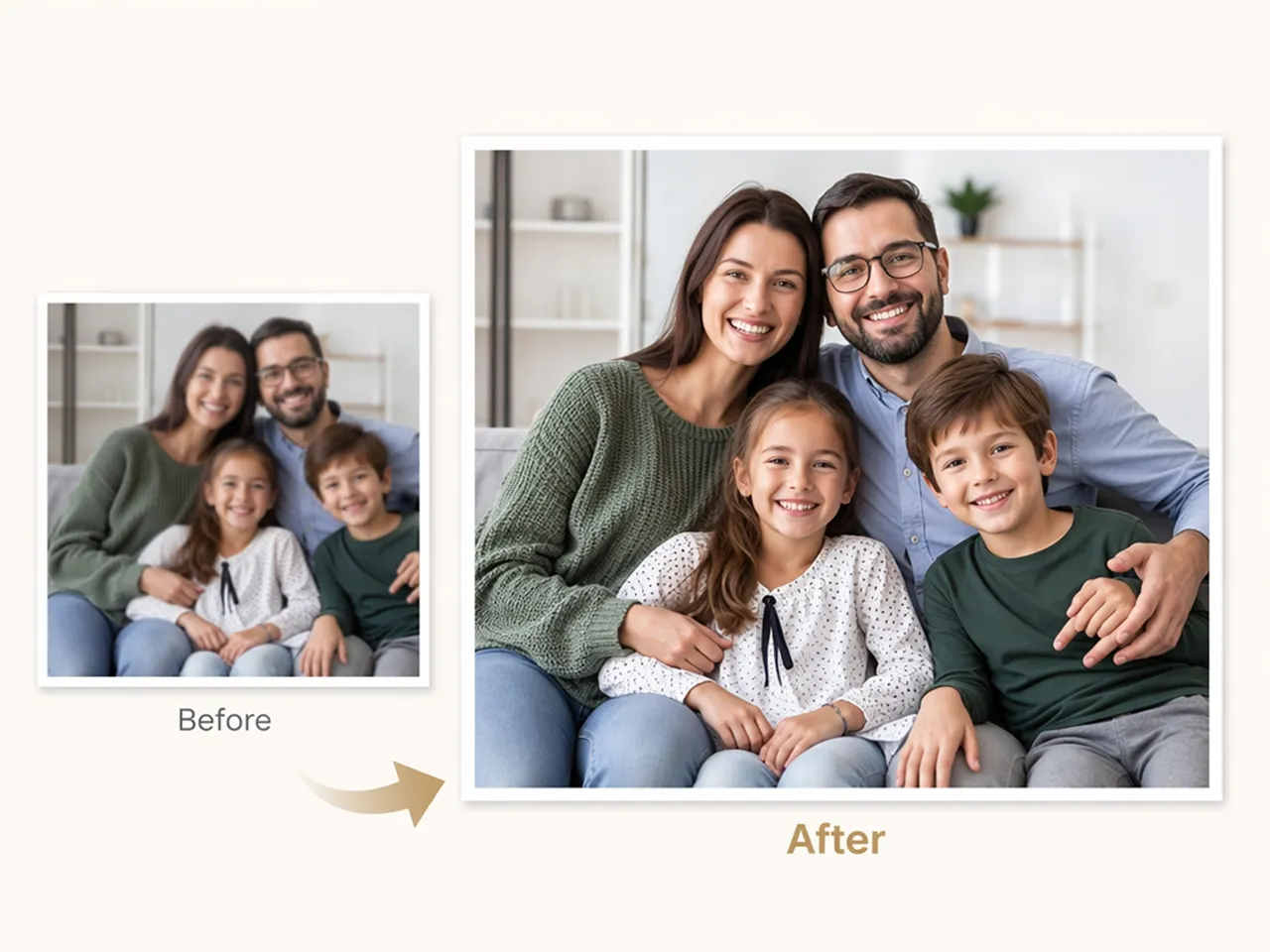
Why Choose Designkit's AI Image Enlarger

Enlarge Size, Not Just Stretch Pixels
Designkit enlarges images while helping maintain the clarity of text, edges, and fine details, producing larger images that are suitable for more demanding uses.

Batch and Marketplace Presets in One Flow
Process multiple images in one session, then prepare them for Amazon, Etsy, Shopify, print, or other output formats without repeating the same workflow for every file.

Start Free With Signup Credits
New users receive free signup credits, making it easy to test image enlargement with your own photos before choosing a paid plan.
Unlock More Creative Possibilities
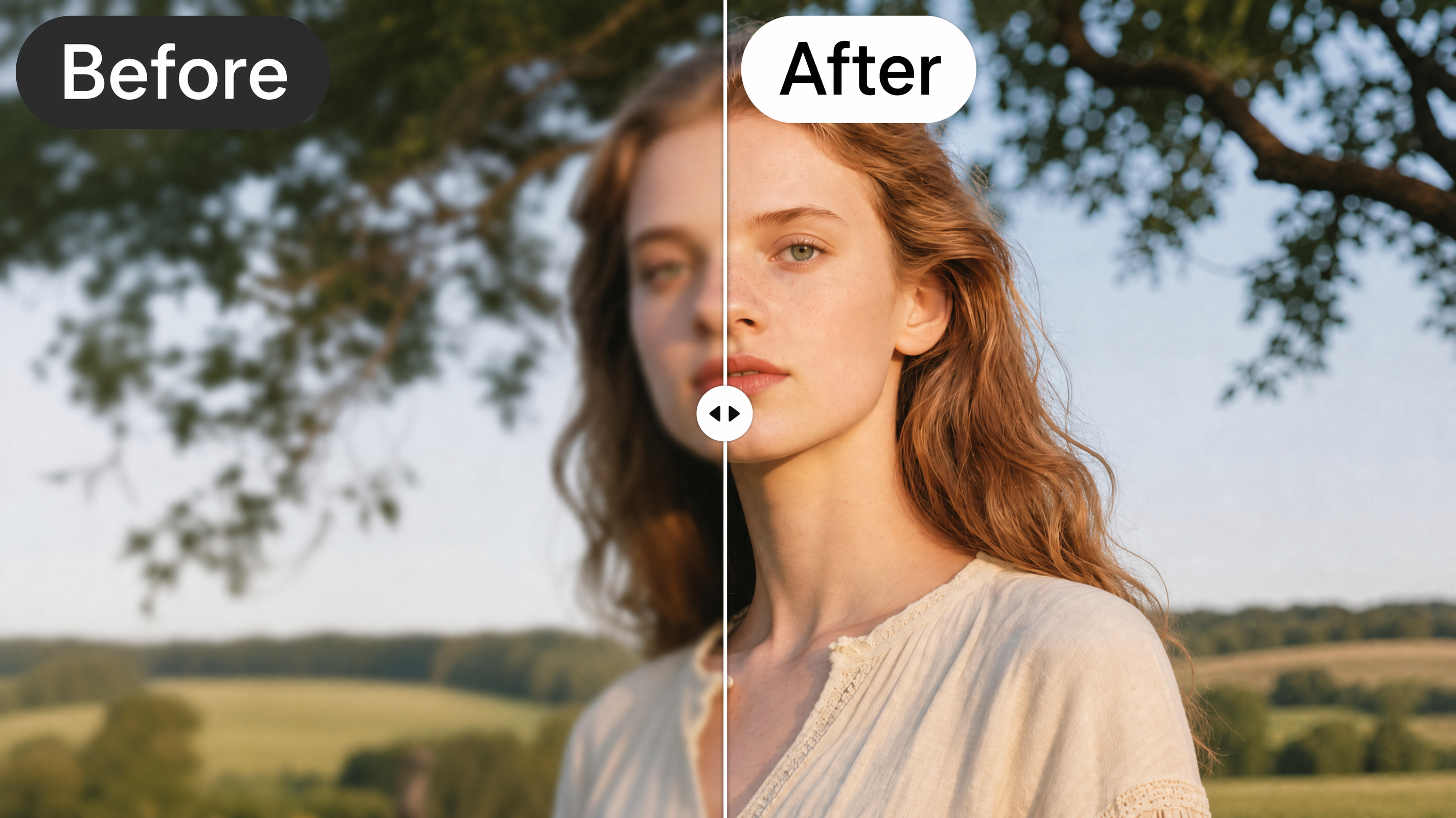
Image Enhancer
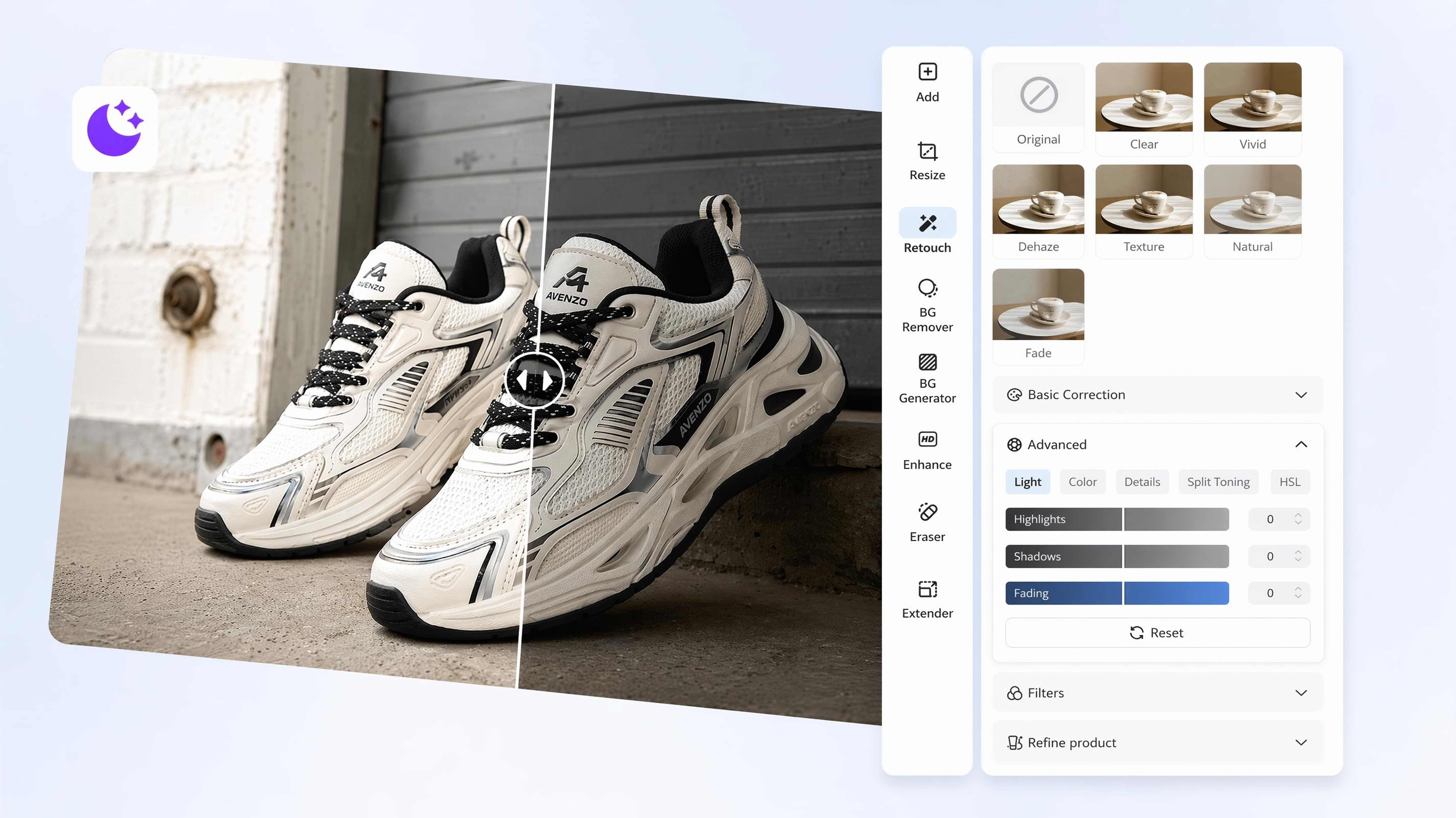
AI Image Brightener
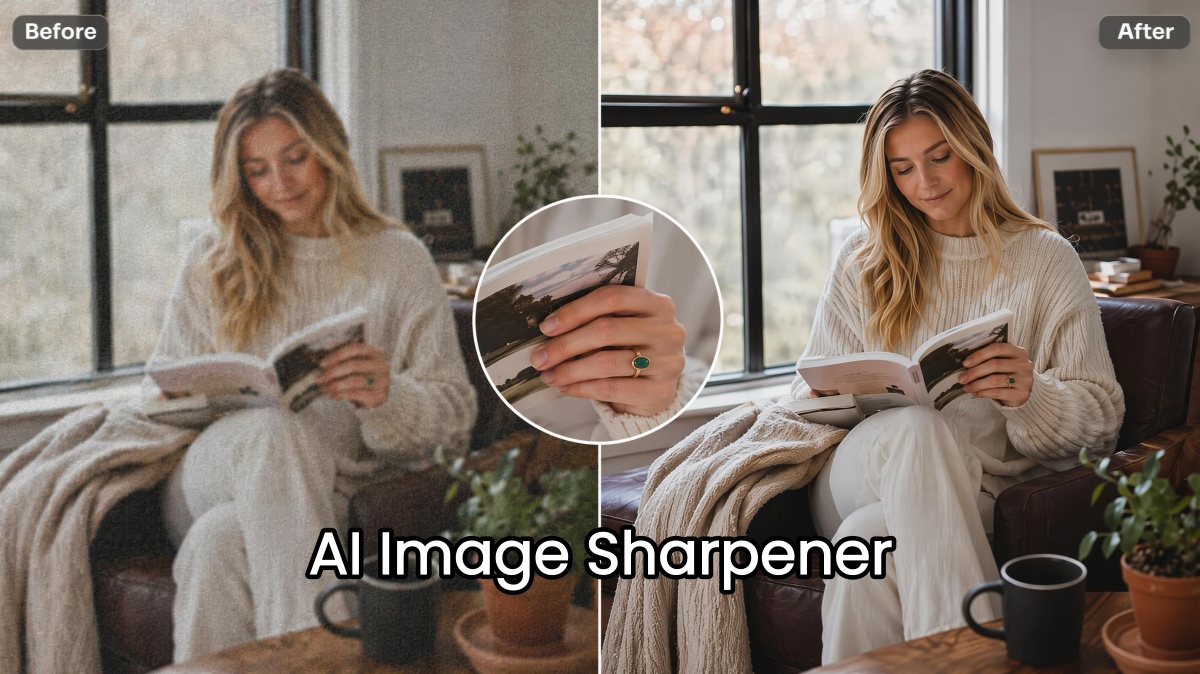
AI Image Sharpener
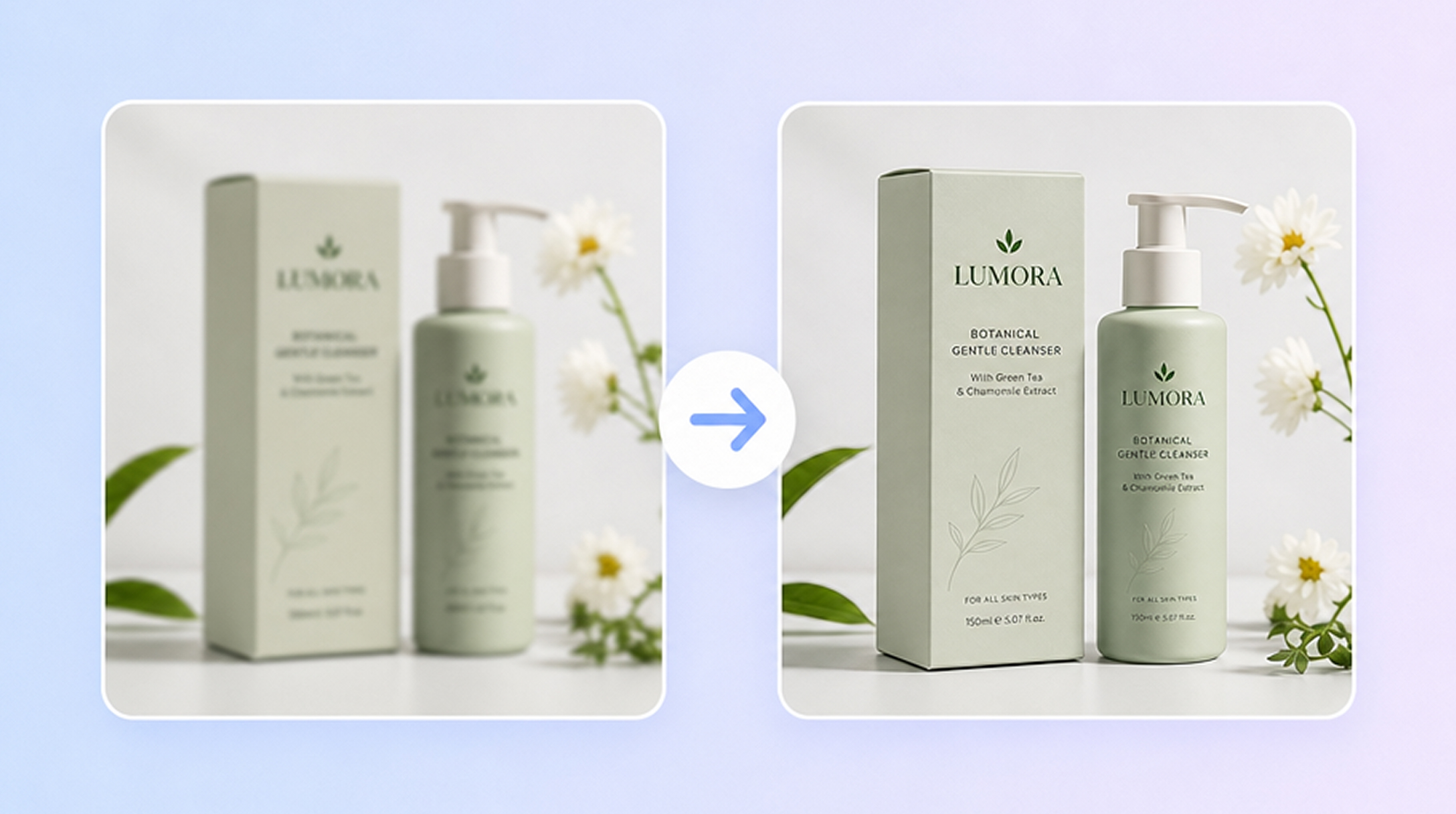
Unblur Image Online
Frequently Asked Questions
What is an image enlarger?
Can I enlarge an image without losing quality?
Yes, in many cases. Upload your image to Designkit, choose the enlargement size, and the AI enhances details while increasing the image resolution. The final quality still depends on the original image.
What is the difference between an image enlarger and an image enhancer?
An image enhancer improves details such as sharpness, lighting, or color while keeping the image at its original dimensions. An image enlarger increases the image resolution, creating a larger version that is better suited for high-resolution viewing or printing.
How much can I enlarge an image?
You can enlarge images by up to 4K resolution or 8×, depending on your needs. Upload your image, choose the output size, and Designkit generates a larger version in a single process.
Are upscaled images sharp enough for Amazon or print?
Yes, in most cases. Start with the highest-quality image available, then enlarge it in Designkit. The AI helps preserve details so the enlarged image is suitable for ecommerce listings, presentations, or print projects.
Is there a free AI image enlarger?
Yes. New users can sign up for Designkit and use the included free credits to test image enlargement before deciding whether a paid plan is right for them.
Upscale Your Next Photo to a Larger Size
Upload an image and download a bigger, listing-ready file in seconds. Start free with signup credits, no card required.

What People Enlarging Photos Actually Say
See the real experiences from our users.
Saved a Listing I Almost Had to Reshoot
A supplier sent me a product photo that was only 400 pixels wide, way under Amazon's minimum requirement. Enlarging it to 8x got it well past the requirement, and the listing went live the same day instead of waiting a week for a reshoot.
Brought Back a 1990s Family Photo
A scanned photo from the early 90s was too small and soft to print at anything bigger than a 4x6. Enlarging it let me finally print an 8x10 for a reunion display without it looking like a blurry, obvious blowup.
Printed a Banner Without It Looking Grainy
A client's logo file was only ever sized for a business card originally. Enlarging it to 300 DPI let us print a 3-foot banner that still looked sharp from a few feet away instead of visibly pixelated up close.
Fixed a Property Photo Before a Showing
A listing photo of a kitchen detail came in too small to feature well on its own in the listing. Enlarging it gave me a usable close-up shot instead of cropping it down to an even smaller, softer image.
Enlarged 20 Product Shots in One Sitting
I had twenty product photos from a supplier that were all too small for our new catalog launch. Batch enlarging them together took maybe ten minutes instead of the better part of an afternoon doing each one by hand.
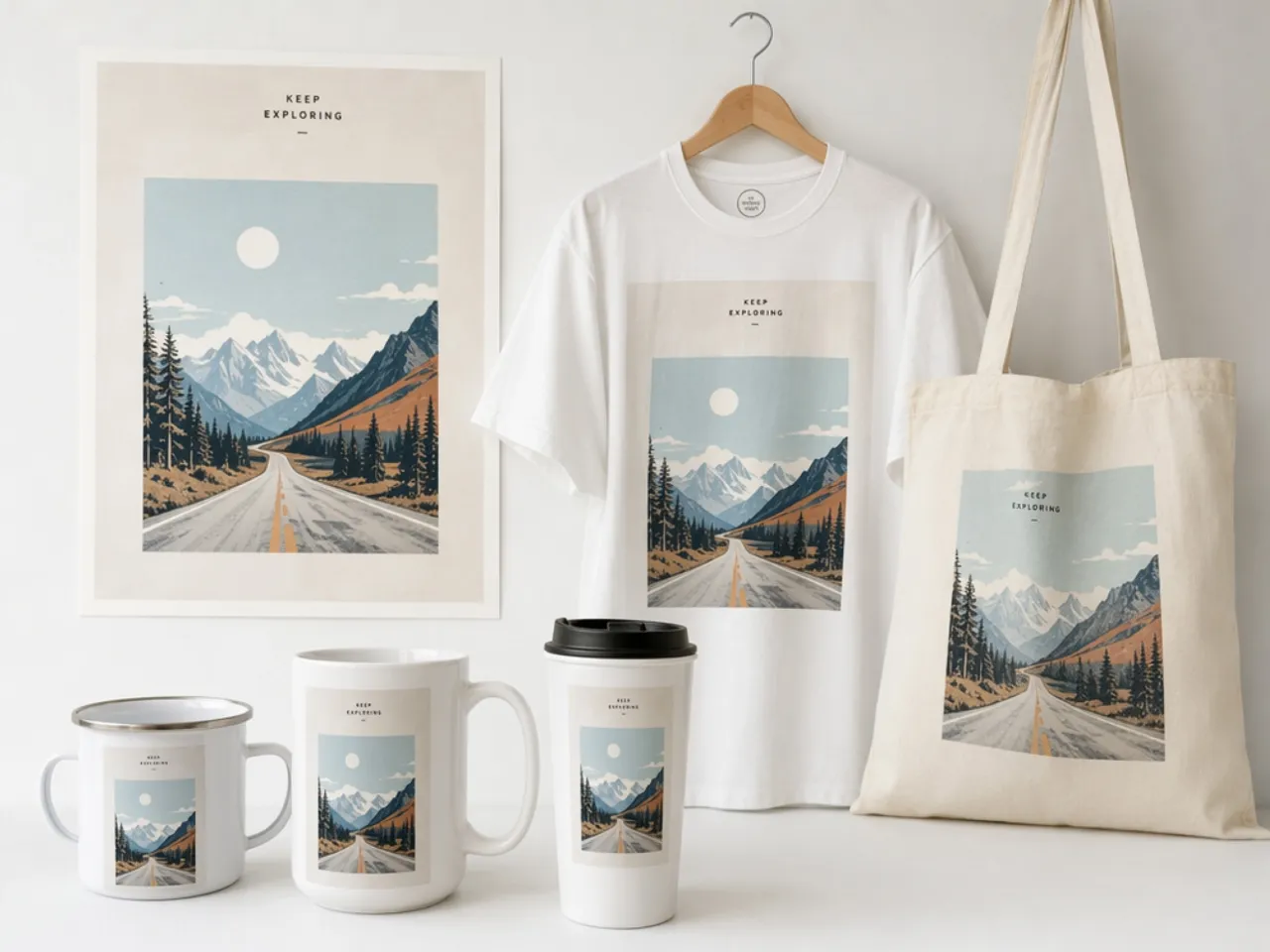
Scaled One File for Five Print-on-Demand Sizes
I only had one high-quality source image and needed it ready at five different print sizes for the same product. Enlarging it to cover the largest size meant I didn't have to track down or re-create separate files for each variant. FAQs